Logging in/Resetting Password in DocPort
This tutorial will guide you through logging into DocPort for the first time with a password reset process. These steps can also be used if you have forgotten your password.
If you are signing in for the first time or have forgotten your password, you will need to reset your password. Your username will be the e-mail address that Deringer uses to contact you.
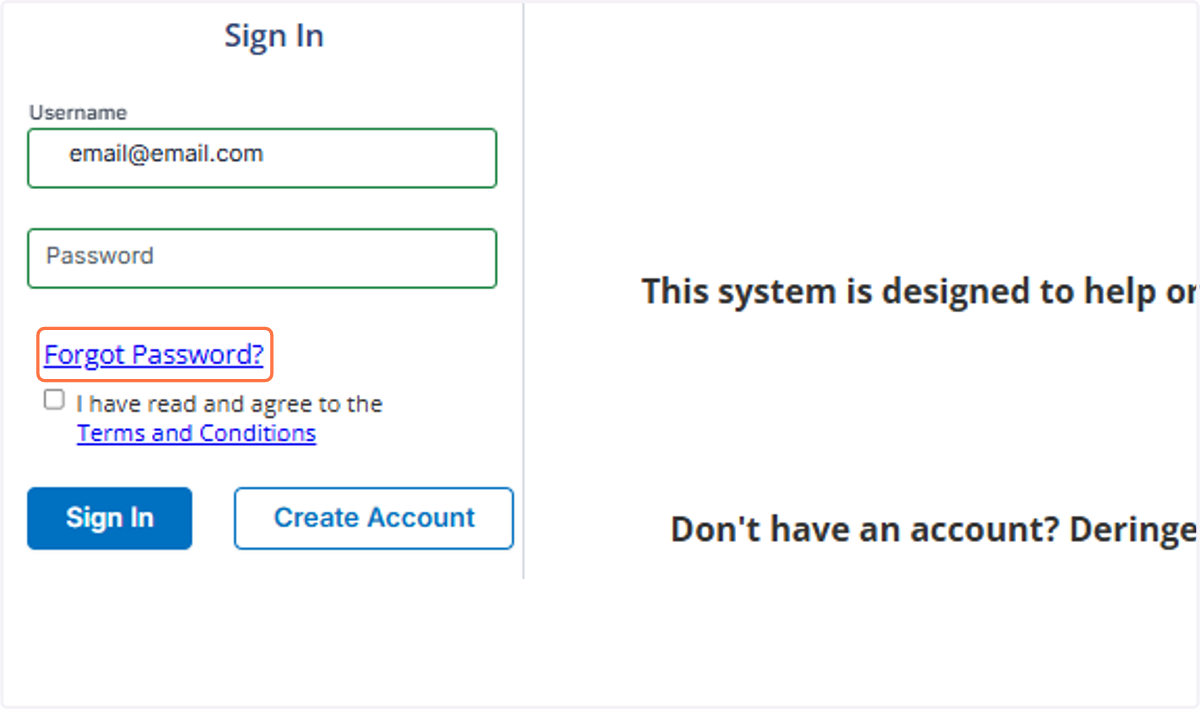
1. Click on Forgot Password?
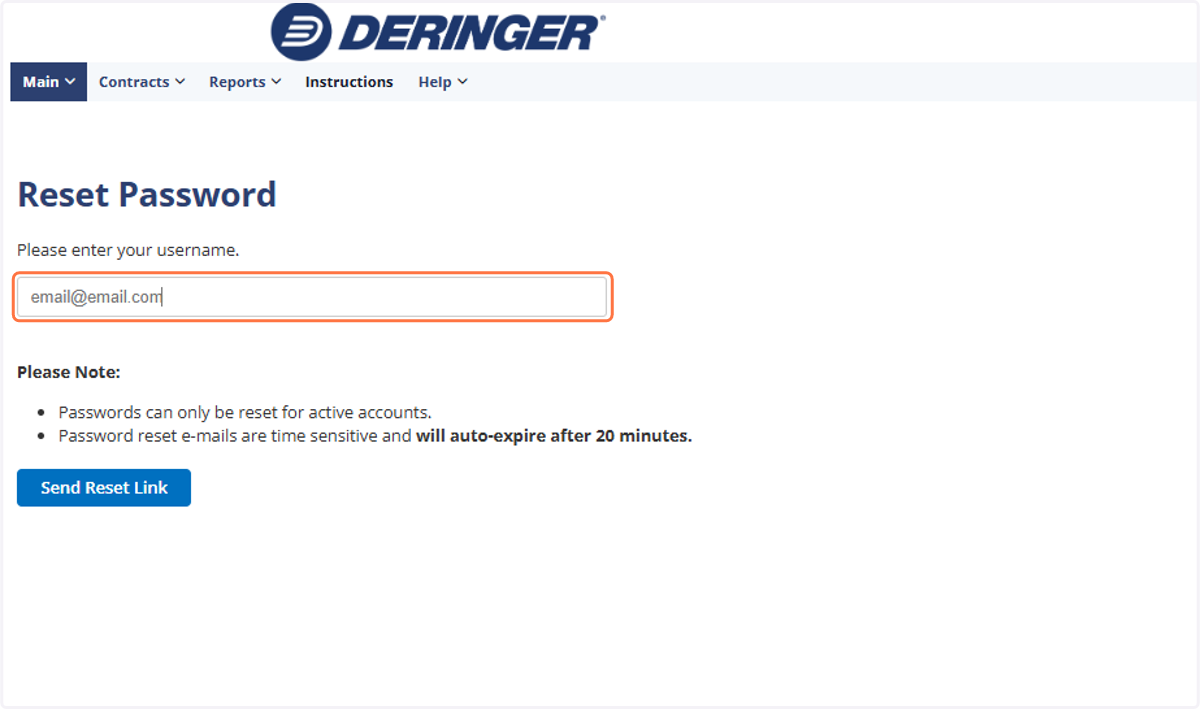
2. Type your e-mail address in the username field.
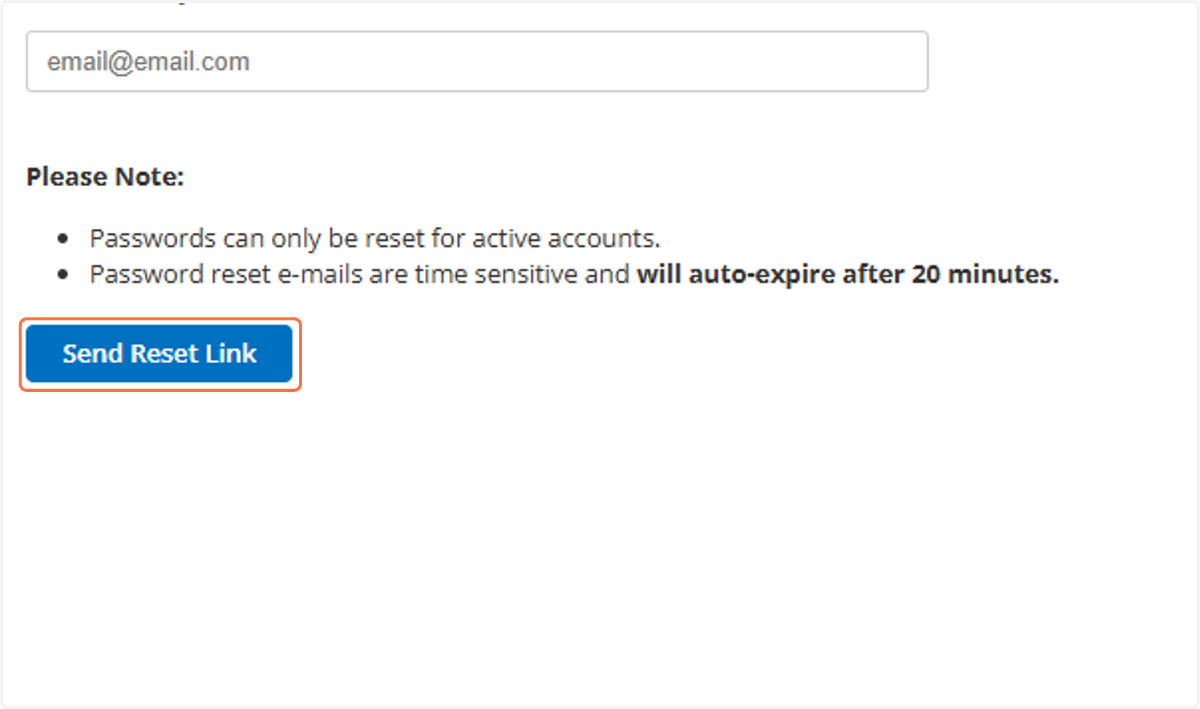
3. Click on Send Reset Link
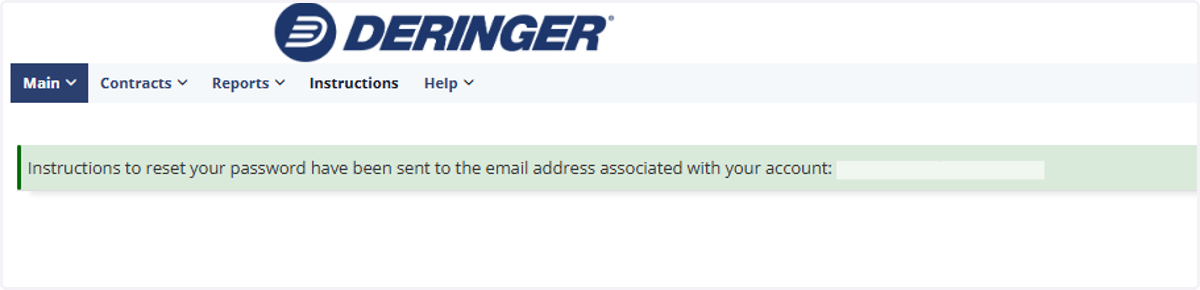
4. A message will appear on the screen that an email has been sent with Password reset instructions.
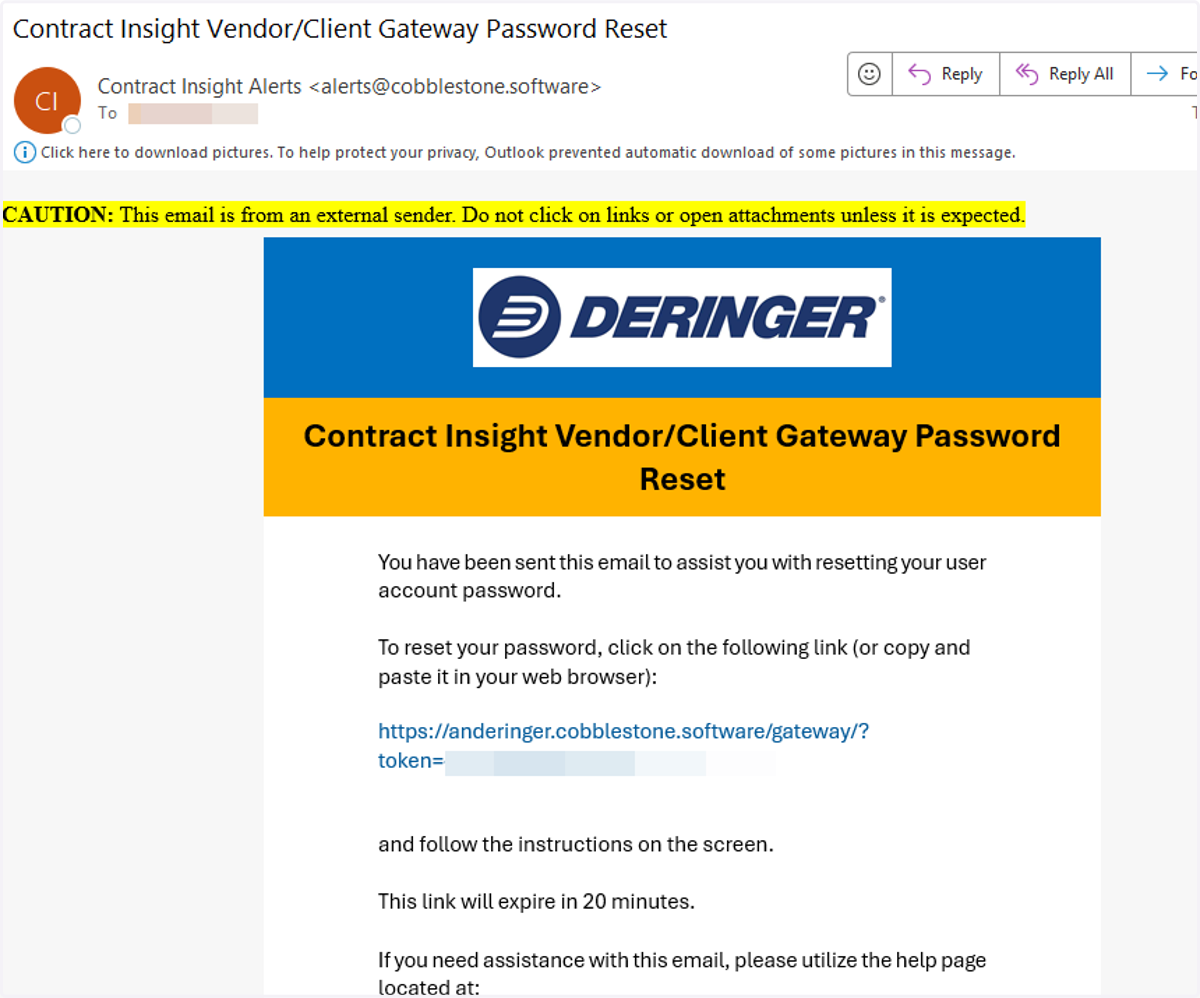
5. Password Reset E-mail
You will receive an e-mail with a link to reset your password. Click on the link.
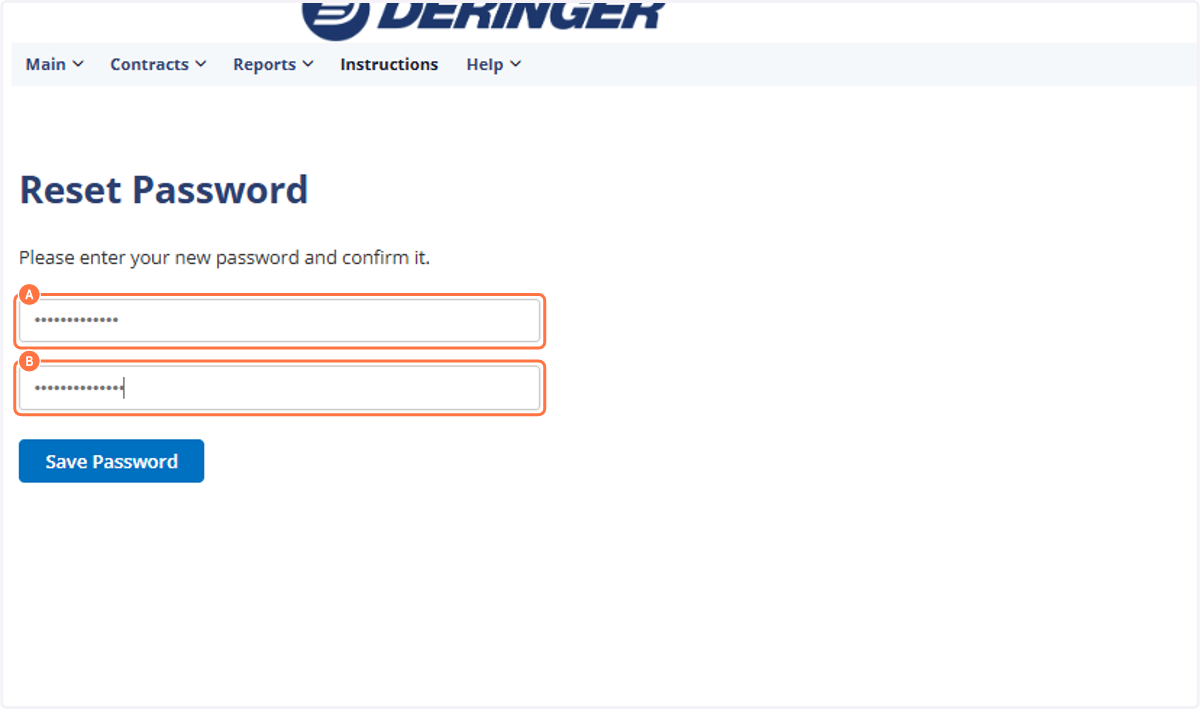
6. A. Type password
6. B. Type password
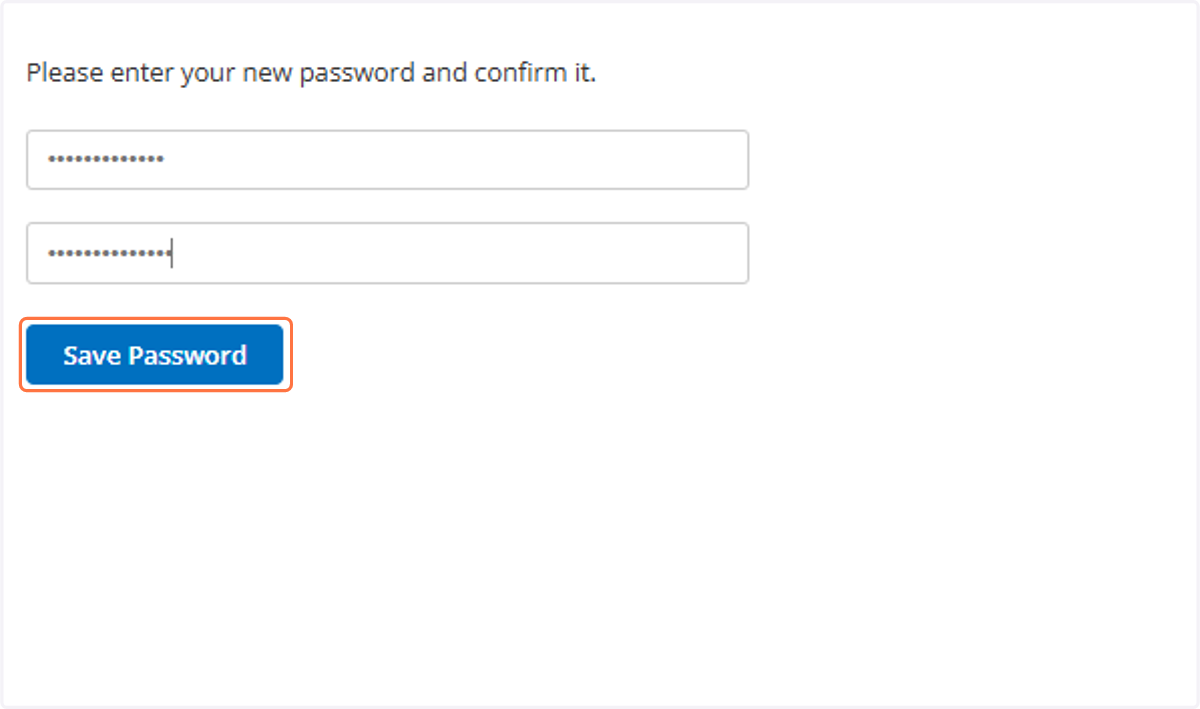
7. Click on Save Password
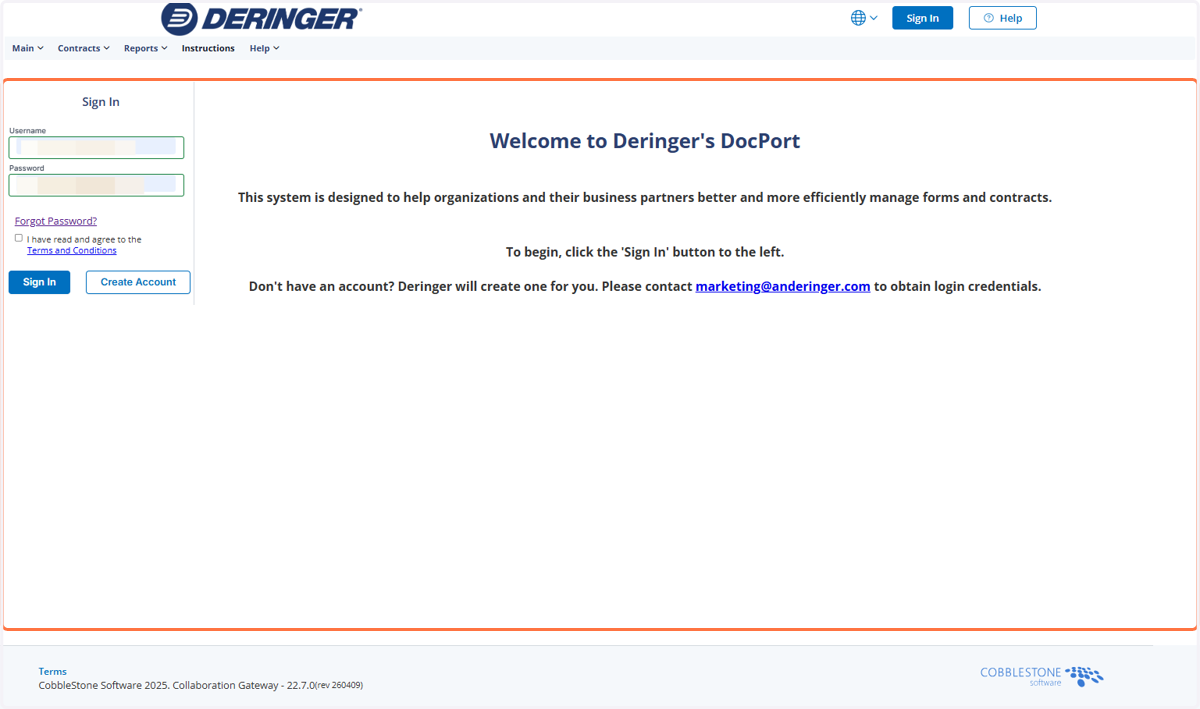
8. After clicking Save Password, you should receive a confirmation message and then be redirected to the DocPort login page. Use your e-mail address and the password you just assigned to Sign In.
9. Thank you!
If you require further assistance, please e-mail AnnualBlanketRenewal@anderinger.com.