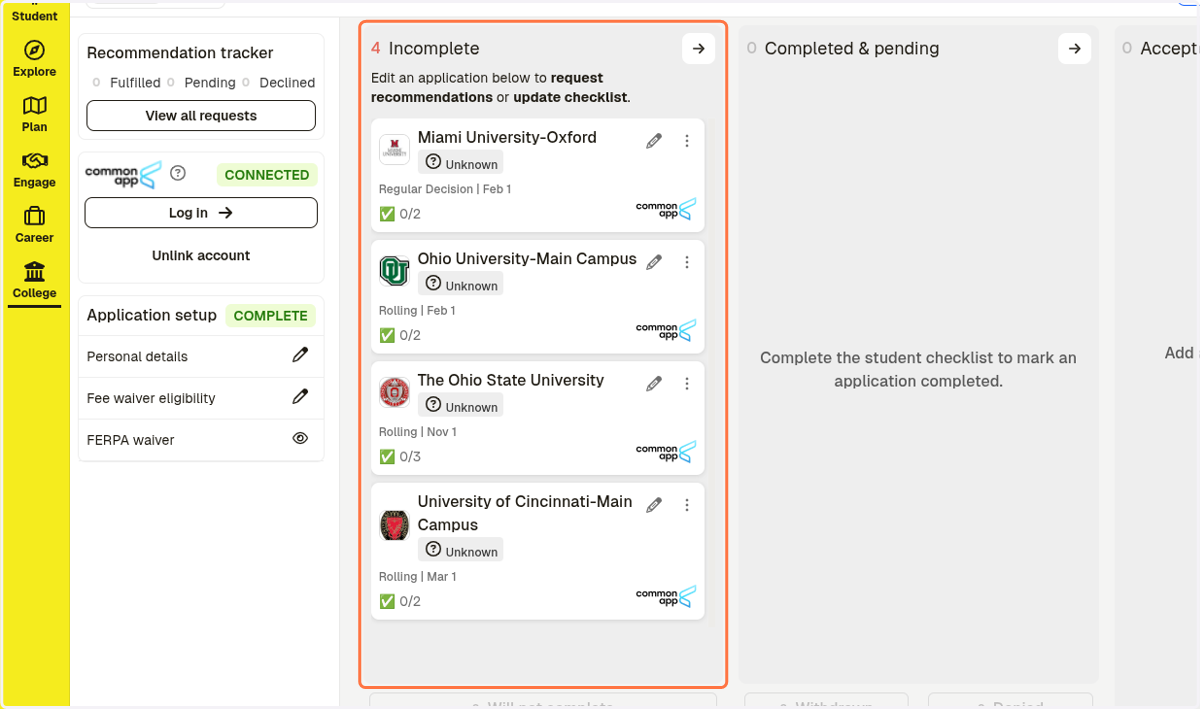
Linking your Common Application to Schoolinks
Schoolinks
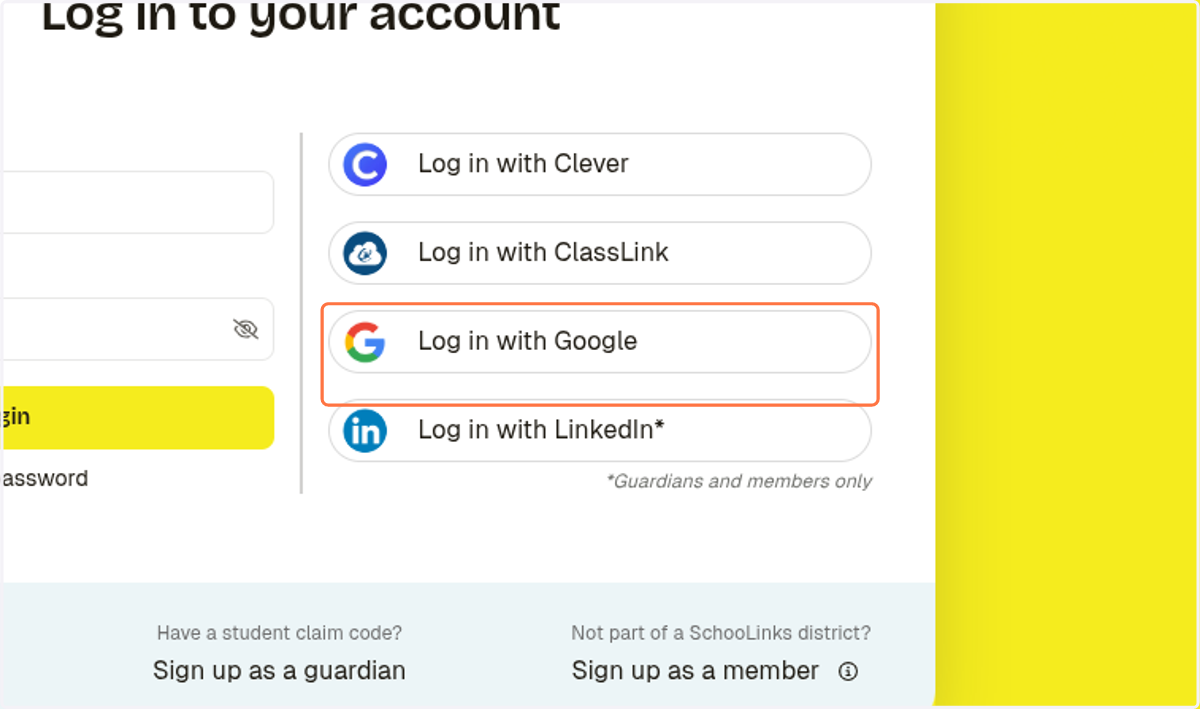
1. Click on Log in with Google
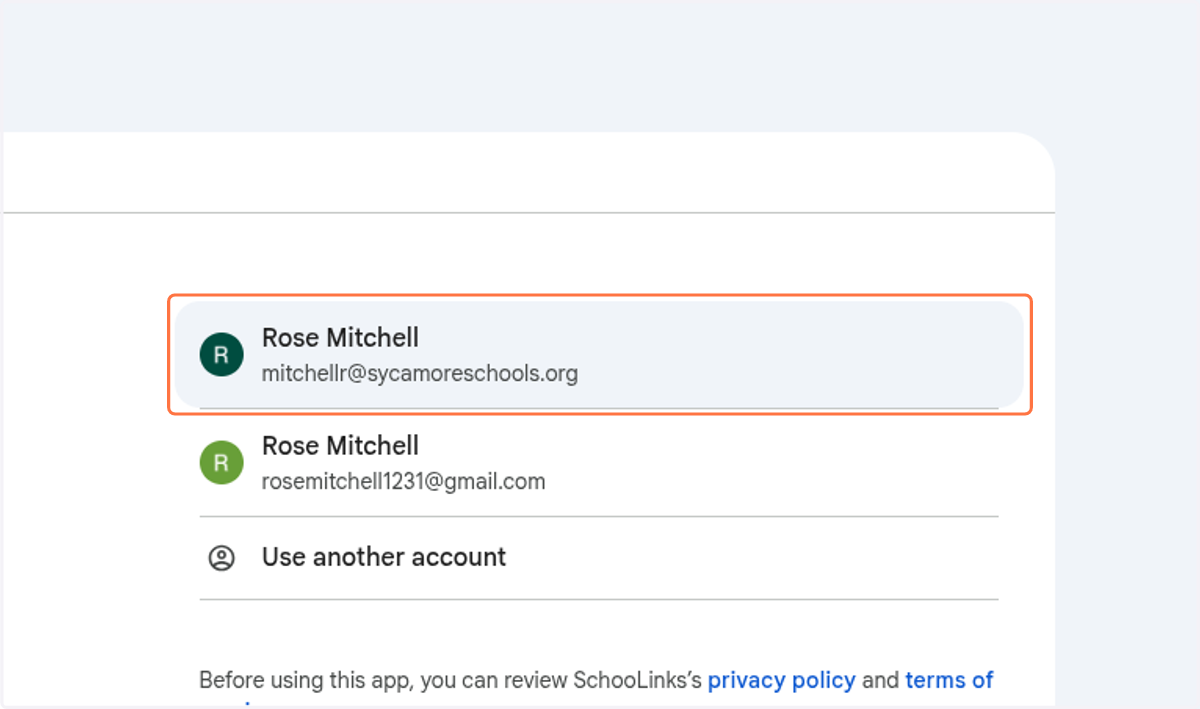
Sign in - Google Accounts
2. Sign in with your school email
Schoolinks
3. Click on College
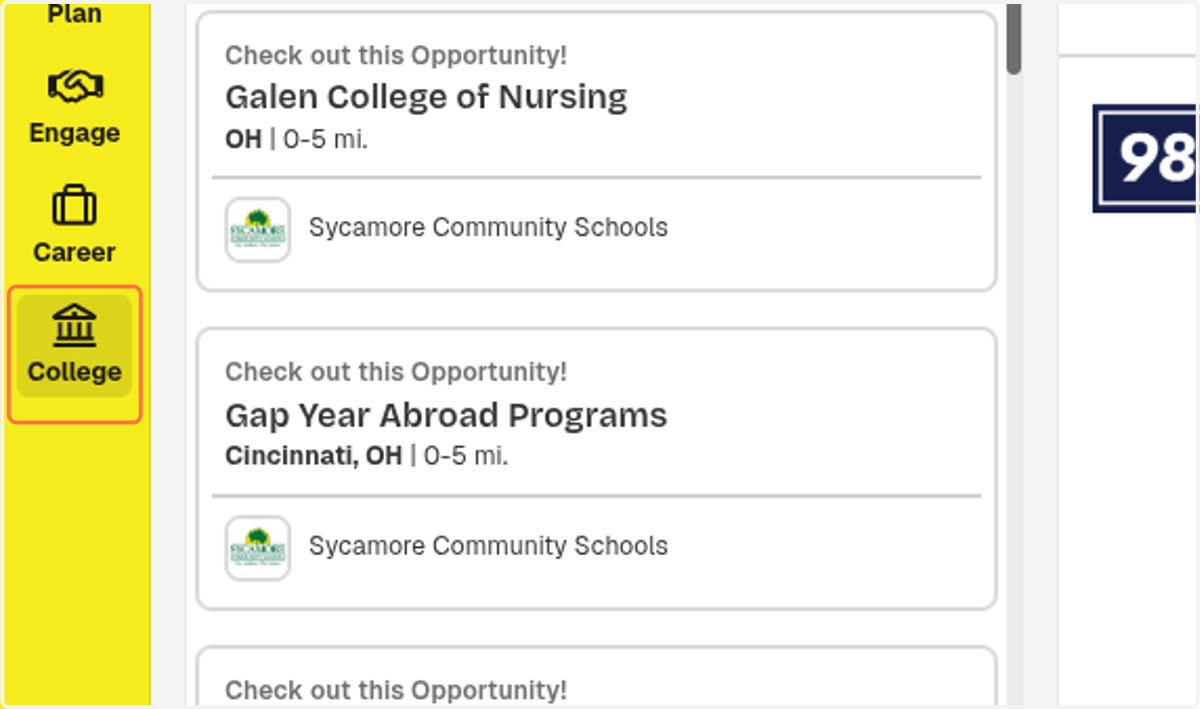
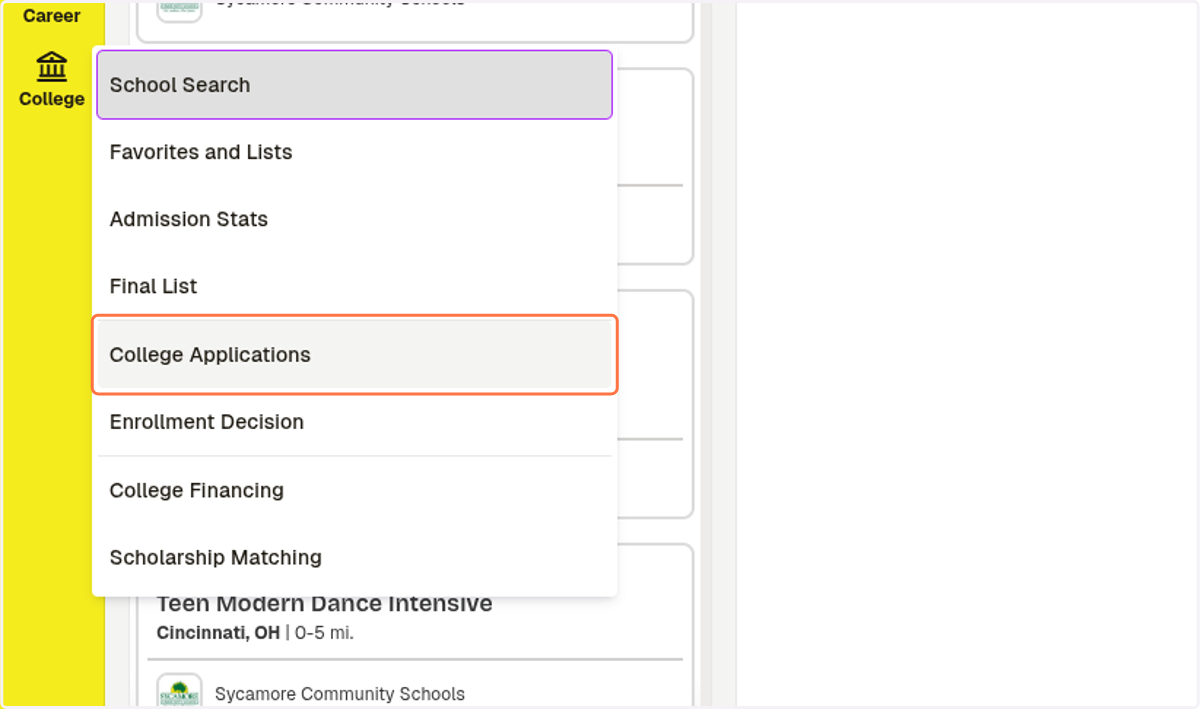
4. Click on College Applications
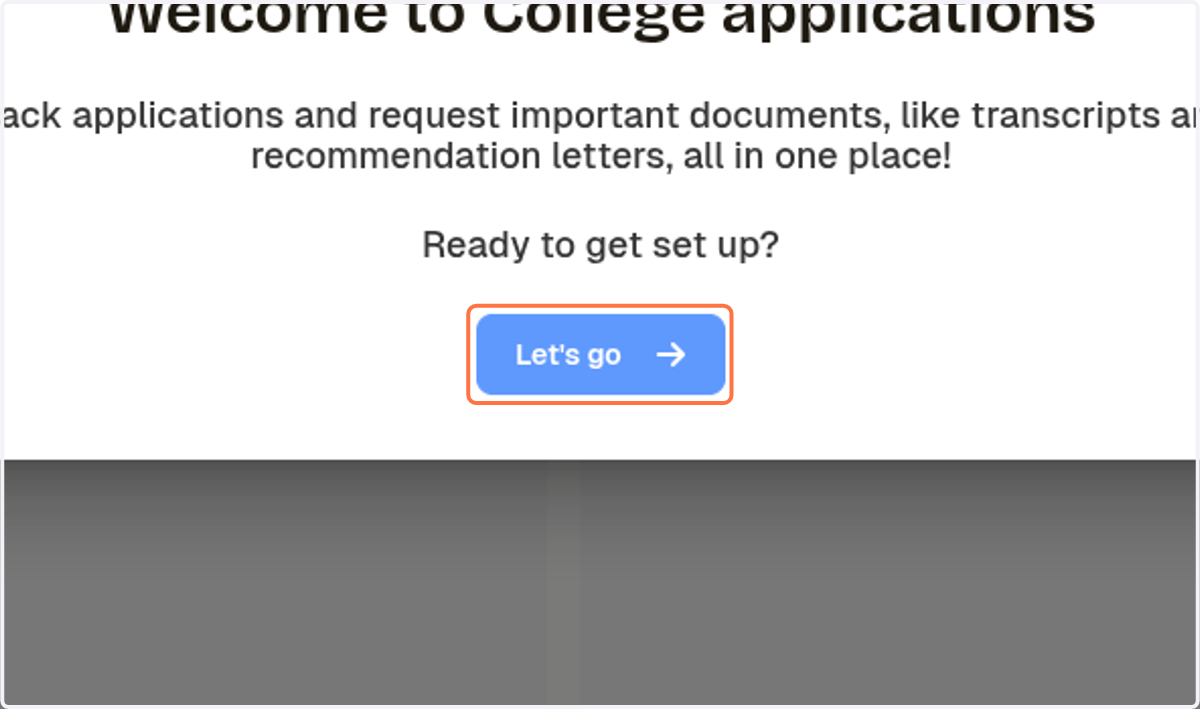
5. Click on Let's go
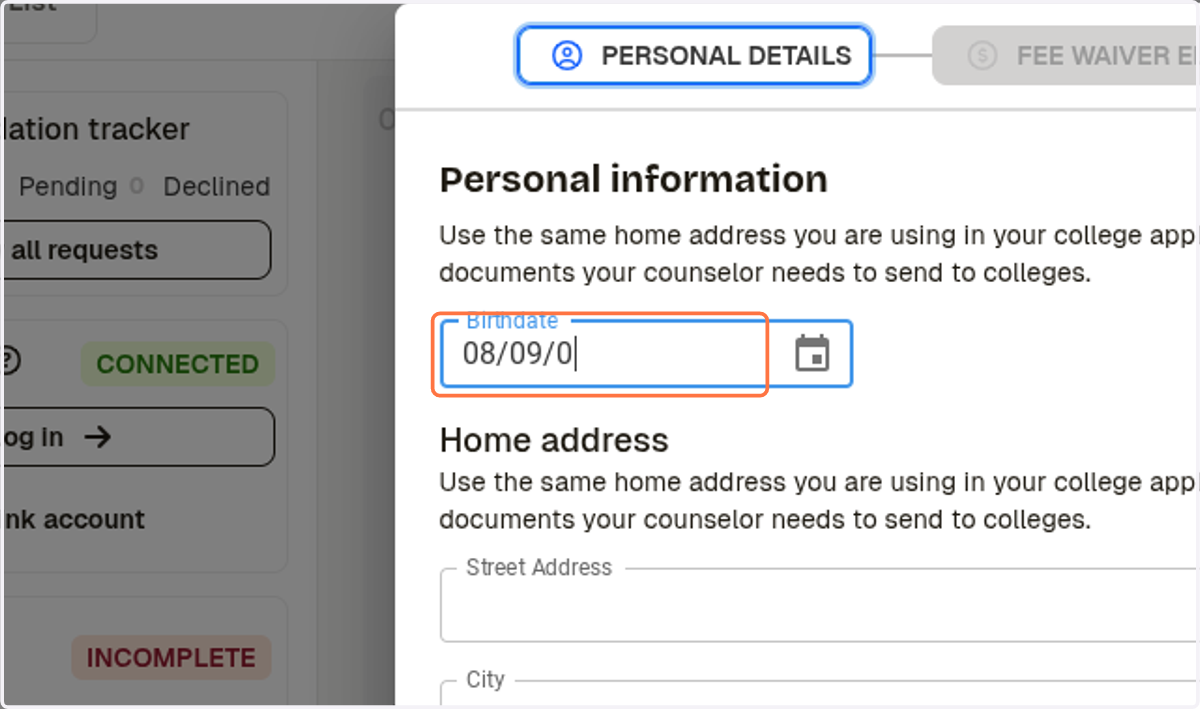
6. Enter Birthdate
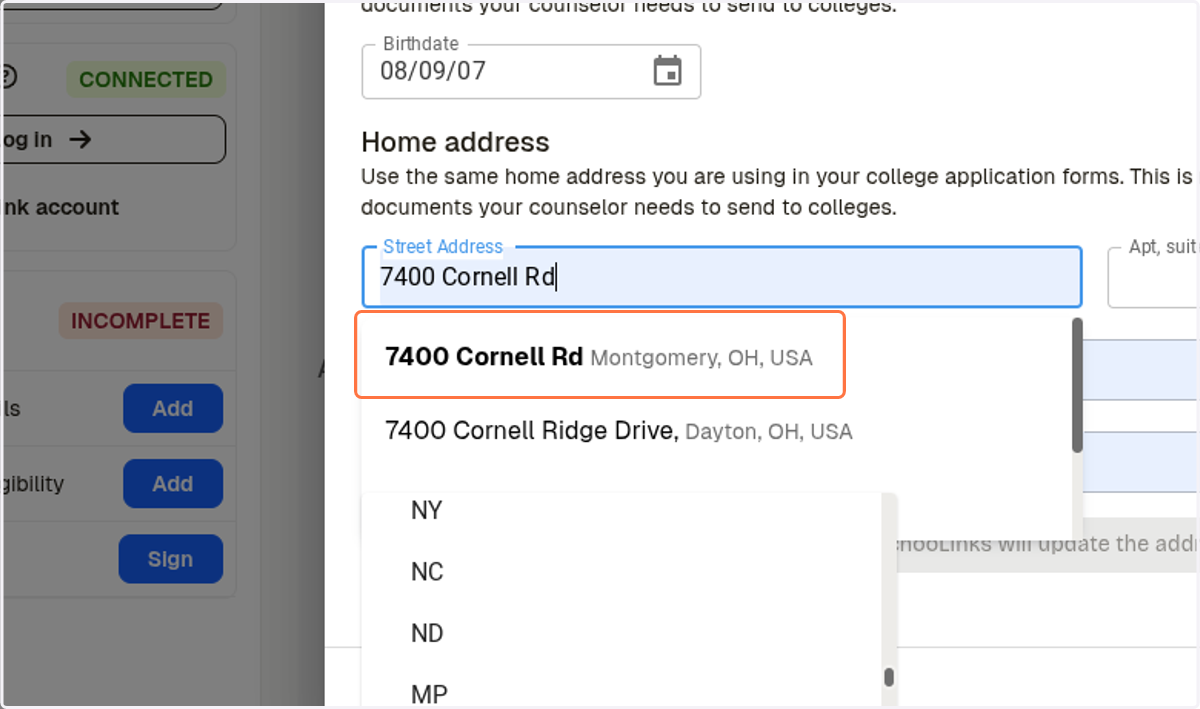
7. Enter your address
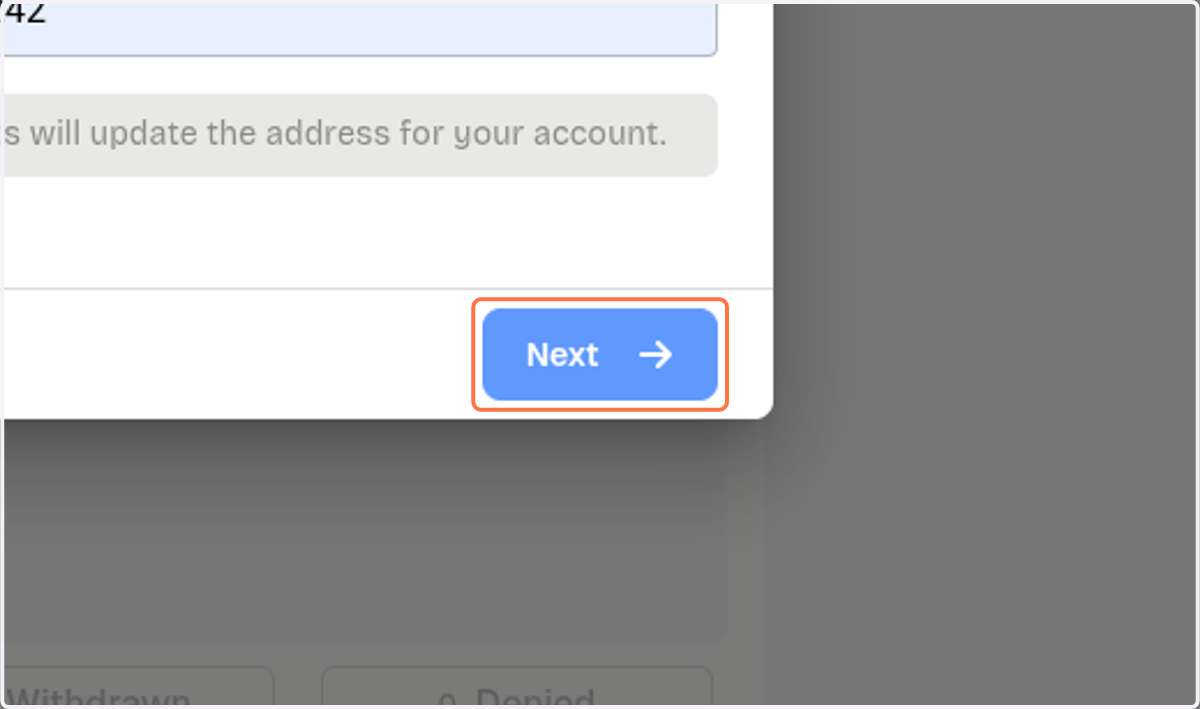
8. Click on Next
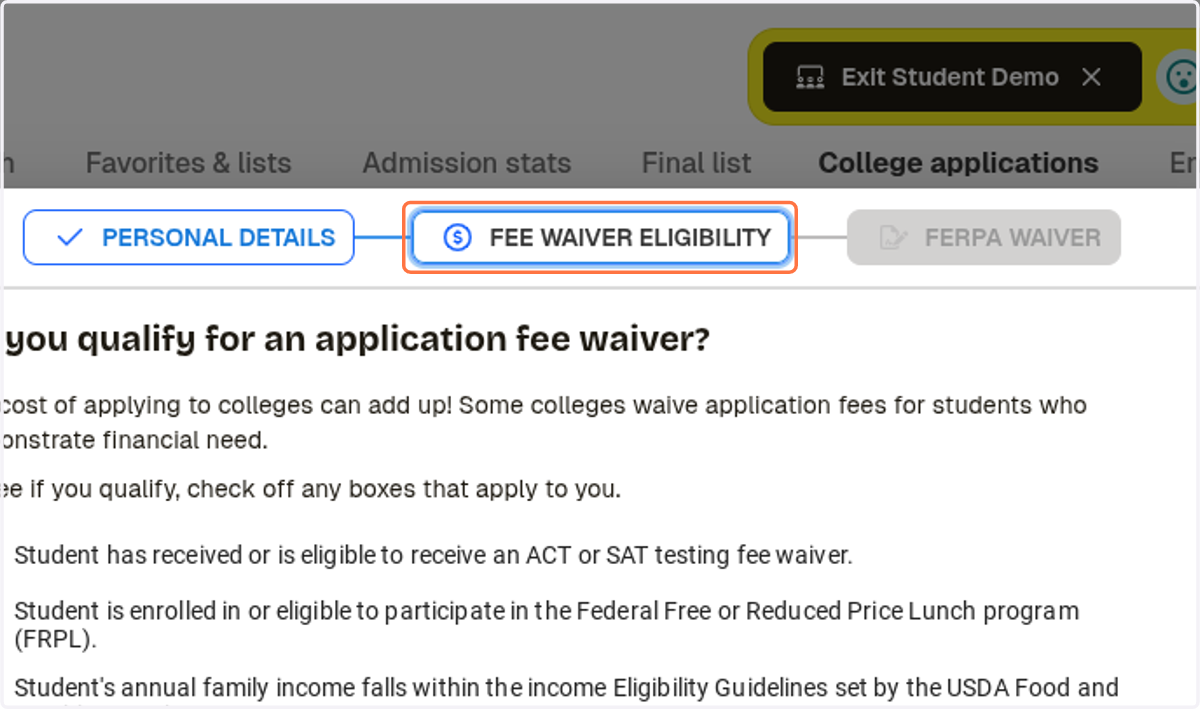
9. Review Fee Waiver Eligibility
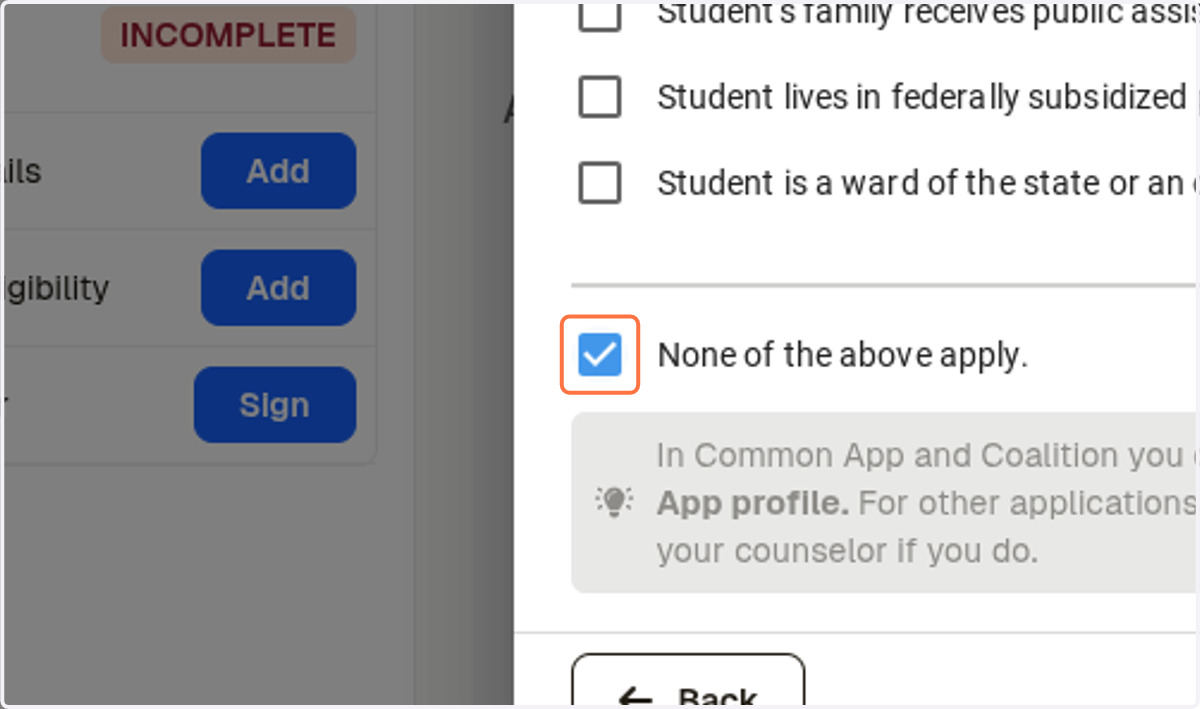
10. Select the option that applies to you.
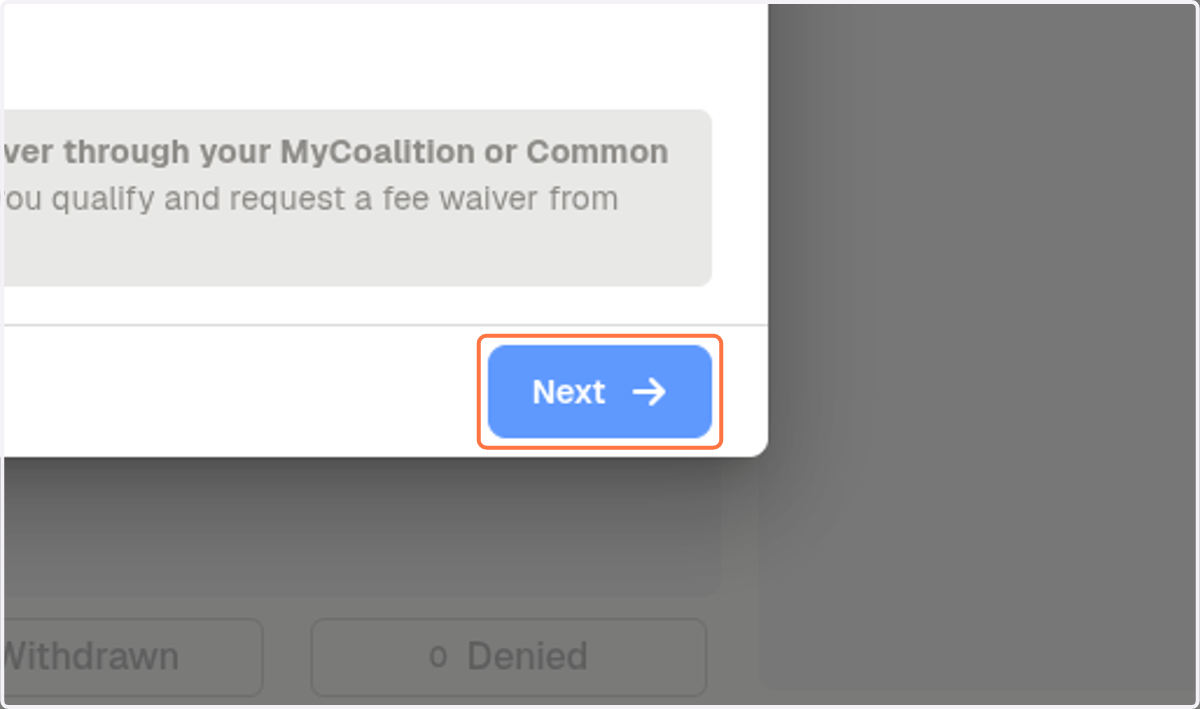
11. Click on Next
12. Check I have fully read and understood the FERPA Release Authorization explanation above.
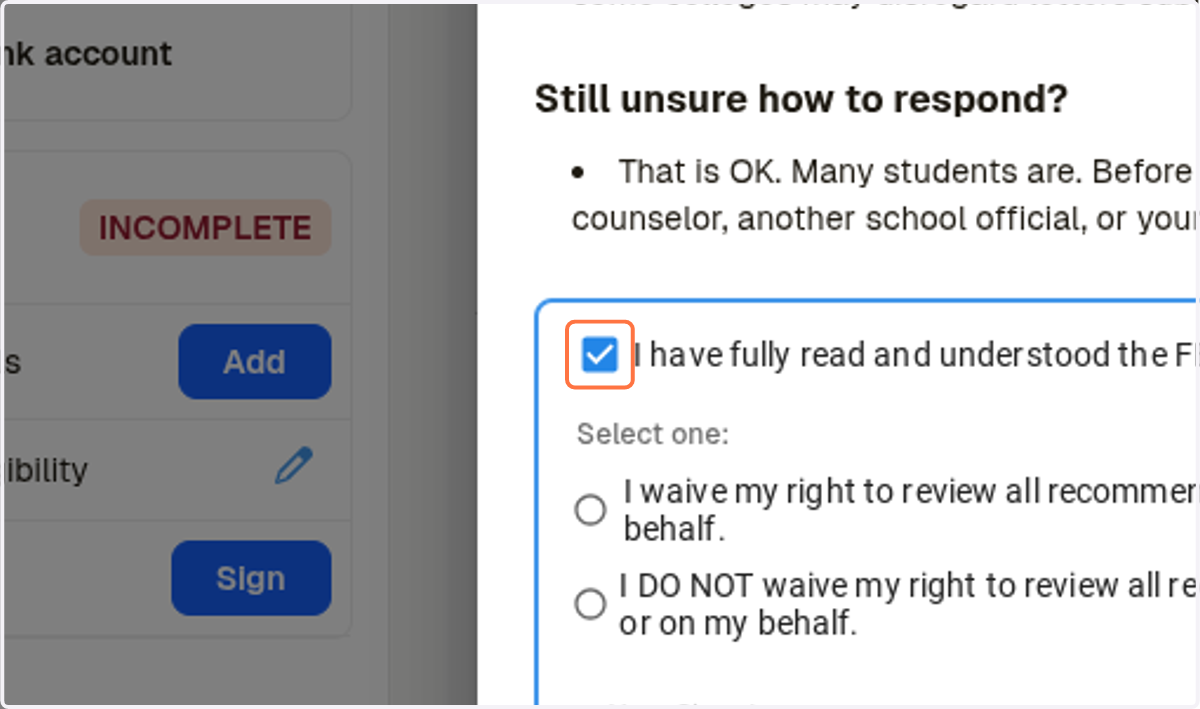
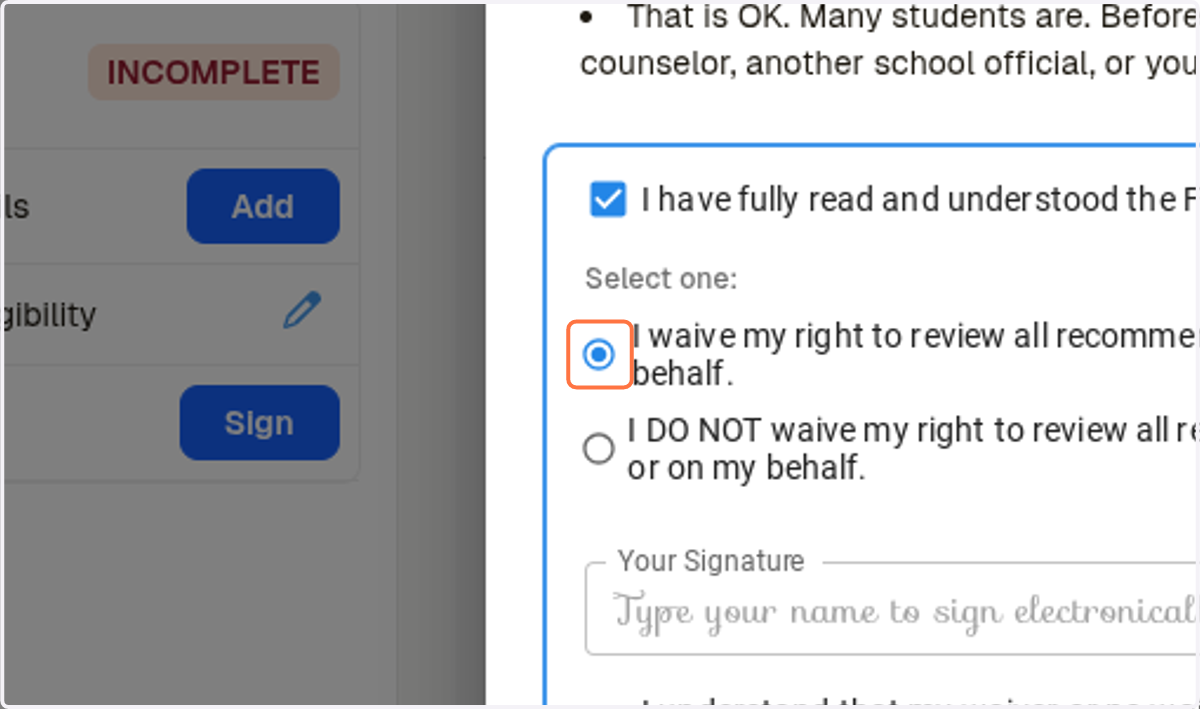
13. Review the options and select one.
Most students select: I waive my right to review all recommendations and supporting documents submitted by me or on my behalf.
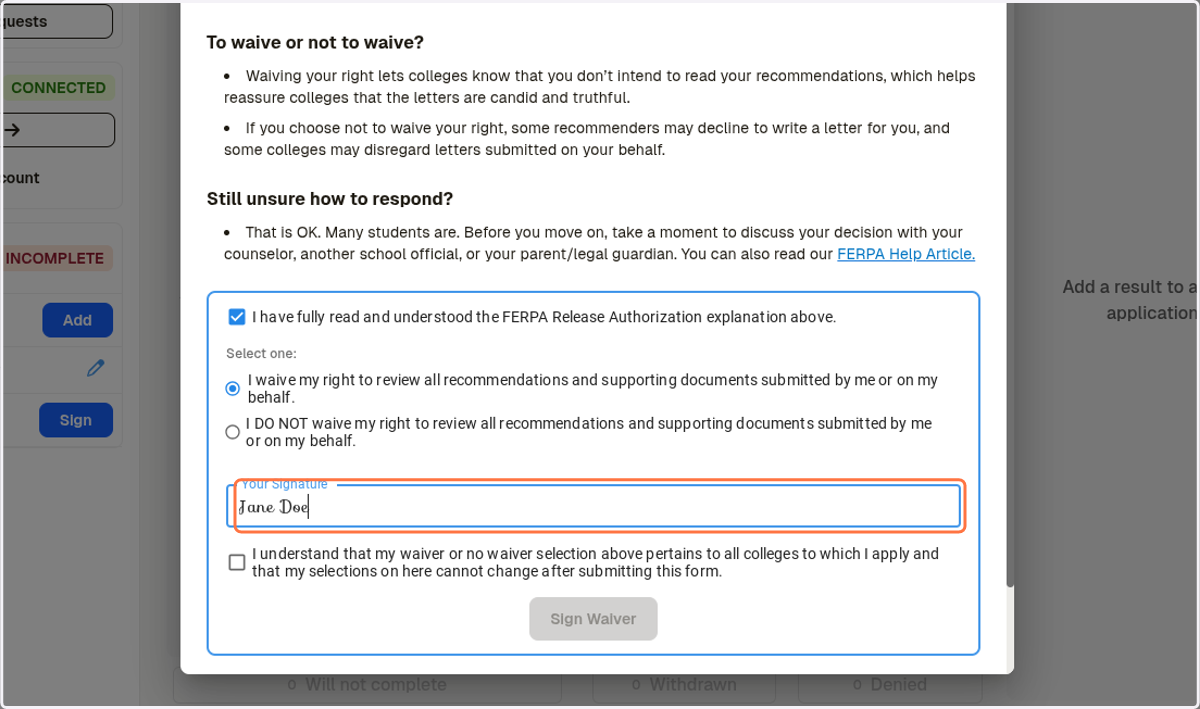
14. Sign your name
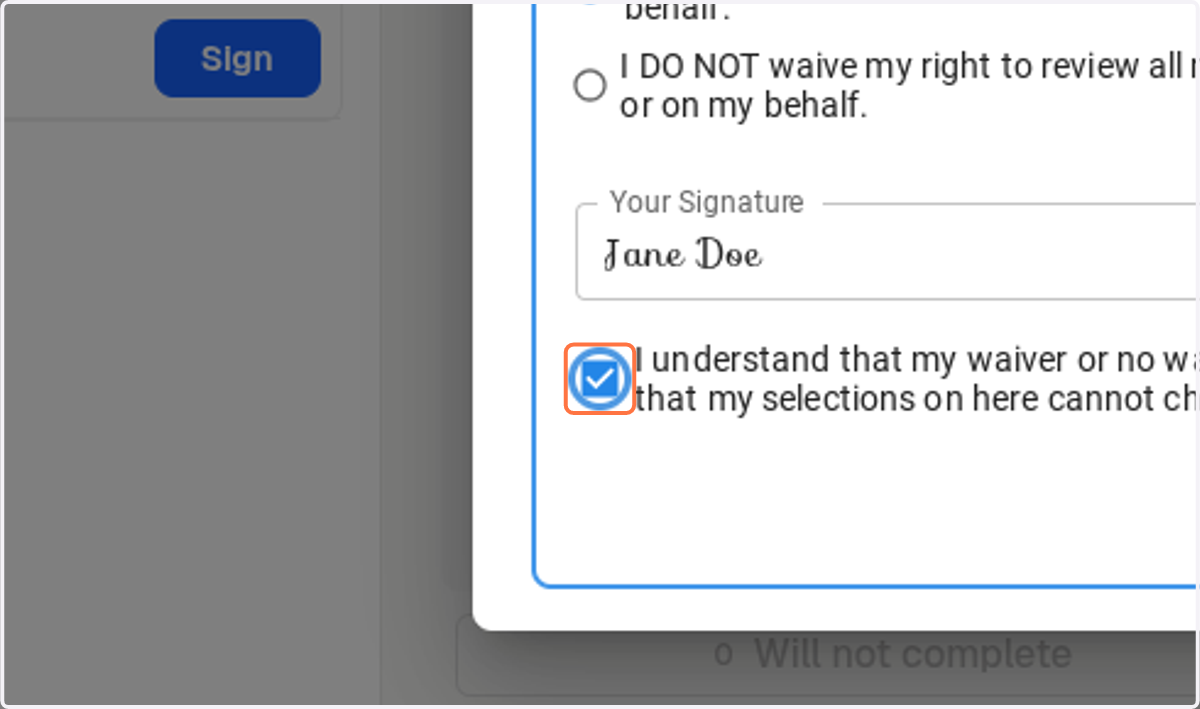
15. Check I understand that my waiver or no waiver selection above pertains to all colleges to which I apply and that my selections on here cannot change after submitting this form.
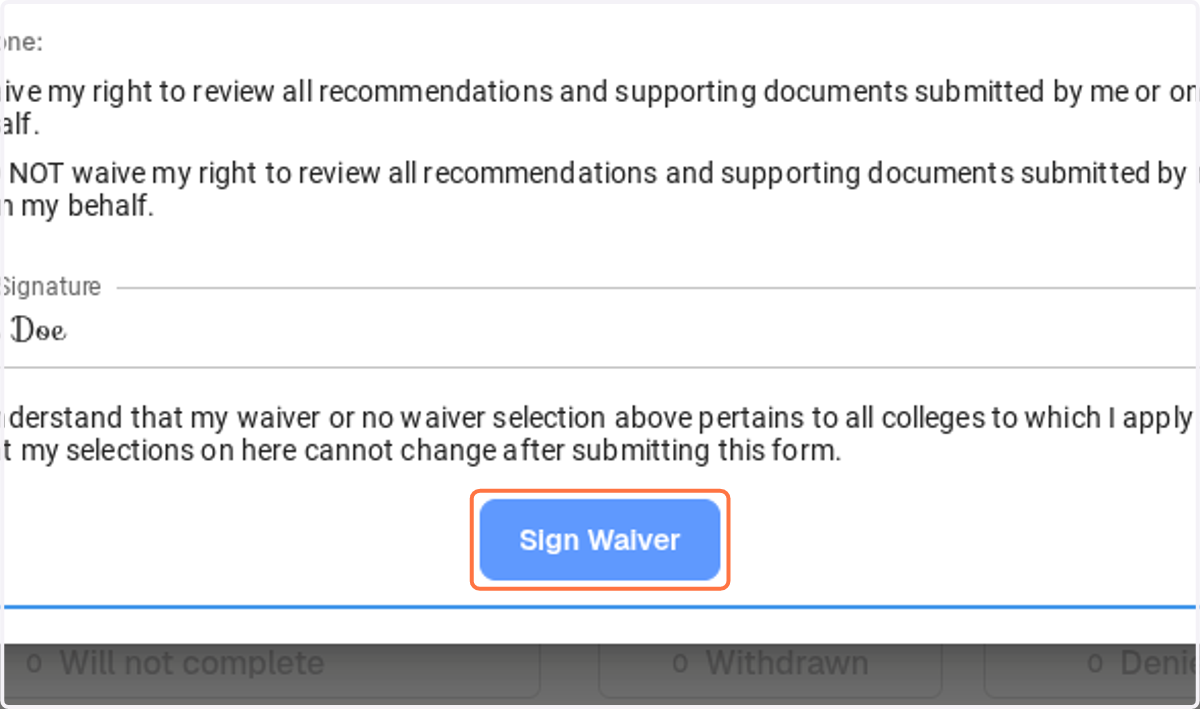
16. Click on Sign Waiver
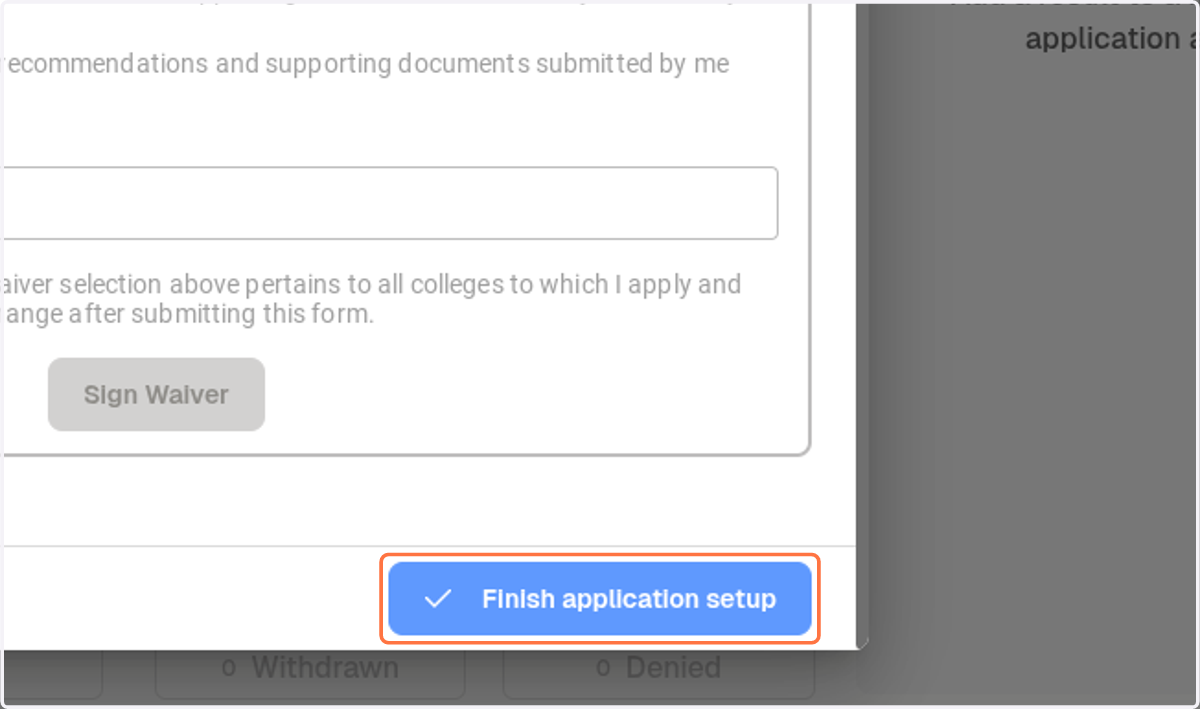
17. Click on Finish application setup
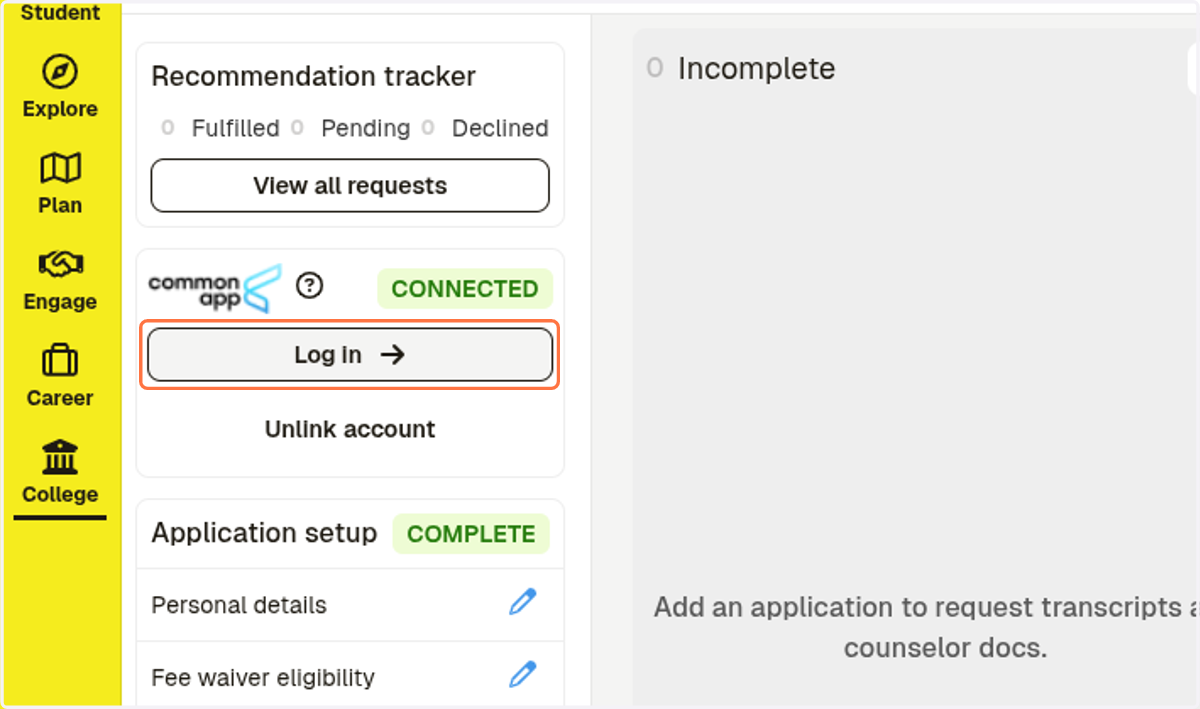
18. Log into your common app account
19. Your account is linked once it says "CONNECTED
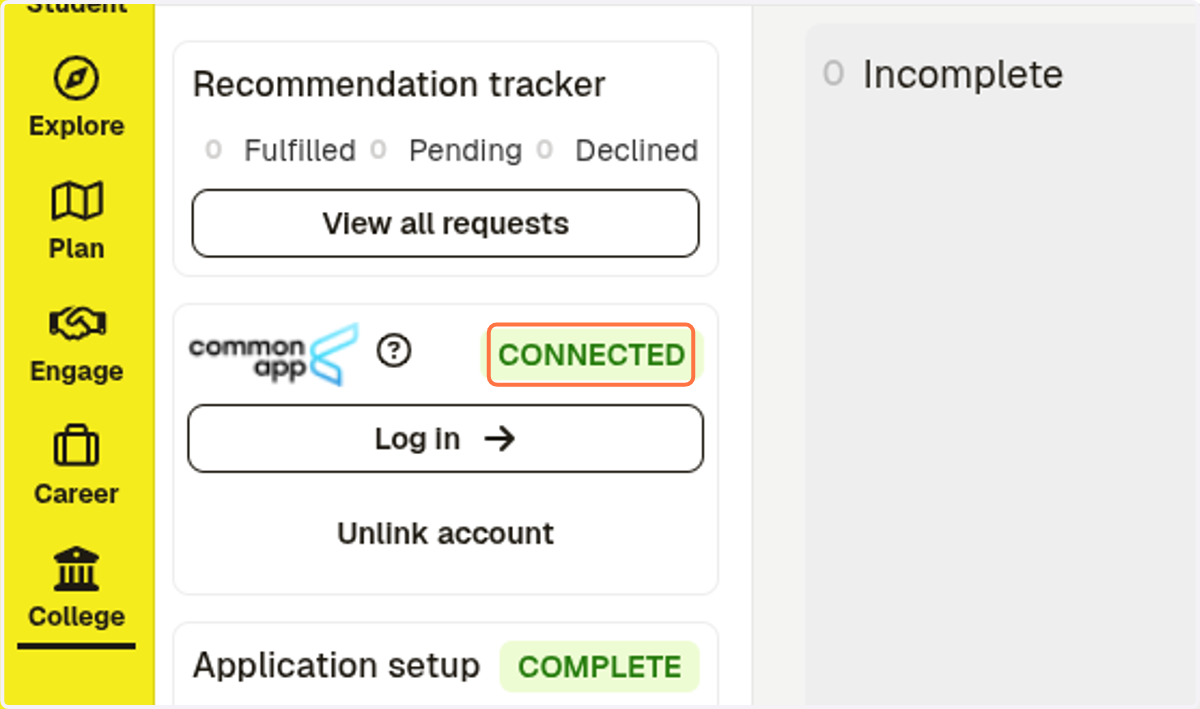
20. All of your colleges in Common App will show in your Schoolinks account