HR Professional's Guide: How to review and approve bereavement leave requests
Ensure you have reviewed the policy for understanding before approving Bereavement Leave Requests. Supporting information:
There are 2 Different Kinds of Bereavement Leave Requests:
Colleague Requests:
The amount of total hours you are eligible to take for a Bereavement Leave - Colleague request is prorated by your Full Time Equivalent (FTE).
Examples
FTE = 1; Your standard work day is 8 hours; Up to 8 hours of Bereavement Leave for a Colleague request
FTE = 0.75; Your standard work day is 6 hours; Up to 6 hours of Bereavement Leave for a Colleague request
Immediate Family Member Requests:
Employees may receive up to 40 hours of paid leave following the death of an immediate family member. The amount of the 40 hours an employee will receive will be prorated to their FTE
Ex: FTE of 0.75, the employee's standard work week is 30 hours, and they would be eligible to receive 30 hours of bereavement leave for an immediate family member.
Login to MyPack Portal
1. Navigate to the HR System Homepage
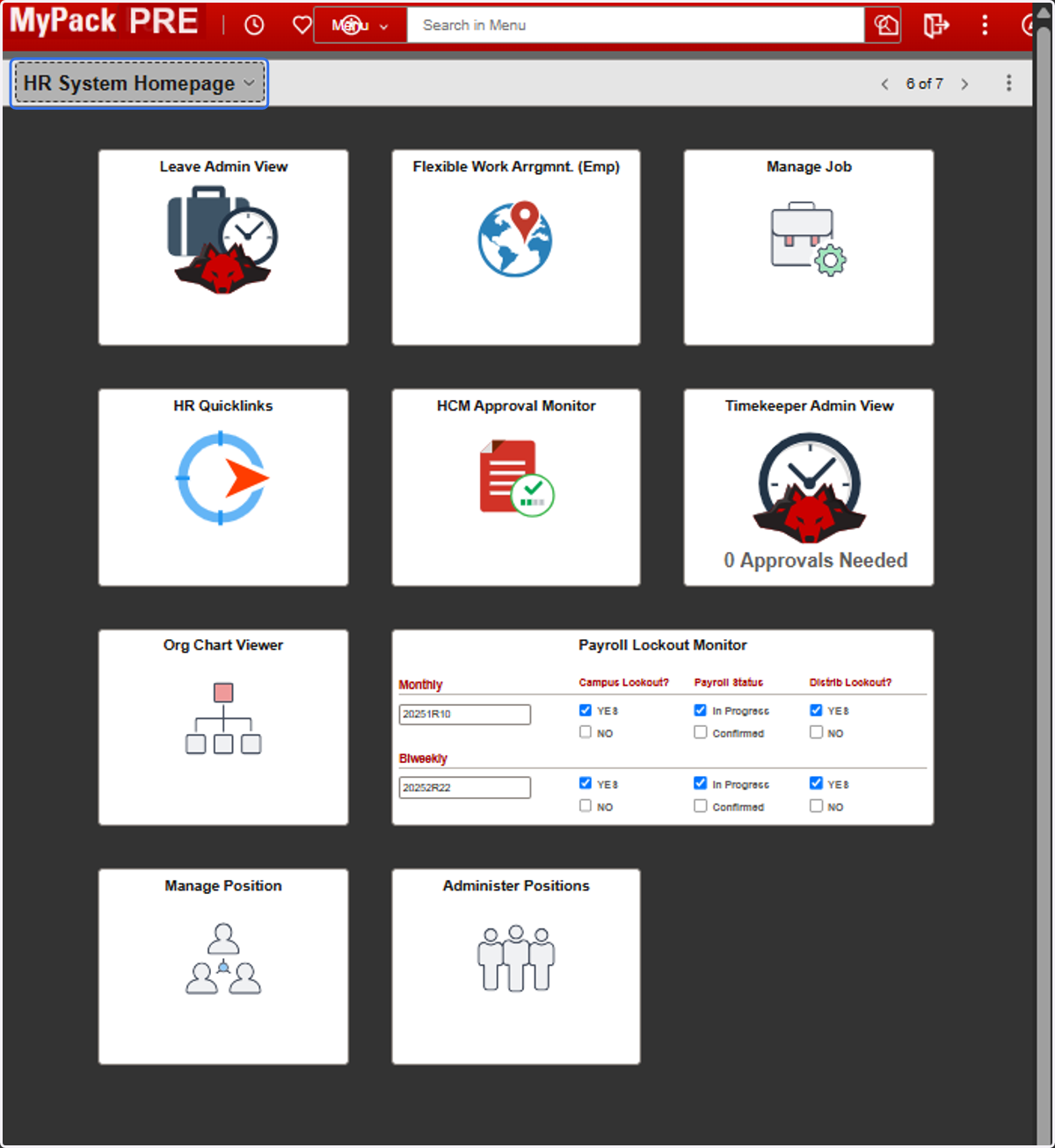
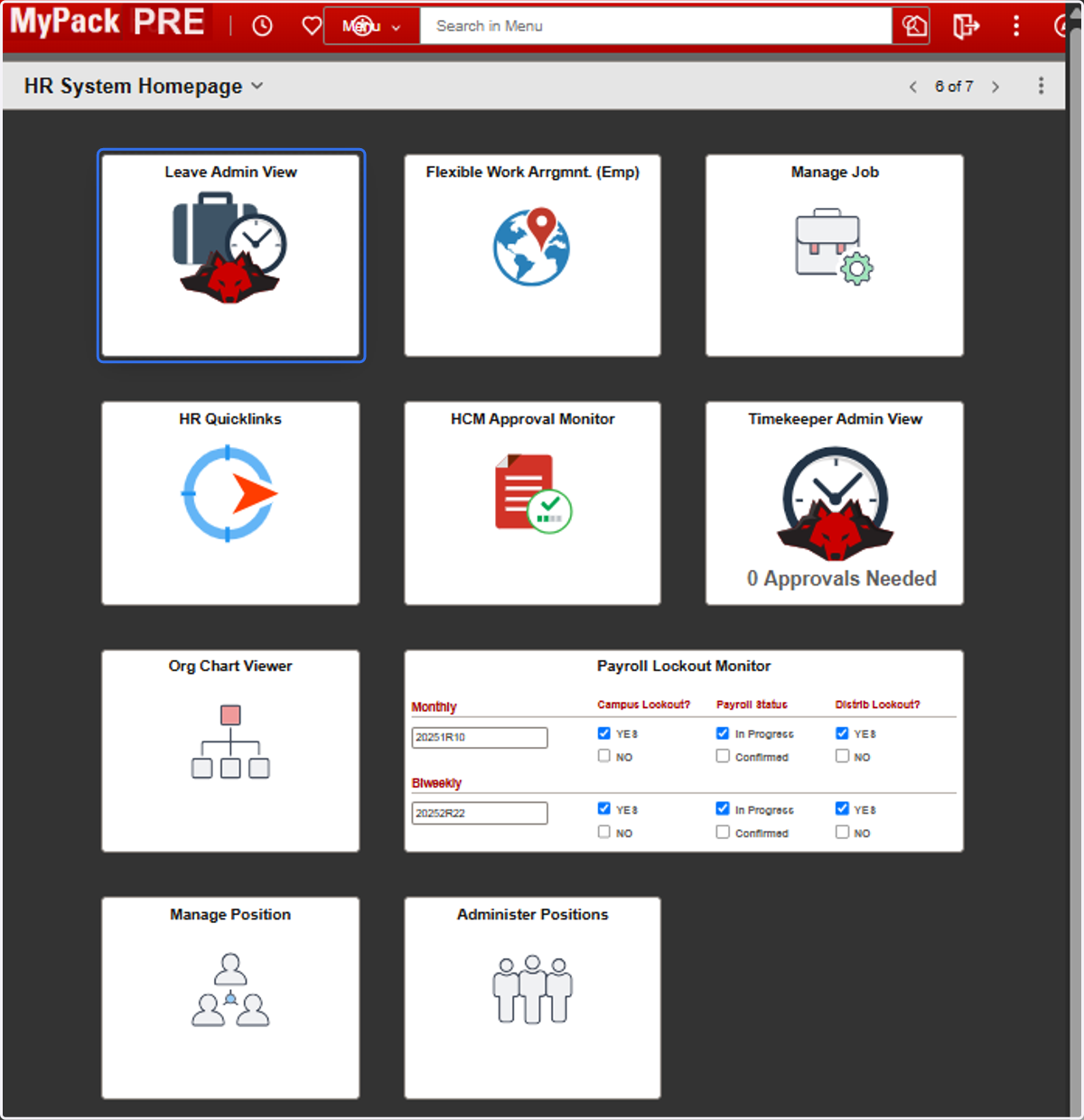
2. Click on the Leave Admin View tile
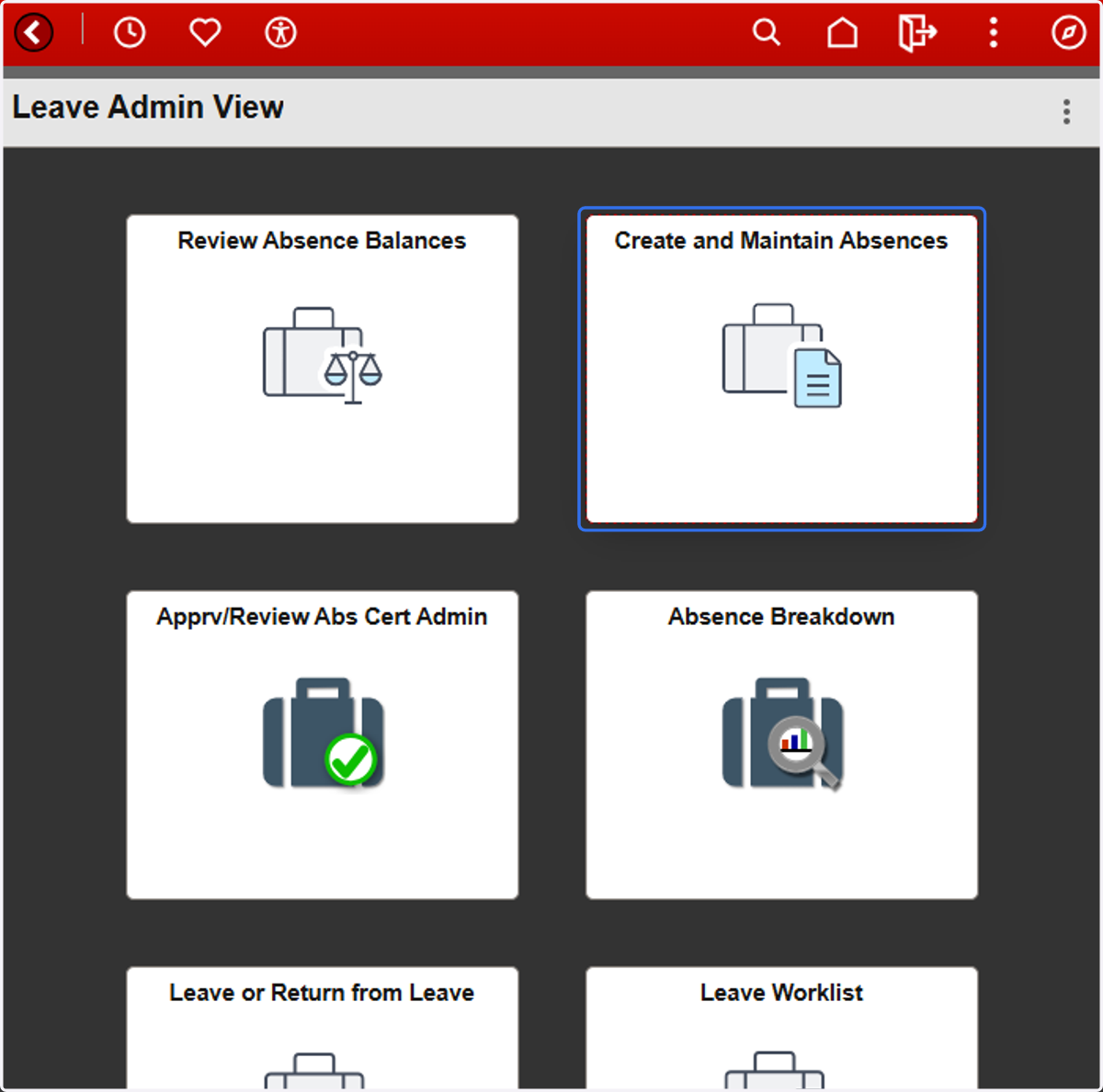
3. Click on the Create and Maintain Absences tile
4. Input the Employee's ID
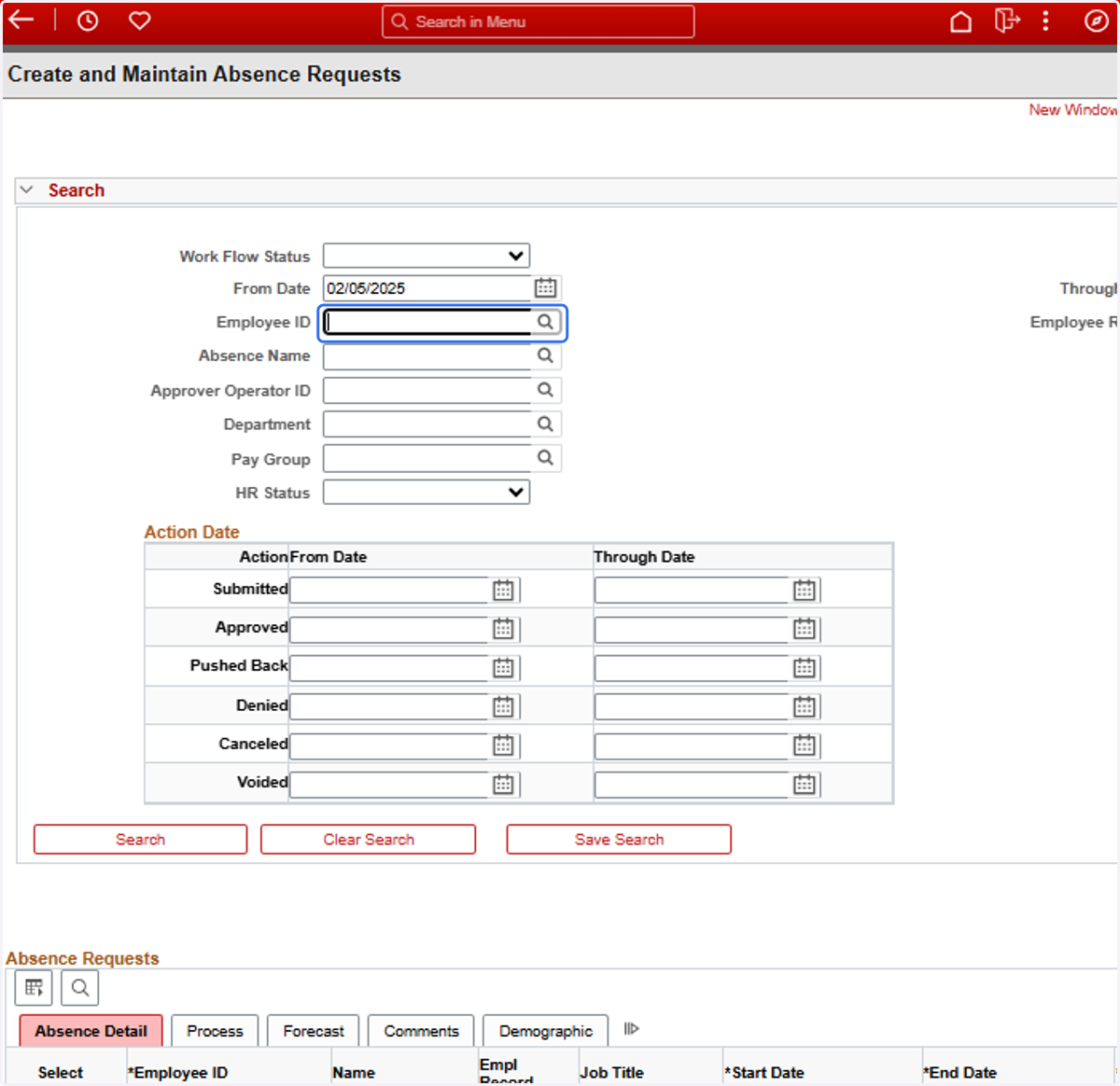
5. Click on Search
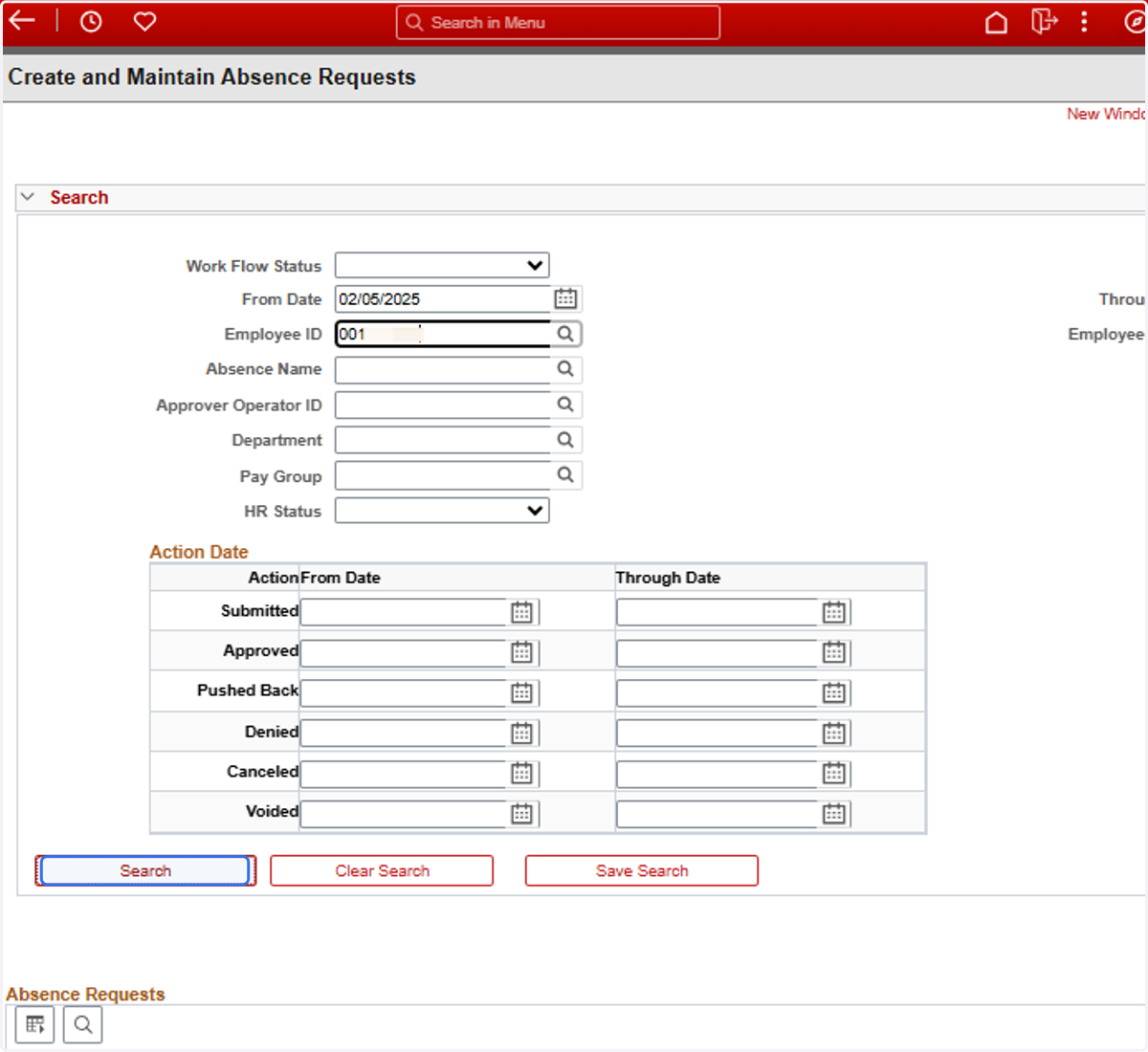
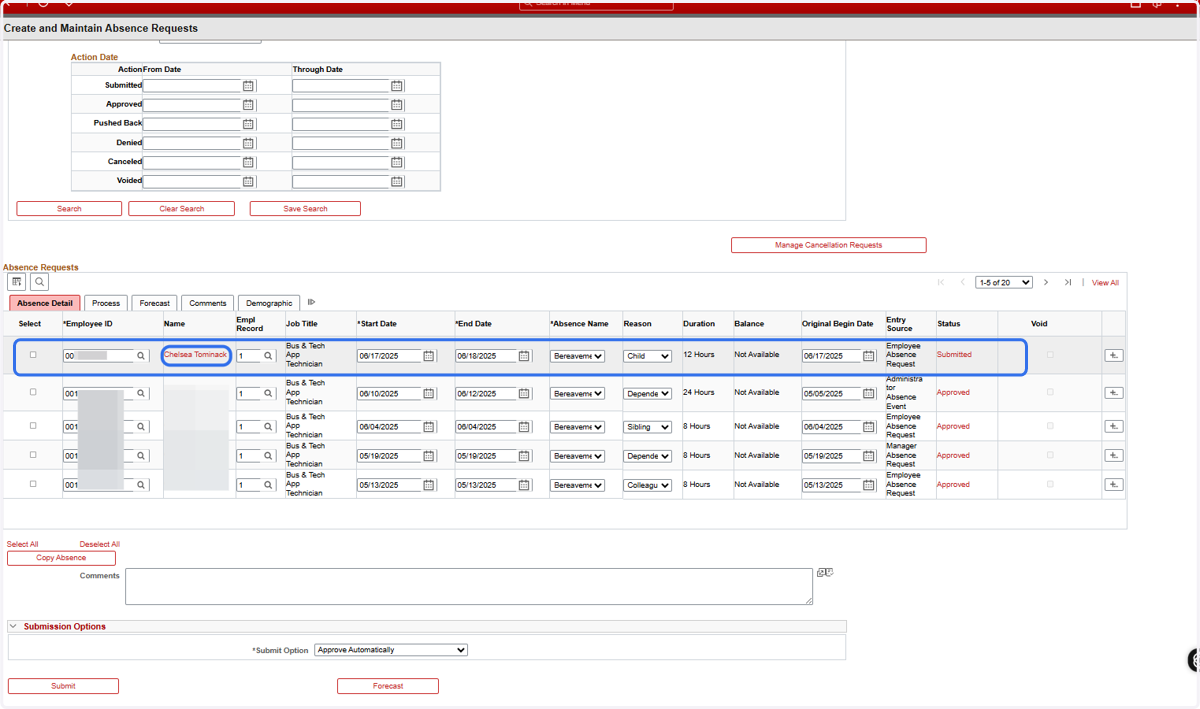
6. Locate the absence request you are reviewing and review the request information. Click on the Employee's Name to drill into the Bereavement request details.
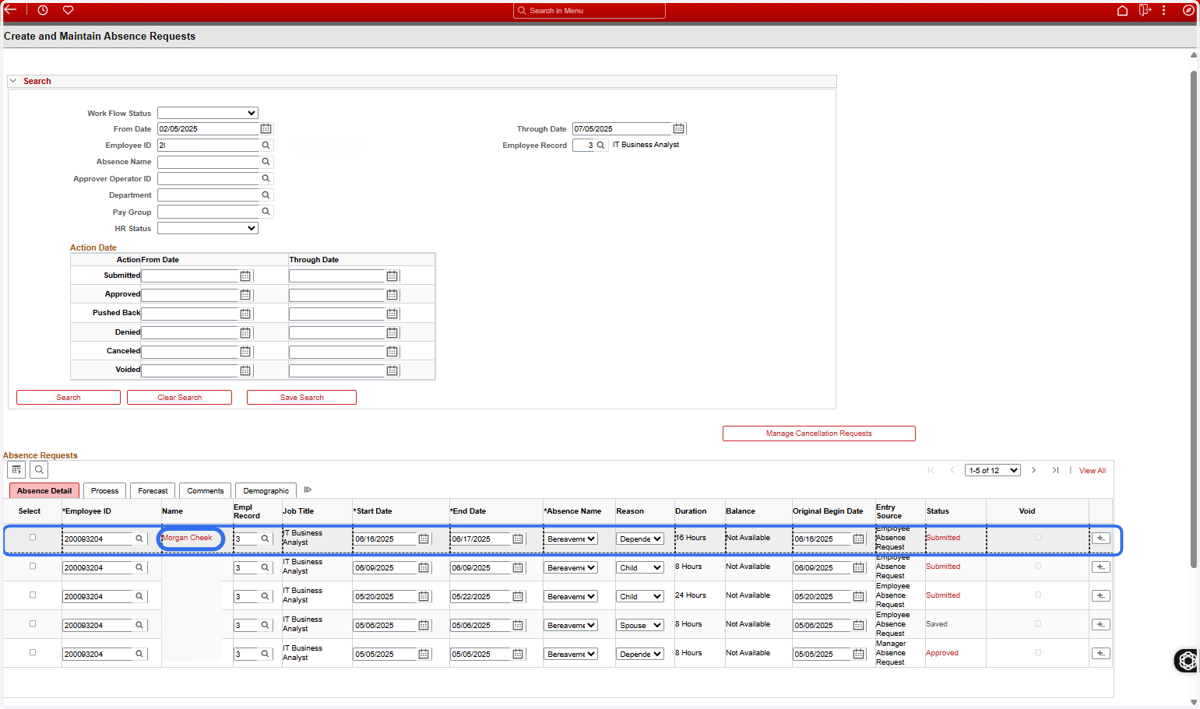
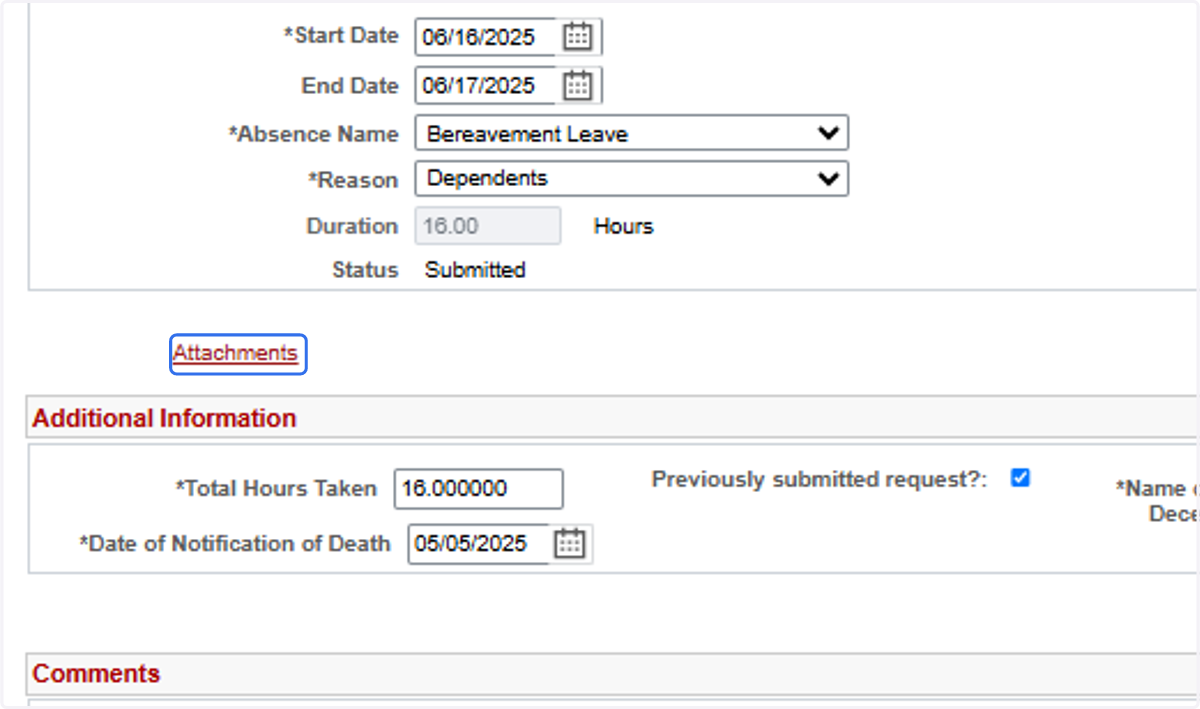
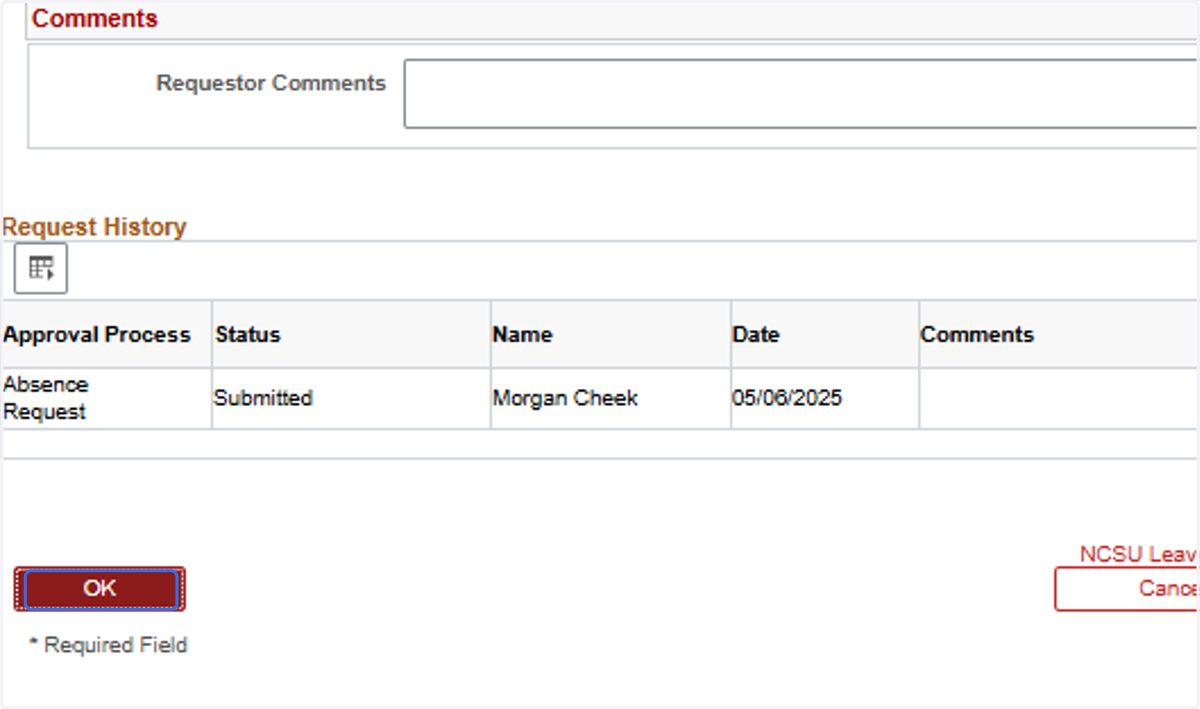
7. Review the absence details, additional information, and request history.
NOTE: If the employee is Non-exempt, they may have a prior hours field instead of Total Hours Taken. If this is the case in your review, skip to step 11, where we go over a non-exempt request view.
Bereavement Leave requests have additional required fields:
Reason Options:
Immediate family member categories
Colleague
Date of Notification of Death
For Immediate Family Member requests, this sets the expiration of the leave 180 days in the future.
Previously submitted request (Checkbox): Indicates if another request related to this Bereavement request has been submitted prior, or if this is new.
Name of the Deceased: This is a text field. Employees should input a value in this field that they will be able to identify in the future if needed.

8. Click on Attachments to see if the employee added any documentation
NOTE: This is not required and the employee can add attachments once the absence is submitted or approved.
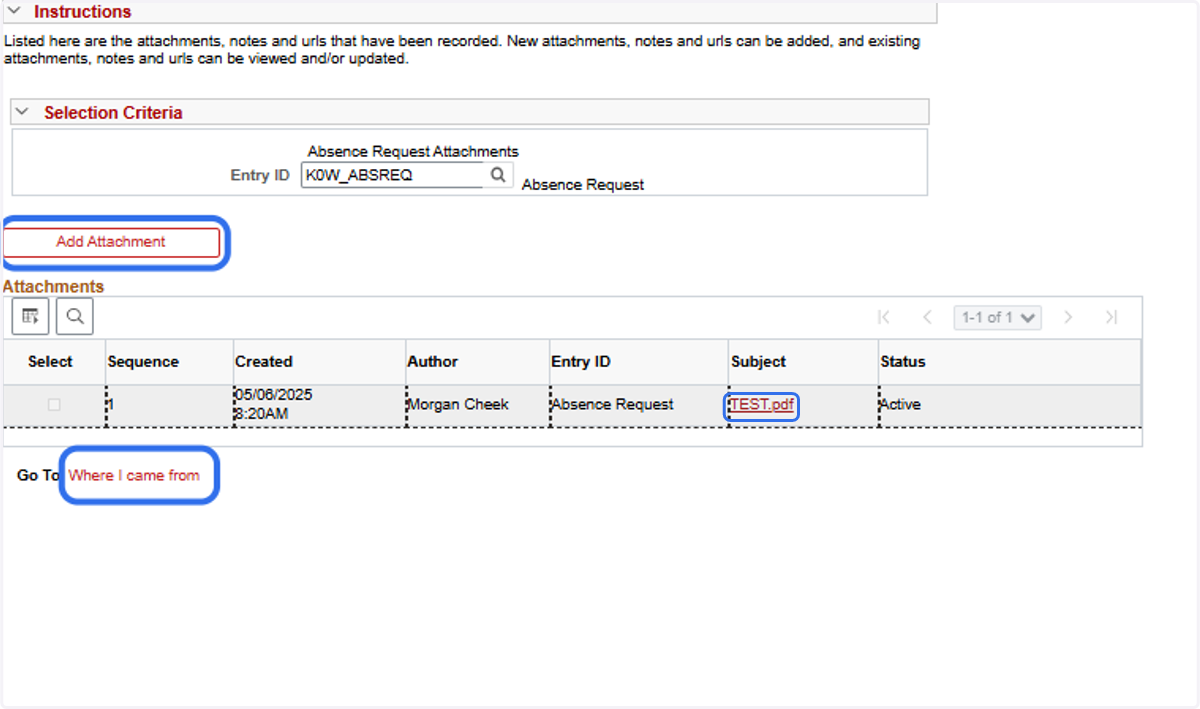
9. Here you can review any attachments, add attachments for record, or click "Where I came from" to return to the absence details.
To review the attachment click on the subject hyperlink.
To add an attachment click "Add Attachment"
Click "Where I came from"
10. Click on OK once your review is complete.
Non-Exempt Employee Request with Partial Days Field
Skip to step 16 if this is not relevant to your review.
11. Locate the absence request you are reviewing and review the request information. Click on the Employee's Name to drill into the Bereavement request details.
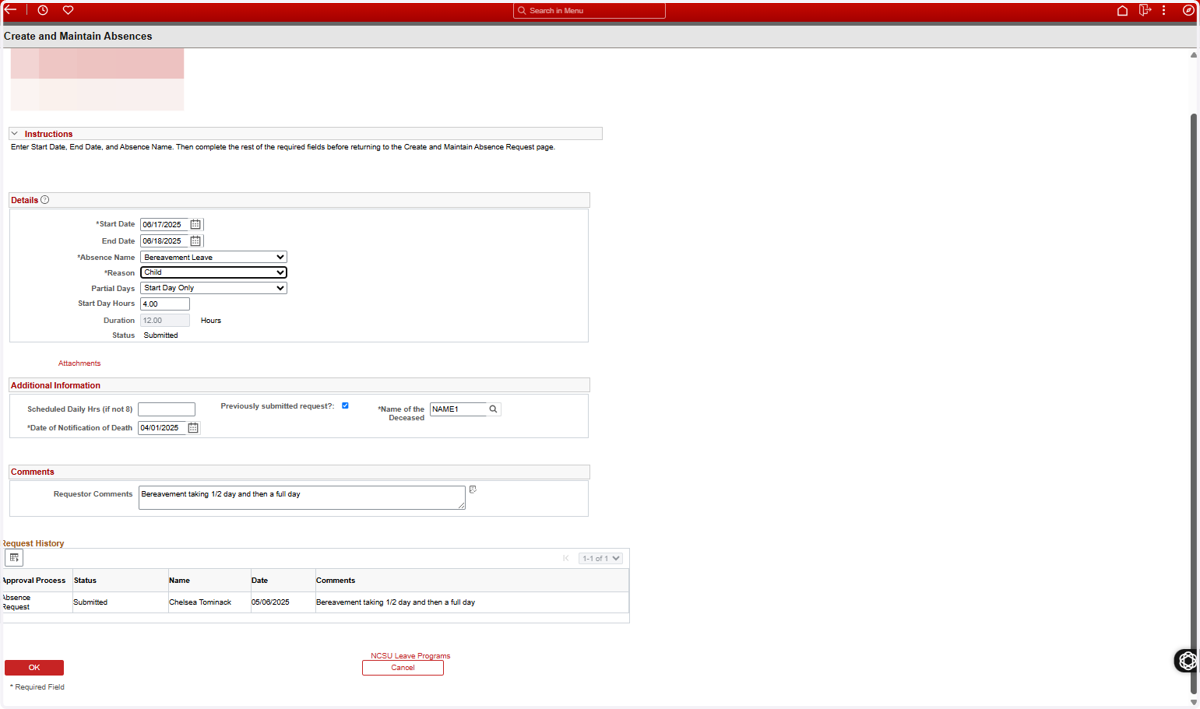
12. Review the absence details, additional information, and request history.
Scheduled Daily Hrs (If not 8):
Examples:
FTE = 1; Employees standard work day is 8 hours; leave this field blank
FTE = 0.75; Employees standard work day is 6 hours; Input 6 hours
Bereavement Leave requests have additional required fields:
Reason Options:
Immediate family member categories
Colleague
Date of Notification of Death
For Immediate Family Member requests, this sets the expiration of the leave 180 days in the future.
Previously submitted request (Checkbox): Indicates if another request related to this Bereavement request has been submitted prior, or if this is new.
Name of the Deceased: This is a text field. Employees should input a value in this field that they will be able to identify in the future if needed.
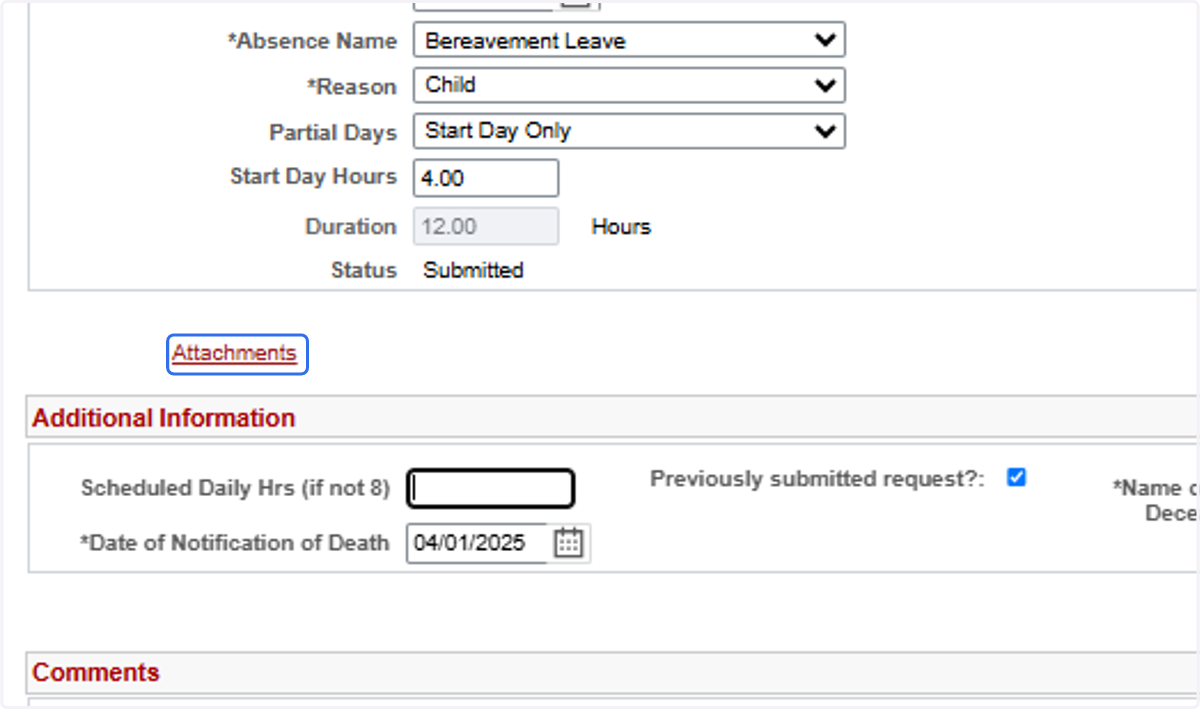
13. Click on "Attachments" to review if the employee added an attachment.
Employees, supervisors, and leave coordinators can add an attachment to a Bereavement Leave request, but it is not required by the system.
14. Here you can review any attachments, add attachments for record, or click "Where I came from" to return to the absence details.
To review the attachment click on the subject hyperlink.
To add an attachment click "Add Attachment"
Click "Where I came from"

15. Click on OK to navigate back
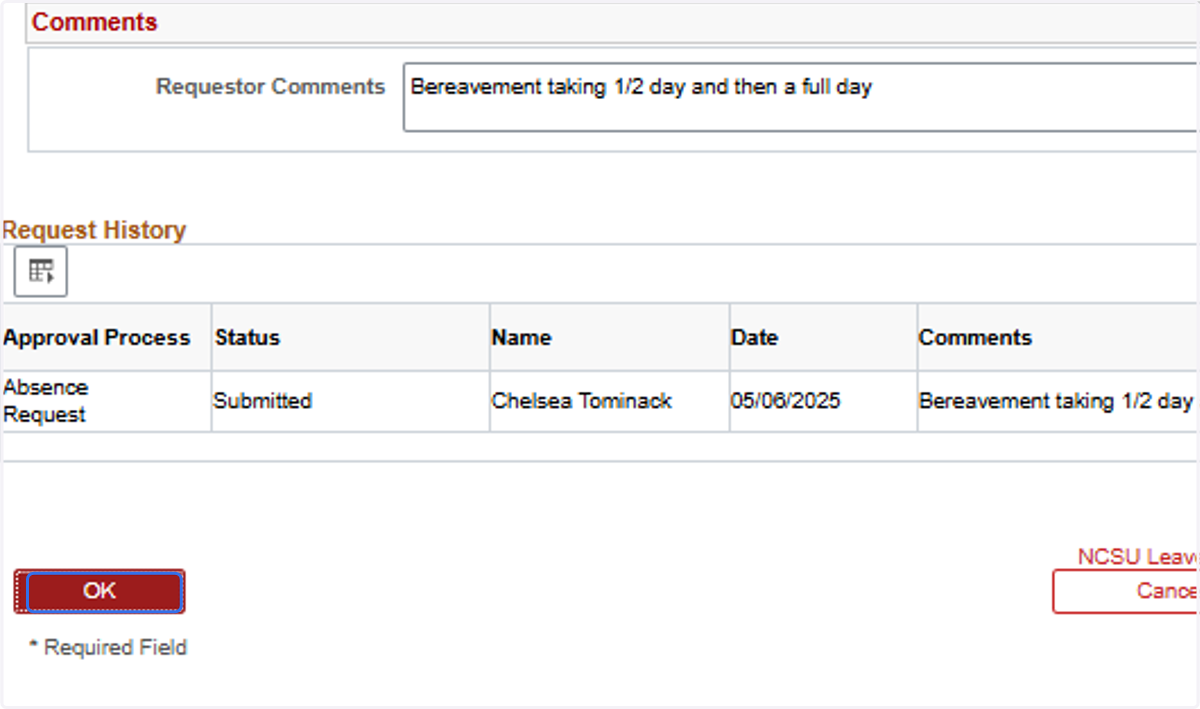
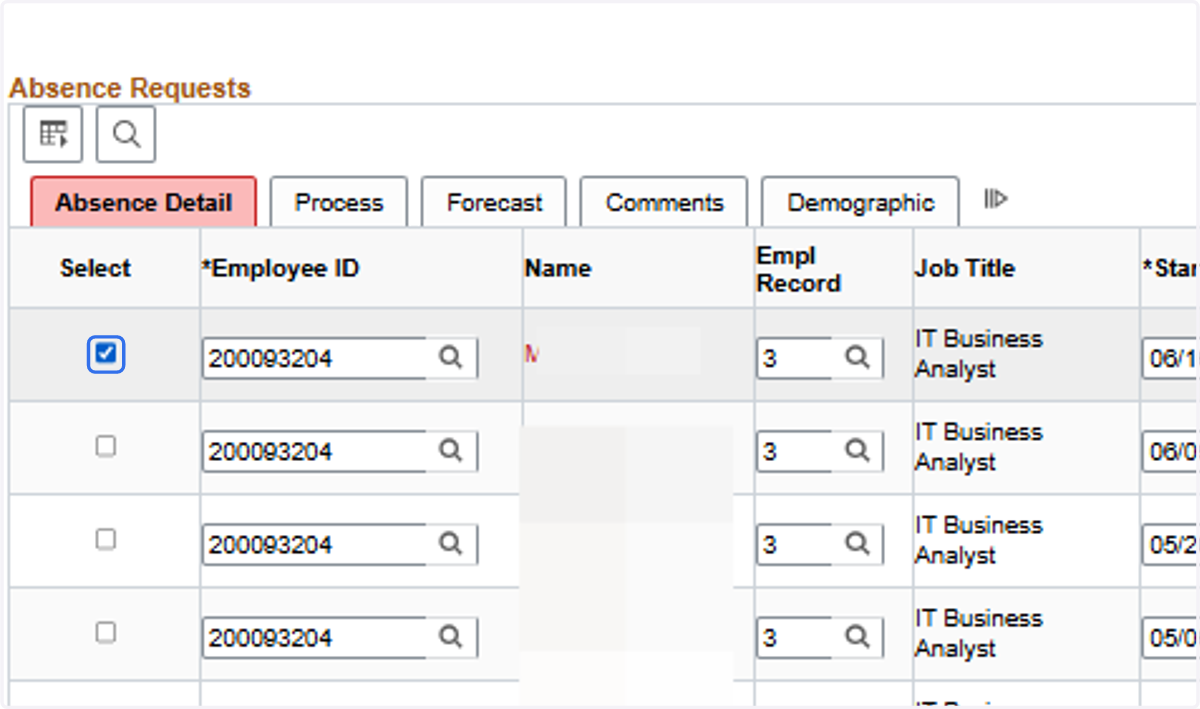
16. Highlight the absence request by checking the select box to the left
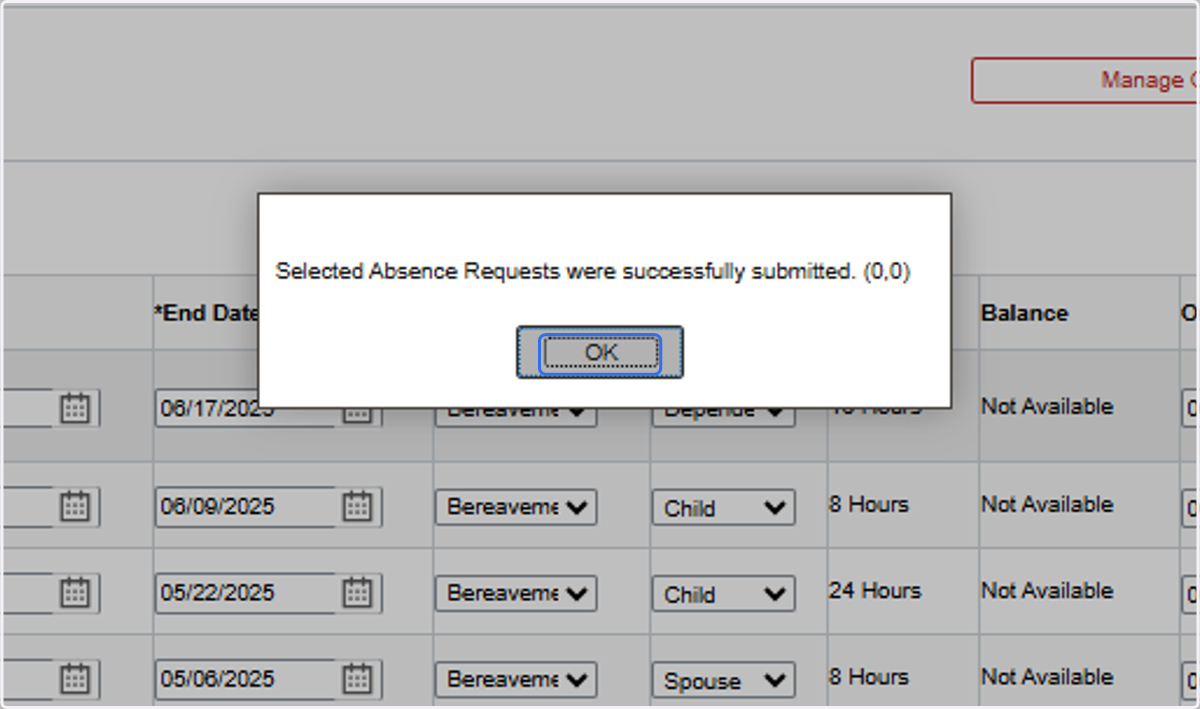
17. Click on Submit to approve.

18. Click on OK
19. Confirm that the absence request state should now show as "Approved"
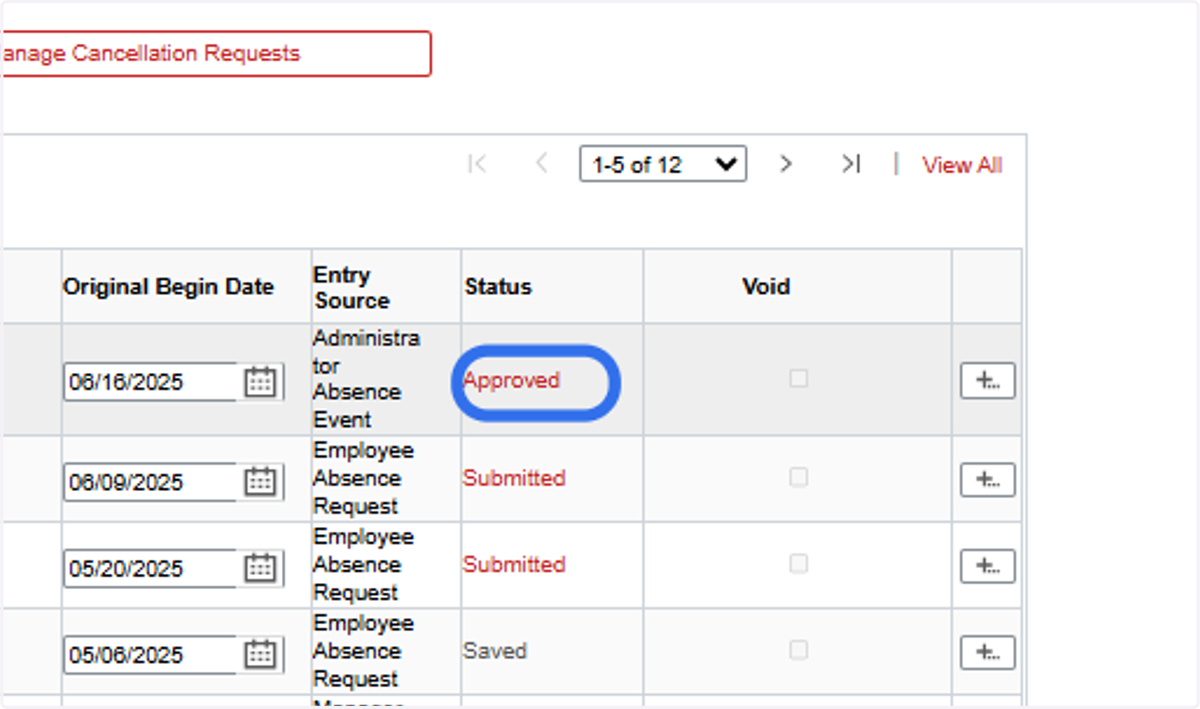
20. You have reviewed and approved an employee's Bereavement Leave Request