Invoice Contact and Registrar - How to view, download, and print IVSA invoices
Schools that have selected to receive invoices for their students' enrollments will be notified via email when a new invoice has been added to their IVSA Ledger.
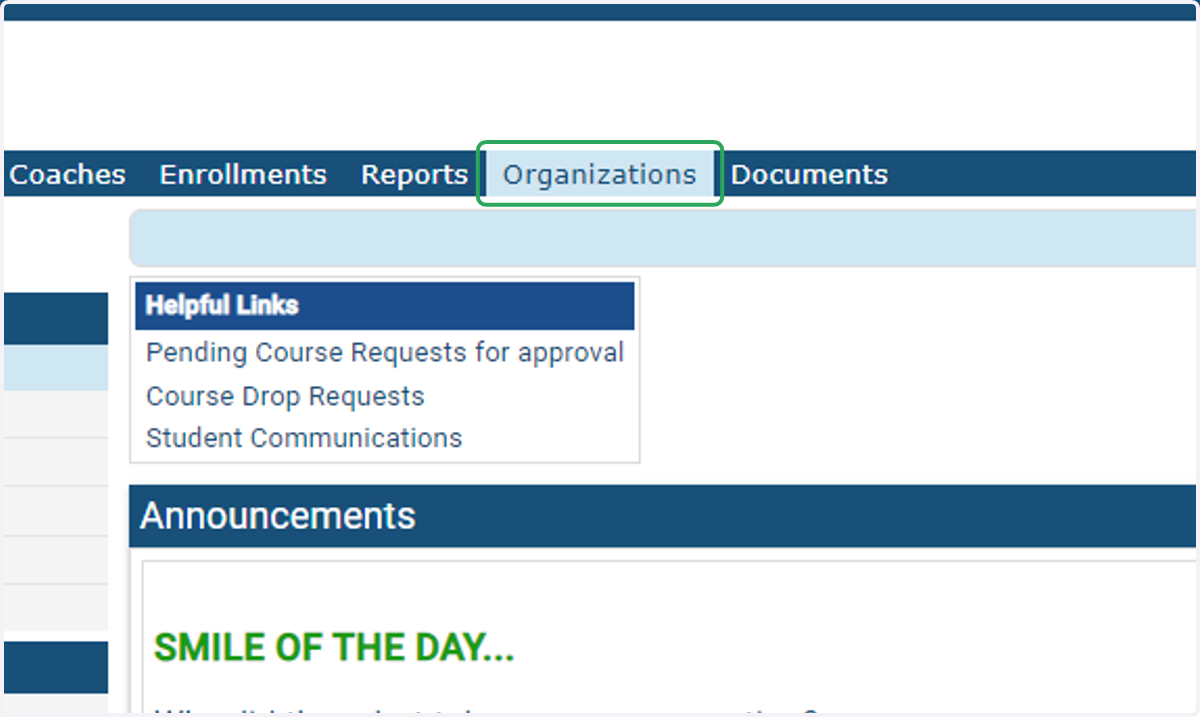
1. From the IVSA Invoice Contact or Registrar dashboard, click the Organizations tab at the top of the page.
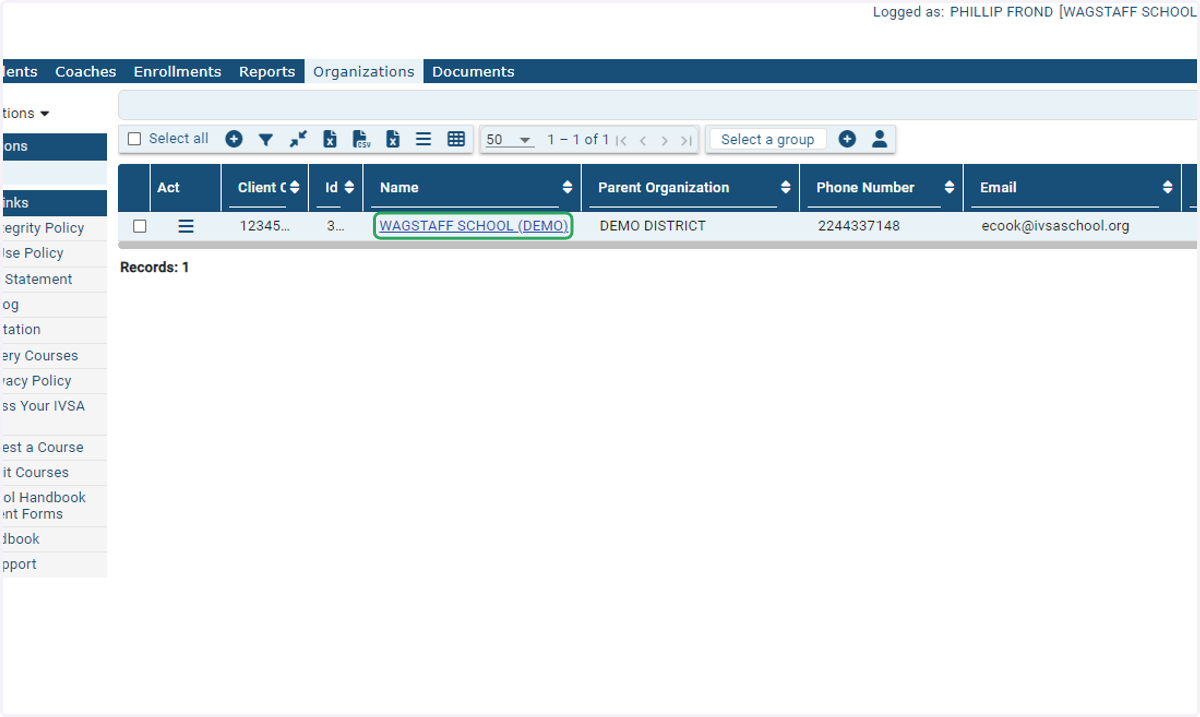
2. Click on your school's name on the Organization page.
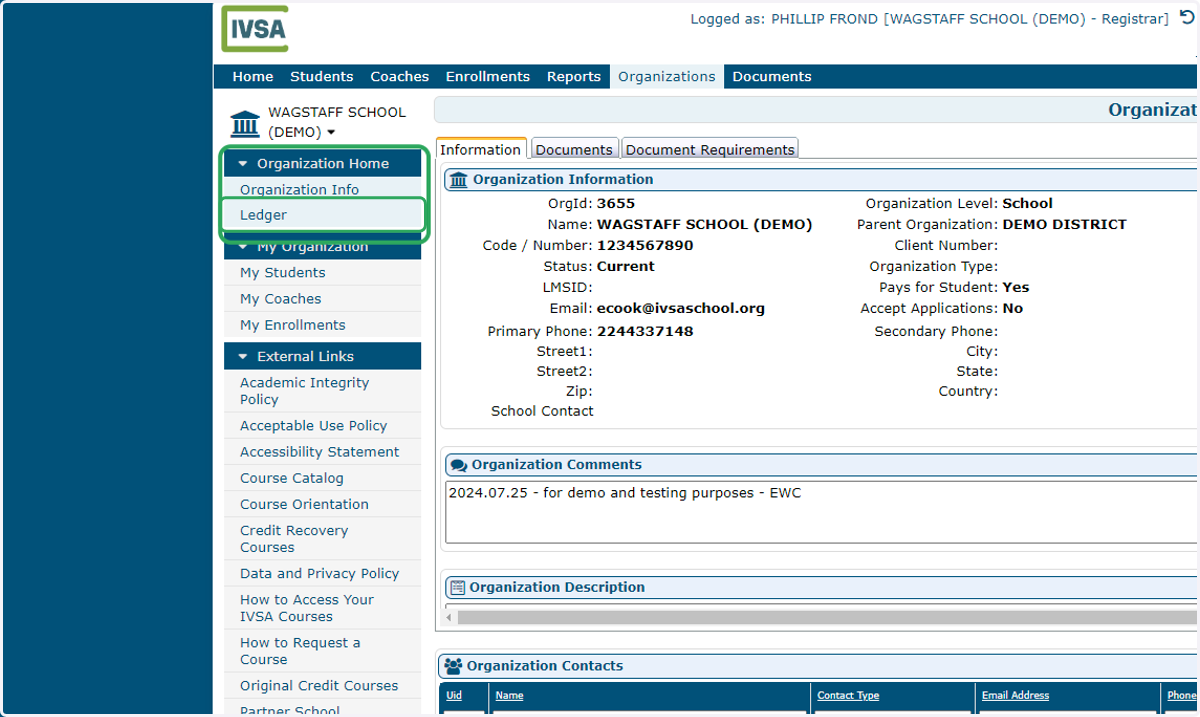
3. On the school information page, click the Ledger link under the Organization Home tab on the left side of the screen.
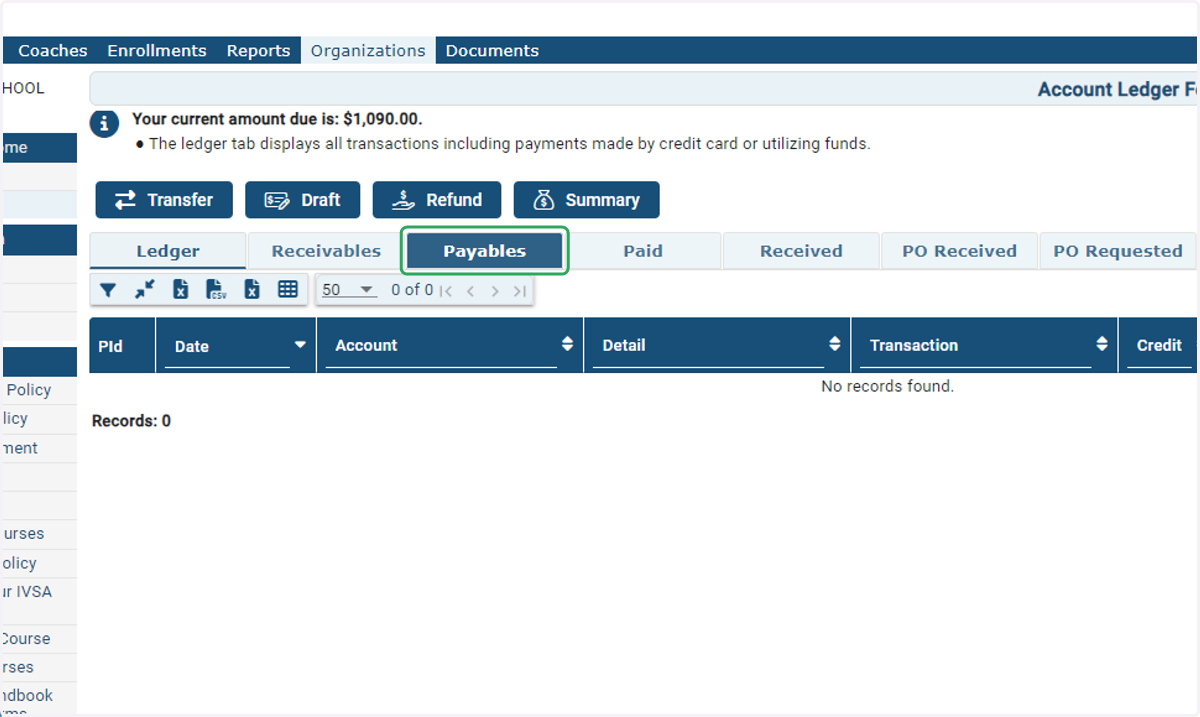
4. On the Ledger page, click the Payables tab.
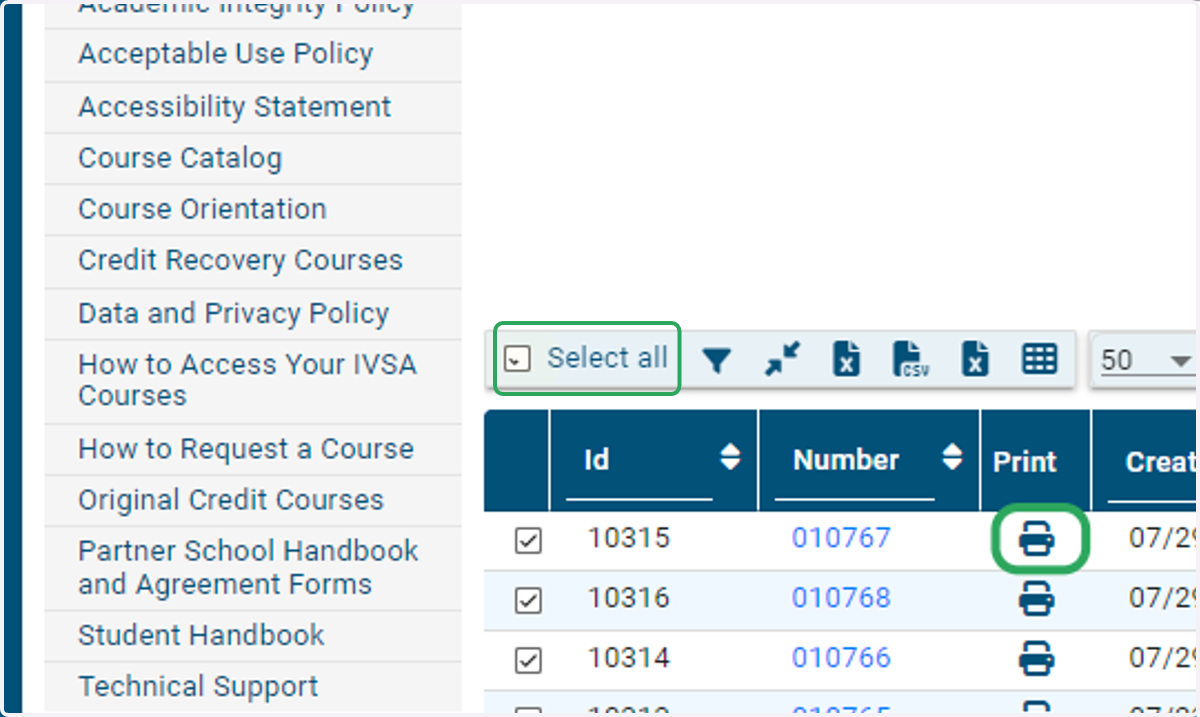
5. You can click the printer icon next to an invoice number to open a single invoice, or you can check Select All to open all invoices.
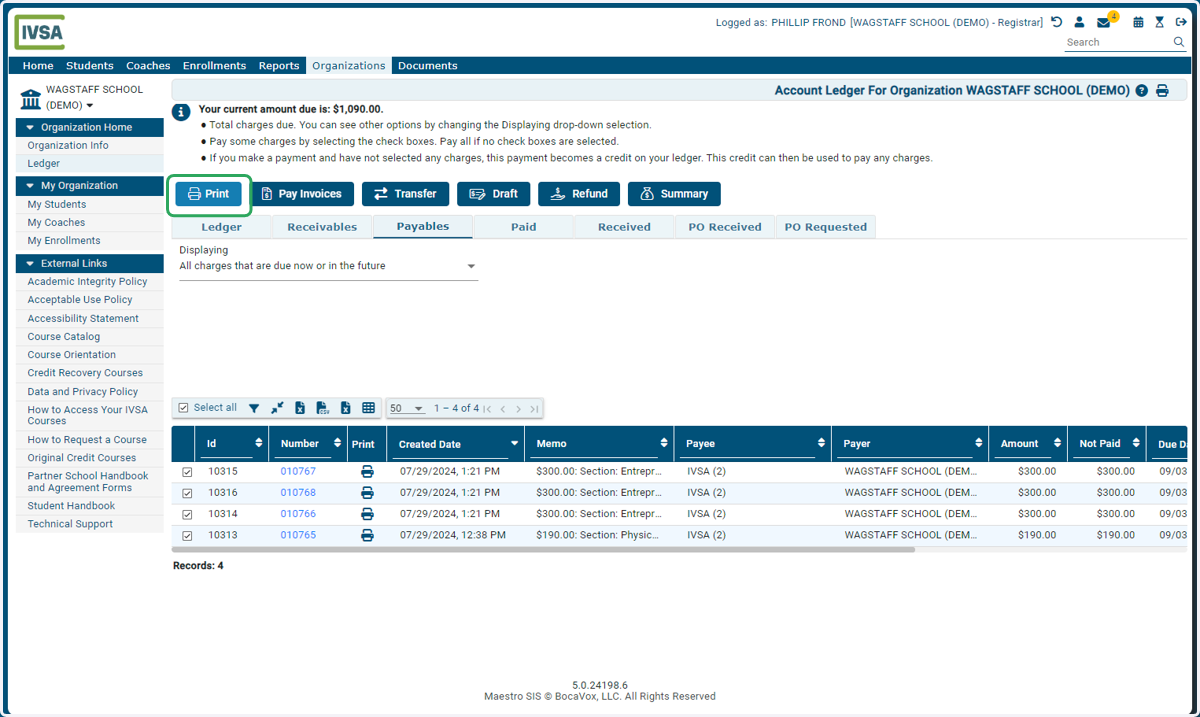
6. If you Select All, click the Print button above the Ledger table.
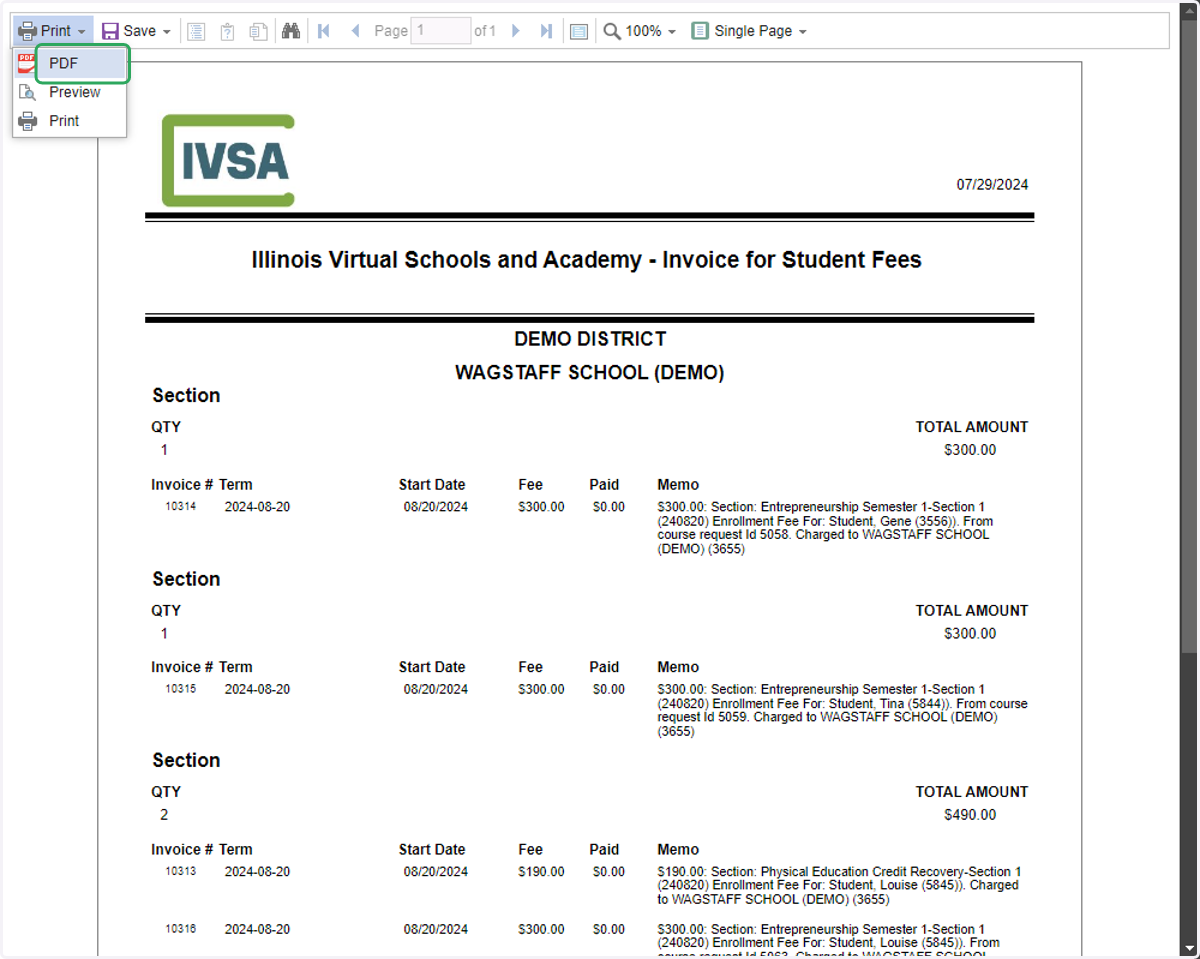
7. A new window with the selected invoices will open.
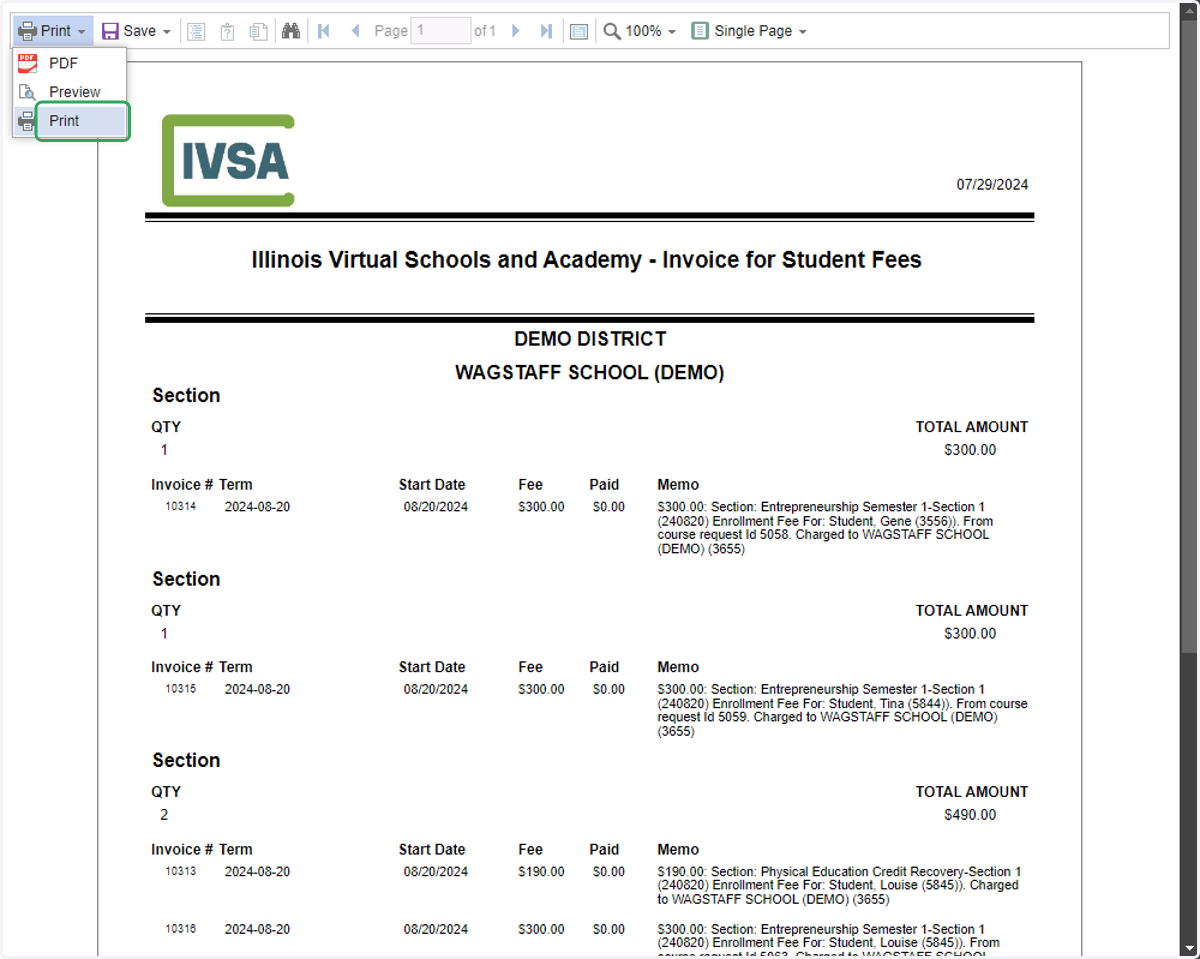
8. You can print the invoice(s) or download them as a PDF document.
IVSA requests that all School billed invoices be paid via Check to:
Illinois Virtual Schools and Academy
C/O Lake County Regional Office of Education
300 Center Drive, Suite 100
Vernon Hills, IL 60061