Inviting and Assigning Reviewers
This tutorial will walk you through how to invite reviewers and assign them to review abstracts and draft papers.
Your ASEE Profile American Society for Engineering Education
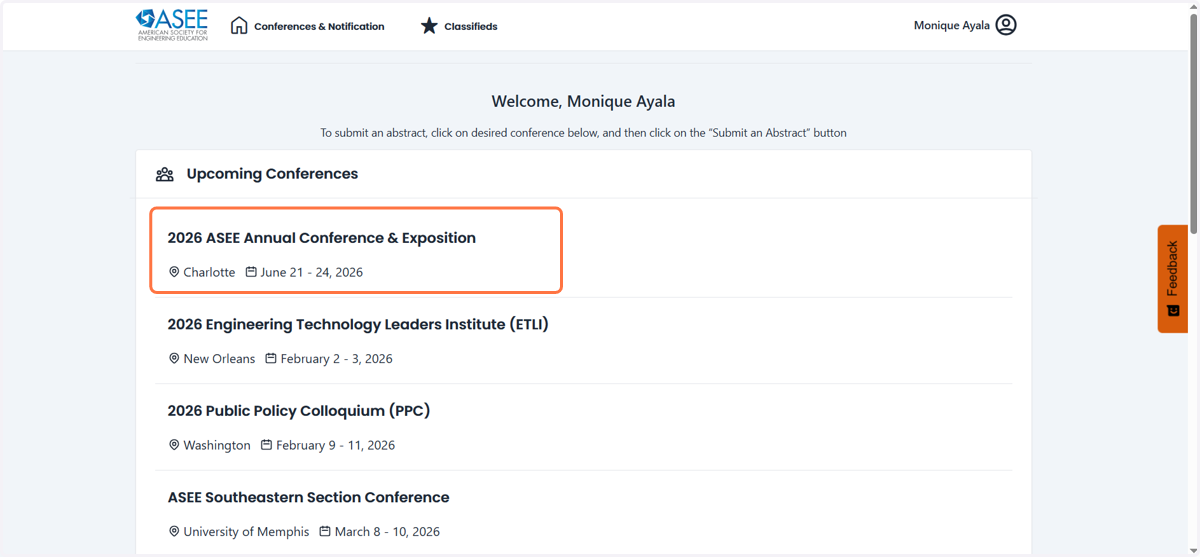
1. Click on 2027 ASEE Annual Conference & Exposition
After logging into your account on nemo.asee.org you will select the 2027 Annual Conference.
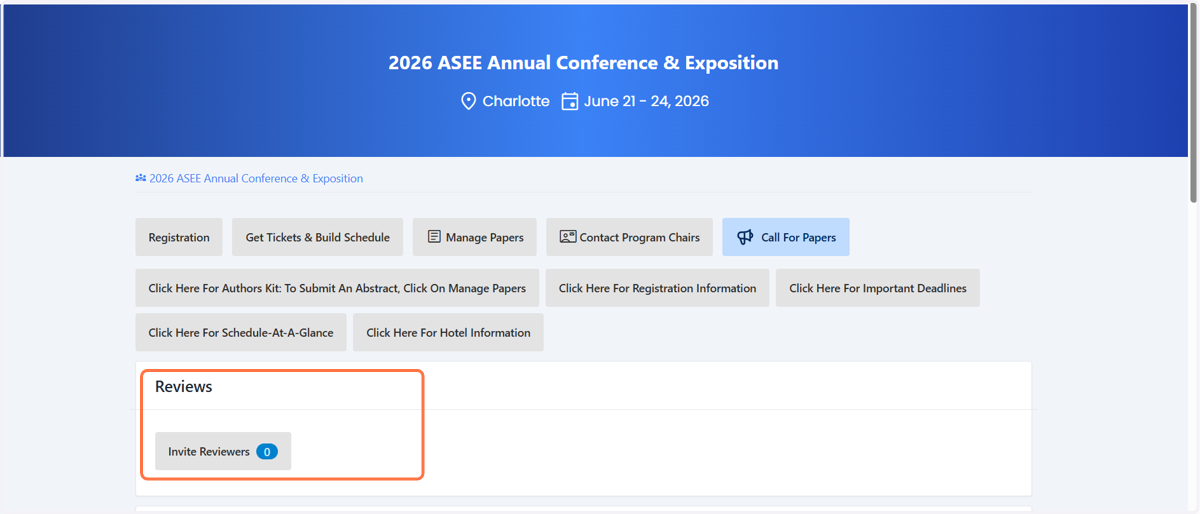
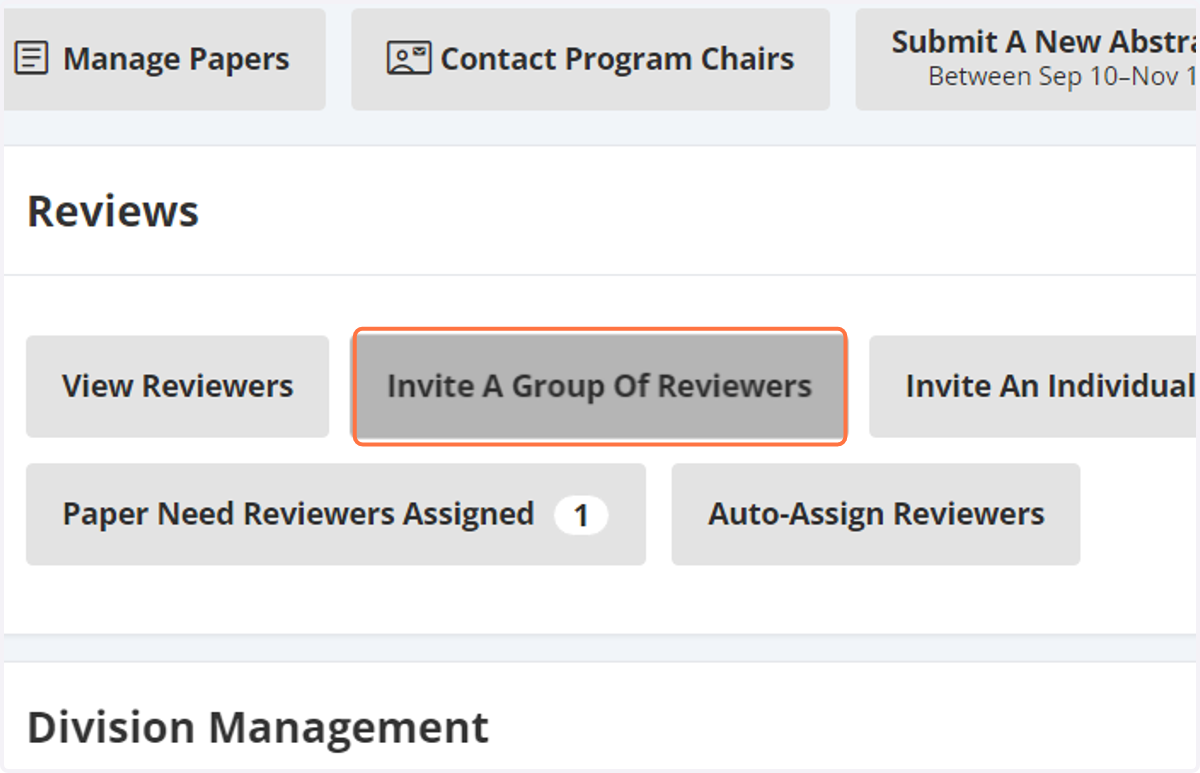
2. Under the reviews section click on invite a group of reviewers or invite an individual reviewer.
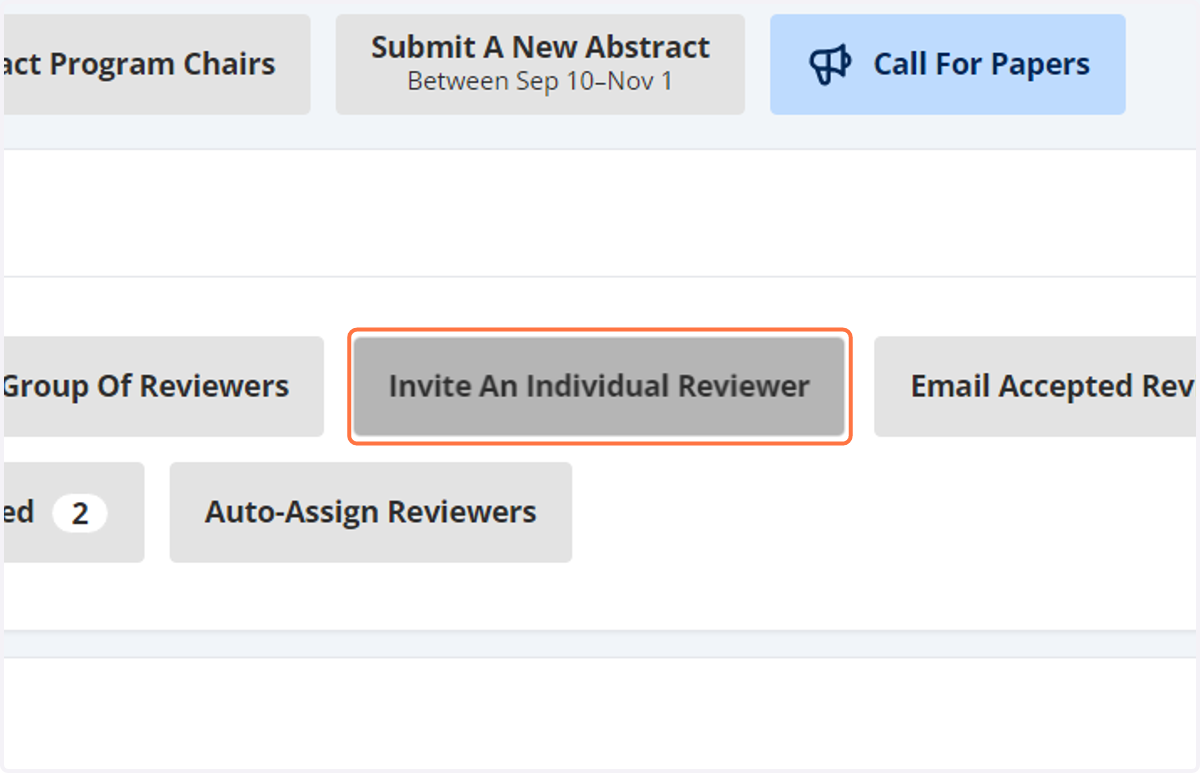
3. How to invite an Individual Reviewer
Select invite an individual reviewer
4. Enter the individuals name, email address or their insititution then click on search.
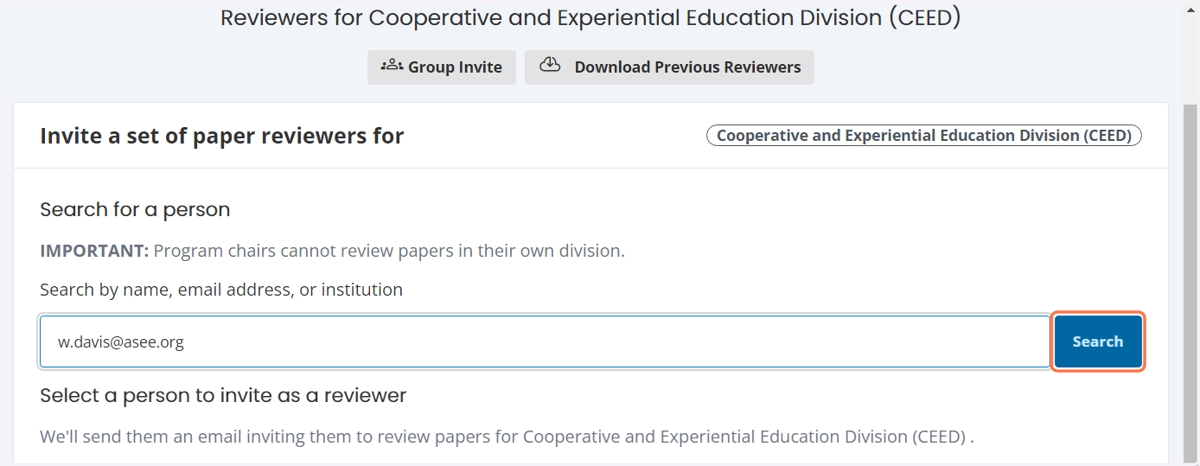
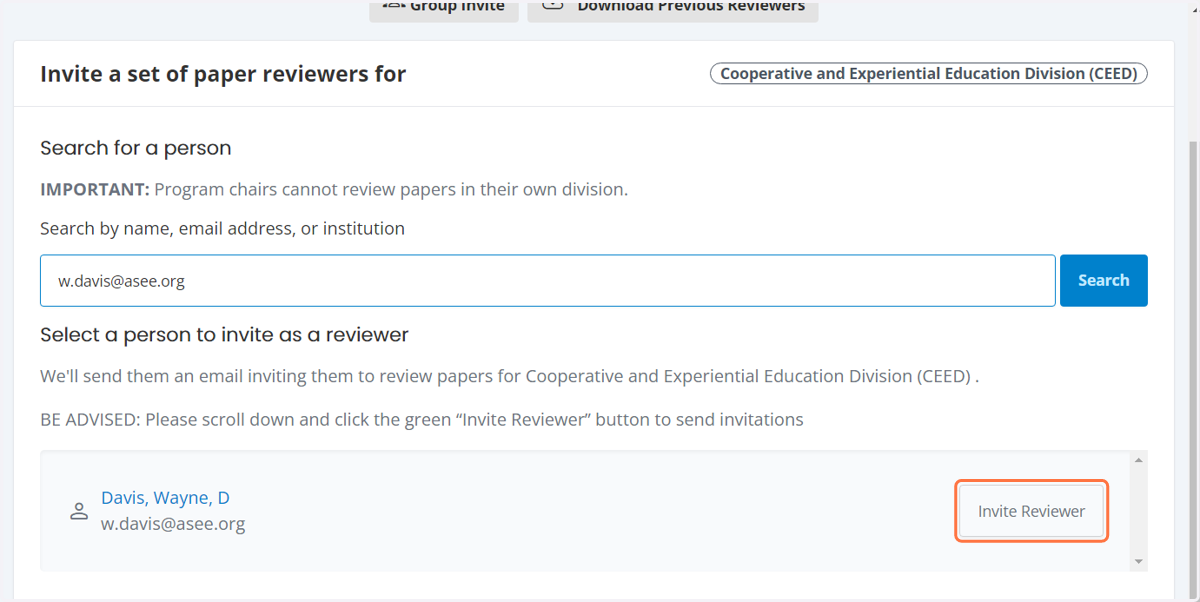
5. Click on Invite Reviewer
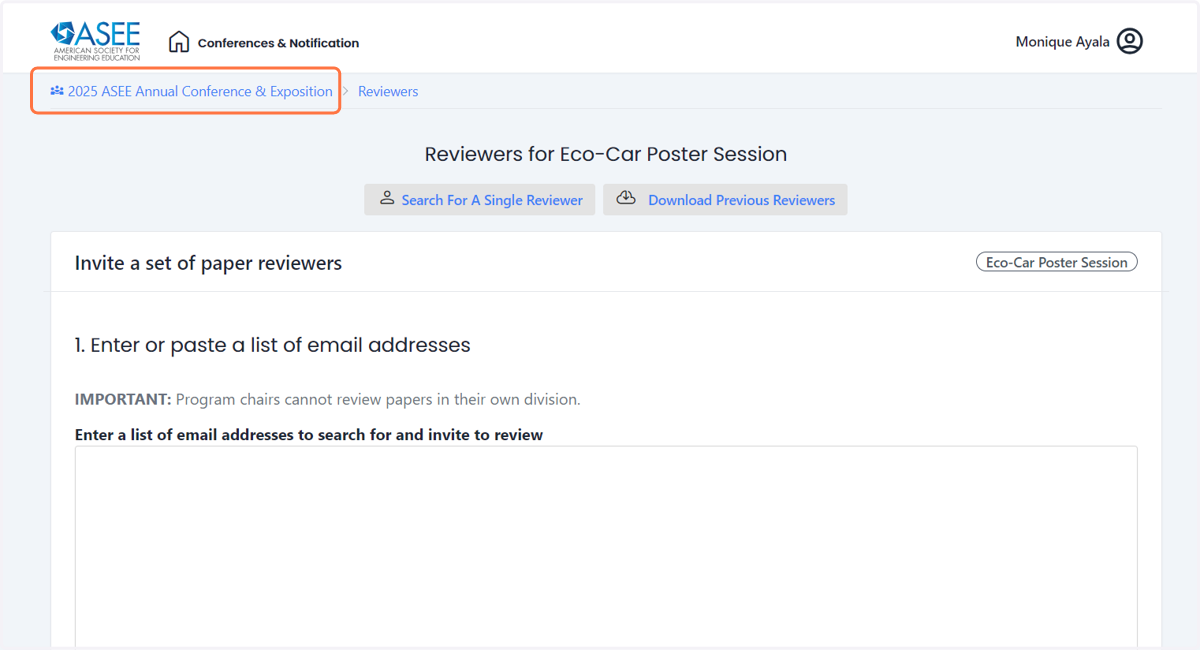
6. If you would like to invite a group of reviewers at once. Click on Invite A Group Of Reviewers
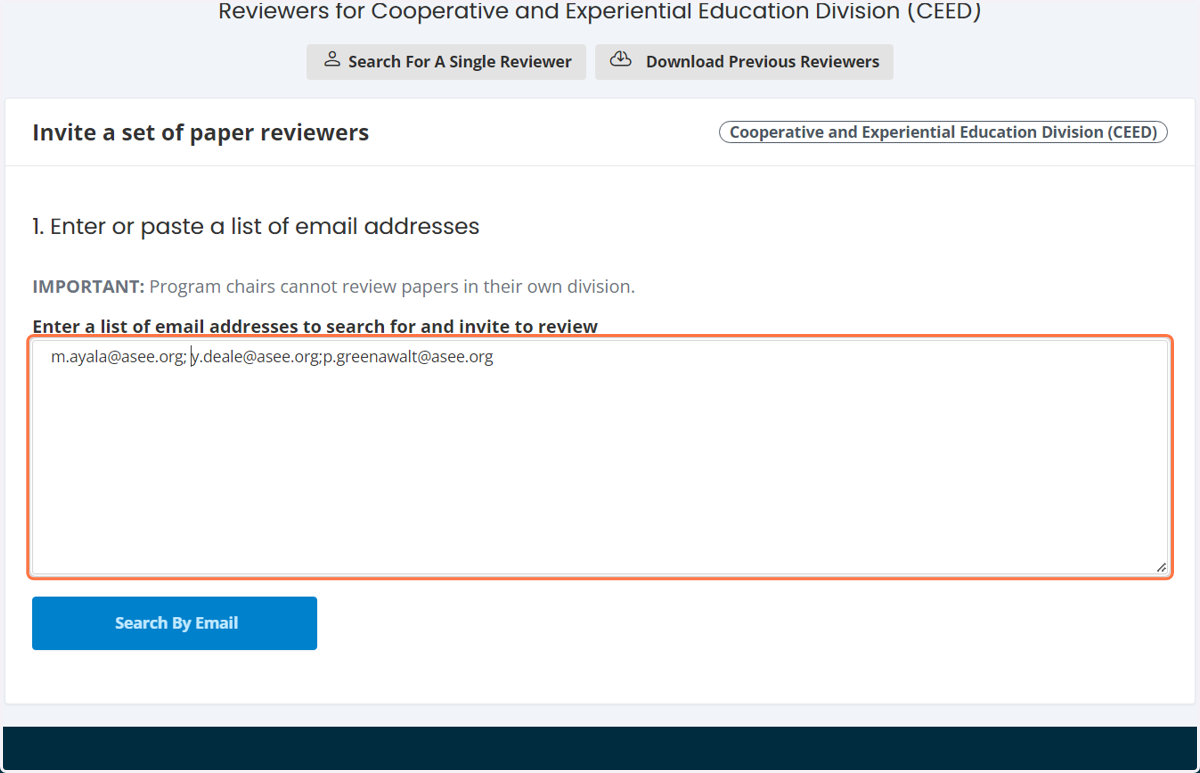
7. You can copy and paste the mulitple email addresses here.
**to add multiple email address be sure to enter either ";","," or " "
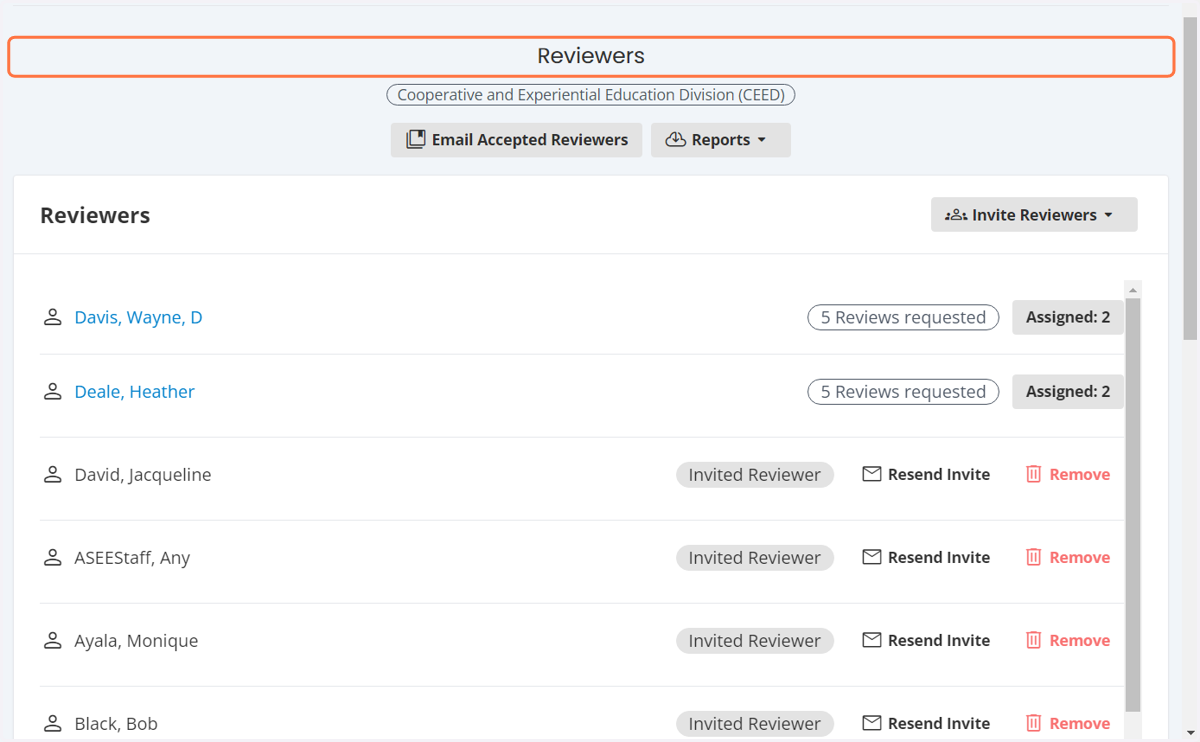
8. You will see the list of people you invited.
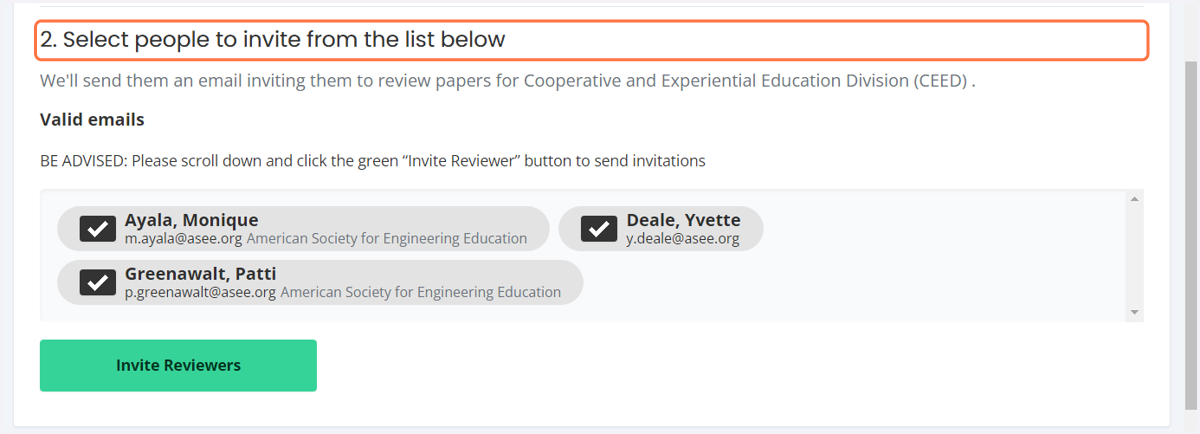
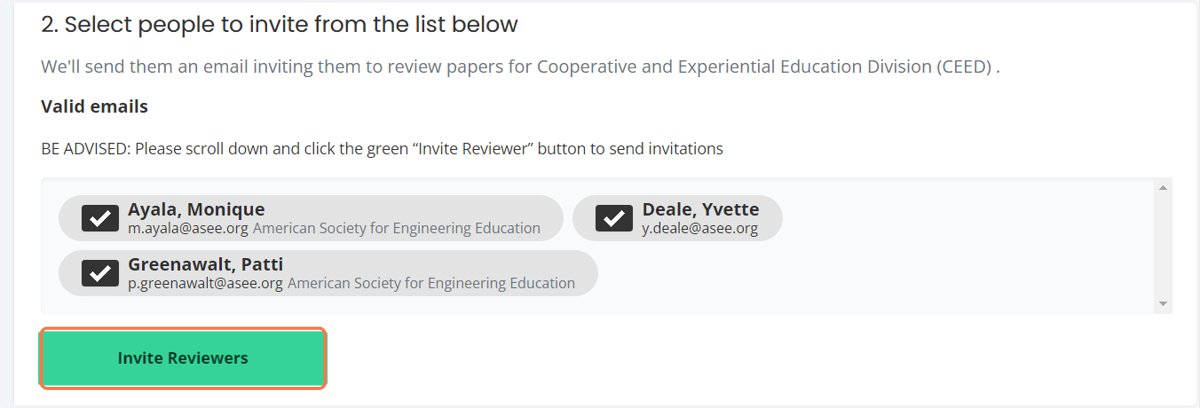
9. Click on invite reviewers
10. This is what the invited reviewer will see
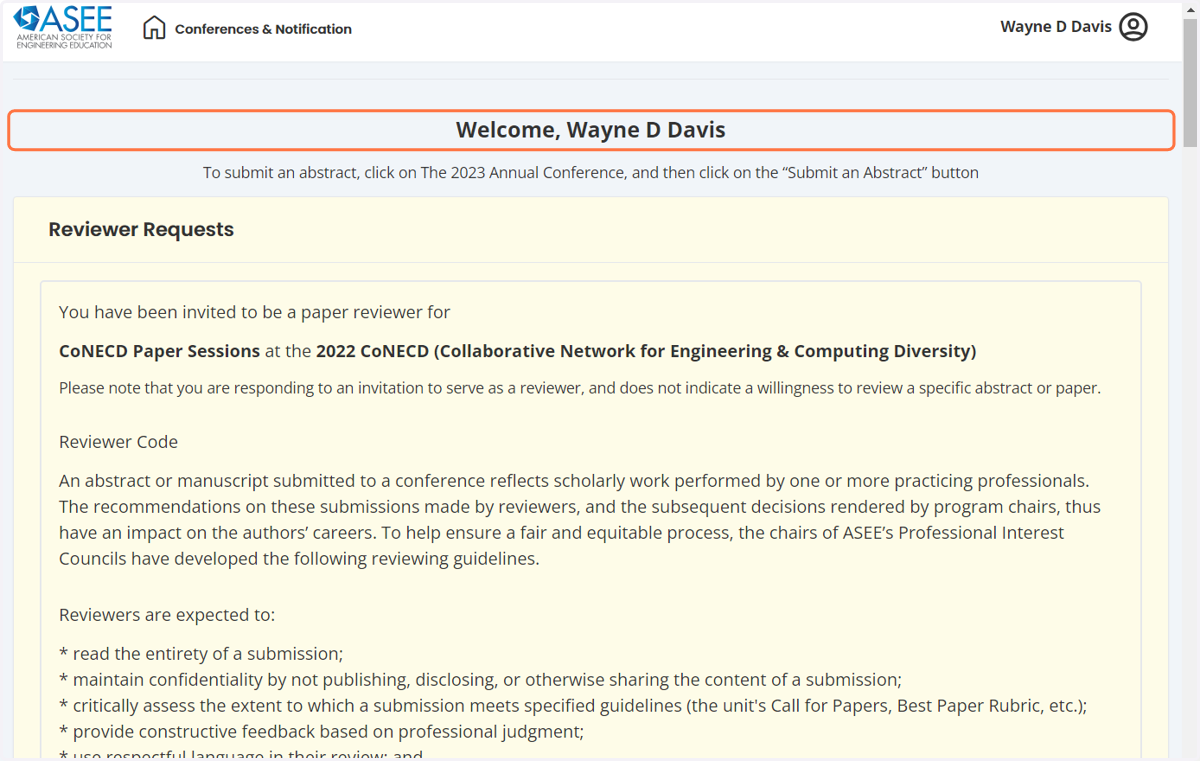
11. They will scroll down to your division
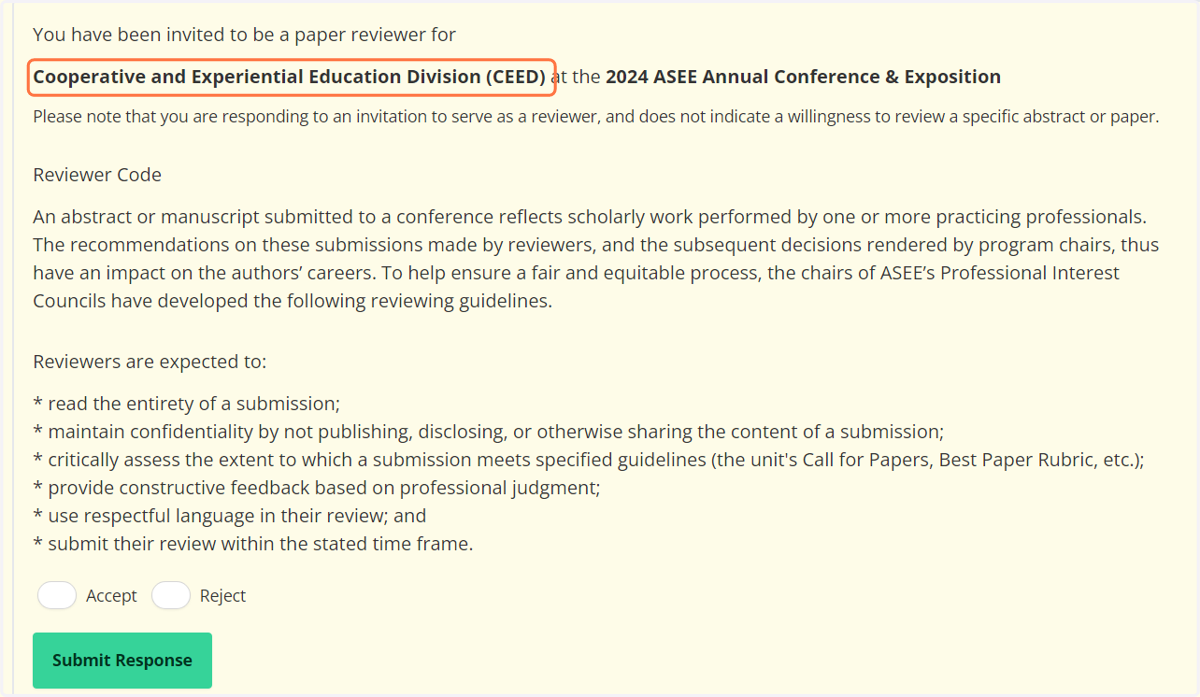
12. Click on accept or reject
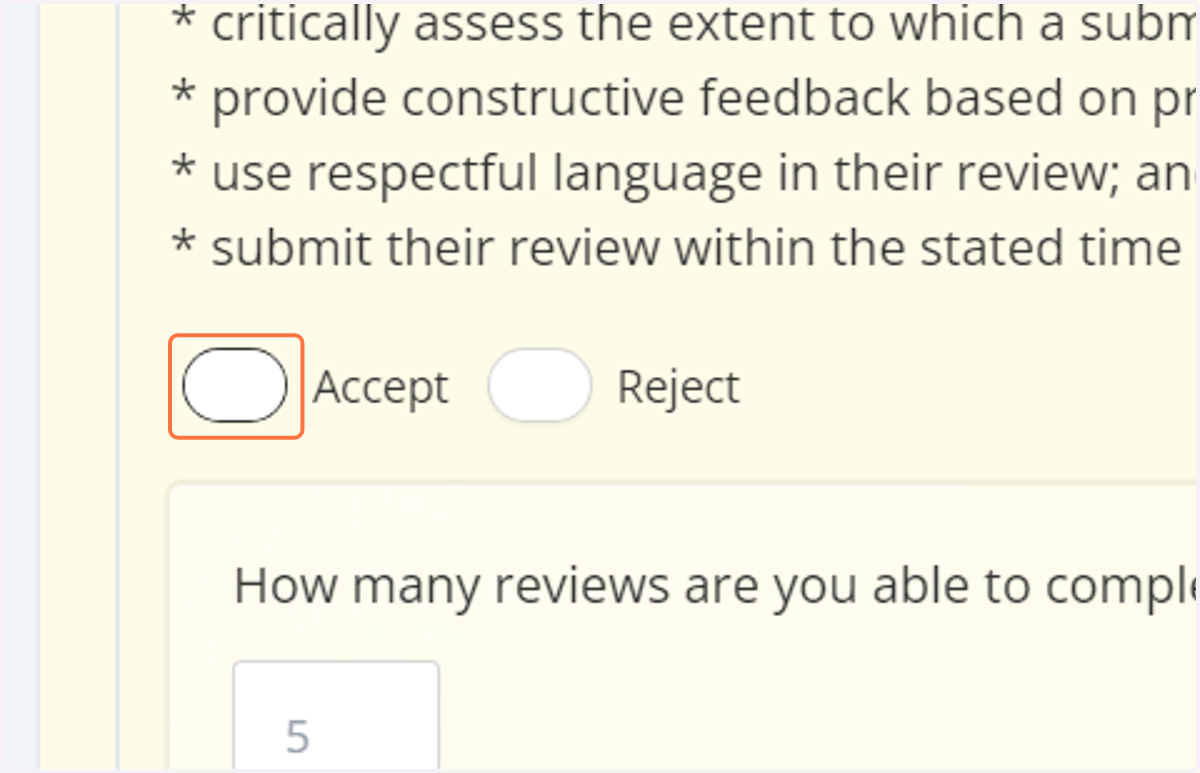
13. They will also be required to add the number of reviews they will be able to complete.
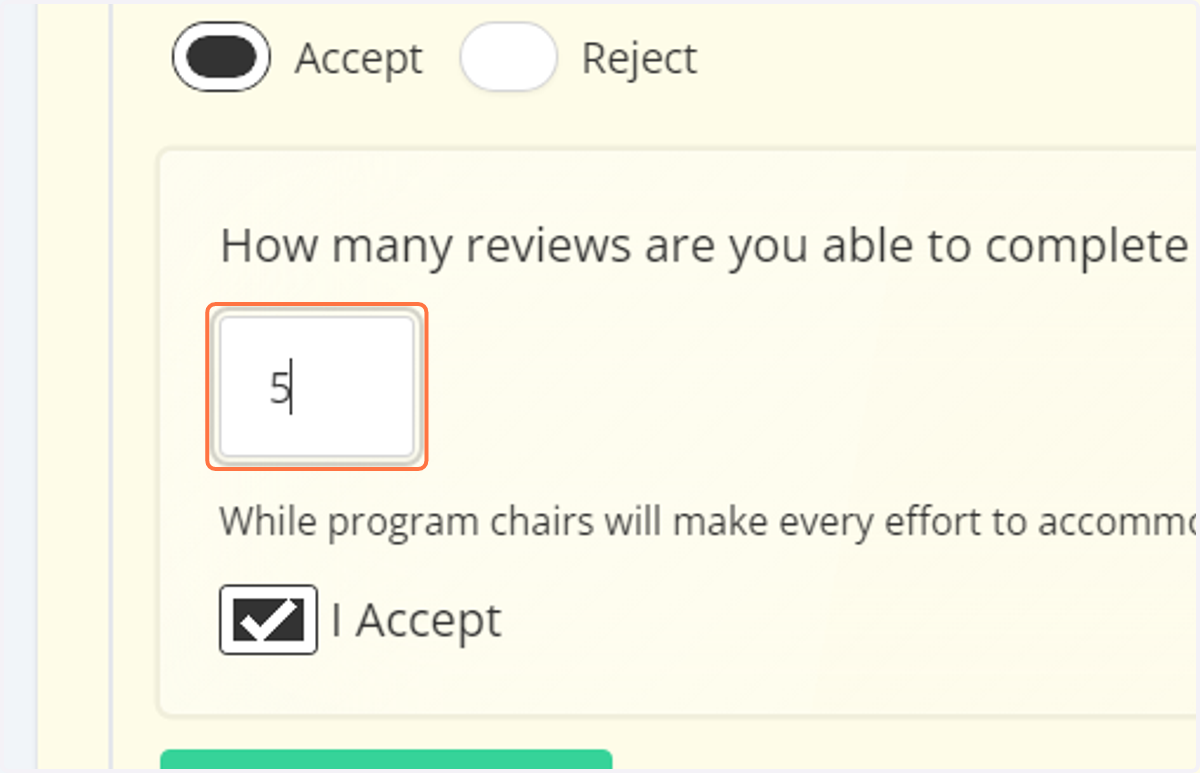
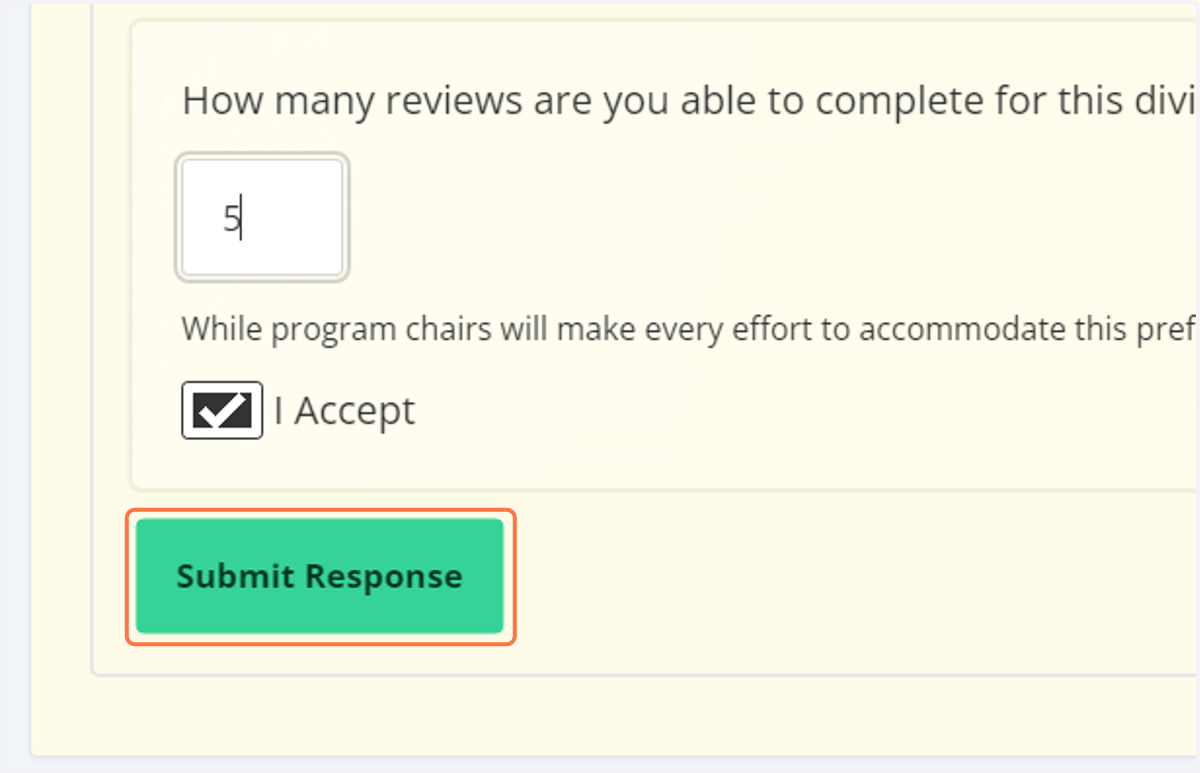
14. Click on on submit response
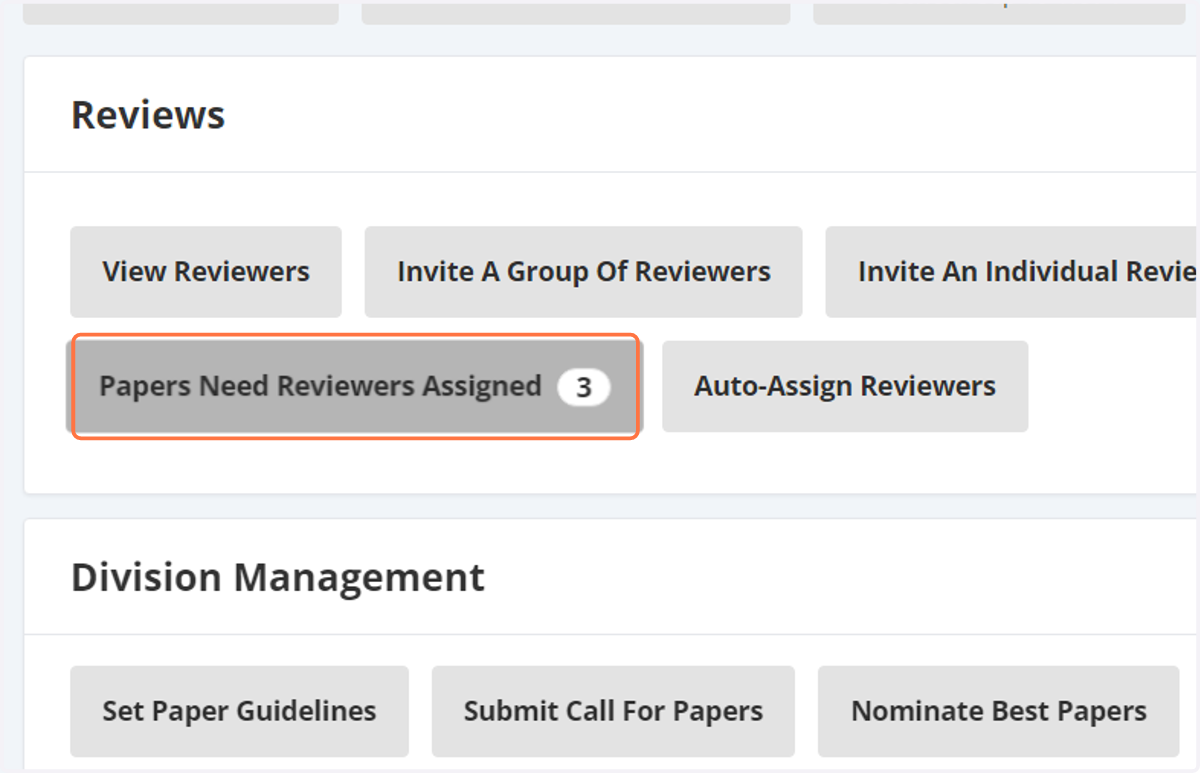
15. Assigning reviewers to papers
Click on papers need reviewers assigned.
16. You will see the authors name and the title of the paper.
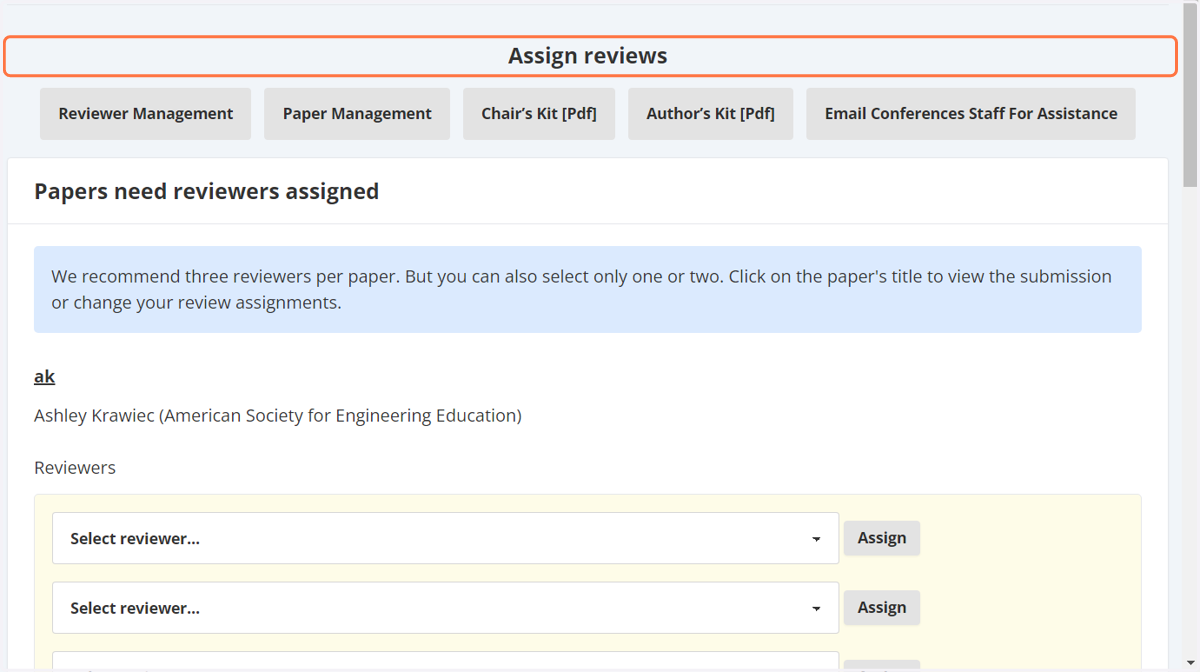
17. Click on the drop down menu and select one of the invited reviewers.
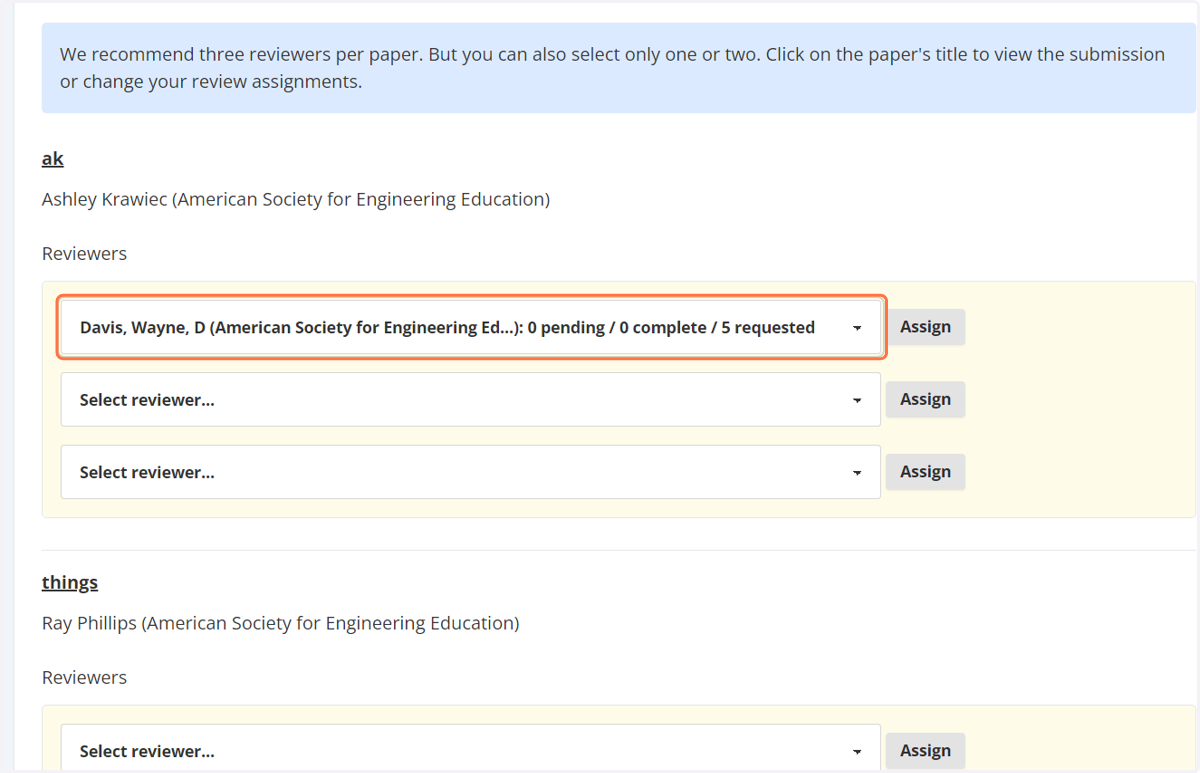
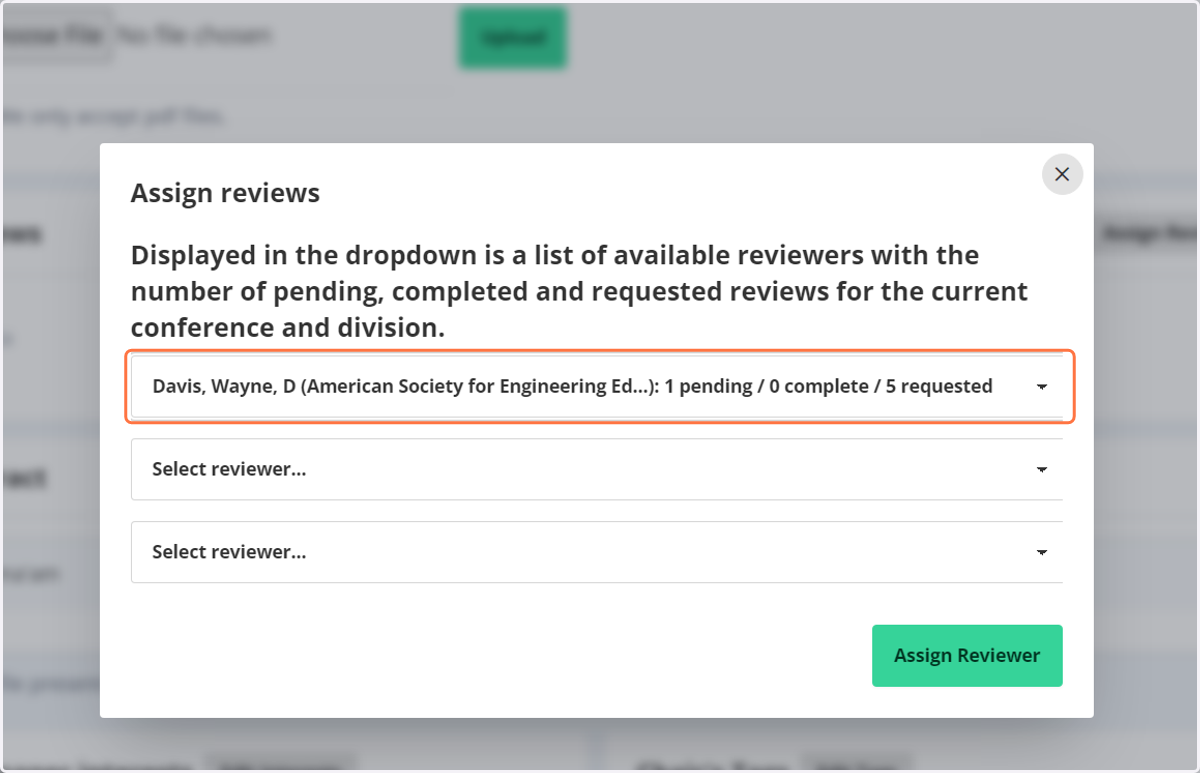
18. You will be able to see how many papers the reviewer agreed to review, how many have been completed and how many are pending. This will help you when assigning reviewers.
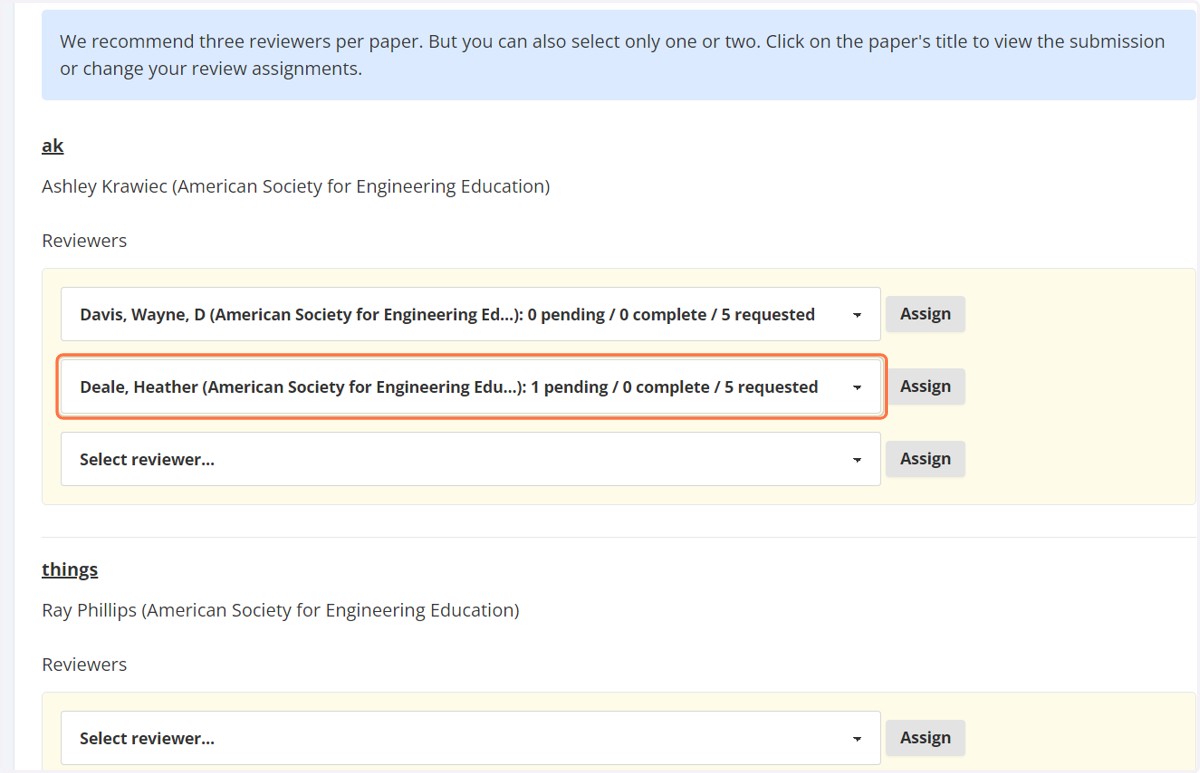
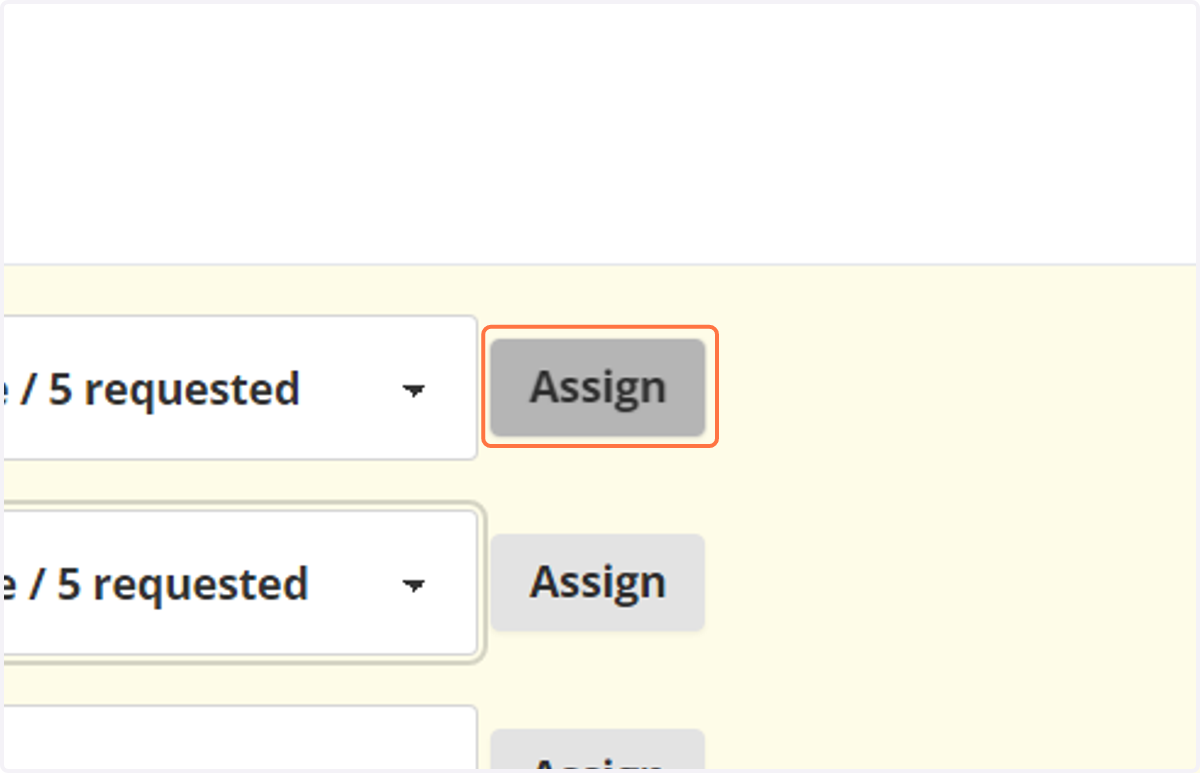
19. Be sure to click on assign once you have selected your reviewer.
20. Another way to assign reviewers.
From the main page click on manage papers.
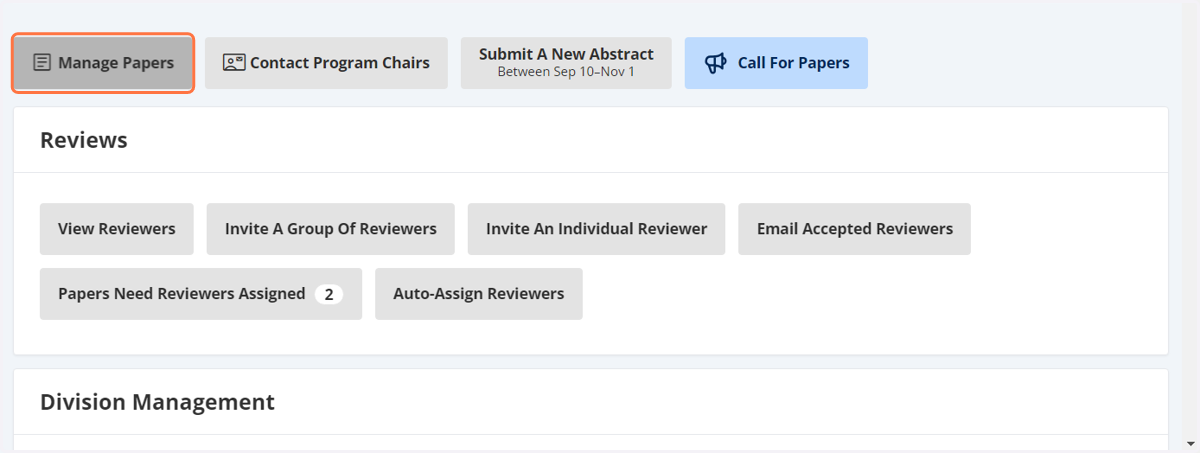
21. Here you will see all of the papers submitted to your division.
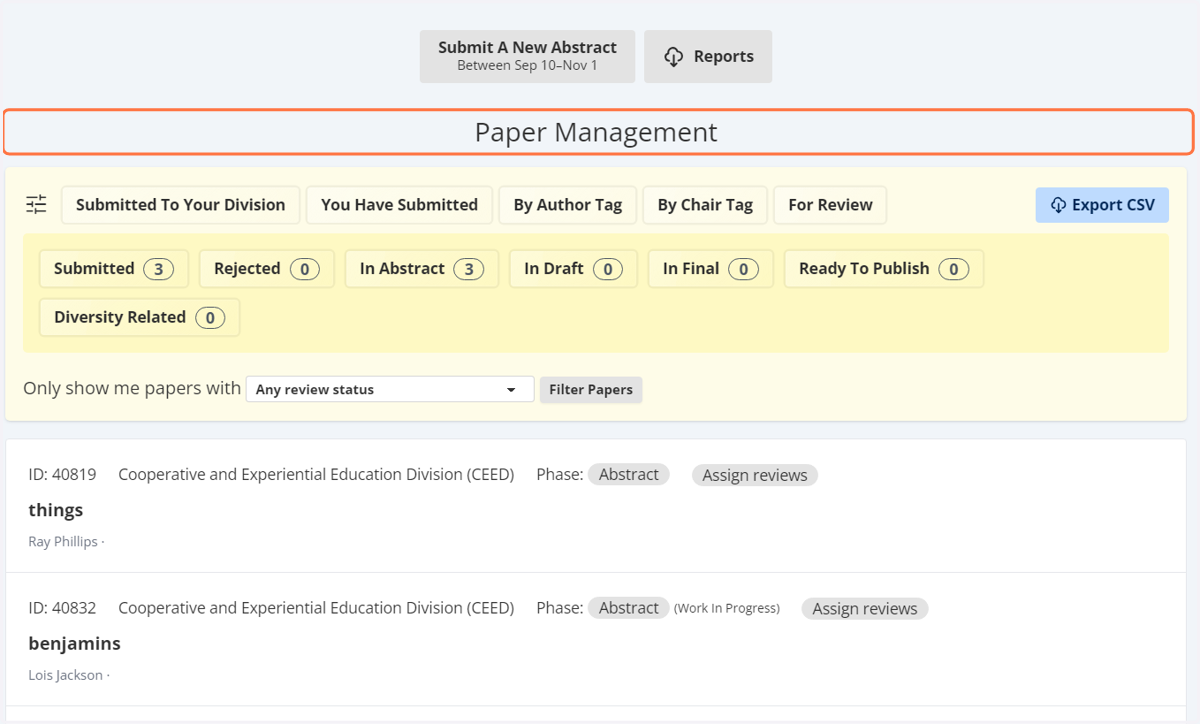
22. Select the paper that needs a reviewer(s) assigned.
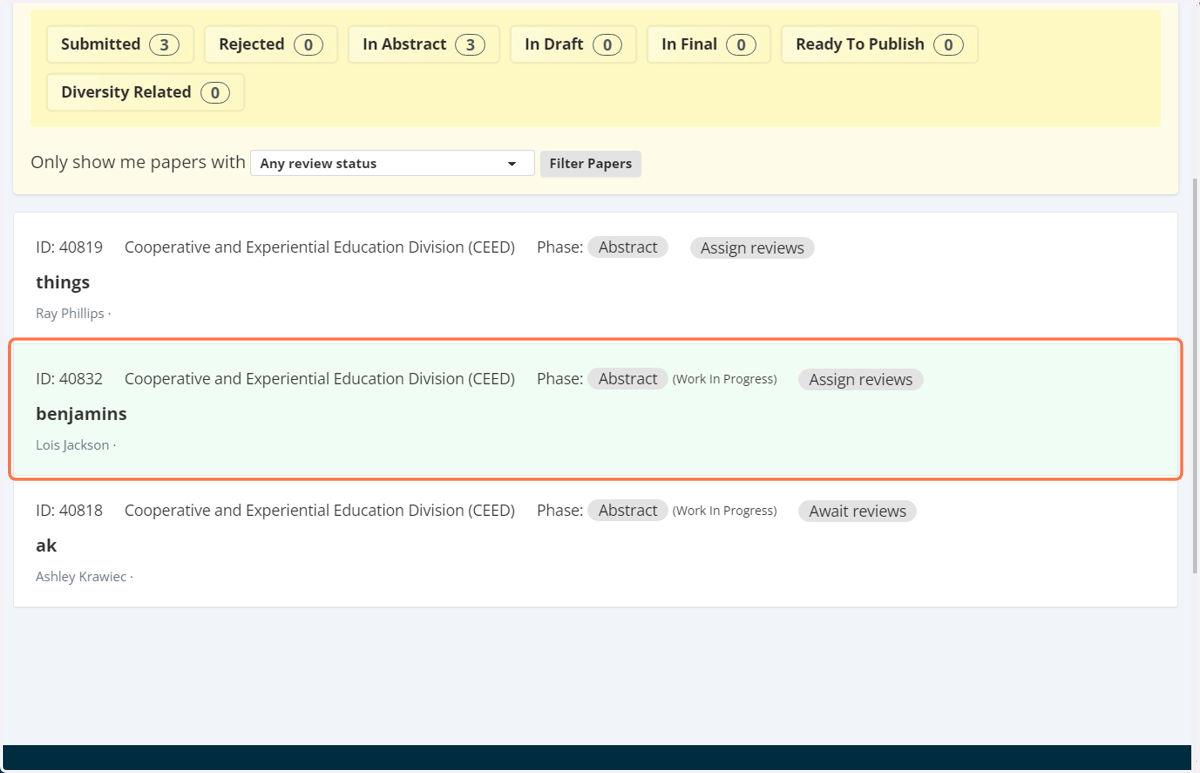
23. Once the paper has been selected. You will come to another screen.
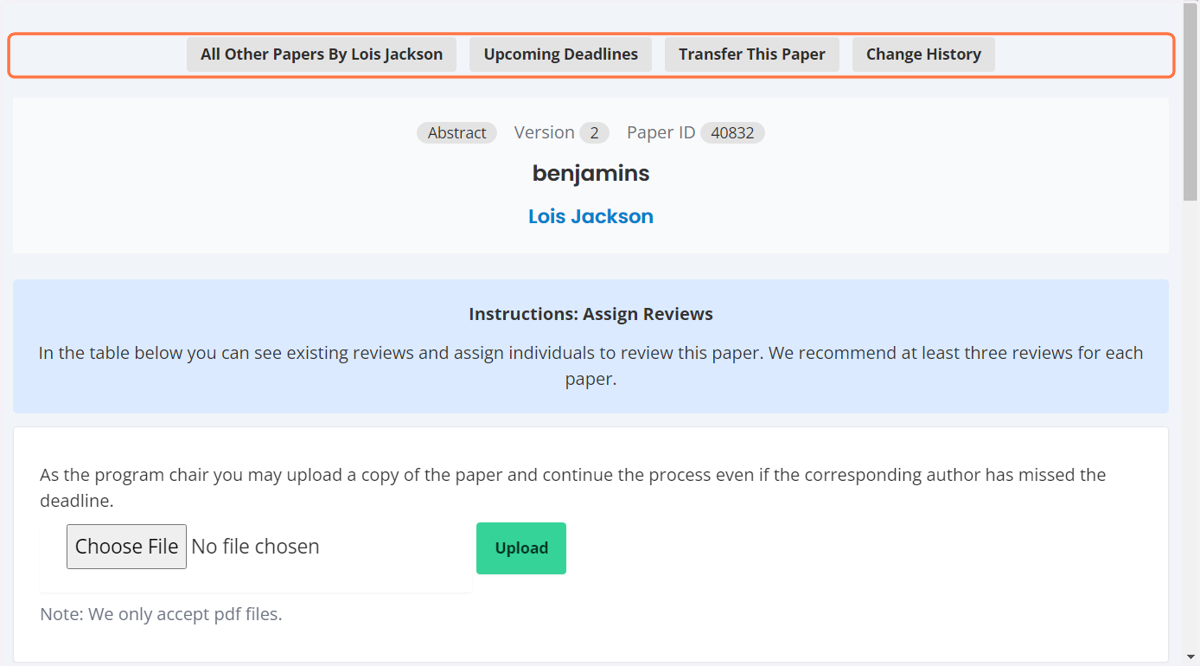
24. Scroll down to reviews and click on assign reviewers.
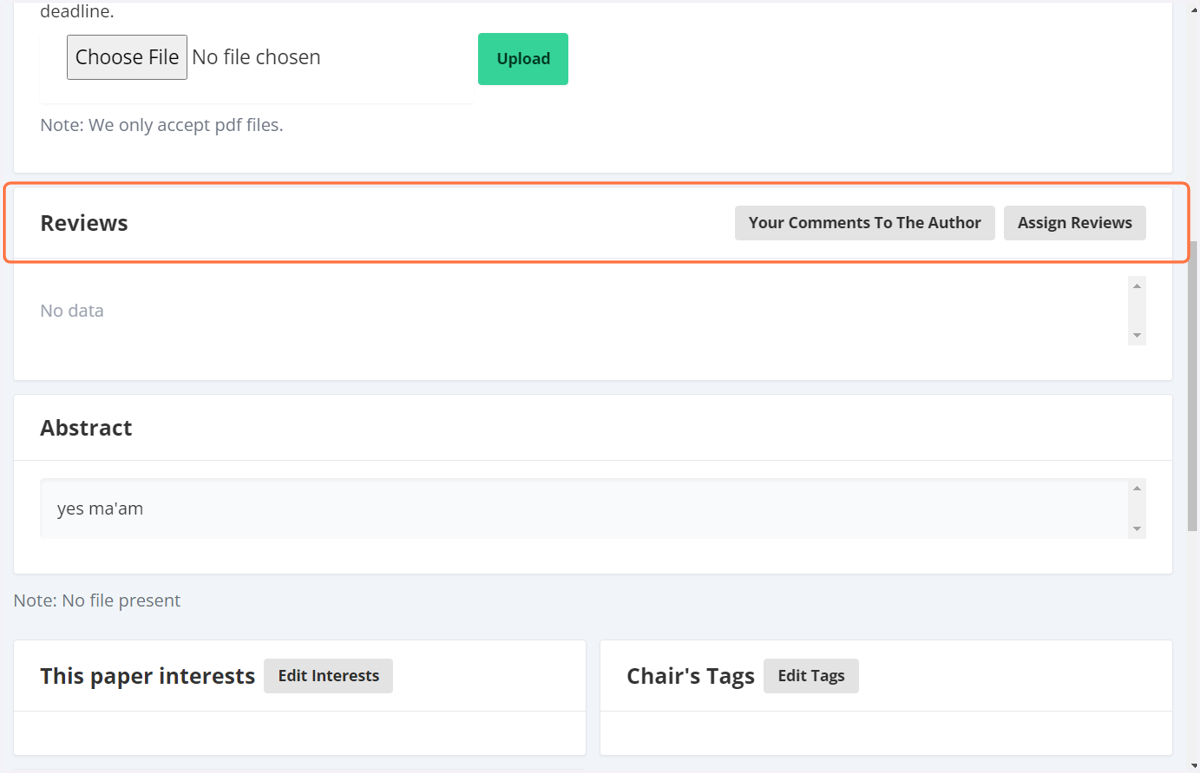
25. A pop up screen will appear. You can click on the drop down menu.
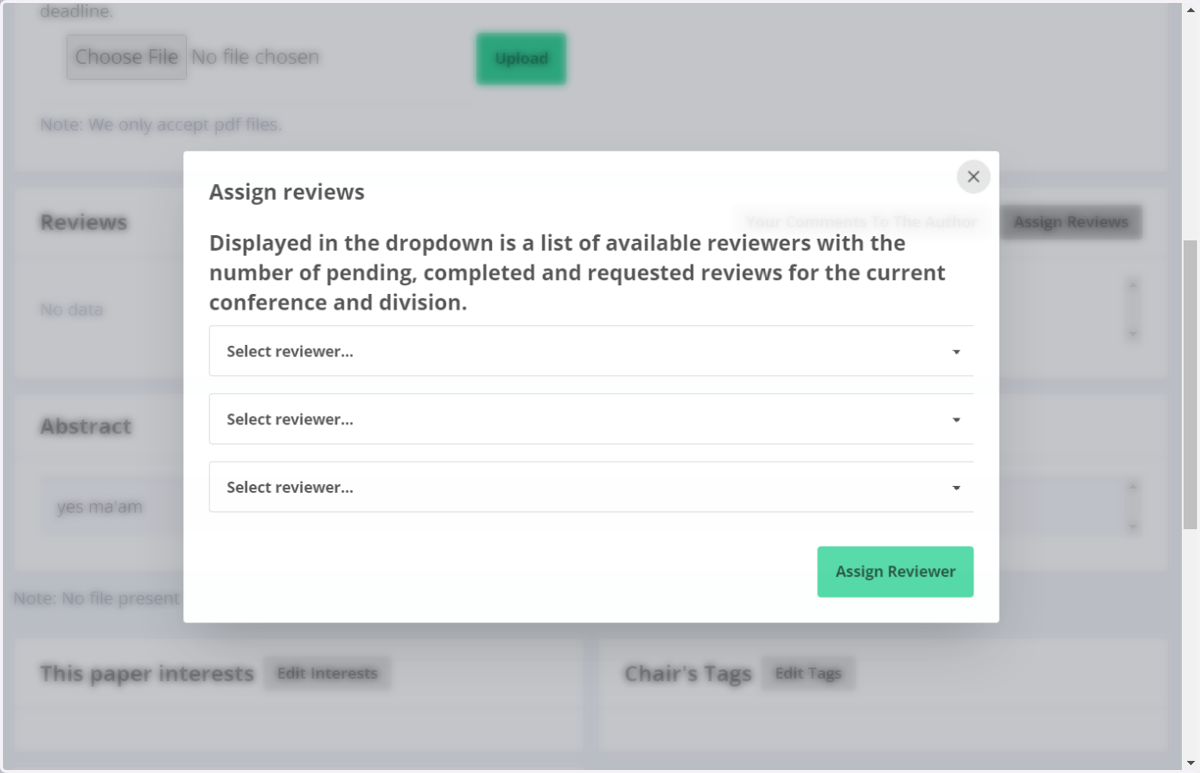
26. Select your reviewer
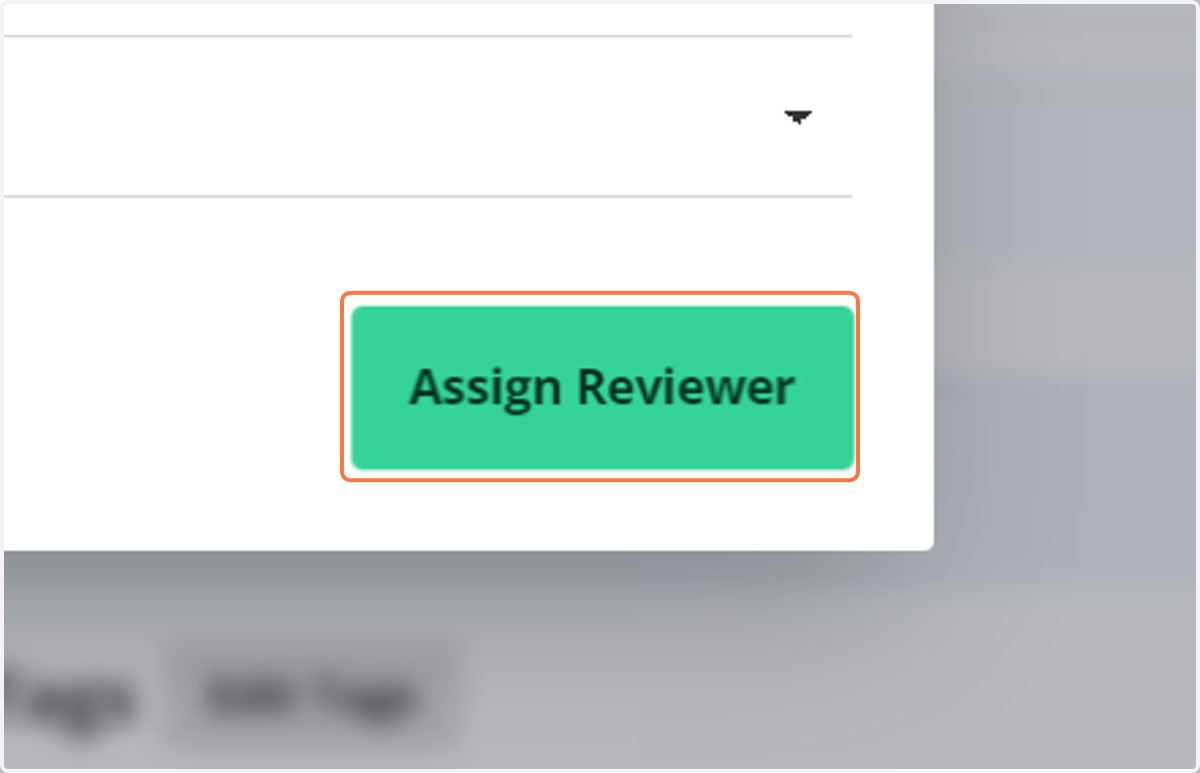
27. Click on assign reviewer
28. You can find a list of the previous years reviewers and invite them again.
Click on Invite reviewers
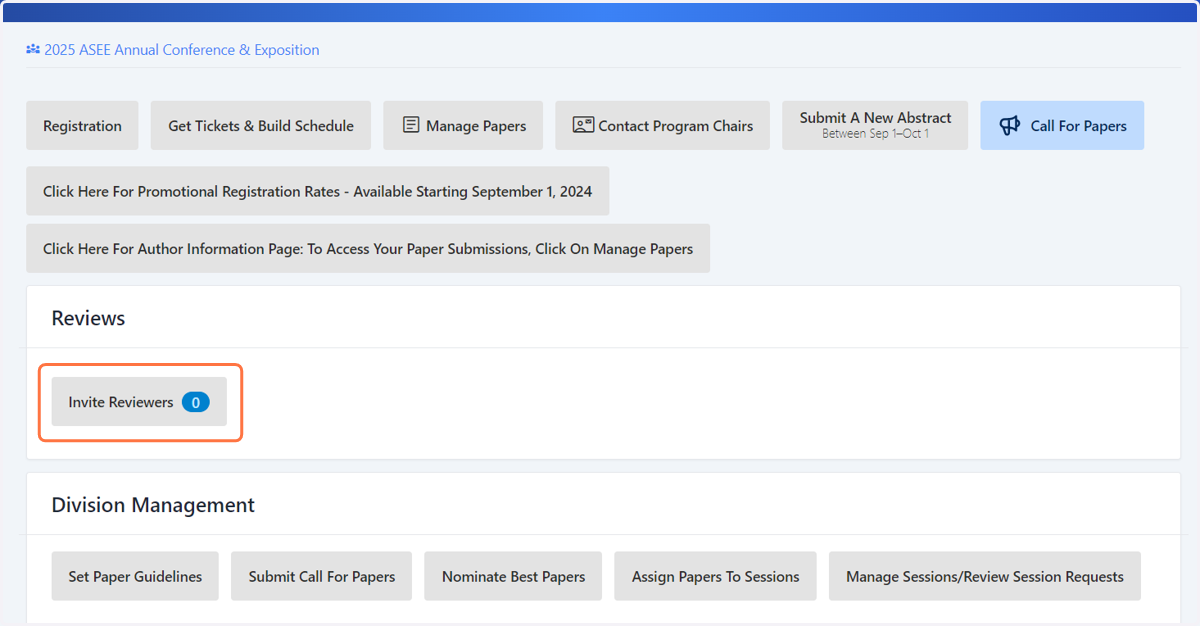
29. Next click on download previous reviewers
Please allow a few minutes for the system to gather the information
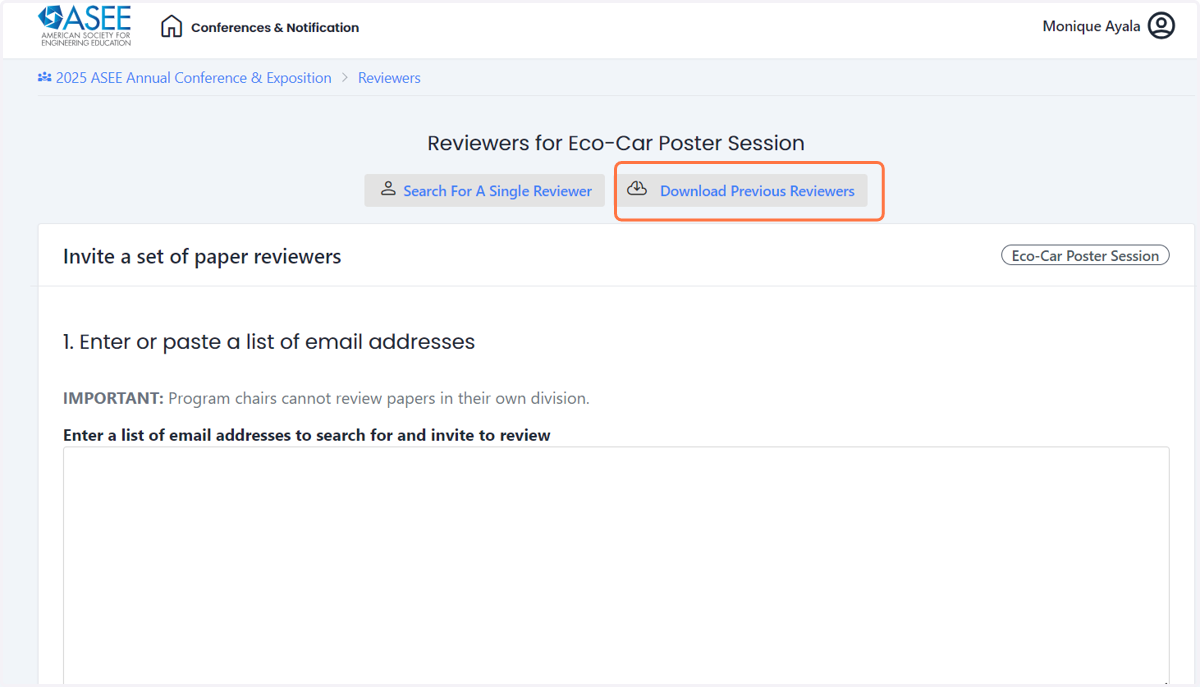
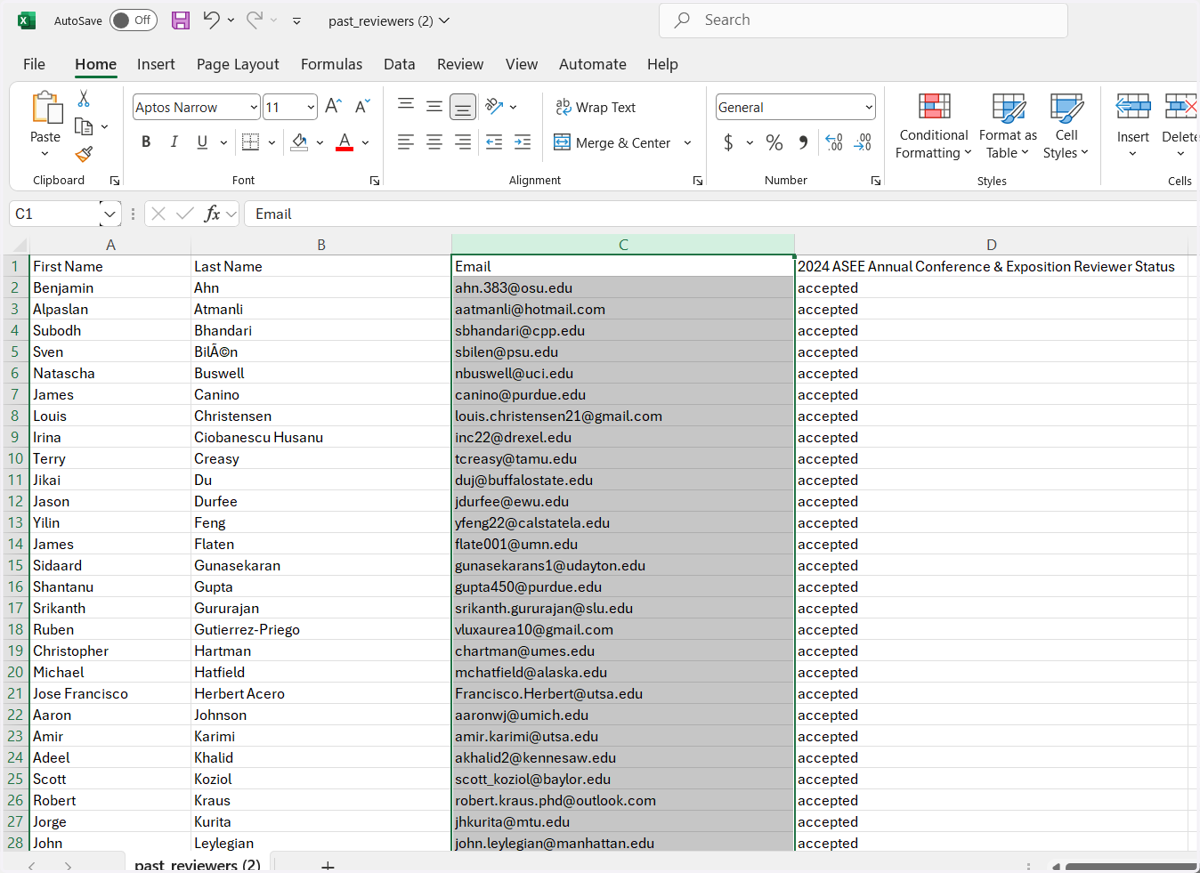
30. This will provide you with an excel sheet of the previous years reviewers first and last name as well as their email addresses
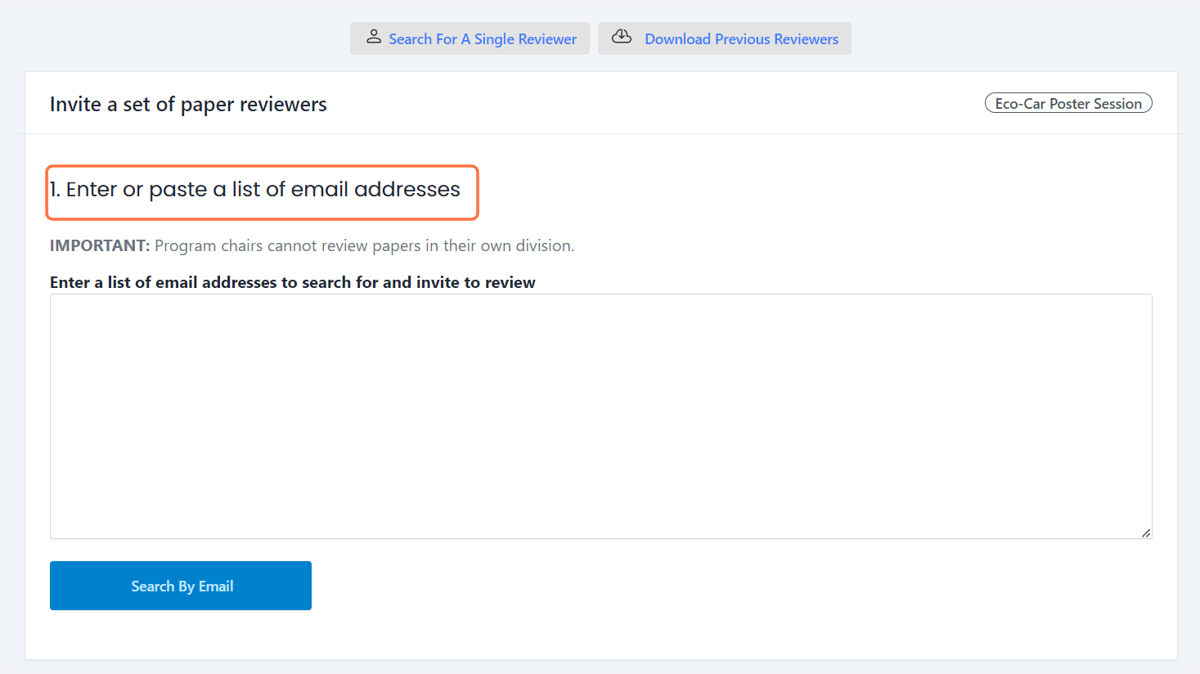
You can copy the email addresses and drop them into the group reviewer invitation
31. Here is the group reviewer invitation
32. To get back to the 2027 home screen click on the conference name in the top left corner.
33. You can select reviewers to check the status of your reviewers and send them reminder emails.