Inviting Users - Allthenticate Admin Portal
How to invite users to the admin portal?
How to send reminder emails to accept invites?
How to delete an invite?
admin.allthenticate.com/users
1. Navigate to Allthenticate's Admin portal (admin.allthenticate.com)
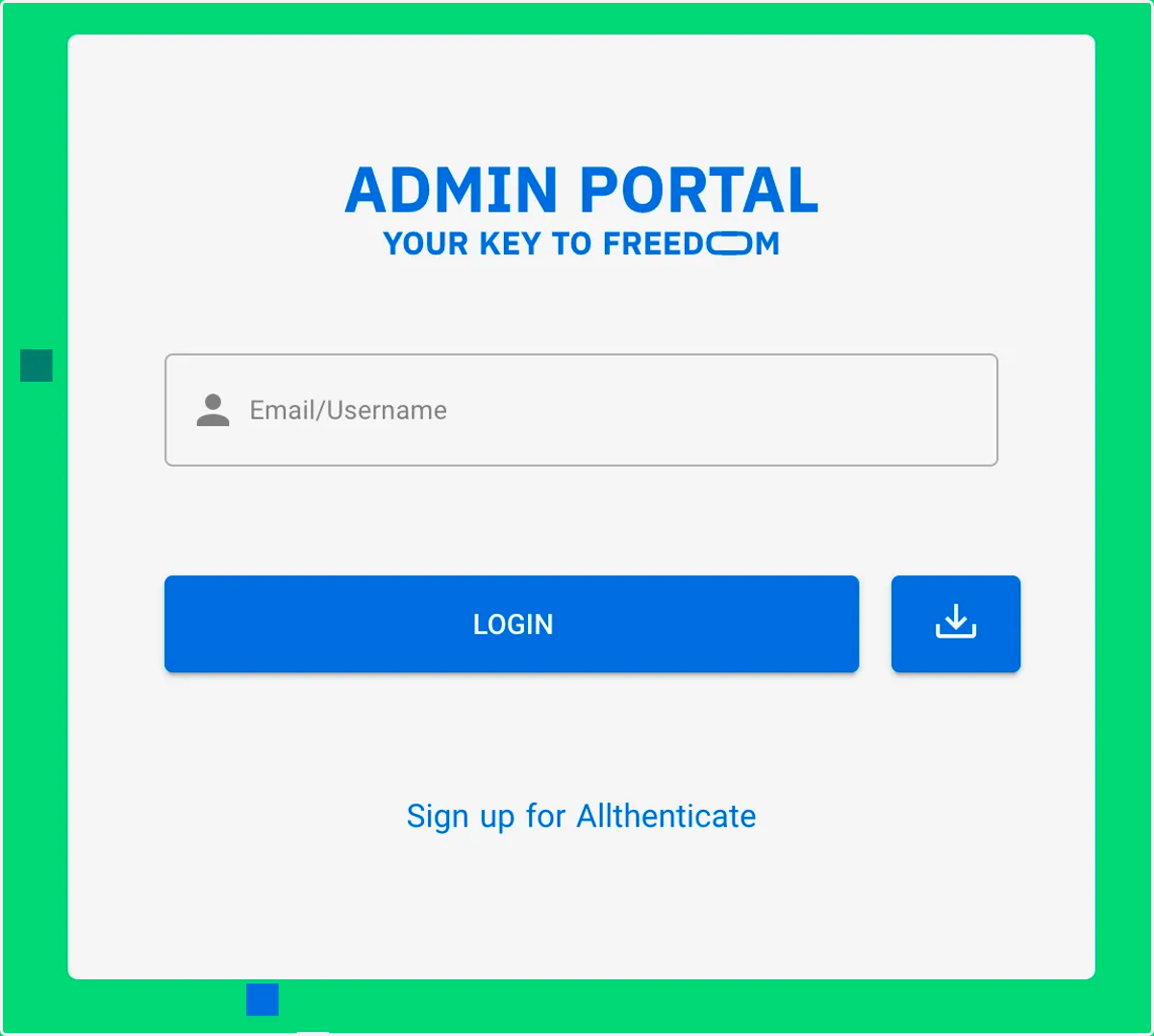
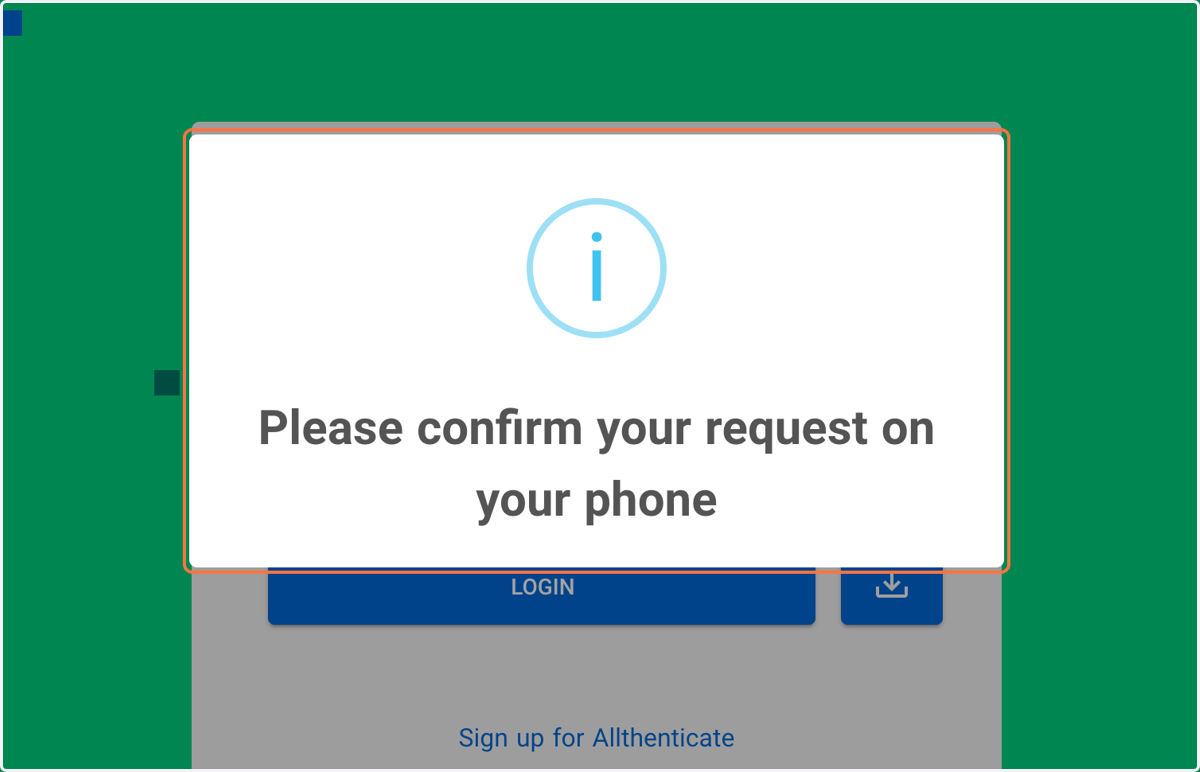
2. After typing in the username, confirm the request from your phone.
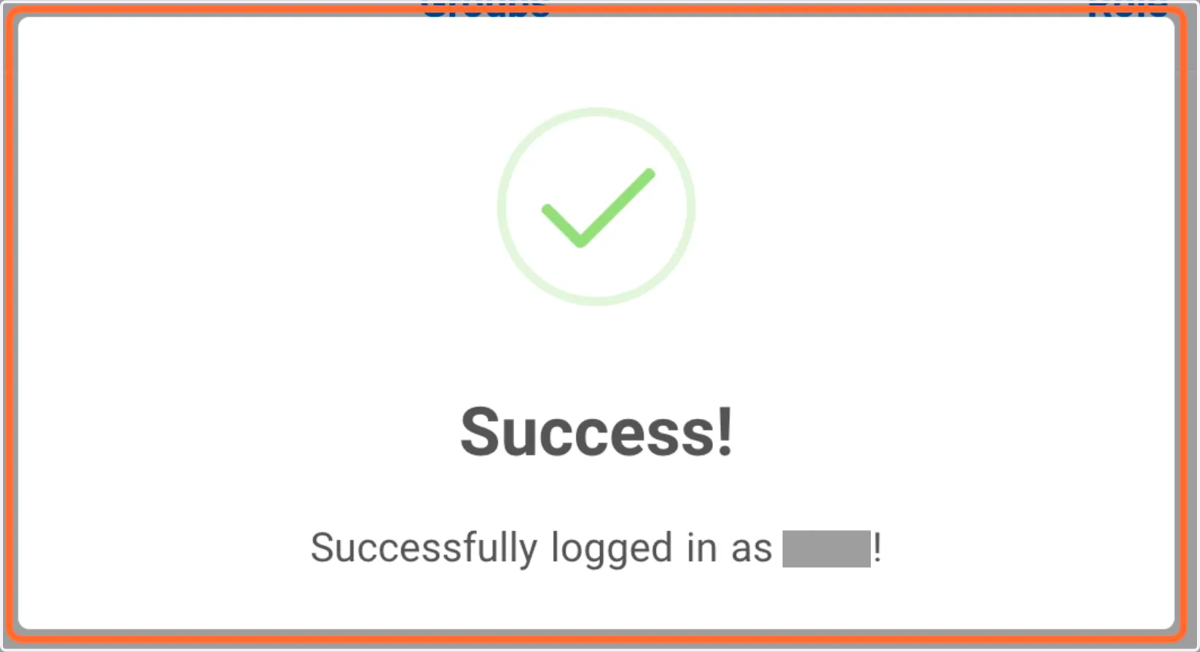
3. To confirm you are logged in, a pop appears on your screen.
4. Click on "Invite Users" on the home page.
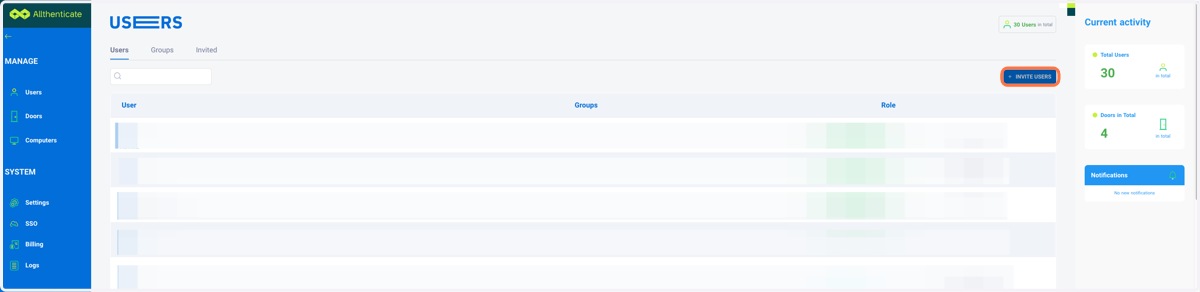
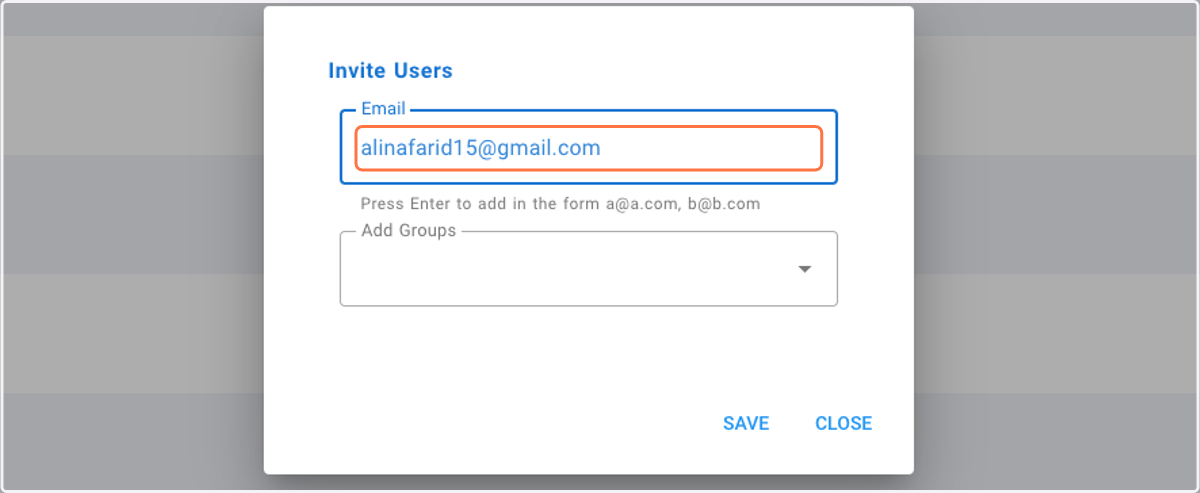
5. Type in the email address of the person to be invited in the pop- up section.
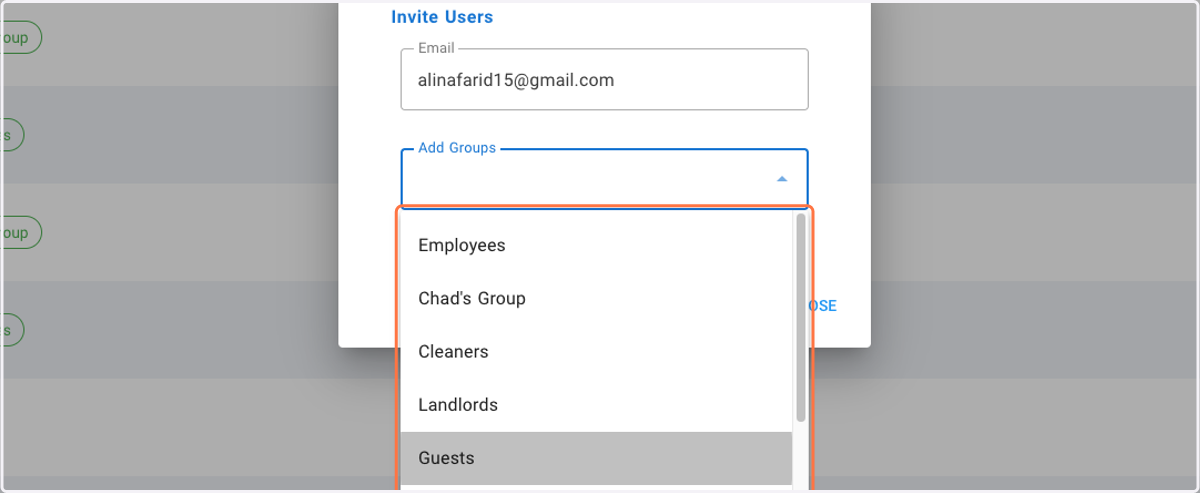
6. Select the group in which the person will be allocated to.
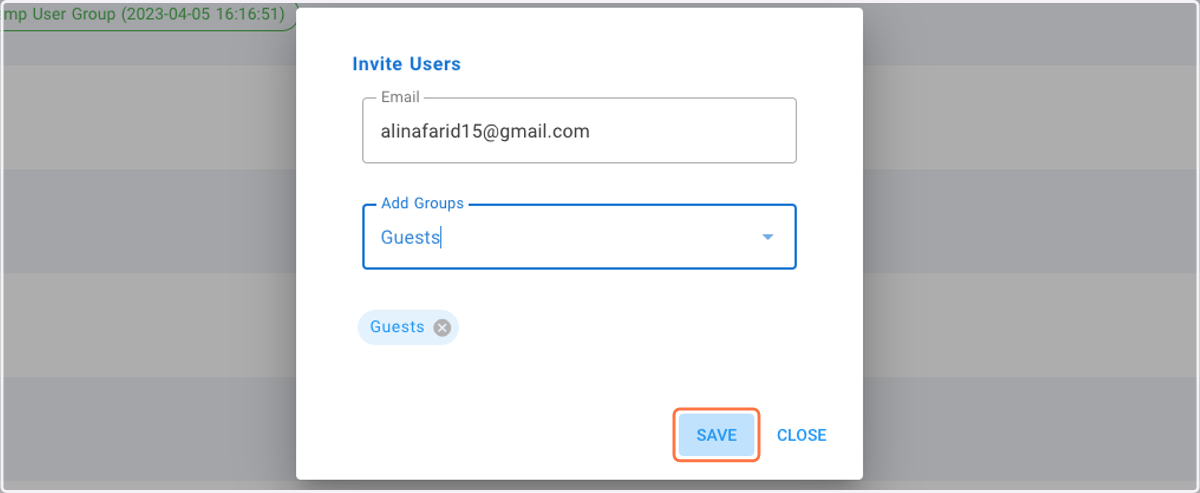
7. Press "Save" to send the invite.
8. The following pop- up message appears in the top rightmost corner.

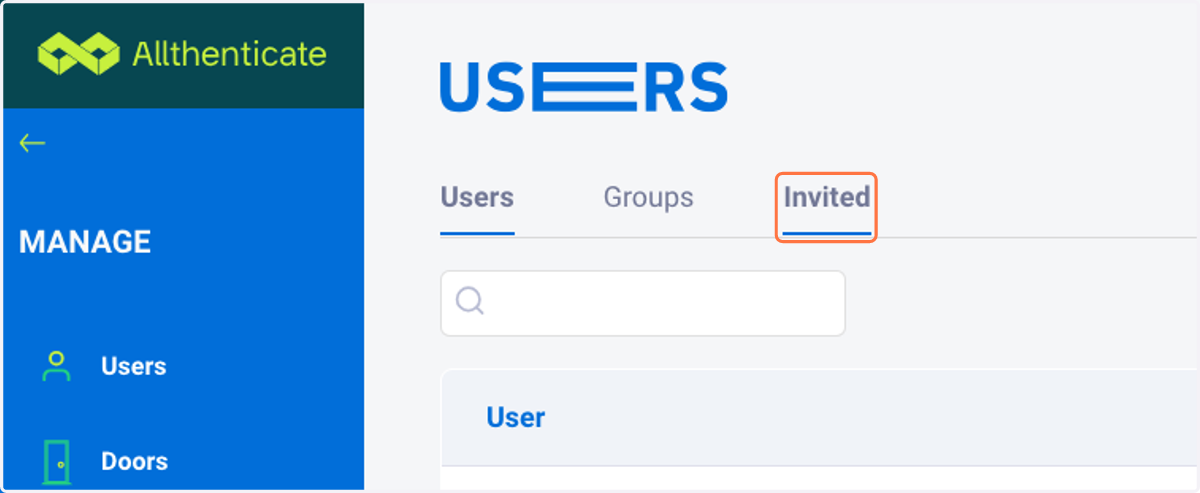
9. To check the invites, click "Invited" in the top left corner.
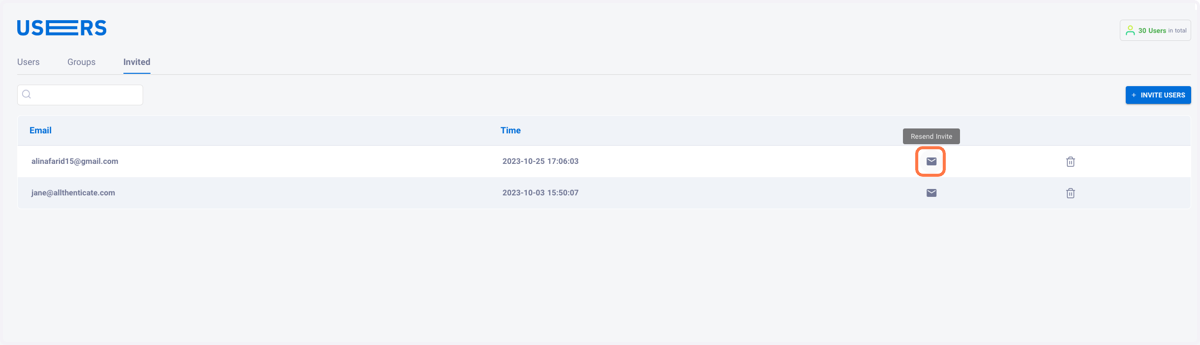
10. To send a reminder to accept the invite, go to the Invited section and press "Resend Invite".
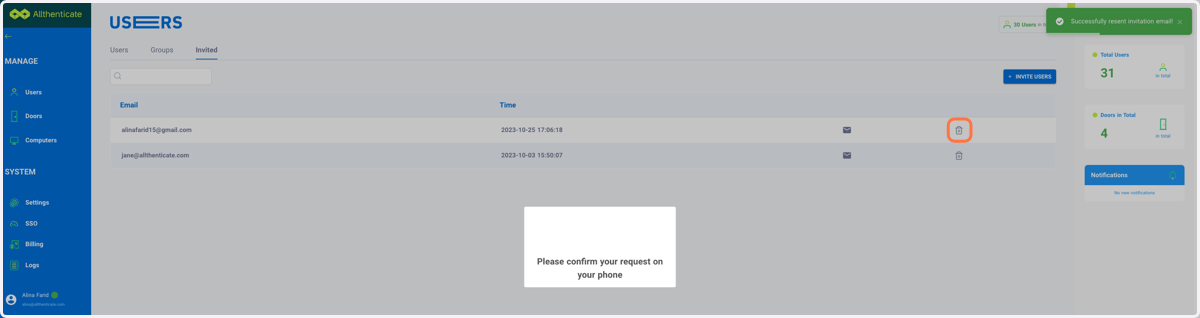
11. Deleting an invite requires confirmation through the phone.
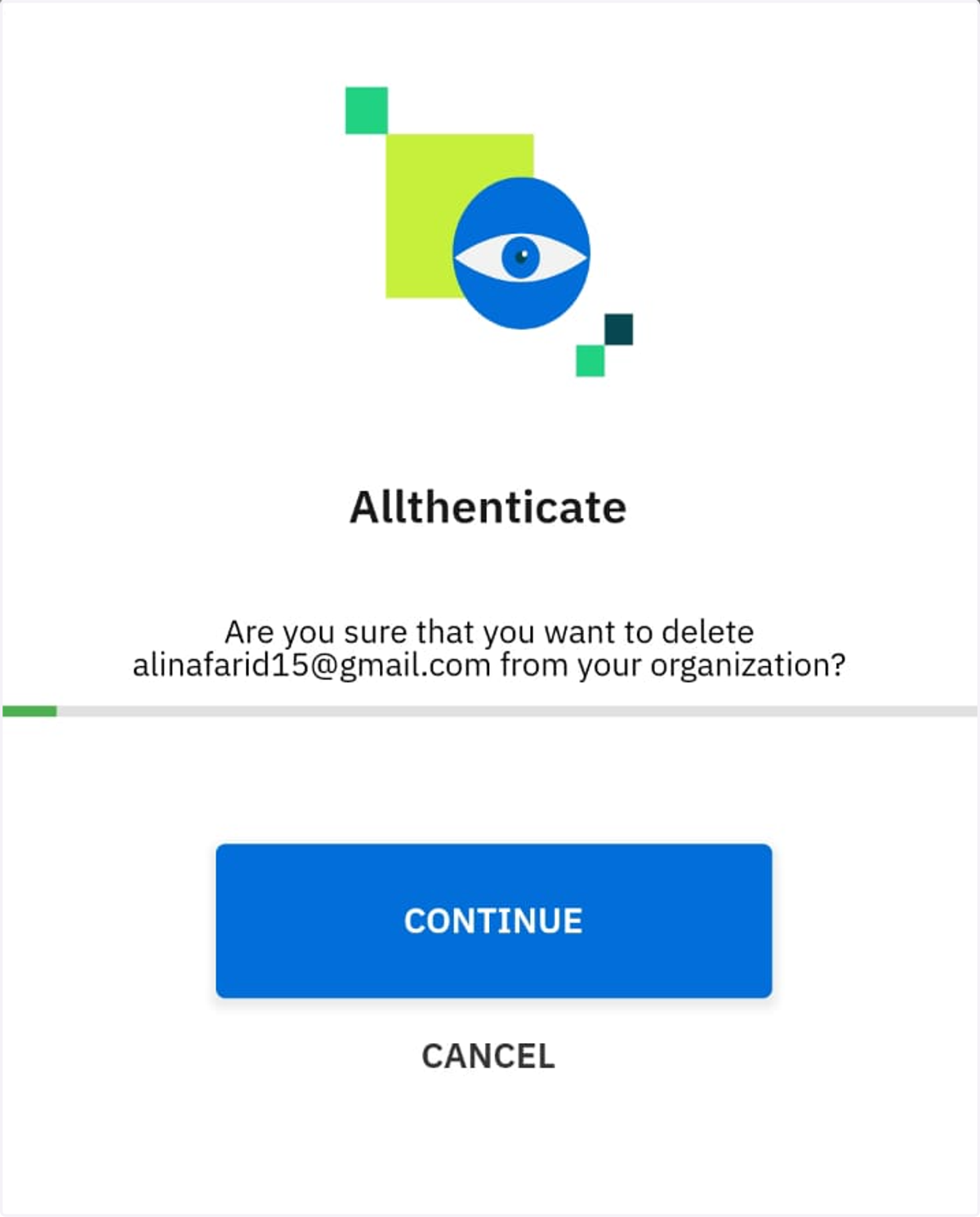
12. This message pops up on your phone.
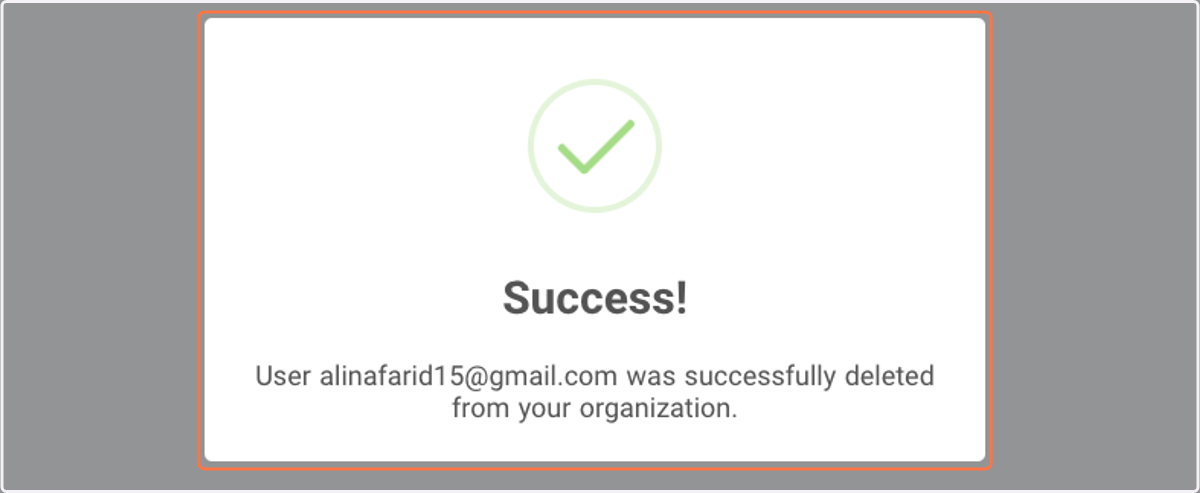
13. Success message confirms the invite has been deleted.