Integrating Google Accounts with ED Learning Platform
ED - Your Friend in Learning
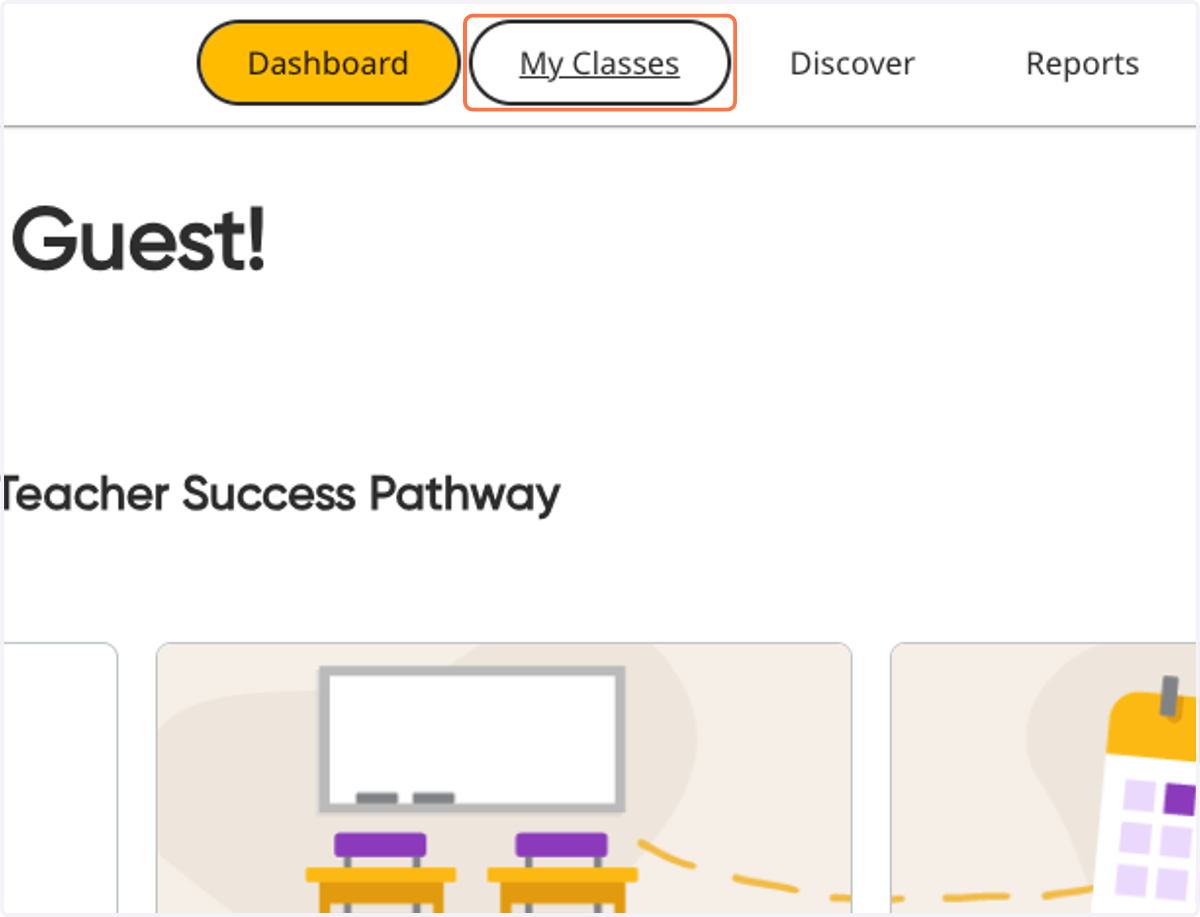
1. Click on My Classes
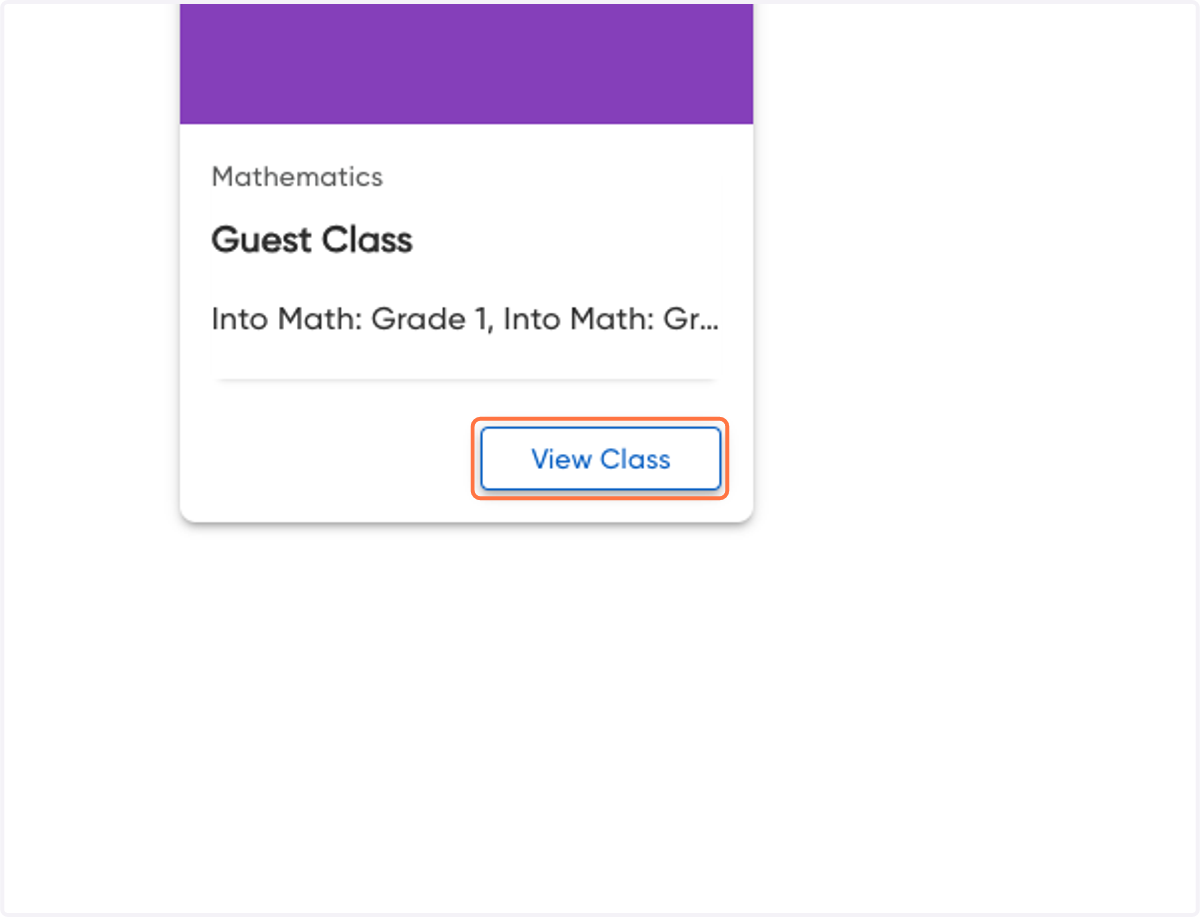
2. Click on View Class
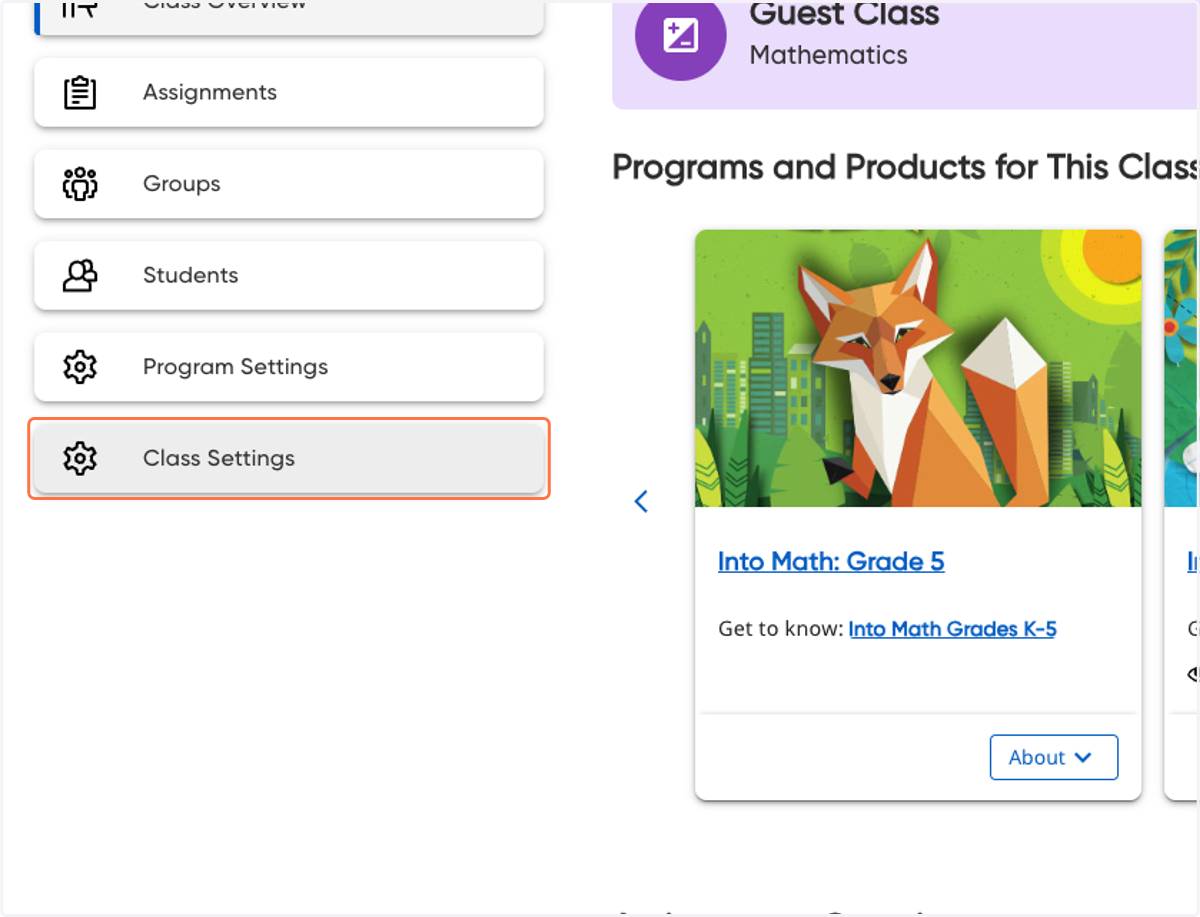
3. Click on Class Settings
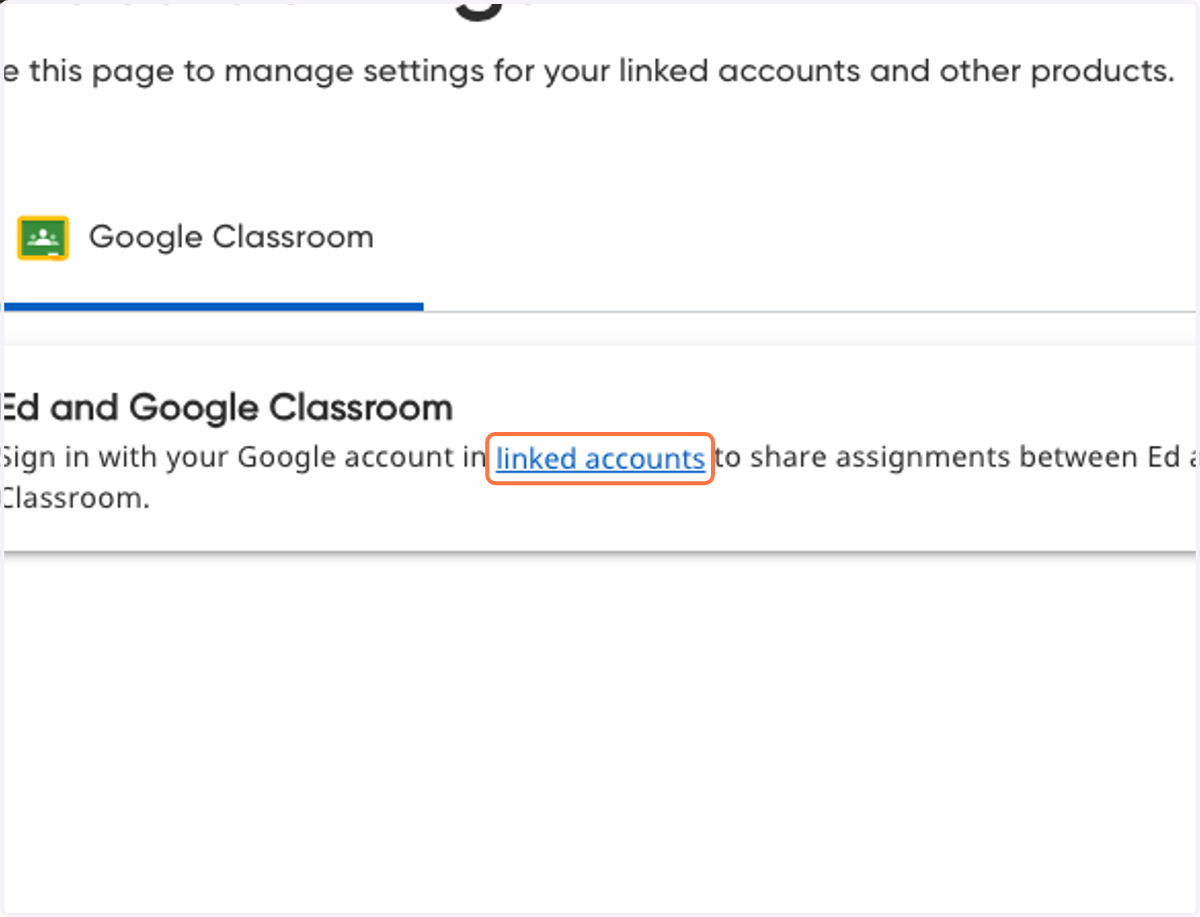
4. Click on linked accounts
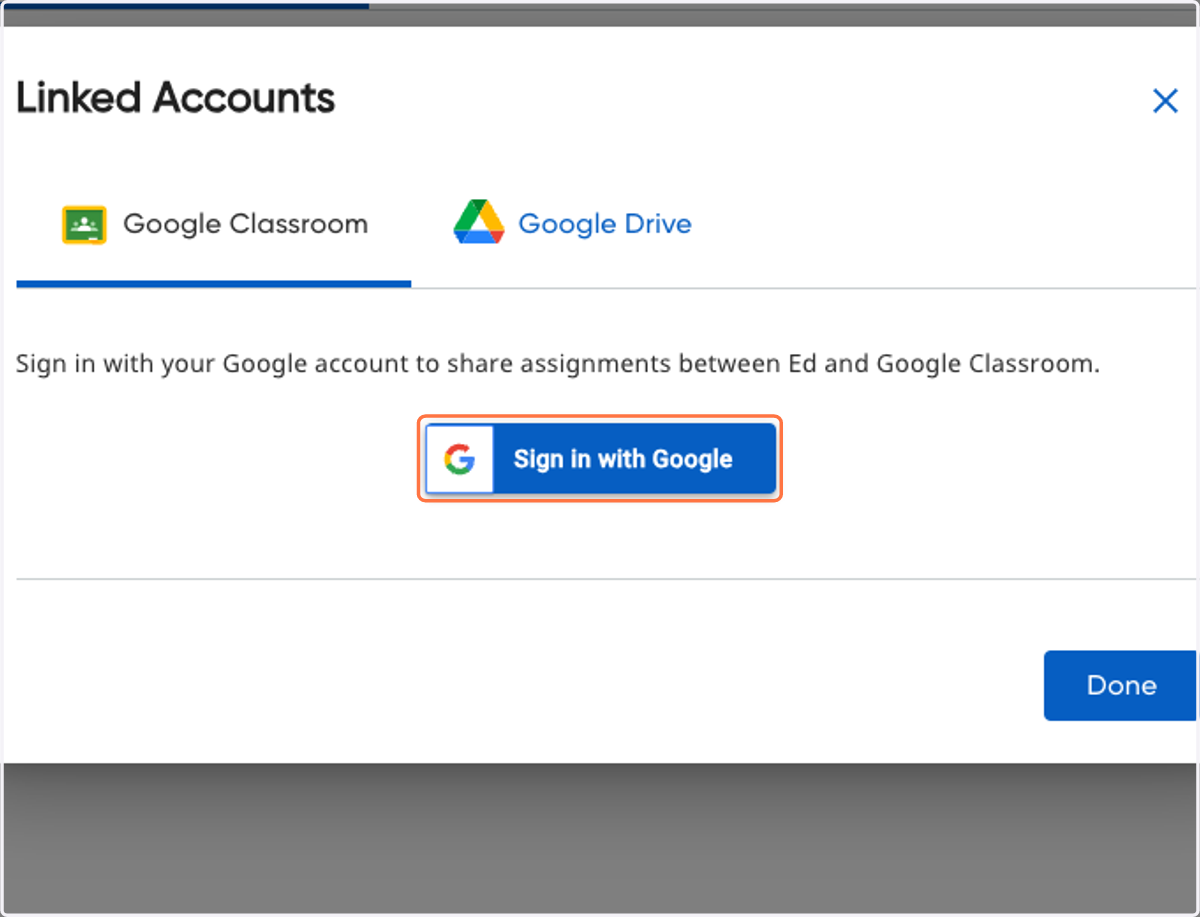
5. Click on Sign in with Google
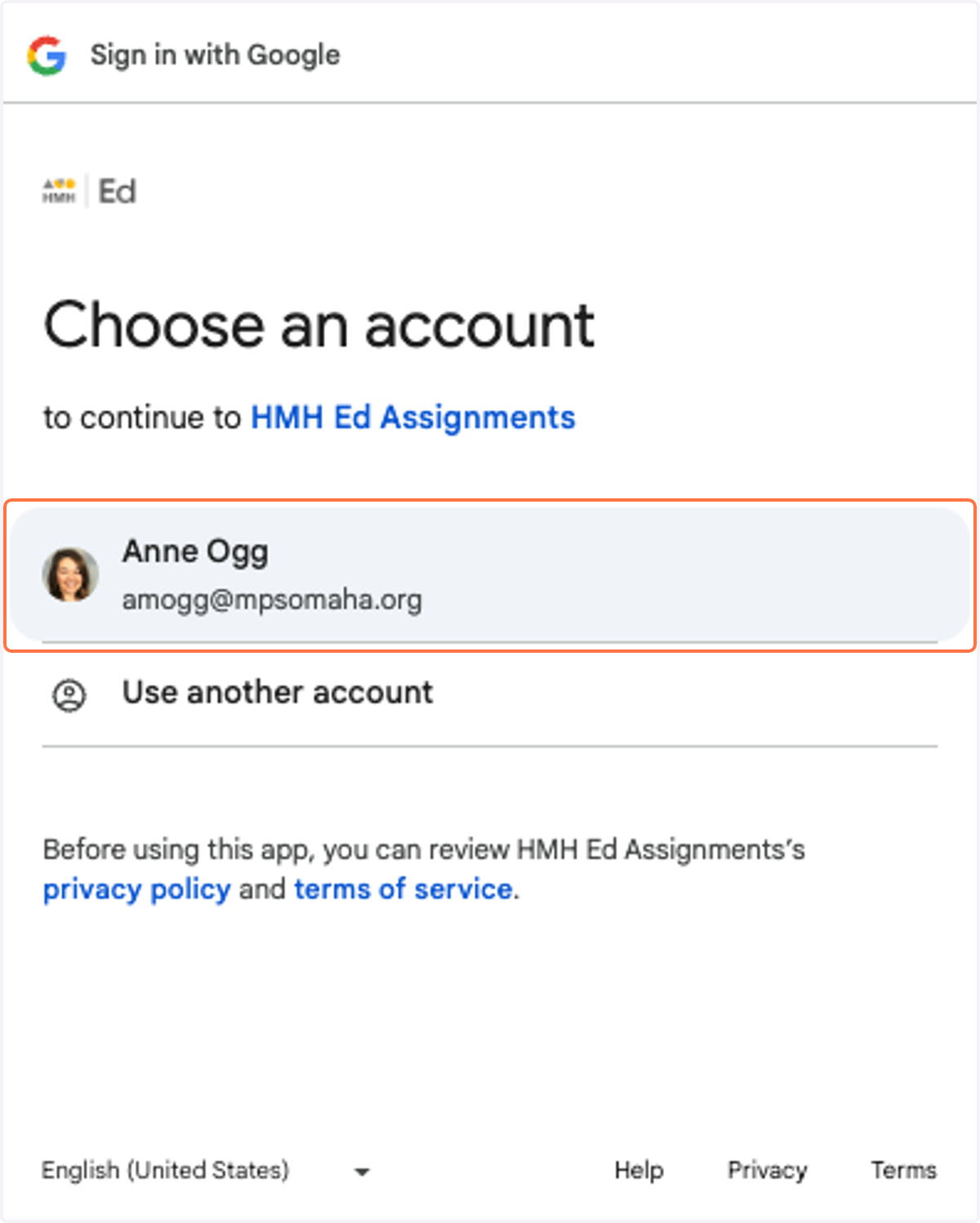
6. Choose your MPS account
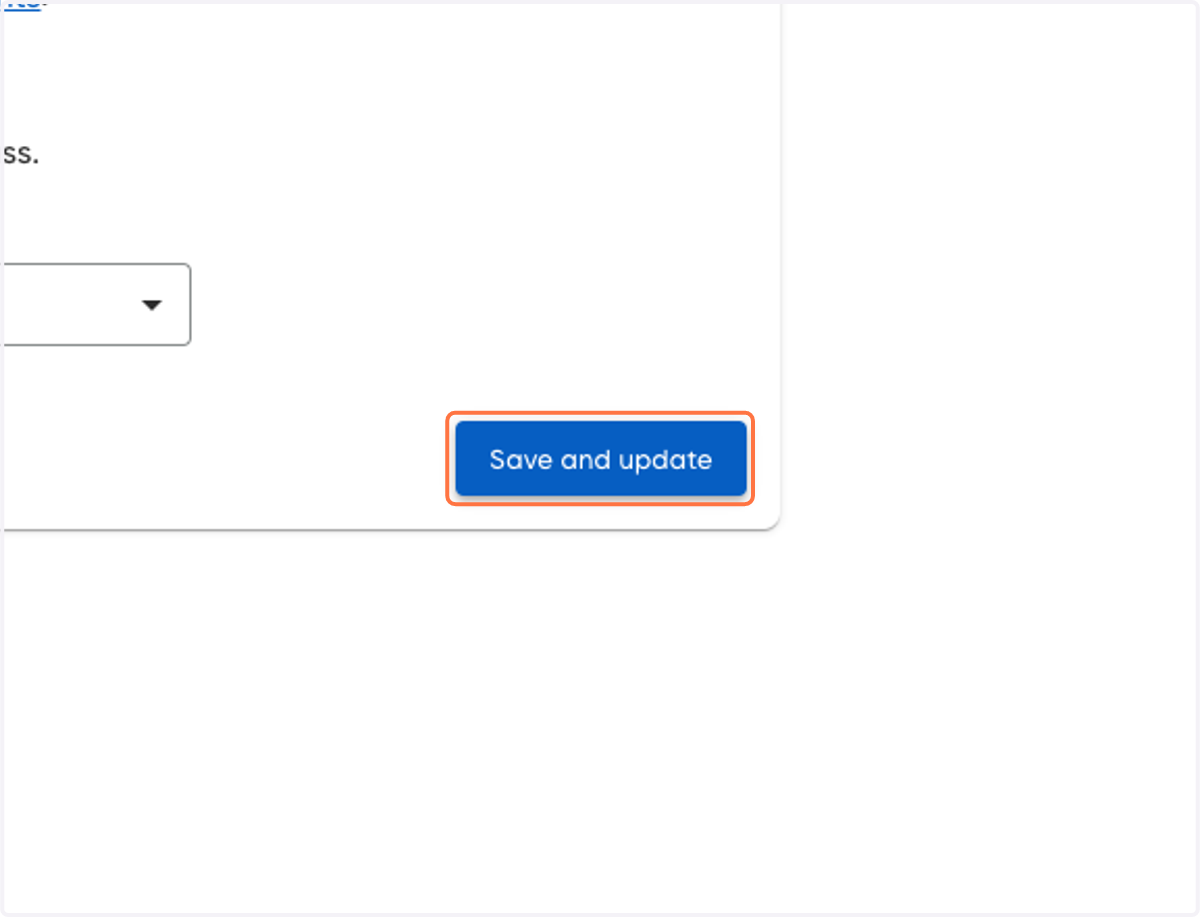
7. Click on Save and update
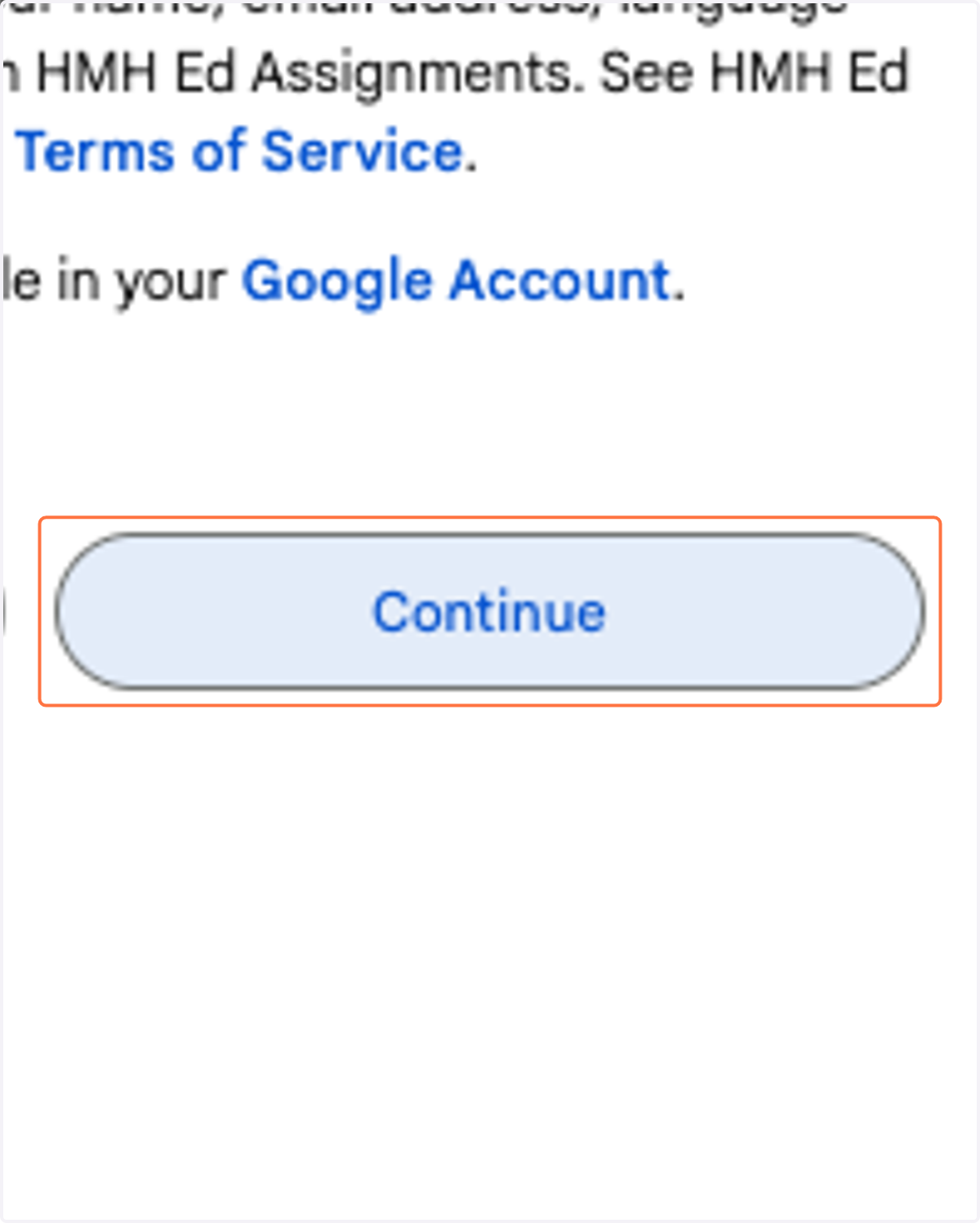
8. Click on Continue
Tango
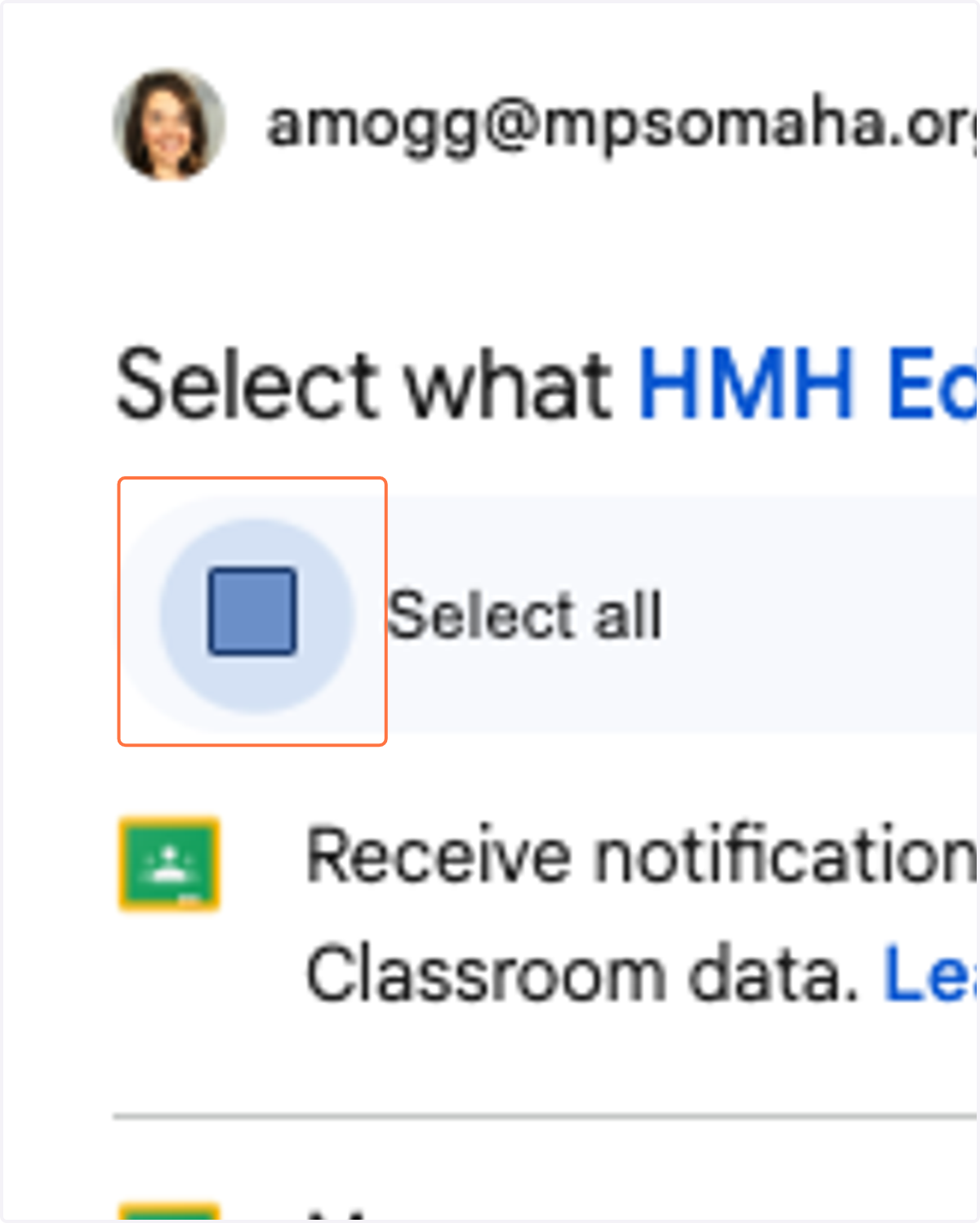
9. Check Select all
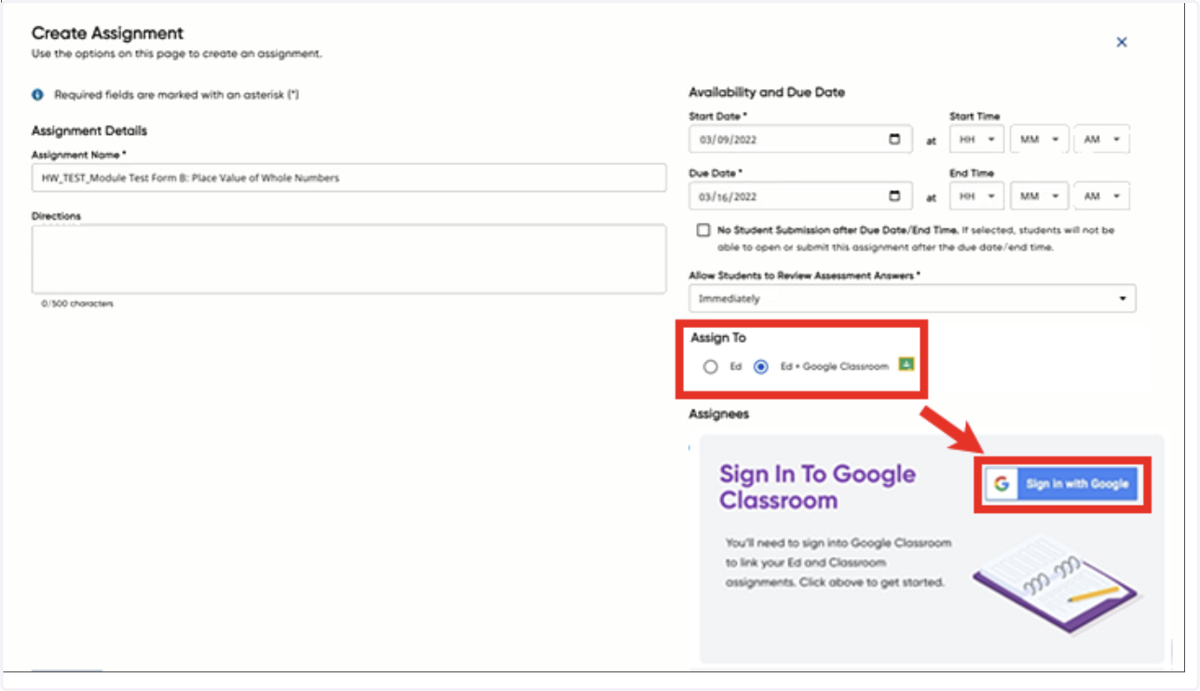
10. Now you will be able to choose Google Classroom when creating assignments.
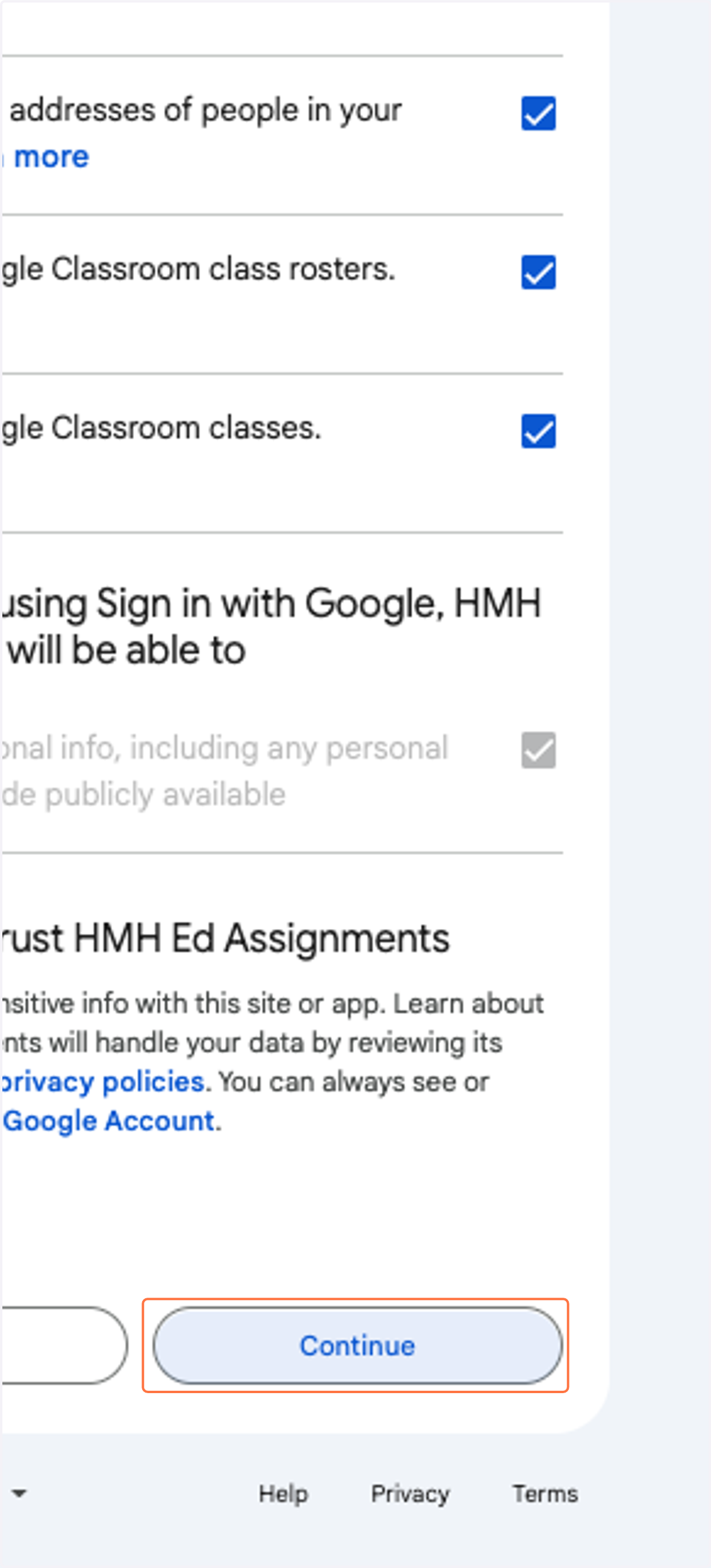
11. Click on Continue
12. Repeat these steps for each class you are assigned to in ED.
Specialists with more than one class or teachers that departmentalize.
Document
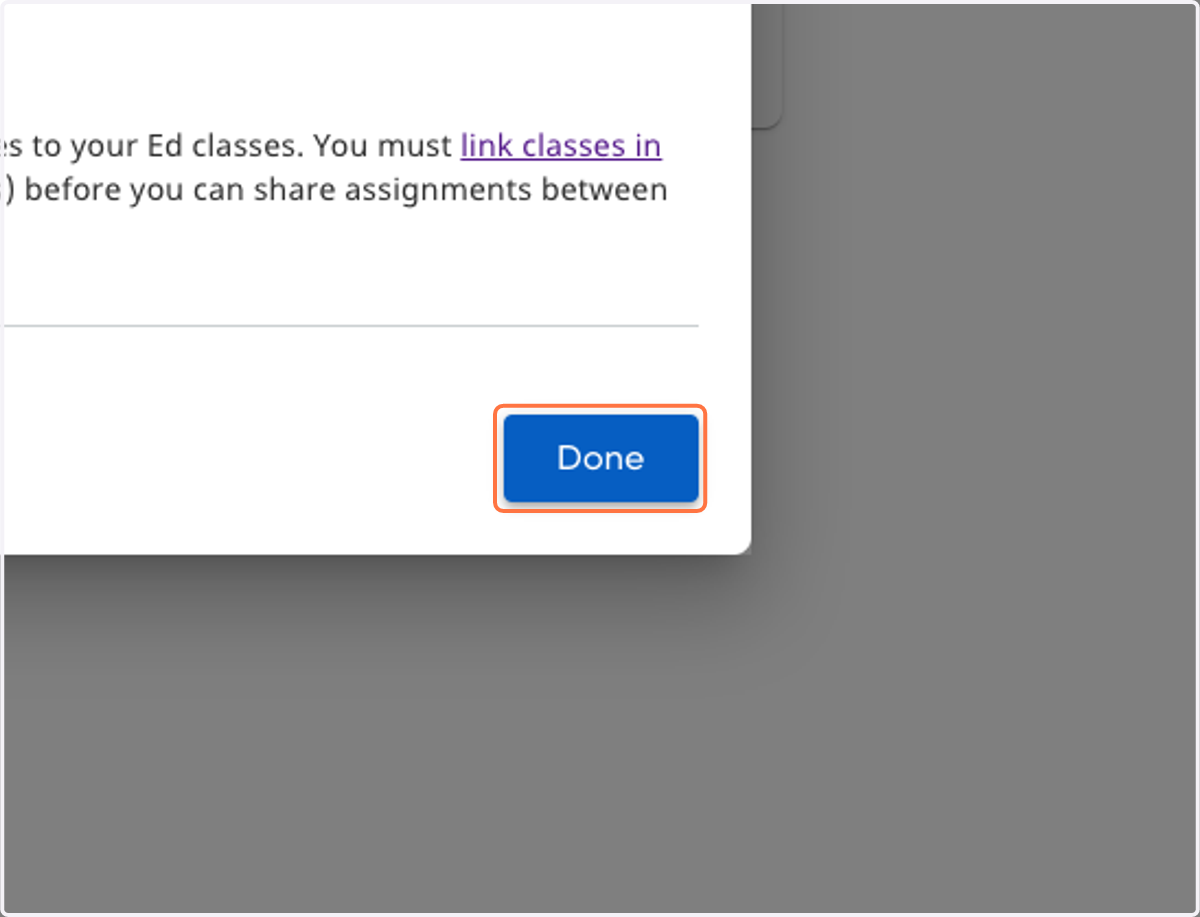
13. Click on Done
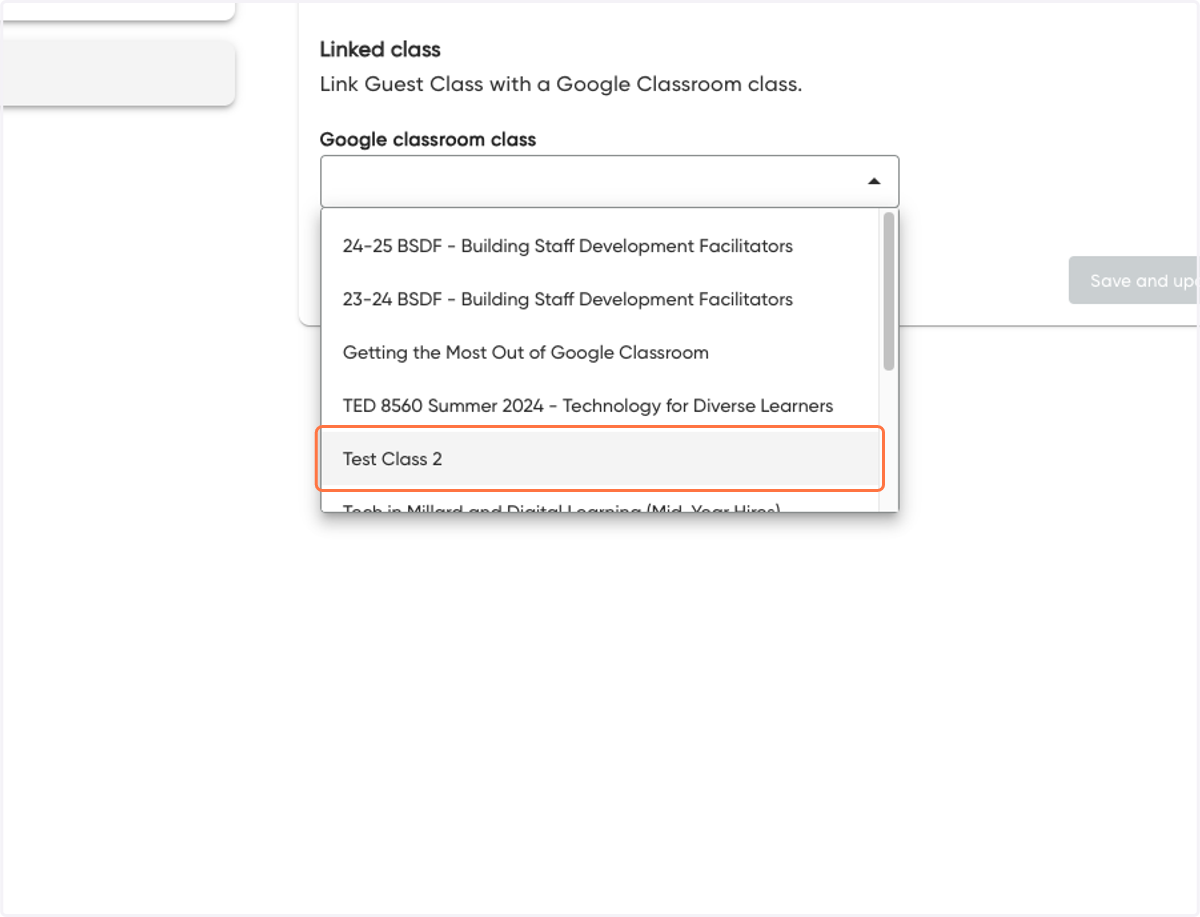
14. Click on Google classroom class dropdown menu
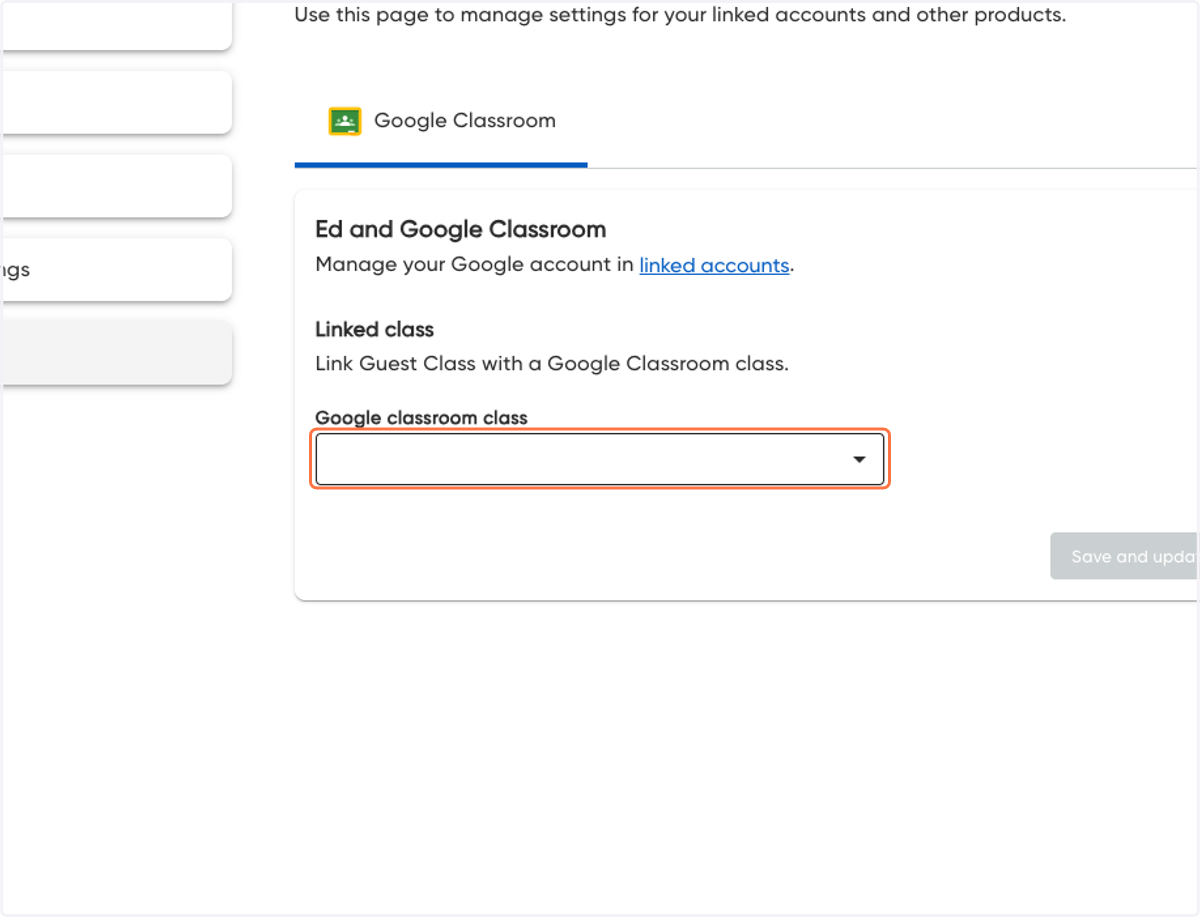
15. Choose the Google Classroom you would like to link for this class