Integrate Toast POS with Kea AI and Stream
Starting in your Kea Brand Portal
Once you are logged into your Brand Portal via app.kea.ai
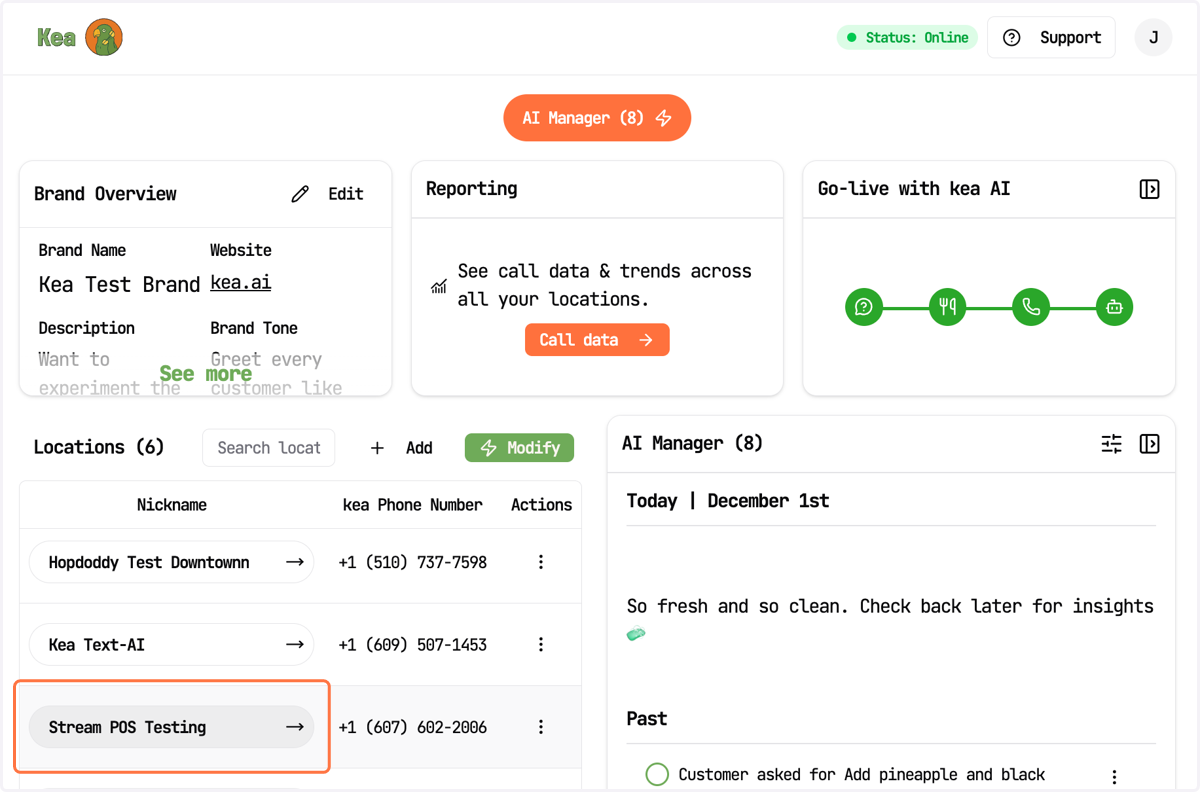
1. Click into the Location that you wish to connect
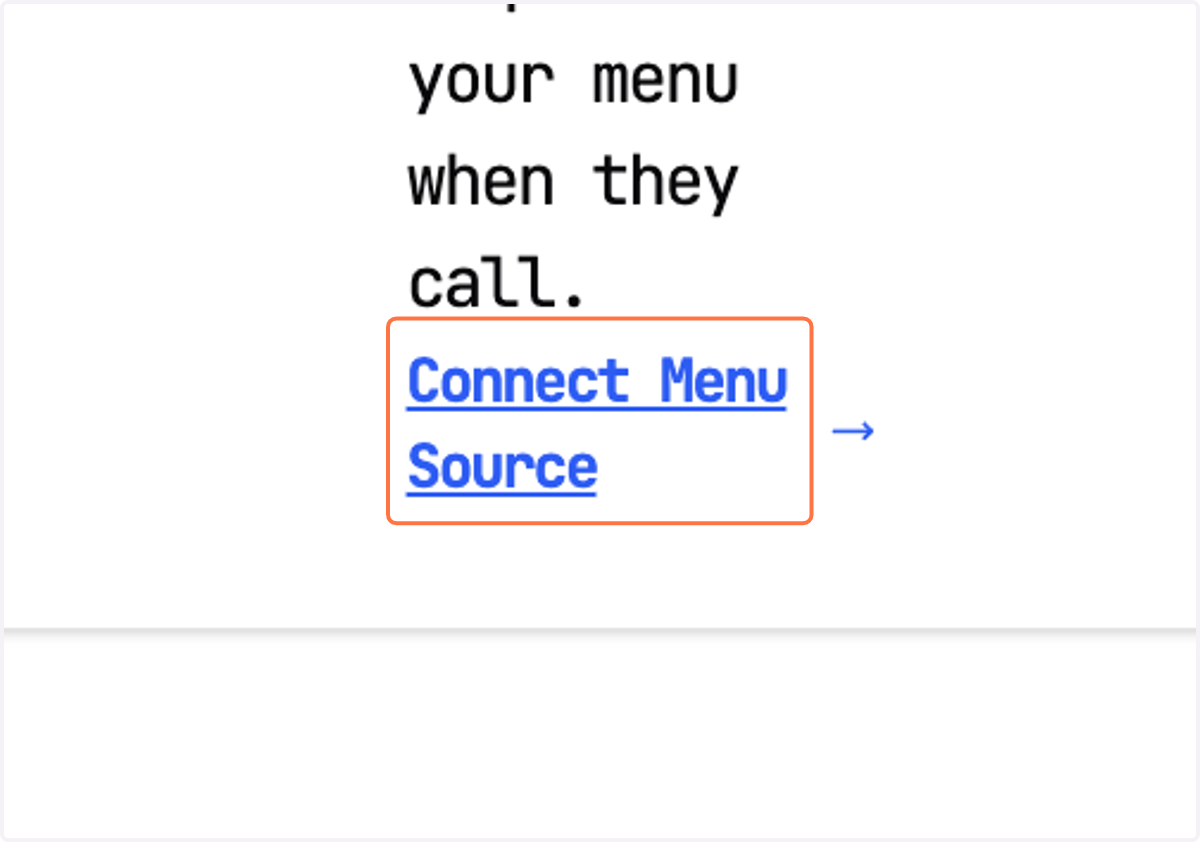
2. Locate the Location Menu section from the very bottom right of this Screen. Then click on Connect Menu Source
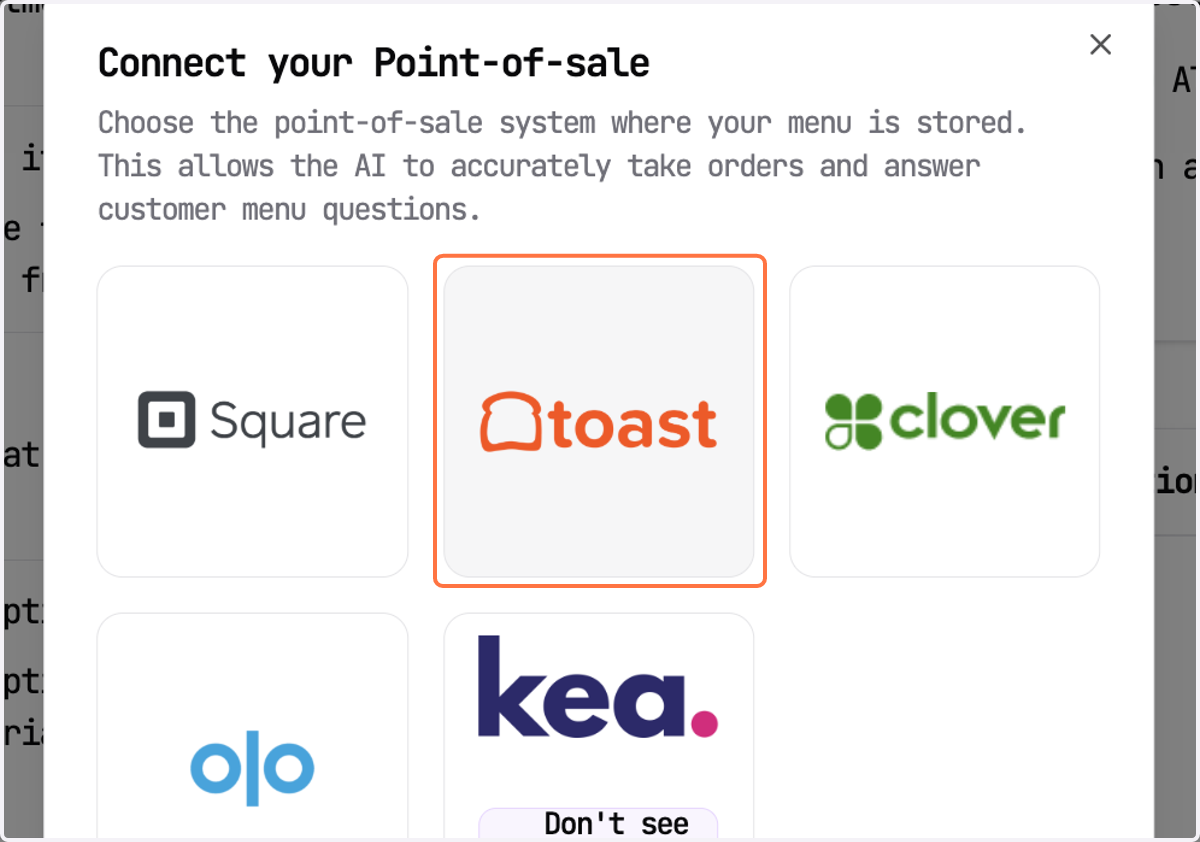
3. Select Toast from the Connect your Point of Sale pop-up
4. Click on Connect
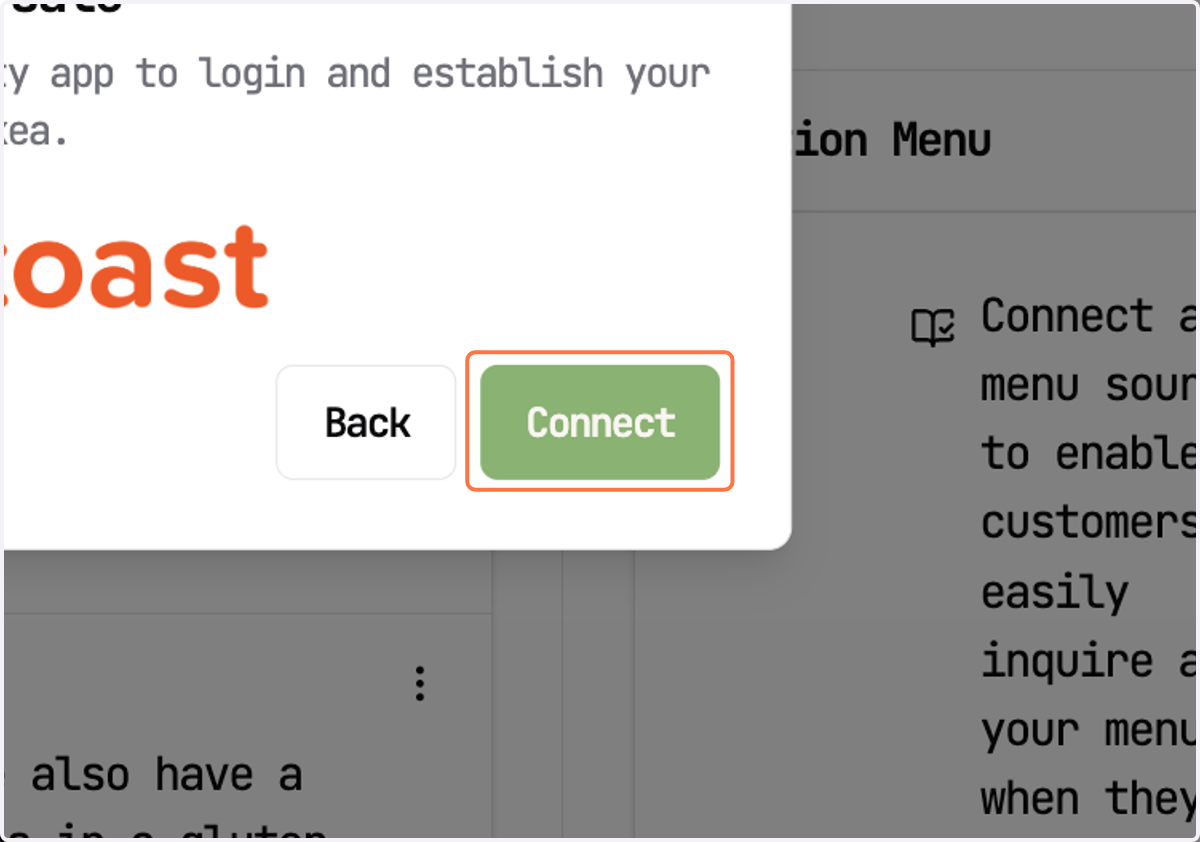
This will now bring you to a new tab for Stream
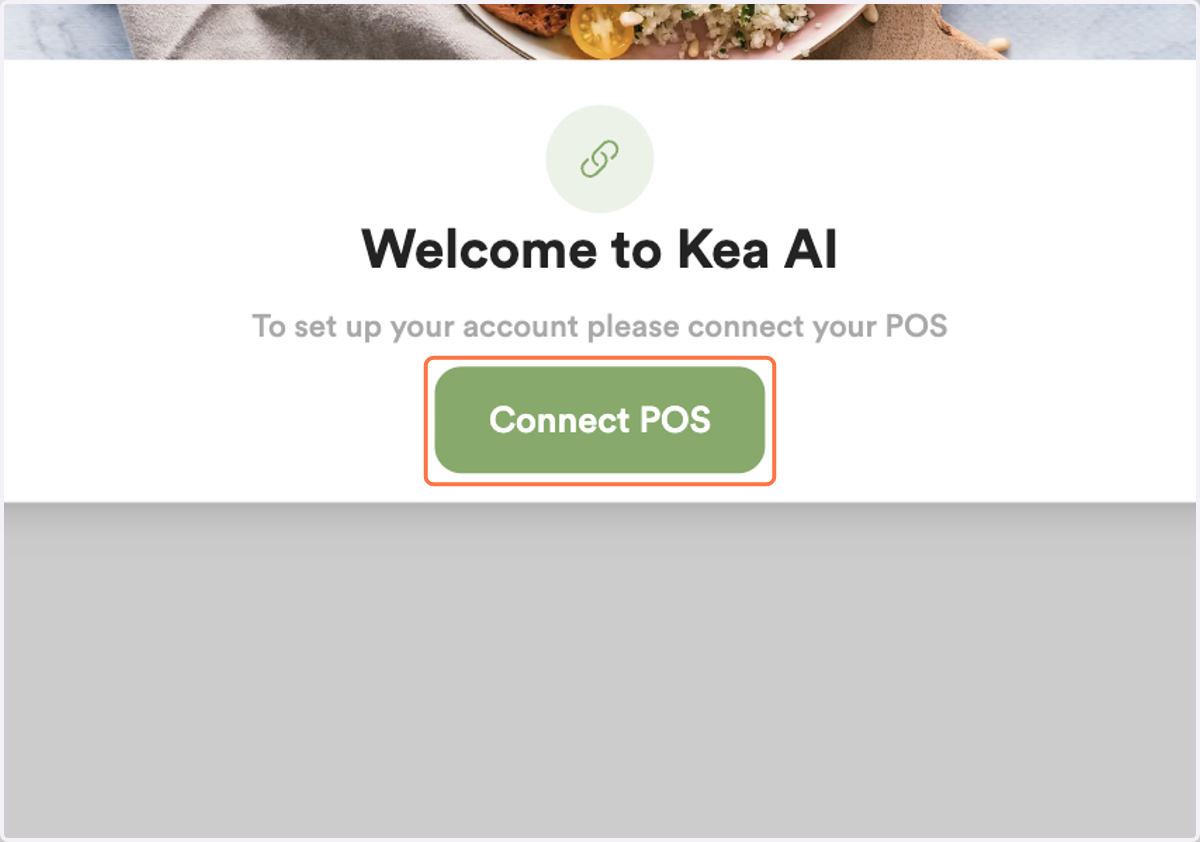
From the pop-up on this new tab, select Connect POS
5. Click on Connect POS
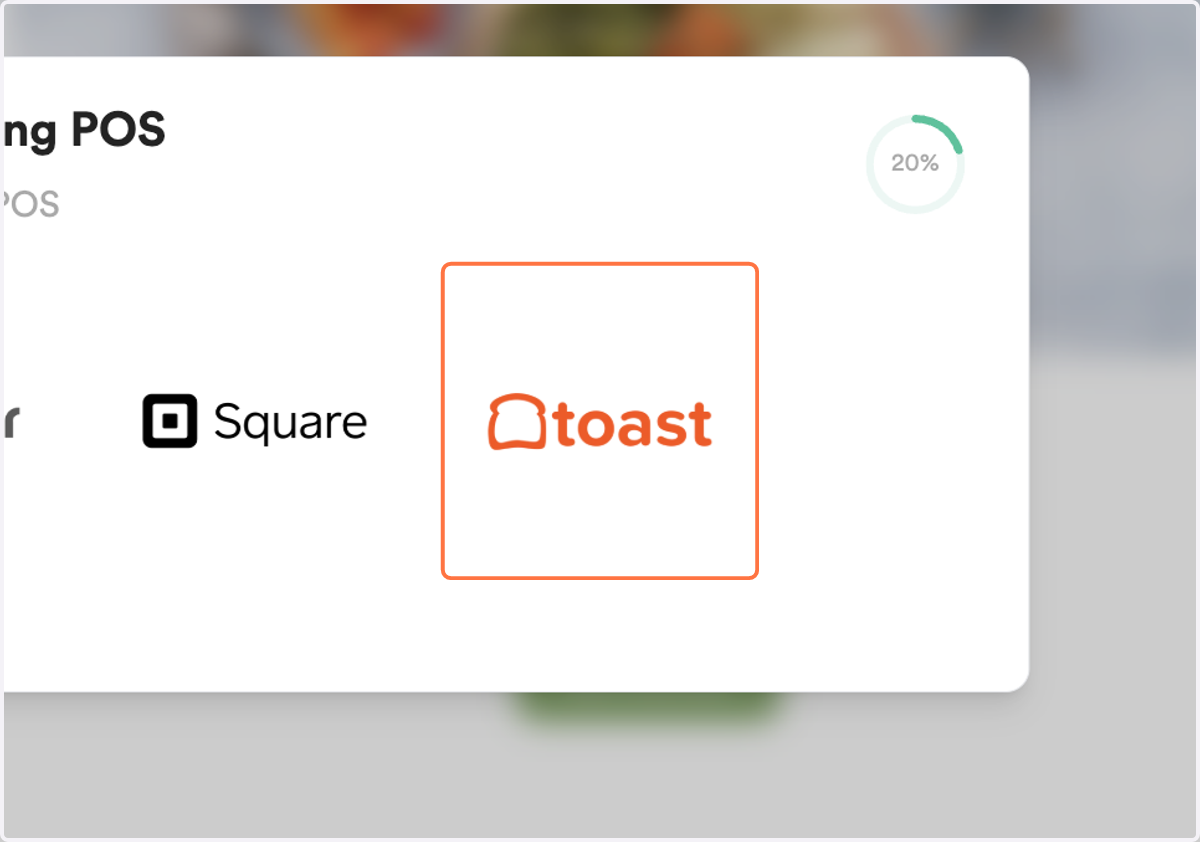
6. Click on Toast…
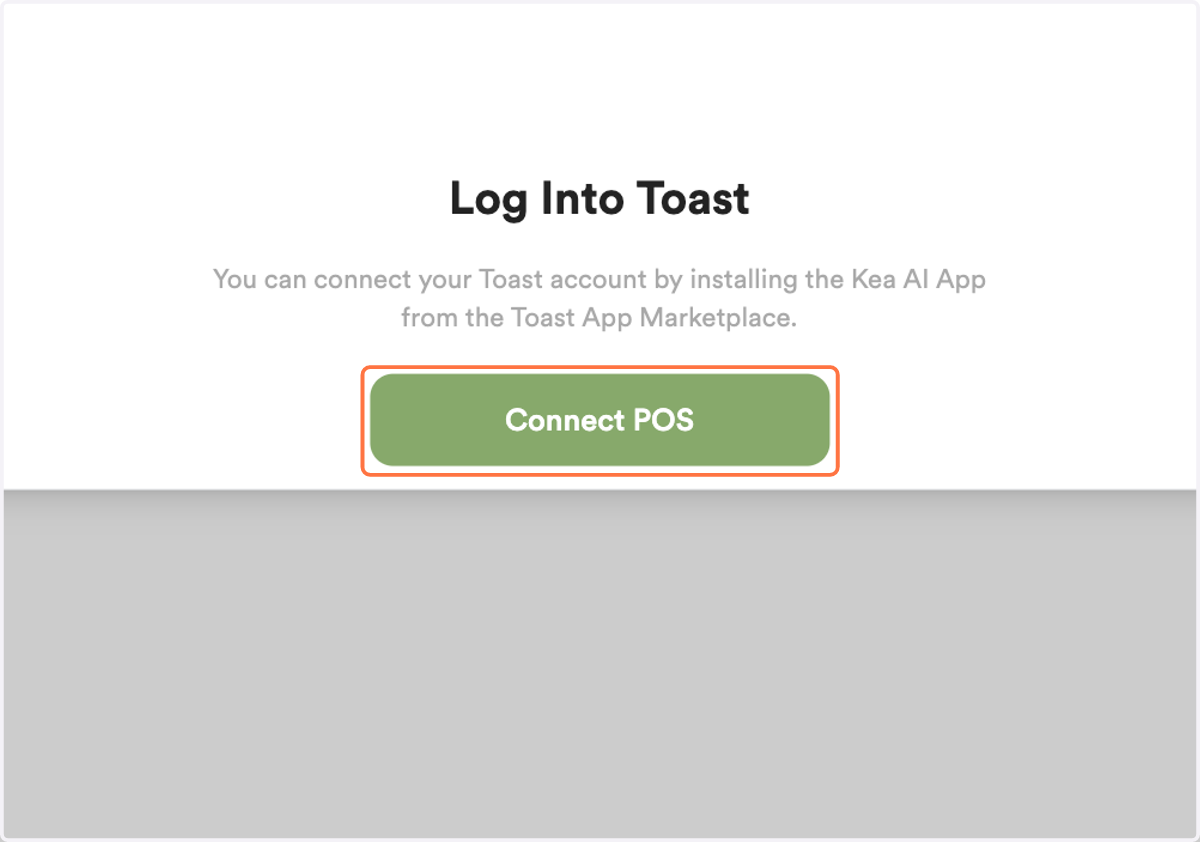
7. Click on Connect POS
Kea AI
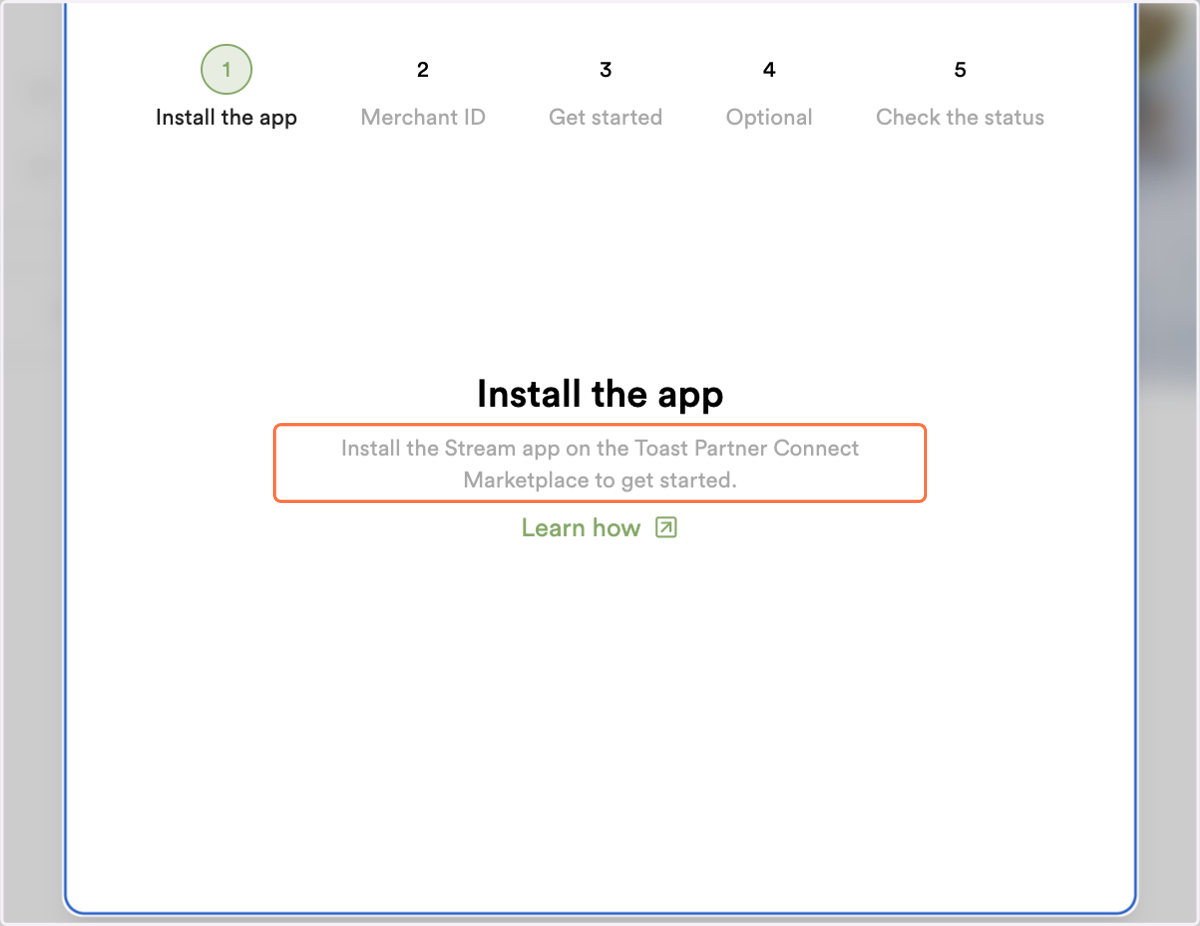
8. This step of the Stream pop-up window is directing you to now open Toast in a third new tab. LEAVE THIS STREAM TAB OPEN.
Log into your Toast via: https://www.toasttab.com/restaurants/admin/home
Toast Home
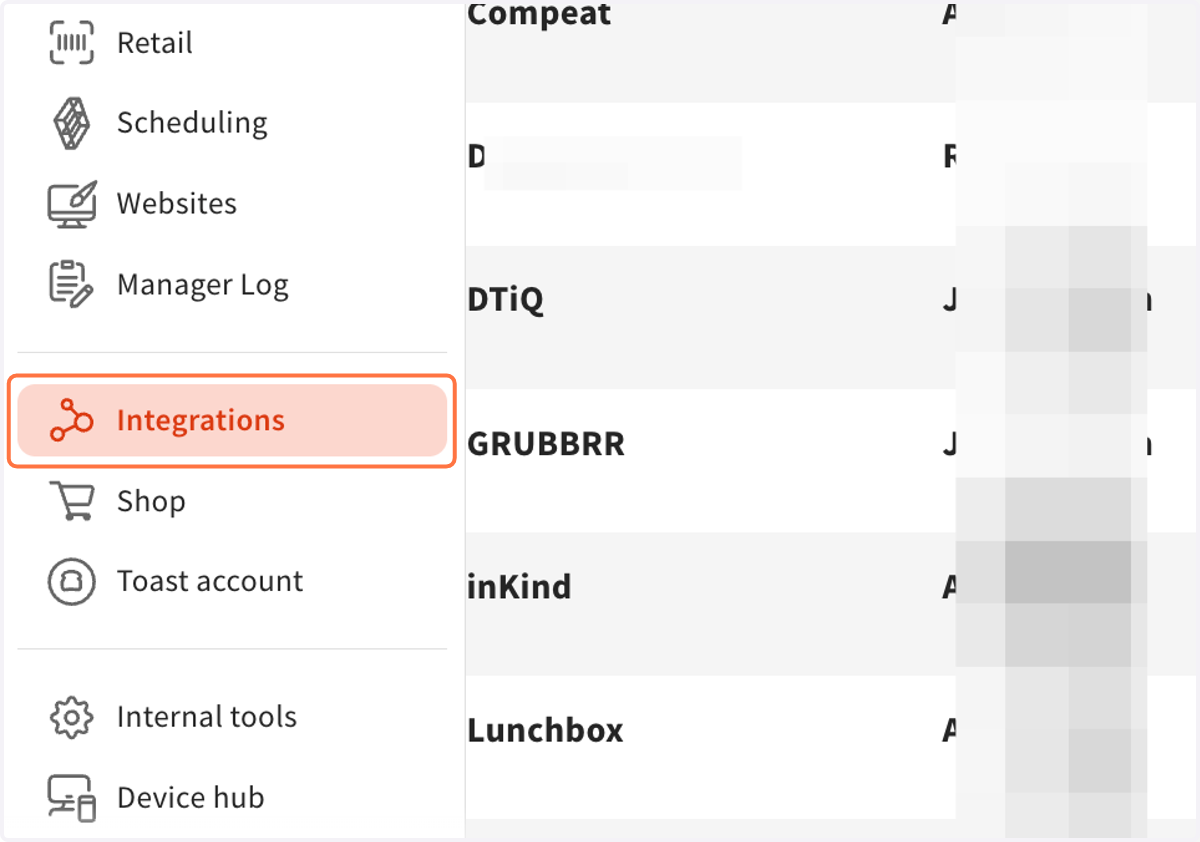
9. Once you have logged into Toast - Click on Integrations on the left
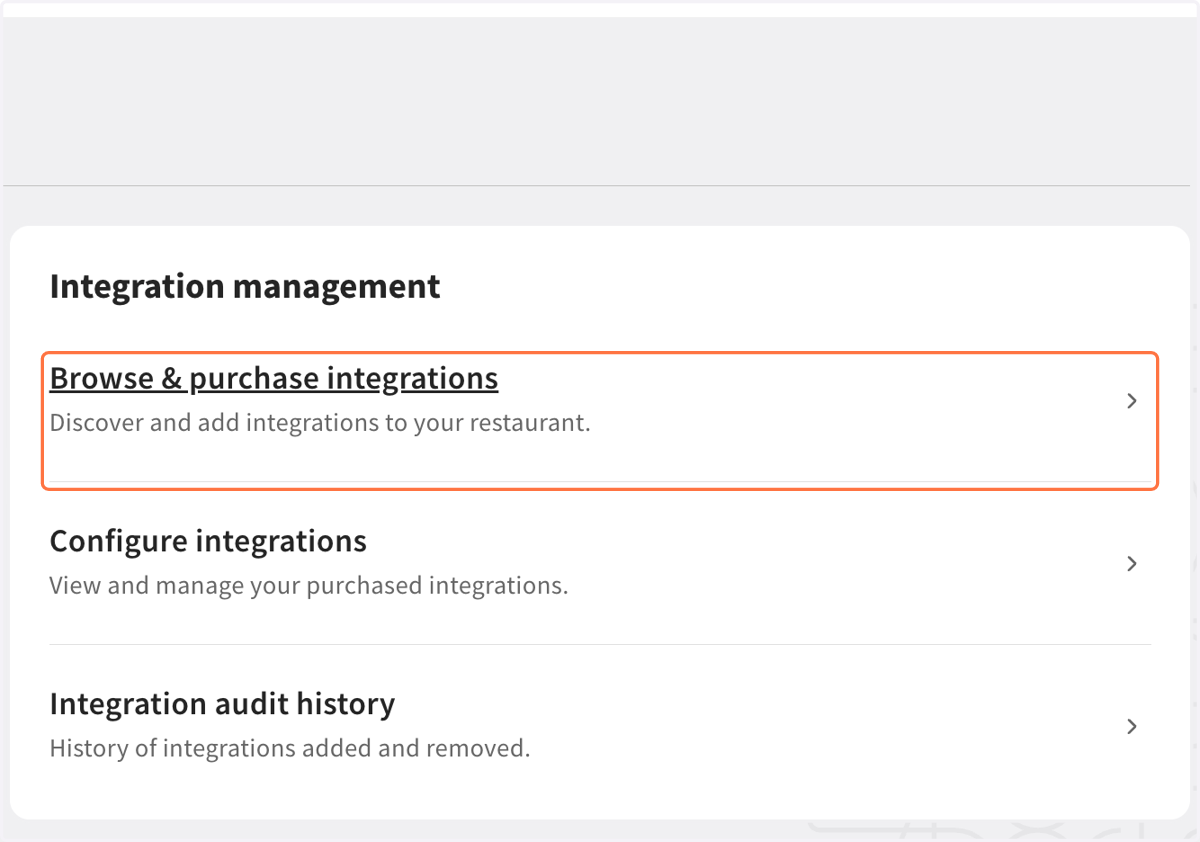
10. Click on Browse & purchase integrations…
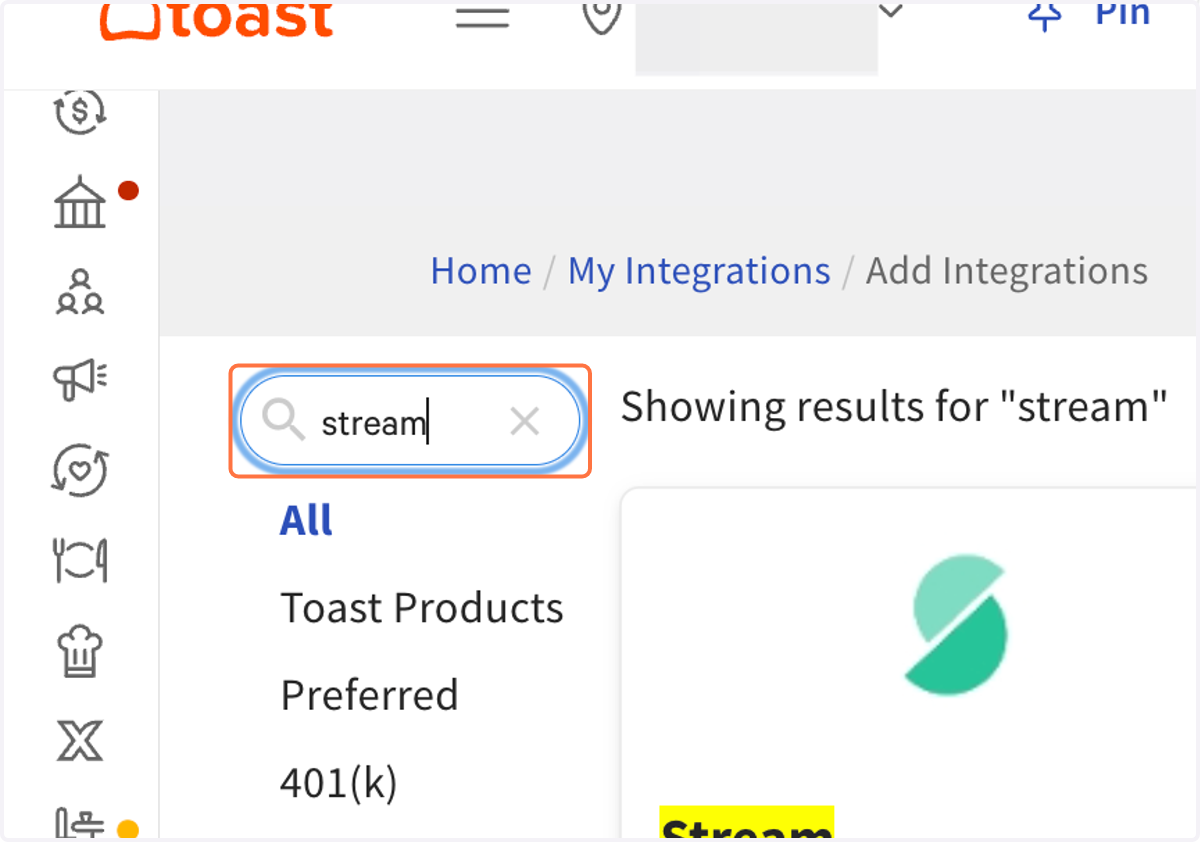
11. Type "stream"
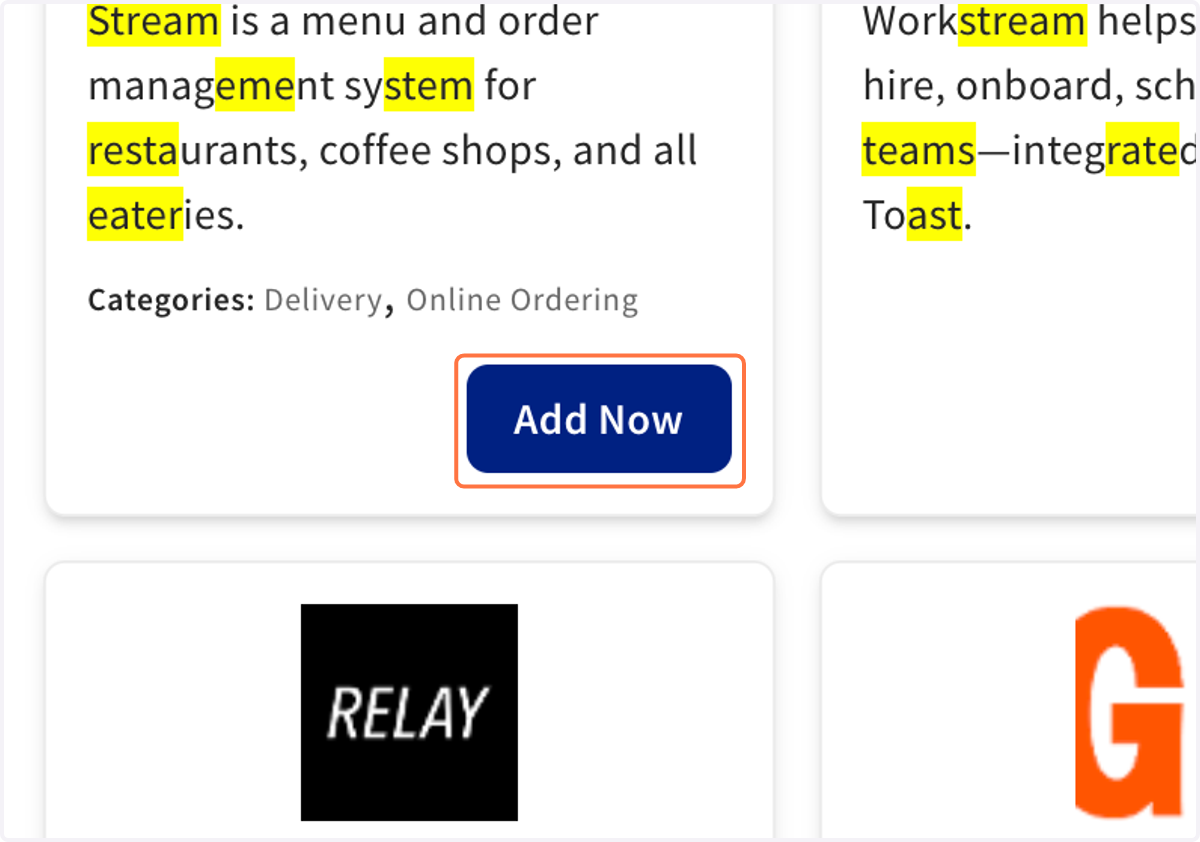
12. Click on Add Now
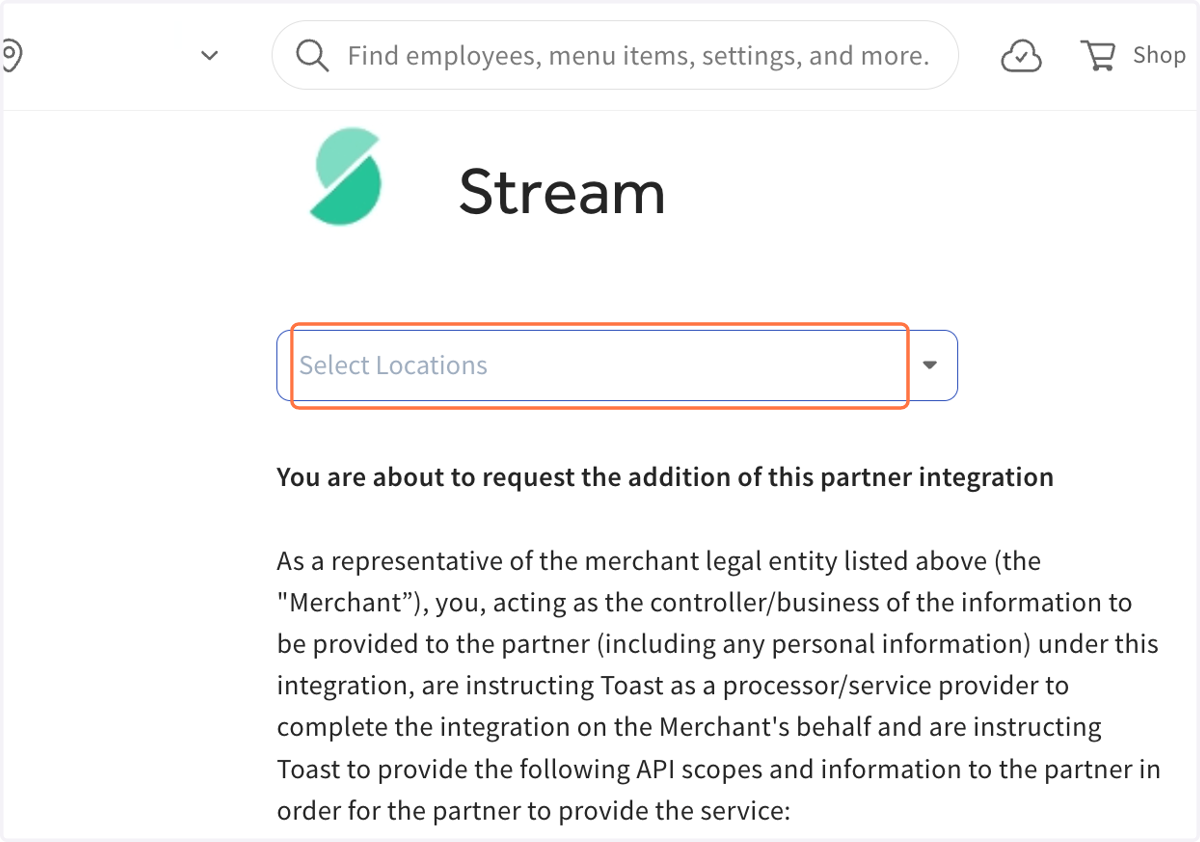
13. Select which locations you are Onboarding to Kea Ai
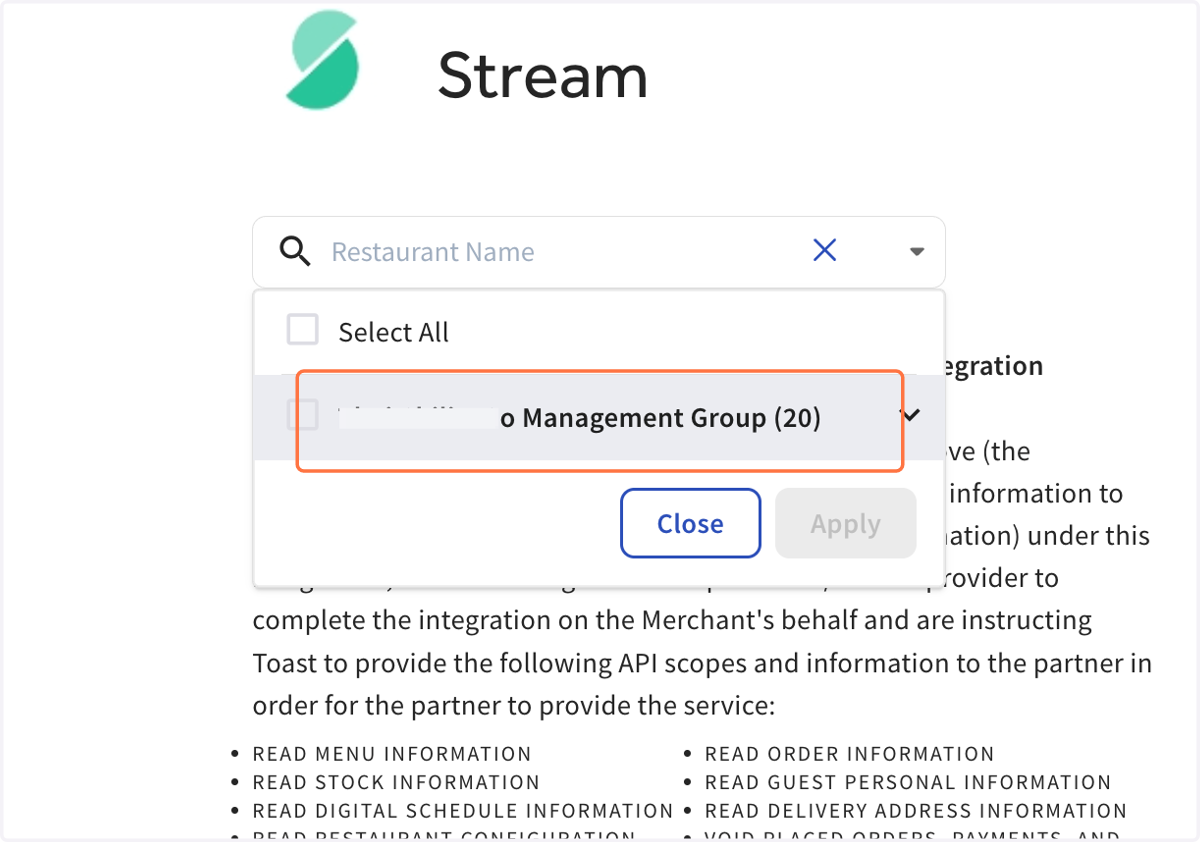
14. You can select just one or all locations from this drop down if we will be adding more to Kea Ai in the future.
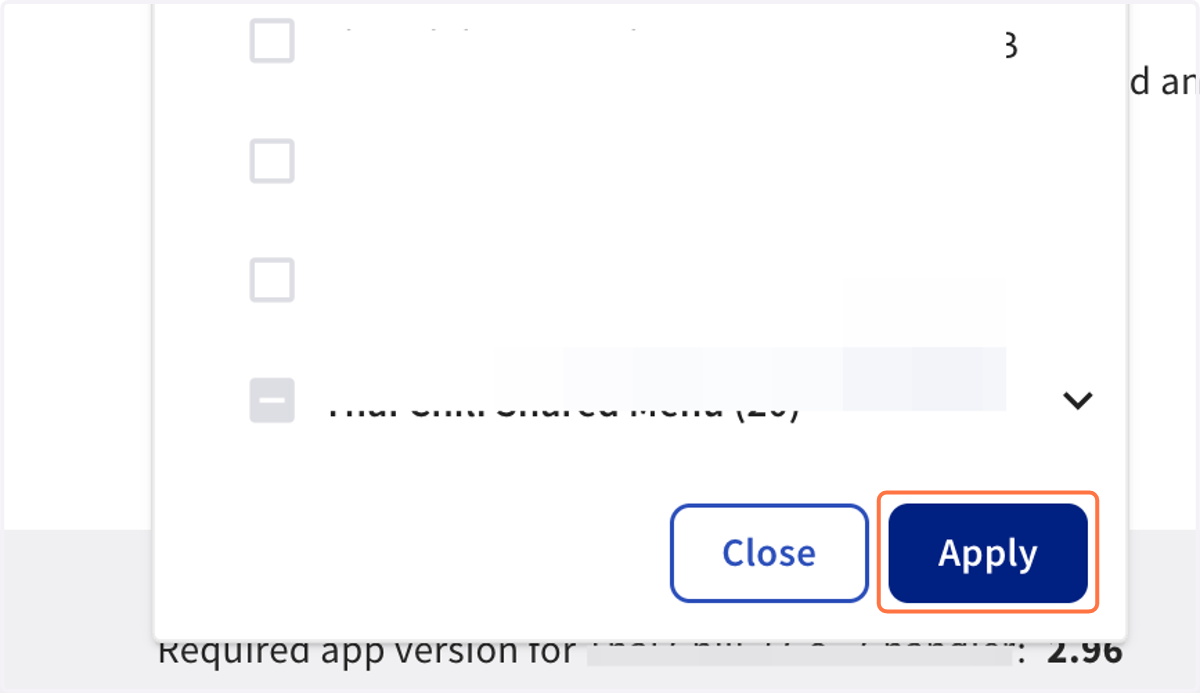
15. Once you have selected one, a few, or all locations - Click on Apply
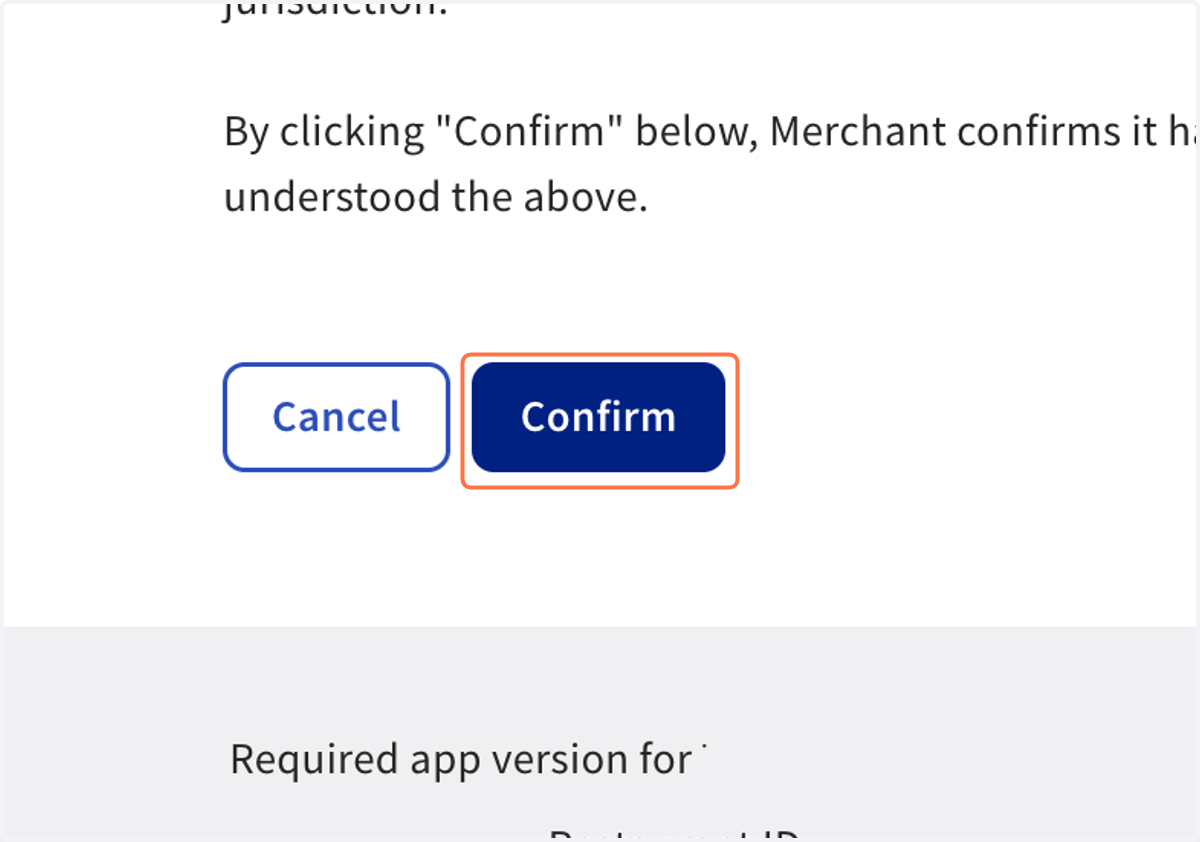
16. Click on Confirm
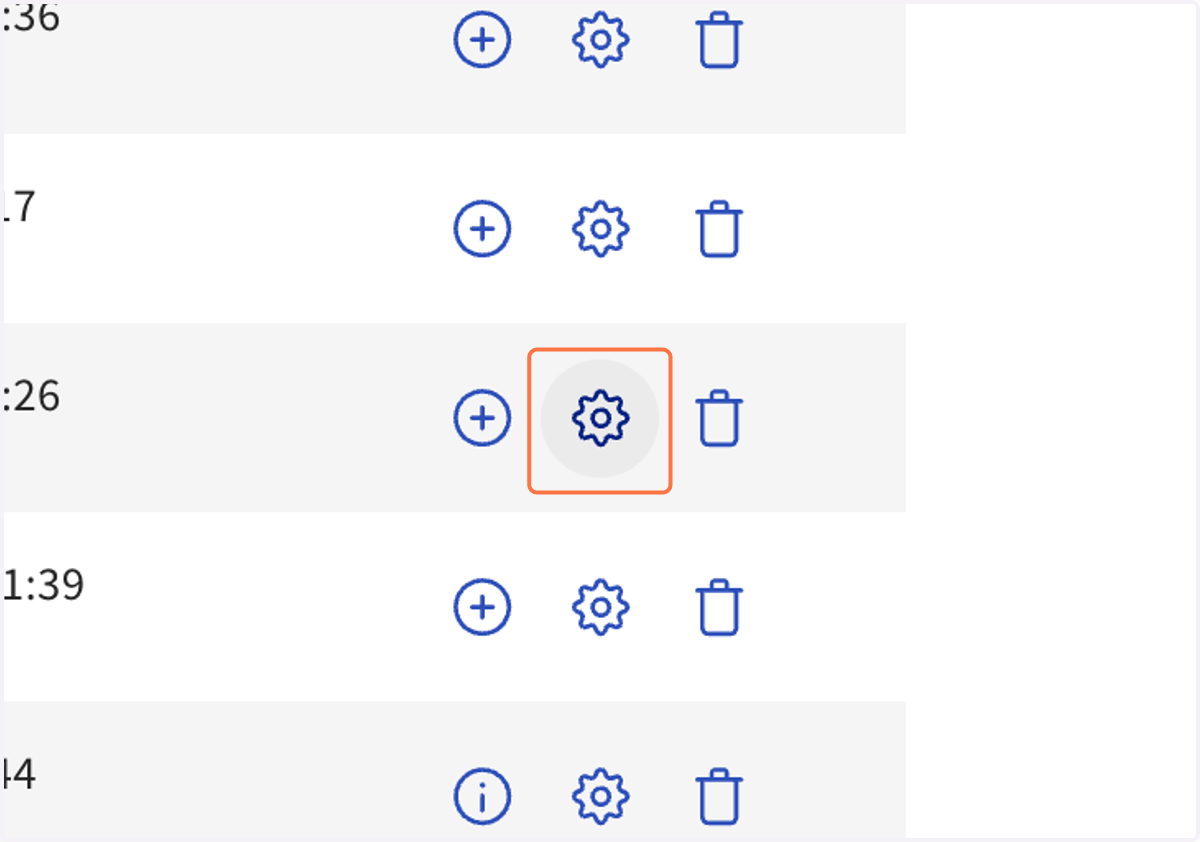
17. Your Manage Integrations page should now appear. Locate your new Stream App line - Click on the pinwheel for Manage IDs next to Stream
This is where we will be copying the Merchant ID from Kea's Stream into.
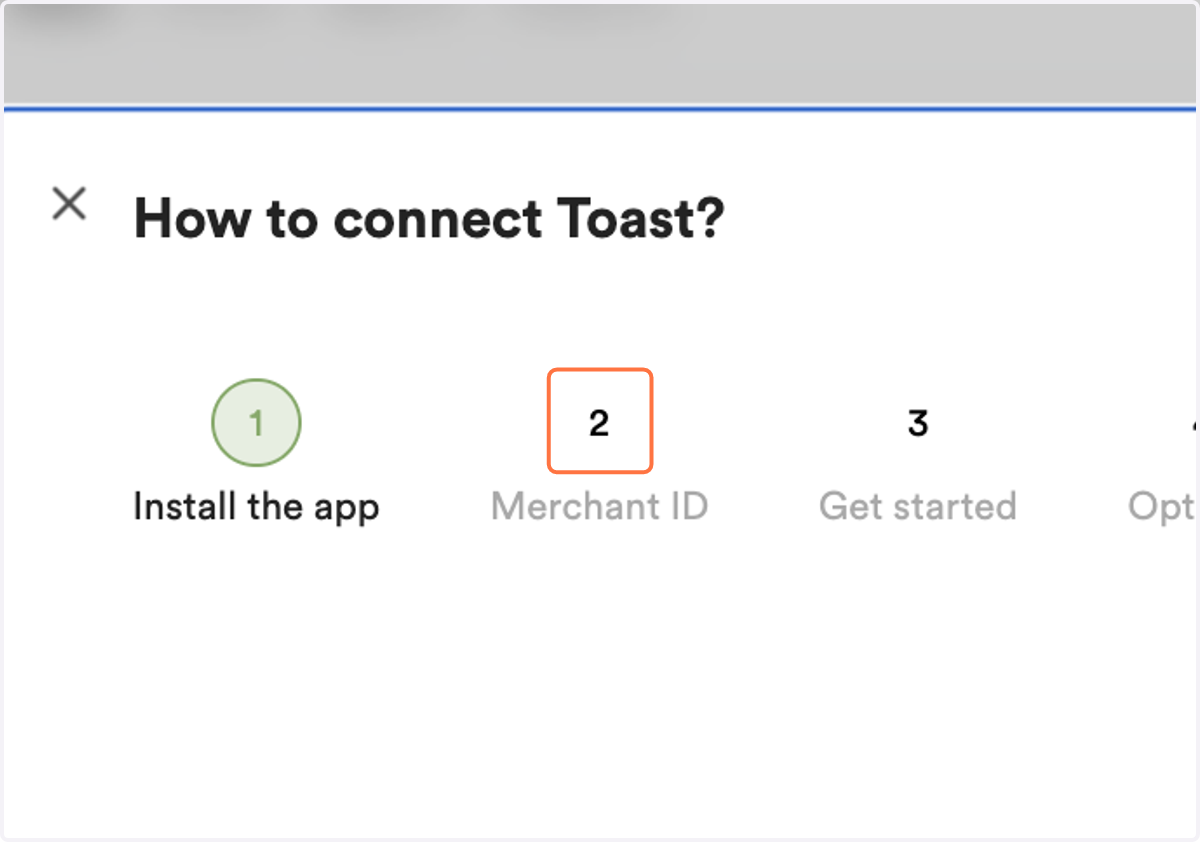
Go back to the Kea AI/Stream tab you should still have opened.
18. Select 2: Merchant ID from the pop up box open.
19. Copy the Merchant ID
Go back to Toast Home
20. Click the pinwheel within the Stream App integration and locate the Location that we will be syncing to Kea
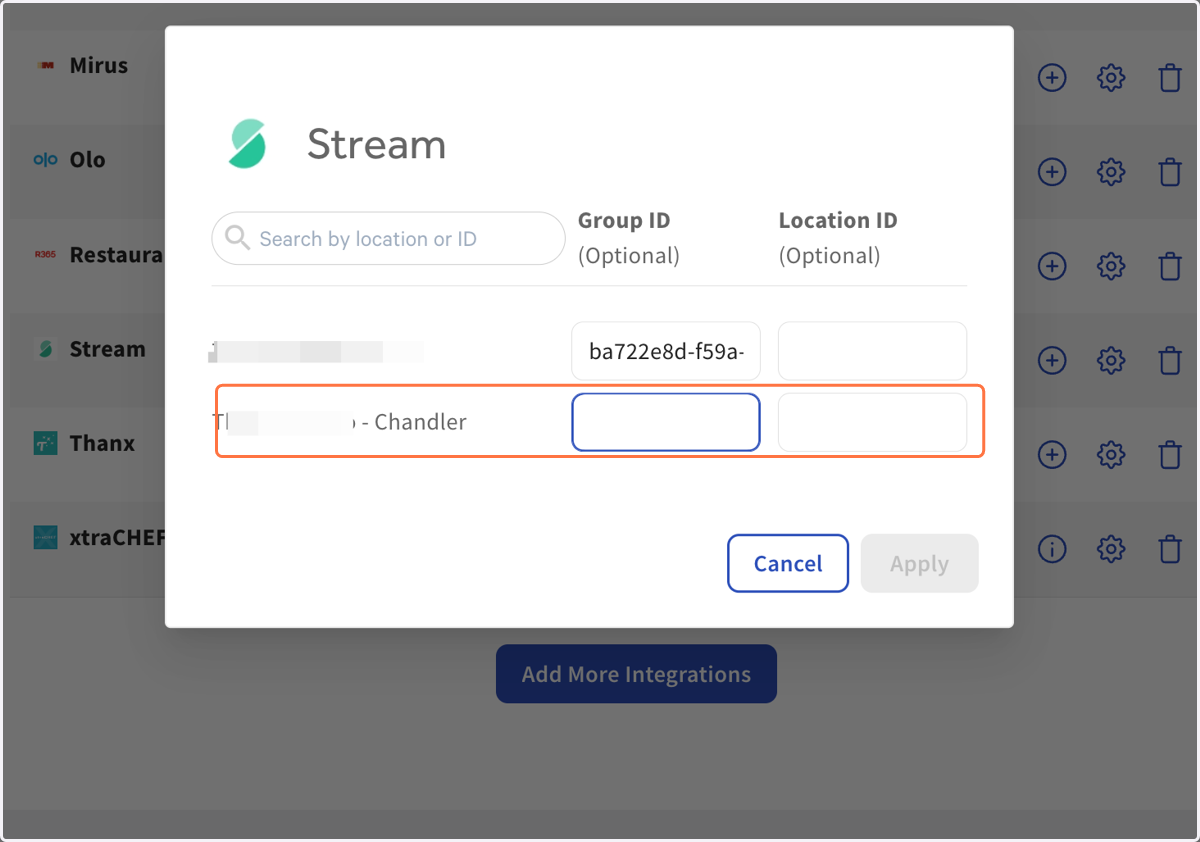
21. Paste the [MERCHANT ID] that you copied from Stream into the [GROUP ID] field.
![Paste the [MERCHANT ID] that you copied from Stream into the [GROUP ID] field.](https://images.tango.us/workflows/2aff7bac-fbdf-4e88-9158-b25a7b7741d8/steps/2289426e-8f01-4e82-8537-1183c7c4b90c/edcf4d38-feec-406a-85b8-03705f1e5ba8.png?fp-x=0.5463&fp-y=0.5826&fp-z=2.3899&w=1200&border=F4F2F7&bx=983&by=784&bw=239&bh=82&c=FF7442&dpr=1.80)
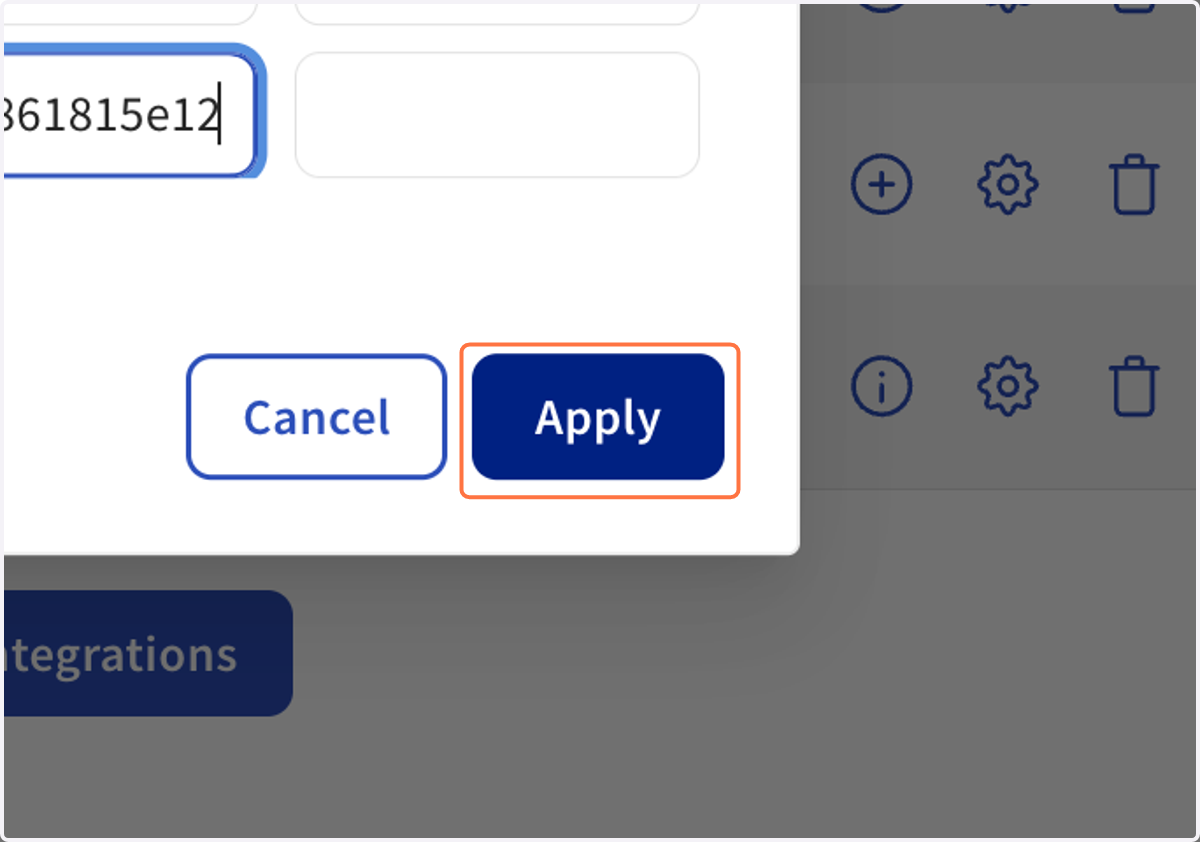
22. Click on Apply
🦜 More Kea AI Integration Steps
The following steps are to ensure your Kea AI phone orders are sent to Toast and KDS correctly. We will do these steps now, as it takes a couple moments for the previous Merchant/Group IDs to sync.
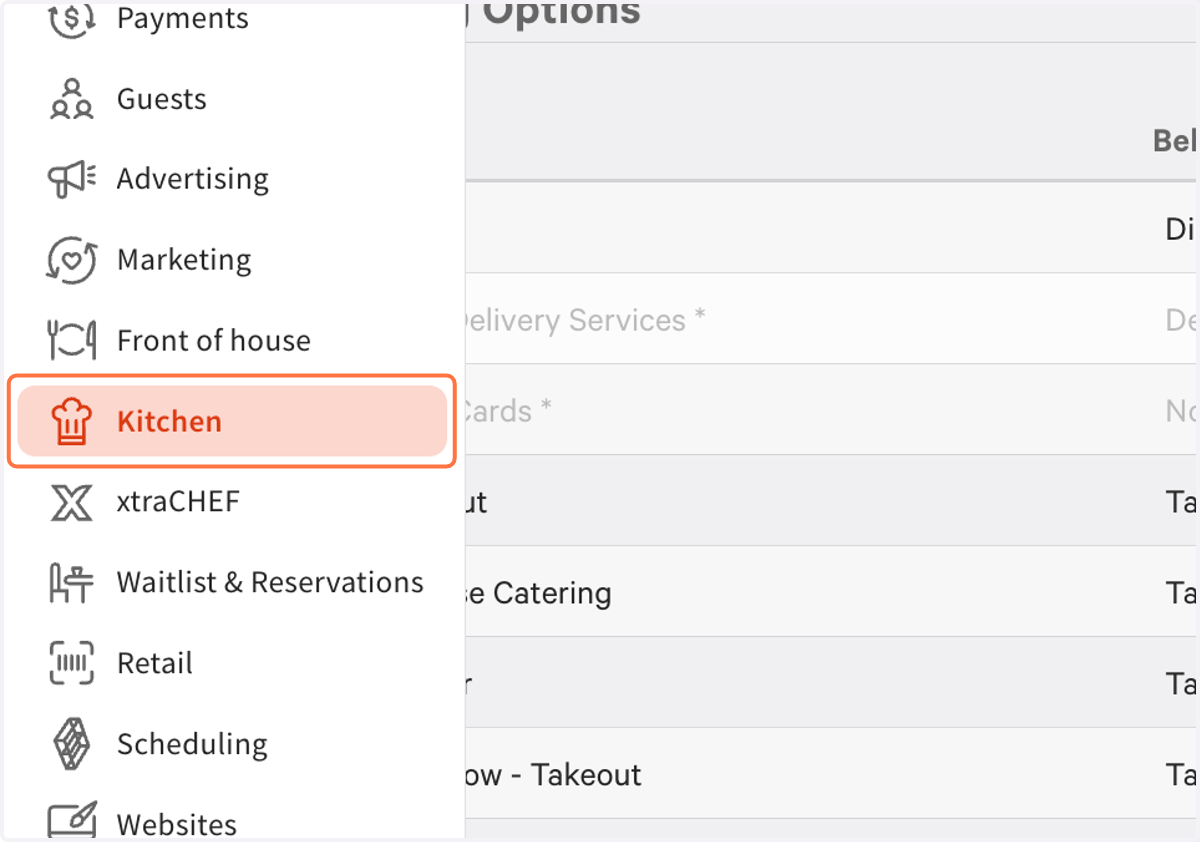
23. From the left side of your Toast, click on Kitchen
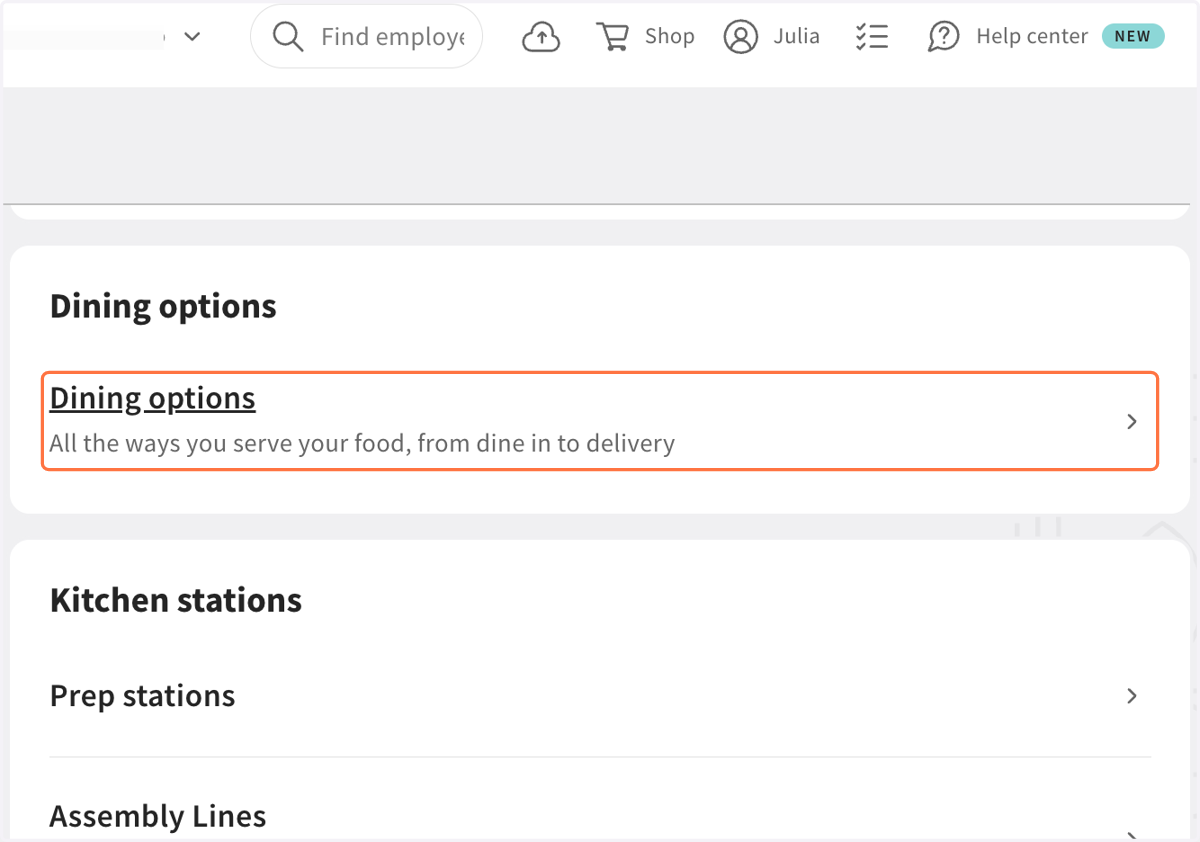
24. Click on Navigate to Dining options
25. Scroll down and Add a new Dining Option
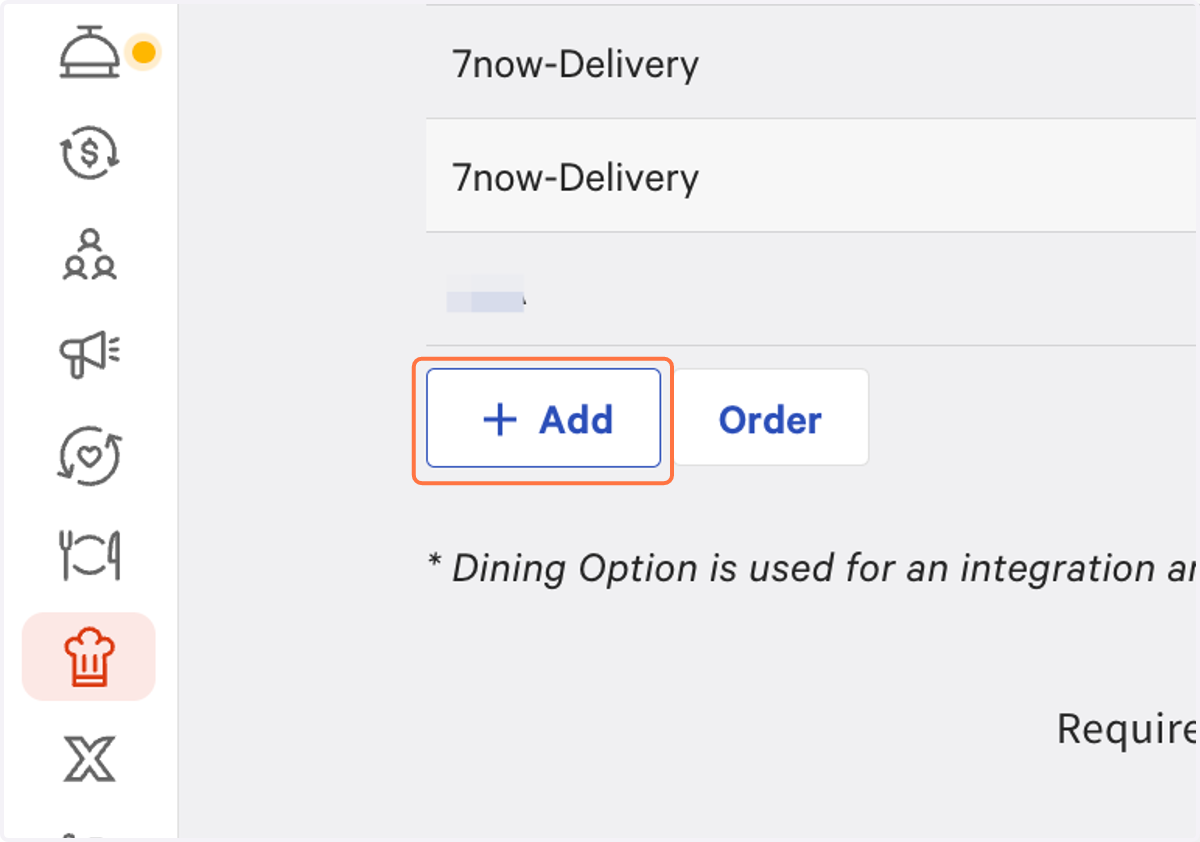
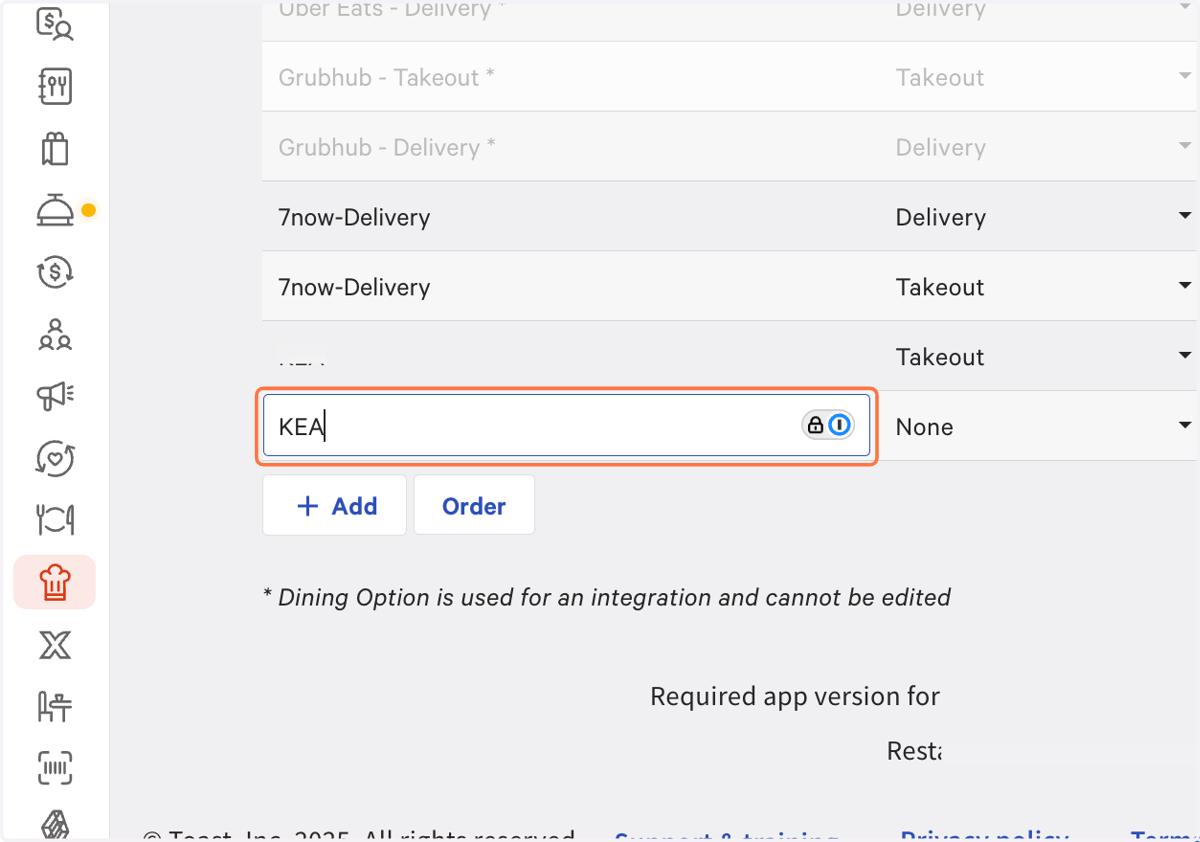
26. Type "KEA"
27. Select Takeout
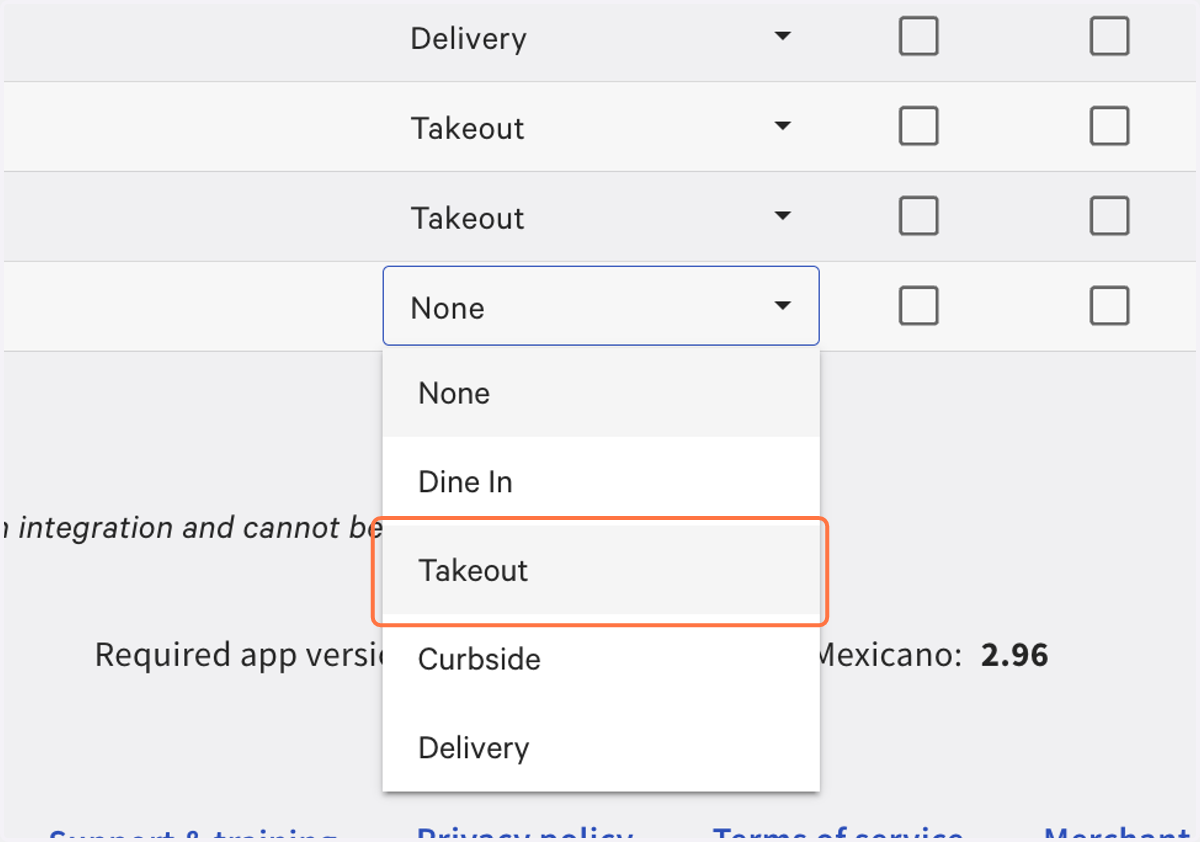
28. Ensure your selections here align to how you have your other Third Party providers.
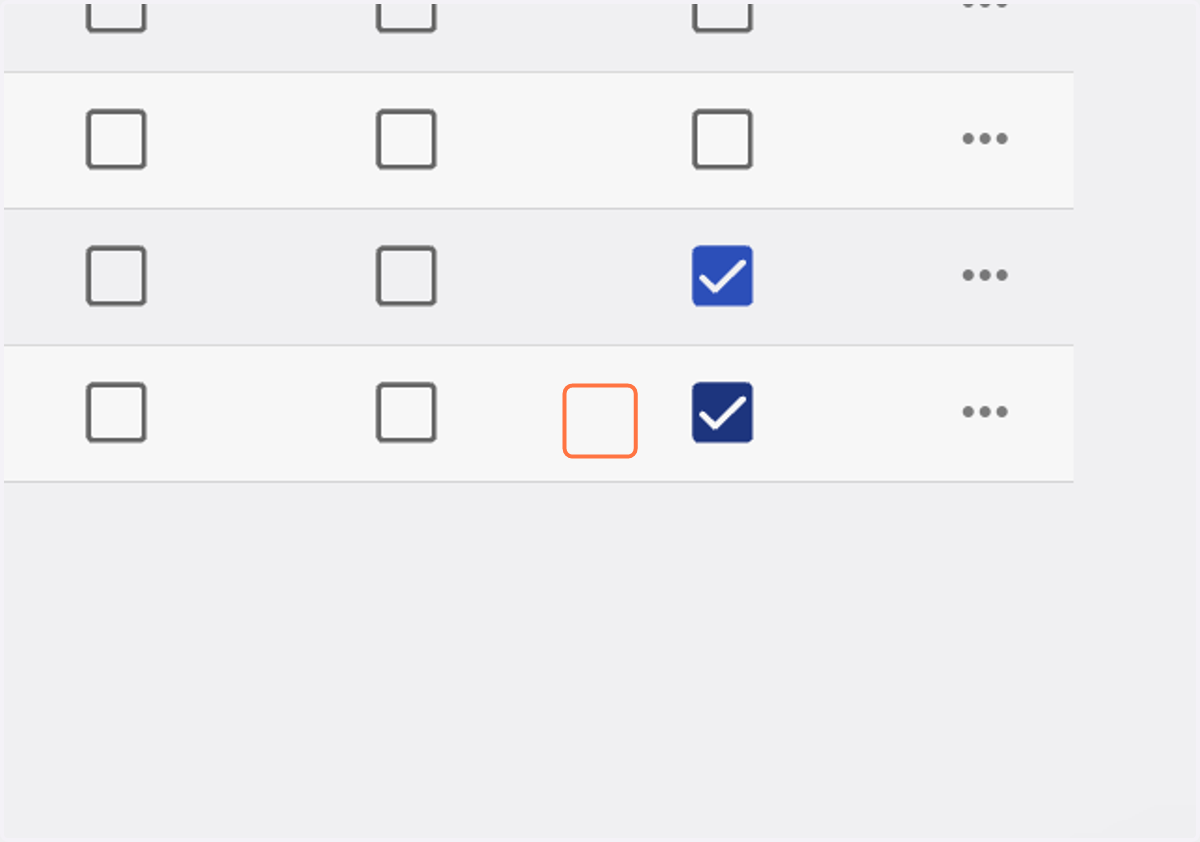
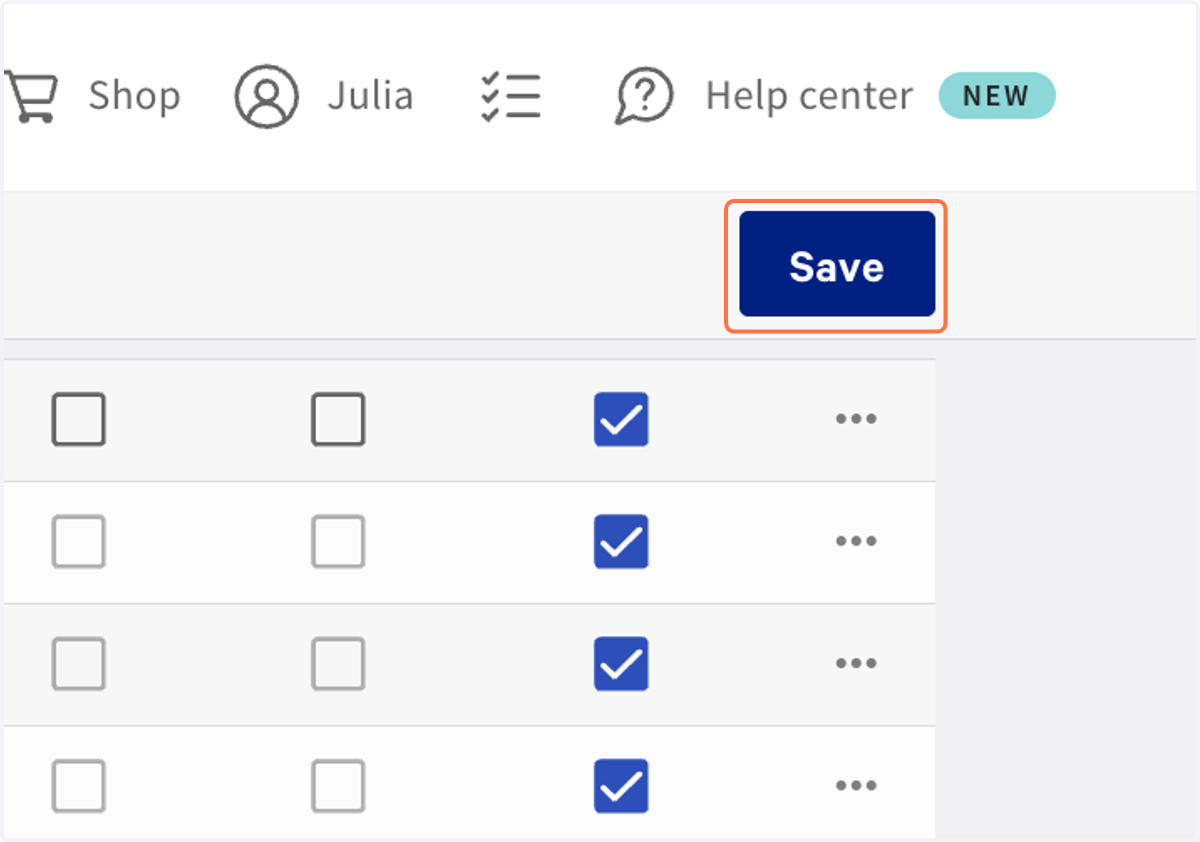
29. Click on Save
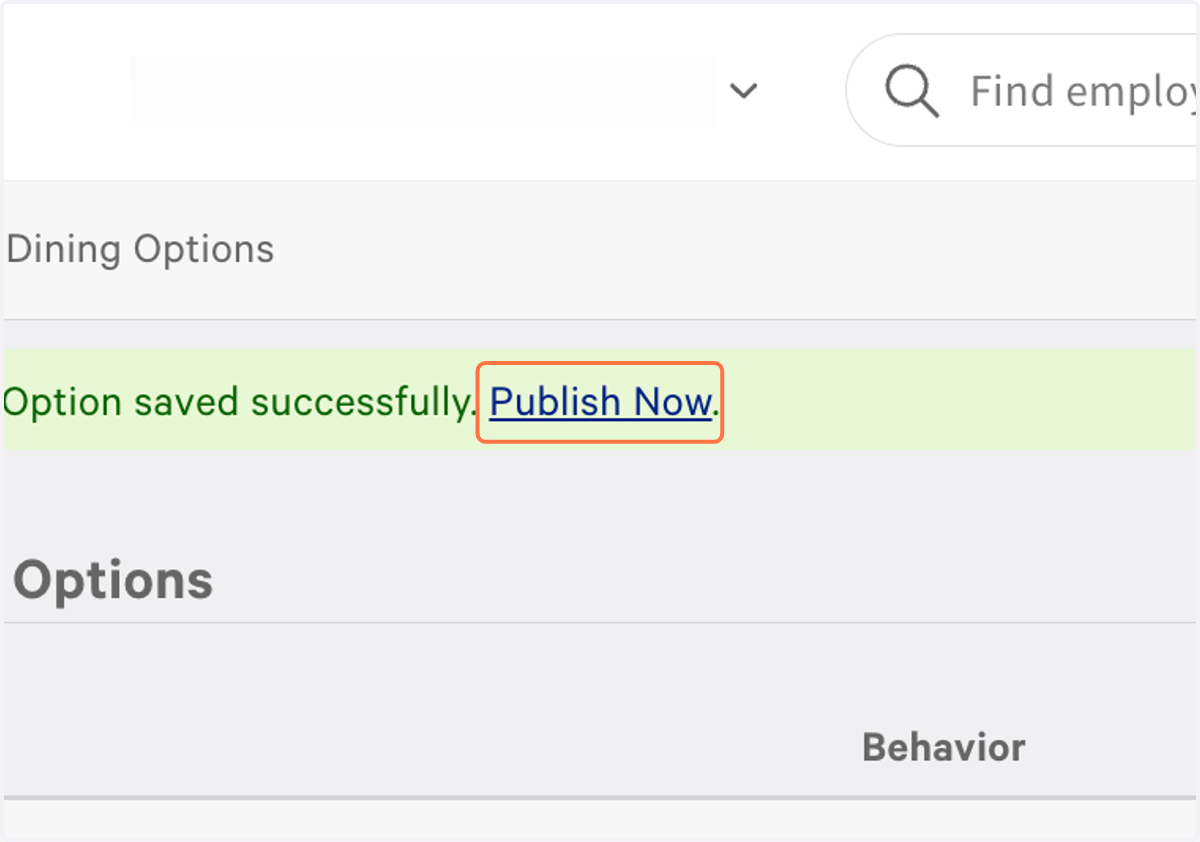
30. Click on Publish Now. *** VERY IMPORTANT **
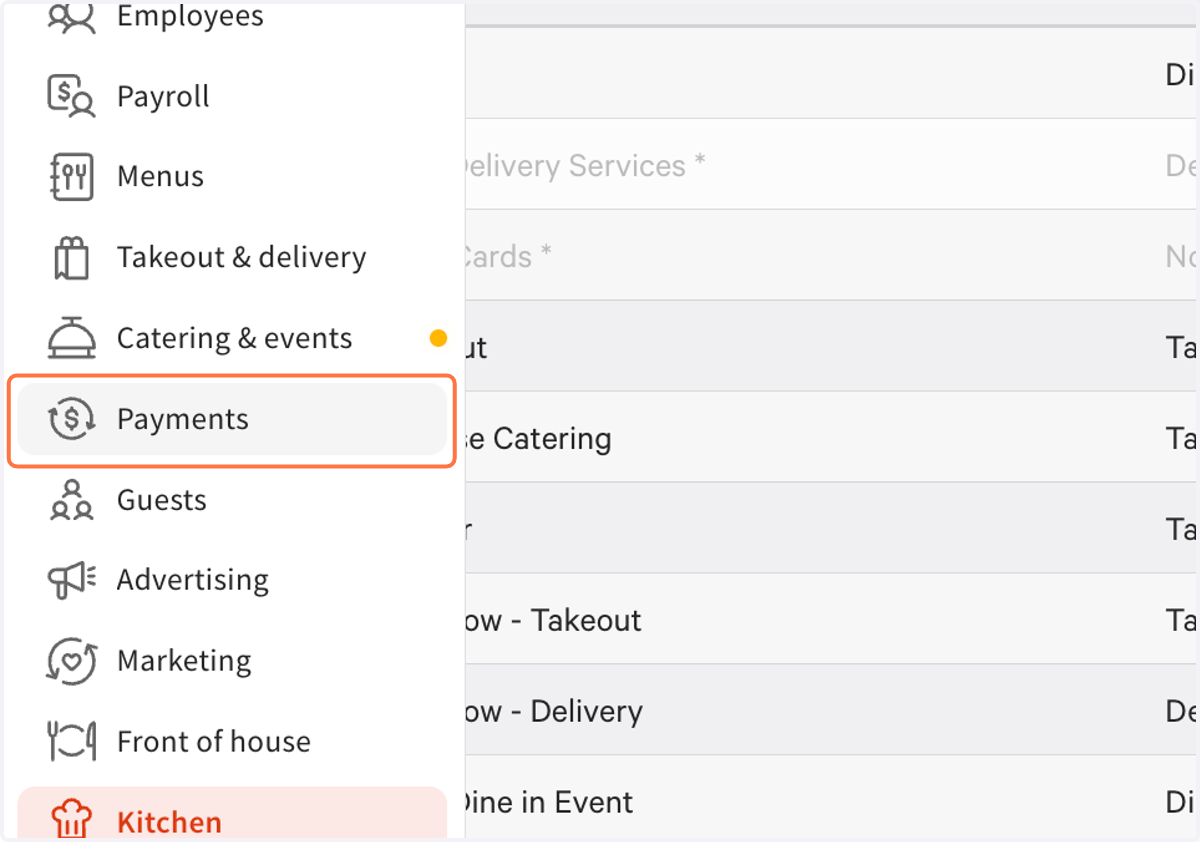
31. Now, navigate to Payments on the left sidebar
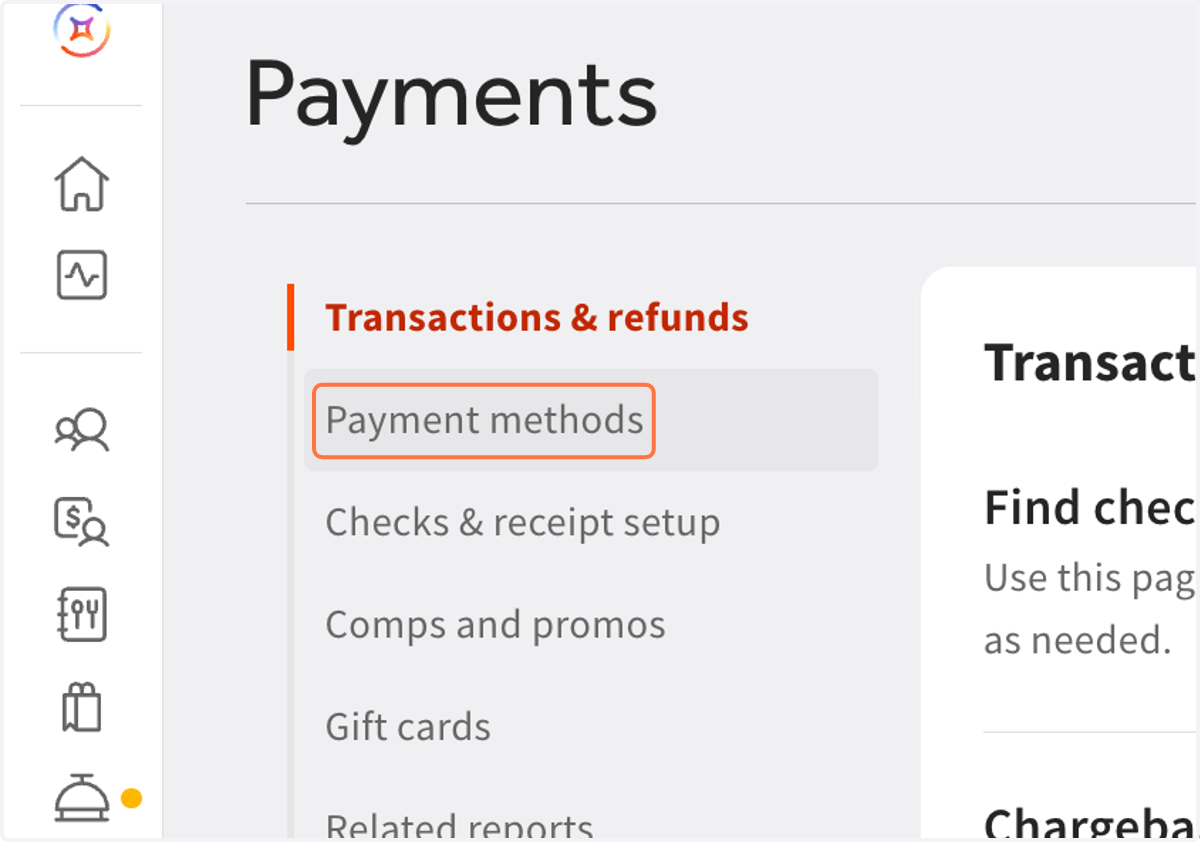
32. Click on Payment methods
33. Click on Navigate to Other payment options
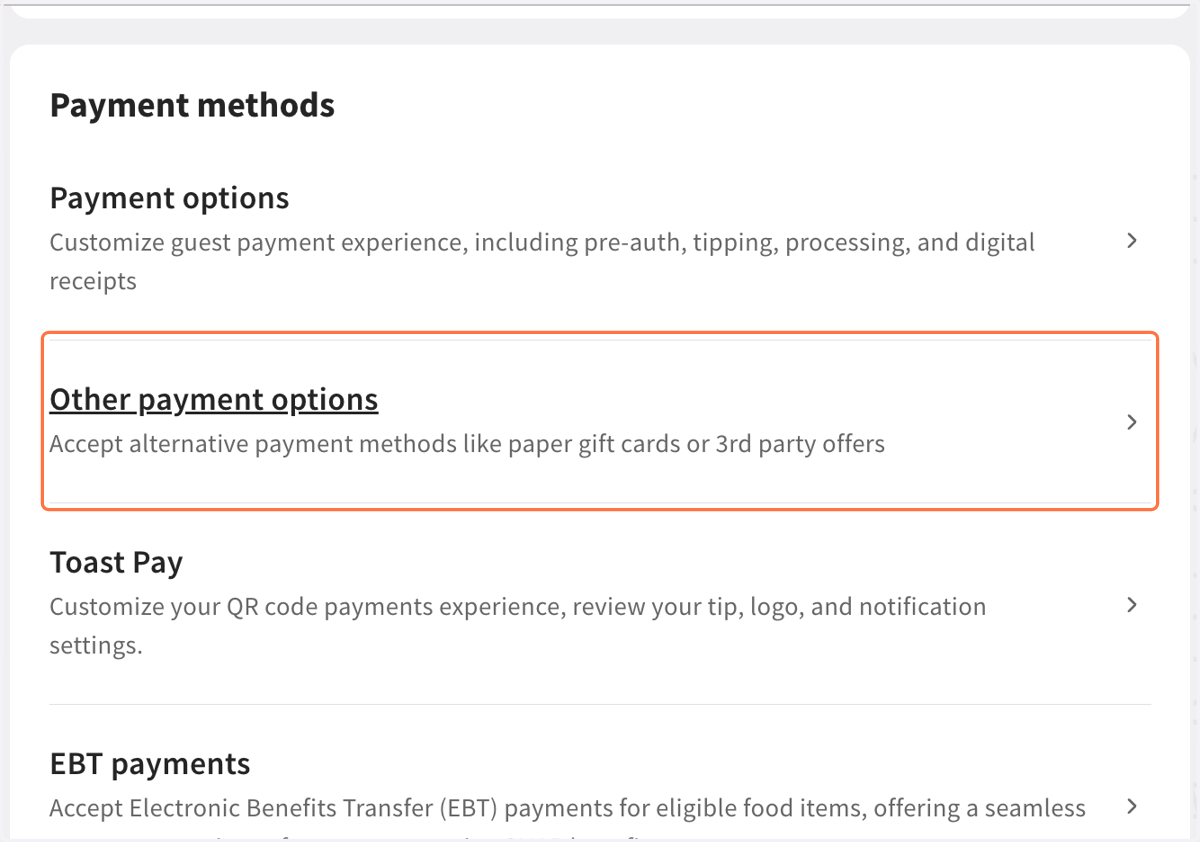
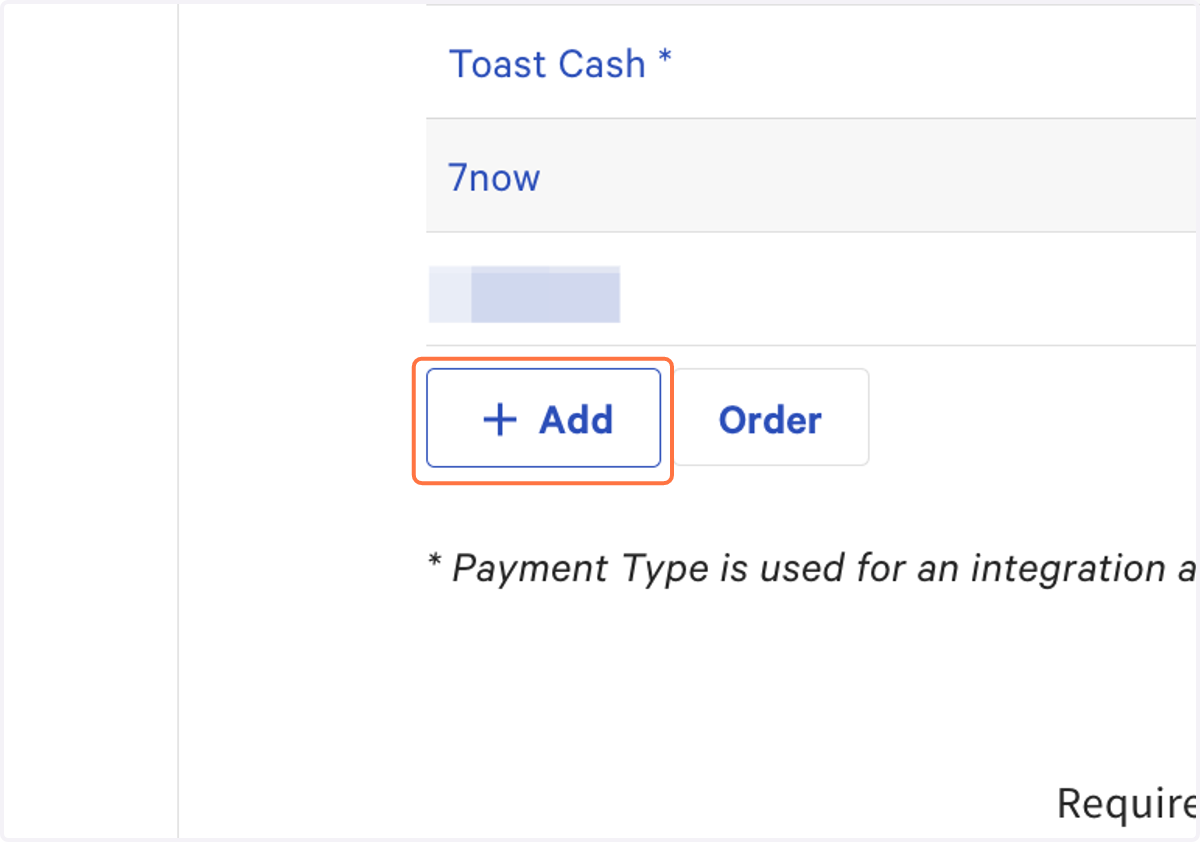
34. We will now add a new payment method for Stream/Kea AIClick on Add
This step is needed, as it is how Toast delineates where orders are coming from as to ensure your financials are in line with 3PD
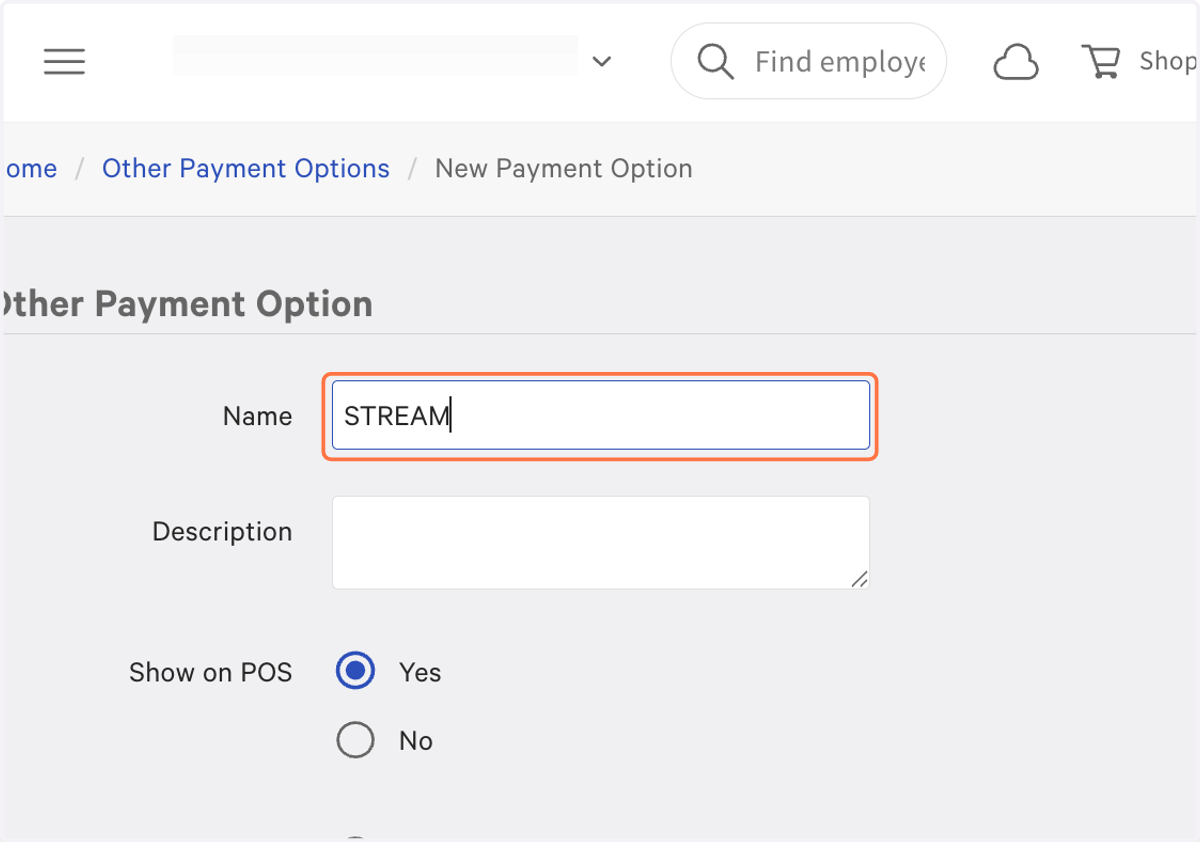
35. Type "STREAM" in all caps
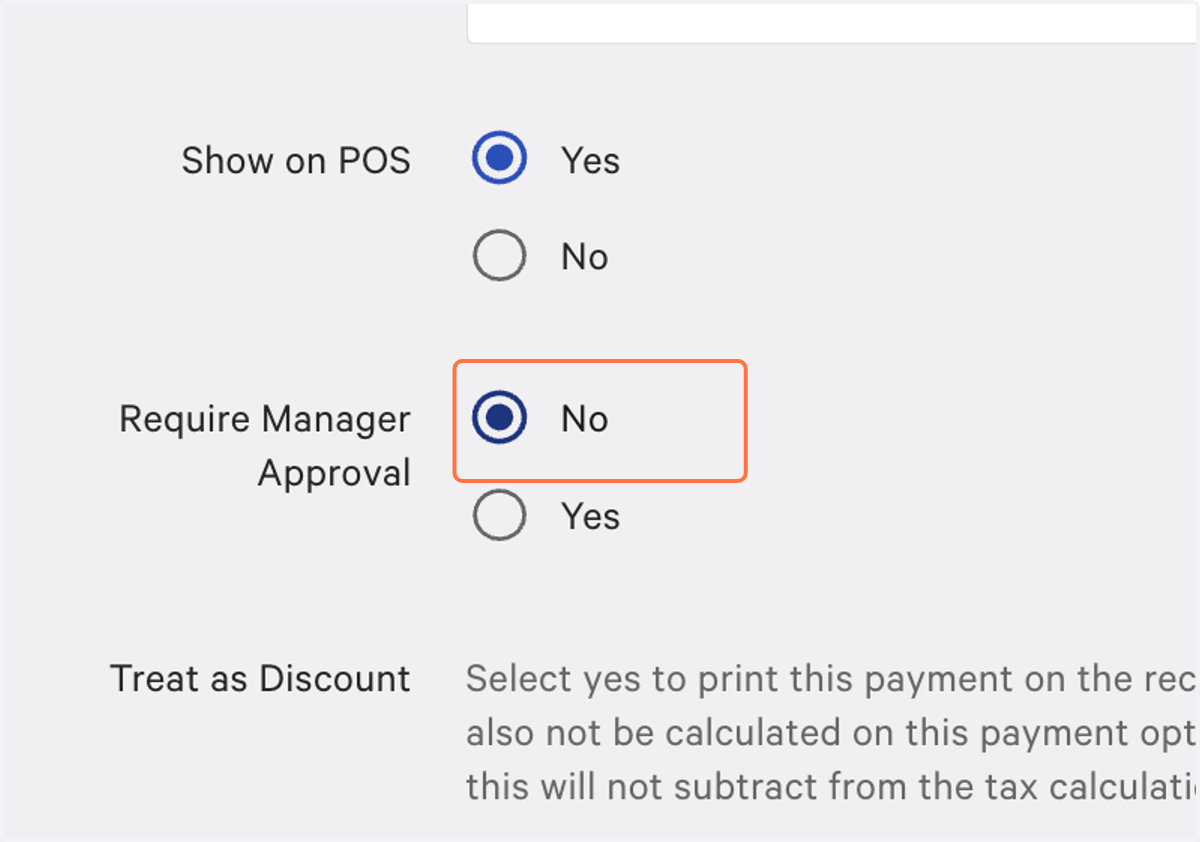
36. Check "Require Manager Approval" to No
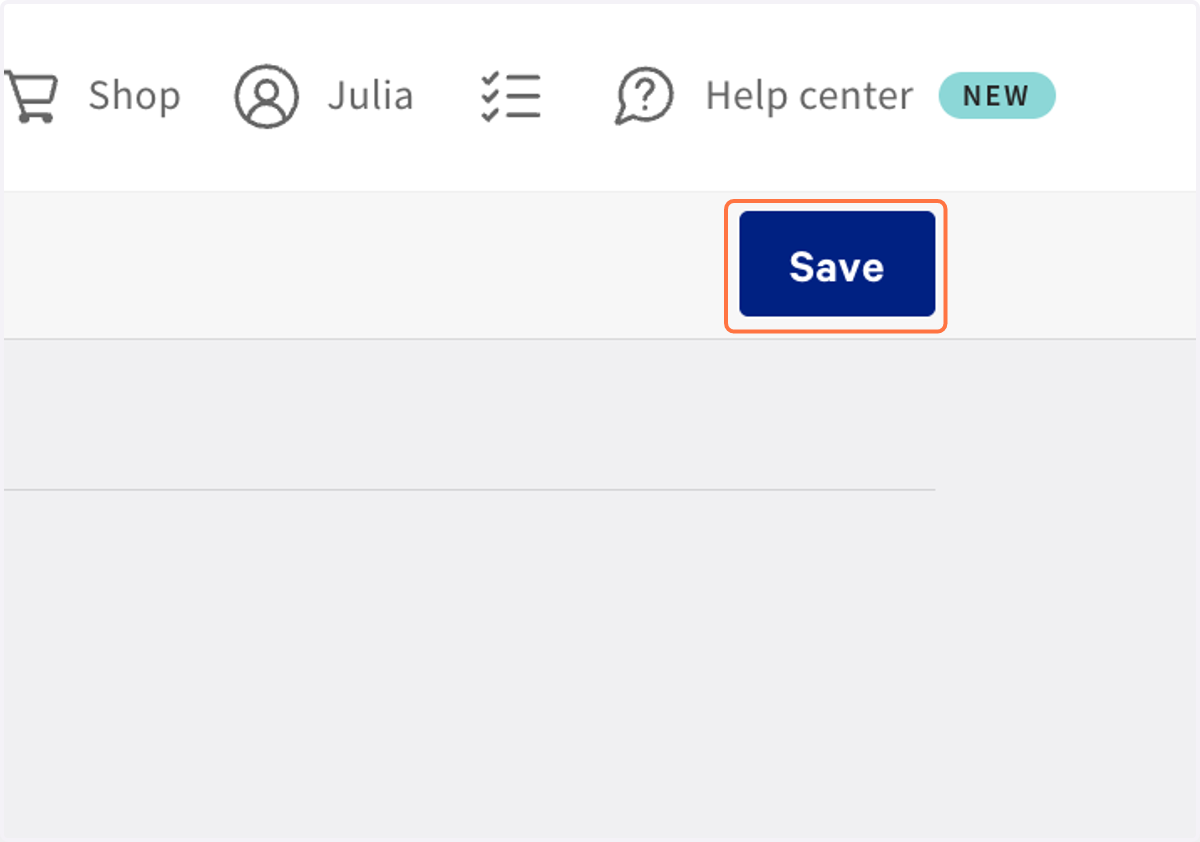
37. Click on Save
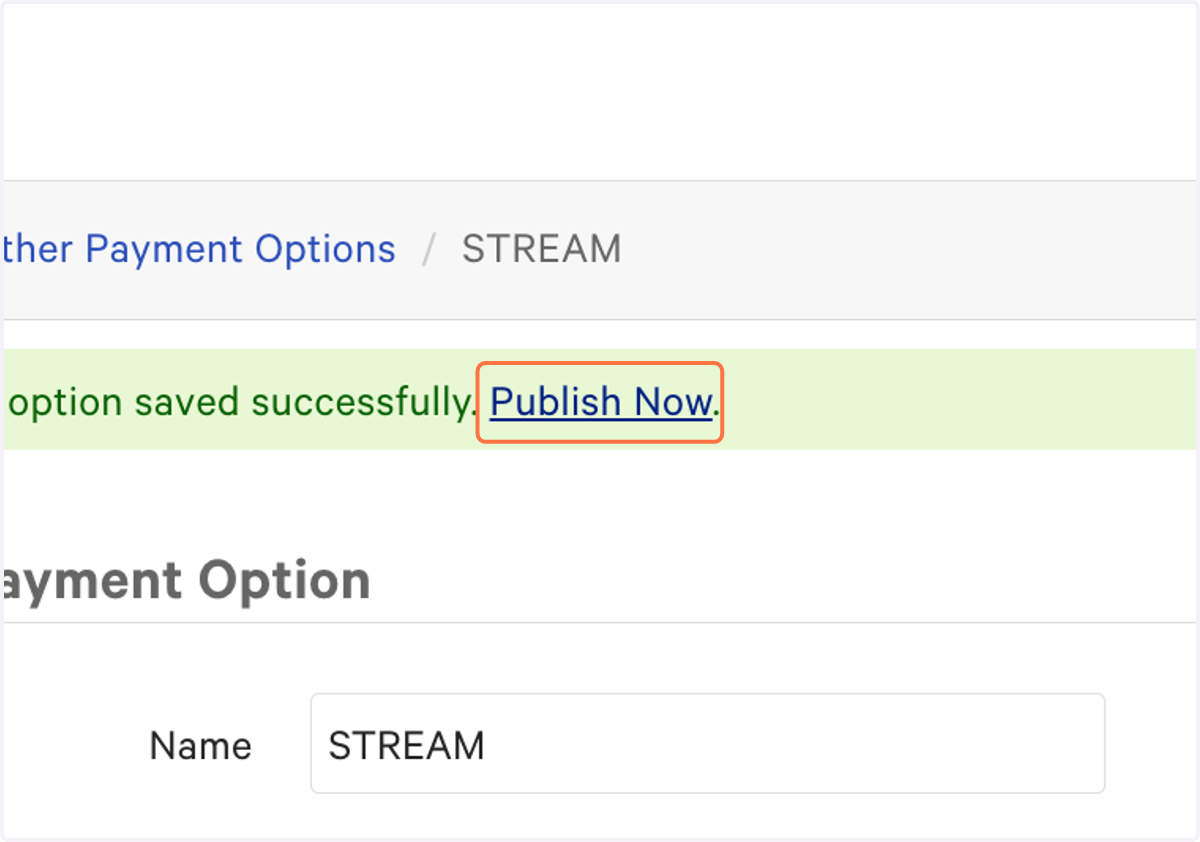
38. Click on Publish Now ** VERY IMPORTANT **
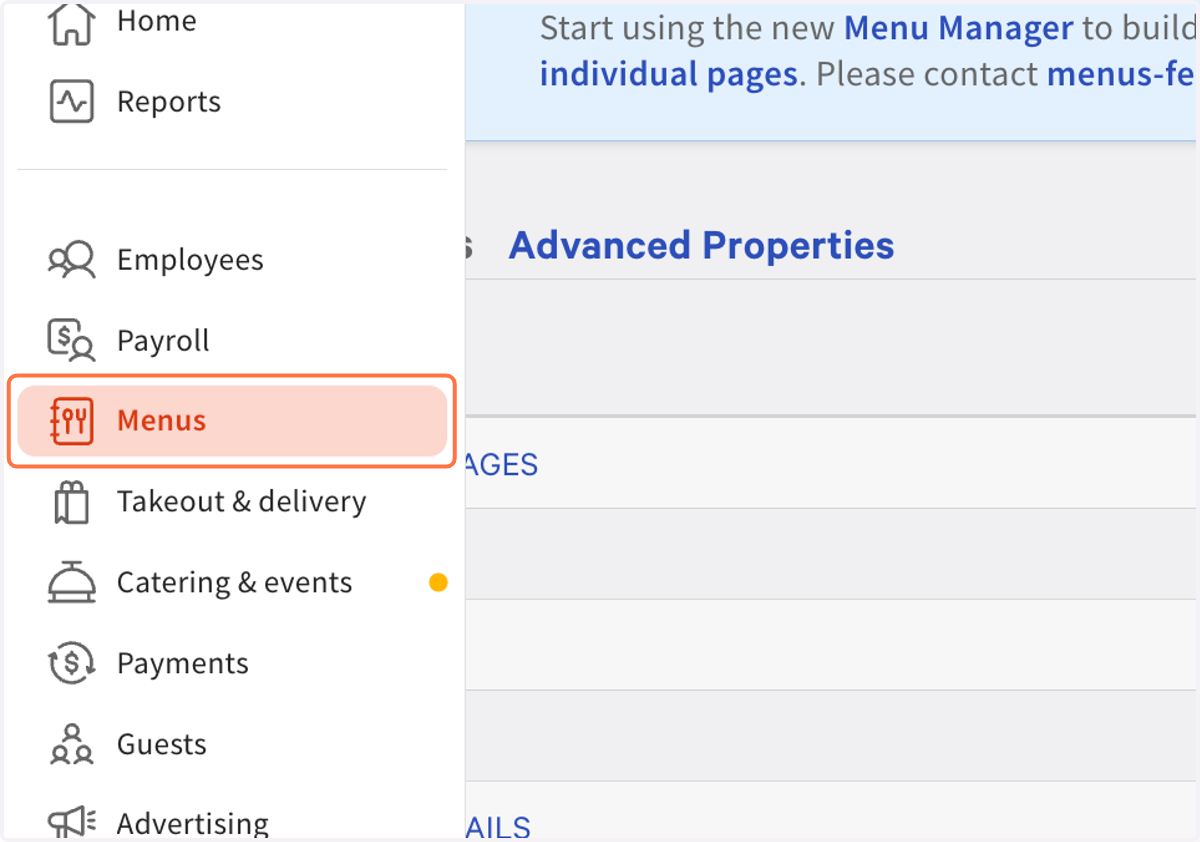
39. Now we will ensure your Menus are visible to Kea's AI - Click on Menus
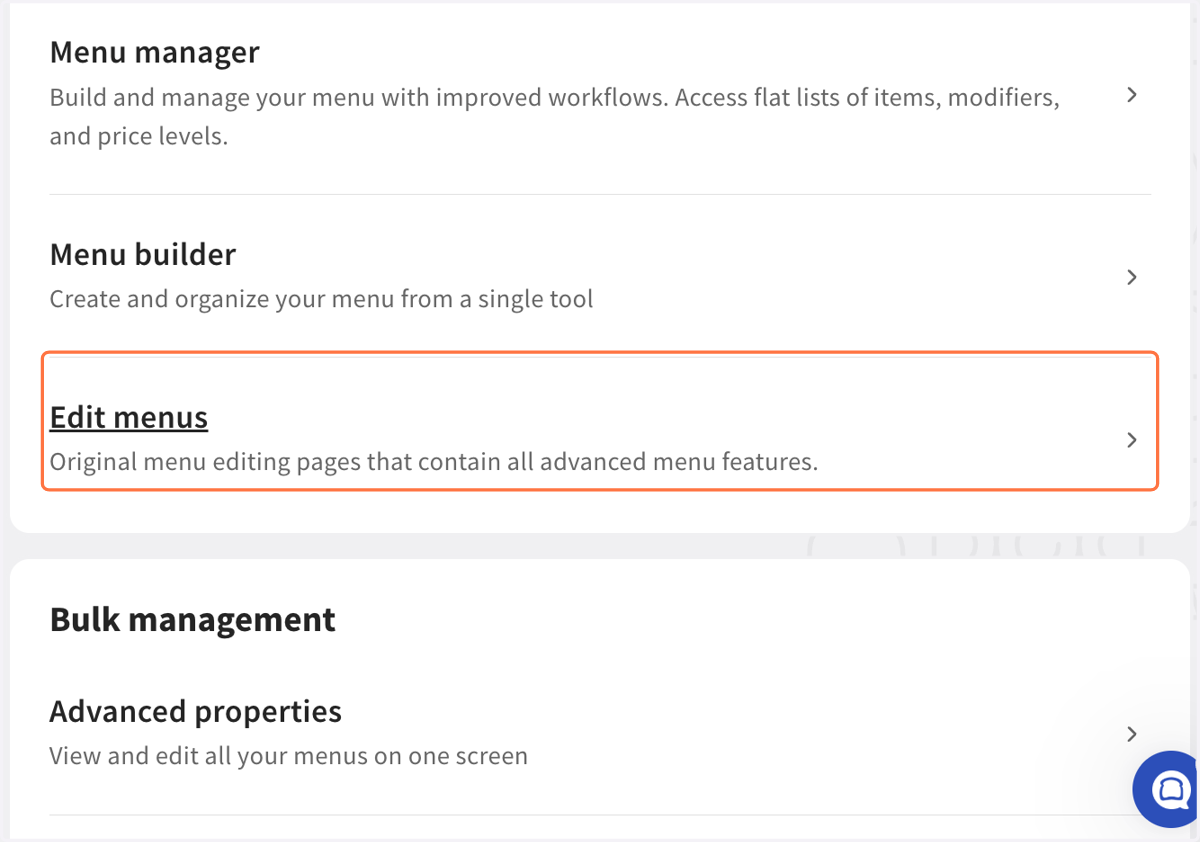
40. Click on Navigate to Edit menus
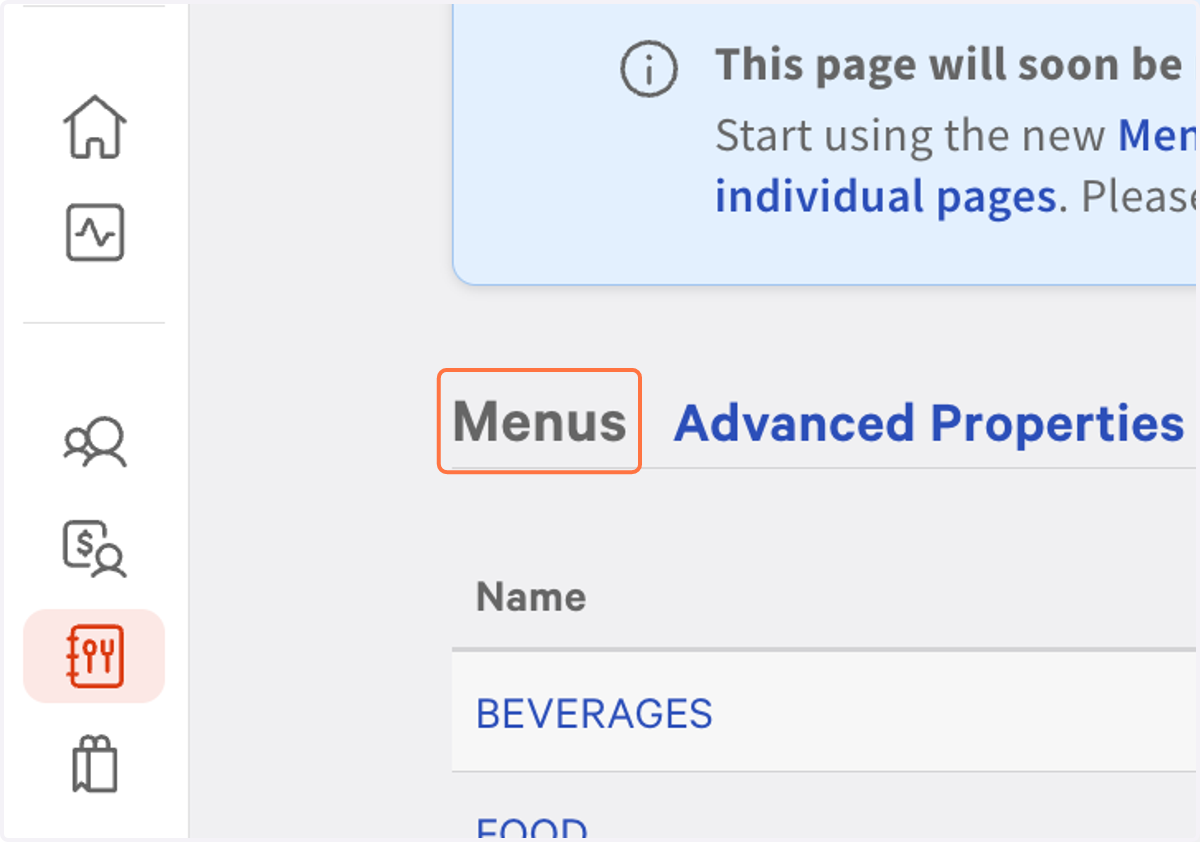
41. From this page - determine which of your menus your customer's typically would use to order takeout from the phone
For example - food and beverages would be menus that the AI will need to see, to accommodate a Phone Order. But probably not Cocktails togo.
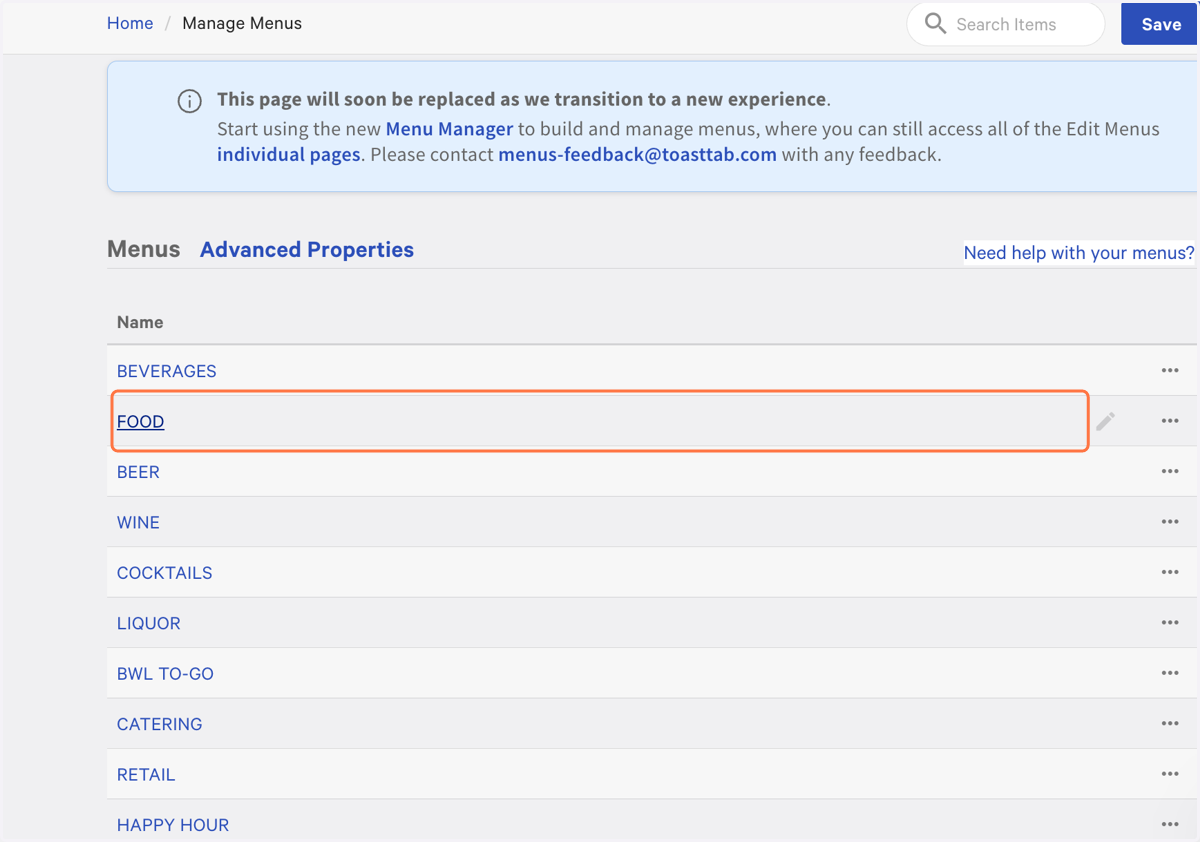
42. Click into the menu that Kea AI needs access to for phone orders
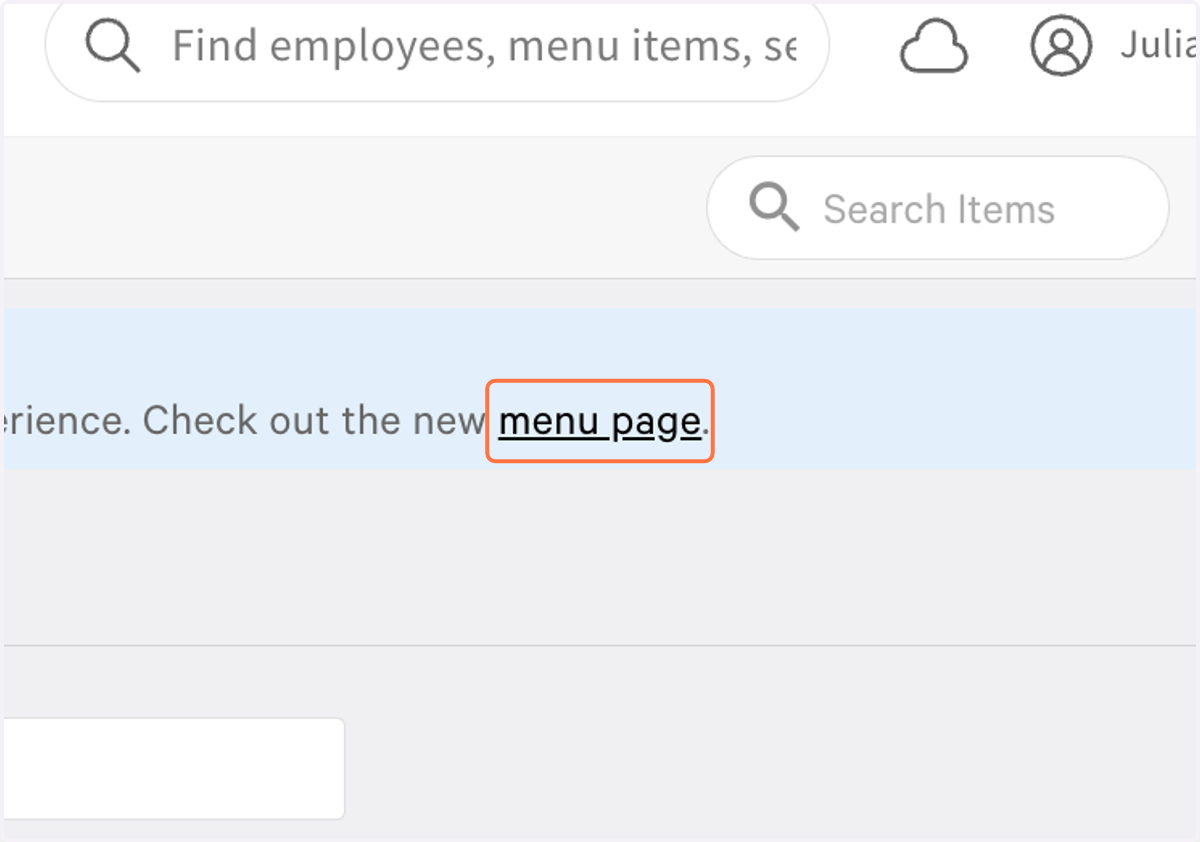
43. From the BLUE BANNER up top - Click on menu page
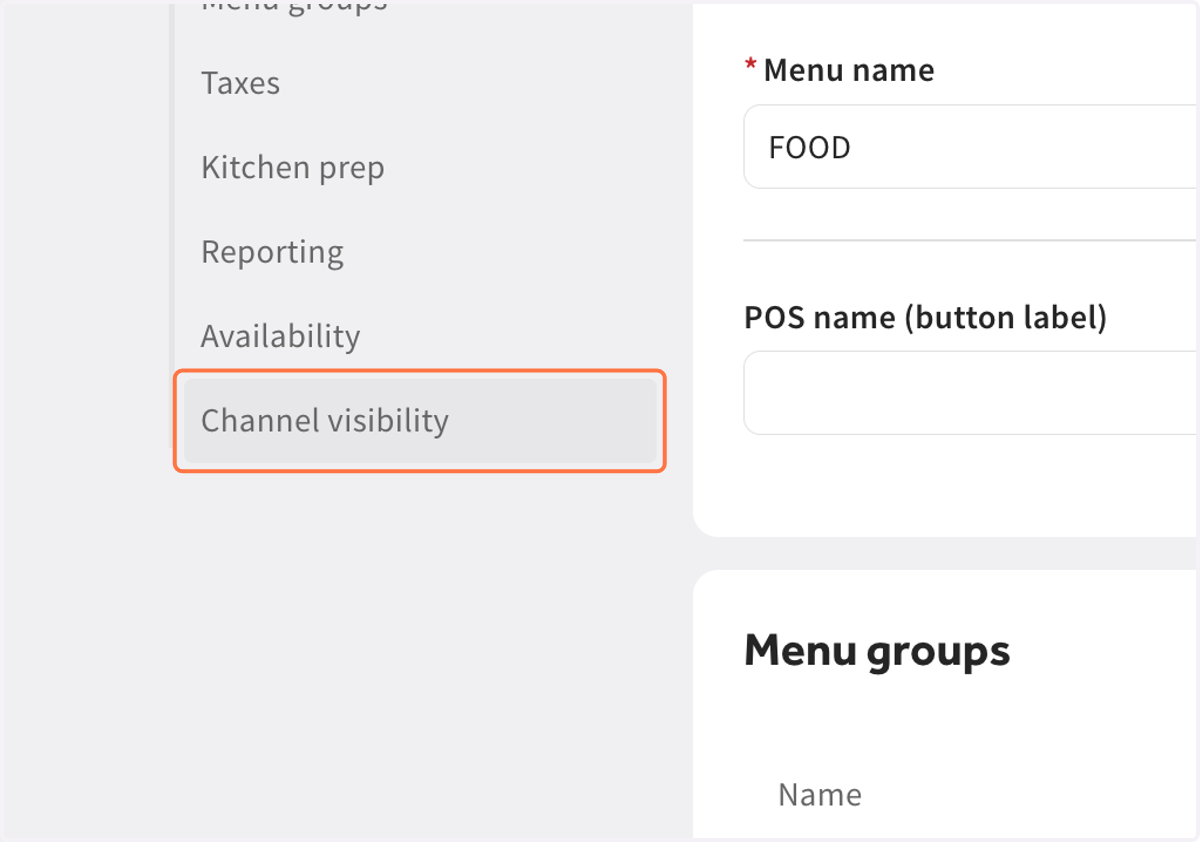
44. Navigate down to Channel Visibility on the left
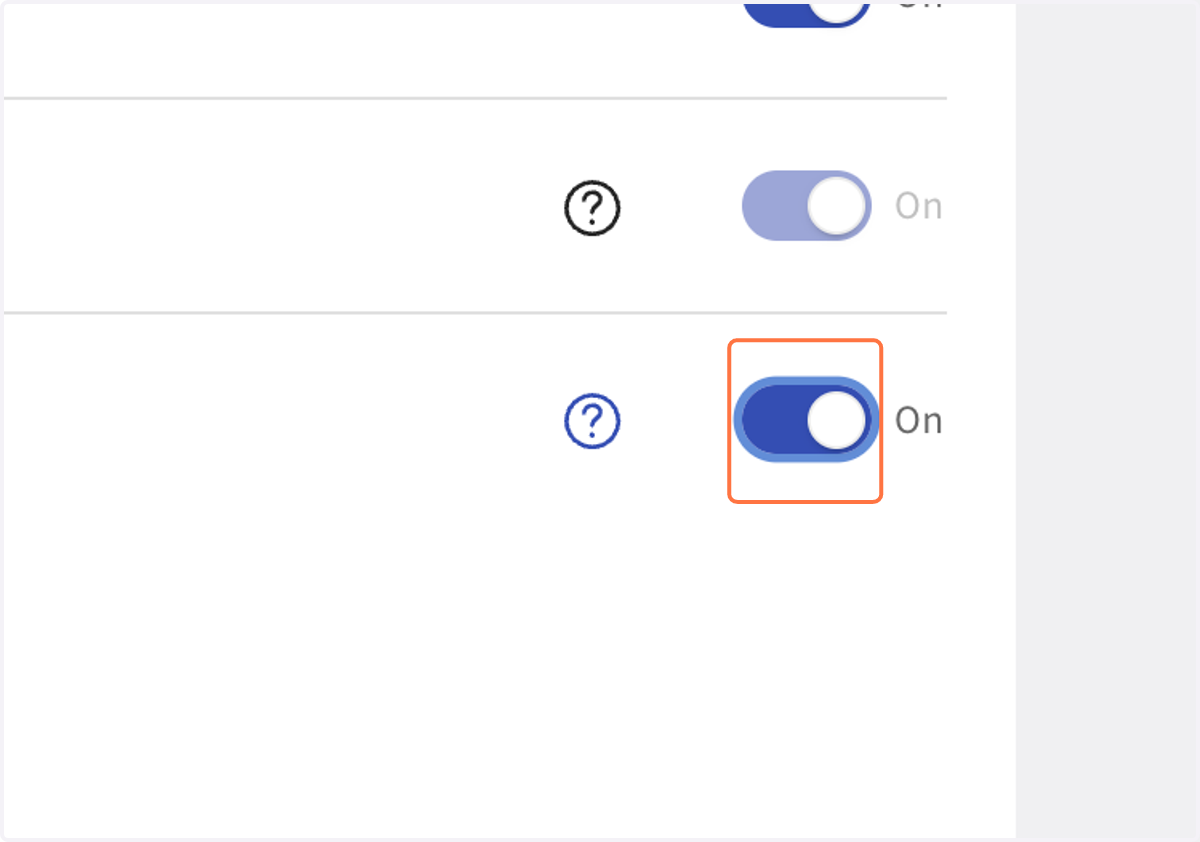
45. Ensure Online Ordering Partners is toggled ON
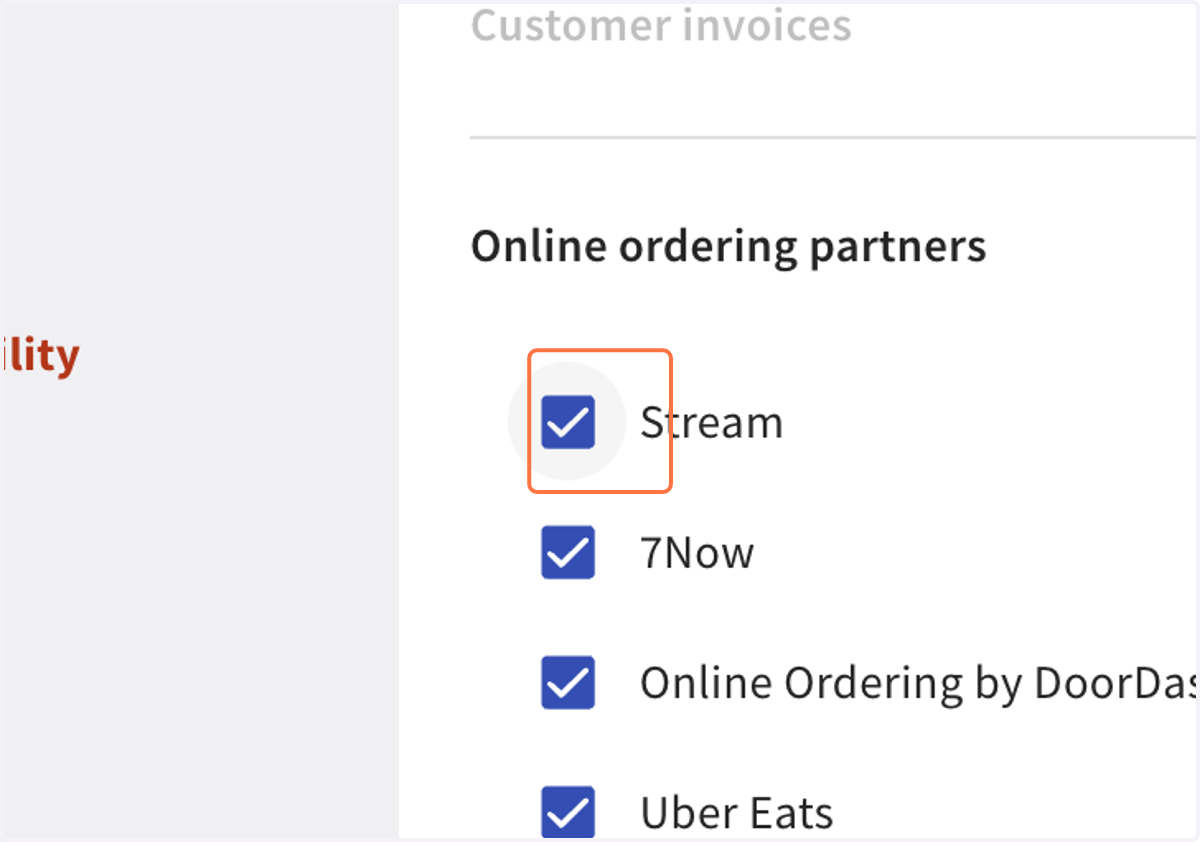
46. Ensure Stream is checked YES within Online Ordering Partners
47. Click on Save
48. Click on Publish all changes
49. Confirm Publish
At this time, we can now go back to the Stream tab you still have open. We are done with the Toast connection and want to make sure our efforts have synced.
50. From the open pop up in Stream - click over to #5, Check the status
51. Click on Check
52. Click on Next
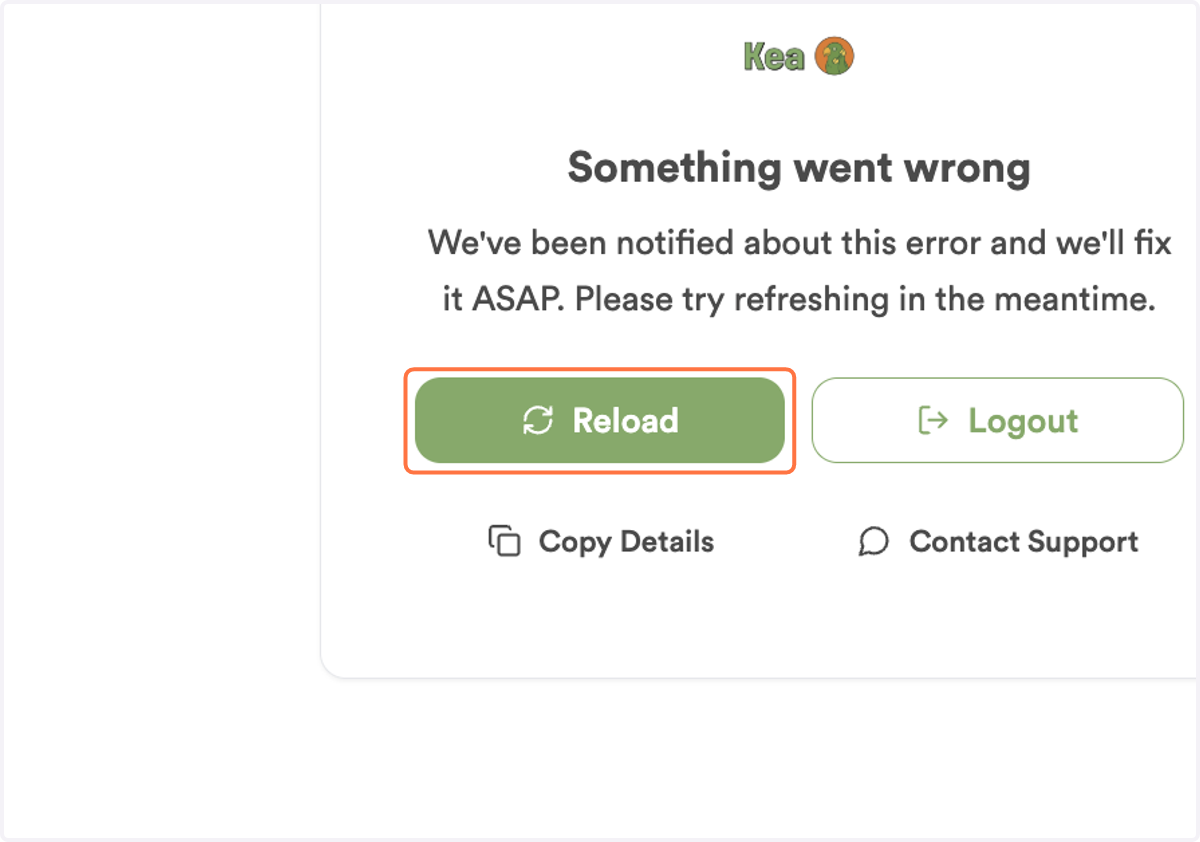
53. * THIS POP UP WILL HAPPEN * But have no fear, simply click on Reload