Integrate PCM Direct Mail in Marketing Cloud
Marketing Cloud Dashboard - Marketing Cloud
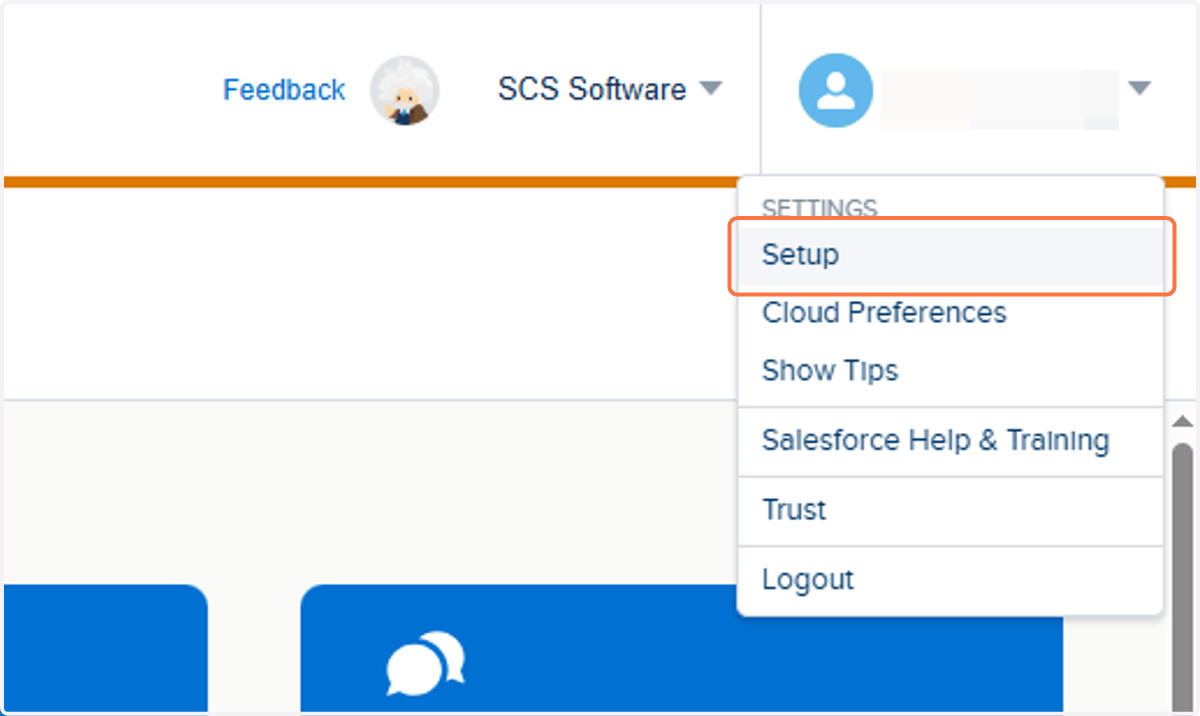
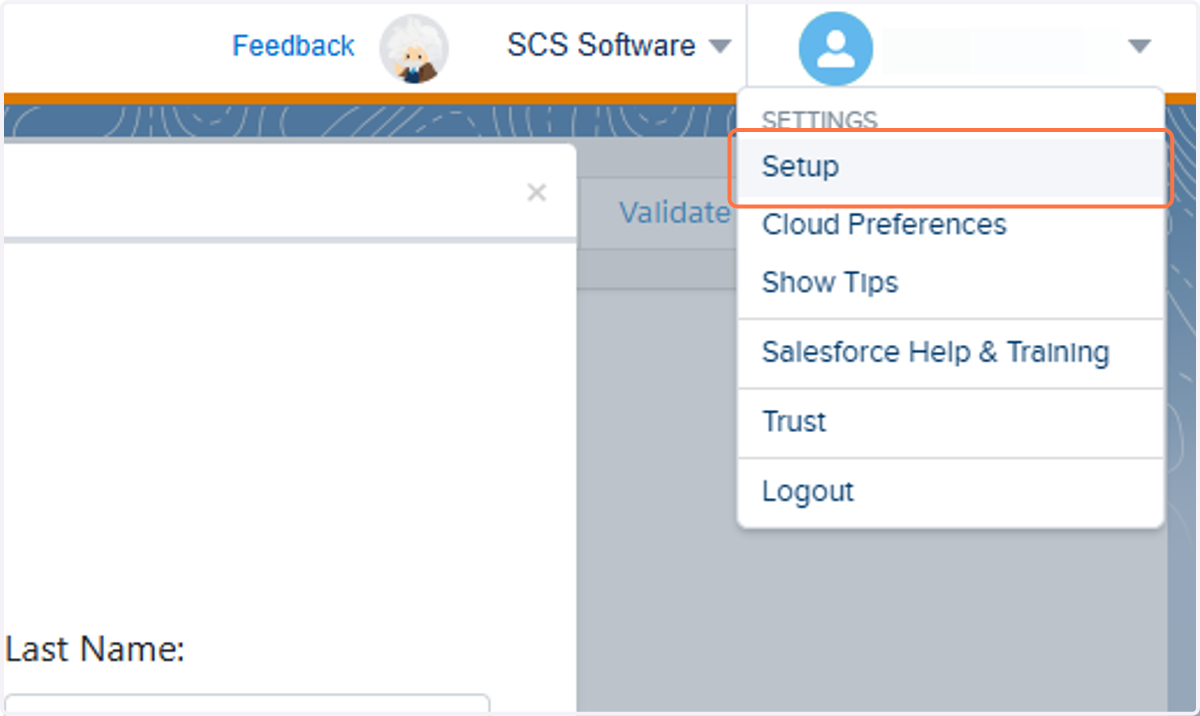
1. Hover over the top right and click on Setup
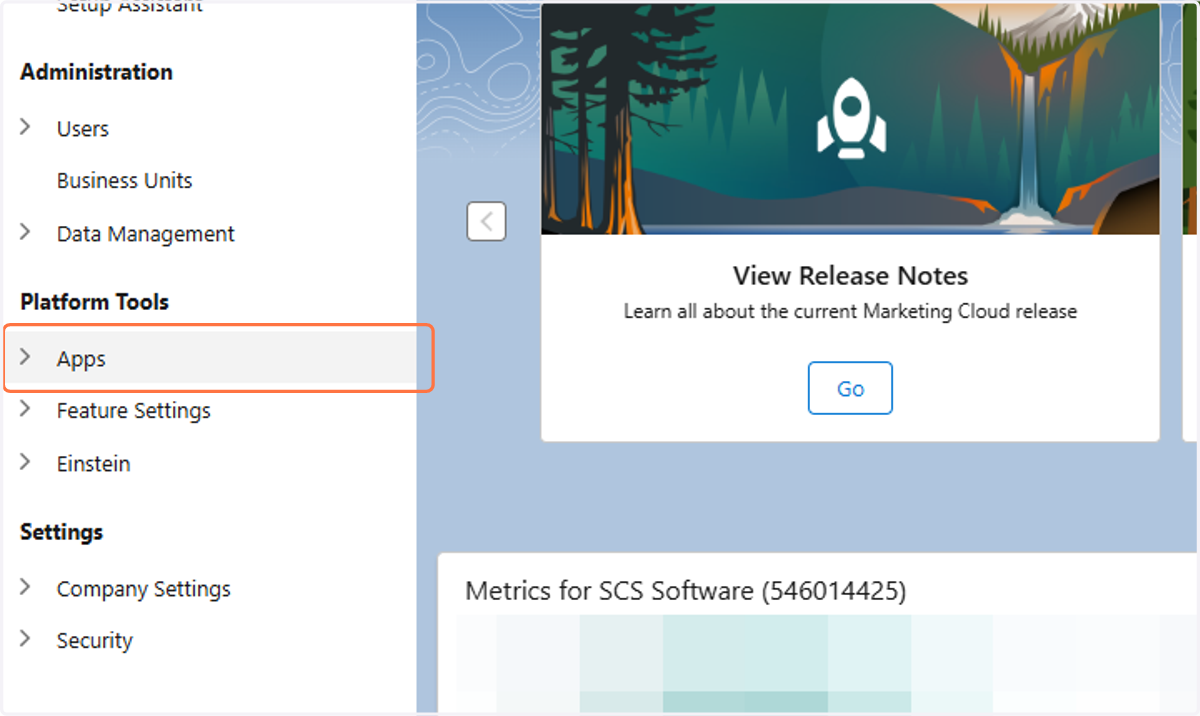
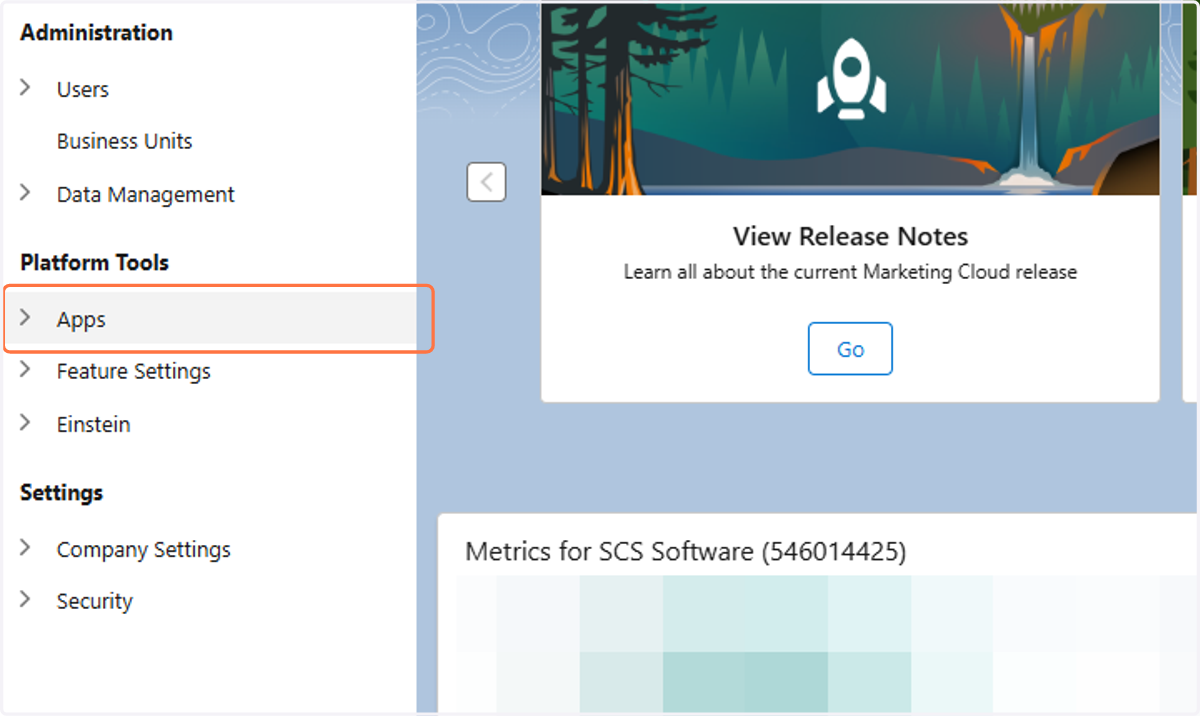
2. Click on Apps
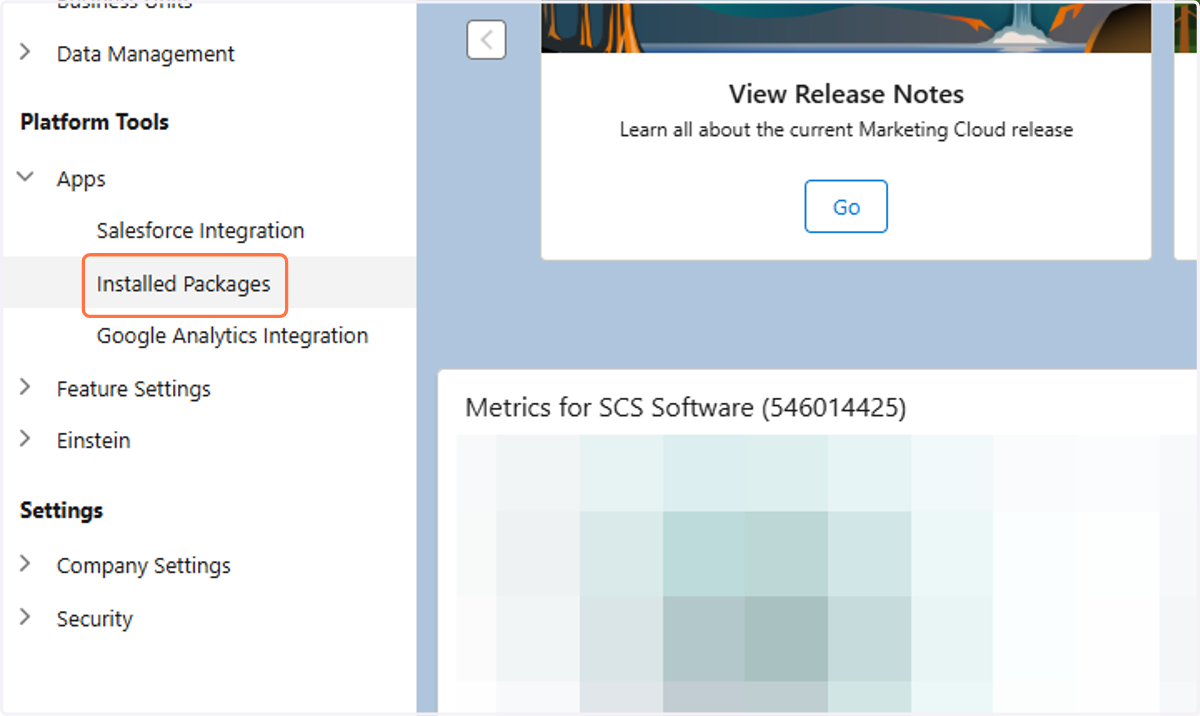
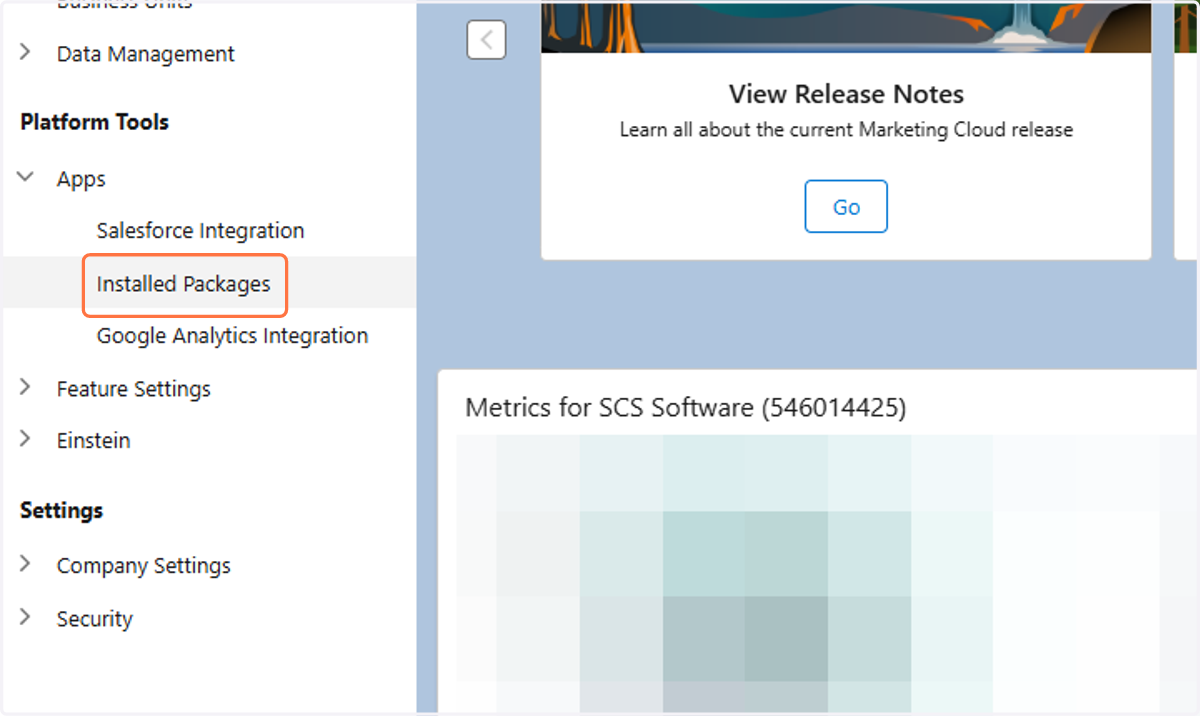
3. Click on Installed Packages
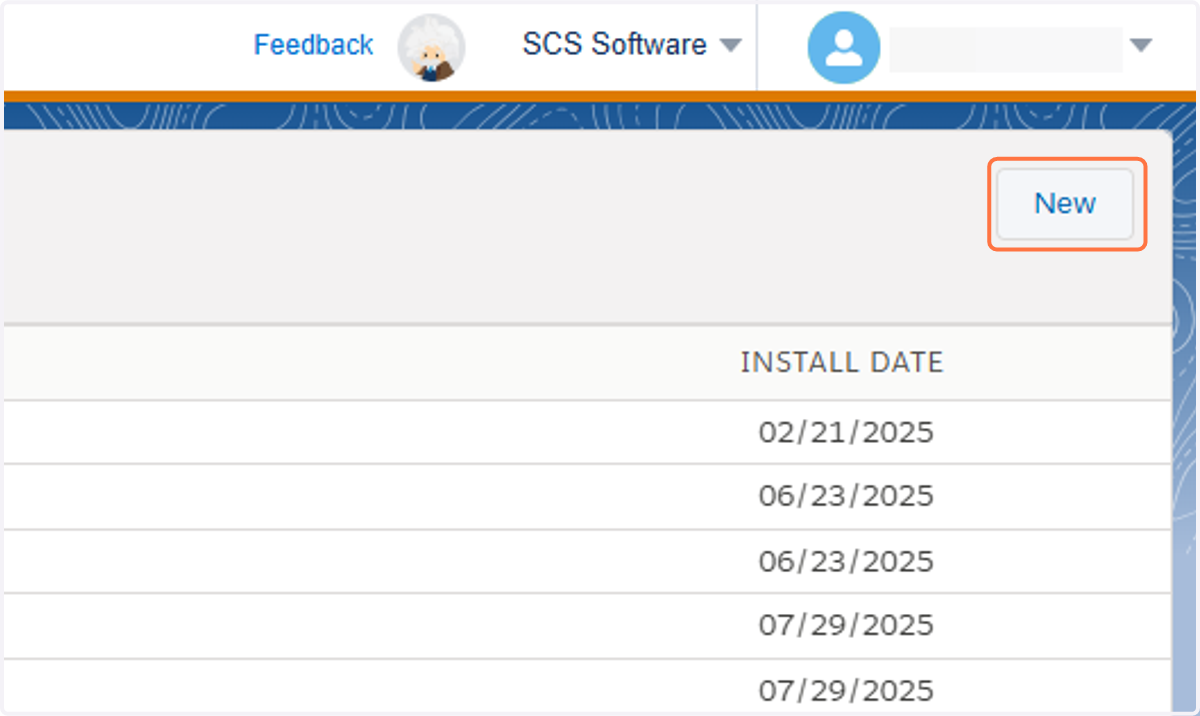
4. Click on New
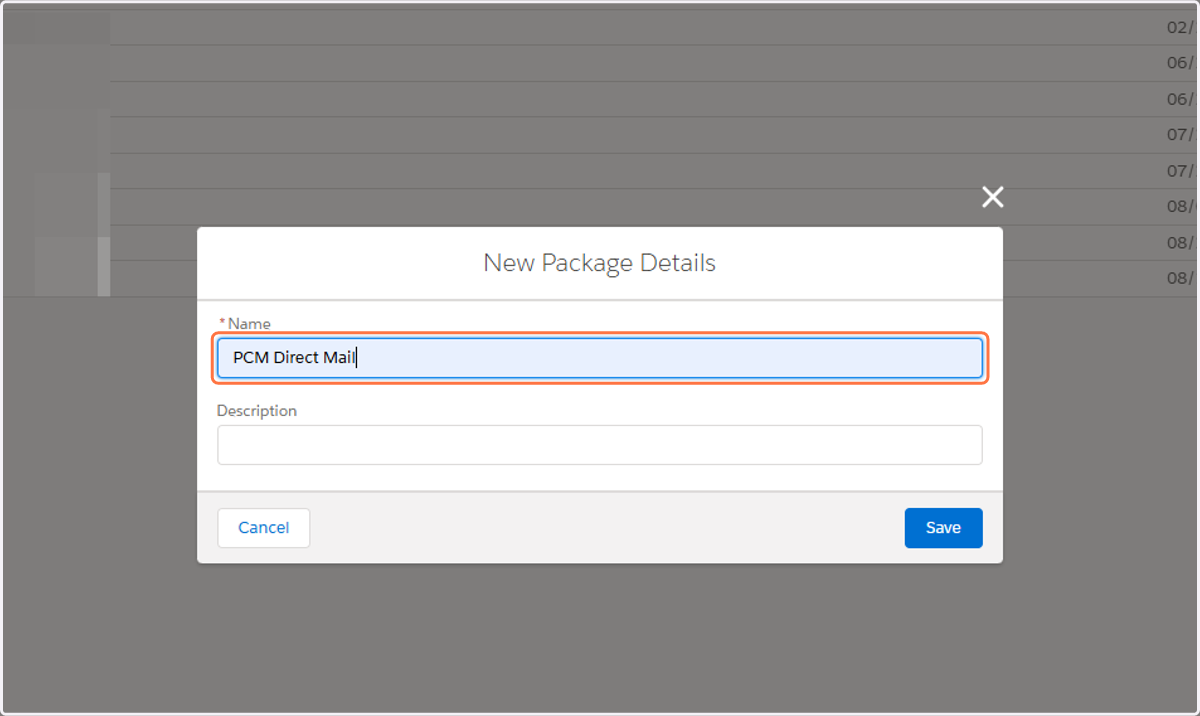
5. Name your new Package
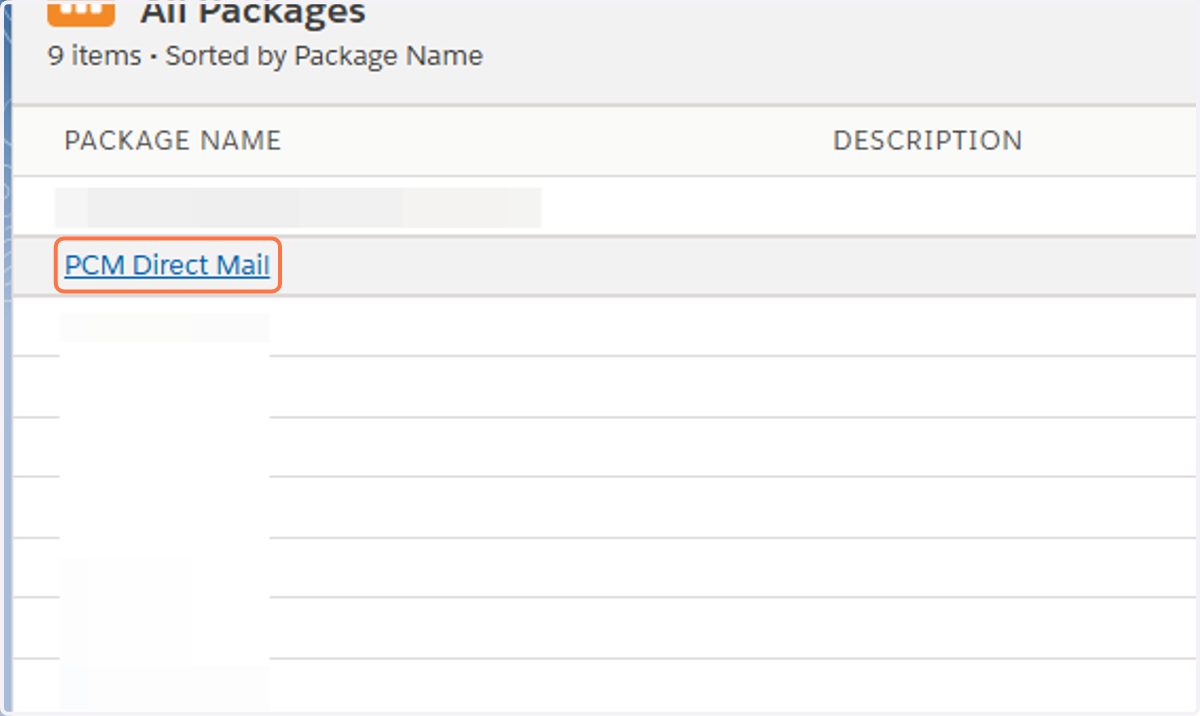
In this example, we'll call it "PCM Direct Mail".
6. Click on Save
7. Click on Add Component
8. Select Journey Builder Activity
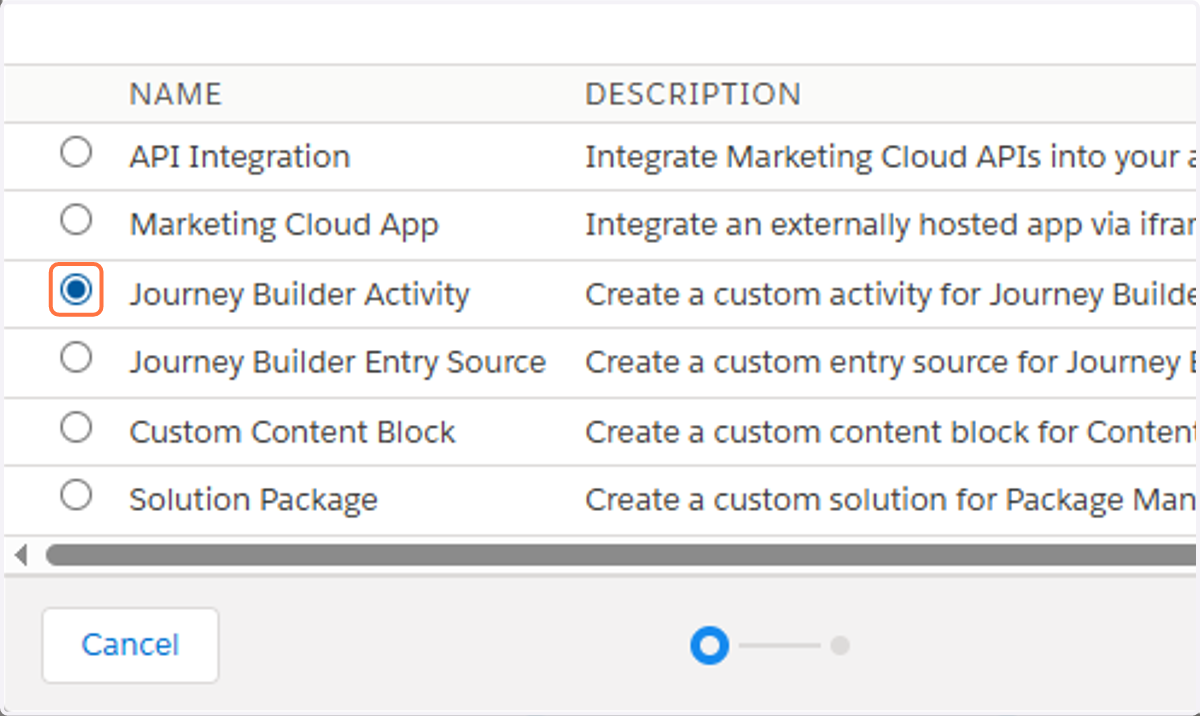
9. Click on Next
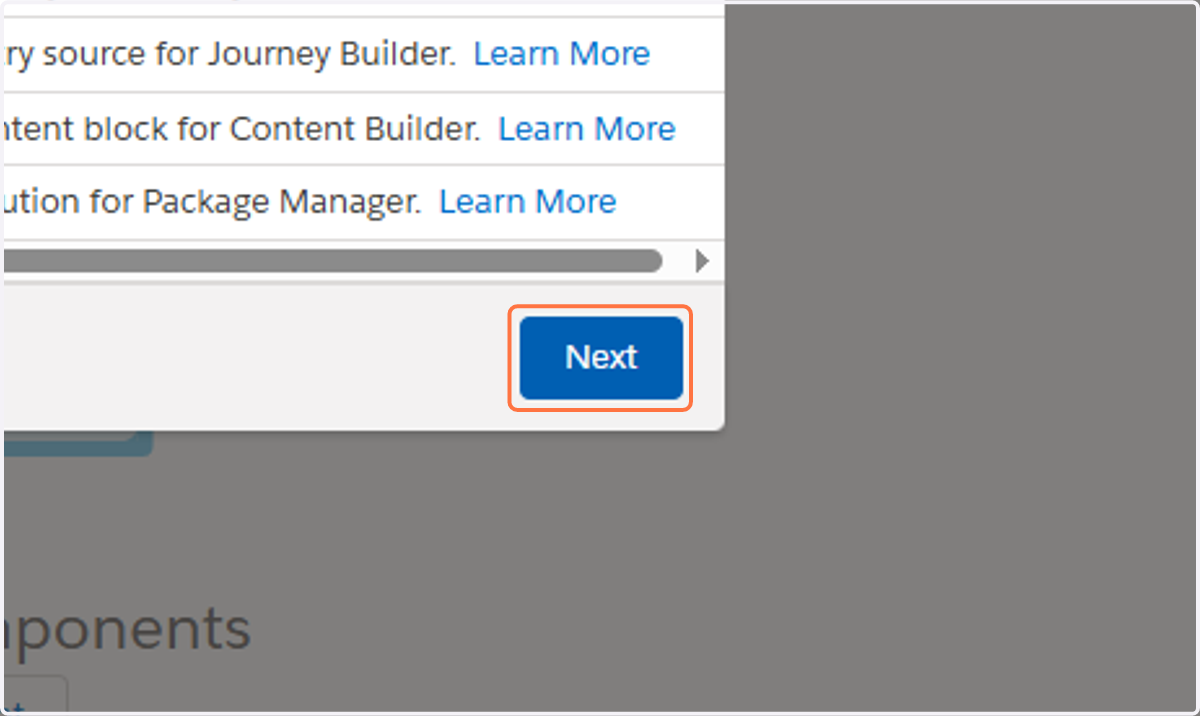
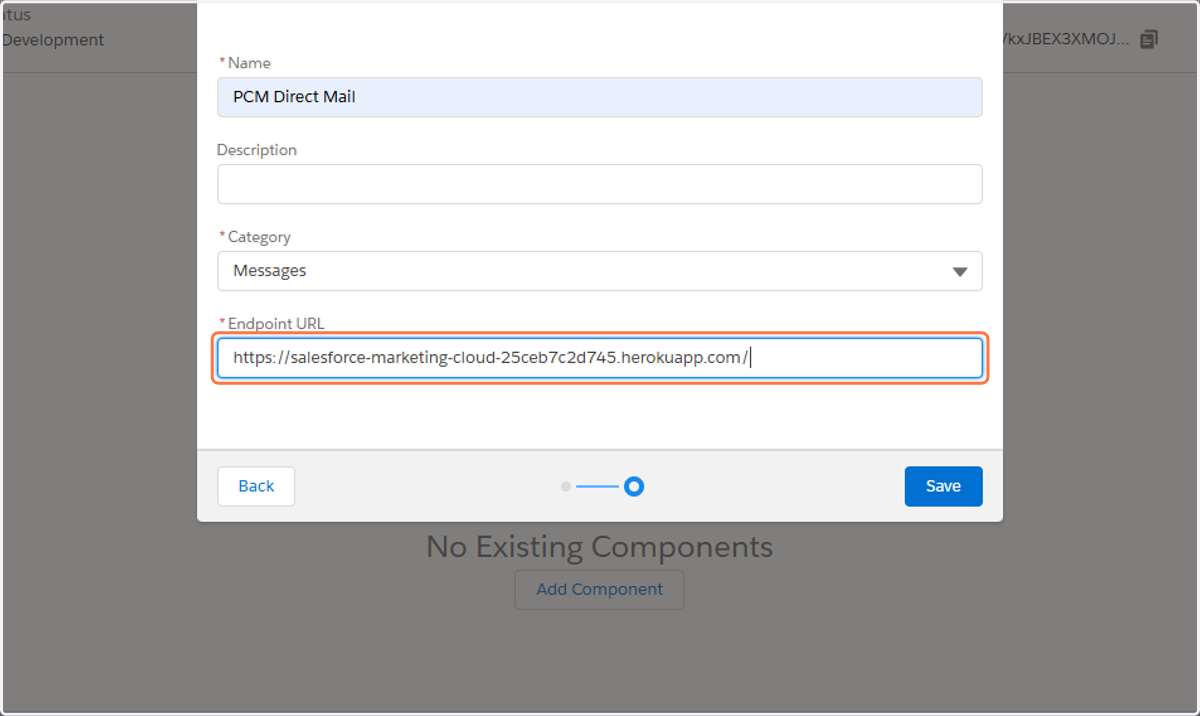
10. Name you Journey Builder Activity
In this example, we'll name it "PCM Direct Mail".
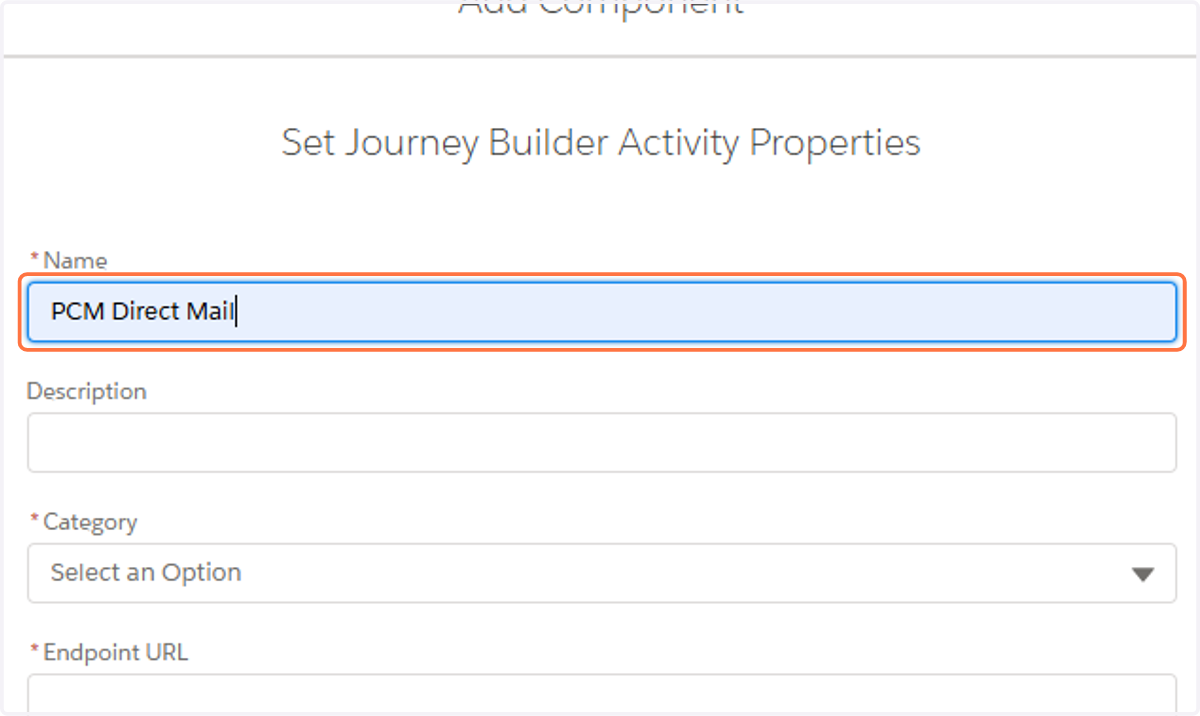
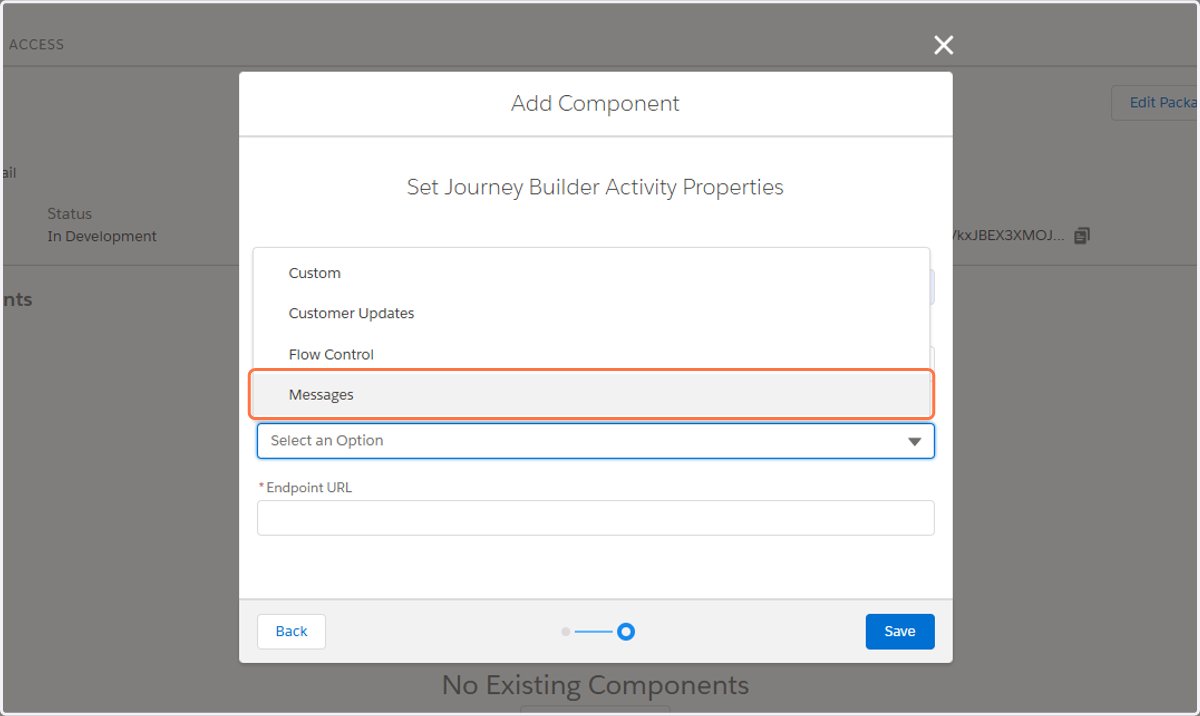
11. Click on Category
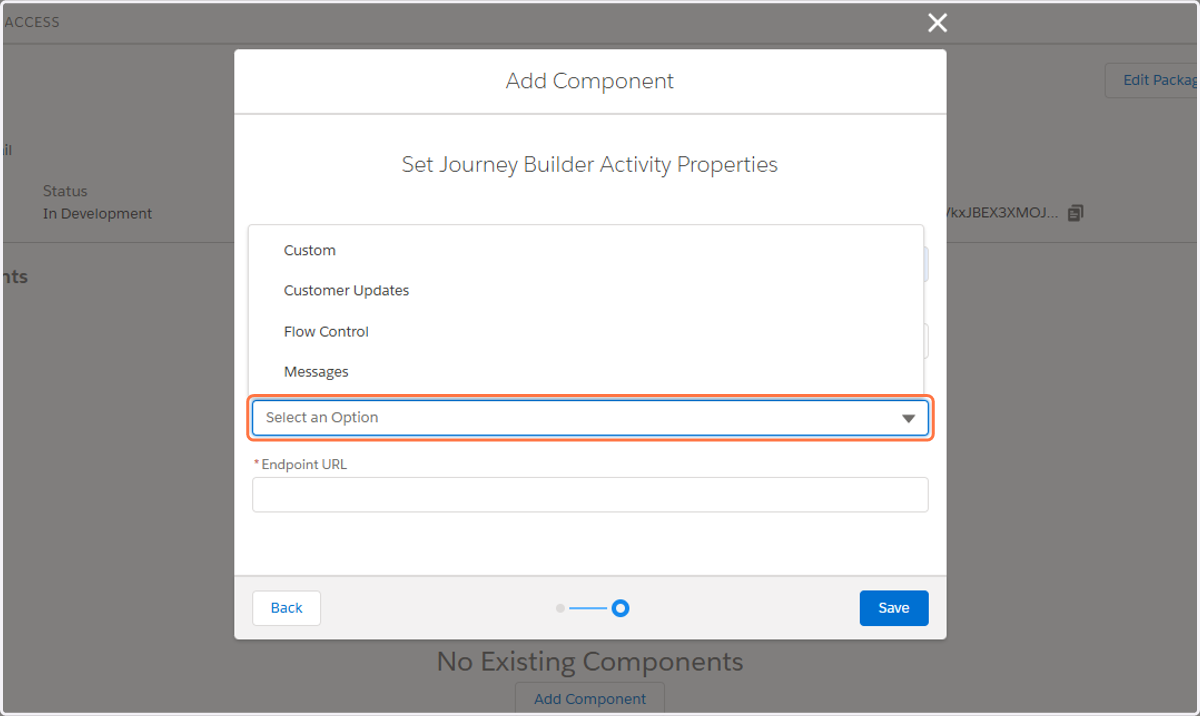
12. Click on Messages
13. Paste "https://salesforce-marketing-cloud-25ceb7c2d745.herokuapp.com/" into Endpoint URL
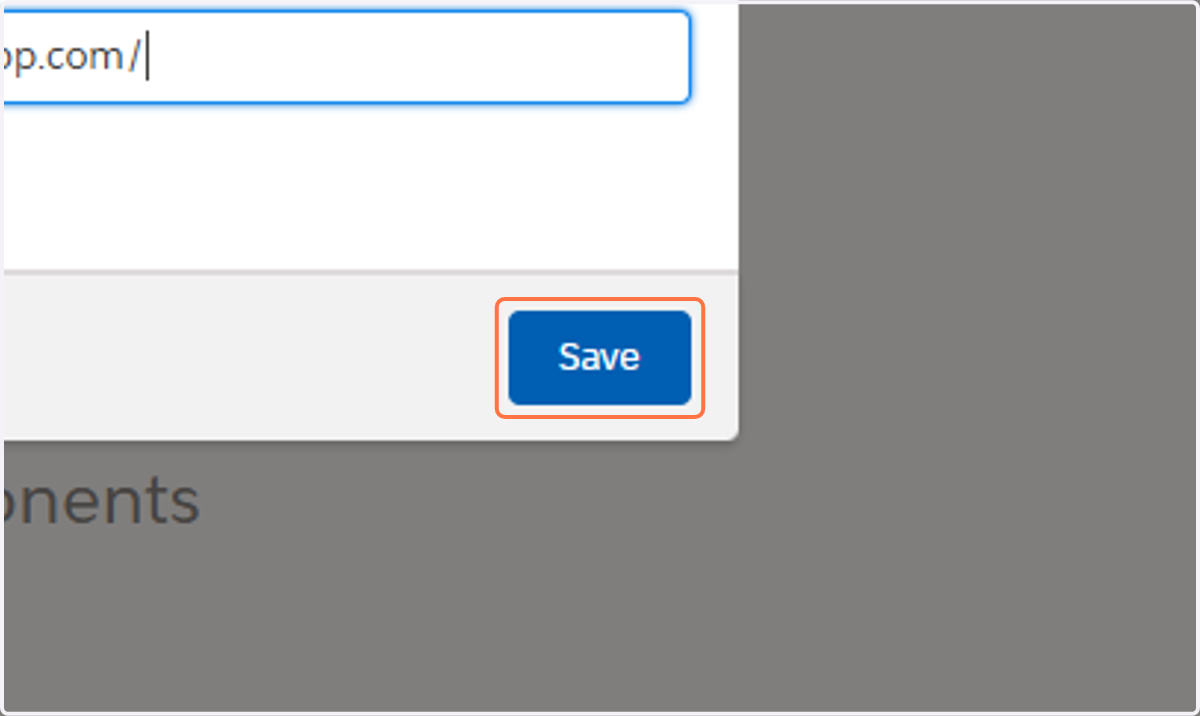
14. Click on Save
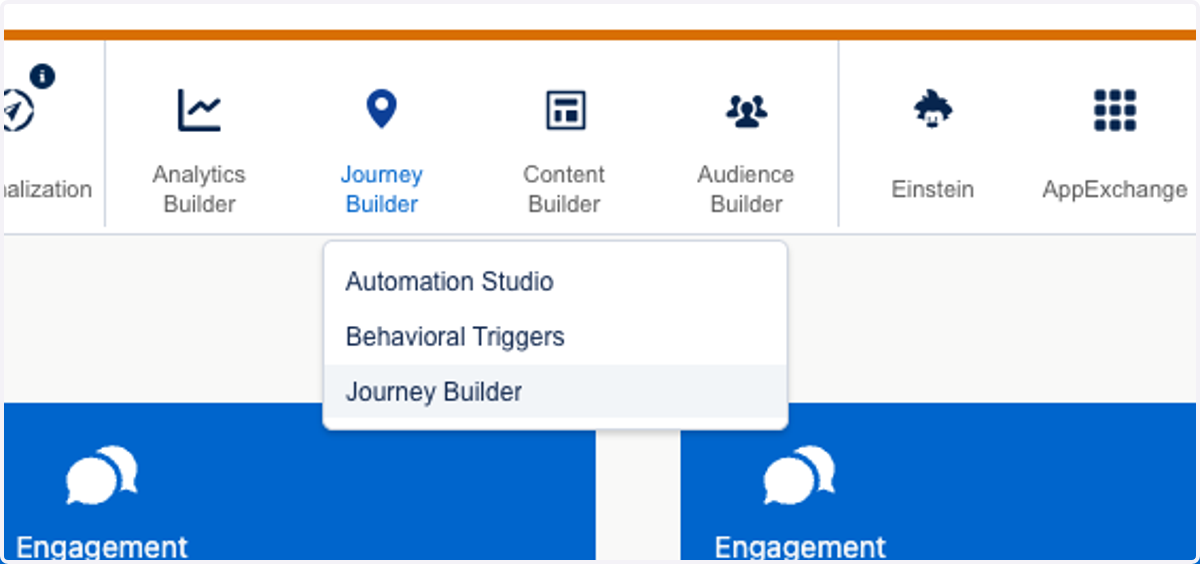
15. Click on Journey Builder
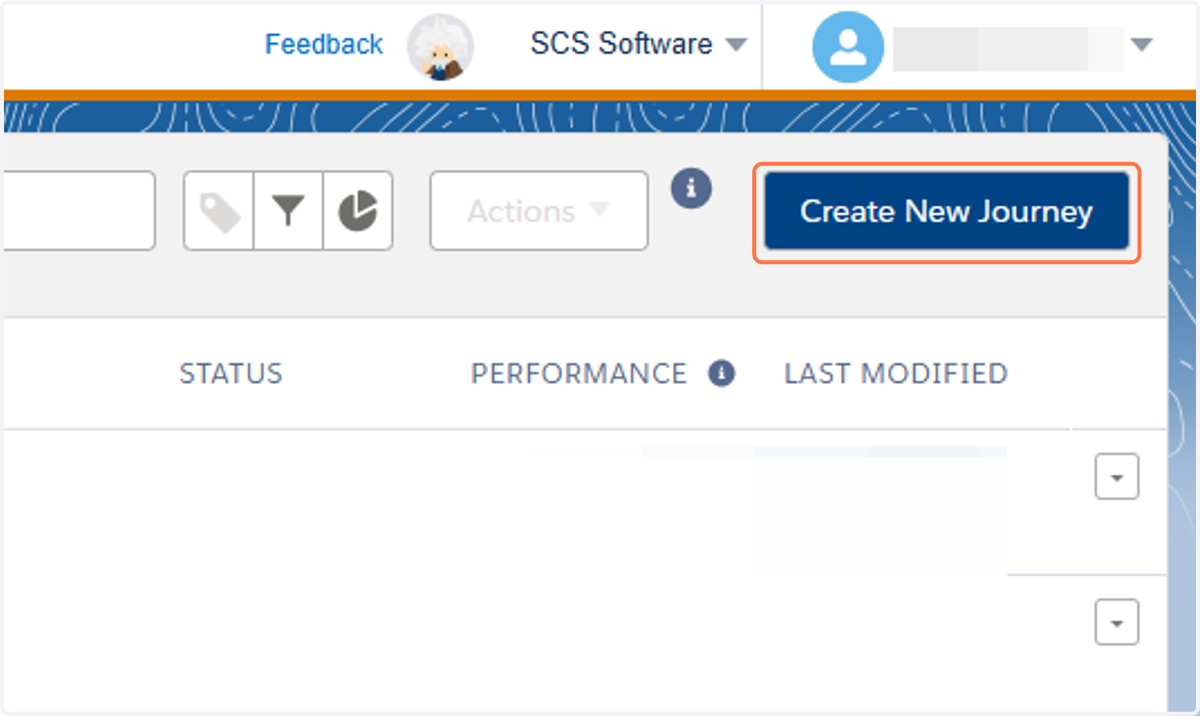
16. Click on Create New Journey
17. Click on Create
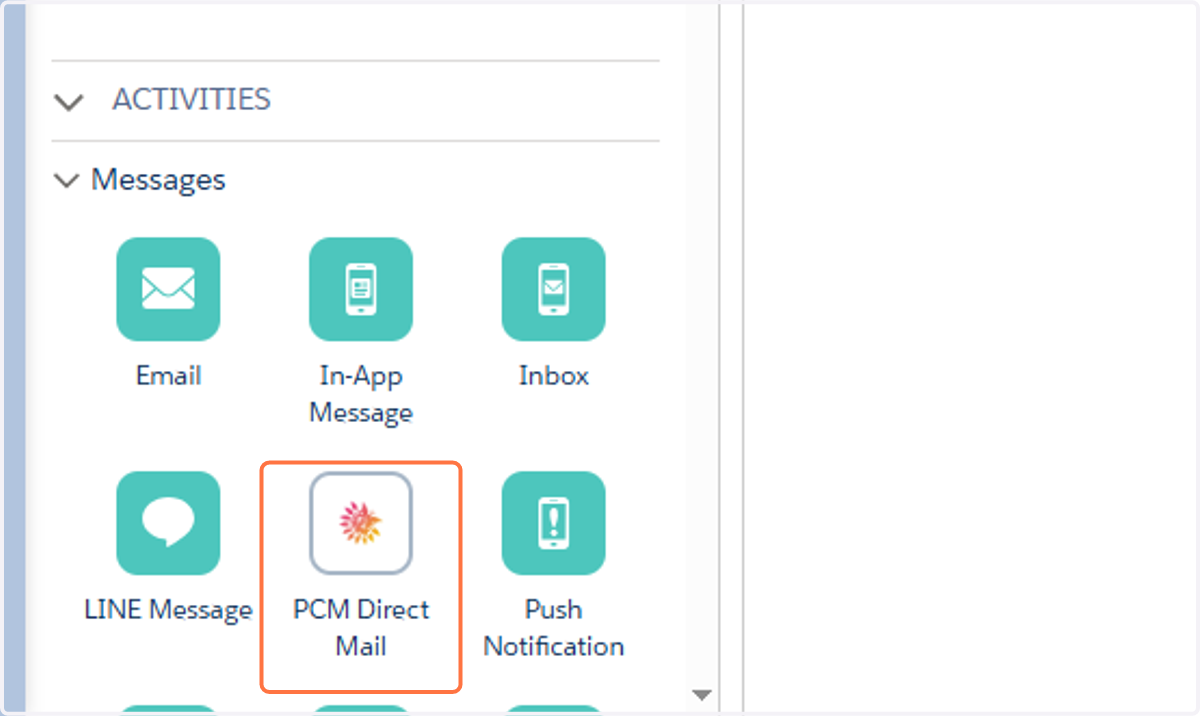
18. Drag PCM Direct Mail into the Journey
19. Click on PCM Direct Mail
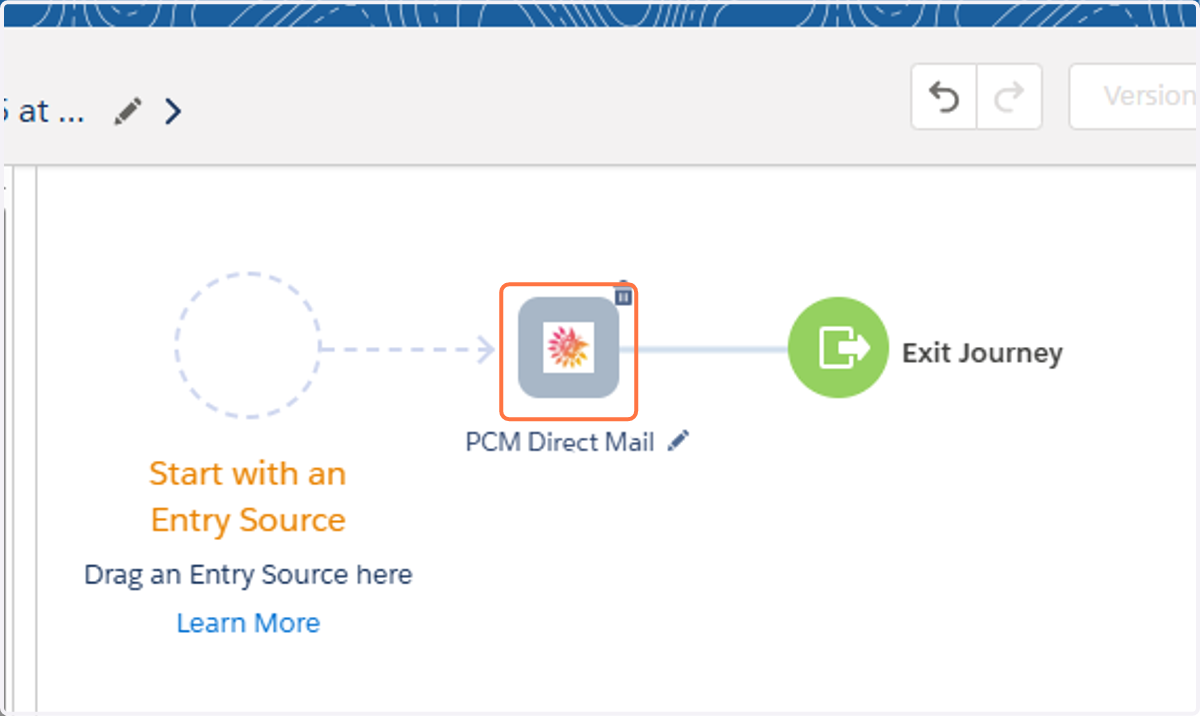
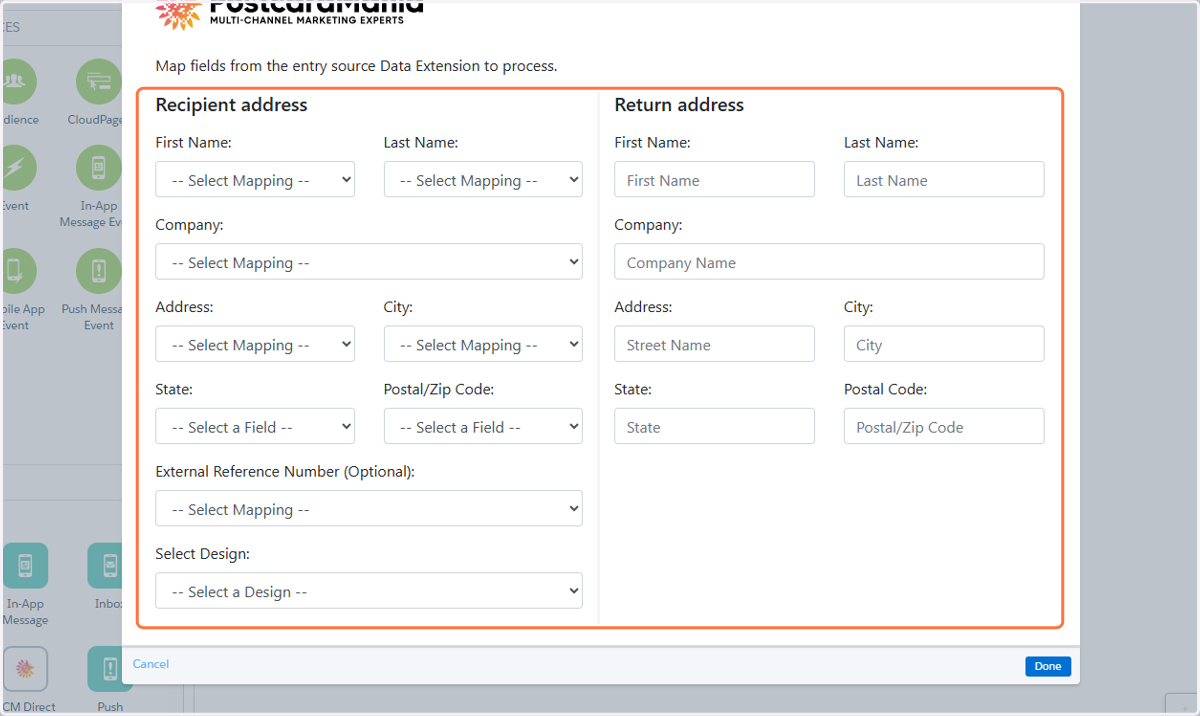
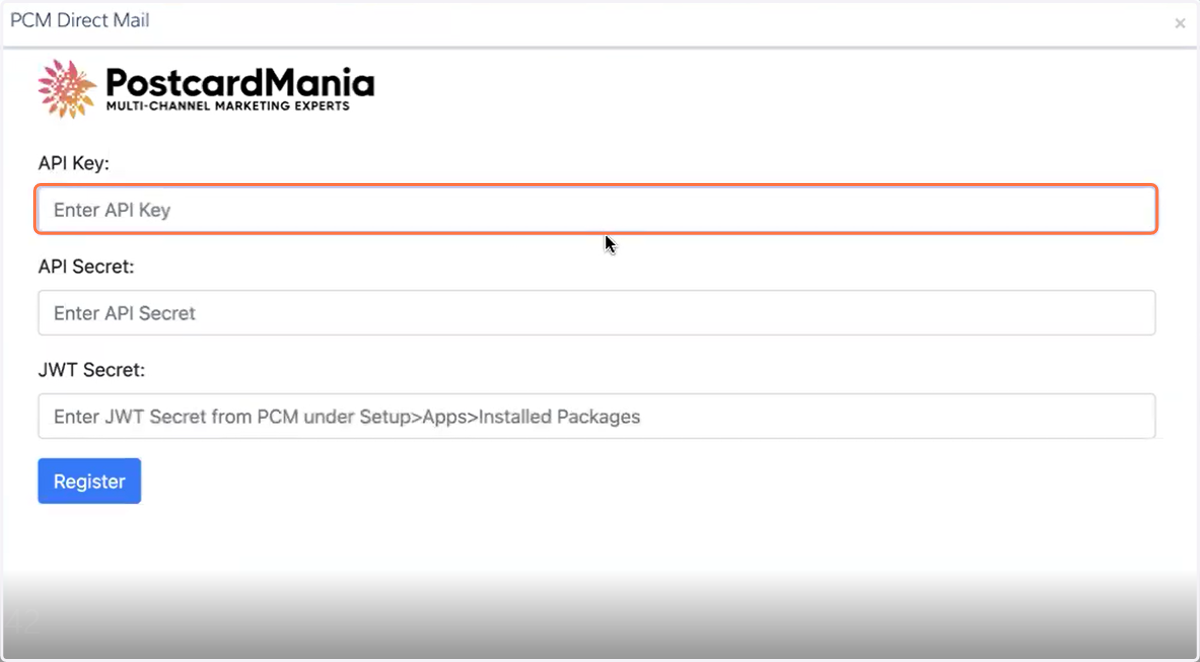
20. You should see the screen depicted below
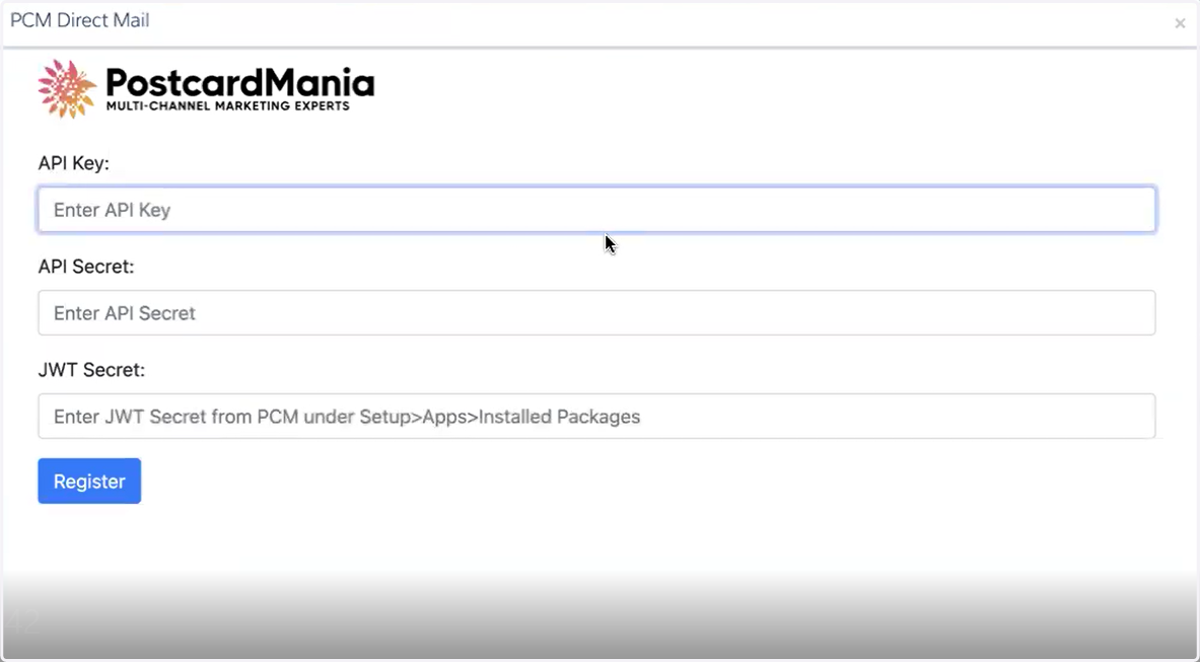
Go to the DirectMail Portal
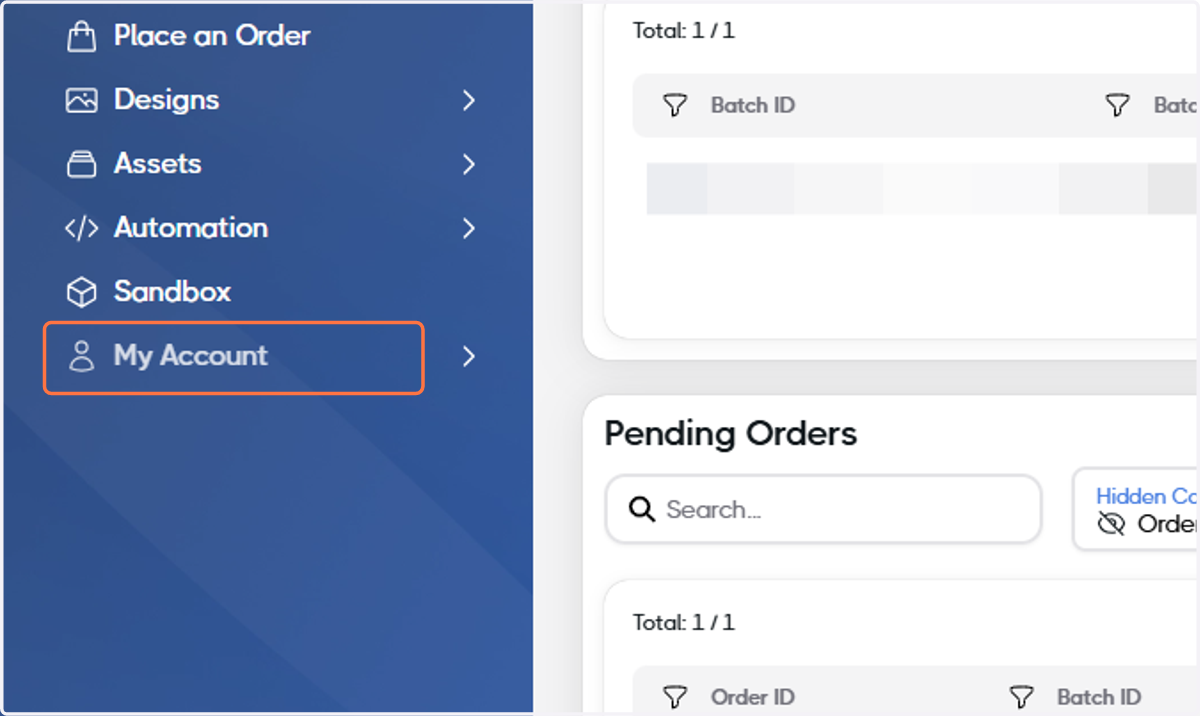
21. Click on My Account
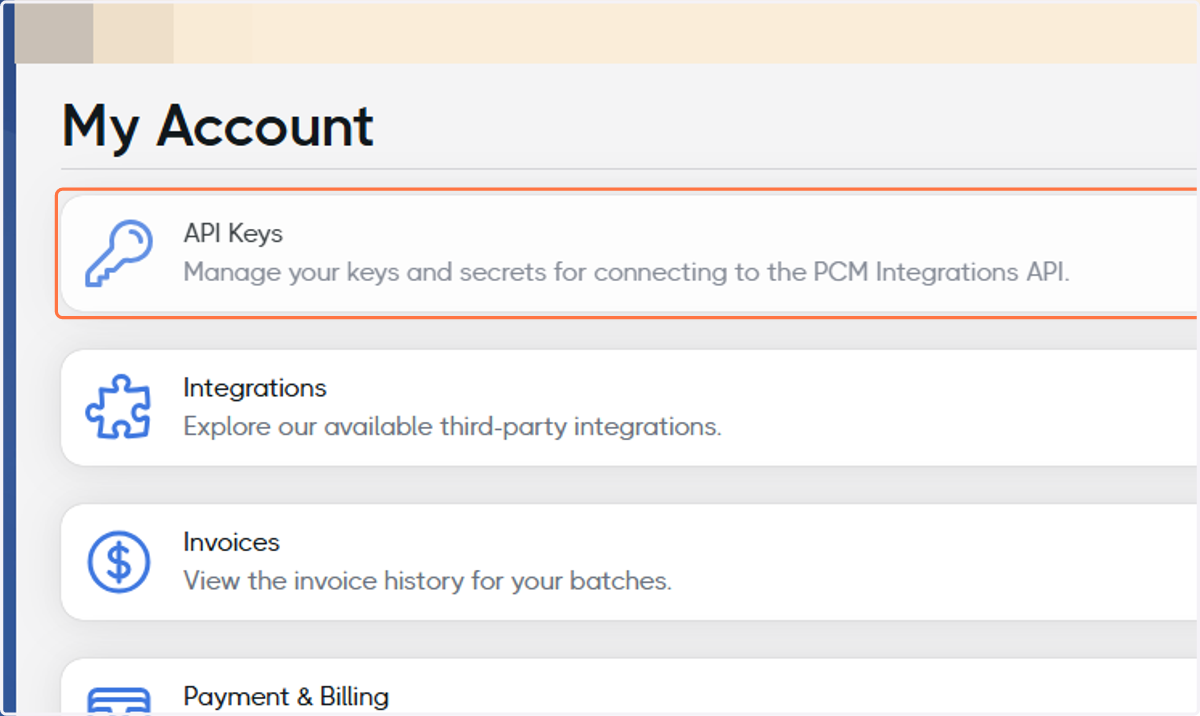
22. Click on API Keys
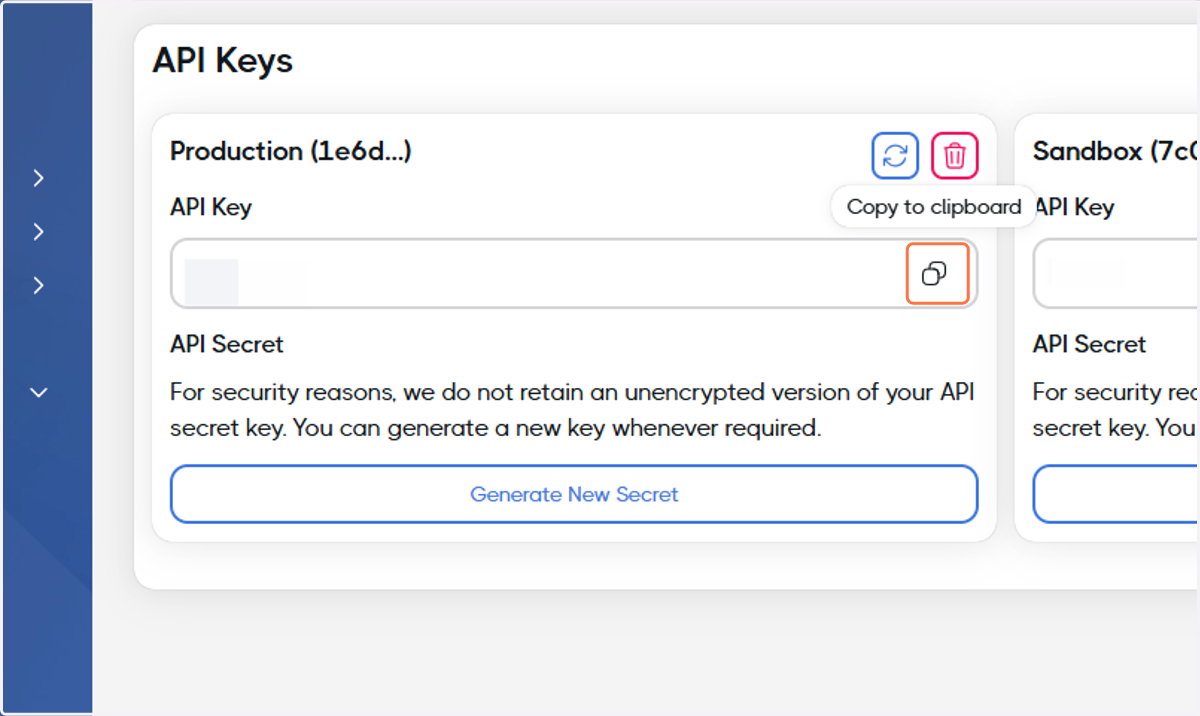
23. Copy the API Key
Go to Journey Builder - Marketing Cloud
24. Paste the API Key
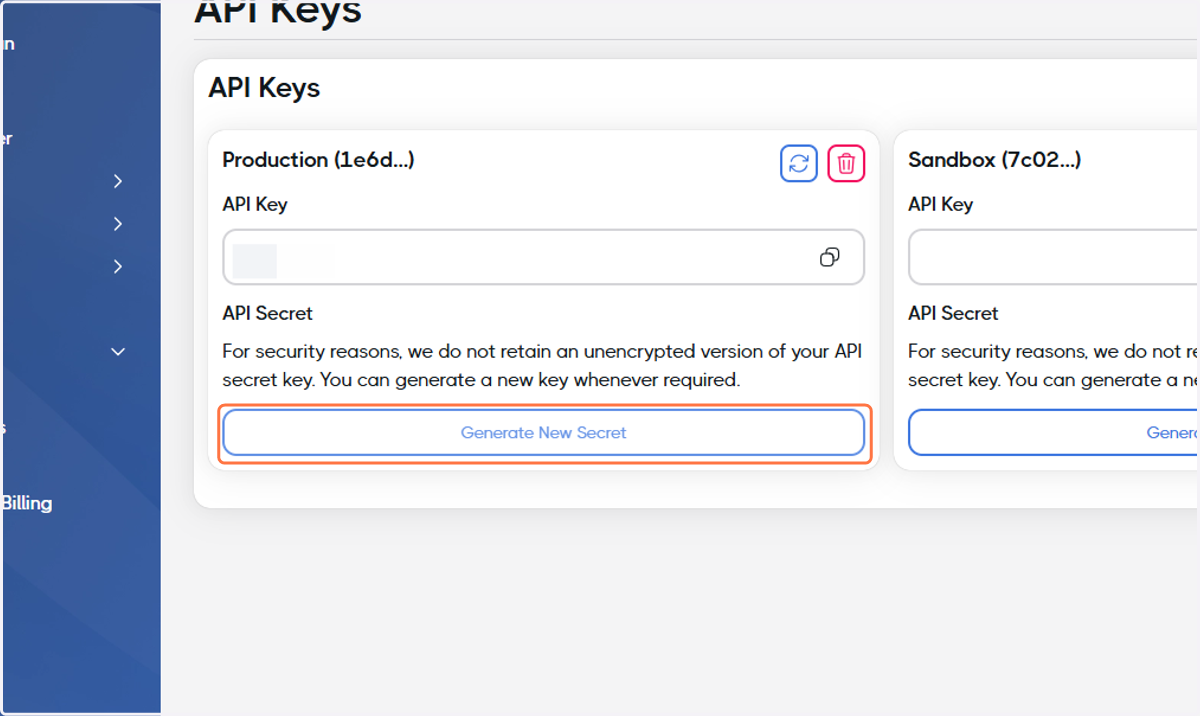
Go to API Keys
25. Click on Generate New Secret
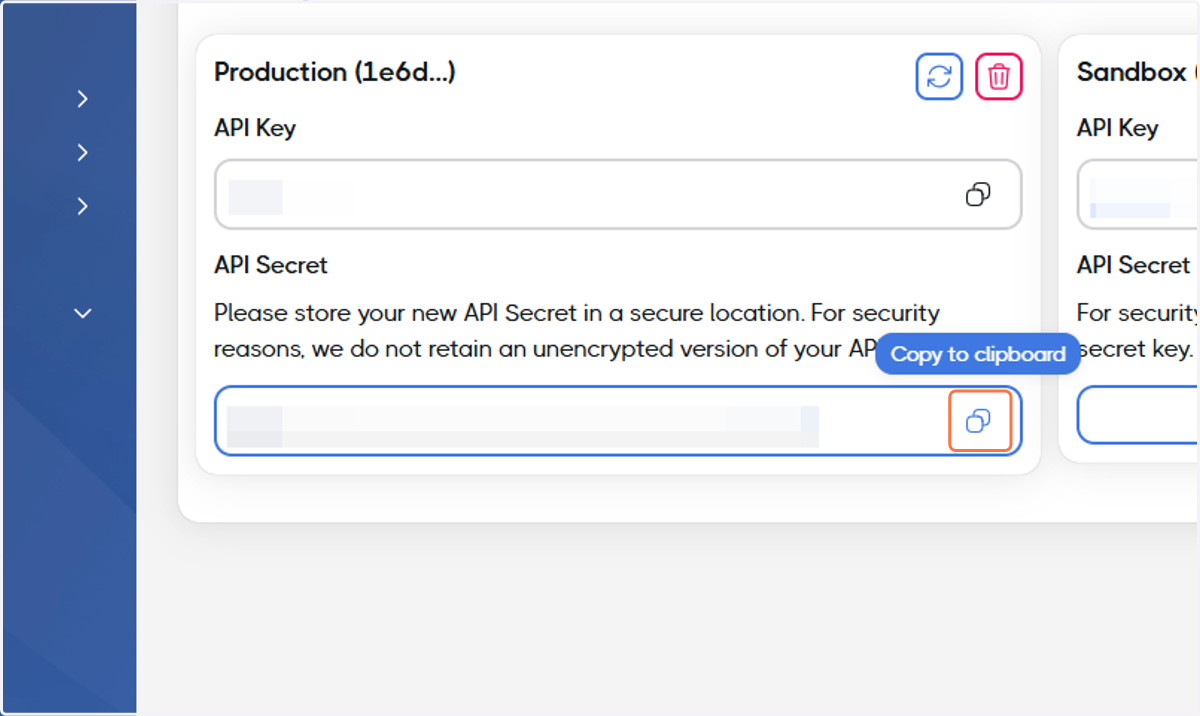
26. Copy the API Secret
Go to Journey Builder - Marketing Cloud
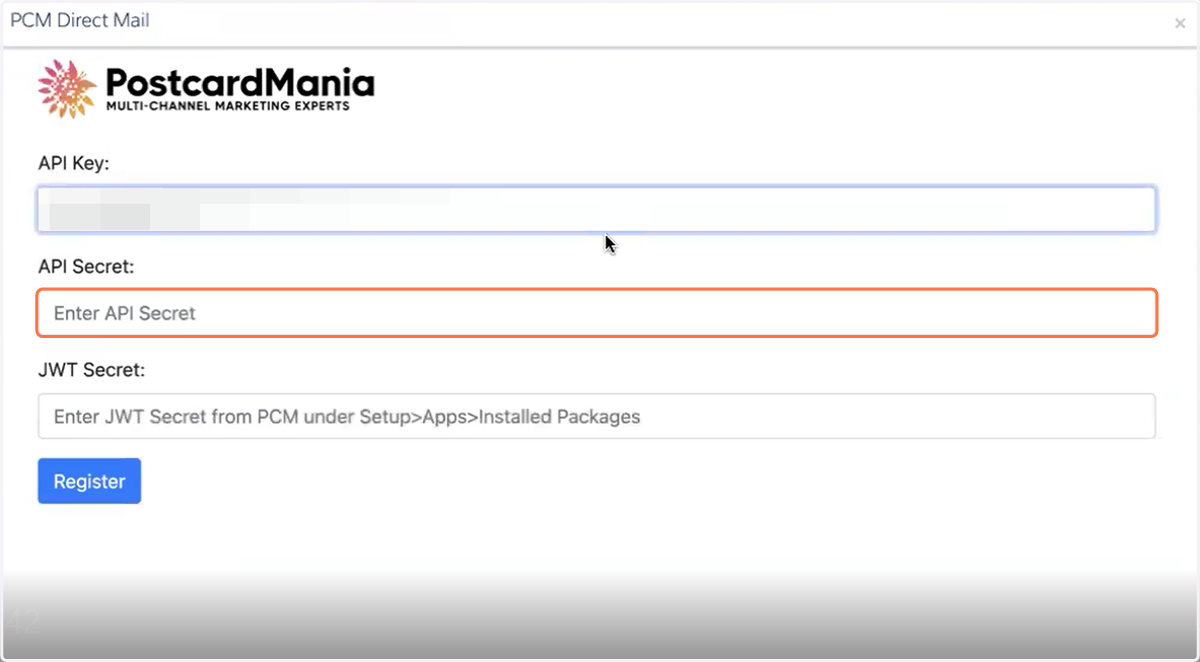
27. Paste the API Secret
28. Open Setup in a new tab
29. Click on Apps
30. Click on Installed Packages
31. Click on PCM Direct Mail
32. Copy the JWT Signing Secret
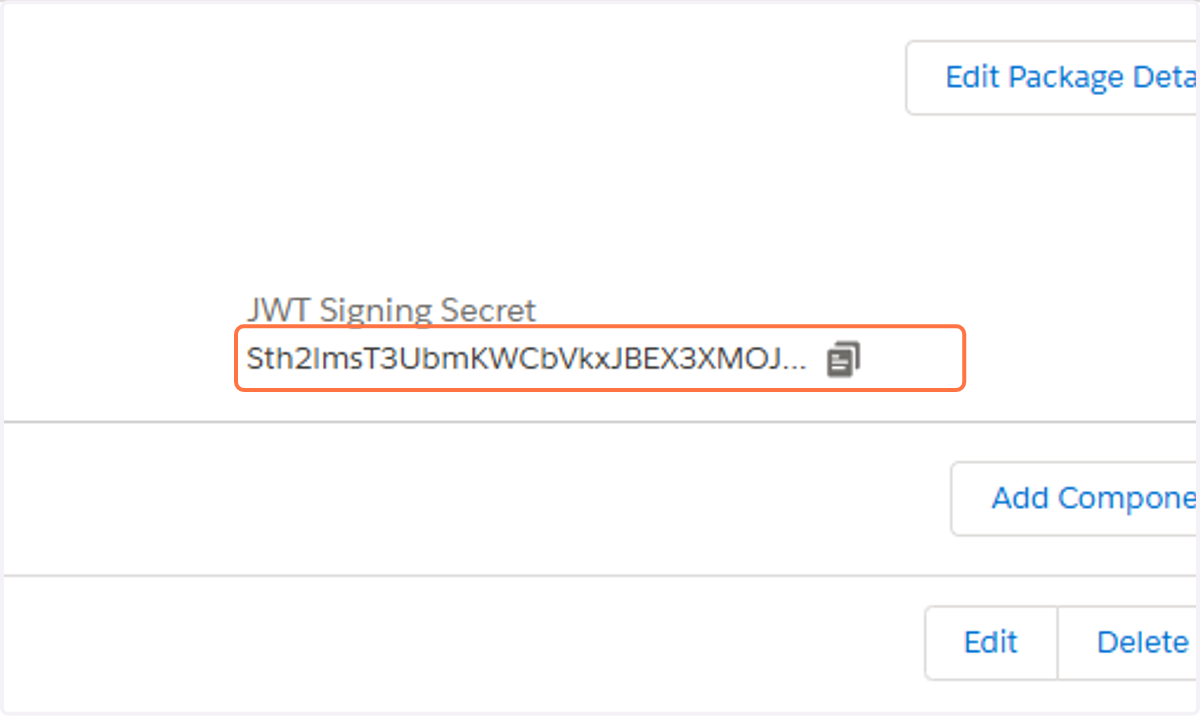
33. Paste the JWT Signing Secret and click Register
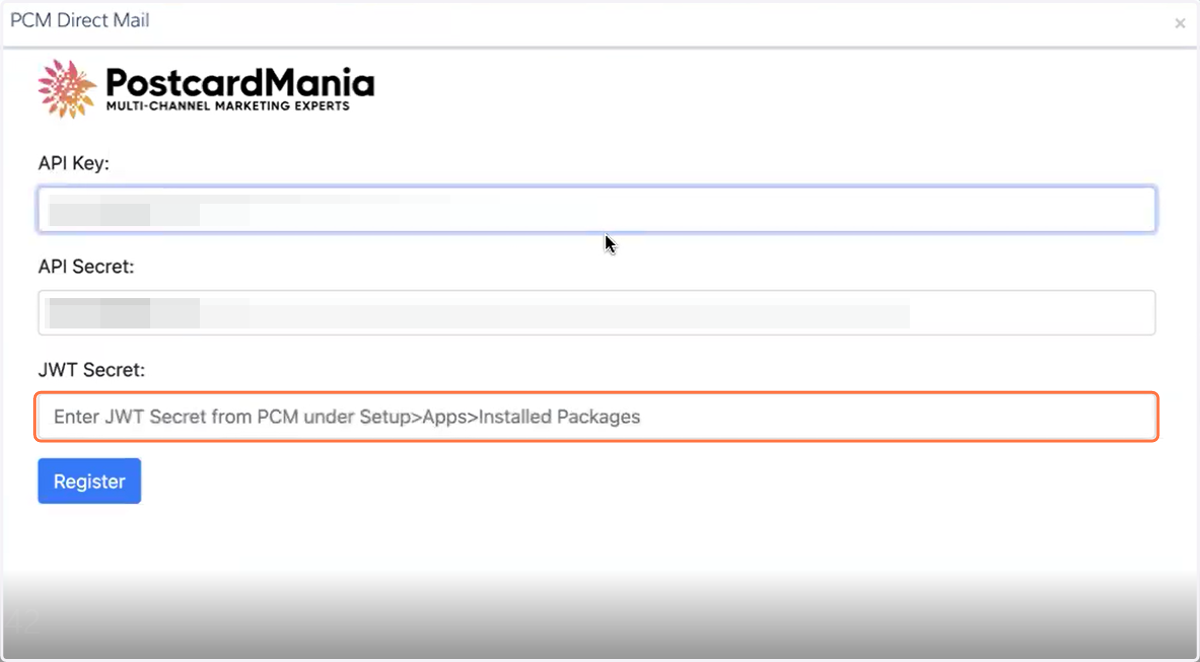
34. Configure the fields and you're all set!