Installing Lockdown Browser - MacOS
1. To begin, download the installer for MacOS by clicking the link below.
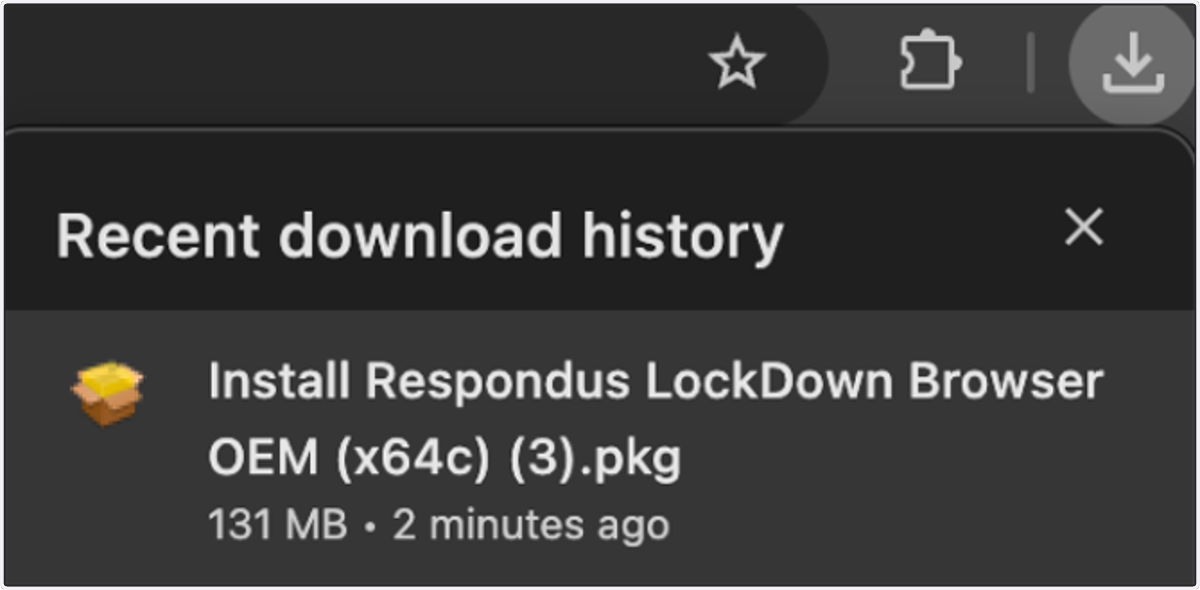
2. Once the download is complete, the installer will be available via your internet browser downloads as show below. Clicking on this will launch the installer to begin the installation.
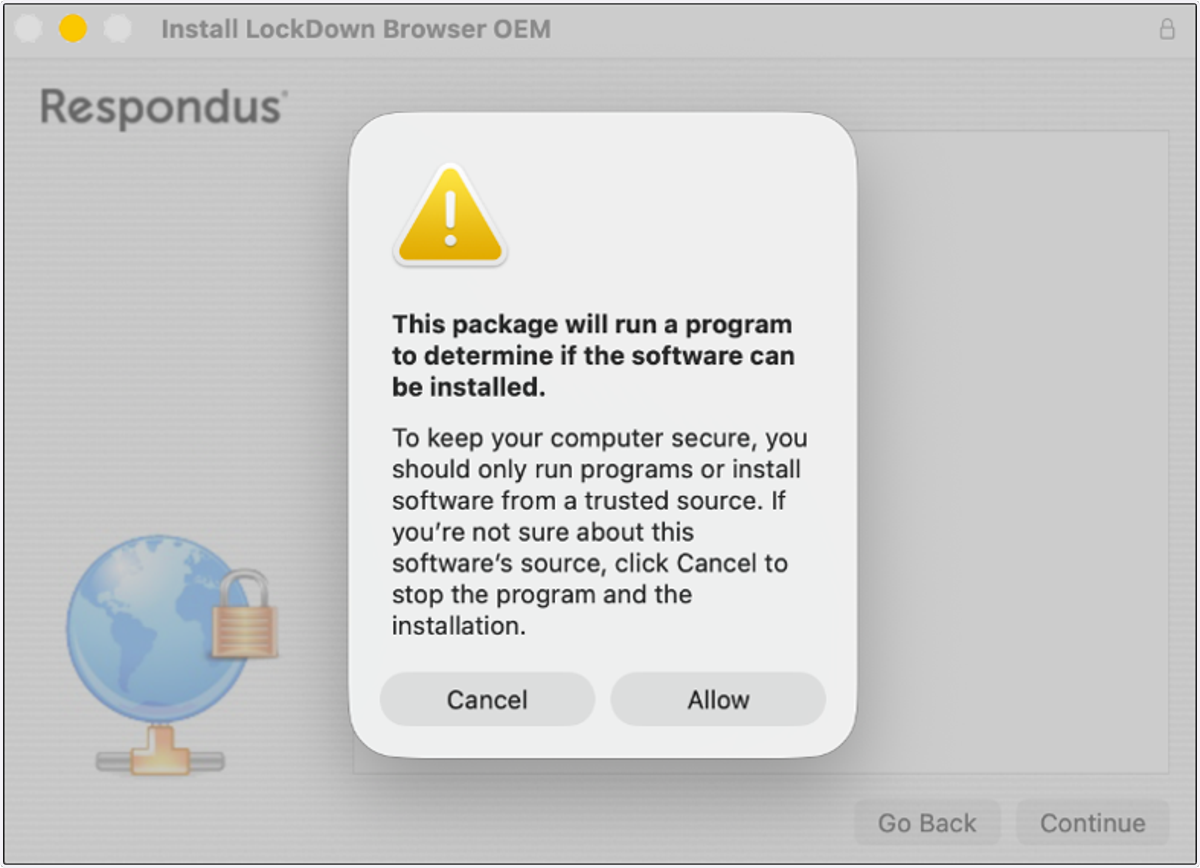
3. Once the installer has launched you will see a pop-up, this will check that Lockdown Browser can be installed on the device. Click Allow to proceed.
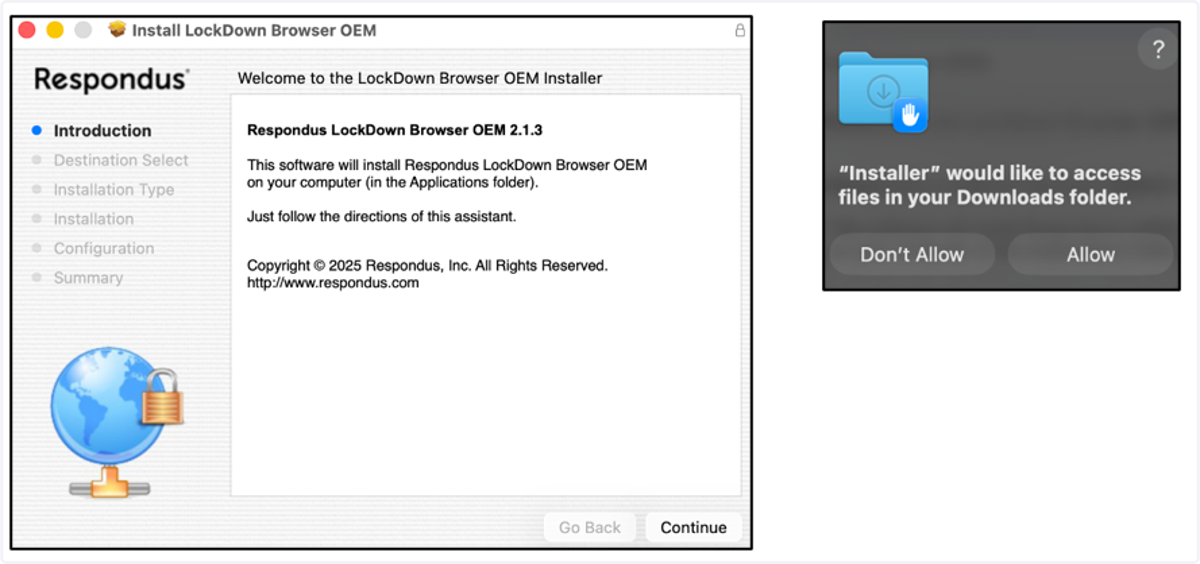
4. To begin the installation, click on Continue. If you are prompted that “Installer” would like to access files in your Downloads folder, please allow this.
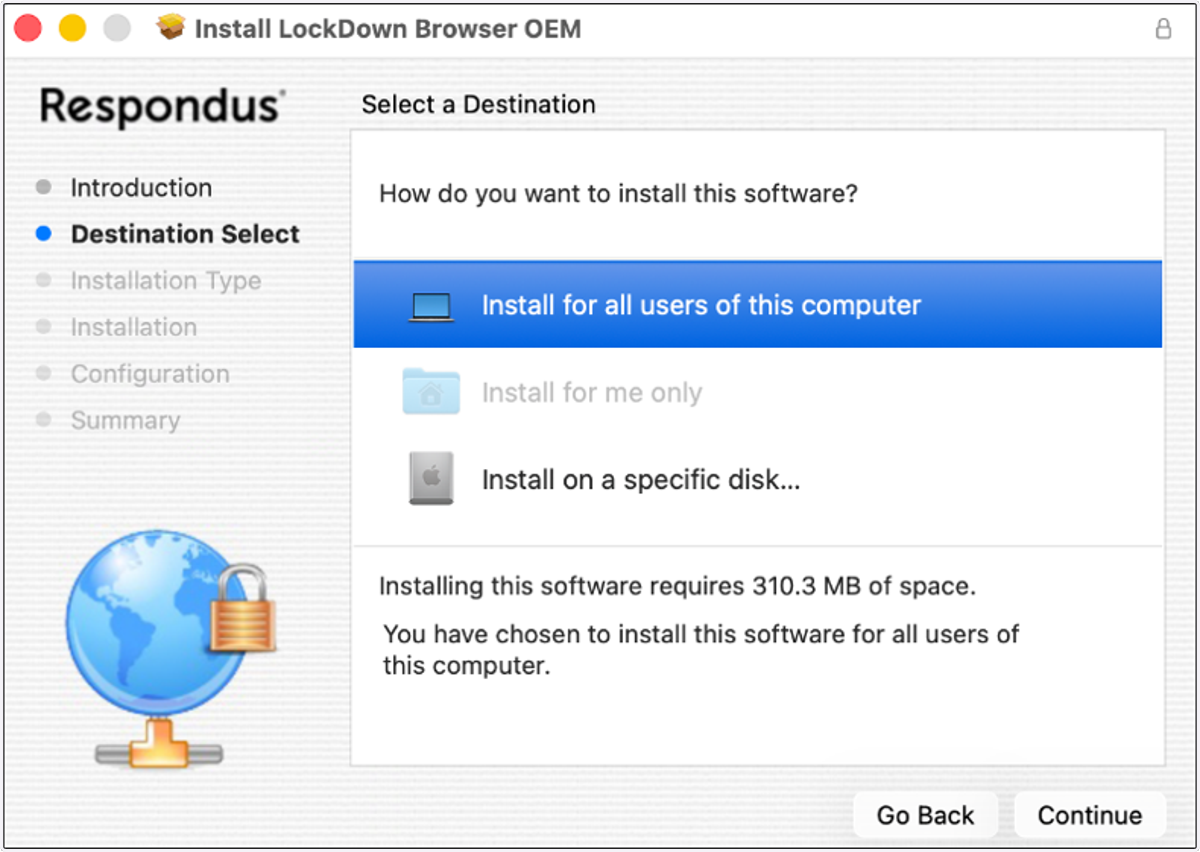
5. You may need to select whether Lockdown Browser is installed for all users of the device or for only the user you are signed in as. Once selected, click Continue.
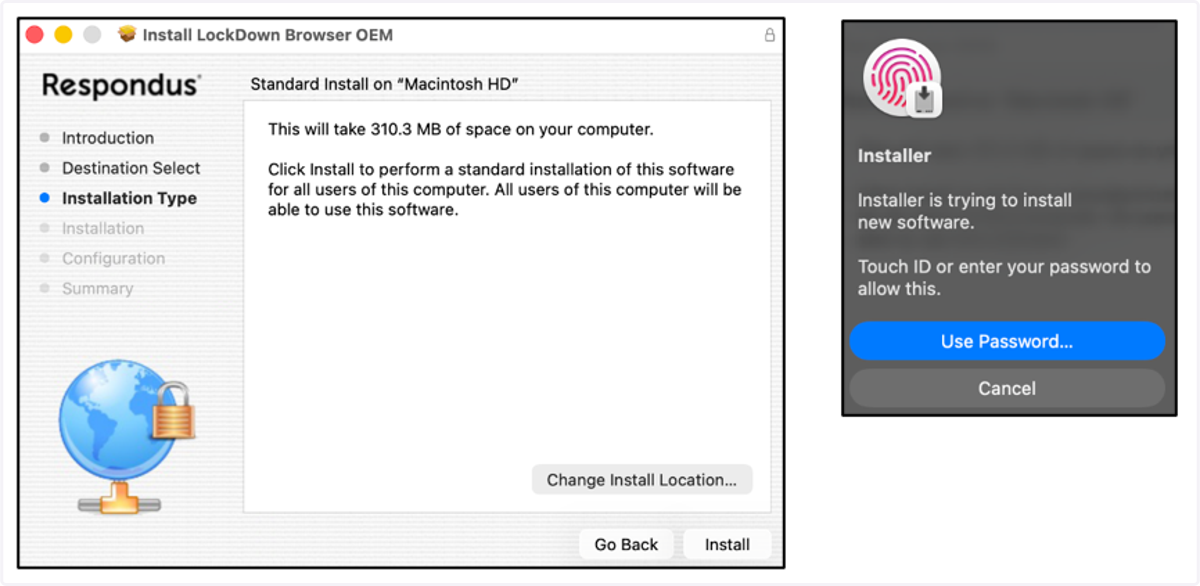
6. To complete the installation, click Install. If you are prompted to enter your password or use Touch ID to allow this, please do so.
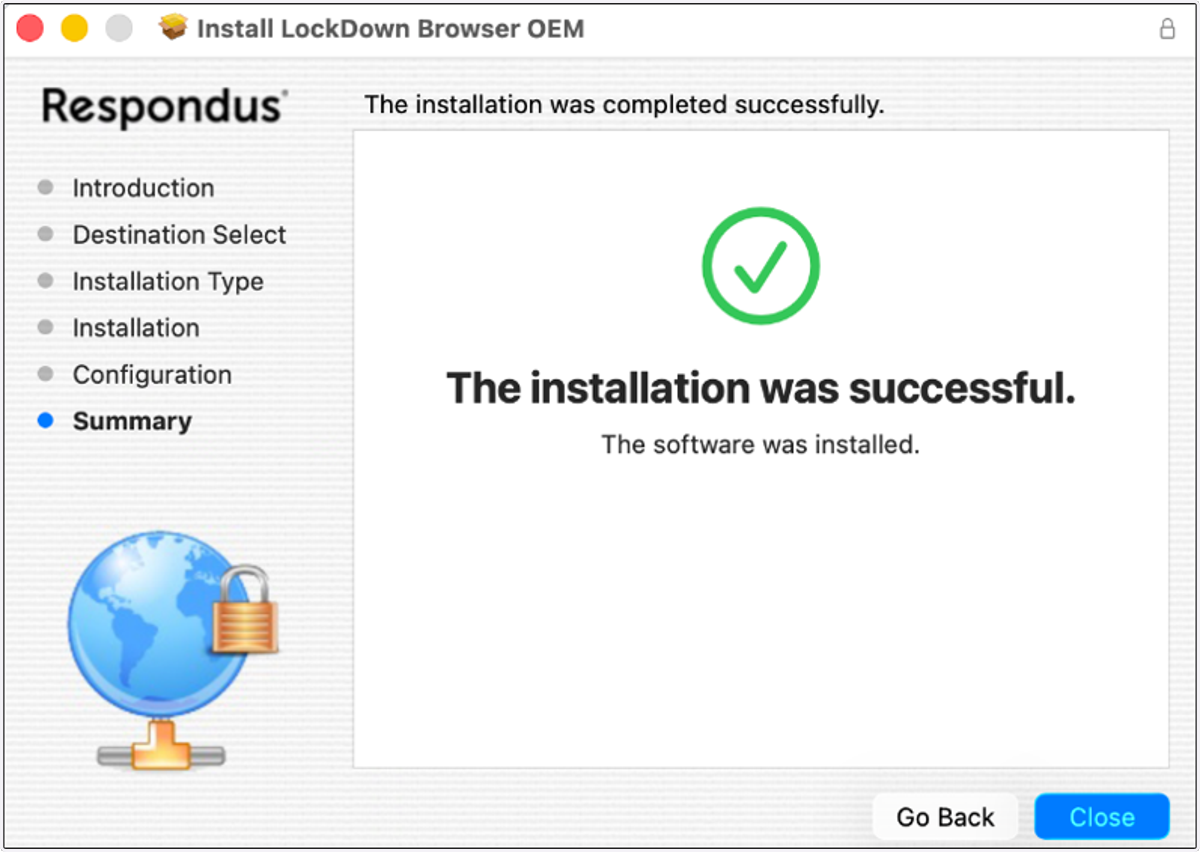
7. The installation will now be complete and you can click Close.