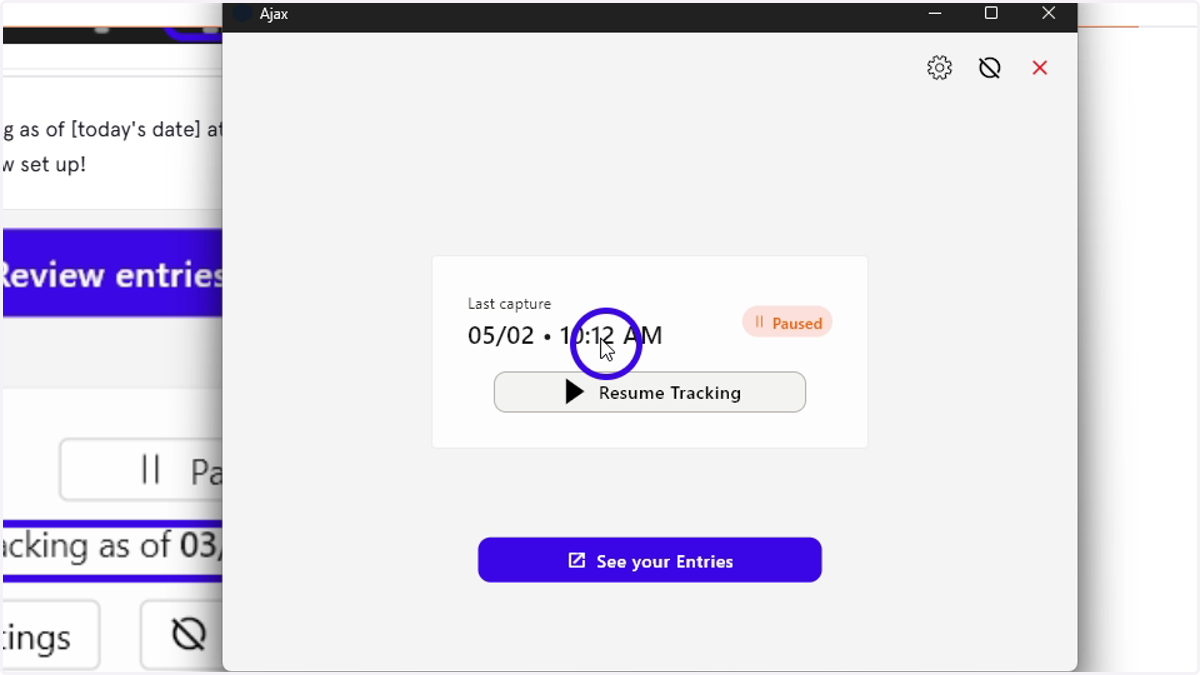
Installing Ajax onto your Windows computer
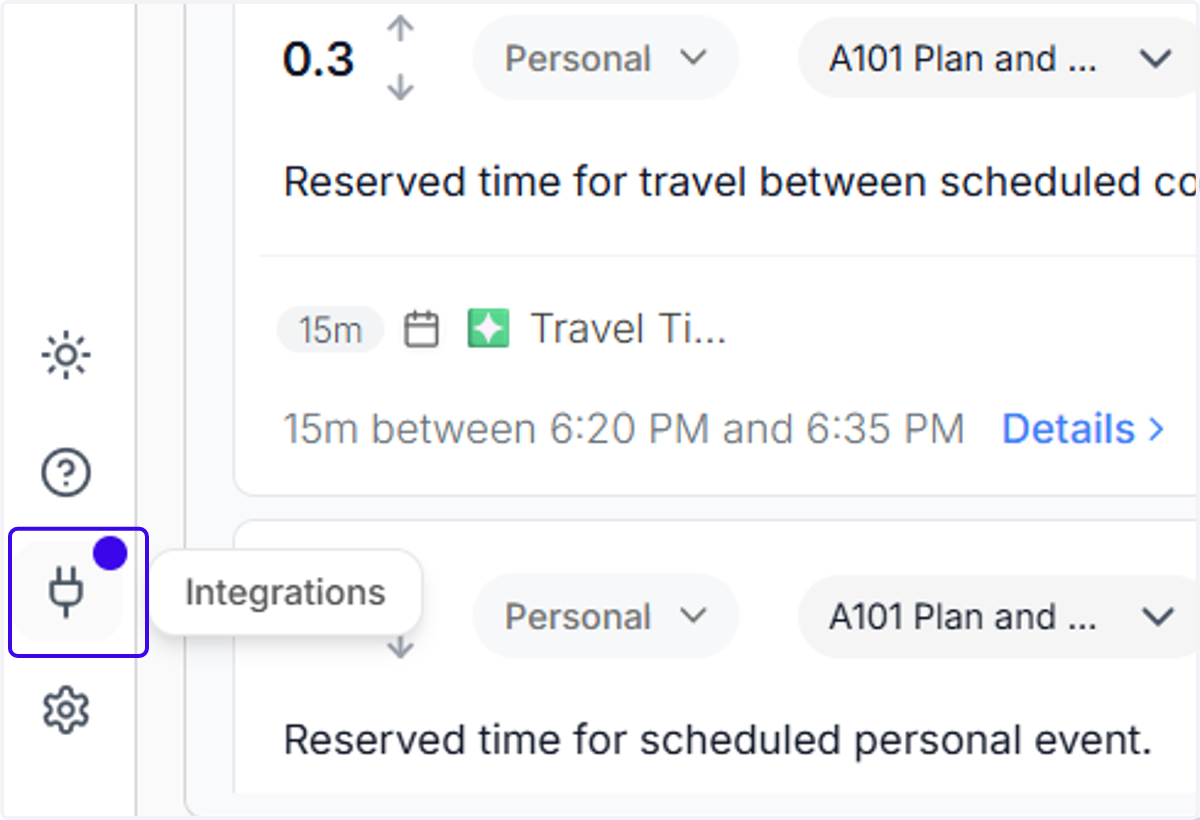
Ajax Integrations Page
1. Click on Integrations
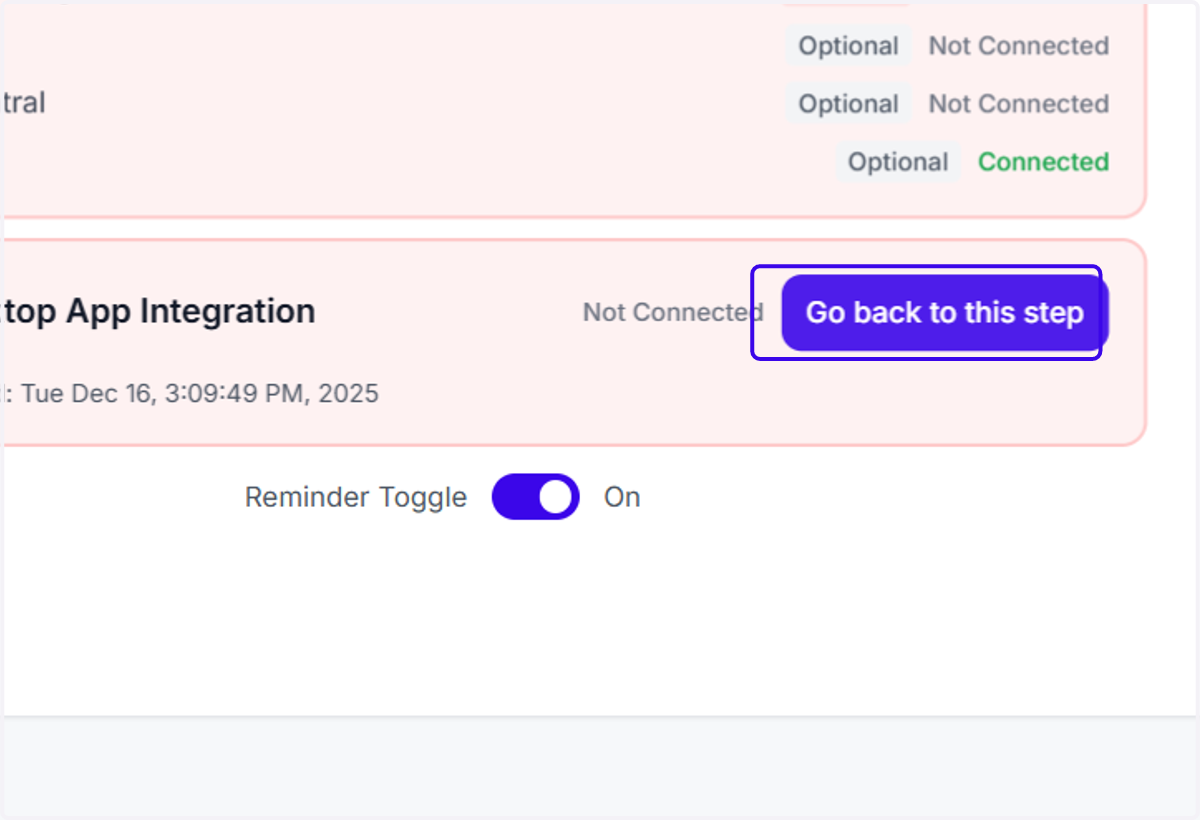
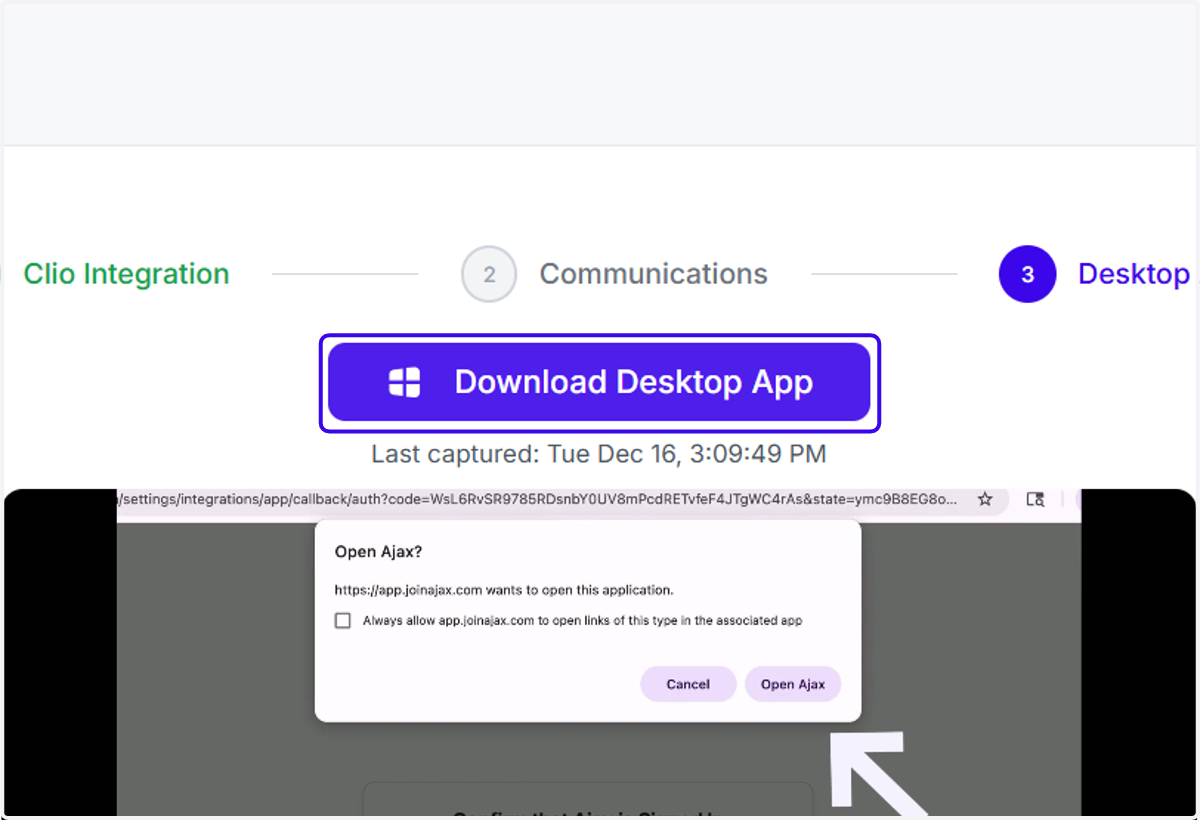
2. Click on Go back to this step
3. You'll see a page with a button that says Download Desktop App
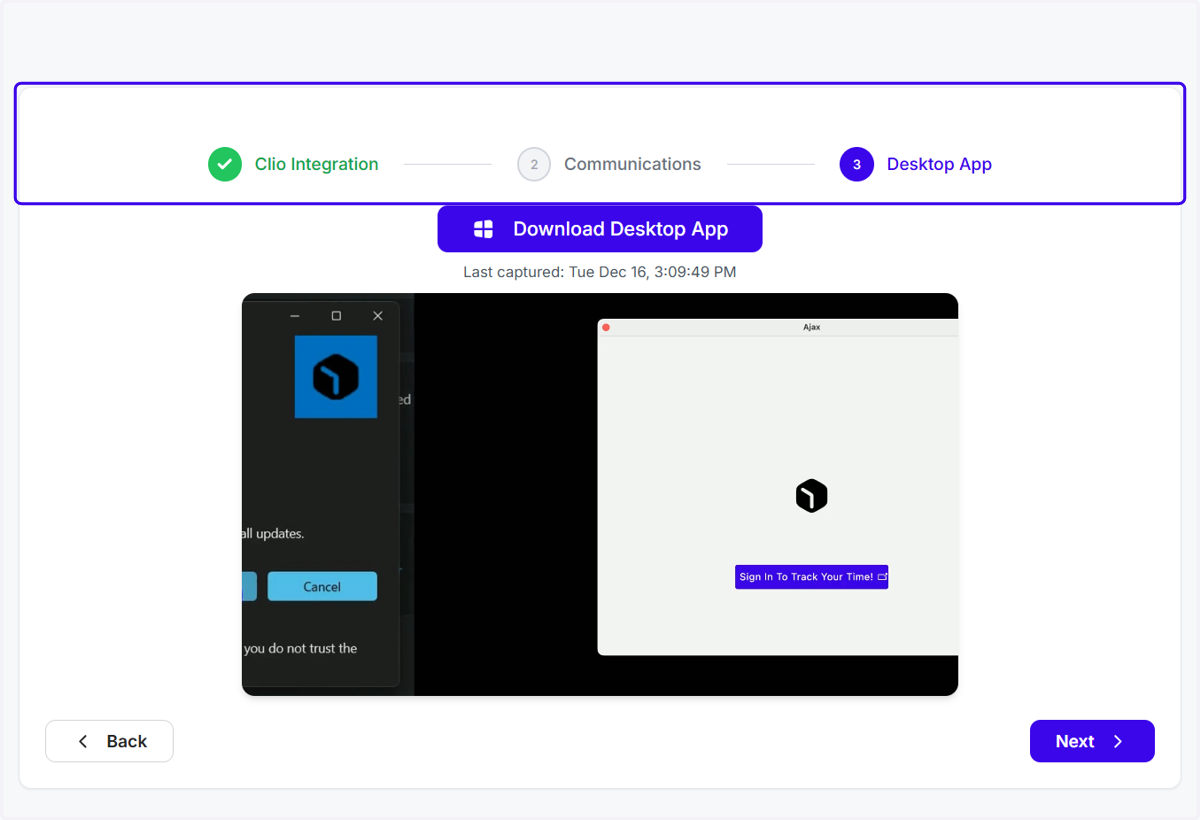
4. Click on Download Desktop App
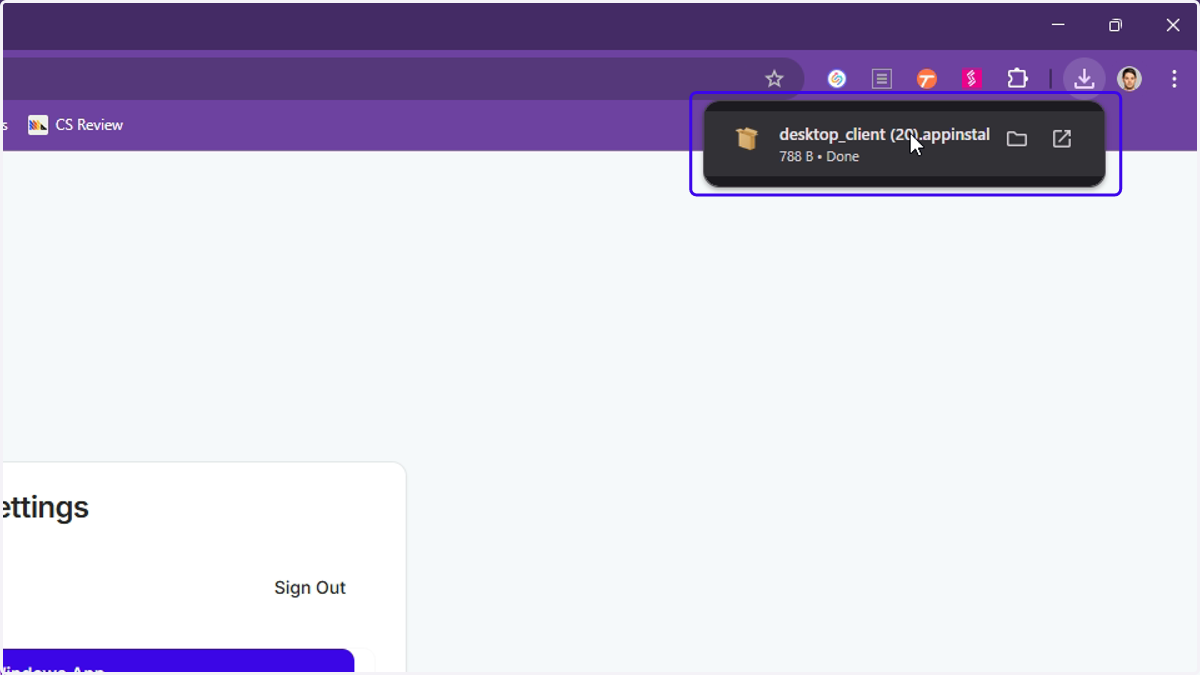
5. In the downloads folder (top-right of your browser), you'll see an a file called something like desktop_client desktop_client.appinstaller. Double-click it to start the installation!
If you don't see the appinstaller file pop up, just click the "Windows App" button again to trigger another download
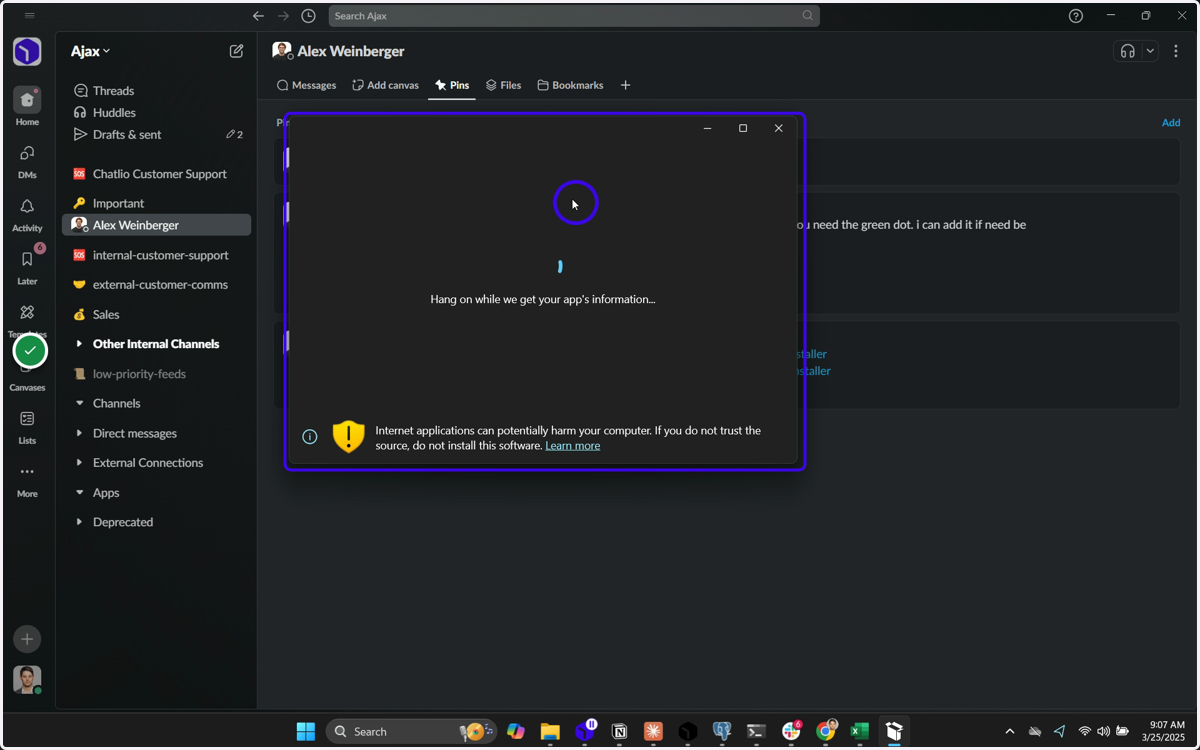
App Installation
6. You'll see the Ajax App Installer pop up - wait for it to load...
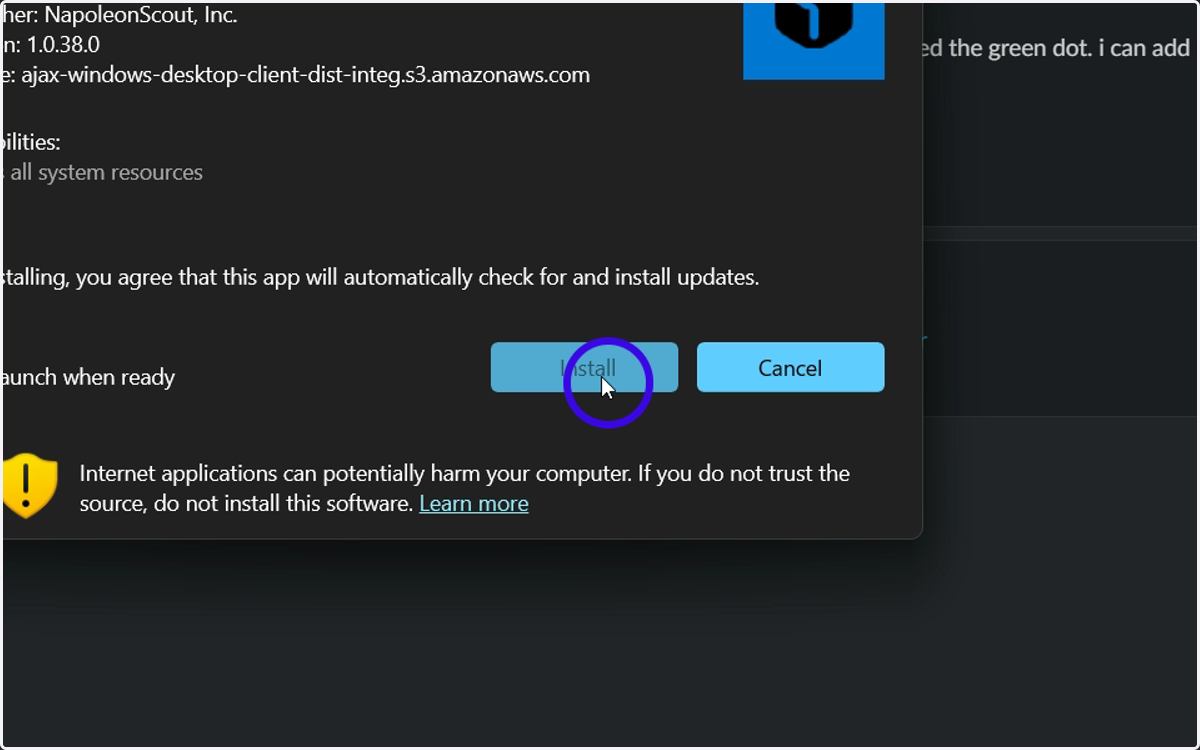
7. ...then click "Install"
8. The installation will take 5-15 seconds on most computers
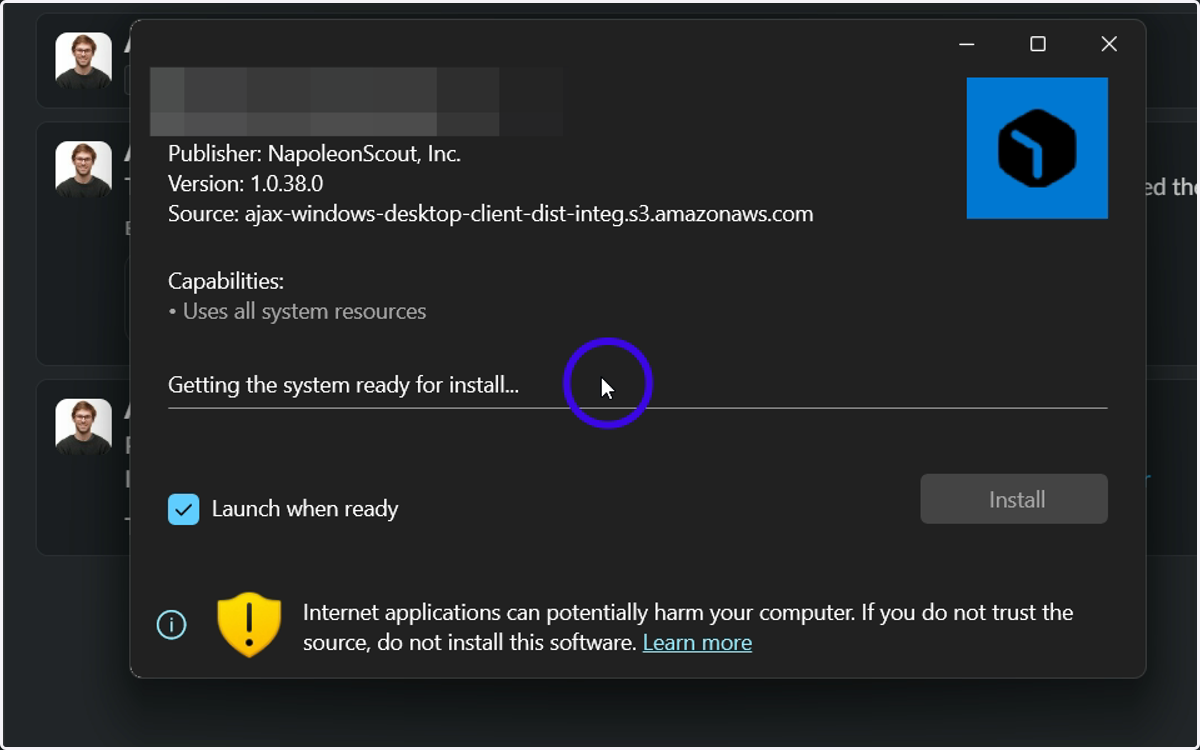
9. Once the app is installed, you should see the Ajax app pop up!
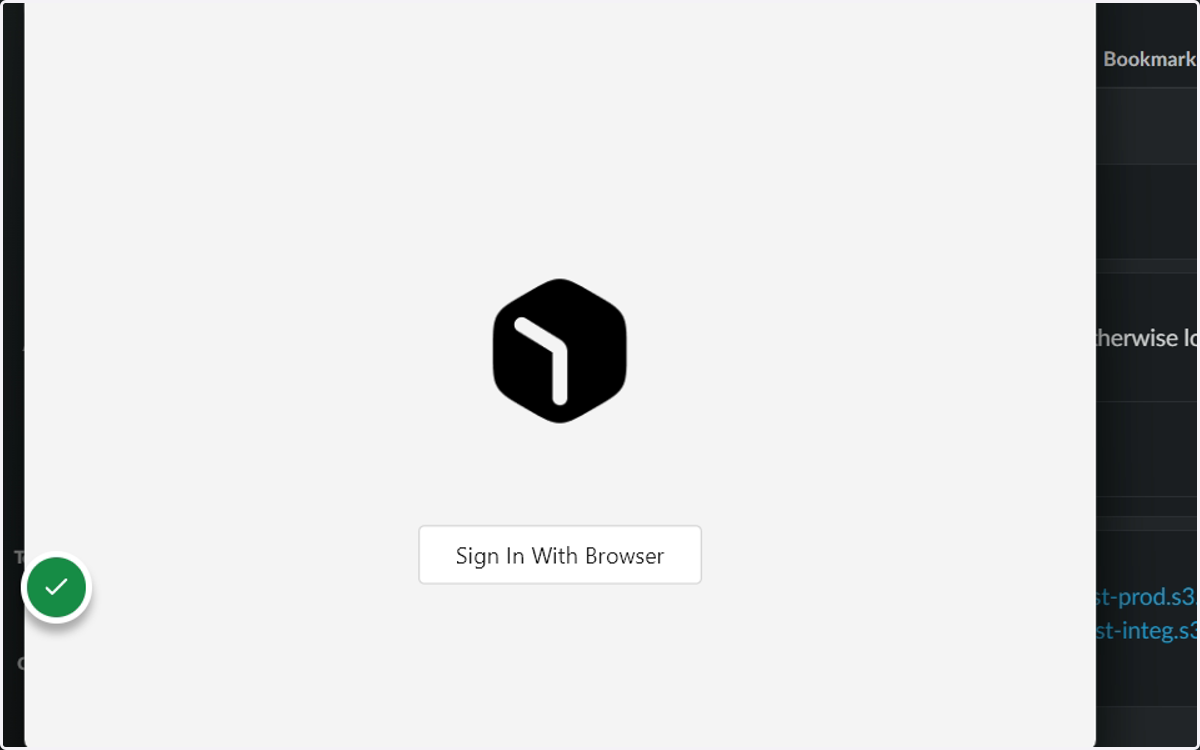
10. Once the app is installed, you should see the Ajax app pop up!
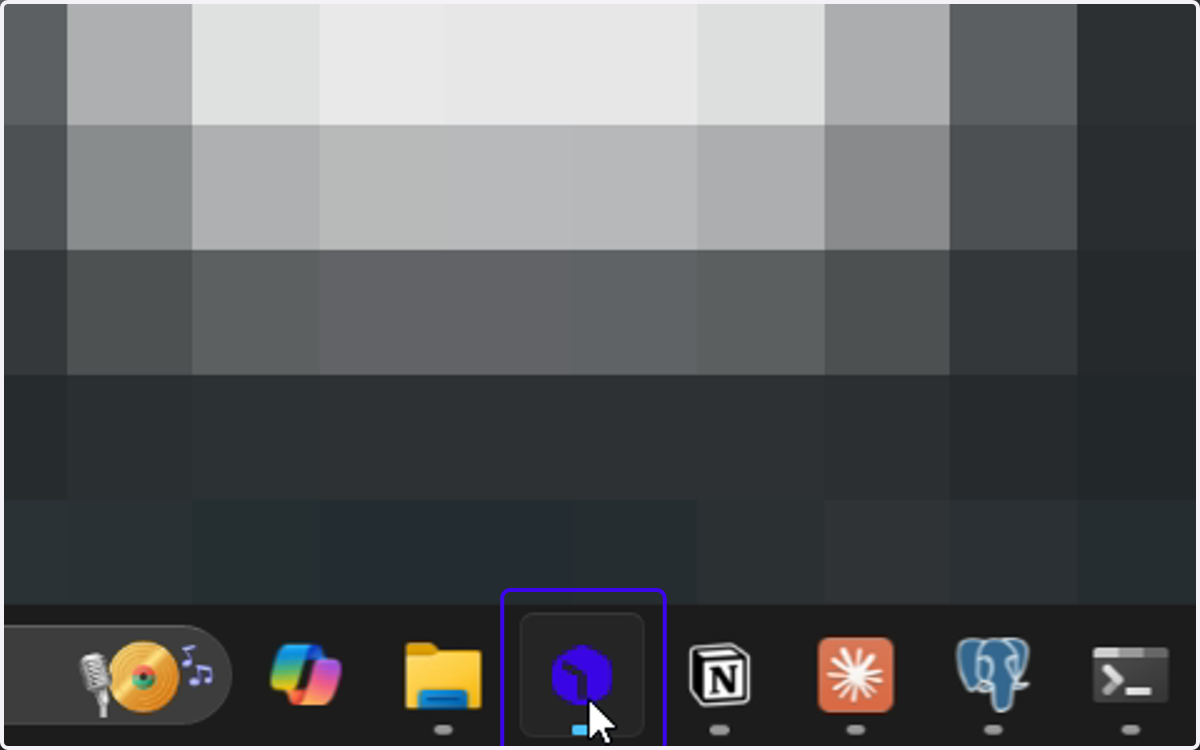
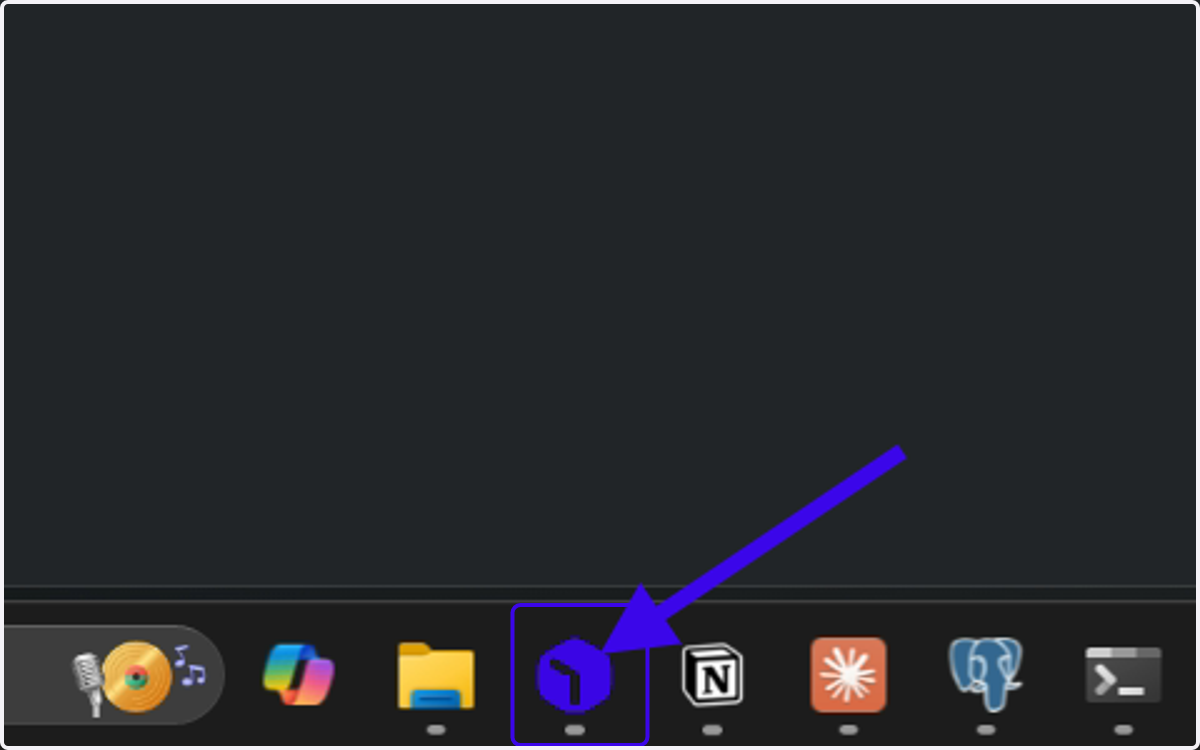
11. ...if the App hasn't popped up, click the Ajax icon in your Dock to pull it up
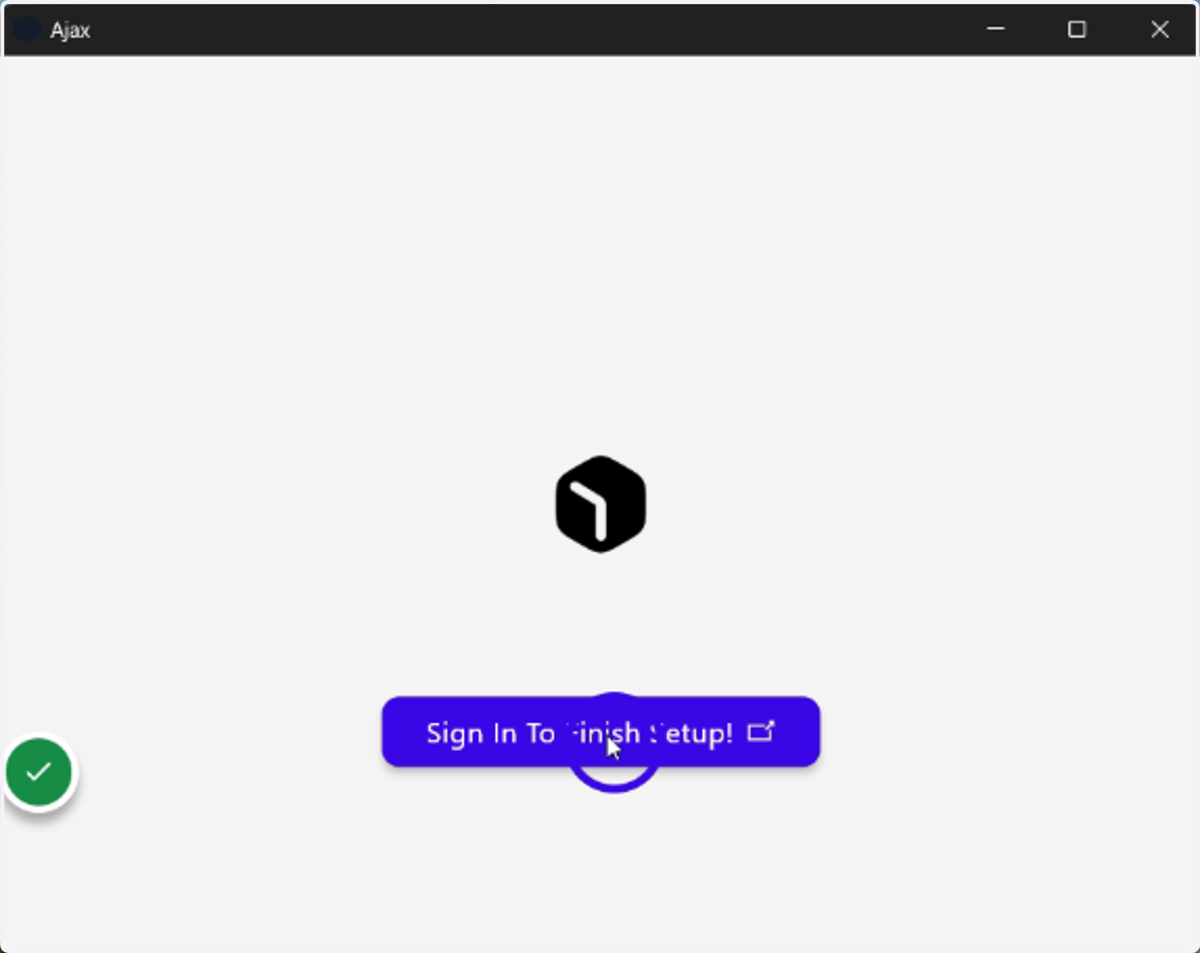
12. Once you see the Ajax app, click "Sign in to Finish Setup"
Troubleshooting the last step (logging in via Browser)
13. You may need to log into your Ajax first
If you don't remember your password, click "forgot password?" to reset it
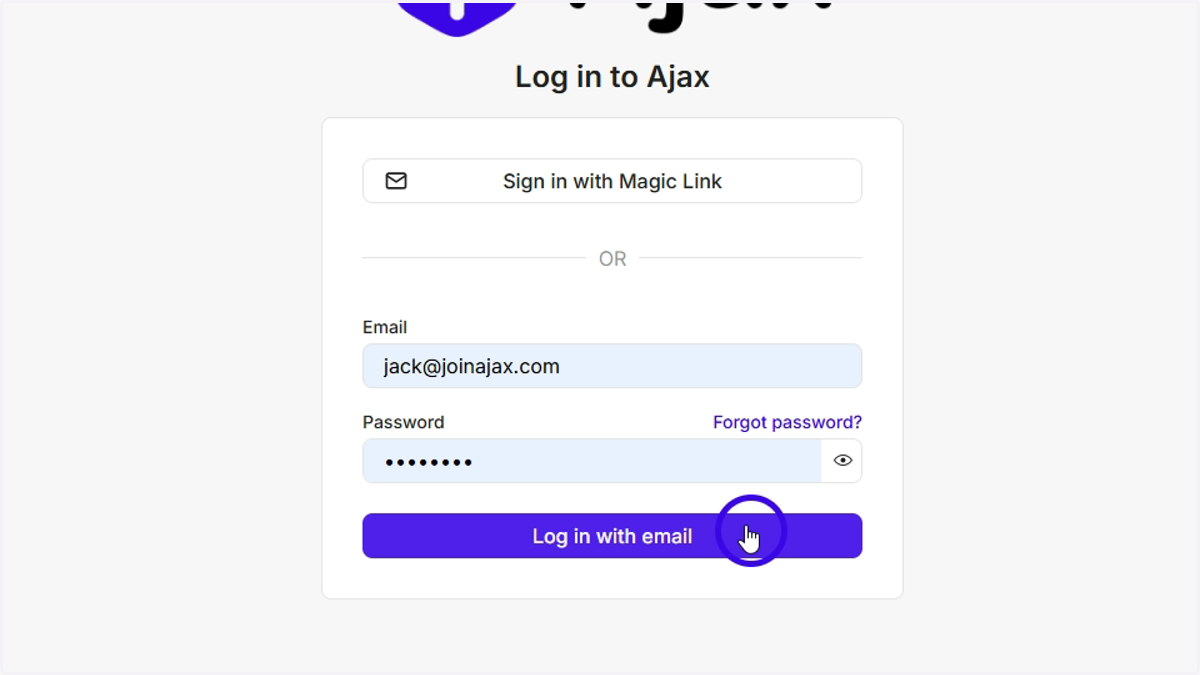
14. If you don't see Ajax open up after clicking "Open Ajax" in your browser, open it in your dock!
15. This is what it looks like to be successfully logged in!