Initiating a Flex Plan in AIM
Instructor Center - Overview
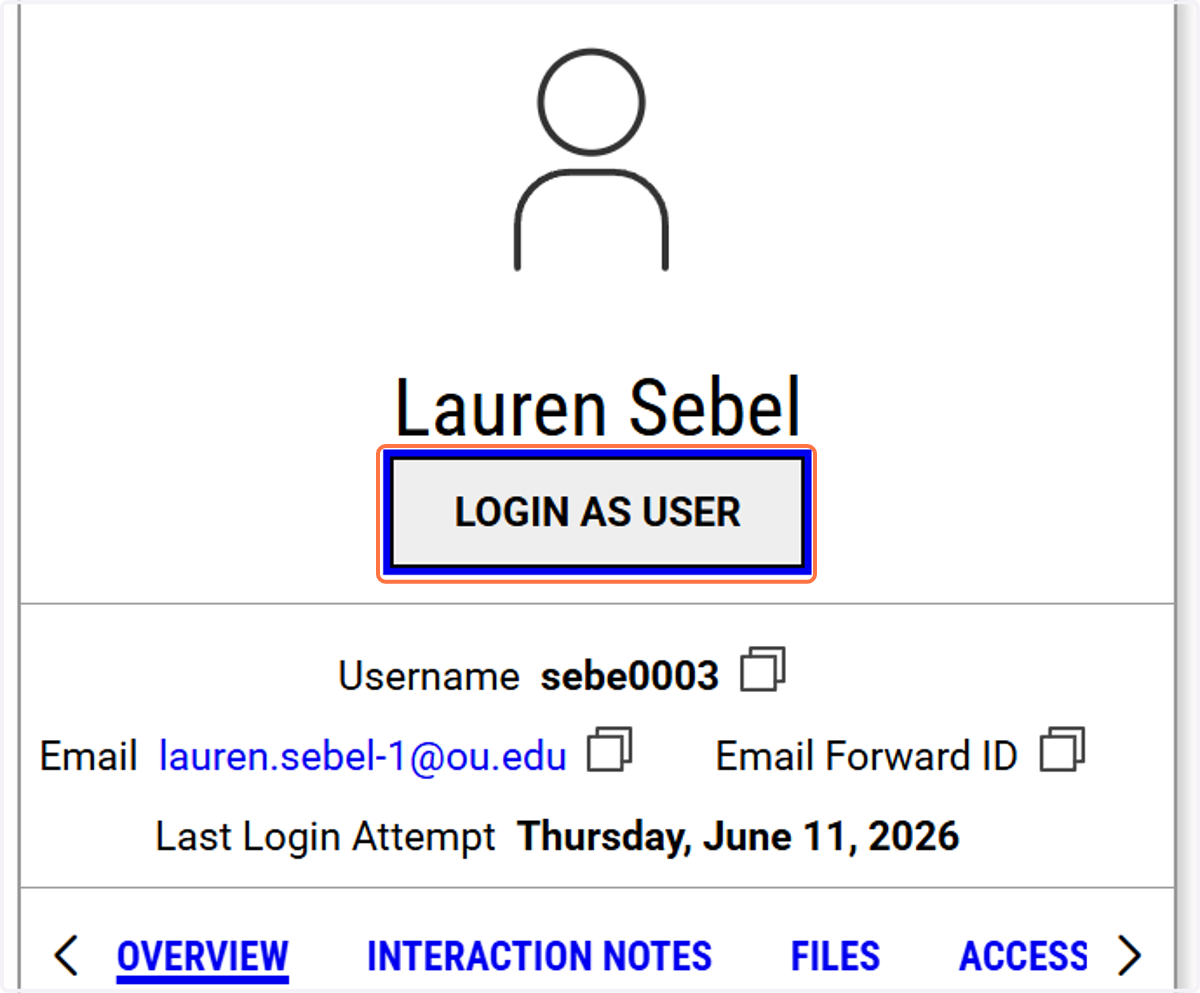
1. Log in to the instructor portal
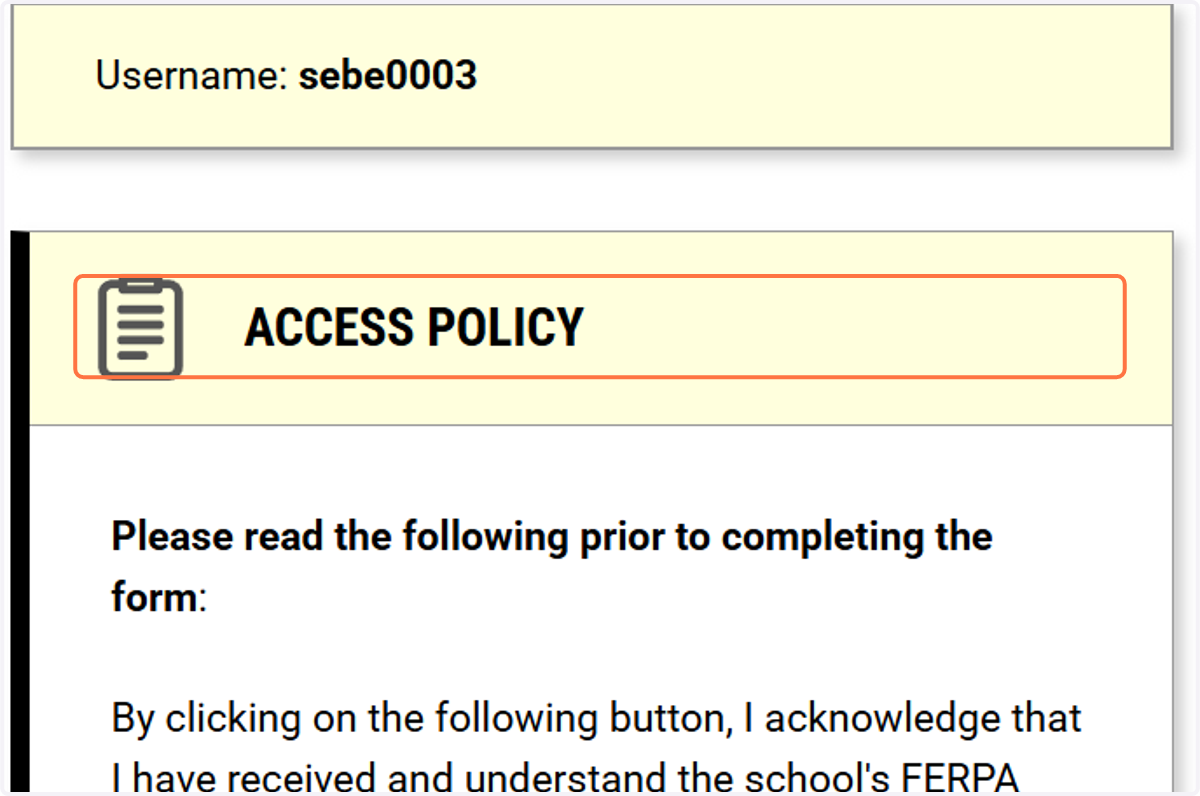
2. Review the Access Policy
This is required each time you log into AIM
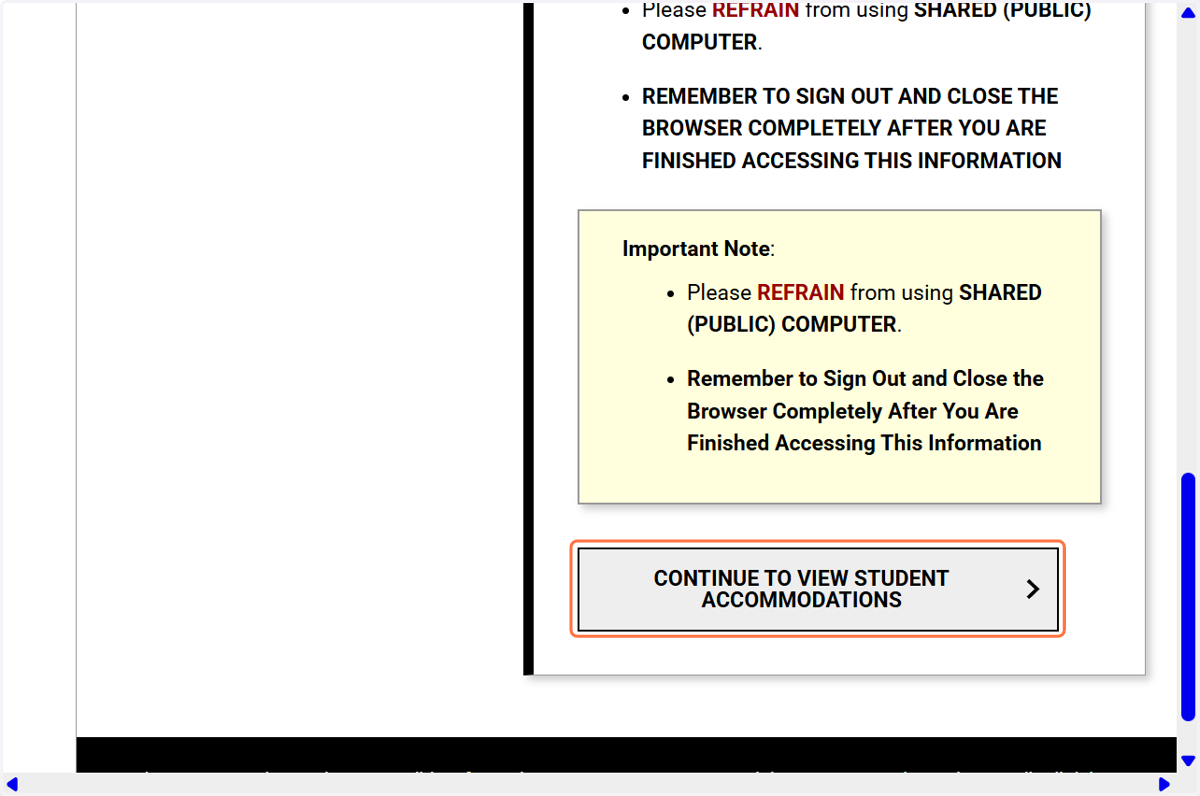
3. Click on CONTINUE TO VIEW STUDENT ACCOMMODATIONS
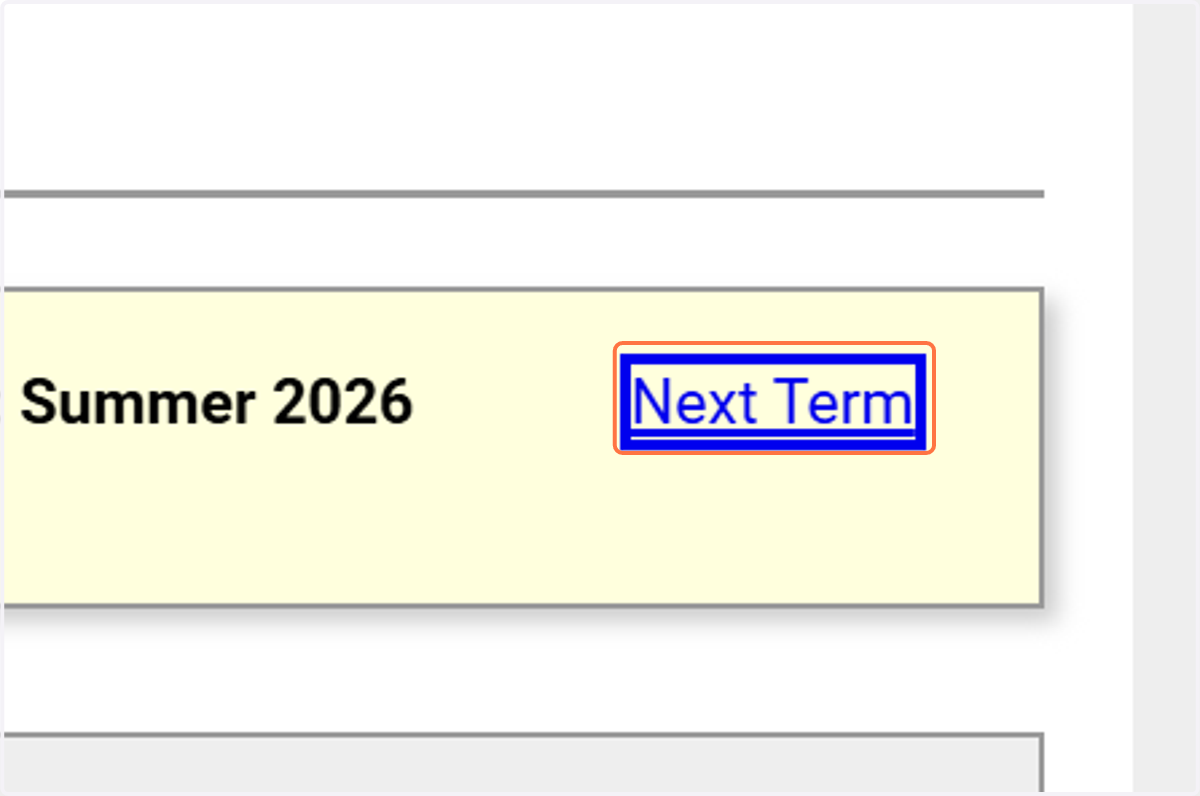
4. Click on Next Term (to get to Fall 2026)
The default will be the current term.
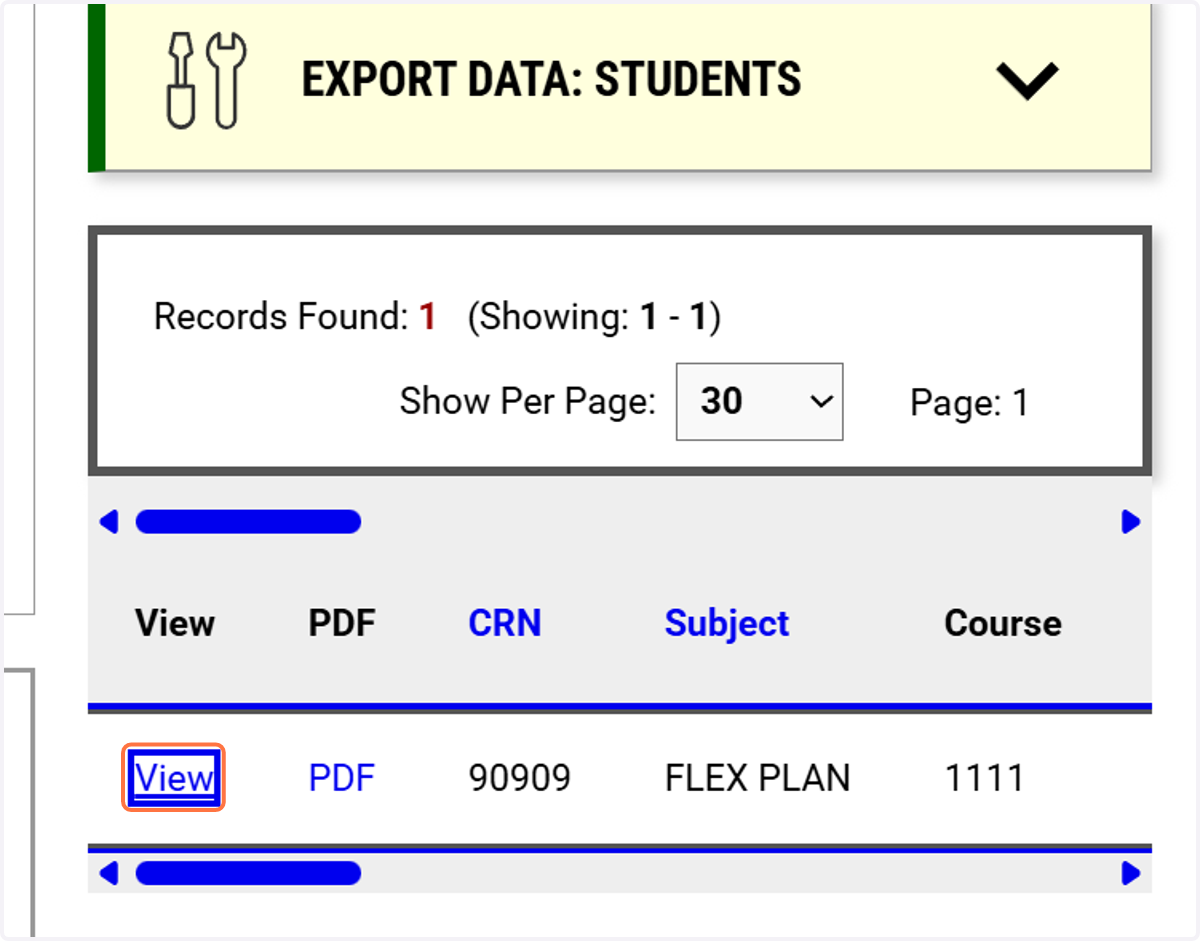
5. This screen shows you students who have requested a flexible attendance/occasional extension of due dates.
6. Once the accommodation has been reviewed, Click on SUBMIT ACKNOWLEDGEMENT ELECTRONICALLY
7. Click on Flex Plan in your HOME menu.
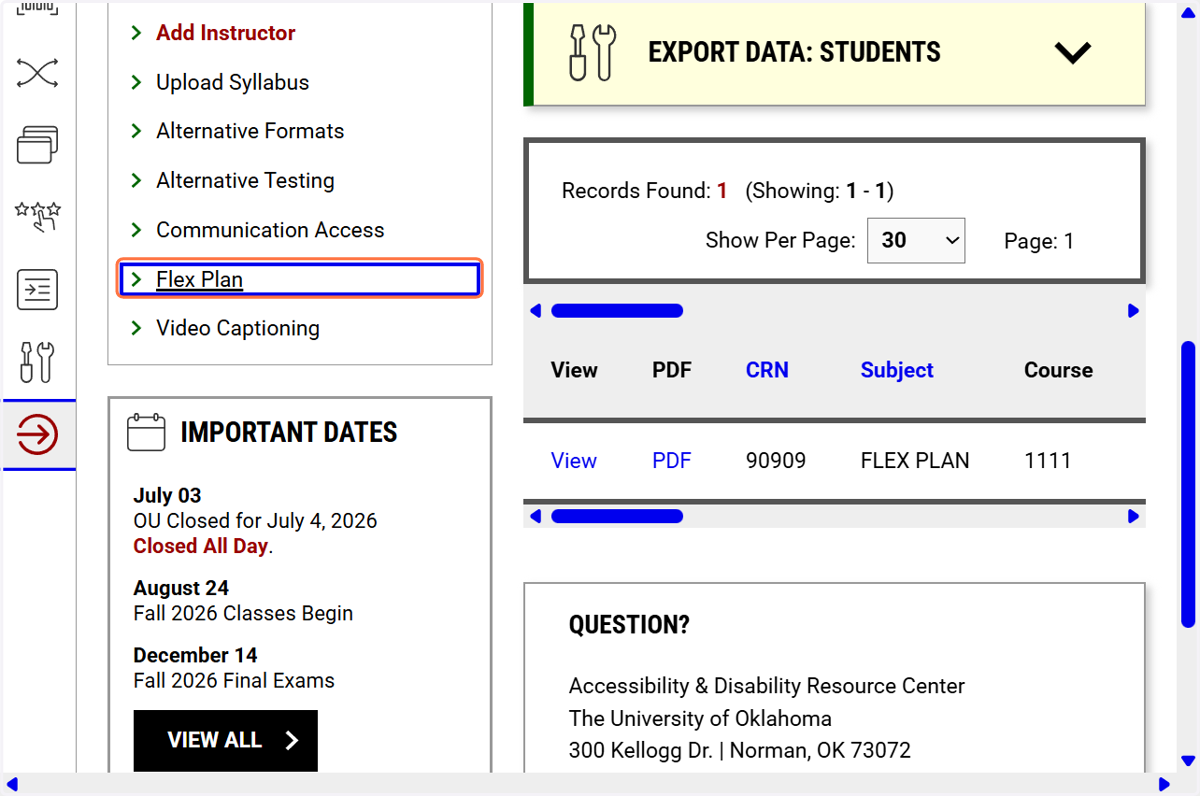
8. You will see courses without requests. Click on the number.
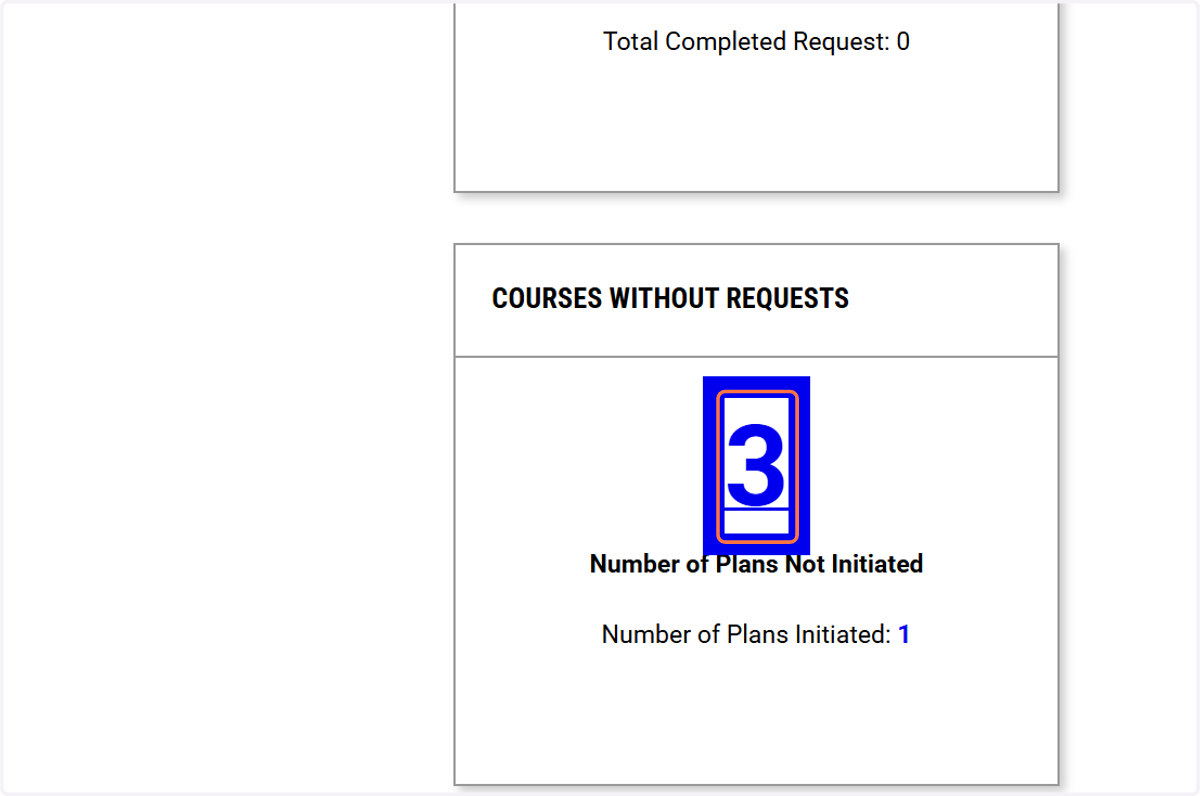
9. Click to view the course you want to complete the flex plan for.
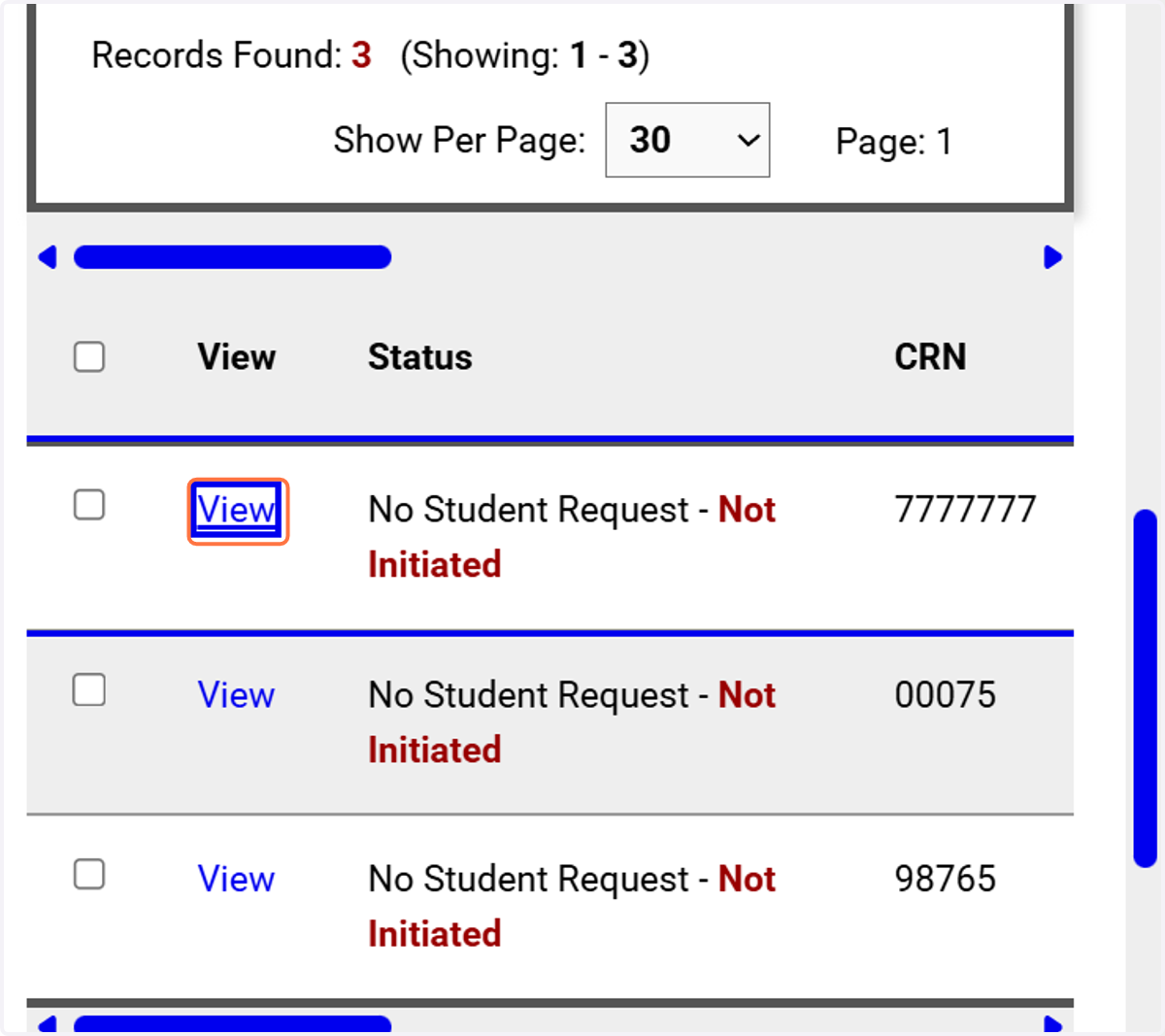
10. Review each question and respond.
Regarding the first question, a fundamental alteration occurs if an accommodation would significantly alter the essential nature of a course, program, or degree.
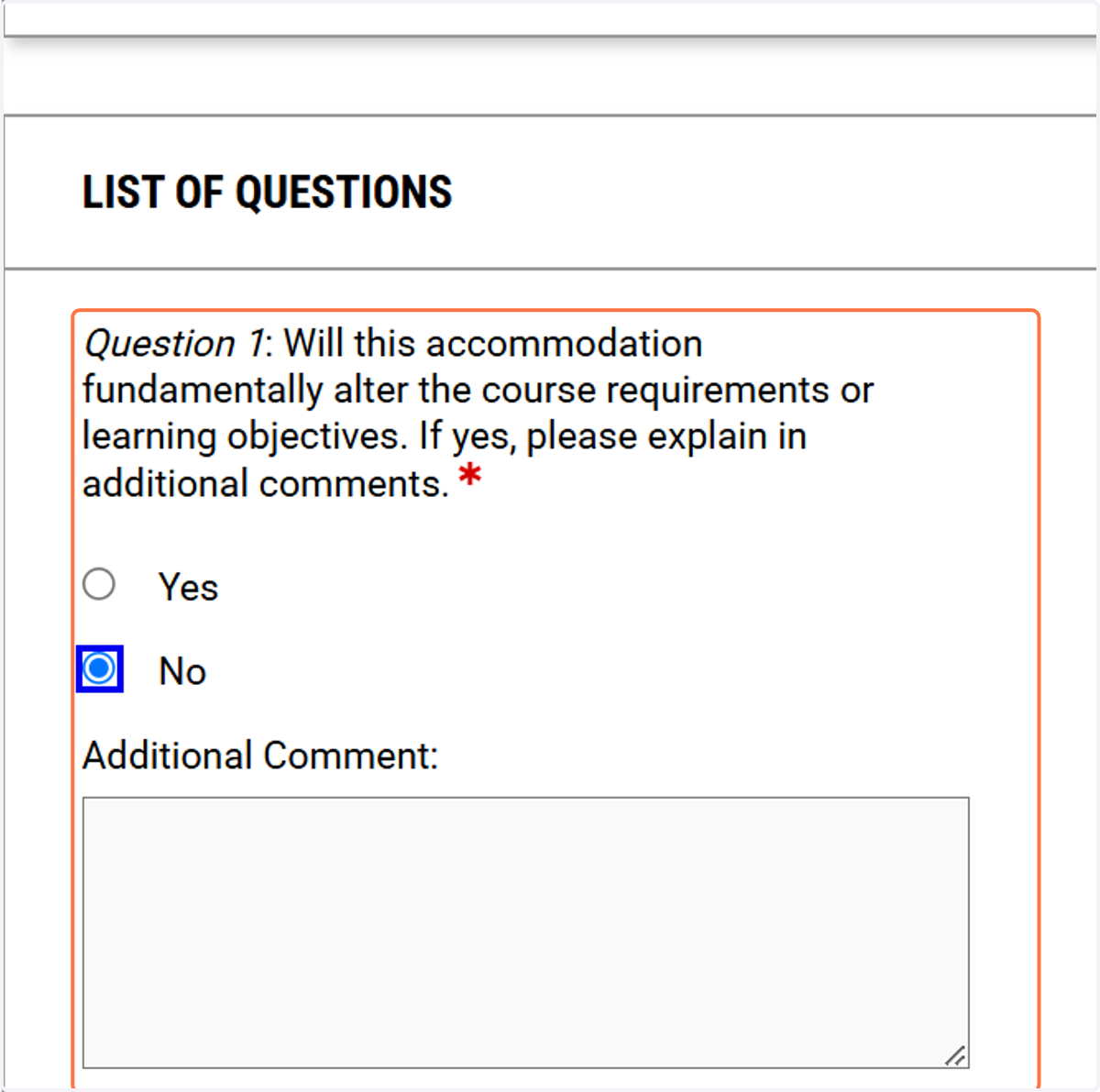
11. Knowing this information will help us work with the student on how to manage the accommodation and class.
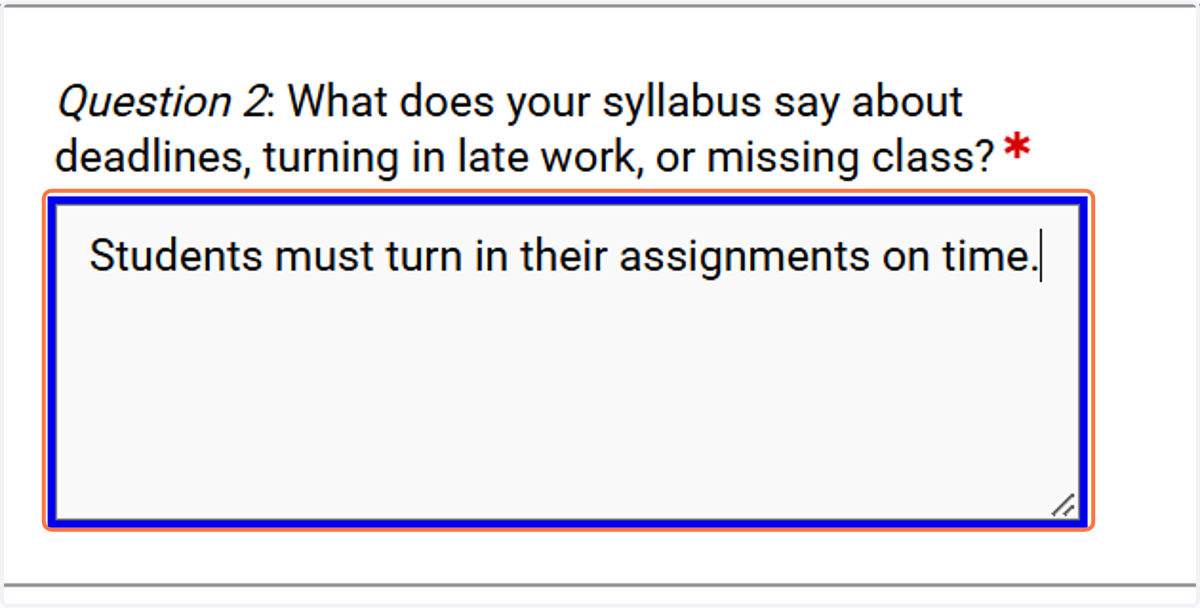
12. You may notice that some questions only apply to Occasional Extension of Assignment Due Dates.
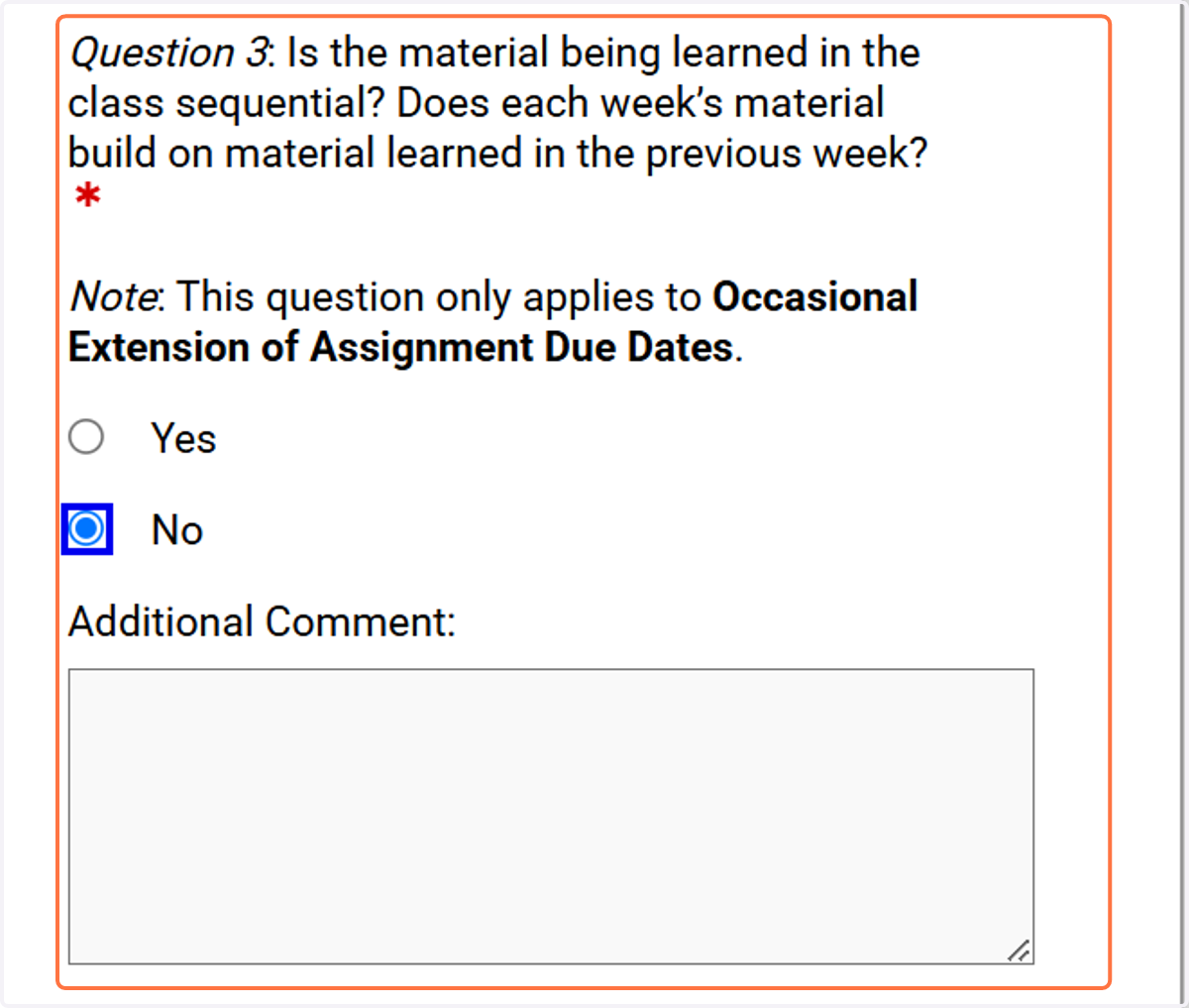
13. If there are other sections, please provide that information for us and the student.
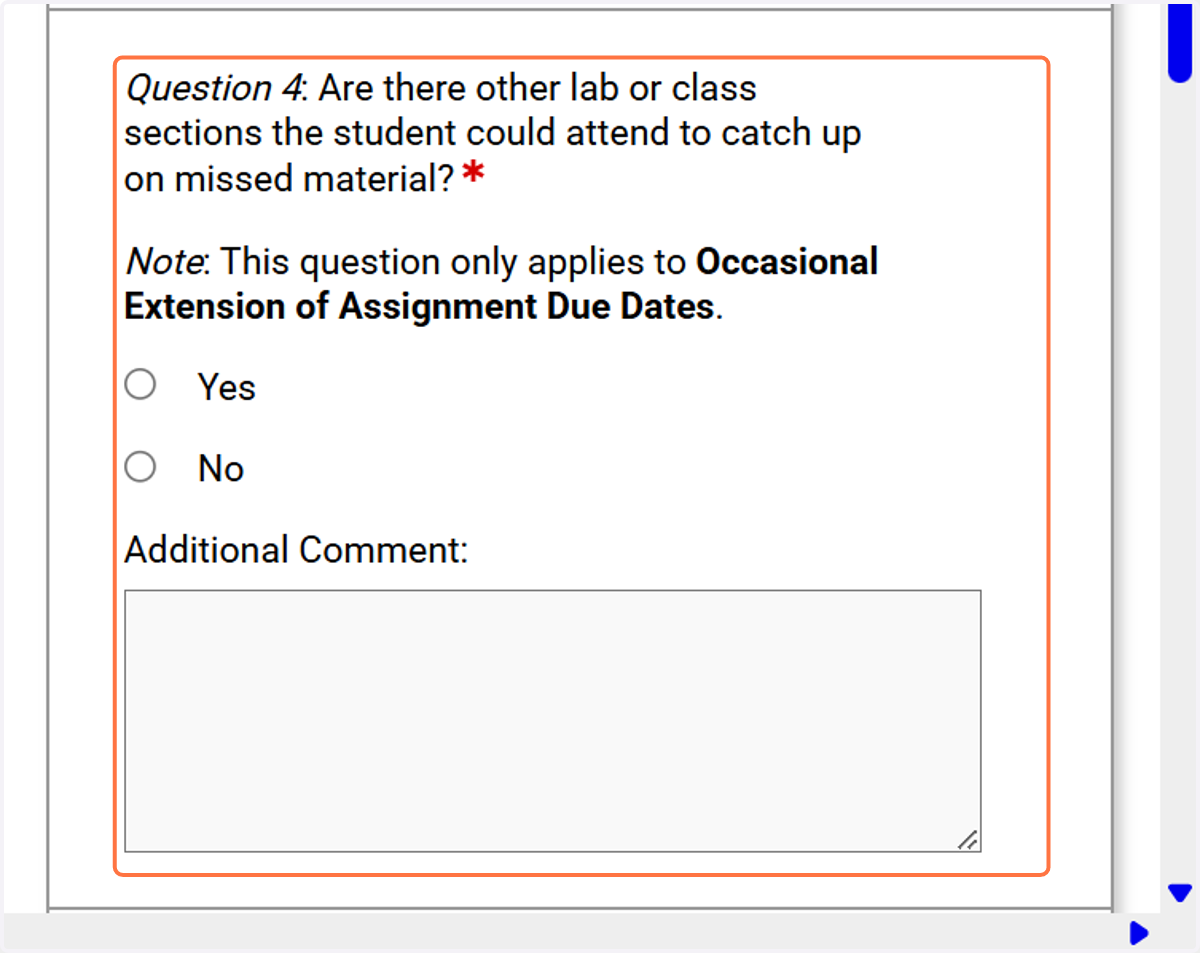
14. Untitled Step
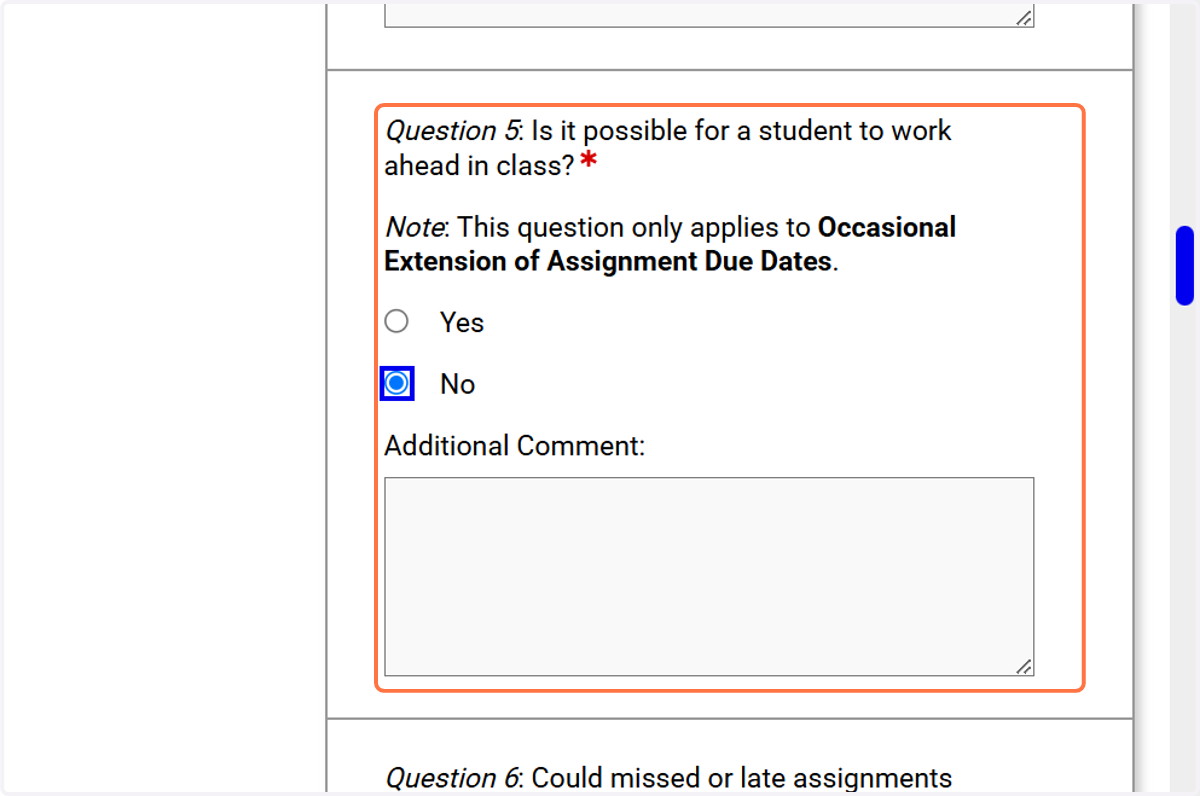
15. Untitled Step
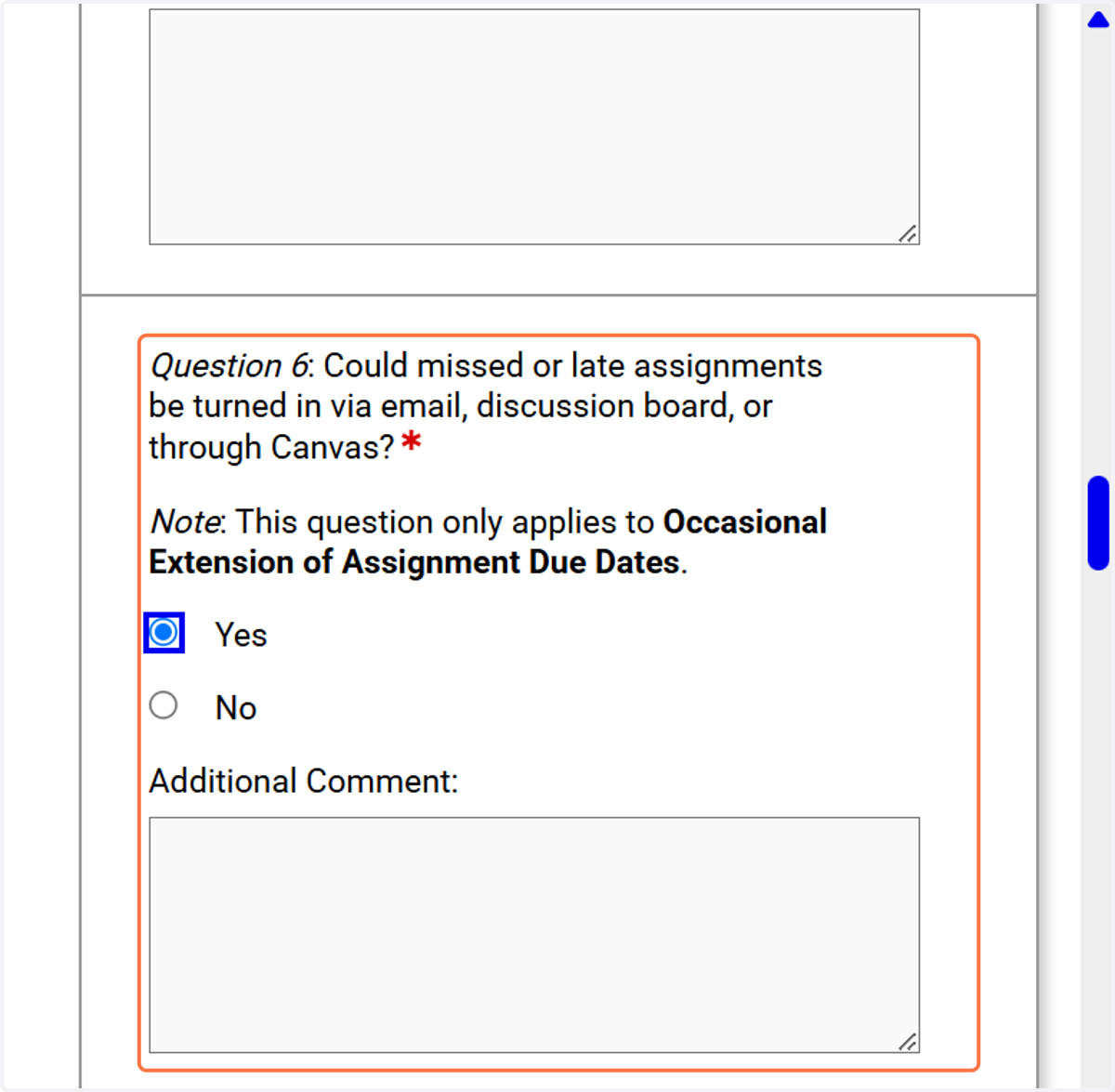
16. A. You can also include information on optional events for us.
16. B.
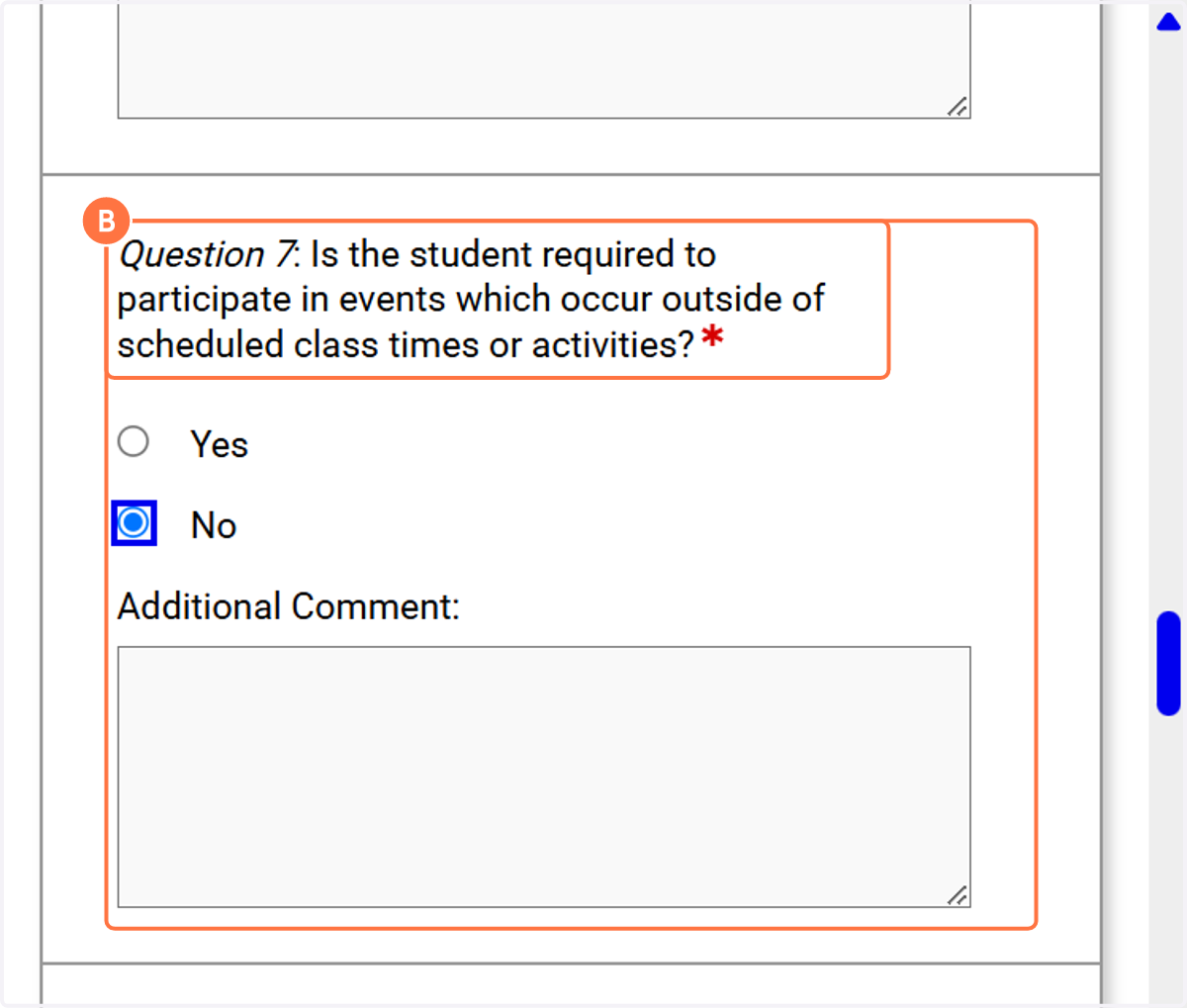
17. Untitled Step
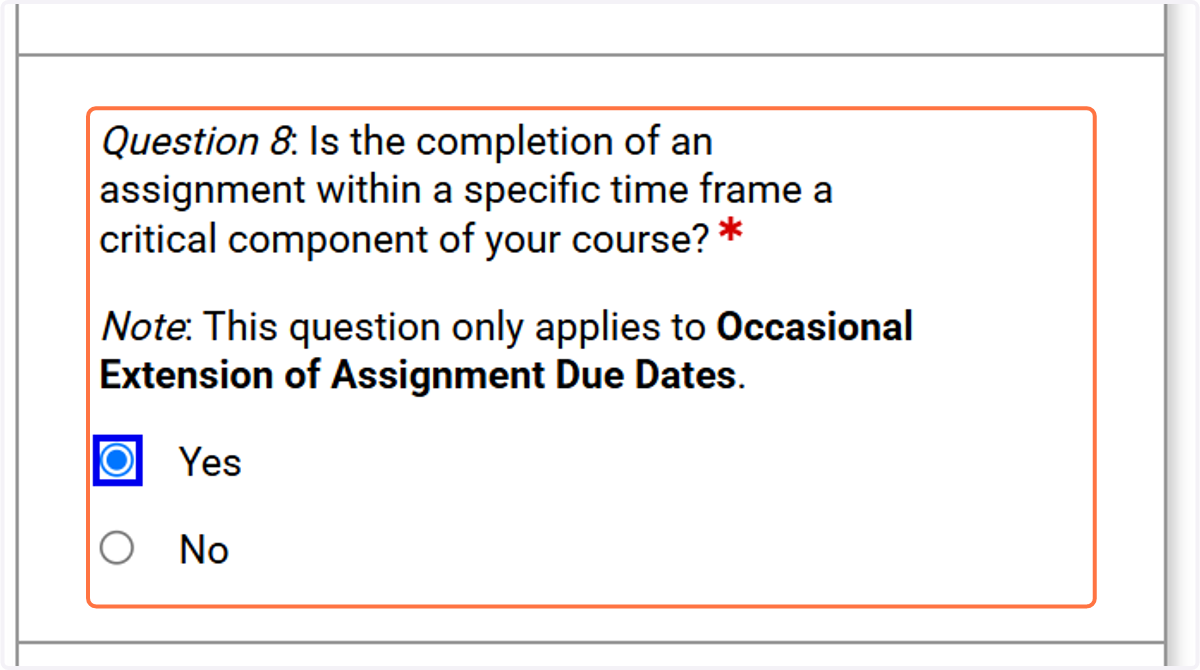
18. Untitled Step
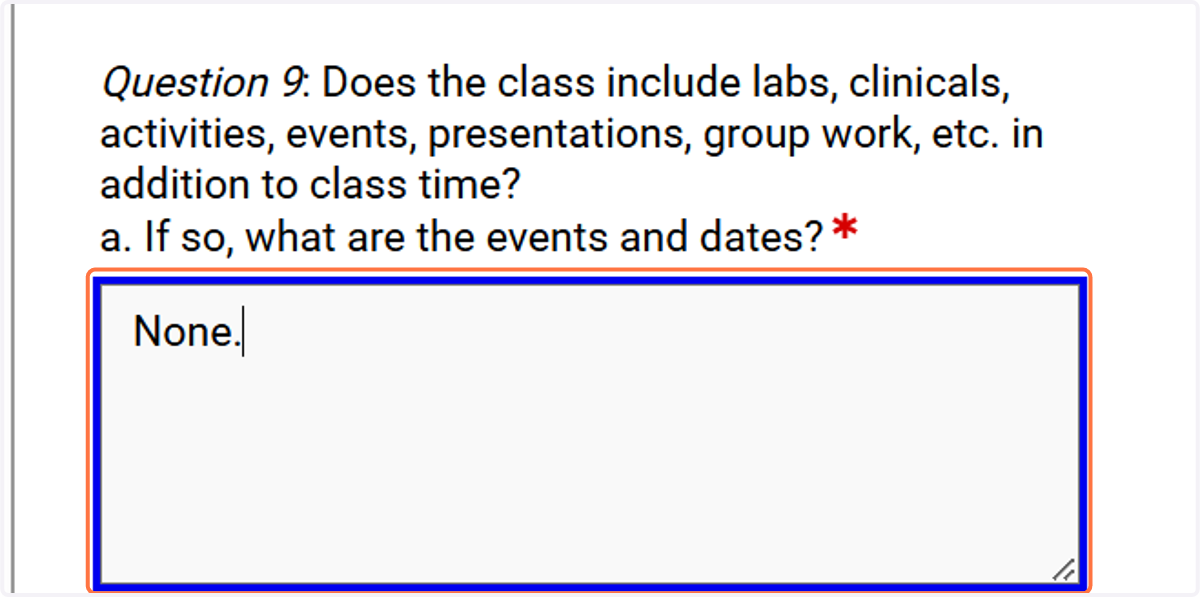
19. Untitled Step
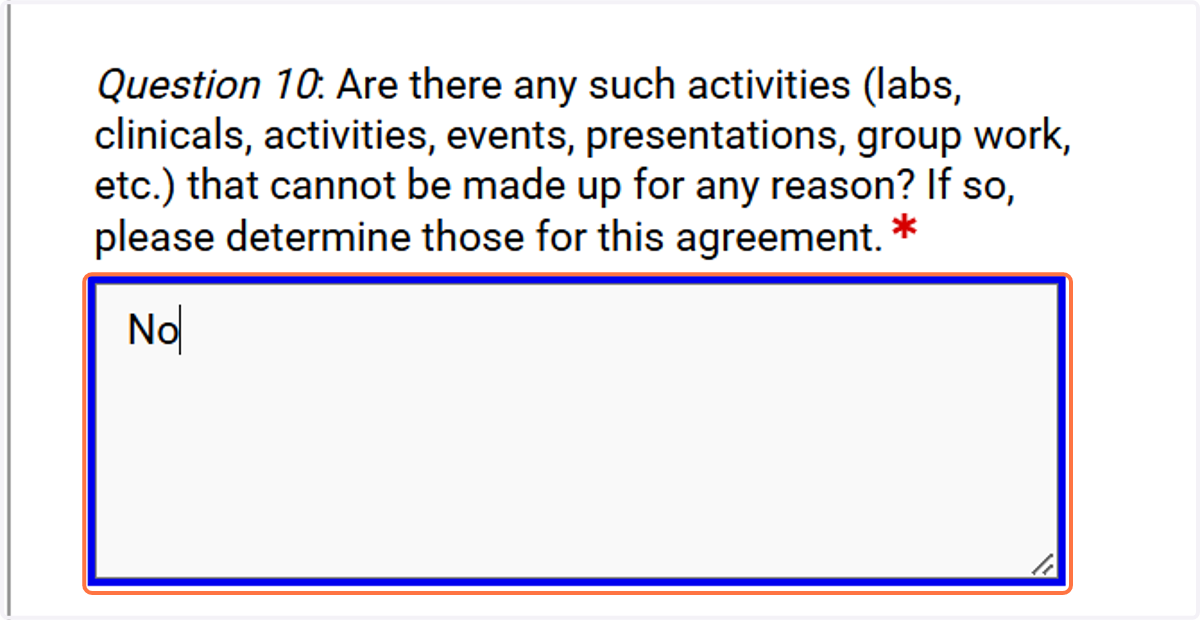
20. Try to provide as accurate information as possible for us.
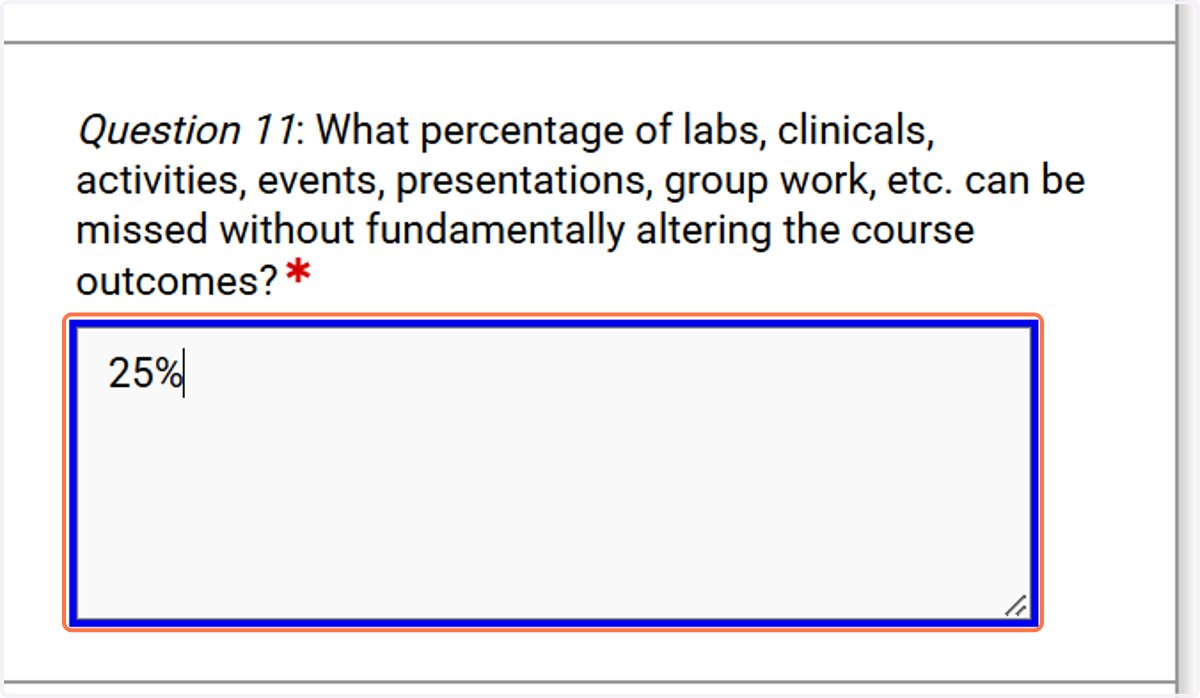
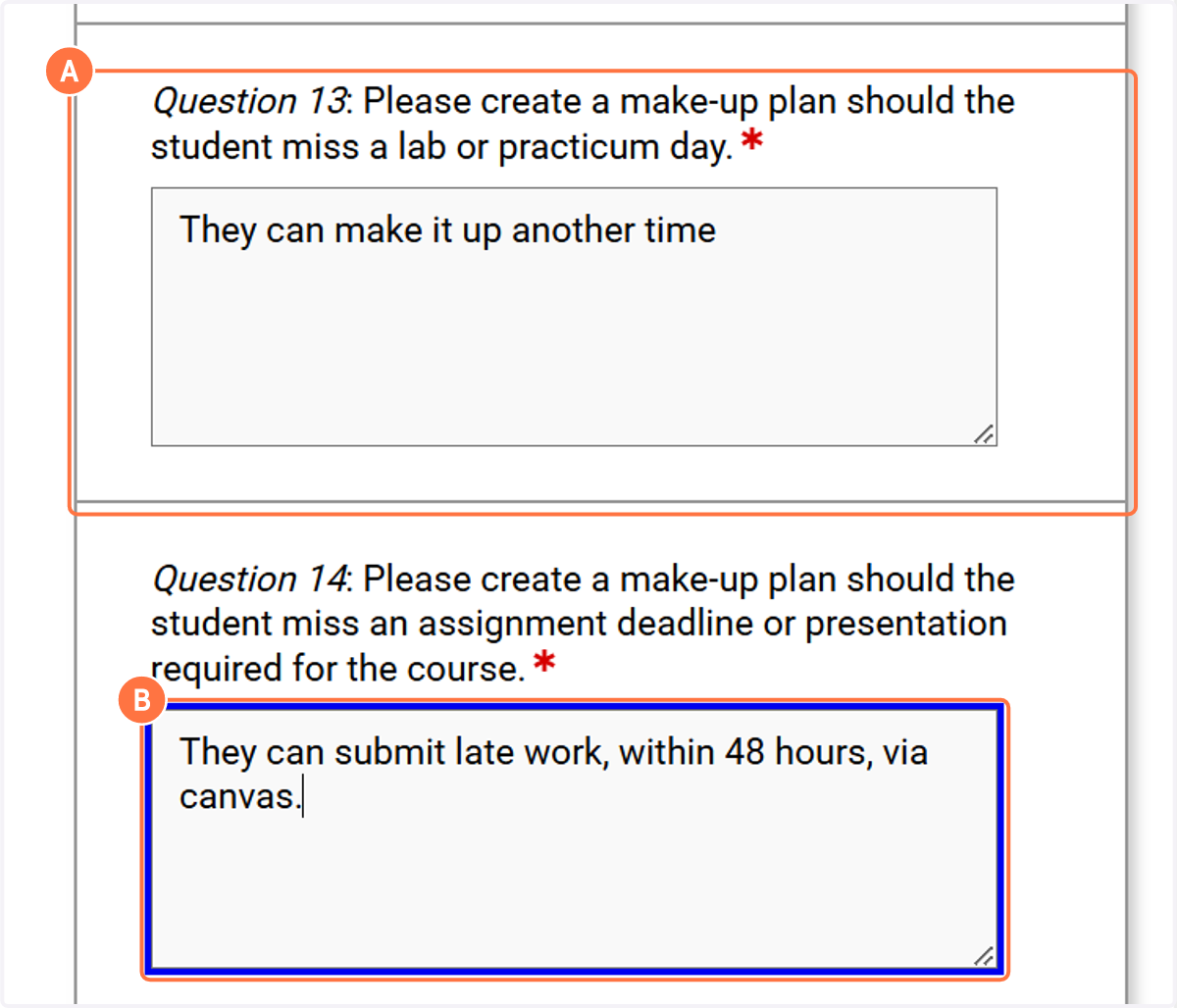
21. A. Click on Question 13: Please create a make-up plan should the student miss a lab or practicum day.…
21. B.
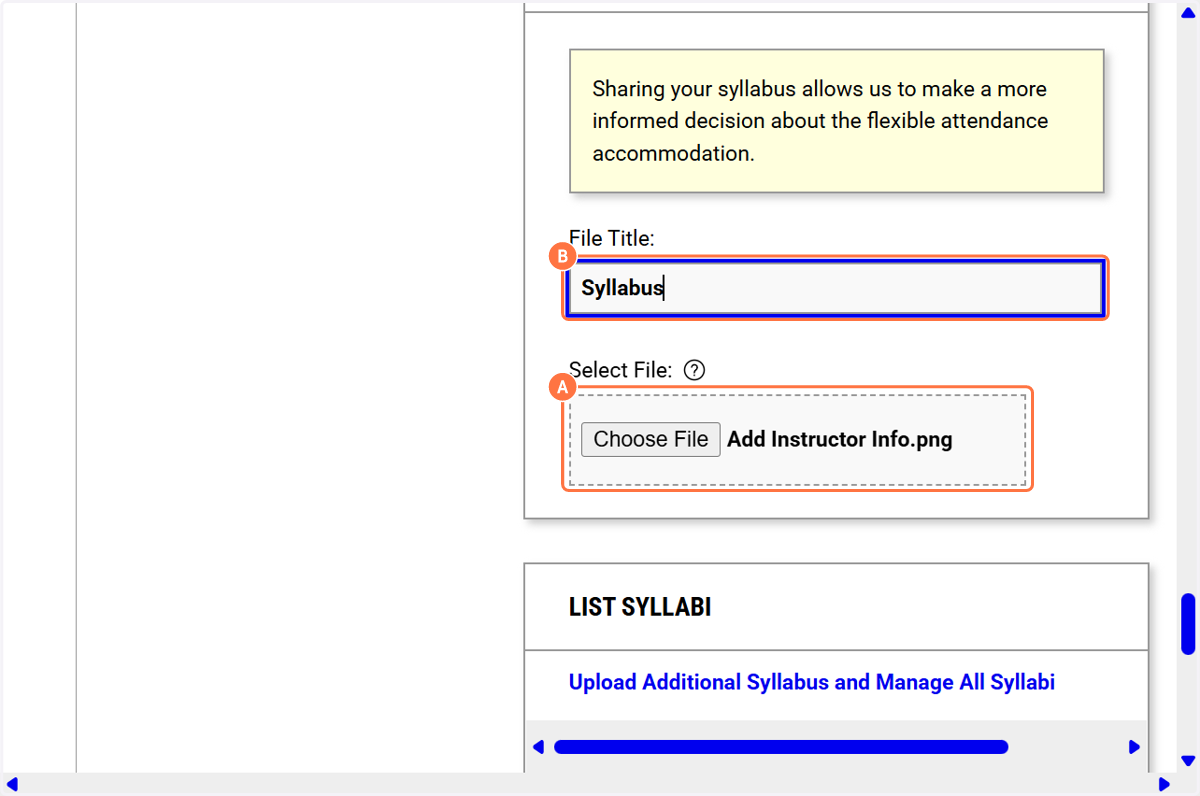
22. A. Upload a syllabus
22. B. This helps the ADRC determine the reasonableness and appropriateness of attendance modifications and extensions.
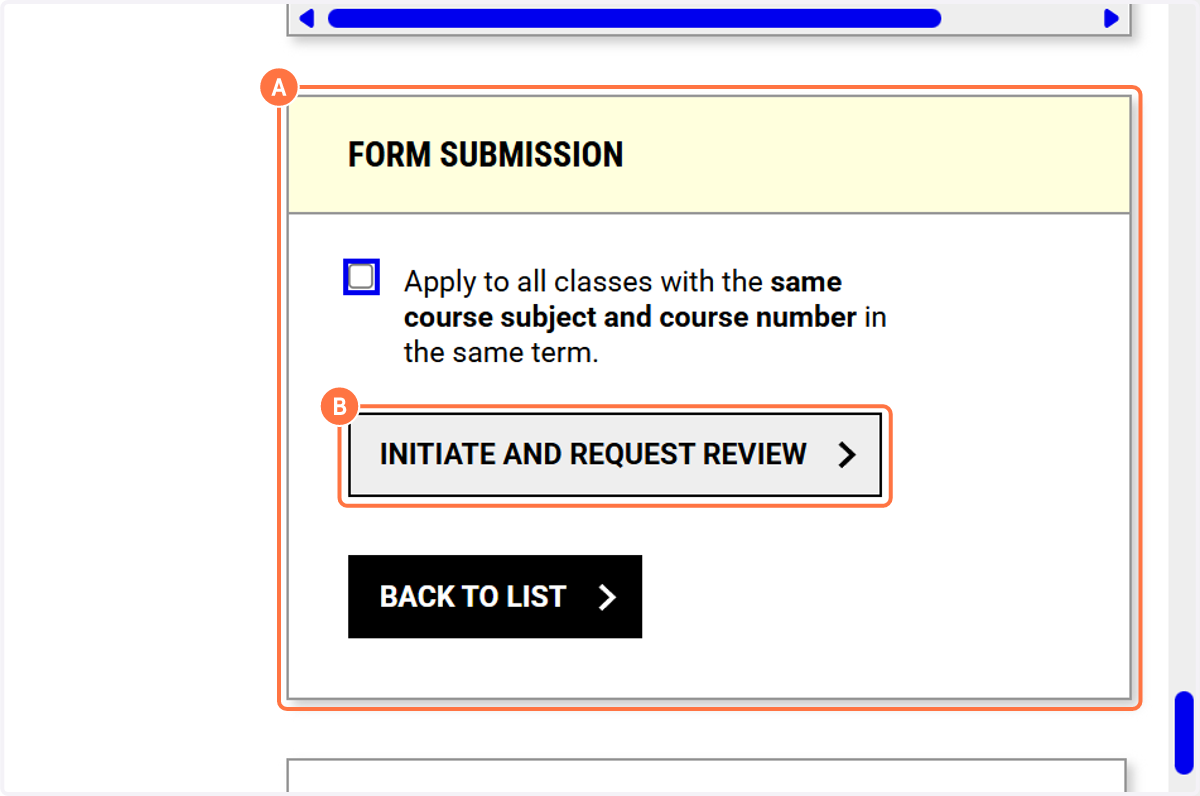
23. A. Under FORM SUBMISSION, you are able to apply your responses to each of your courses! No need to complete a flex plan for individual classes.
23. B. Click on INITIATE AND REQUEST REVIEW