Individual Estimated Tax Balance to IRS (1040-ES)
How to pay your IRS estimated tax balance for tax year 20XX
1. Gather your Tax Return and Applicable Vouchers
We have emailed you a copy of your tax return and vouchers. A copy of the files are also in Dropbox.
Please be aware that a voucher MAY NOT be provided if Shelby has directed you to make the payment directly, or if this was already accounted for during the tax planning process.
2. Look at your Tax Letter
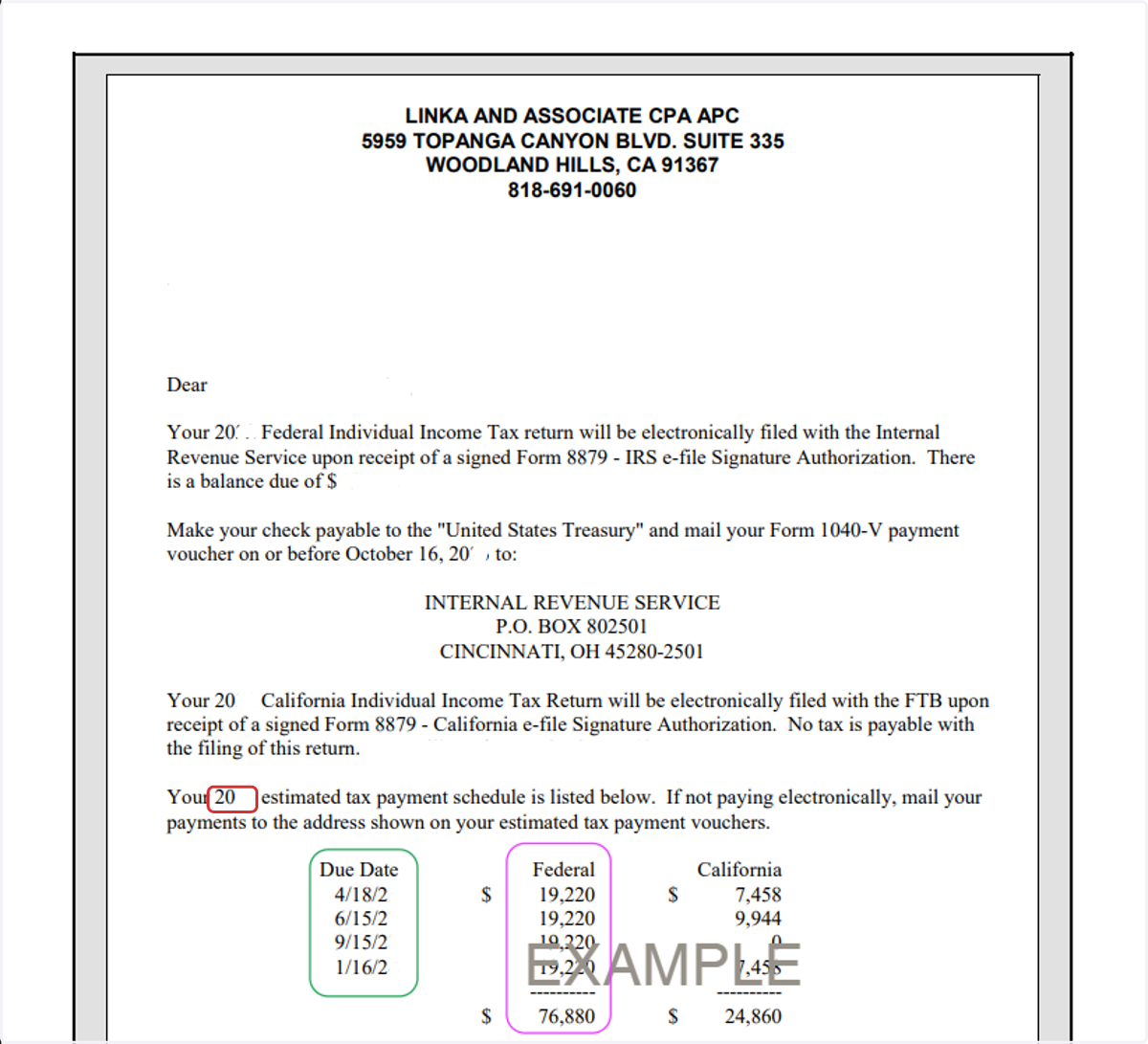
Your tax return letter (Page 2 of your tax return) will tell you ALL the balances you owe.
How to Read the Tax Letter:
Tax Year for payment is in Red
The IRS tax balance due is in Pink
The payment due date is in Green
*Numbers below are an example. DO NOT USE
3. Find your 100-ES Voucher
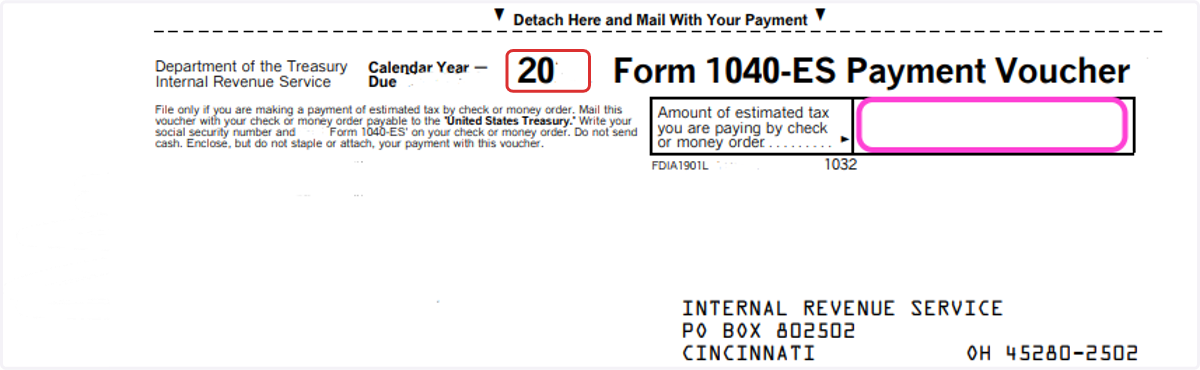
The voucher will have instructions to mail a check if you wish to do so. Please continue the instructions if you choose to pay online.
How to Read the Voucher:
Tax Year for payment is in Red
Payment Amount is in Pink
*Example below is for tax year 2021, please use the year on your voucher.
(Please be aware that a voucher MAY NOT be provided if Shelby has directed you to make the payment directly, or if this was already accounted for during the tax planning process)
Go to www.irs.gov/payments
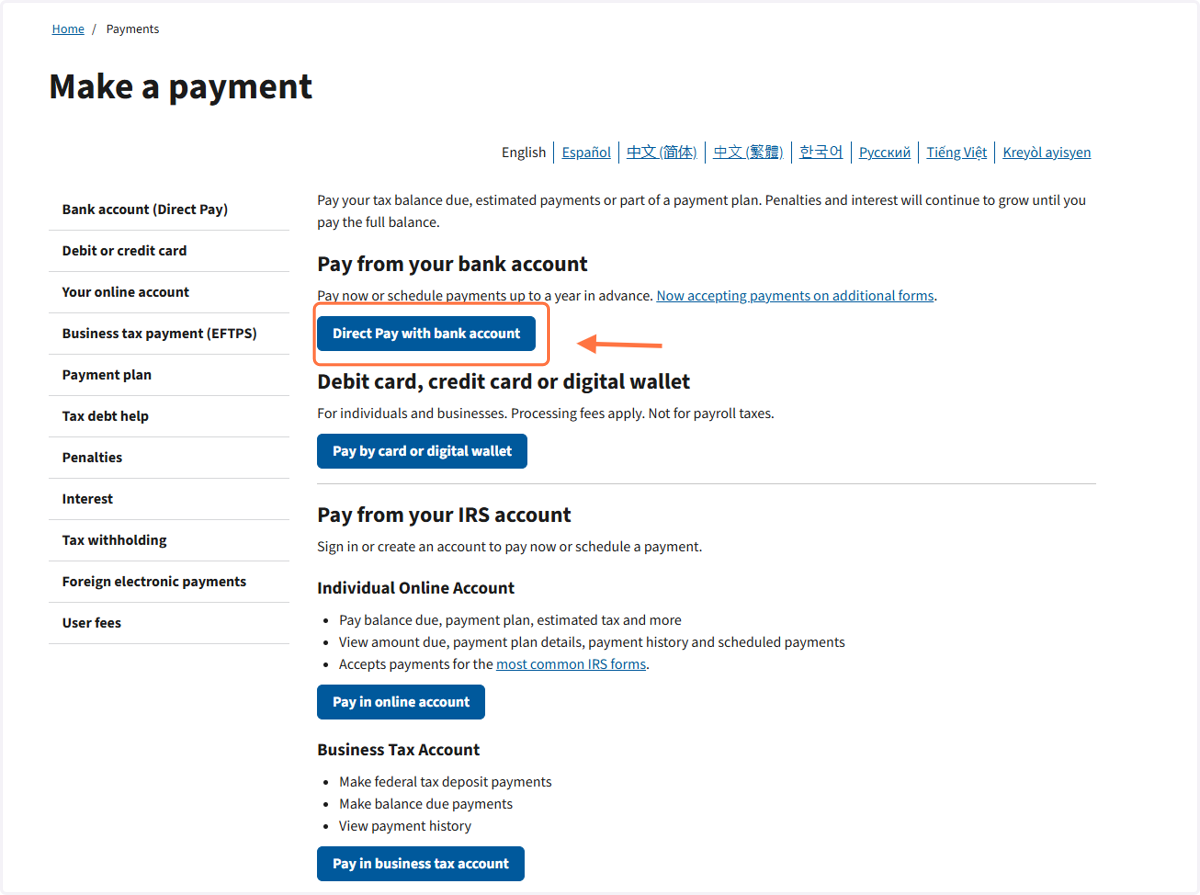
4. Click on Direct Pay with bank account
*To best avoid issues with payment, we recommend using the Direct Pay option (Paying from your bank account).
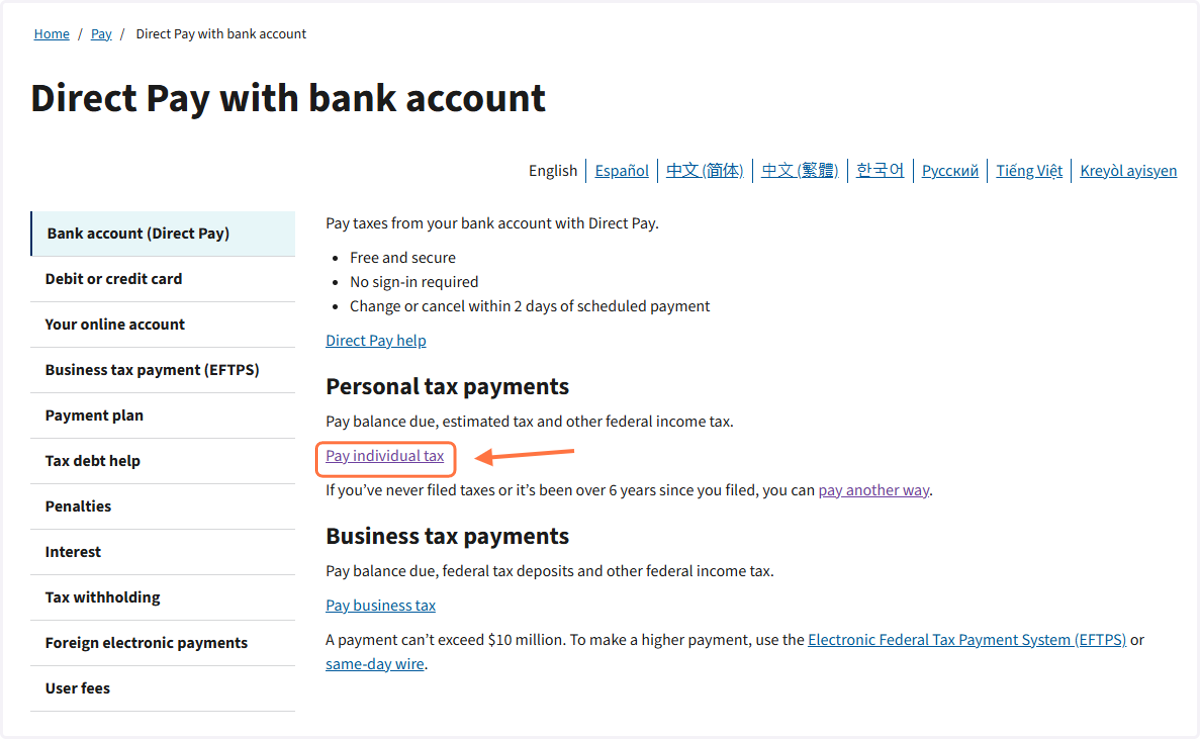
5. Click on Pay Individual Tax
6. Click on Make a Payment
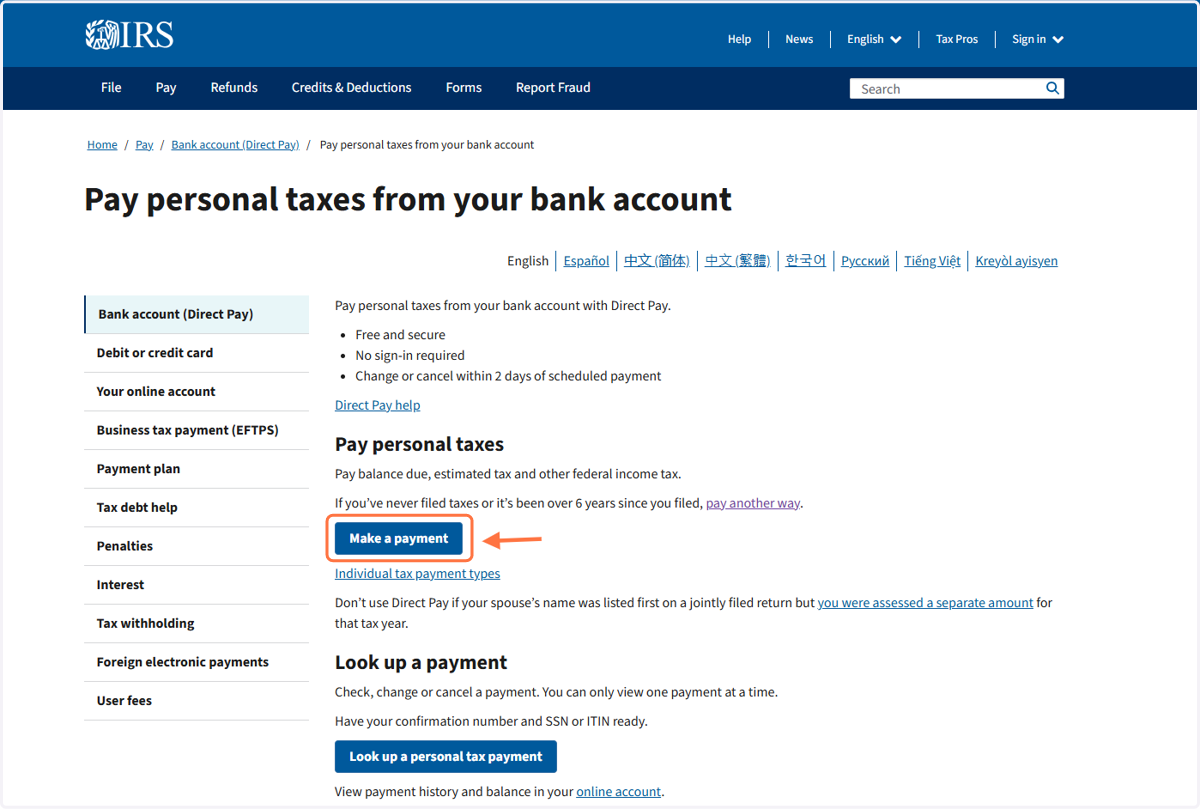
7. Enter the Following Information to Pay Tax Balances
Click the following:
Apply Payment to - Form 1040 - Income Tax
Reason for payment - Estimated Tax
Tax Period for Payment - Year mentioned on the voucher
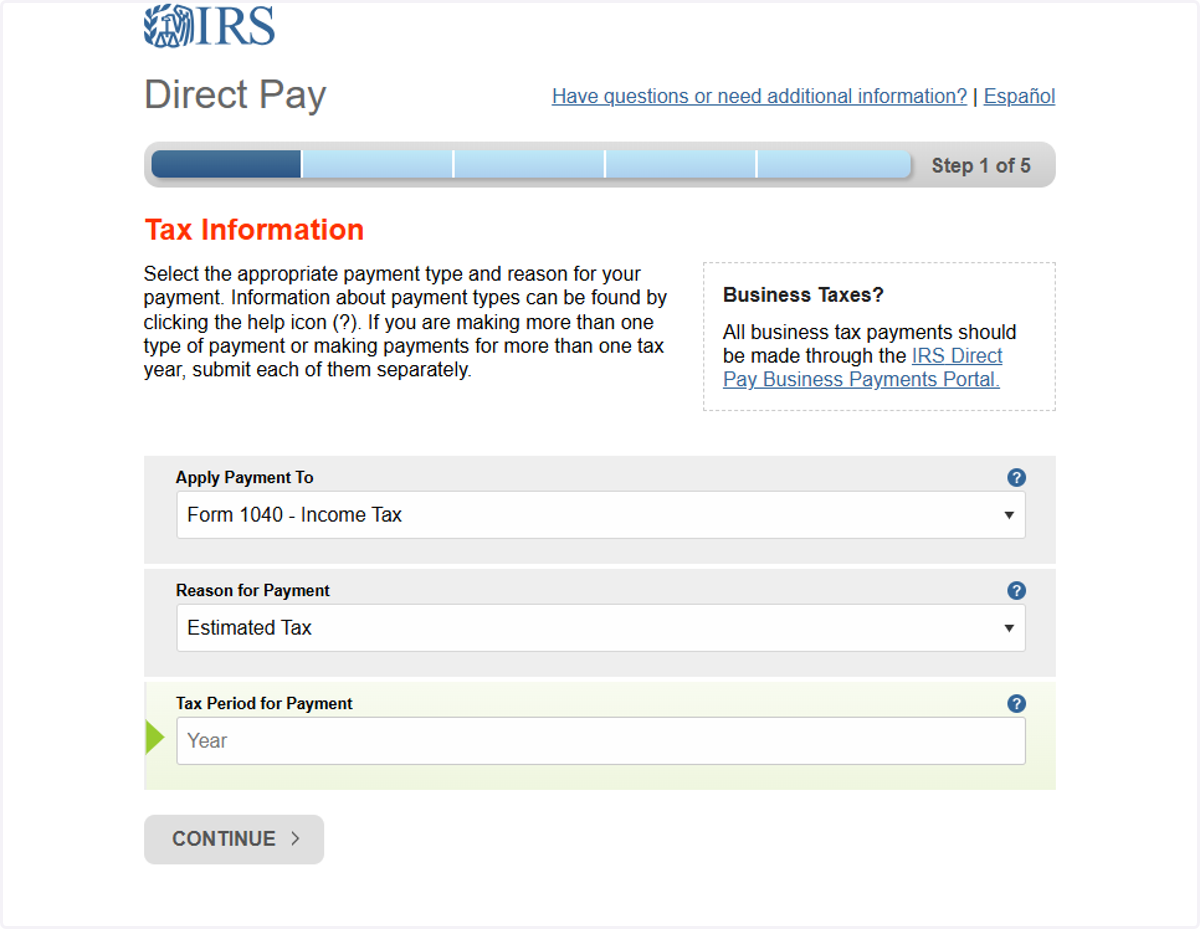
8. Click on CONTINUE after entering the previous information
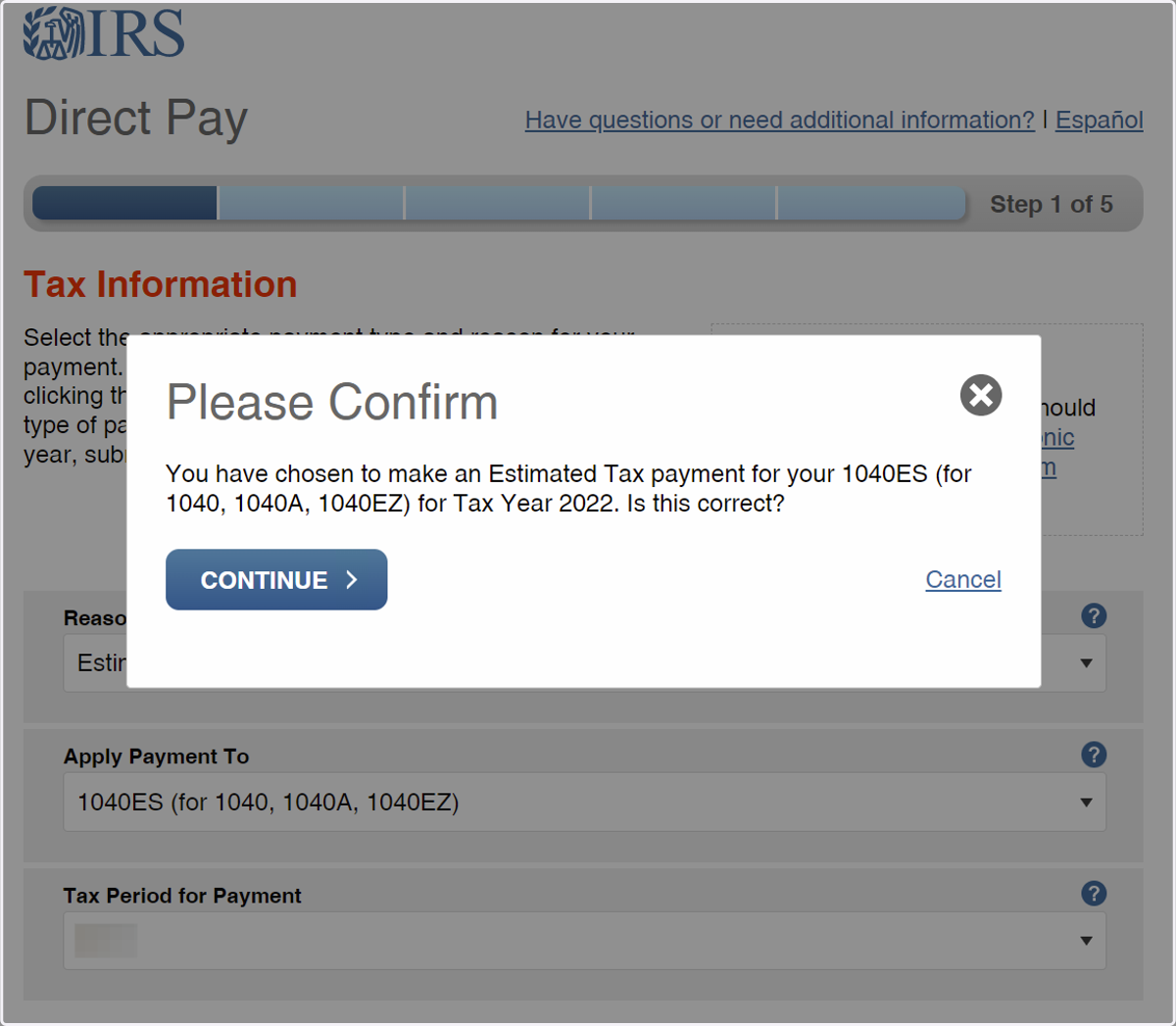
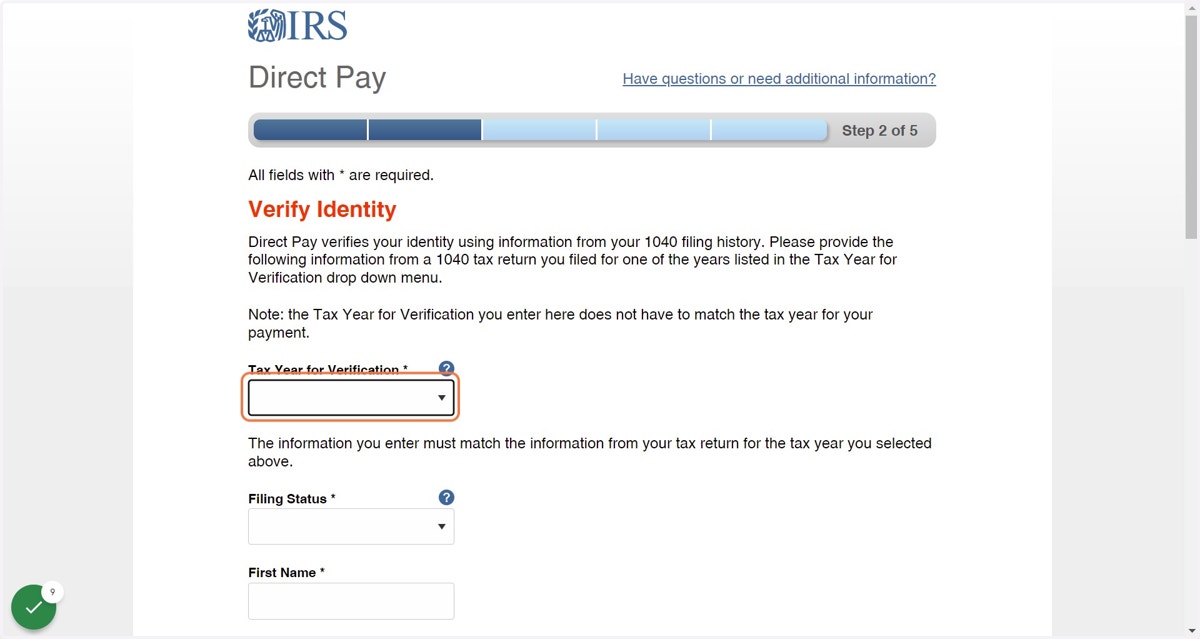
9. Verify Identity
Confirm your identity and information from a previous tax return. For example: For tax year 2021, I will verify my information using my 2020 tax return.
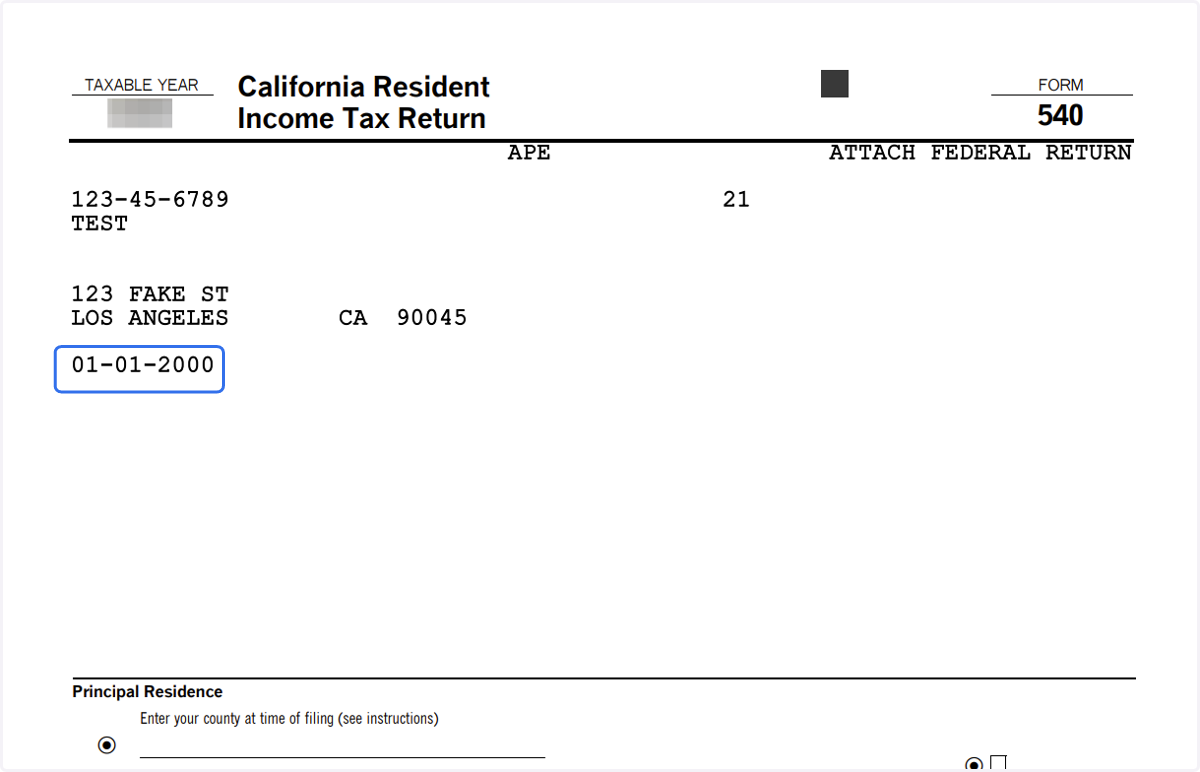
Ensure ALL information is the same as the previous tax return or it will not be verified. Information can be found on the IRS tax return except for the birthdate, which can be found on the first page of the California tax return (540).
Enter the following information:
Tax Year for Verification - Prior year tax return you are confirming
Filing Status
First Name
Last Name
Confirm Last Name
SSN
Confirm SSN
Date of Birthday*
Country of Residence
Street Address
Apt/Suite/Other
P.O. Box
City
State/US Territory
Zip Code
Accept all rights to the Privacy and Paper Reduction Act
*If you have issues verifying your account double-check
Birthday - See Step 9
City - Example: If you live in North Hollywood but your return says Los Angeles, you need to enter Los Angeles.
10. Extra Help: Confirmation of Birthday on CA Tax Return
The California tax return has all the information needed to verify your identity. The CA tax return includes the birthdate (in blue)
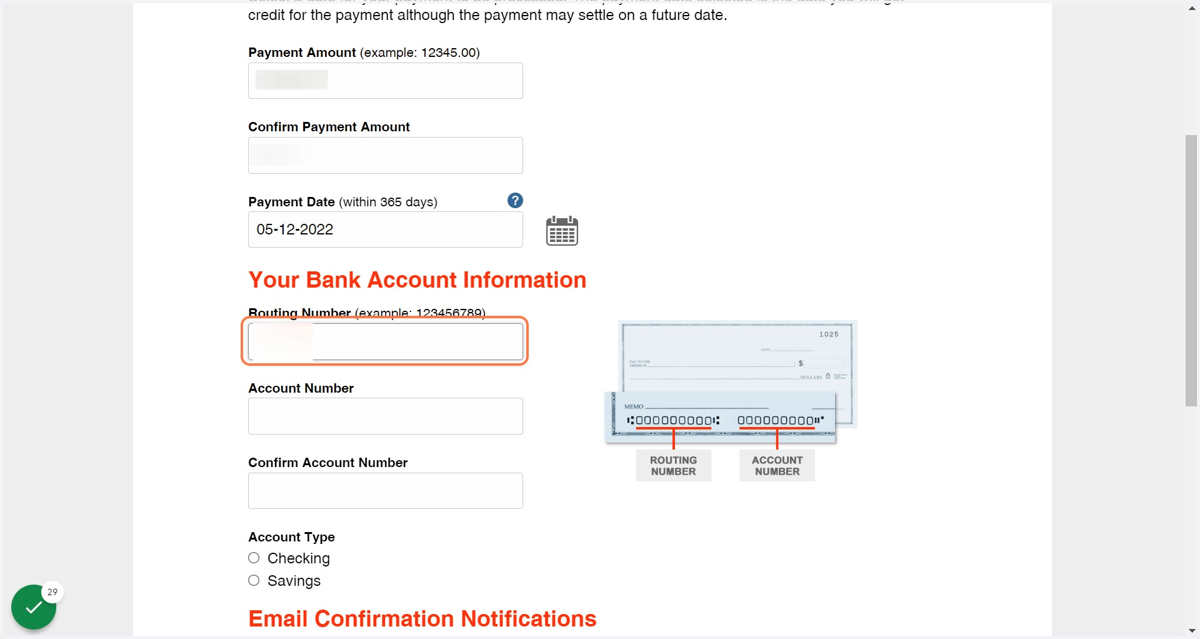
11. Enter Payment Amount and Bank Account Information
Enter the following:
Payment Amount - The amount can be found on the tax letter and the vouchers
Confirm Payment Amount - Retype the amount
Payment Date - Choose the date you would like to make the payment
Routing Number
Account Number
Confirm Account Number
Account Type - Checking or Savings
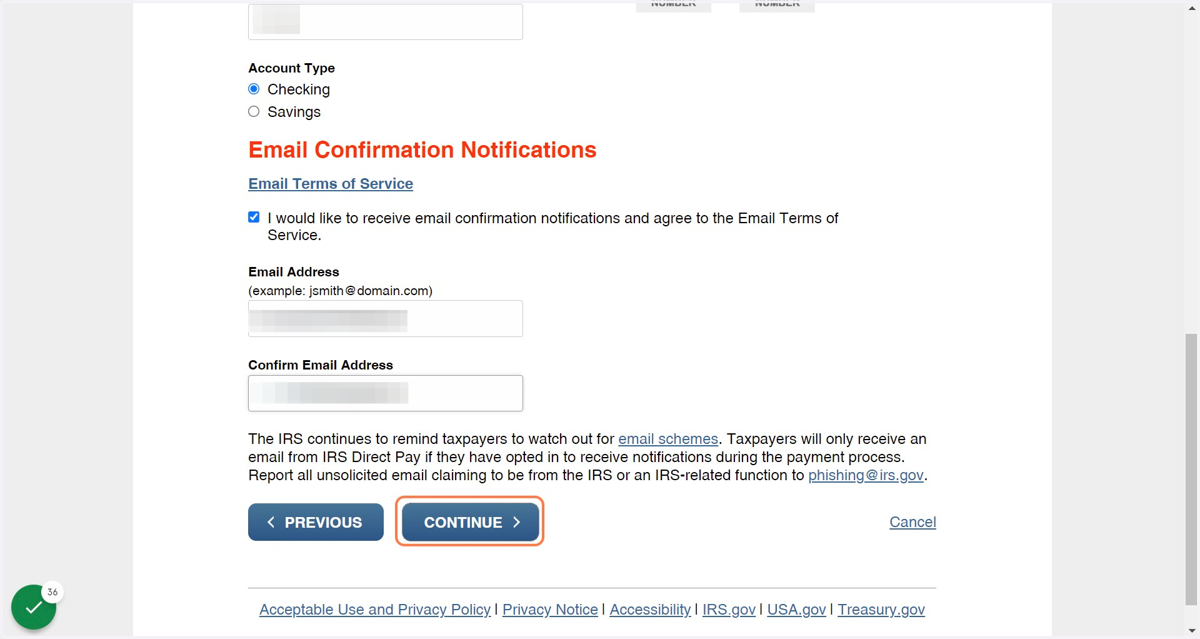
12. Enter Email and Click on Continue
Enter the following information:
Email Address
Confirm Email Address
The IRS will email you the confirmation of payment. Keep for your records and feel free to email Linka & Associates with the confirmation.
13. Check Email for Email Confirmation
If you still have questions email info@linkacpa.com or call at 818-691-0060.