Importing Test Banks Using the Import/Export/Copy Components option
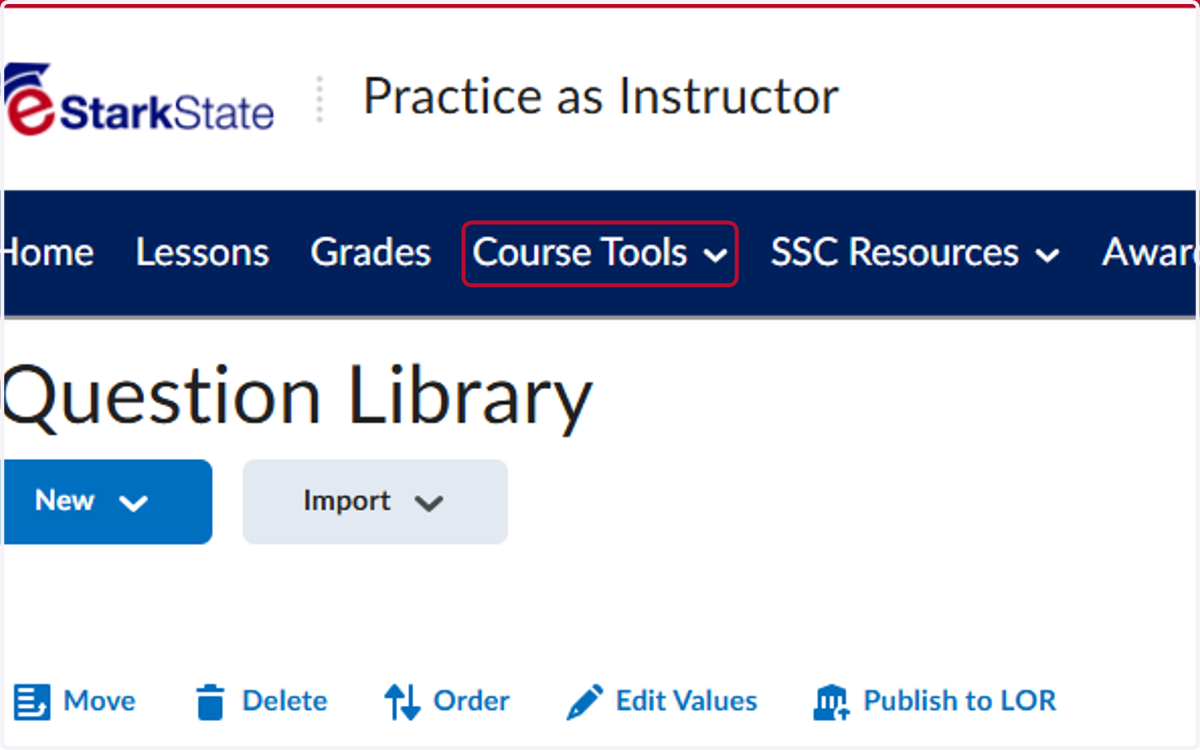
1. Click on Course Tools
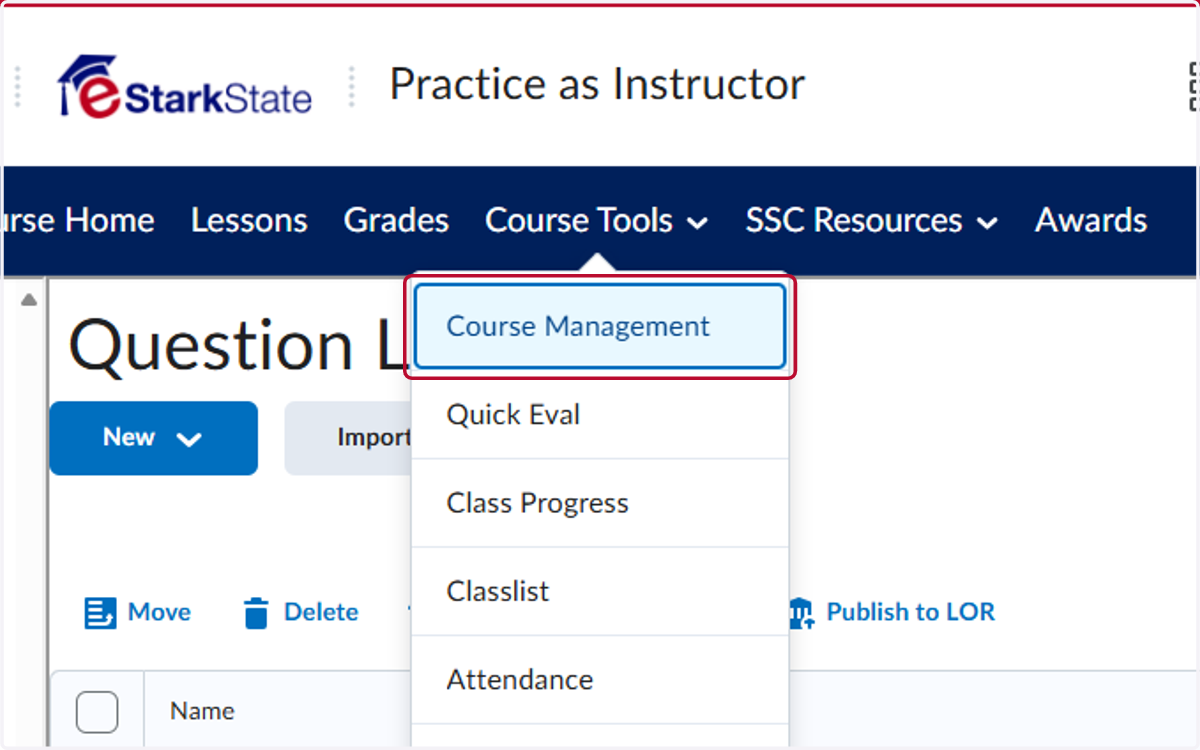
2. Click on Course Management
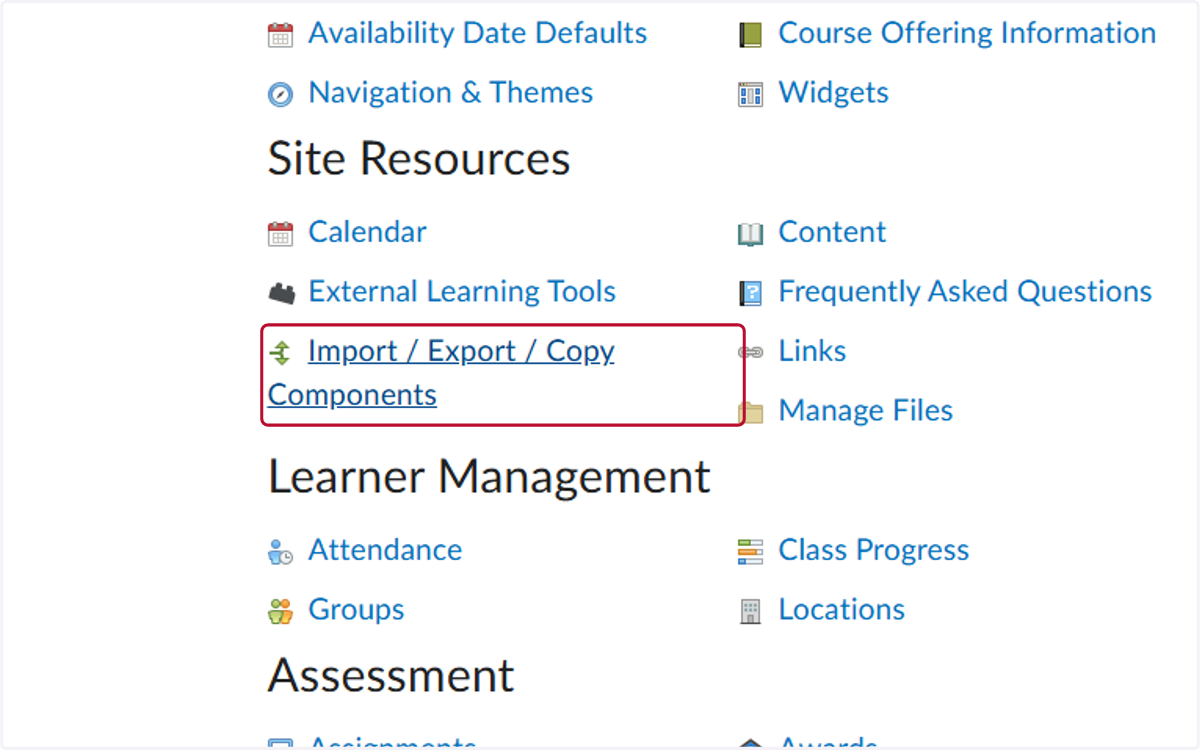
3. Click on Import / Export / Copy Components
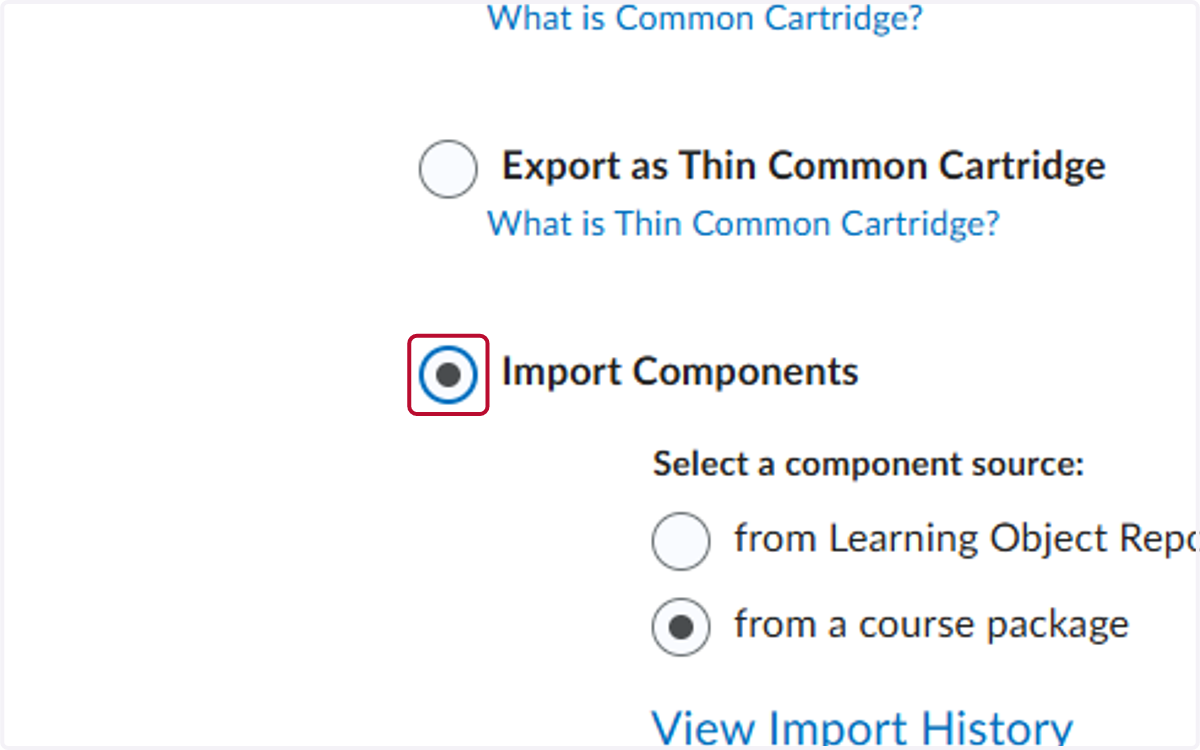
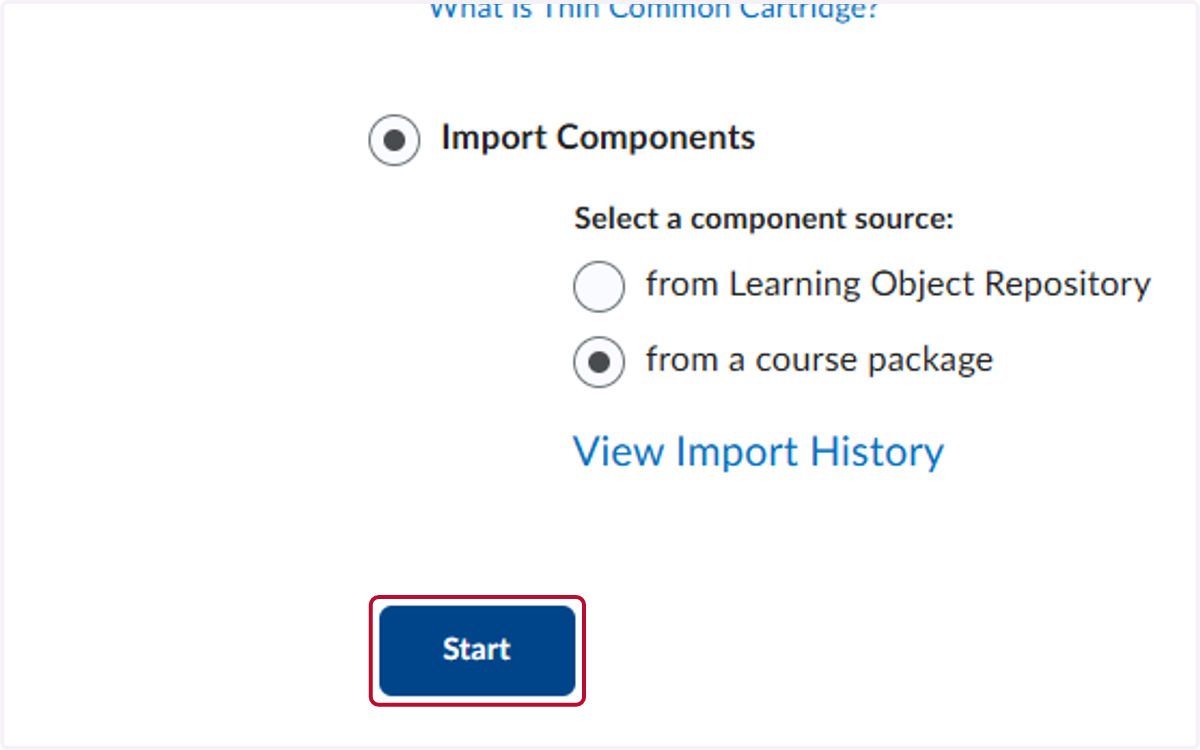
4. Select Import Components
5. Click on Start
6. Click on Upload
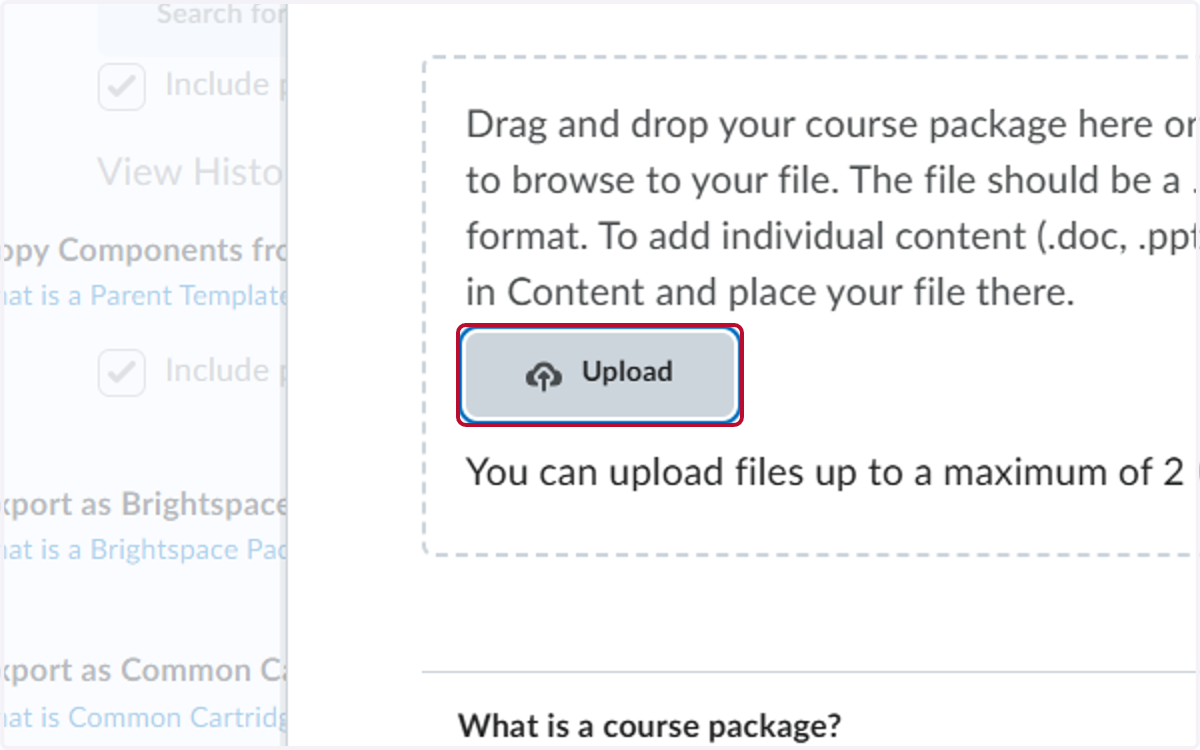
7. Locate the test bank you want to upload
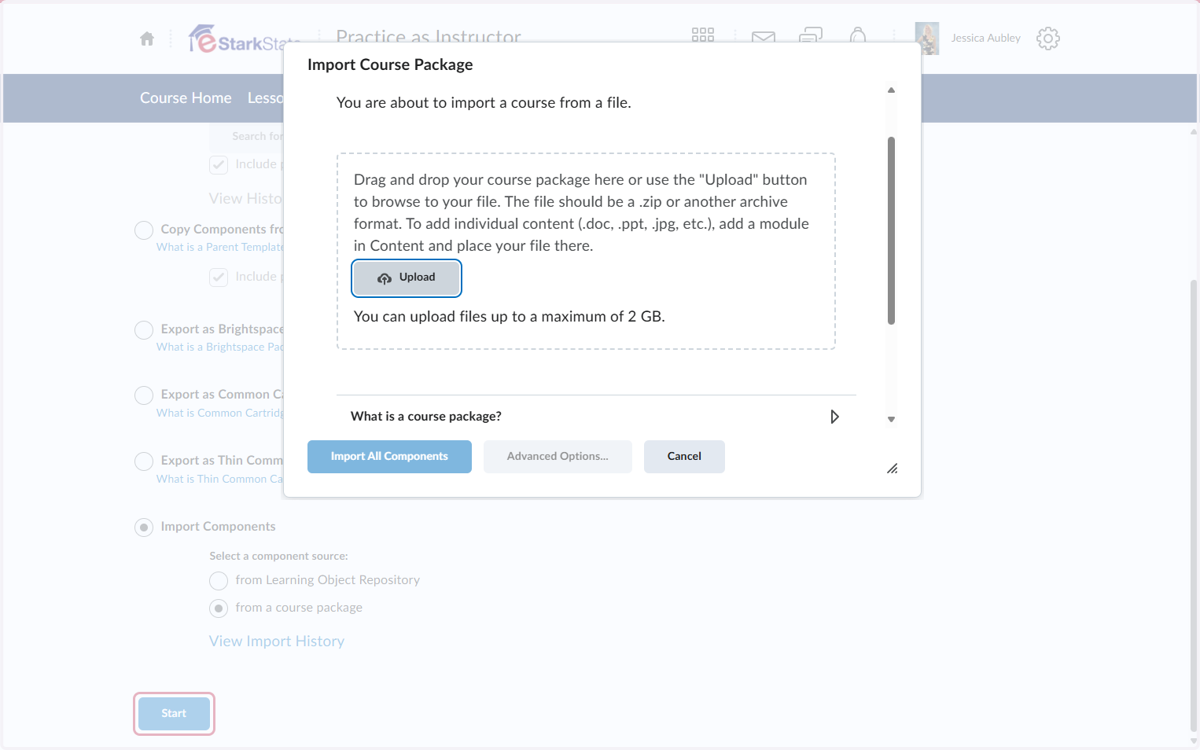
8. Click on Import All Components
9. One you receive conformation the test bank has imported, you will see it under the Question Library