IADT Hub 2.0 Log In + Registration Process
Home
Got to www.hub2.iadt.ie
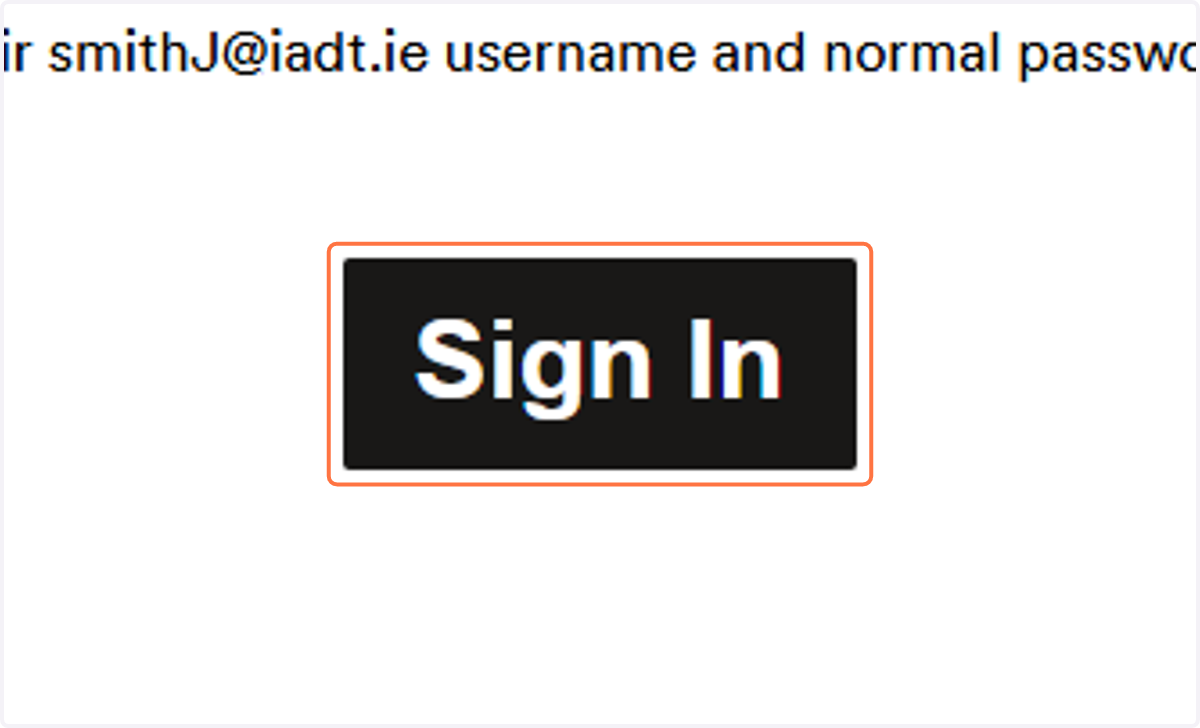
1. Click on Sign In
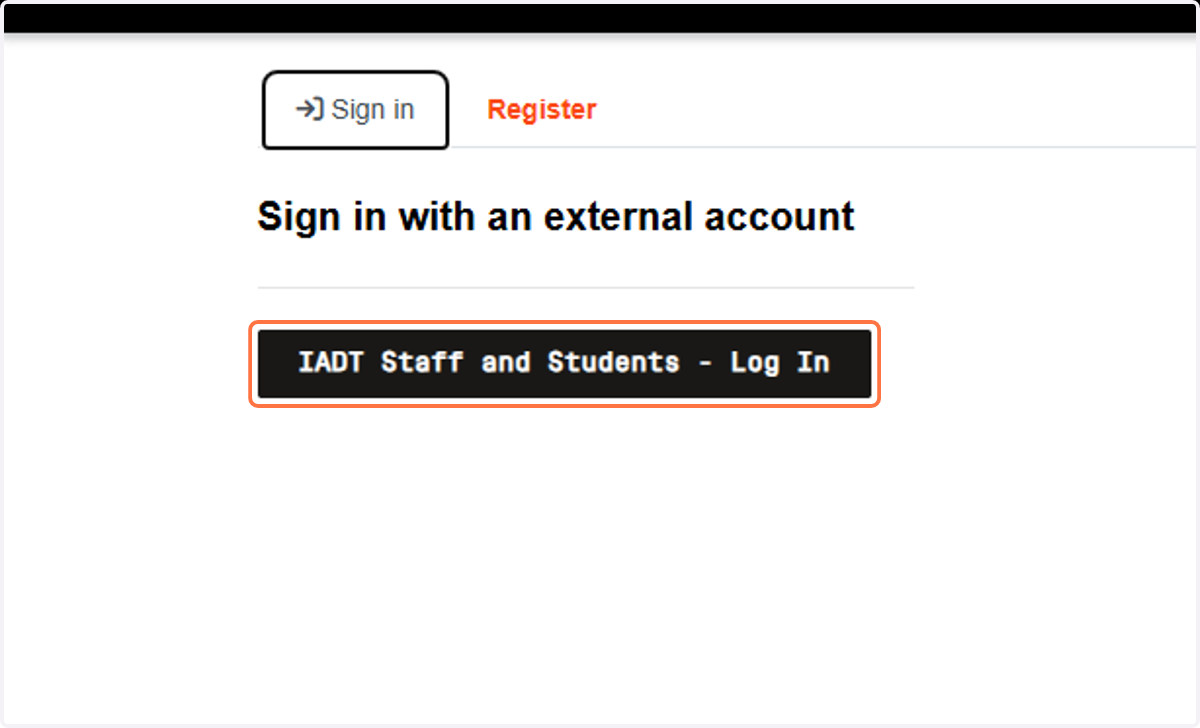
2. Click on IADT Staff and Students - Log In
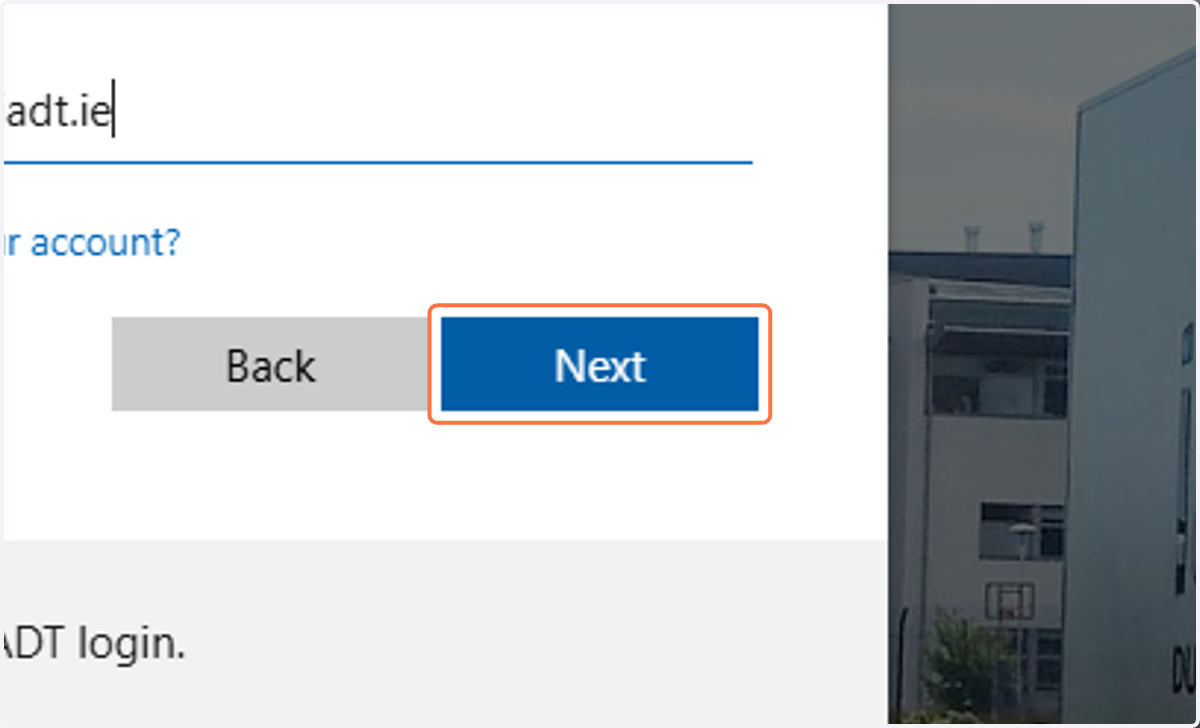
3. Type in your student number and @iadt.ie, e.g. "N00257314@iadt.ie"
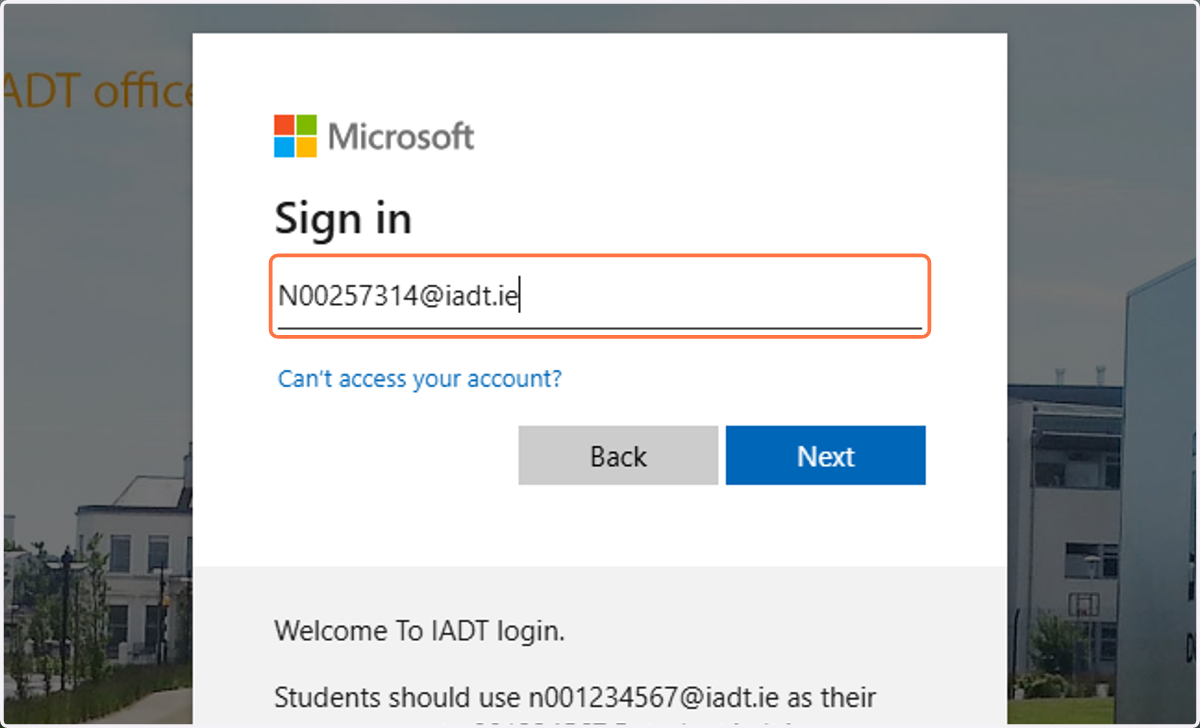
4. Click on Next
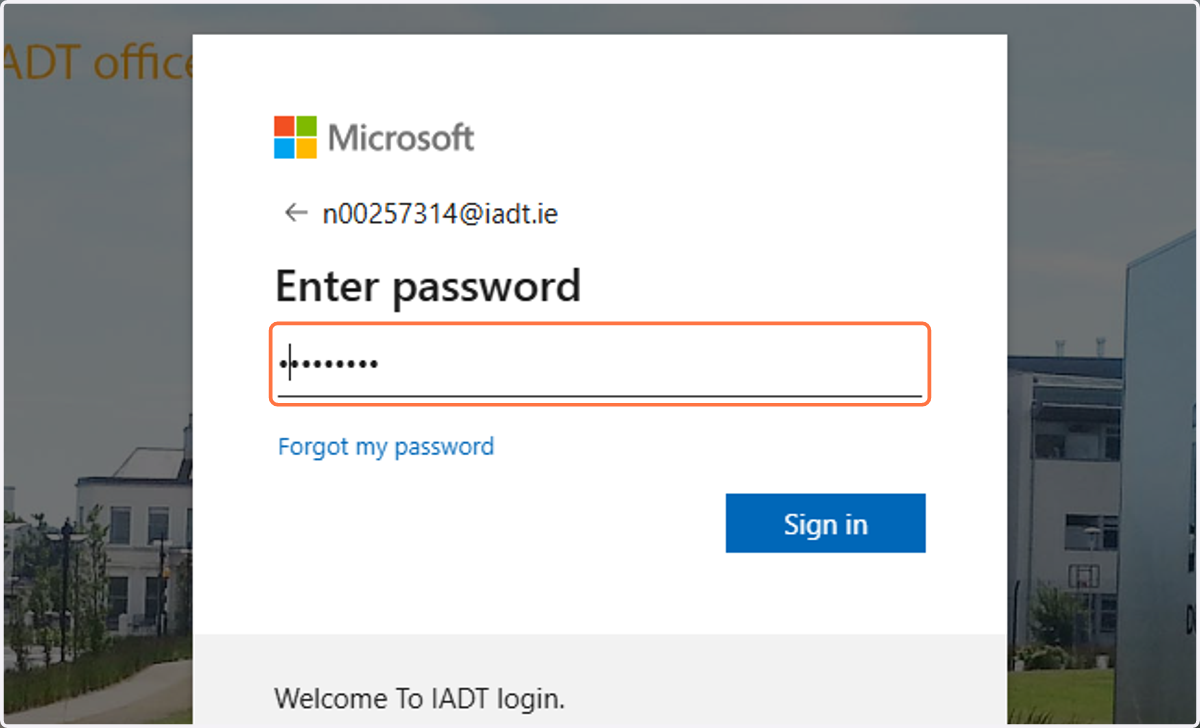
5. Type in your password. If you are a new student, how to form your password was emailed to you in your registration email.
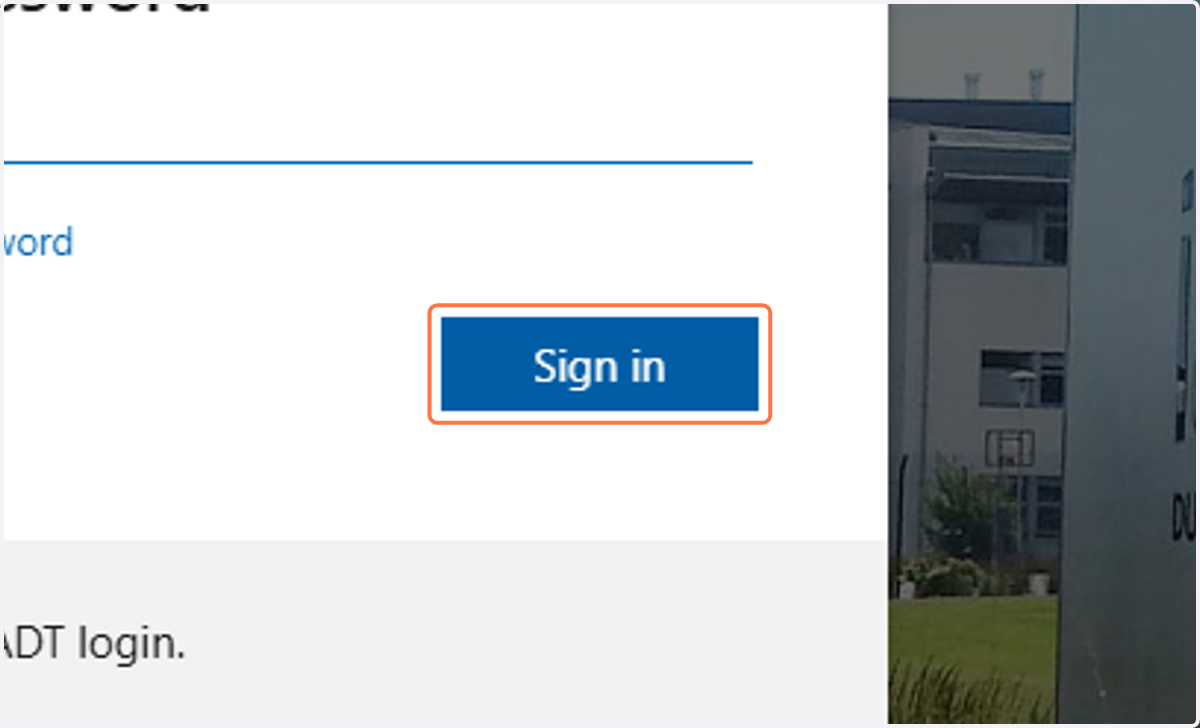
6. Click on Sign in
7. If this is your first time signing in, Multifactor Authentication needs to be set up on your account. Click on Next
8. You will need to install the Microsoft Authenticator App on your phone.
9. Once you have downloaded the app. Press Next on your browser. A QR code will appear.
10. Open the Authenticator app on your phone.
11. Click the blue icon to add an account.
12. This will open the camera. Scan the QR code with your phone. After a few moments, you will see the account in your list.
13. Click Next on your browser. A number will appear.
14. Key in that number to the notification on your phone.
Register Now
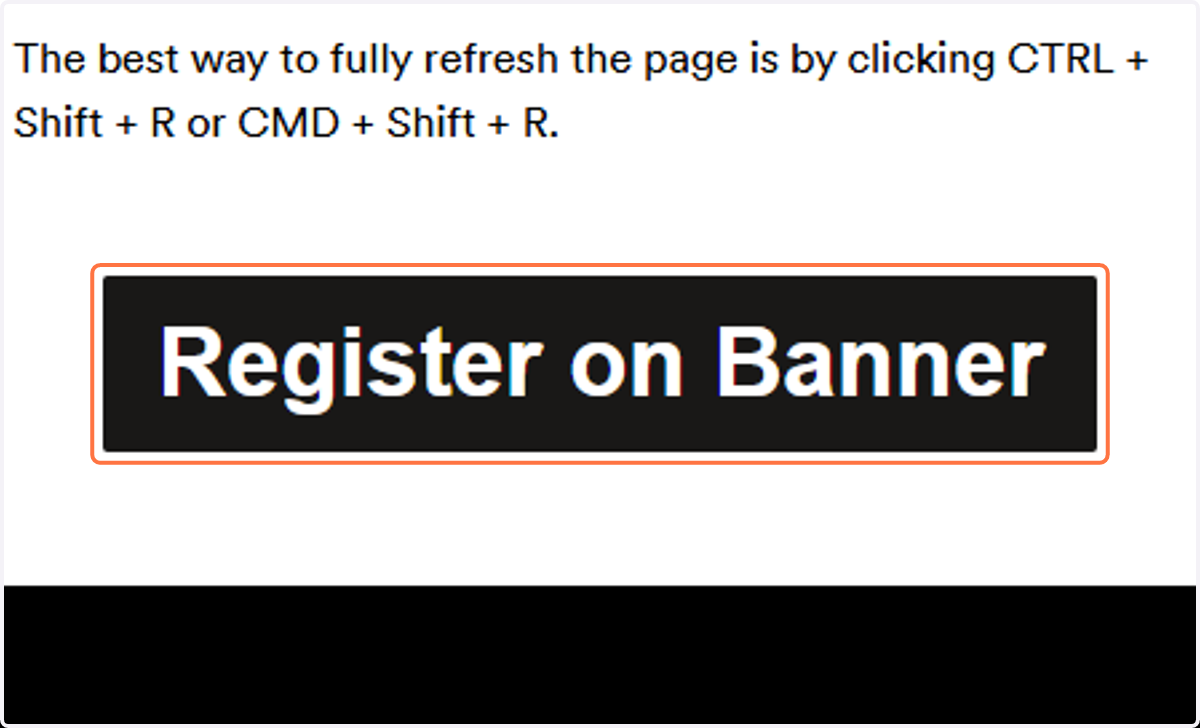
15. Click on Register on Banner
16. Click on the item GDPR Consent 2026/27 on the left. A set of questions will appear on the right.
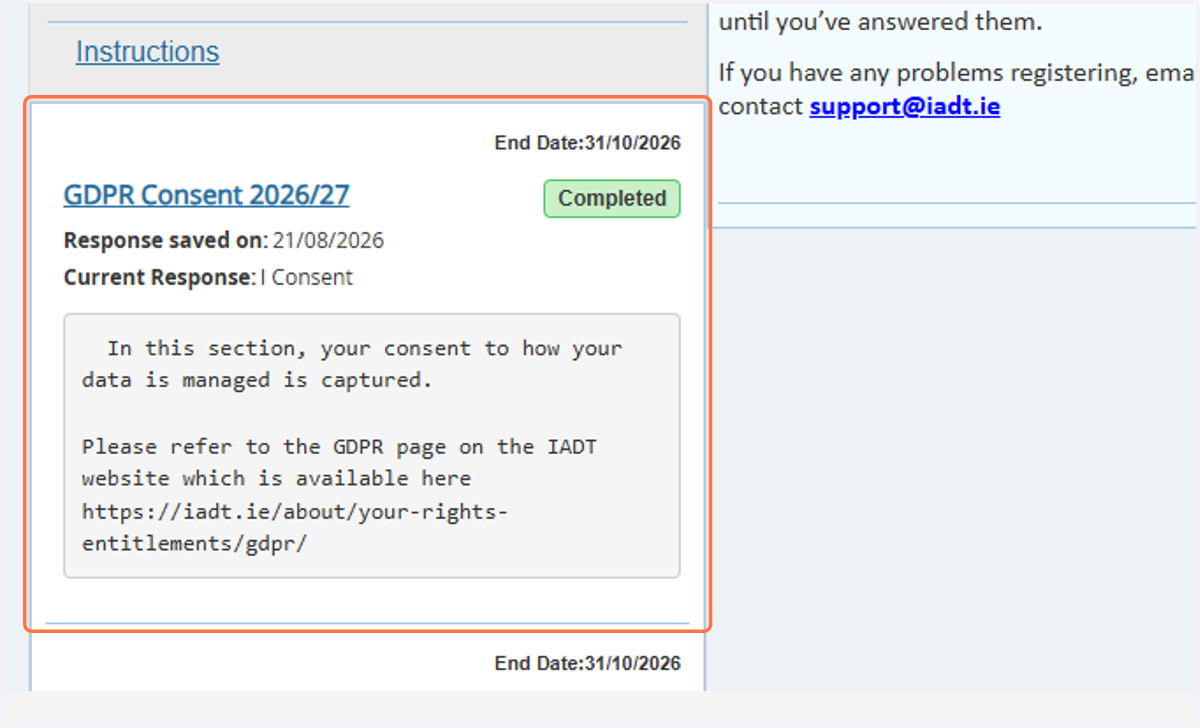
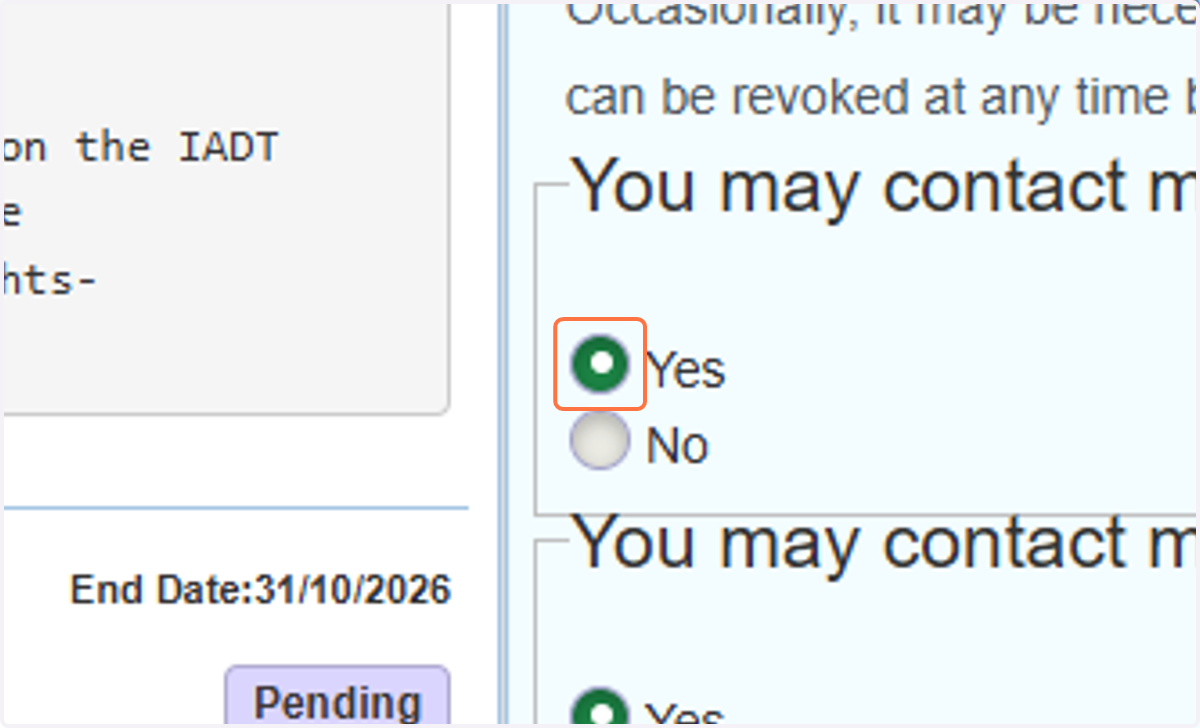
17. Answer the questions
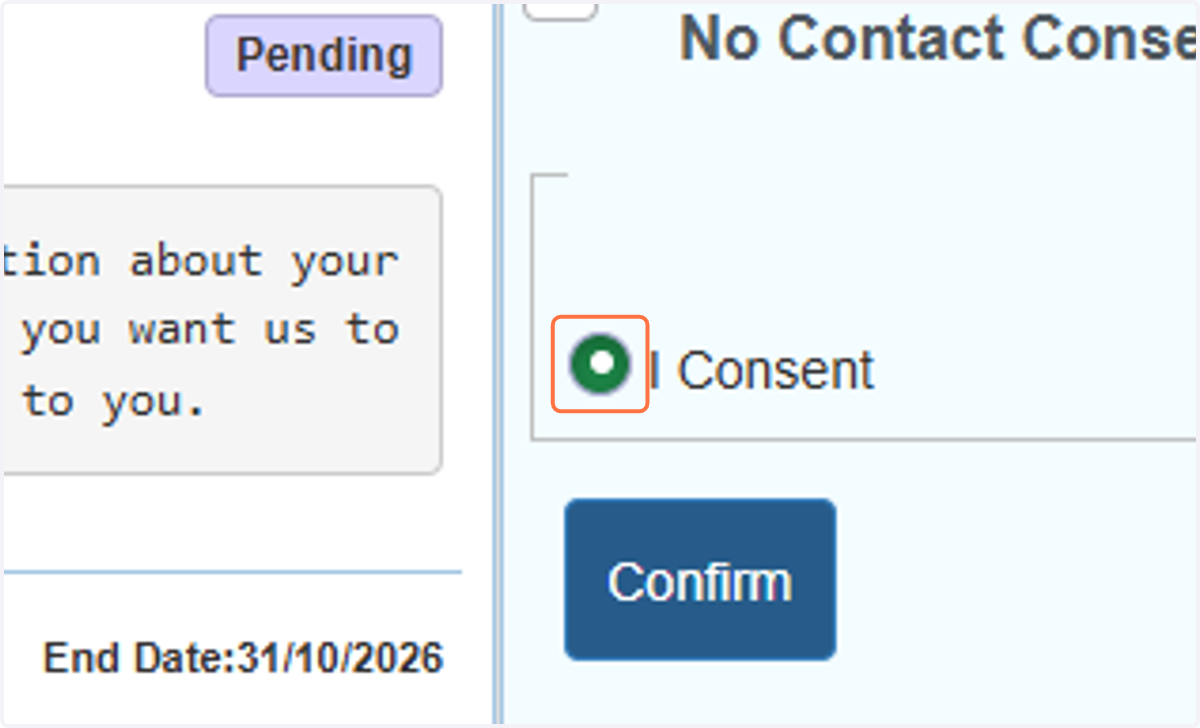
18. Select I Consent
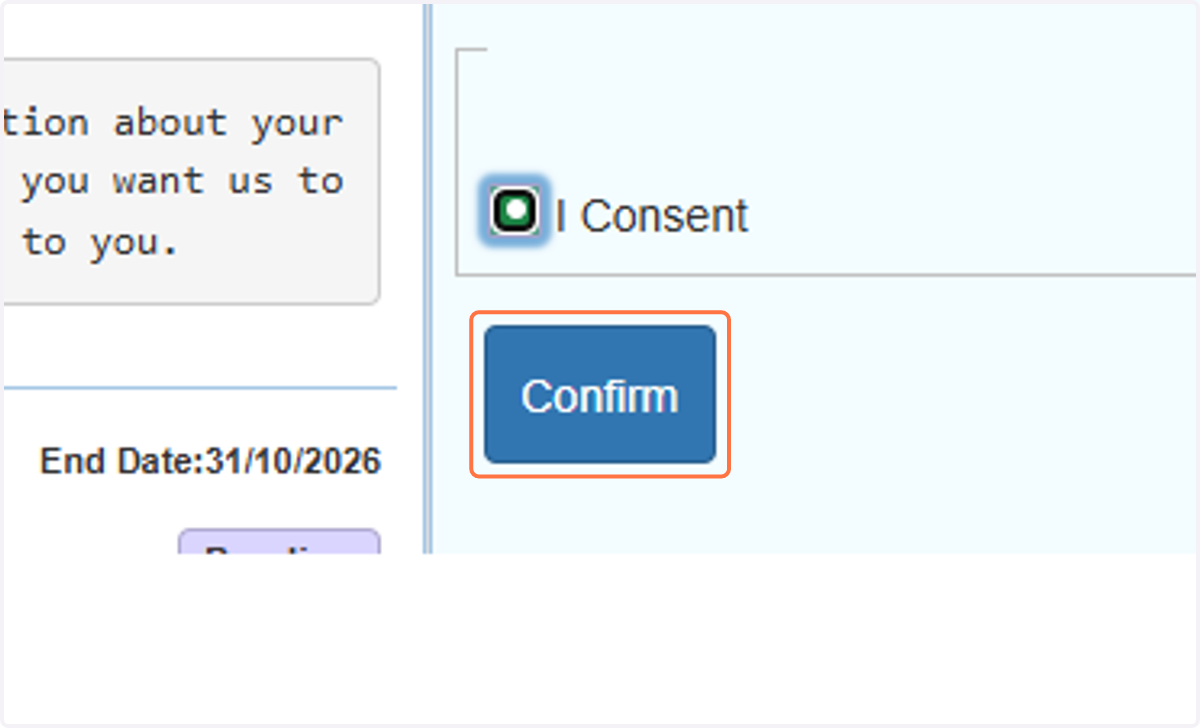
19. Click on Confirm, and allow a moment for this to save.
20. Click on the next item and answer the questions. Continue this process through all items on the left.
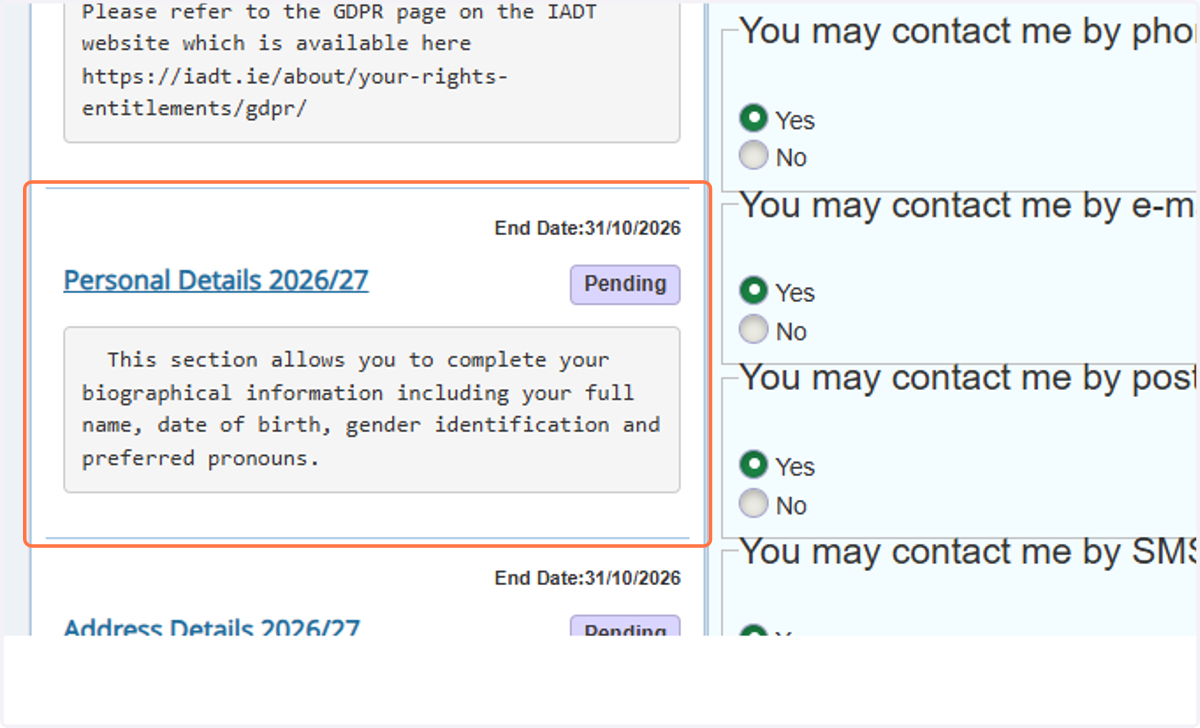
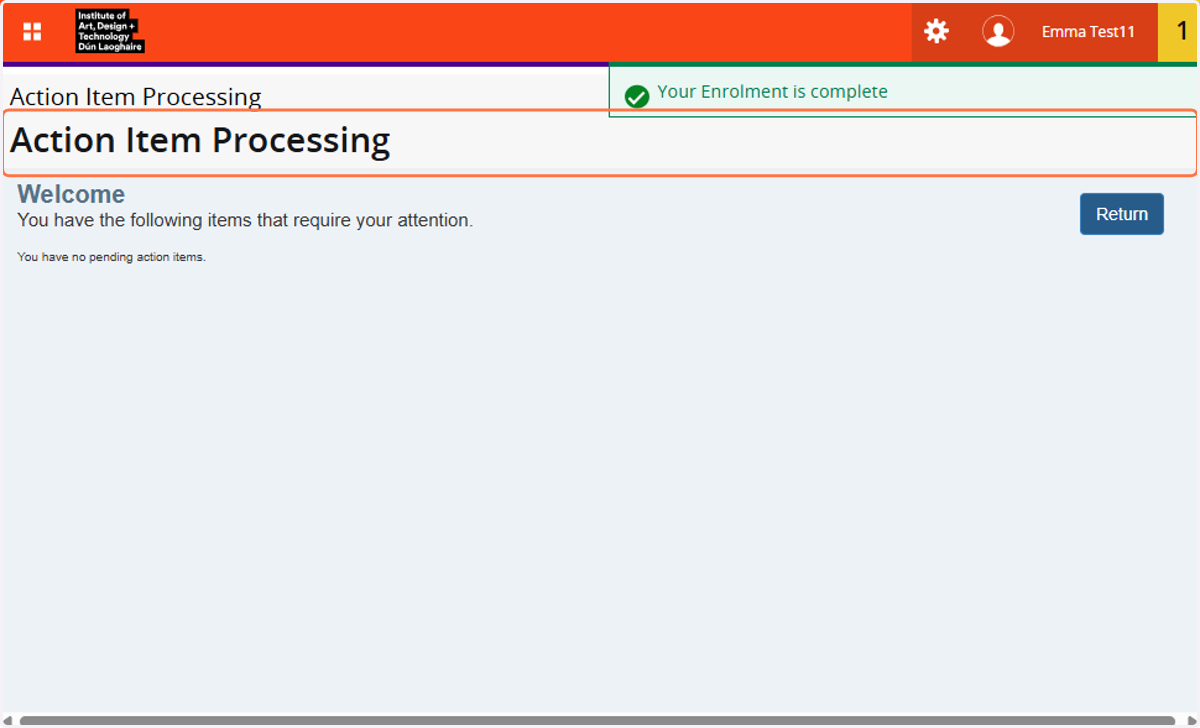
21. Click on the last item Confirm Your Enrolment for 2026/27
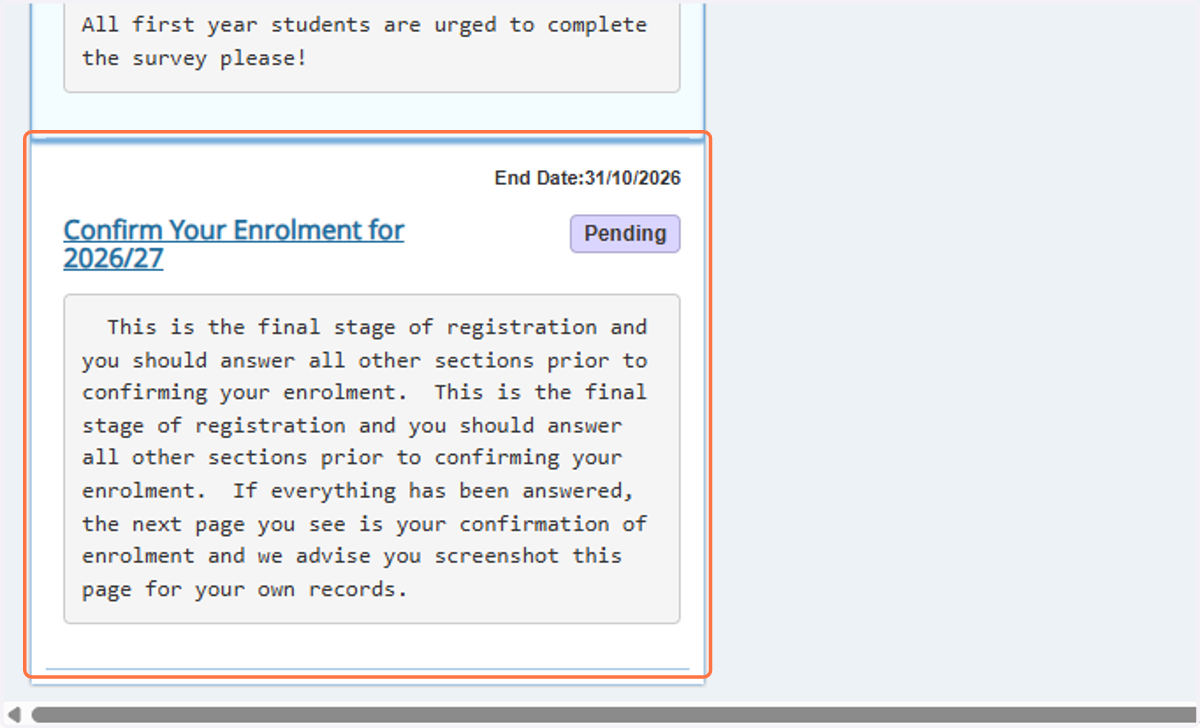
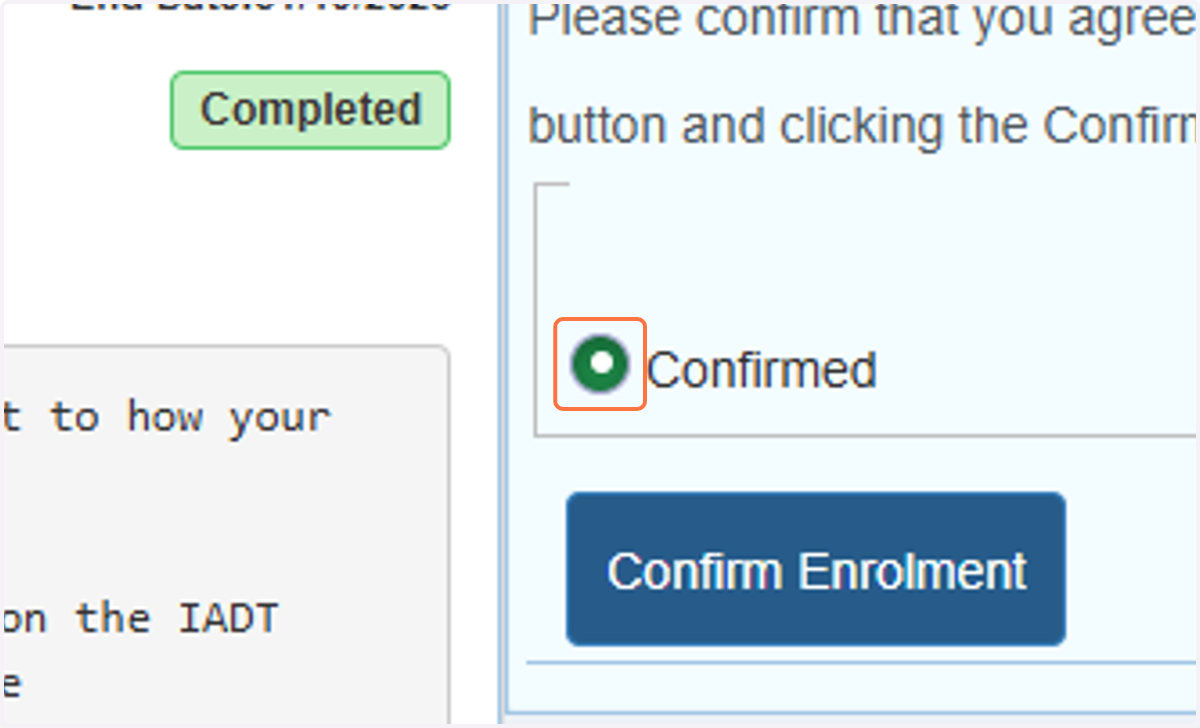
22. Select Confirmed
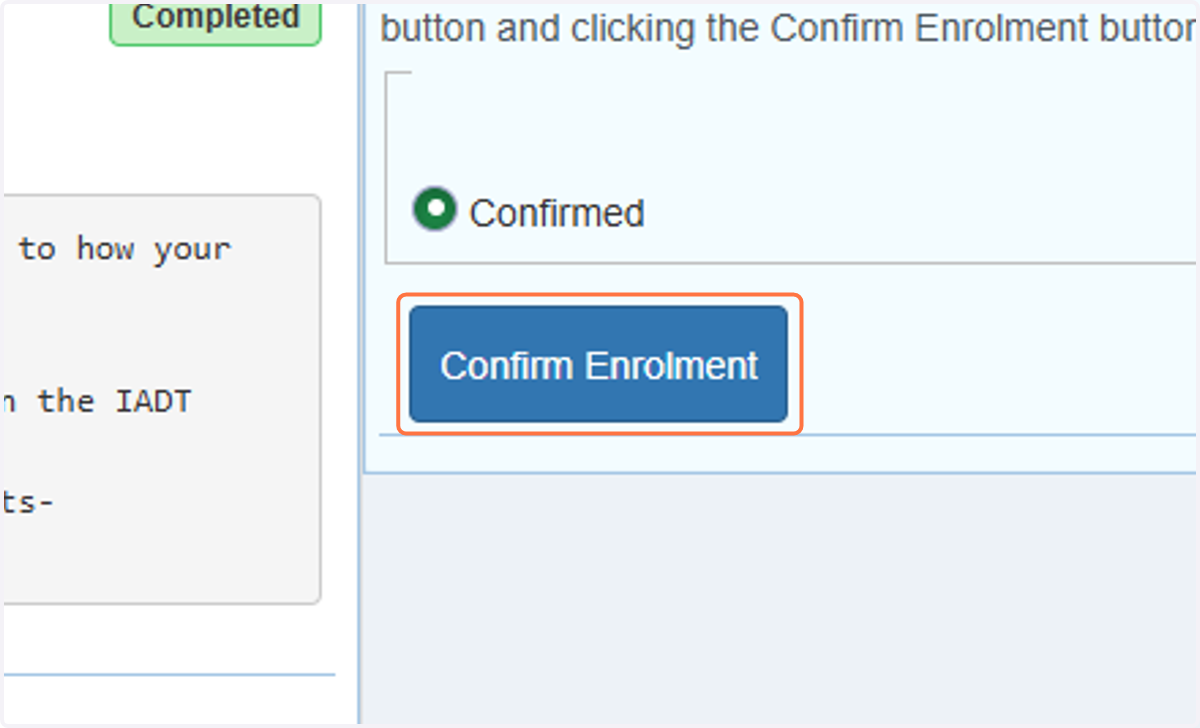
23. Click on Confirm Enrolment
24. When this is complete, you will see Your Enrolment is complete in green in the top right corner.