How to view and download documents
These instruction details how to open and download your community documents
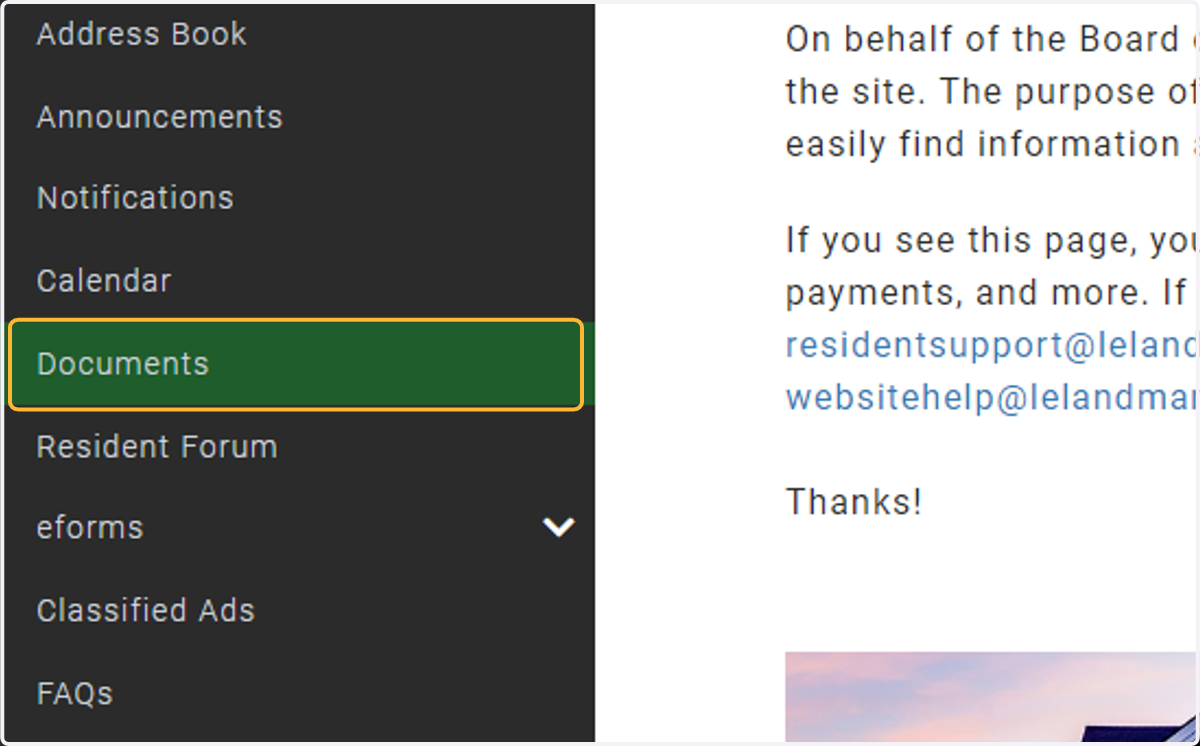
1. in the menu, select Documents
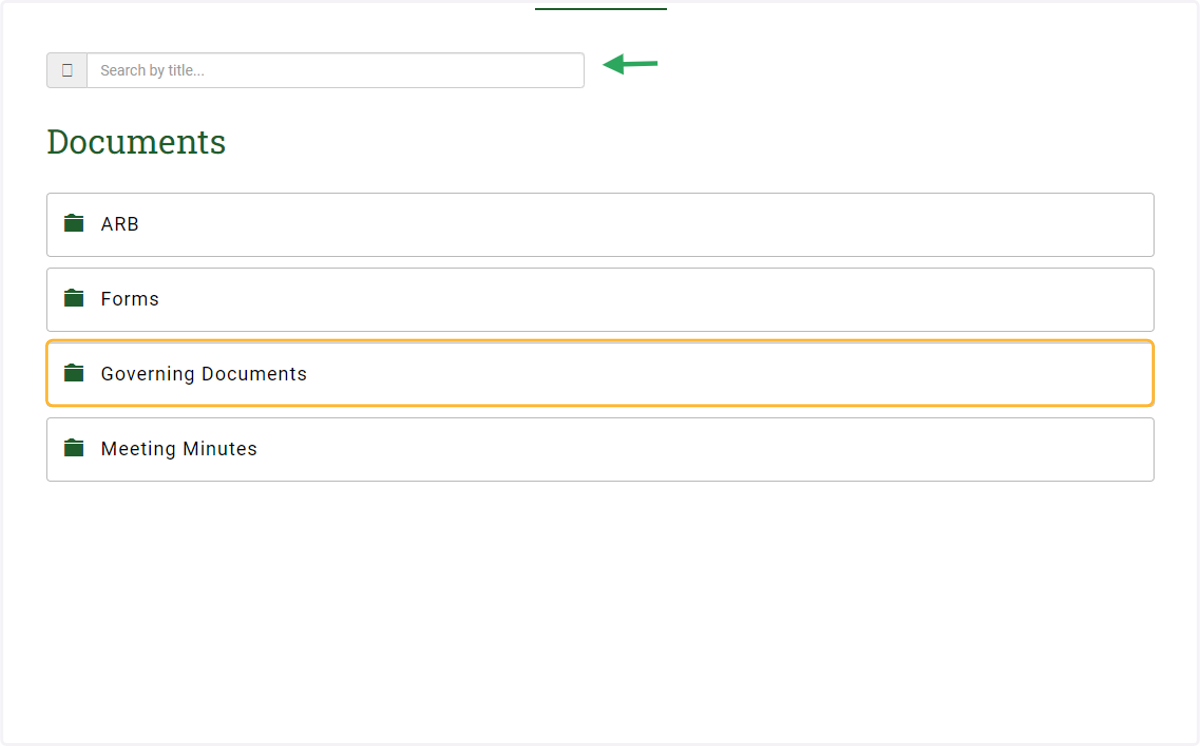
2. Click the folder/category to expand the category
Most documents are grouped together into categories such as governing documents, meeting minutes, etc. to make them easier to find. If your association's document page has a search function (green arrow), you may search by document title.
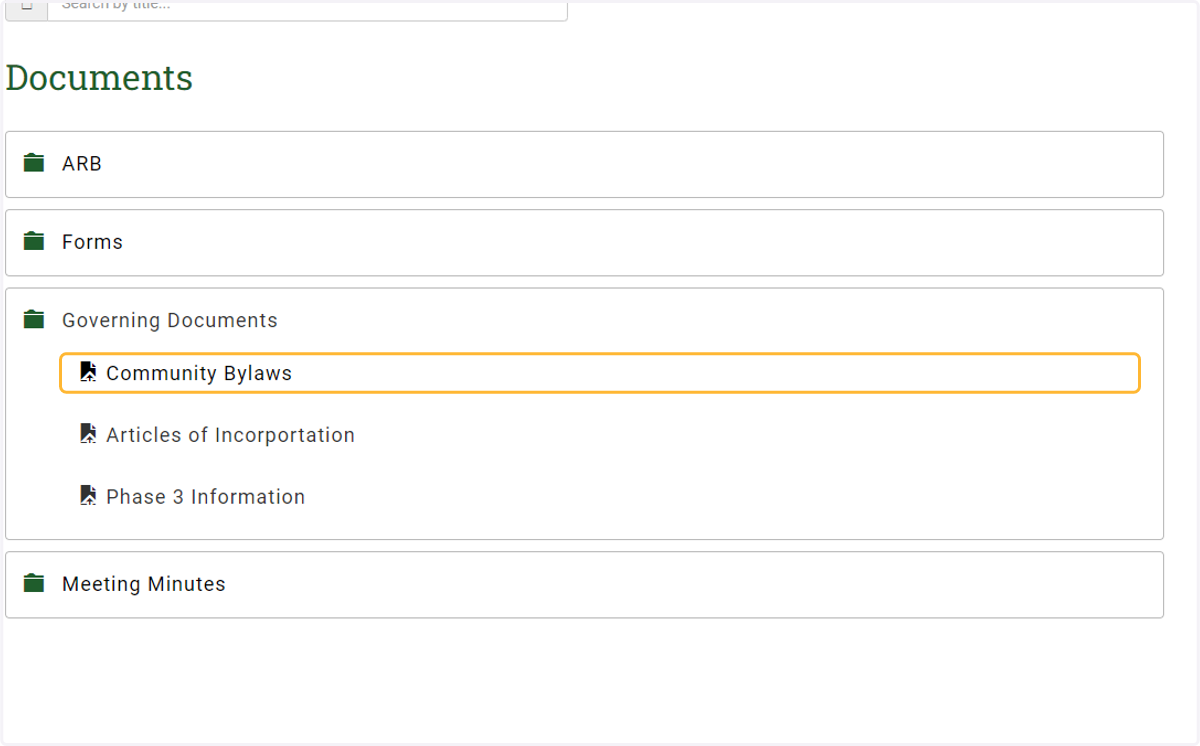
3. Select the document to view
4. Save or print the document
The save and print functions depend on the browser you are using; however, most commonly, they will be located in the PDF viewer toolbar.

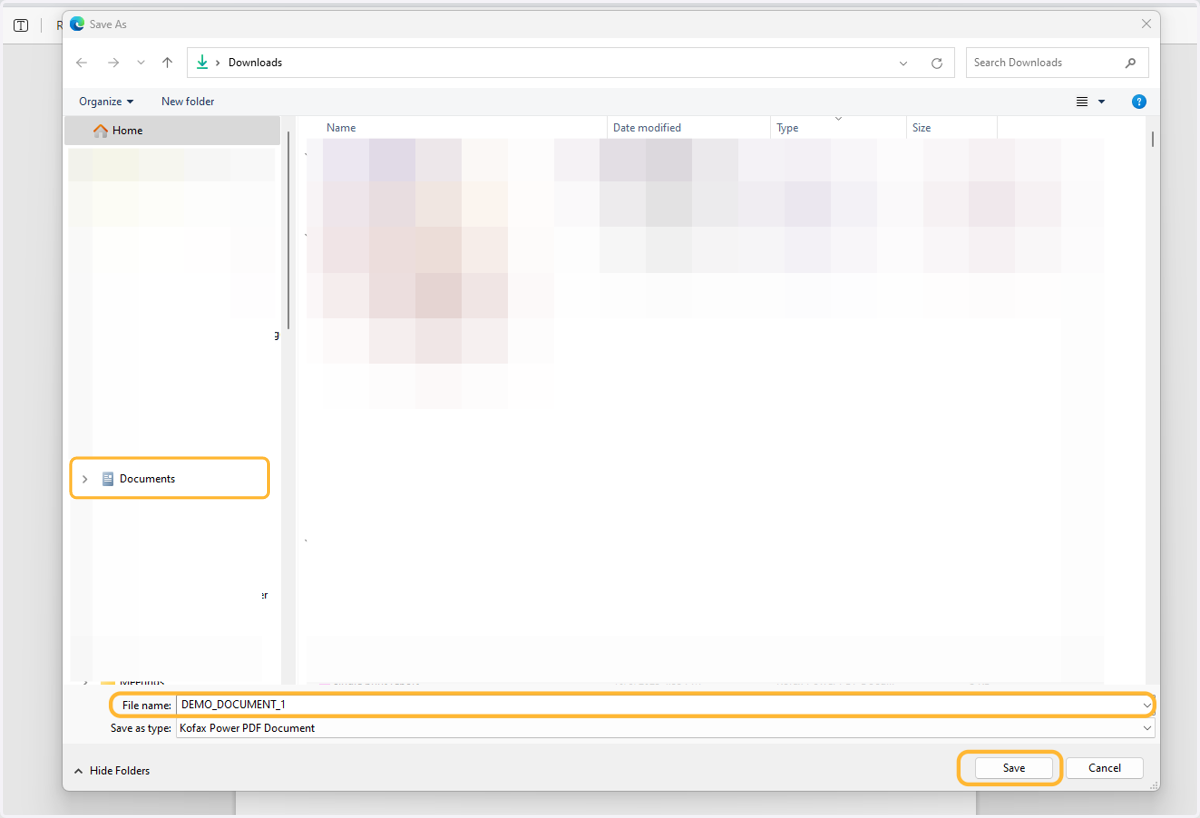
5. Save the document to your PC
Select the folder where you want to save the file, change the name, and then click save