How to use the BearTrap Undergraduate Transfer Credit Tool
Transfer Evaluation and Articulation Services
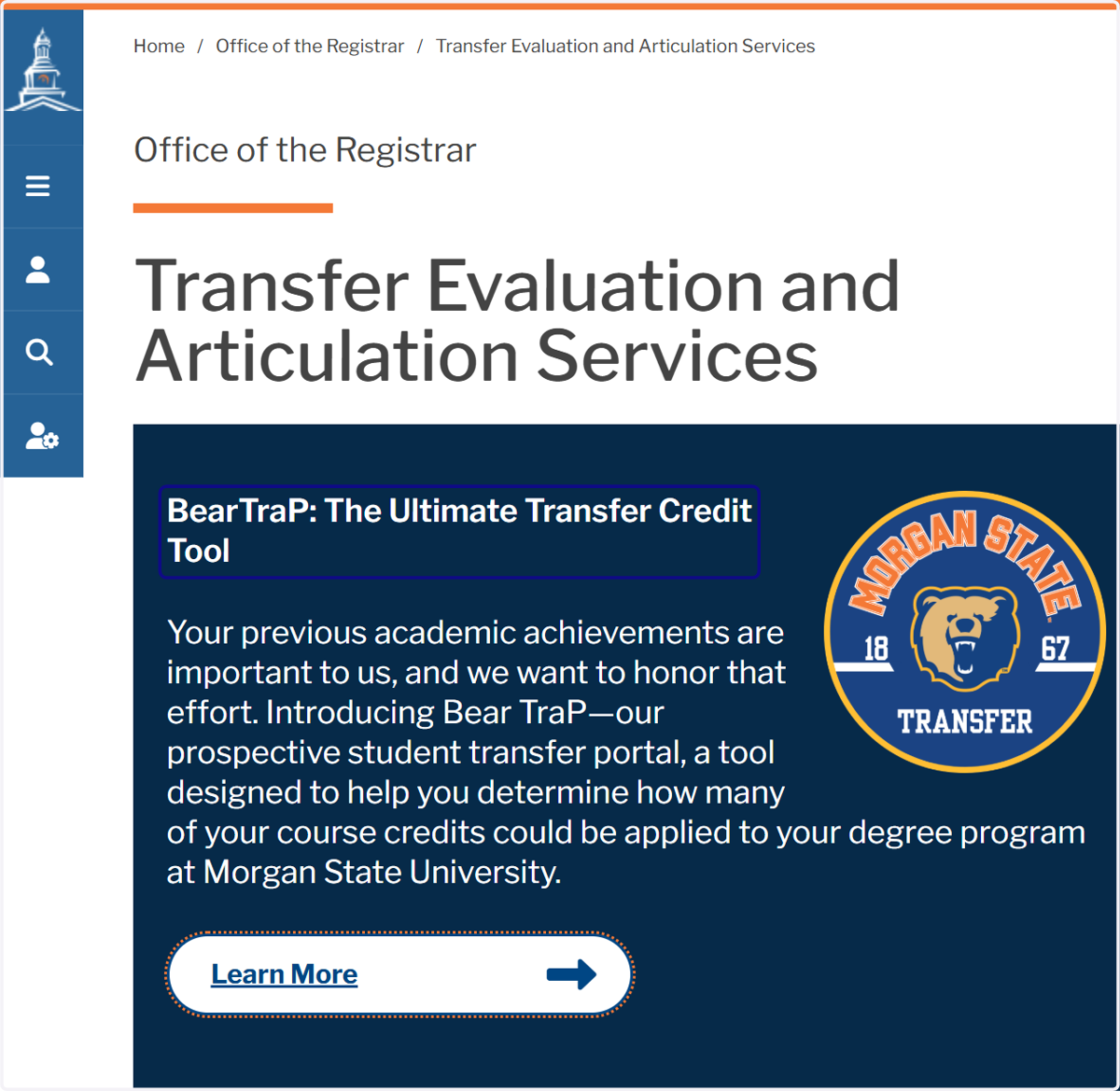
1. Go to https://www.morgan.edu/office-of-the-registrar/transfer-evaluation-and-articulation-services/transfer-credit-tools
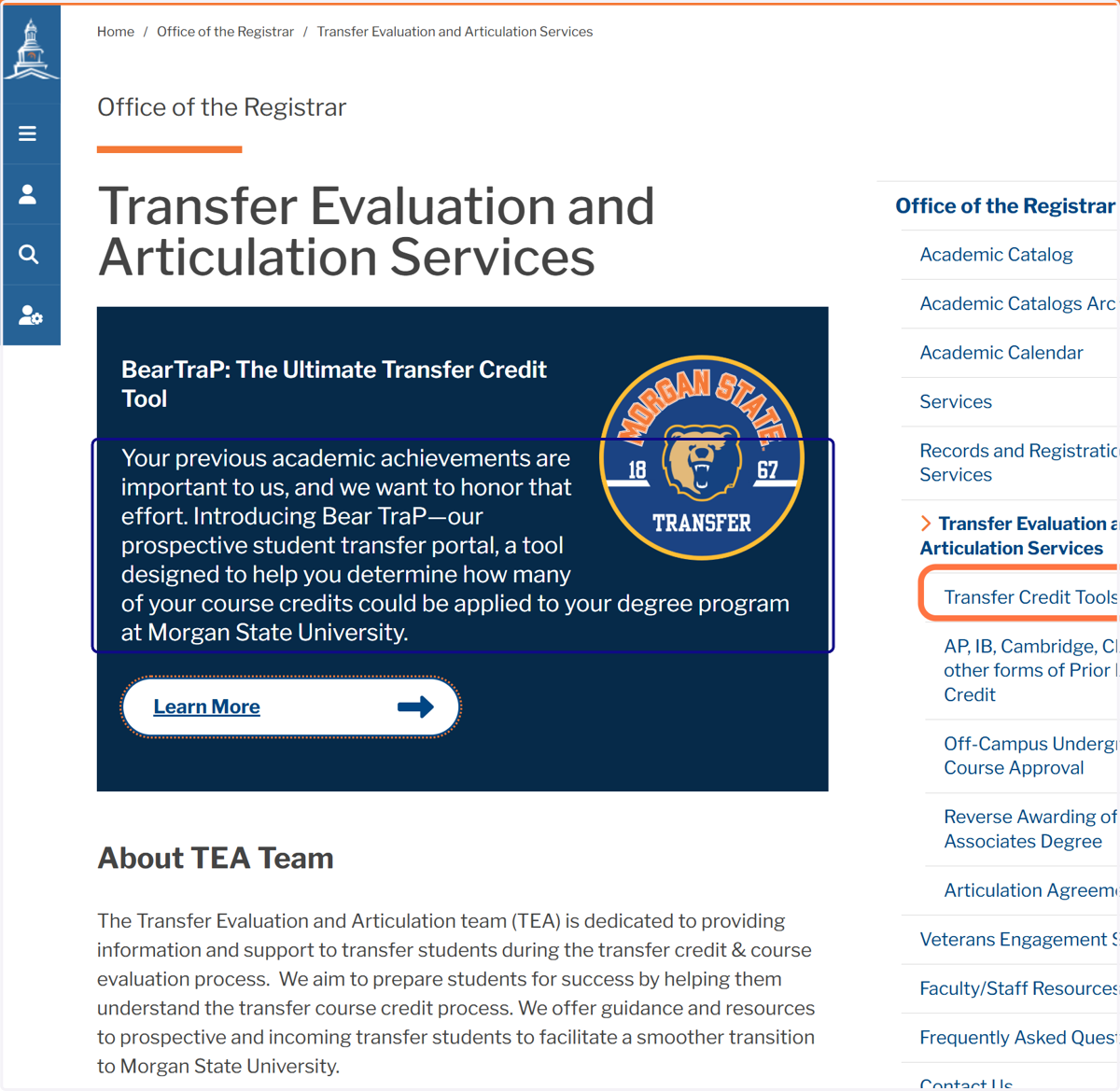
2. Click on "transfer Credit Tools" on the right side of the webpage.
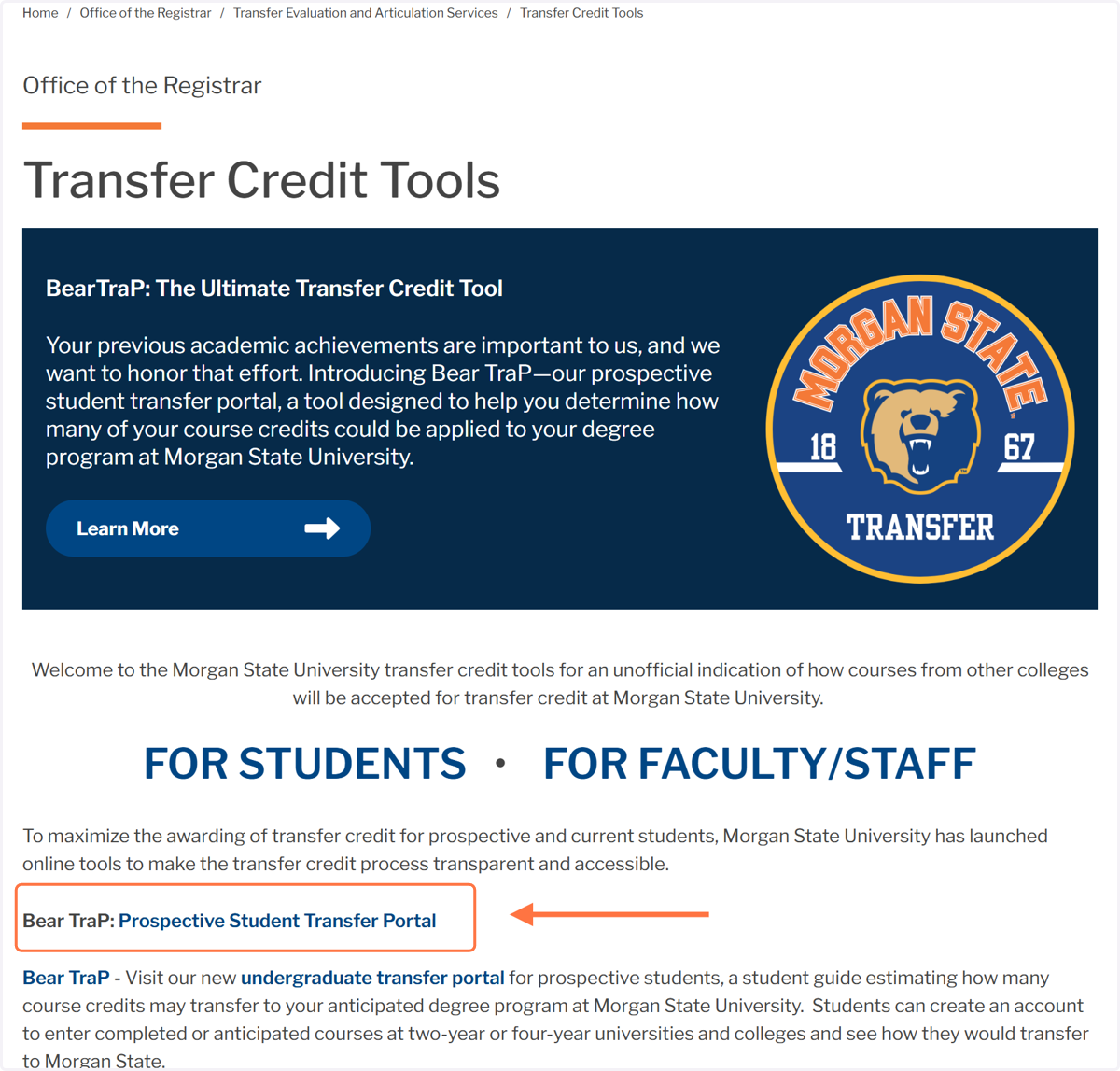
3. Click on Bear TraP: Prospective Student Transfer Portal
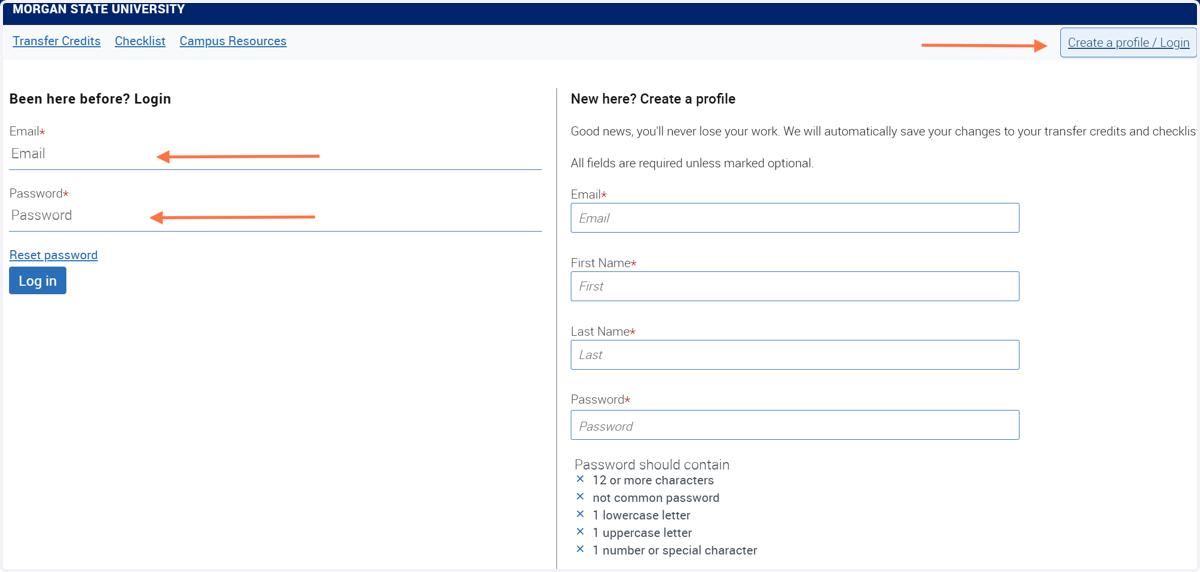
4. Log in to your account or create a profile to track your transfer credits
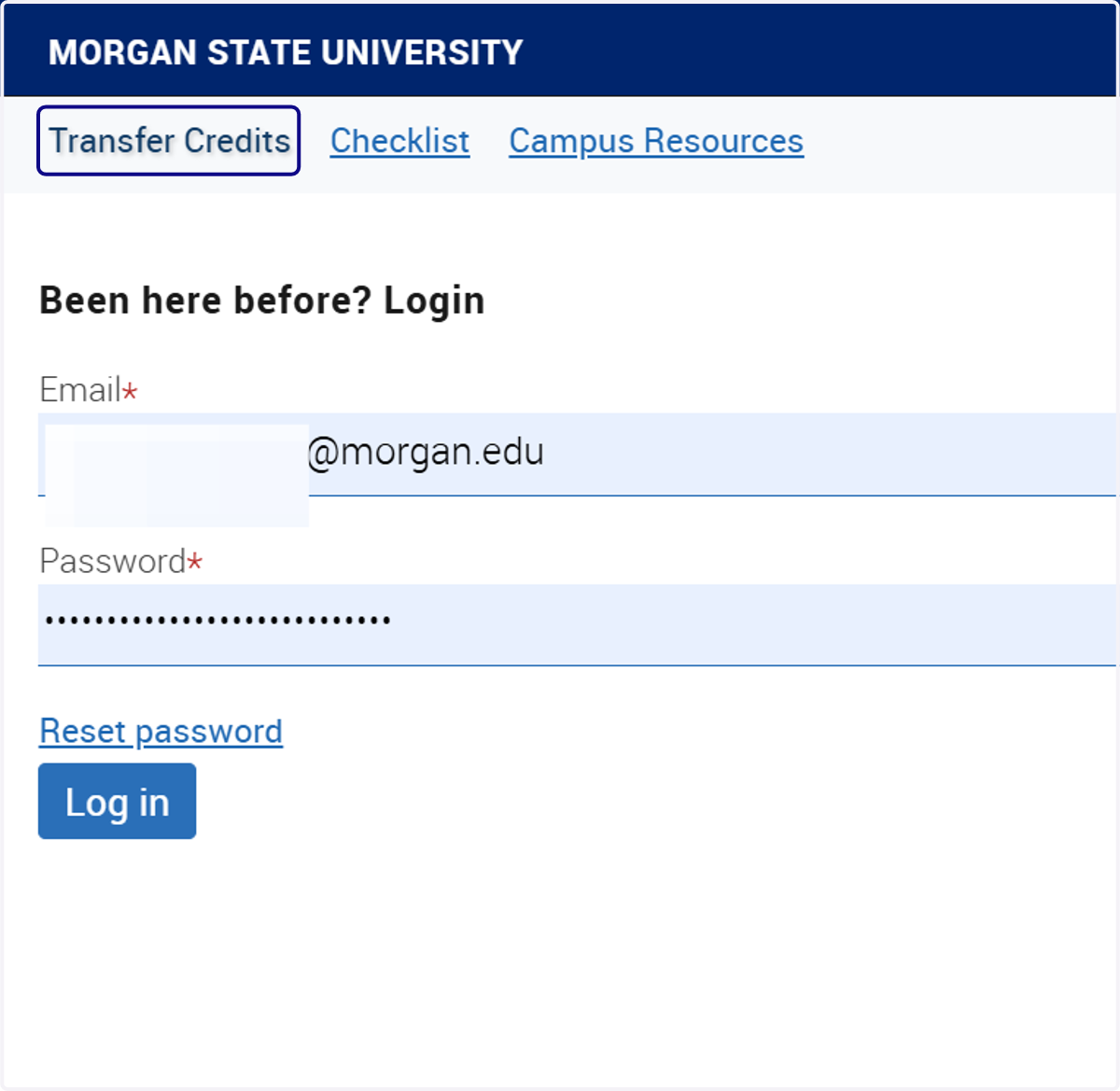
5. Once you are logged in click on "Transfer Credits" to start
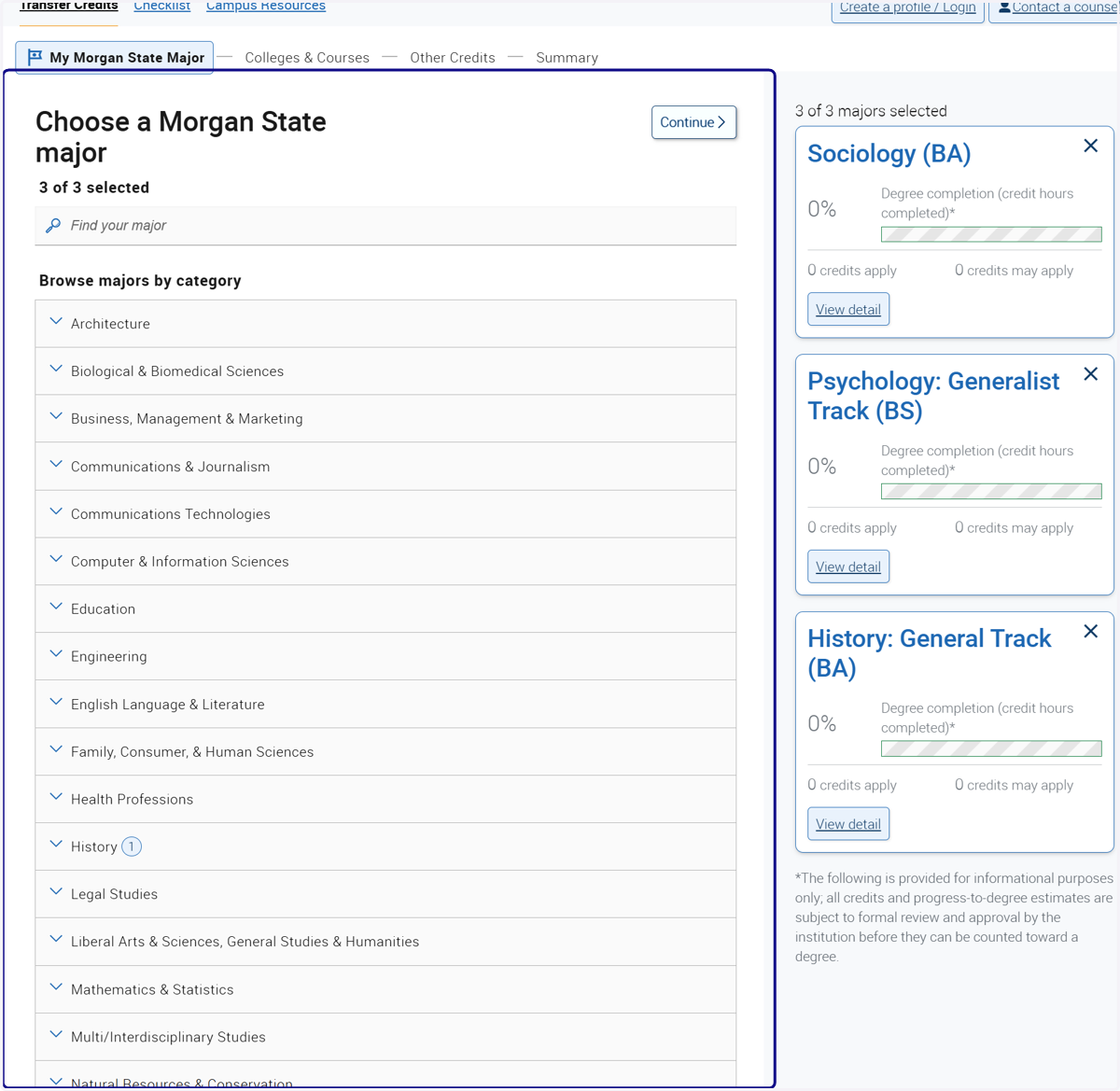
6. Locate your intended major at Morgan. You may select up to three (3) to compare.
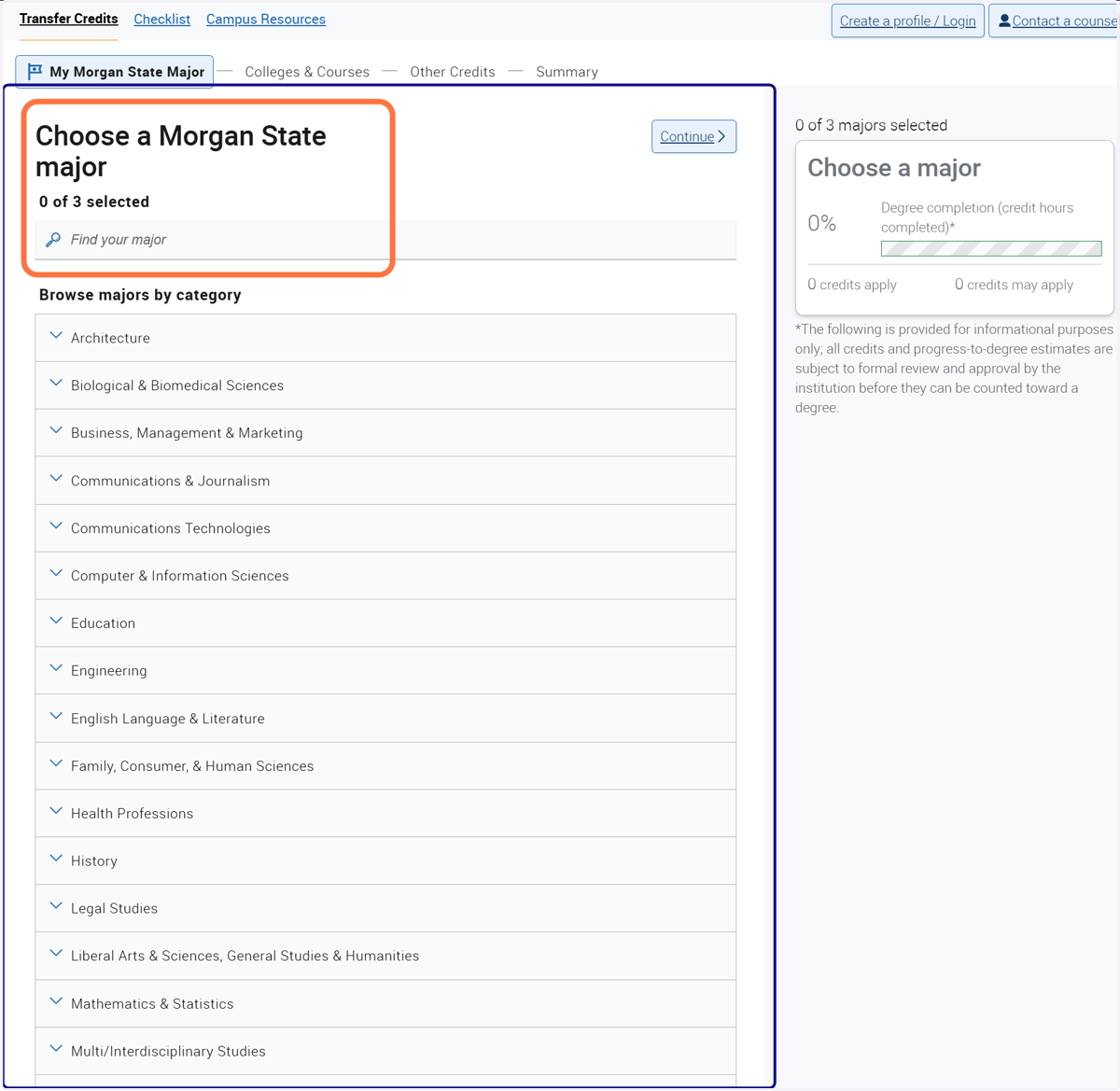
7. Click on Find your major
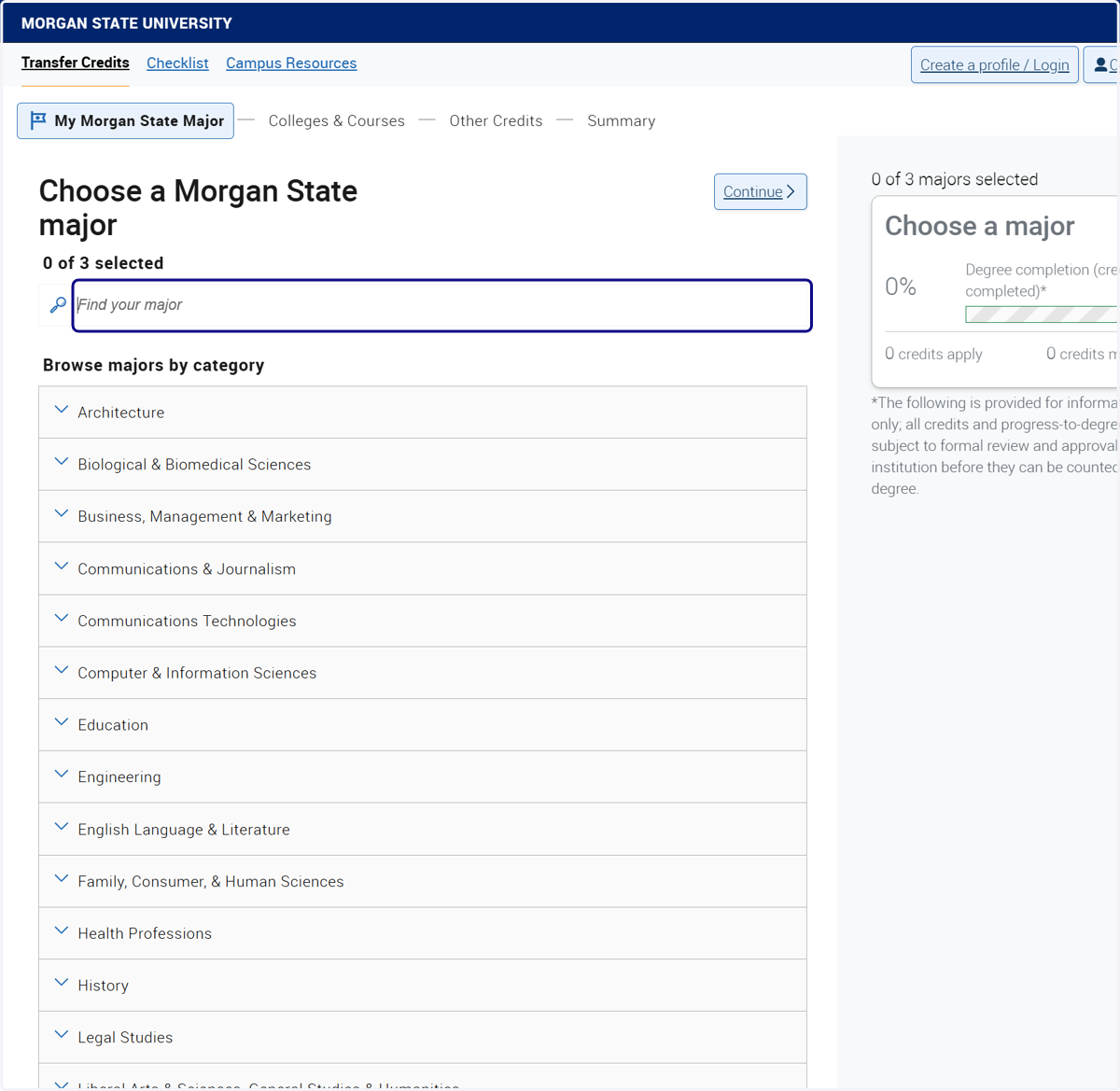
8. Select from the dropdown options
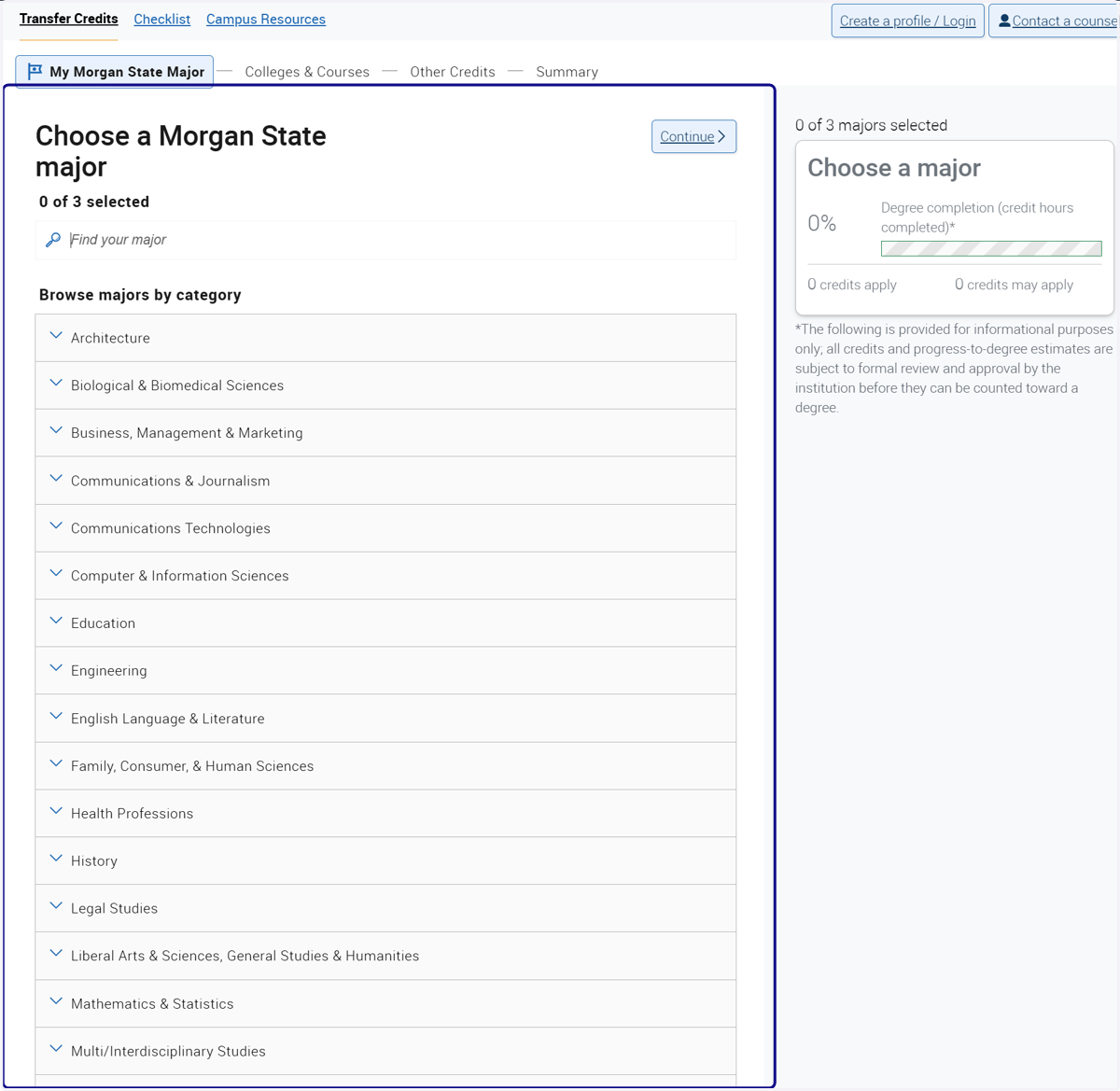
9. For example, click on Social Sciences
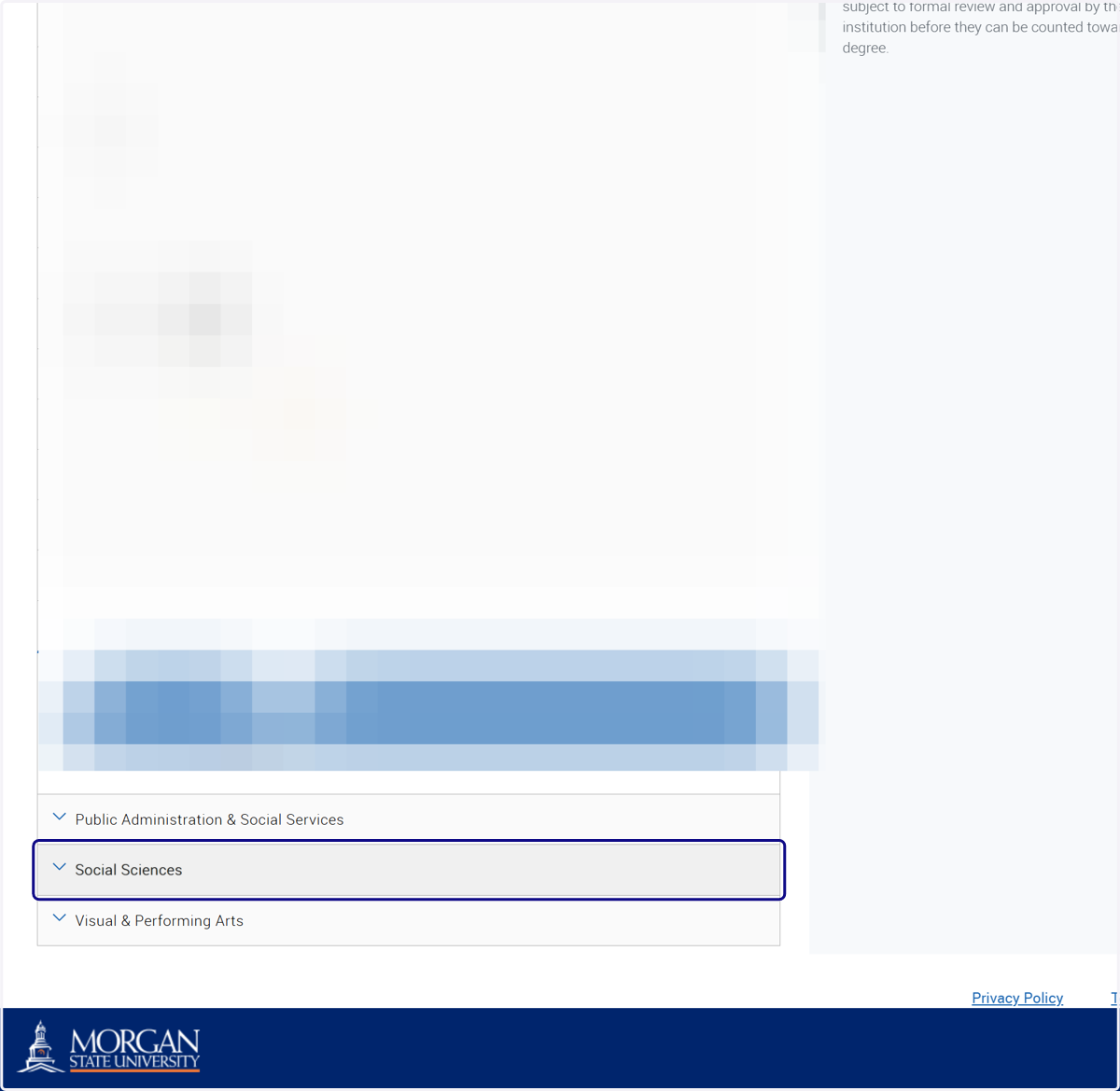
10. Click on Social Sciences and select Sociology
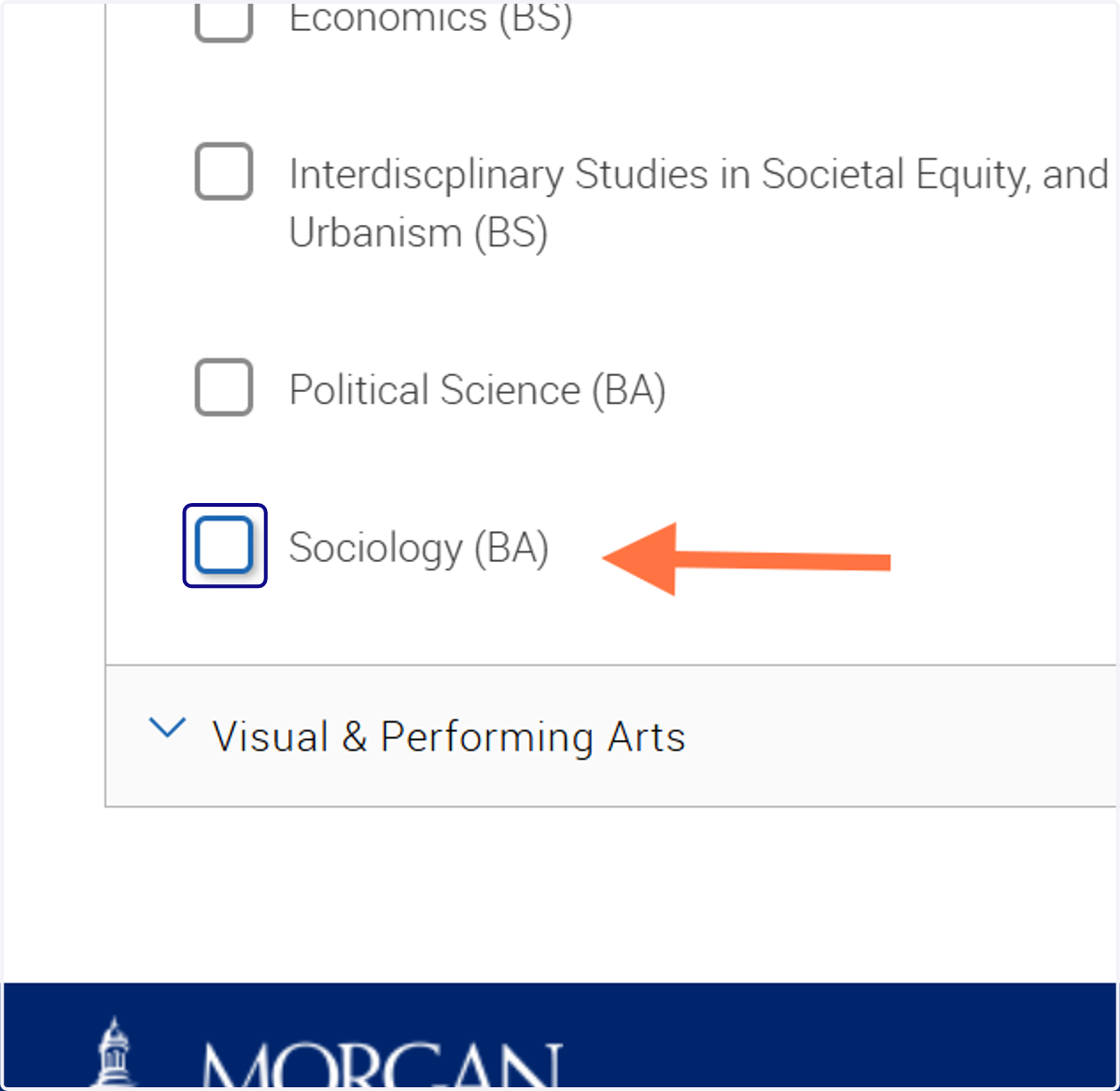
11. Click on conitnue after selecting intended Majors.
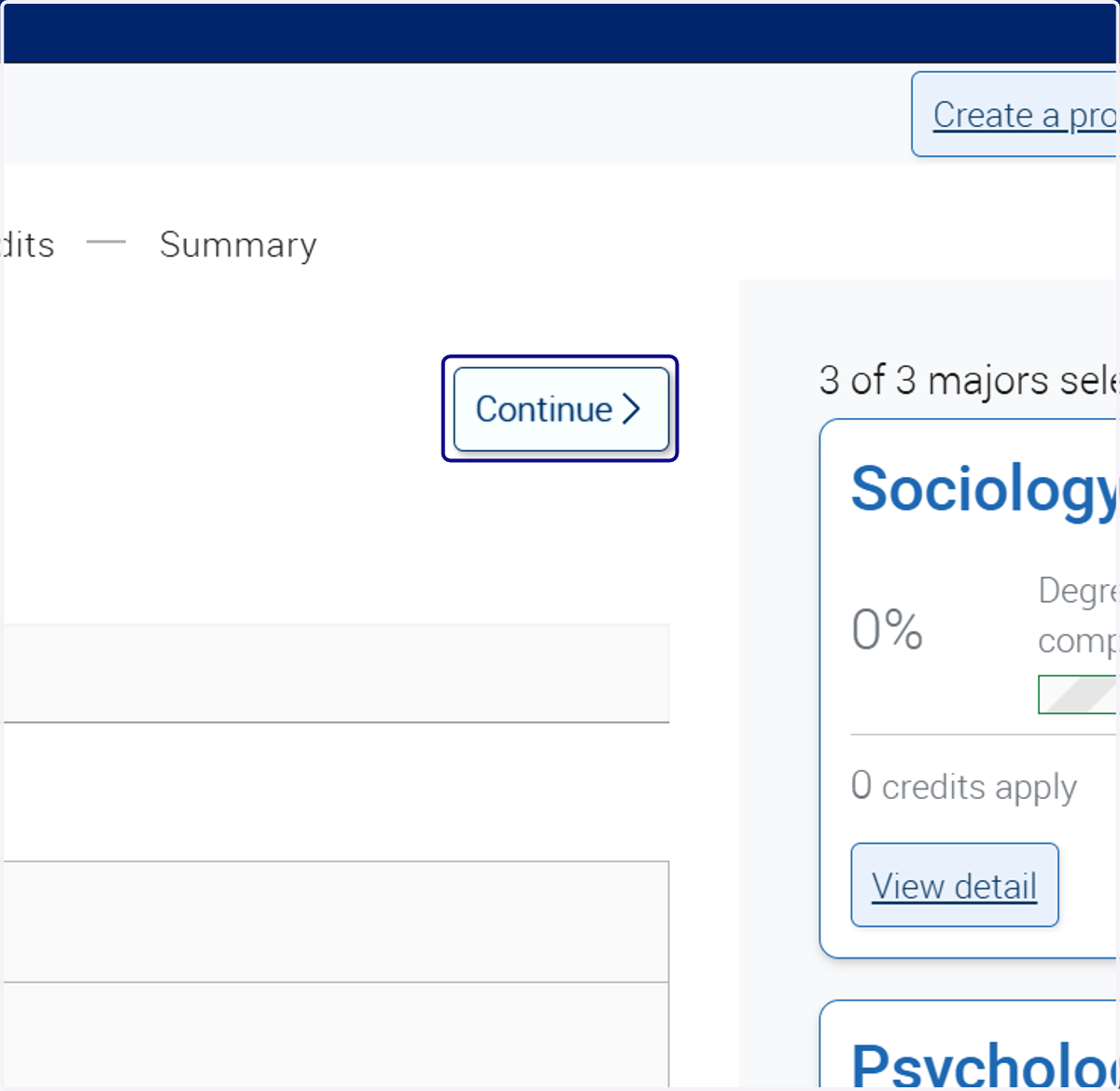
12. View your selected majors on the right side.
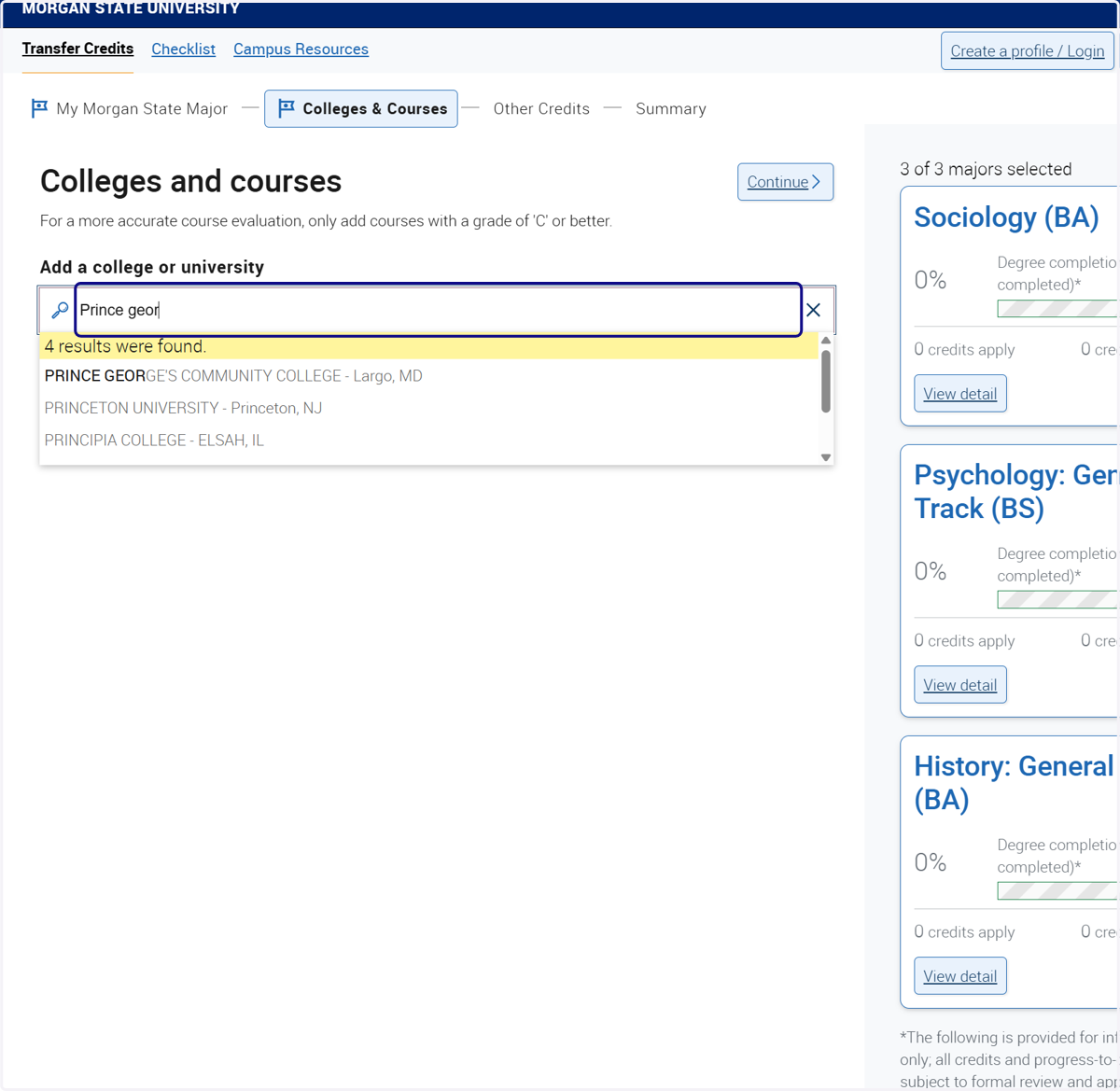
13. Type in the name of your current college or university.
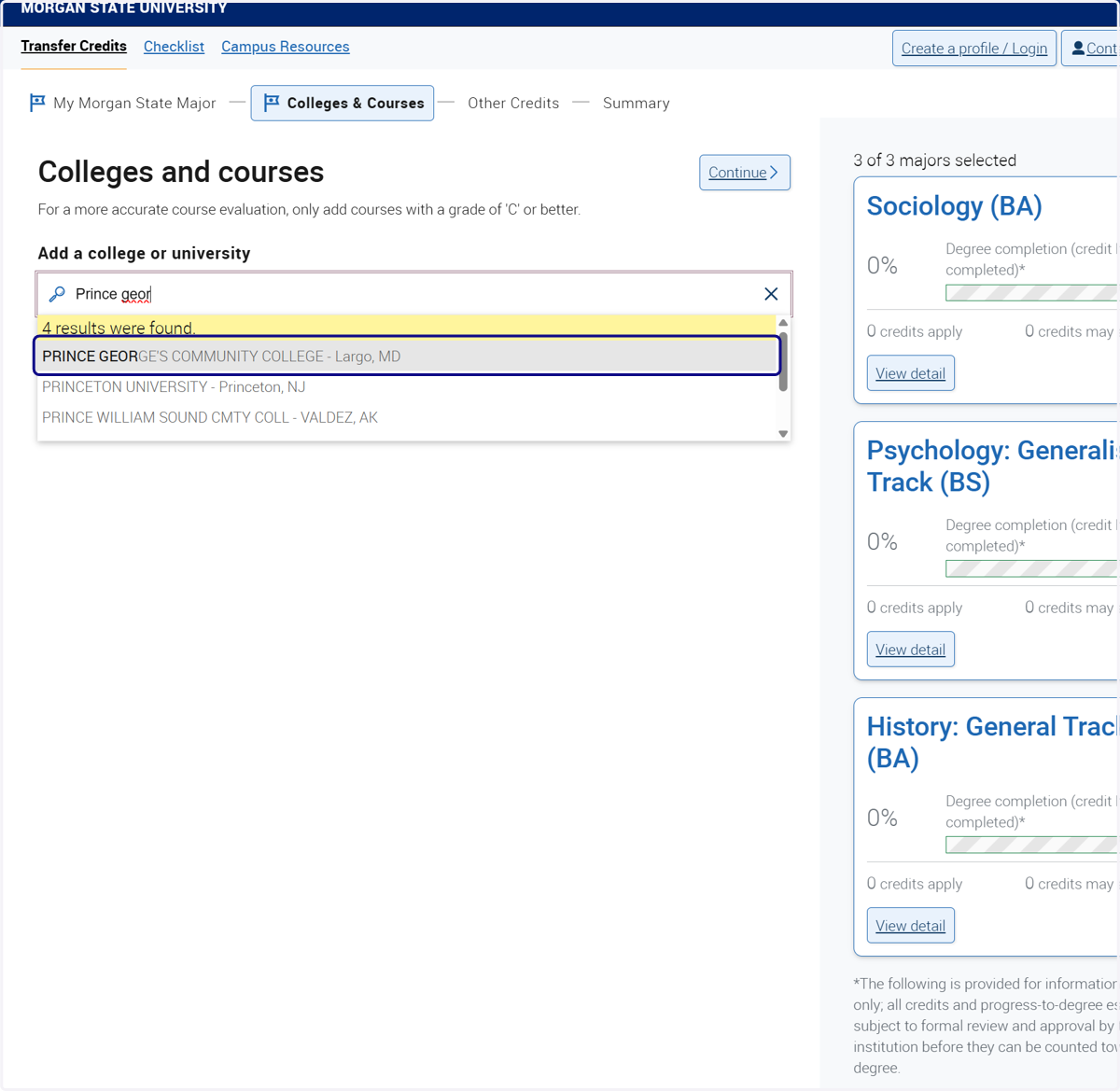
14. Selec your current college or university.
15. Type in classes from your unofficial transcript. Make sure to have a copy with you to continue adding courses.
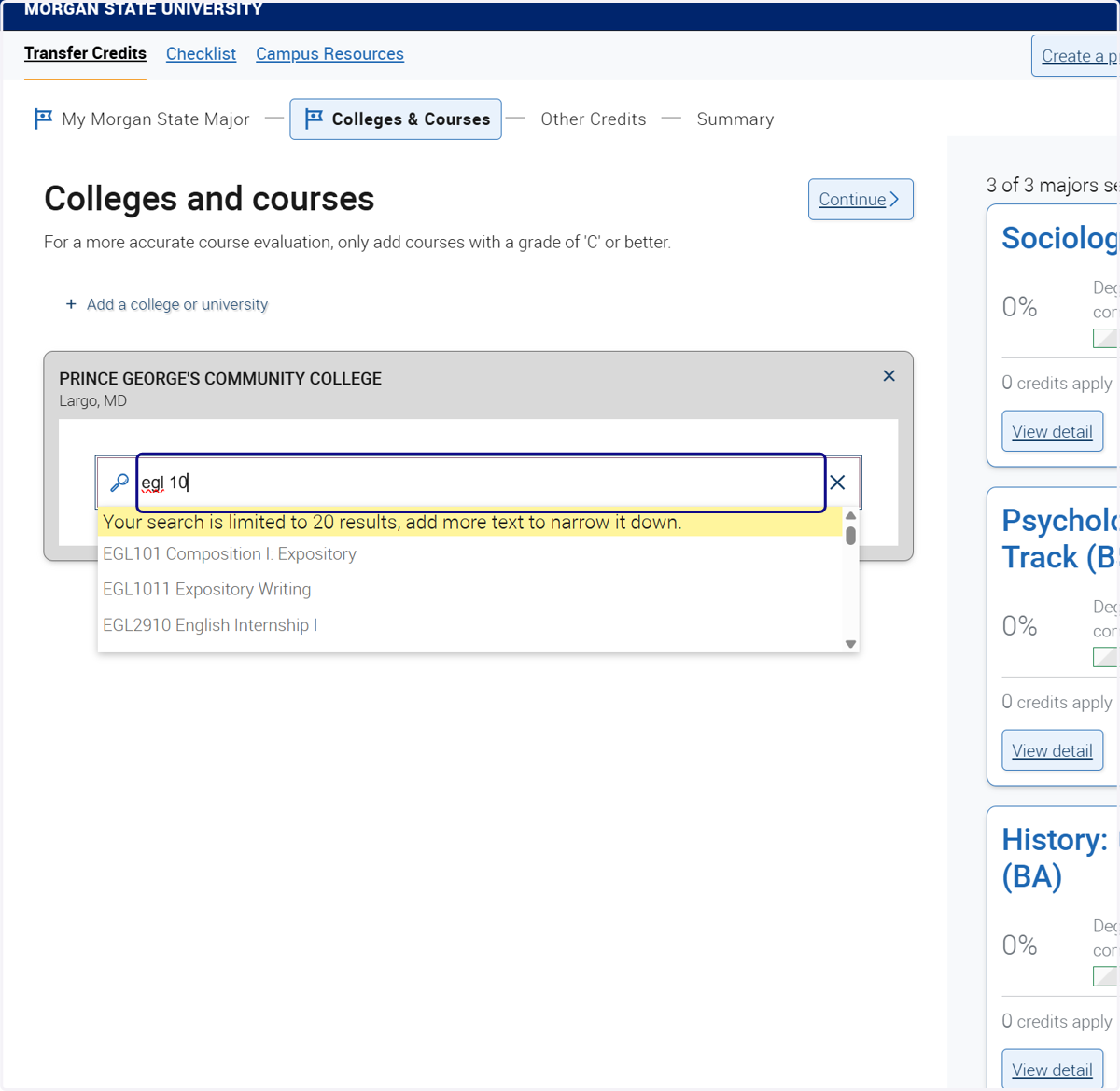
16. Once you locate the course in the drop-down, select the course.
Verify that the course is the same on your unofficial transcript.
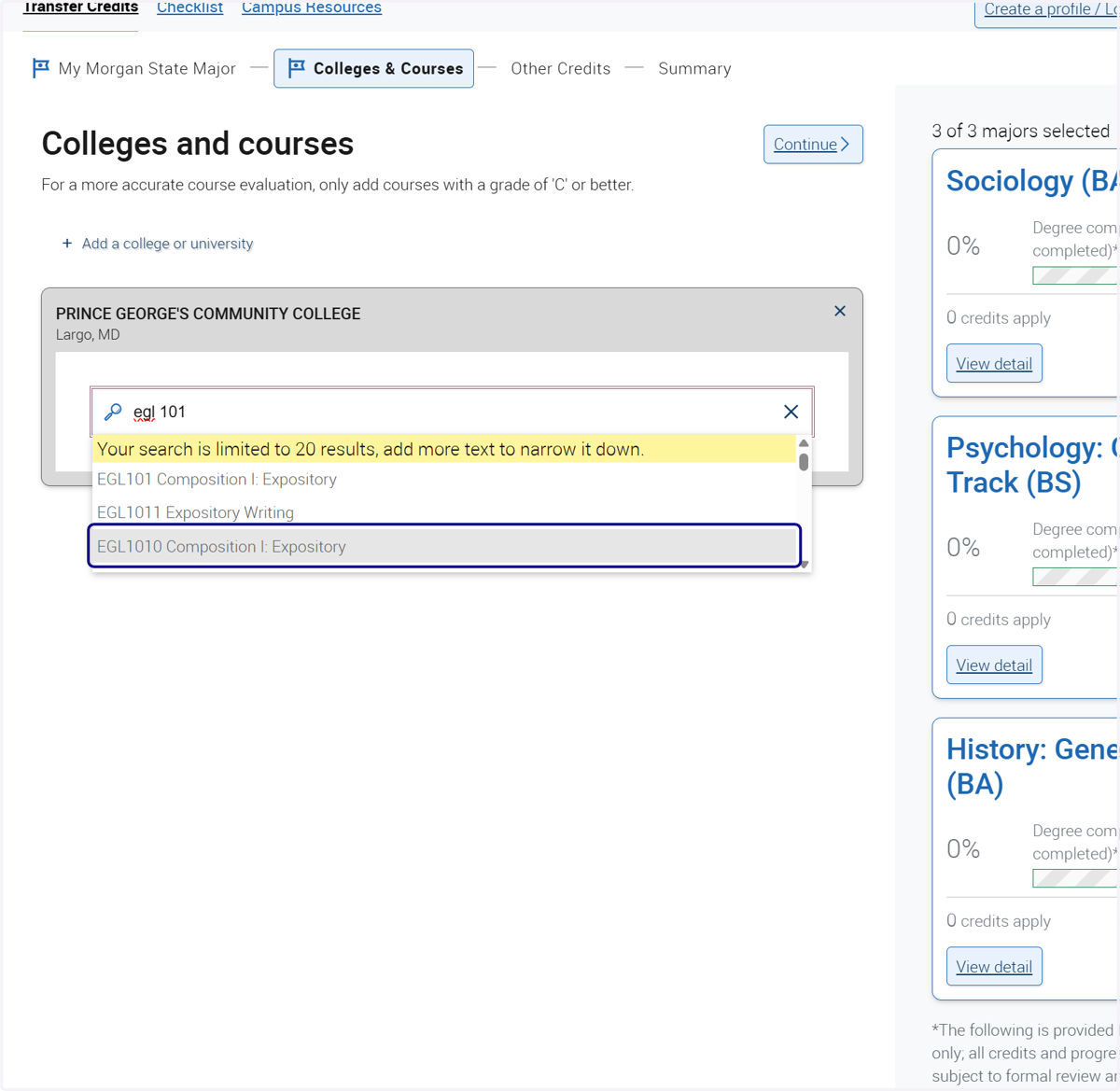
17. Courses that can be applied to your intended major(s) will display on the right.
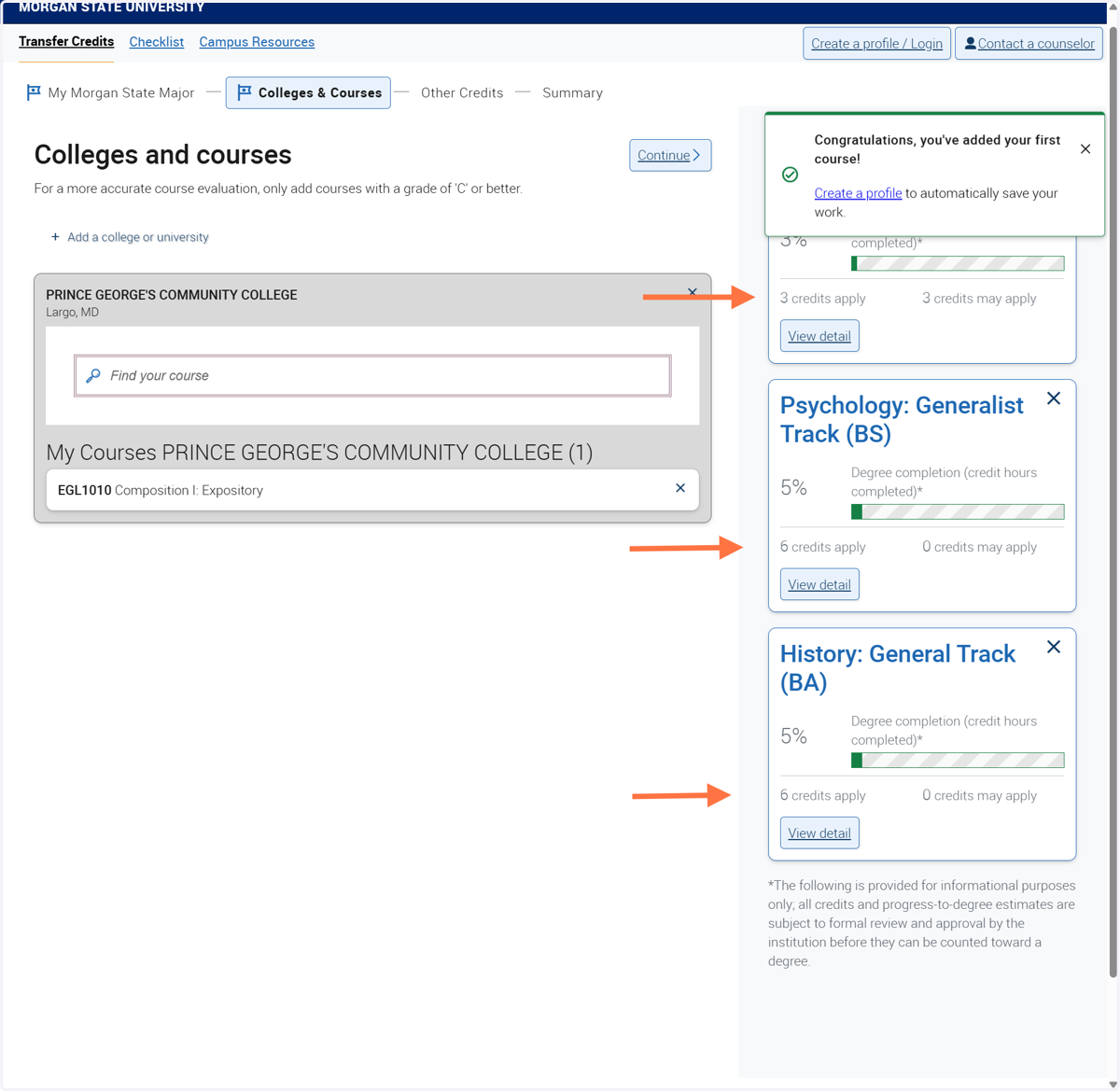
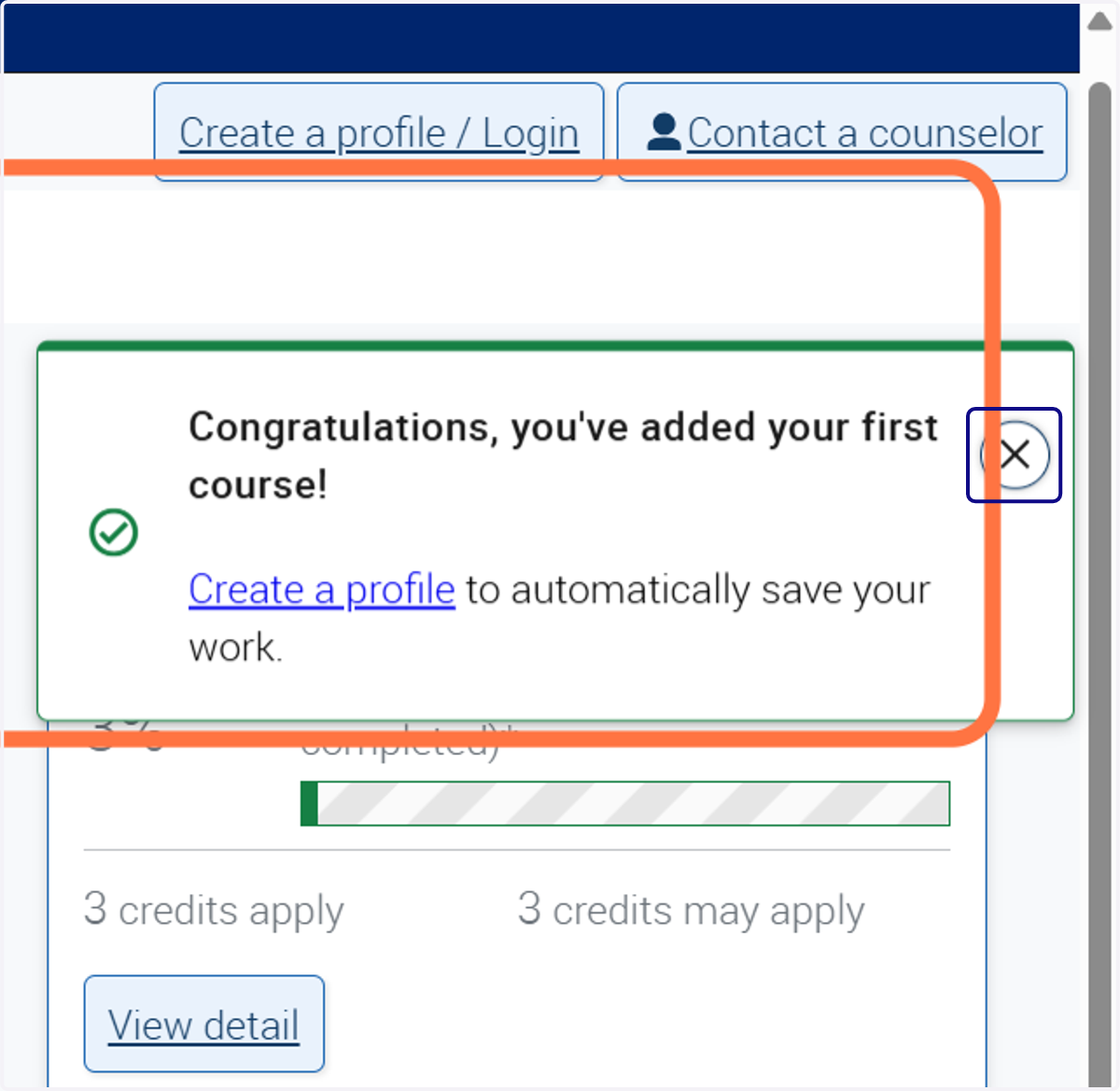
18. A message will display that you successfully added a course!
19. Repeat the steps to continue to add courses from your unofficial transcript.
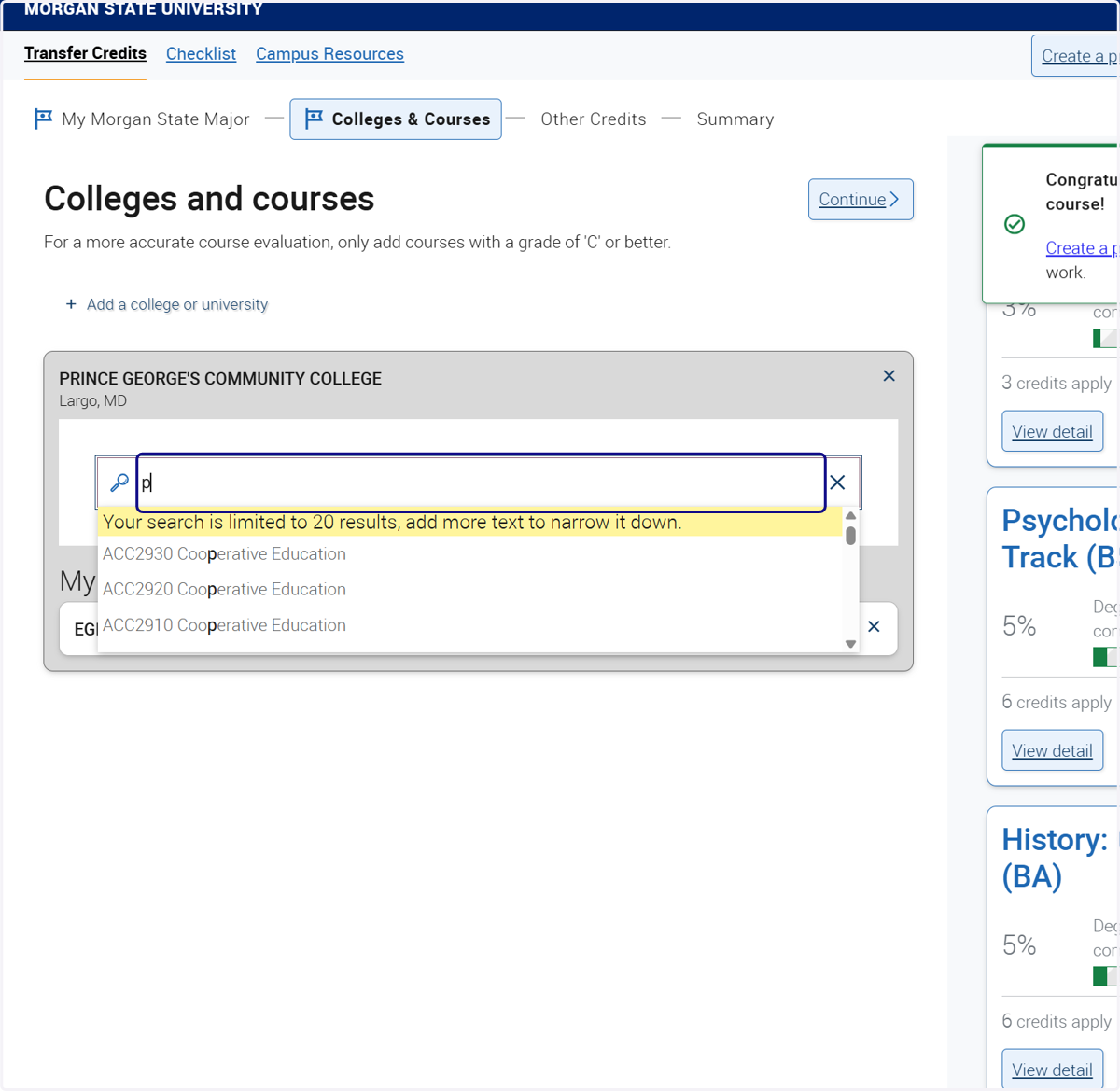
20. Once you locate the course in the drop-down, select the course.
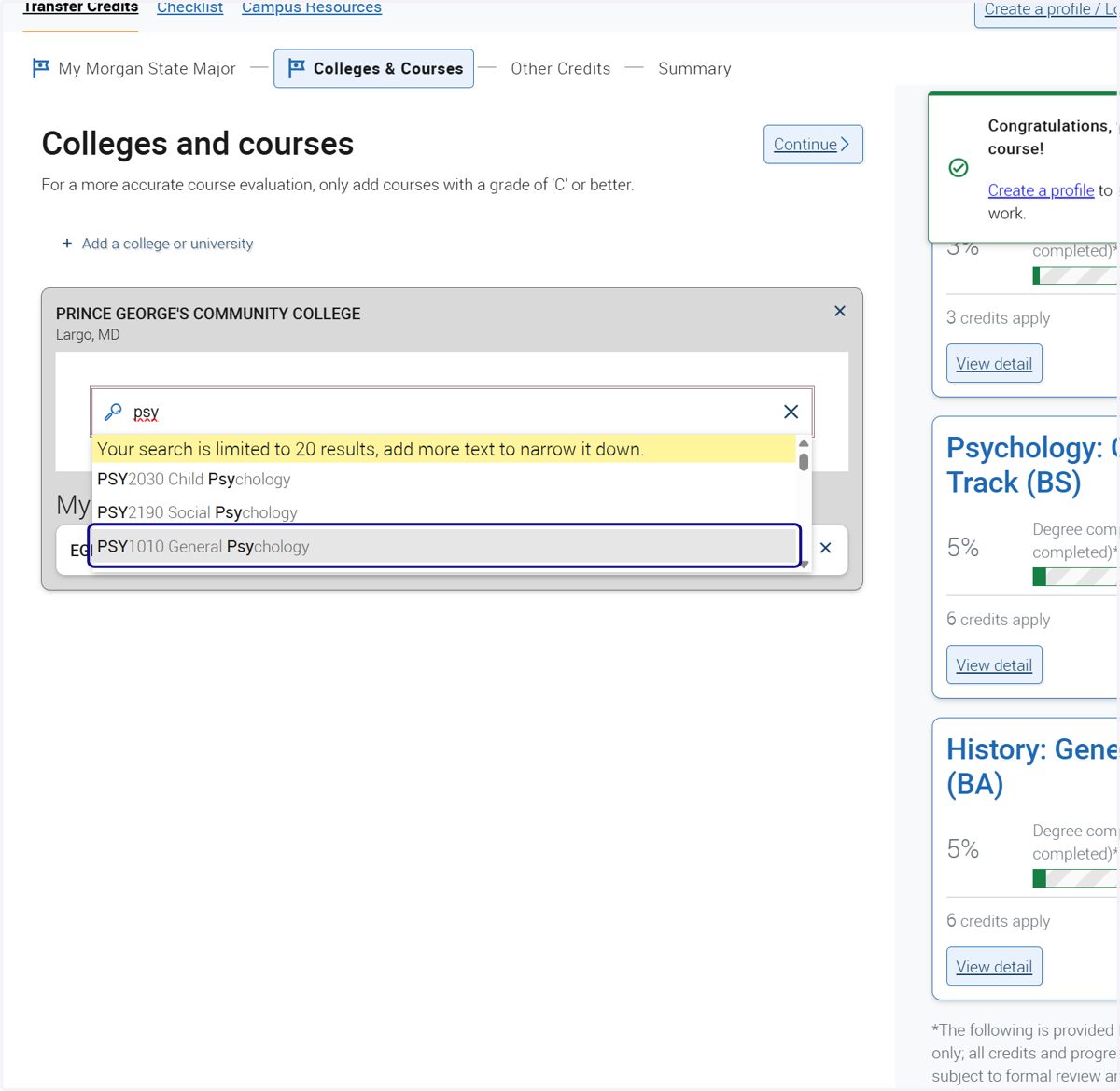
21. After you have added all courses from your unofficial transcript, move to the "colleges and courses" tab.
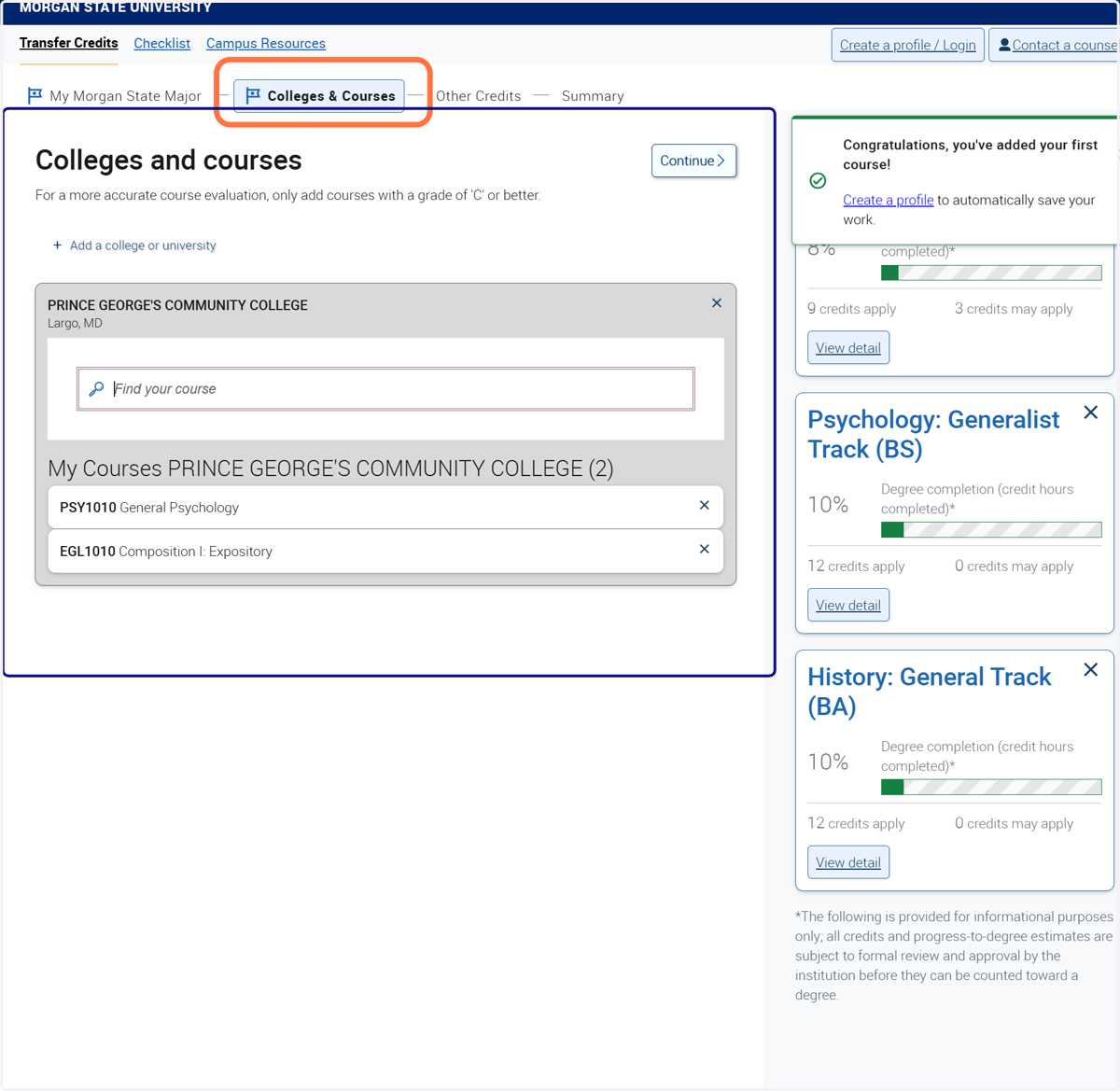
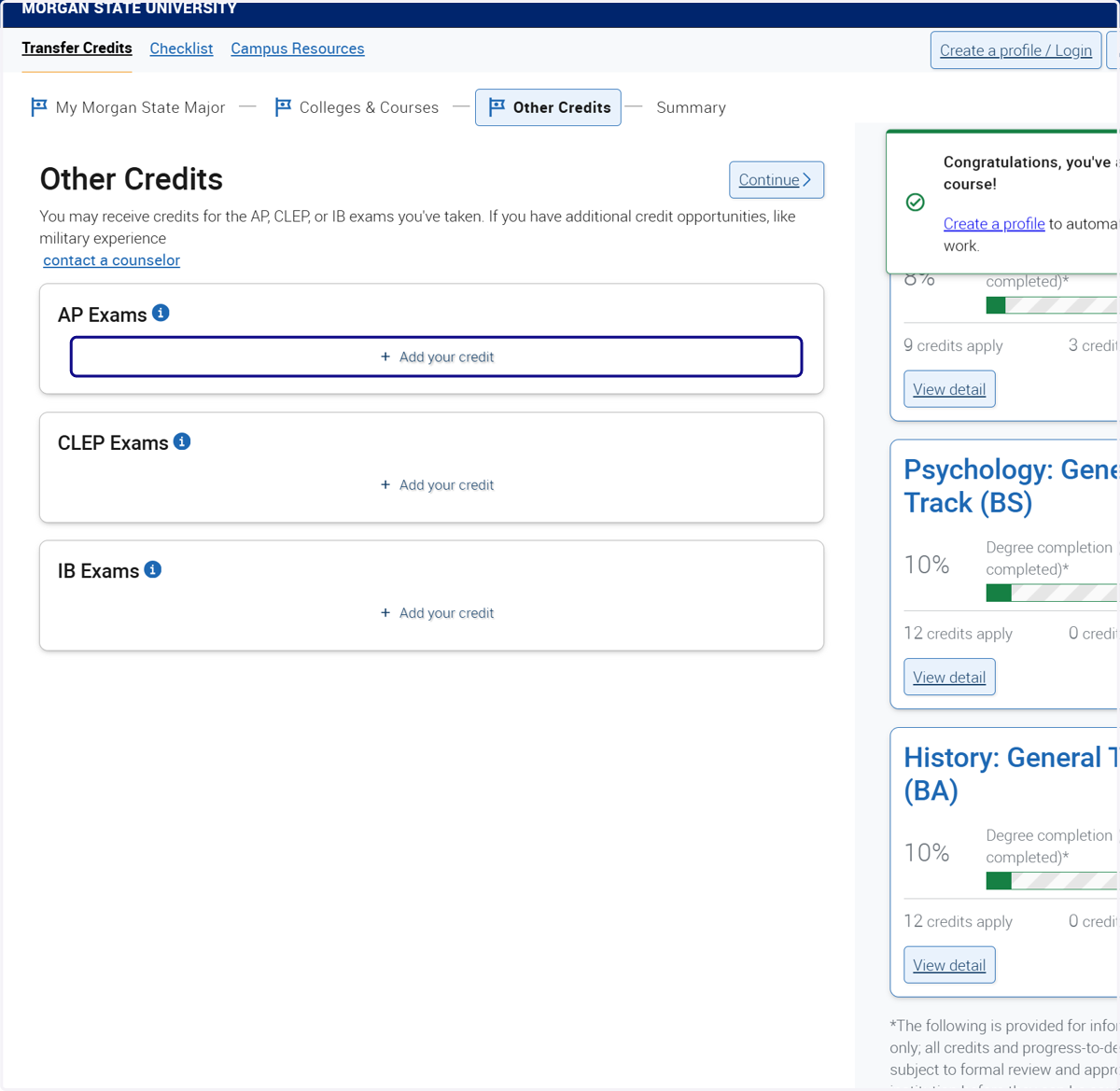
22. If you have completed any Advanced Placement (AP), Collegeboard CLEP, or International Baccalaureate (IB) exams, enter them here.
TIP: Enter information from your score reports and not from the classes you completed.
23. Add Collegeboard CLEP if applicable.
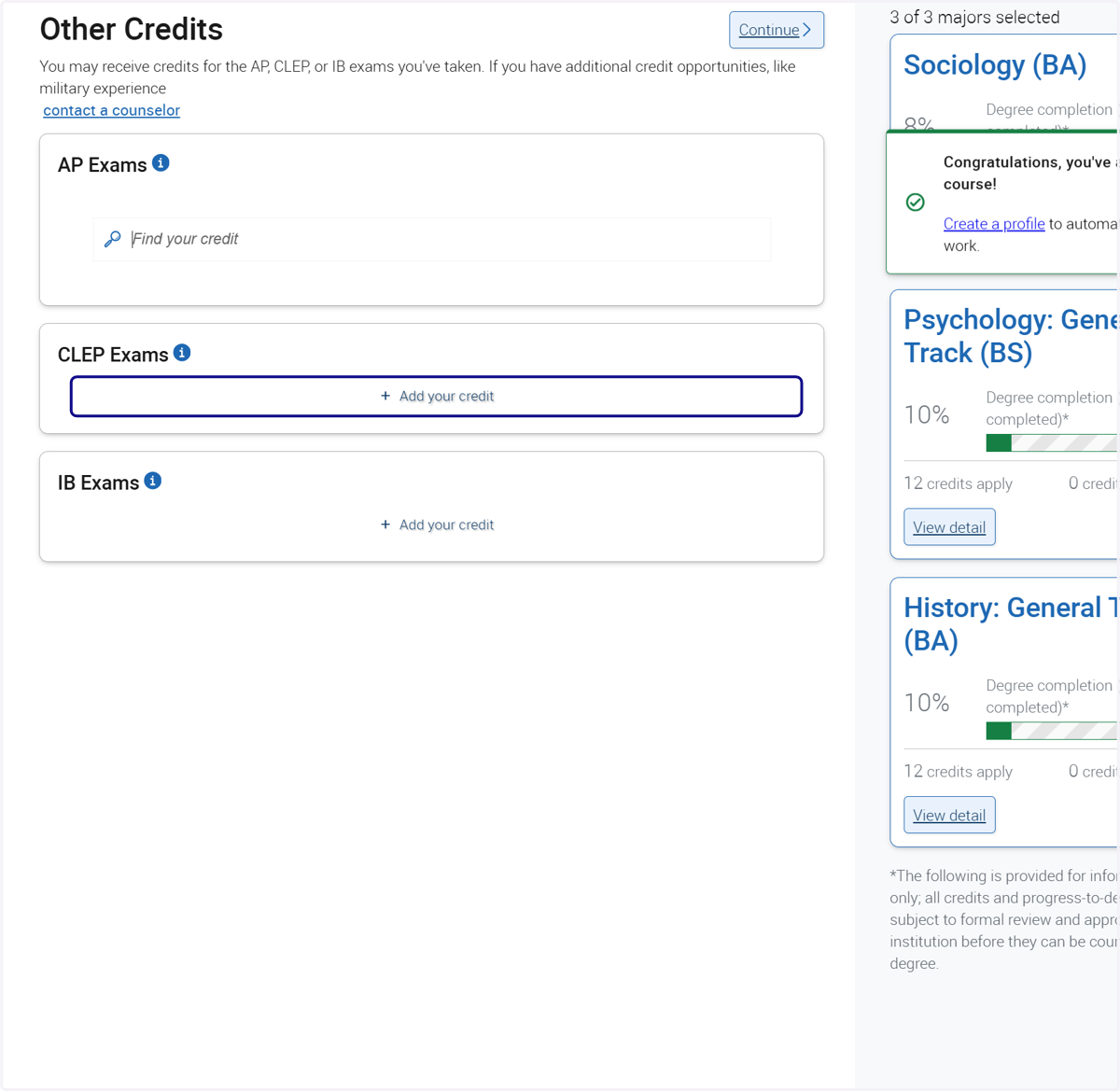
24. Add any International Baccalaureate (IB) exams if applicable
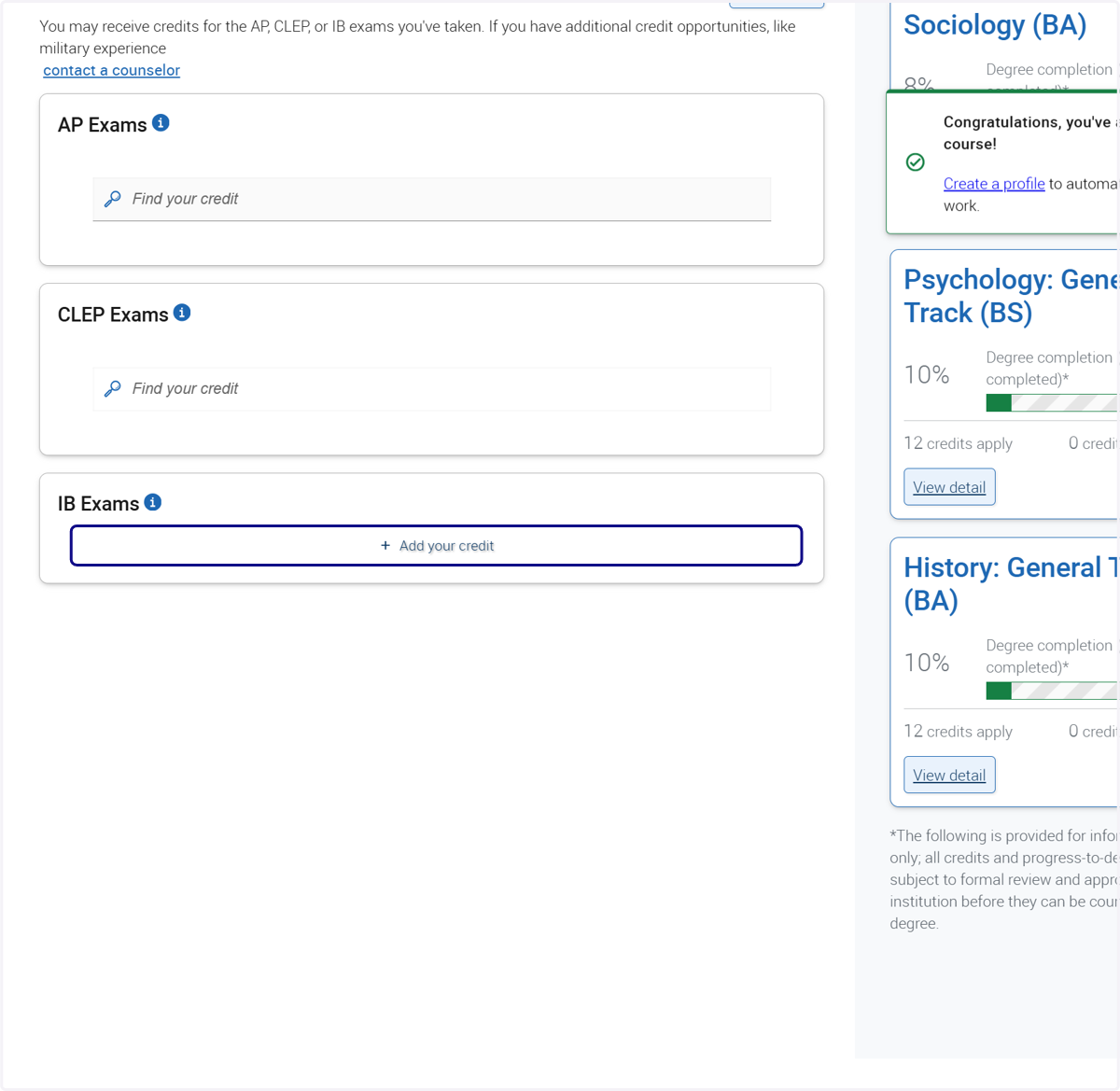
25. Select continue to move to the summary.
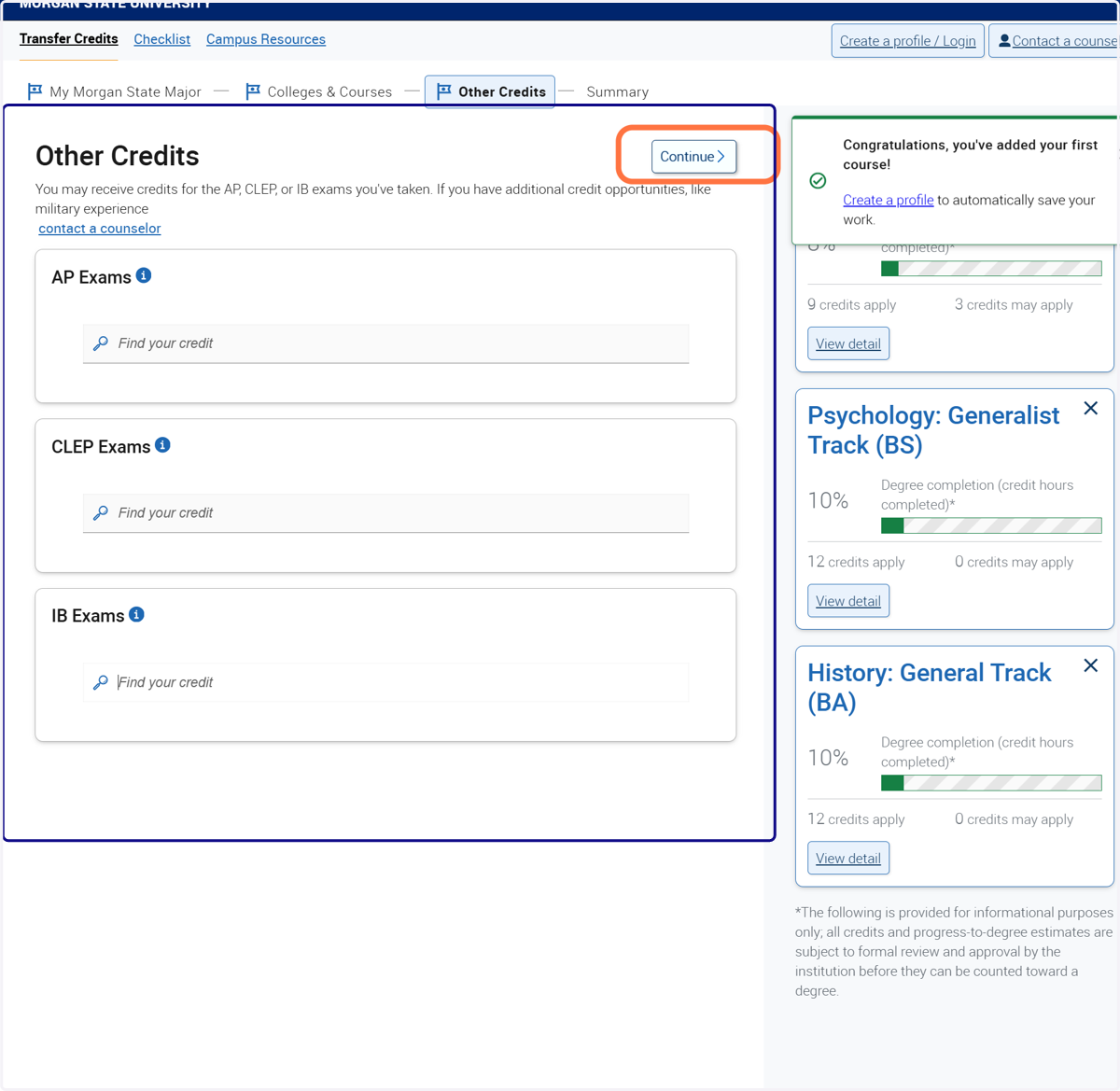
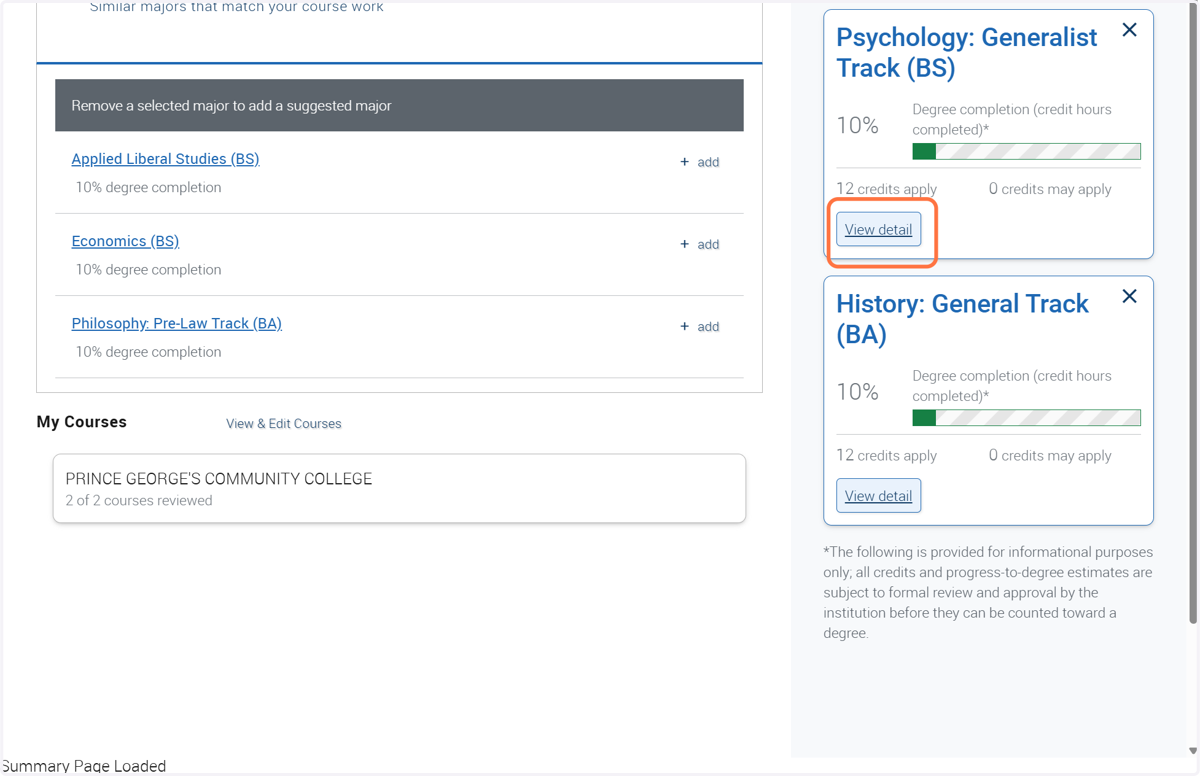
26. View your selected majors and click on "view detail".
27. Review where the transfer credits will be placed in the Major.
TIP: Some majors allow for one course to meet more than one requirement.
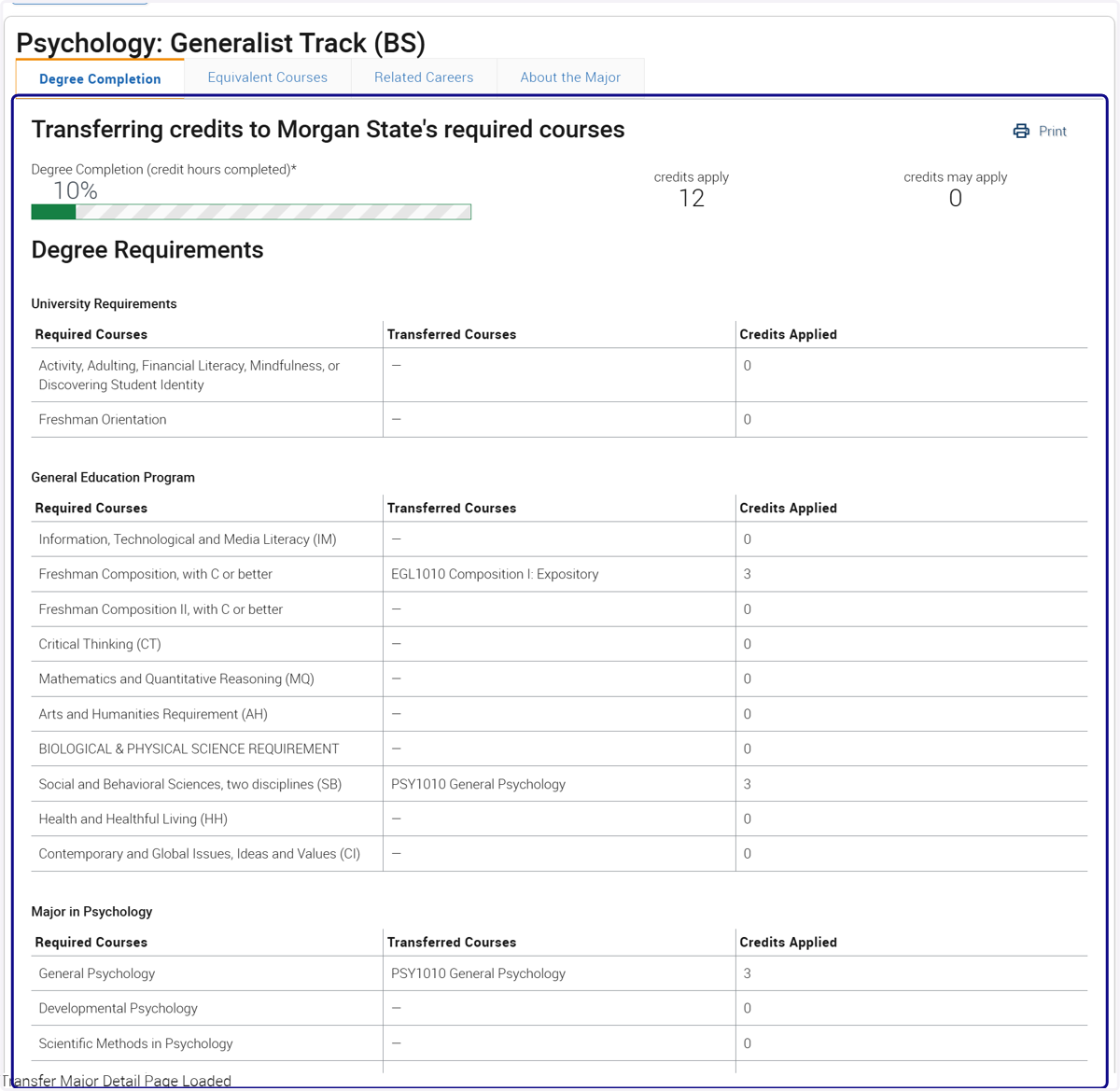
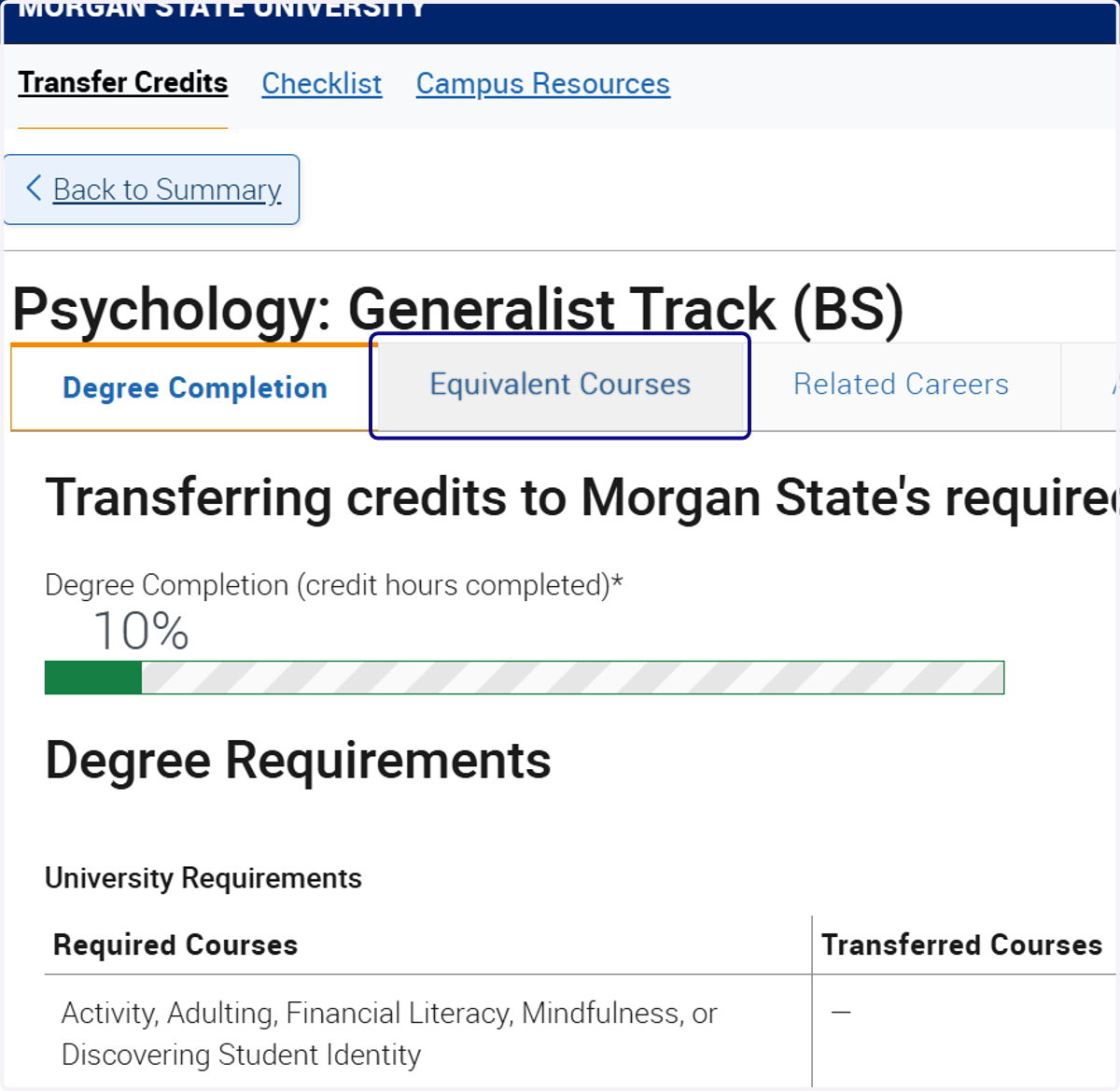
28. Click on Equivalent Courses to see transferred courses.
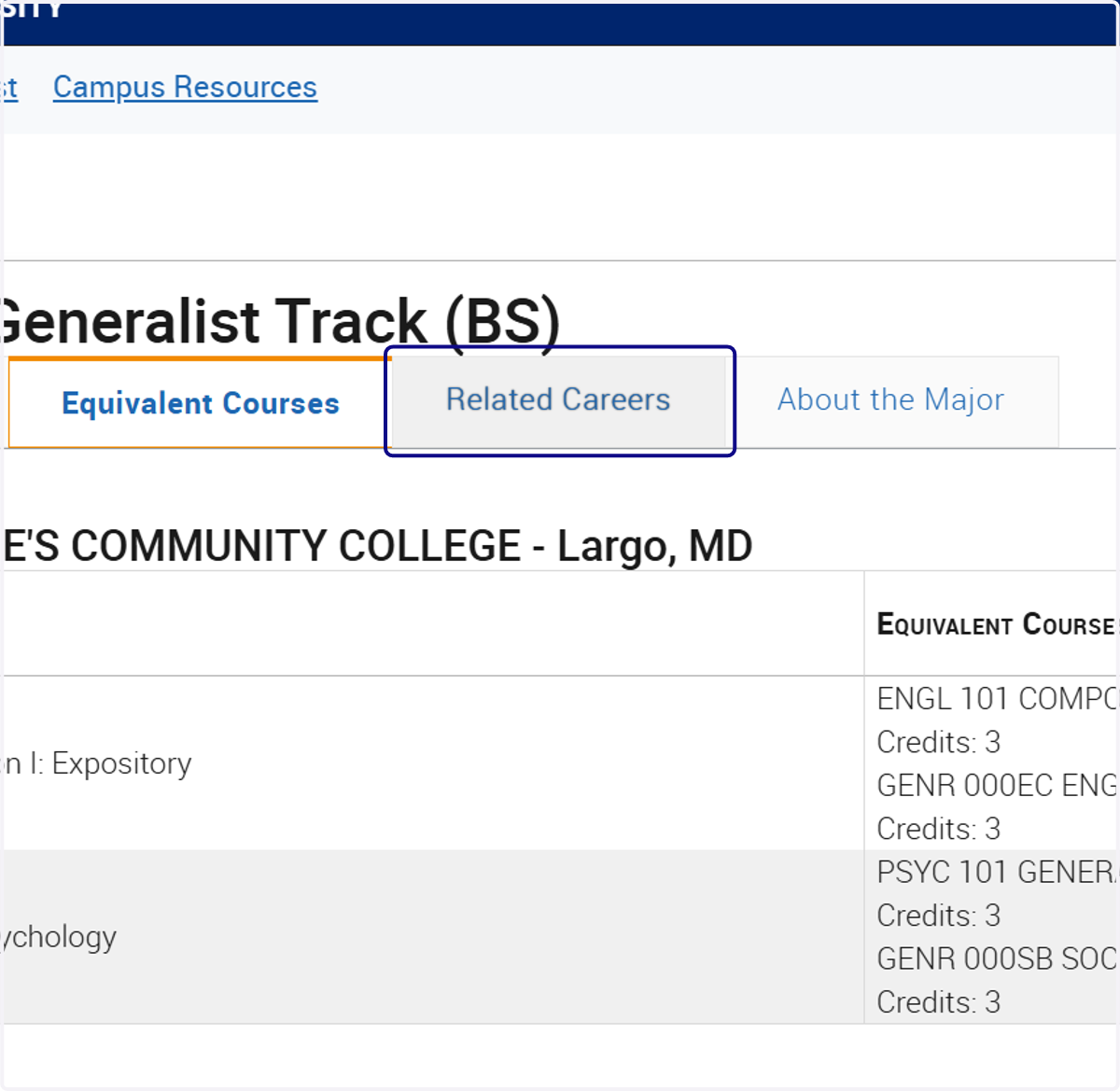
29. Click on Related Careers to view potential careers in your intended major(s).
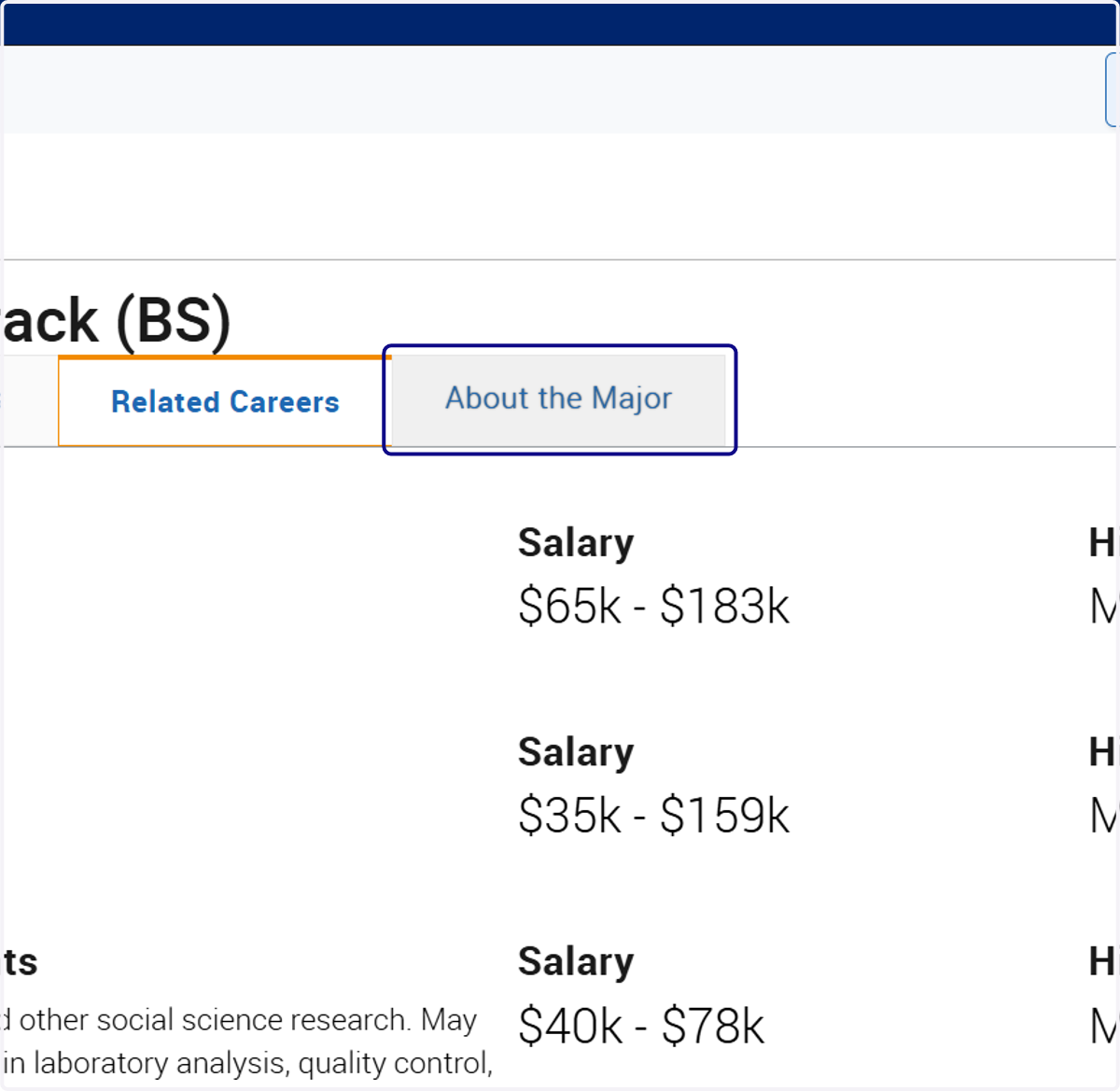
30. Click on About the Major to learn more about requirements and more.
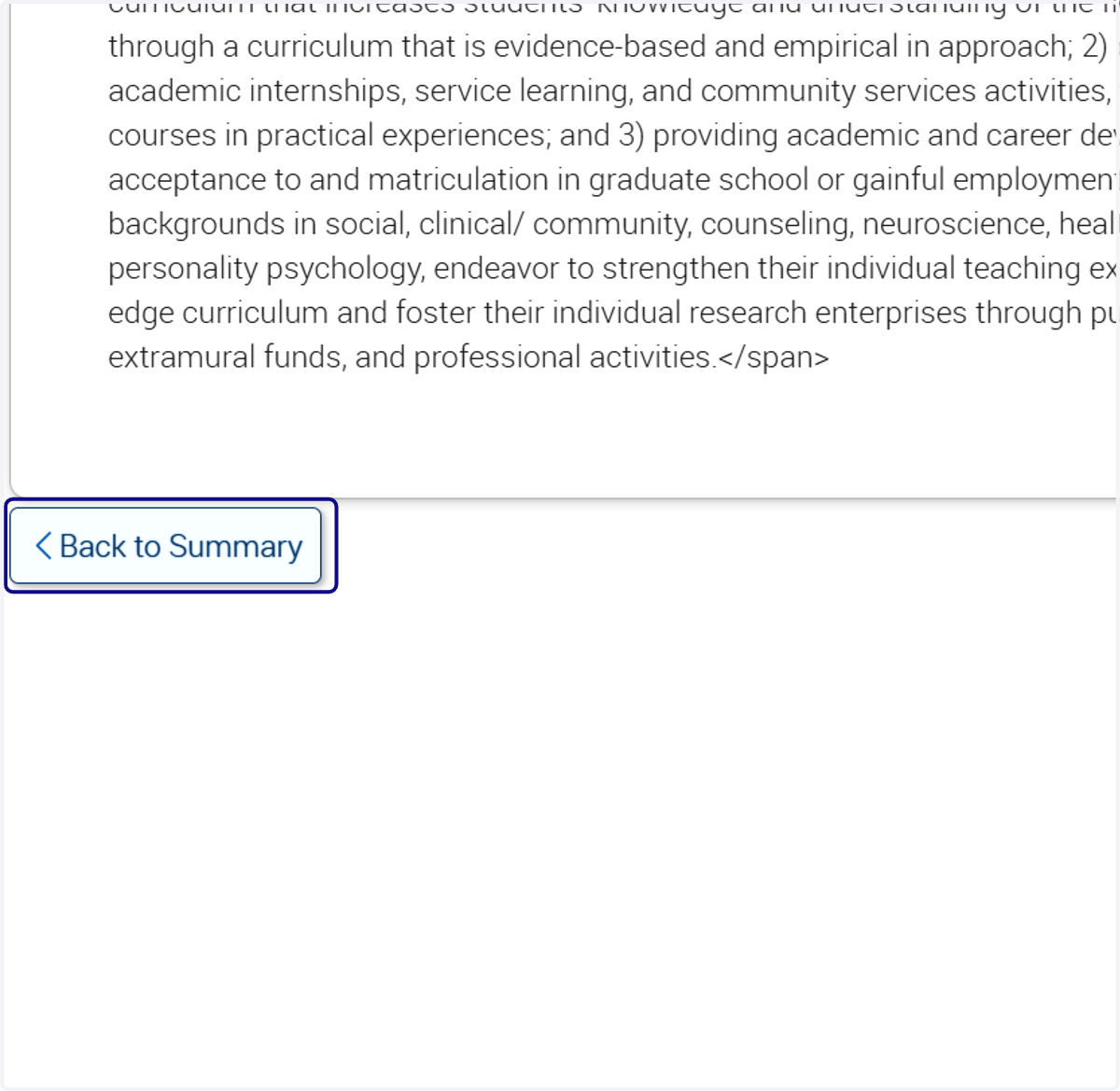
31. When completed select "back to summary"
32. Ensure that you save for later to add new courses or colleges to your profile.
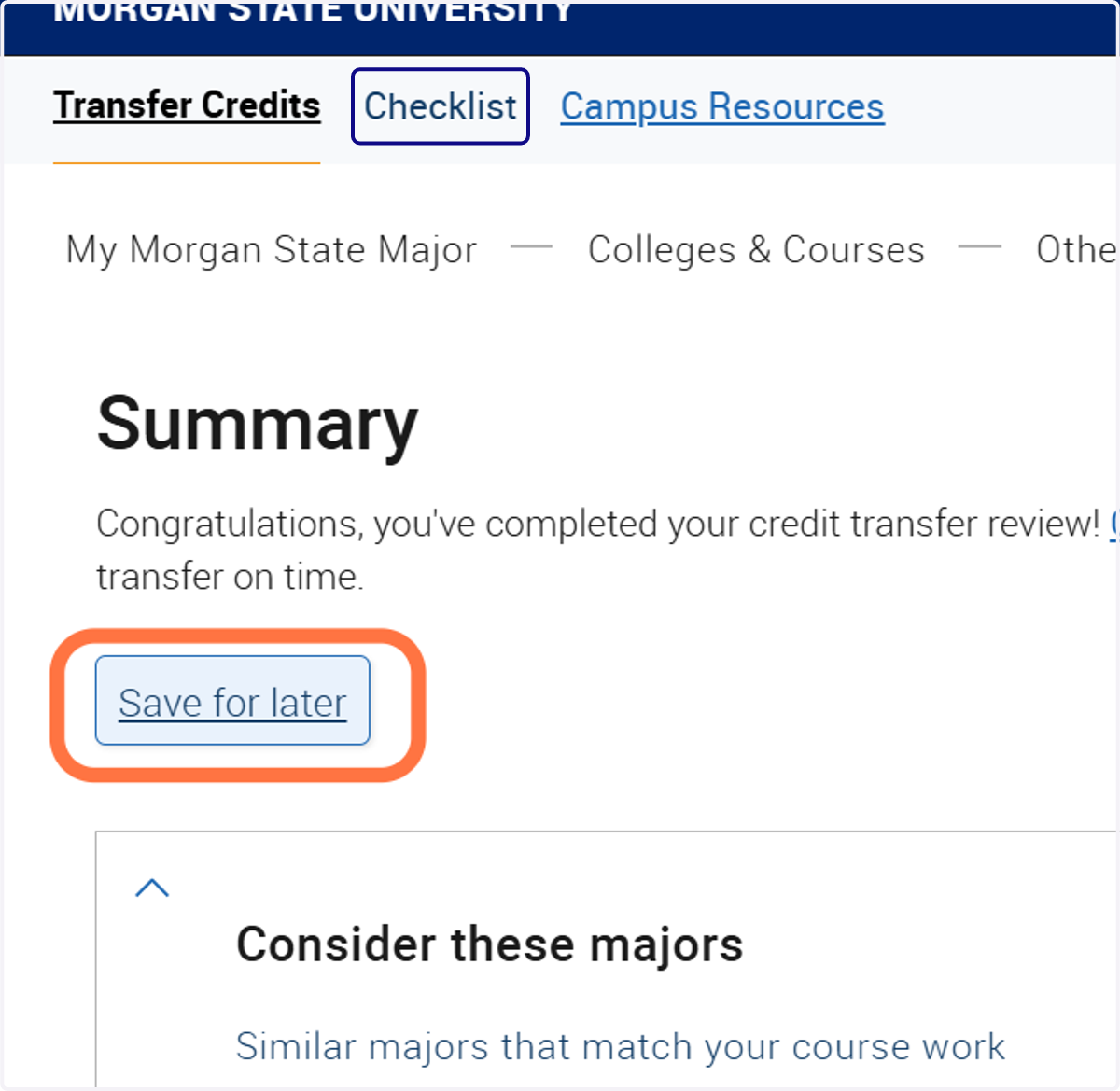
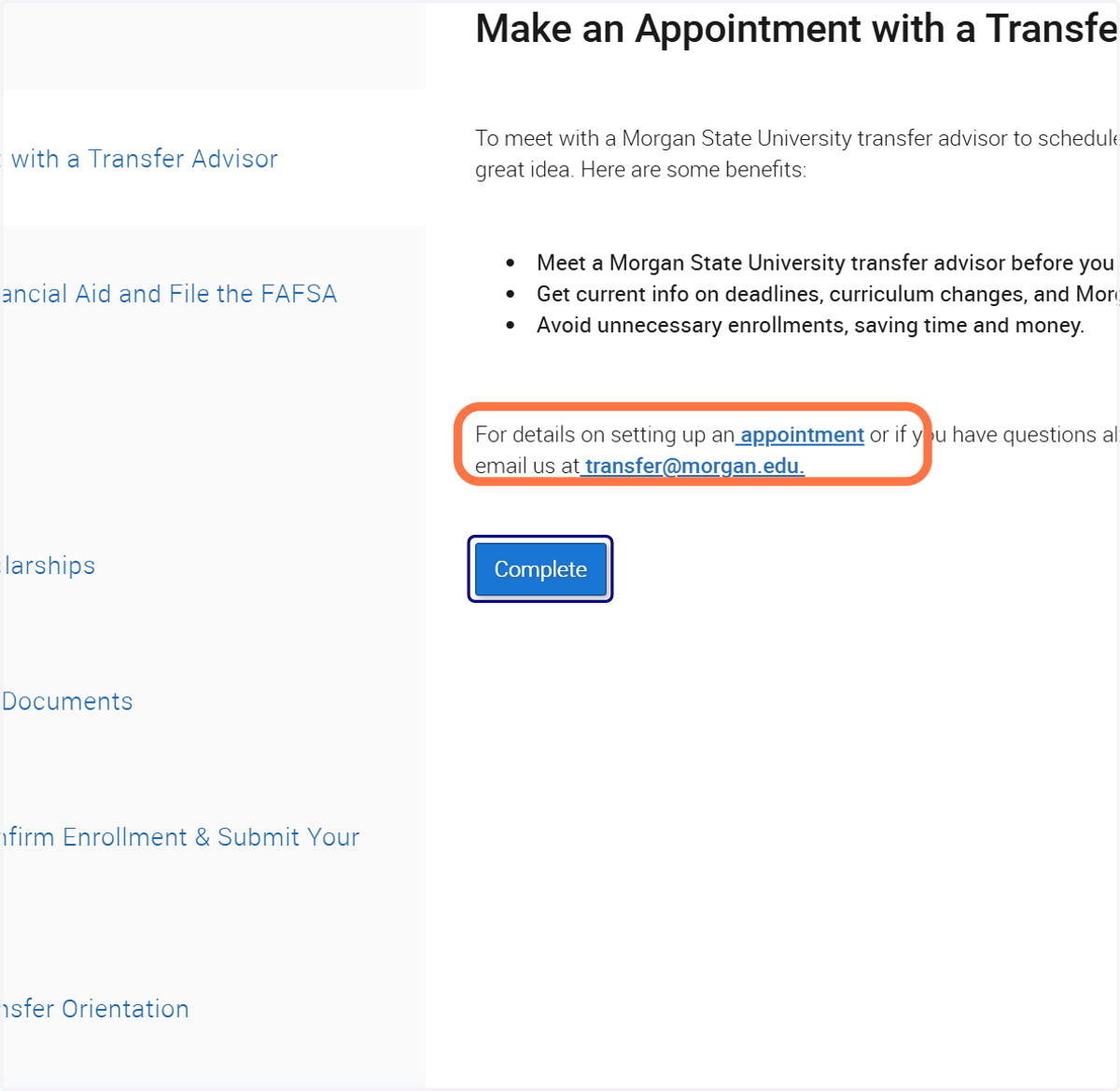
33. Click on "Make an Appointment with a Transfer Advisor" under the "Checklist" section if you would like assistance or have general advising questions.
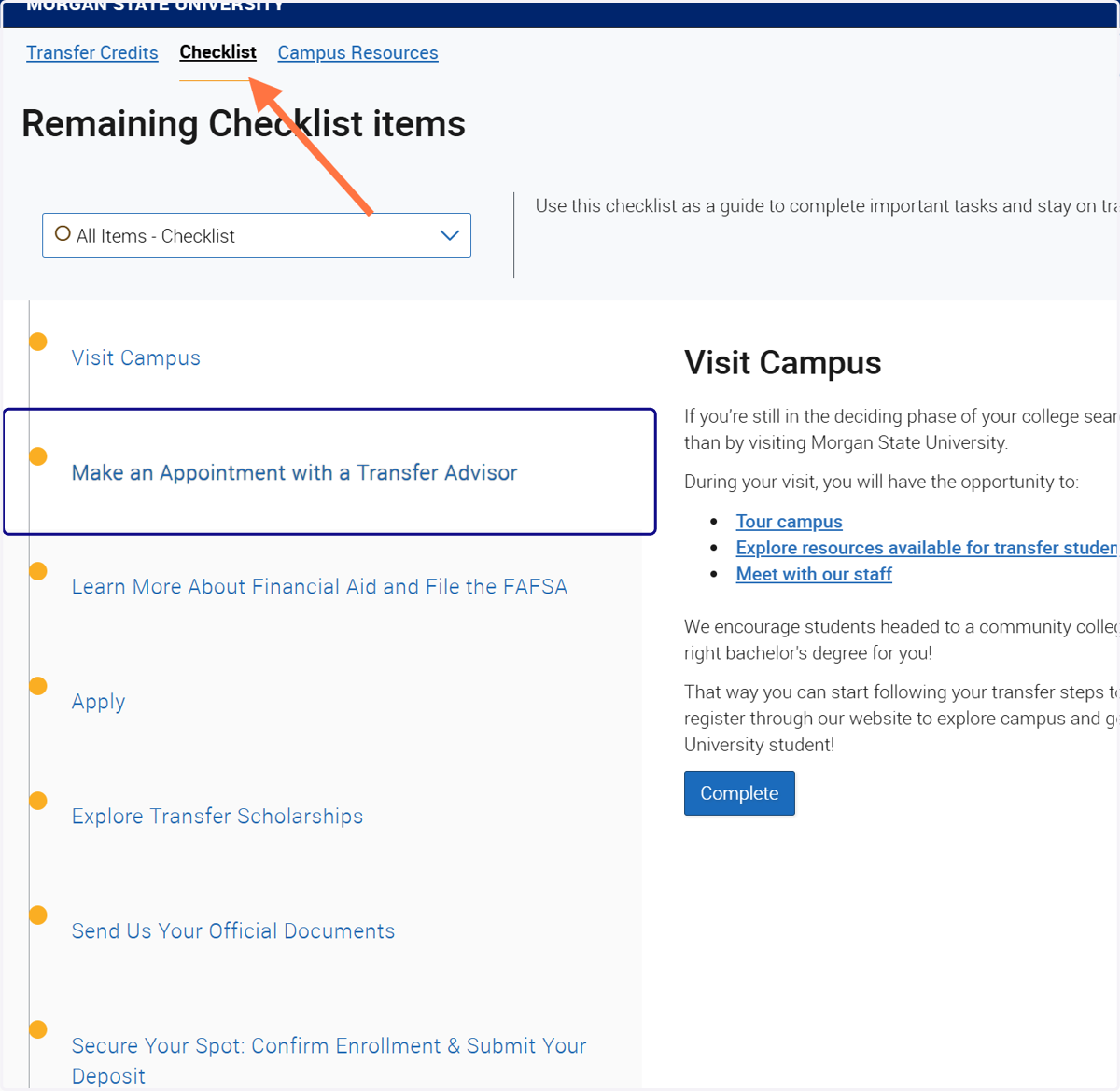
34. Click on the appointment link to contact a Transfer Advisor or send an email.