How to upload meeting recordings from other systems to UpdateAI

Navigate to update.ai.

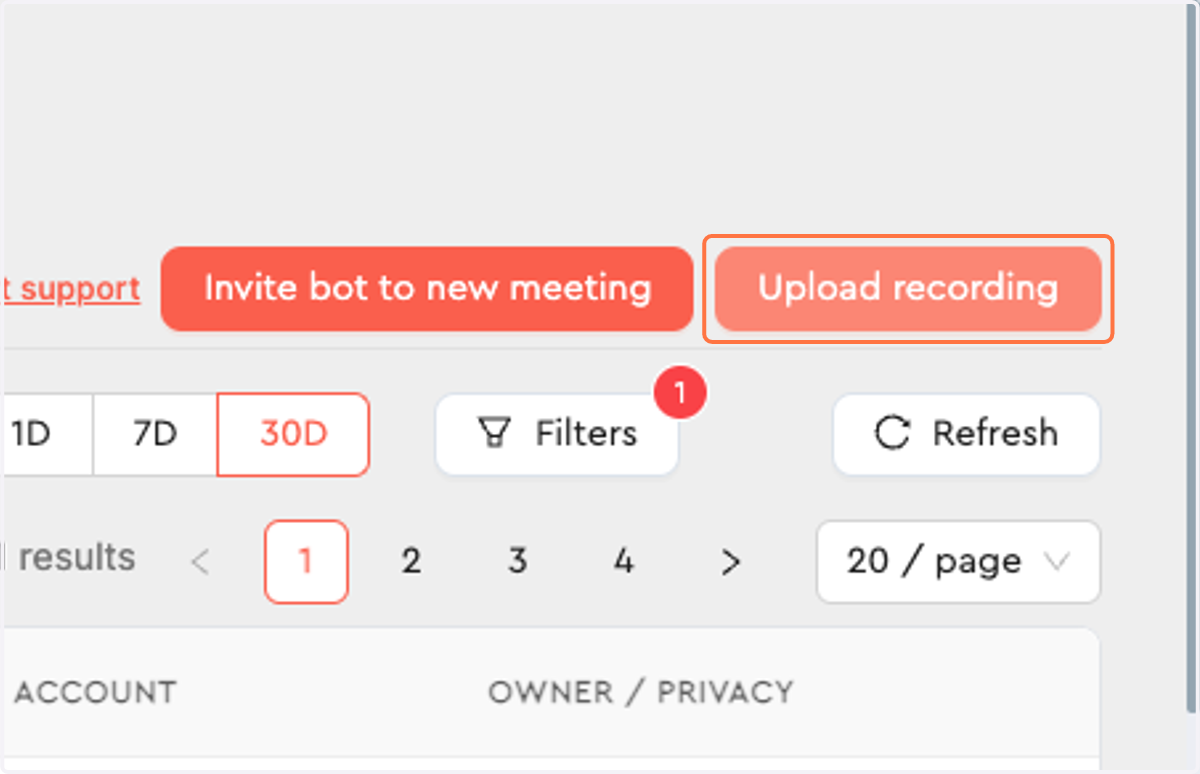
  1. 1. Click on Upload recording.

    Click on Upload recording.
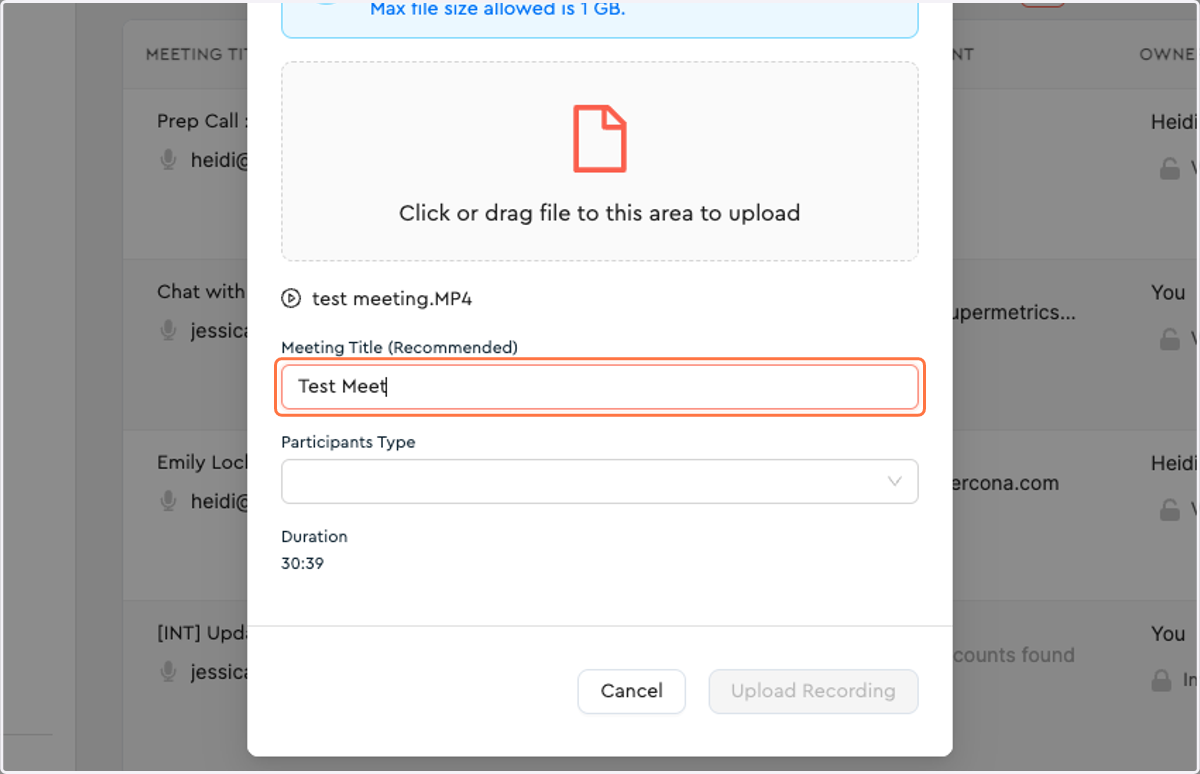
  2. 2. Click on Click or drag file to this area to upload.
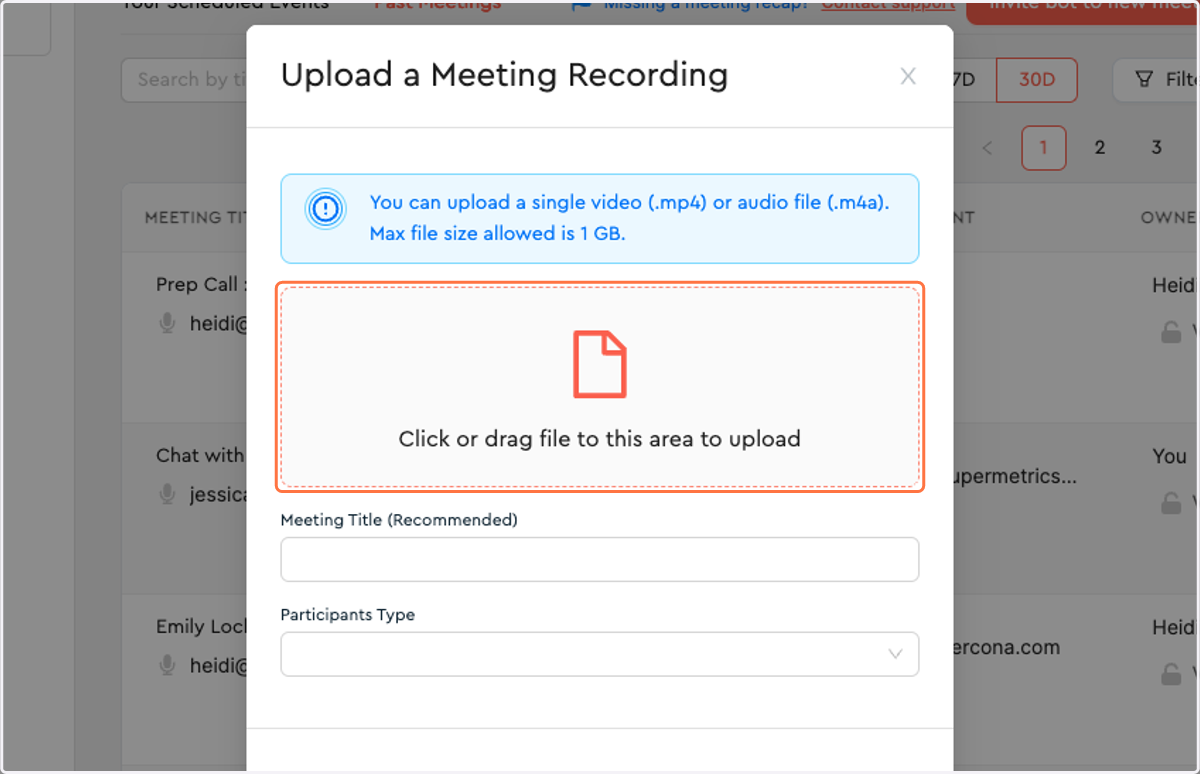
    Click on Click or drag file to this area to upload.
  3. 3. Select the file you want to upload (in this case, I used "test meeting.MP4" which was stored in my downloads folder).
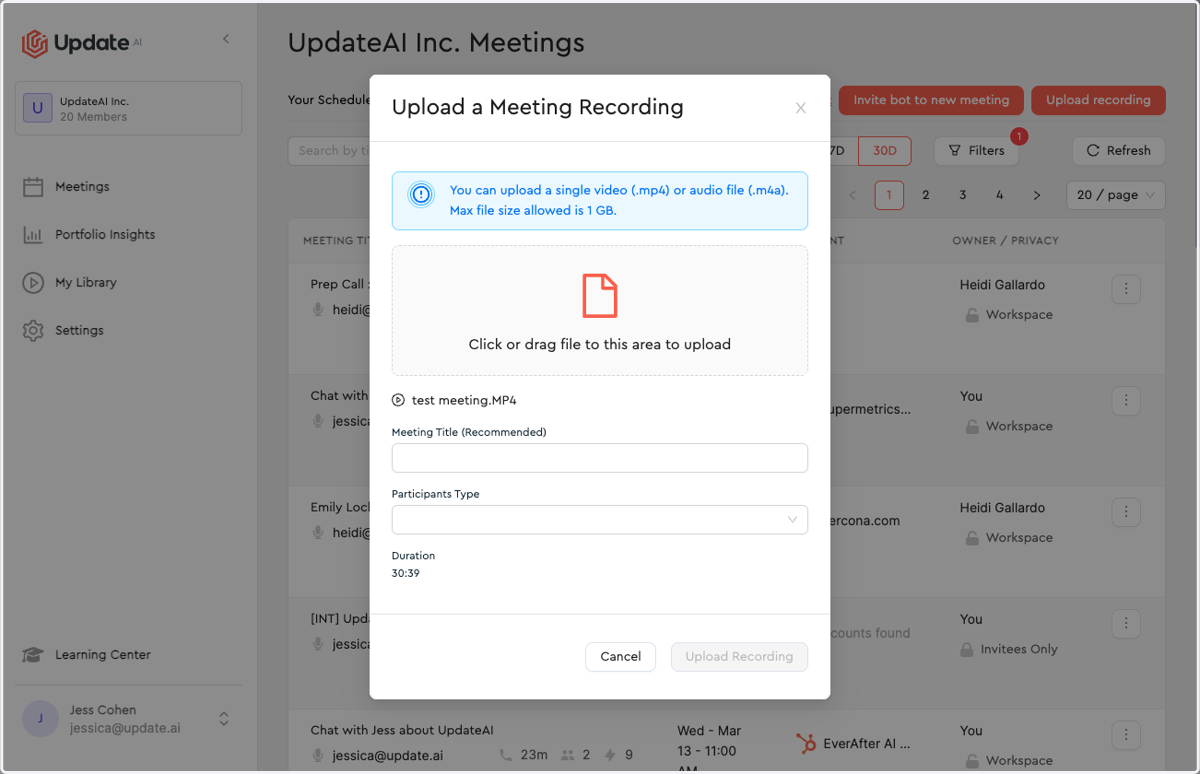
    Select the file you want to upload (in this case, I used "test meeting.MP4" which was stored in my downloads folder).
  4. 4. Give the meeting a title.

    Give the meeting a title.
  5. 5. Choose the participants type (this should align with UpdateAI definitions of internal and external meetings).
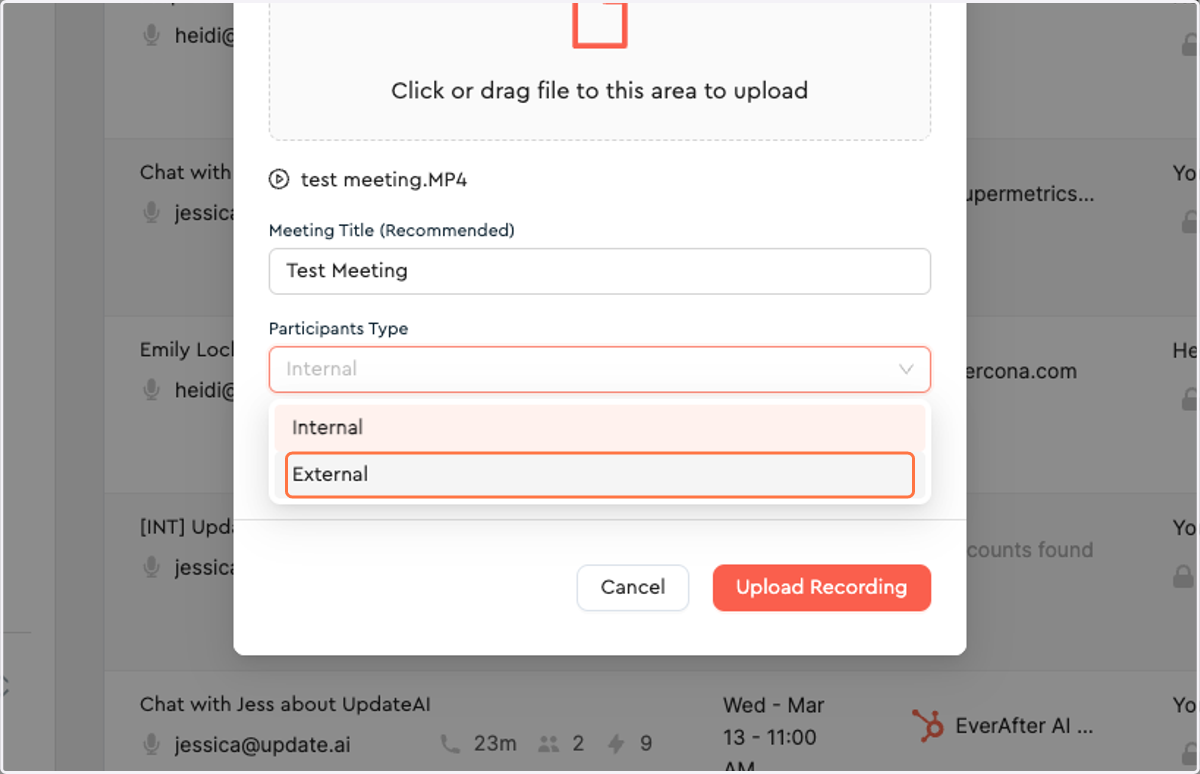
    Choose the participants type (this should align with UpdateAI definitions of internal and external meetings).
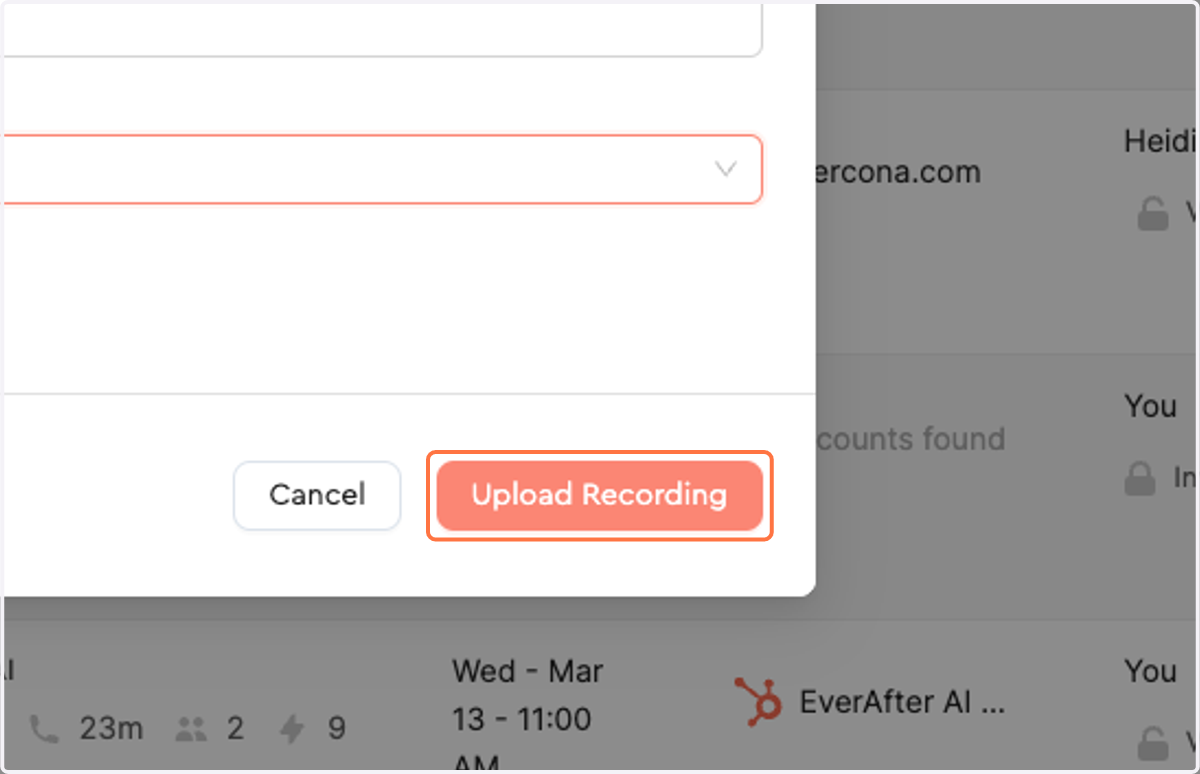
  6. 6. Click on Upload Recording

    Click on Upload Recording
  7. 7. Check to see that the recording was uploaded successfully
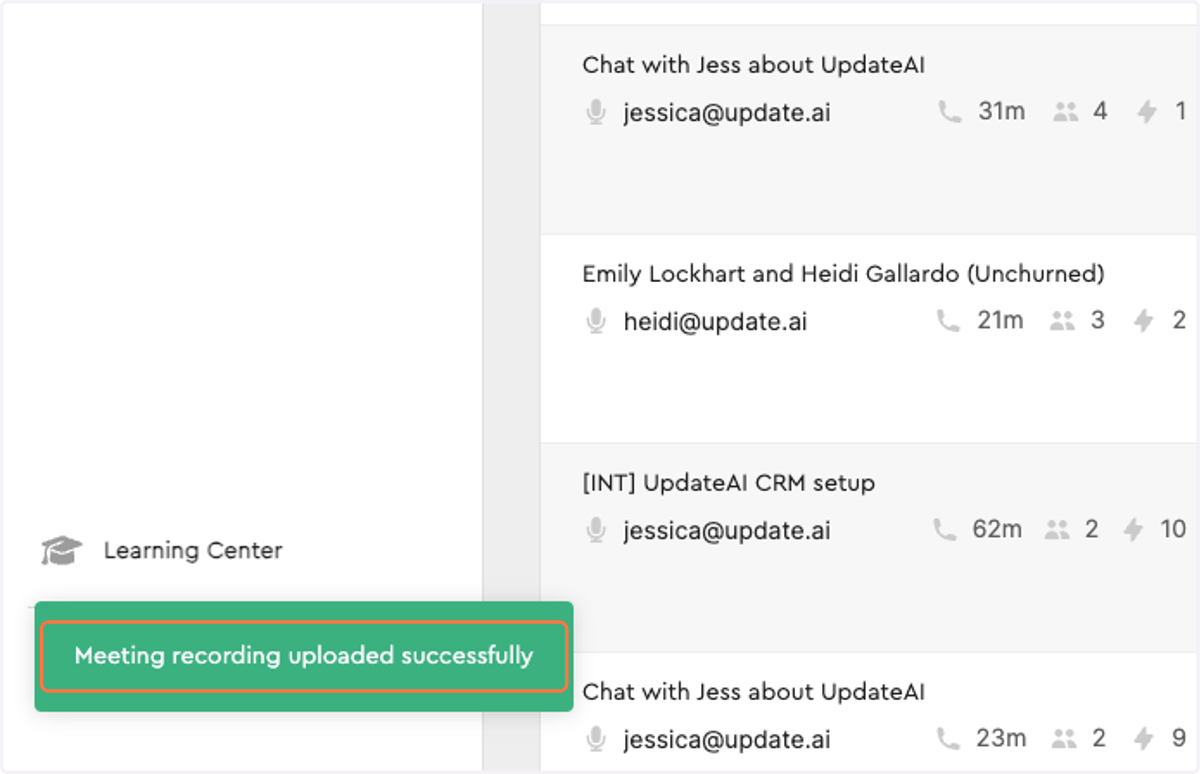
    Check to see that the recording was uploaded successfully
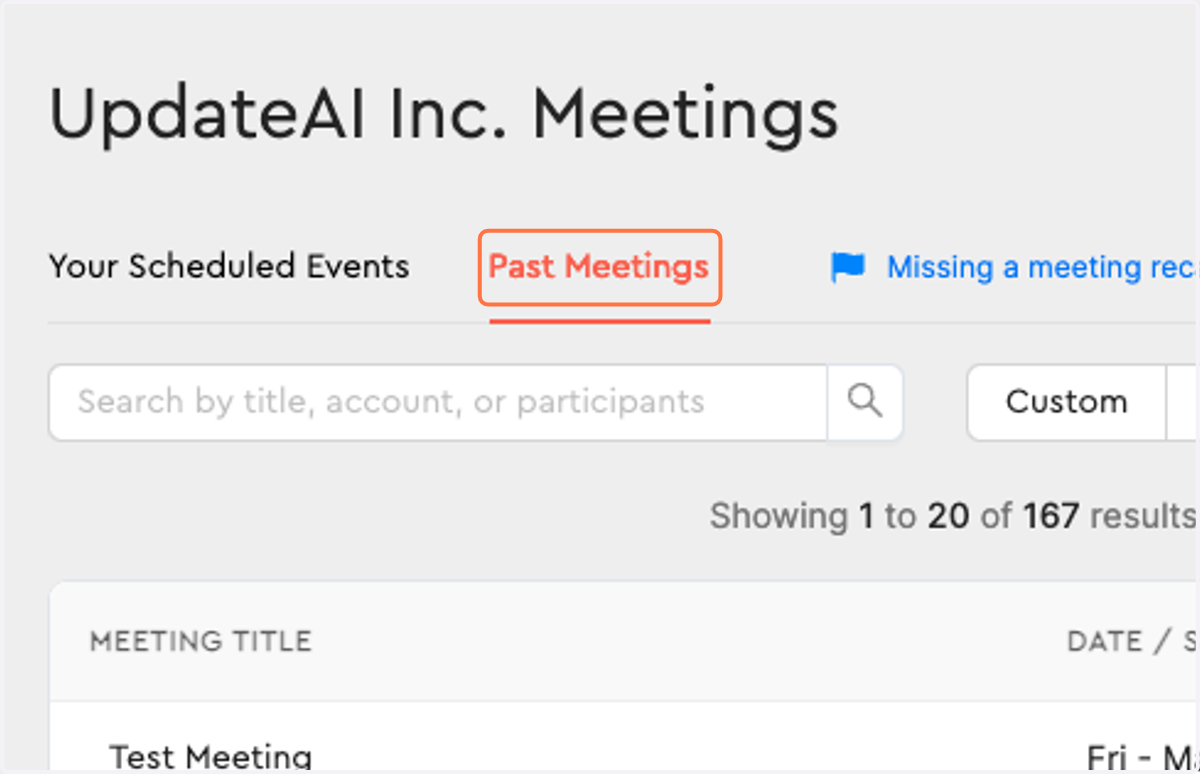
  8. 8. Navigate back to Past Meetings

    Navigate back to Past Meetings
  9. 9. Confirm the meeting recording was uploaded and is being processed. Processing will take up to 1 hour depending on the length of the recording.
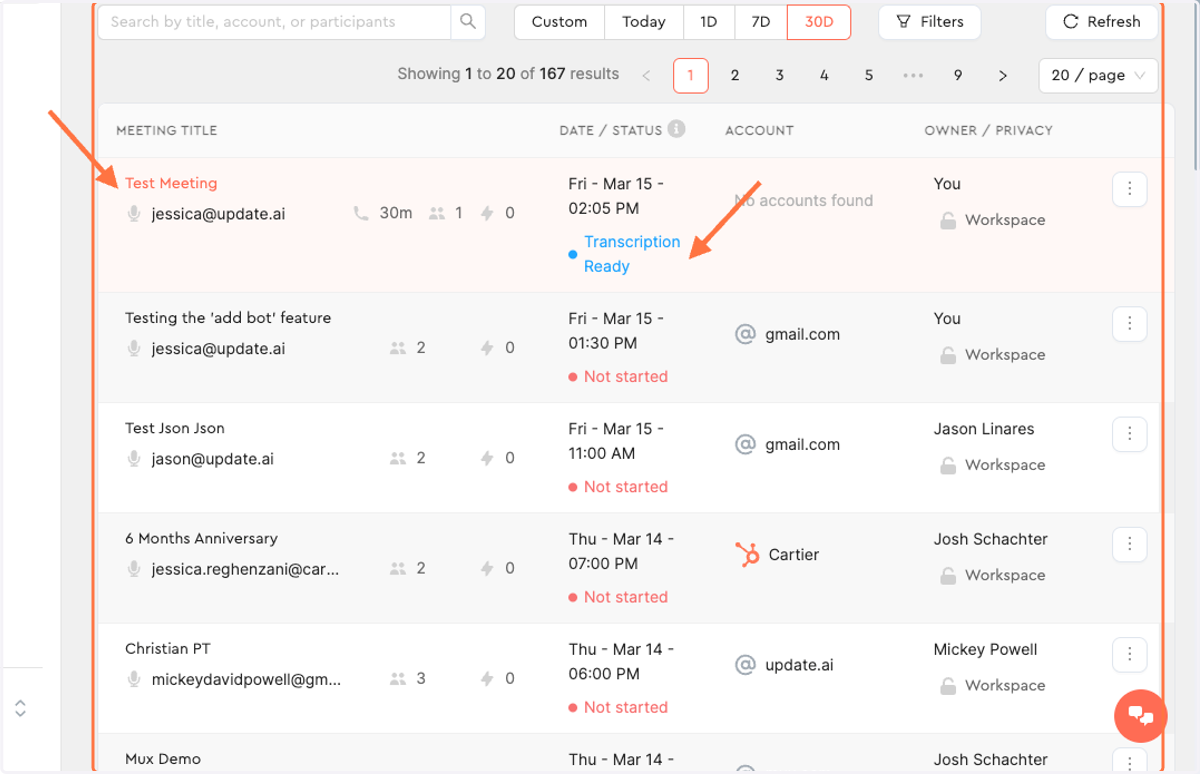
    Confirm the meeting recording was uploaded and is being processed. Processing will take up to 1 hour depending on the length of the recording.