How to submit a Registration Request for a Dual Enrollment Course
This guide walks you step by step through adding a Dual Enrollment course, requesting a course drop when allowed, and confirming your official NFC course schedule so you can be sure you are enrolled correctly.
How to request a Dual Enrollment Course Registration
Follow these steps to request your desired class and submit it for review and approval by your guidance counselor.
Use the NFC Course Schedule to look up the CRNs for the class(es) you have discussed with your guidance counselor and/or NFC Advisor. Have these CRNs ready when you complete your registration request.
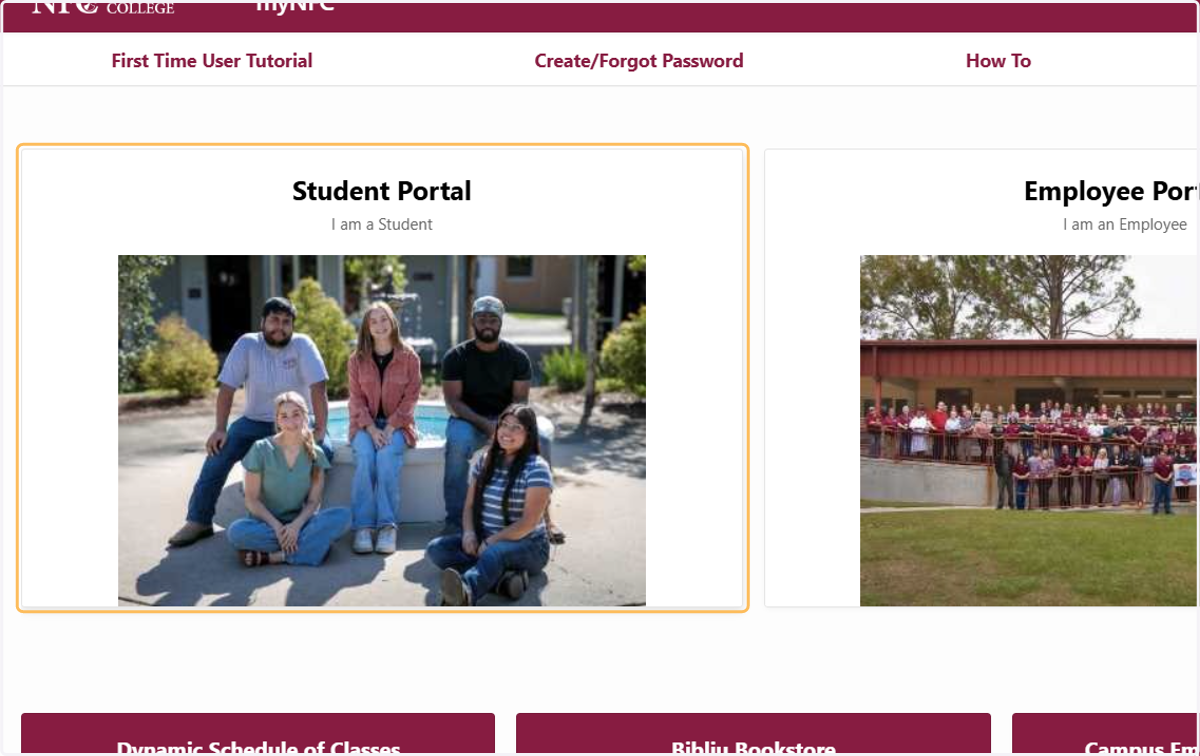
1. Go to the NFC Student Portal
Open a web browser and go to www.my.nfc.edu. Before you begin, be sure you are logged in with your NFC student credentials. If you are a newly accepted Dual Enrollment student, you will need to activate your myNFC account first.
2. Open the Dual Enrollment Registration Form
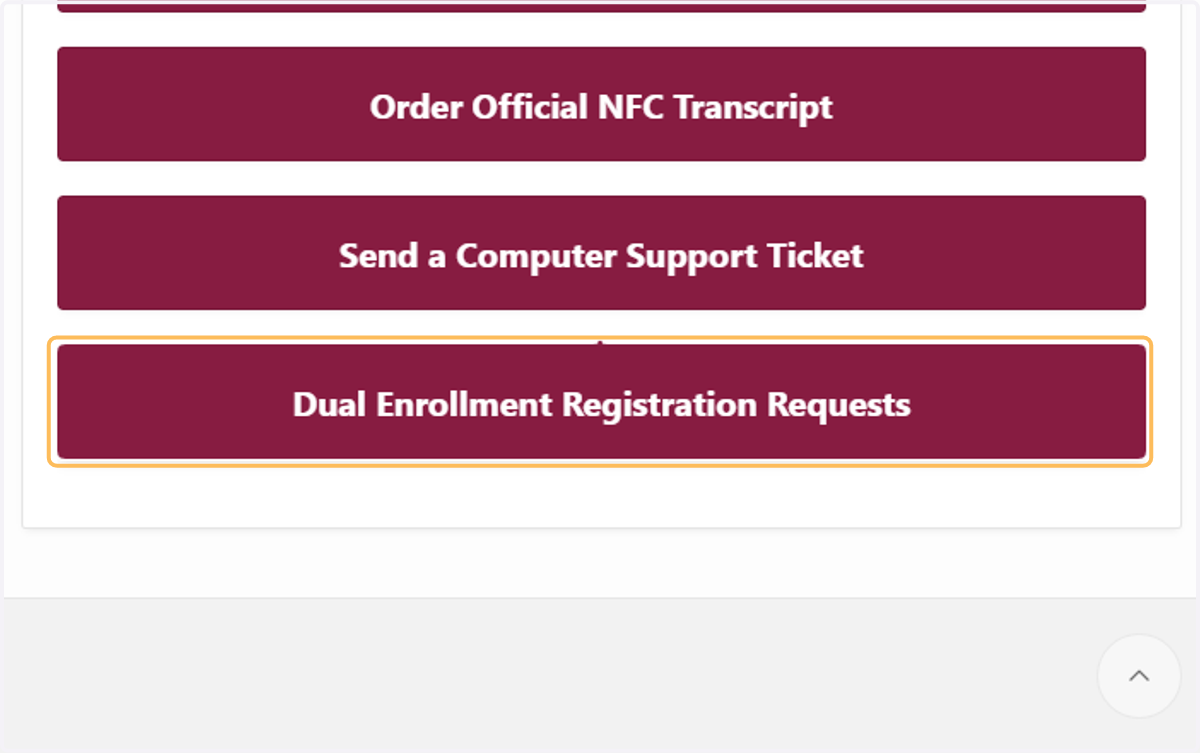
Scroll down the page and under "Student Resources"
Click Dual Enrollment Registration Requests
3. Choose Dual Enrollment Student Options
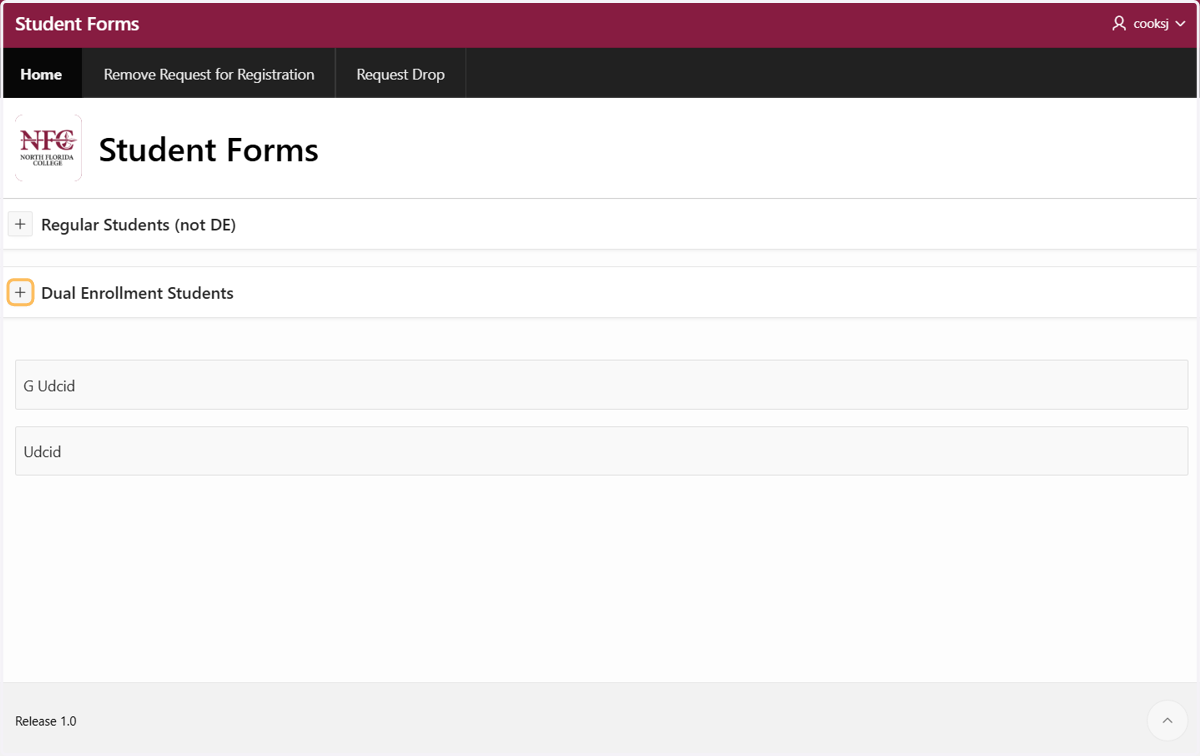
Click Dual Enrollment Students
Select Request to Register for Classes
4. Using the dropdown box, choose the term you want to take classes in.
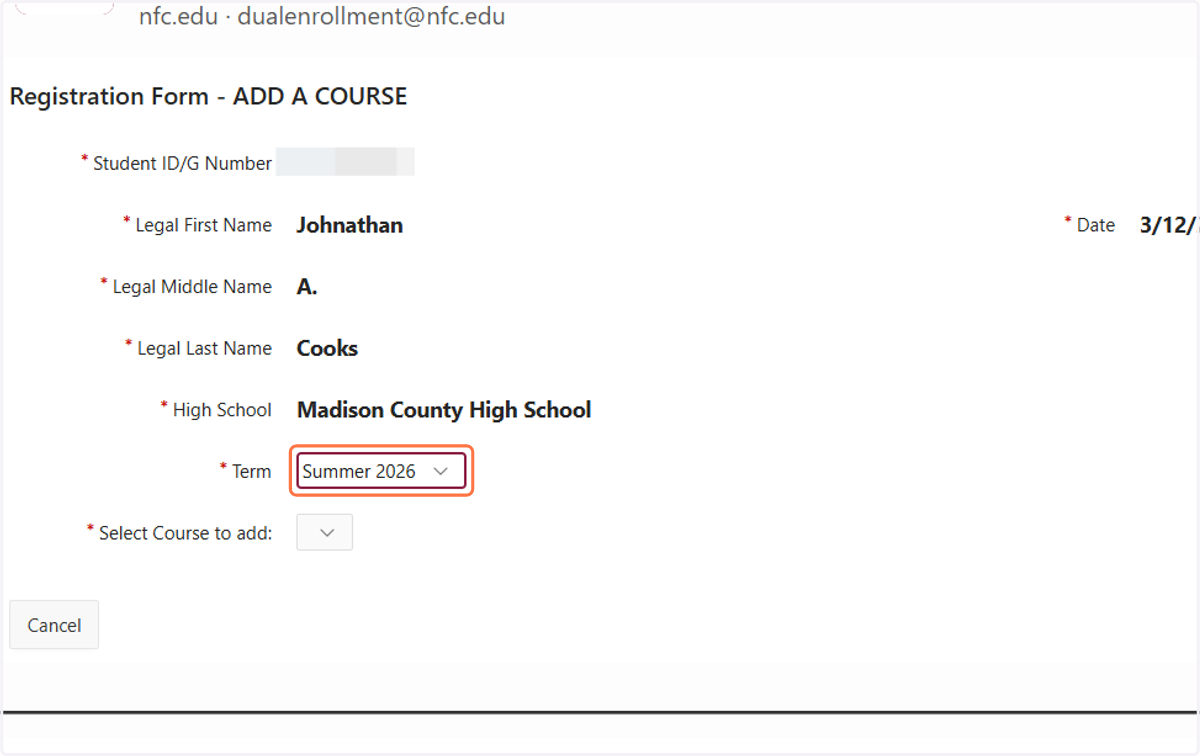
5. Select Your Course
Select the CRN (Course Reference Number) for the class you want
You can view course details such as day(s), time, location, modality, and Instructor by viewing the NFC Course Schedule.
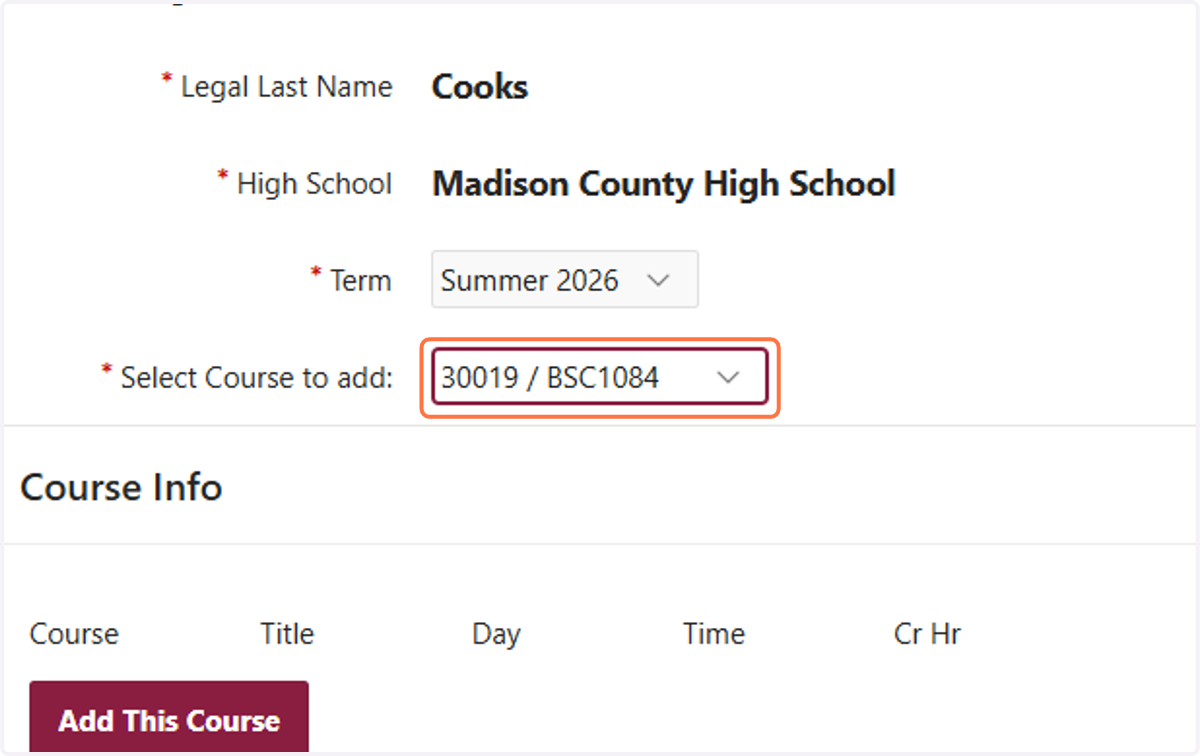
6. Confirm and Add the Course
Carefully check the course information
Click Add This Course
Repeat Steps 5–6 for each course you want to request for that term
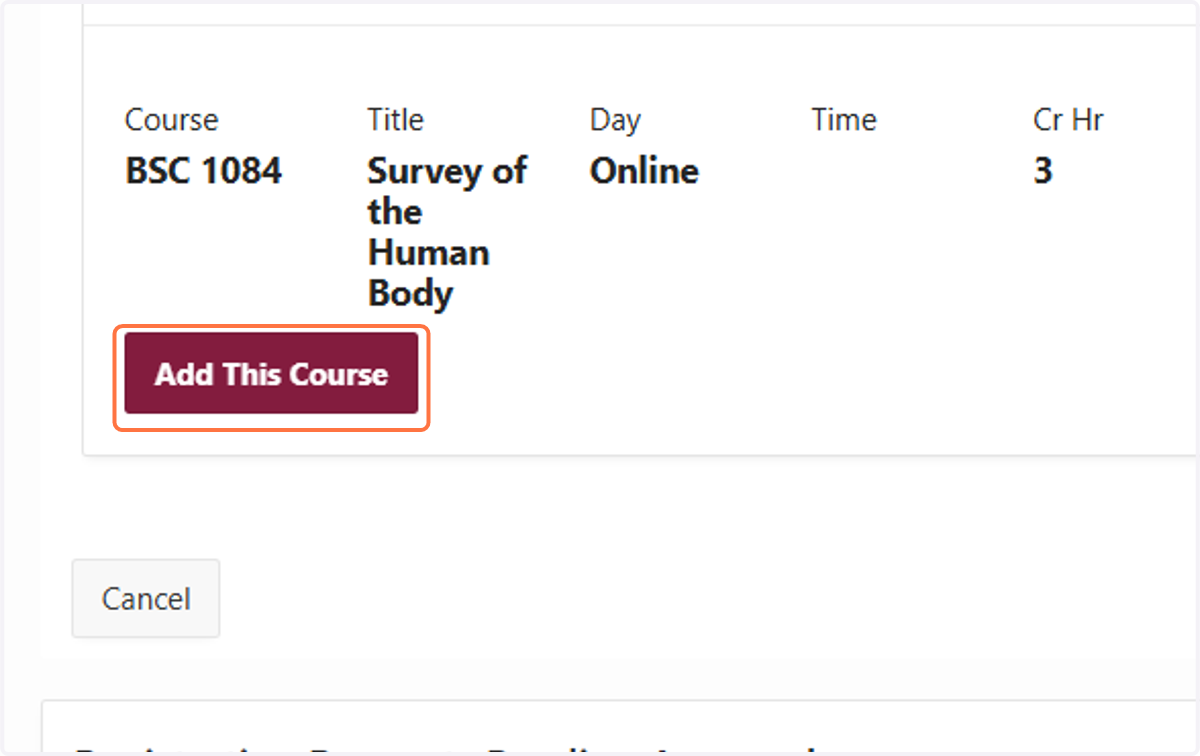
7. Submit and Wait for Approval
Once submitted, your request is sent to your high school guidance counselor
Your counselor will approve or deny each course request
How to Remove a Course Registration Request
If you change your mind about a Dual Enrollment course you requested, you can remove the request as long as your high school counselor has not approved it yet.
To Remove a Course Request:
Follow the same steps used to submit a request (Steps 1–4) to log into the system.
Locate the course request you want to remove.
Select Remove before your counselor takes action.
⚠ Important:
Once your counselor approves a course request, you can no longer remove it yourself.
If you have already been officially registered in the course, you must follow the steps in the next section to request a course drop during the college’s official add/drop period, as listed on the Academic Calendar.
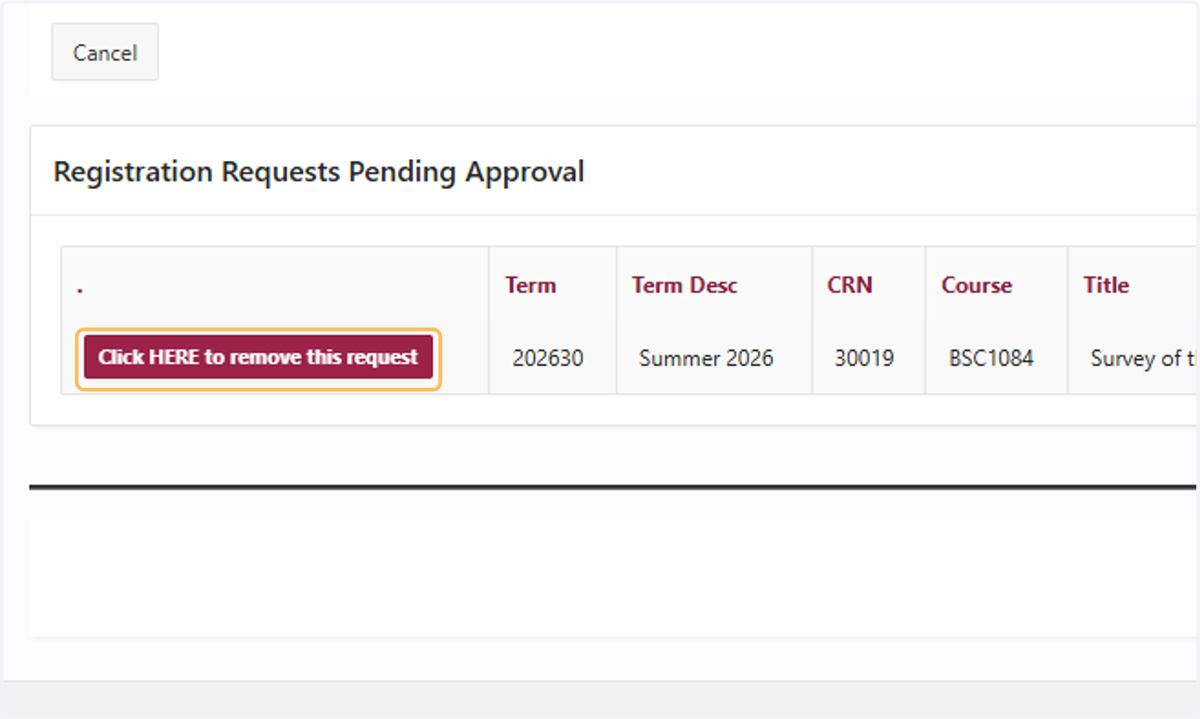
8. Select the term you would like to edit and then select the "Click HERE to remove this request" button
Click the removal link to cancel a course registration request that is still pending counselor approval.
Verify Your Official NFC Course Schedule
Approved course registrations are processed during your designated registration period (early or open registration), as listed on the NFC Academic Calendar.
Once registration begins, it is important that you check your official NFC course schedule to confirm whether you were:
Registered, or
Placed on a waitlist for any of your requested courses.
Be sure to review your schedule carefully so you understand your enrollment status for each course.
9. Navigate to the NFC Student Portal
From the NFC student portal, scroll to the My Info section and open Student Profile to verify your registration details.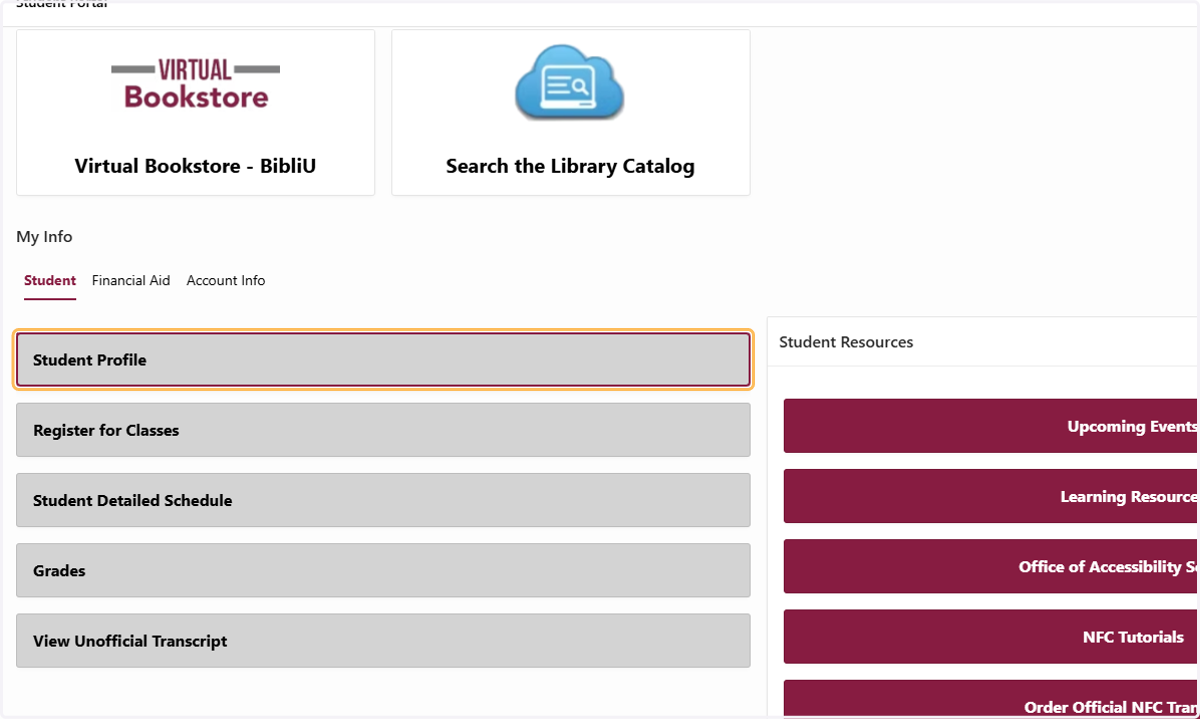
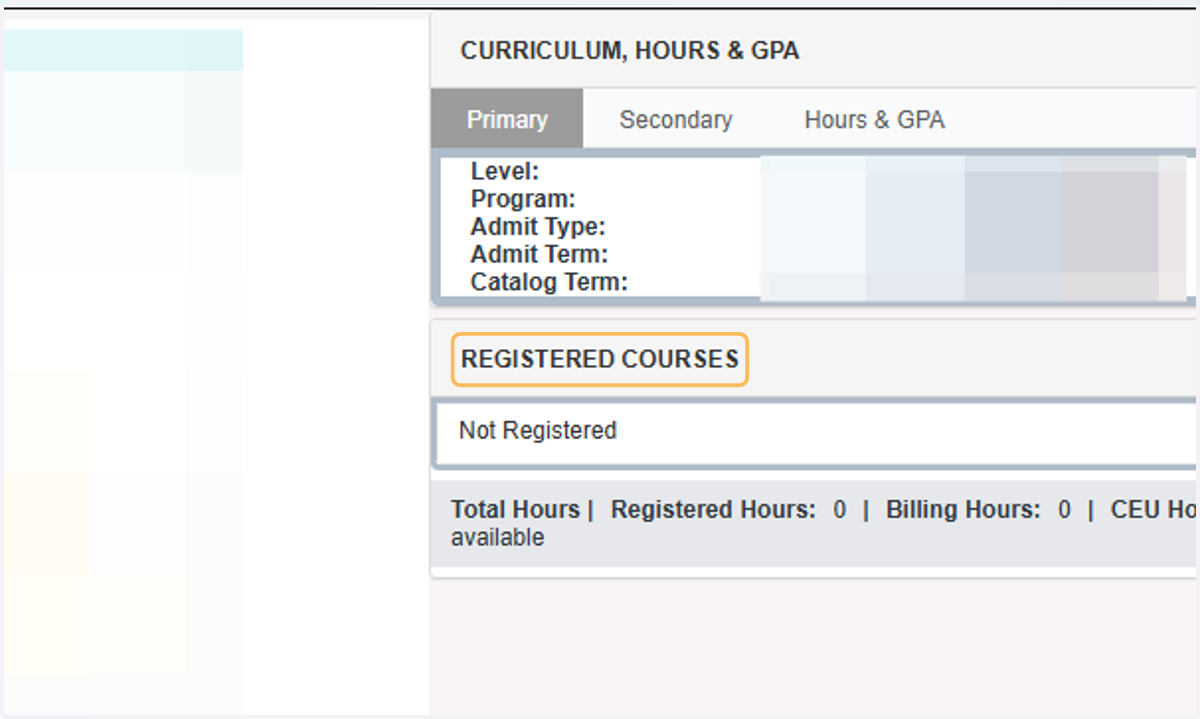
10. Once in your student profile, look for the Registered Courses section.
Confirm that you are enrolled in the correct courses you requested.
This information will appear after your counselor has approved your requests and during early or open registration for the selected term, if available.
How to Drop a Course
If you have already been registered for a Dual Enrollment course, you must submit a drop request during the college’s official add/drop period, as listed on the College Academic Calendar.
Follow the same steps used to submit a request (Steps 1–4) to log into the system.
Submit a drop request for the course during the add/drop window.
⚠ Important:
Even during the add/drop period, your high school counselor must approve the drop request.
Missing the add/drop deadline may result in the course remaining on your schedule and transcript.
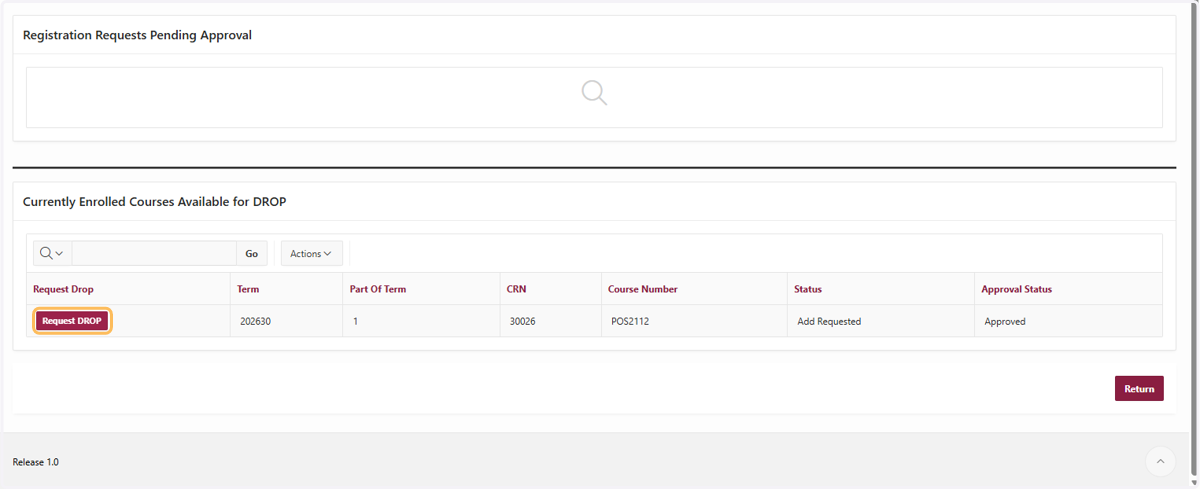
11. Scroll down to the “Currently Enrolled Courses Available for Drop” section.
Find the course you want to drop and click Request Drop.
Review the information and confirm your request.
Drop requests are available only during the official add/drop window.