How to set up your new cookie banner
Accessnfp
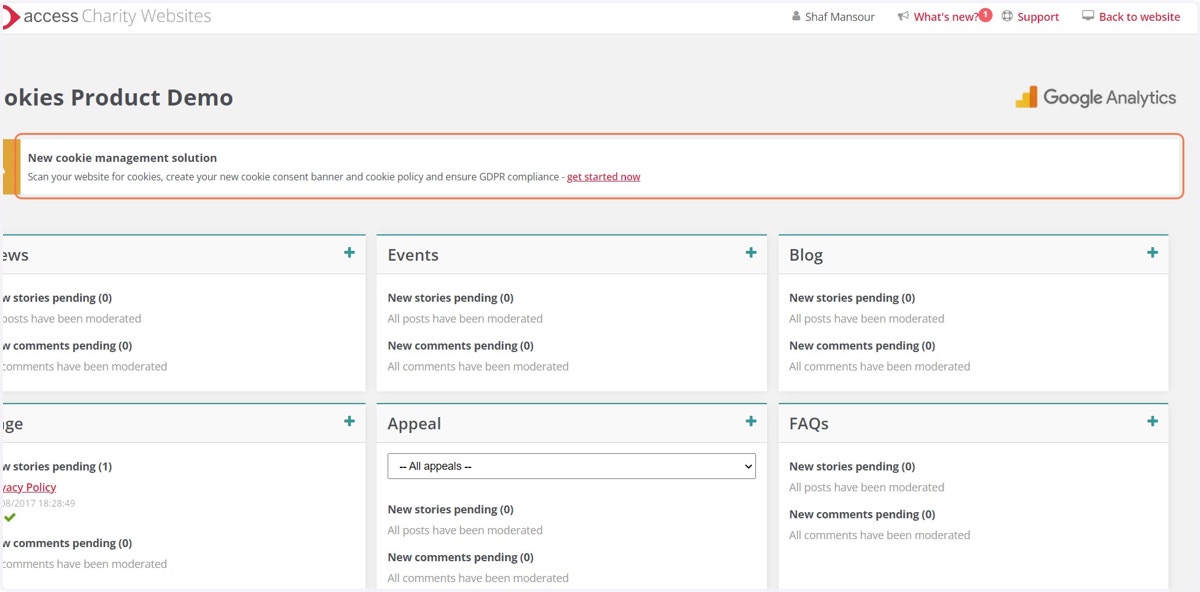
1. Start at your Platform Manager homepage
At the top of the page, you’ll see a notification highlighting that the new cookie solution is available.
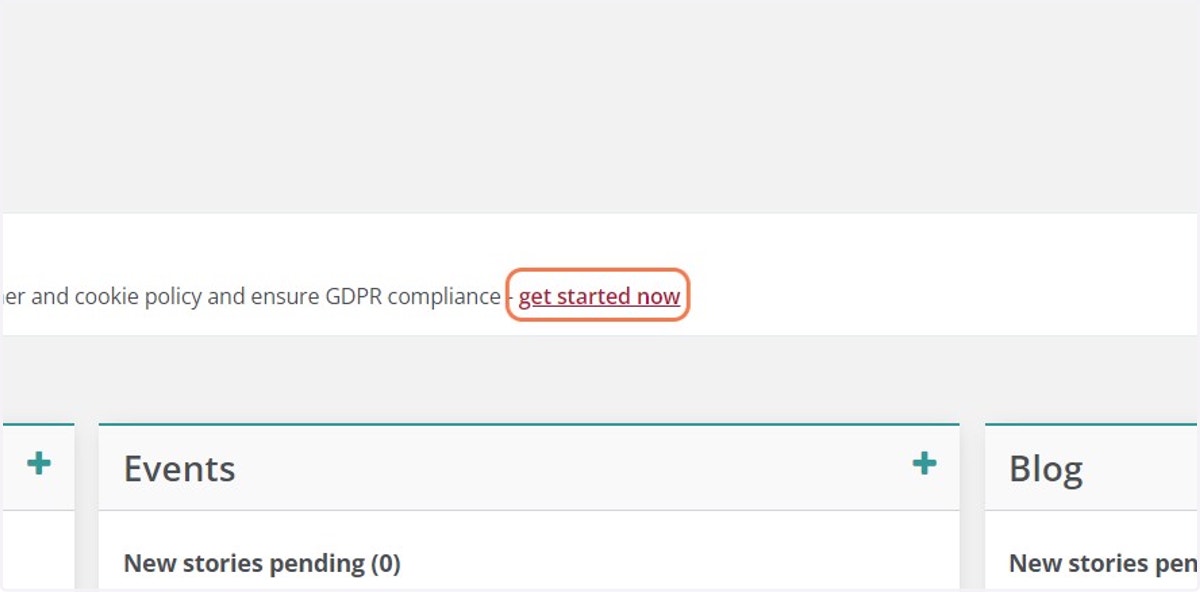
2. Select the hyperlinked text labelled ‘get started now'
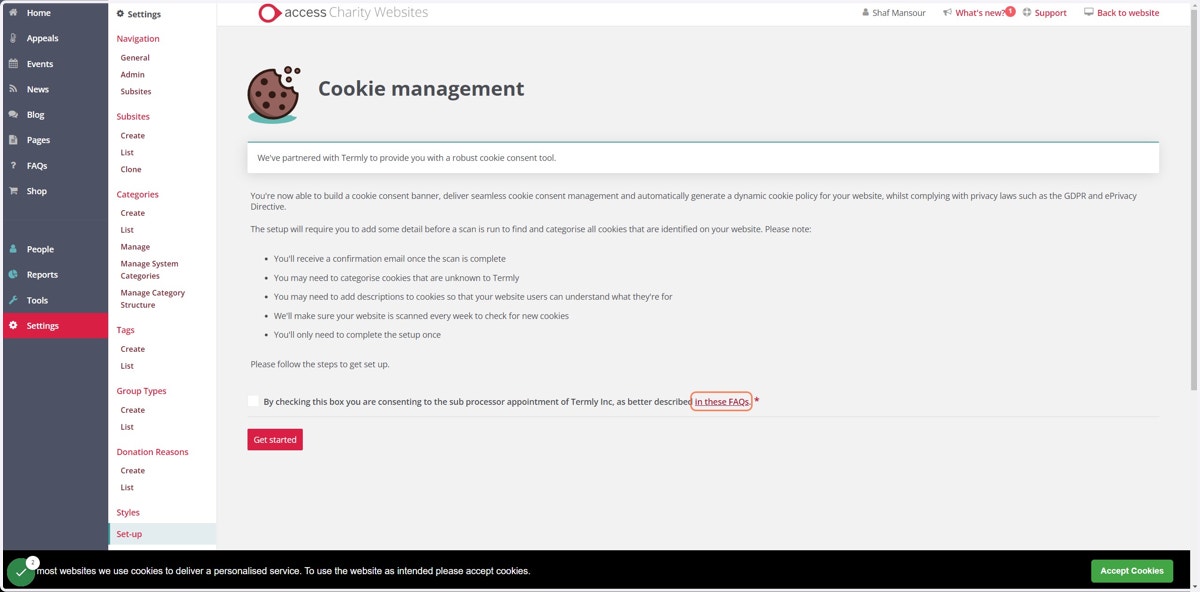
3. You're now in the first stage of set up
You only need to complete the set up once
Force
4. Please take a moment to read the FAQs
This is important because we have partnered with a third-party provider to provide this solution.
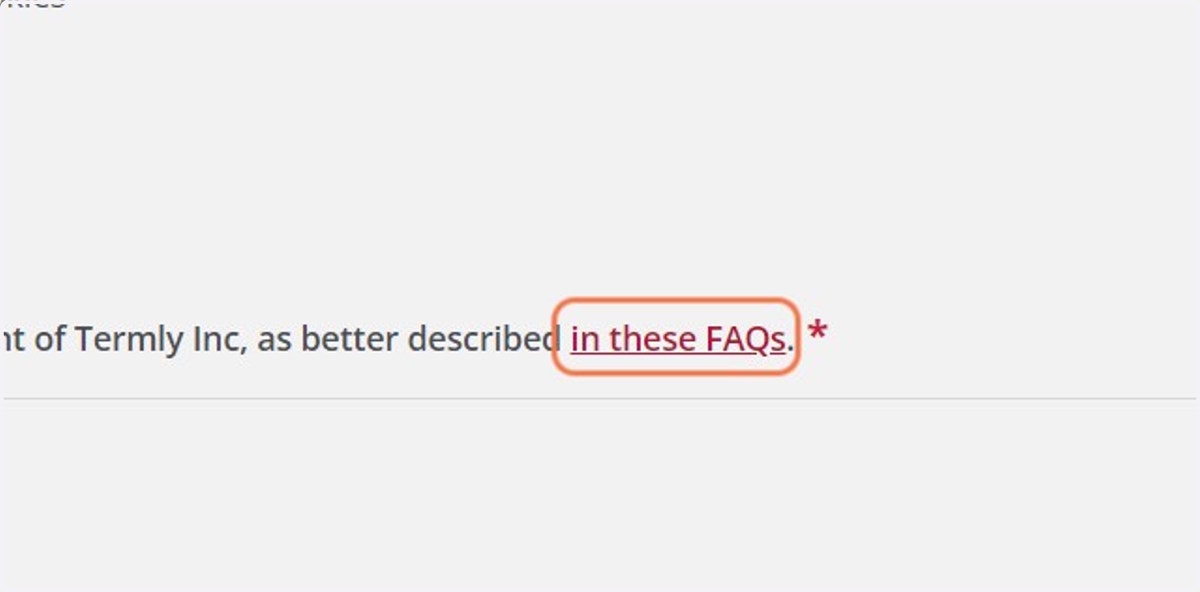
Accessnfp
5. Select the tick box to show you have read and understood the FAQs
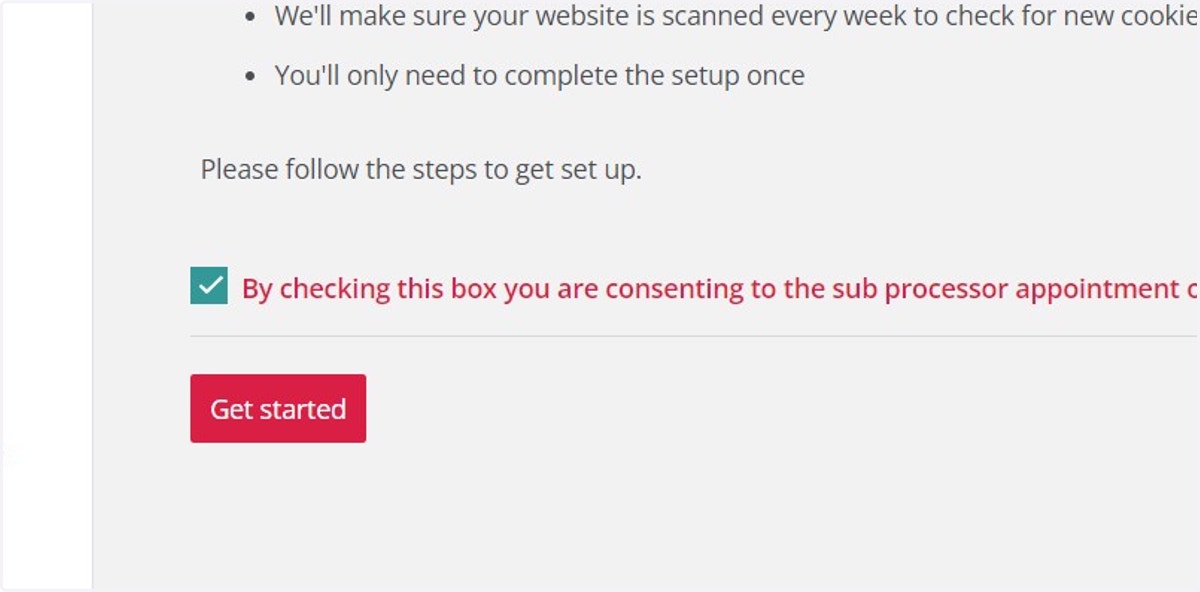
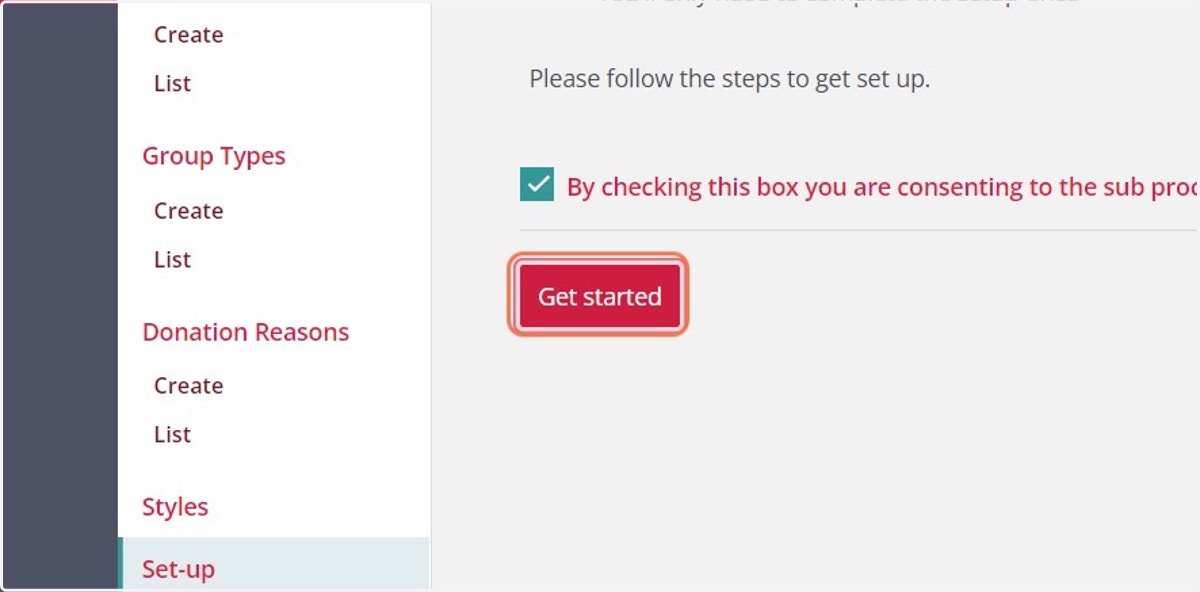
6. Click on Get started
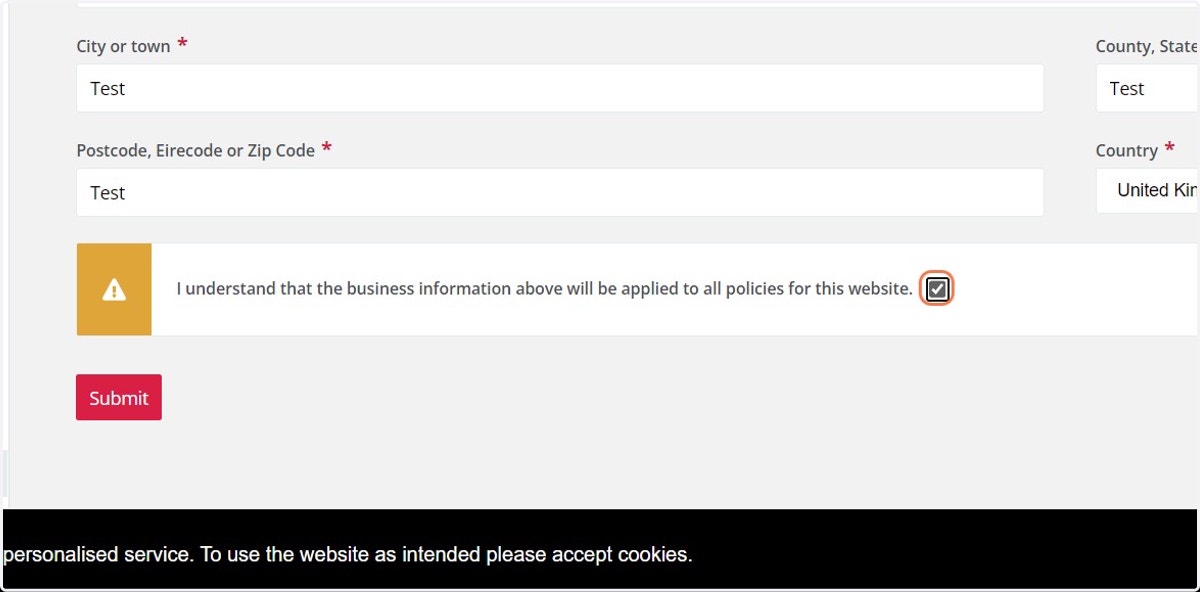
7. Enter all of your charity details
These details will appear on your new cookie policy which will be automatically generated.
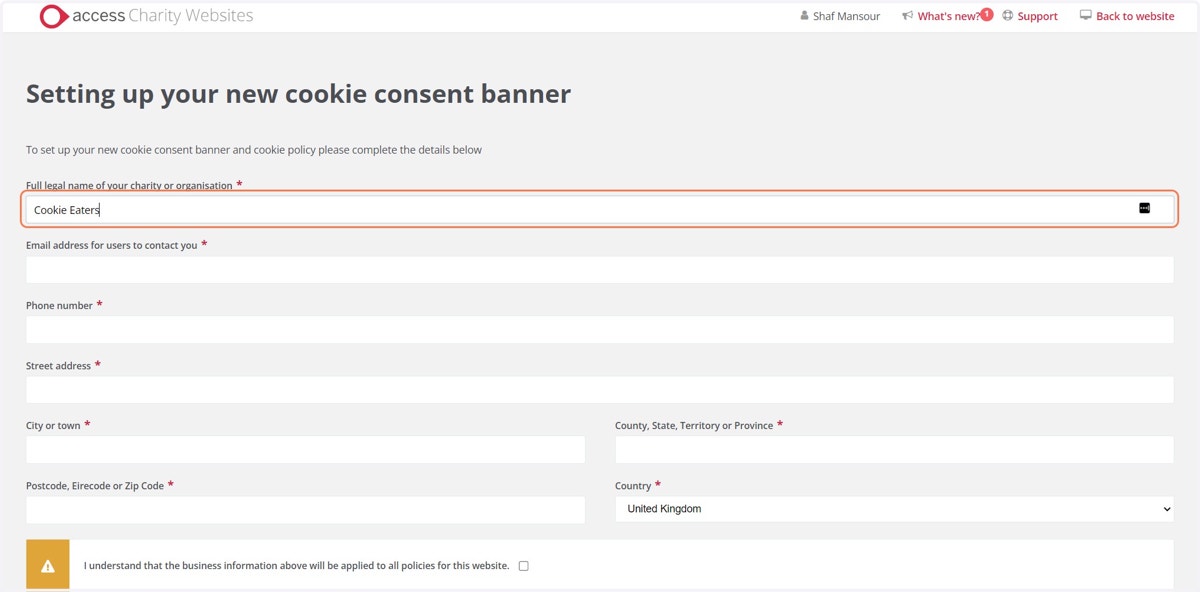
8. Check the box to confirm you have understood how these details will be used
Accessnfp
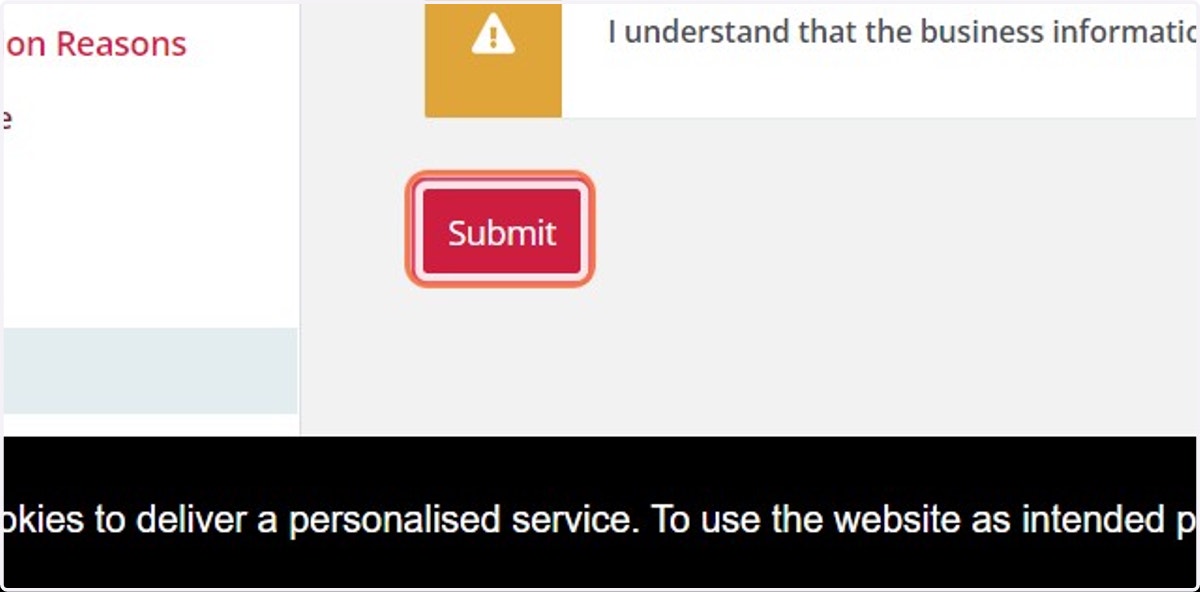
9. Now, click on Submit
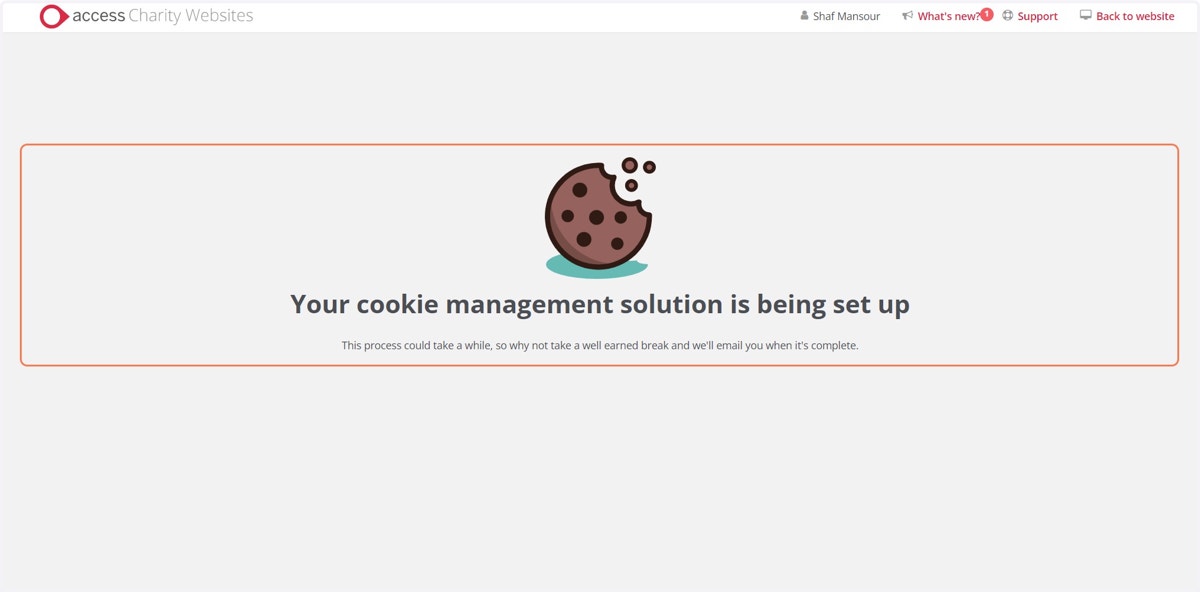
10. Well done! Your cookie management solution is busy being set up
This includes a full scan of your website. We'll email you once it's ready.
11. Once complete, the email you'll receive will look like this
Simply follow the link in the email to complete the set up.
We'll scan your website every couple of weeks and let you know if any new cookies are found.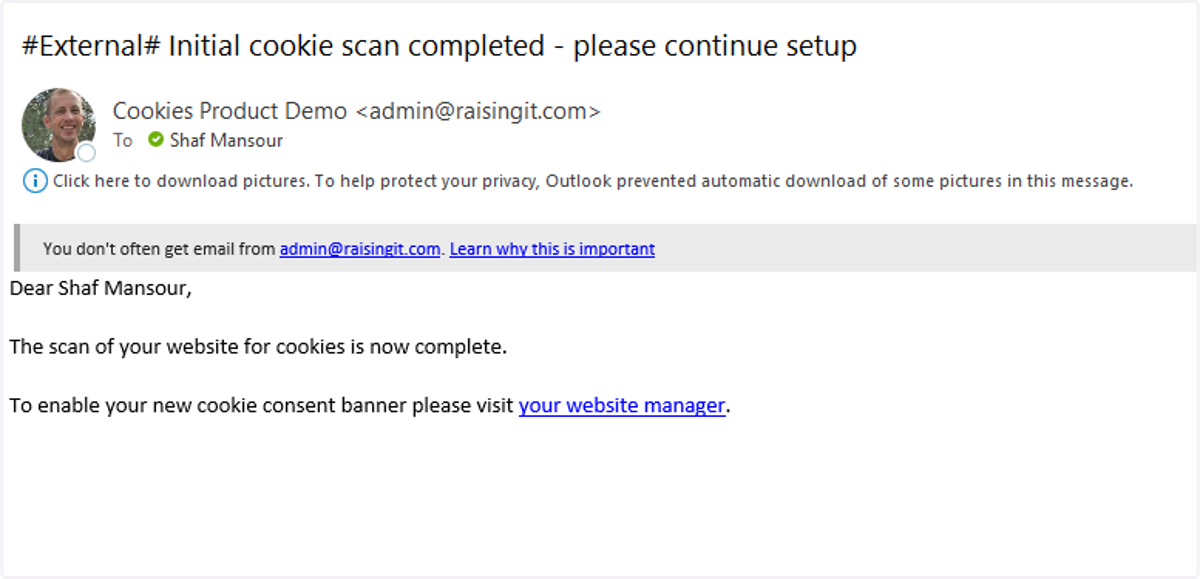
12. You're also able to navigate to cookies within your website manager
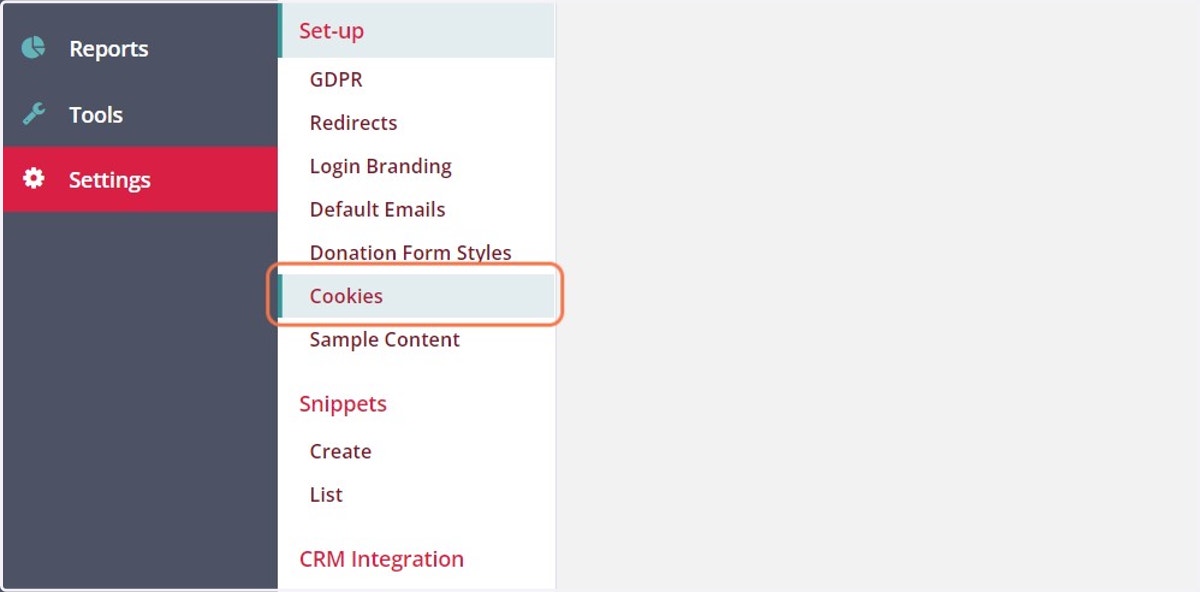
Find your cookies under Settings > Set-up > Cookies
13. You'll see a list of your cookies listed under their classification
We'll automatically classify cookies that we know about, especially if they're from the website's core functionality. You'll need to check any cookies applied by third parties that you might have implemented on your website.
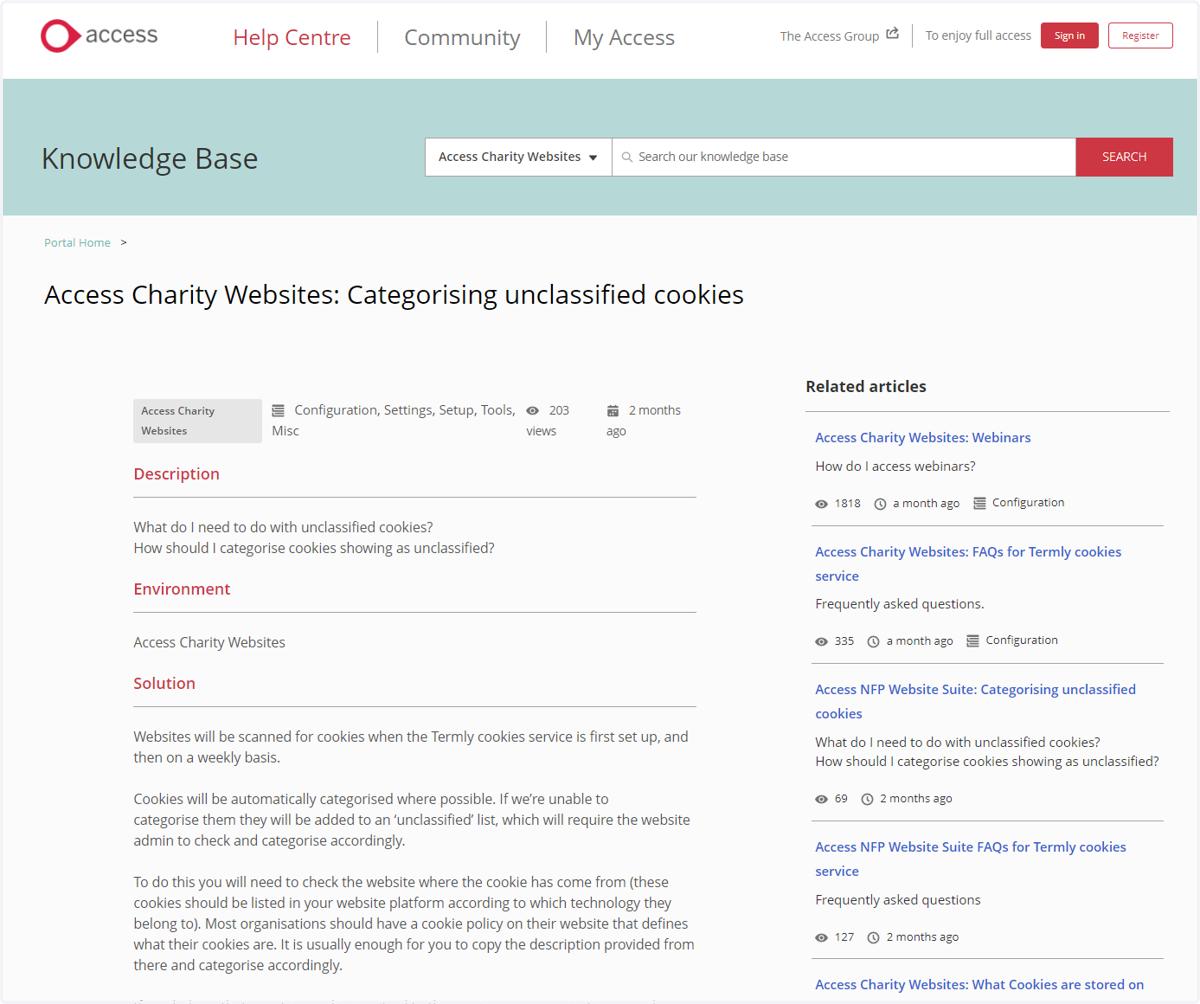
To learn more about classification please see our help article here: Access Charity Websites: Categorising unclassified cookies (force.com)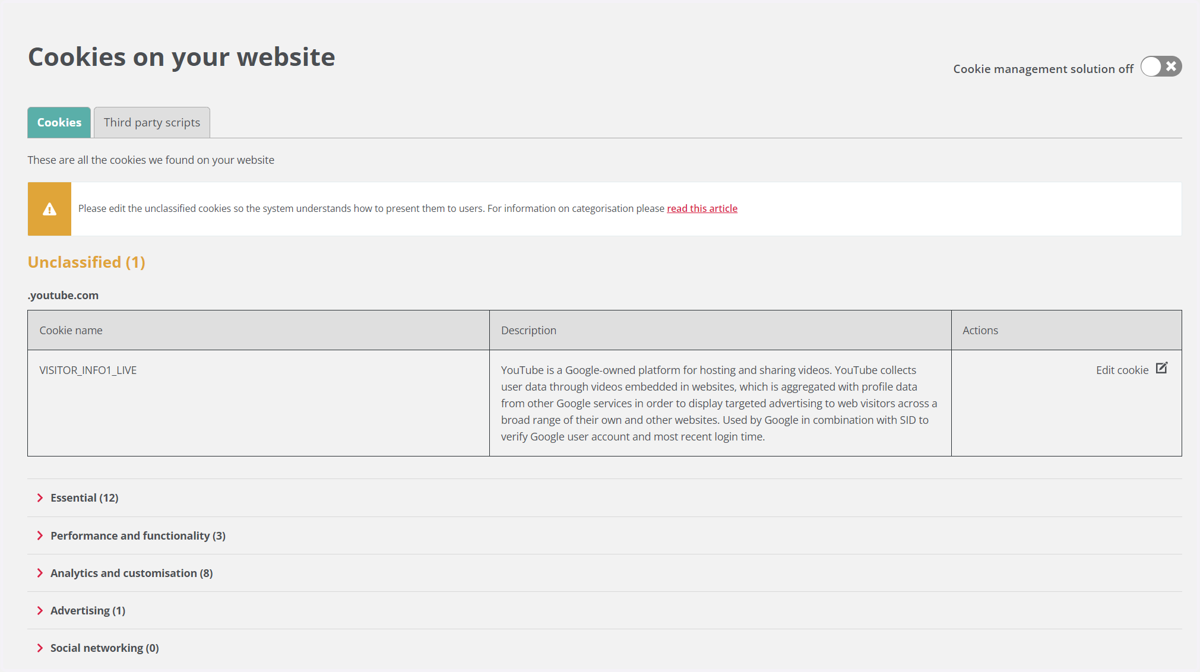
14. How to find out what a cookie is for
Your cookies should be organised under the URL of the website they belong to. In this example it's YouTube.
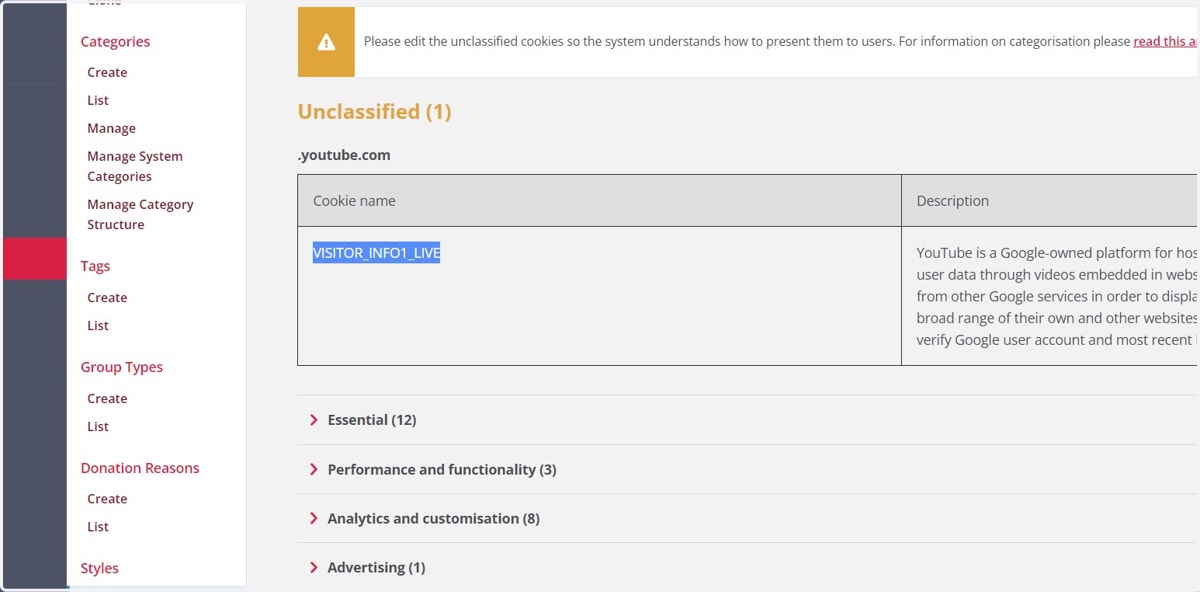
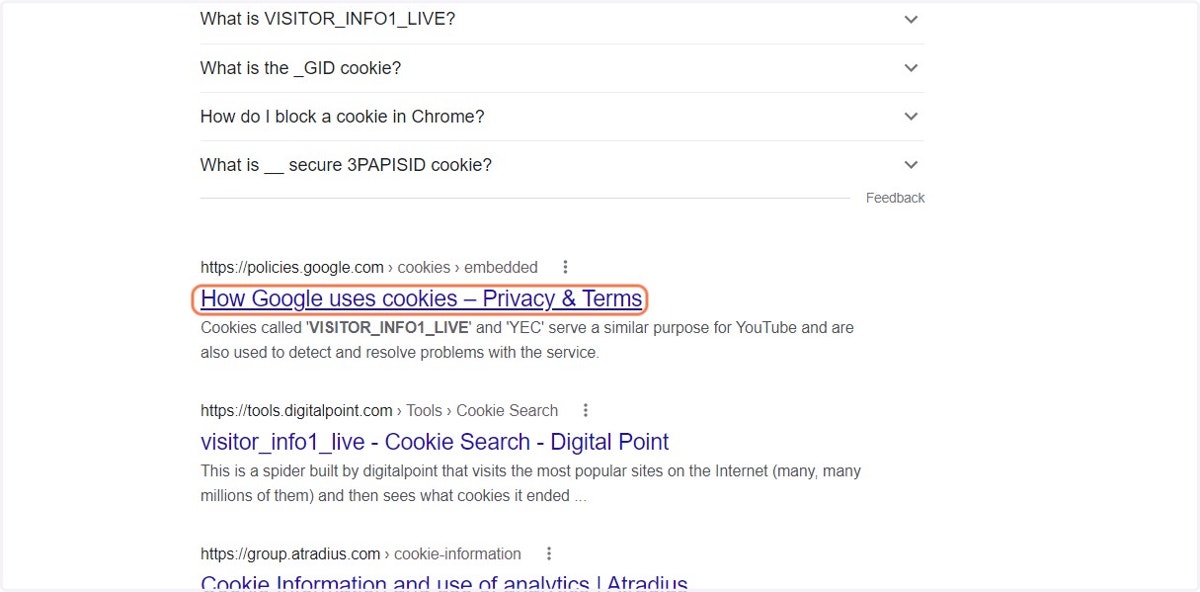
15. Copy and paste the cookie name into a search engine
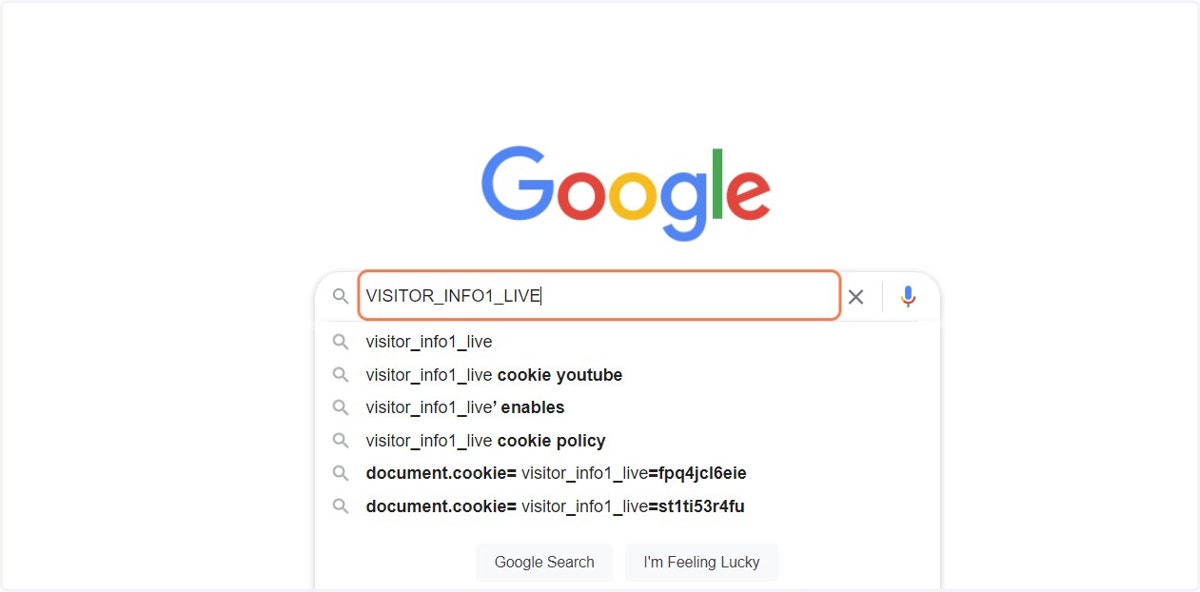
16. Navigate to the relevant search result
YouTube is owned by Google so this is the most relevant in this case
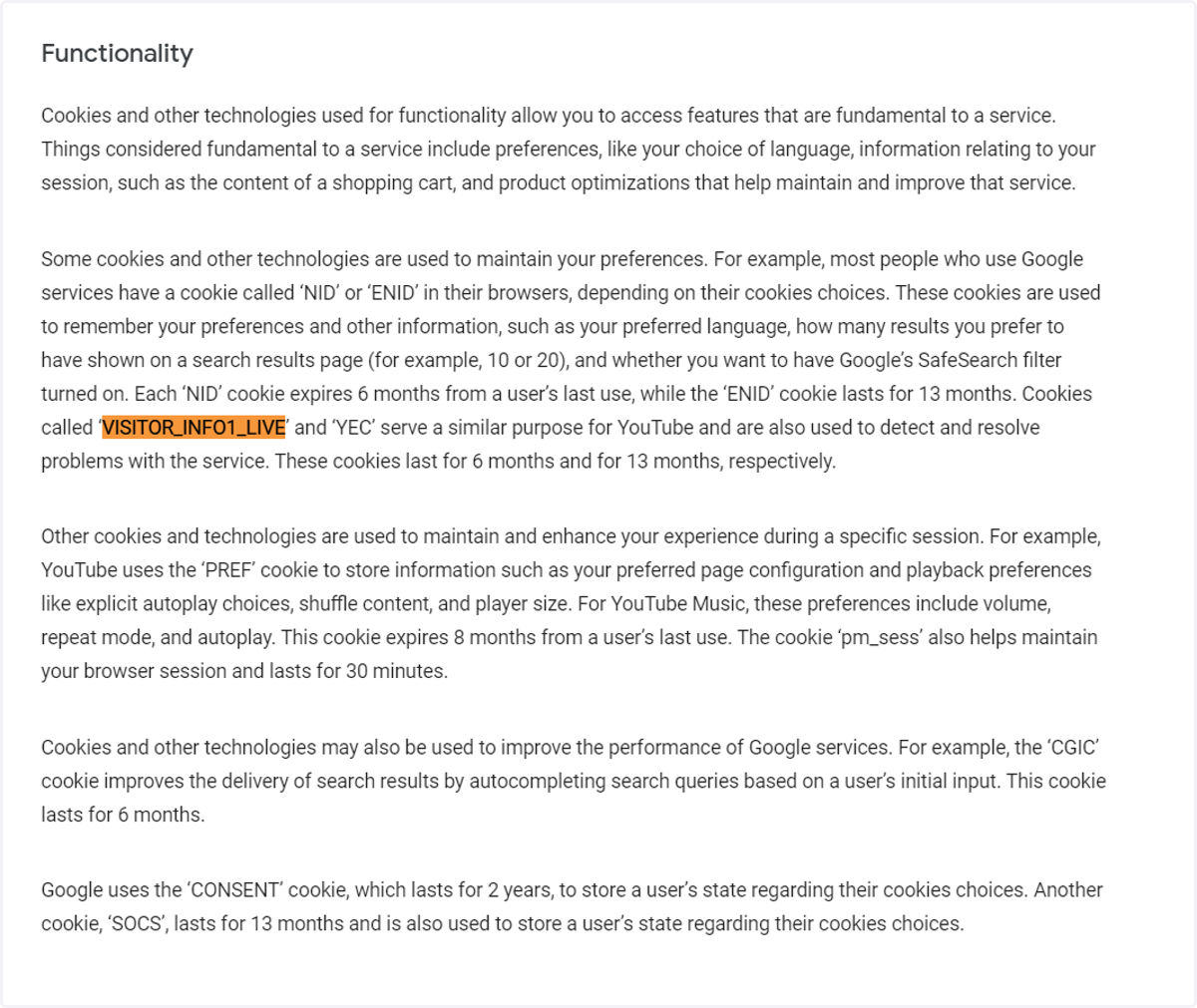
17. Use Ctrl+F to search for the cookie
There might be many cookies with similar-looking names, so searching for the exact match is recommended.
Accessnfp
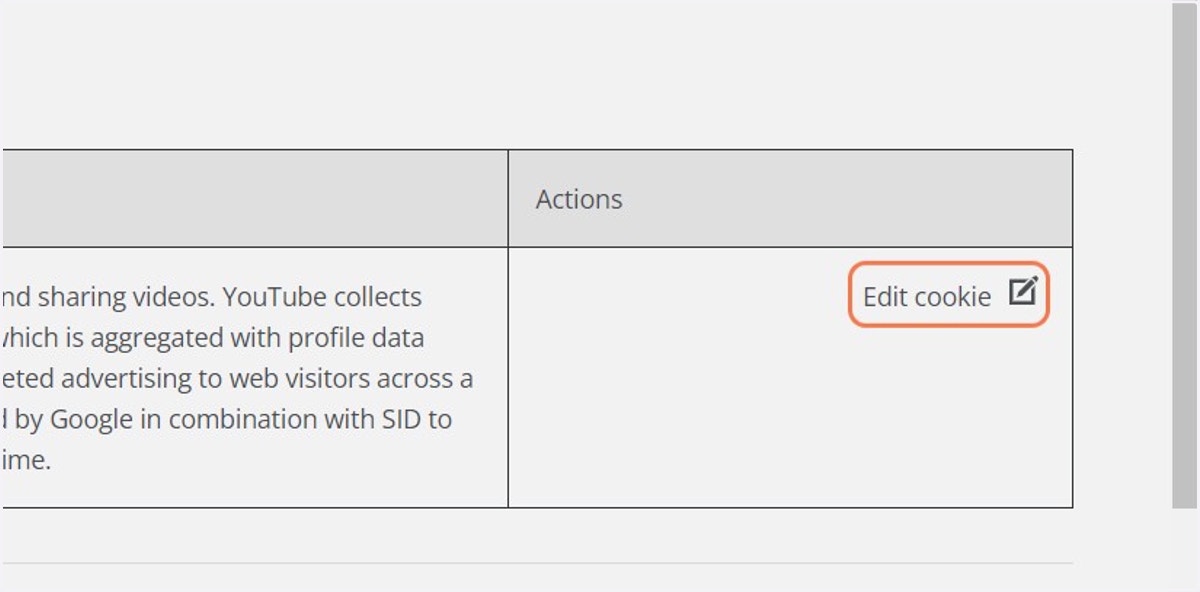
18. Back in the manager click on Edit cookie
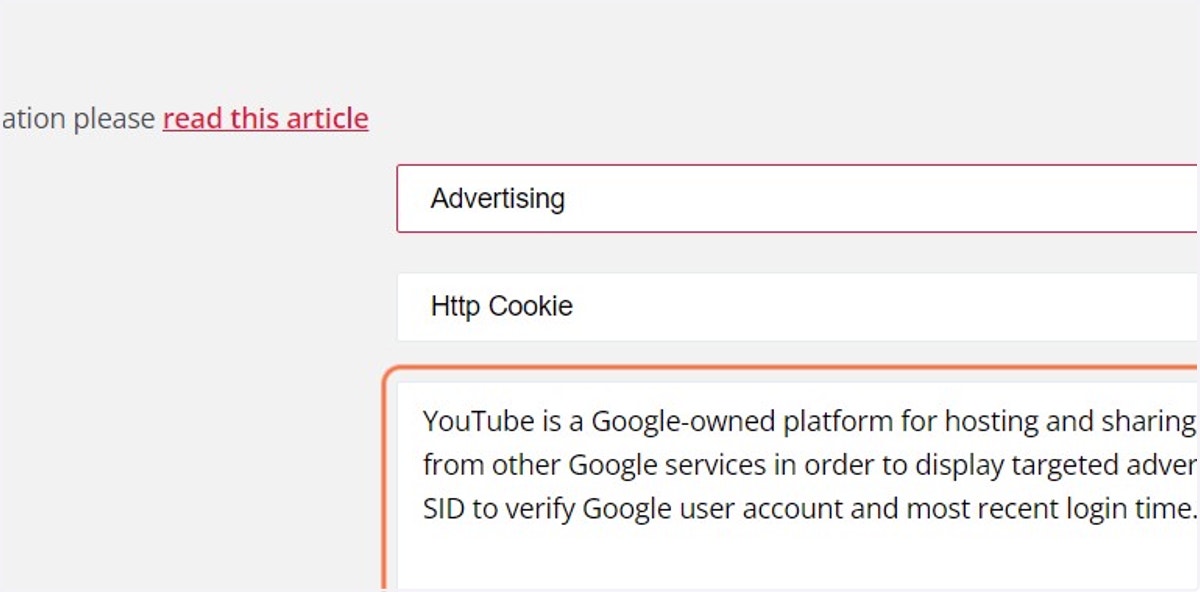
19. Configure the cookie details as you need
It's usually enough to copy the description directly from the third party website as that should explain what the cookie is for.
You can select the classification and cookie type from the drop-down menus, and choose to include a URL back to the third party privacy policy if you so wish.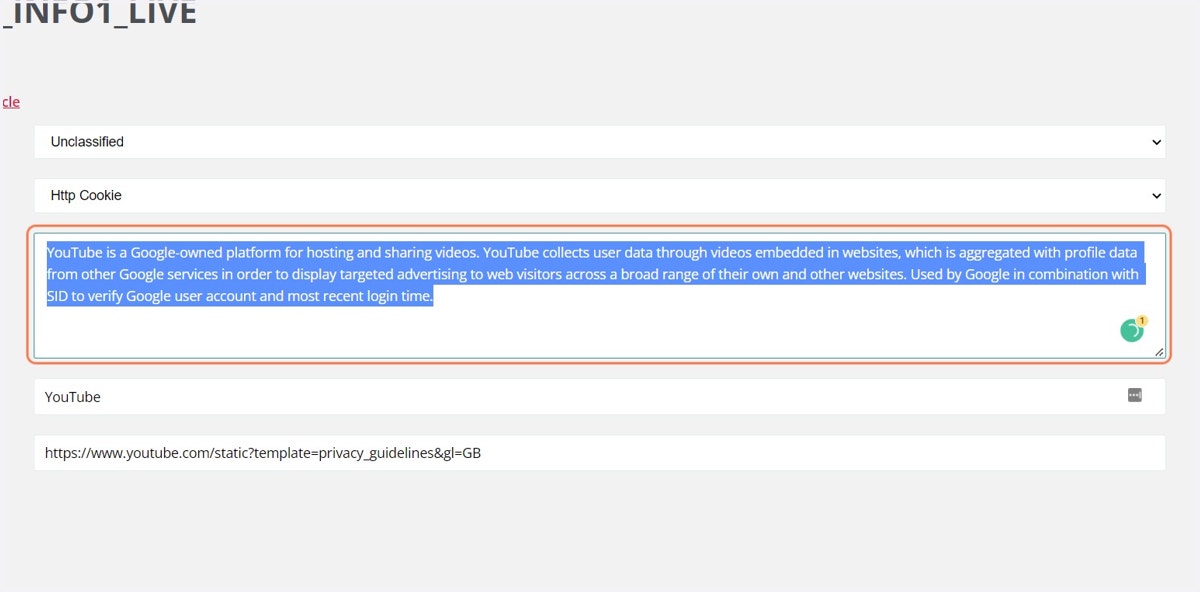
20. This cookie was categorised as Advertising
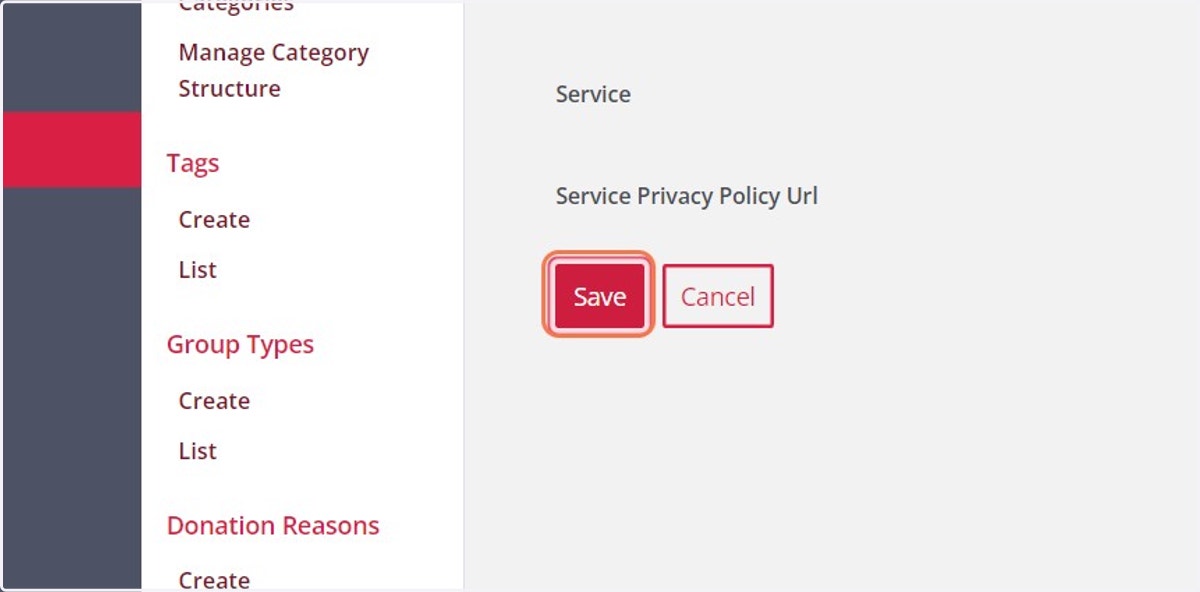
21. Make sure to save your changes
Force
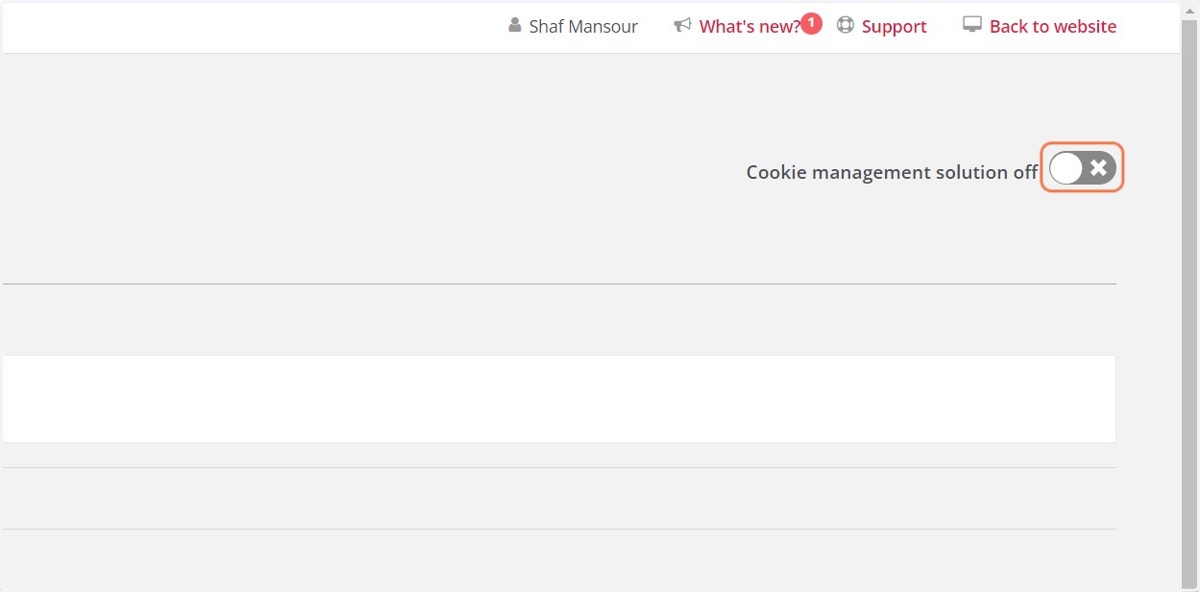
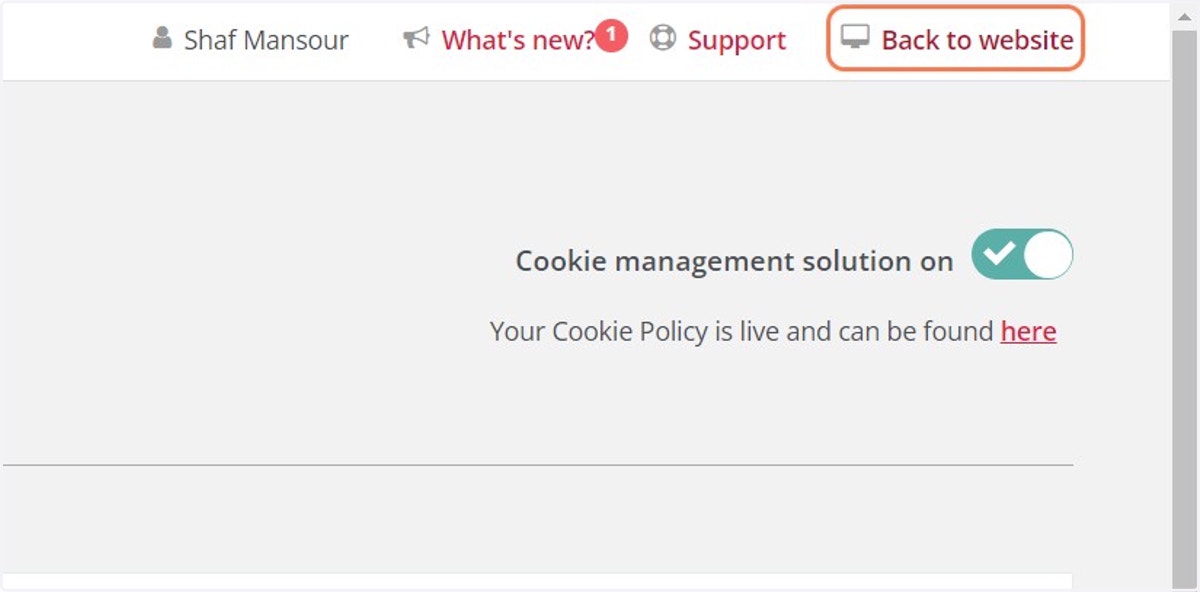
22. Turning on your new cookie banner
Click the toggle at the top right of the page
Accessnfp
23. Turning on your new cookie banner
This will automatically replace your old banner if you were using our previous version.
If you have a third-party banner implemented, you will need to contact support to have that code removed.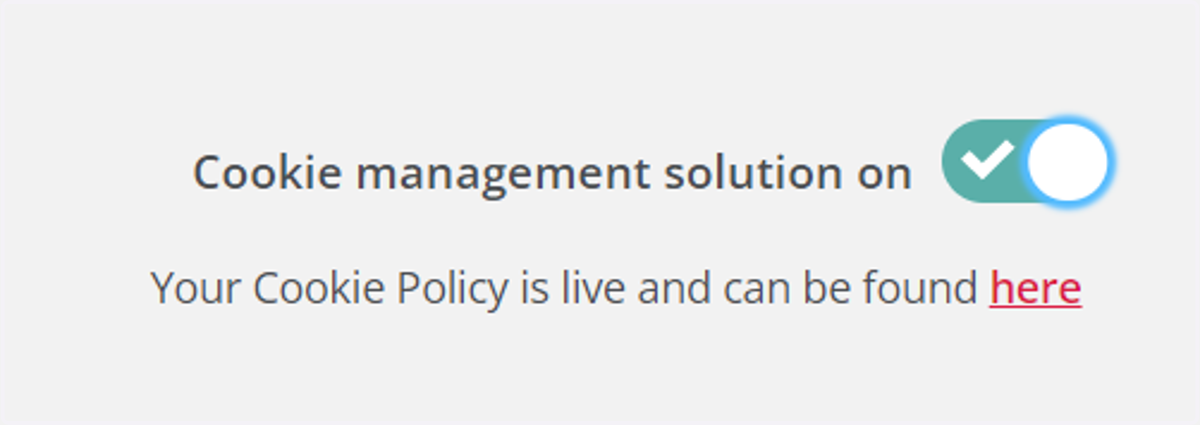
Force
24. Viewing your new banner
Head to the front end of your website to view your new banner.
Accessnfp
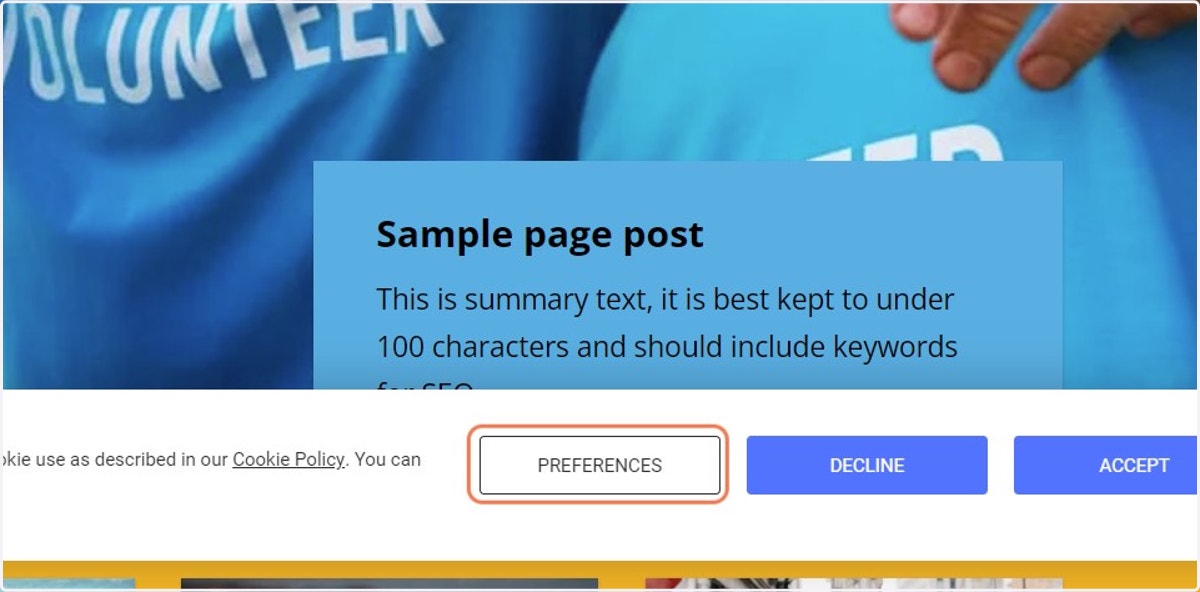
25. Select preferences to see what your end users will see
For those of you on our Enterprise tier, we're able to match the branding of your website. Please raise a support ticket and we'll get that actioned for you.
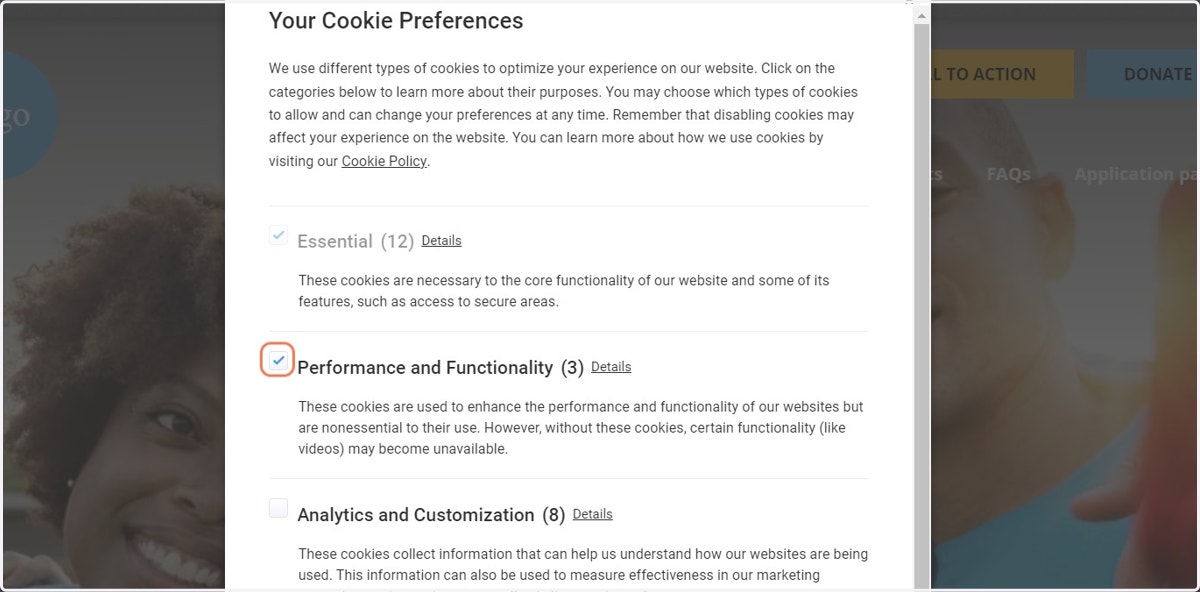
26. Preferences can be configured
Your website users can choose to opt in or out of categories as they wish. Only those that have been classified as 'Essential' are not configurable by the end user.
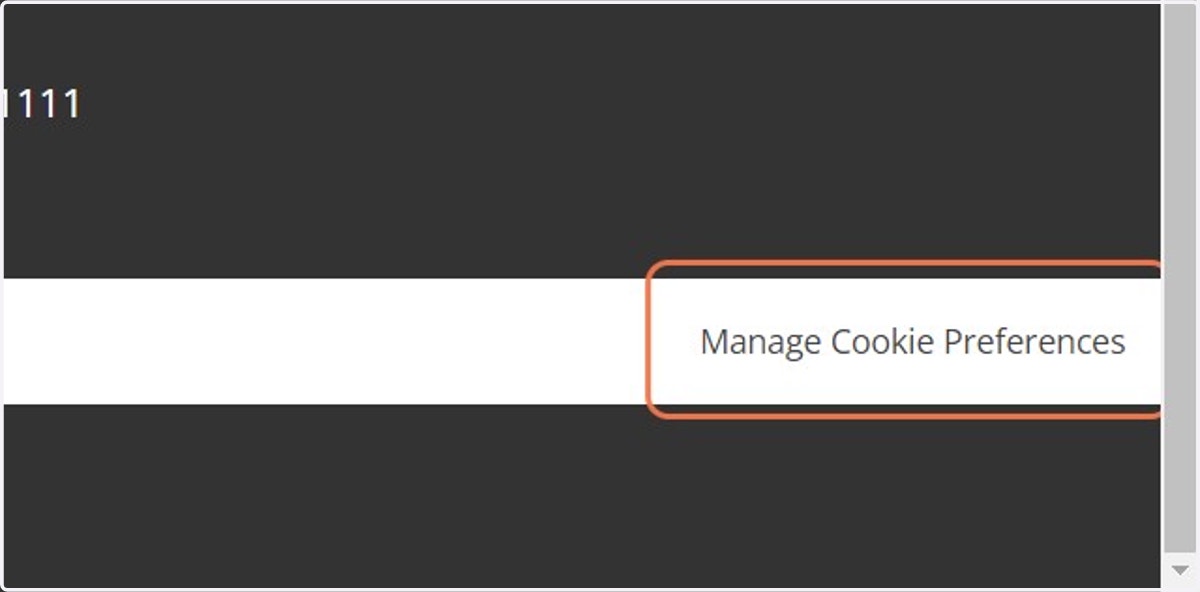
27. How to manage cookie preferences
Website users can manage their preferences at any time via a link that will appear at the bottom of the footer.
28. More help in our Knowledge Base
You can find links to explainer videos and more detailed articles in our Knowledge Base:
- Access Charity Websites: Categorising unclassified cookies (force.com)
Please do reach out to support if you get stuck and we'll do our best to help you.