How to review Bereavement Leave Balances for Employees
After your supervisor approves your bereavement leave request in Wolftime, follow these steps to review your available bereavement leave balance, the number of hours requested and approved to date, and the total hours granted.
Supporting Information:
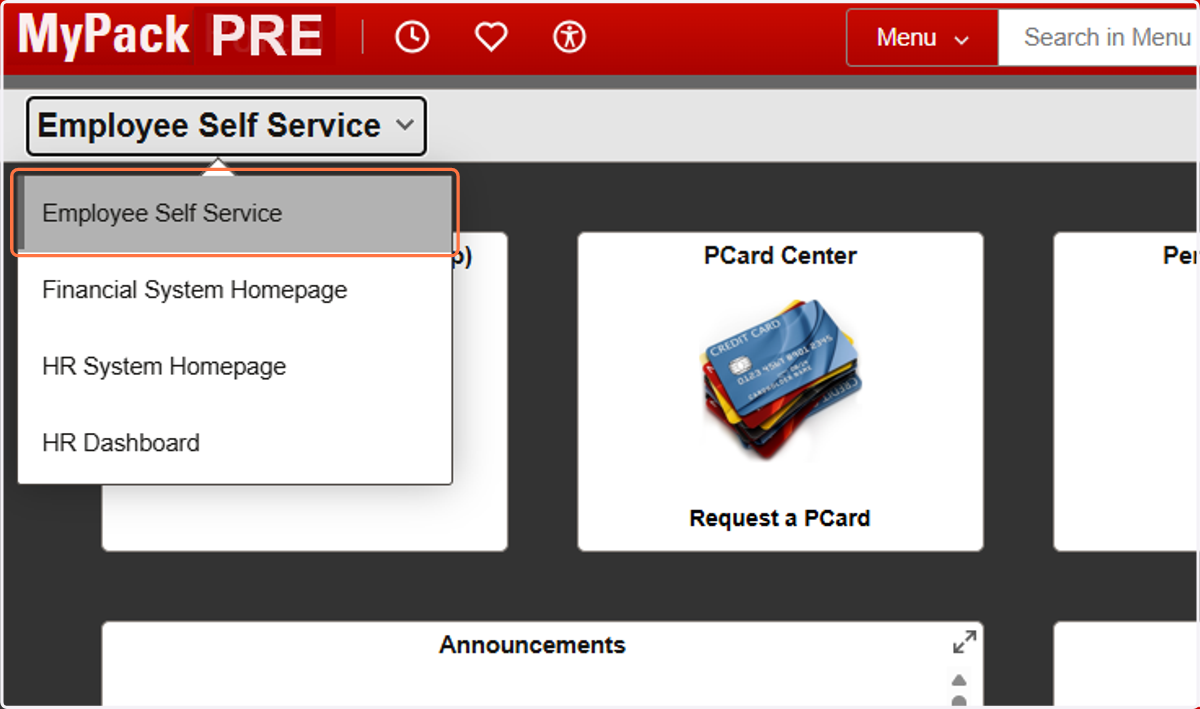
1. Navigate to Employee Self Service
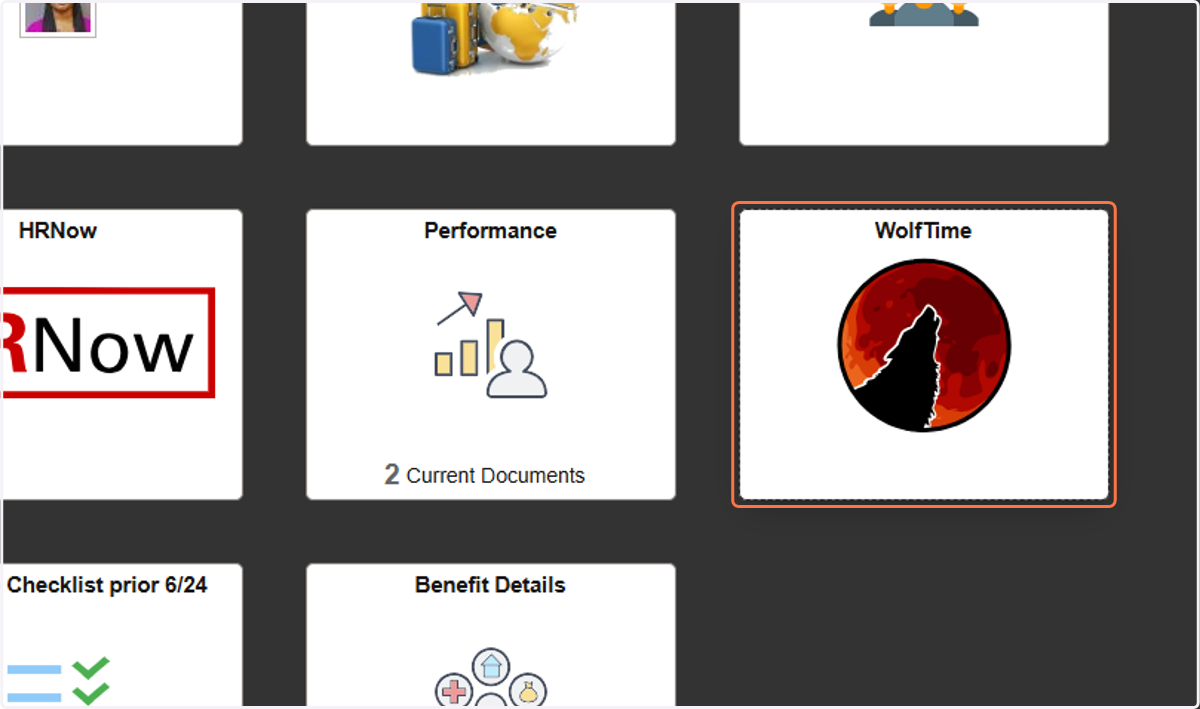
2. Click on WolfTime
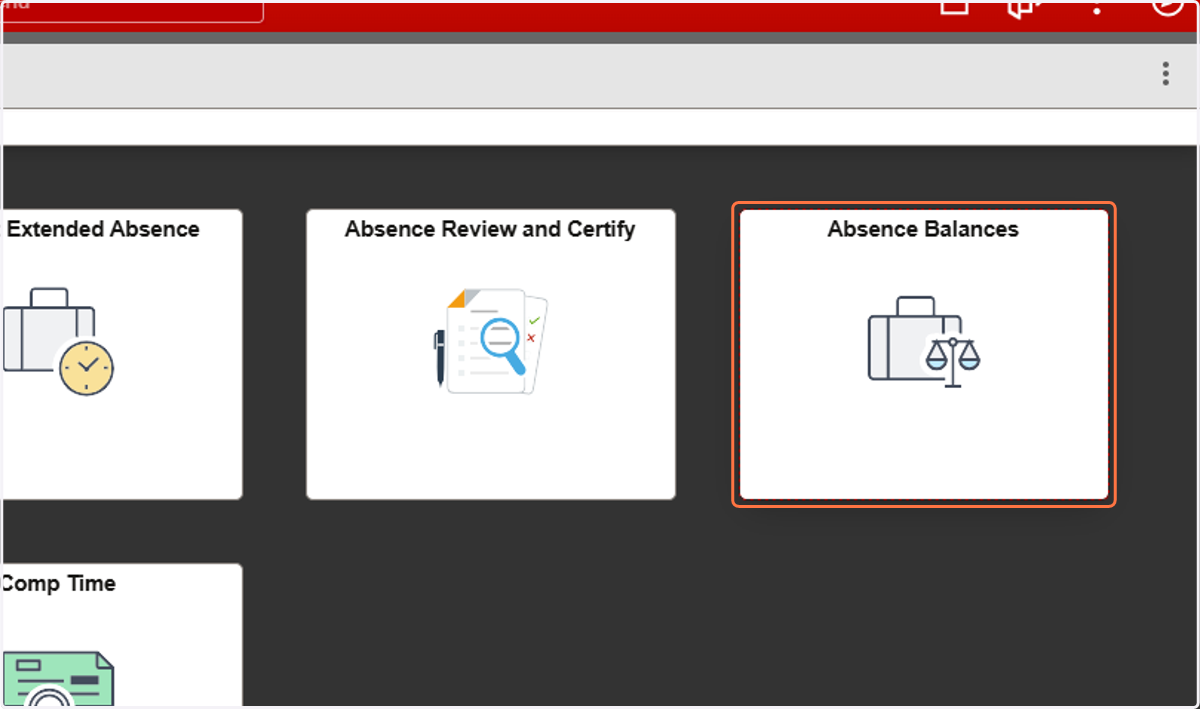
3. Click on Absence Balances
4. Scroll down and click on Bereavement Leave
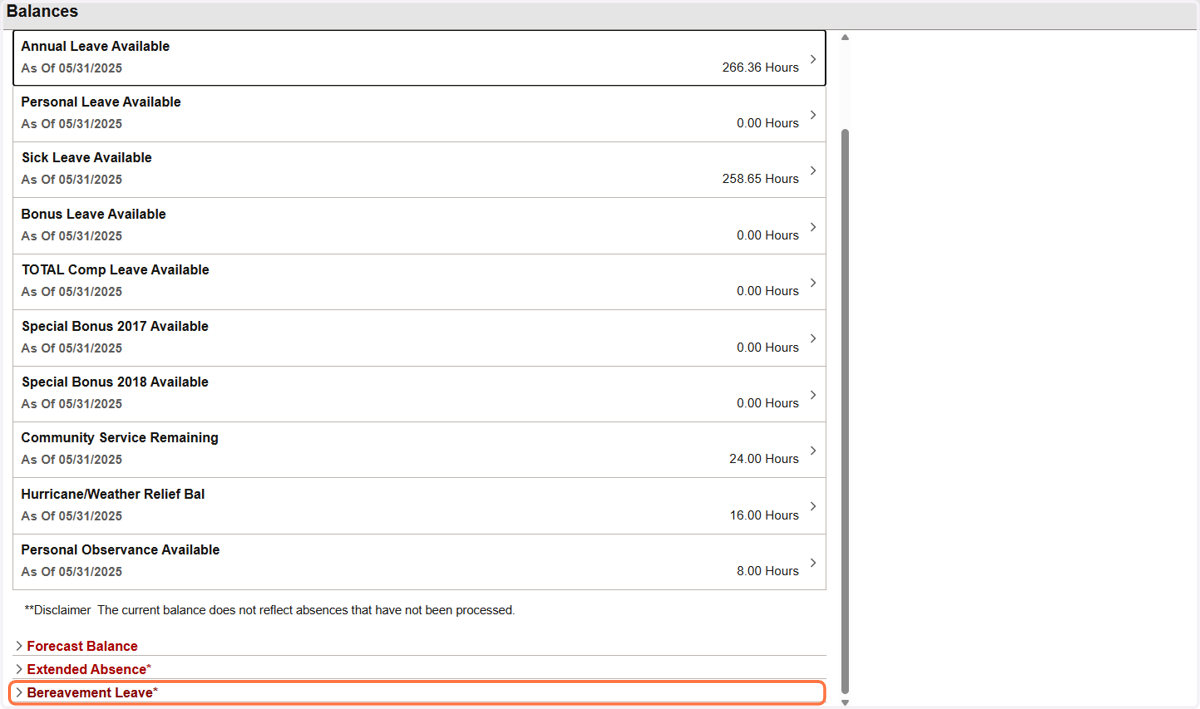
5. Example of Bereavement Leave Balance for a family member.
The employee should refer to the Balance row to determine the remaining number of bereavement leave hours available for the specified family member.
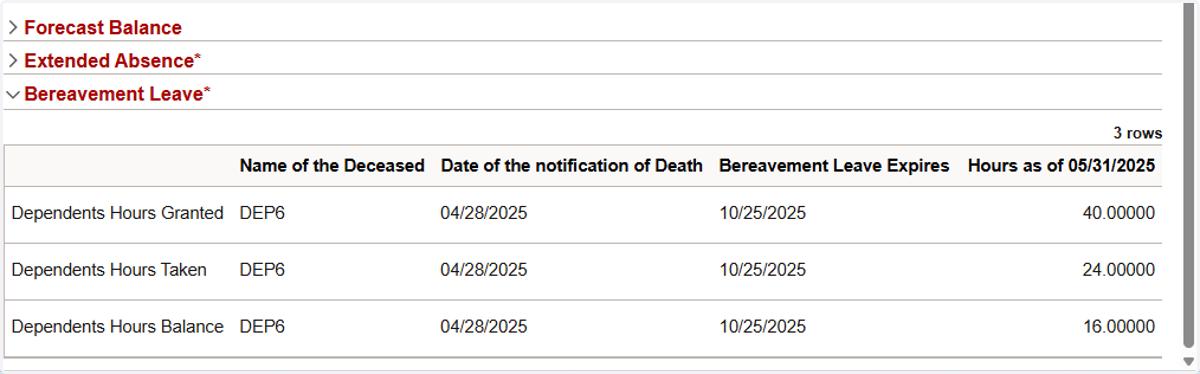
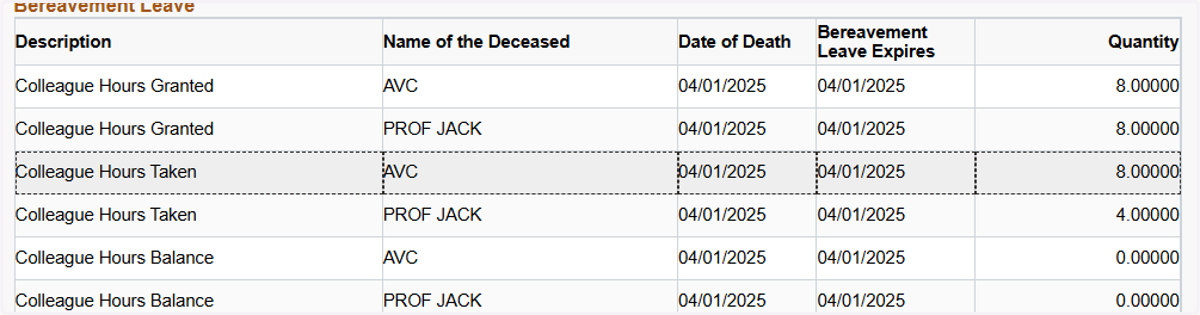
6. Example Bereavement Leave Balance for a Colleague
Employees are entitled to one workday (8 hours) of bereavement leave for the loss of a colleague. Regardless of how much of the day is used, the leave balance will always reflect 0 after the request is processed.