How to register on PNLink: the Pasteur Network Community
If you are affiliated to a Pasteur Network member organization, you can register on PNLink, free of charge, by following 3 easy steps:
Sign up with your professional email address
You will receive an email, click on the Activation link
Add your Experience (within the Pasteur Network)
More details below
Open PNLink on a web browser
On the address bar, type: community.pasteur-network.org
1. Click on Sign up

2. Fill in your professional email address
If you use an email address registered with a Pasteur Network Member Organization (authorized domain address), you will just need to type your username and choose the appropriate domain name from the dropdown list. And then, click on "Send me an invitation".
You will then receive an email instantly!If you use an external email address (eg. ; @gmail, or yahoo), you will have to fill more details on the form below (name, email, job profile, affiliation, captcha) before clicking on "Sign up".
An admin will have to manually review your information before you can proceed to the next steps.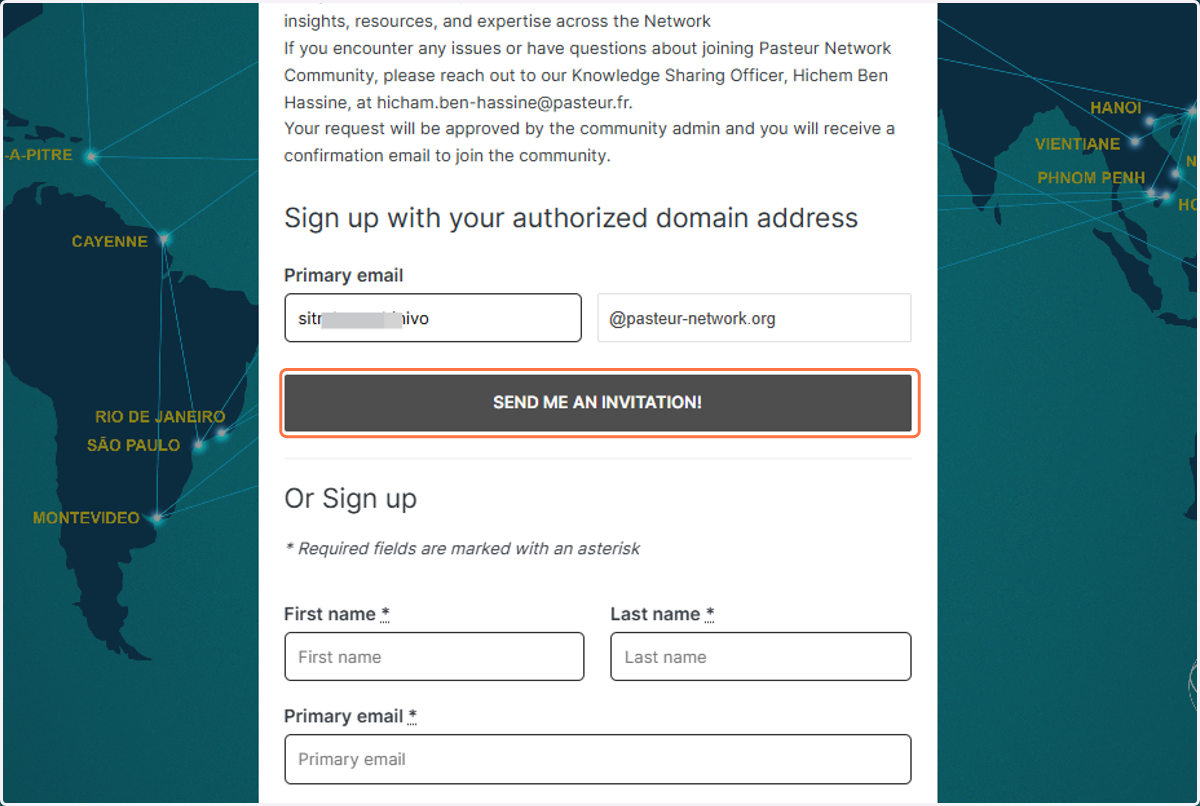
3. Check your email inbox!
If you registered using an authorized domain address (an email address affiliated with a Pasteur Network member organization), you will receive the activation email instantly.
If you registered using an external email address, you will receive an activation email after a manual review. Please contact your Institute's communication focal point to notify an admin.
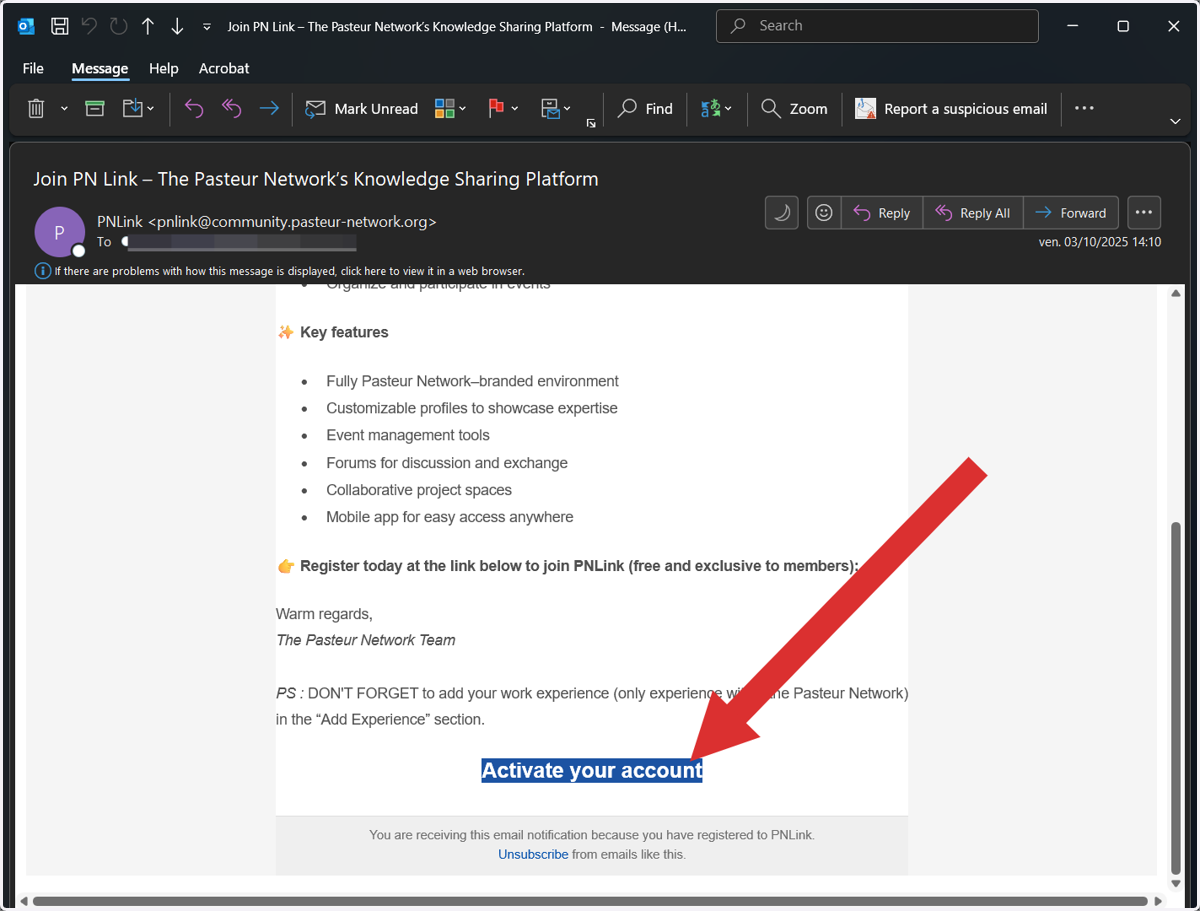
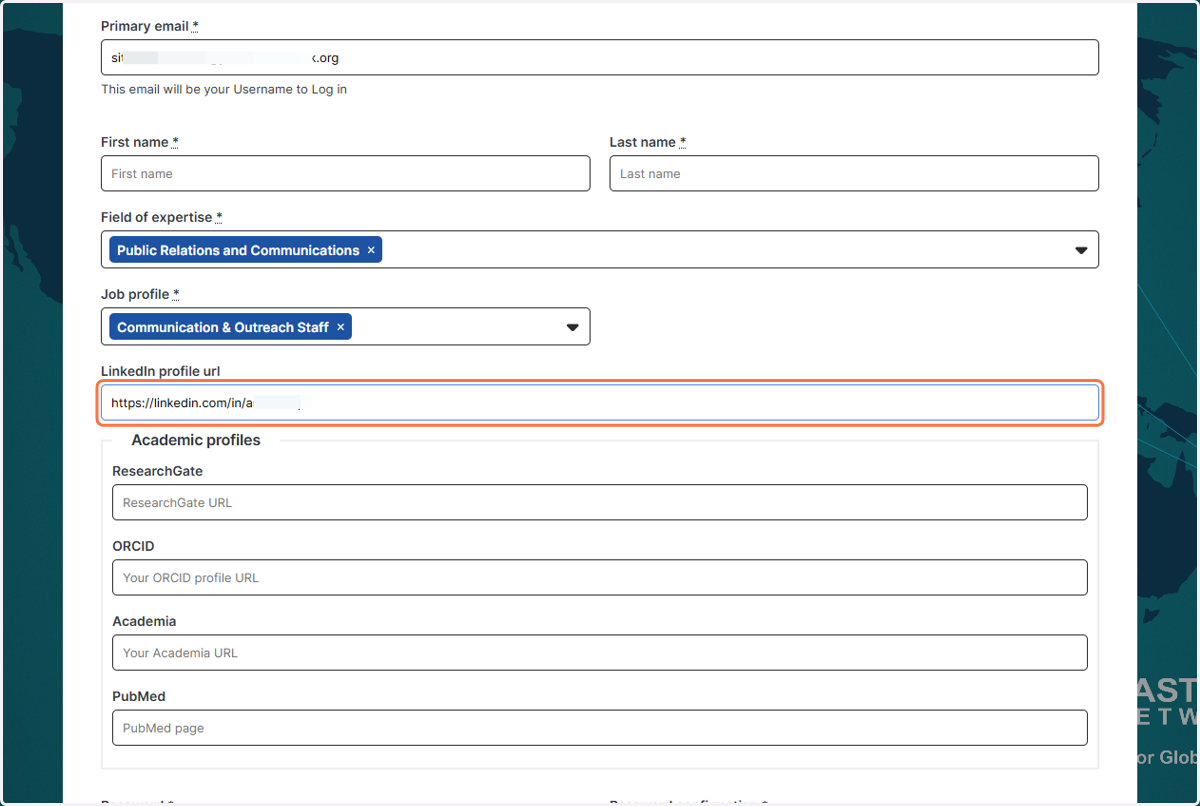
4. Fill in the activation form
The information you provide on this form will be used to create your profile and help you connect with other Pasteur Network people.
Field of expertise are the specific fields you work on. Type and select any fields that apply to you.
Job profile is the type of work you do everyday. Please select the most relevant.
5. Click on ADD EXPERIENCE
Add your current and past experiences within the Pasteur Network.
It is really important to help connecting you with the relevant people accross your organisation and globally.
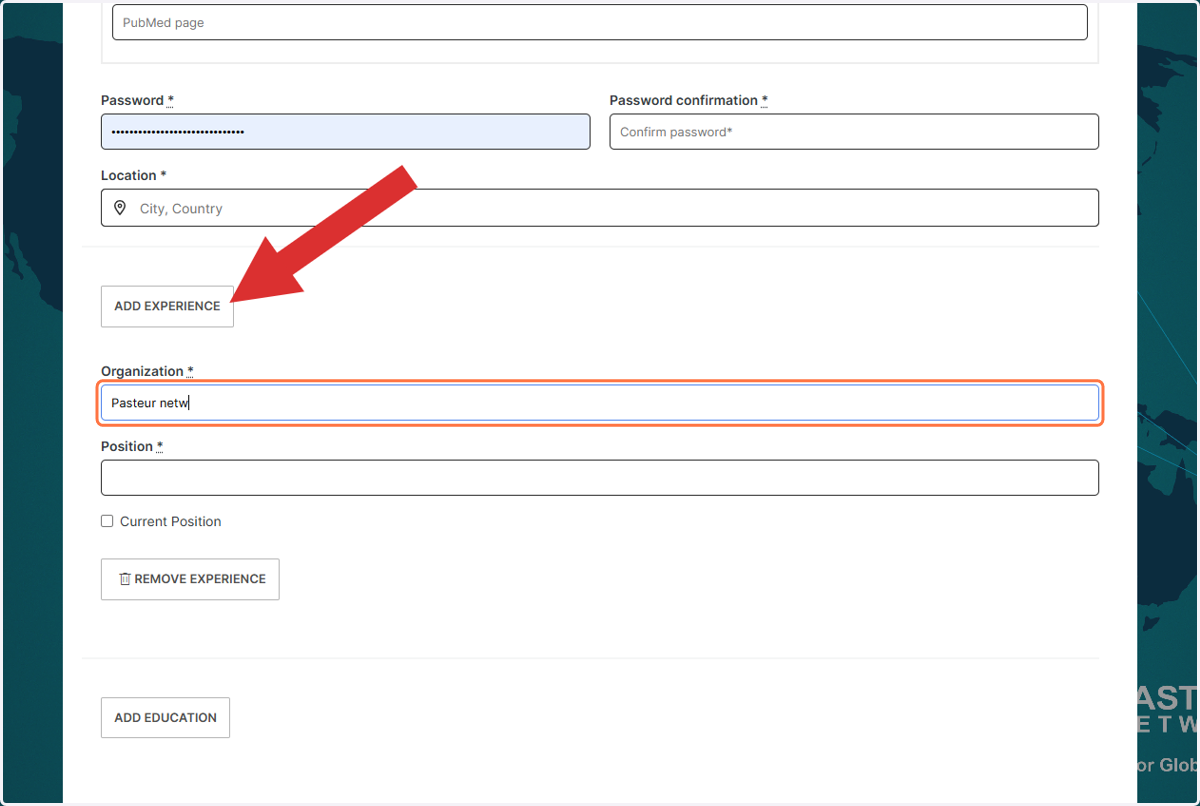
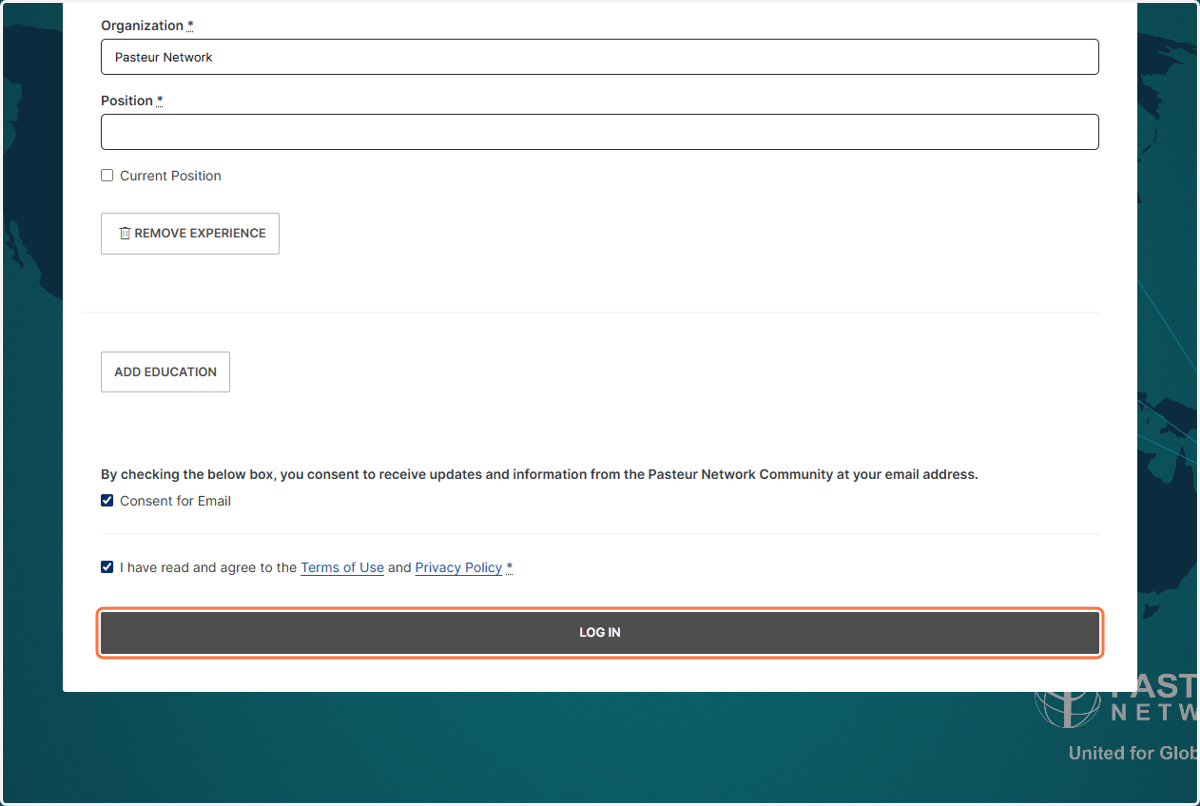
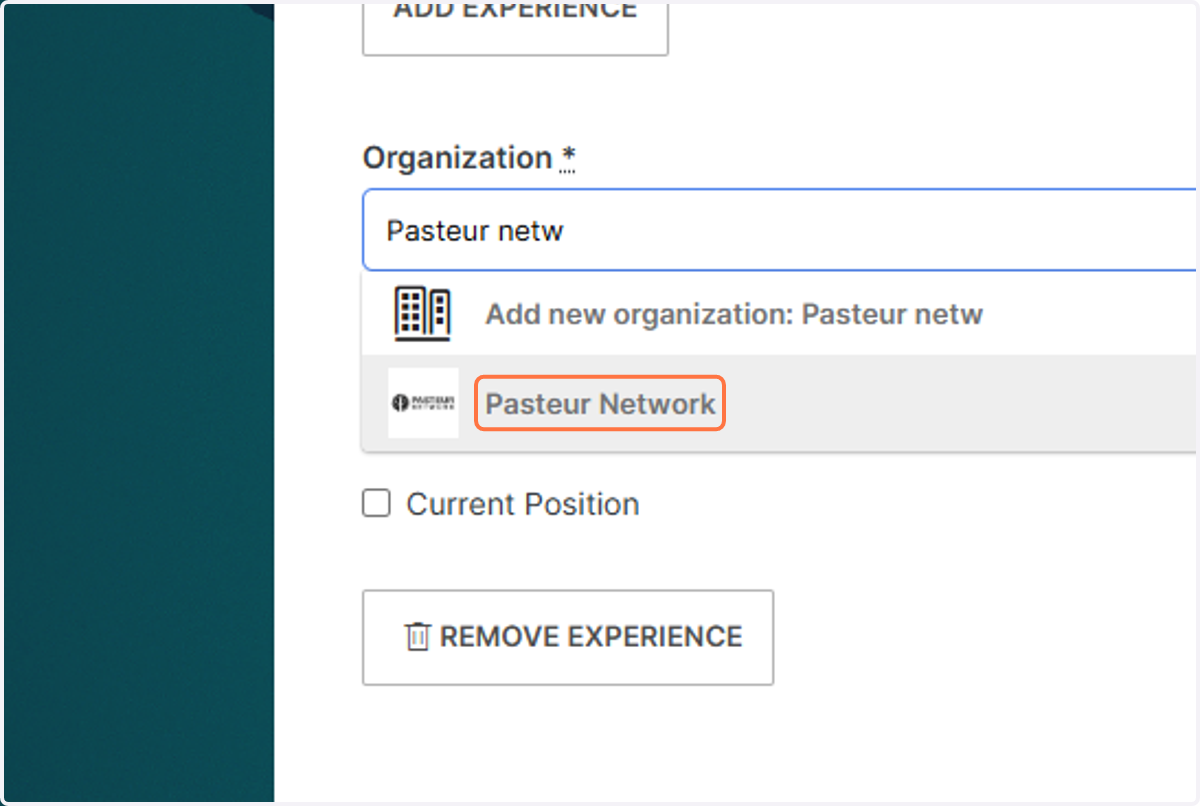
6. For each experience, add the organization and your position
* Click on "Current position" if you are still working on the selected position
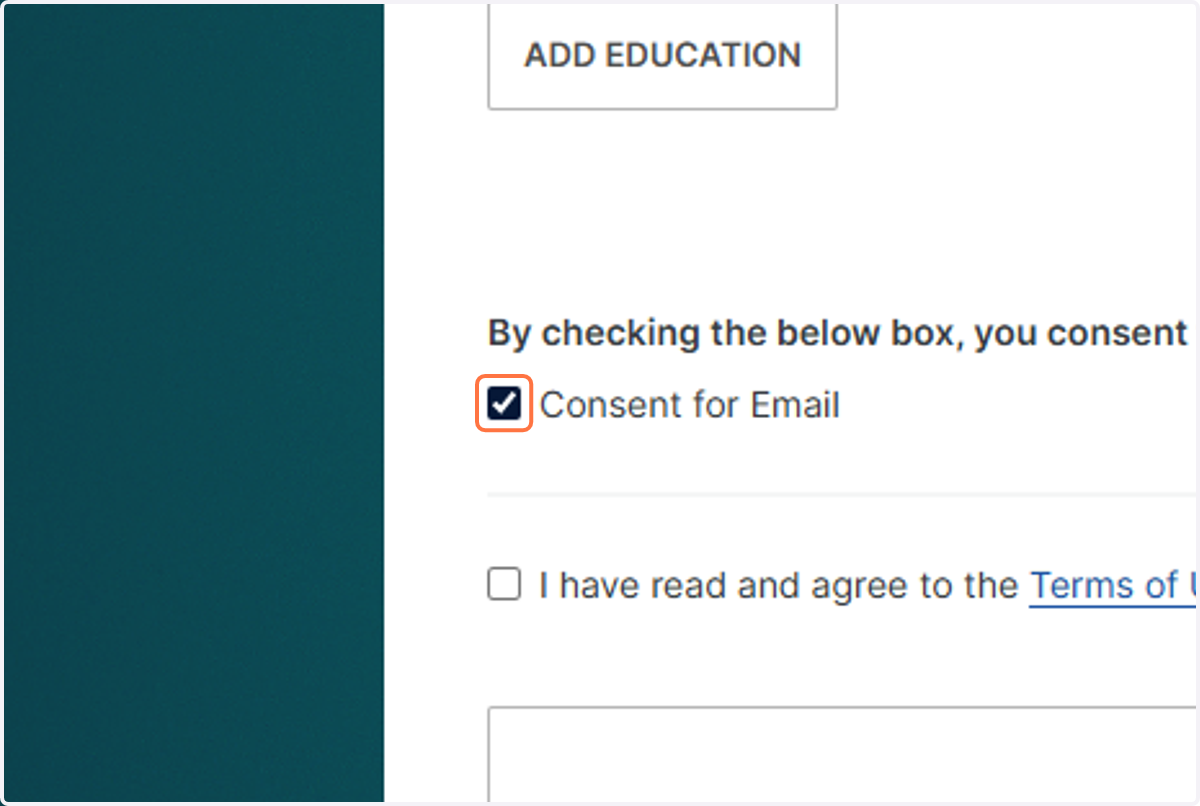
7. Check Consent for Email
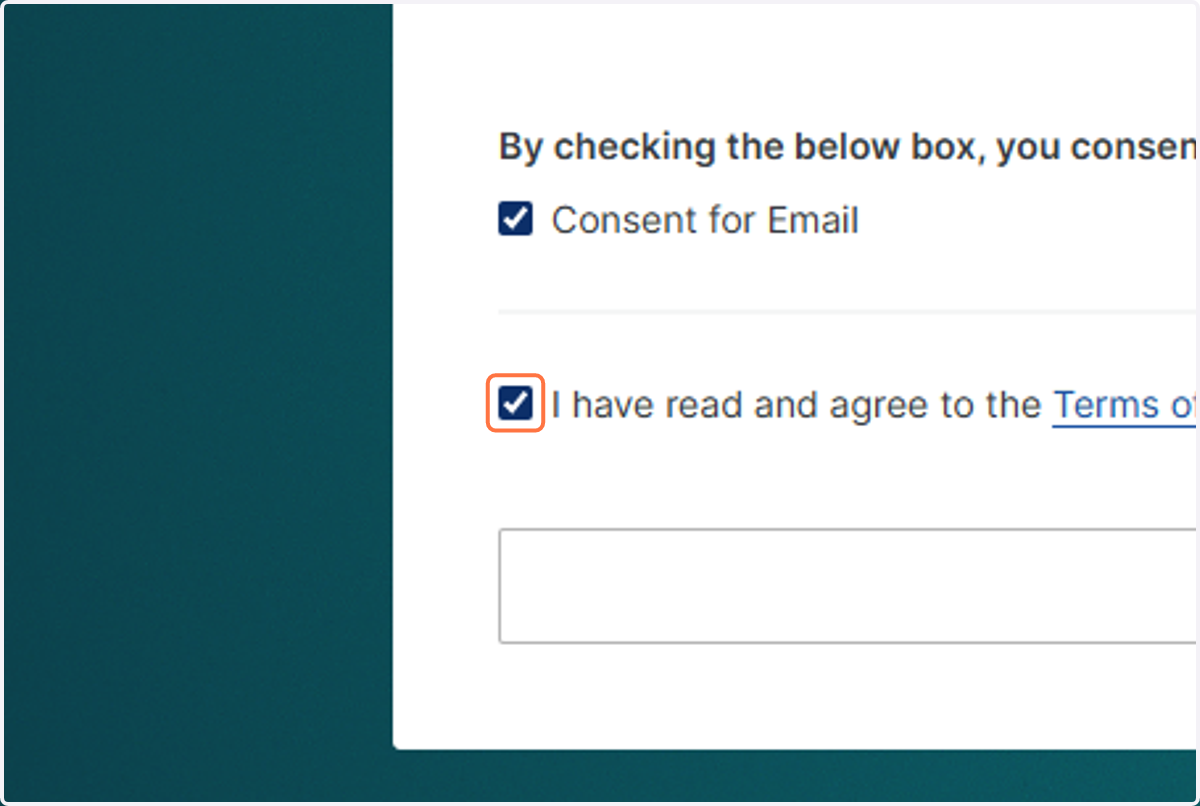
8. Check I have read and agree to the Terms of Use and Privacy Policy
9. Click on LOG IN