How to opt in/out of the community Address Book
These instructions detail how owners can display their information in the community address book/directory.
How To Opt-in
To start, log in to your community website. Please note, the layout of your community site may differ from the example listed below. However, the profile page is standard for all associations.
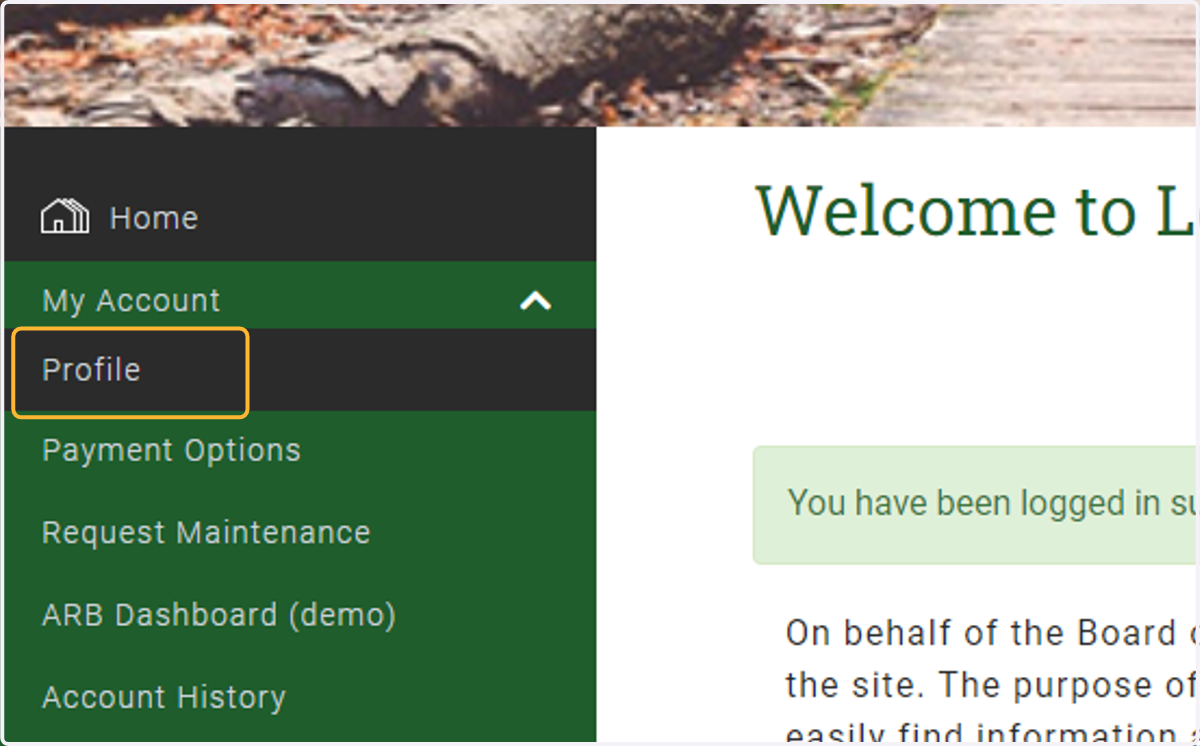
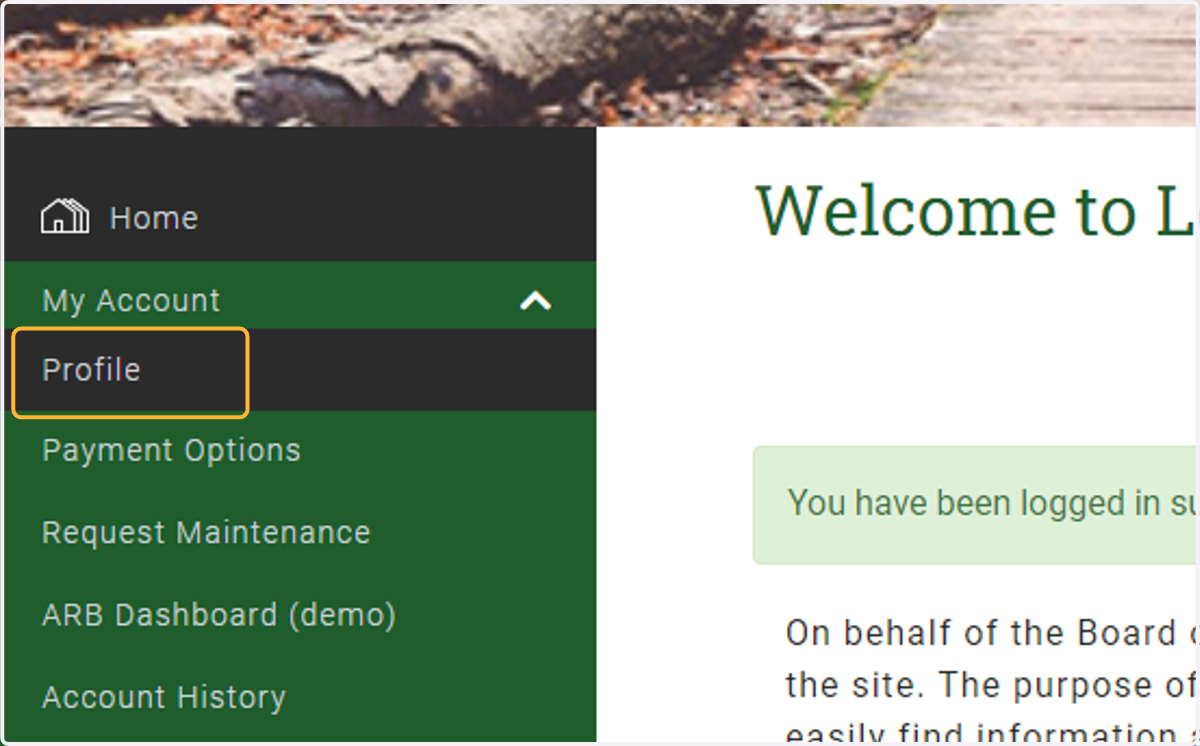
1. Under My Account, select profile
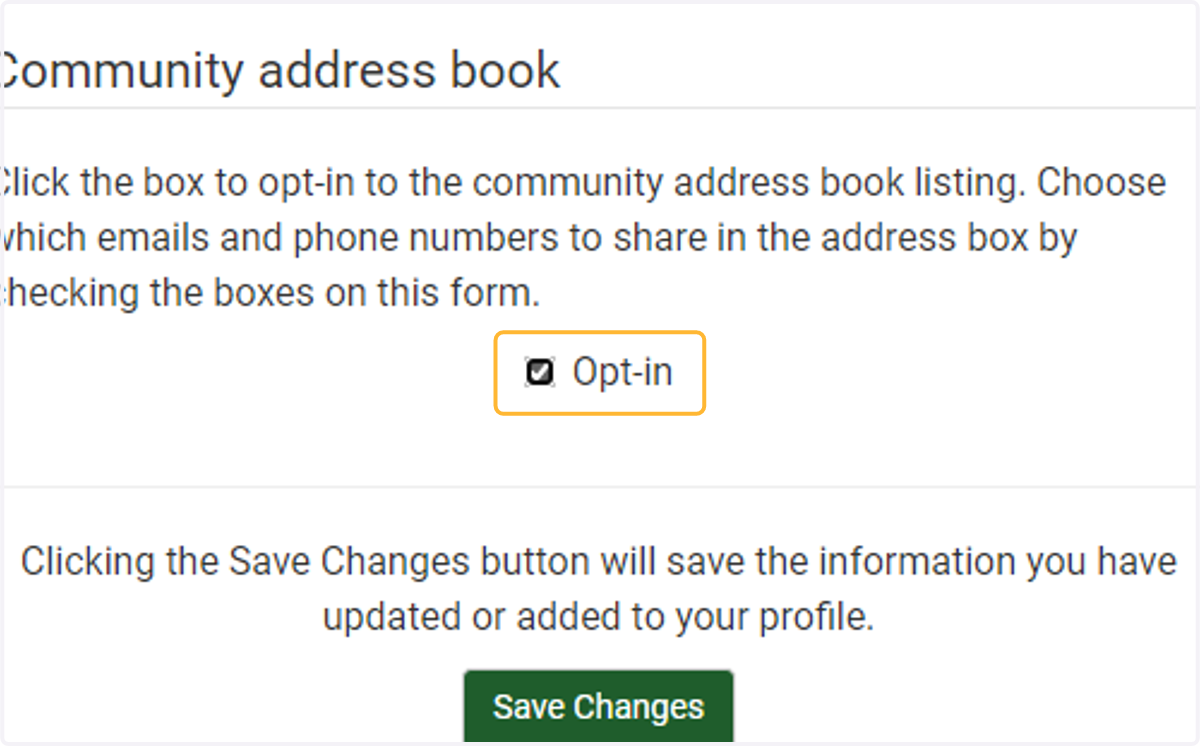
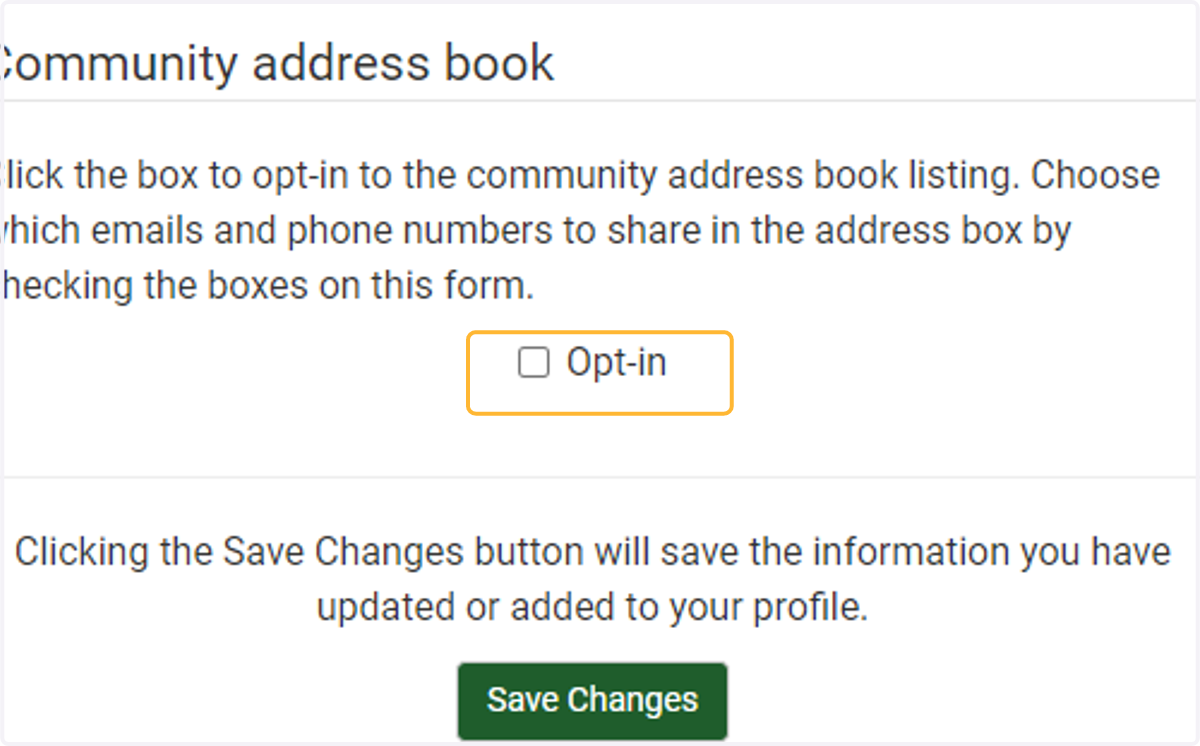
2. Check the opt-in box under address book section (bottom right)
Depending on the device you are using, you may have to scroll down to the bottom.
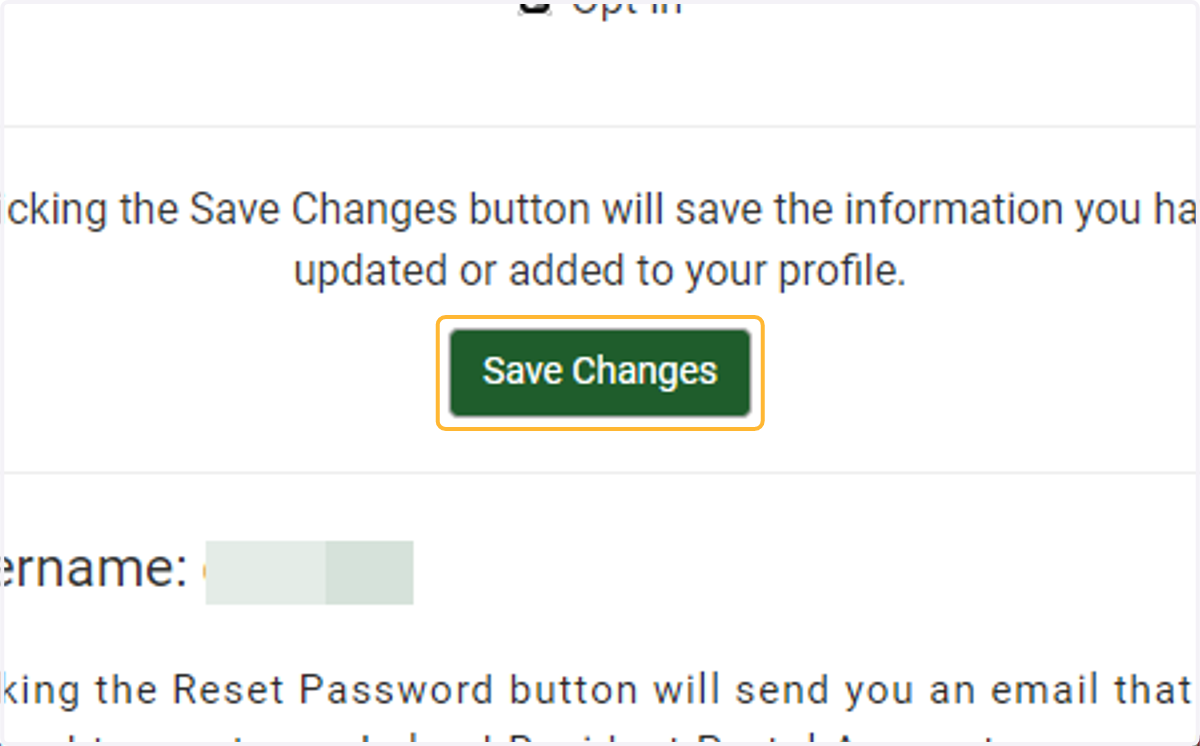
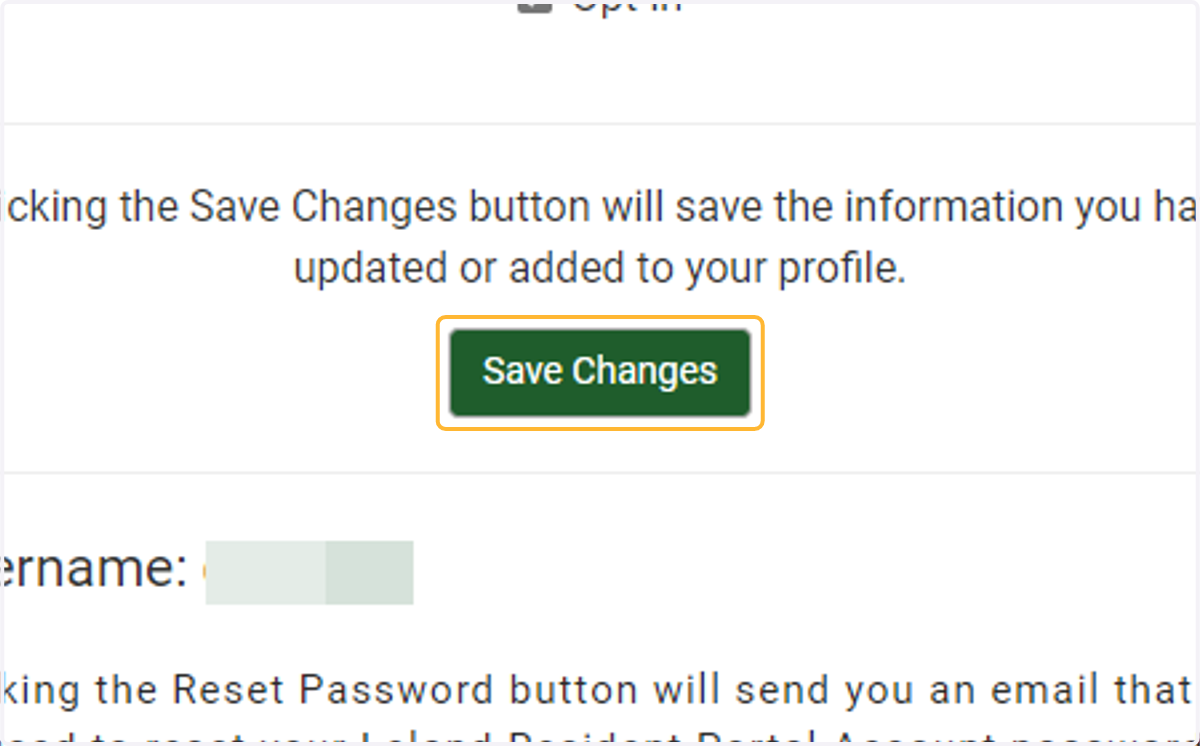
3. Save your changes
Choose Information to display
After you opt-in, you can choose which contact information to display
4. Select a name to assign the email address to
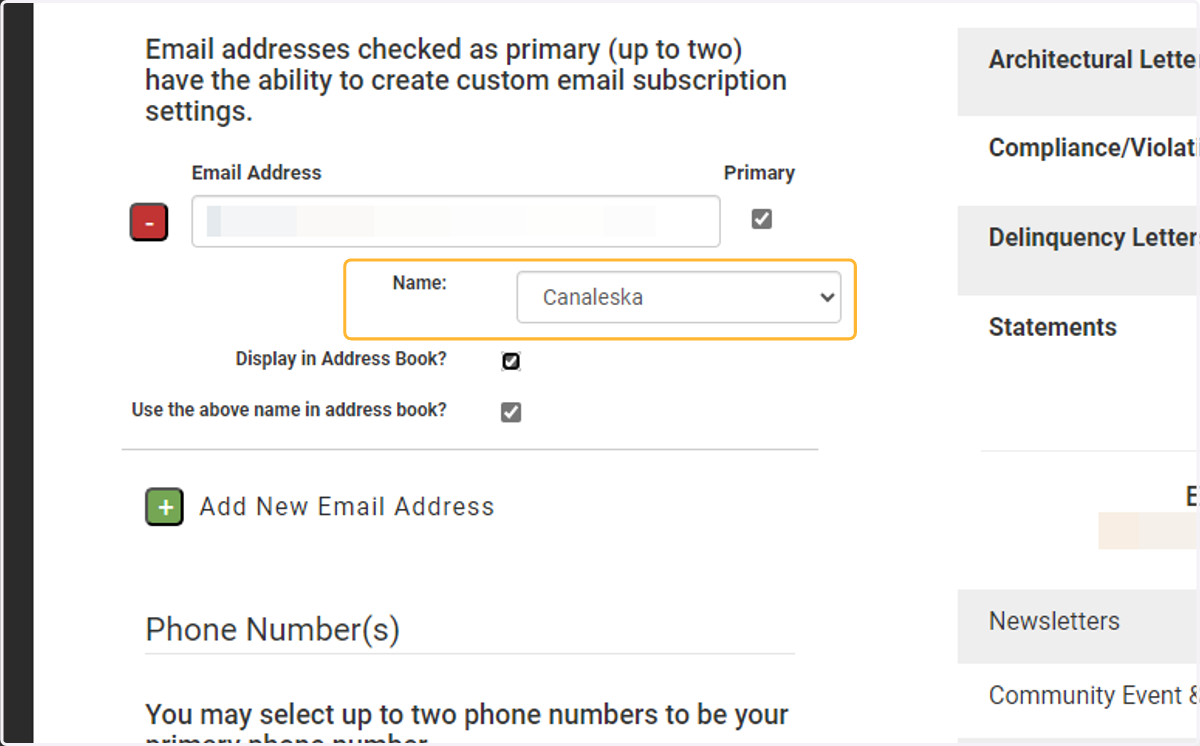
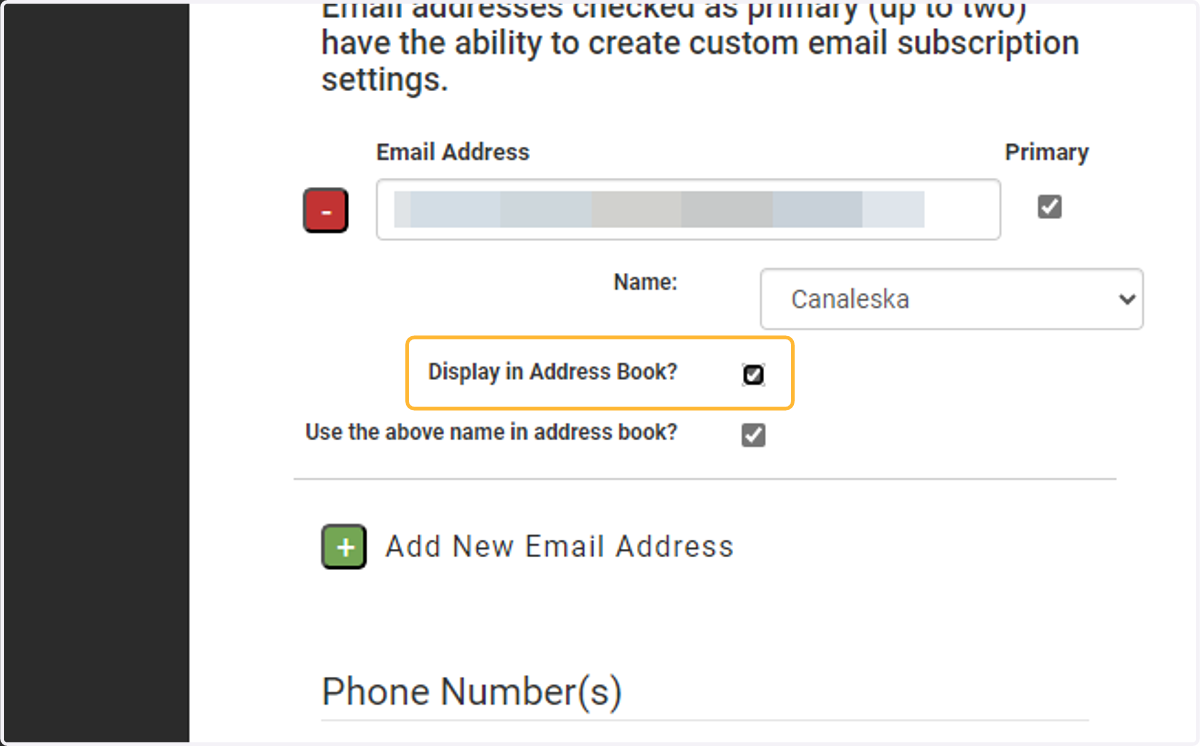
5. Choose an email address to display in the address book
If you do not want to display an email address, leave the box unchecked.
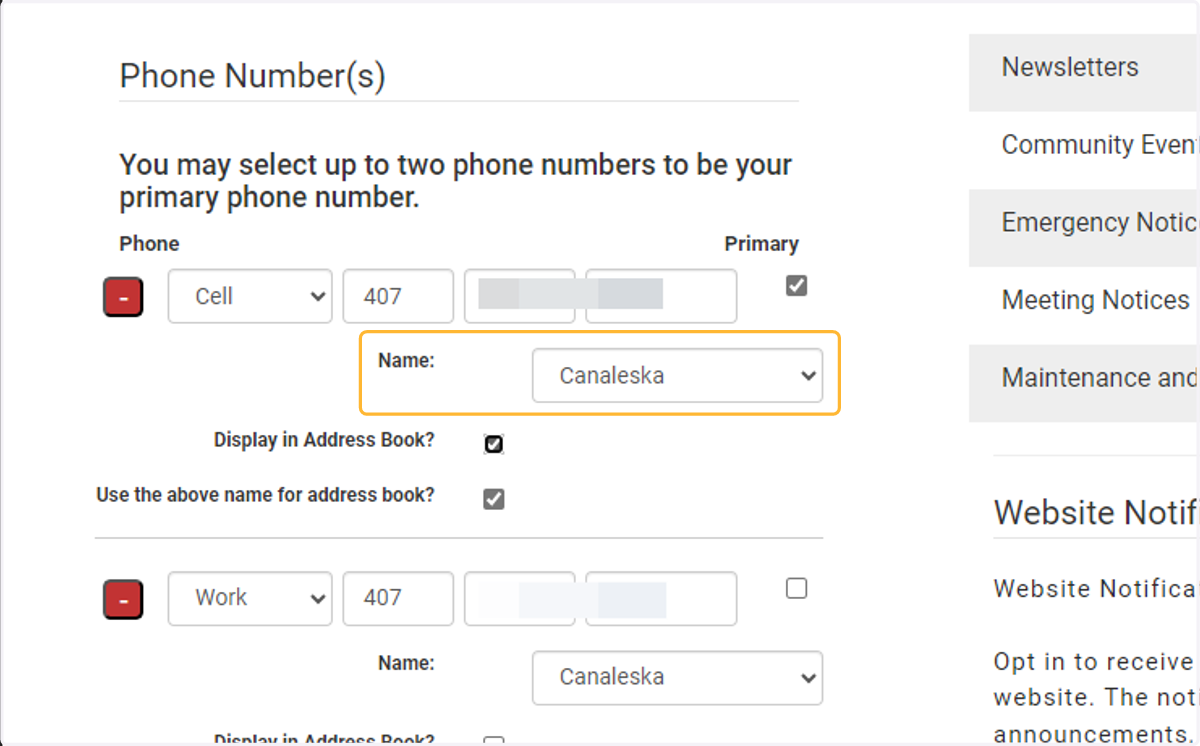
6. Choose a name to assign the phone number to
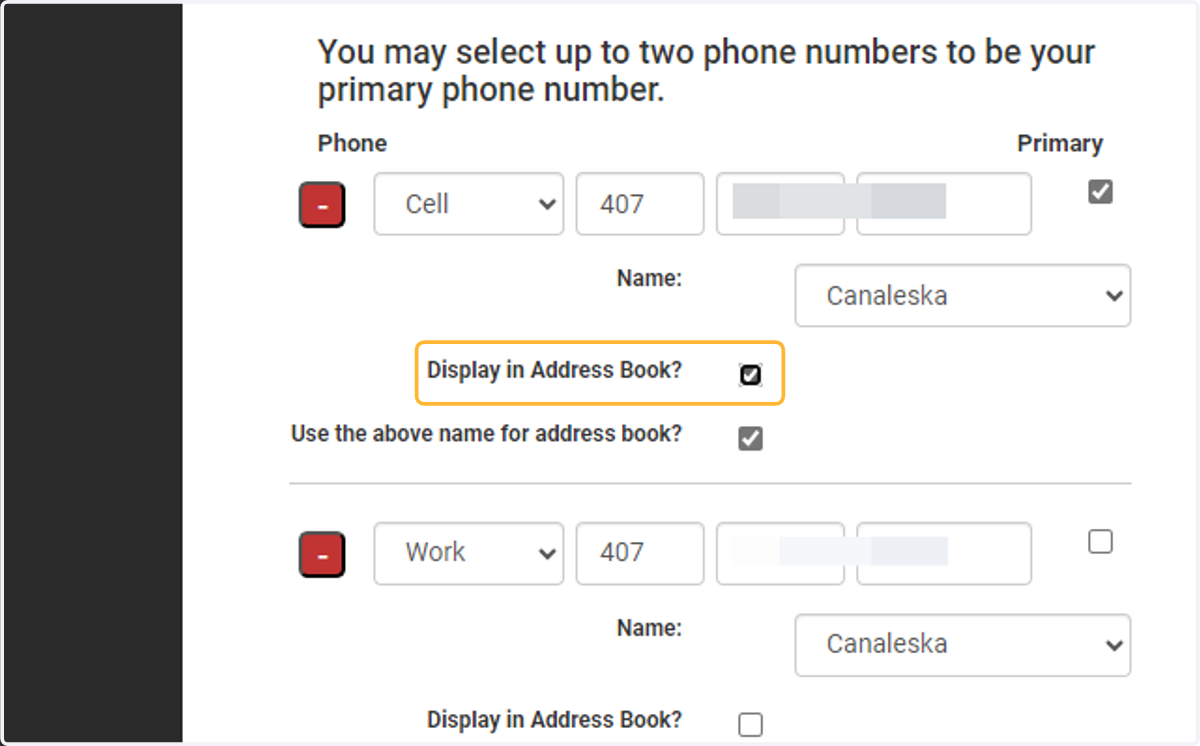
7. Choose a phone number to display in the address book
If you do not want to display a phone number, leave the box unchecked.
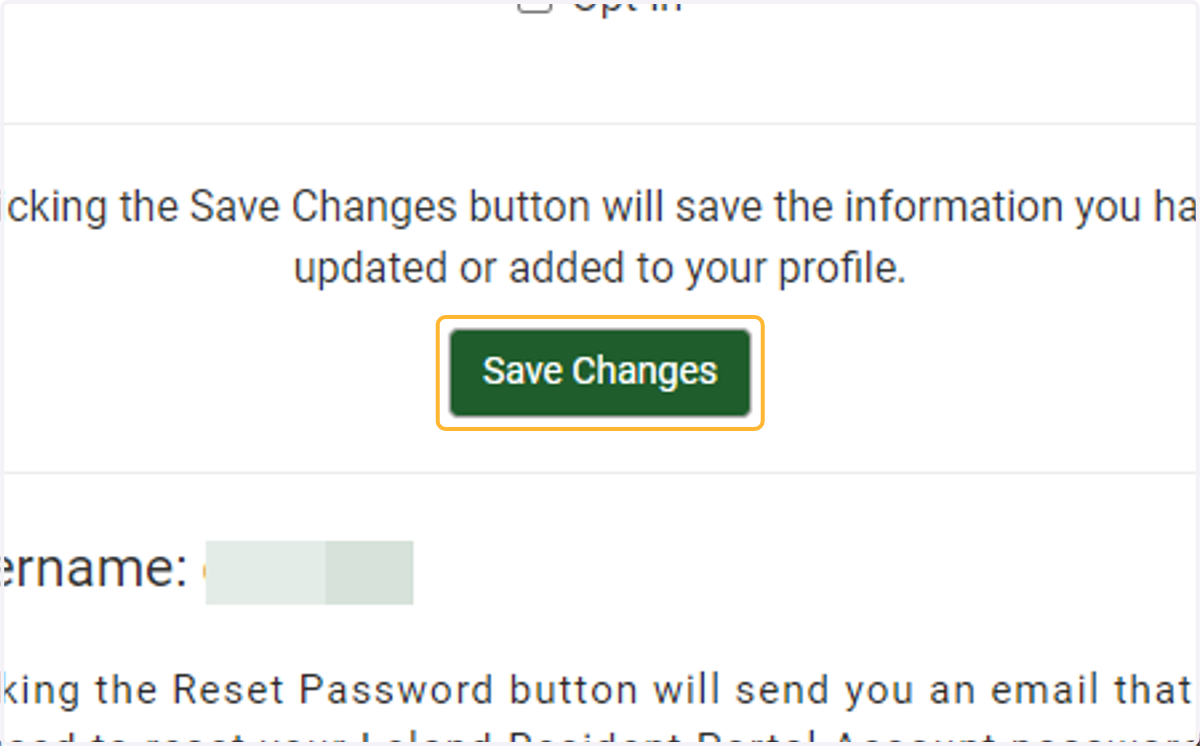
8. Save your changes
How to Opt-out
9. Under My Account, select profile
10. Uncheck Opt-in box under address book section (bottom right)
Depending on the device you are using, you may have to scroll down to the bottom.
11. Save your changes
After a shot delay, the address book will update