How to integrate Brieff with Karbon Practice Management
Below are step-by-step instructions on how to integrate Karbon in Brieff.
Brieff
Log in to Brieff
1. From the Brieff Home page, click on Settings
2. Click on Integrations
3. Click on Connect Karbon
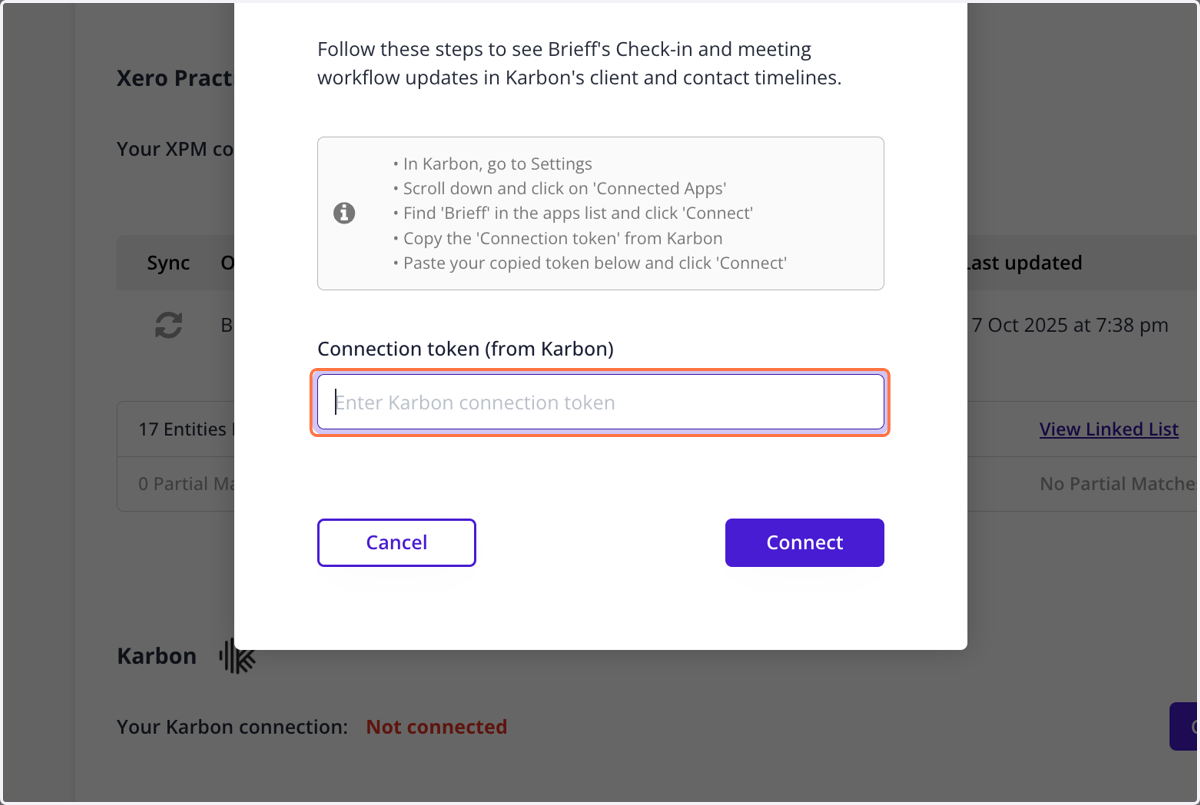
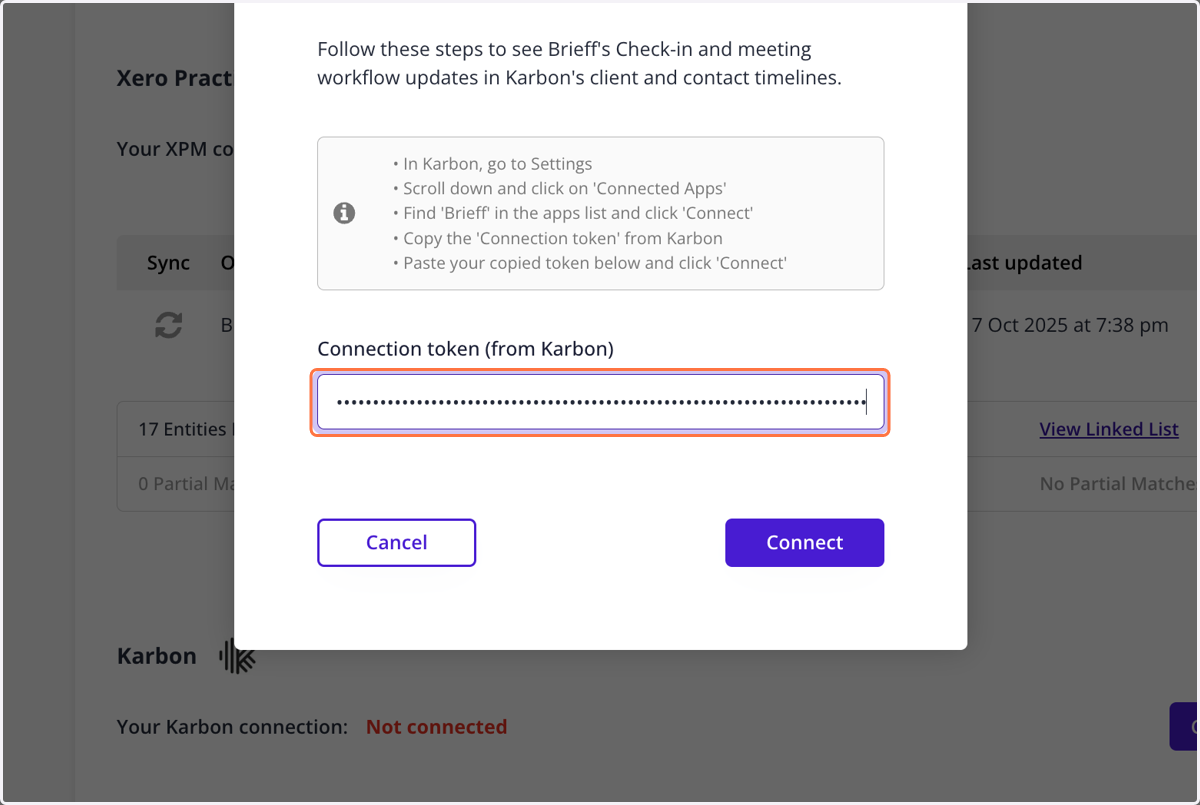
4. A window will open for you to input your Connection token (from Karbon)
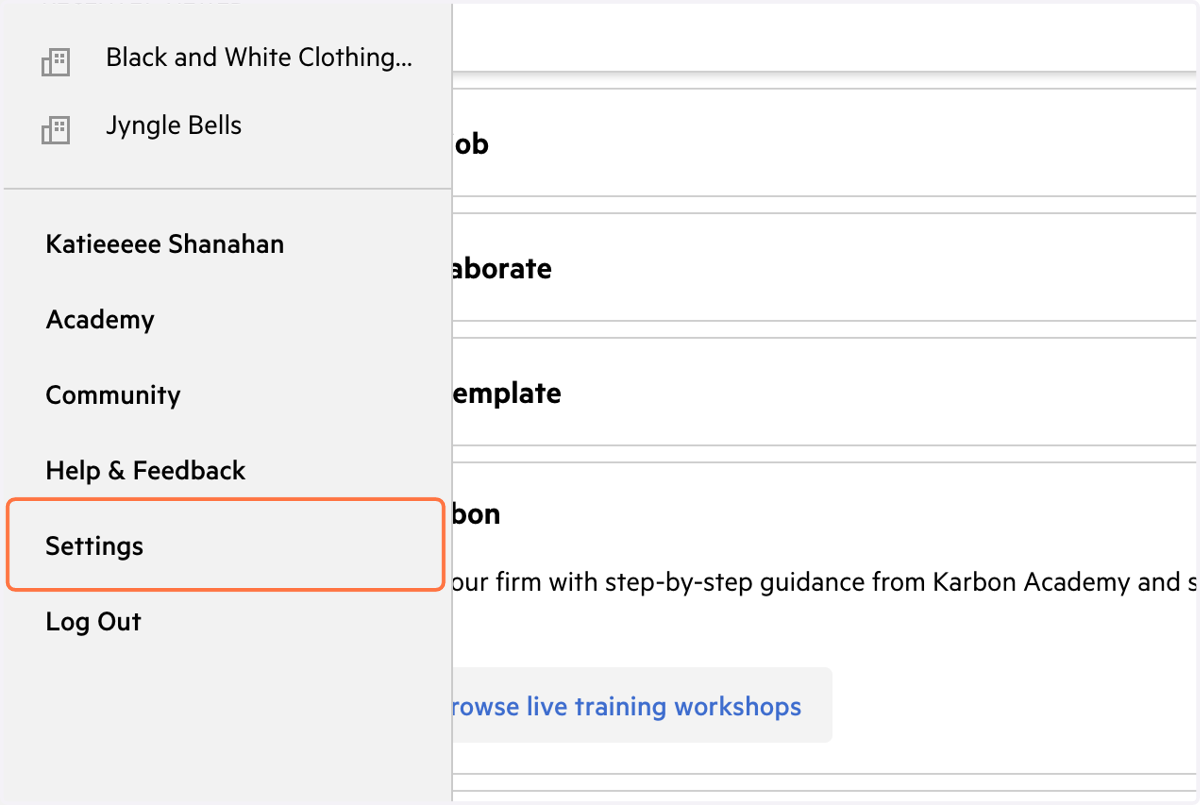
5. To find the Connection Token, sign into Karbon and click on Settings
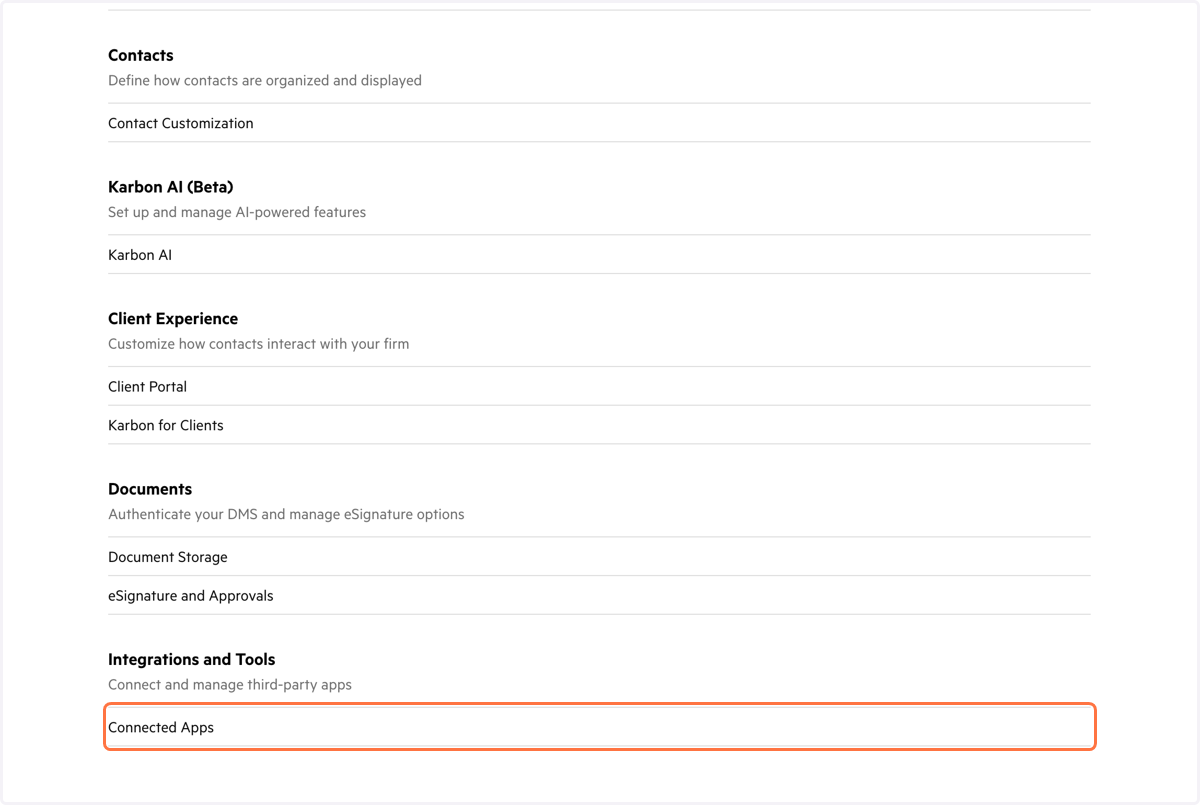
6. Click on Connected Apps
7. Scroll to the Brieff app and click on Connect
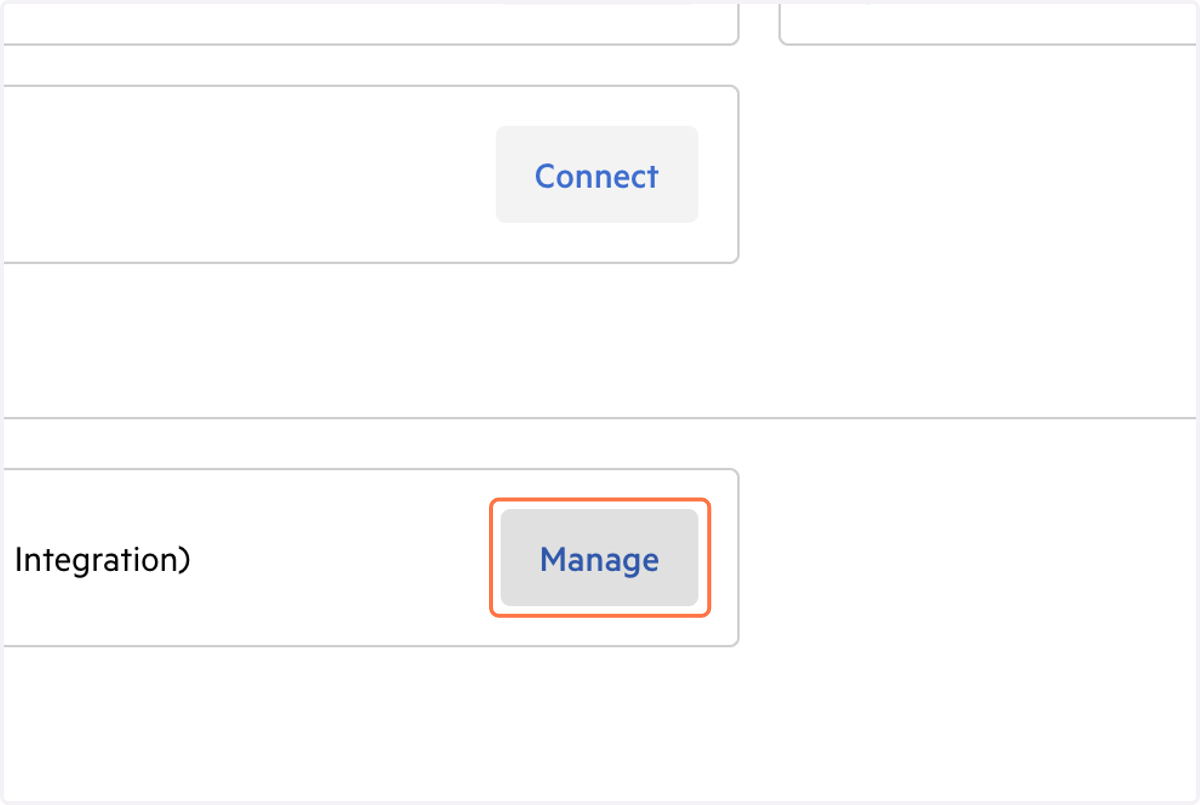
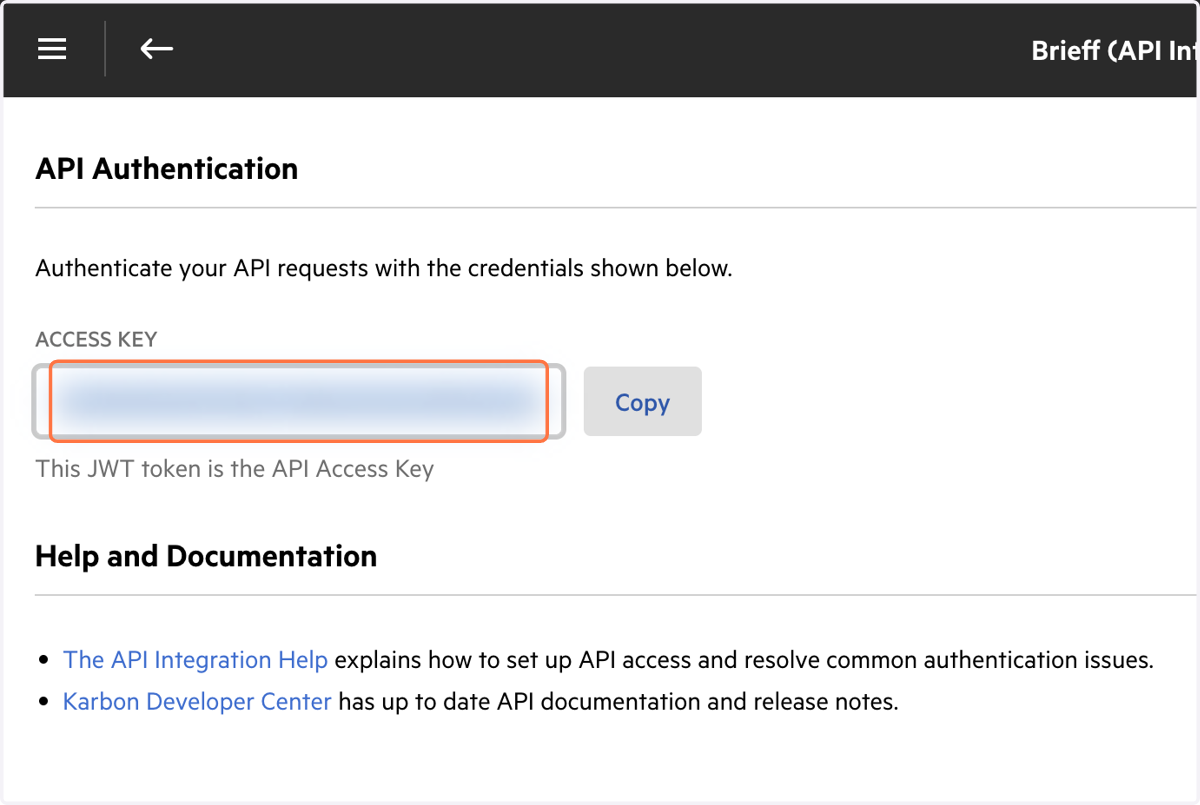
8. Copy the Connection Token
Brieff
9. Paste your karbon Connection Token into Brieff
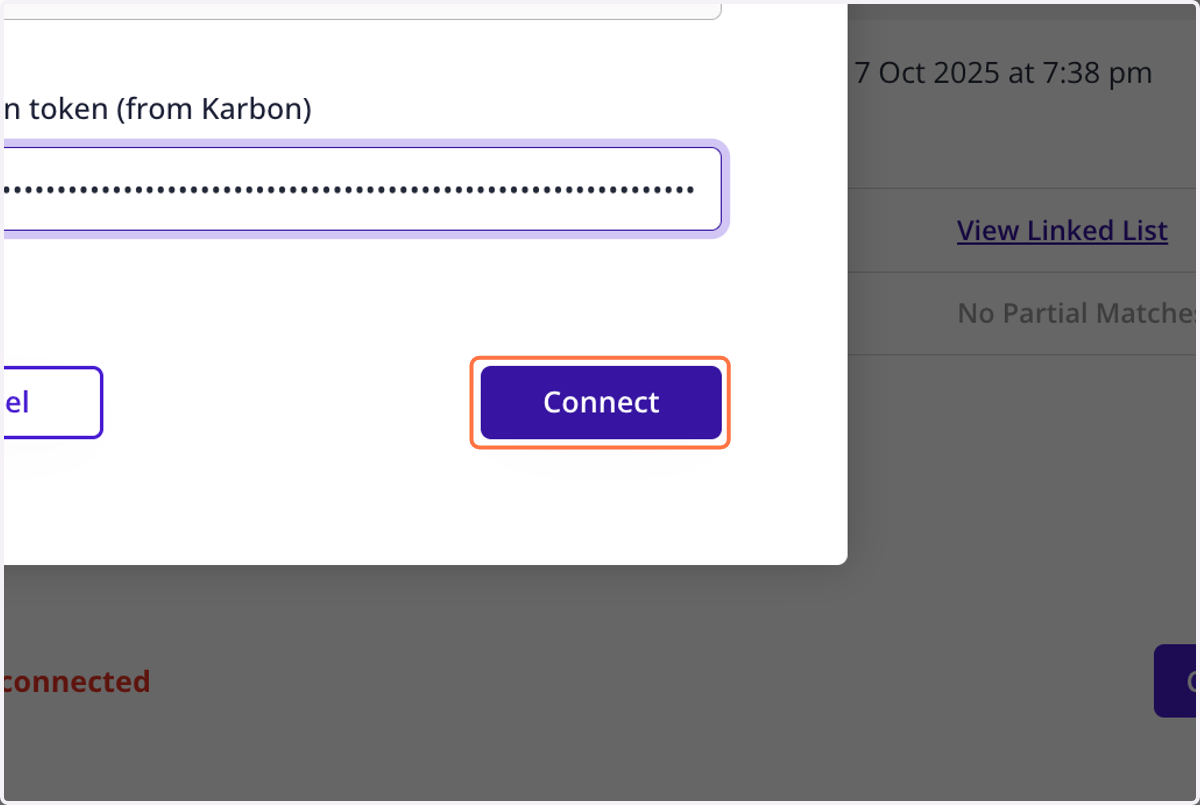
10. Click on Connect
11. Wait a few minutes while Brieff completes a full sync with your Karbon account. Brieff will automatically link clients and contacts to their Karbon Organization and People counterparts Once synced, you will see the entities linked and if there are any partial matches
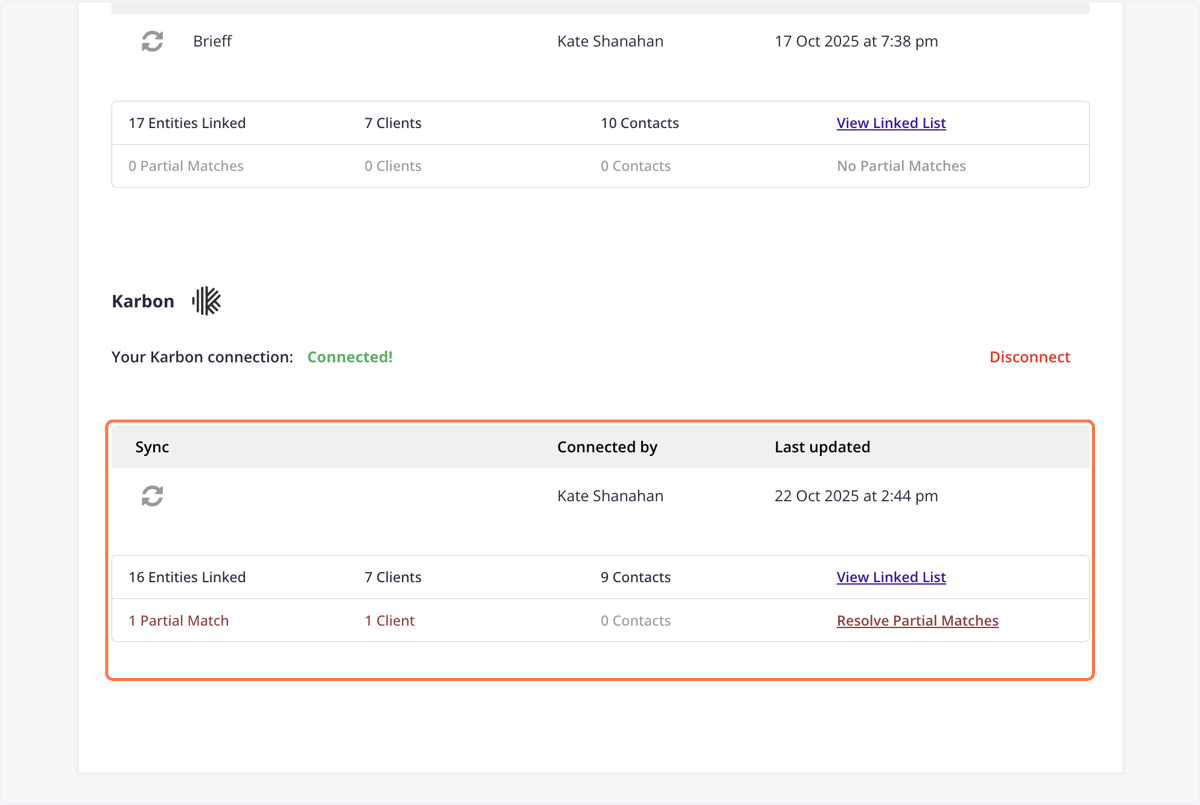
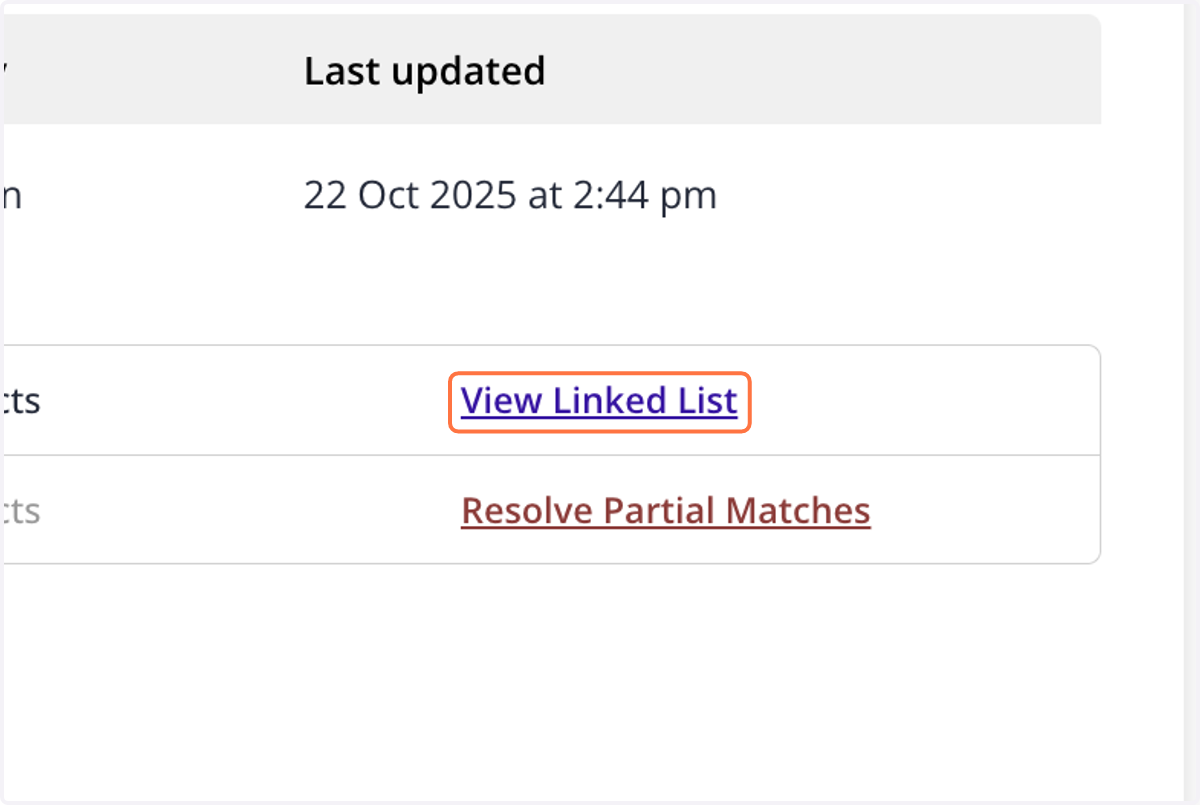
12. To view the Linked List, click on View Linked List
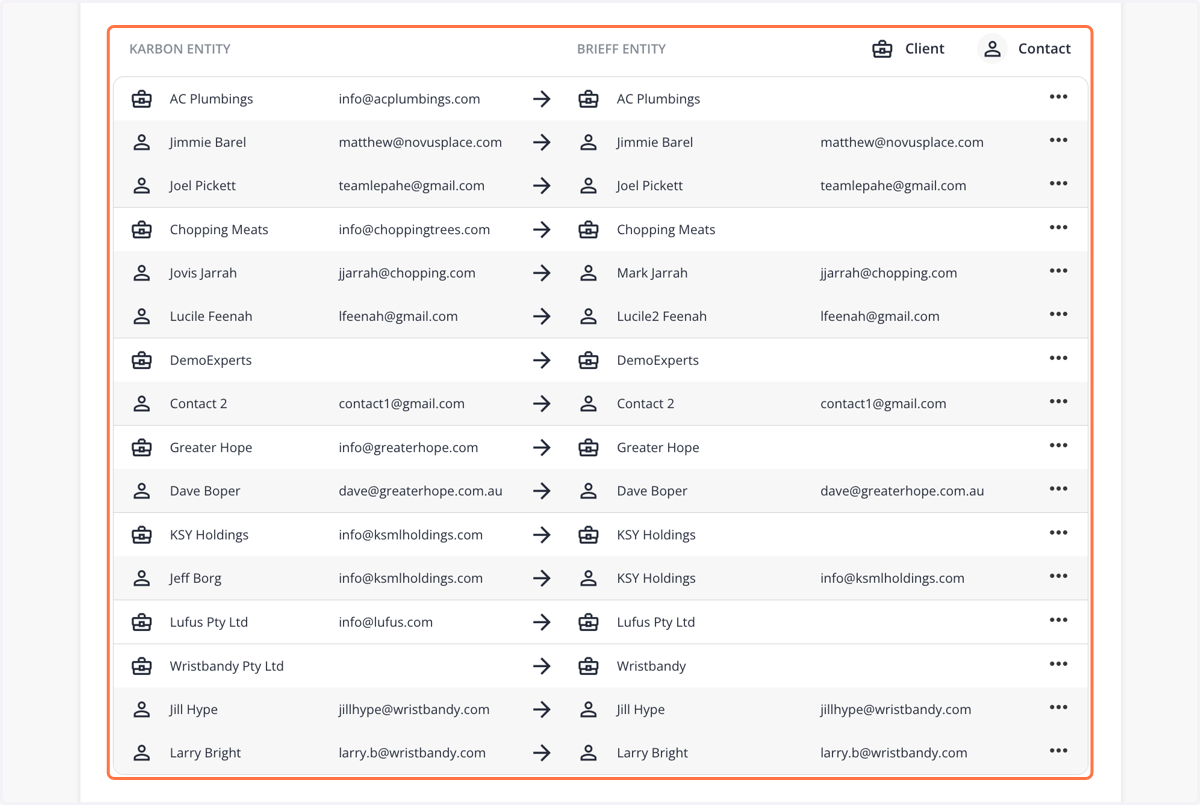
13. Here you will see all the linked entities
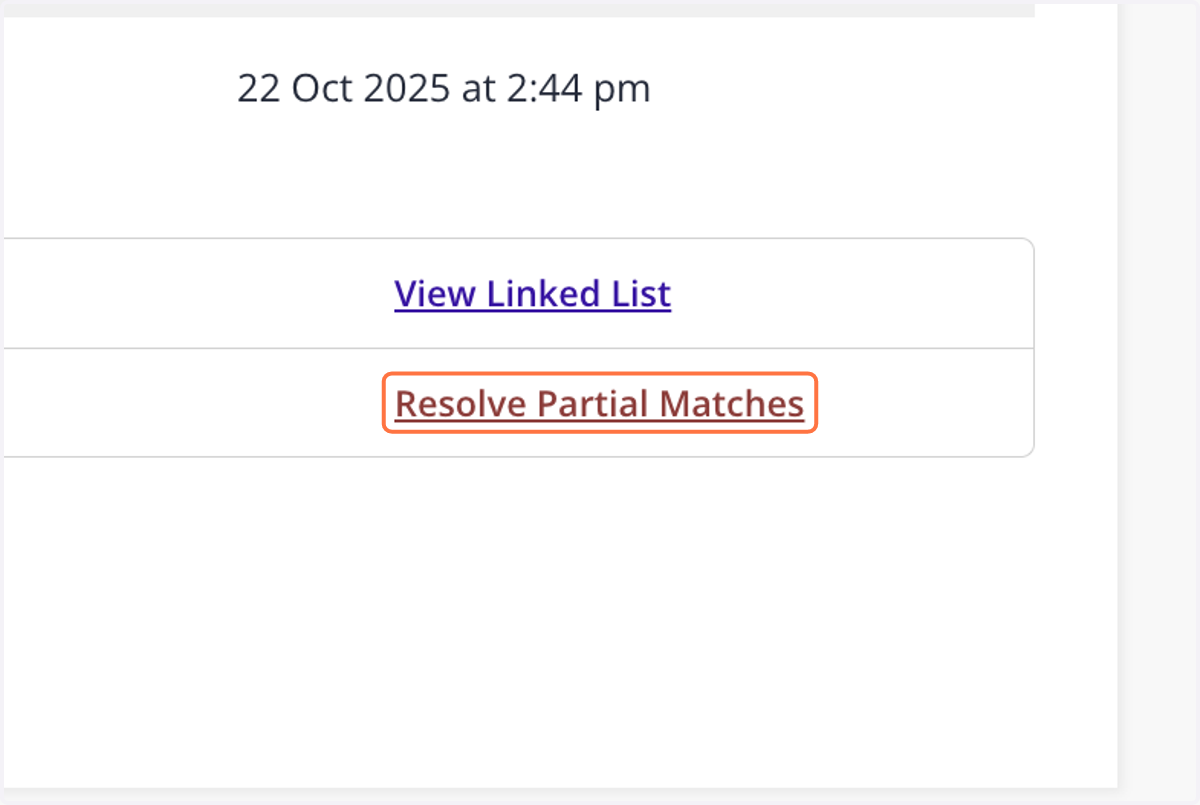
14. If you have partial matches, click on Resolve Partial Matches
15. The partial matches will appear.
Partial matches occur when there are multiple match candidates or similar named entities.
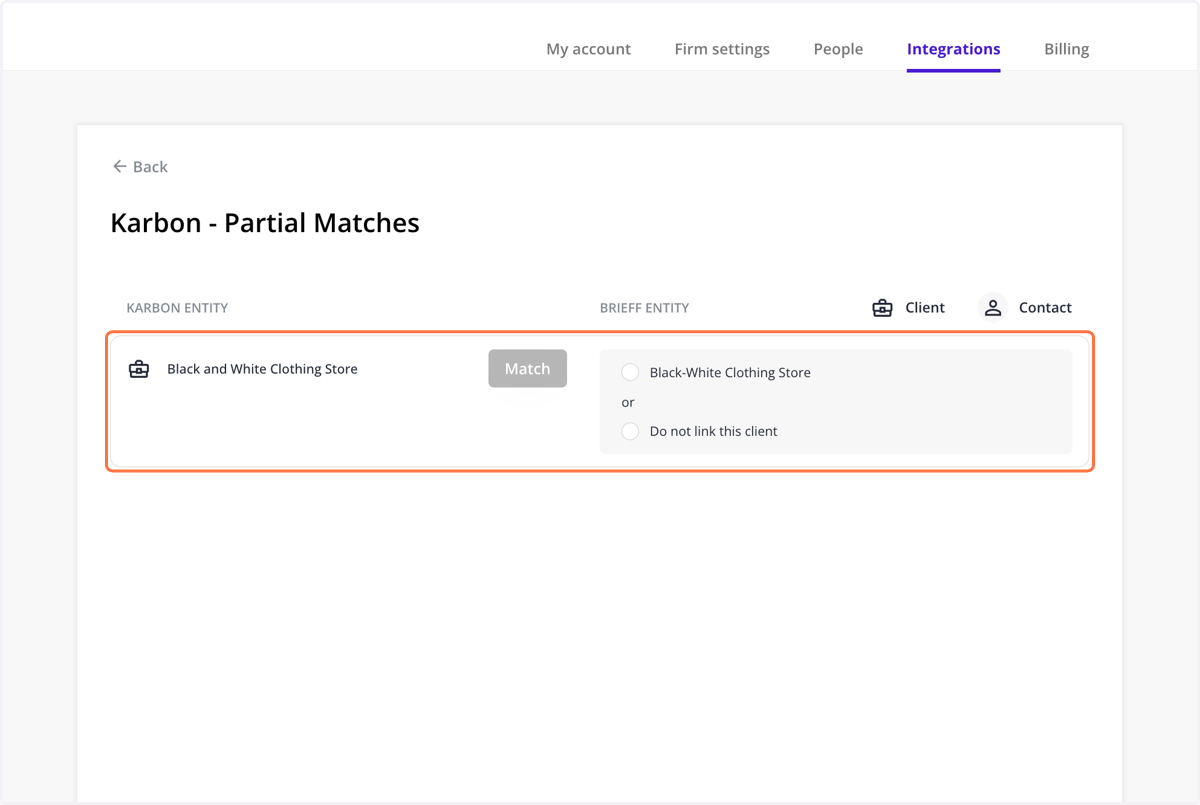
16. To resolved the partial match, click on the correct entity or click Do not link this client
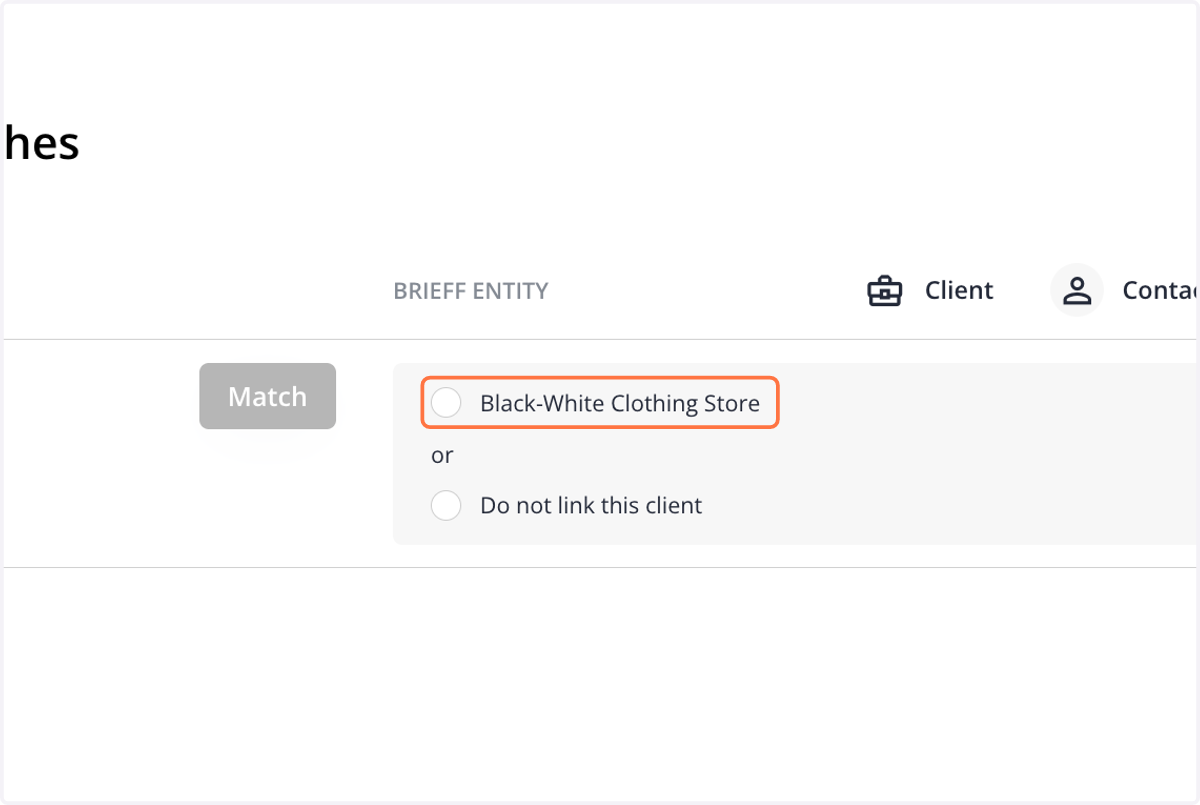
17. Click on Match