How to Embed a Tango into Confluence
This Workflow goes over how to embed Interactive and Video Embeds.
Tango
Navigate to the Workflow you wish to have embedded.
1. Navigate to the Workflow you would like to embed
Step 2: Decide on the type of Embed you want to use
- Interactive Embed
- Video Embed
Interactive Embed
2a. Click on Share & export

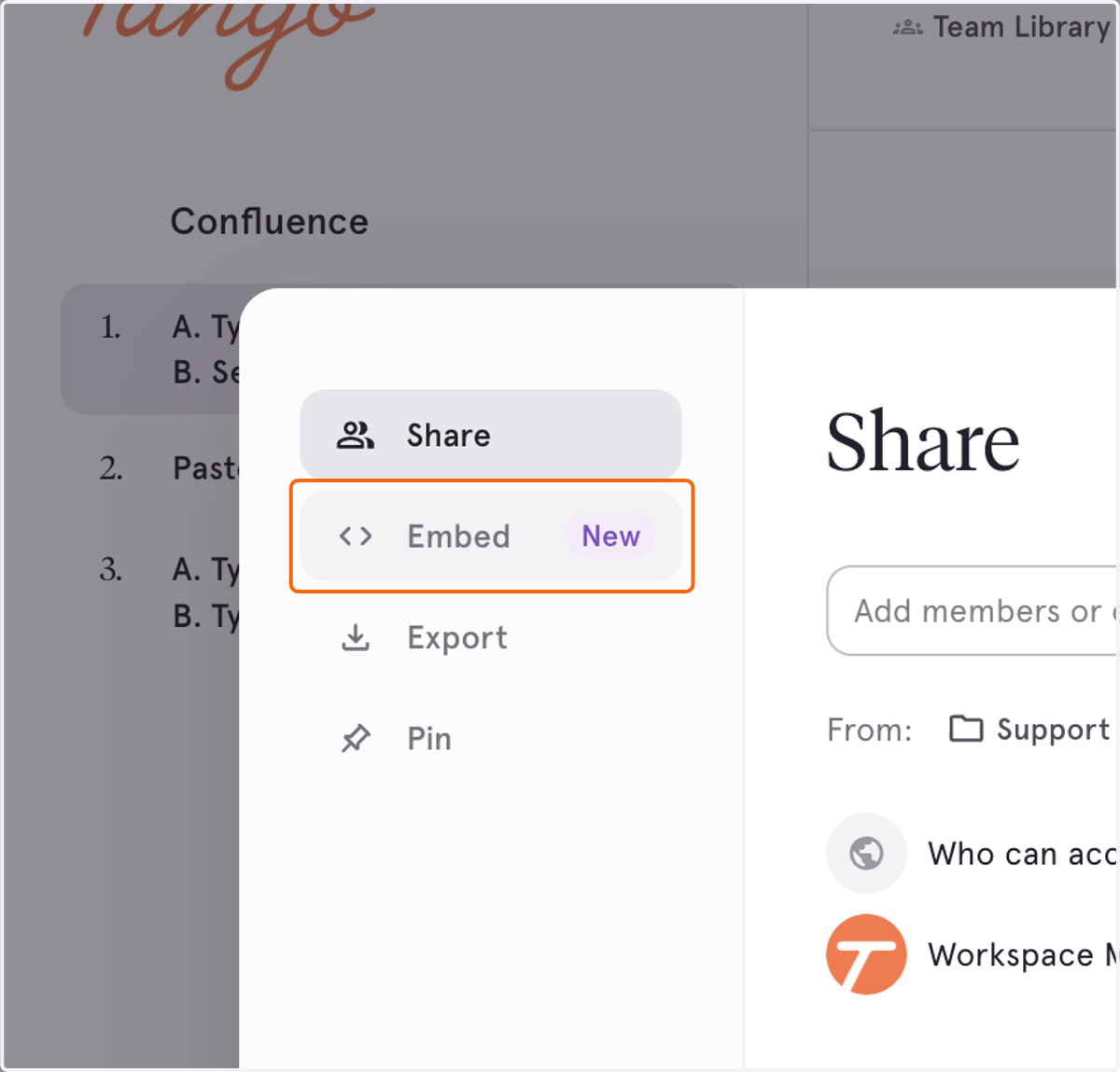
2b. Click on Embed…
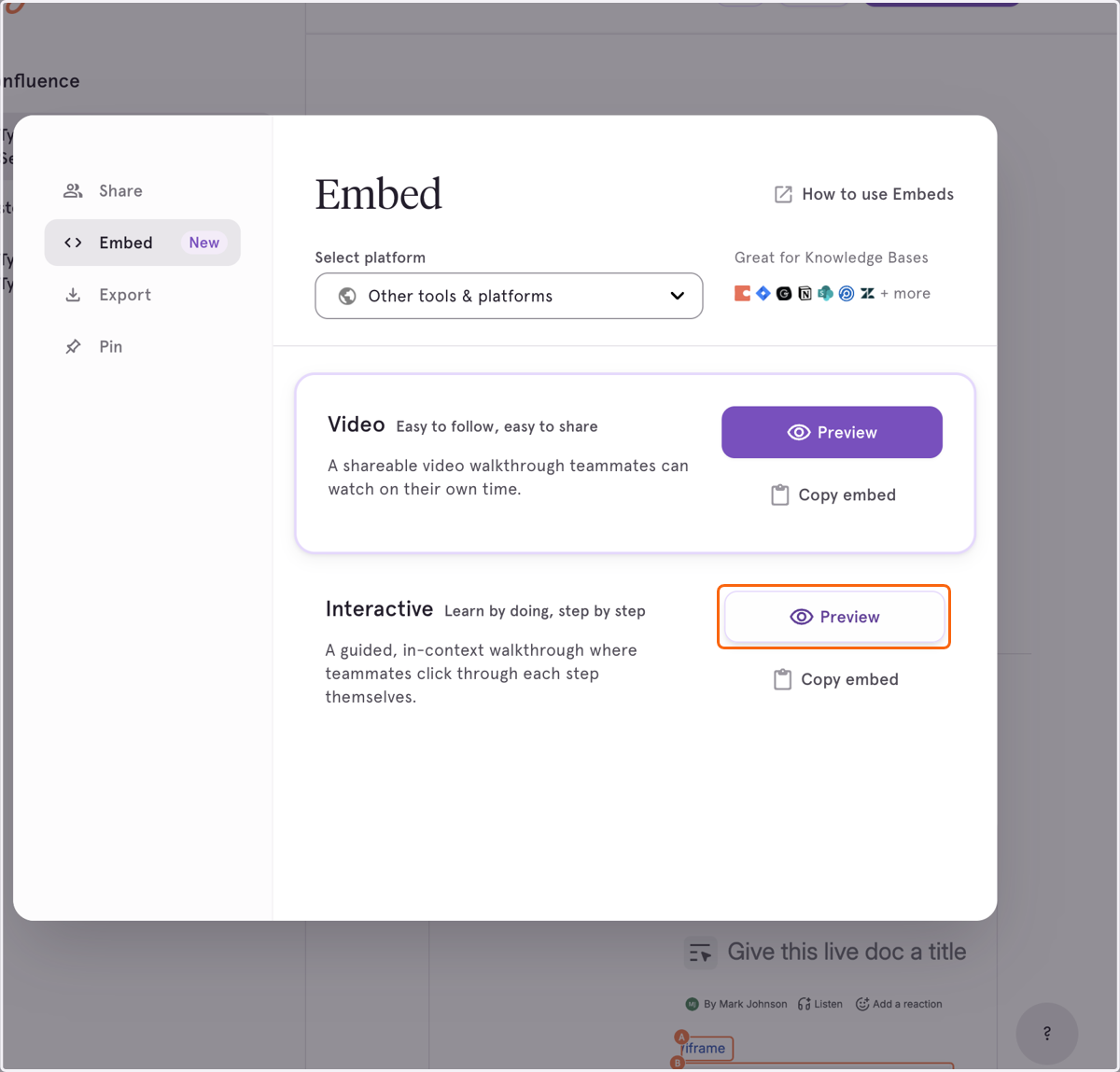
2c. Click on the "Preview" button for Interactive Embeds
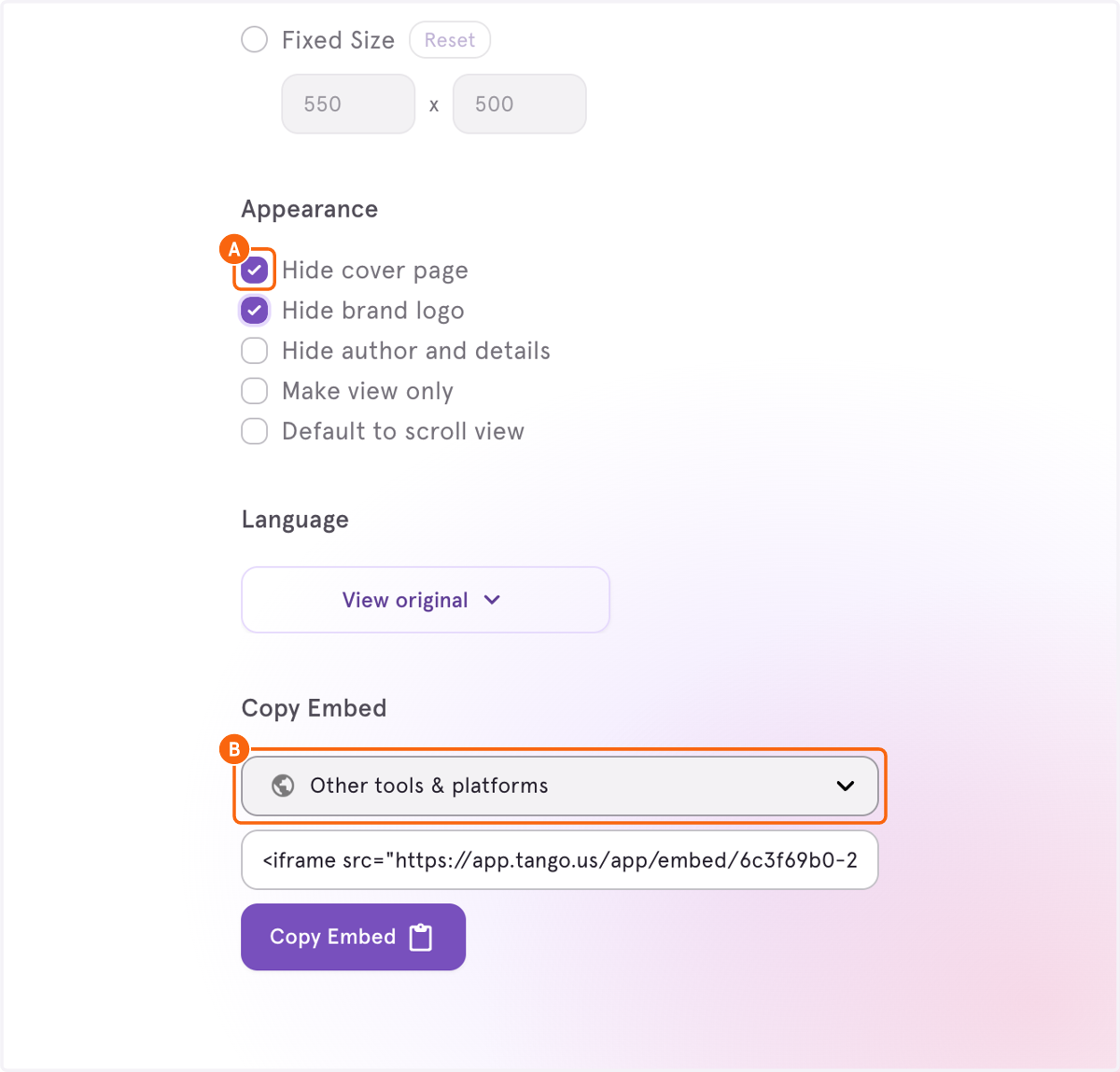
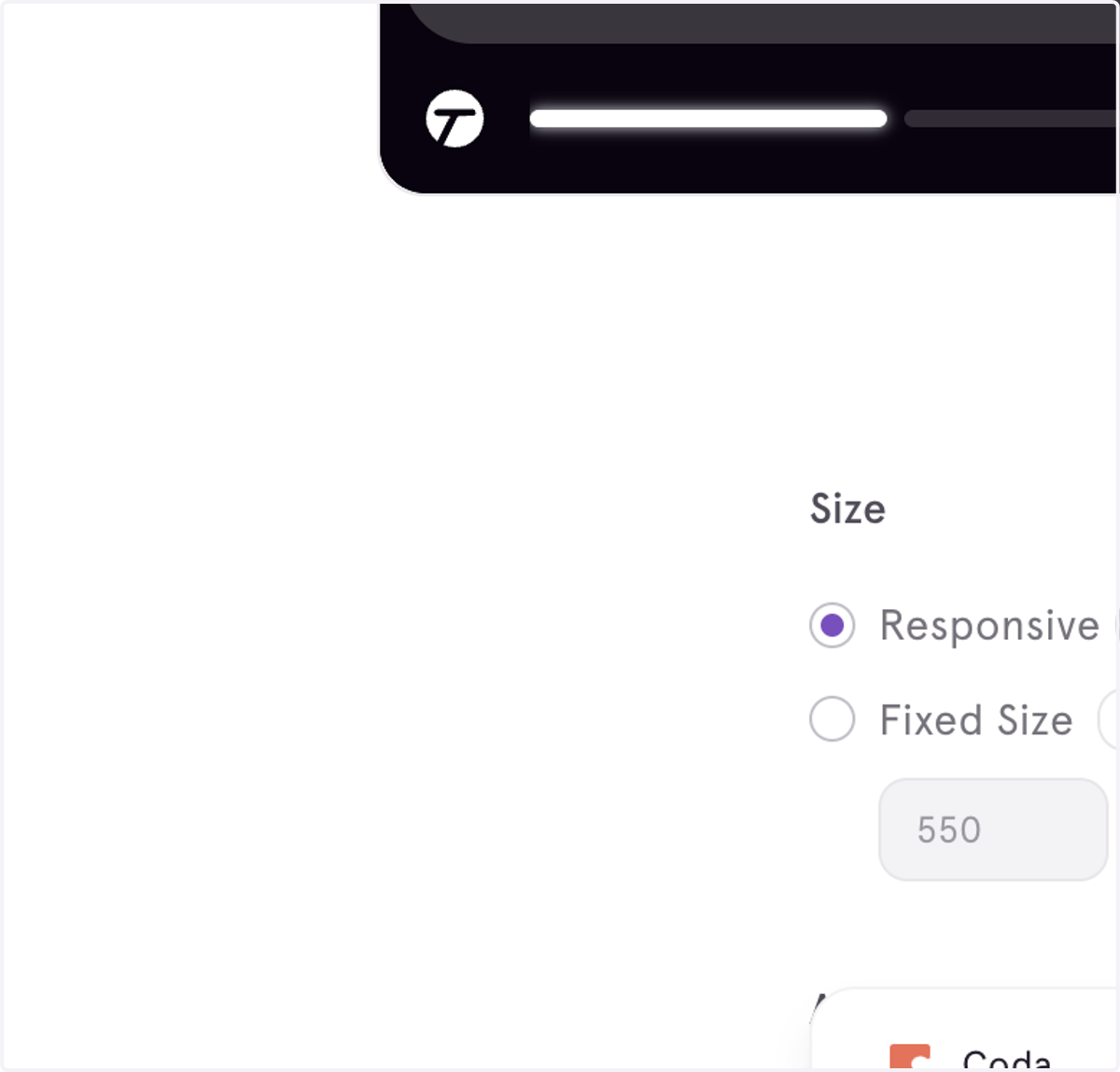
2d. A. Select the desired options
2d. B. Click on "Other tools & platforms"
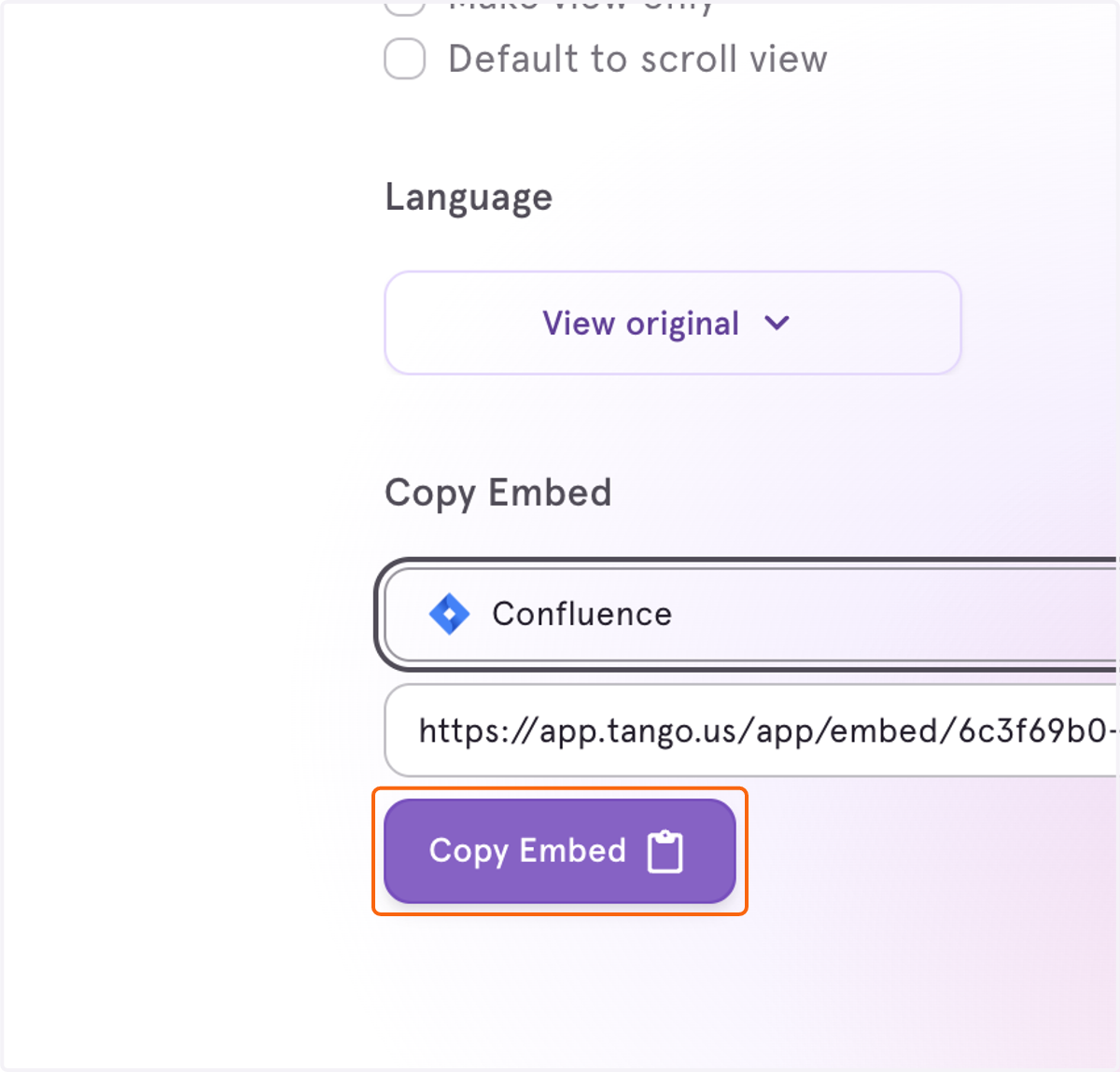
2e. Select Confluence
2f. Click on Copy Embed
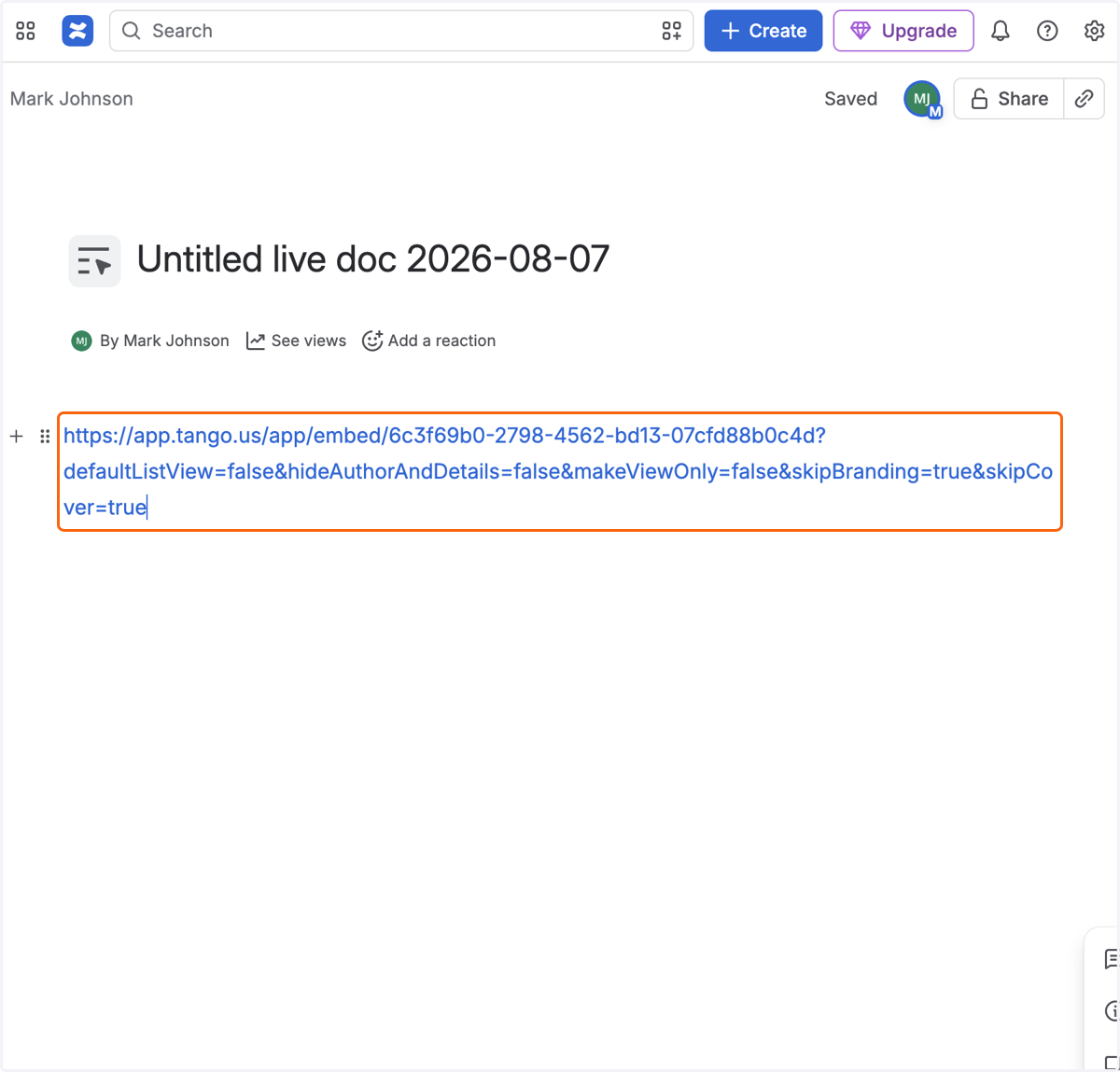
2g. Navigate to the Confluence page you wish to add the embed to
2h. Paste the embed URL onto your Confluence page
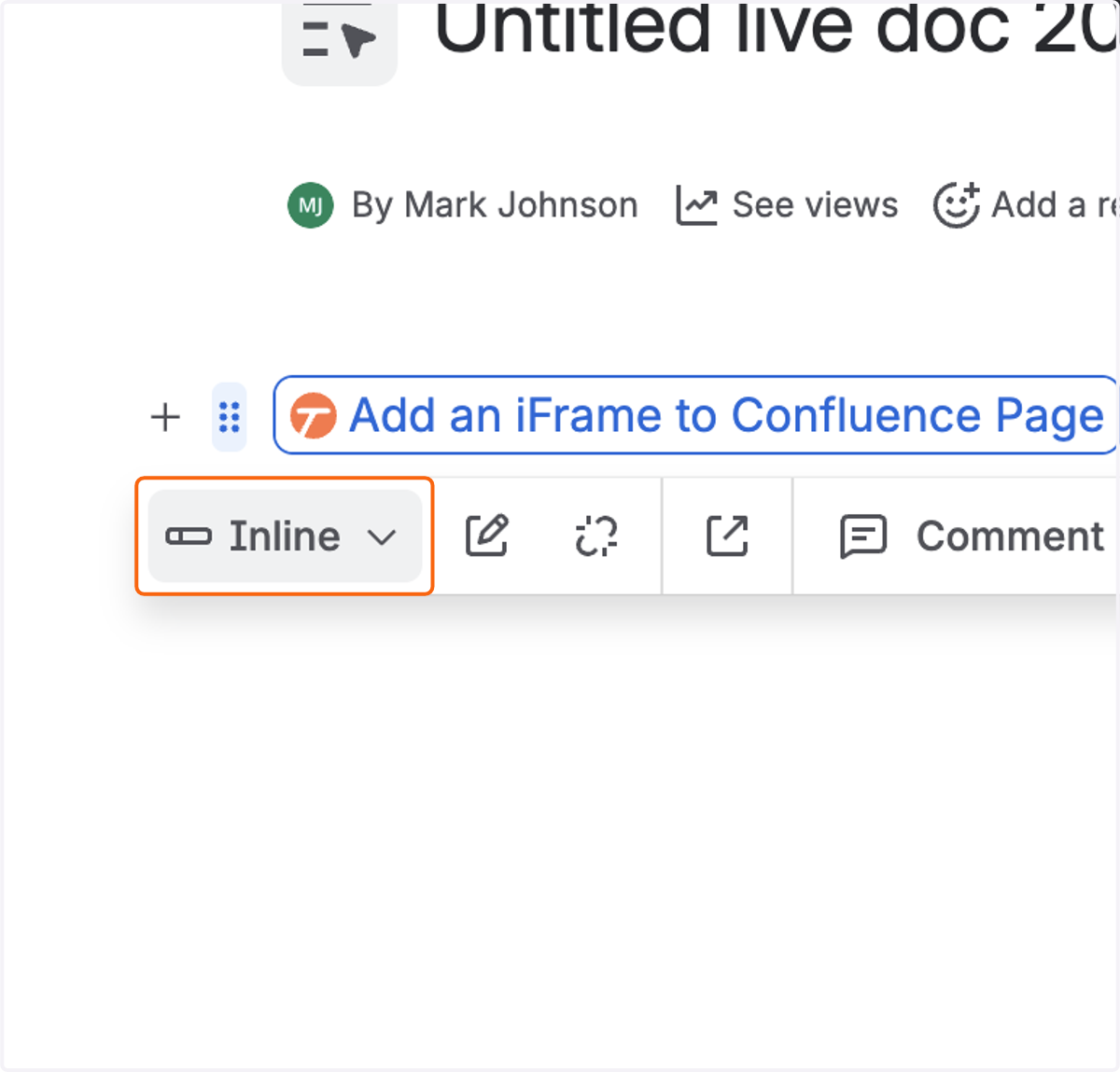
2i. Click on the card for the link you just posted
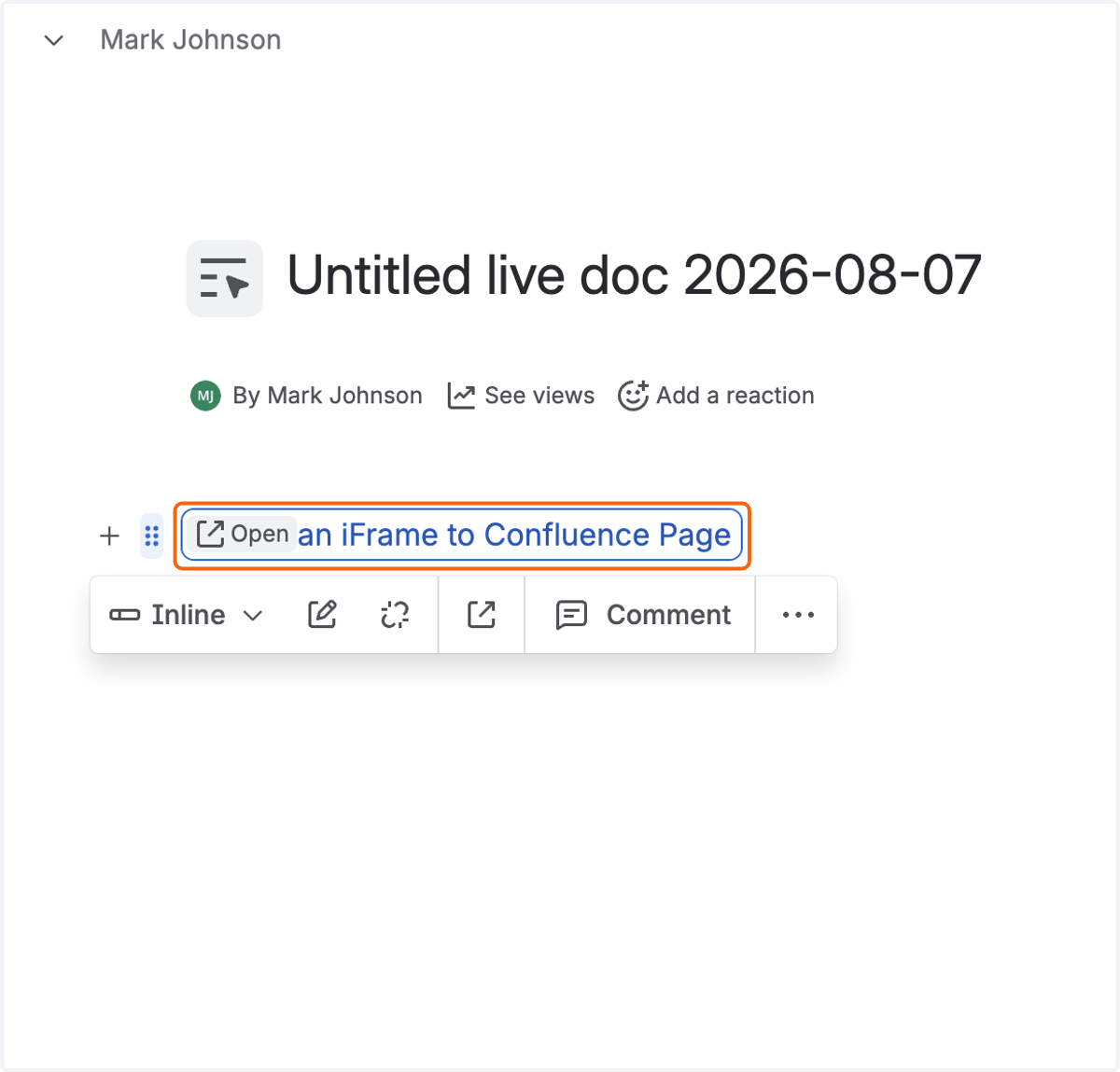
2j. Click on Inline
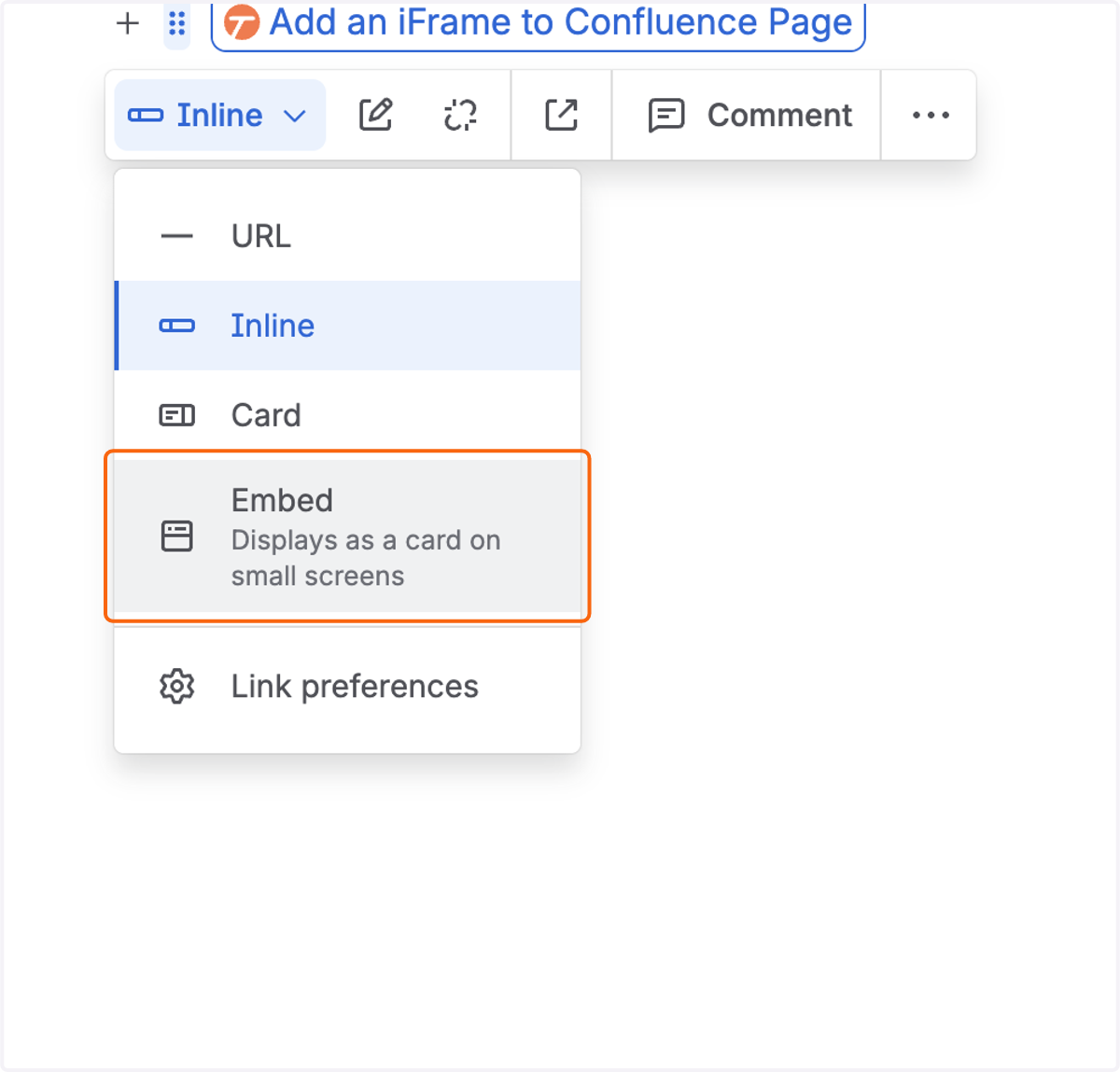
2k. Click on Embed…
Video Embed
2a. Click on Share & export

2b. Click on Embed…
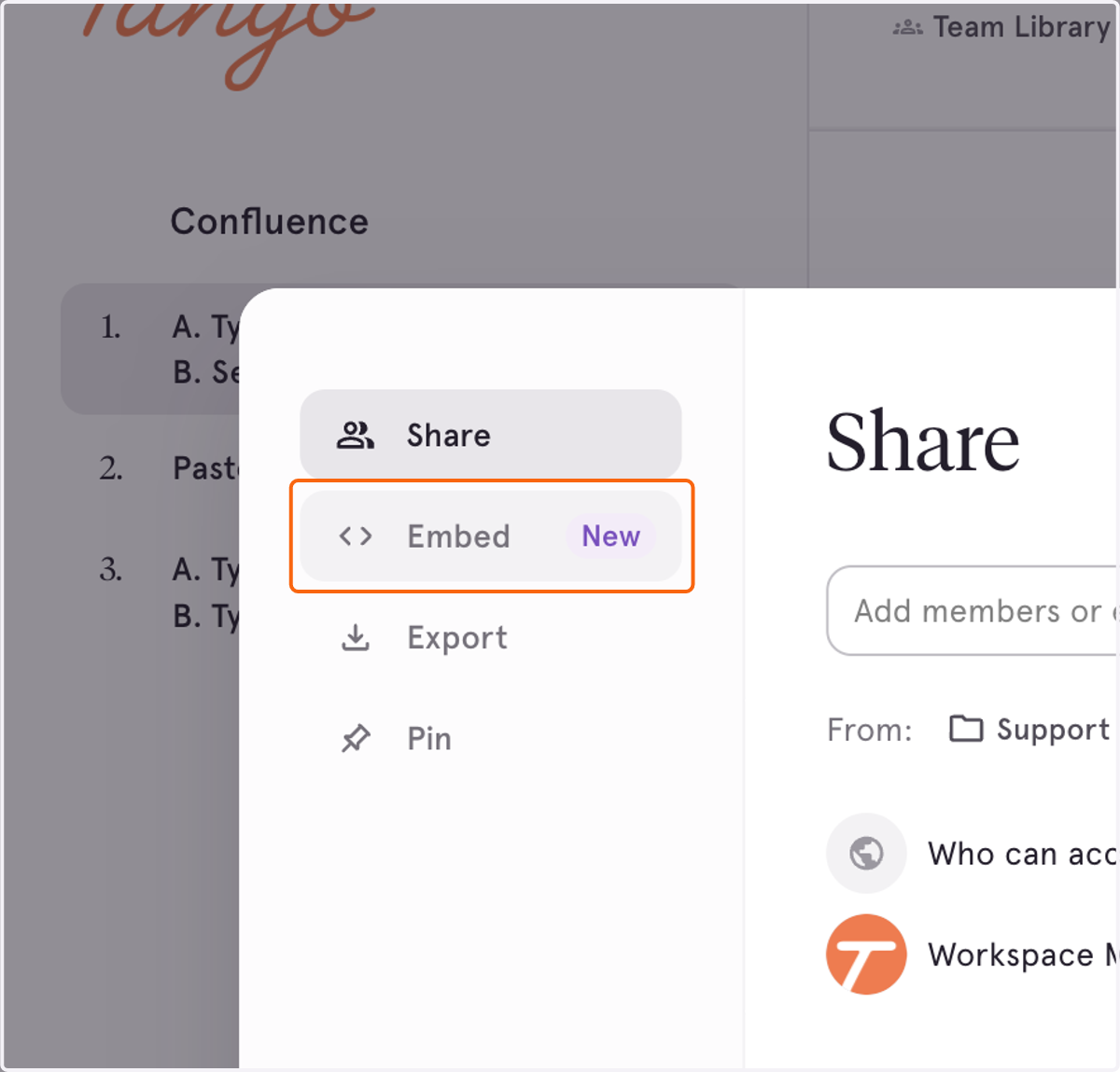
2c. Click on the "Preview" button for Video Embeds

2d. Select the desired options for the Video Embed
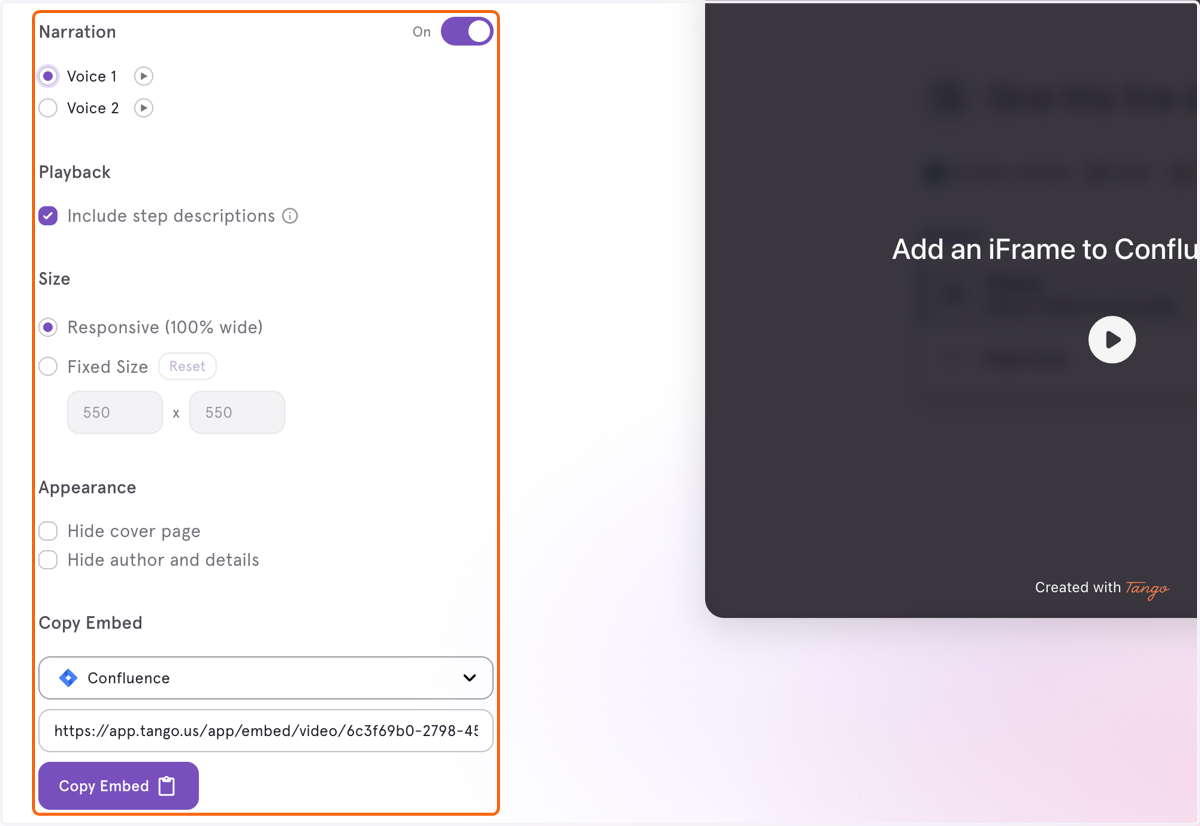
2e. Click on the drop-down to see the list of applications
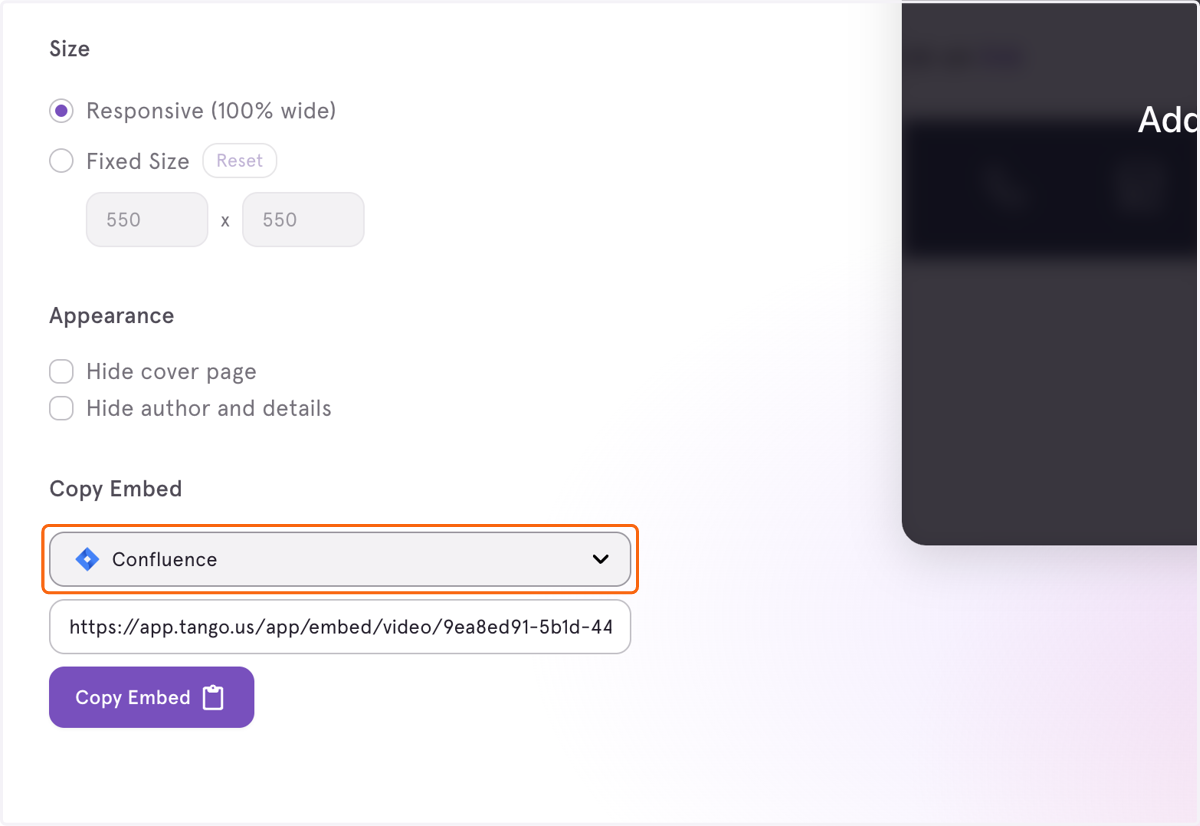
2f. Select Confluence
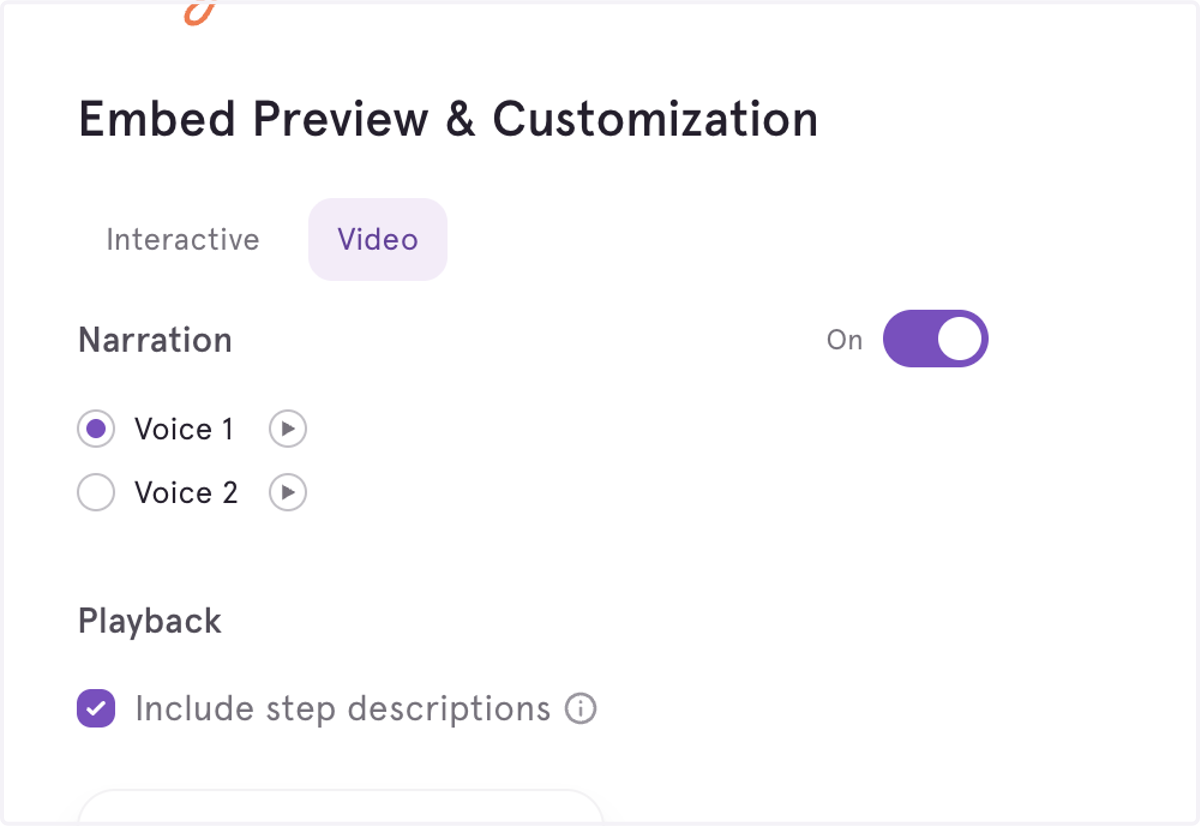
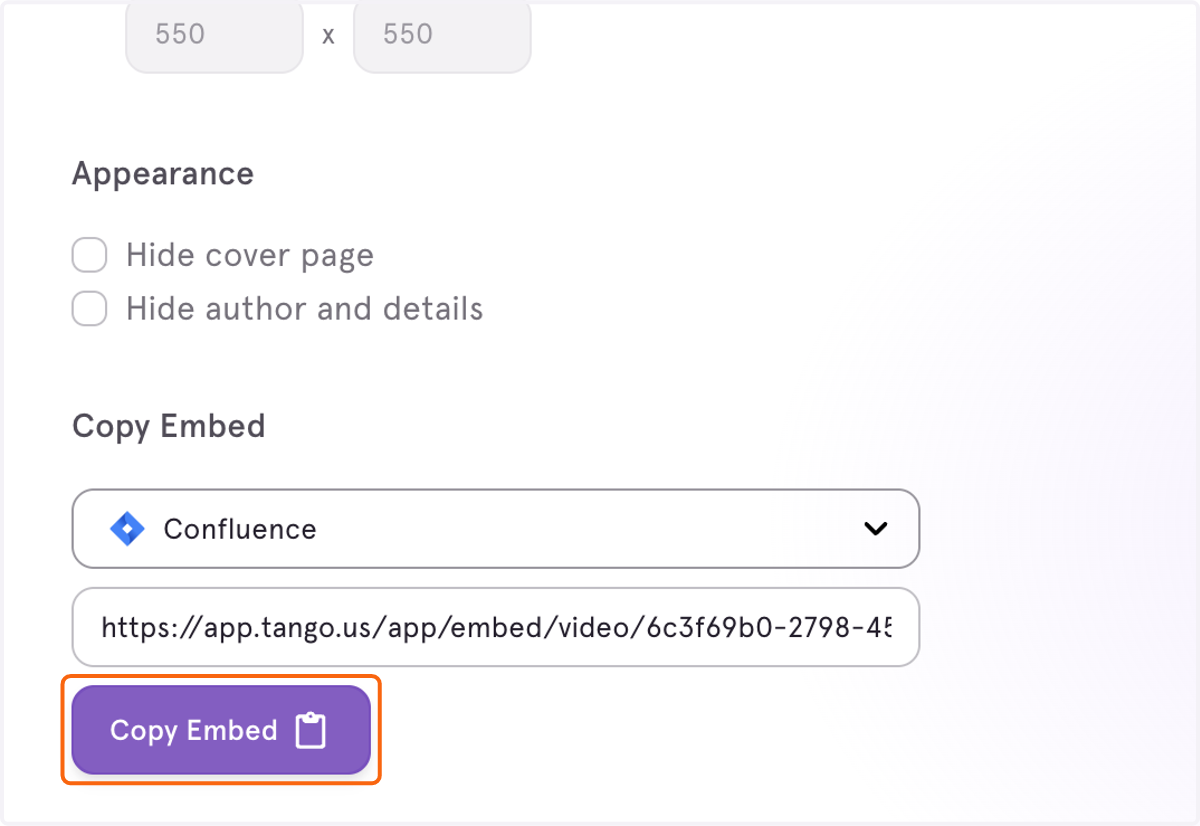
2g. Click on Copy Embed
2h. Navigate to the Confluence page you wish to add the embed to
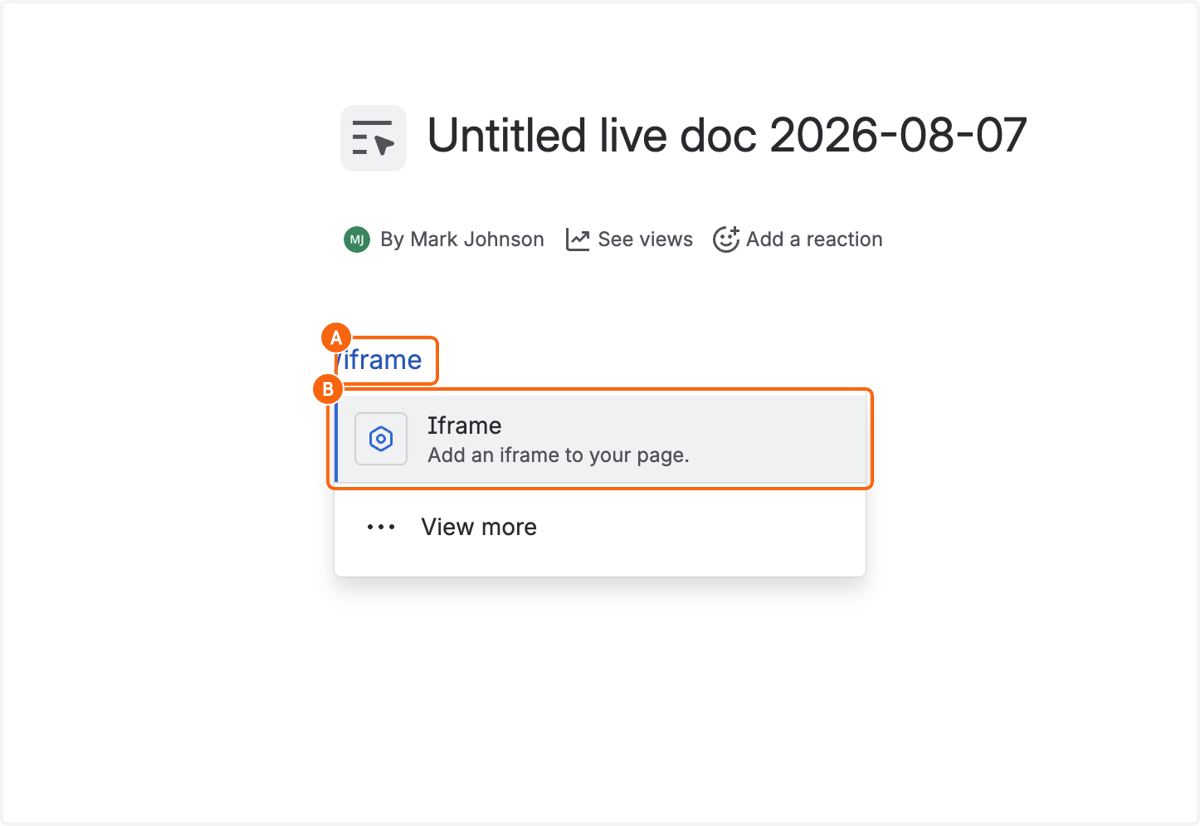
2i. A. Start to type /iframe on your Confluence page
2i. B. Select Add an iframe to your page..
2j. Paste the embed URL into input
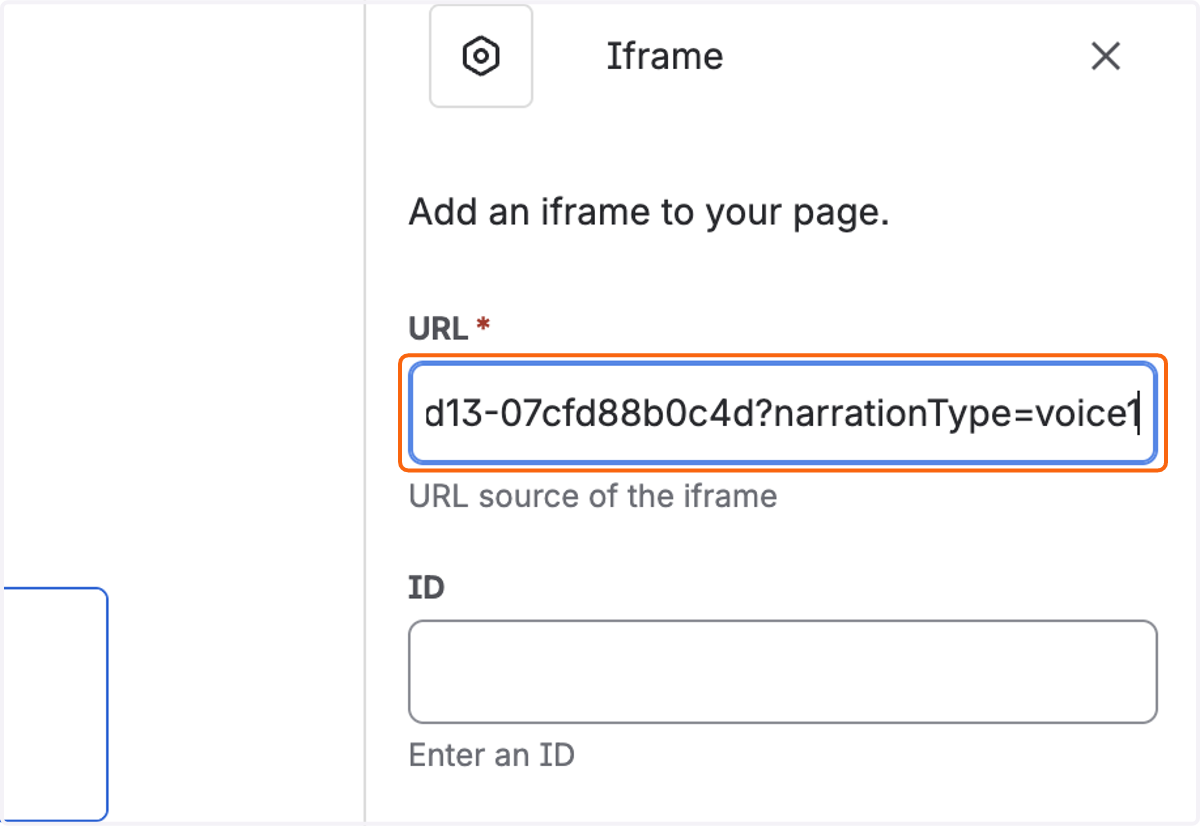
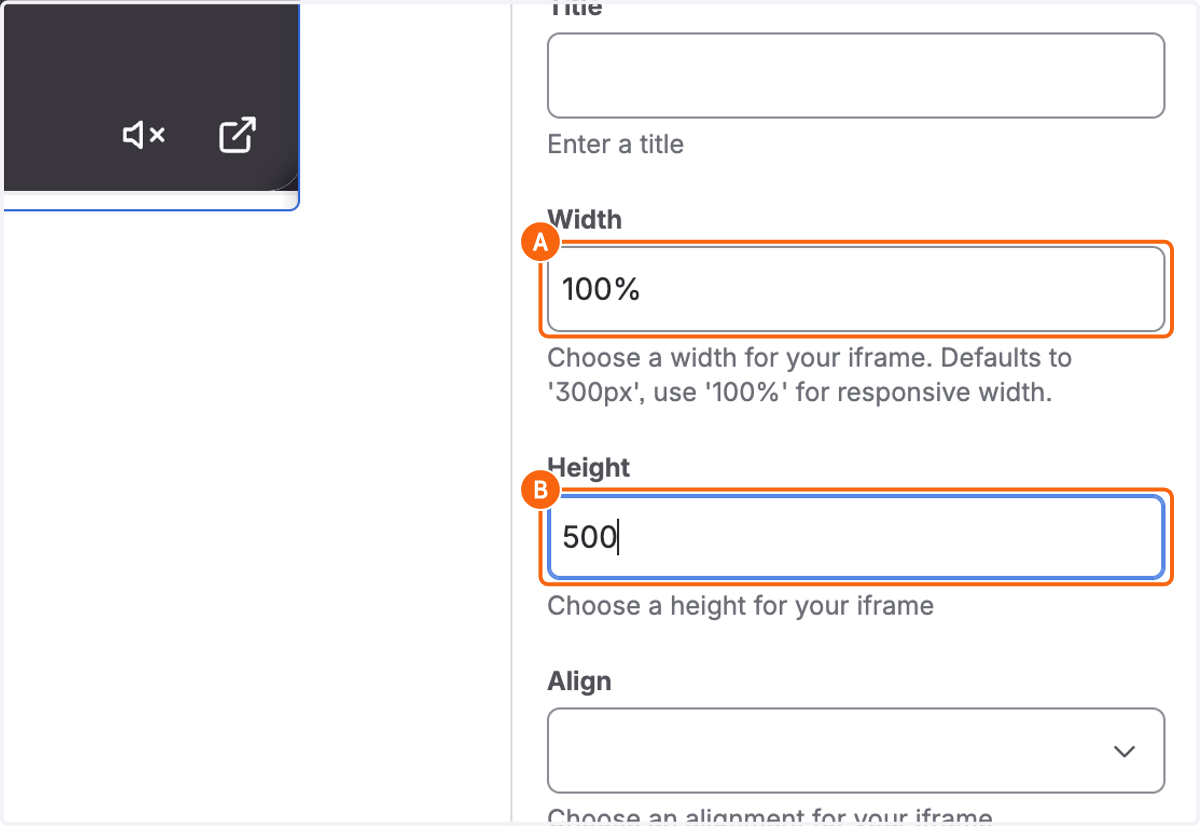
2k. A. Type the desired Width
2k. B. Type the desired Height
Width can be set to 100%, but Height needs to be a specific number.