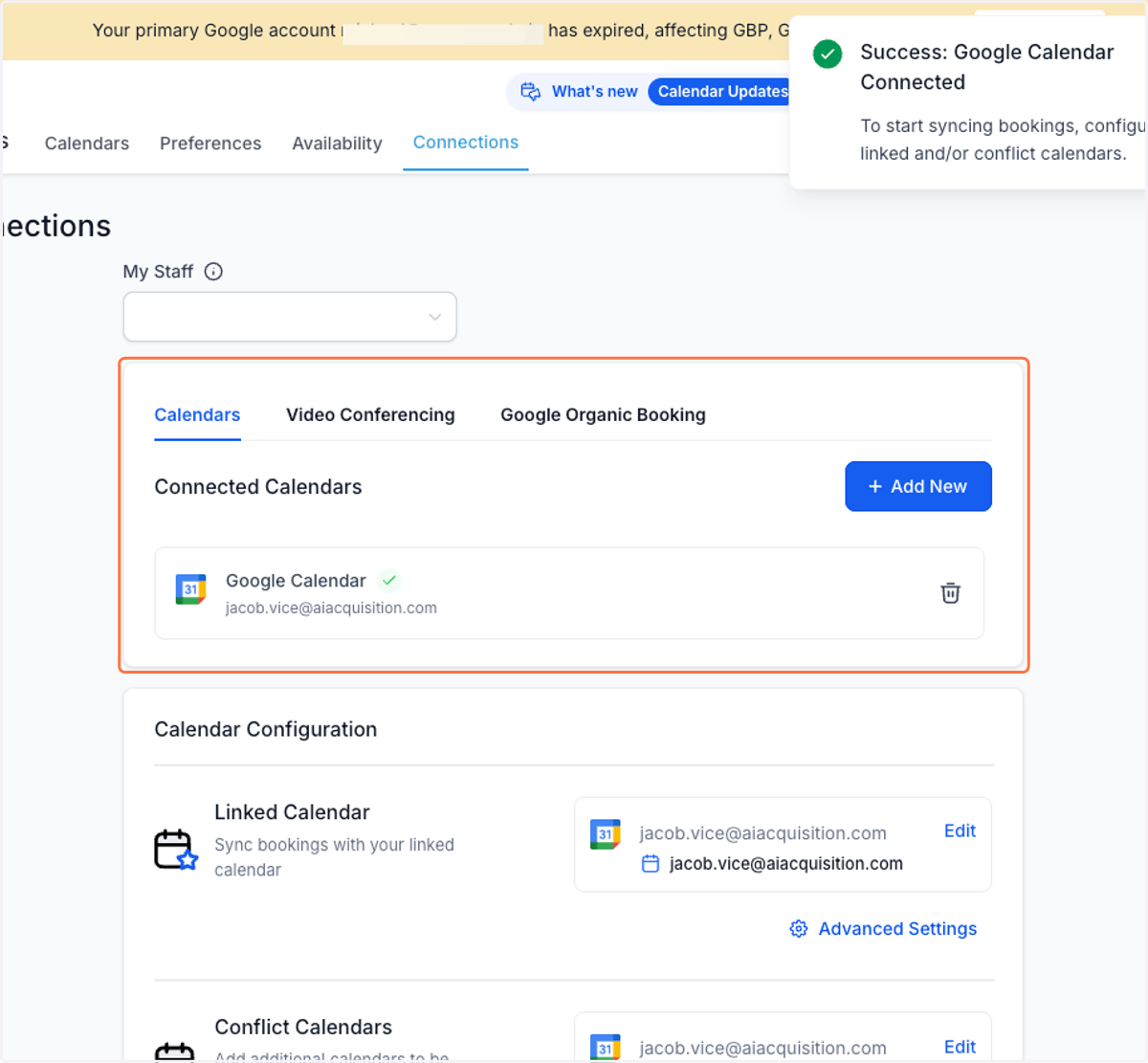
How to connect your calendar to your GoHighLevel account
1. Paste the following url into your web browser

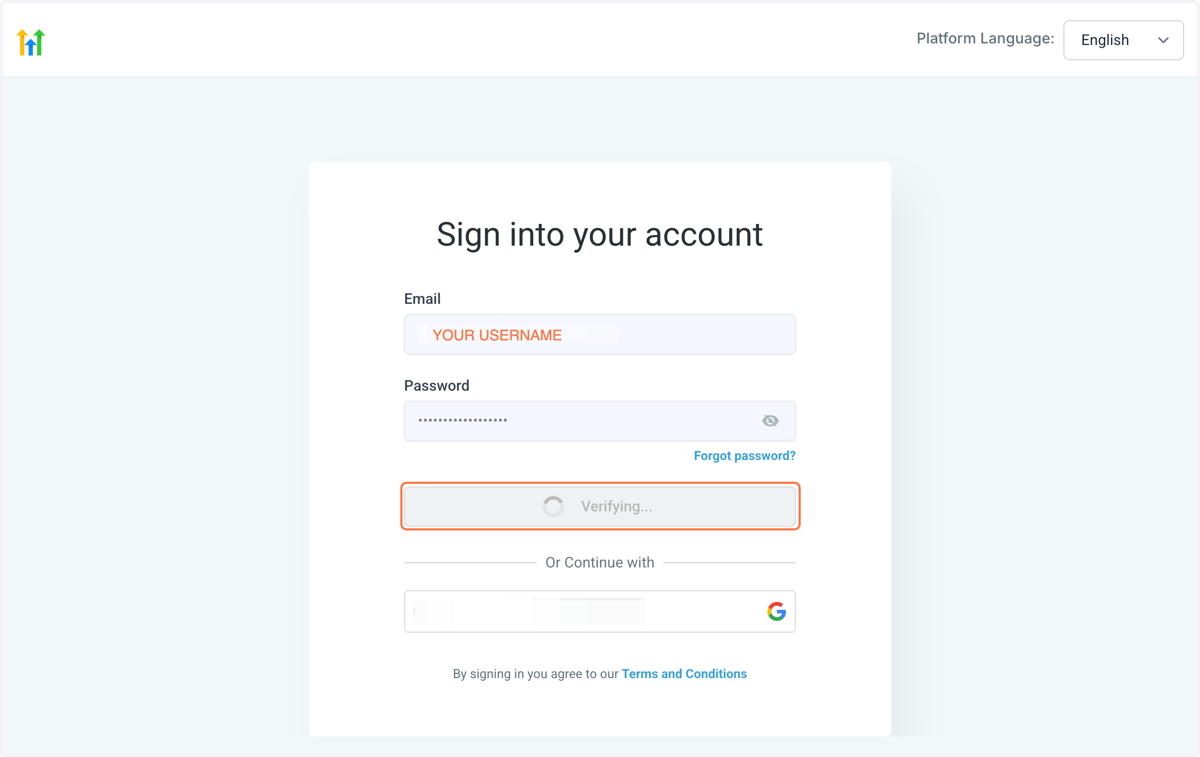
2. Click on Sign in
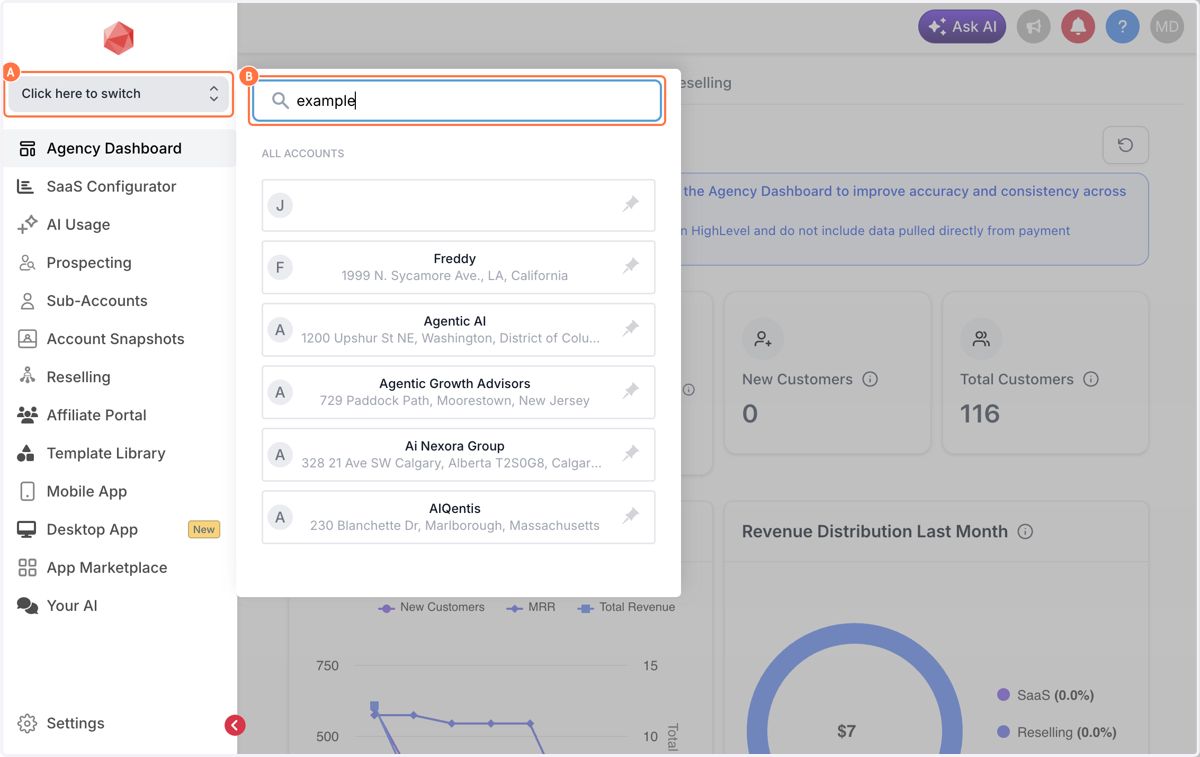
3. A. Click on Click here to switch B. Type your business name
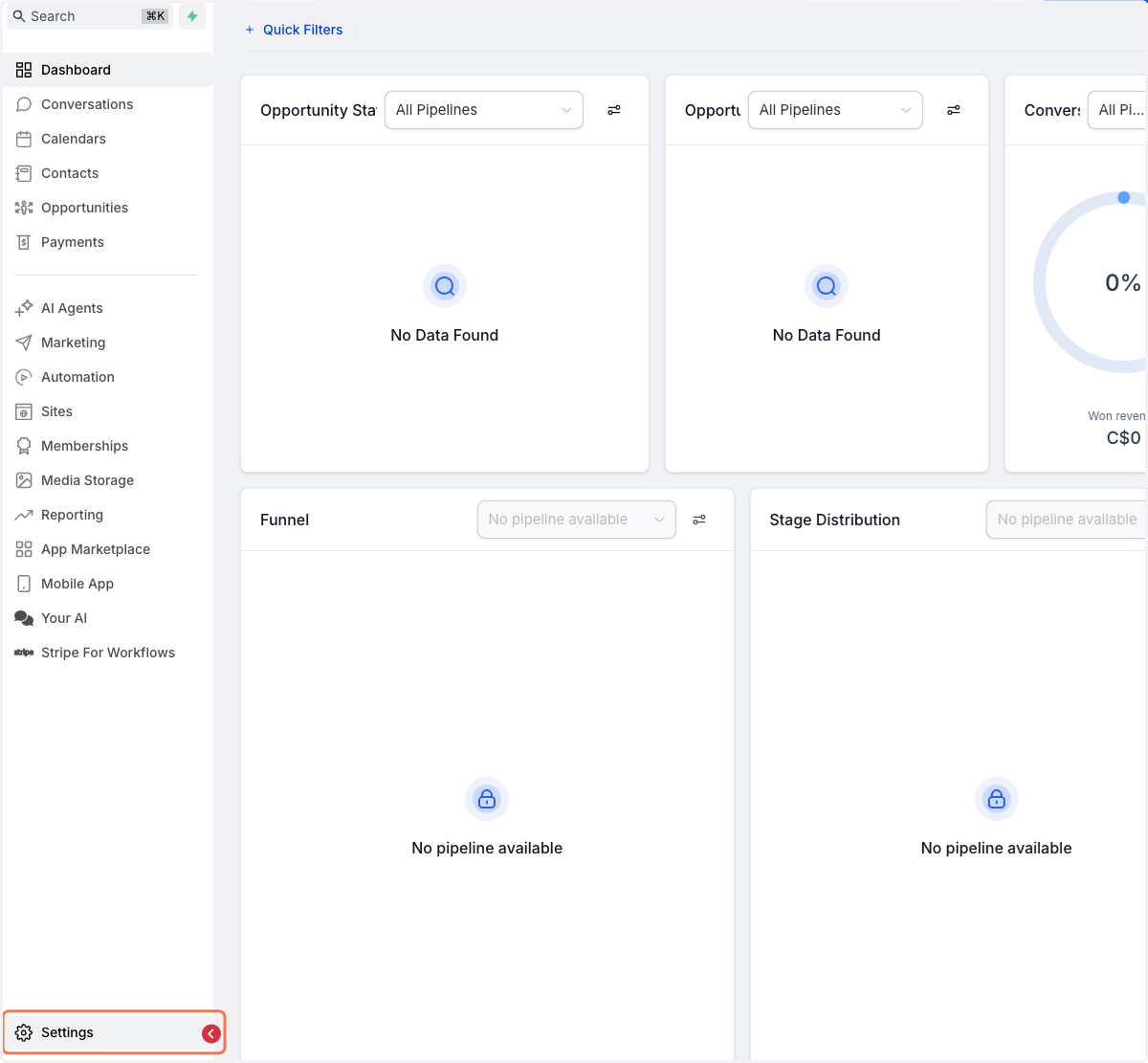
4. At the most bottom left hand-side, Click on Settings
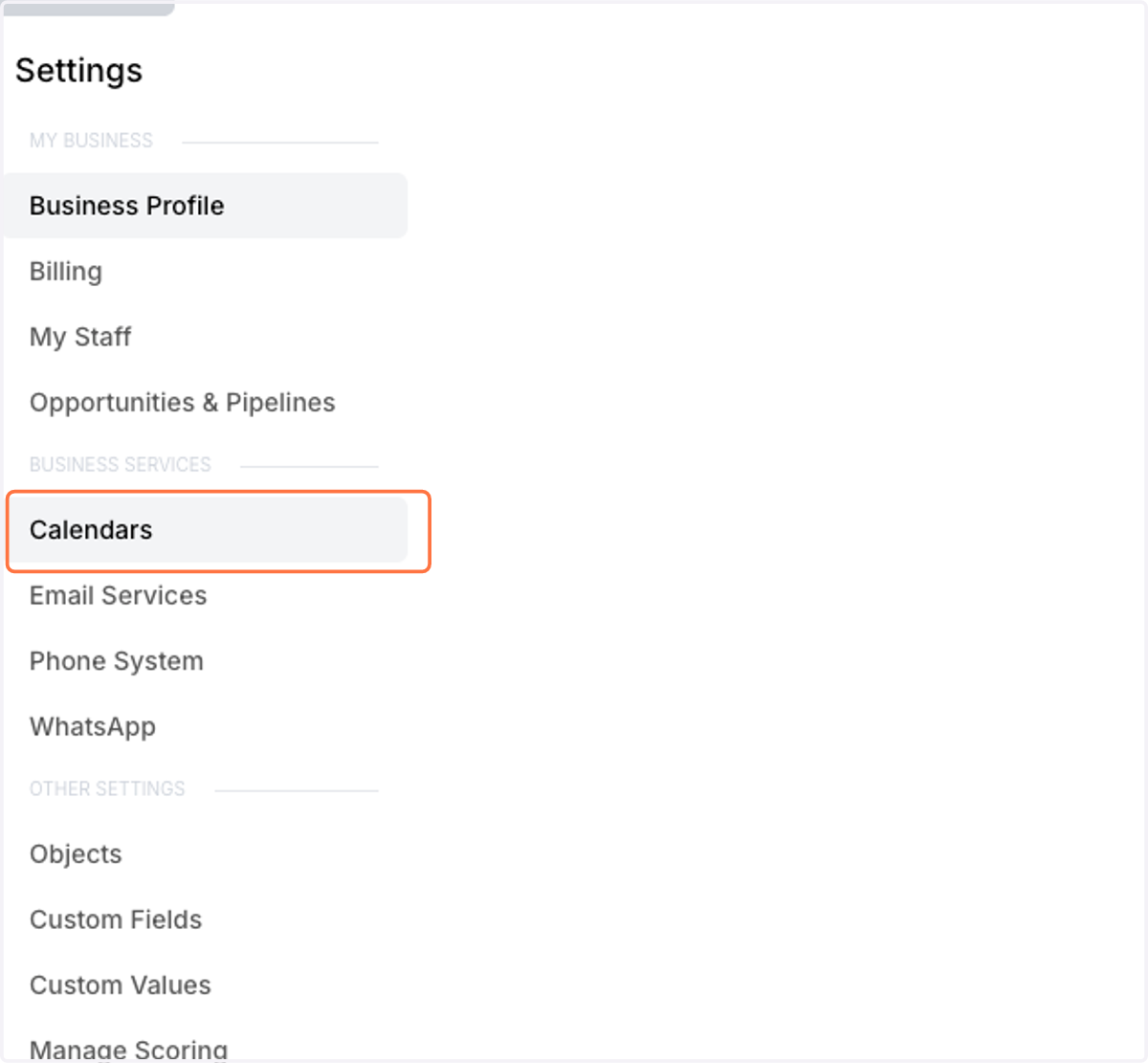
5. Click on Calendars
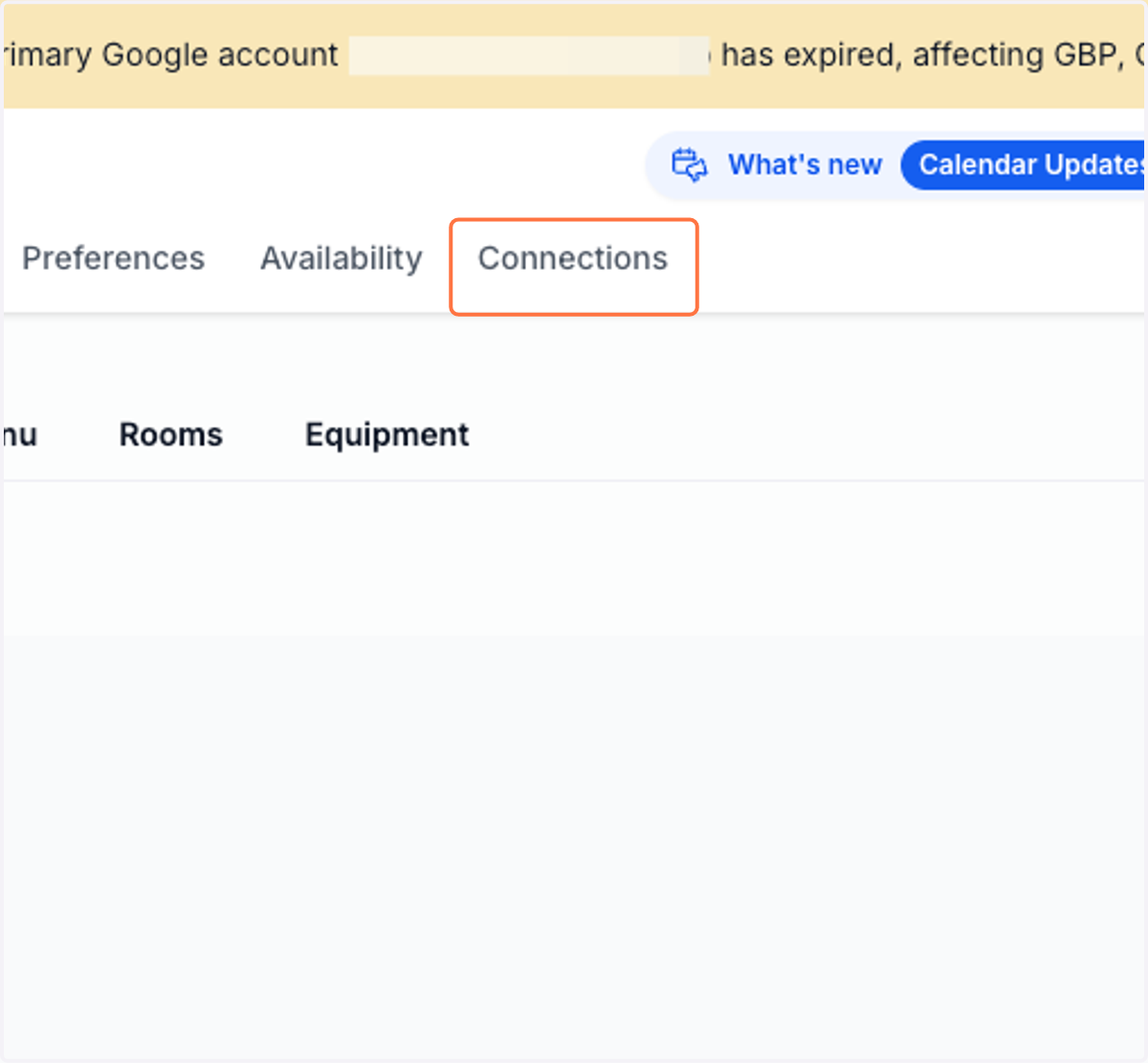
6. Click on Connections
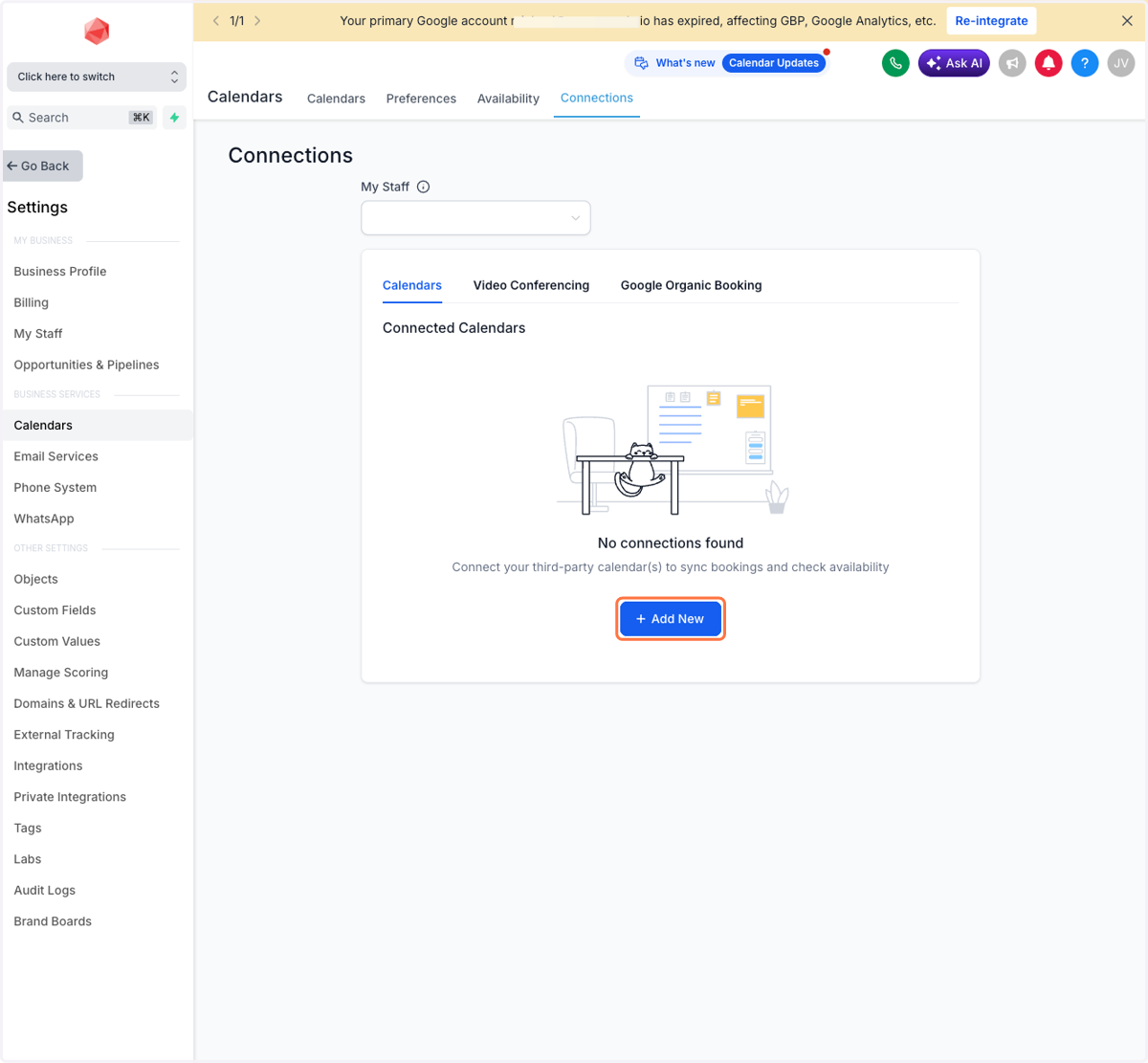
7. Click on Add New
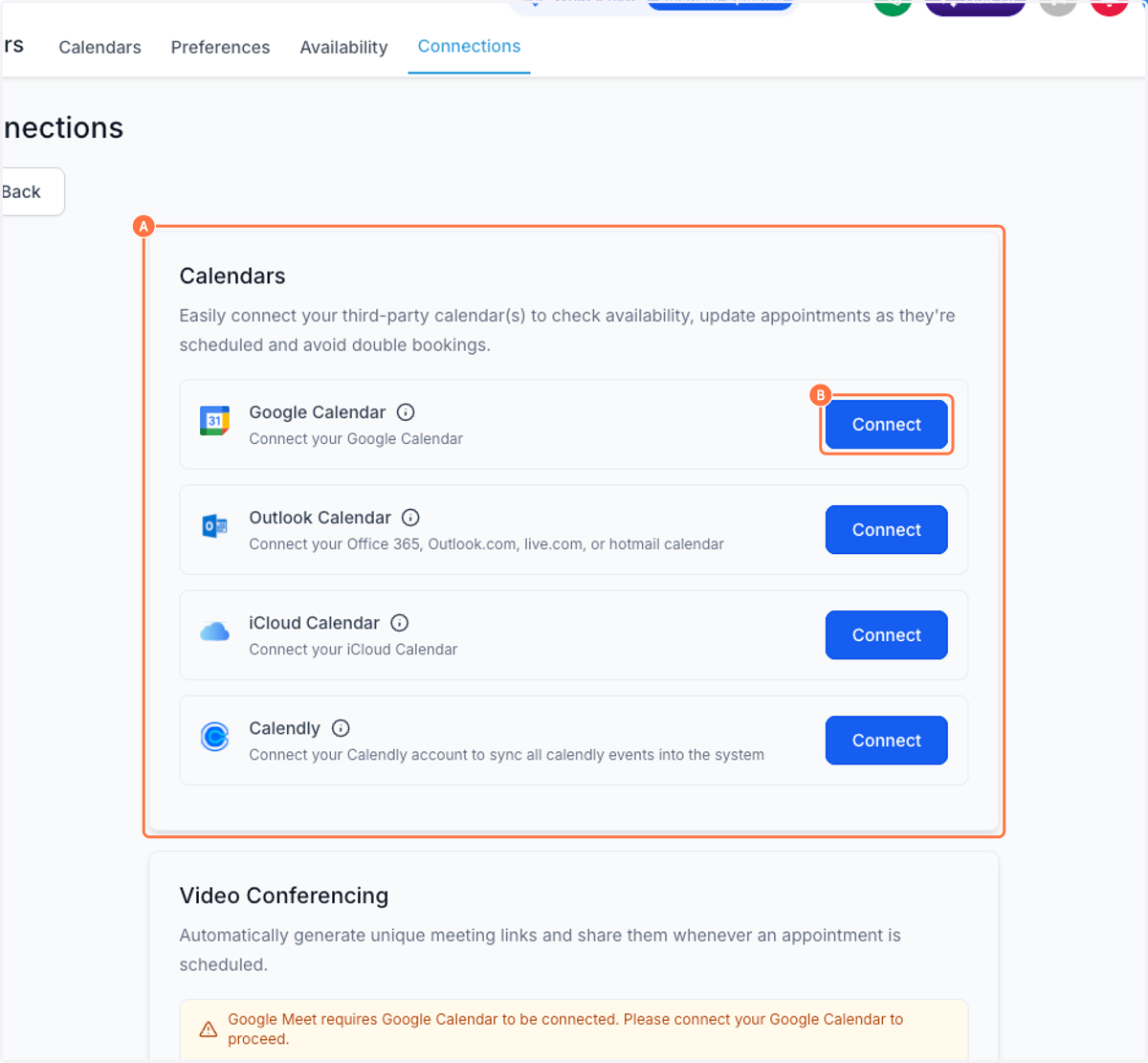
8. A. Click on Calendars…
8. B. Click on Connect
Sign in - Google Accounts
9. Click on the email you'd like to connect
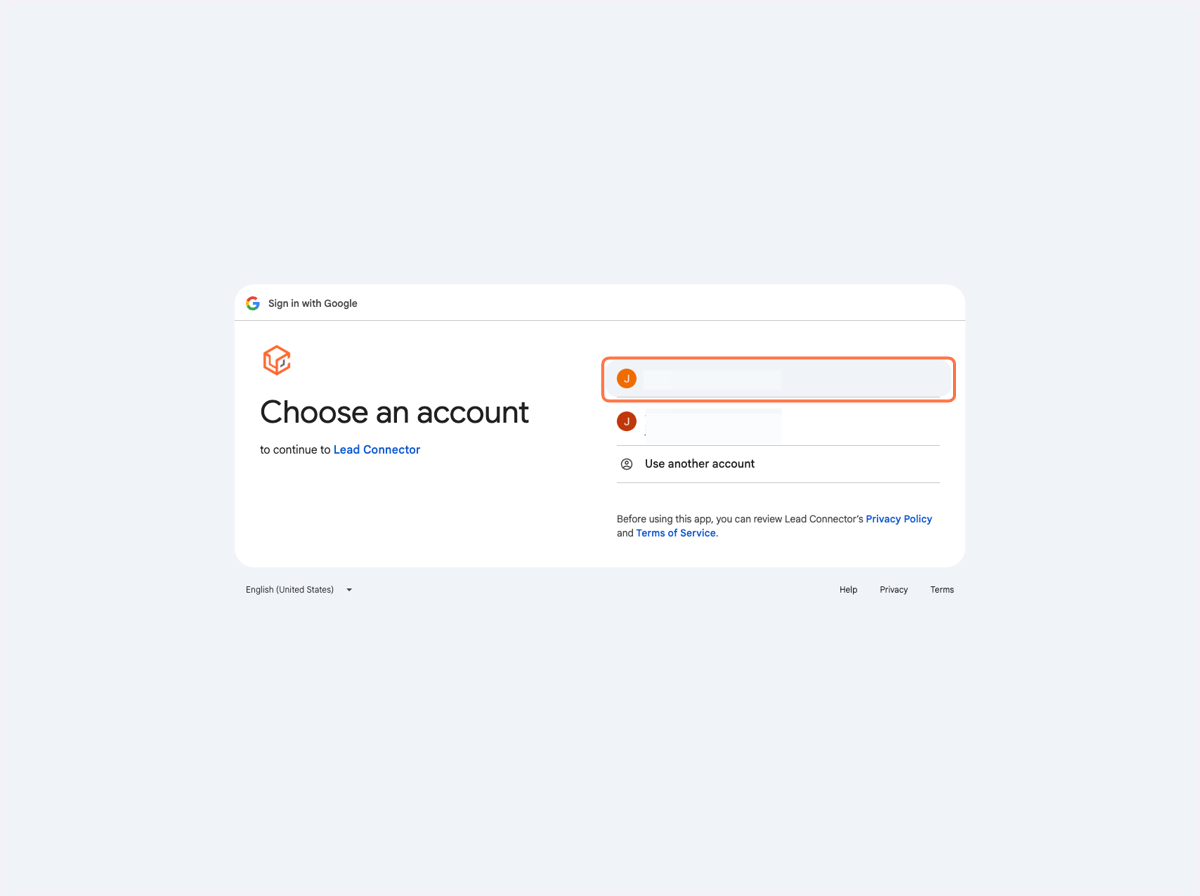
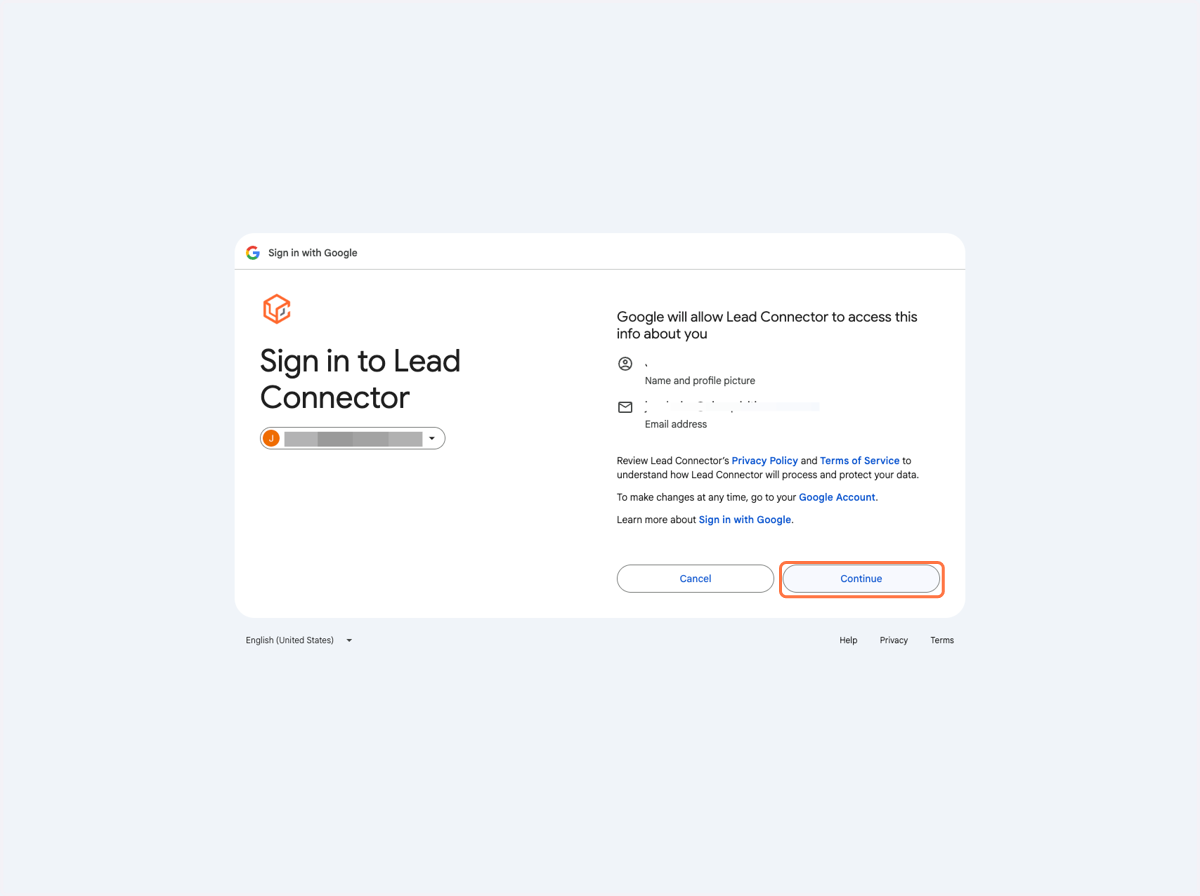
10. Click on Continue
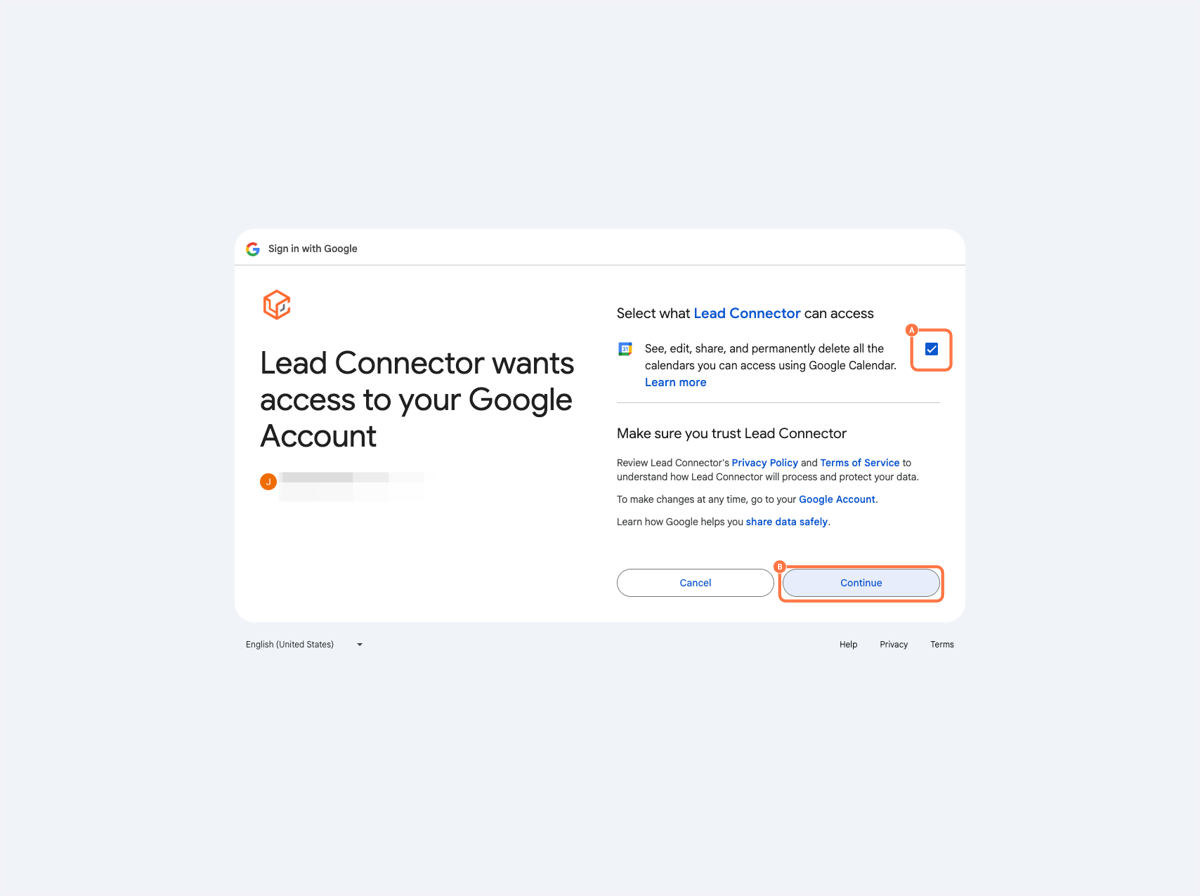
11. A. Select See, edit, share, and permanently delete all the calendars you can access using Google Calendar. Learn more
11. B. Click on Continue
12. Finished!