How to capture your first Tango
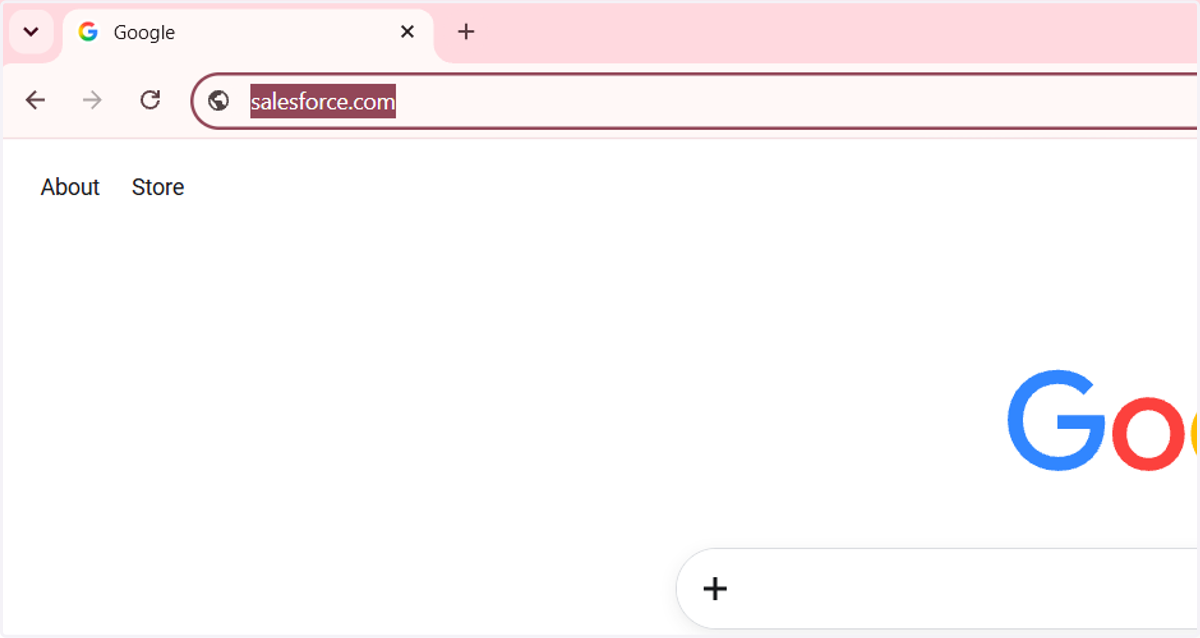
1. Once you have installed the Chrome extension, navigate to the tab where you'd like to start capturing your Tango
If you don't have the Chrome extension, install it here
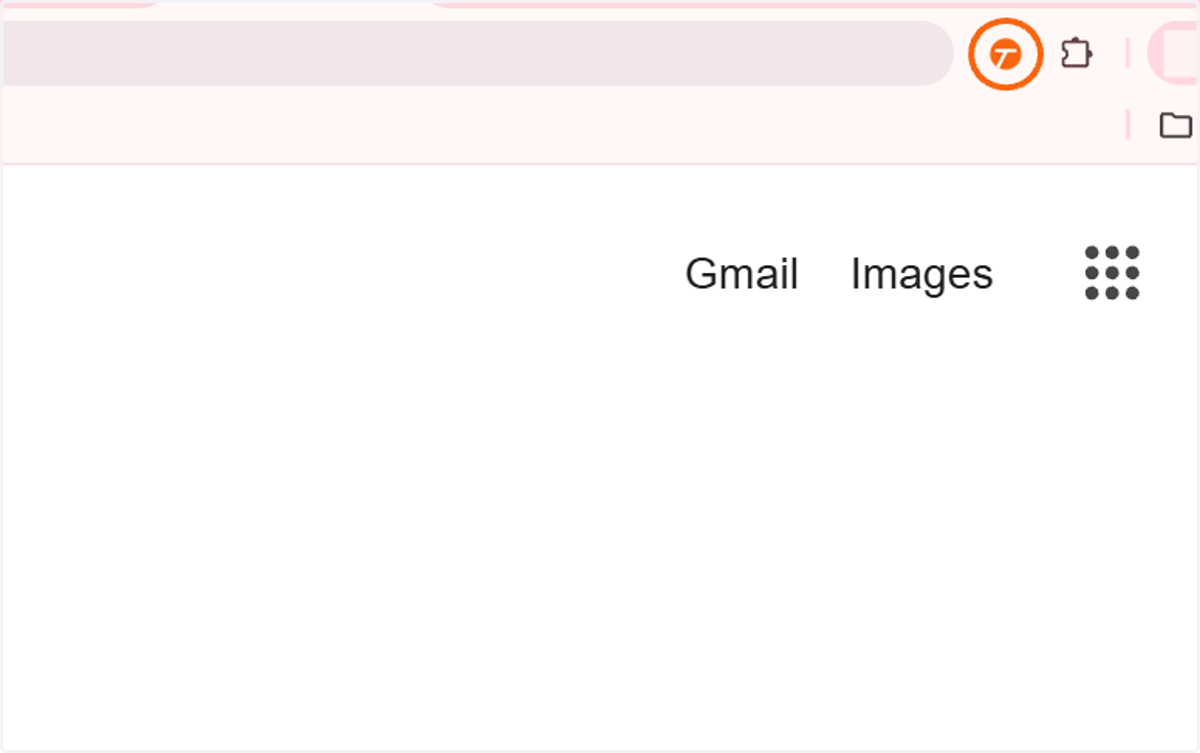
2. Click on the Tango icon in the top right
You can do this on any site on the web. If you don't see the Tango icon in your extension toolbar, make sure to pin it!
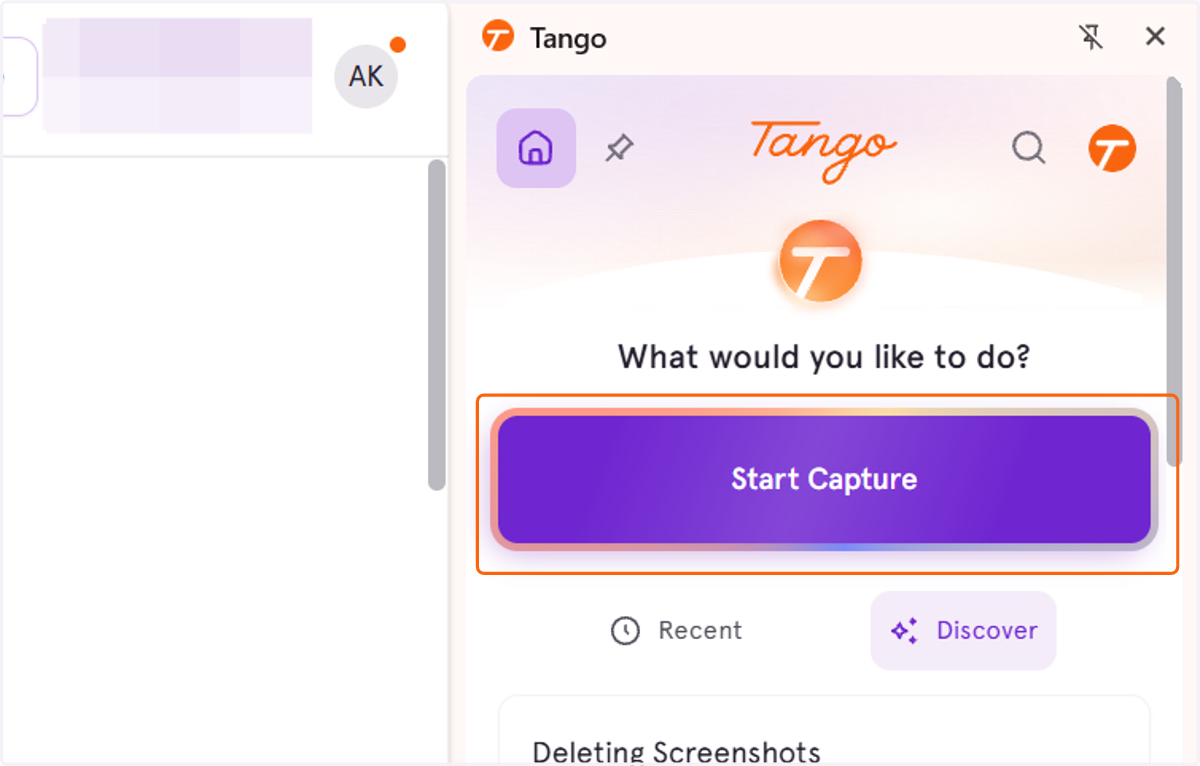
3. In the side panel, click Start Capture to begin capturing your Tango
4. Your capture has now started ✨
Go on :) Test it out!
Tango captures screenshots and autogenerates descriptions in real time. Unlike a screen recording, our guides are a highlight reel of the actions you perform.
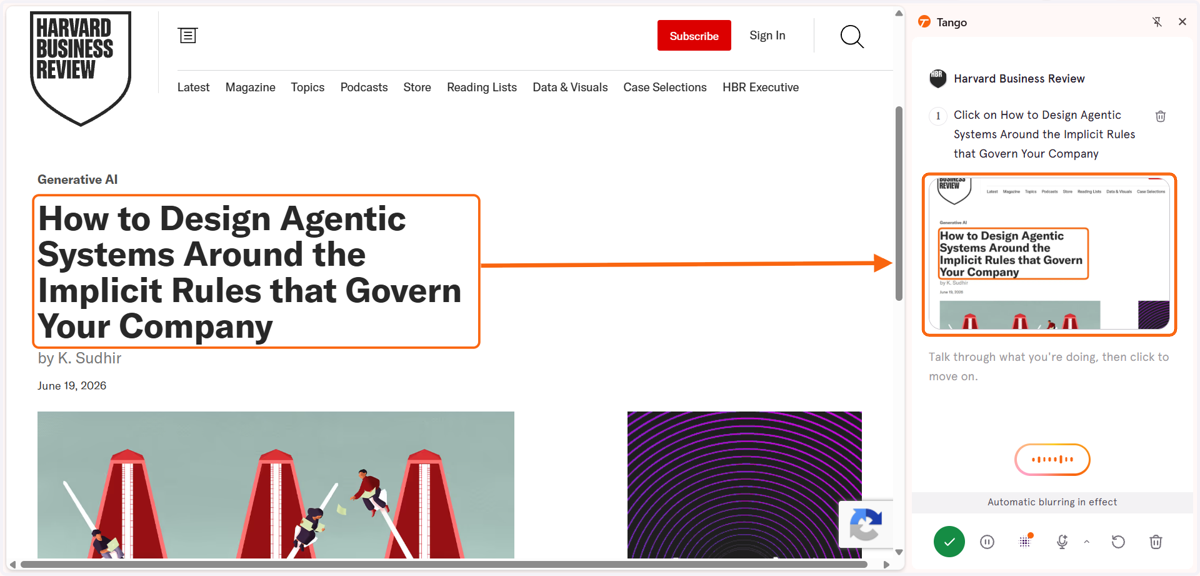
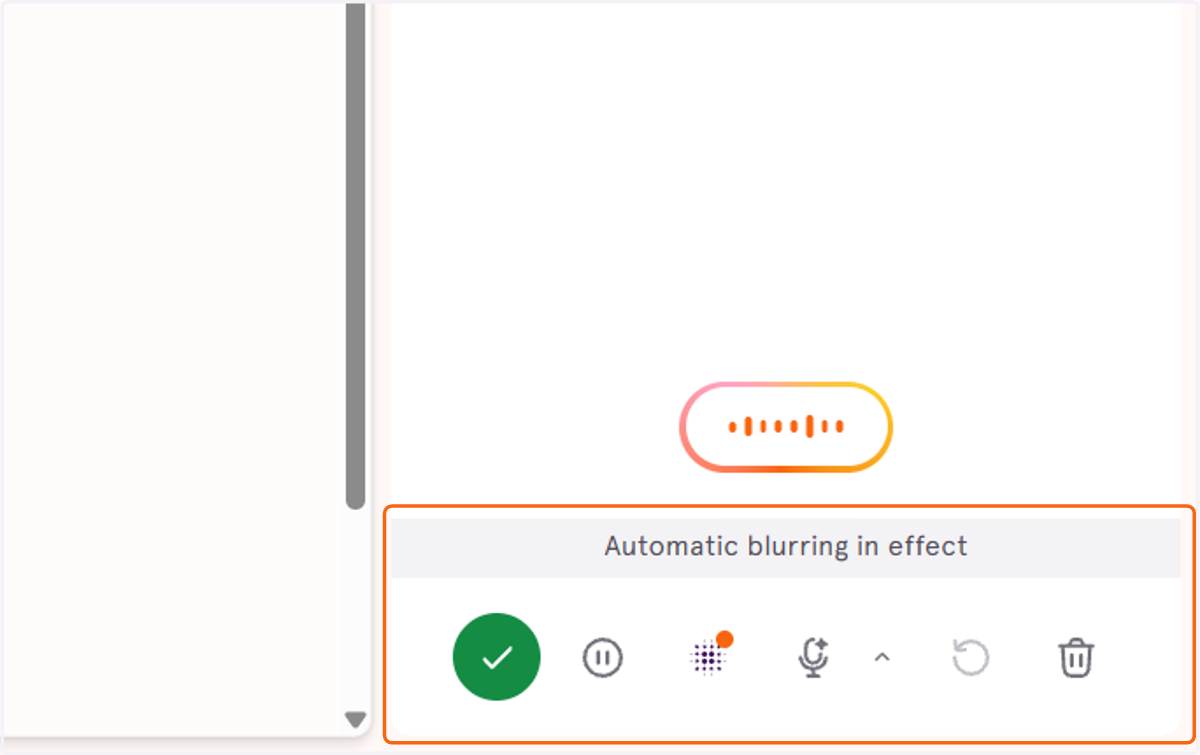
5. Notice your Tango controller in the bottom-right corner
You can use it to:
Complete your capture
Pause your capture
Interactively blur elements for a more private capture experience (Live Blur, Pro and Enterprise). You can also blur elements in the editor after the Tango has been saved (Pro and Enterprise
Speak while recording the workflow and Tango automatically turns your speech into step titles and descriptions with Voice Transcription
Restart your capture
Discard your capture
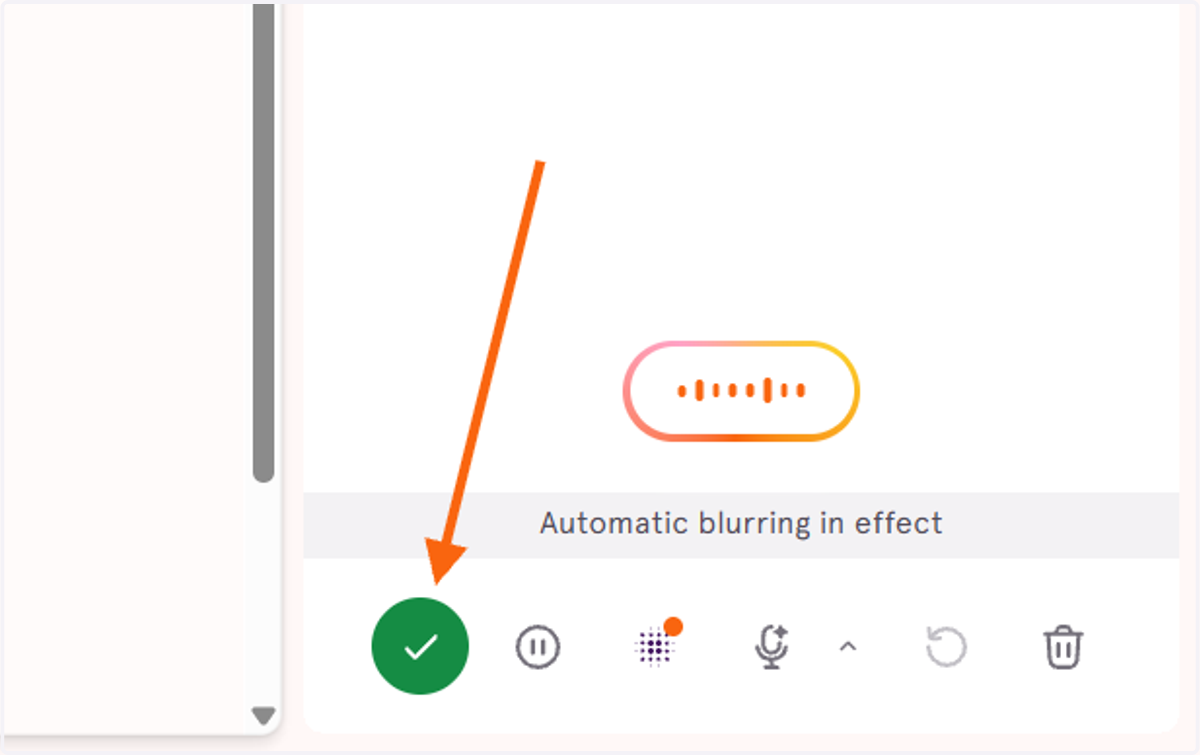
6. Once you're finished, click the green ✅ to complete your capture
Go on :) Test it out!
Tango captures screenshots and autogenerates descriptions in real time. Unlike a screen recording, our guides are a highlight reel of the actions you perform.
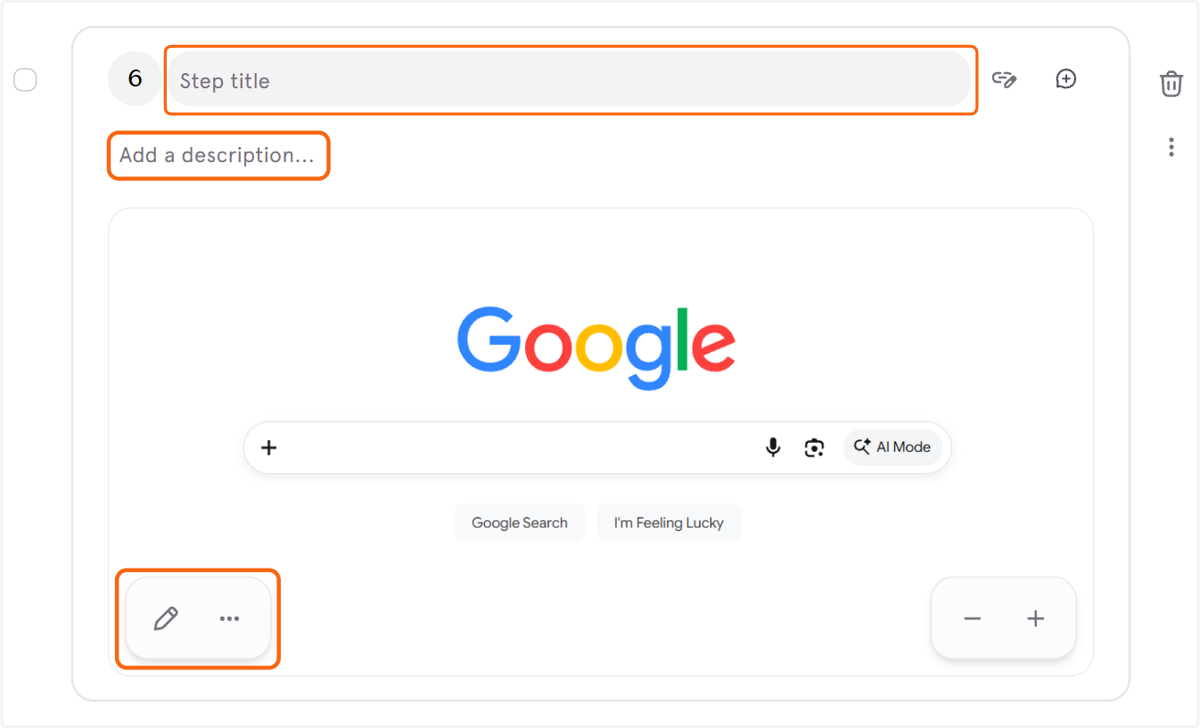
7. After completing capture, you can edit the name, step title, step description, the captured image, and add alt text to the image of your new Tango
8. Edit your images to blur sensitive information or add annotations
Want to hide sensitive information that you forgot to use Live Blur mode on? Use the Blur section in the image editor to add additional blurred sections to your screenshots (Pro and Enterprise).
You can also add helpful arrows, boxes, or text to your image in the Annotate section.
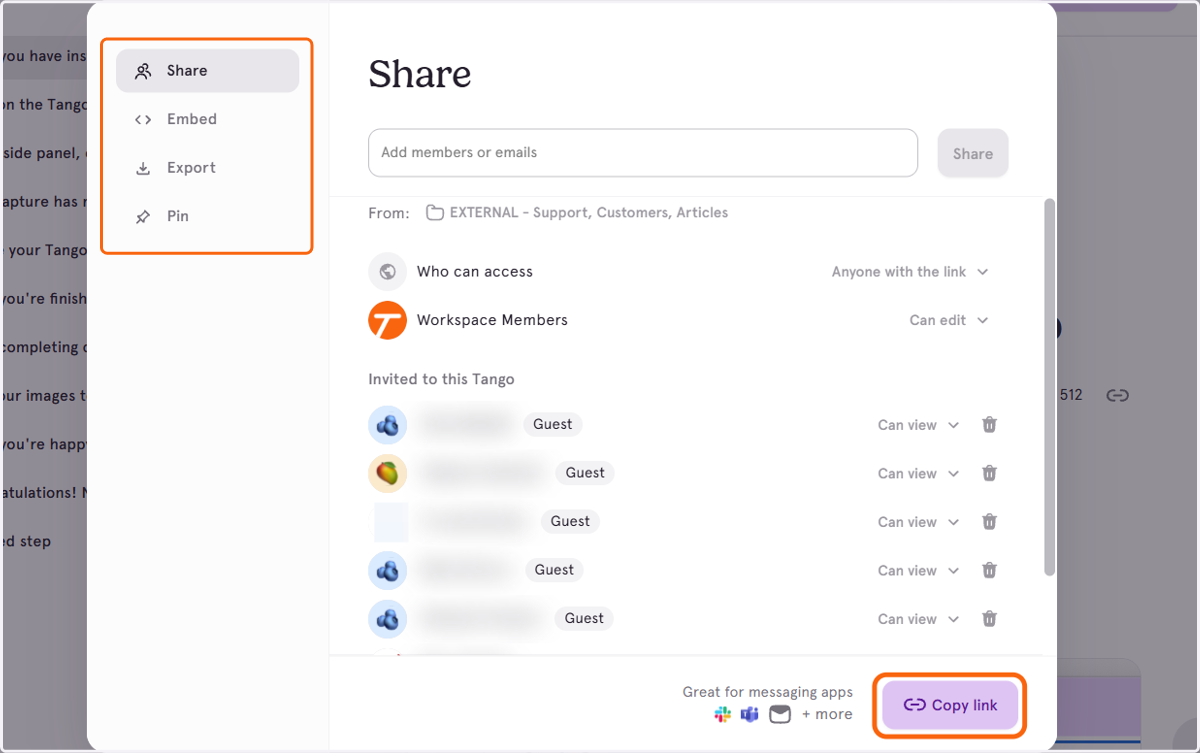
9. Once you're happy with your Tango, click "Share & Export" to share it with your teammates!
Share: Send an email directly to a teammate with a link to your Tango
Embed: Embed your guide into pages in your knowledge base. The best part: if you update your Tango, the embedded Tango will update too.
Export: Quickly copy your entire Tango as a HTML or Markdown, screenshots included, to paste into tools like Google Docs, web pages, Confluence, or Notion. Or download a PDF of your Tango (Pro and Enterprise) to share.
Pin: Pin Tangos directly to any webpage or application, making it easy for your team to access and start workflows instantly.
Copy Link: Quickly copy a link, and paste it or share it wherever you like!