How to add pagination to REST end points and use parameters
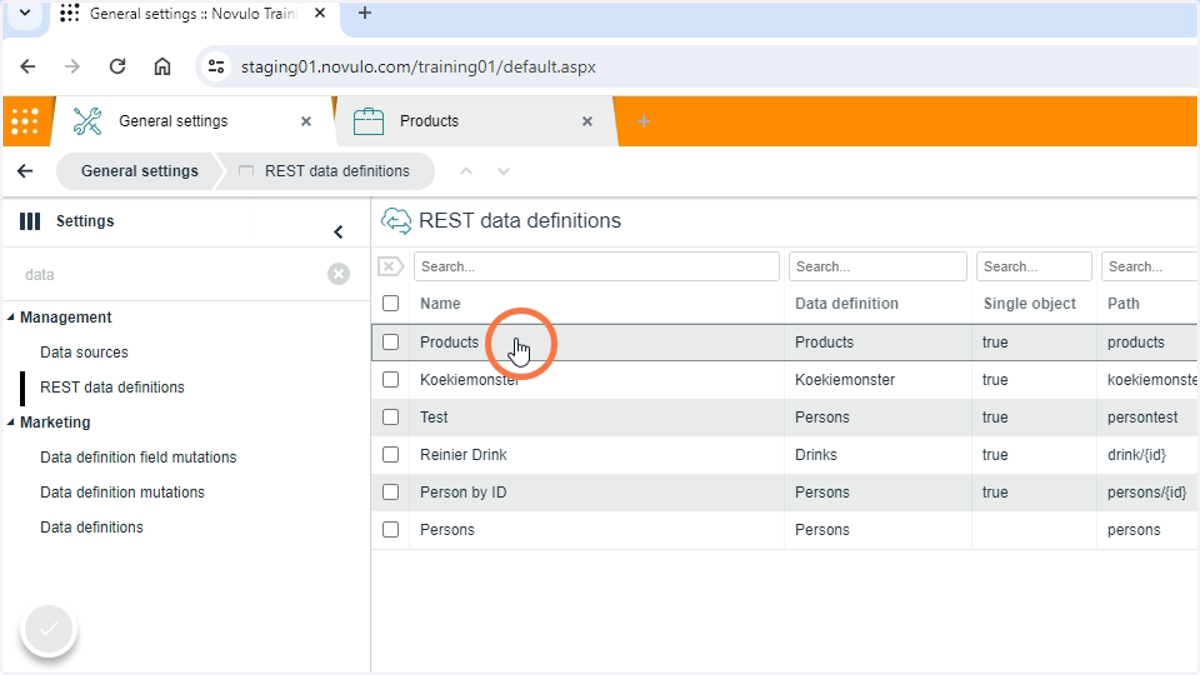
1. In the application, go the end point
Postman
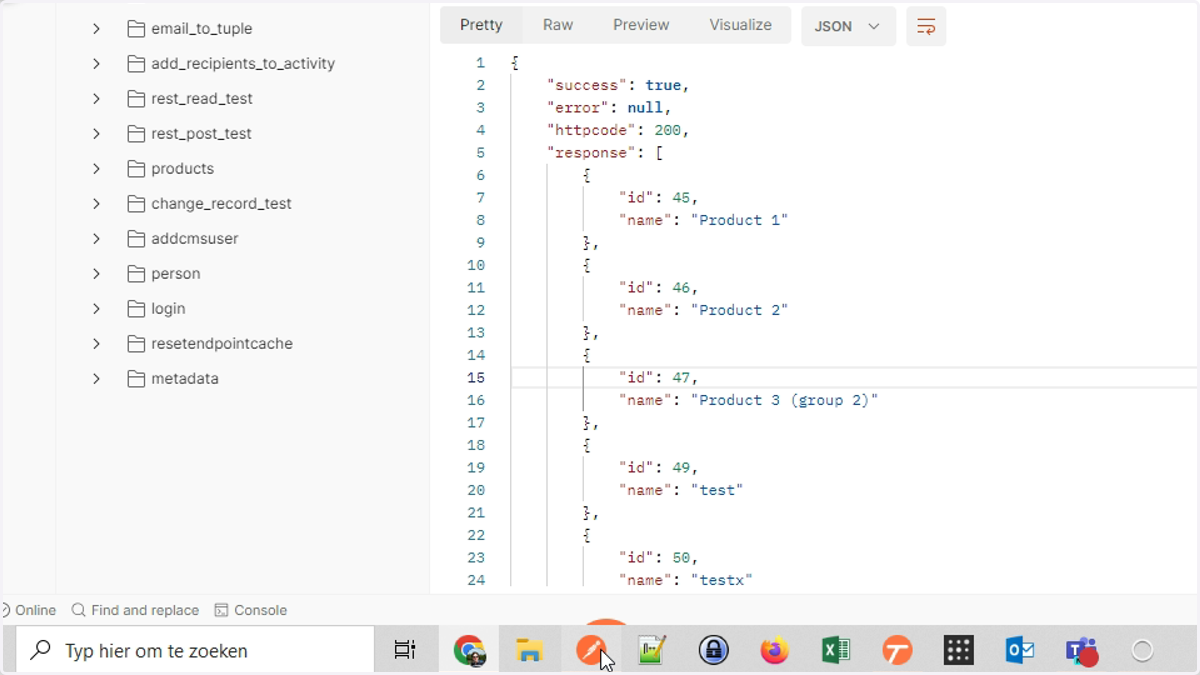
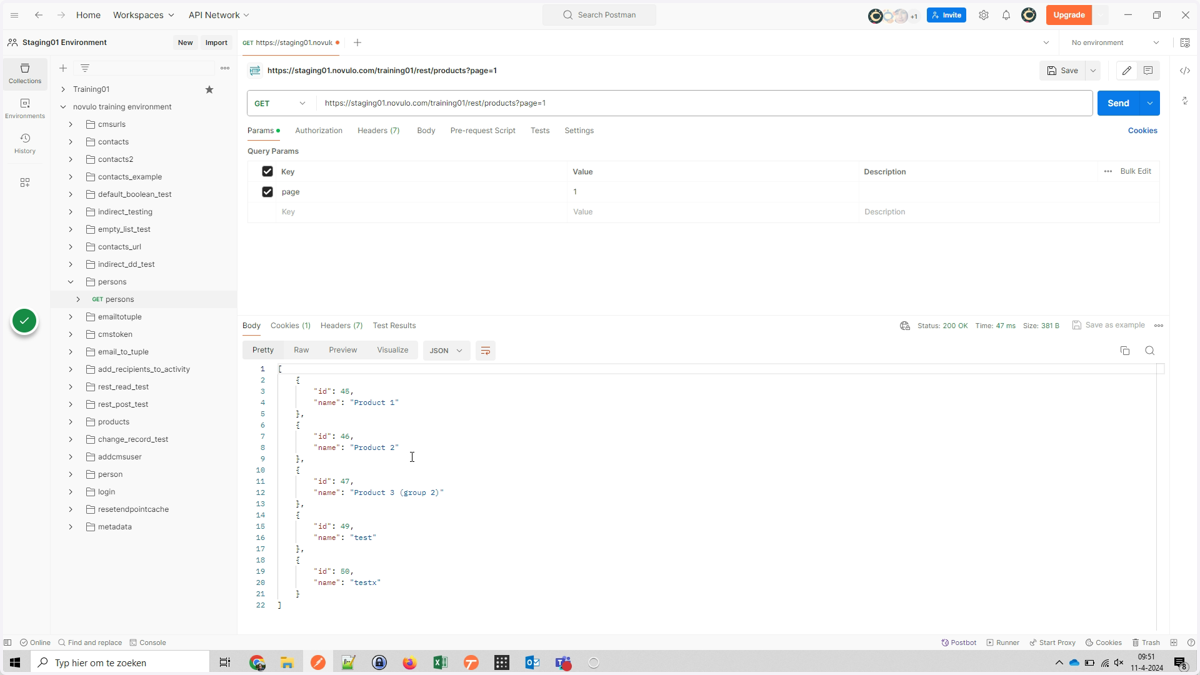
2. Look at the starting situation, without pagination
By default, it returns the first 1000 rows.
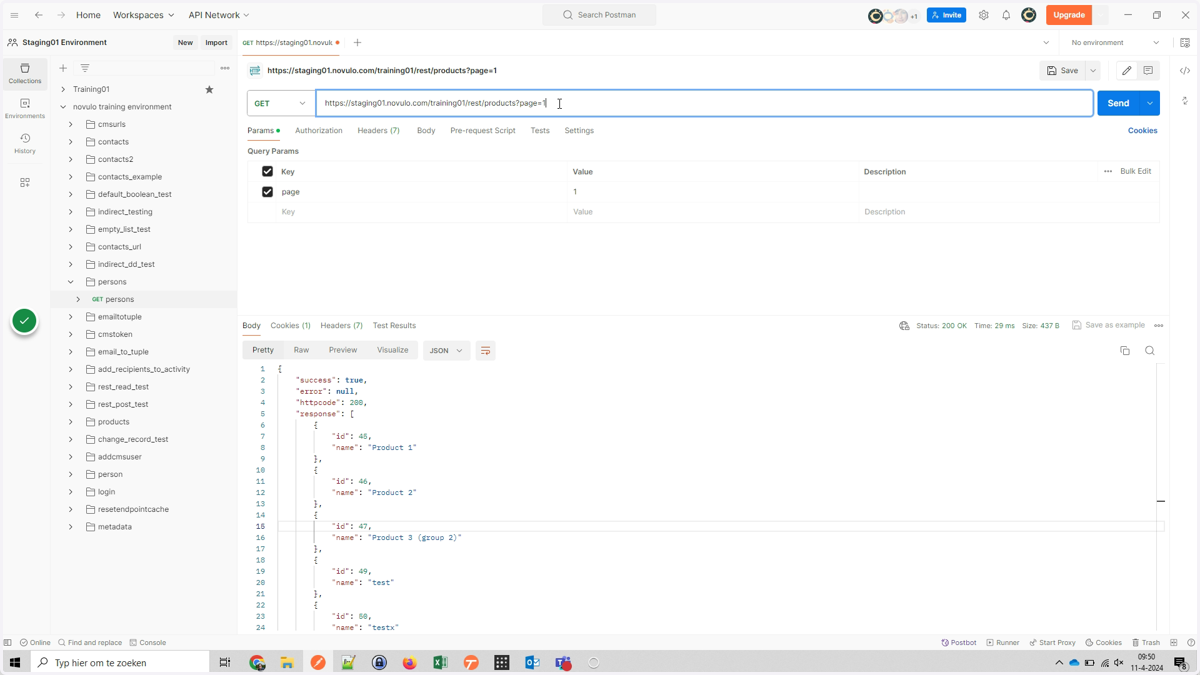
3. Add the built-in parameter page to activate pagination
This doesn't require additional configuration. The first page = 1.
4. See the result. In the head of the request, you see the pagination
This works when 'custom response' is of.
In the version of the screenshot, there's a bug visible for 'total_pages', which is likely to be solved in April 2024.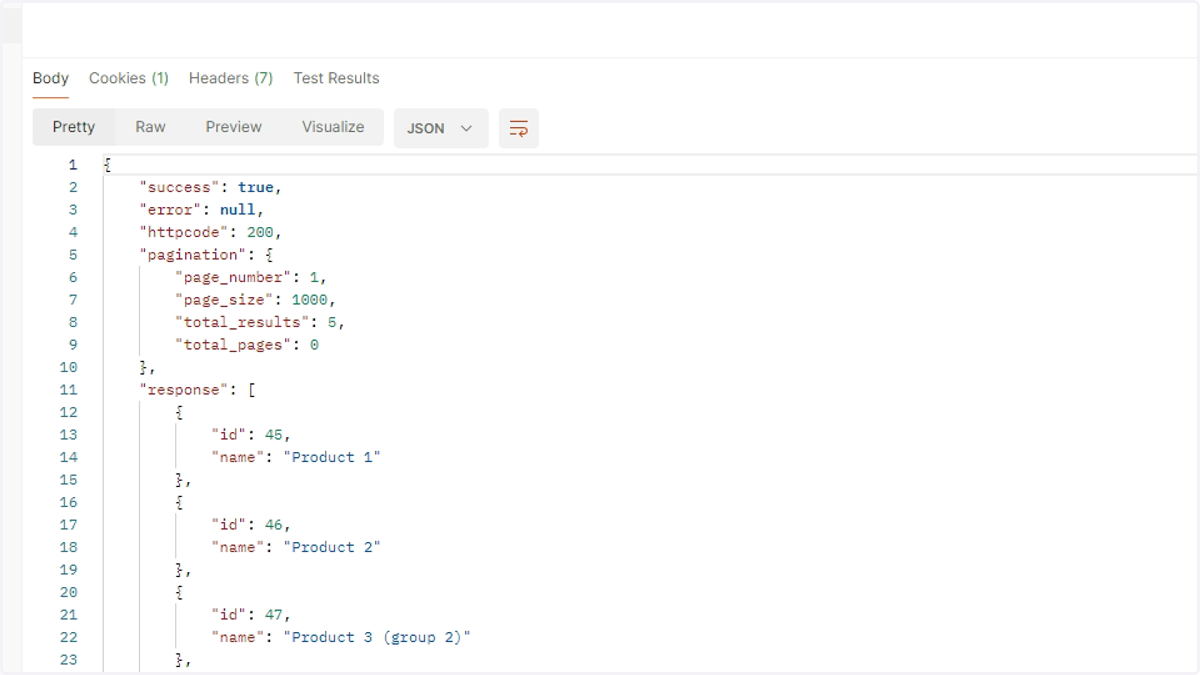
5. In Novulo, see how enabling 'custom response' breaks the pagination info
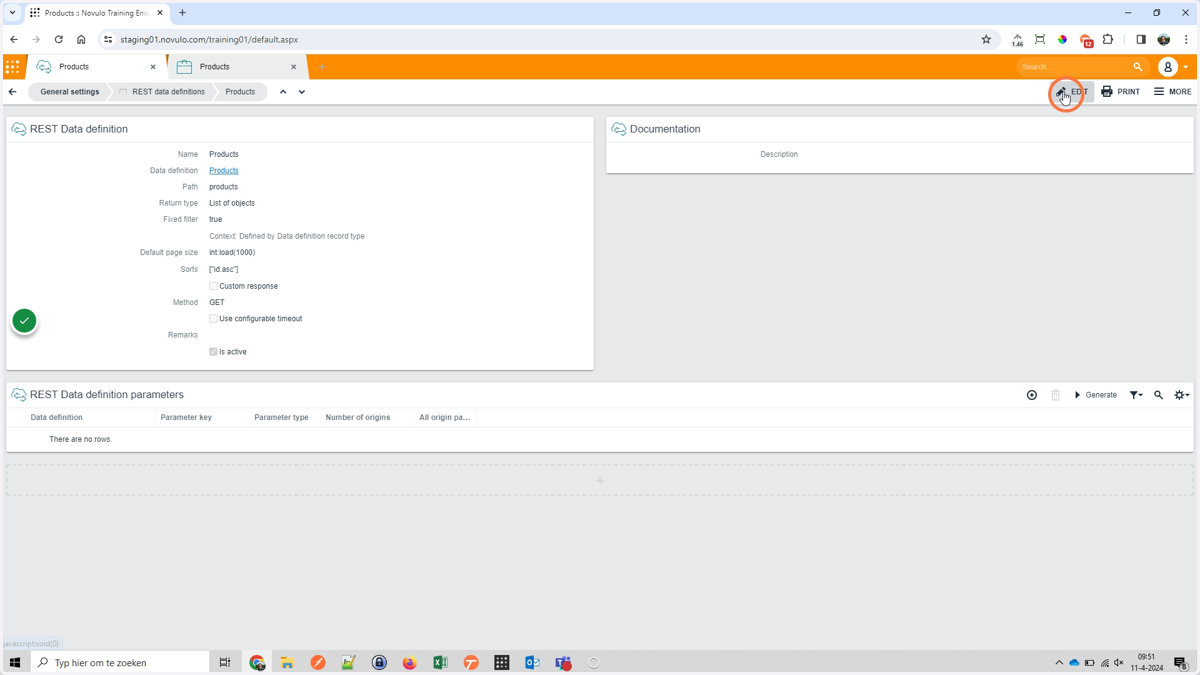
6. Click here
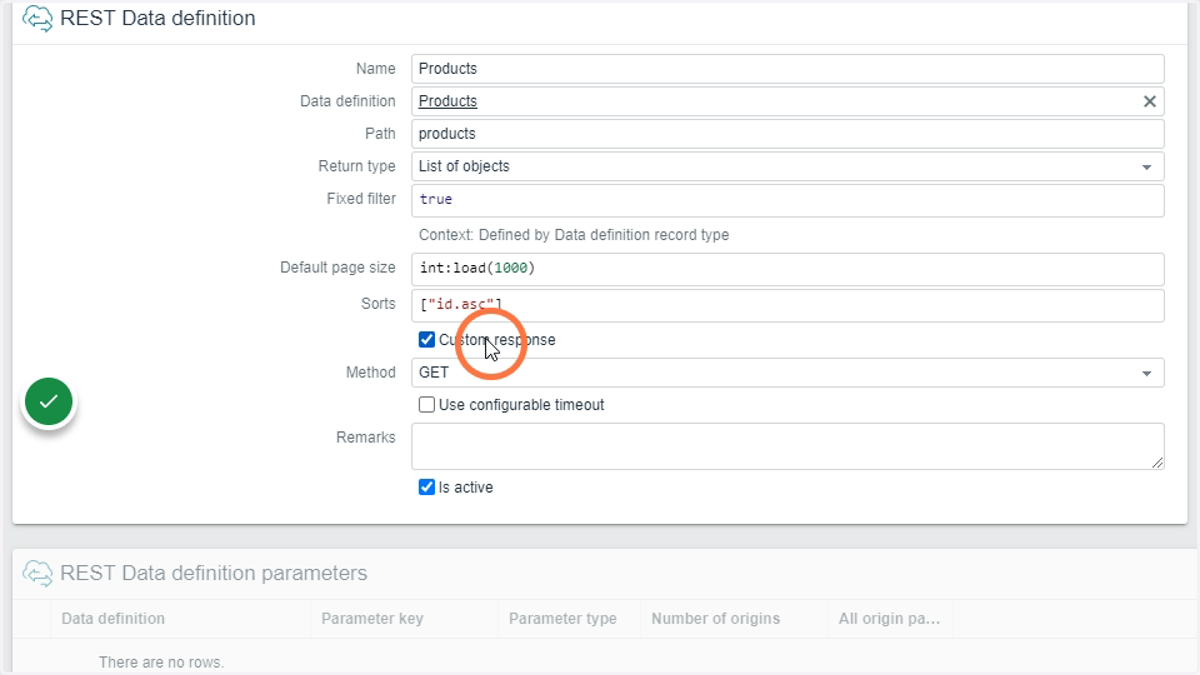
7. Save
Postman
8. Refresh the end point
As you see, the custom response setting removes the header and doesn't show pagination. Technically, it still works, but you miss the total records and total pages data.
Our recommendation is to avoid the 'custom response' whenever this is possible. The functionality is created to be able to mimic existing end points, not when you can still create new end points.
Google Chrome
9. Disable custom response again
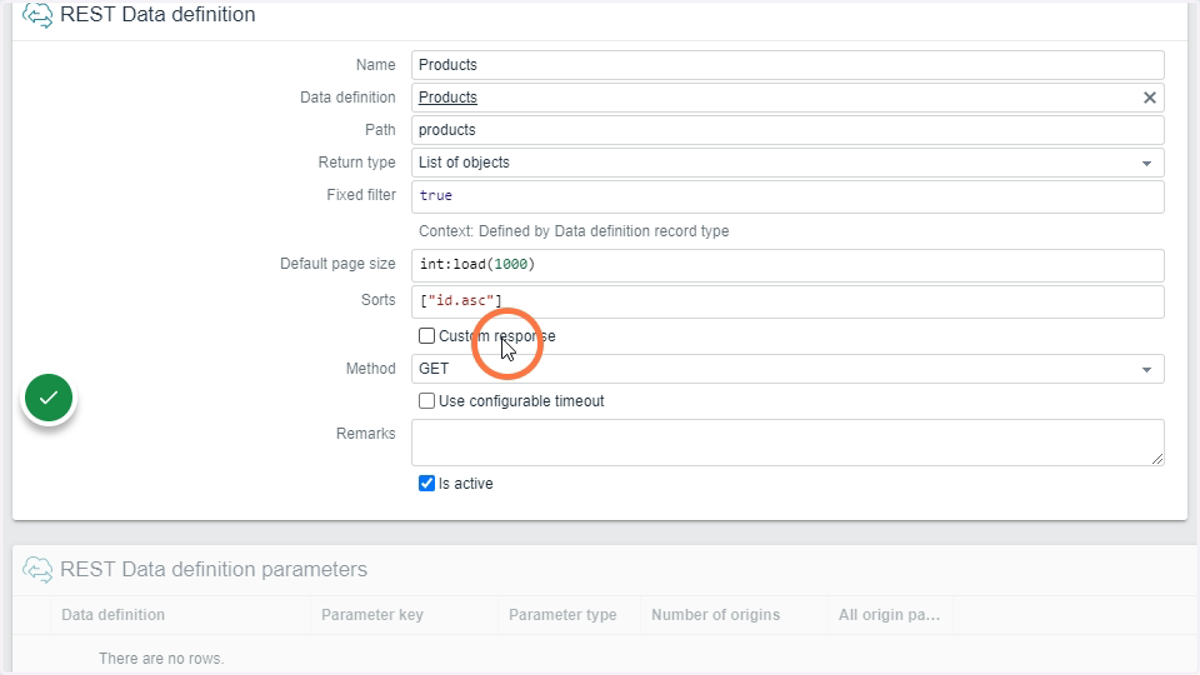
10. To add dynamic limitations, add a parameter
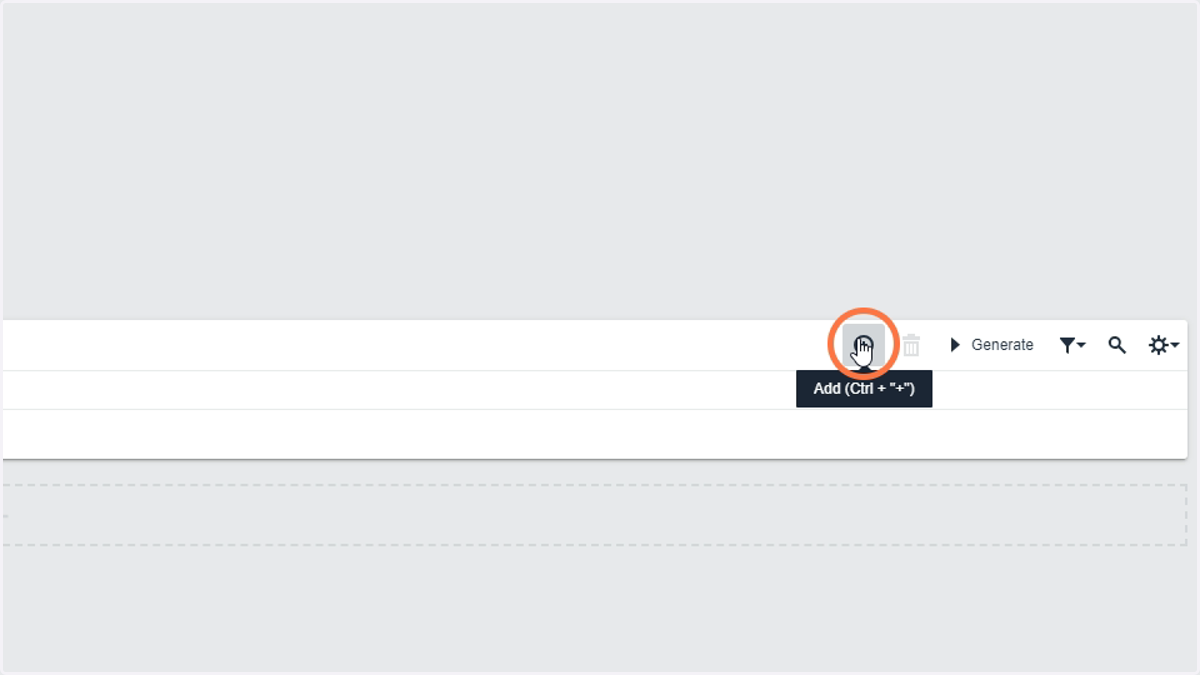
11. The parameter key is free to define. limit or page_size both make sense
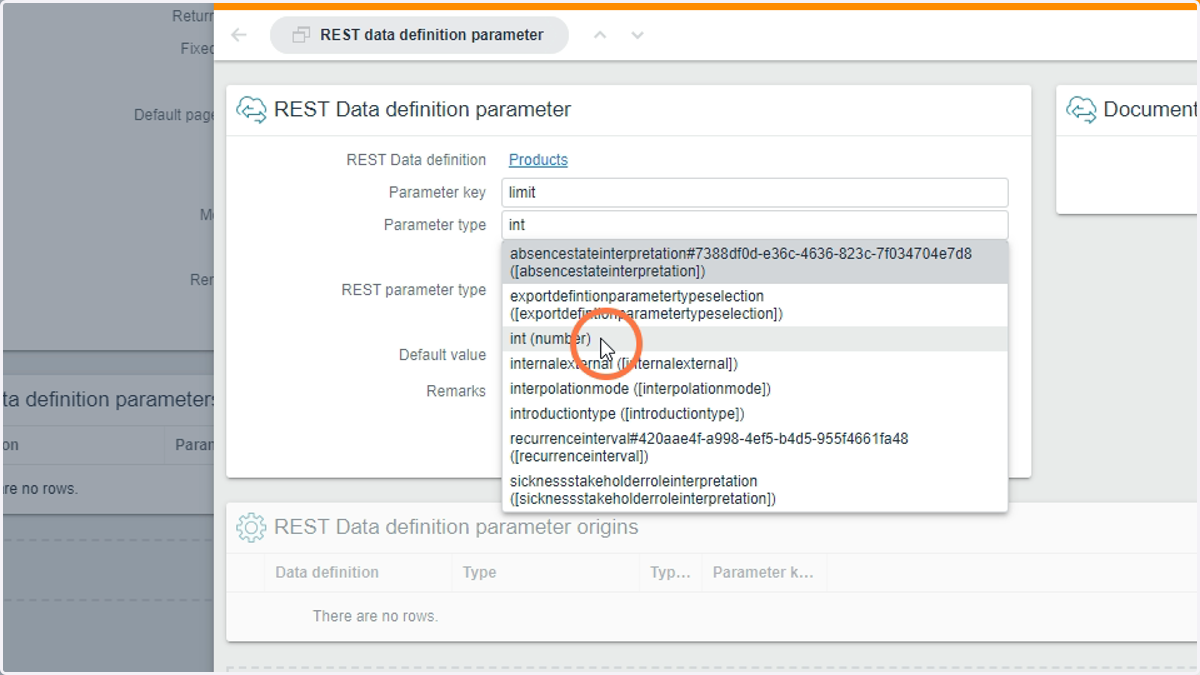
The type is integer
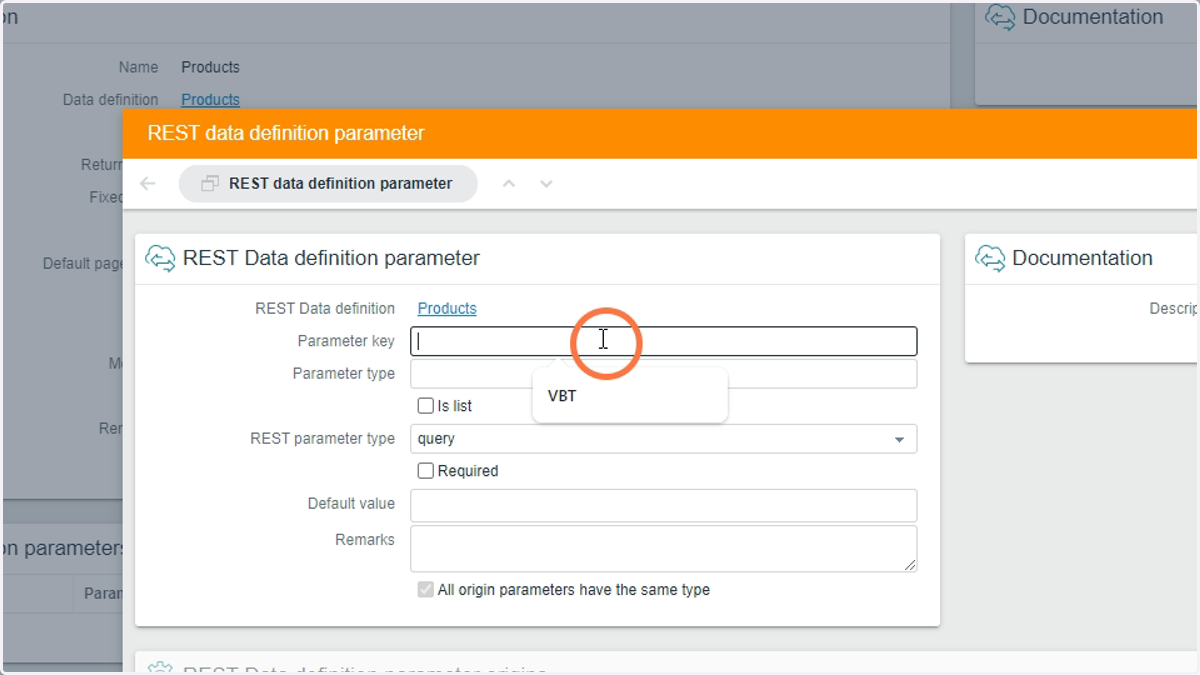
12. Select integer
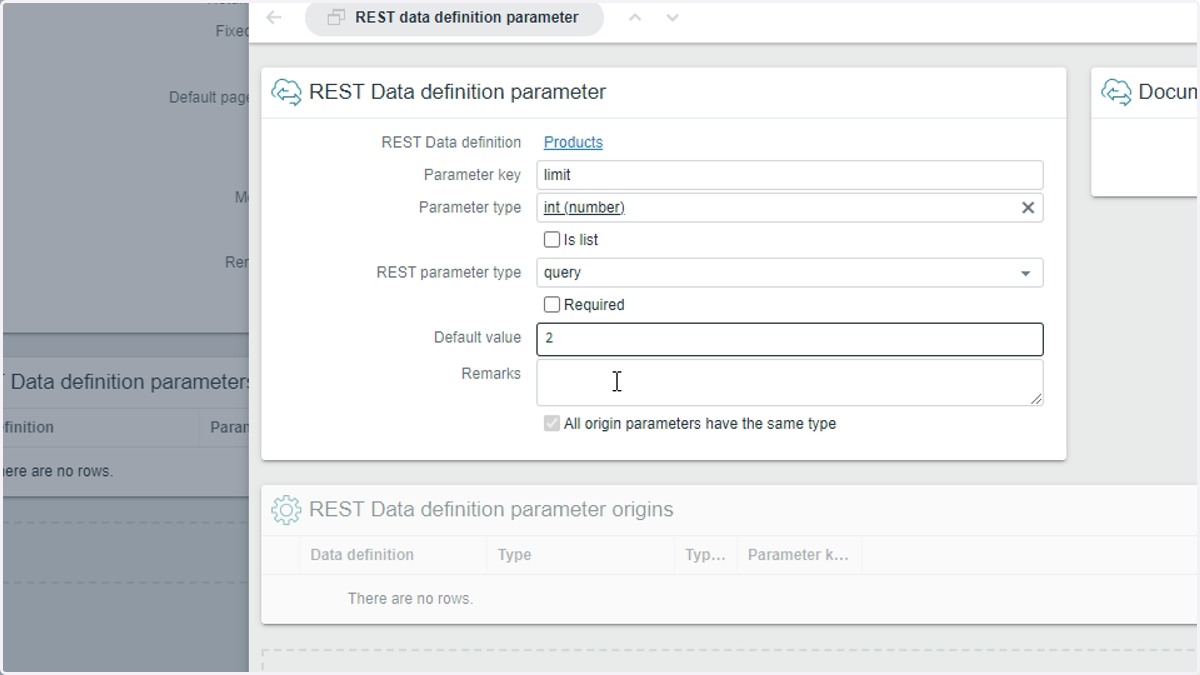
13. Set a default value
For the example with a dataset of 5 records, we choose 2. In real-worlds, you typically use higher figures.
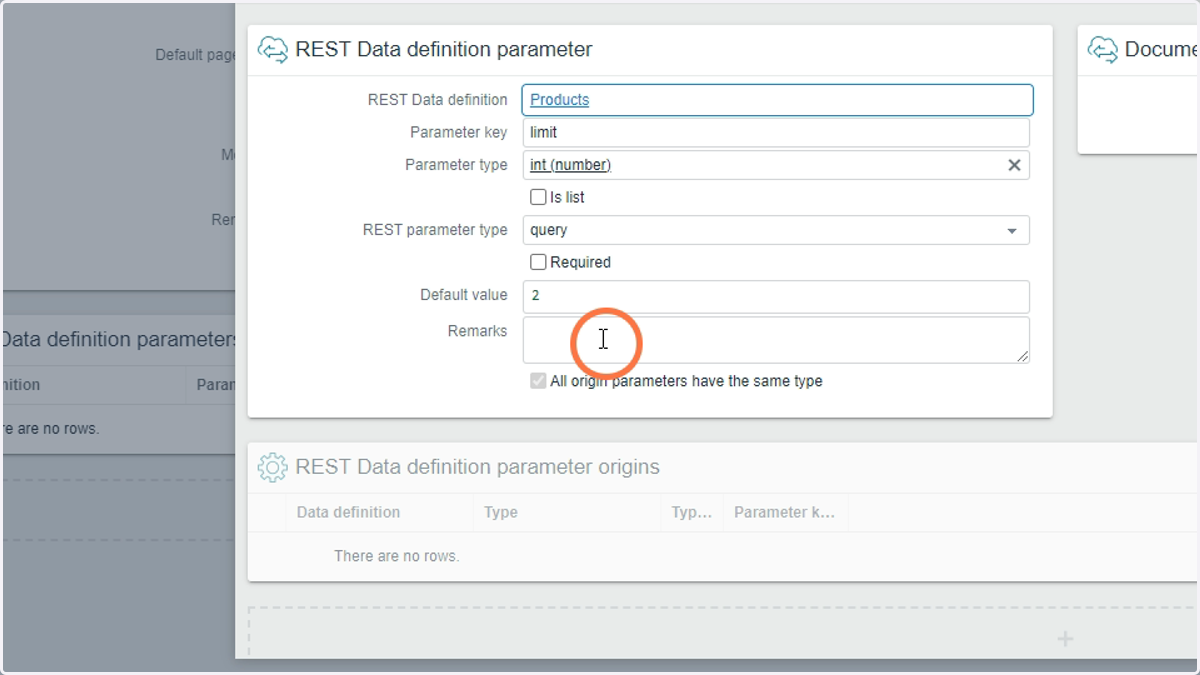
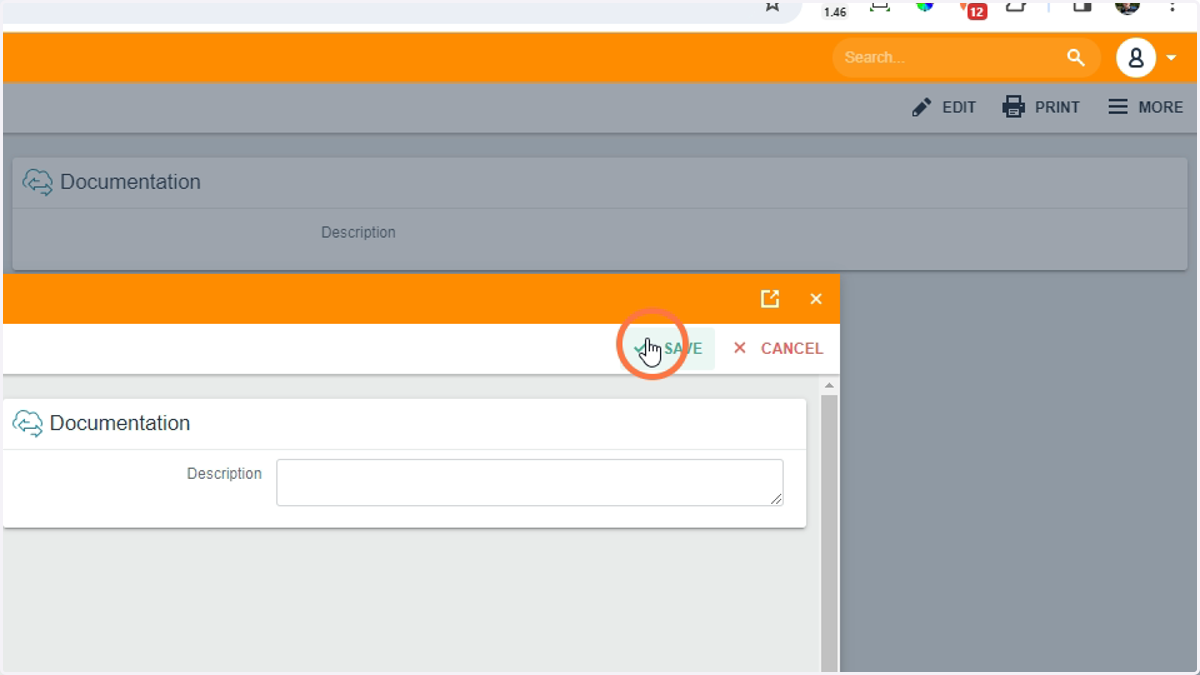
14. Add remarks and/or documantation
It's a good practice to always document your work in-line the moment you create it
15. Type here
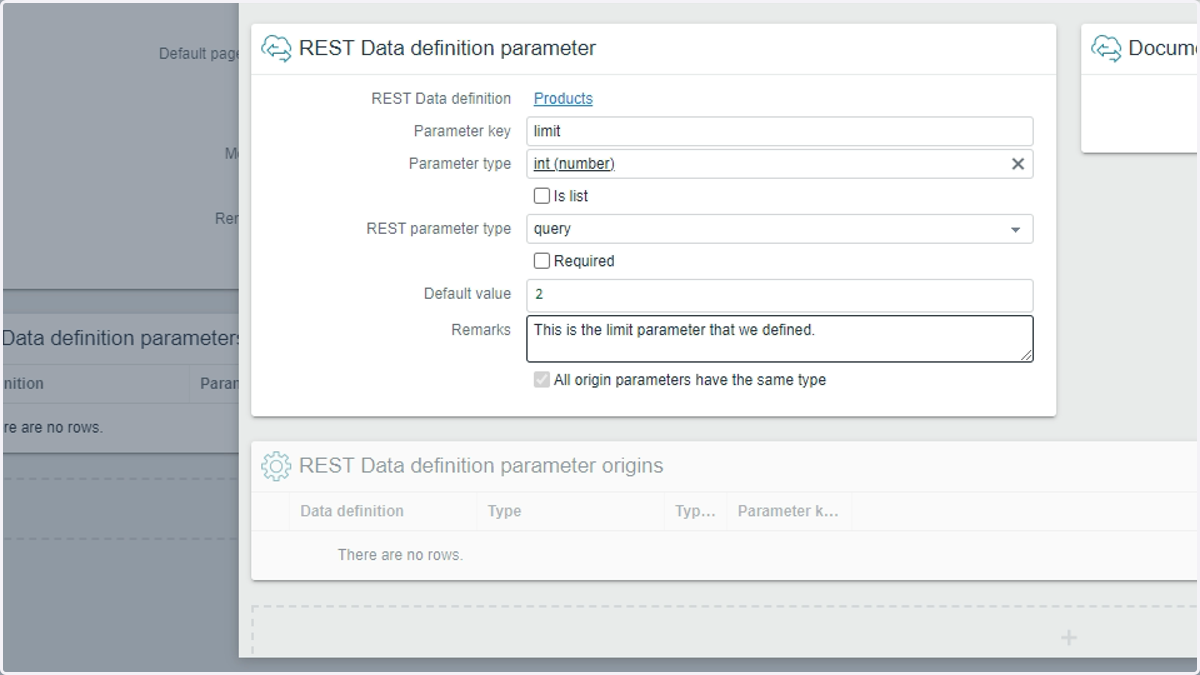
16. Save the parameter
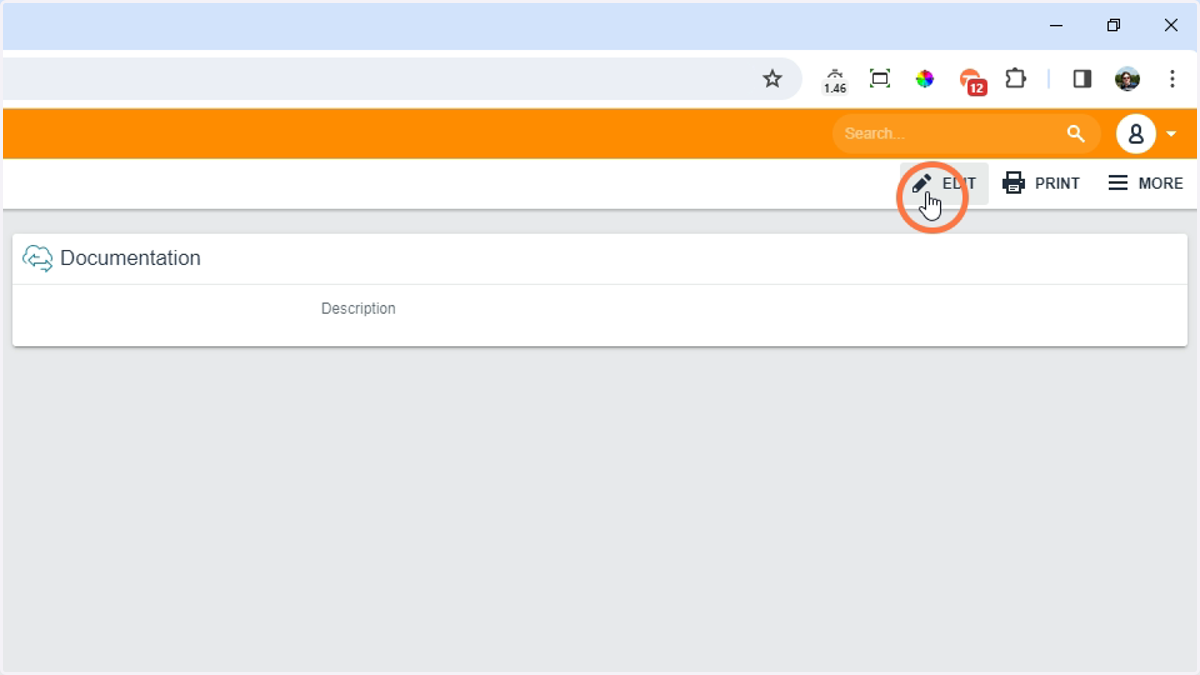
17. Edit the REST data definition
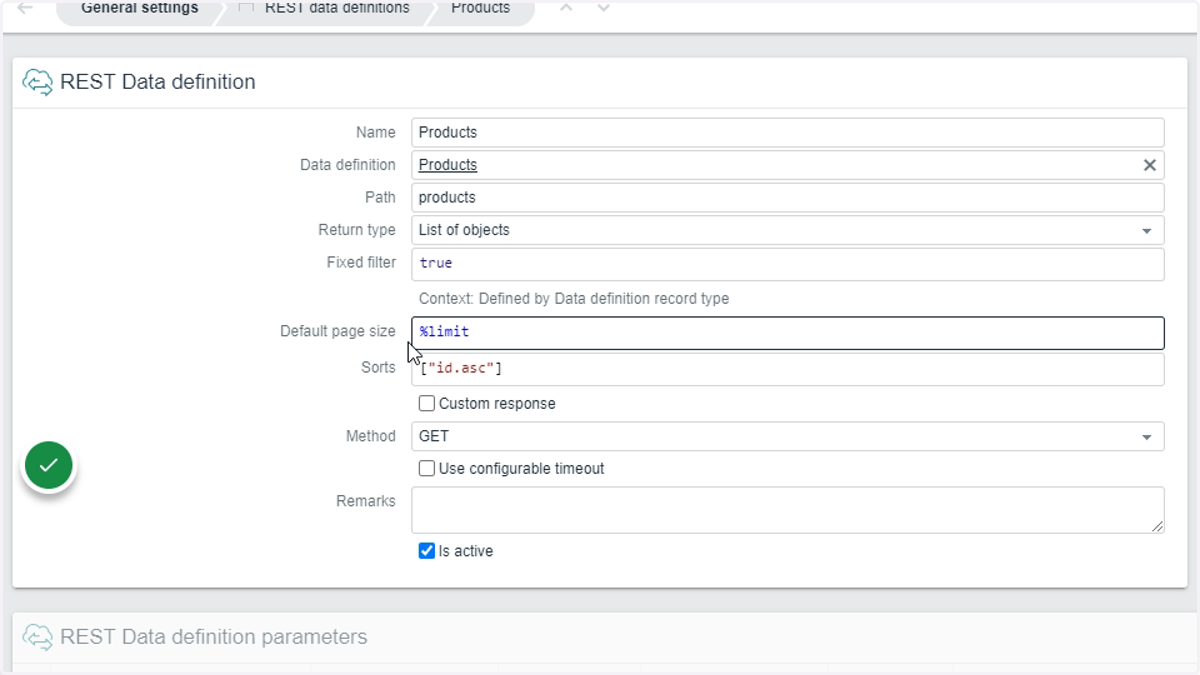
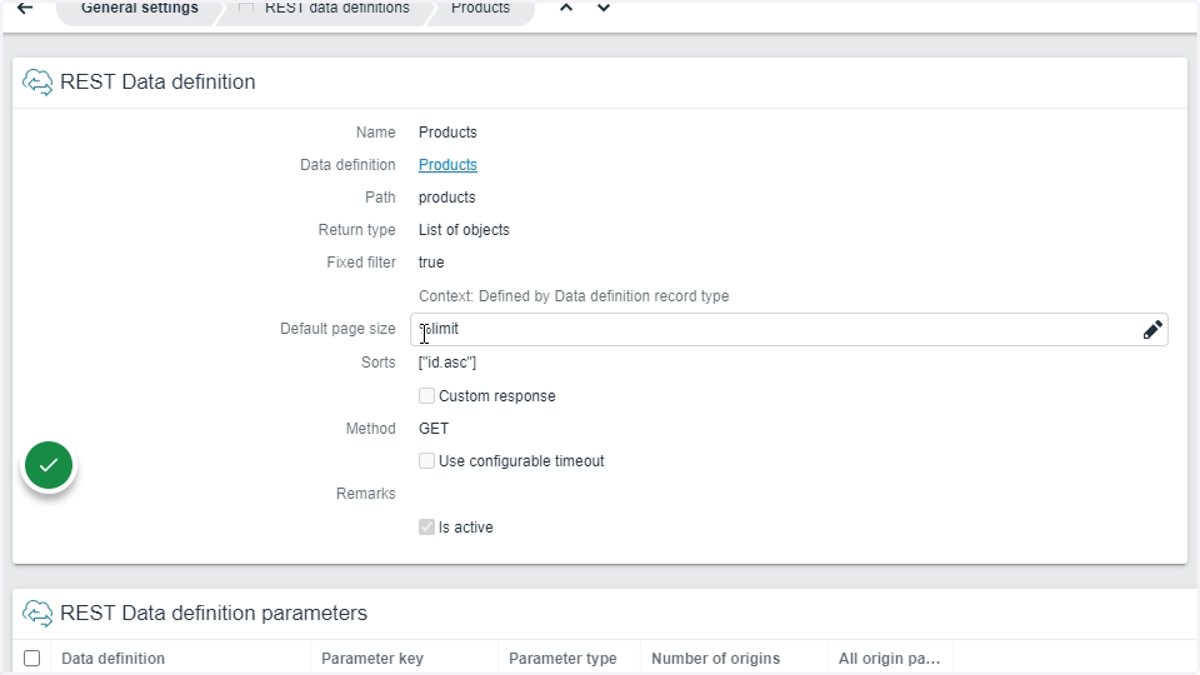
18. Set the parameter name at the default page size
This is the name of your paramter, prefixed with a %
19. Press Alt + Tab
Postman
20. Refresh and see how the default page size of 2 is handled
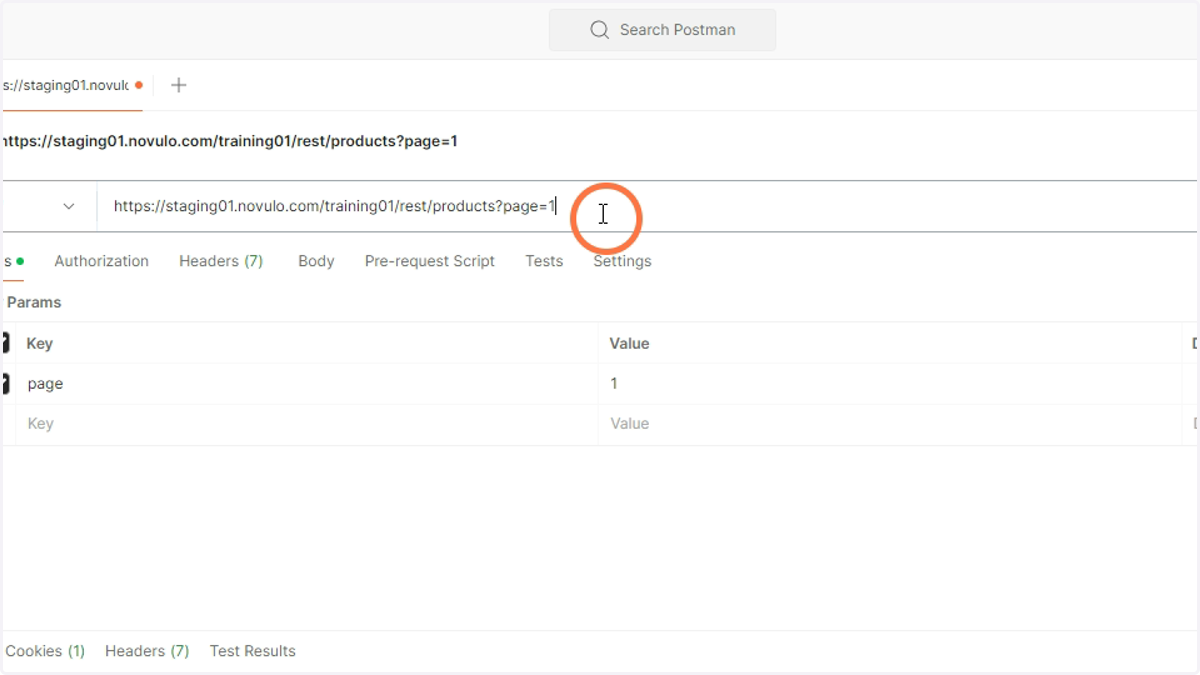
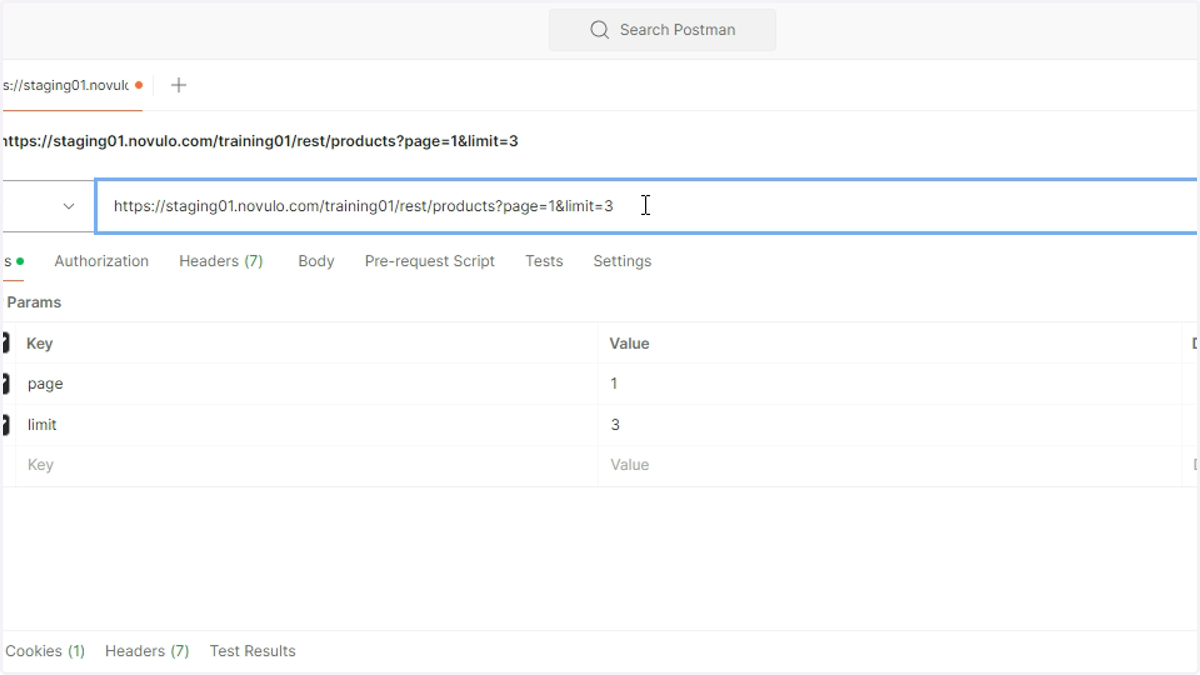
21. Change the limit in the parameter
See the results, it affects your page size and works with the pagination