How to add a special offer.
Simpleviewcrm
1. Go to Visit Pensacola
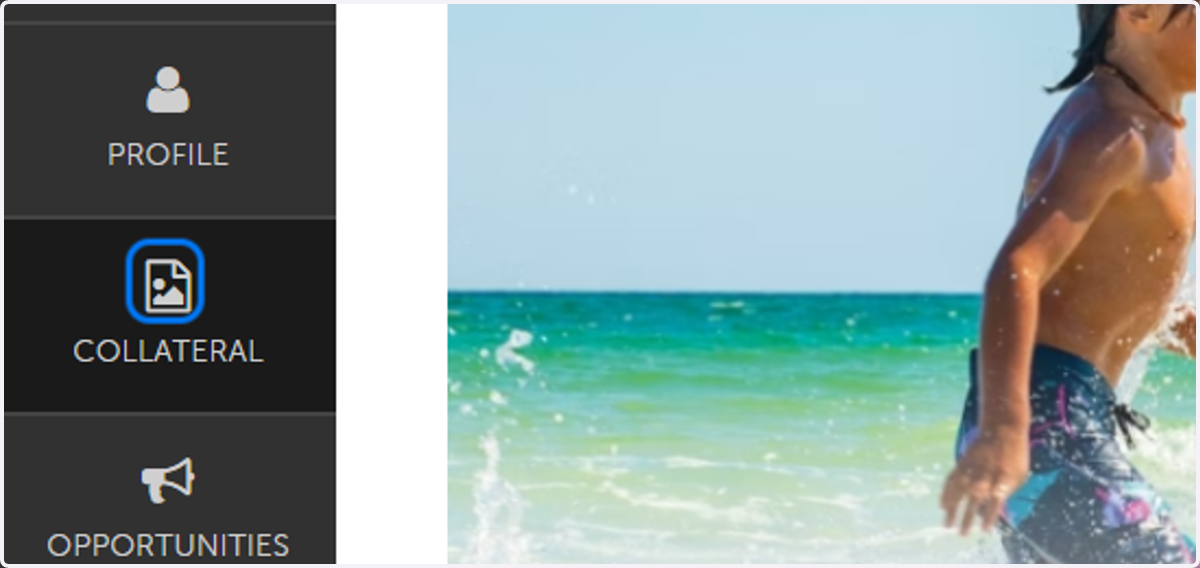
2. Click on COLLATERAL
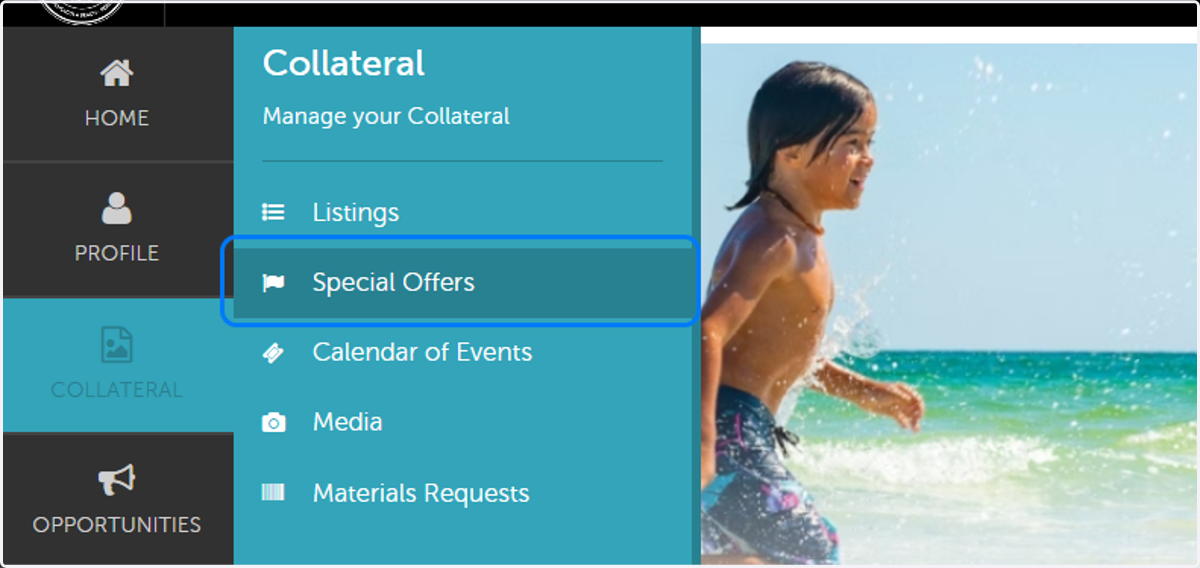
3. Click on Special Offers
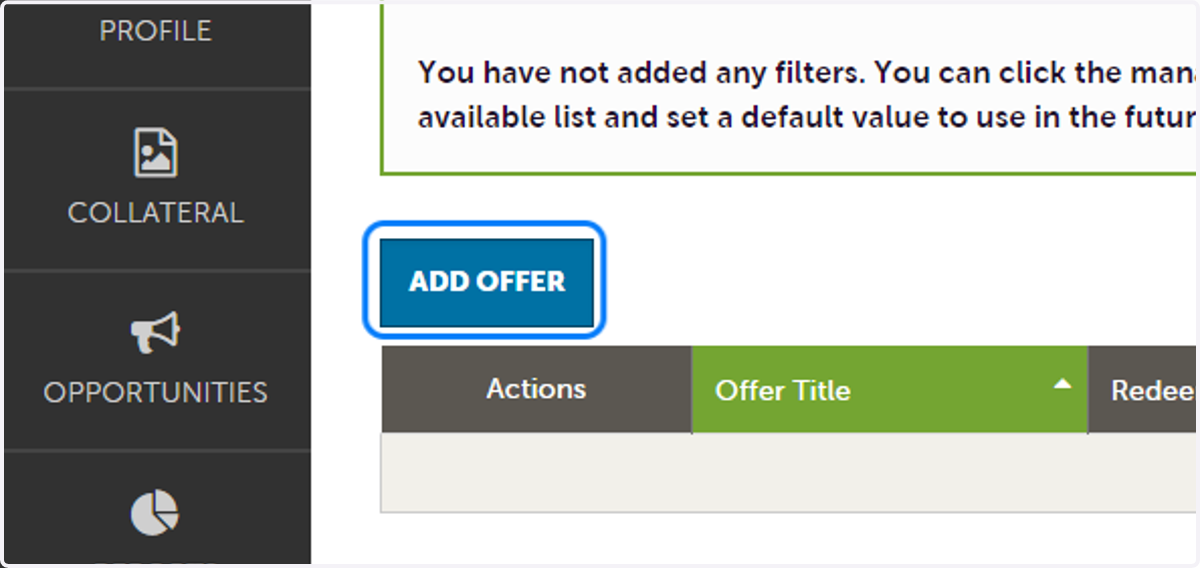
4. Click on ADD OFFER
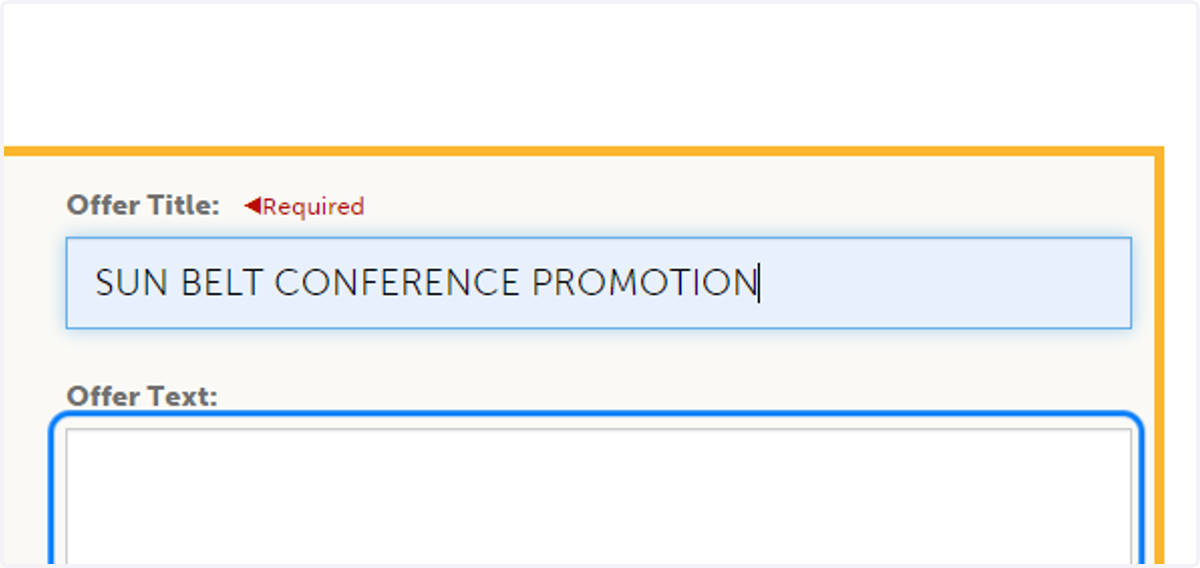
5. Type In the name of your offer!
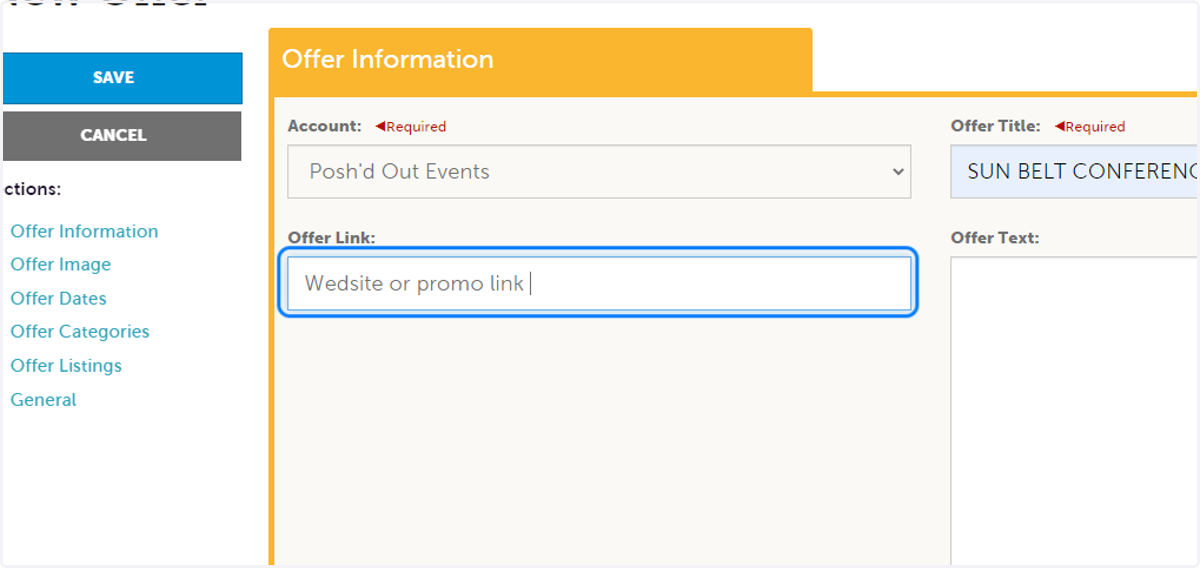
6. Type your website or promo link if you have one!
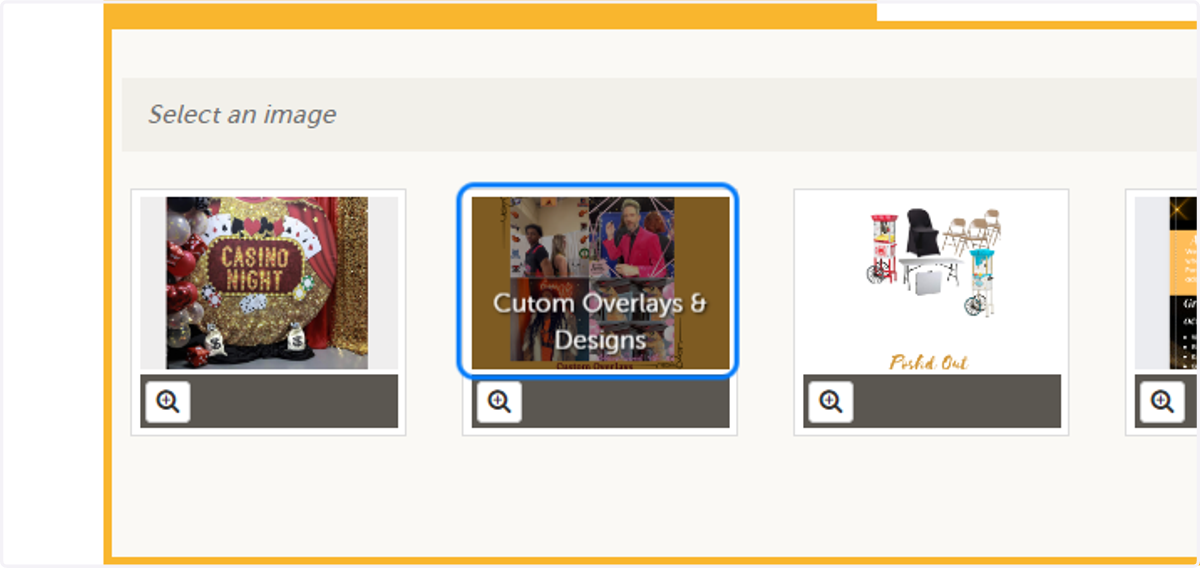
7. Choose an image.
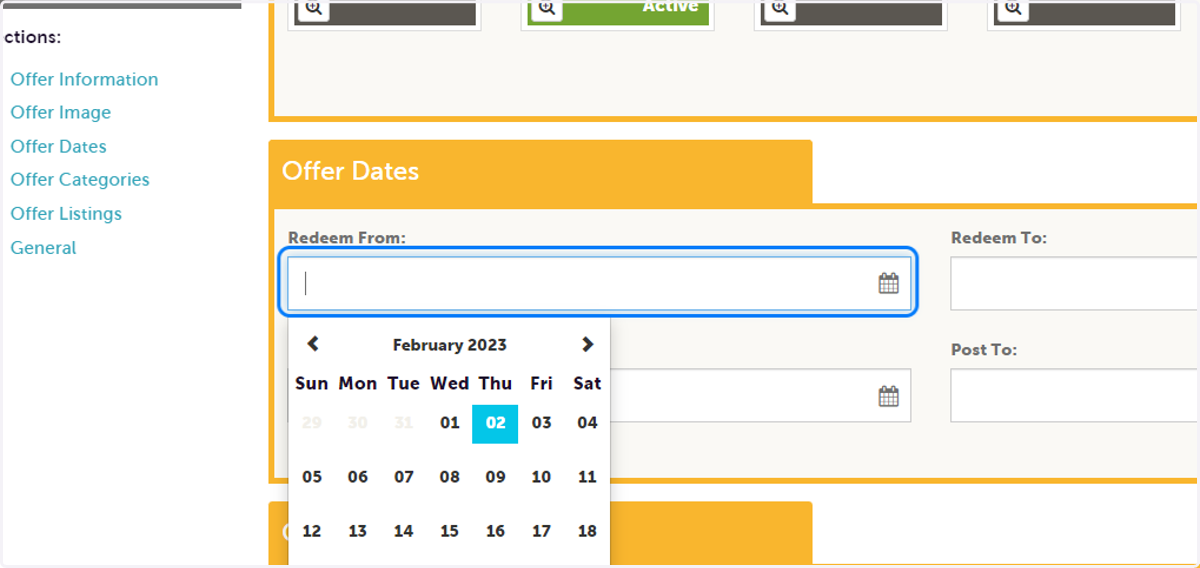
8. Click on Redeem From: Set your dates
9. Select your categorie(s).
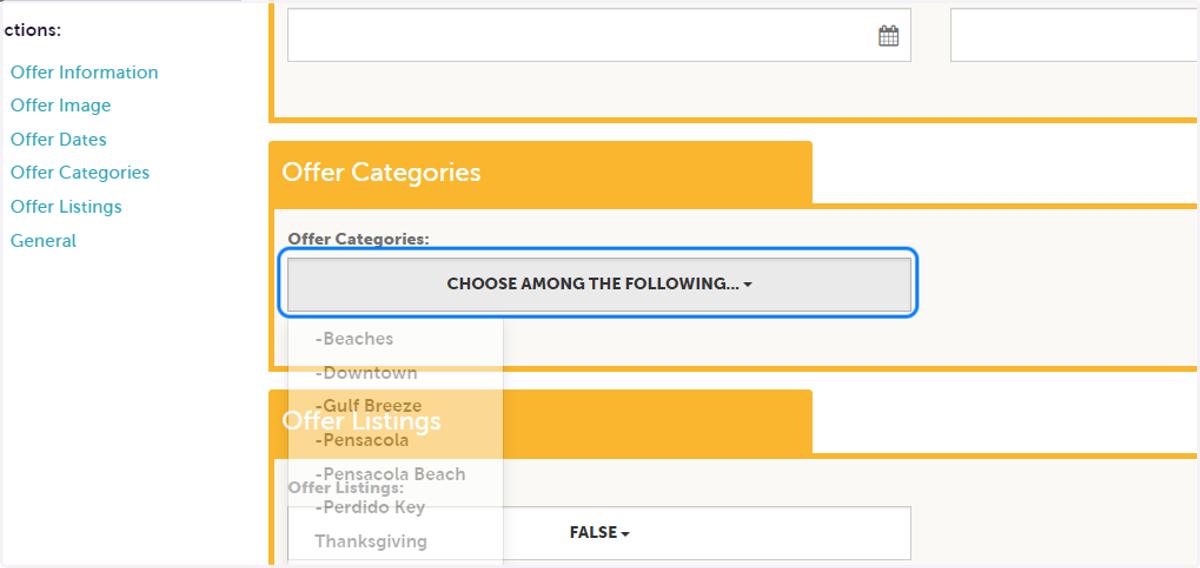
10. Choose the listing the offer will post on.
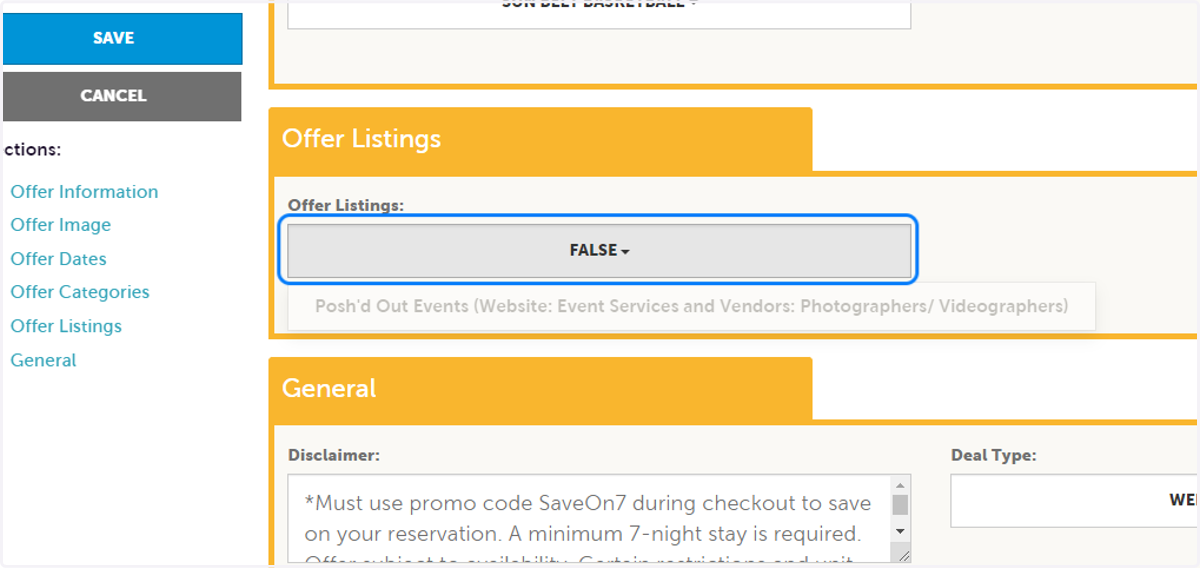
11. Type "REMOVE SAMPLE TEXT. *Must use promo code SaveOn7 during checkout to save on your reservation. A minimum 7-night stay is required. Offer subject to availability. Certain restrictions and unit exclusions may apply. For new reservations only. Cannot be applied to existing re…
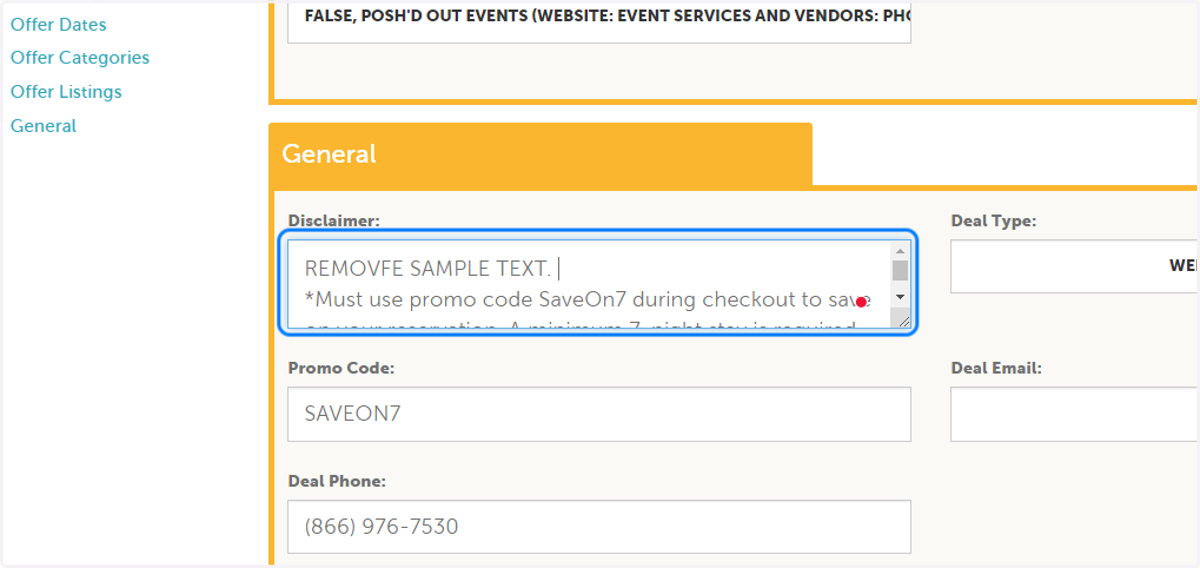
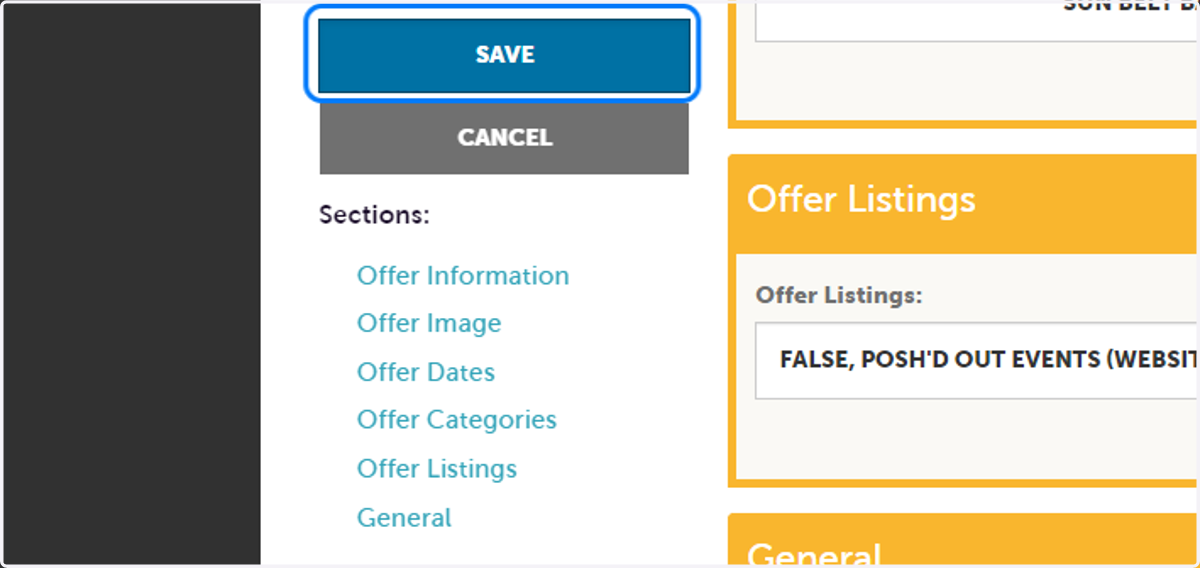
12. Click on Save