How to View and Manage Your Contacts' Profiles in Affinect
View detailed visitor analytics and track key insights. Easily add custom tags to organize and segment your contacts for more personalized engagement.
Affinect
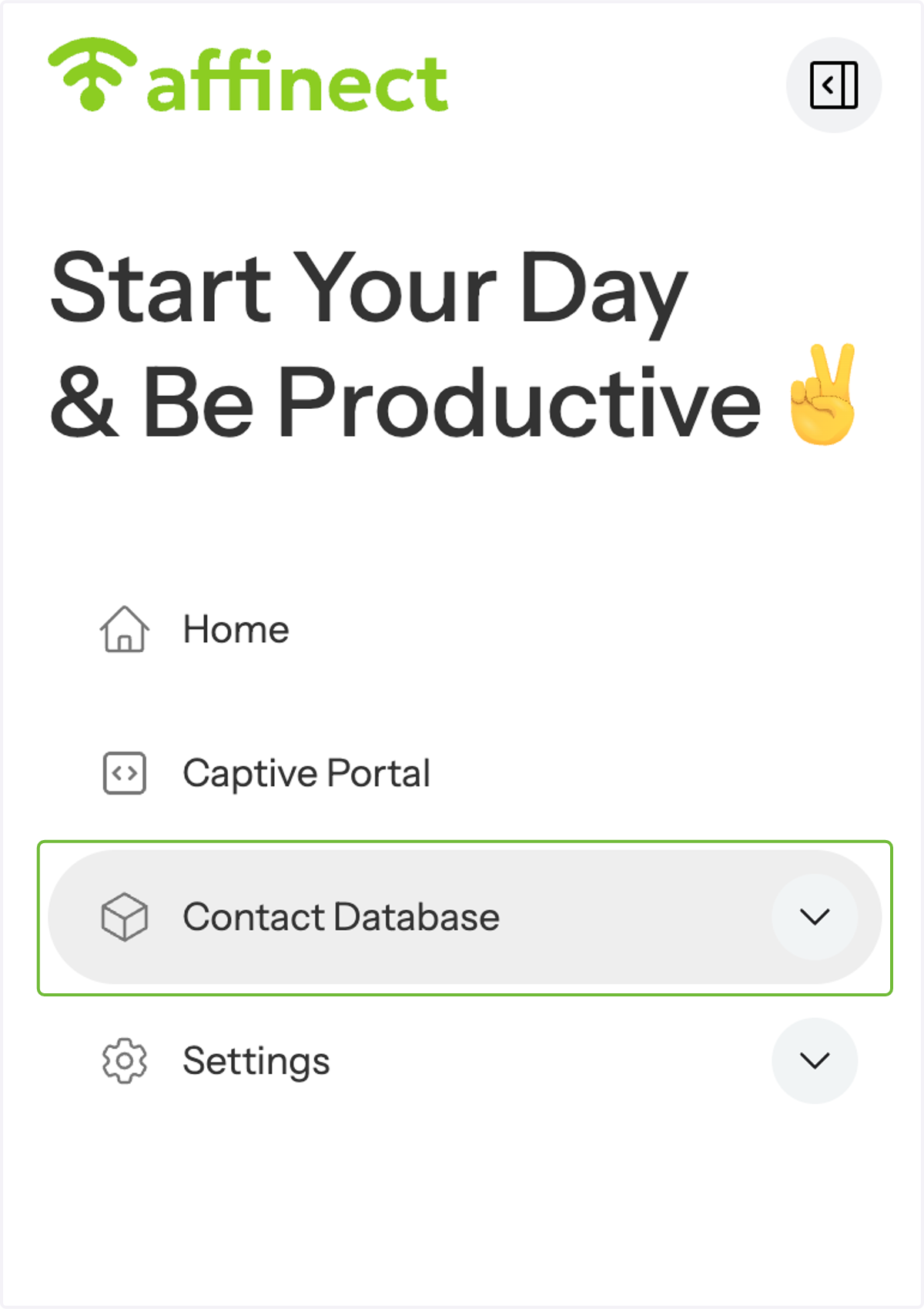
1. Navigate to the Contact Database
Click on Contact Database on the left-hand side of the dashboard.
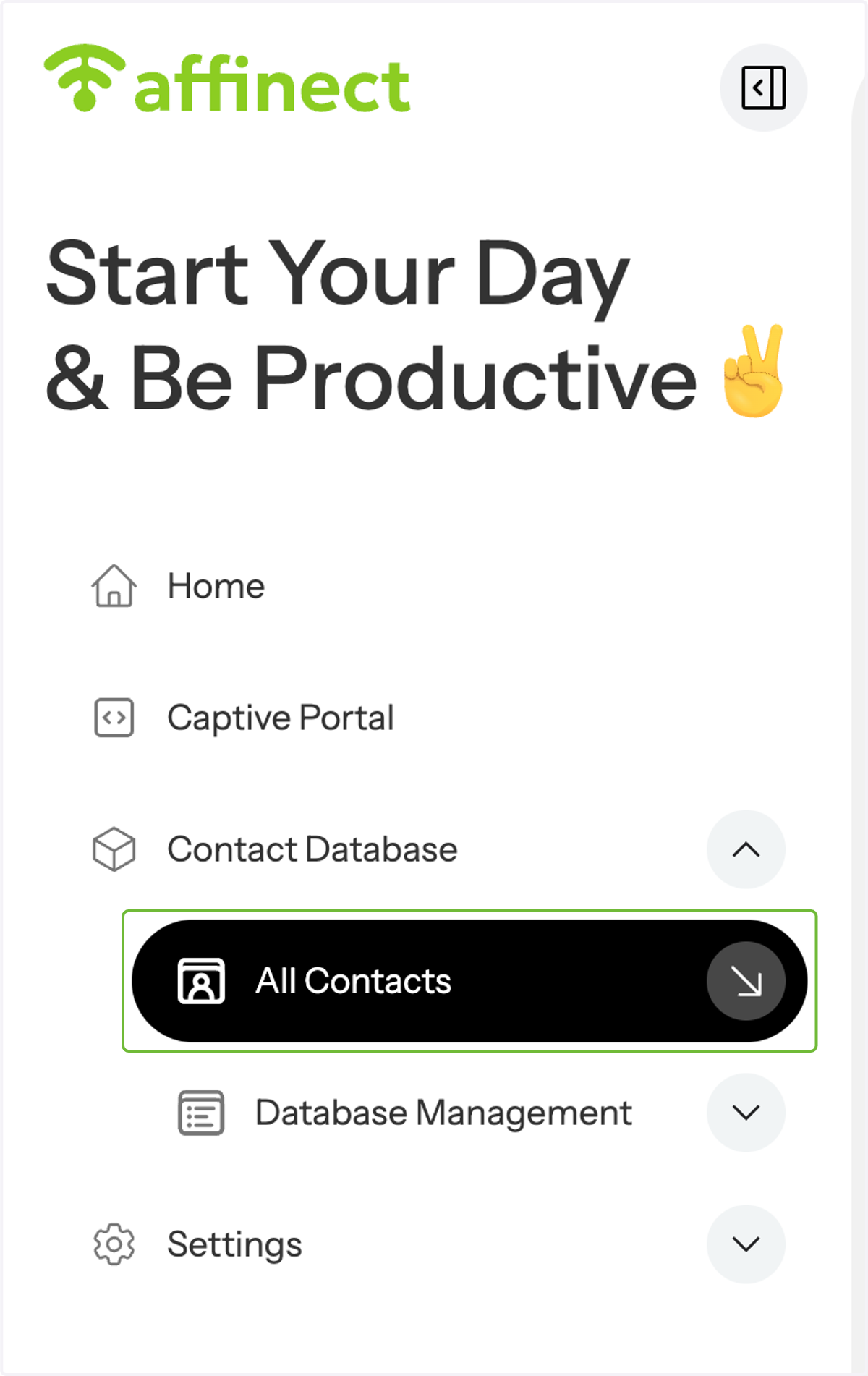
2. Access All Guest Profiles
A drop-down menu will appear. Click on 'All Contacts'.
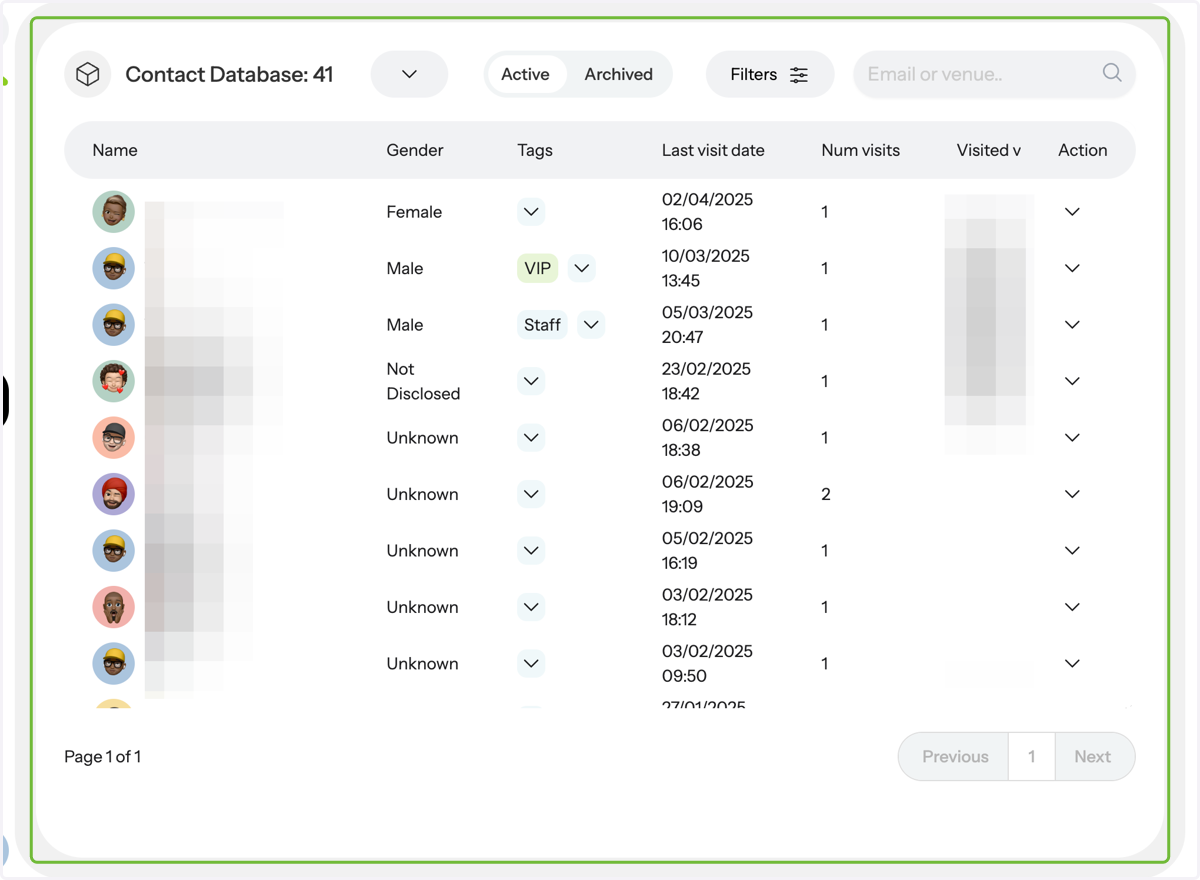
3. View Contacts' Profiles in Detail
A detailed view of your contacts' profiles will appear.
4. Use Filters to Narrow Down Contacts
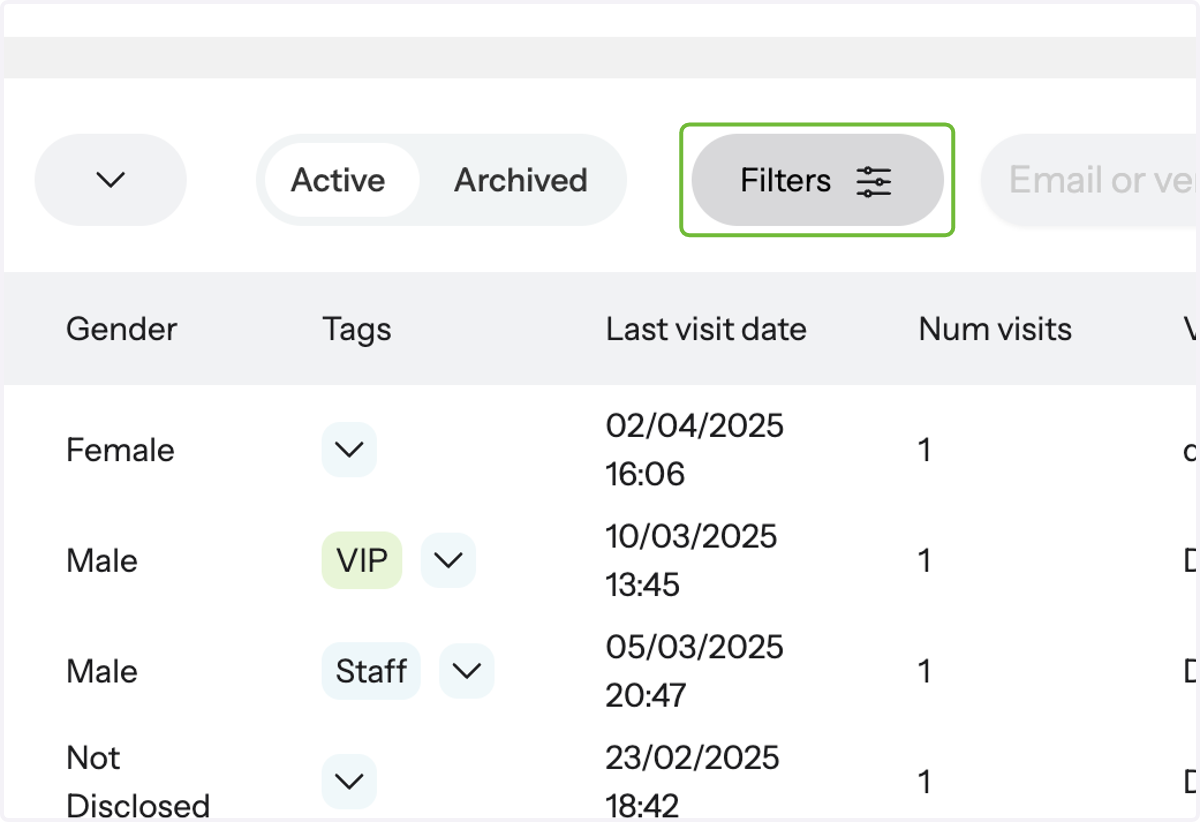
Click on 'Filters' to quickly find and view specific contacts profiles.
5. Filter by Key Visitor Attributes
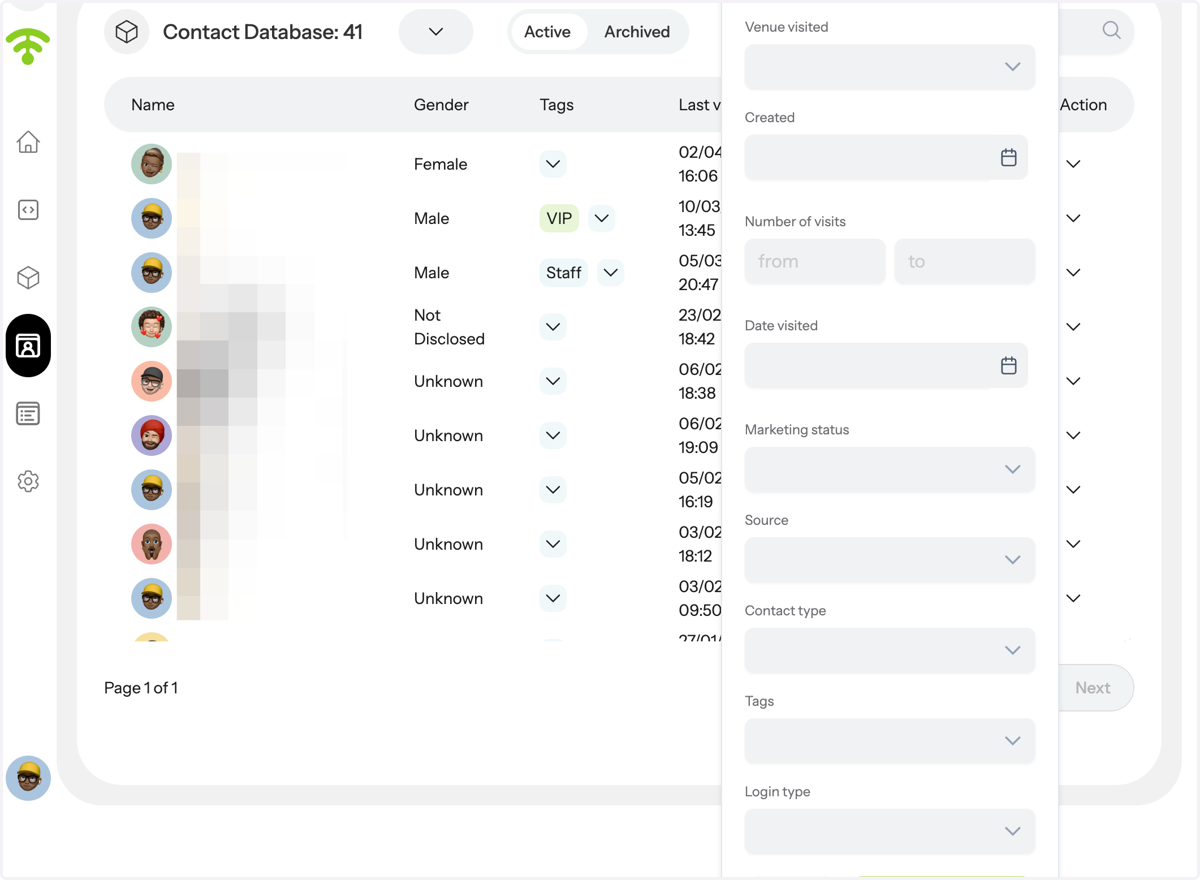
With filters, find guests based on the venue they visited, profile creation date, visit frequency, visit date, marketing status, opt-in source, contact, and login type, and any tags you've assigned.
6. Explore and Apply Contact Tags
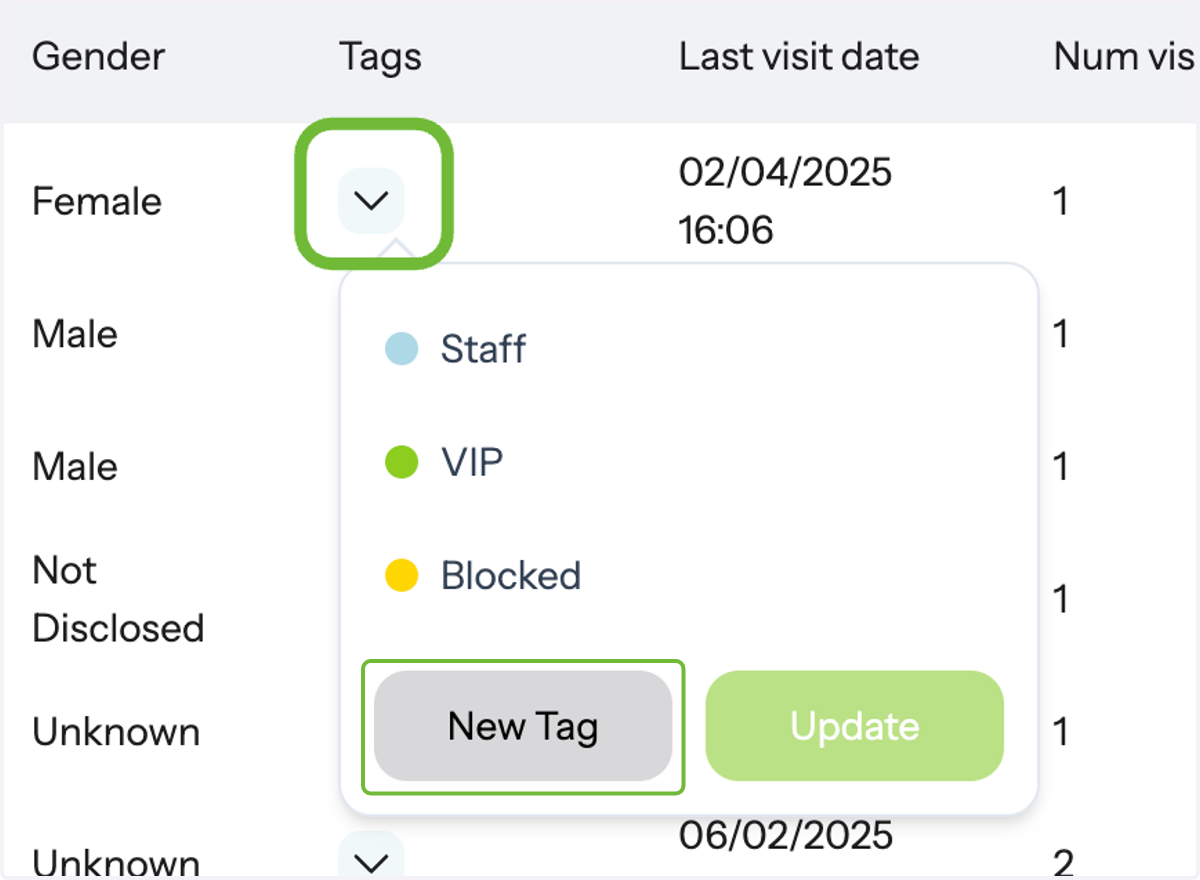
Click on the tags drop-down menu next to the guest profile. You'll see existing tags such as 'Staff' (employees at the venue), 'VIP' (your VIP guests), and 'Blocked' (guests who are restricted from Wi-Fi access and removed from analytics).
7. Create Custom Tags for Contacts
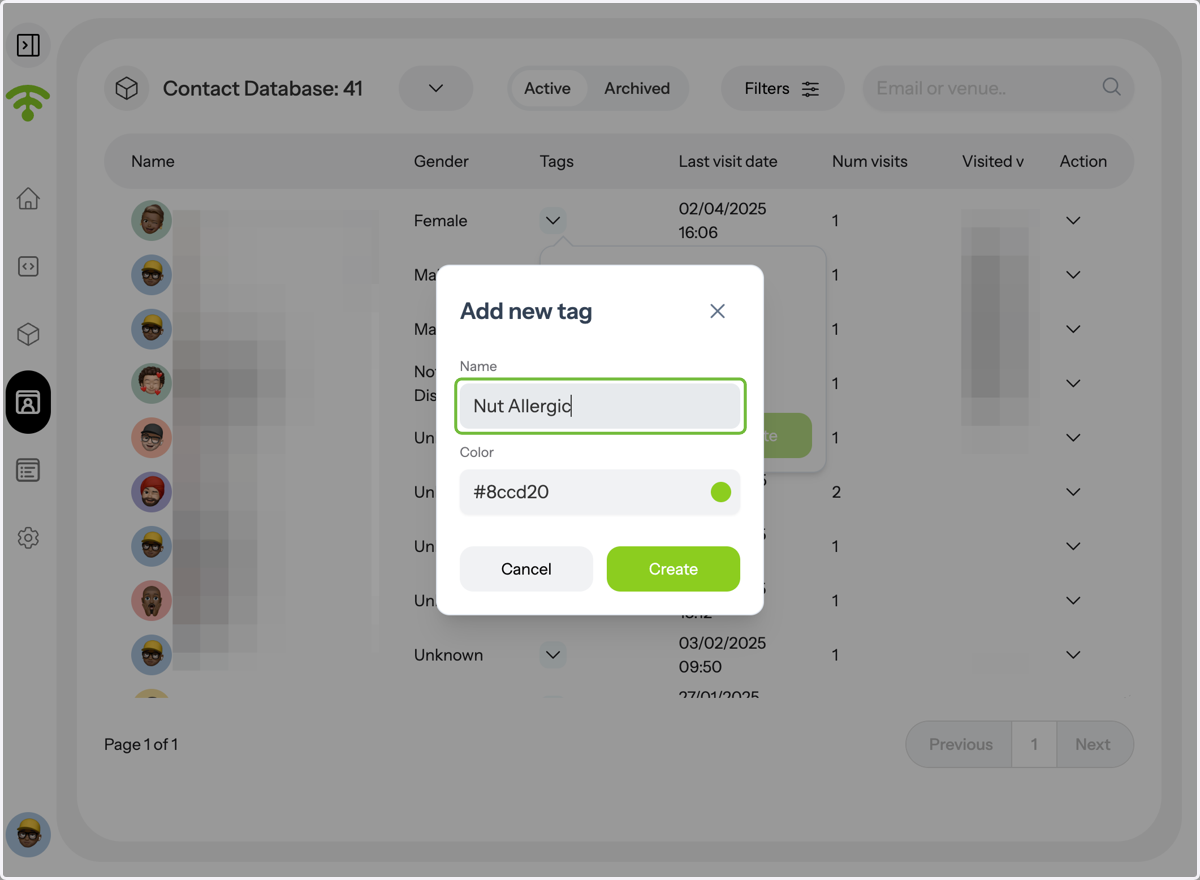
You can also add new tags as needed, such as 'Nut Allergic,' and choose a color for each tag to easily identify and manage guest preferences.
8. Access Individual Guest Profiles
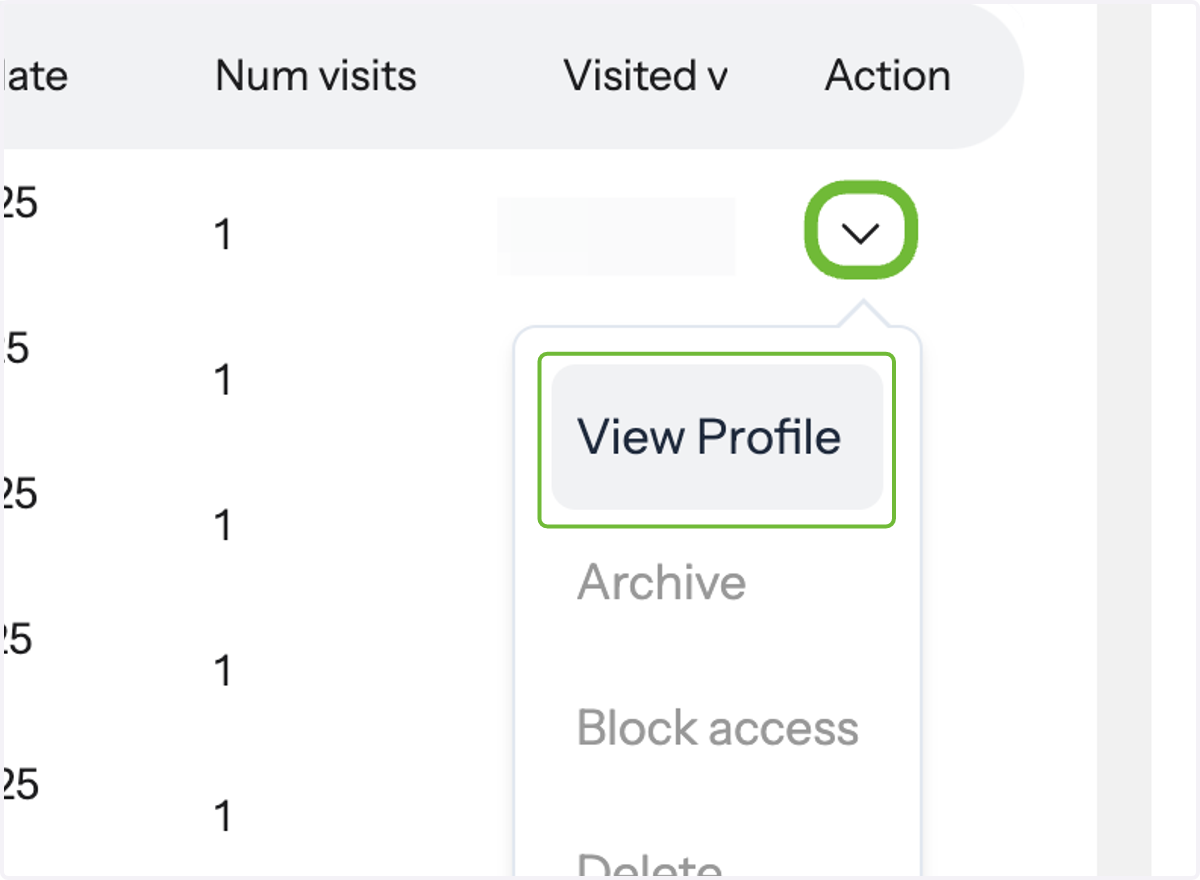
To view the individual detailed profile of a contact, click on the drop-down menu under 'Actions' next to the profile you want to access, then select 'View Profile.'
9. Review Contact Profile Details
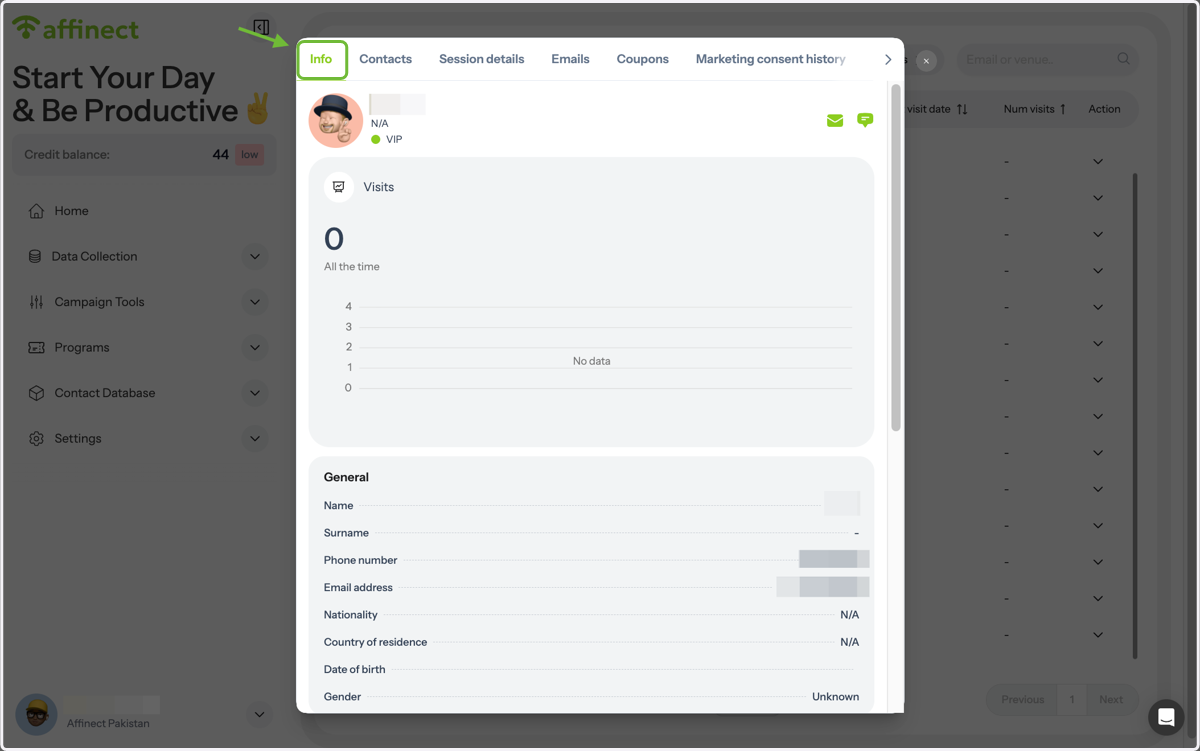
The Info tab provides an overview of the contact's profile, including their personal details, assigned tags, and visit history.
You can also view the total number of visits and a chart displaying their recorded visit activity.
10. Review Additional Profile Information
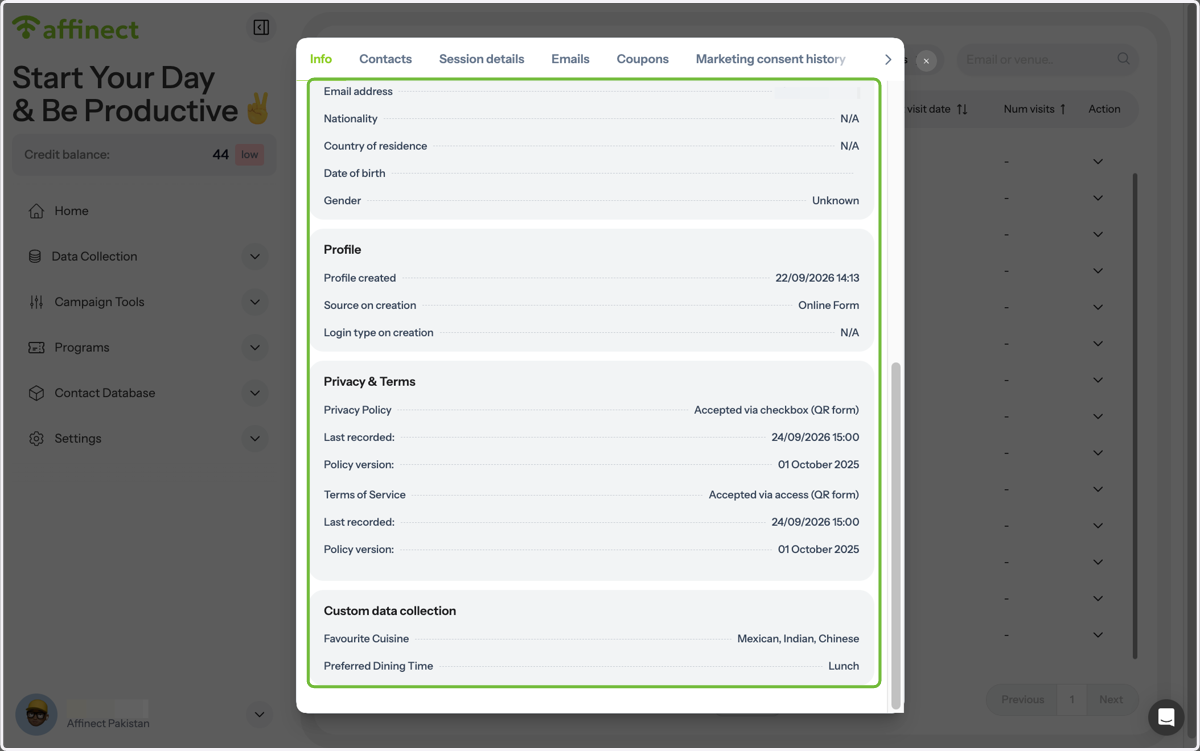
Scroll down to view the available information under General, Profile, and Privacy & Terms.
Here, you can review the contact's personal details, profile creation date, original source, login method, and recorded privacy policy and terms of service agreements.
You can also view any additional information collected through custom form fields.
11. Review Contact Information
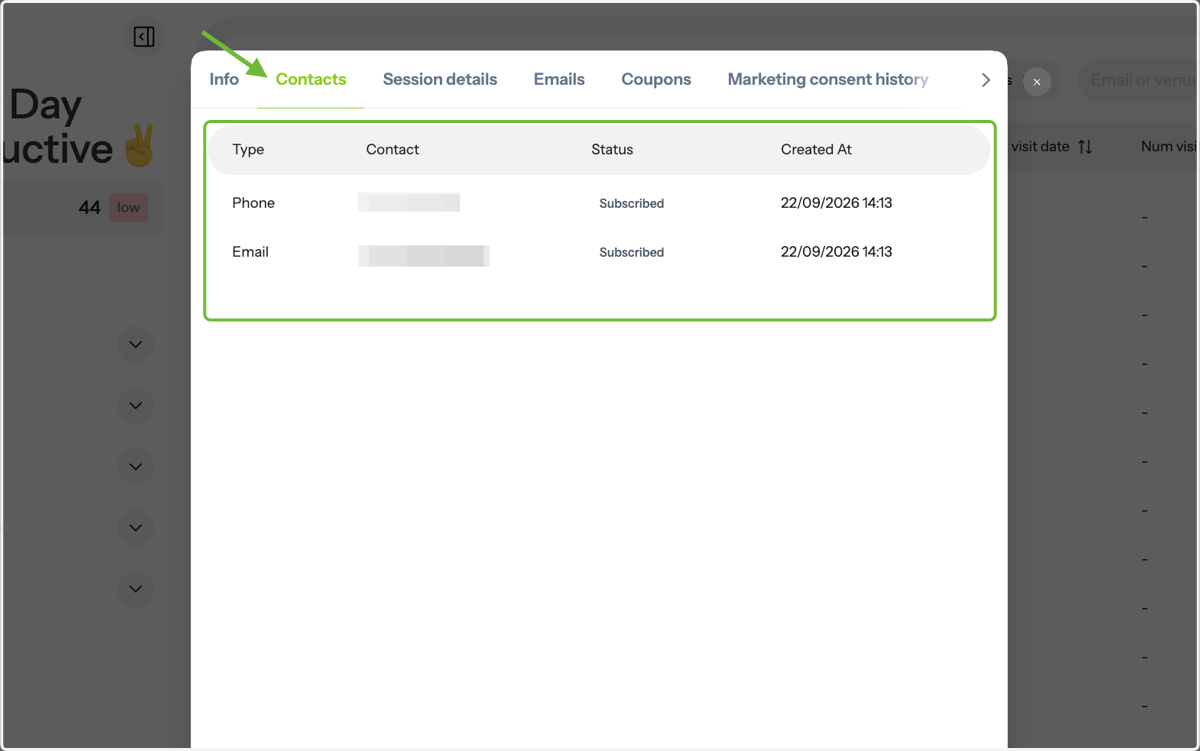
Open the Contacts tab to view the contact's recorded email addresses and phone numbers, along with their subscription status and the date each contact record was created.
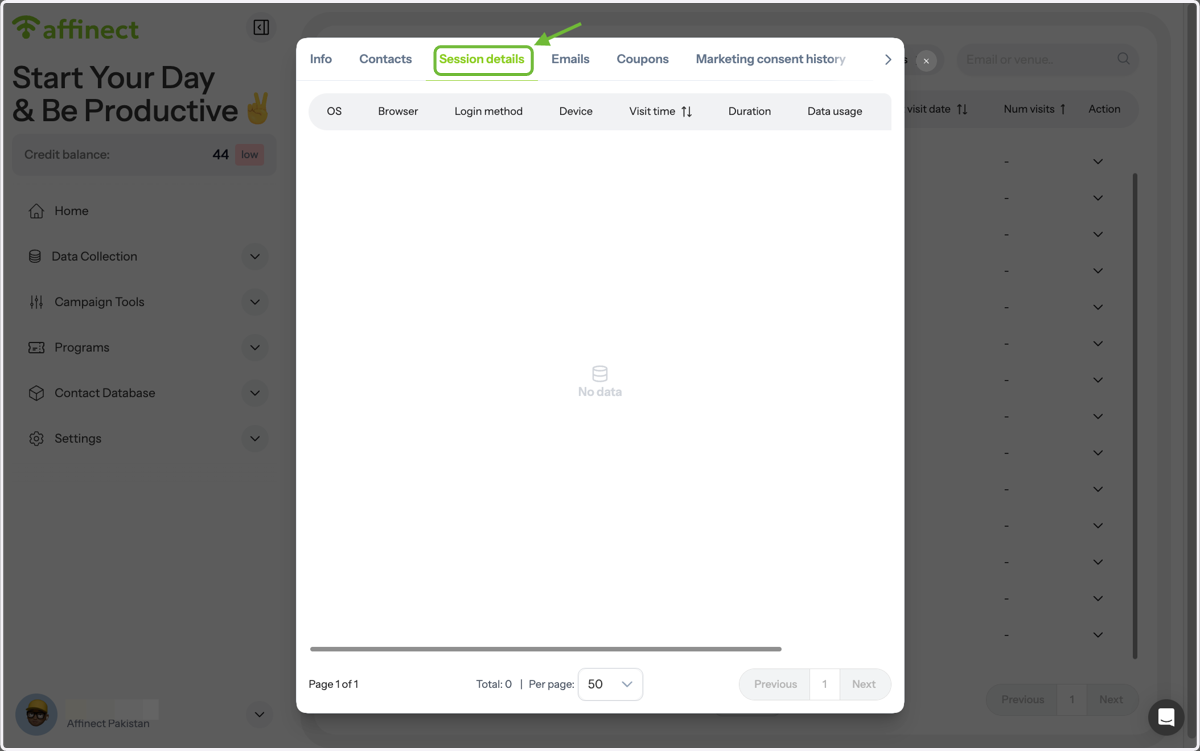
12. Review Session Details
Under Session details, you can review the contact's recorded Wi-Fi connections, including their operating system, browser, login method, and device.
You can also view when each session occurred, the connection duration, and the amount of data used.
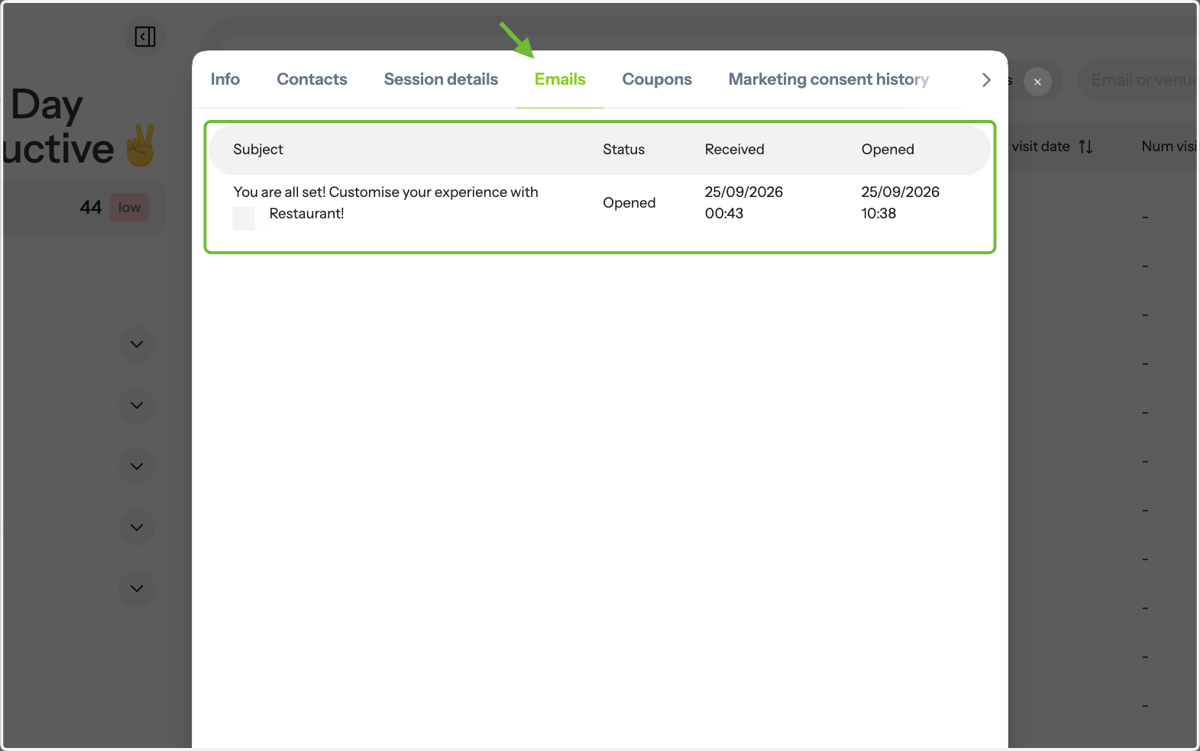
13. Review Email Activity
Open the Emails tab to view emails associated with the contact profile, including each message's subject, status, and when it was received or opened.
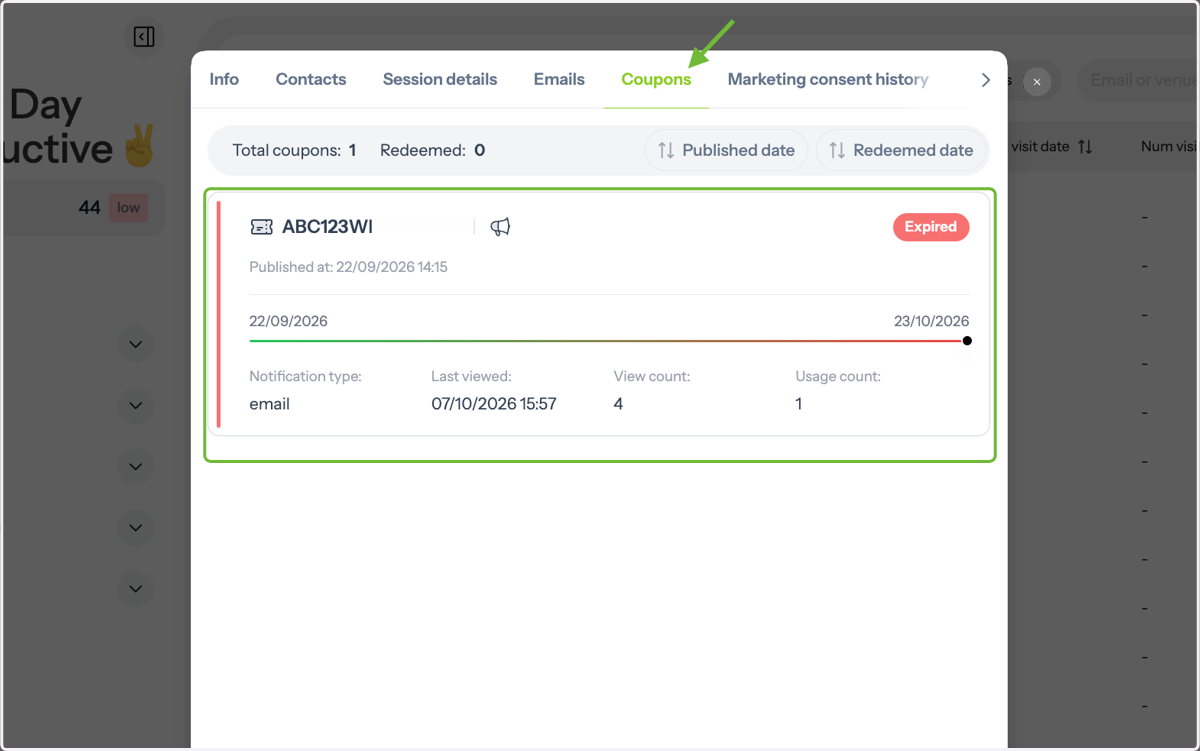
14. Review Coupon Activity
Under Coupons, you can view coupons associated with the contact, including the total number issued and redeemed.
You can also review each coupon's status, validity period, notification type, last viewed date, view count, and usage count.
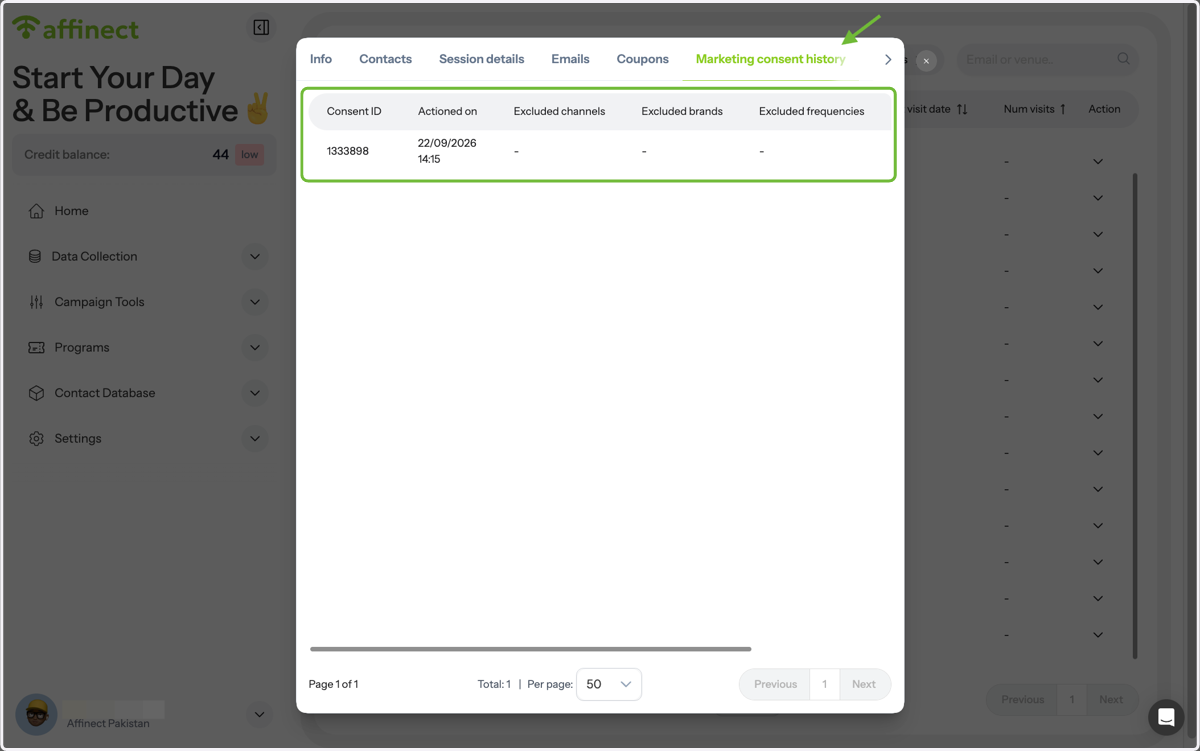
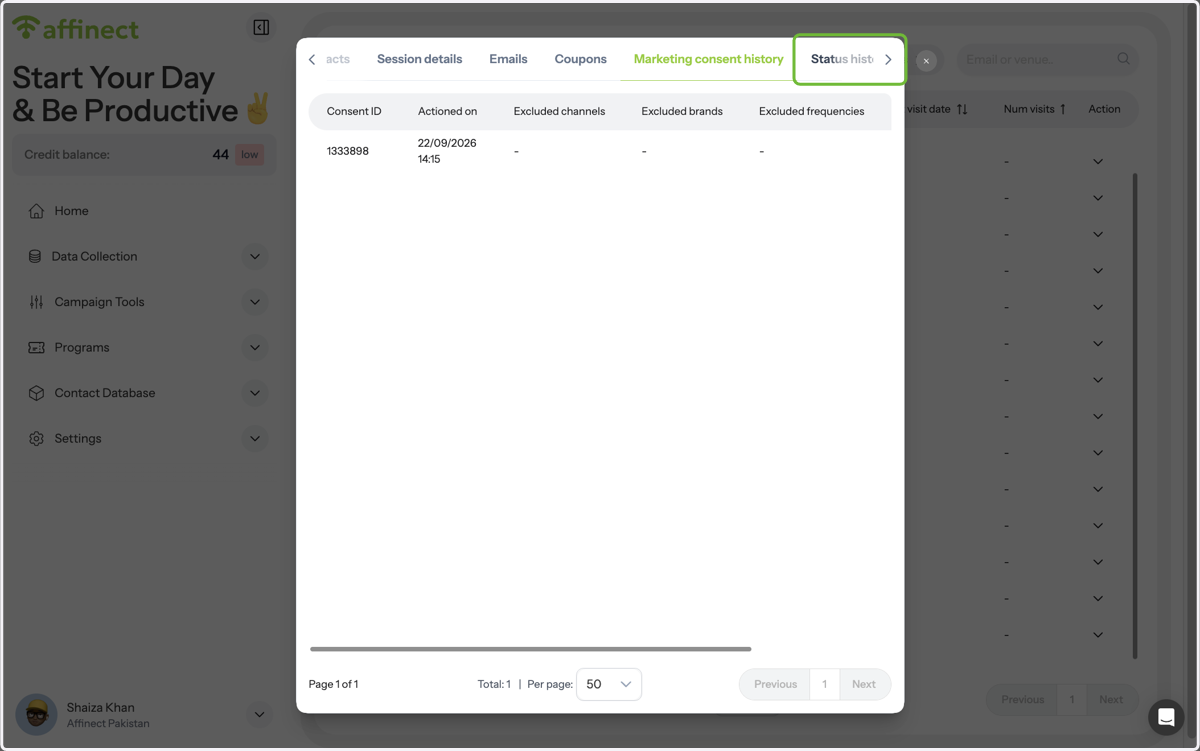
15. Review Marketing Consent History
Open Marketing consent history to review the contact's recorded marketing preferences, including when each consent action occurred and any excluded communication channels, brands, or message frequencies.
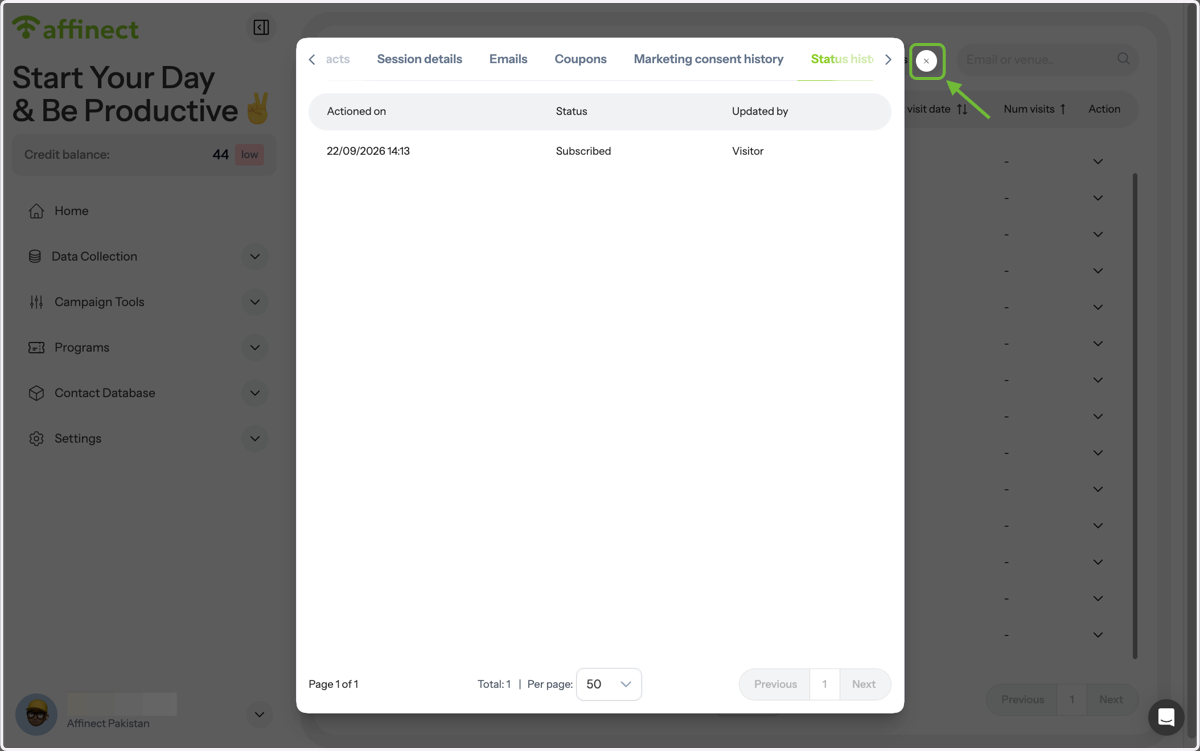
16. Check Subscription Status History
Under Status history, you can review changes to the contact's subscription status, including when each change was recorded, the resulting status, and who made the update.
17. Close the Profile View
To close the contact profile, click the X next to the profile tab. Tada! That's all. Happy Connecting and getting to know your guests better!