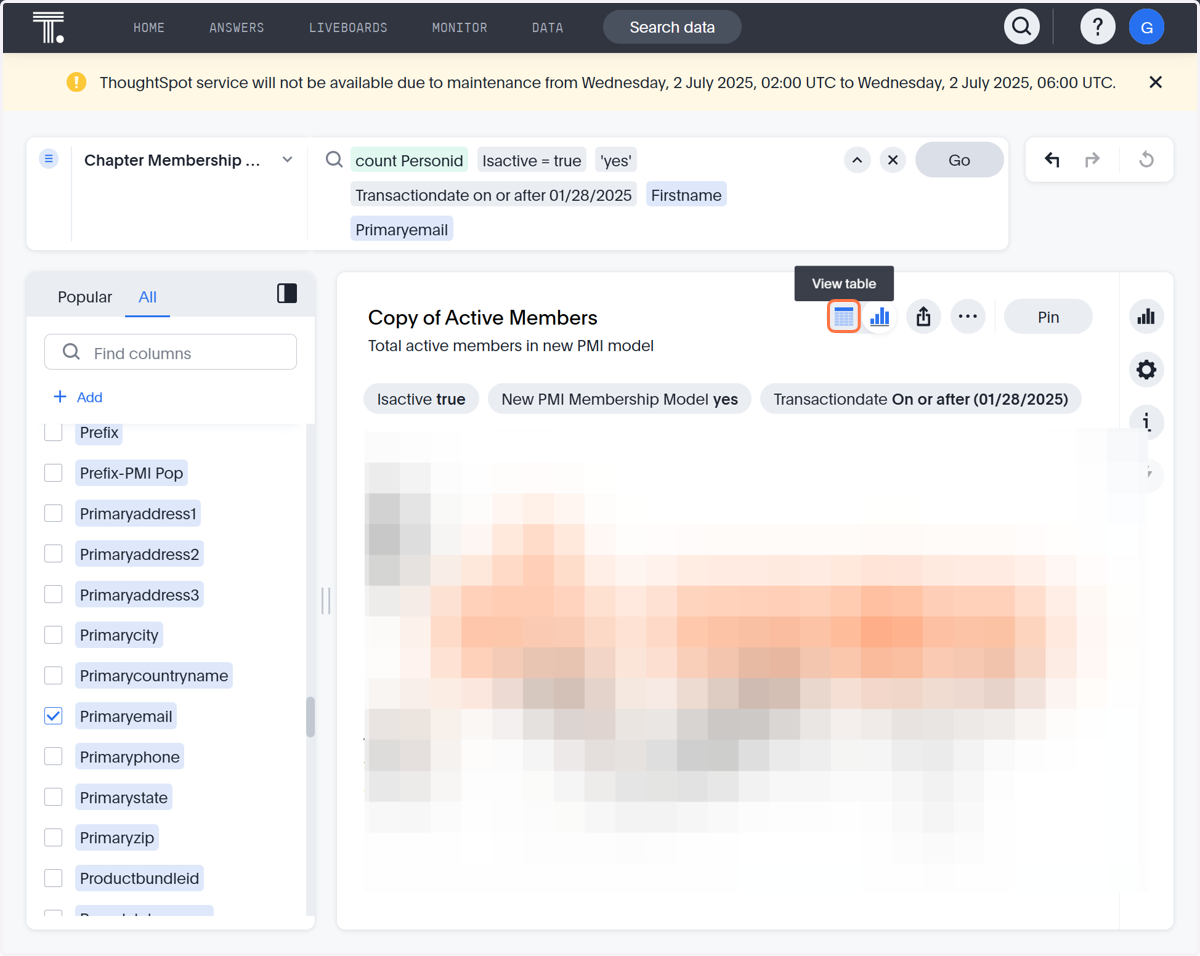
How to View New PMI Membership Model Data
This Tutorial displays how to view Active Members under the new PMI Membership Model. You can use this liveboard to view other data as well, using this as an example.
This tutorial starts once logged into ThoughtSpot and on your home dashboard
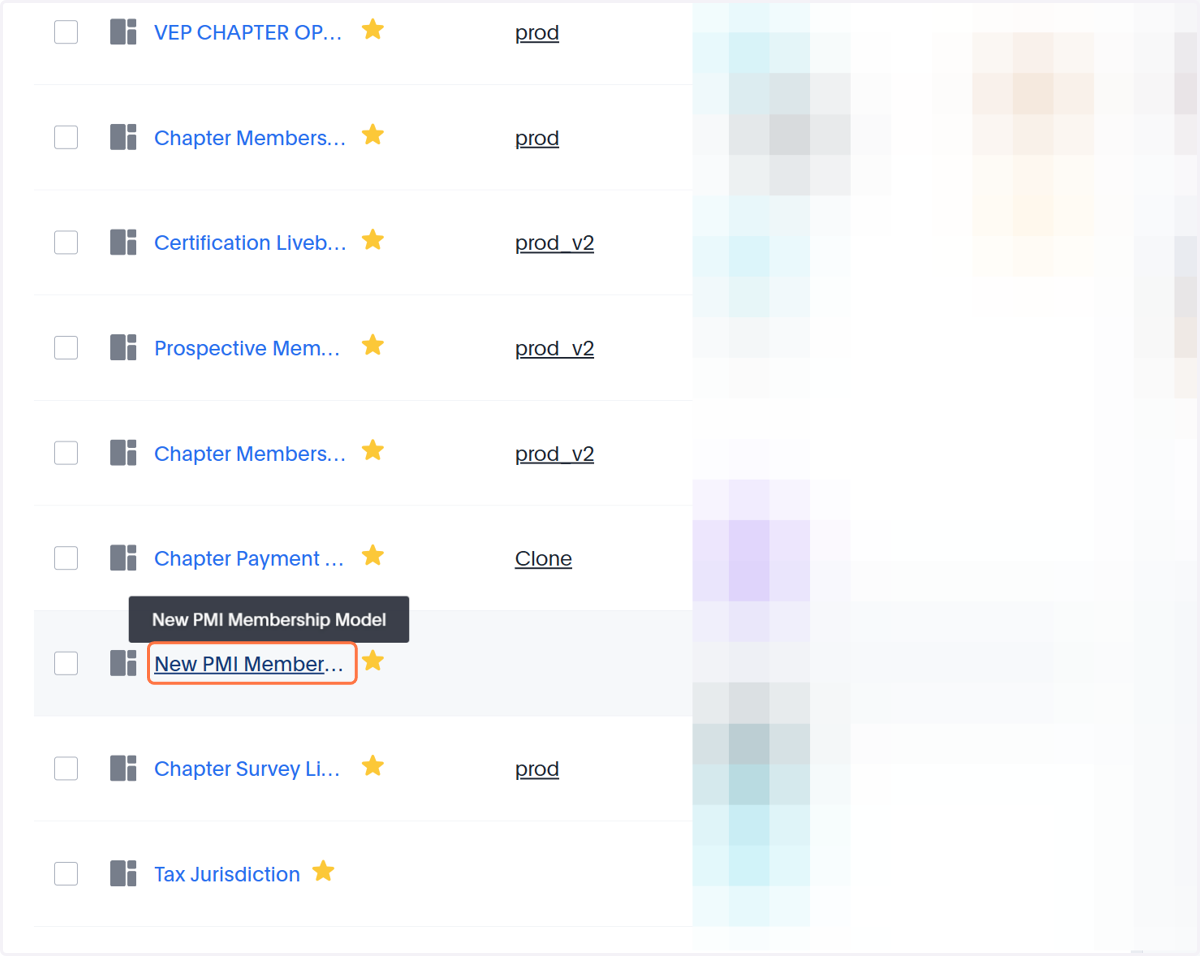
1. Click on New PMI Membership Model
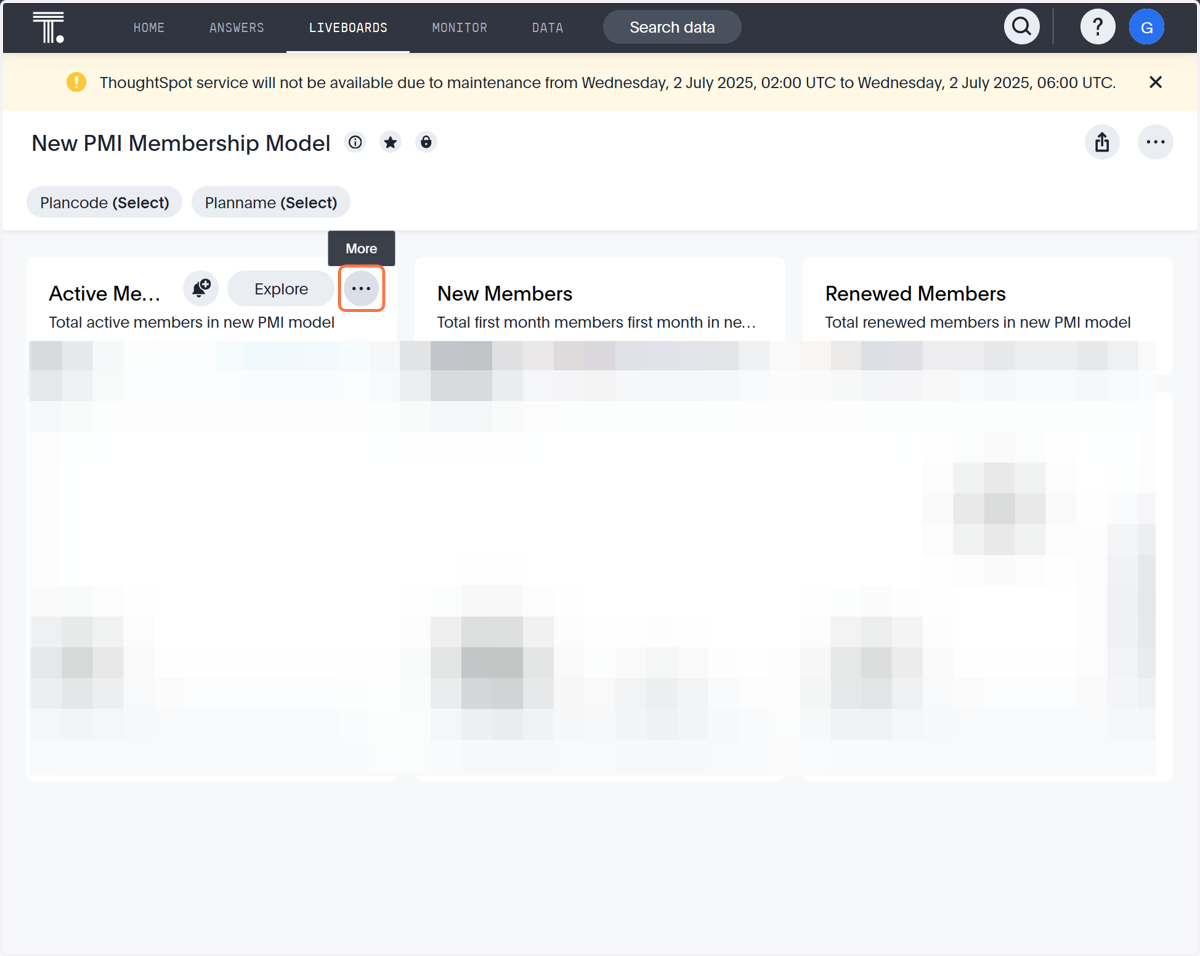
2. Click on More
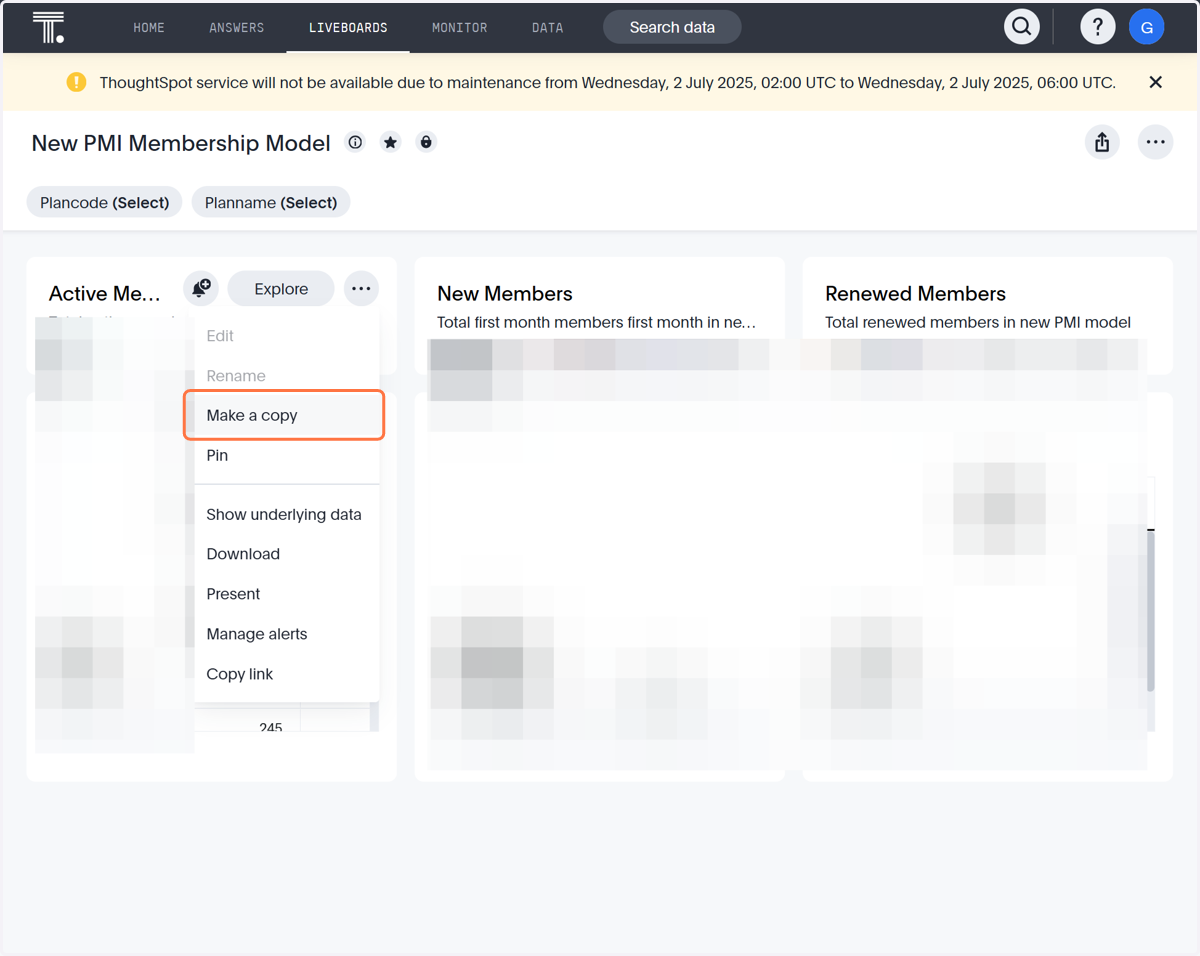
3. Click on Make a copy
4. Scroll to find the data attributes you would like to see. For this example, we will be looking for emails and names.
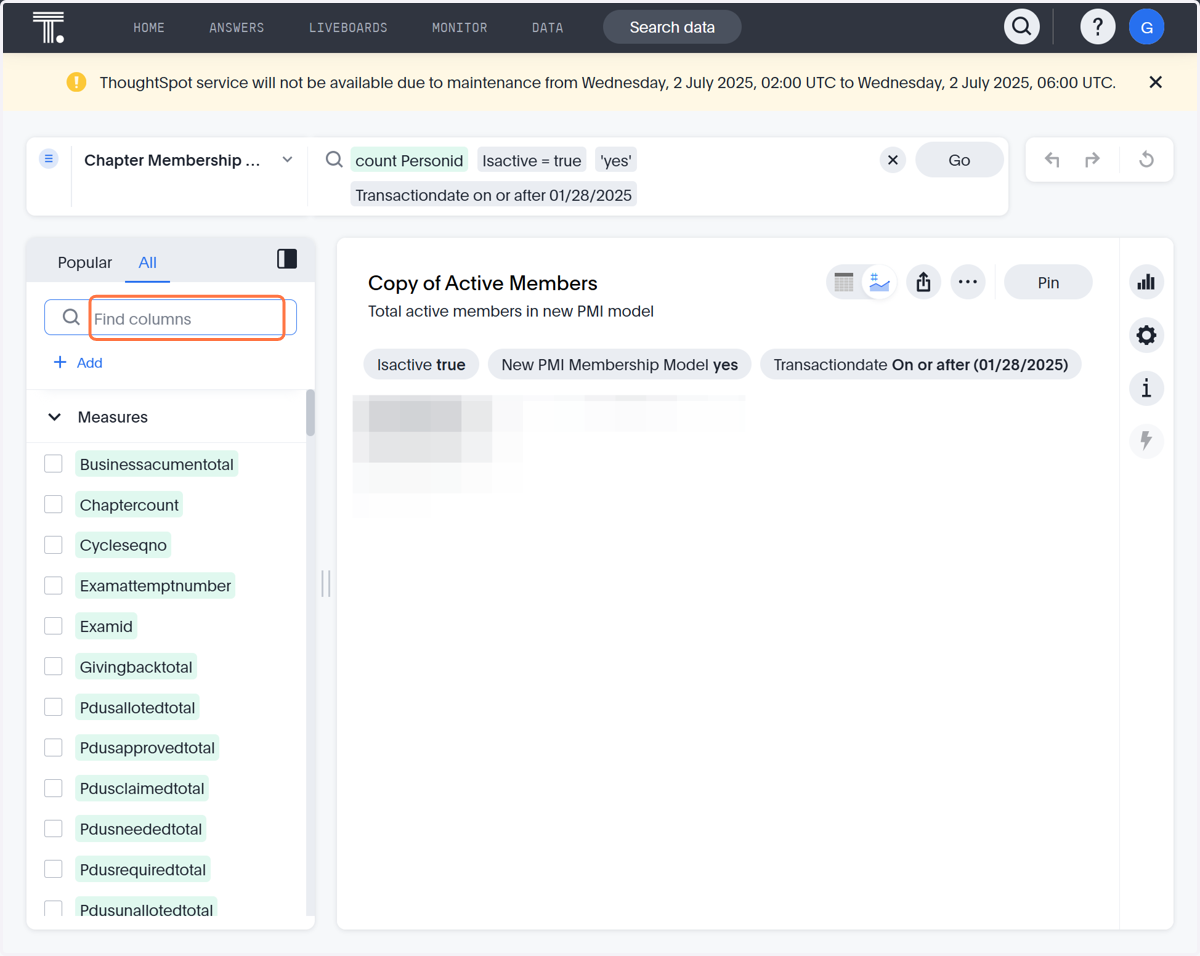
5. Scroll in the column to find "First Name" and "Primary Email"
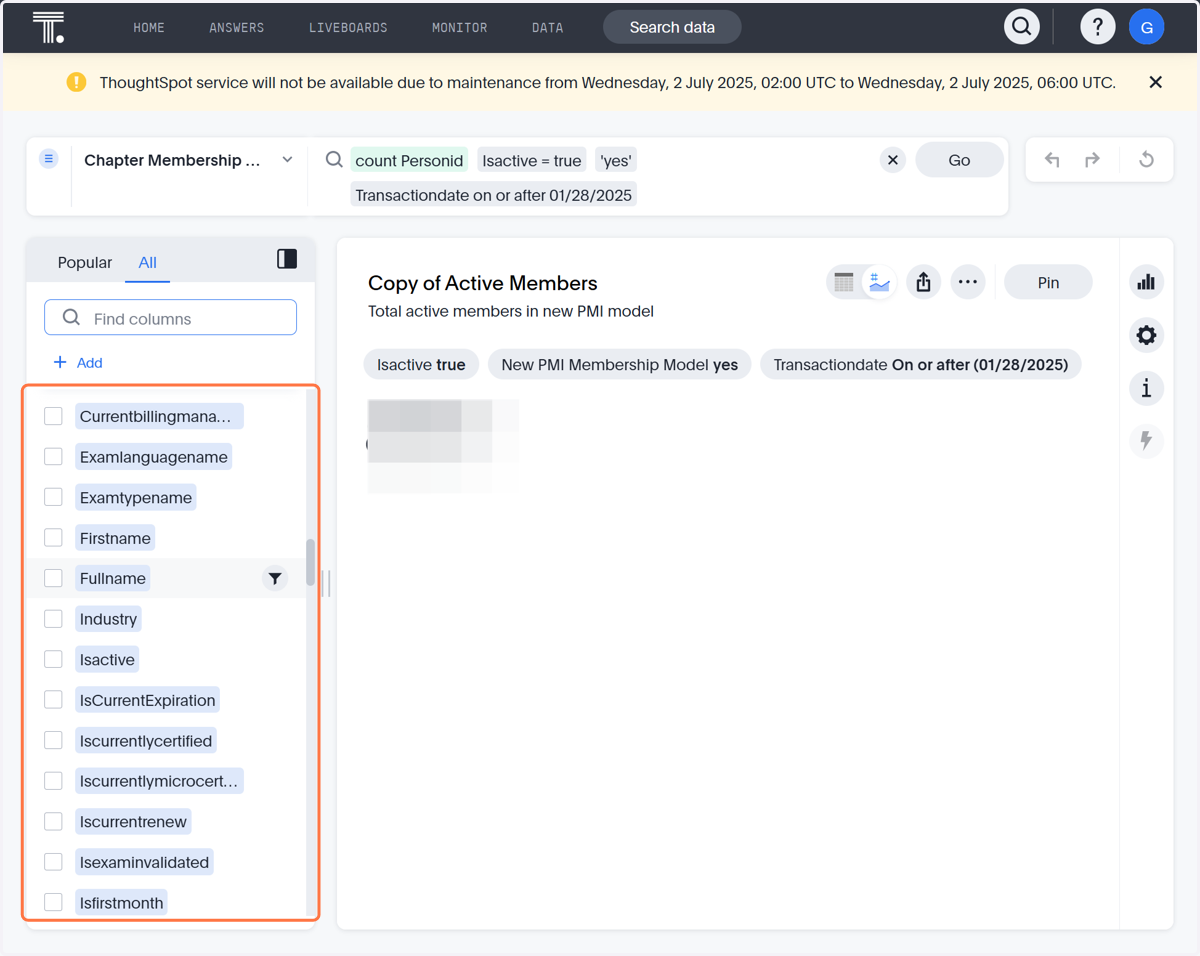
6. Check on first name
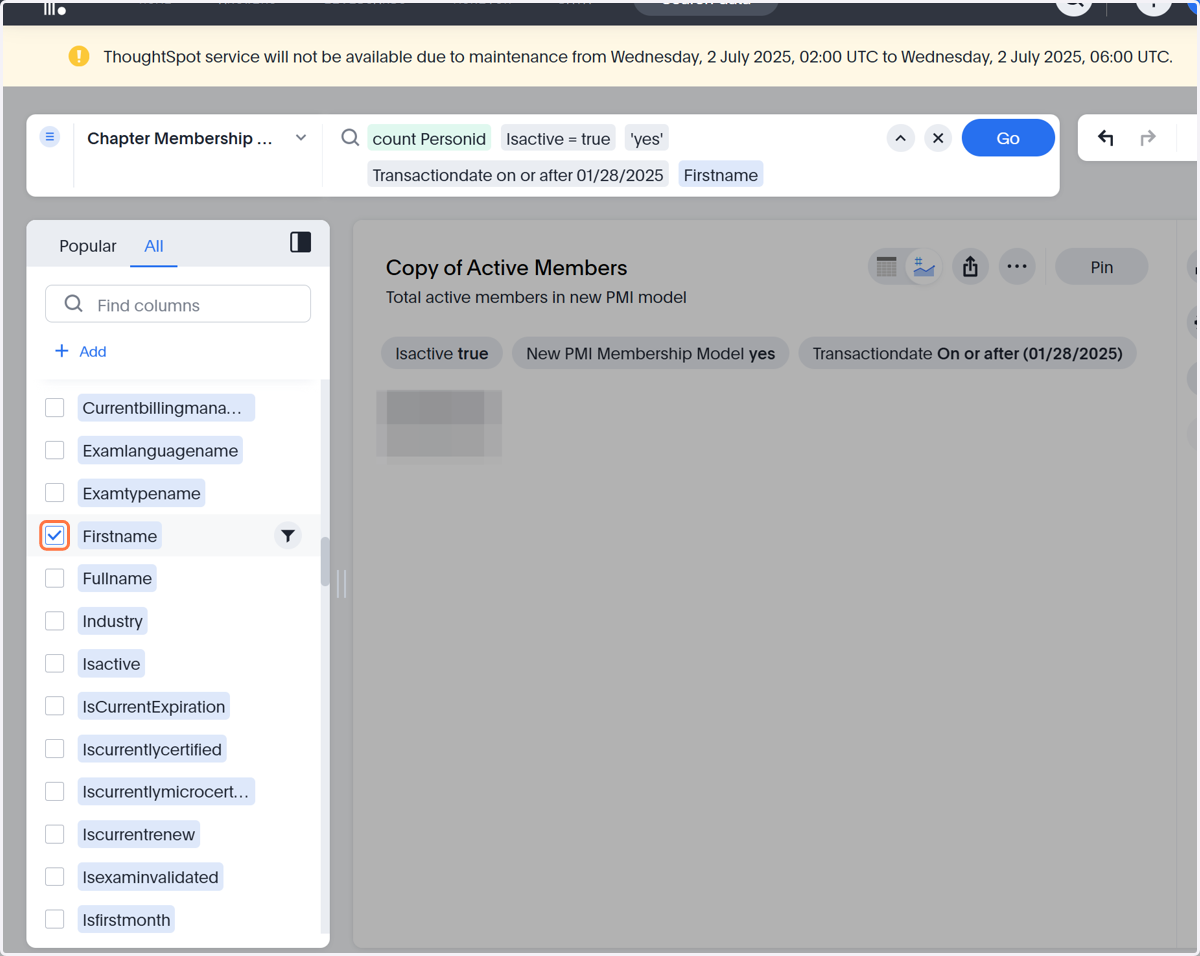
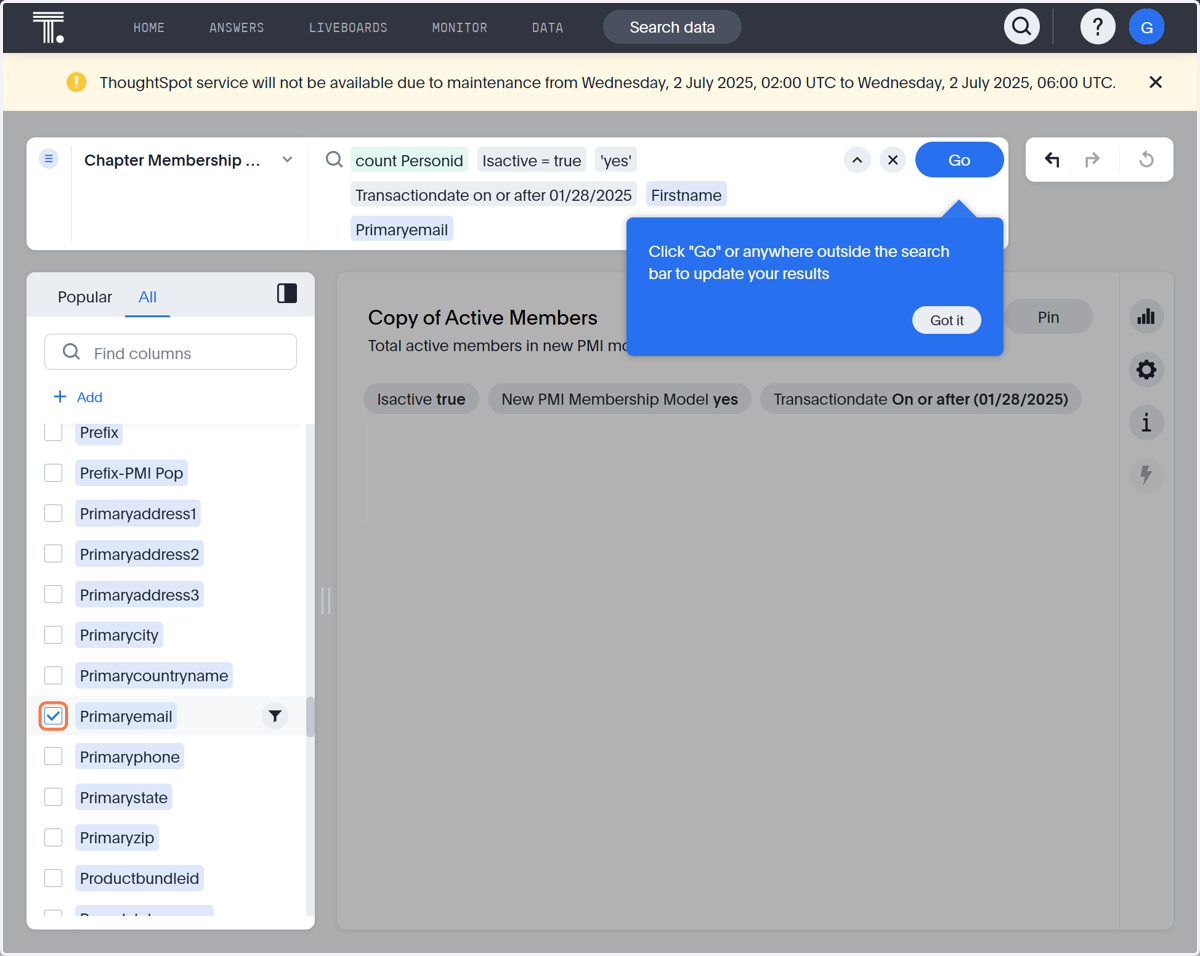
7. Scroll to find Primary Email
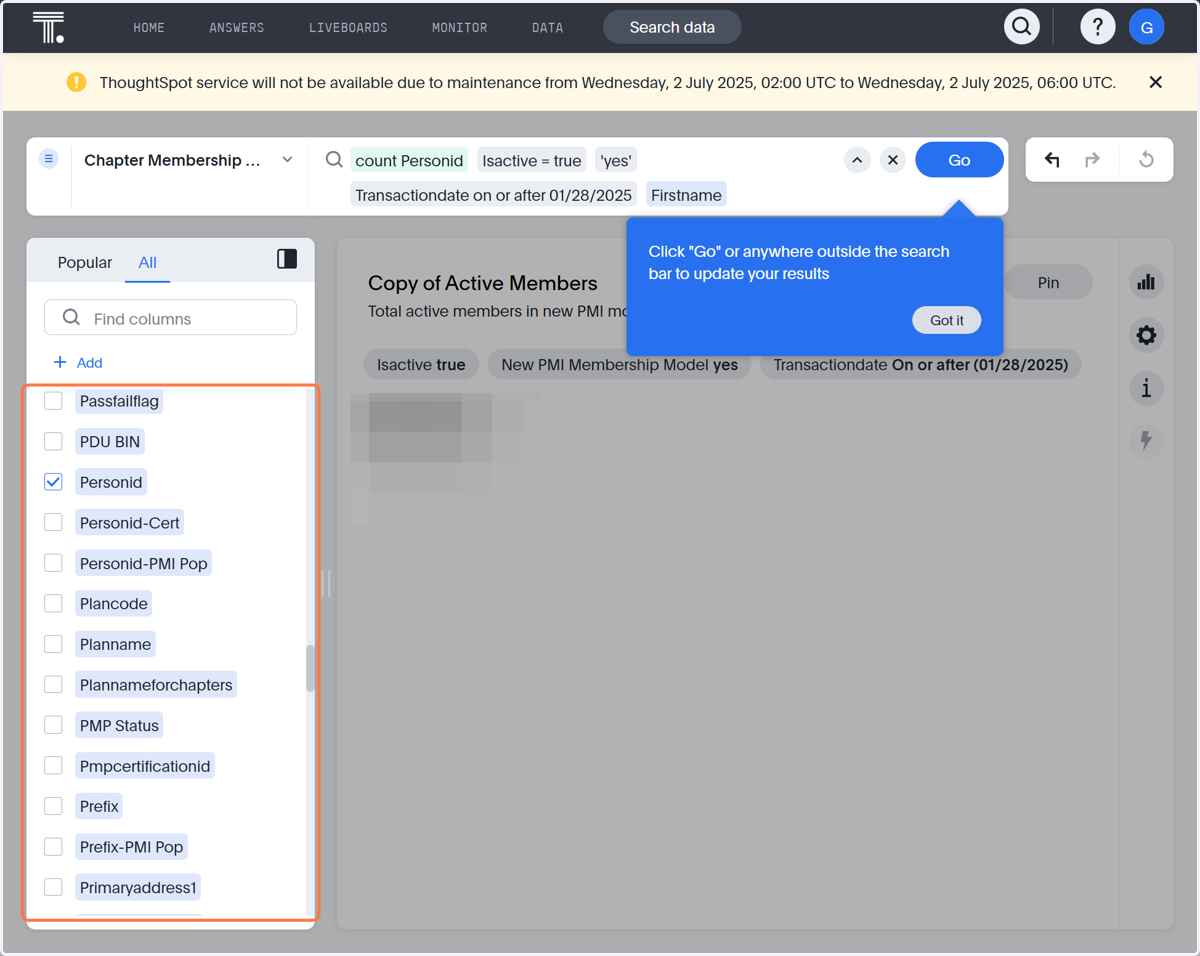
8. Check on Primaryemail
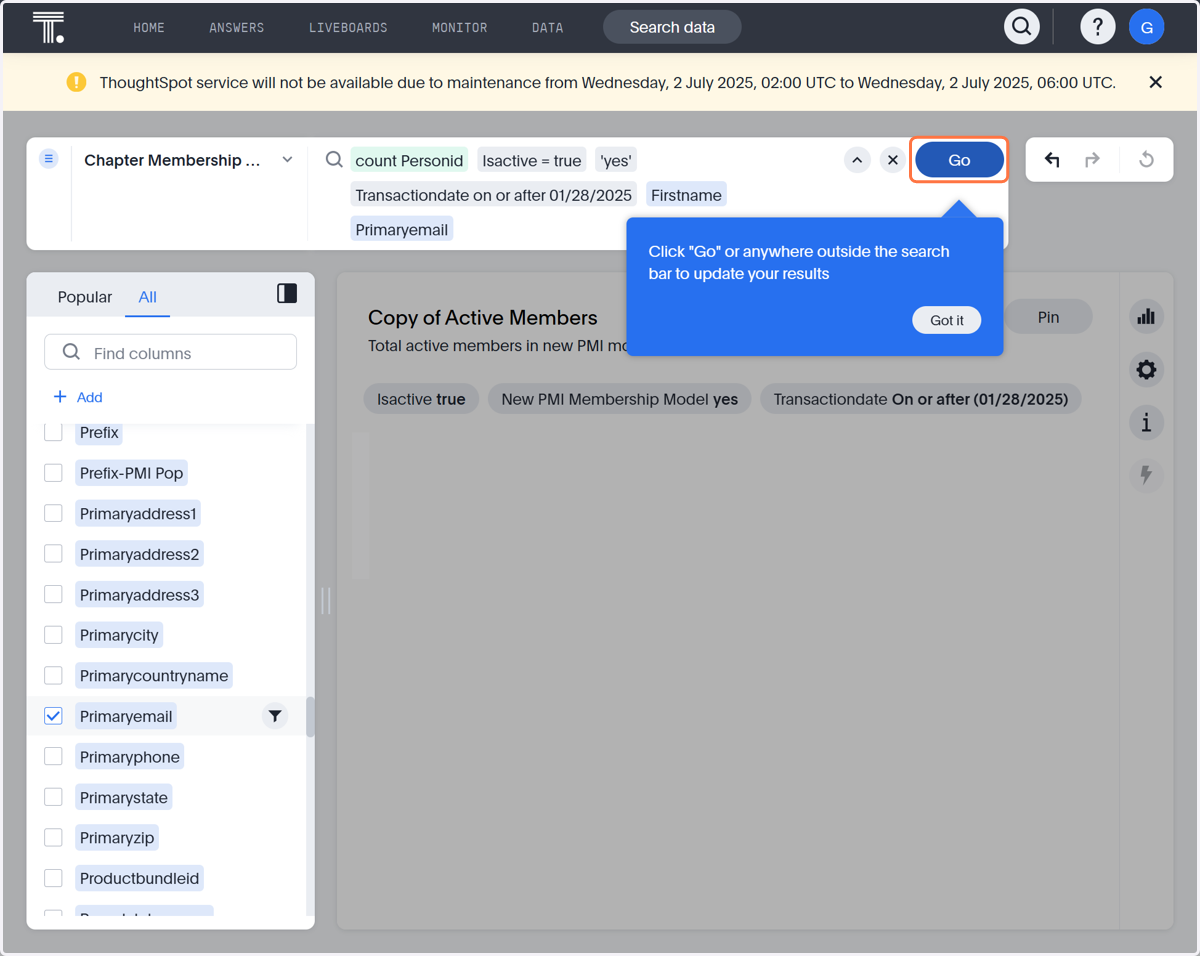
9. Click on Go
10. Click on View table to view your list of Active members under the new PMI Membership Model.