How to Update Your Staff Information on the Royal Oak Schools Website
Follow the directions below to update your staff photo and bio on the district website.
Home - Royal Oak Schools
Go to https://royaloakschools.ss20.sharpschool.com/ and log in with your website credentials. Use the same username and password you use to log into your work device.
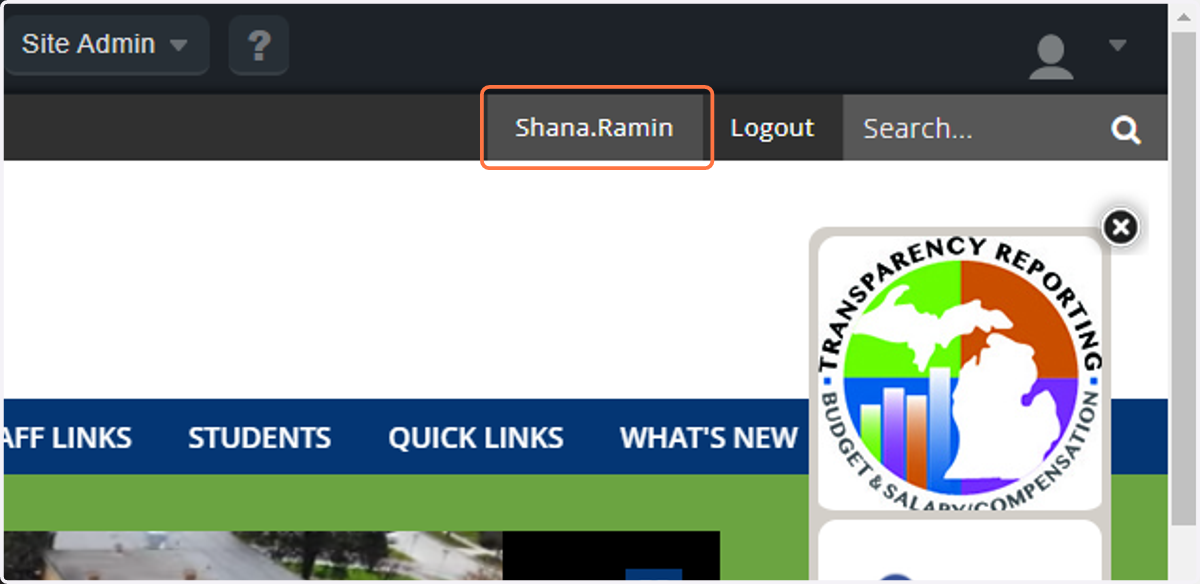
1. Click on your username in the upper right corner
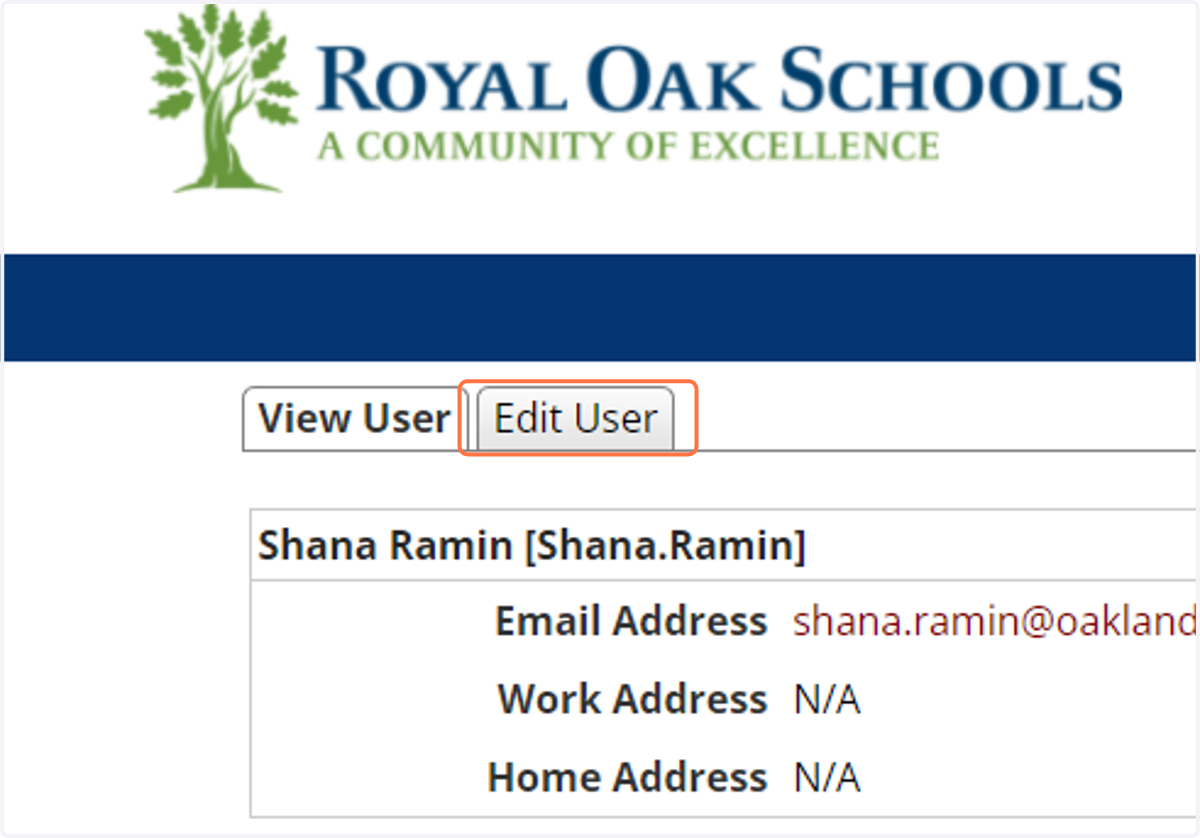
2. Click on Edit User
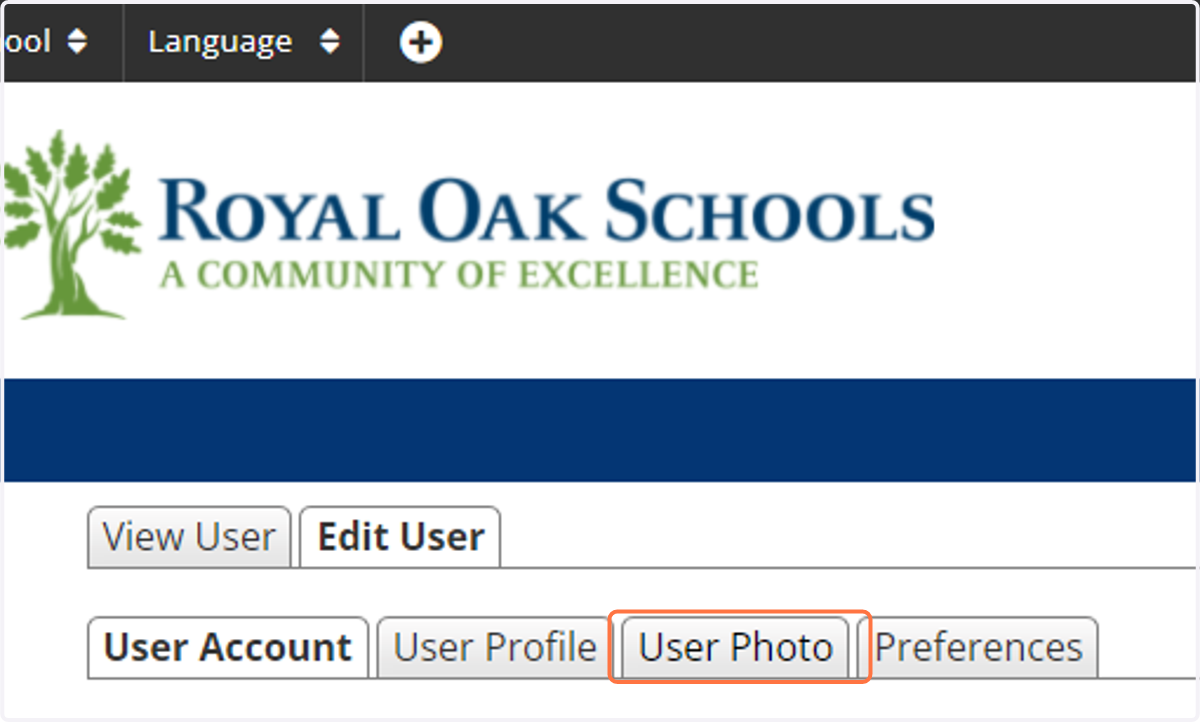
3. Click on User Photo
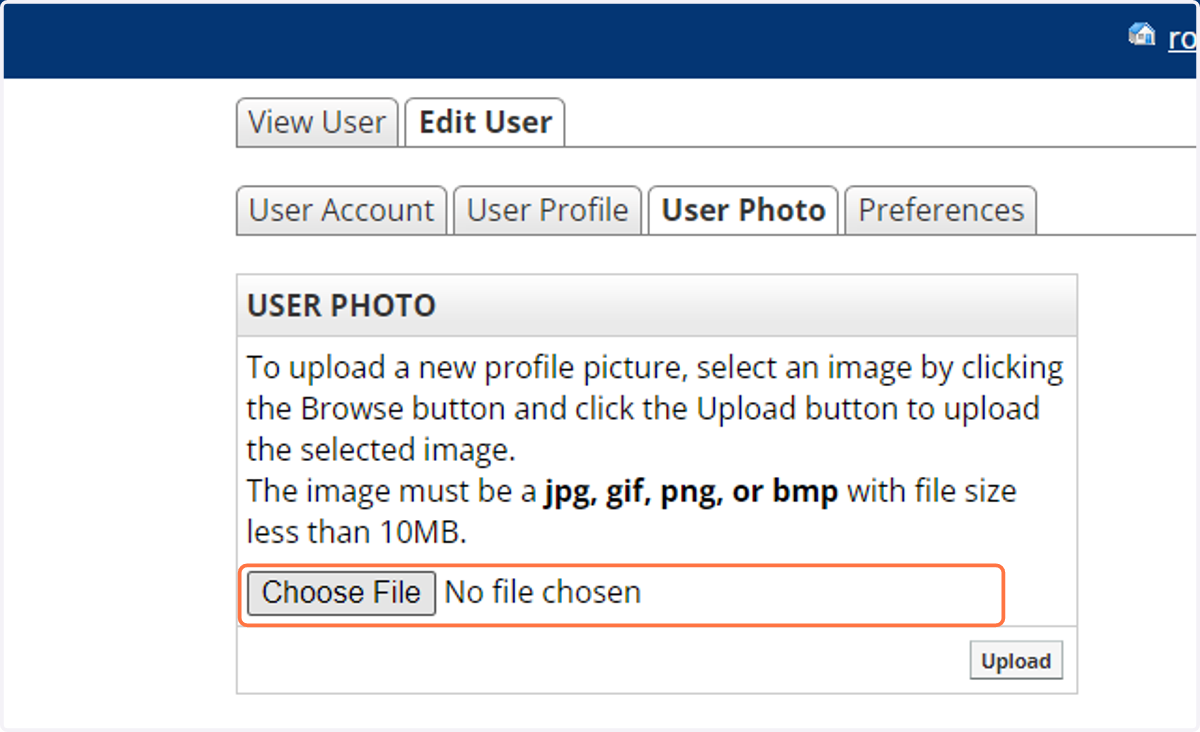
4. Click Choose File to select a photo. You can choose a jpg, gif, png, or bmp photo file for your profile image.
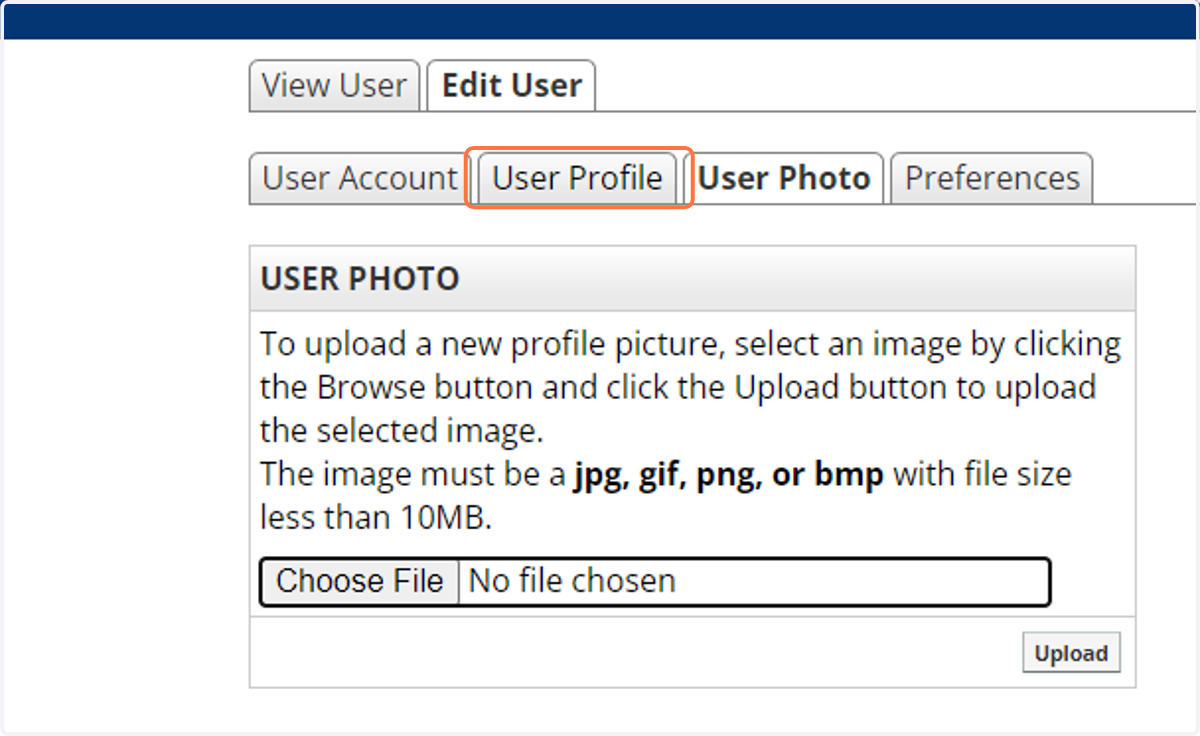
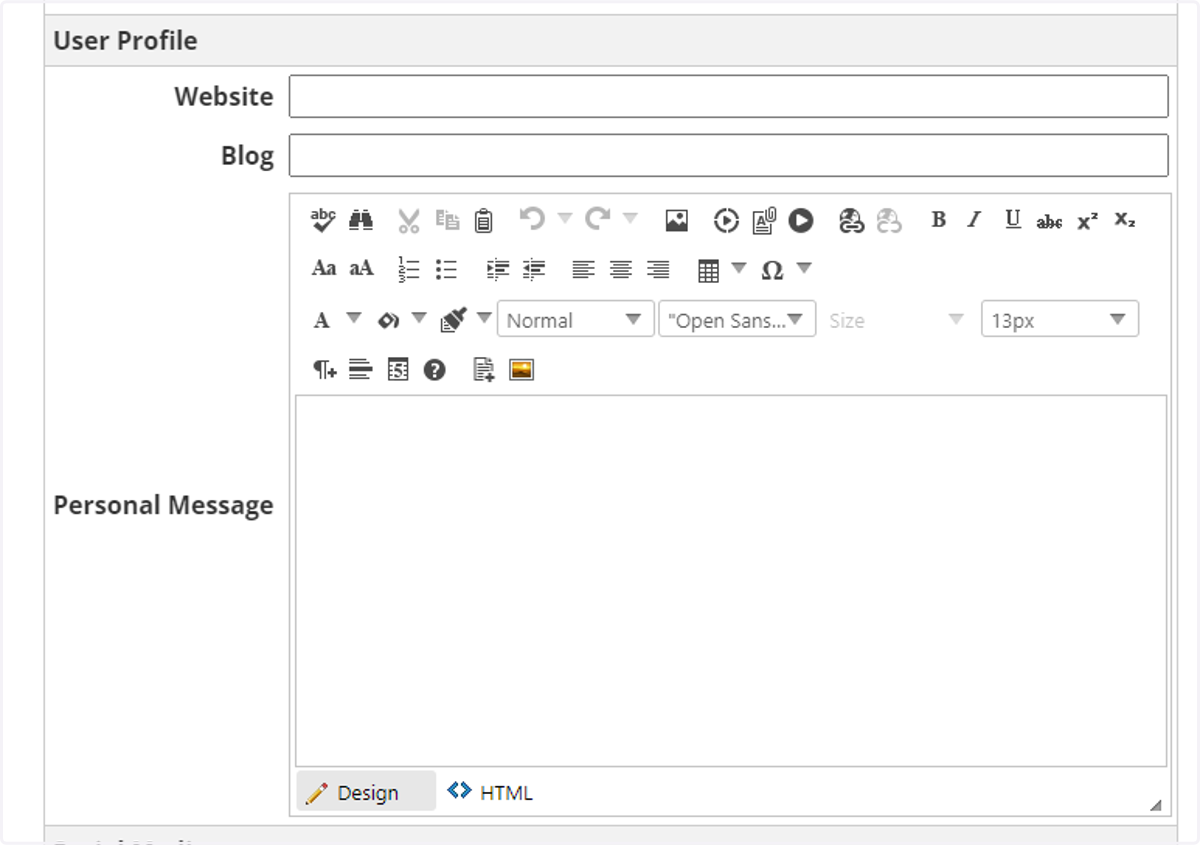
5. Click on User Profile
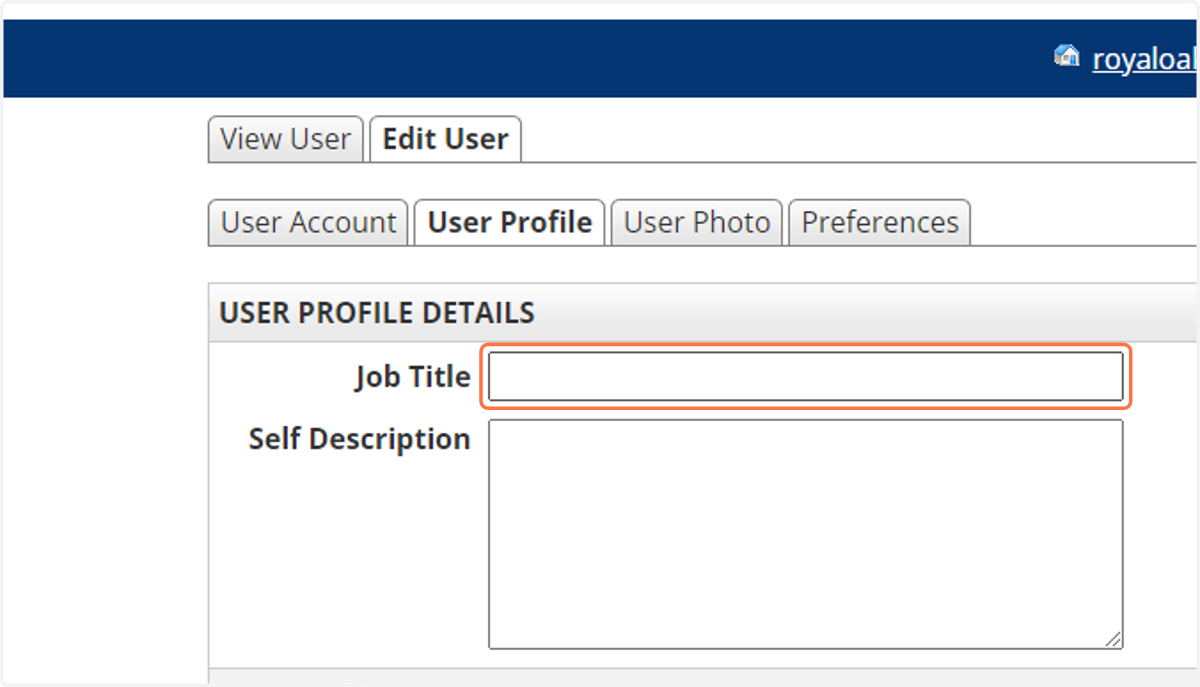
6. Enter your Job Title
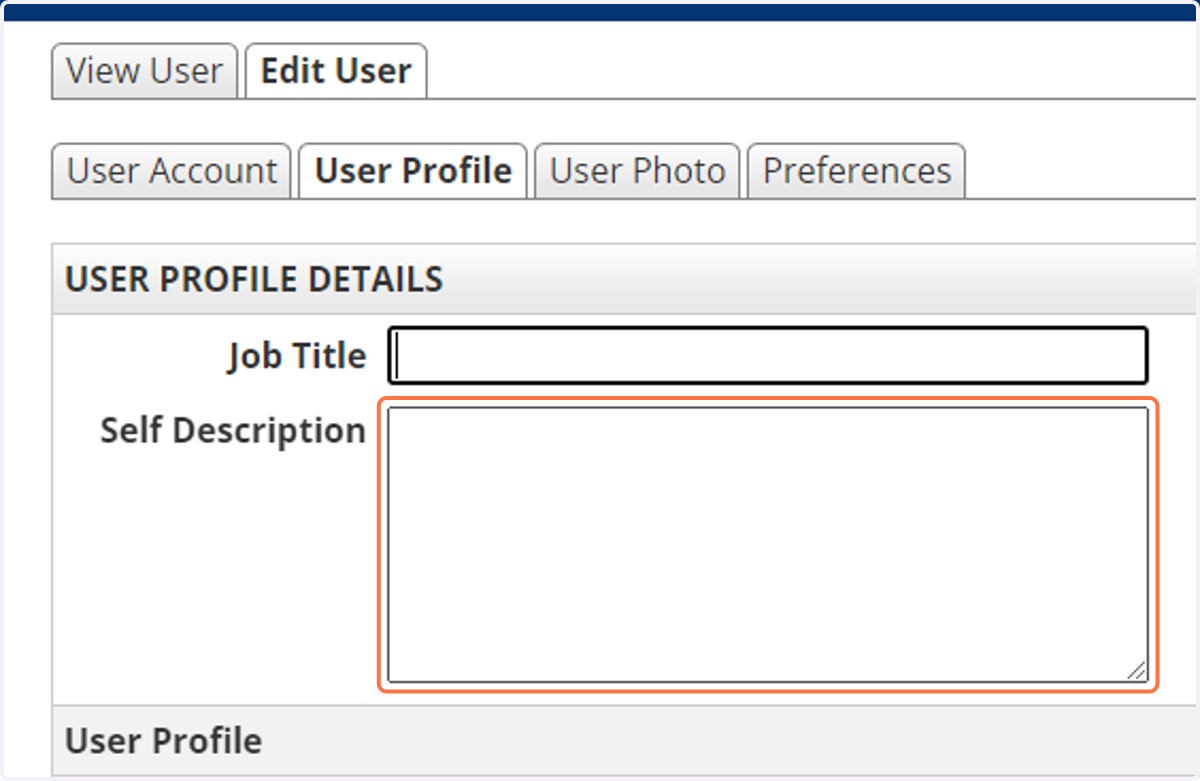
7. Enter an optional Self Description that will be used as your biography in the Staff Directory
8. Enter any other details you want to add, such as a class website or blog. Remember that this is a public-facing website so make sure not to include any sensitive information. Any fields left blank will not be displayed as part of your profile.
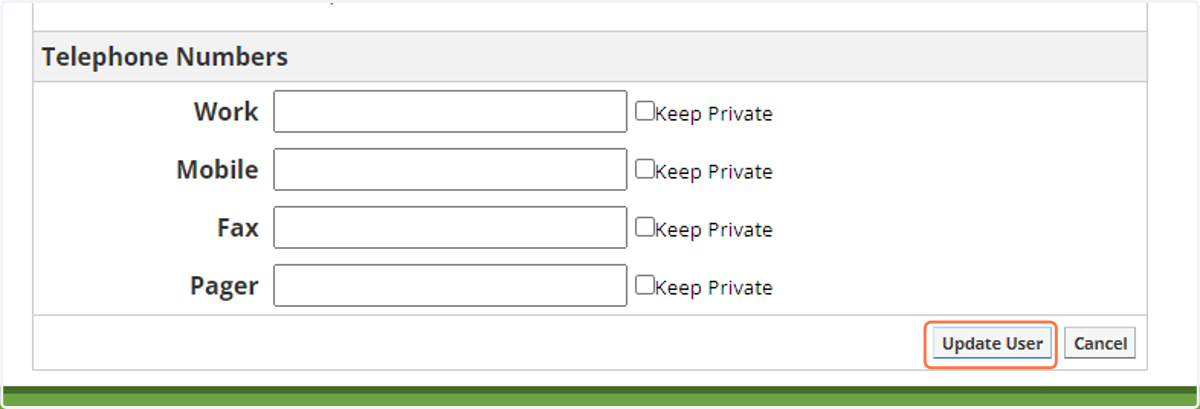
9. Click on Update User at the bottom to save your changes.