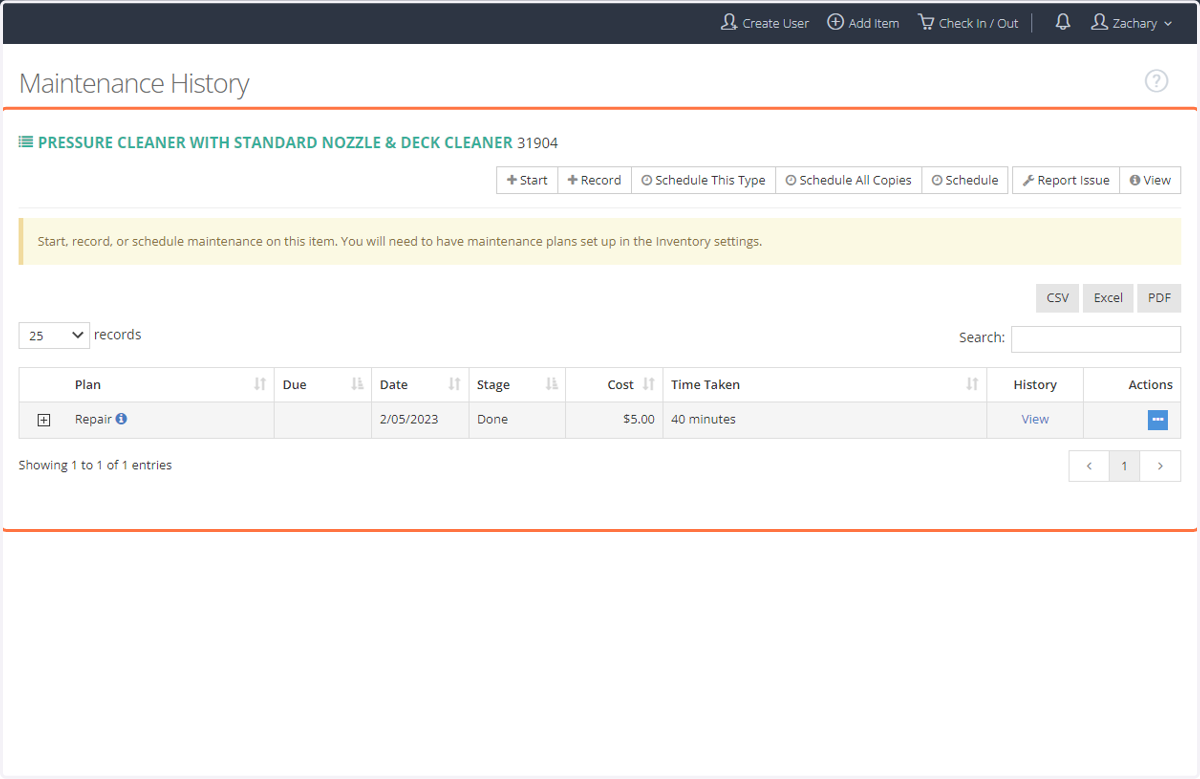
How to Update Maintenance Records
Myturn
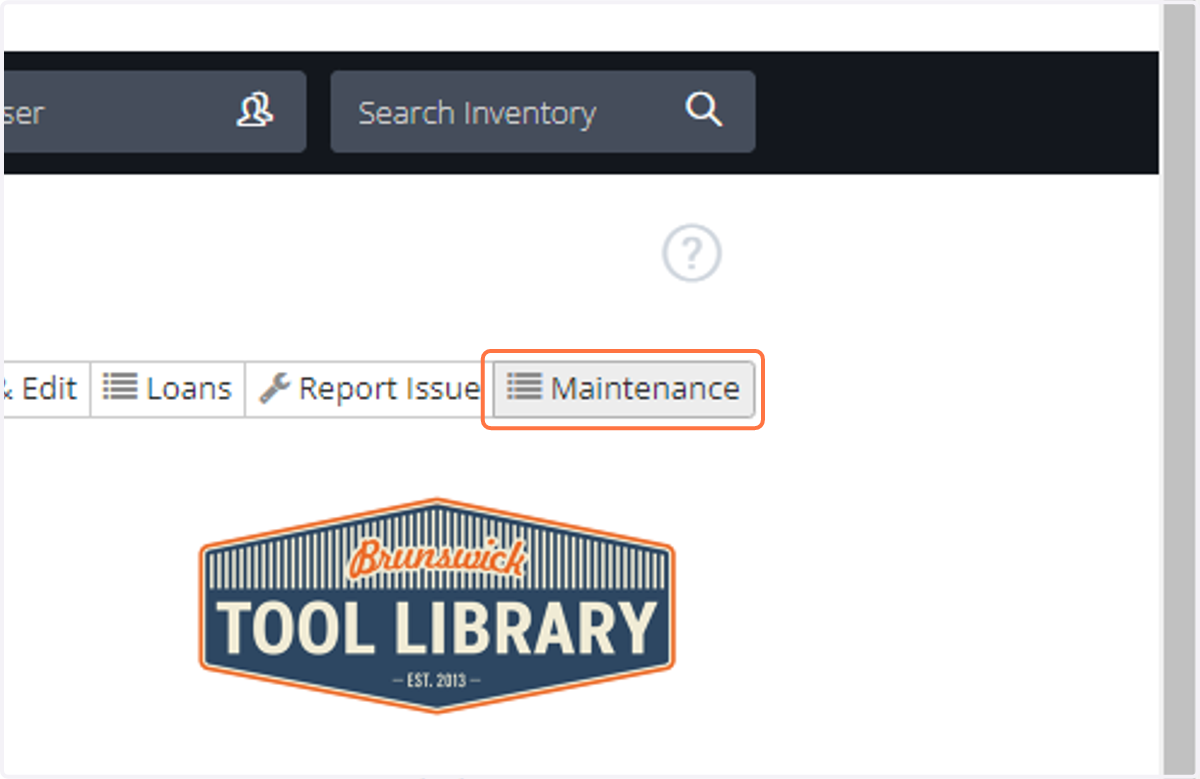
1. Starting from the tool that requires maintenance, Click on Maintenance
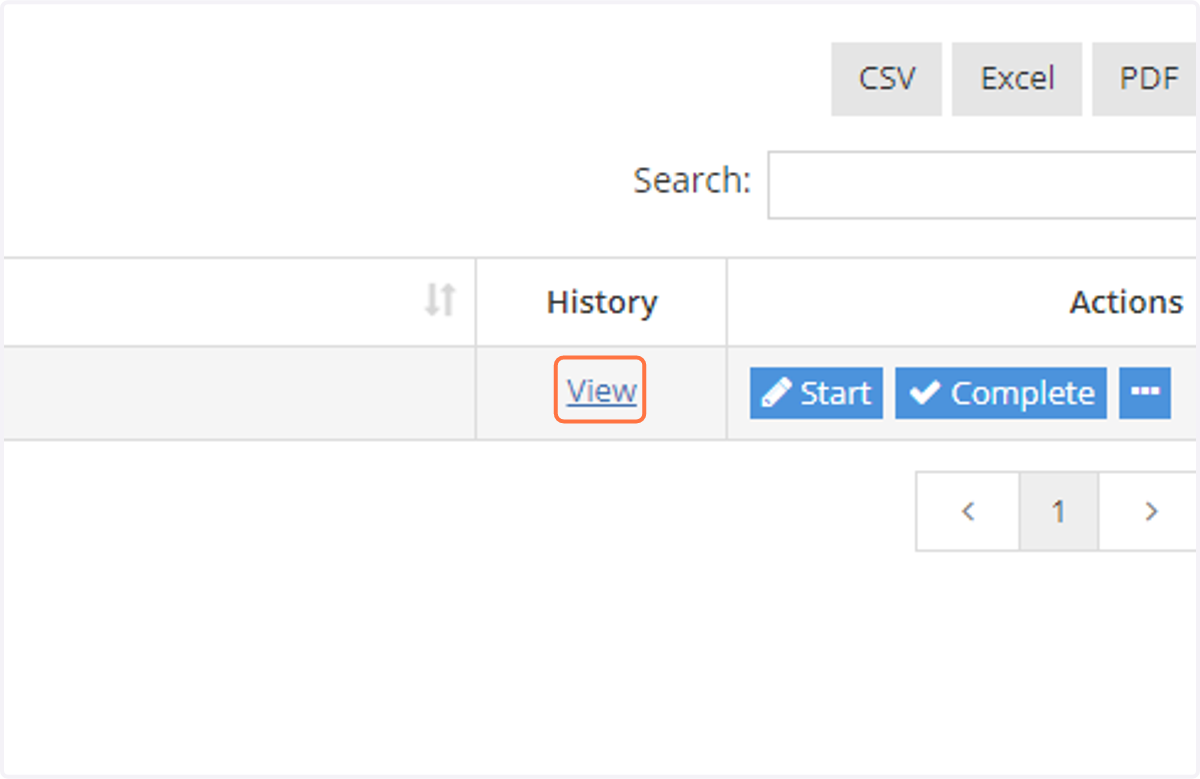
2. Click on View
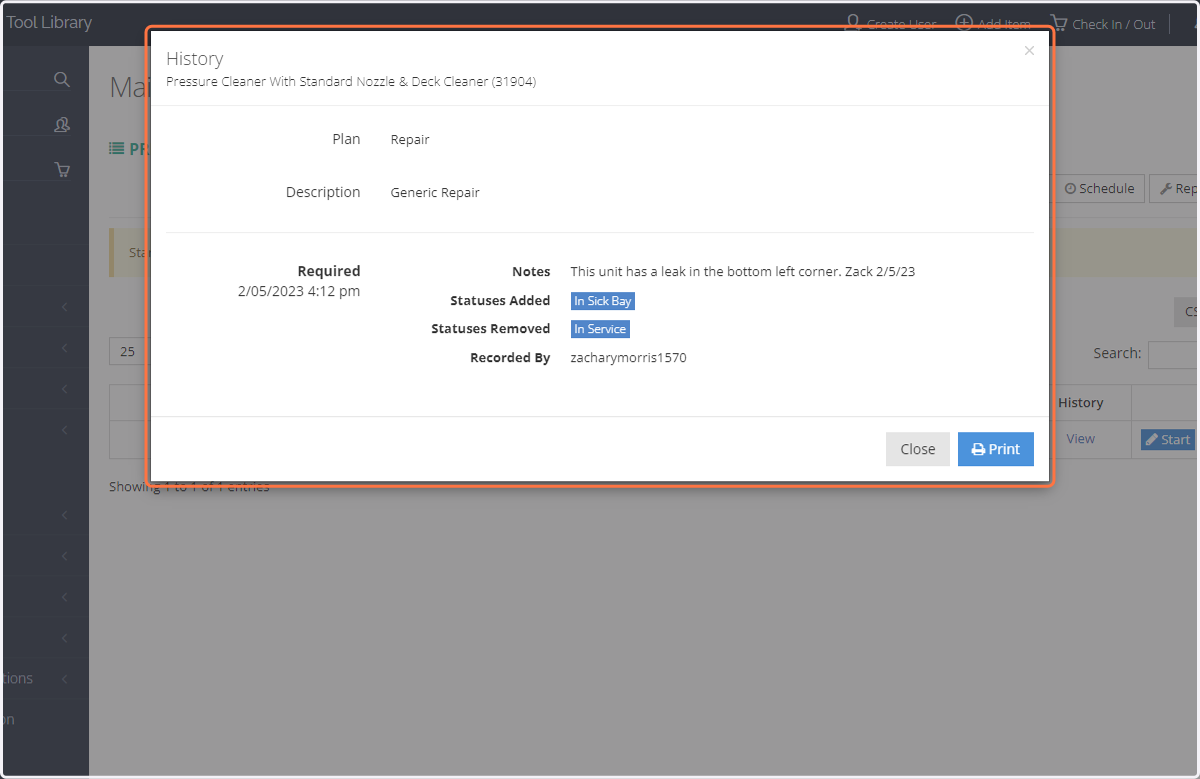
3. In the pop-up window, read the notes from the reporting librarian.
Close the window when finished.
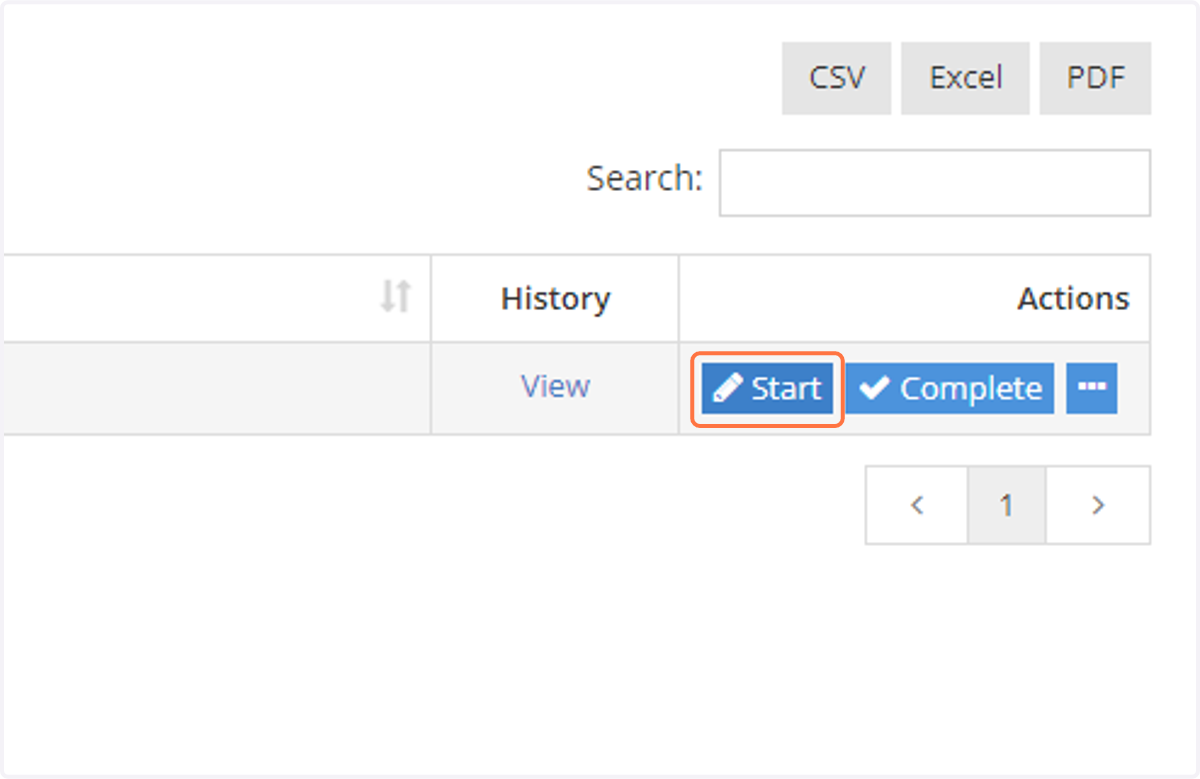
4. To Start Maintenance, but not finish it - Click on Start
Note you can "Complete" maintenance immediately if there is no delay required. In some cases you want to start the maintenance but the item cannot be immediately returned to service. This is the case for using "Start"
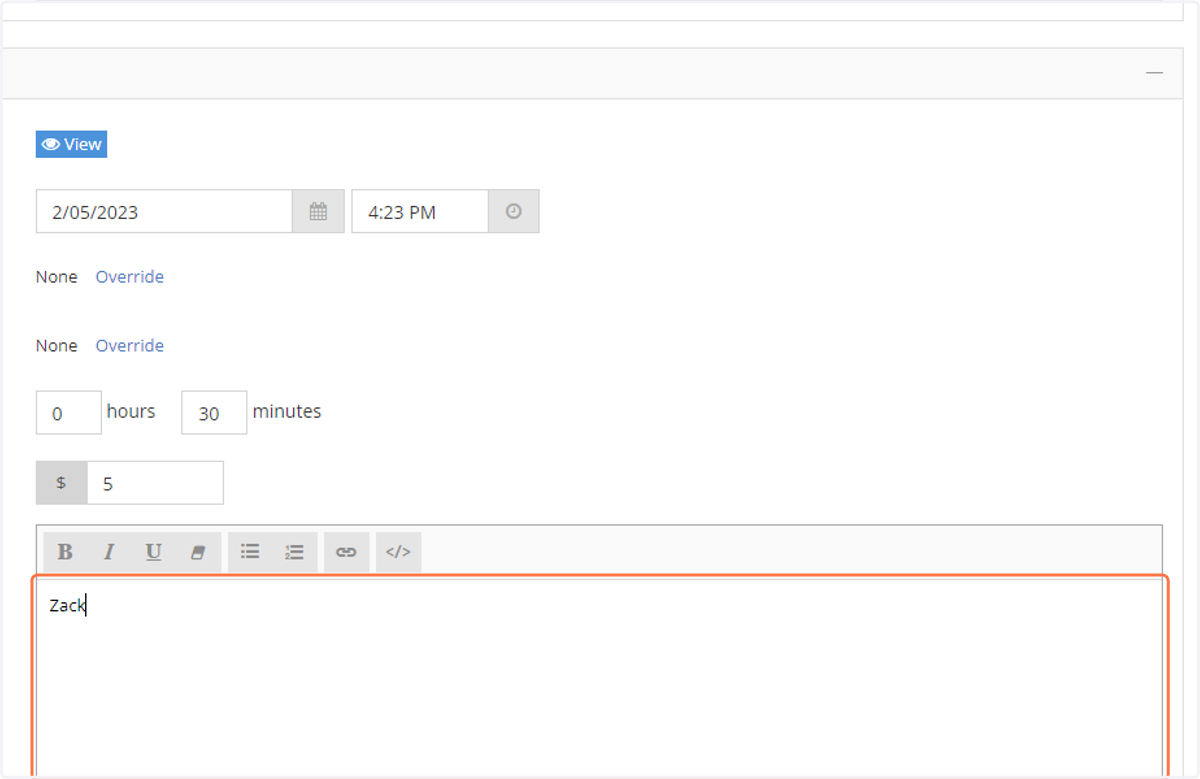
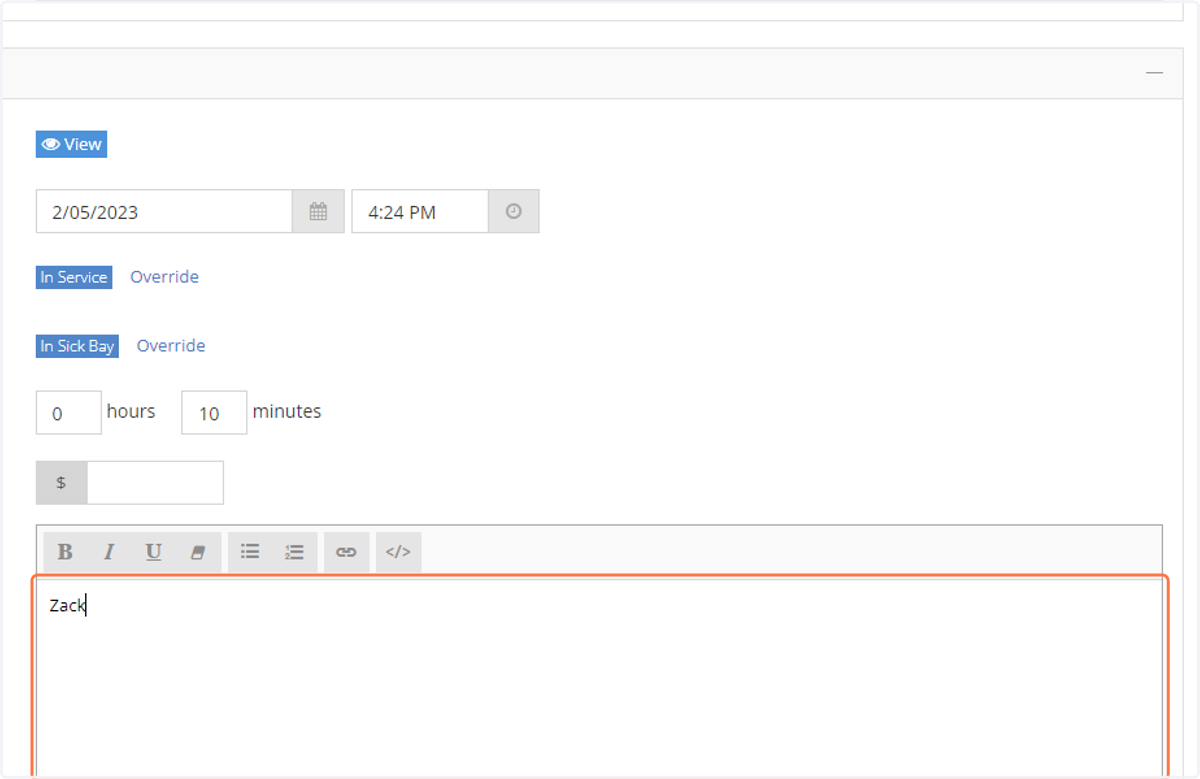
5. Add a new line to the Notes field and add notes detailing the in-progress repair.
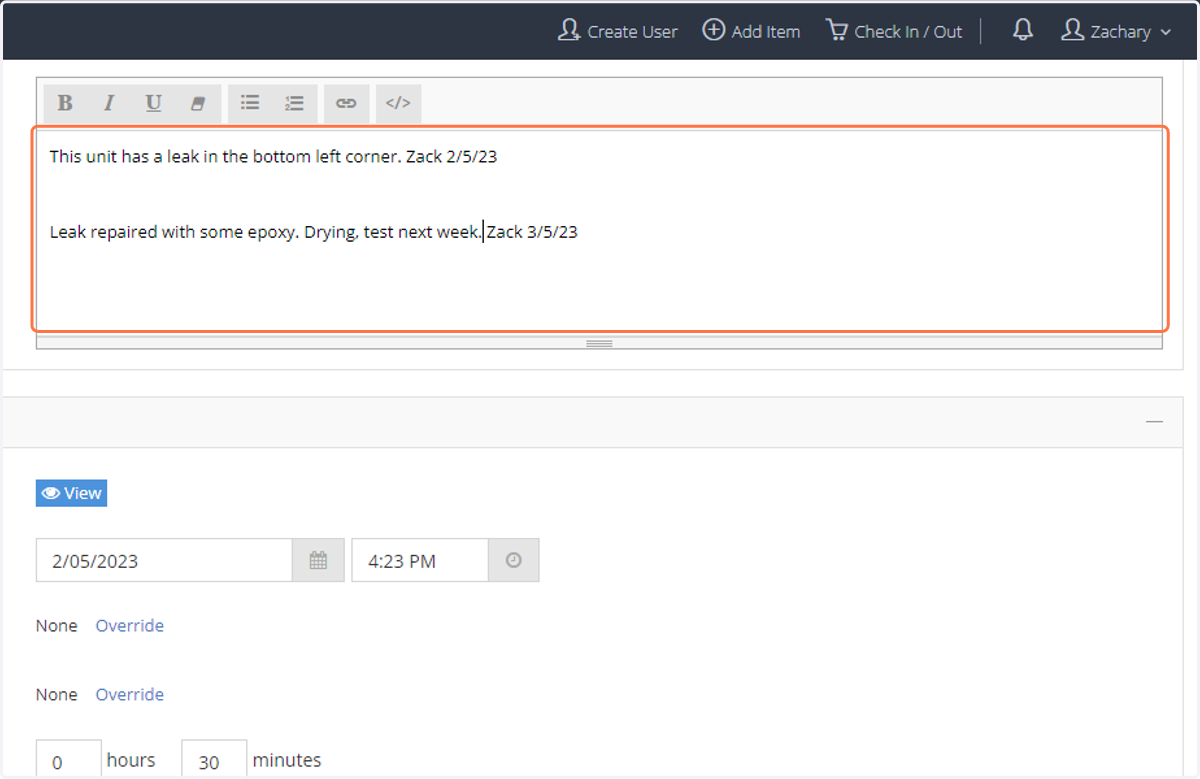
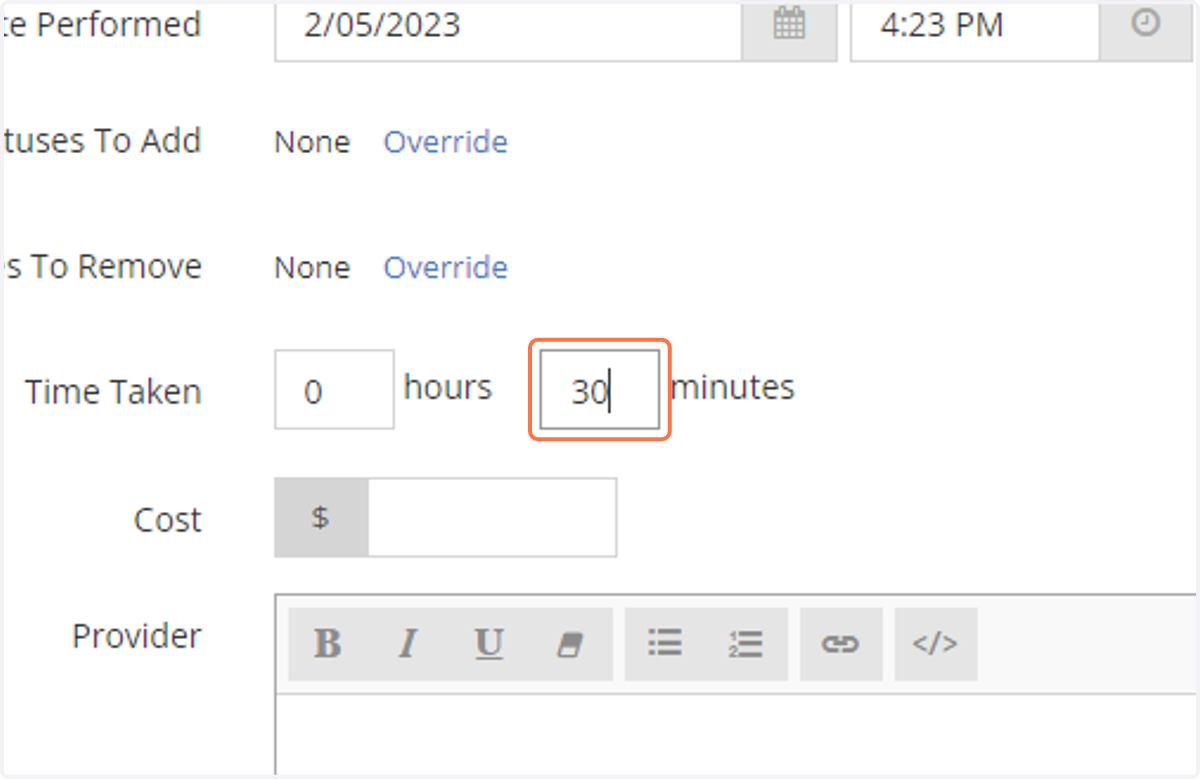
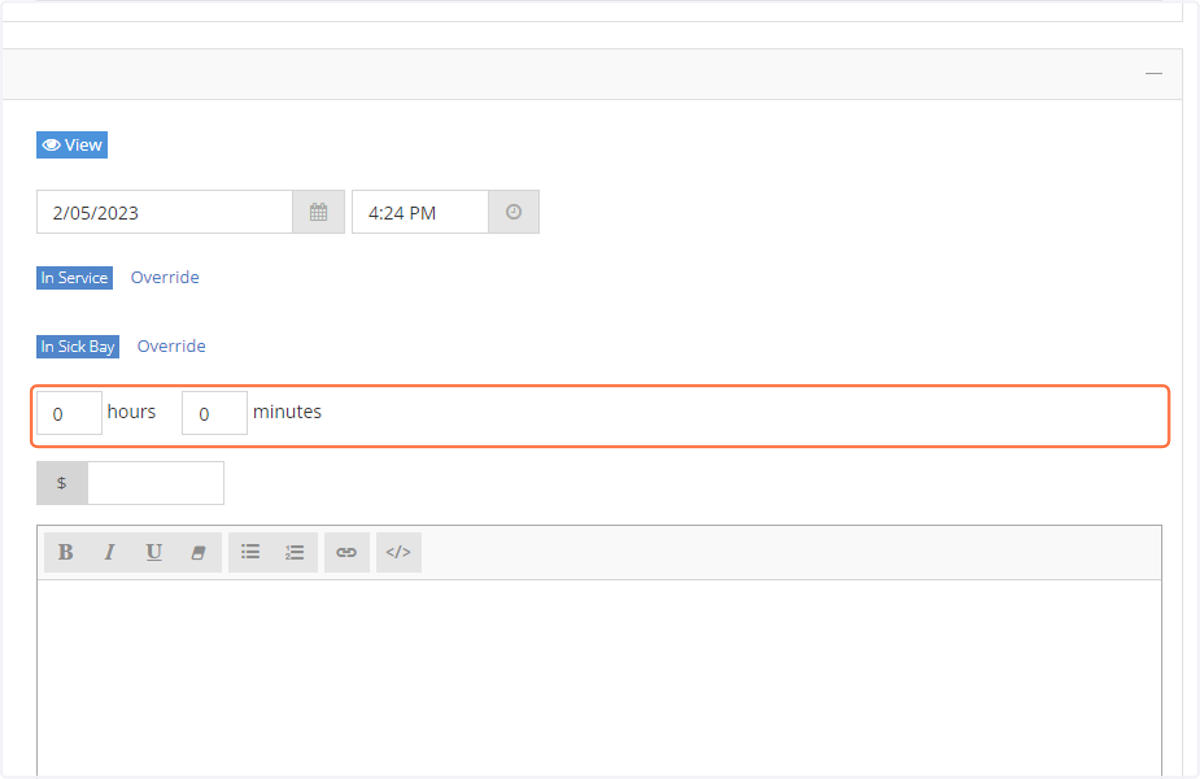
6. Add an estimate of the amount of time required for this repair.
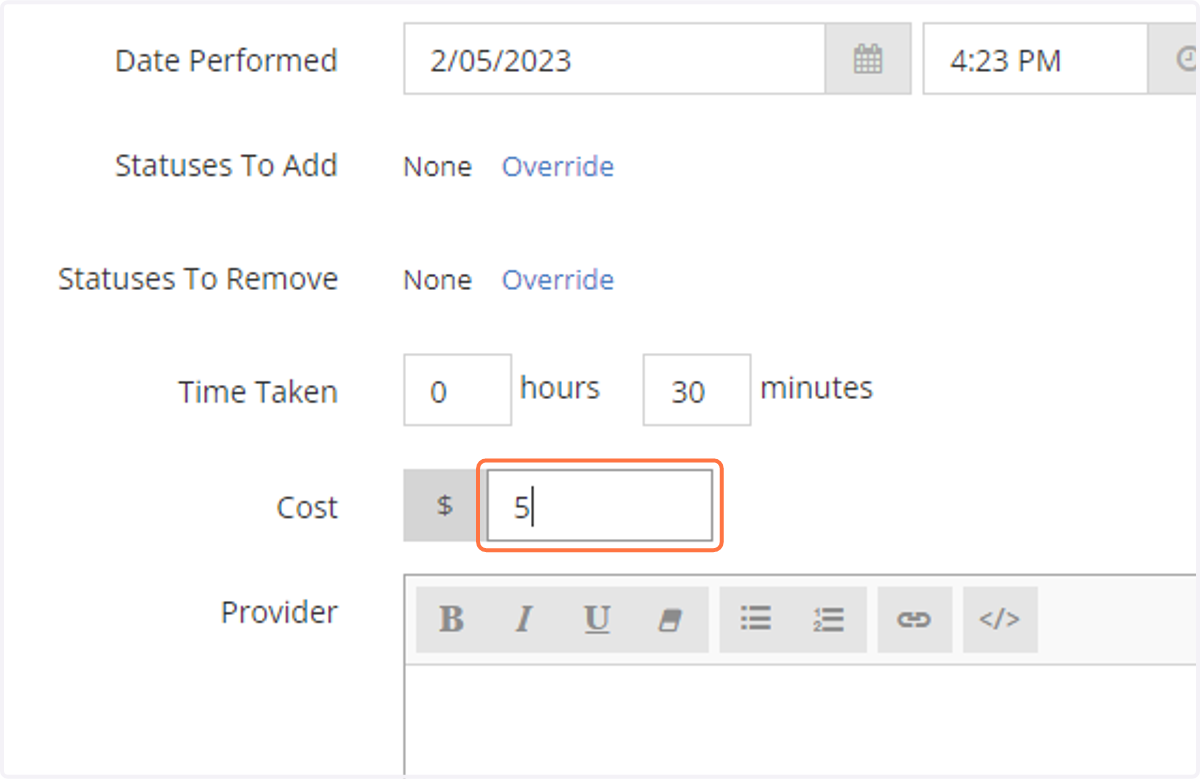
7. If there was any cost for the maintenance, add the cost.
8. In "Provider" add your name, or the name of the professional provider if professional service has been provided.
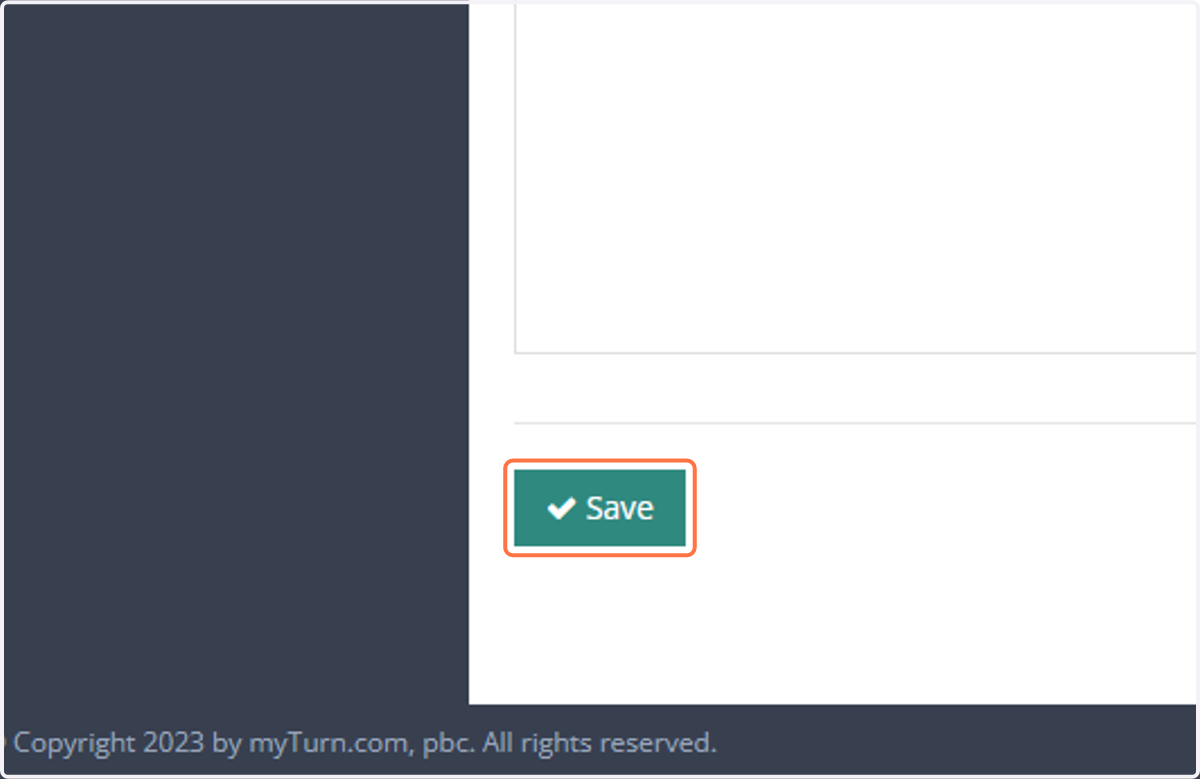
9. Click on Save
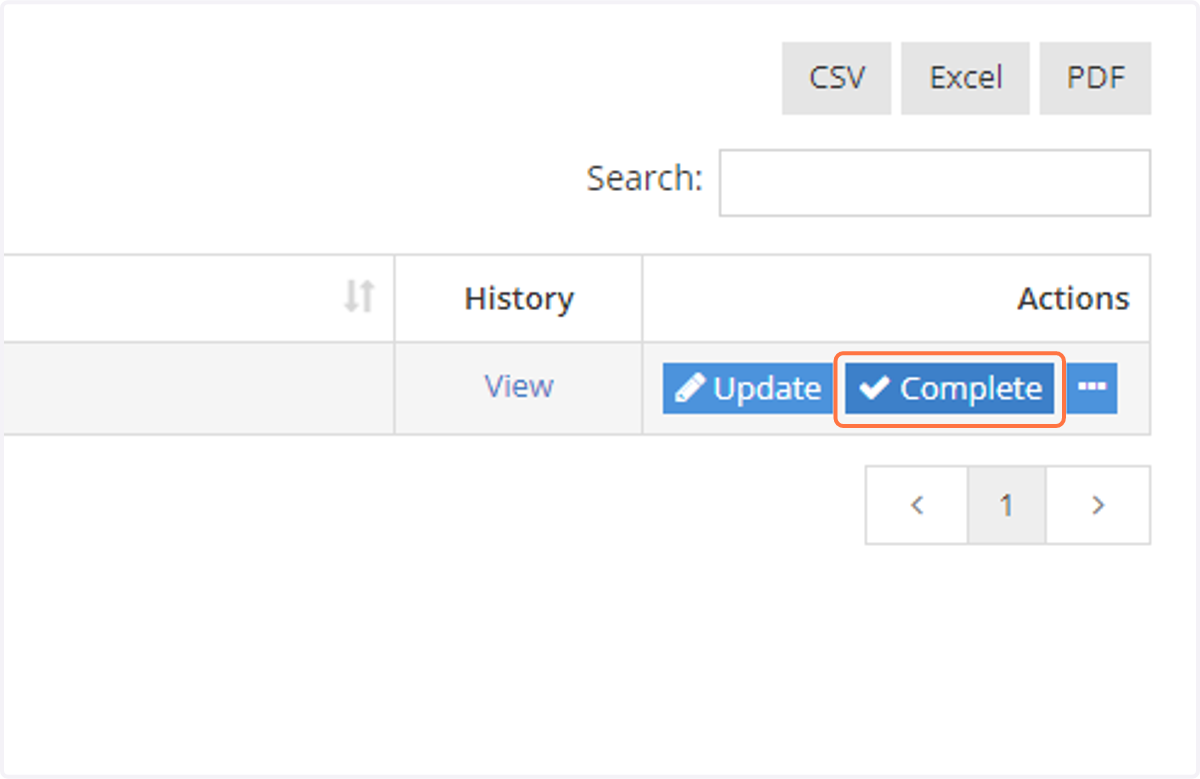
10. Once the tool is ready to be returned to service, use the "Complete" button in the Maintenance tab. For repairs where the tool is immediately ready to return to service, you can use "Complete" without using "Start"
For repairs with multiple attempts before the tool is ready to return to service, use the "Update" button to add to the existing notes while keeping the tool out of service.
11. Update notes
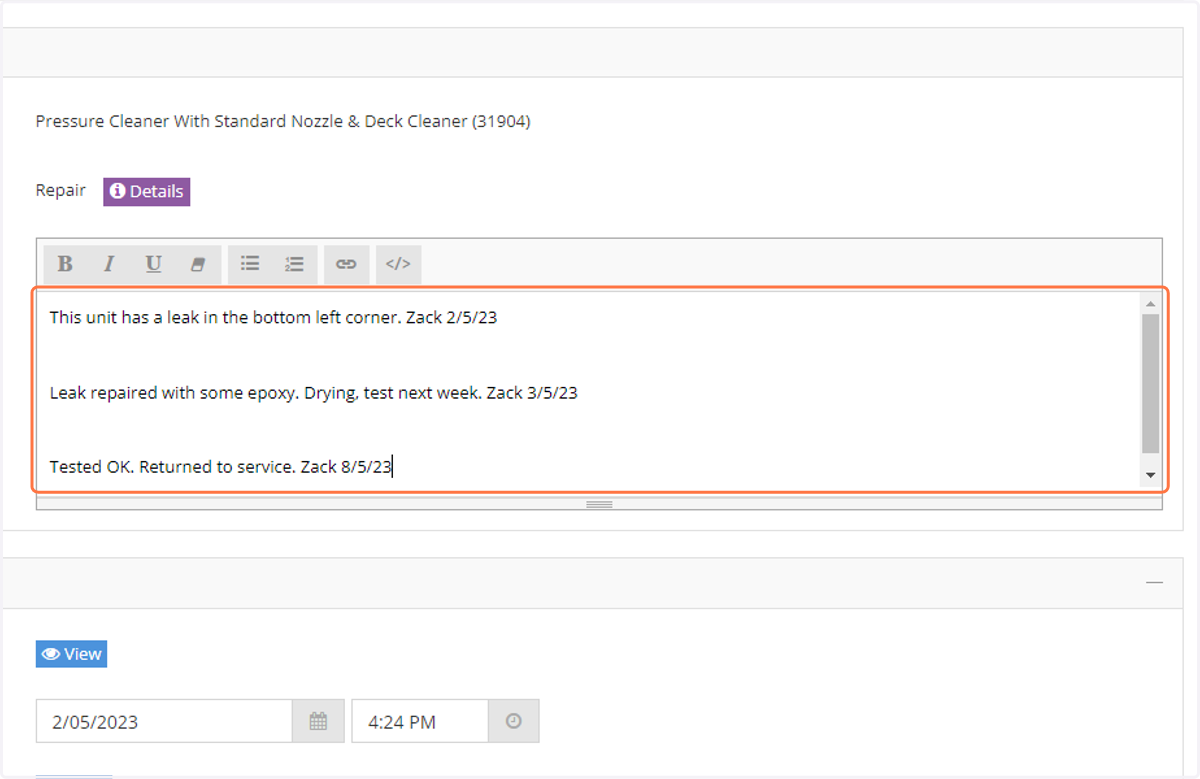
12. Add an estimate of the amount of time required for this repair - this will add to the earlier estimate for the first step.
13. Add the provider name - the different steps of the repair may be performed by different people.
14. Click on Save
15. This process results in a nice history of repairs and maintenance on the tools.