How to Submit an Application for Accommodations
1. Log into the AIM Portal - https://blackburn.accessiblelearning.com/OU/Start
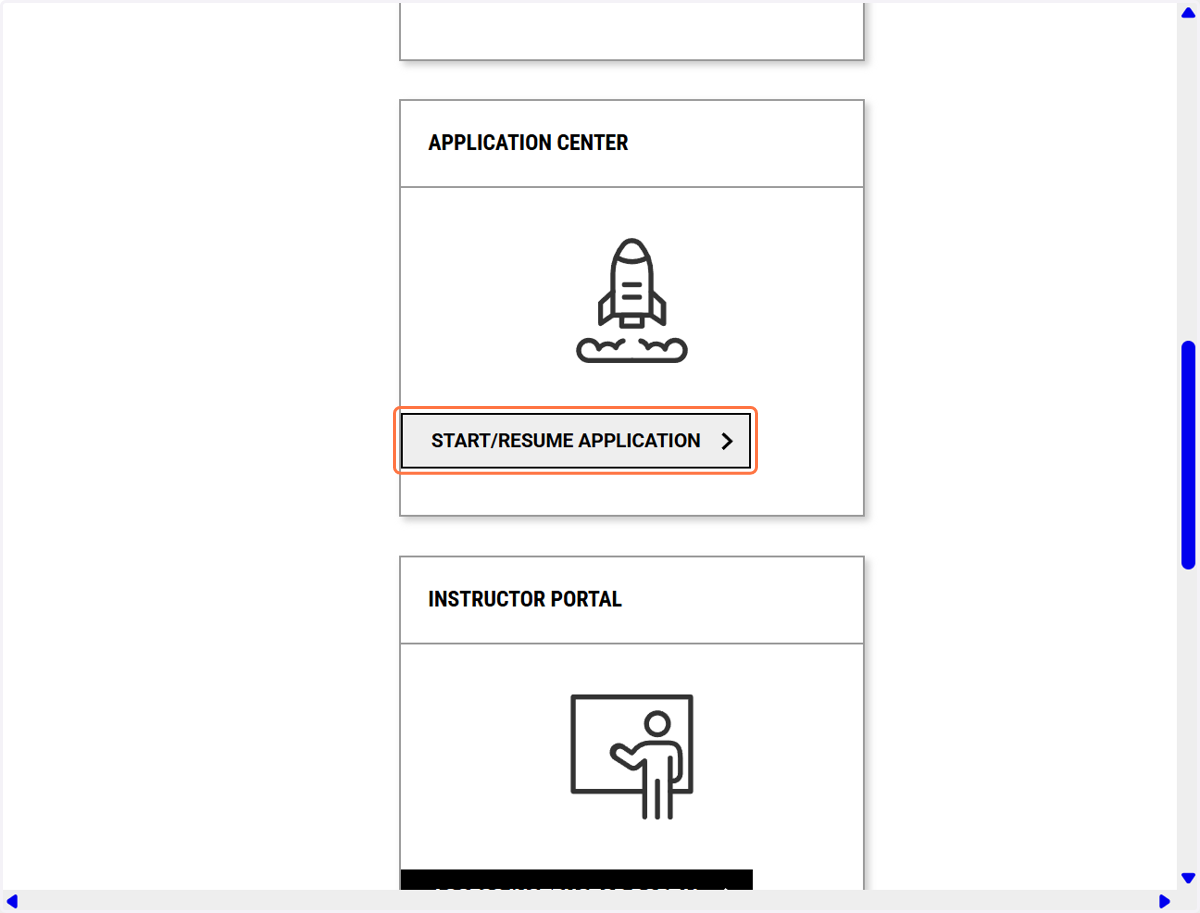
Open the Application Center’s start/resume flow to begin an accommodations application.
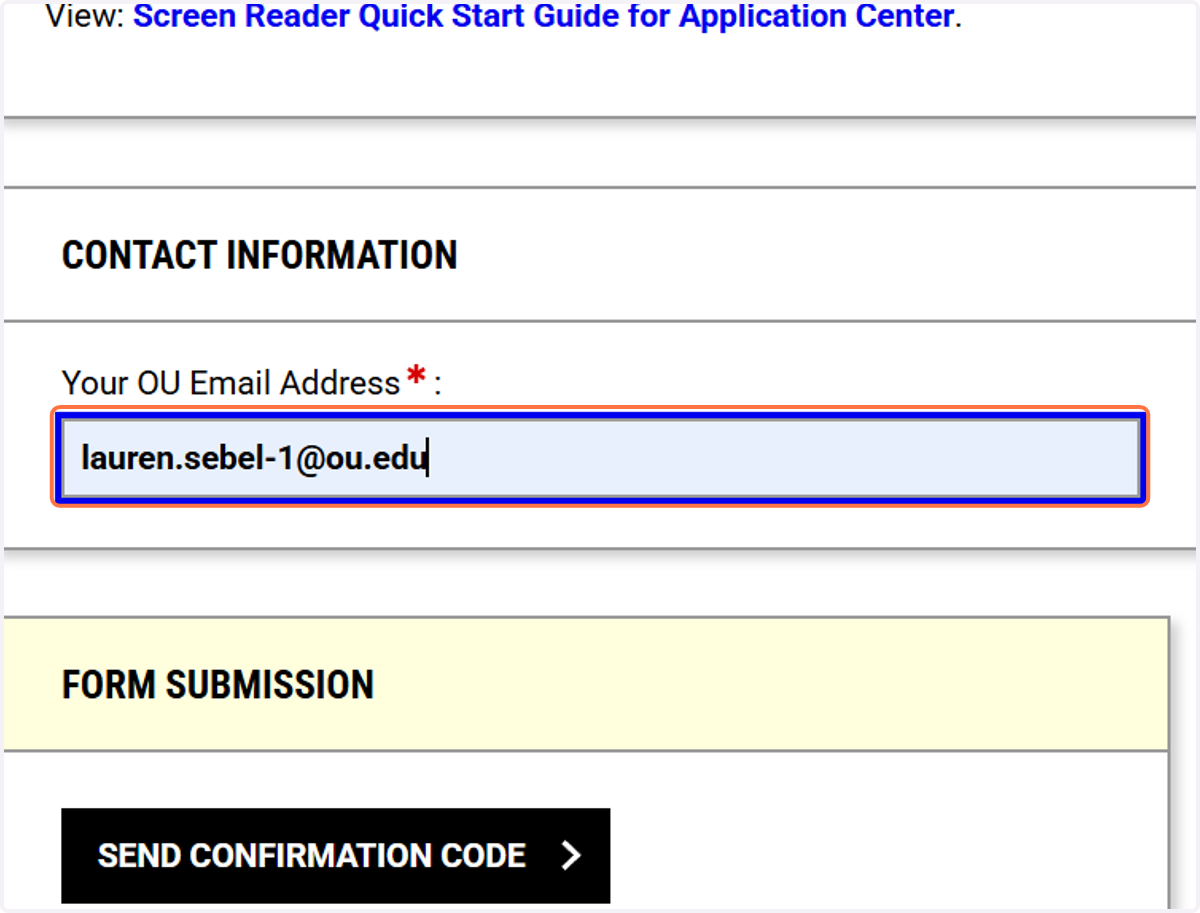
2. Enter in your contact information
You will need to use your OU email (example: Susie.Student-1@ou.edu) Enter your OU email address to receive a login verification code.
3. Click on SEND CONFIRMATION CODE
Request the confirmation code to be sent to your email inbox.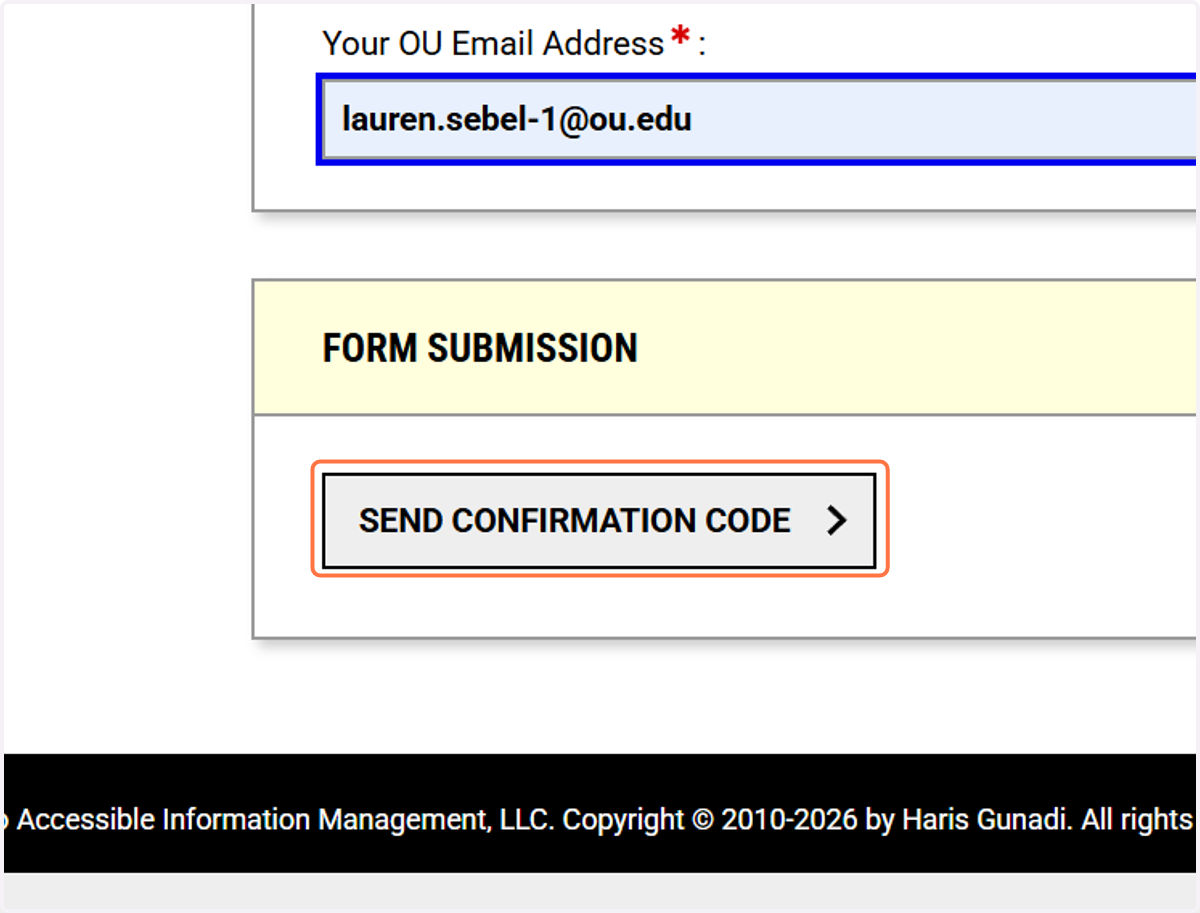
4. Enter in the authentication code you receive in email.
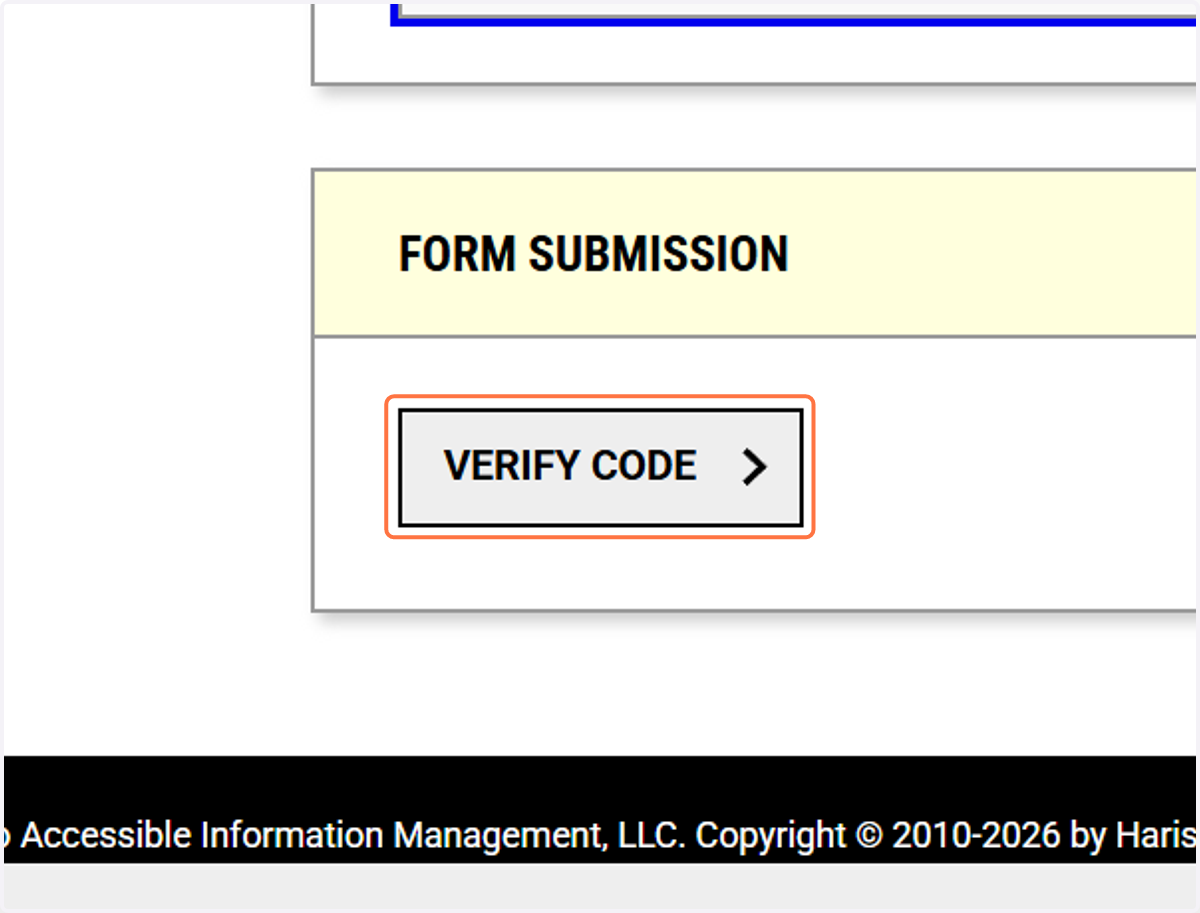
Click on Verify Code
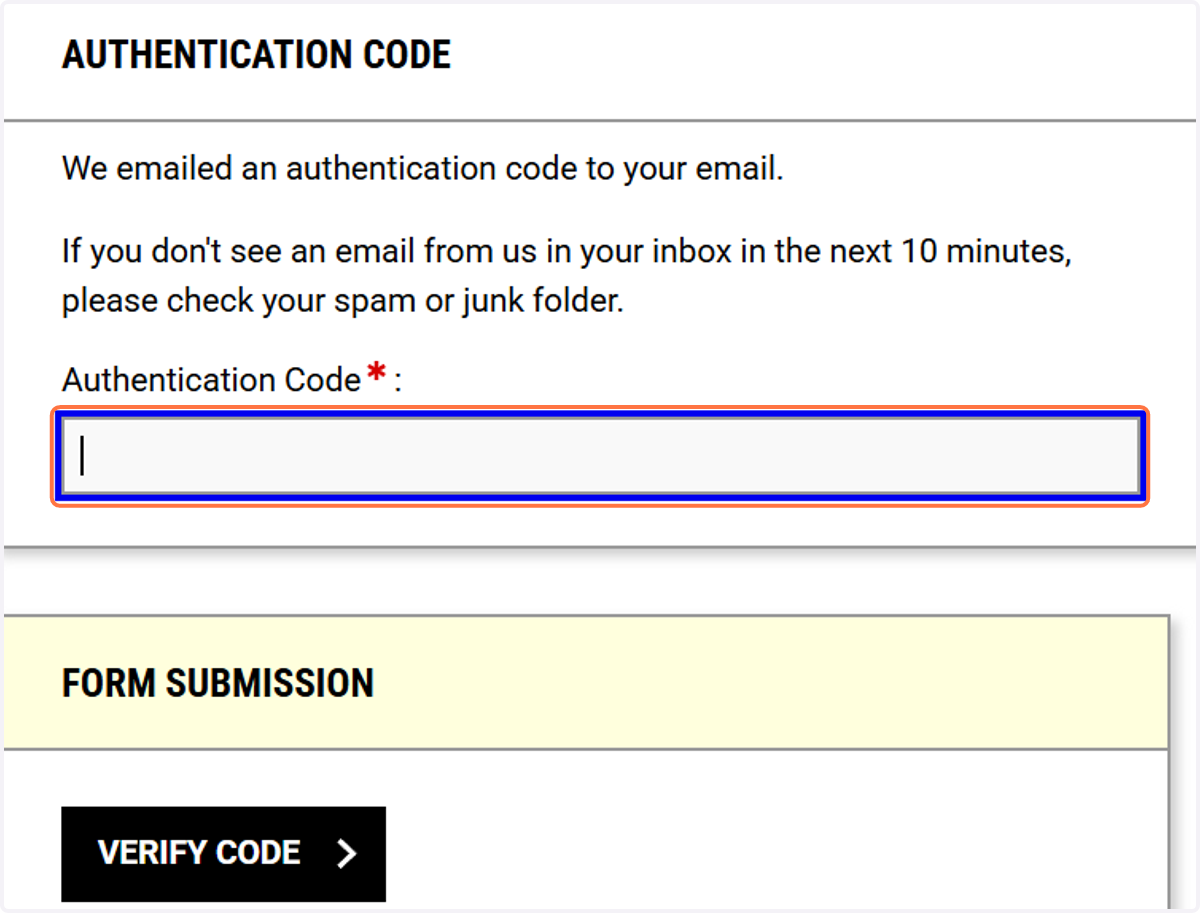
5. You will receive an email from the ADRC with the authentication code.
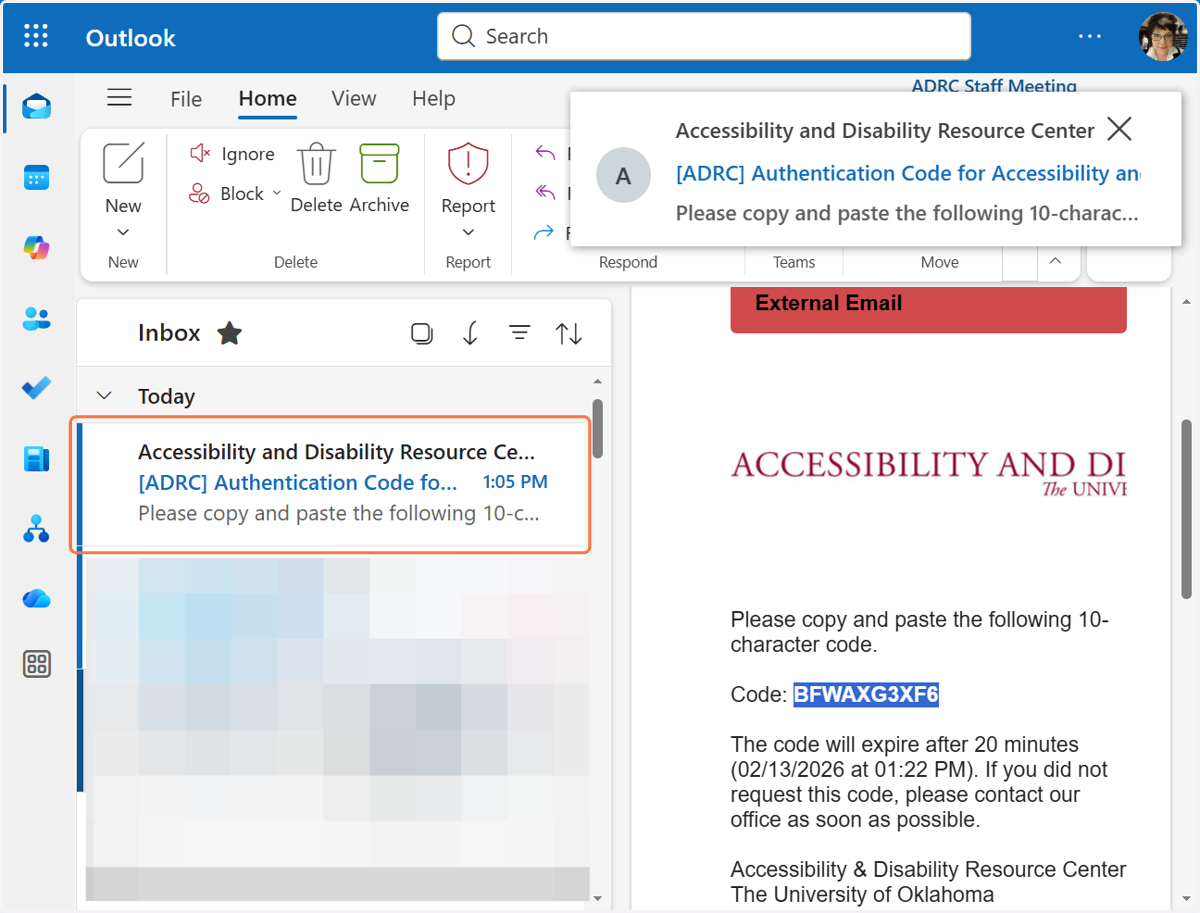
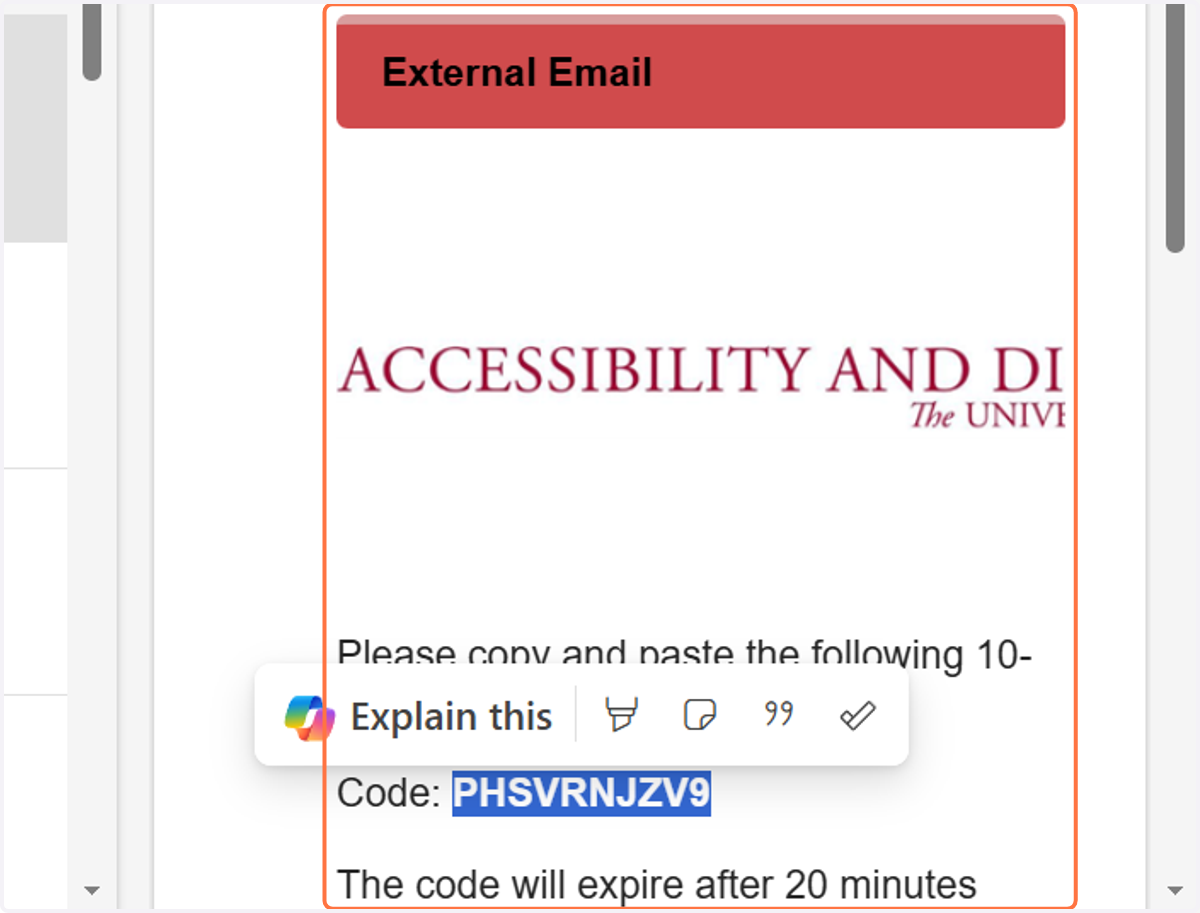
6. Copy the authentication code from the email message.
7. Paste the confirmation code into the Authentication Code field.
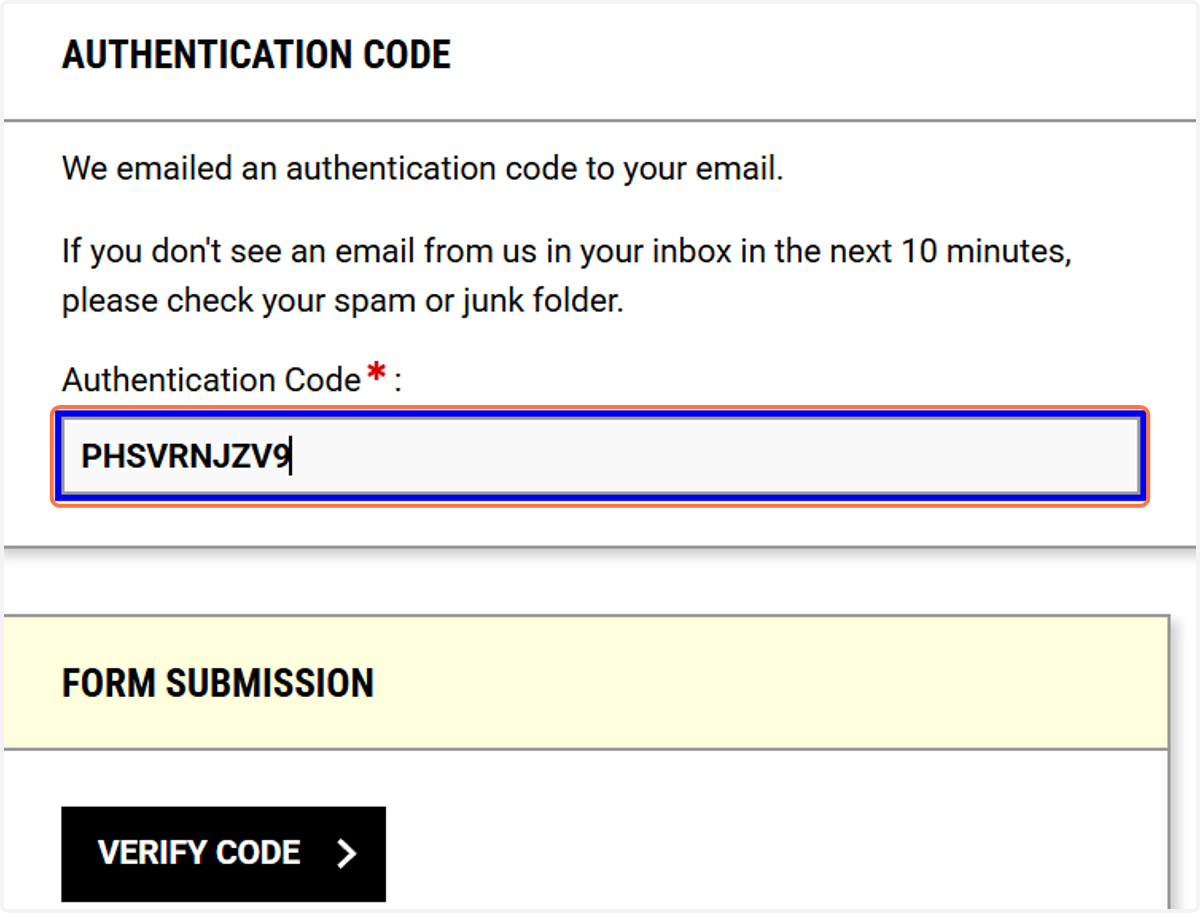
8. Click Verify Code to sign in and continue the application.
9. Click on START NEW APPLICATION
Start a new Student Application from the list of available applications.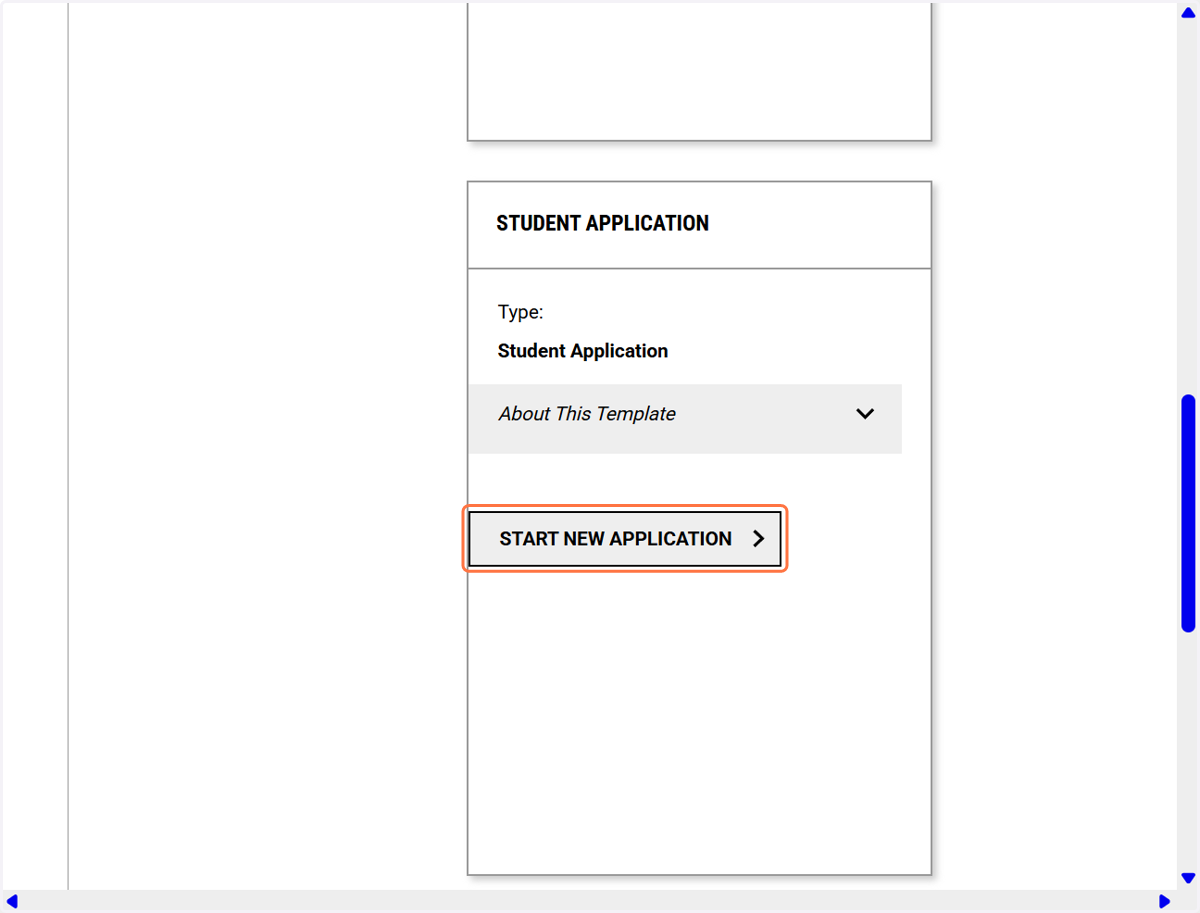
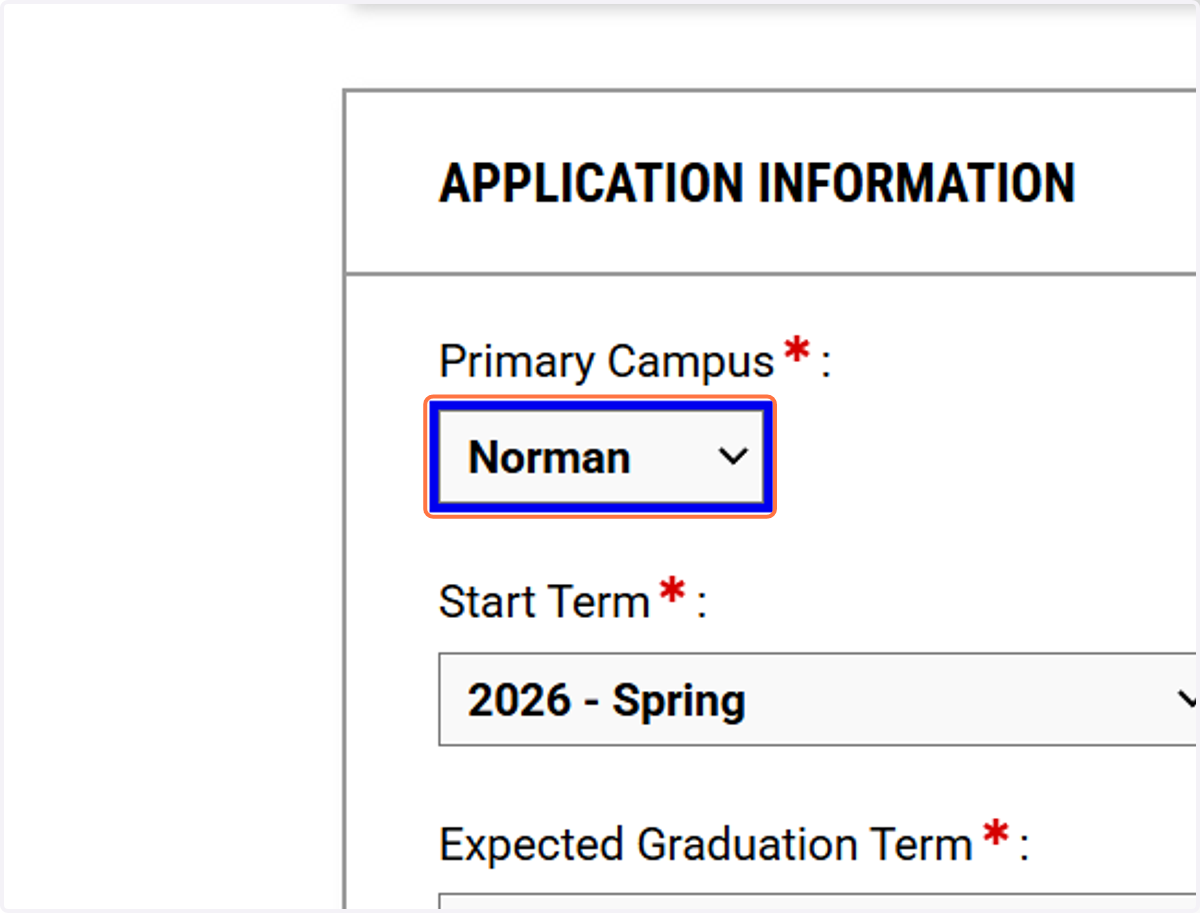
10. Select your campus and semester from the drop down menus
Currently, only the Norman campus is an option.
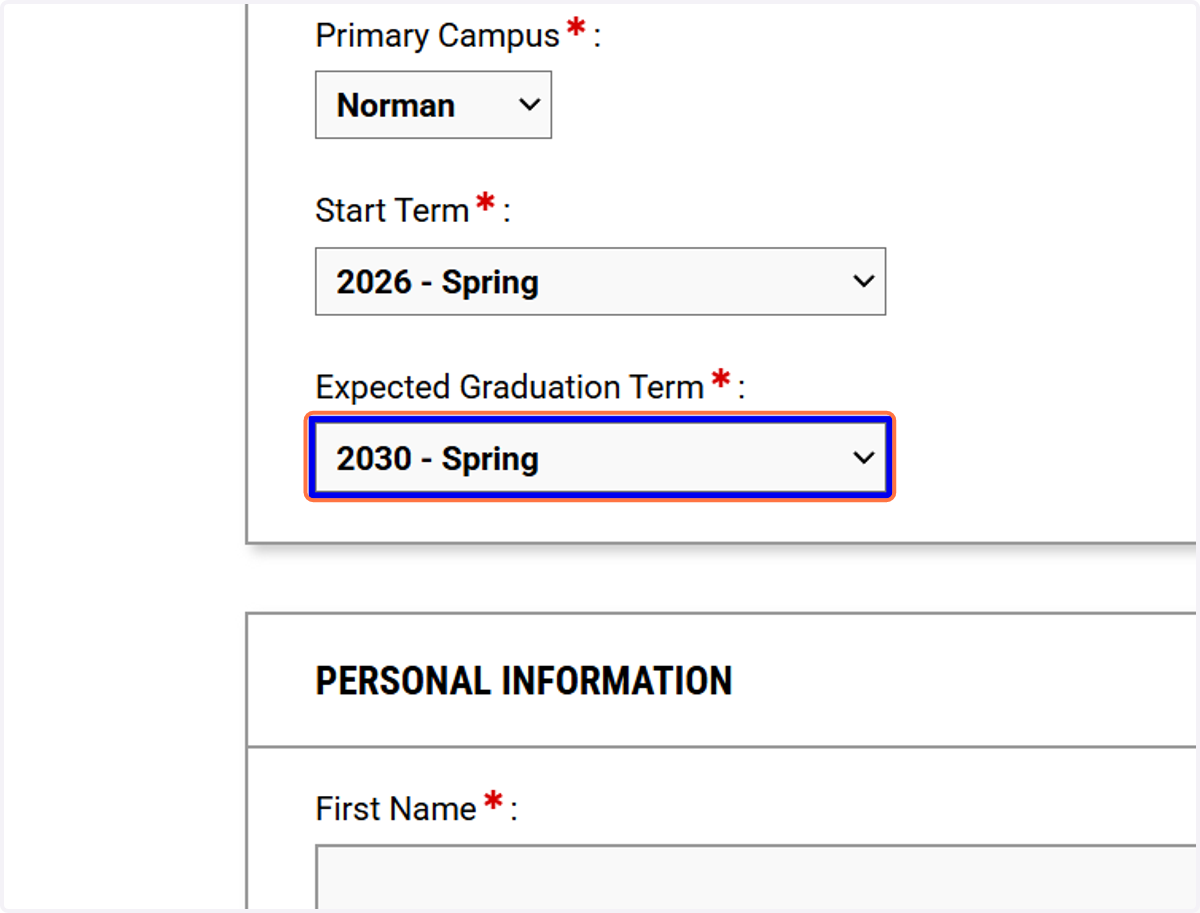
11. Choose your expected graduation term (example: Spring 2030).
12. Enter your first name on the student application.
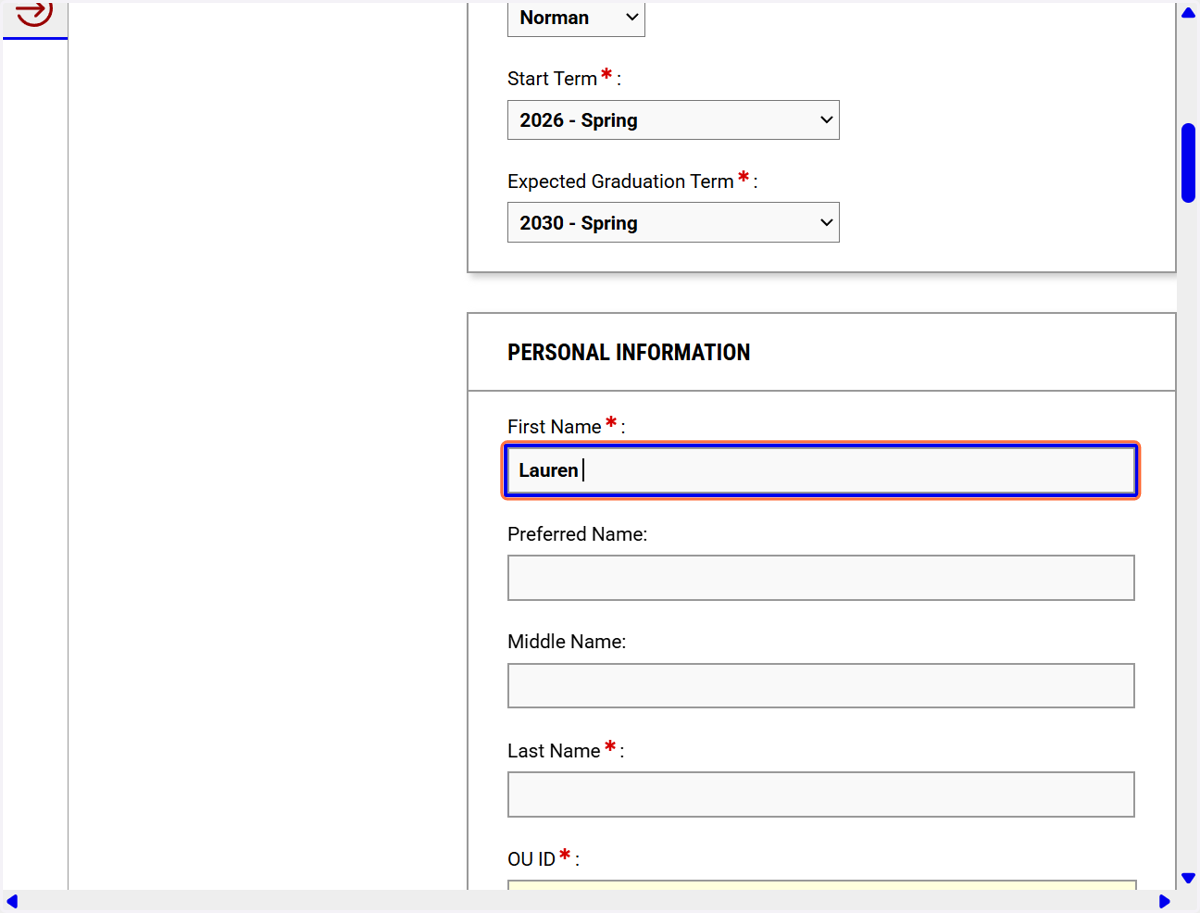
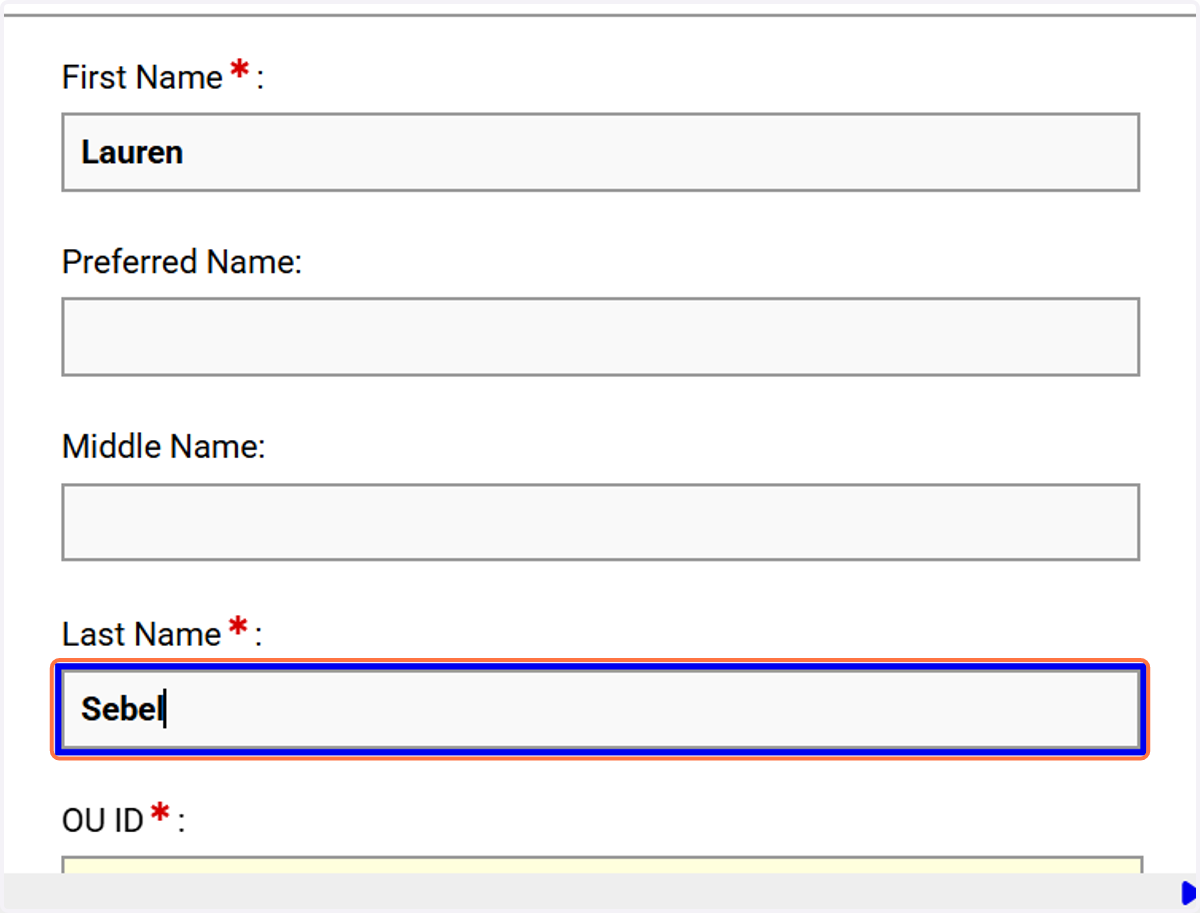
13. Enter your last name on the student application.
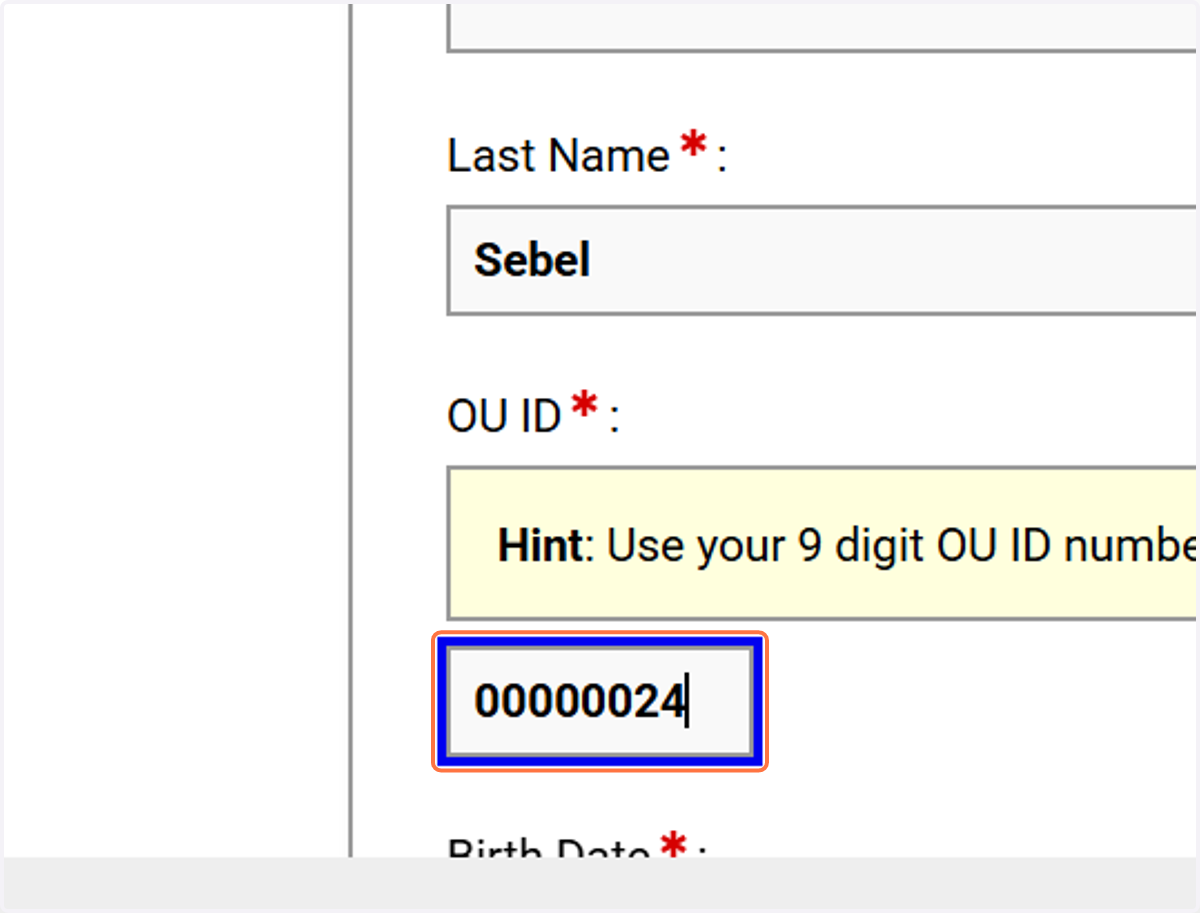
14. Enter your OU ID number (OUID). This is the 9 digit number.
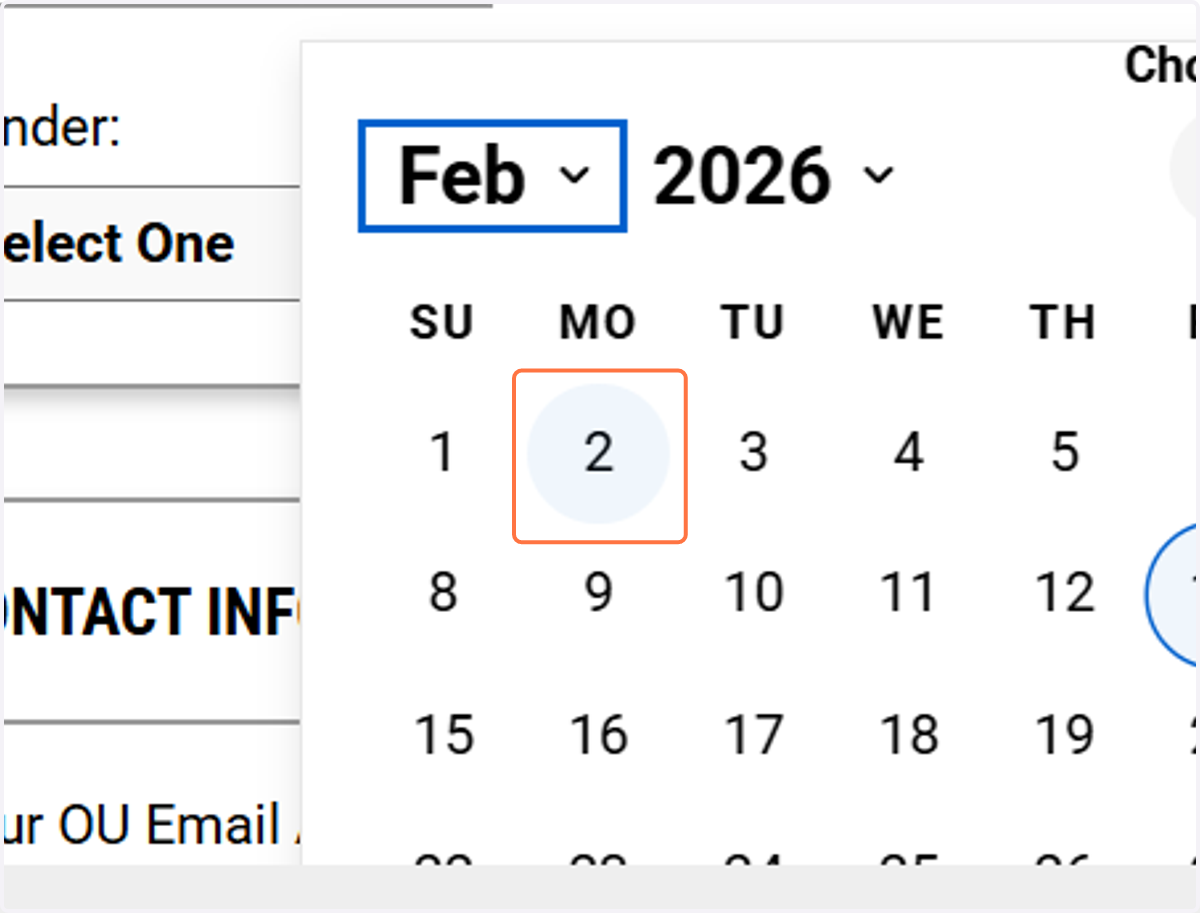
15. Open the calendar icon for the date of birth field.
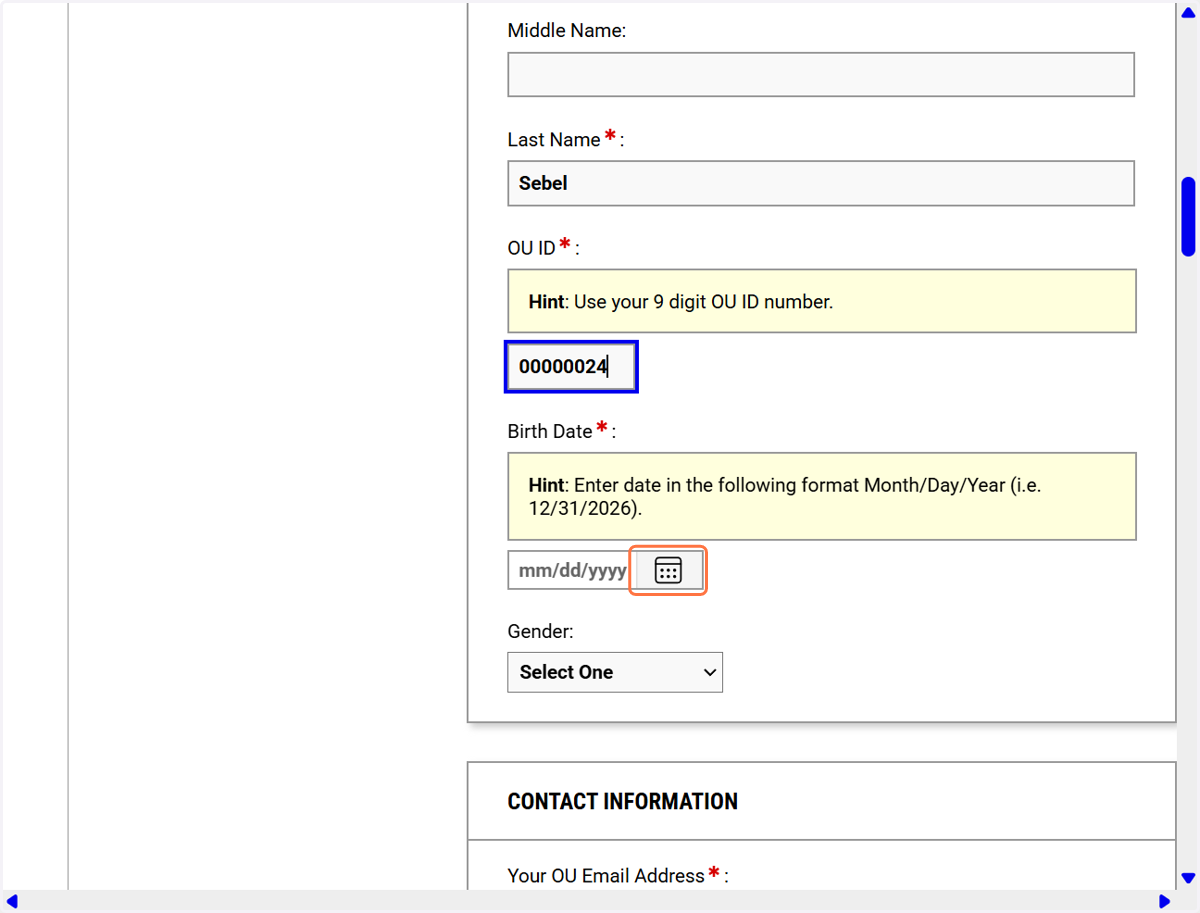
16. Select a date from the calendar for your birth date.
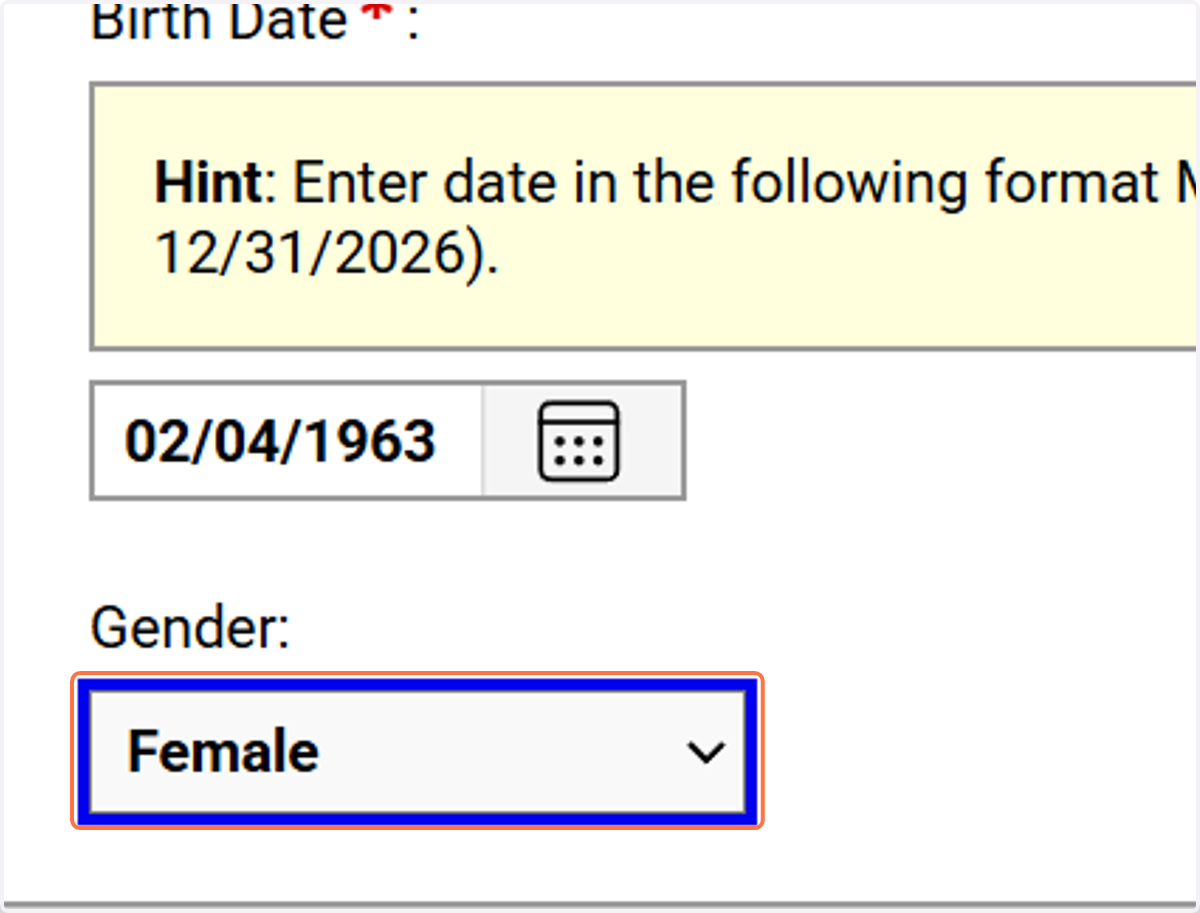
17. Select a gender option (optional).
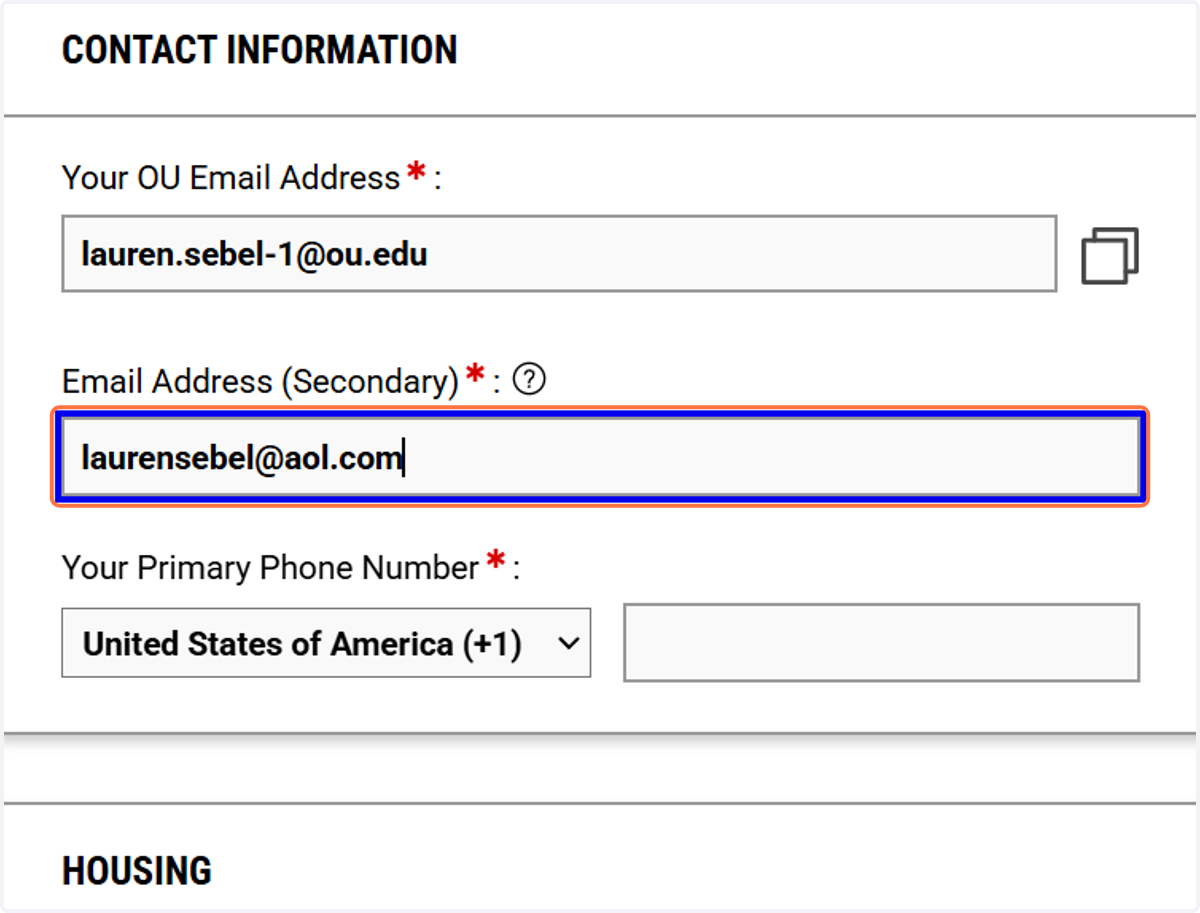
18. Add a secondary email address if you have one.
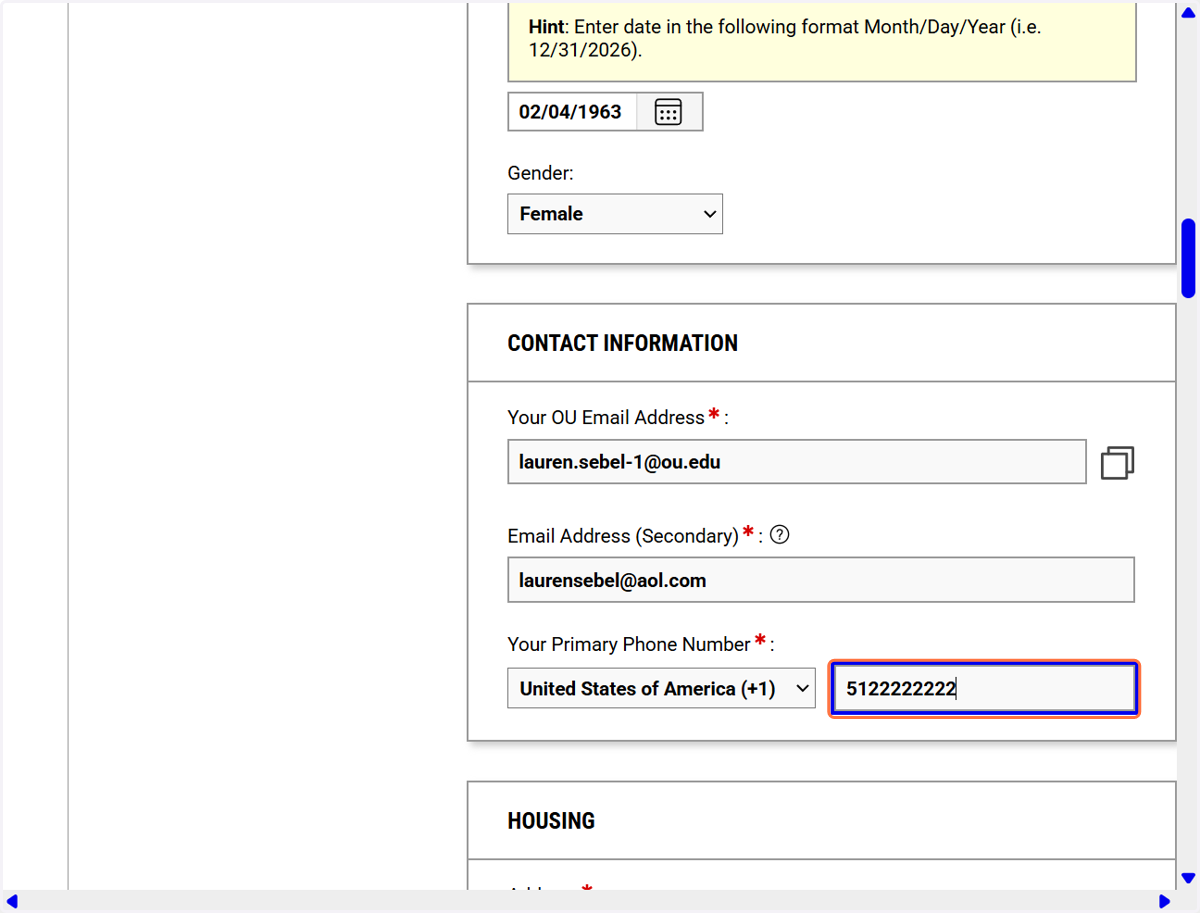
19. Enter your phone number for contact purposes.
20. Enter your address.
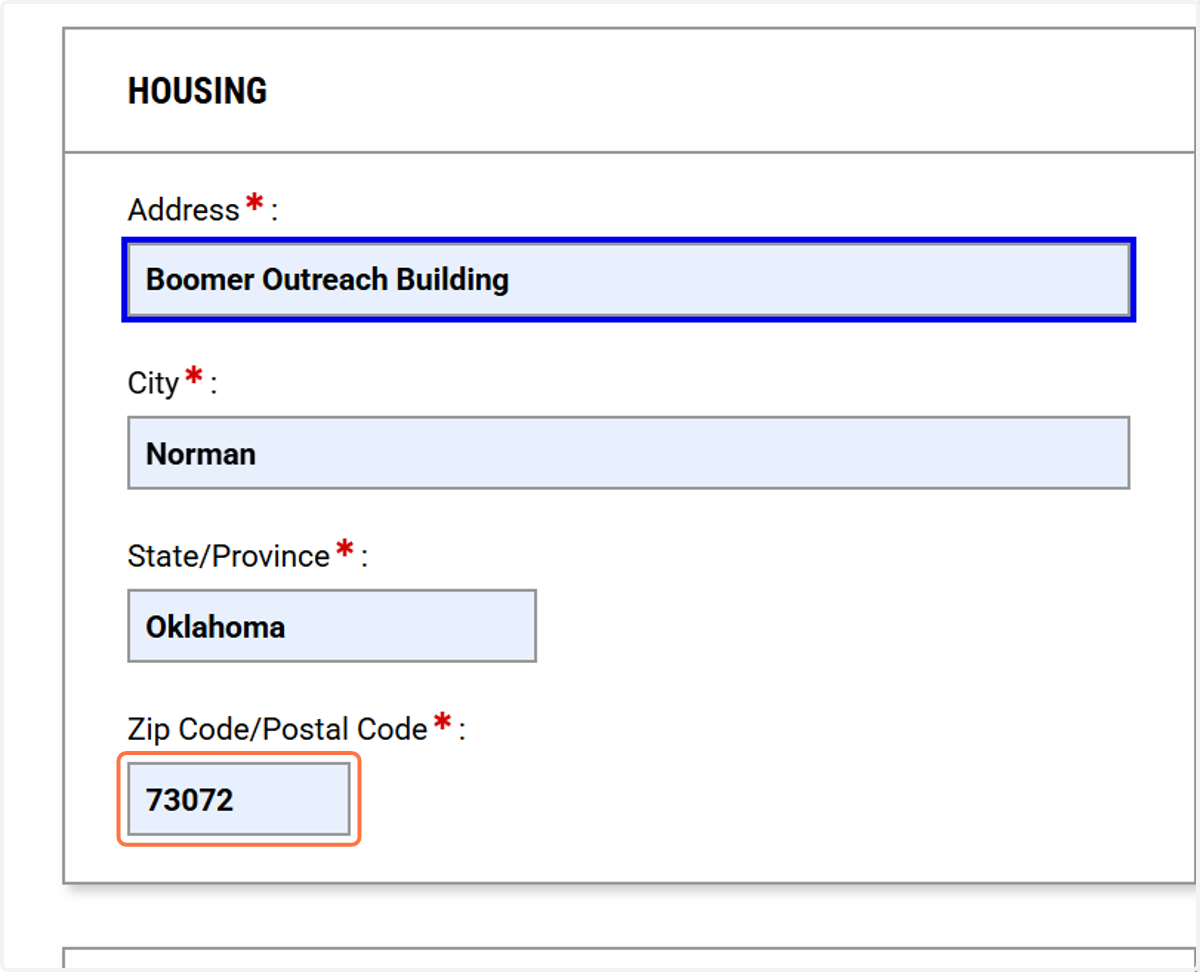
21. Click on DISABILITY INFORMATION
Expand the Disability Information section to provide disability details.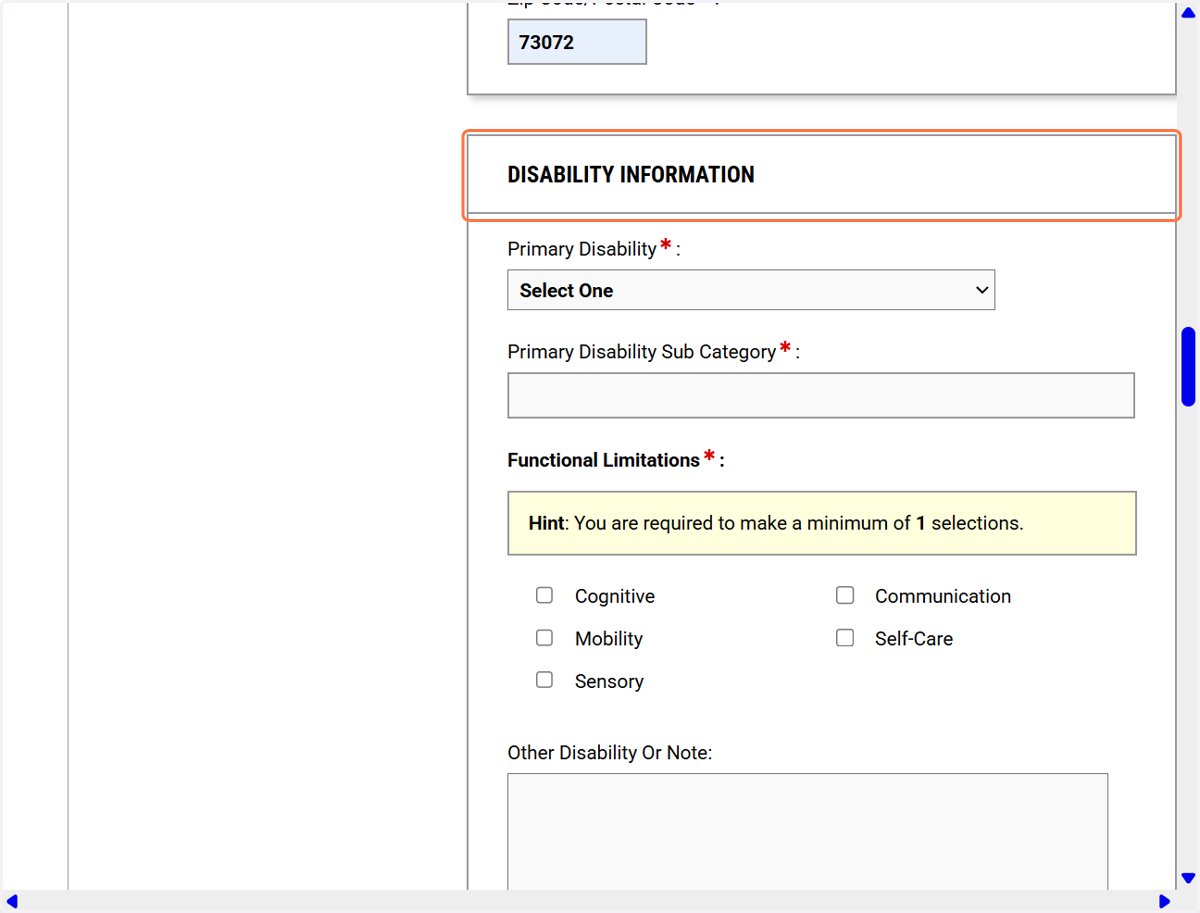
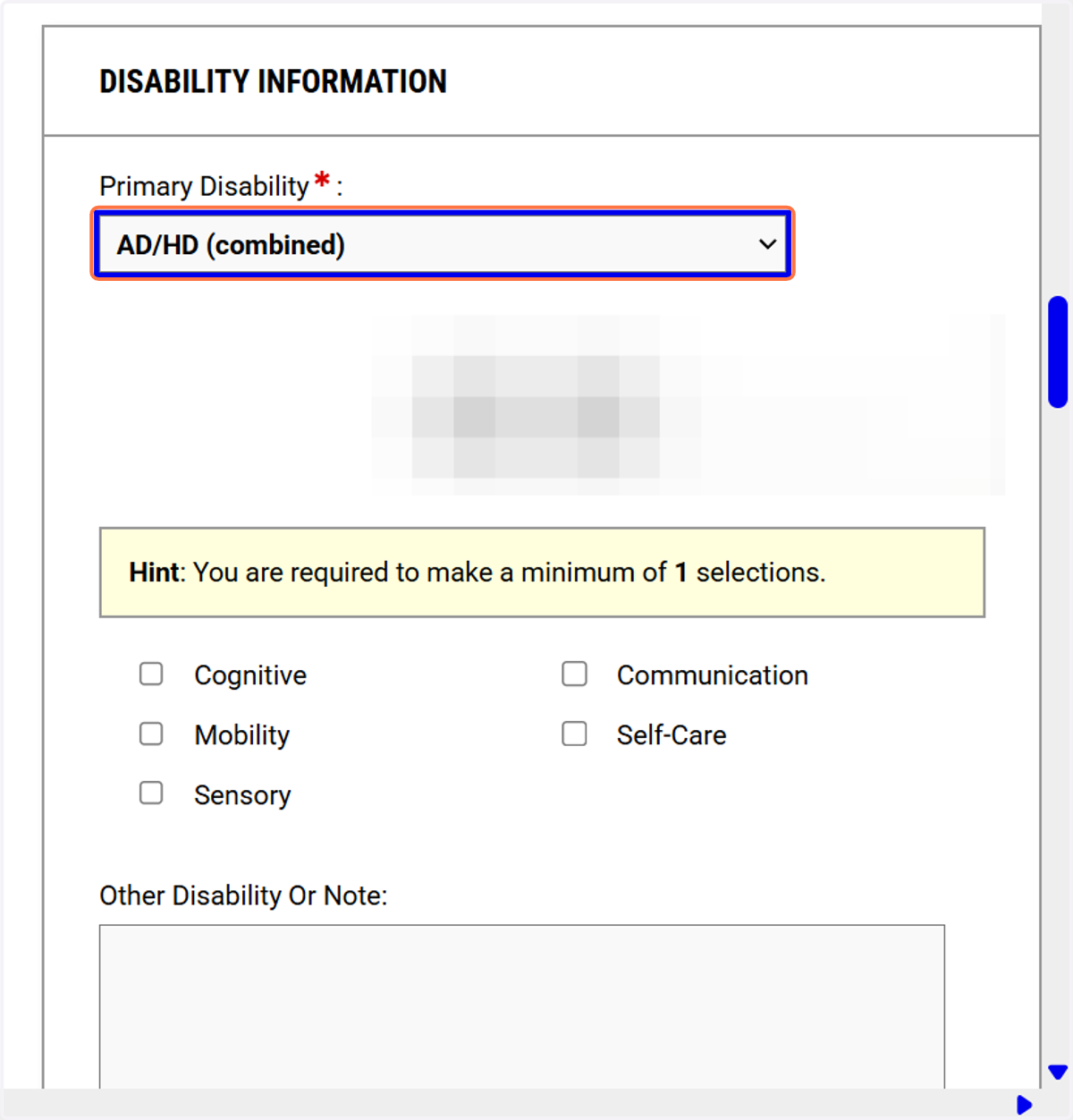
22. Select your primary disability from the inclusive list (grouped by type).
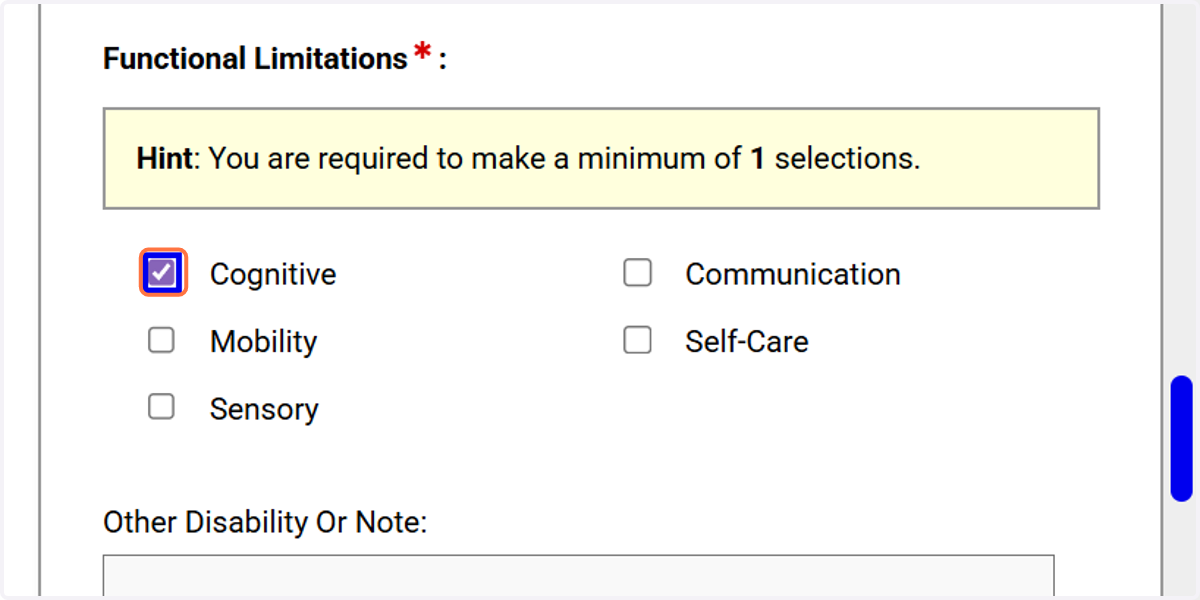
23. Choose any functional limitations that apply to your disability.
24. Provide additional information as applicable
Click the “Other Disability or Note” box to add extra information if applicable.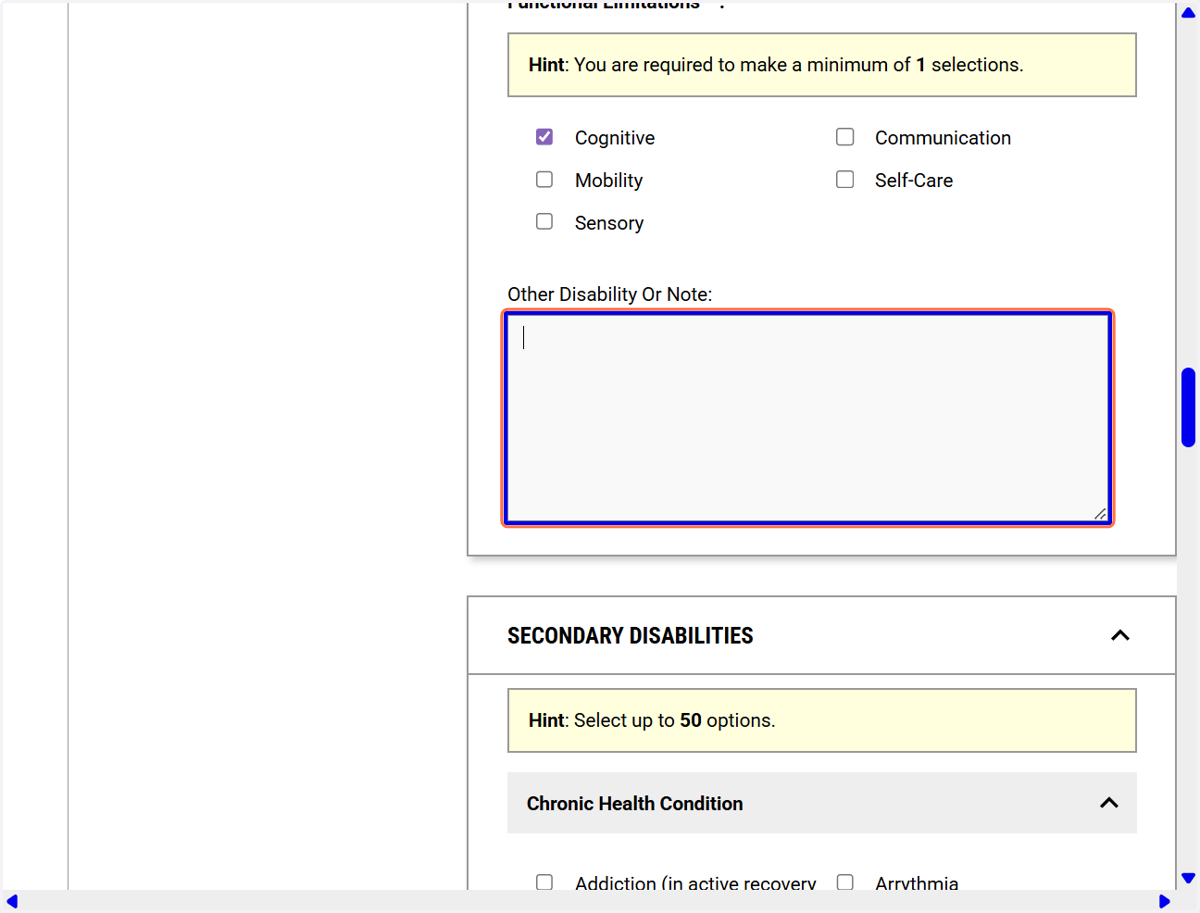
25. Select Degree you are seeking (optional)
Indicate your campus (Norman) in the campus selection area.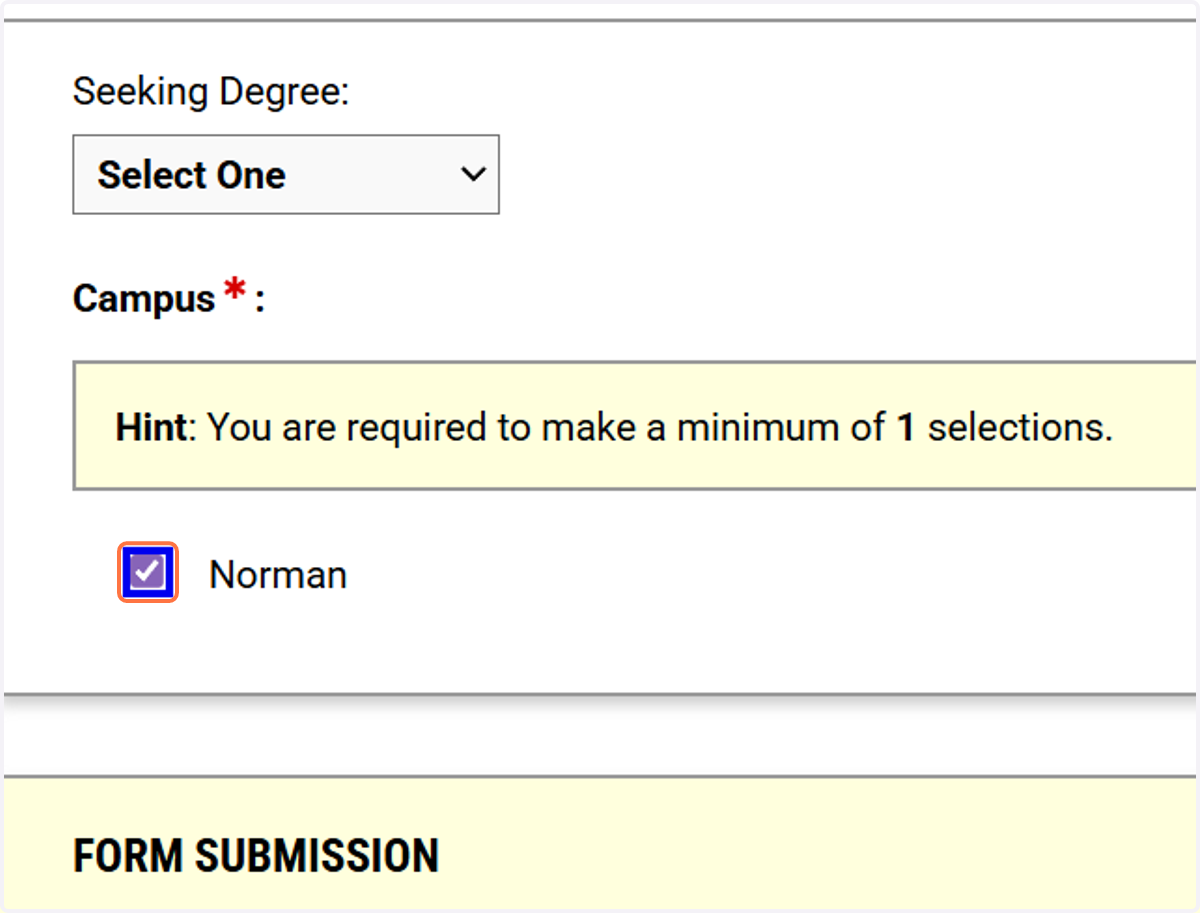
26. Click on CREATE APPLICATION DRAFT
Create an application draft, then review the generated questions before continuing.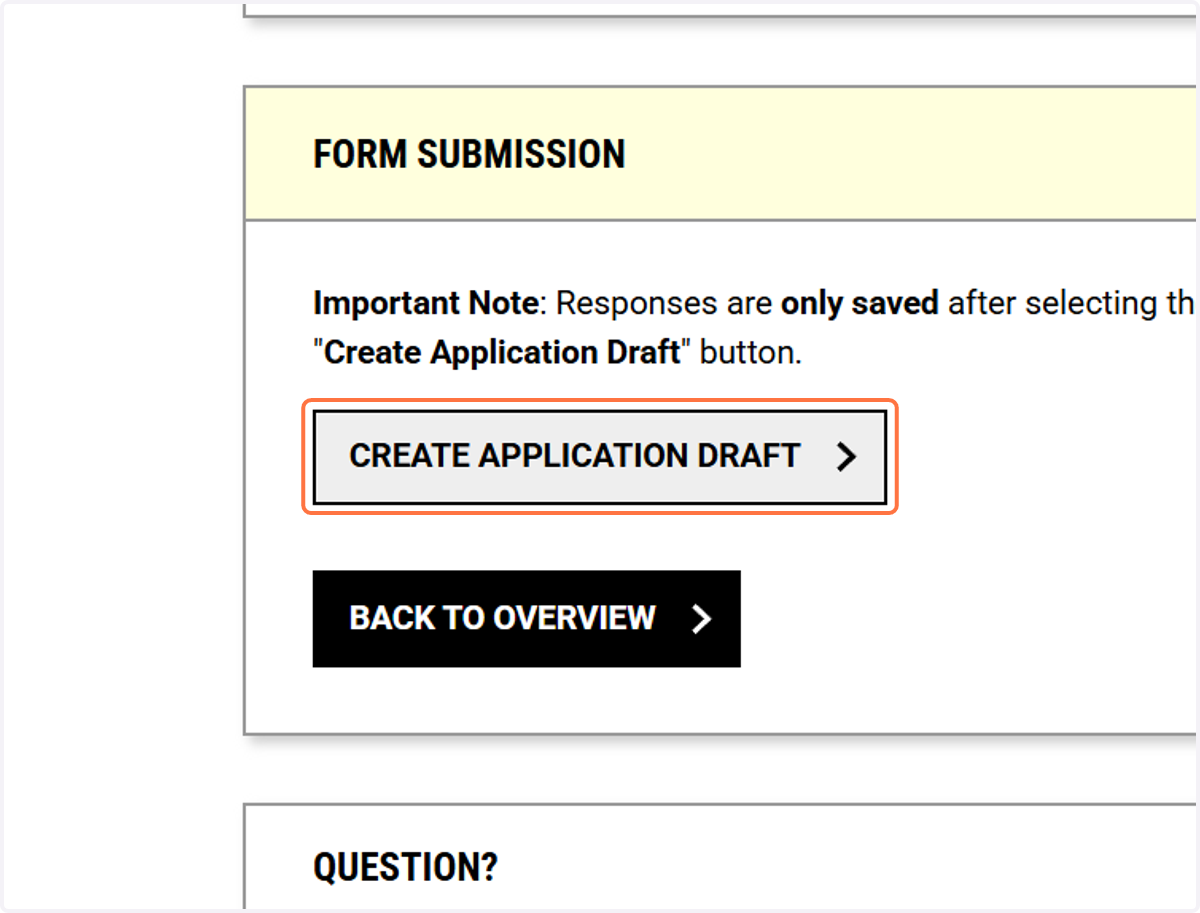
27. Confirm or enter your name in the questionnaire section.
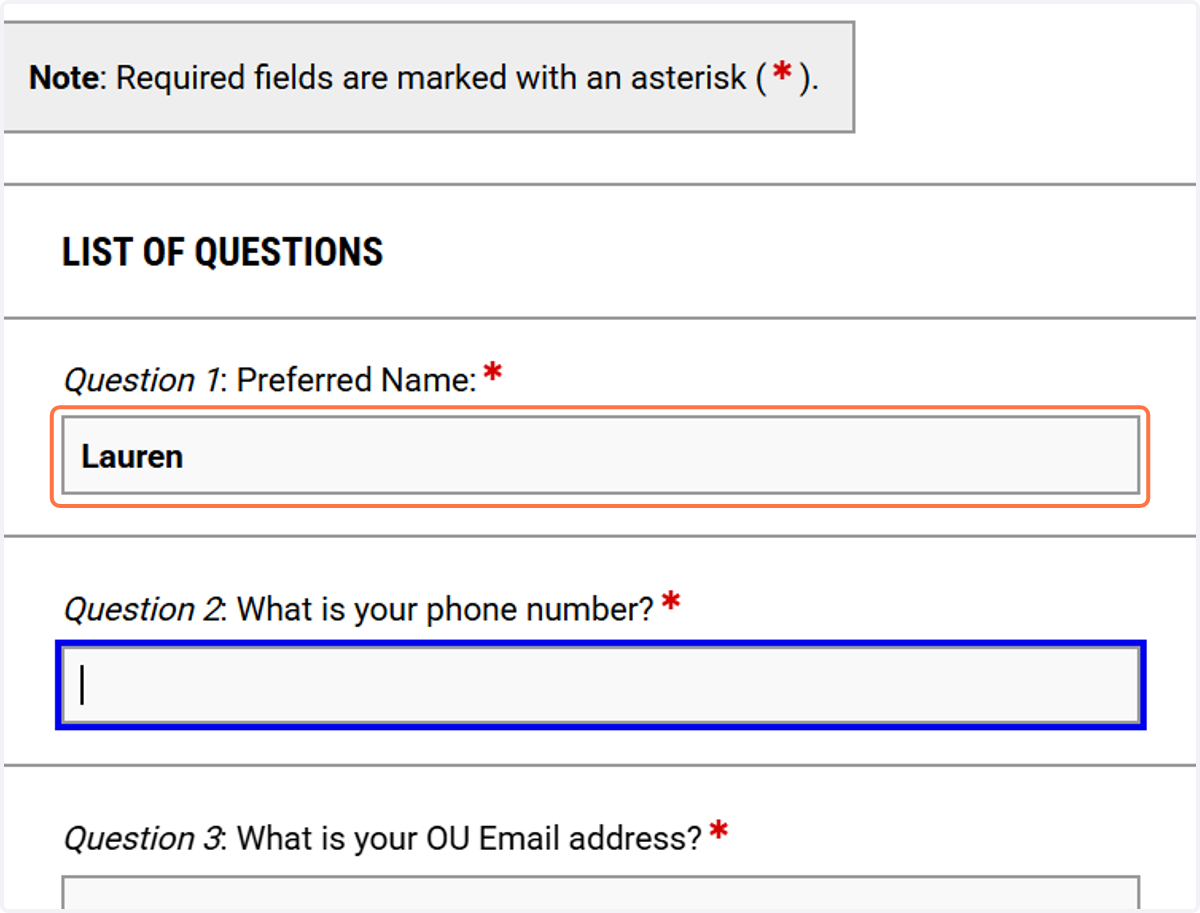
28. Enter your phone number in the questionnaire contact fields.
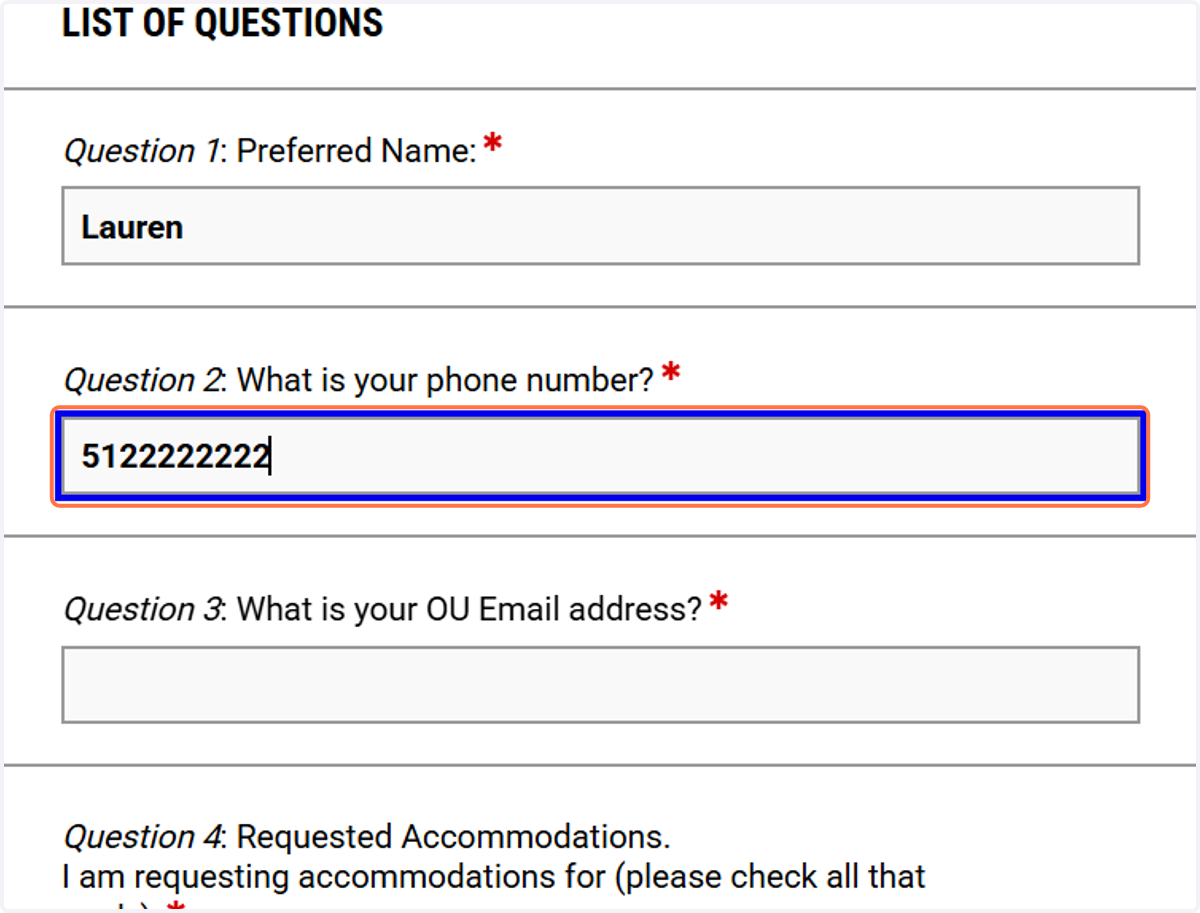
29. Re-enter your OU email address as requested in the questionnaire. You must use your -#@ou.edu address.
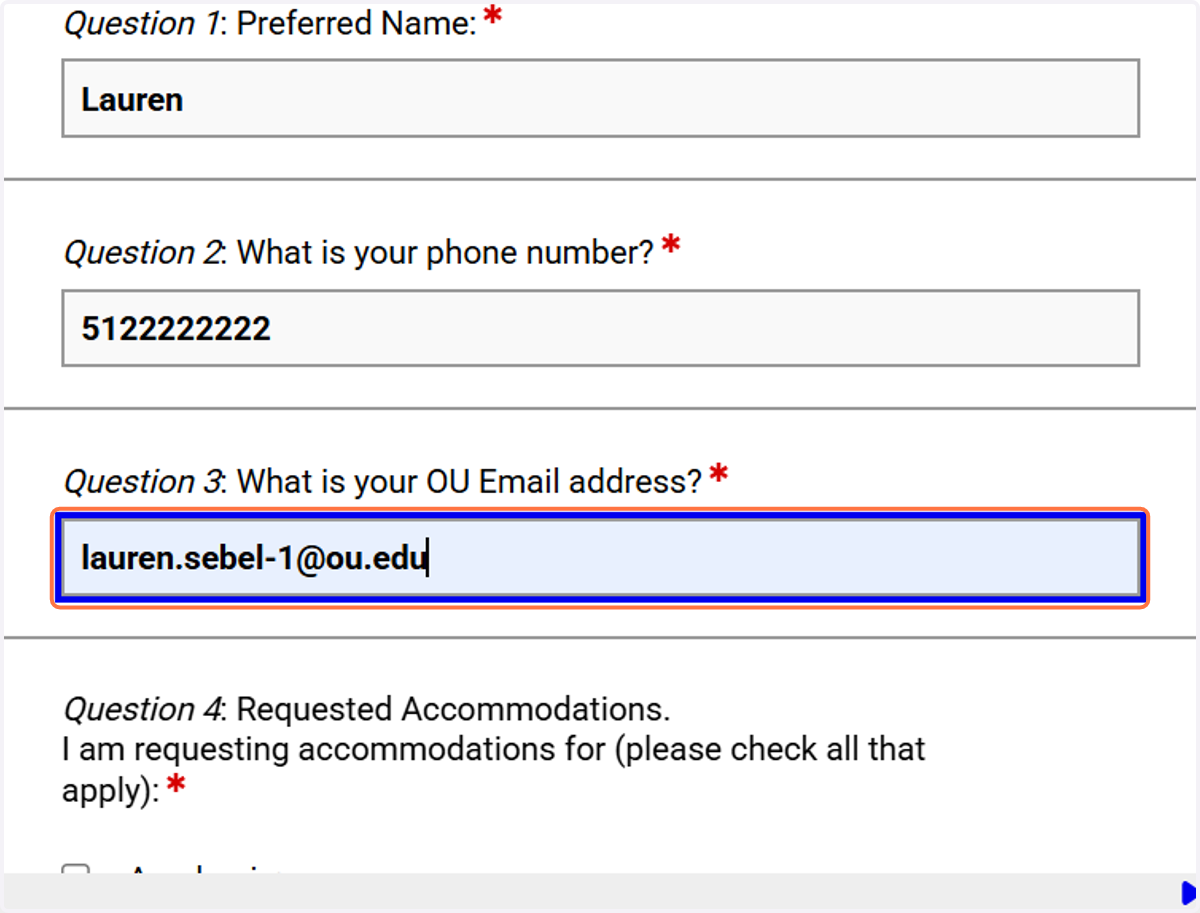
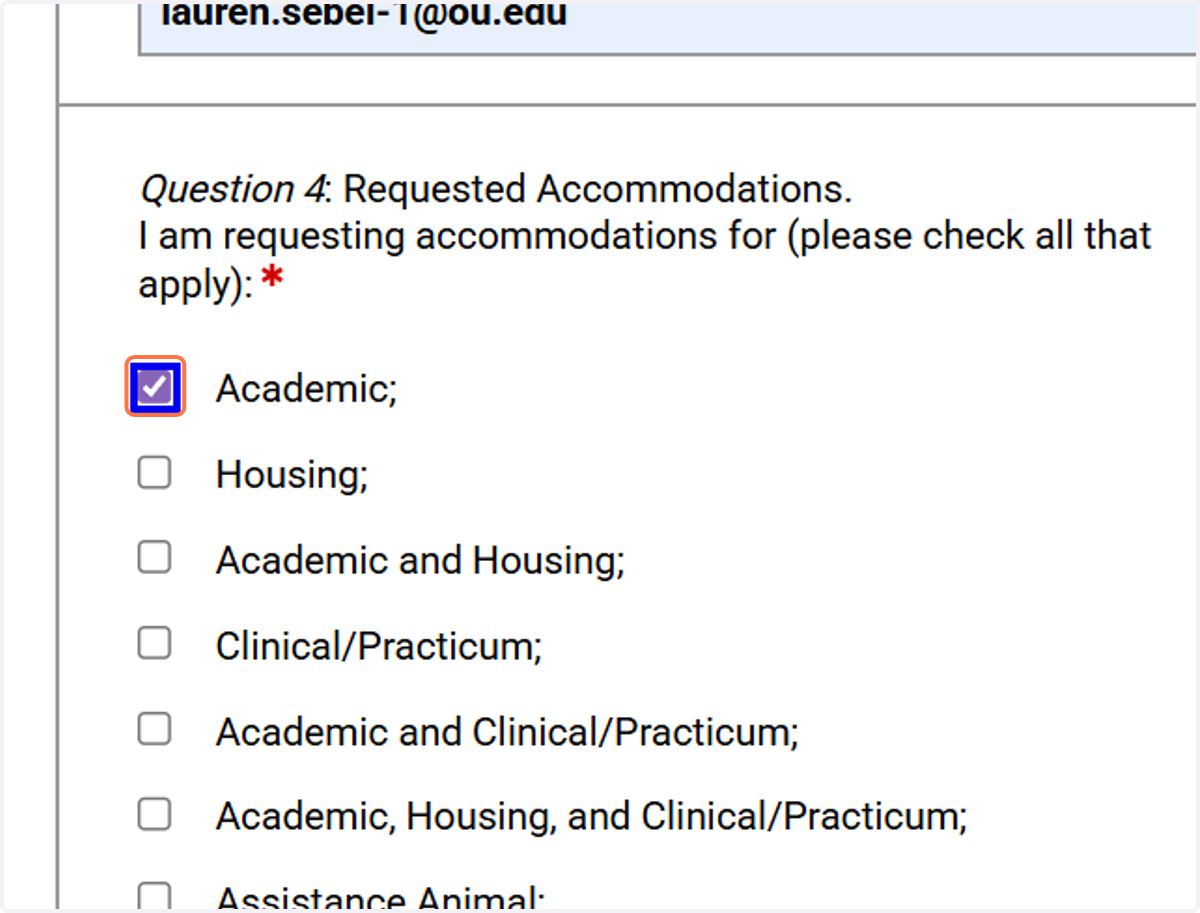
30. Select the accommodation type you’re requesting (academic, housing, or both).
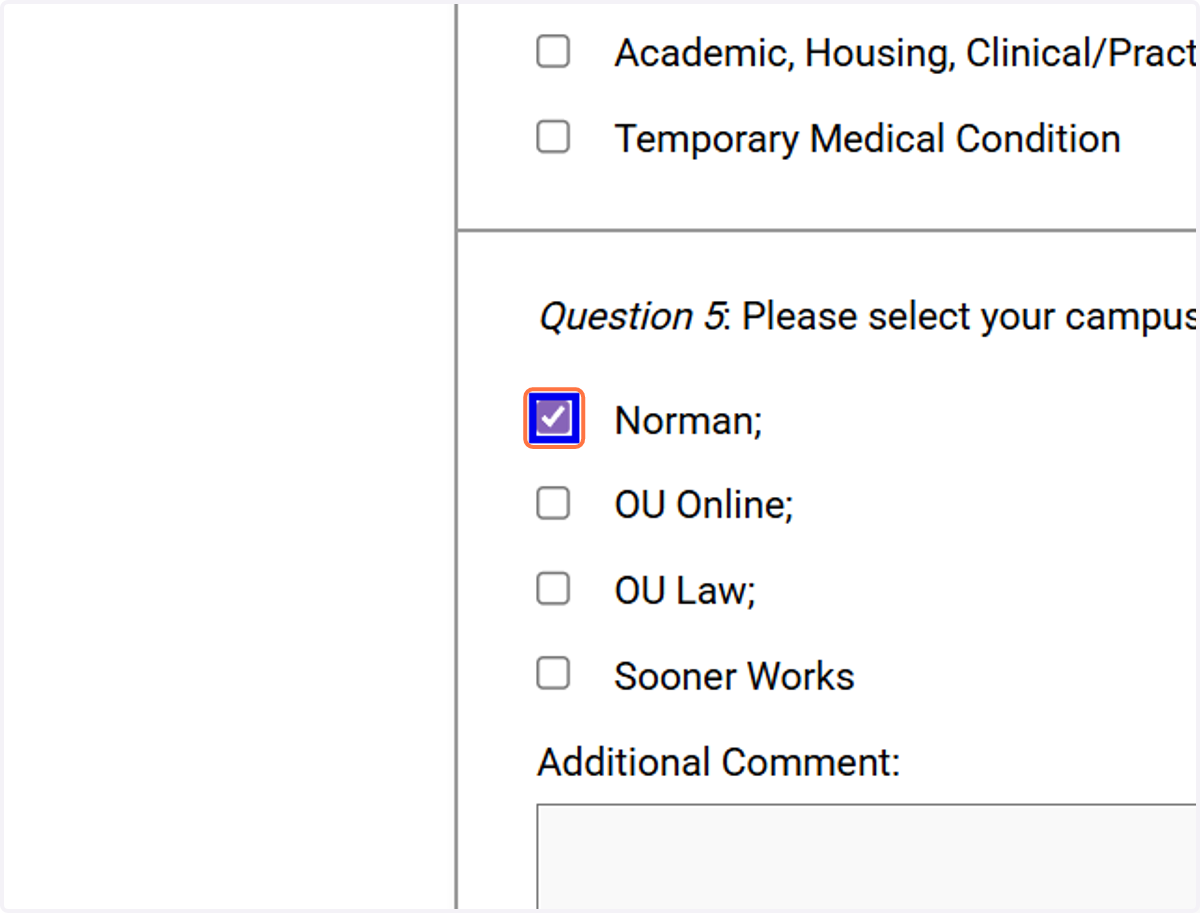
31. Select your Campus
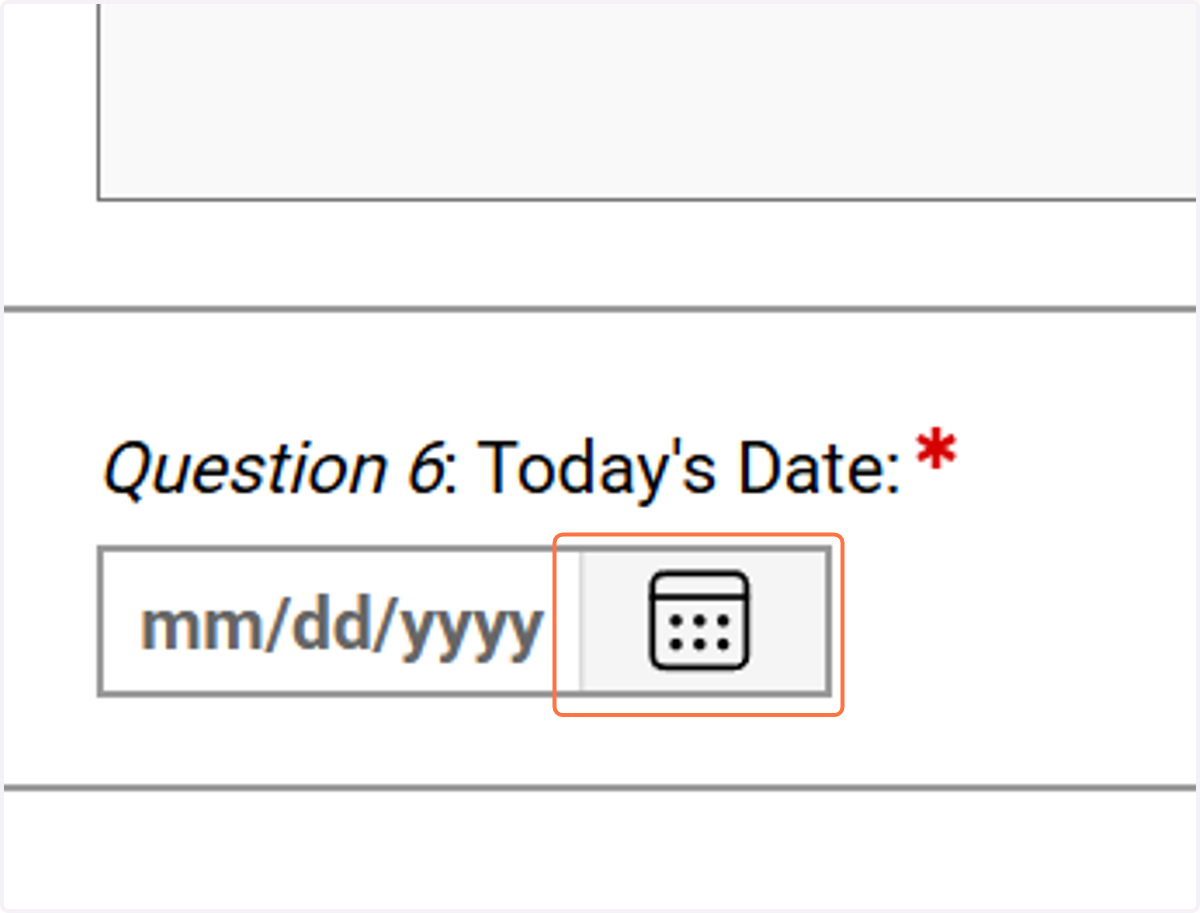
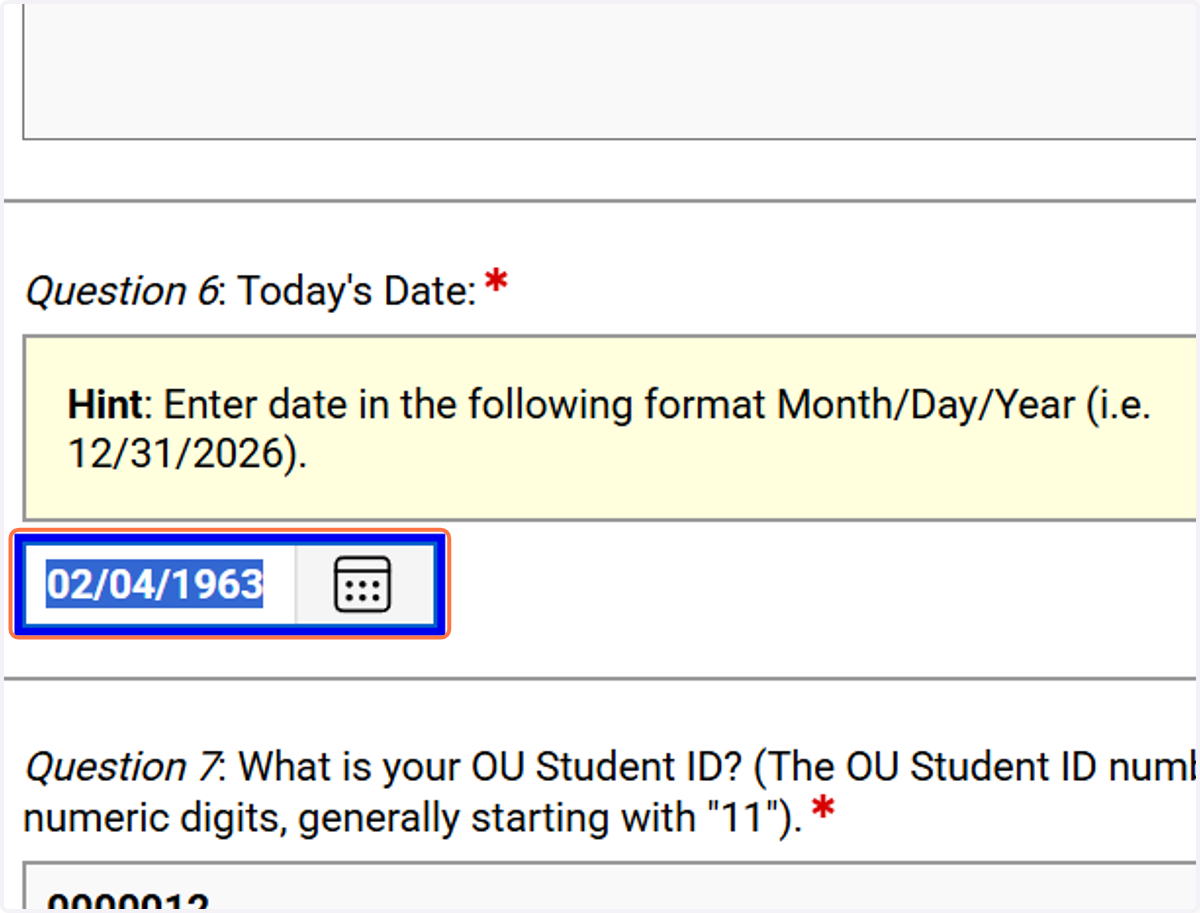
32. Open the date picker to enter today’s date on the form.
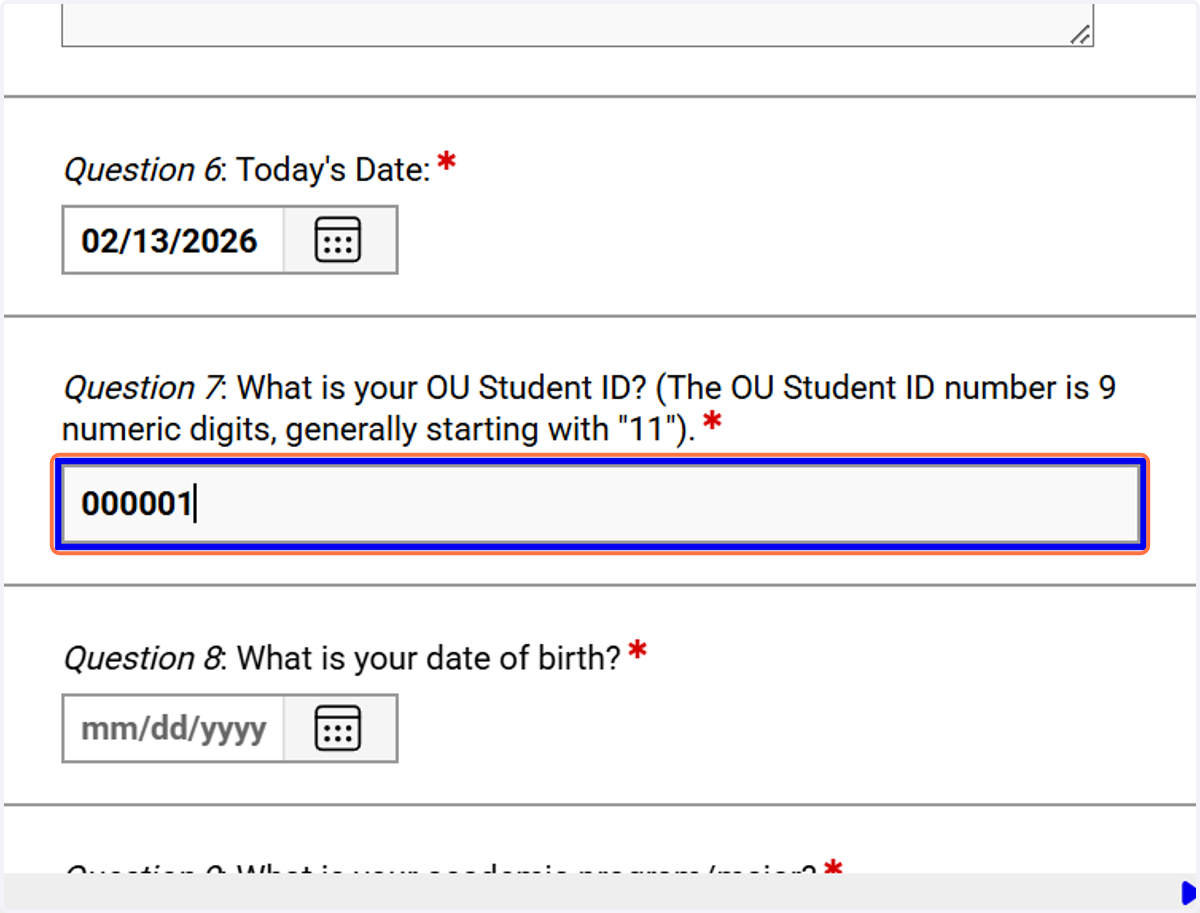
33. Enter your OU student ID number in the questionnaire.
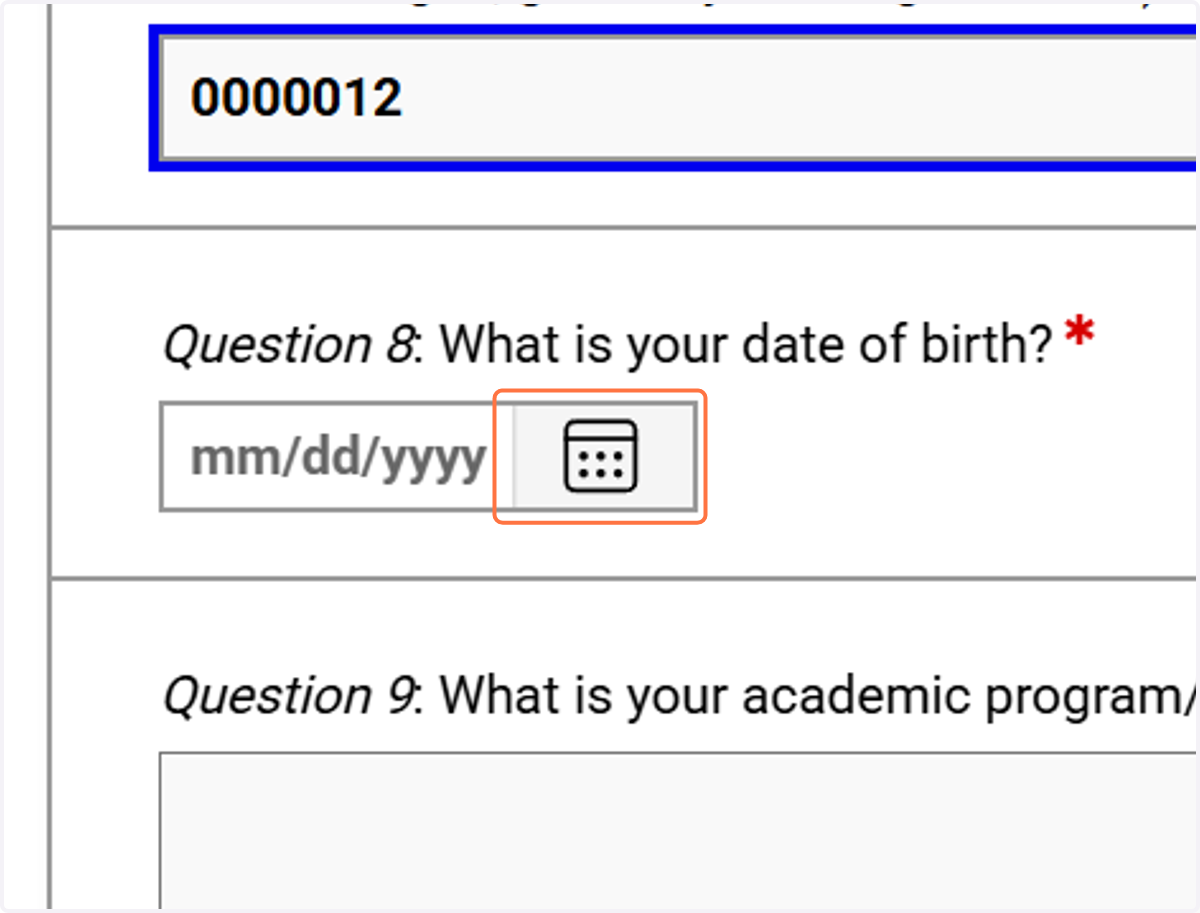
34. Open the date picker to select your date of birth
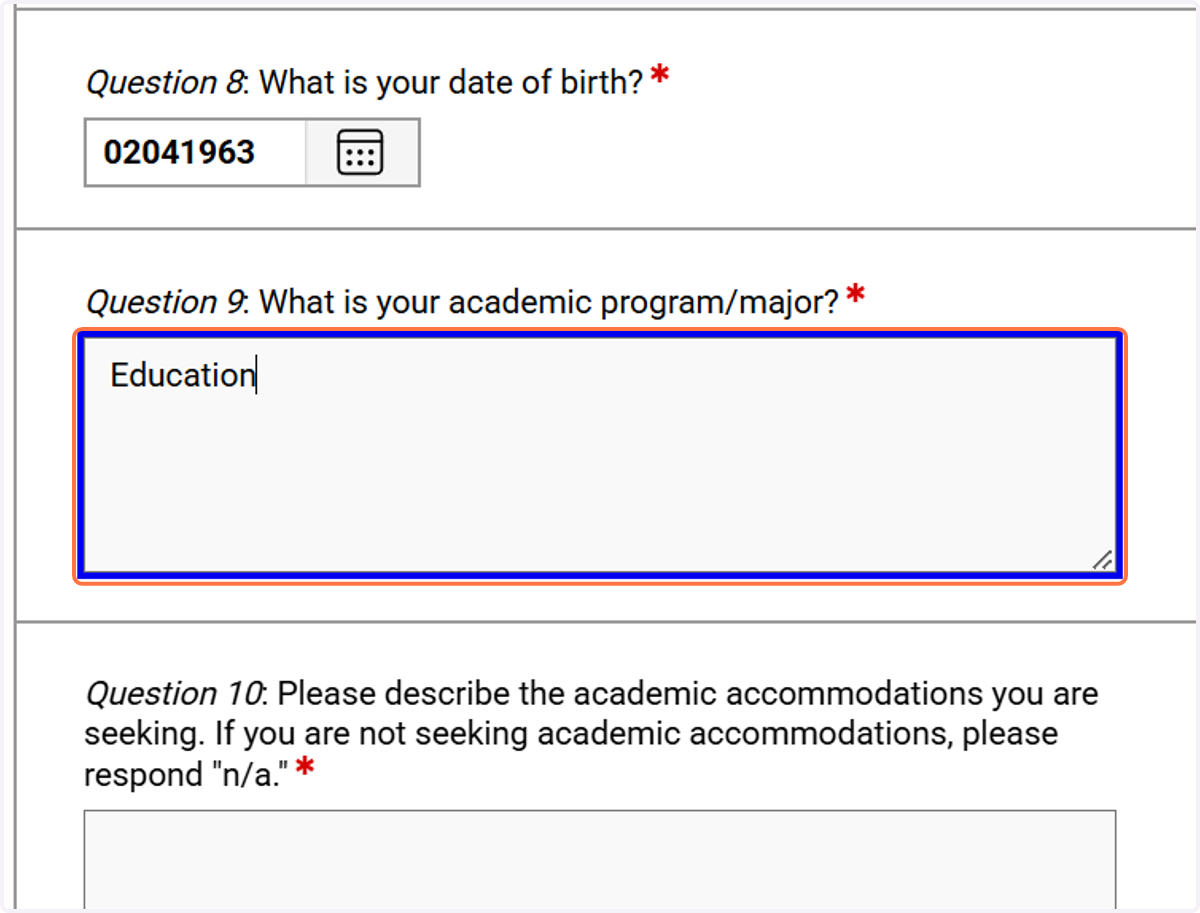
35. Fill in your major.
36. Describe the accommodations you are seeking (e.g., extended testing time).
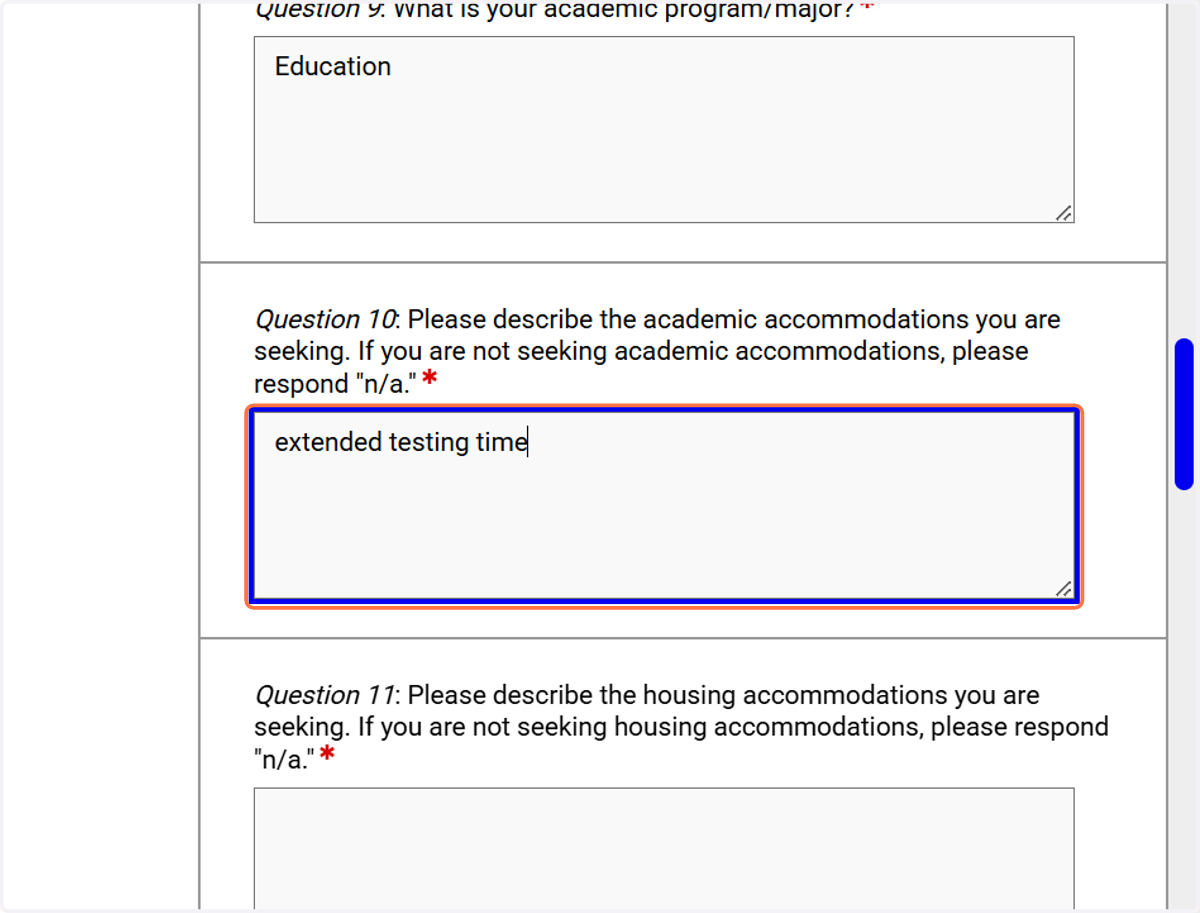
37. If you are NOT requesting housing accommodations, enter “N/A” in the housing field.
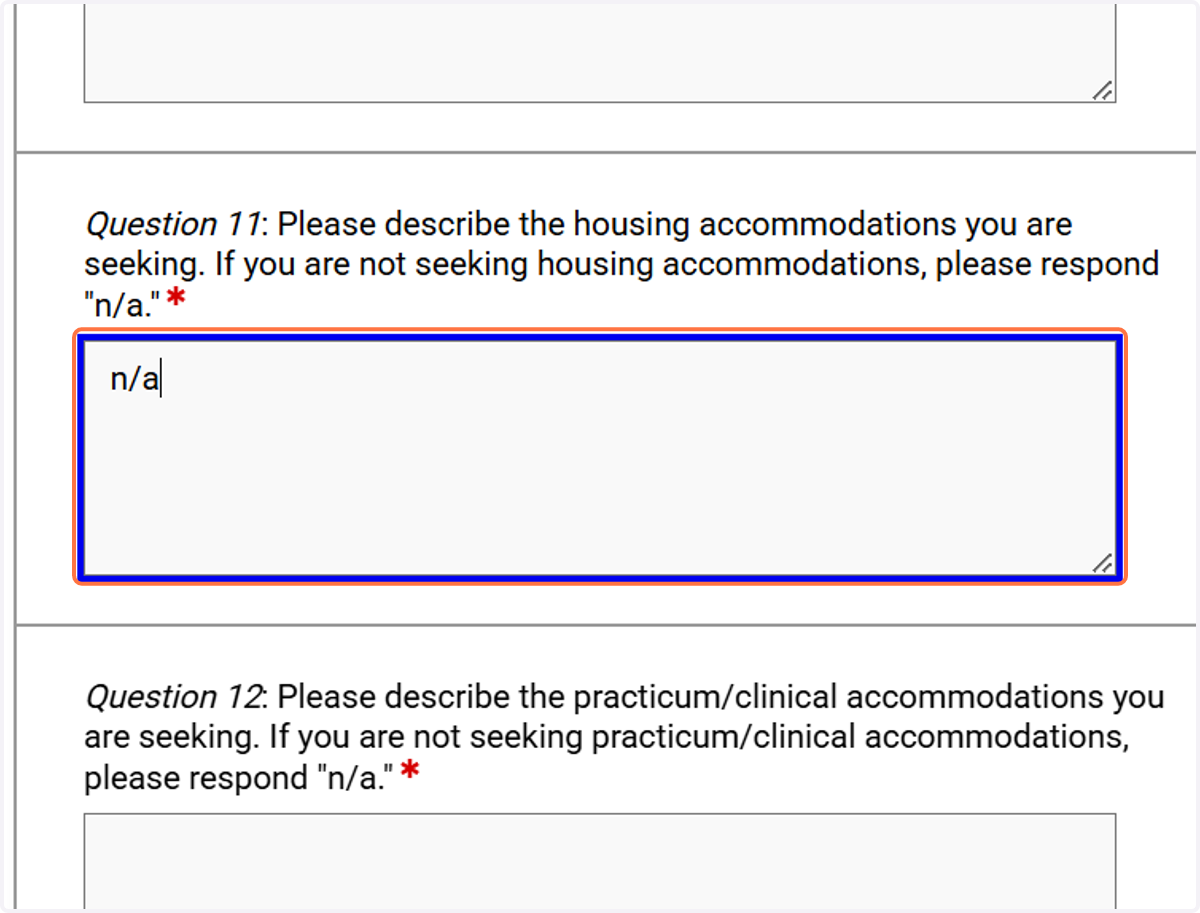
38. If you do NOT need practicum or clinical accommodations, enter “N/A”.
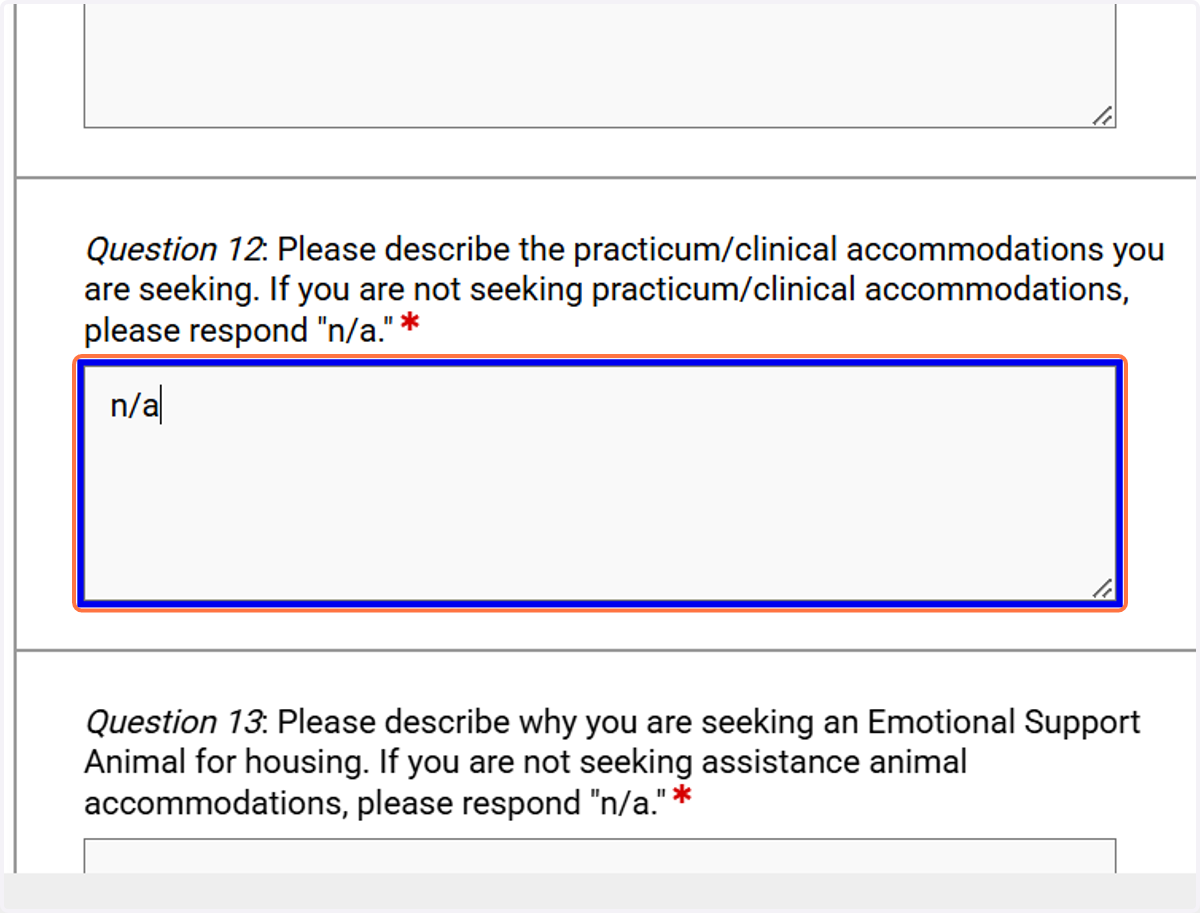
39. If you are NOT requesting an emotional support animal, enter “N/A” for that section.
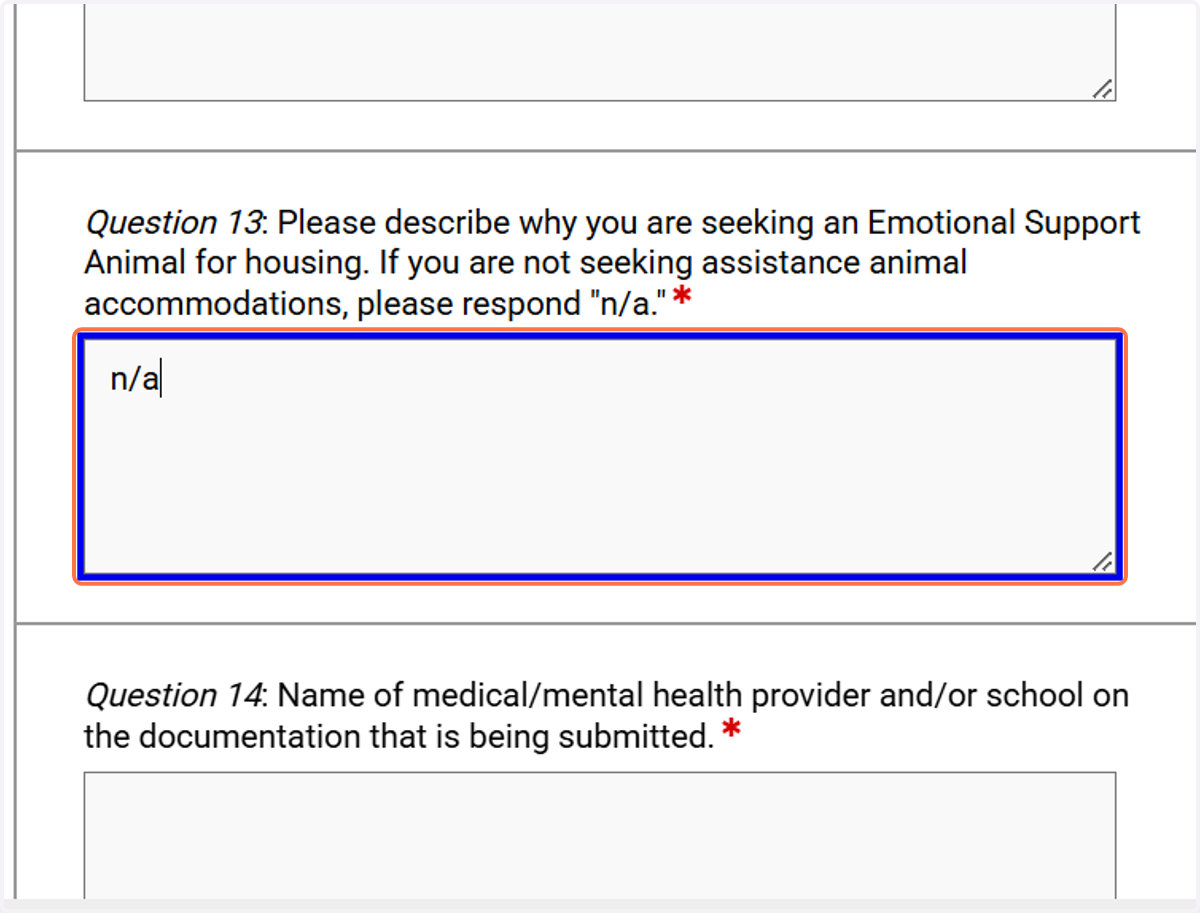
40. Enter your provider’s name who documented the diagnosis.
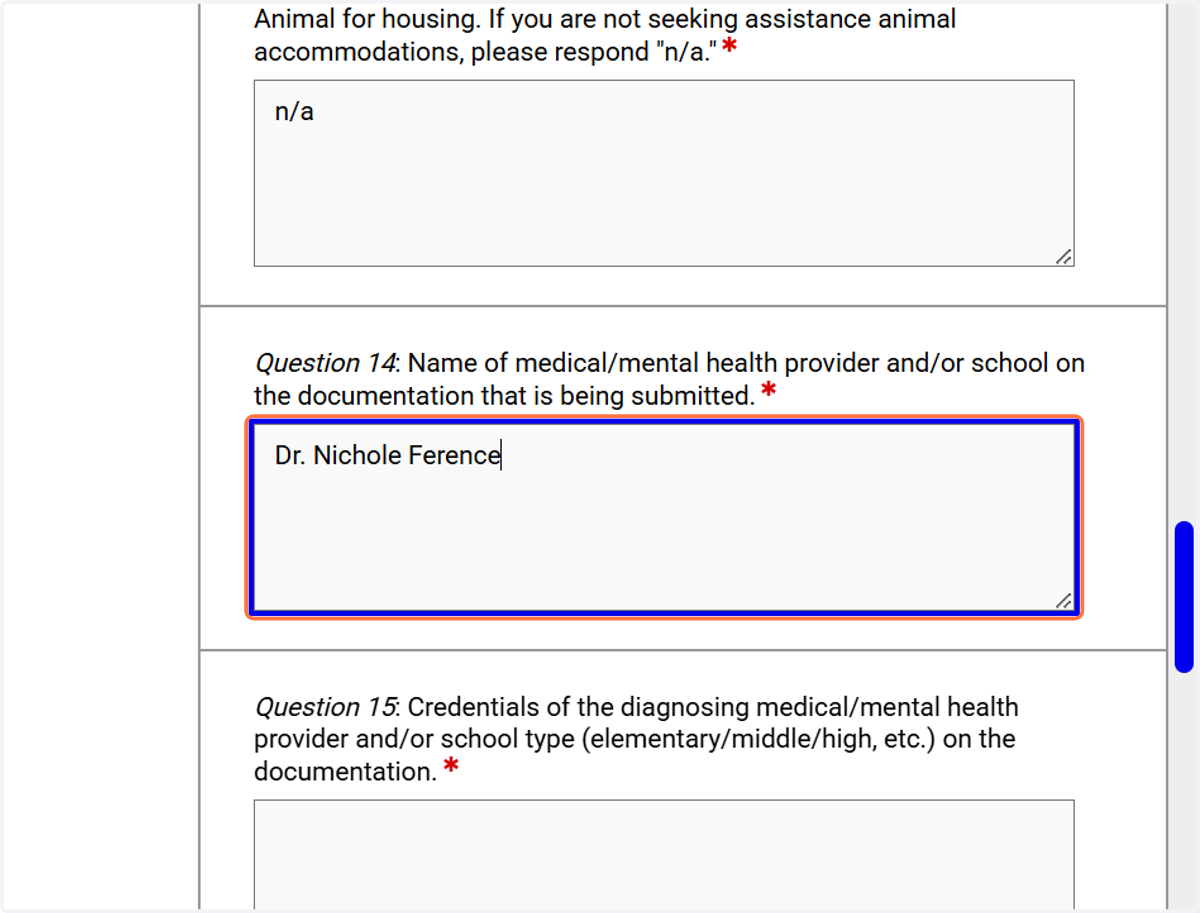
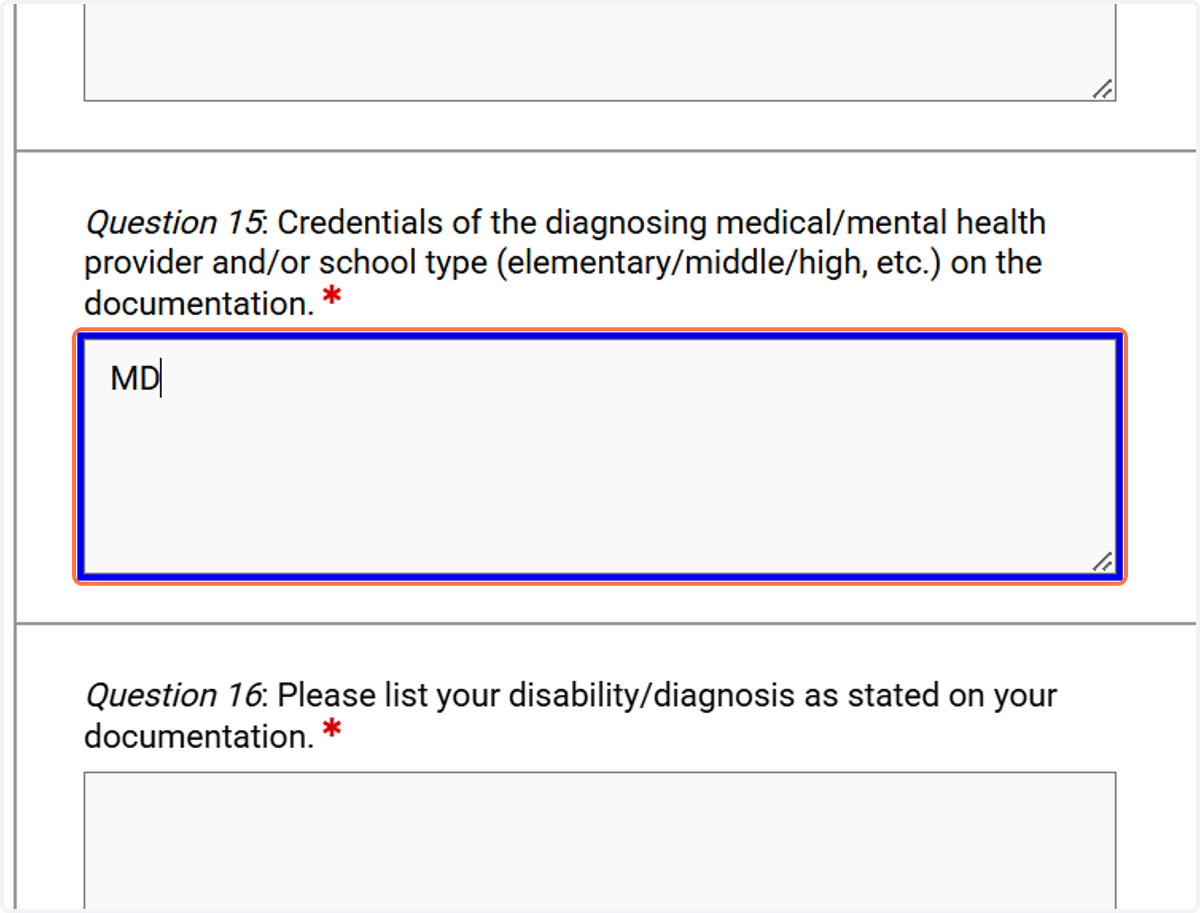
41. Enter the provider’s credentials (e.g., MD).
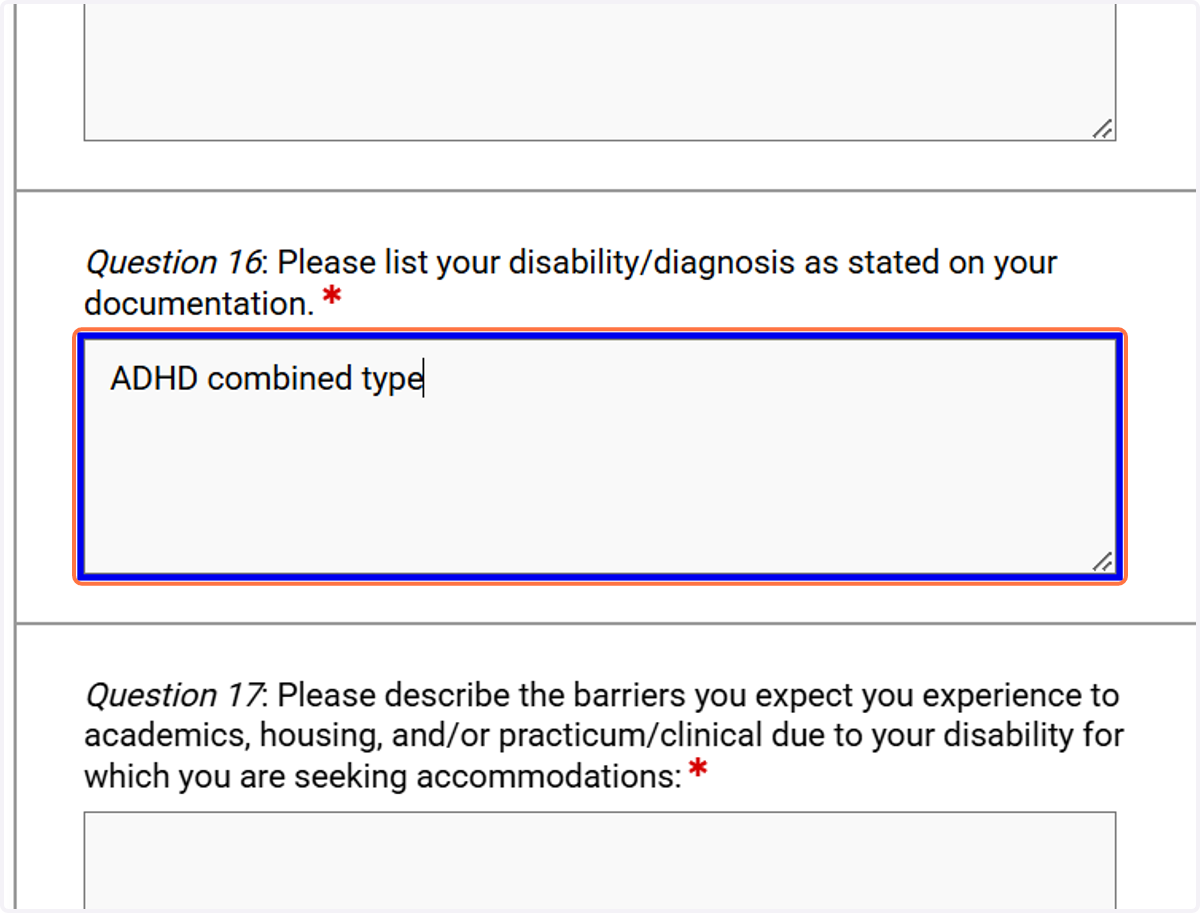
42. Specify your disability diagnosis in the diagnosis field (ex. ADHD).
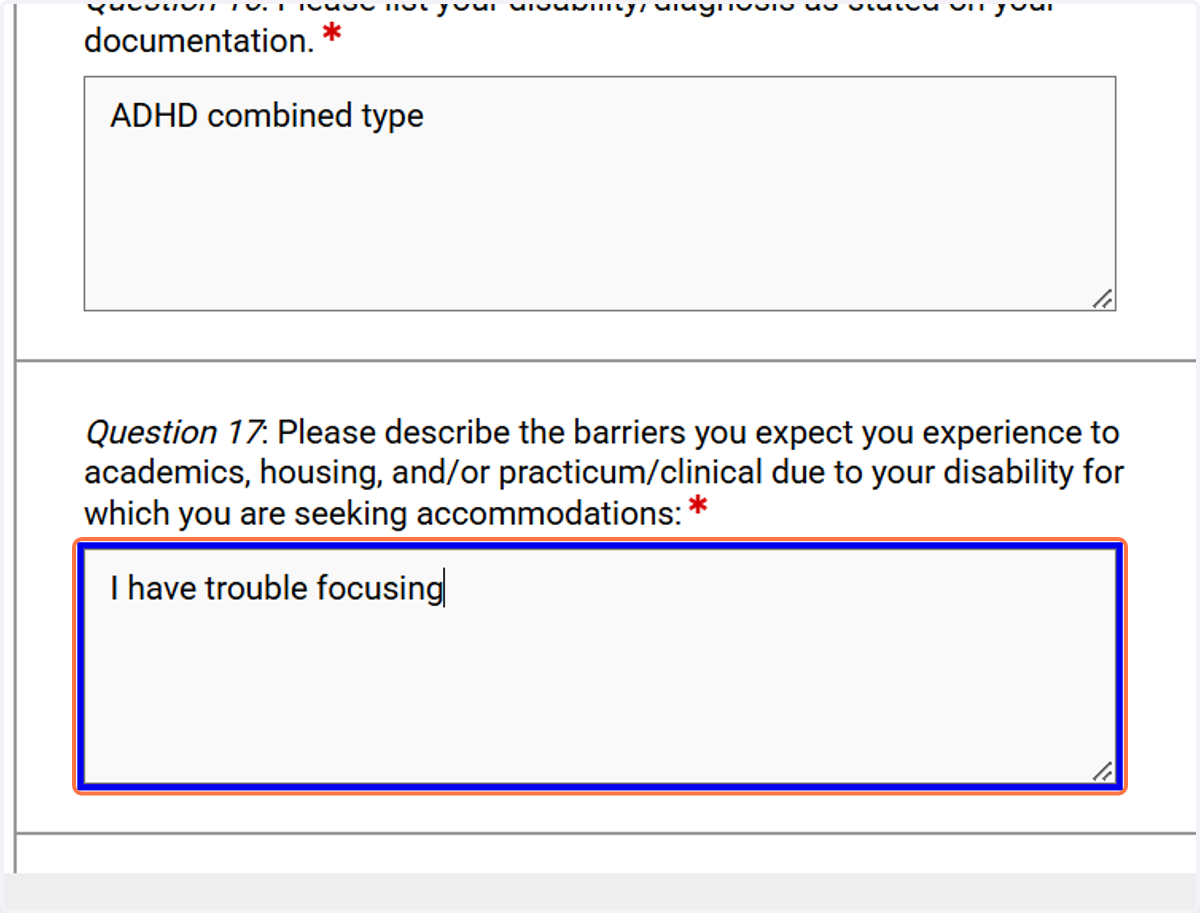
43. Explain how your disability affects you in the classroom; include as much detail as possible.
44. Click on SAVE AND UPLOAD DOCUMENTATION
Save your responses and move to the documentation upload step.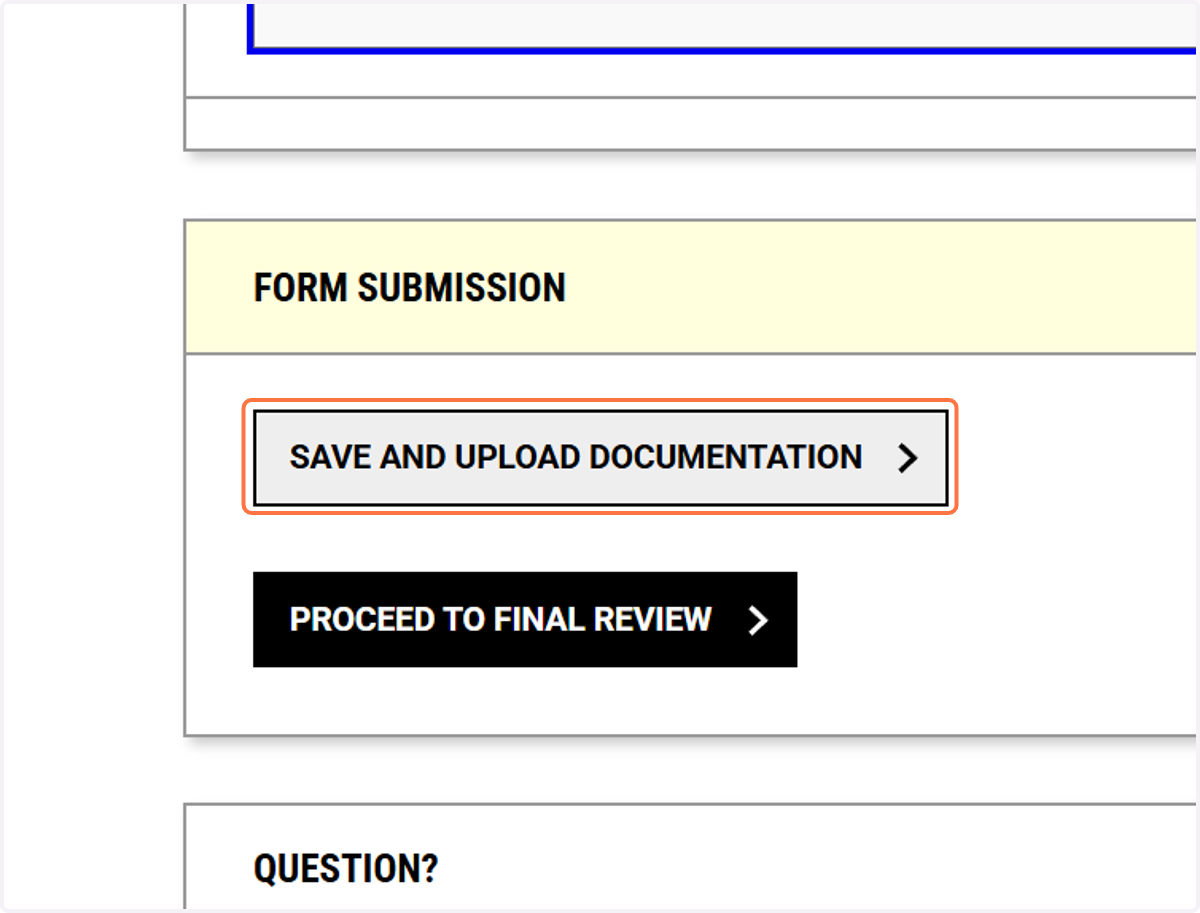
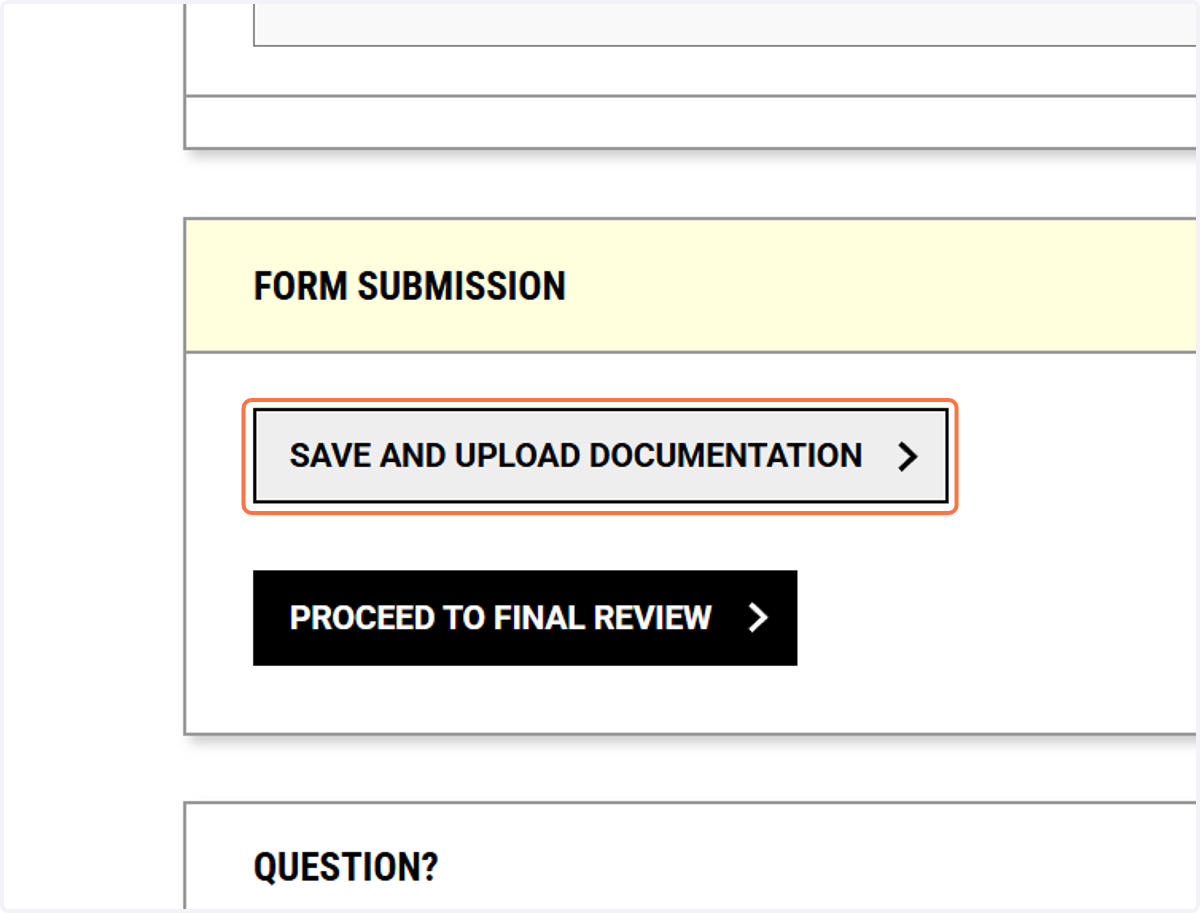
45. Click on SAVE AND UPLOAD DOCUMENTATION
46. Enter in today's date.
47. Click on DOCUMENTATION GUIDELINES
Review the documentation guidelines to confirm what files are acceptable to upload.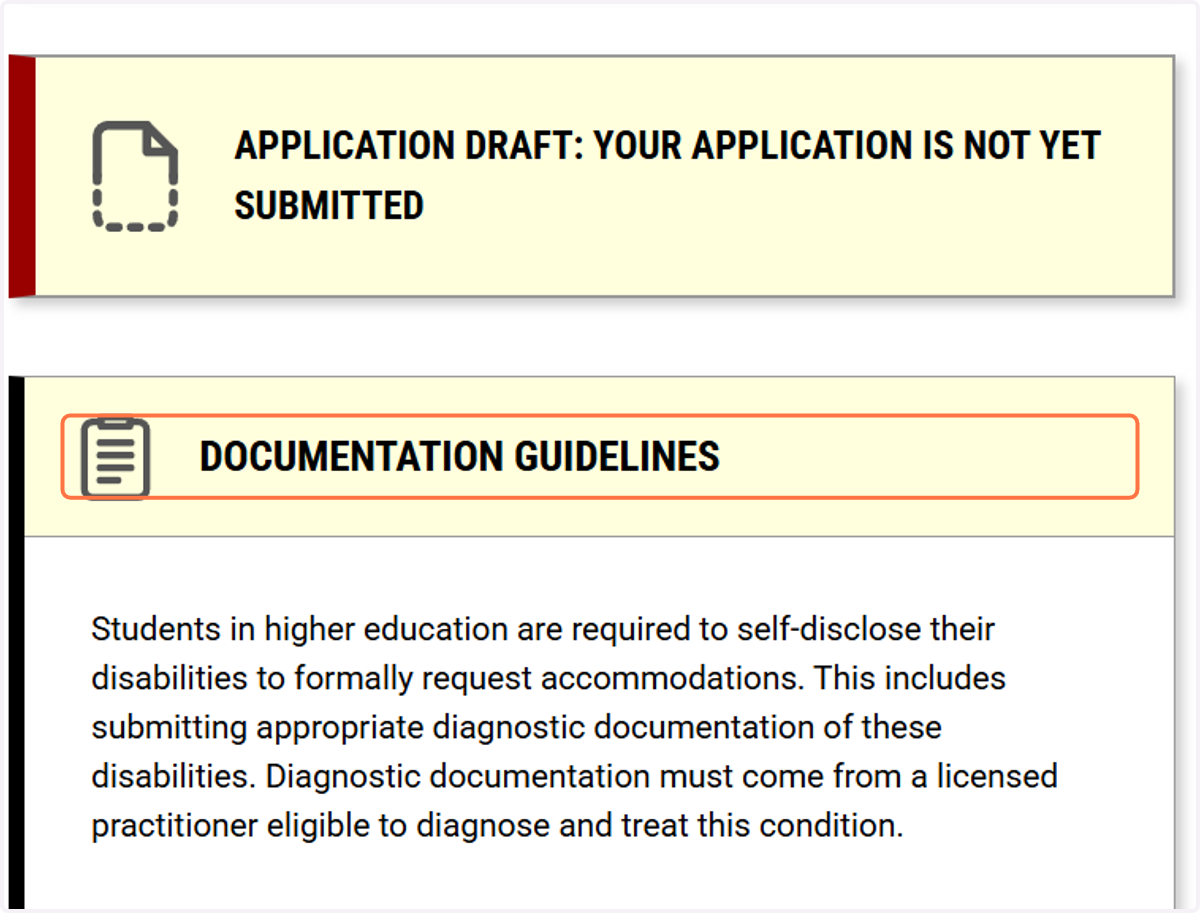
48. Give the document a descriptive name to identify the upload.
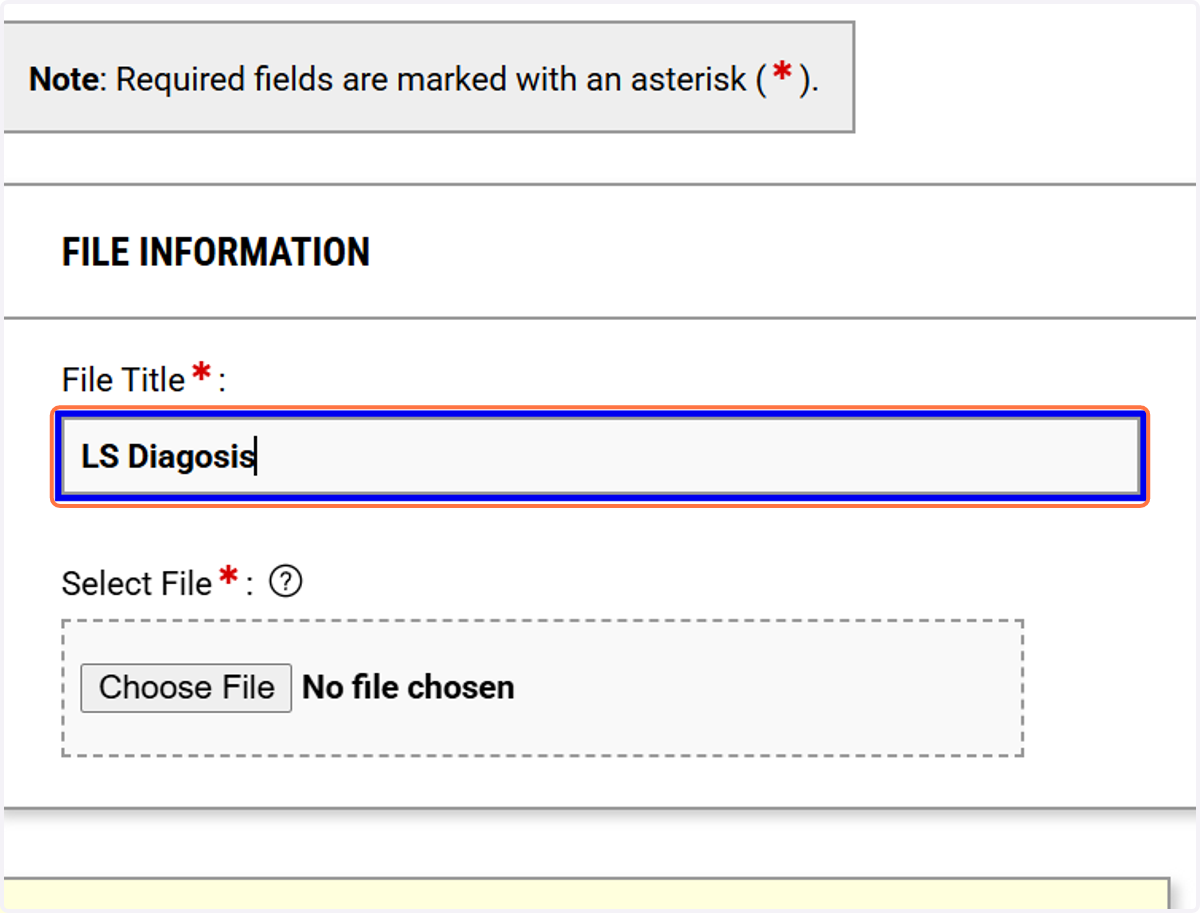
49. Select the file you want to upload.
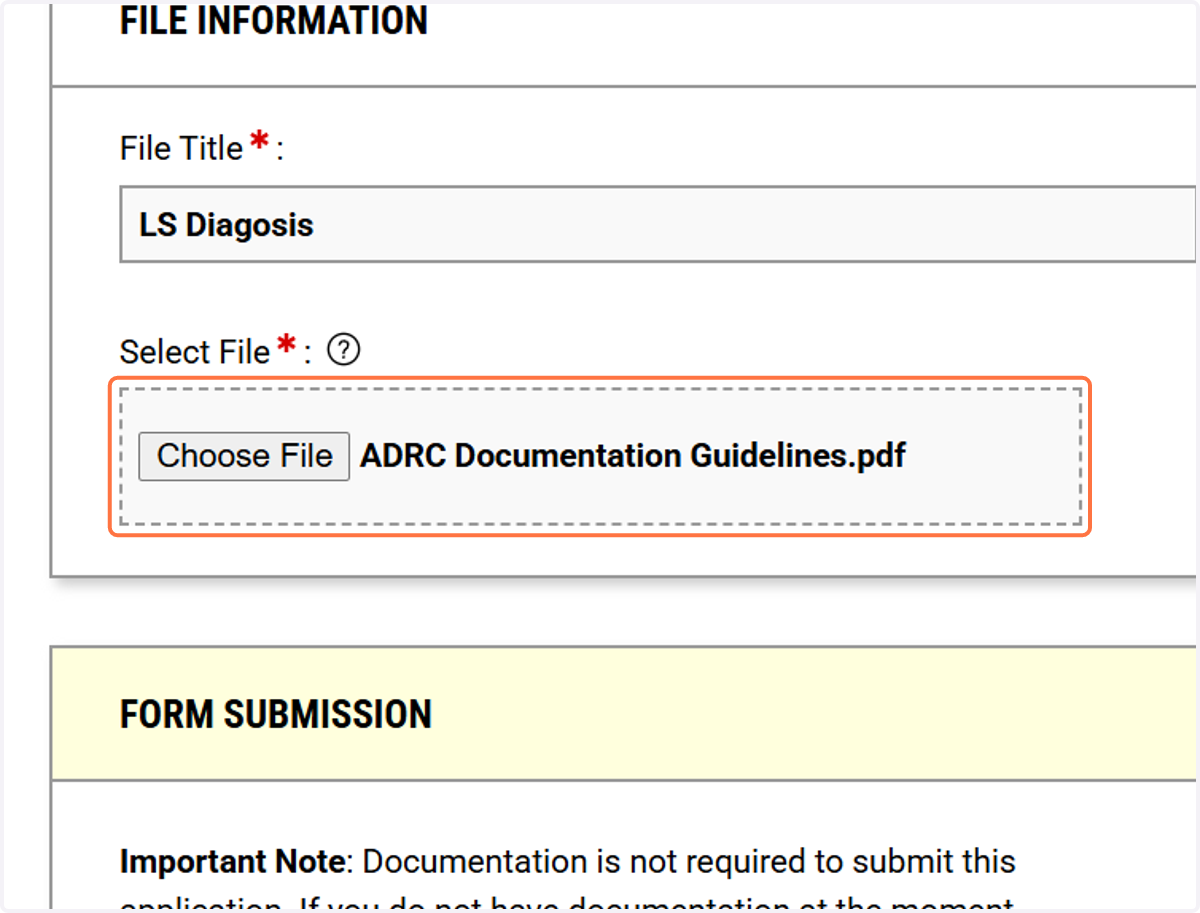
50. Click on UPLOAD FILE
Upload the selected documentation file.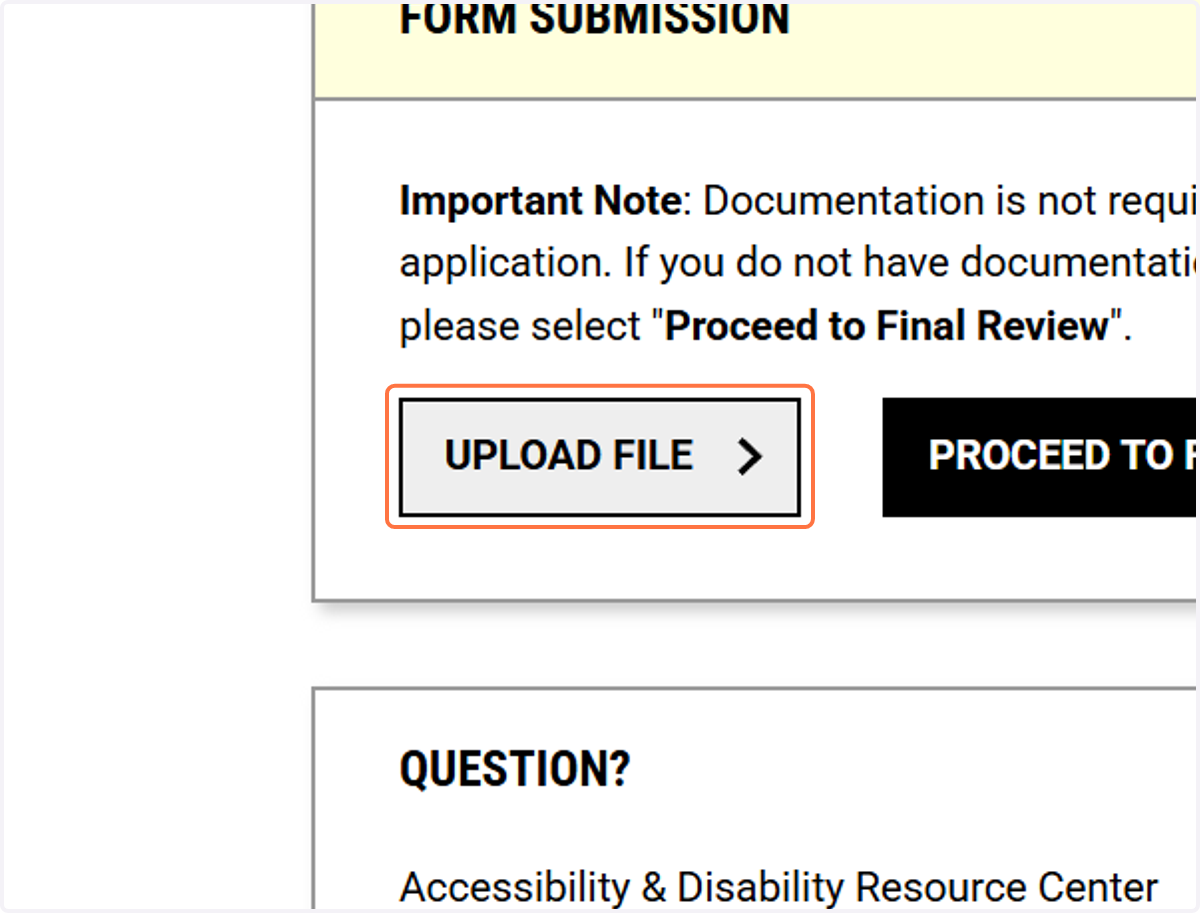
51. Click on FILES SUCCESSFULLY UPLOADED
Confirm the file upload succeeded before proceeding.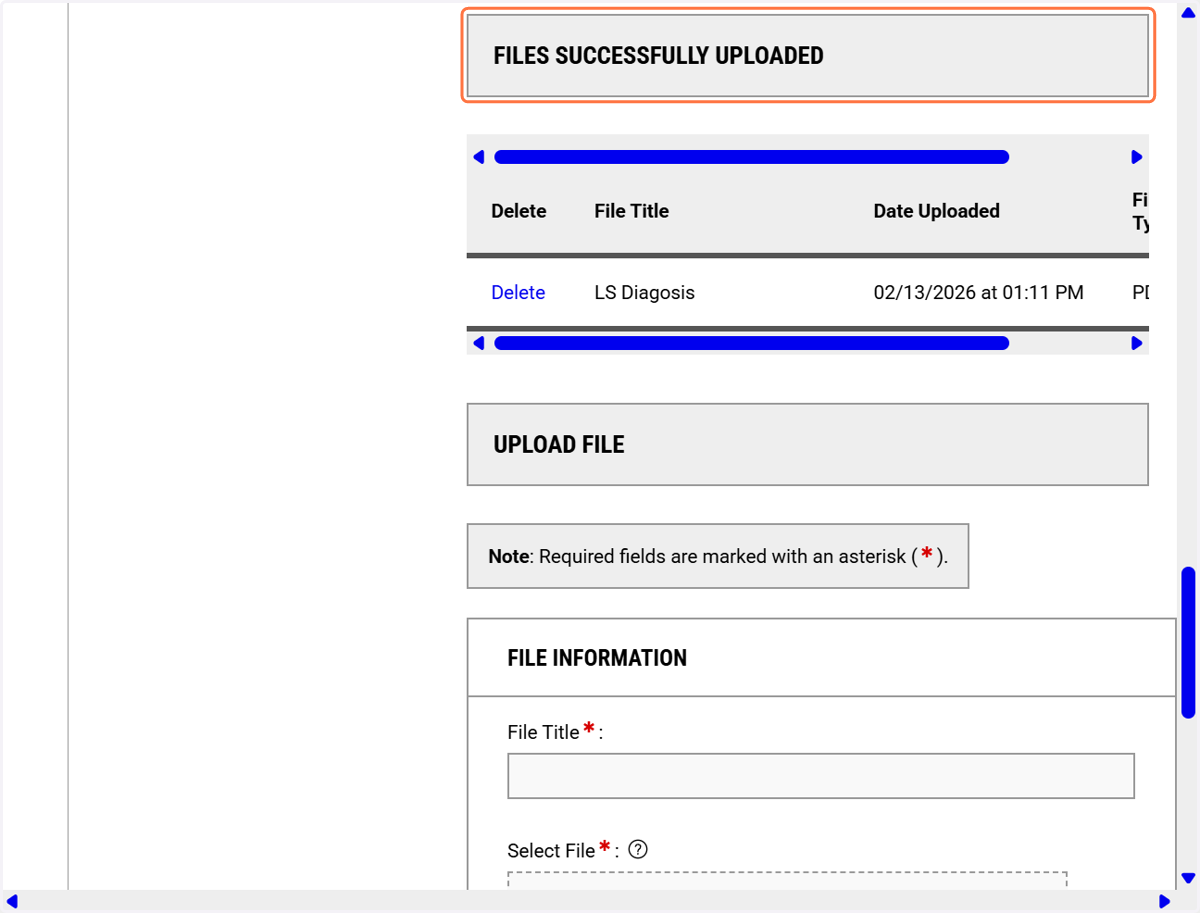
52. Click on PROCEED TO FINAL REVIEW
Proceed to the final review when you have no additional files to upload.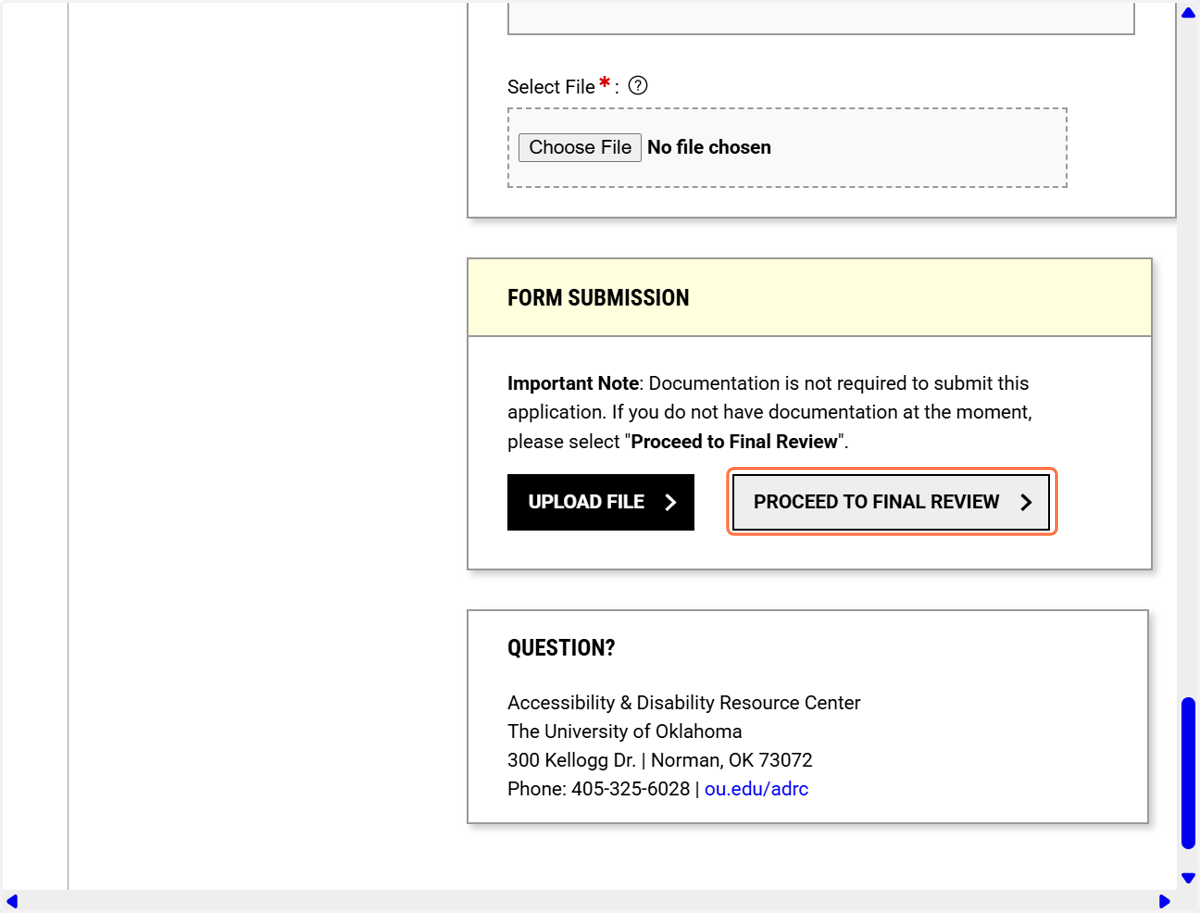
53. Click on SUBMIT APPLICATION
Read the agreement statement, agree, and submit the application.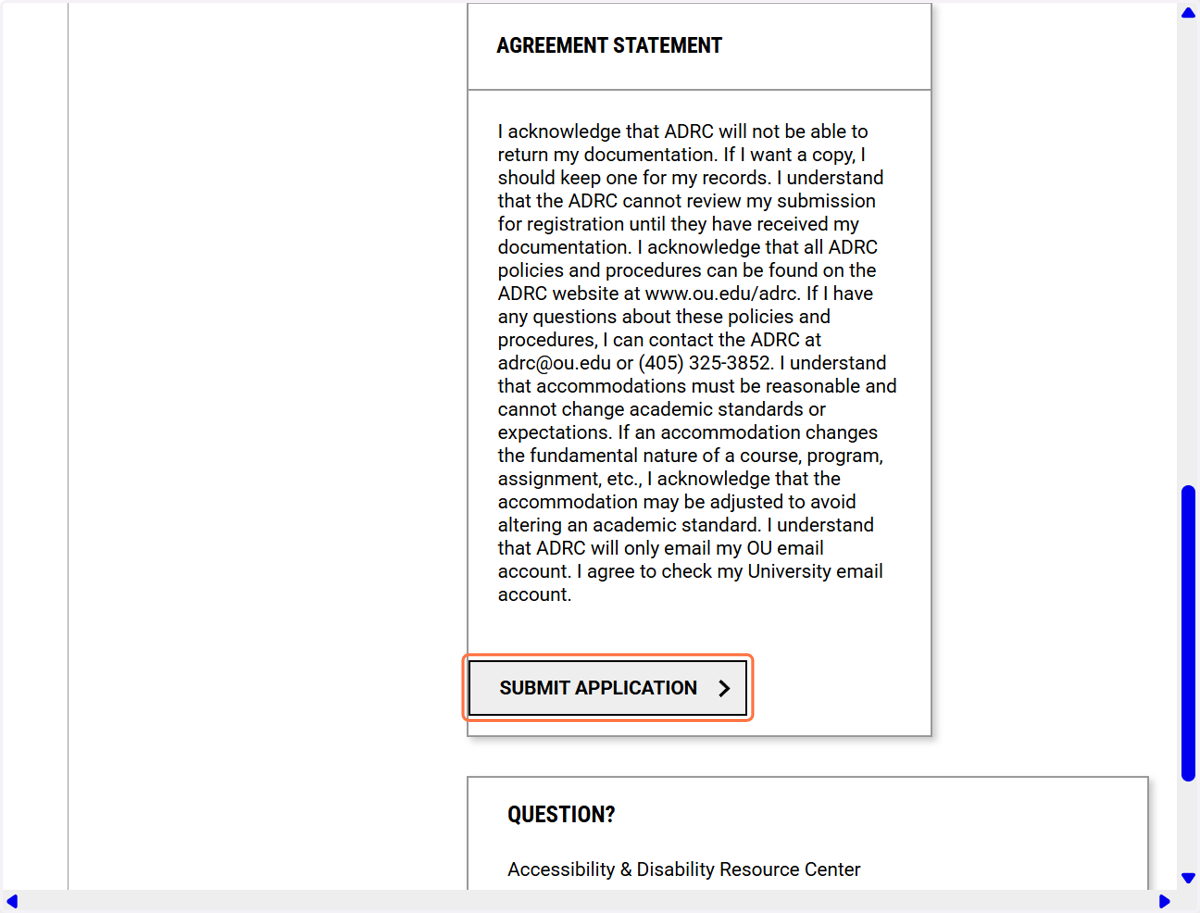
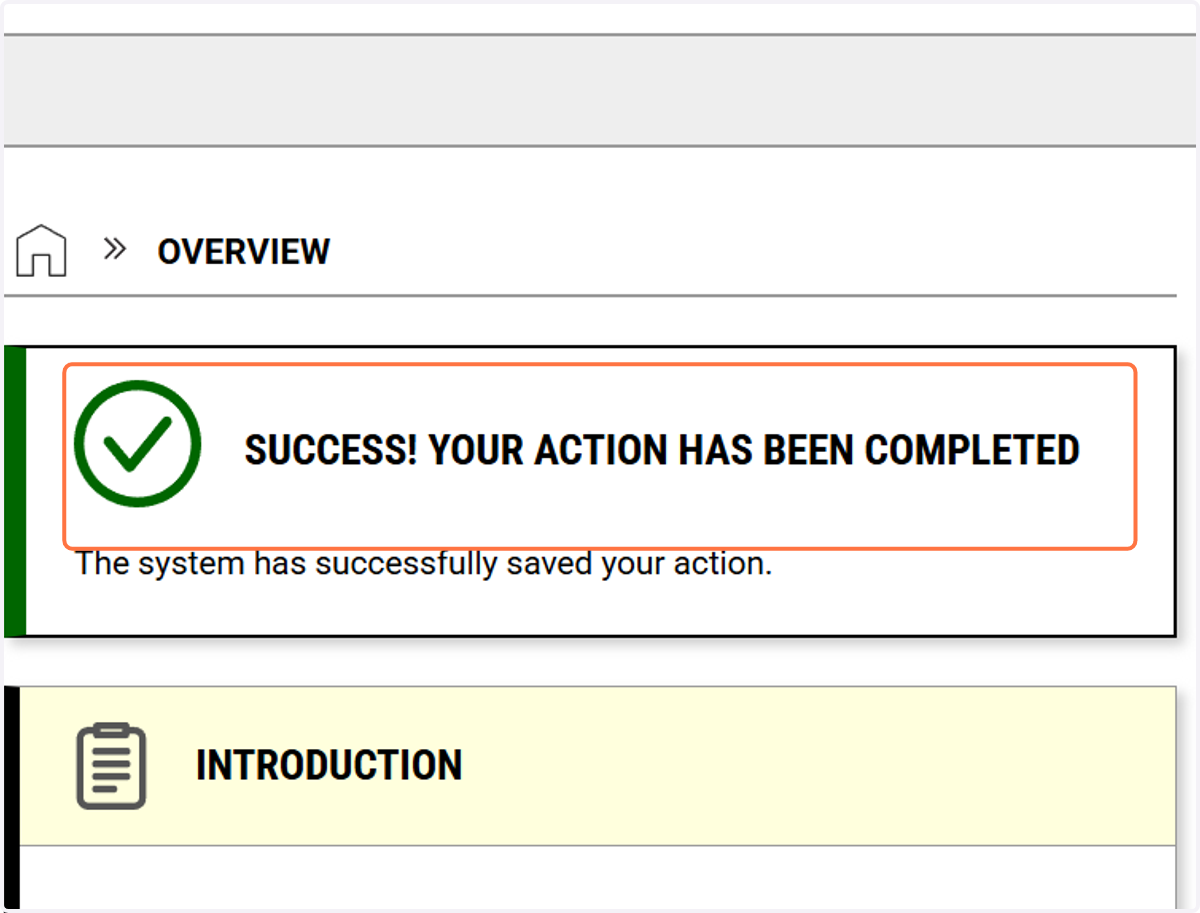
54. Click on SUCCESS! YOUR ACTION HAS BEEN COMPLETED
Verify submission success by checking for the success message/green check mark.