How to Submit Accommodation Requests in the AIM Portal
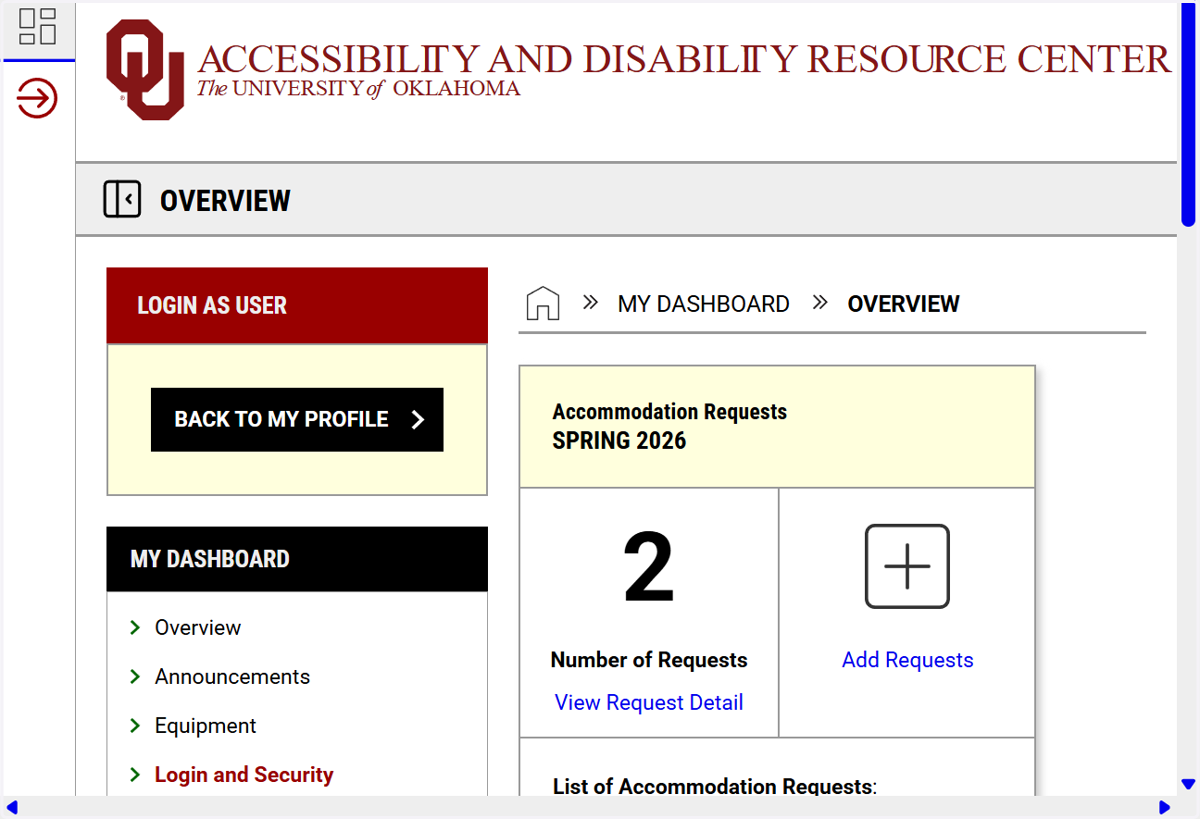
1. Once you log into AIM, this is your dashboard
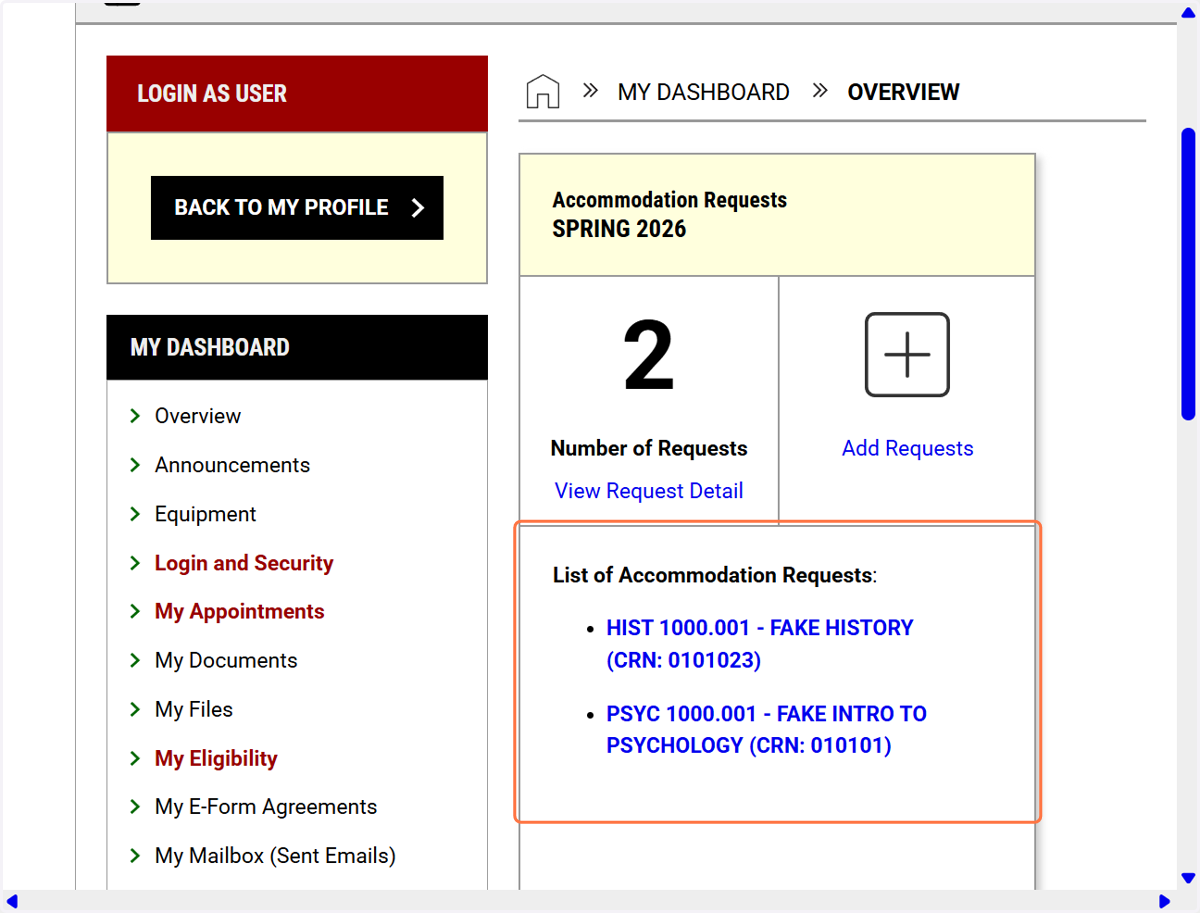
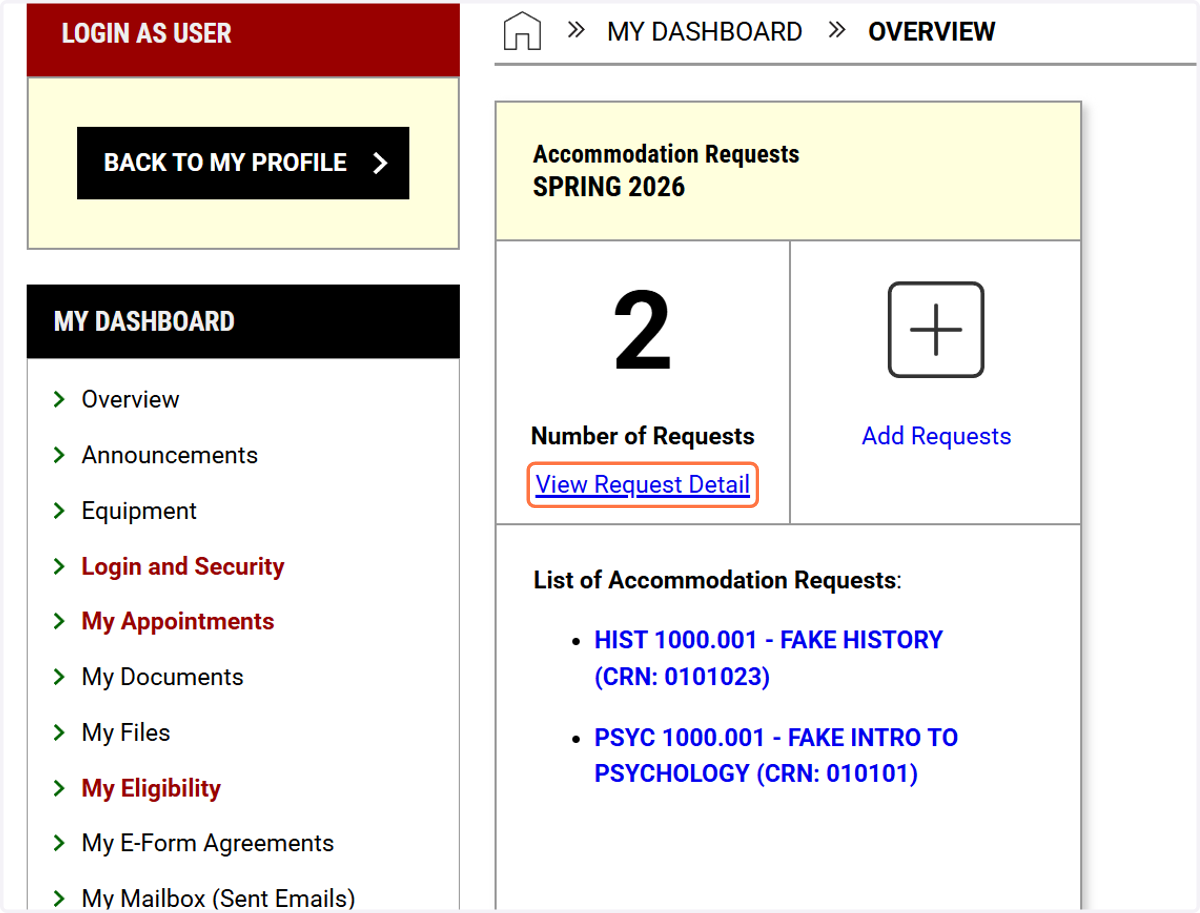
2. Under "List of Accommodation Requests," you will see the courses you have submitted accommodation requests for.
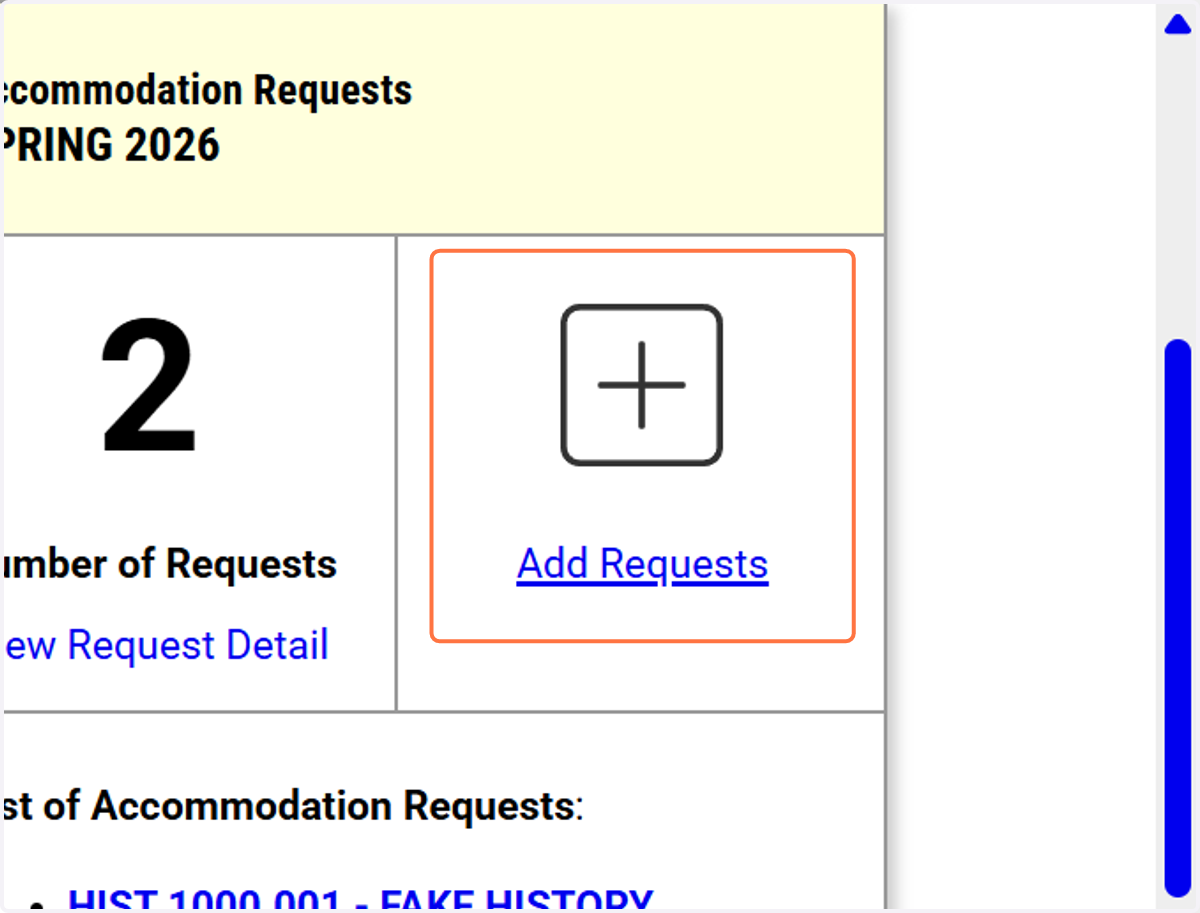
3. If you need to add an additional accommodation, click on Add Requests.
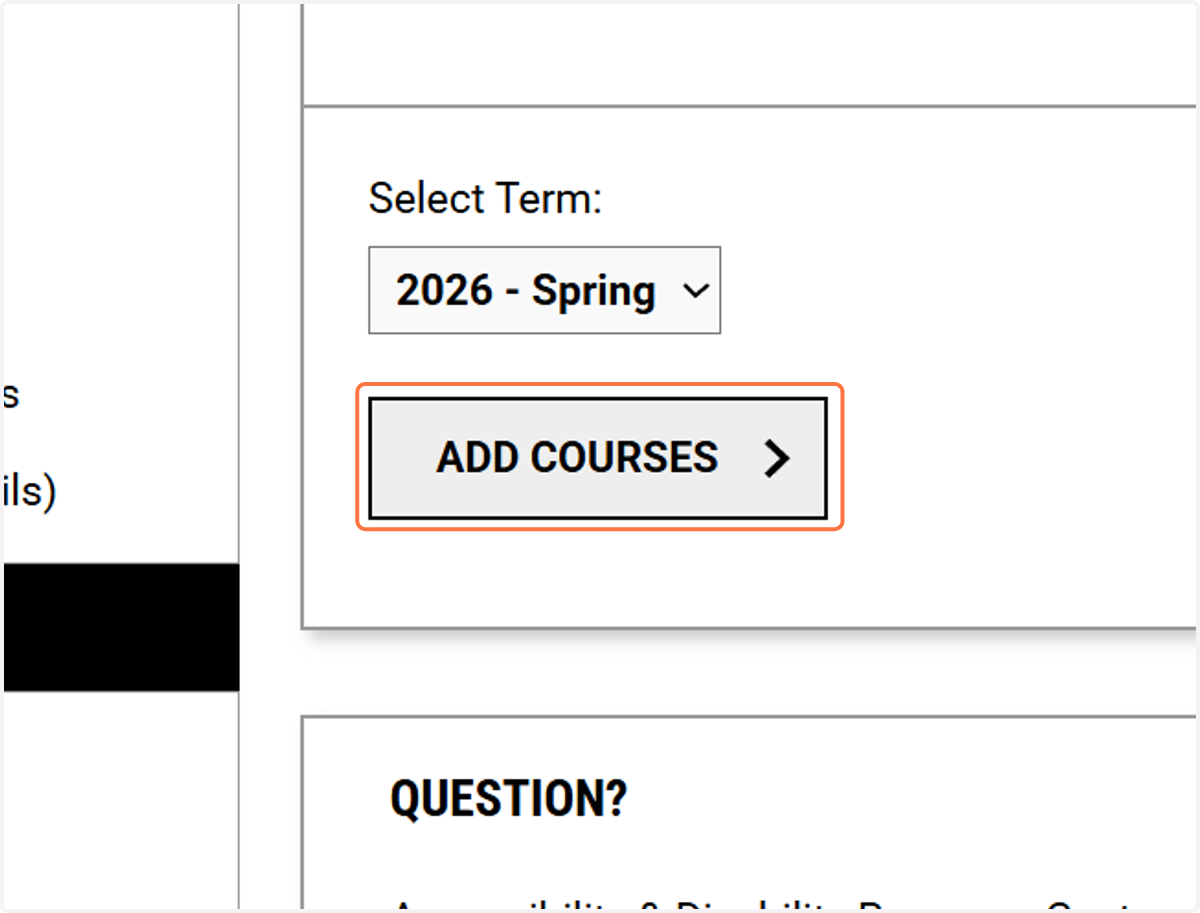
4. Click on ADD COURSES
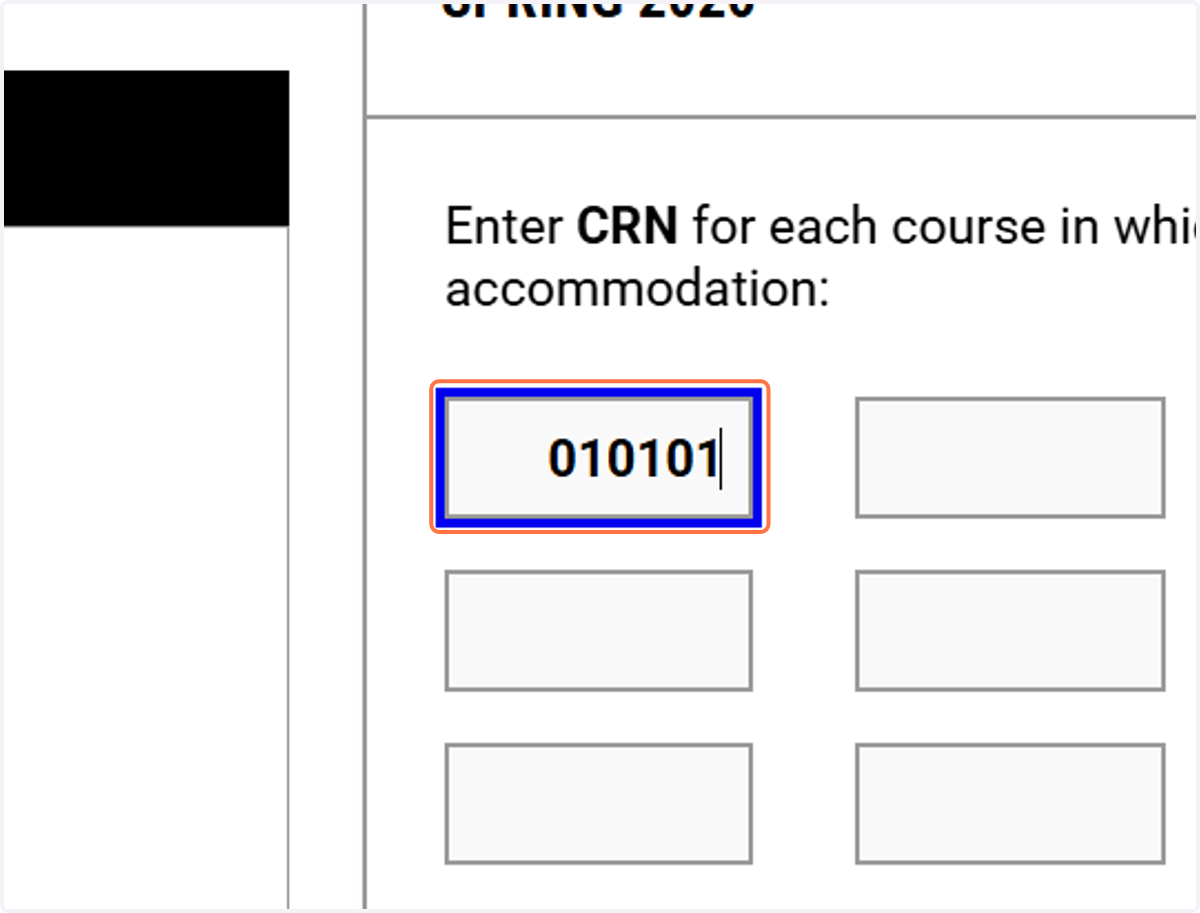
5. Enter in the course number.
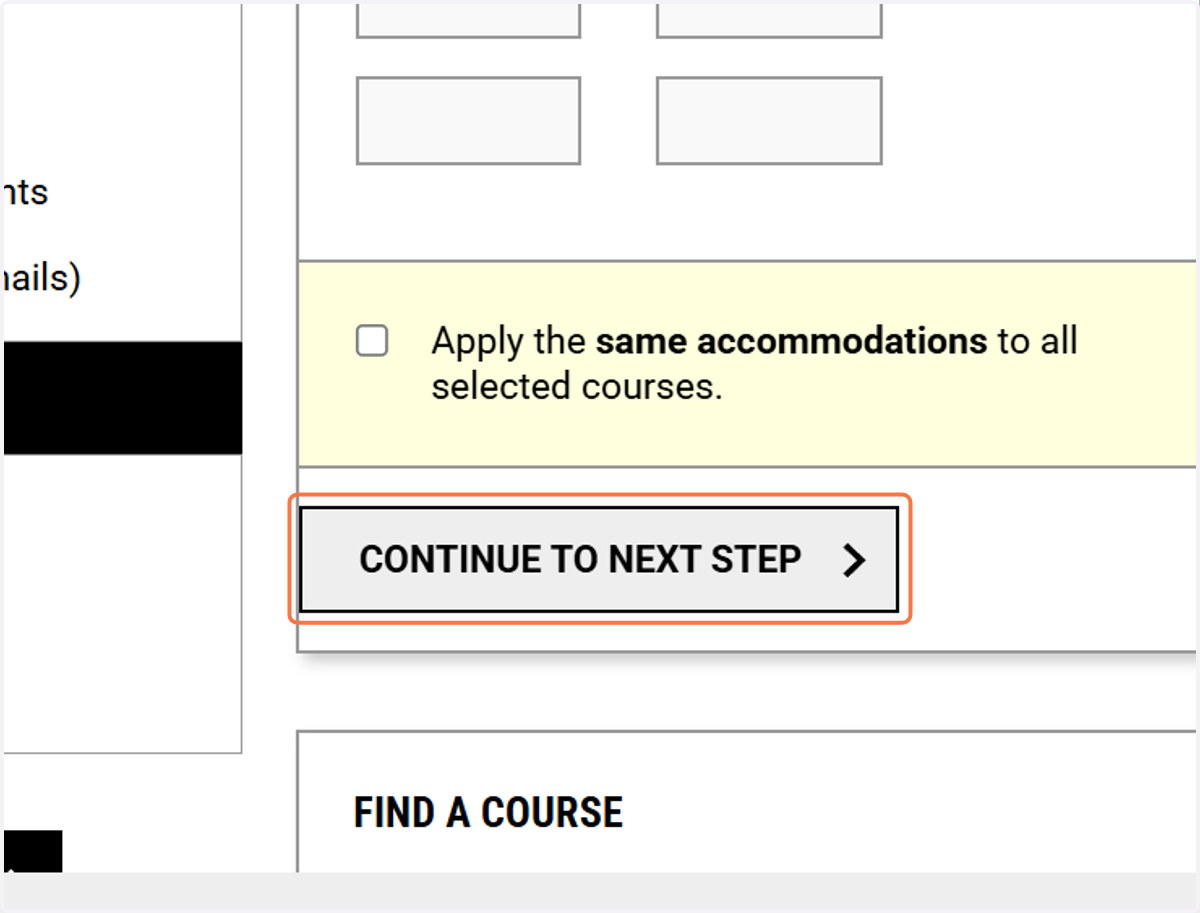
6. Click on CONTINUE TO NEXT STEP
7. Click on Course Detail…
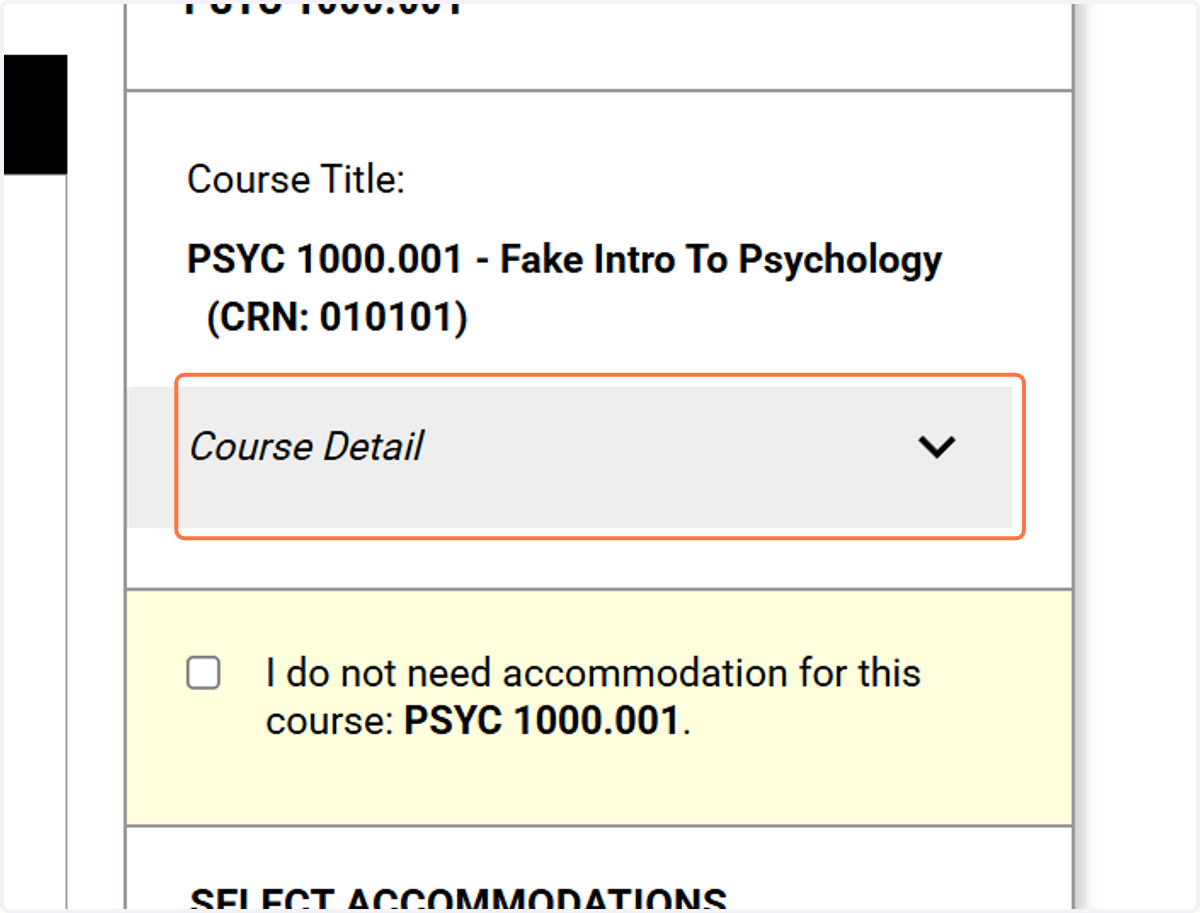
8. Click on I do not need accommodation for this course: PSYC 1000.001 OR
go to next step
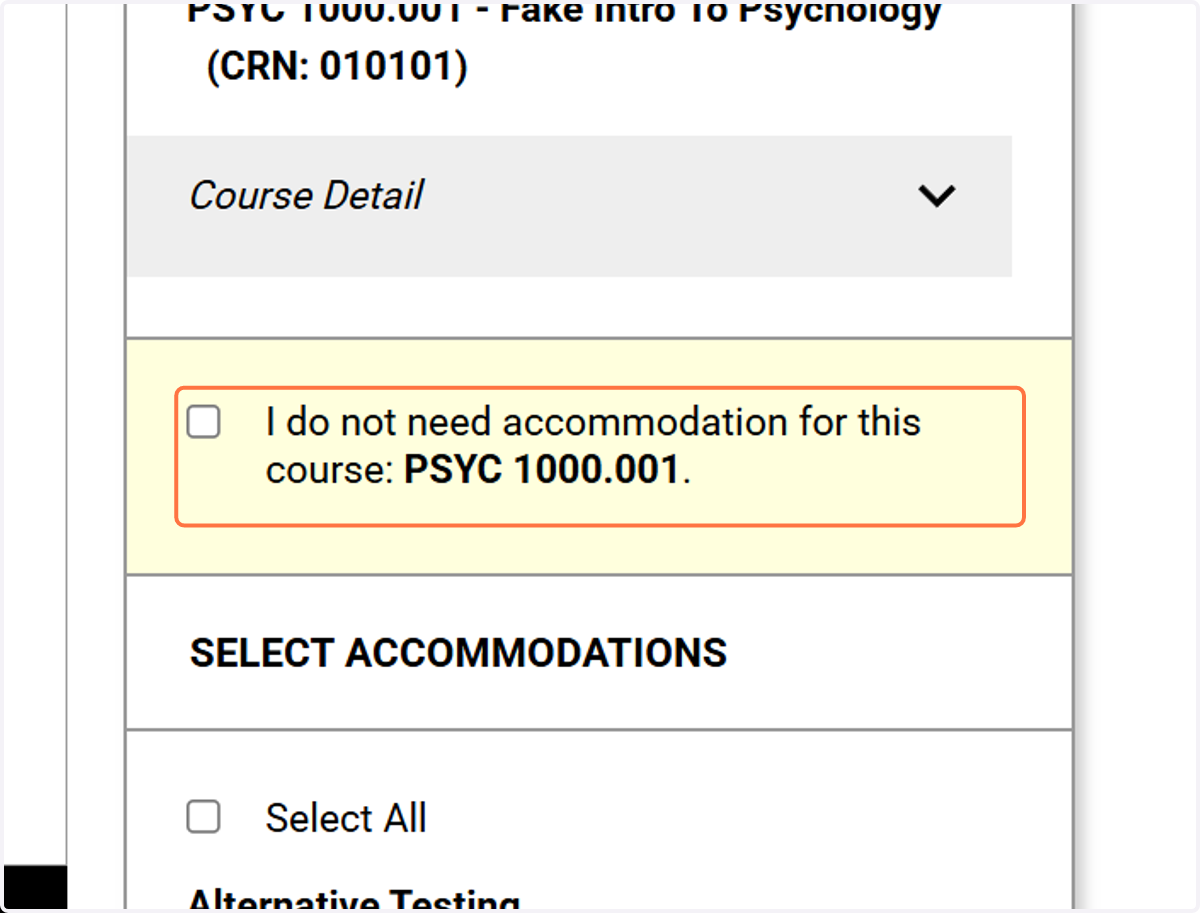
9. Go to Select Accommodations.
You can choose either "I do not need accommodation for this course: <Course Name> or
"Select Accommodations."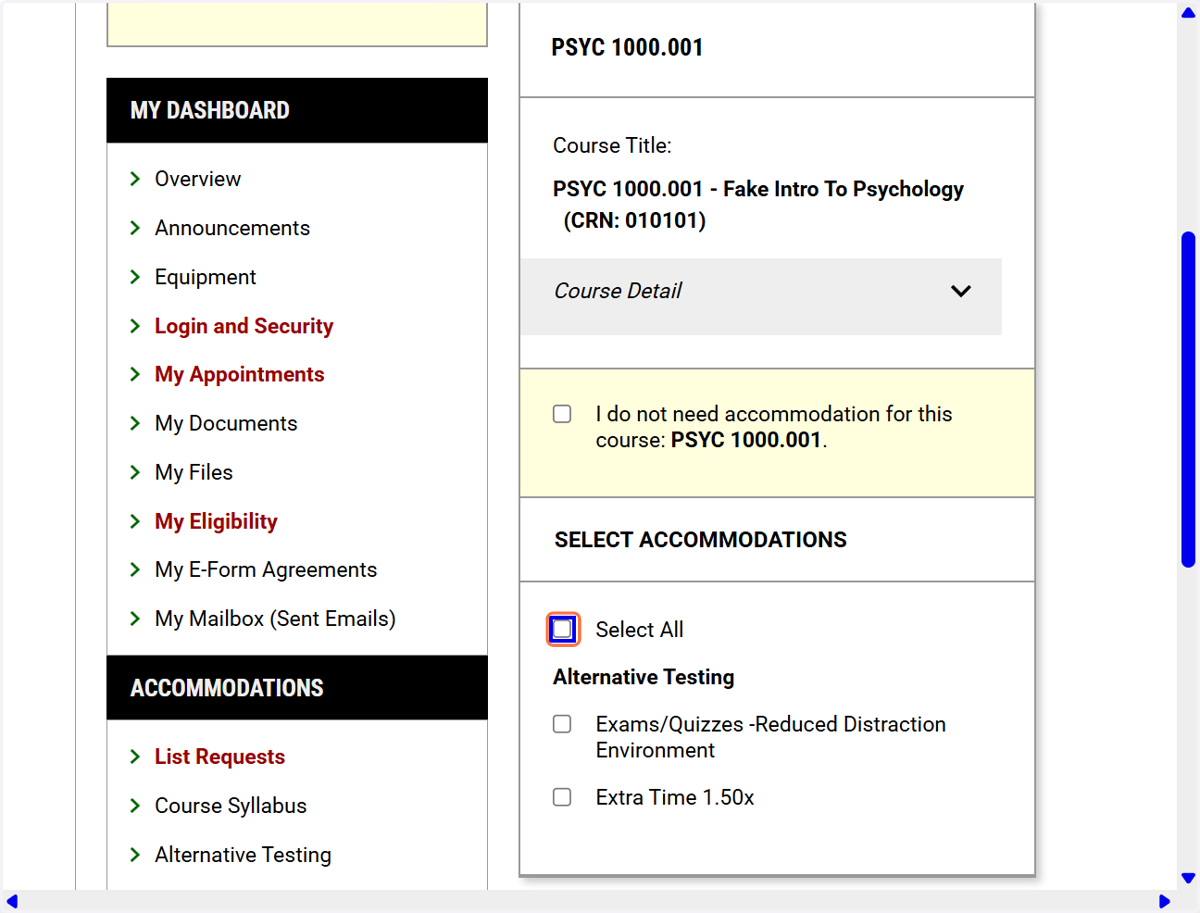
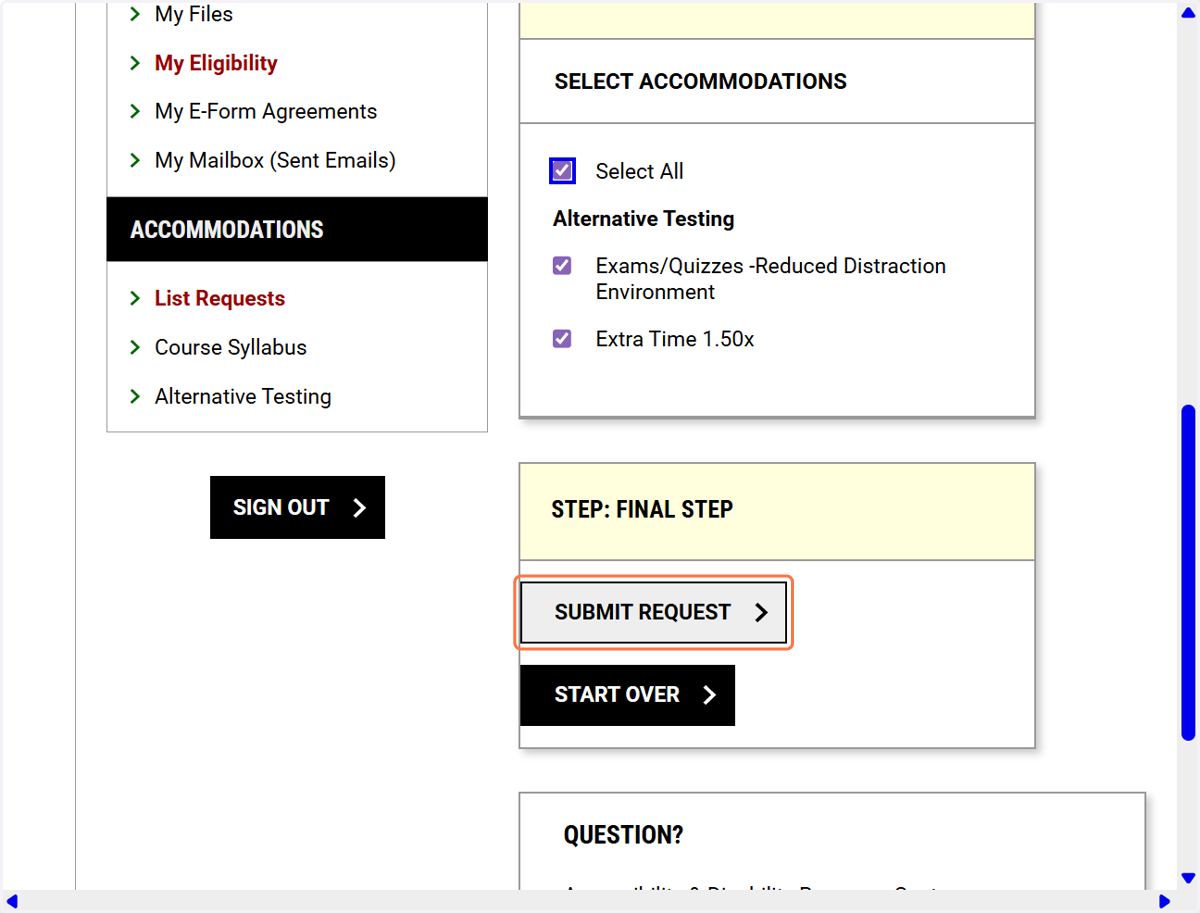
10. Select all will check all of your approved accommodations. You can also choose each accommodation you want to use for each course.
Once you have made your selection, click on SUBMIT REQUEST.
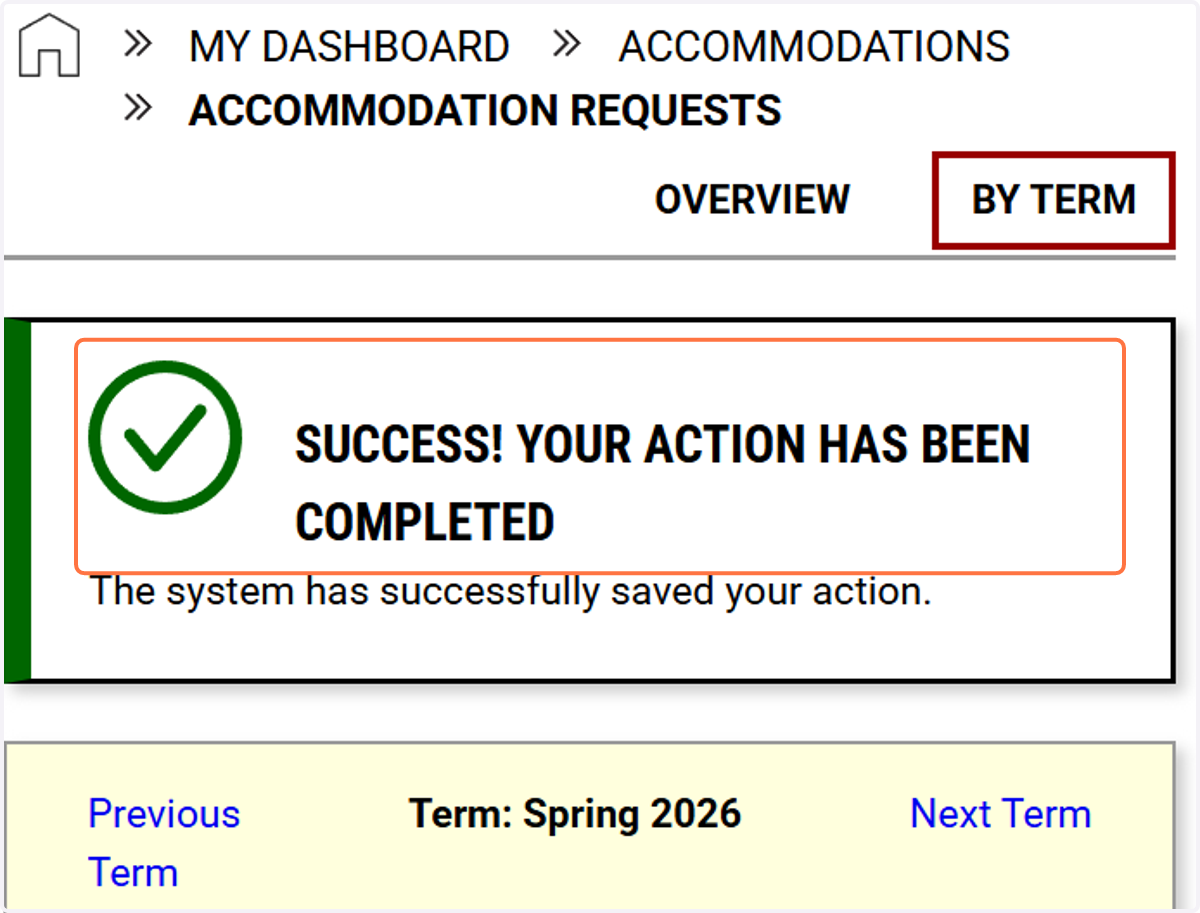
11. AIM will also show you a green check box when you have successfully completed an action.
12. Click on OVERVIEW on the left side menu
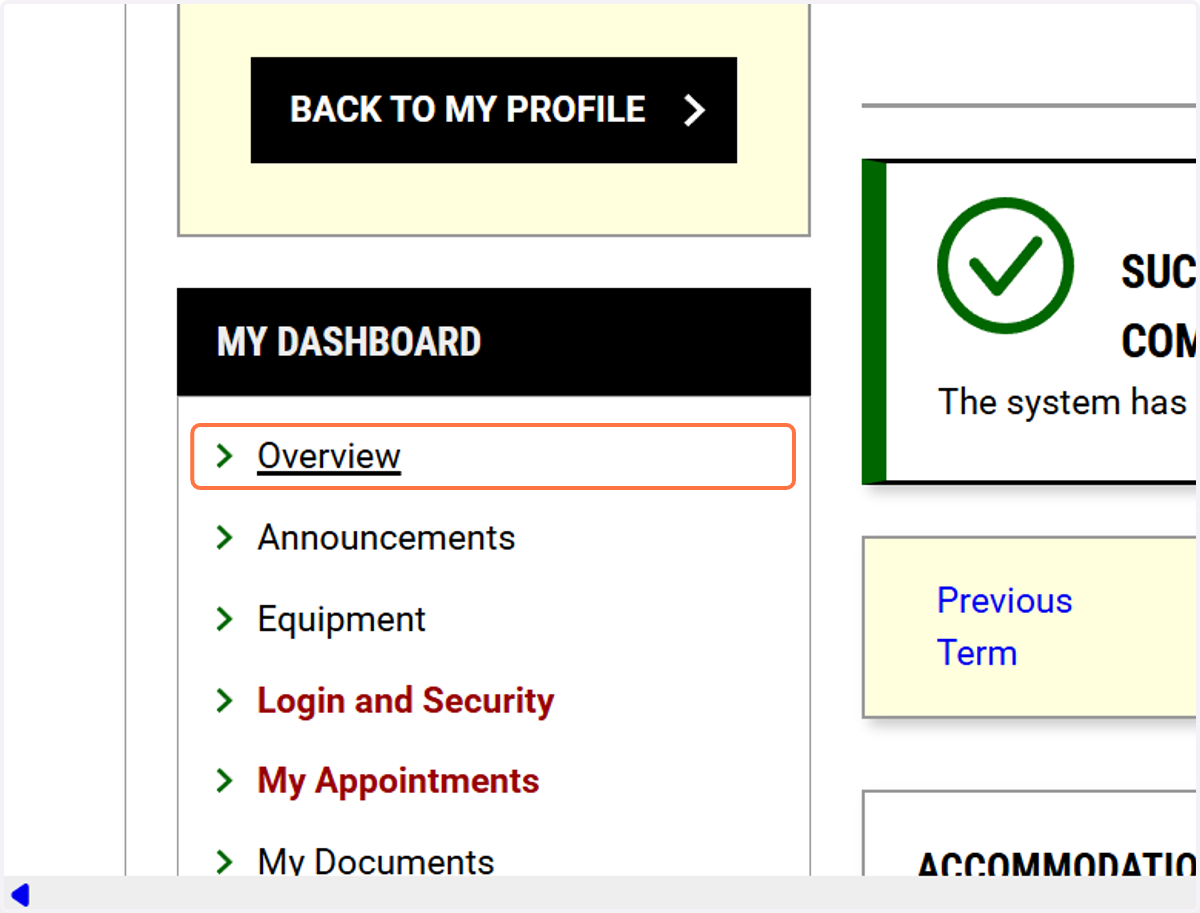
13. This will show you that you have requests, the list of accommodation requests by class
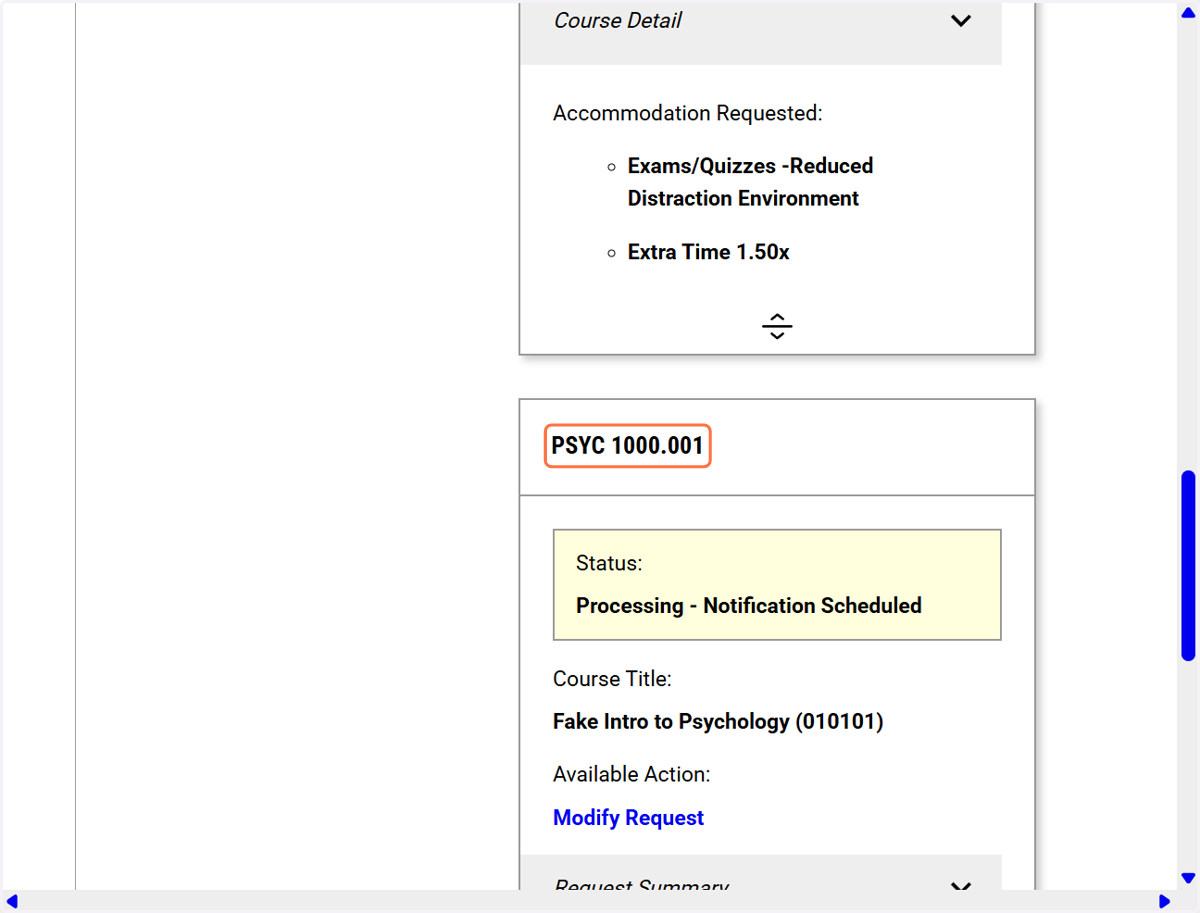
14. Click on Request Summary…
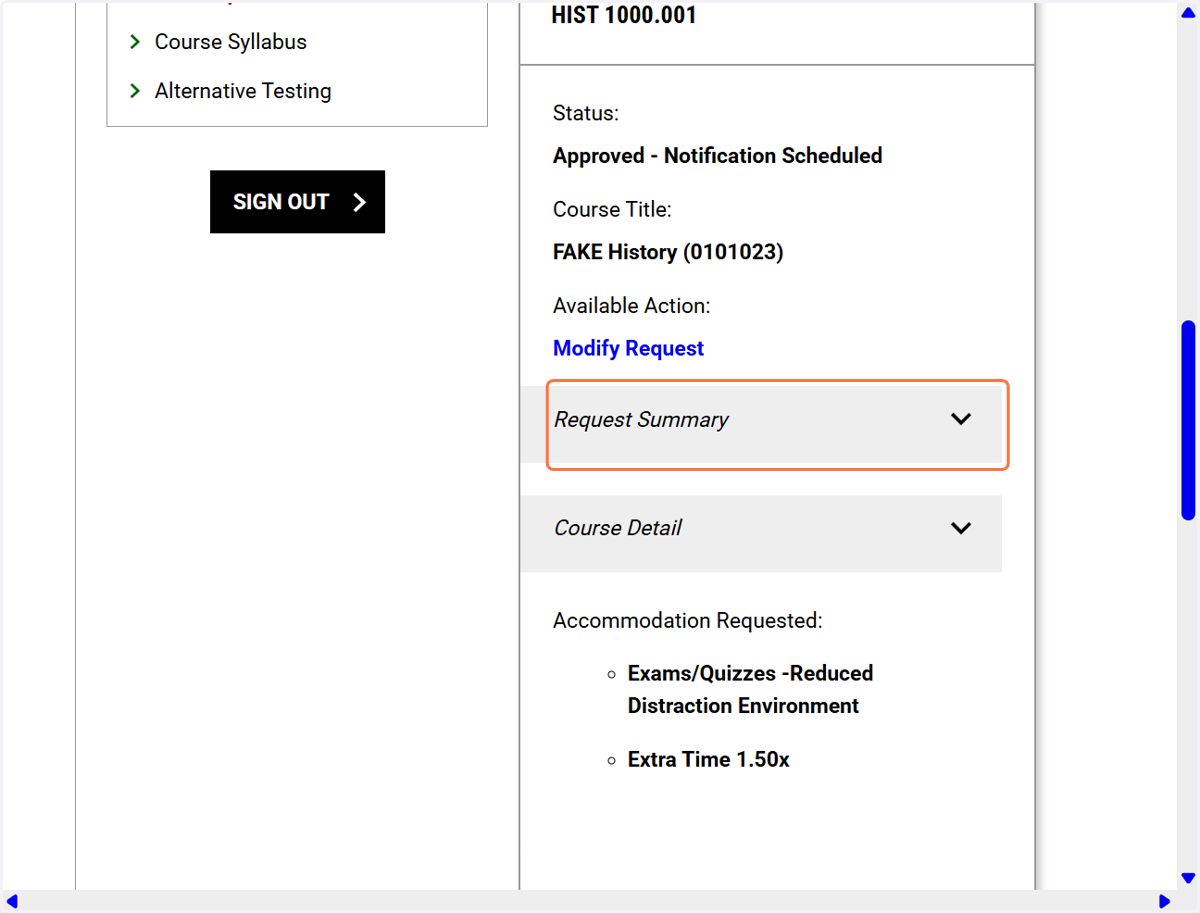
15. This will show you your requested accommodations.
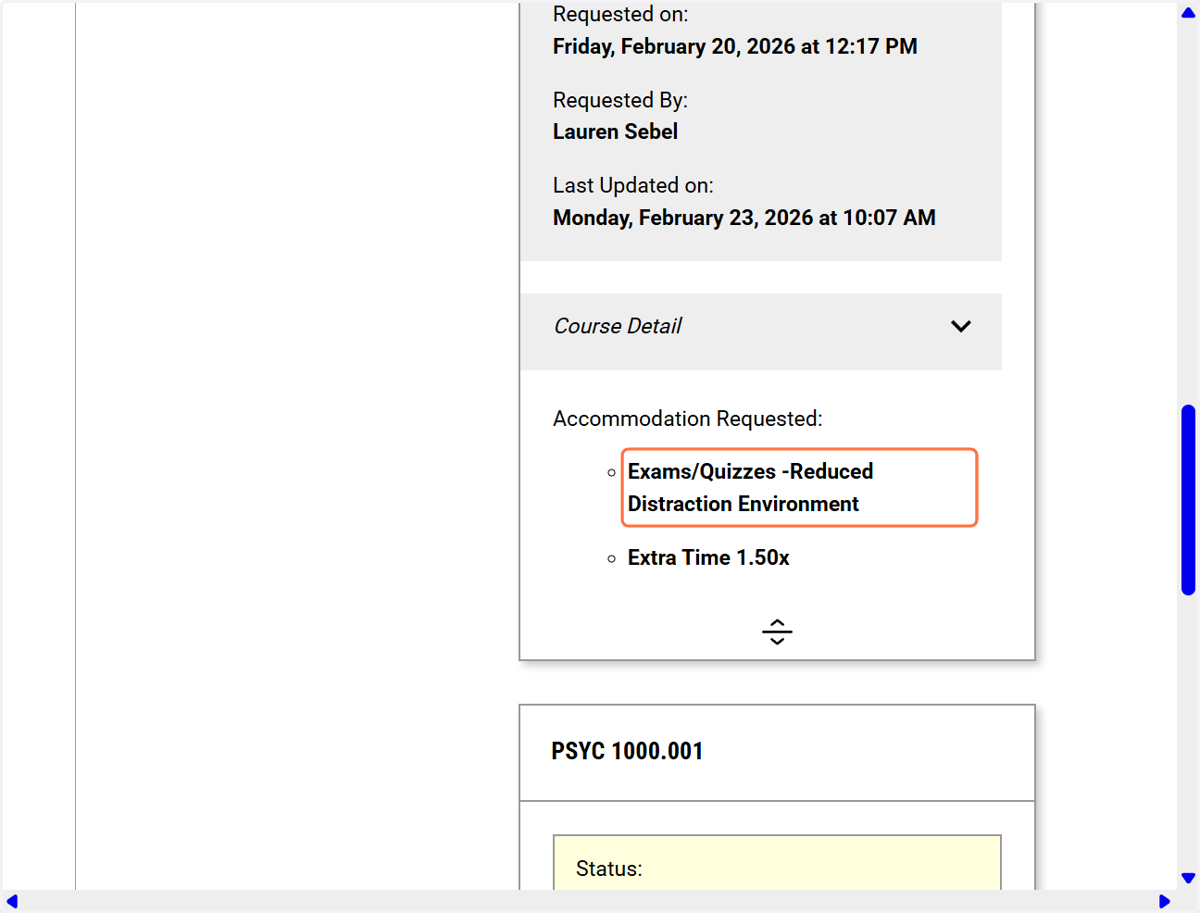
16. This screen will show you that your accommodation request is processing and the notification to the instructor is pending.