How to Set Extra Credit
This tutorial will show you how to set extra credit in the grade book for any assessment. When you add an extra credit assignment, you will put in the total amount of extra credit points. Then you must go to the grade book and set it as a bonus assessment.
Start Here - Patti - Practice as Instructor
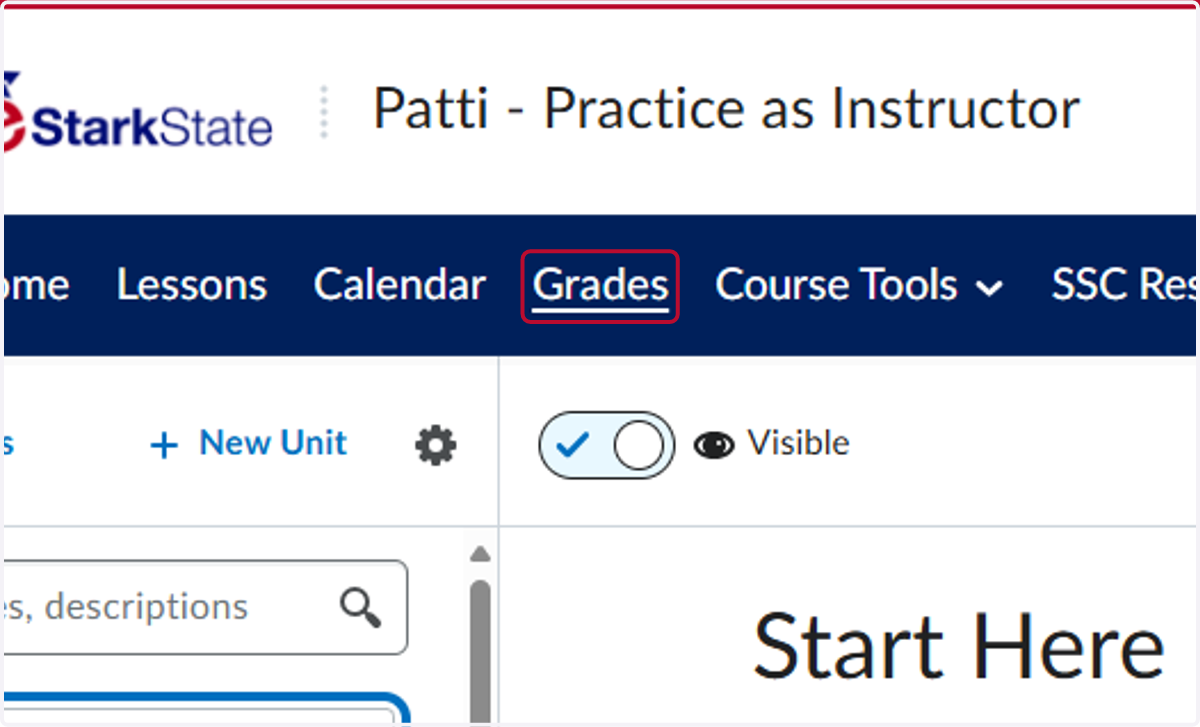
1. Click on Grades
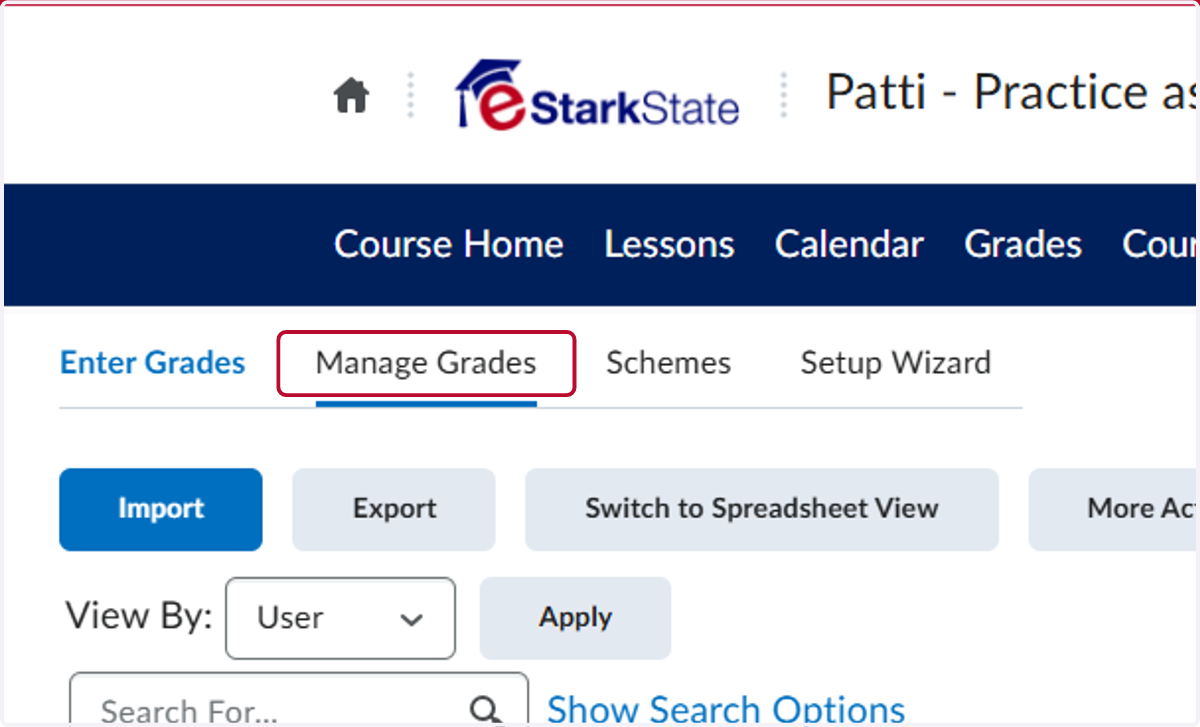
2. Click on Manage Grades
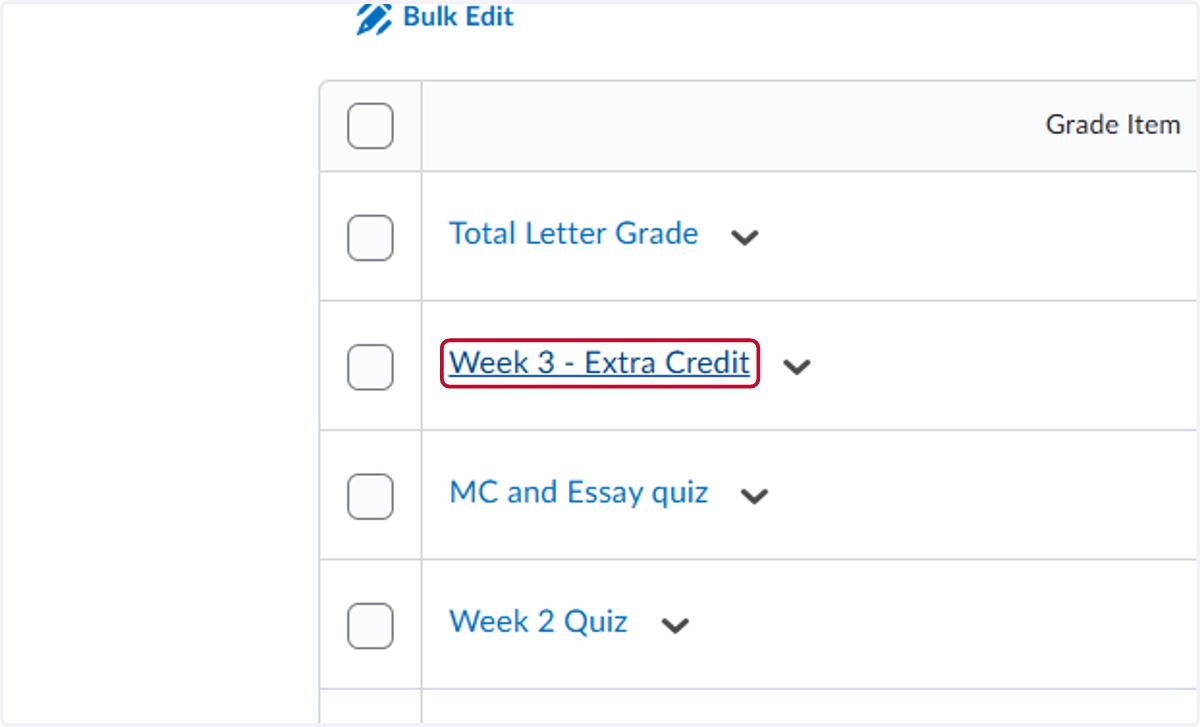
3. Click on the assessment you want to make extra credit. For this example, we used Week 3 - Extra Credit
4. Click on Grading
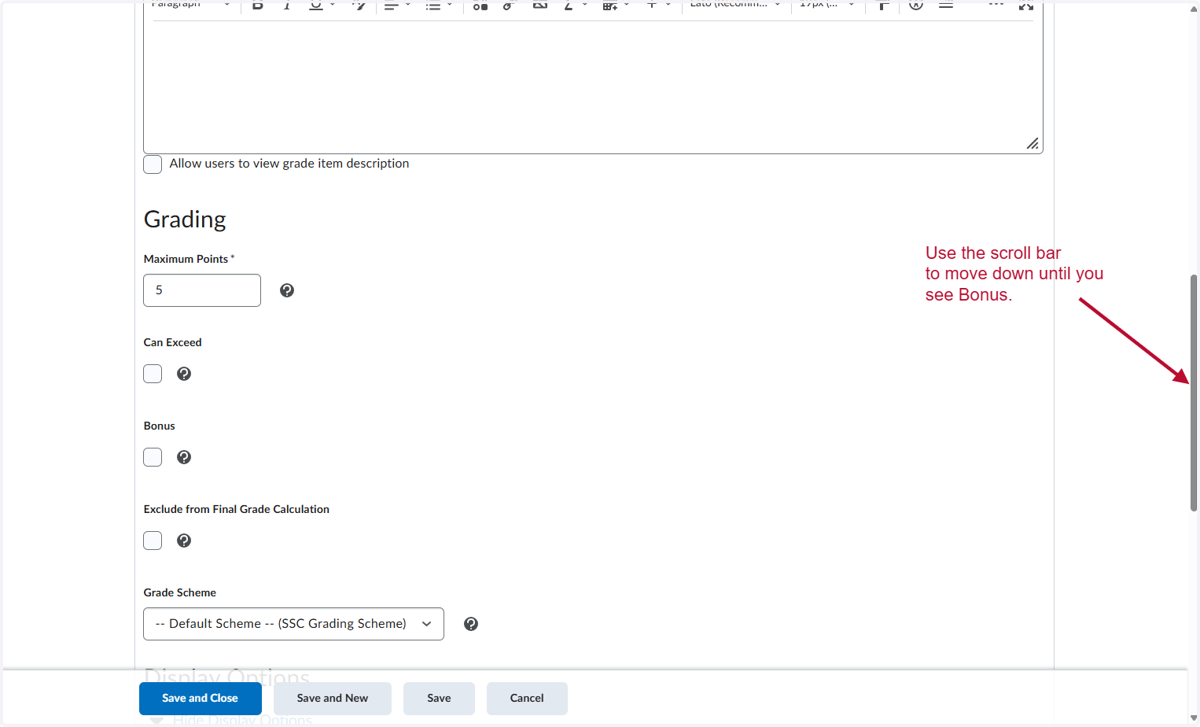
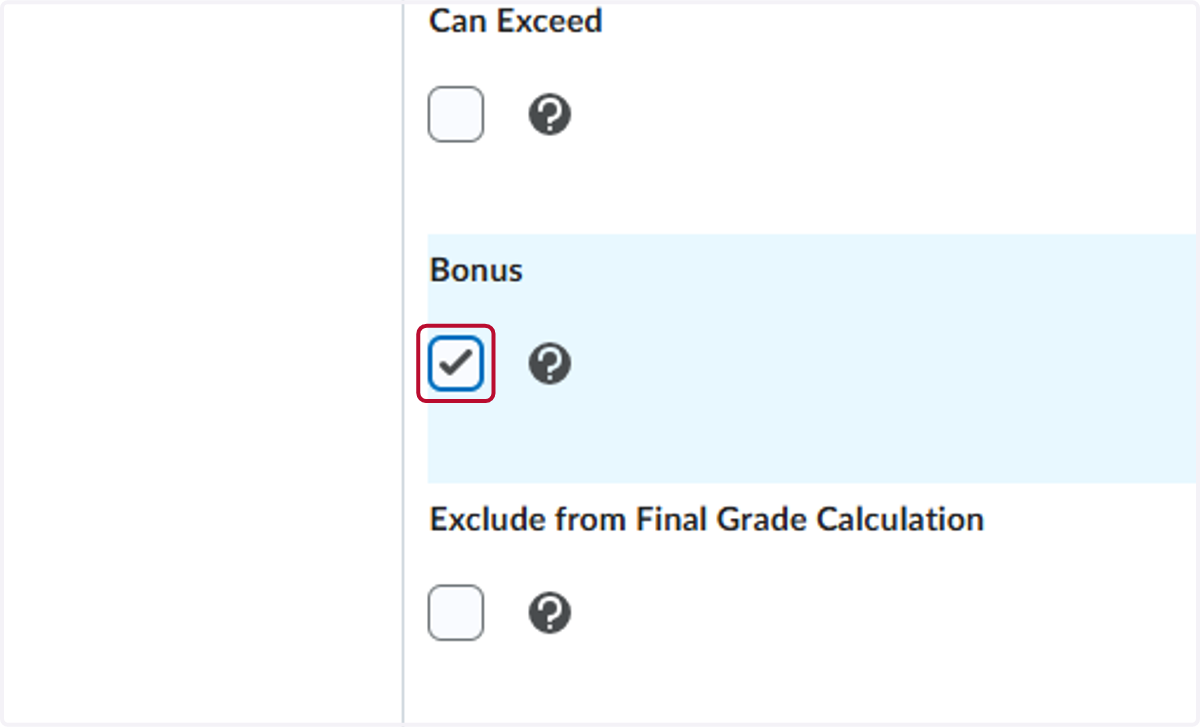
5. Check Bonus
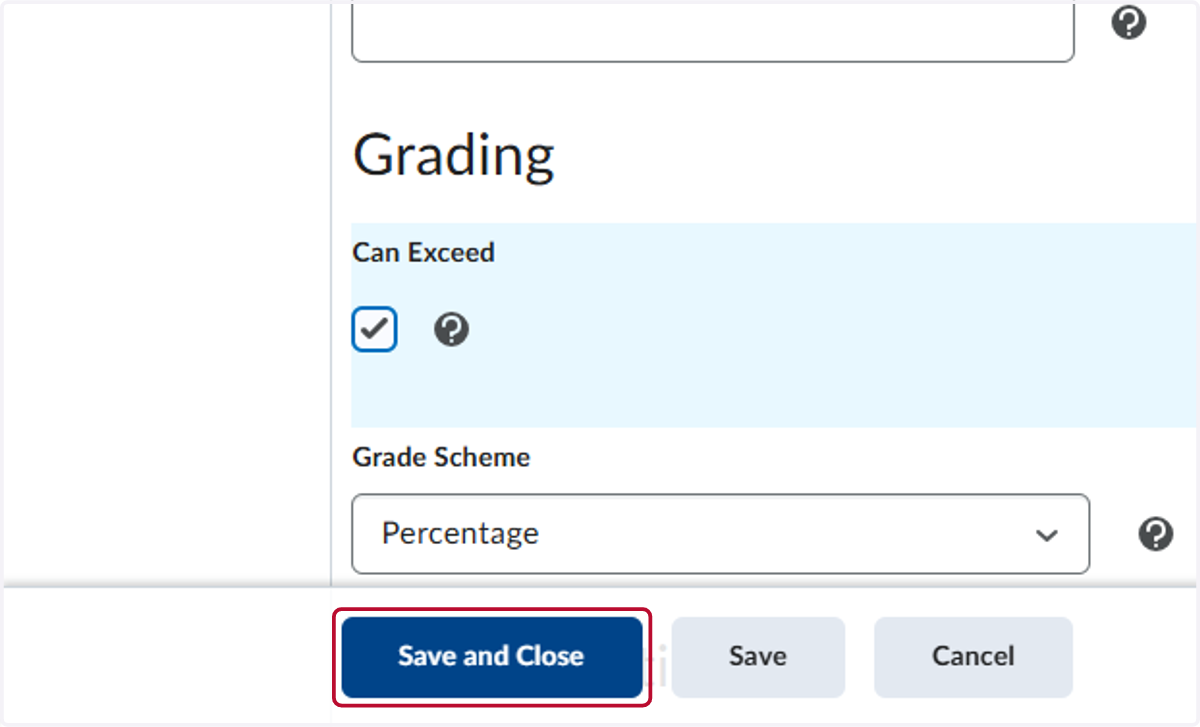
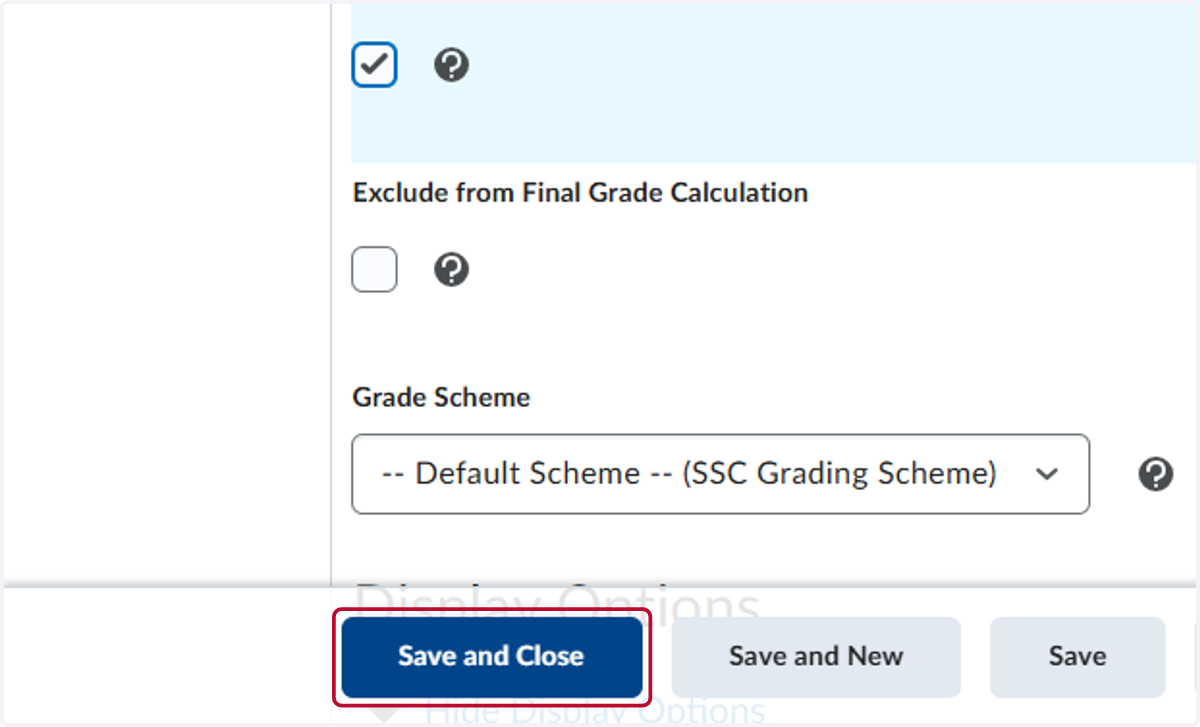
6. Click on Save and Close
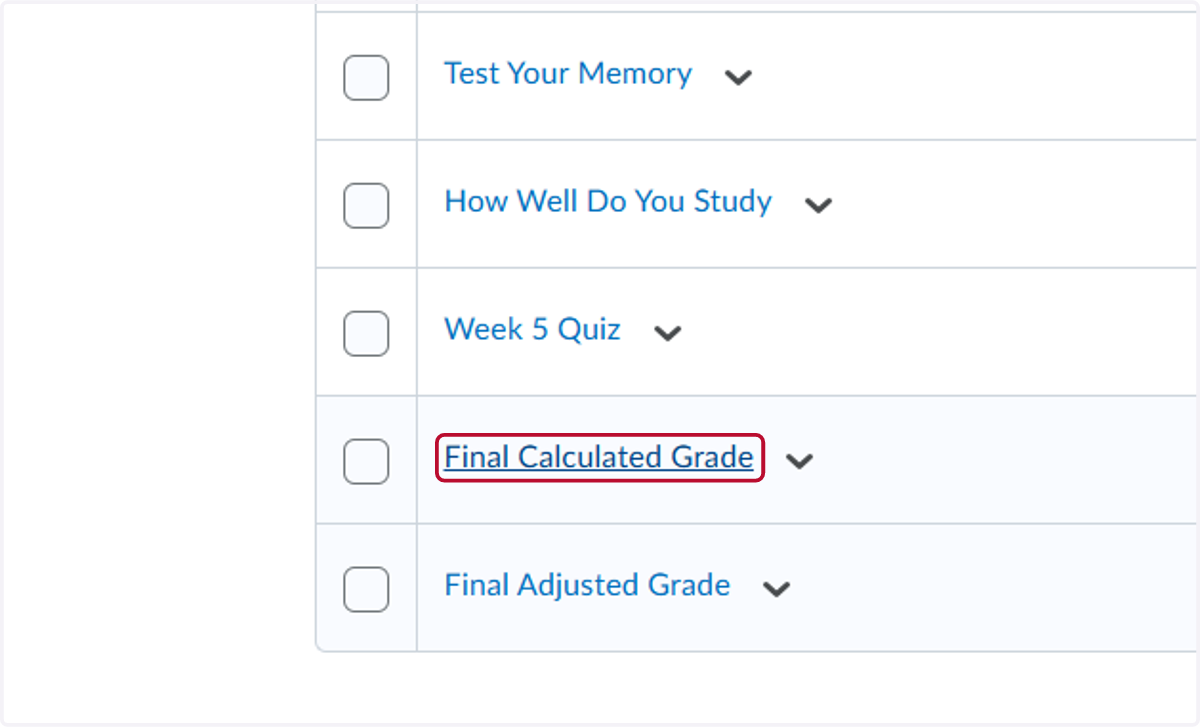
7. Because you have extra credit, you will need to update any Letter Grade column you added and/or the Final Calculated Grade. Click on Final Calculated Grade at the bottom of your grade book.
8. Check Can Exceed
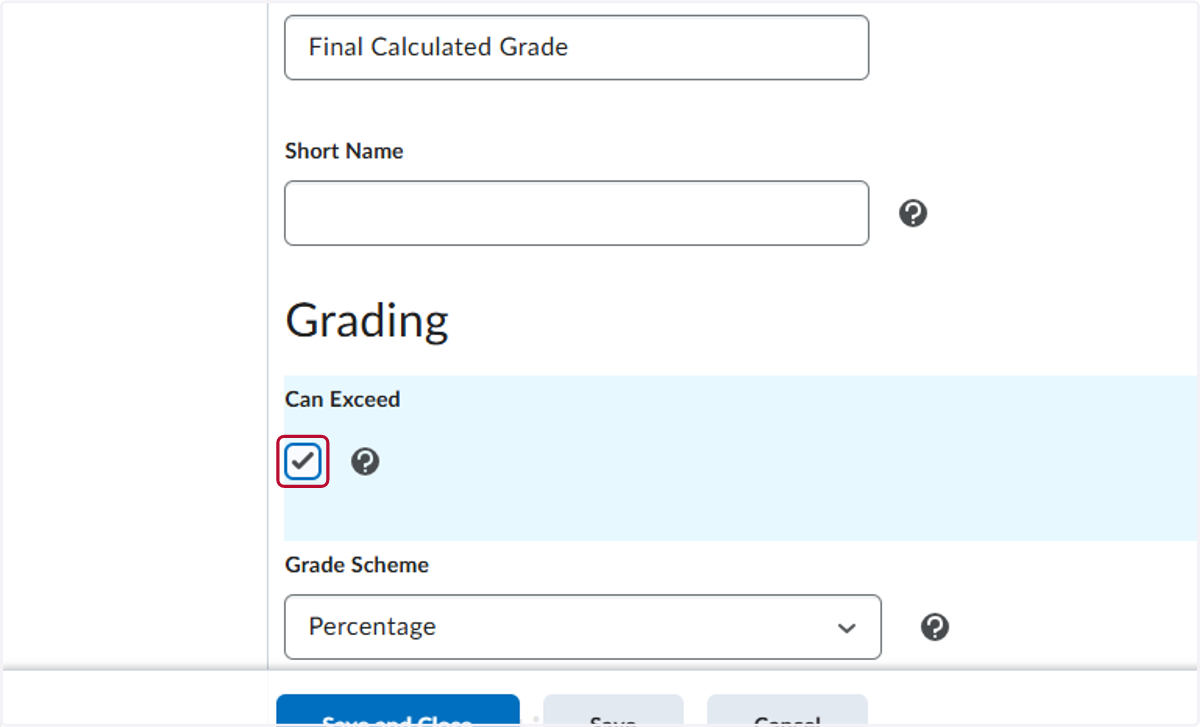
9. Click on Save and Close