How to Request Amazon Punchout Orders through Mission Vista Academy
Homeschool Hub is integrated with Amazon to provide a convenient, efficient way of requesting educational products for parents and guardians. The steps below will walk you through how to place Amazon Punchout orders through your student's Homeschool Hub account.
Before placing Amazon Punchout orders for the first time, please keep the following things in mind:
Amazon Punchout orders should only be placed using a computer. This vendor is not compatible with mobile devices.
Always access your student's MVA Amazon account through Homeschool Hub. Never try to log into the account directly from www.amazon.com.
Please do not request more than 5 items per order.
Please request Kindle books through the product vendor Kindle (not Amazon).
Please do not request magazines or other subscriptions through Amazon Punchout.
Additional items are unable to be added to Amazon Punchout orders. If you forgot to request a needed item, please enter a new order request for that item, rather than trying to adjust the existing Amazon Punchout order.
Whenever possible, please only select items offered through Amazon Prime.
MVA Homeschool Hub
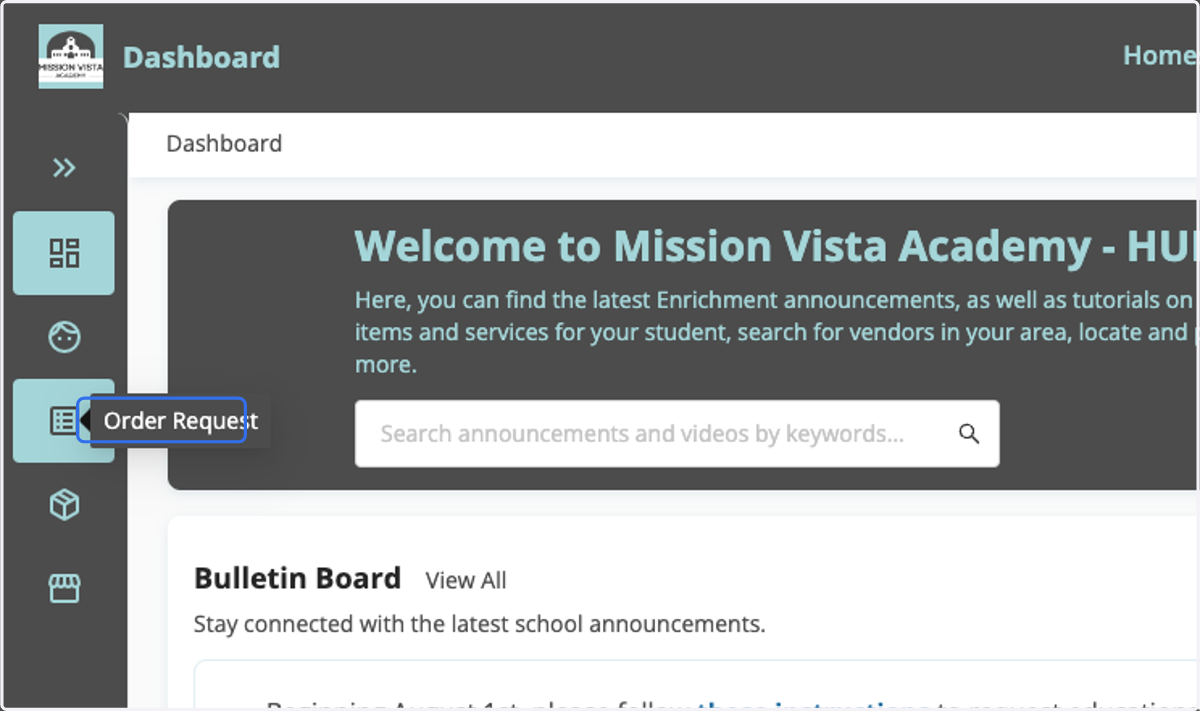
1. Click on Order Request
From within Homeschool Hub, click on the Order Request button from the left side of the page.
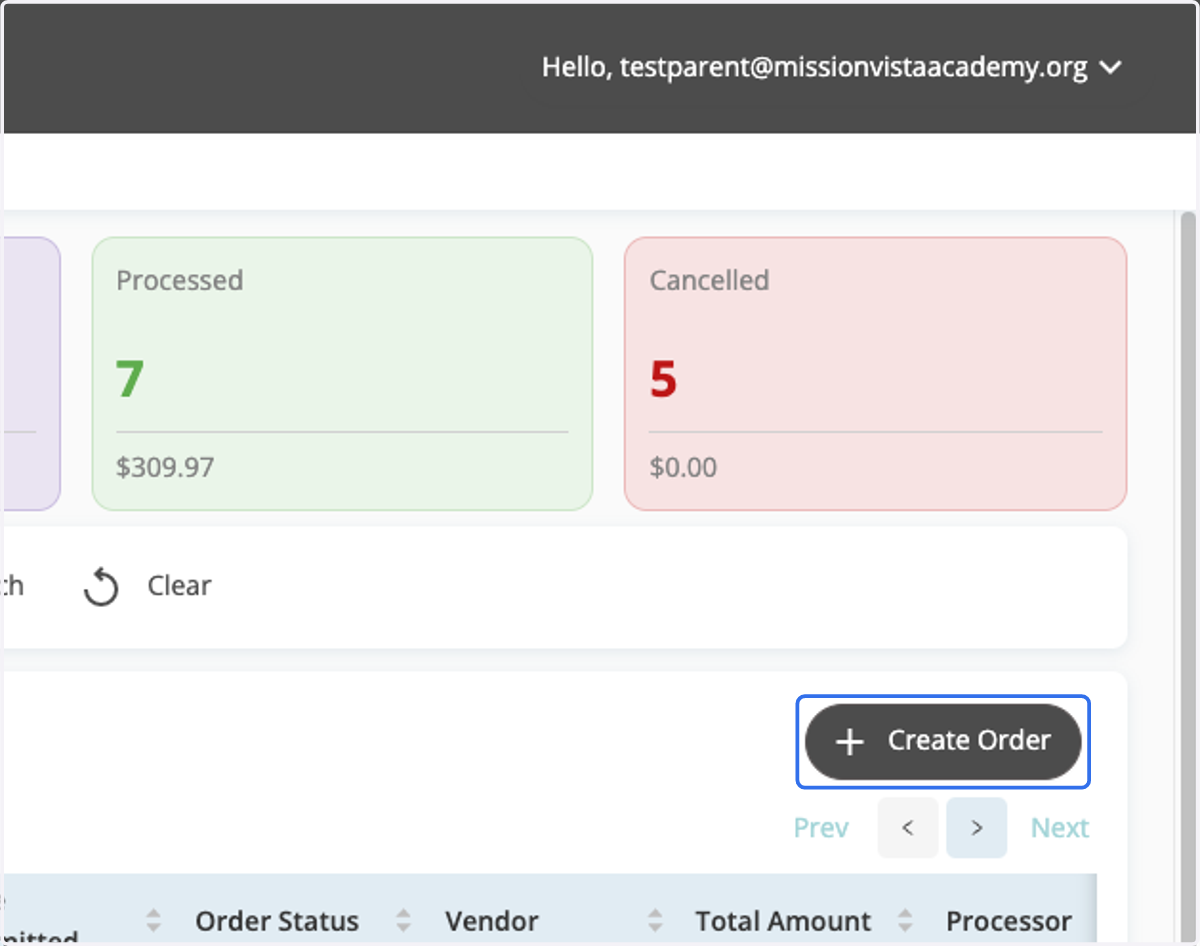
2. Click Create Order
Click the Create Order button from the right side of the Order Request page.
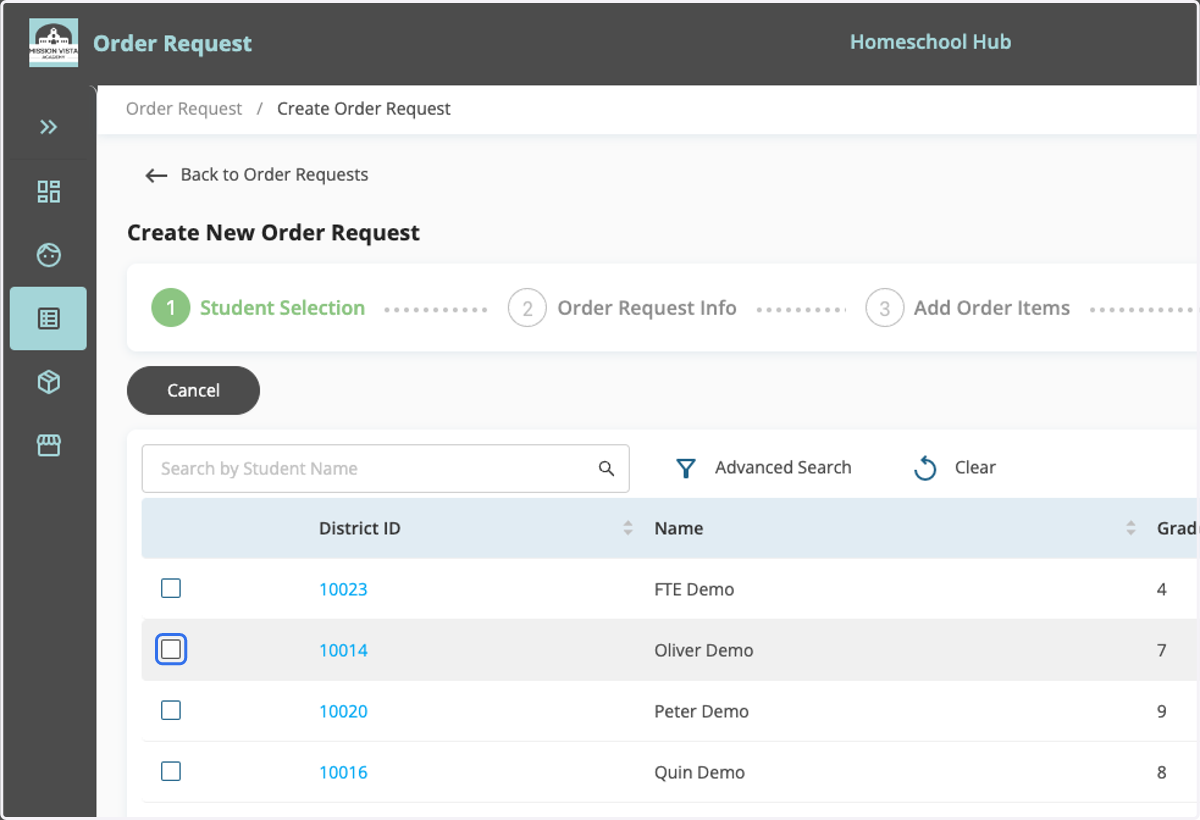
3. Select Student
Select the student for whom you would like to request educational materials.
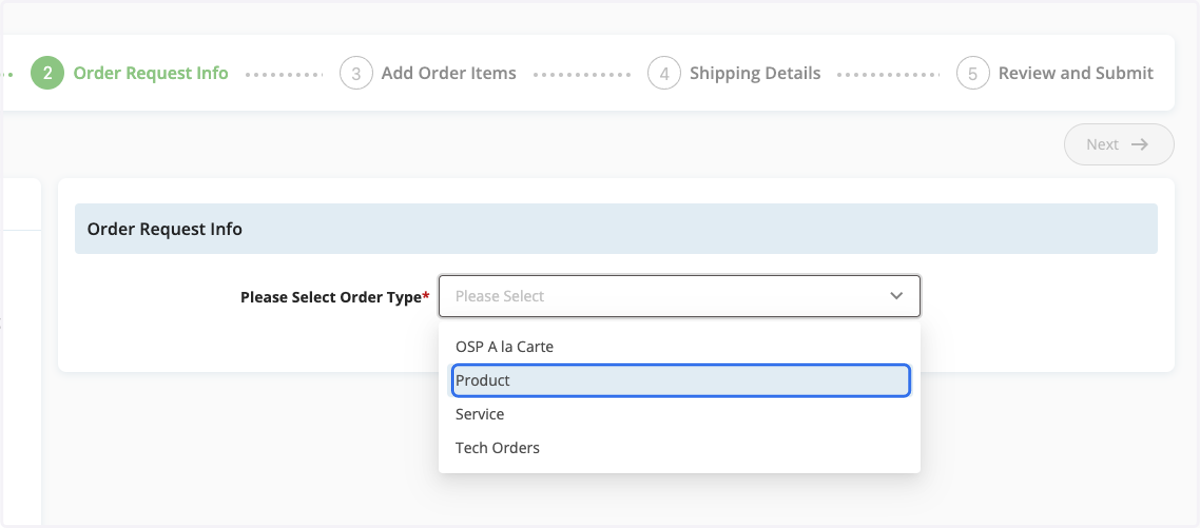
4. Select Product
Select Product as the Order Type.
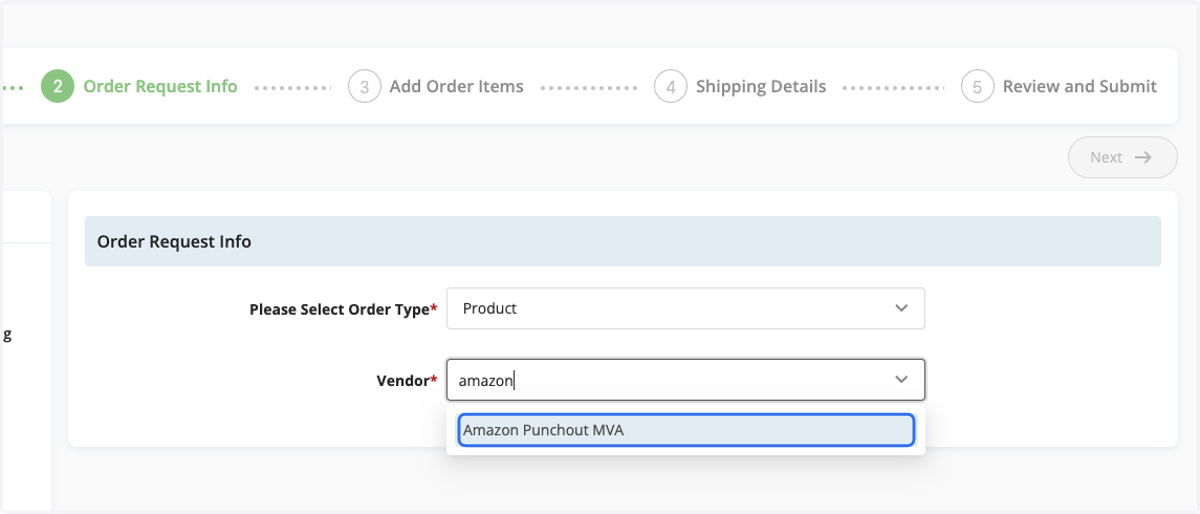
5. Select Amazon Punchout
Type "Amazon" in the Vendor search bar to search for that vendor.
Select Amazon Punchout MVA as the vendor.
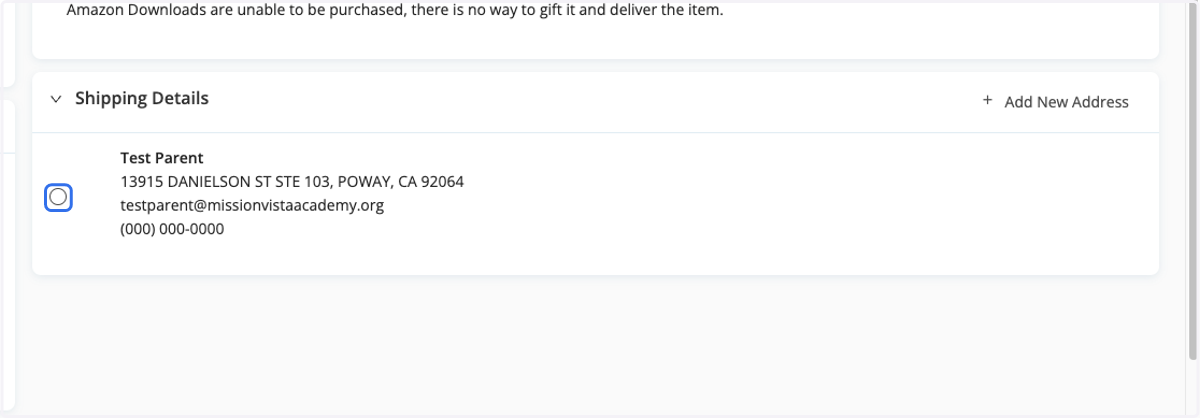
6. Select Shipping Address
Select or manually add your shipping address to the order.
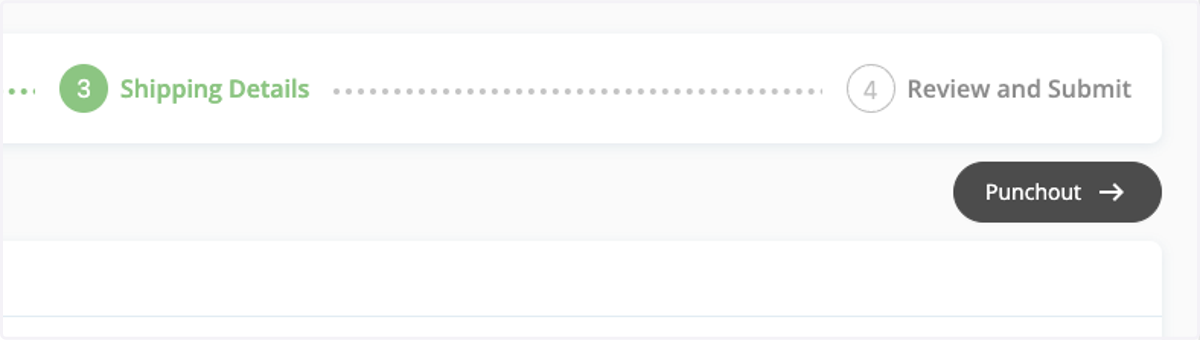
7. Click on Punchout…
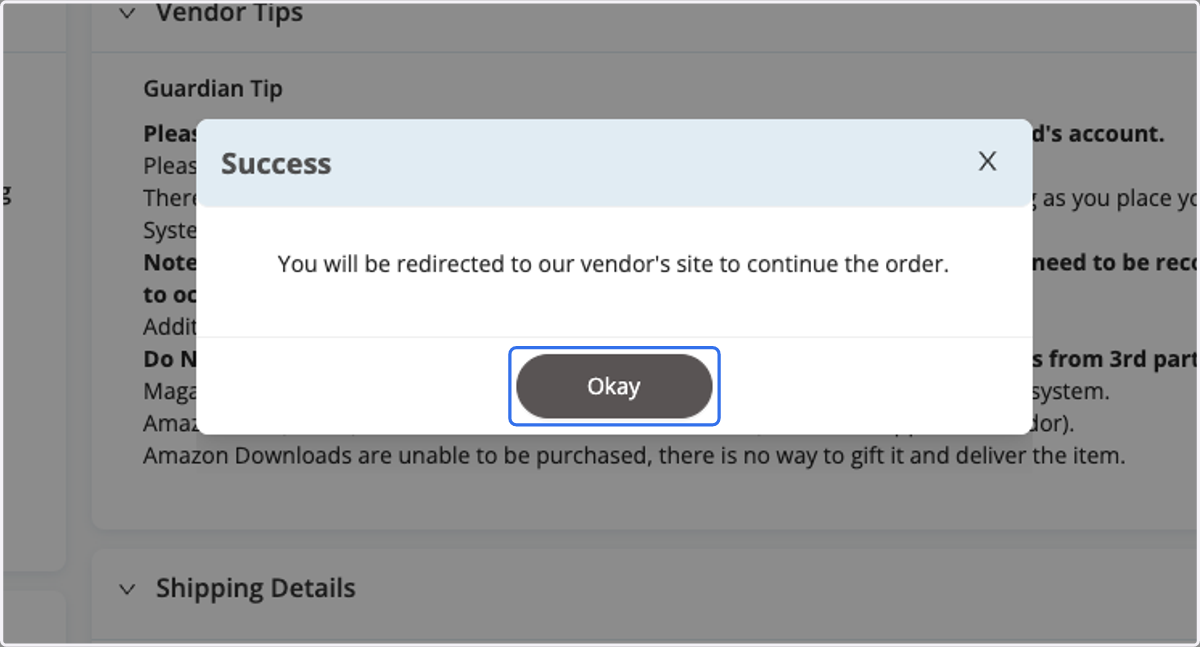
8. Go to Amazon's Site
A message will appear, letting you know that you are being redirected to Amazon's site to select the educational products that are needed. Click Okay.
Amazon Business
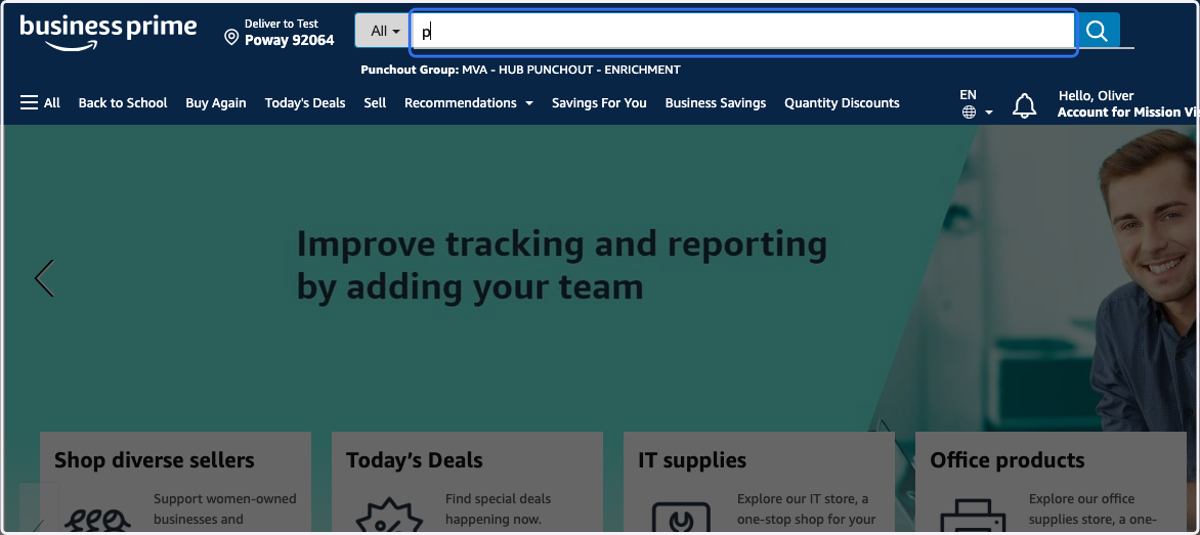
9. Search for Items
Use Amazon's search bar to search for needed materials.
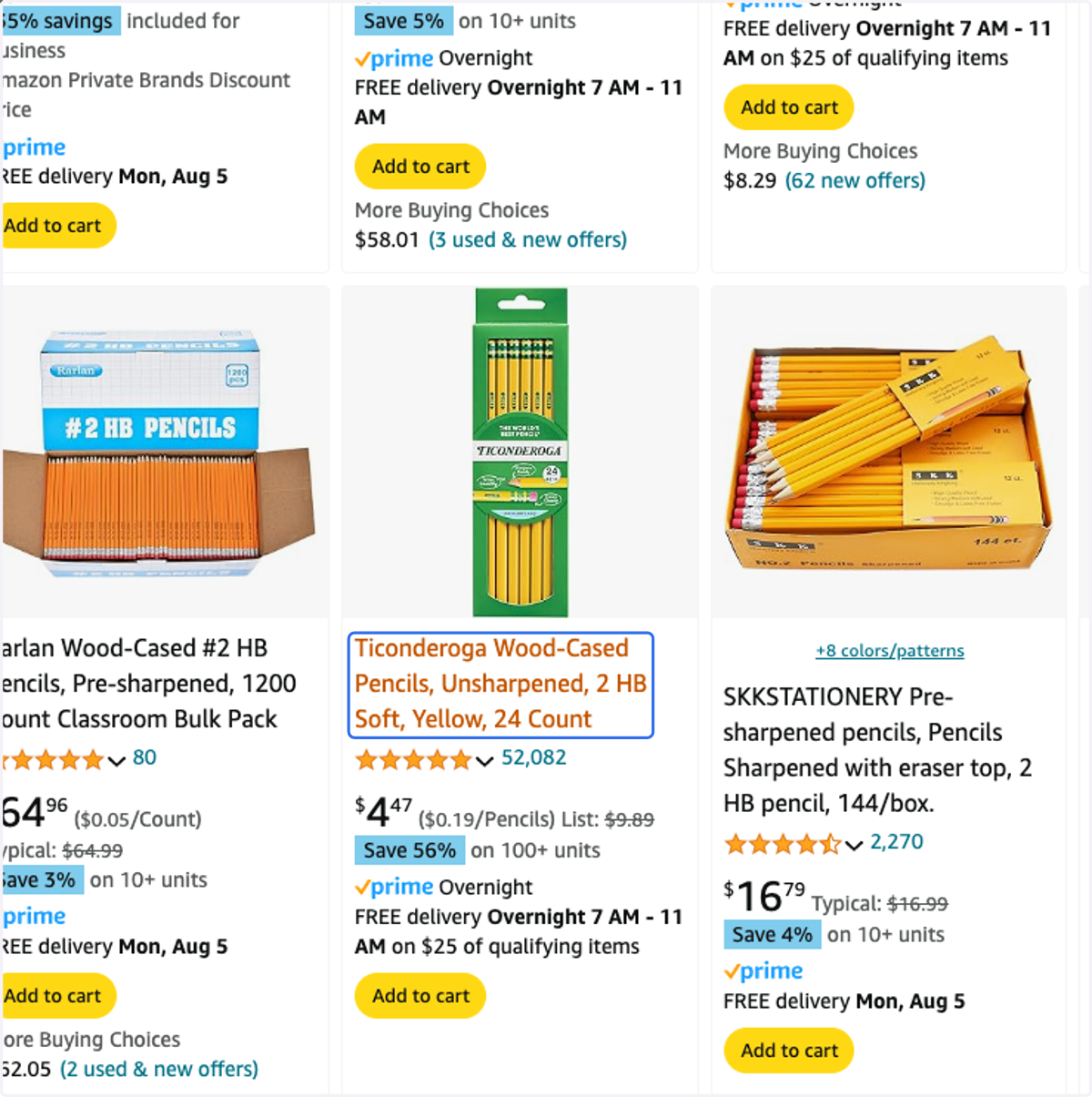
10. Click on the Item
Once you locate an item you are interested in, click on it to see additional item details.
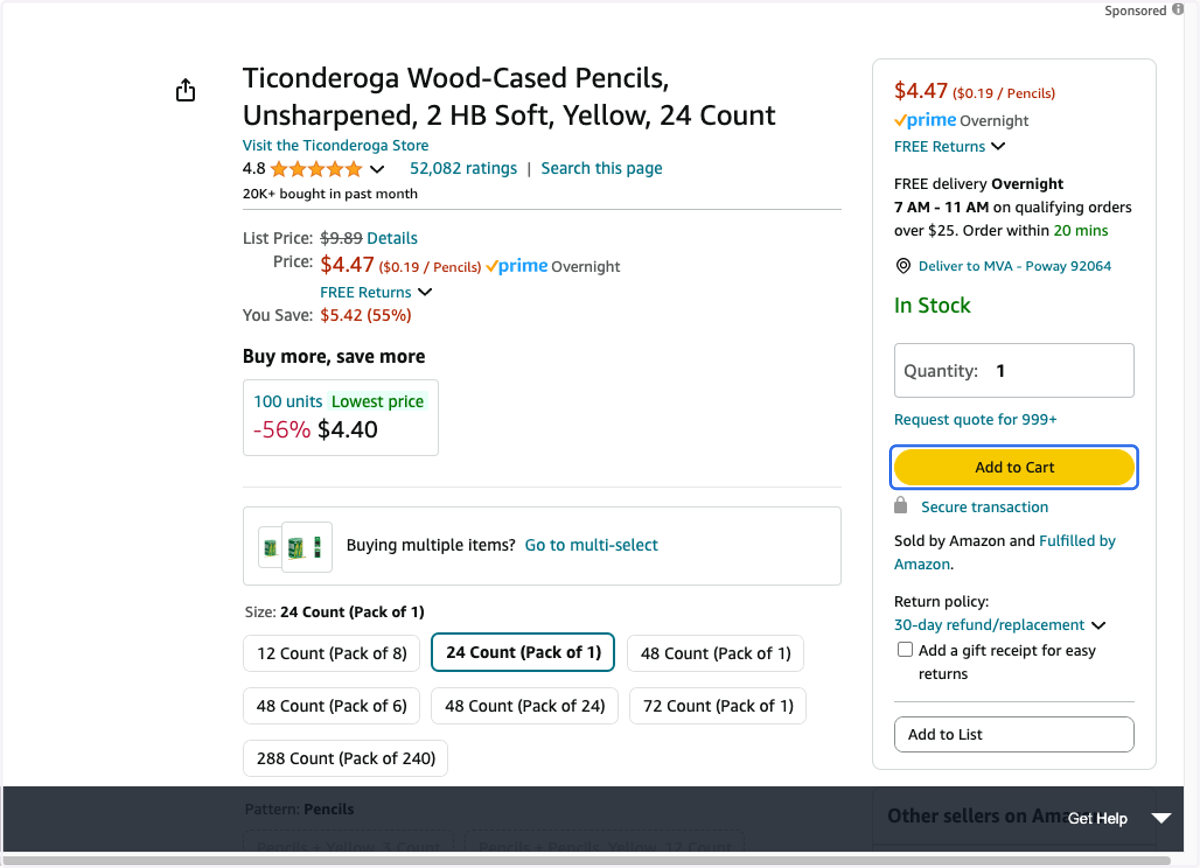
11. Click on Add to Cart
Once you locate an item you would like to request, adjust the quantity as needed and then click Add to Cart.
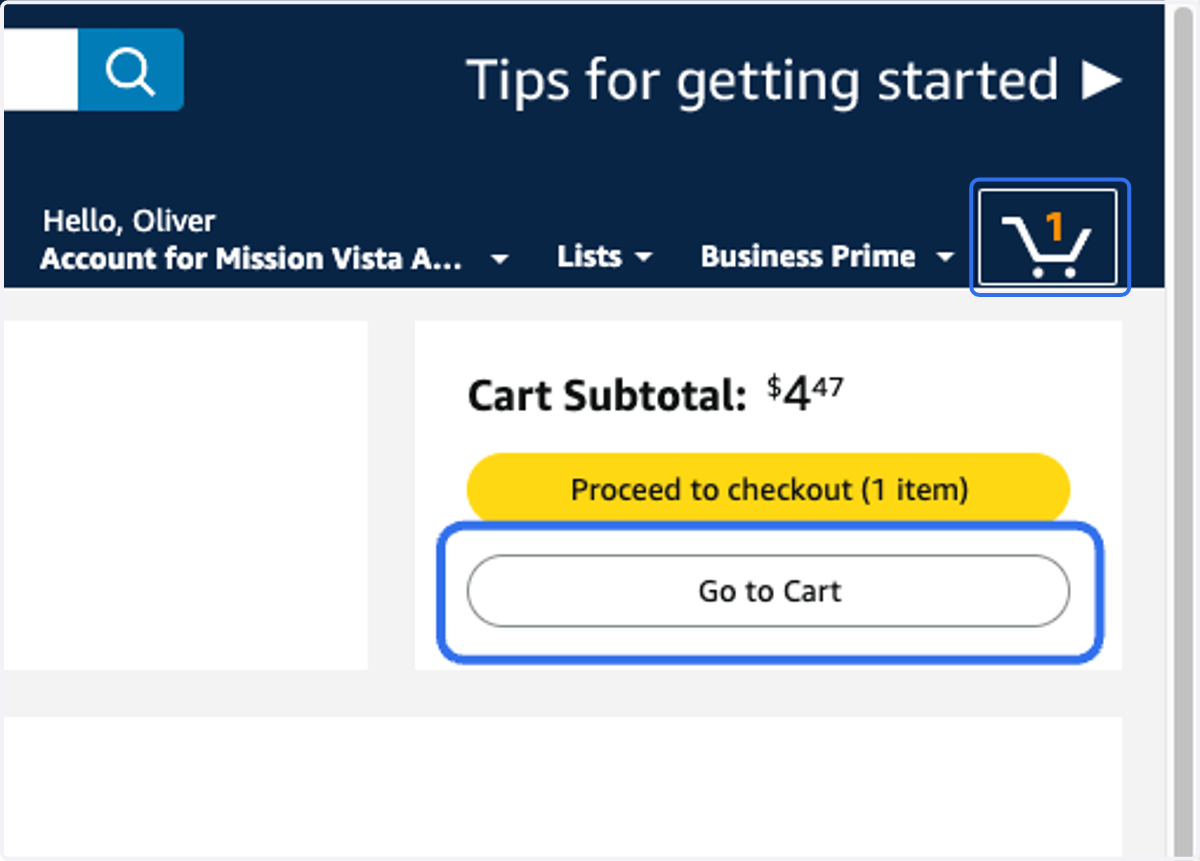
12. View Cart
Click Go to Cart or click on the cart icon at any point during the order request process to view items that have been placed in the cart.
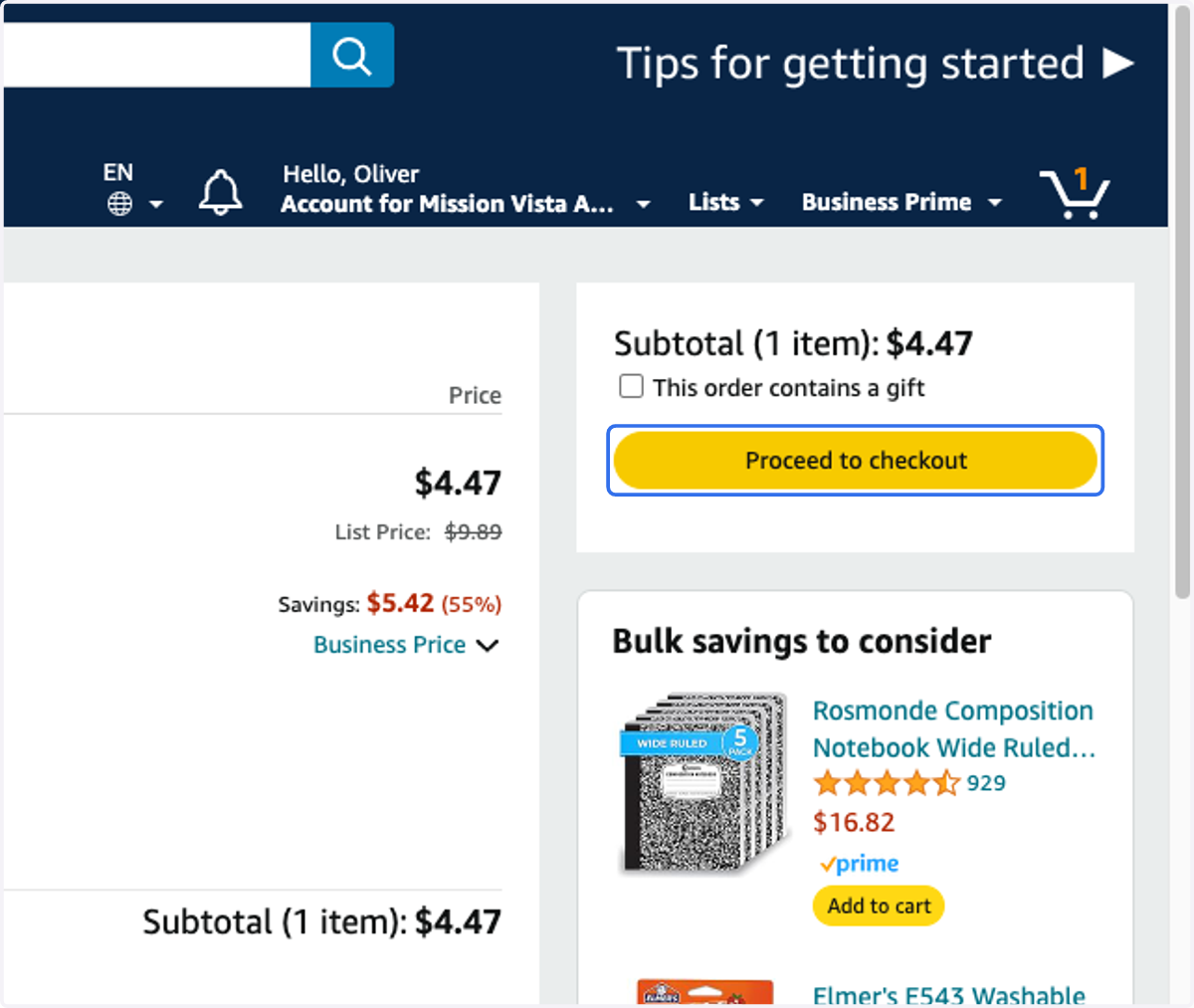
13. Click on Proceed to checkout
Once all needed items are in the cart, click Proceed to checkout.
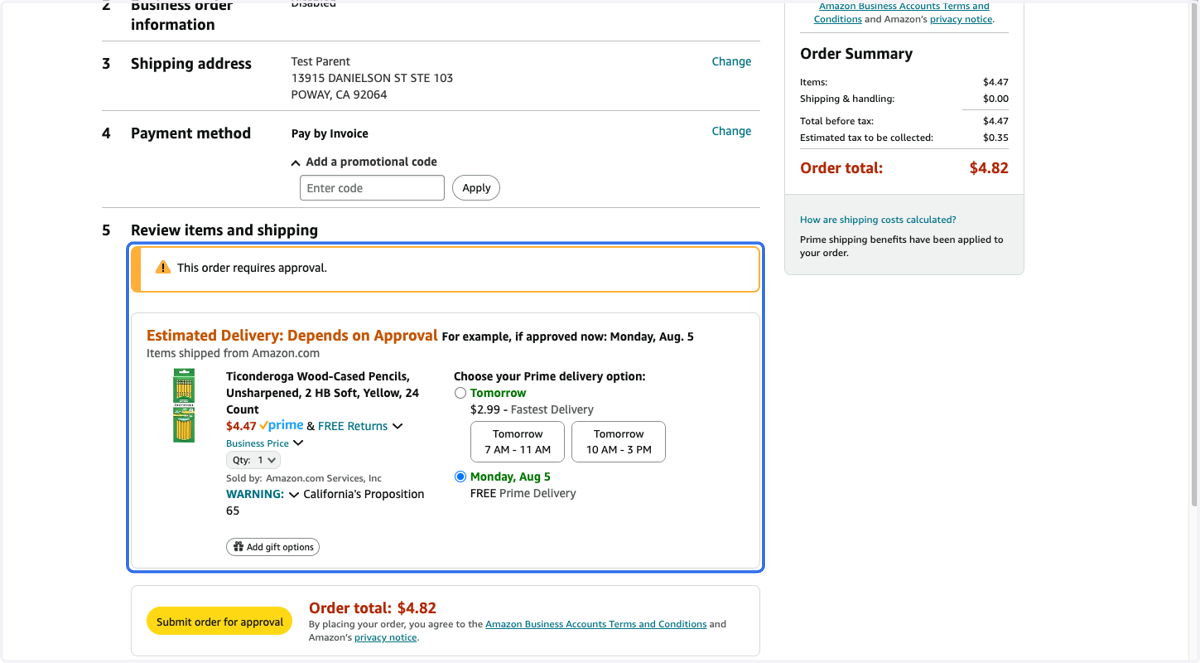
14. Review Order Details
Review the items in the Review items and shipping section to ensure that everything looks correct. Click the back button to make changes, as needed.
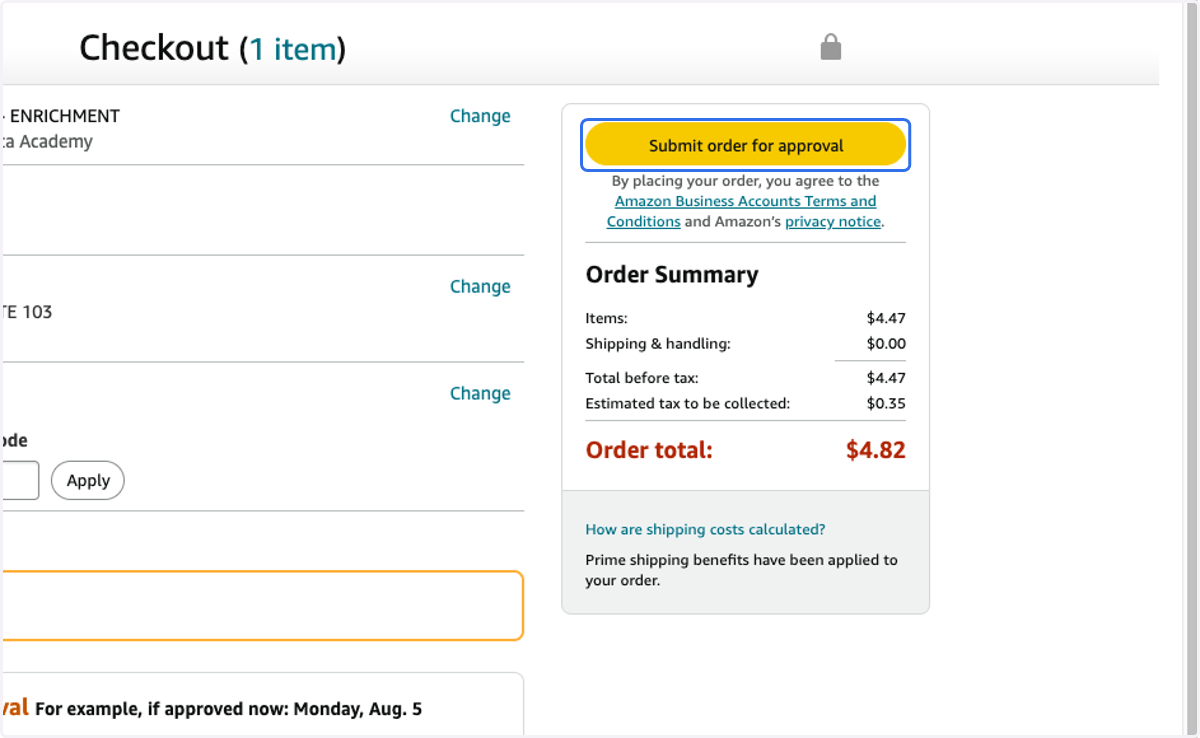
15. Submit Order for Approval
Once the order appears correct, click Submit order for approval.
MVA Homeschool Hub
16. Review Hub Order
Once the Submit order for approval button is clicked, the system will create the Homeschool Hub Amazon order for you. You will be redirected back to the Hub, and the order will be assigned an order number.
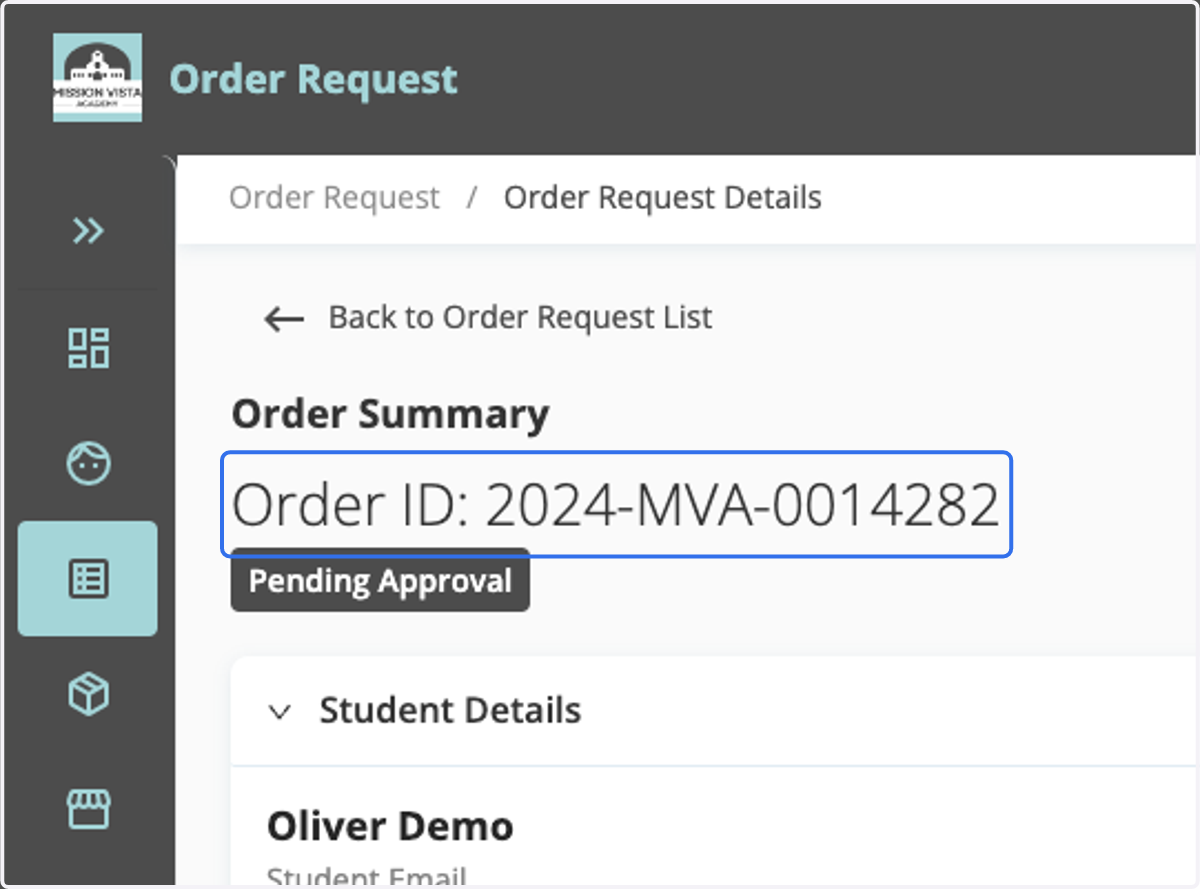
17. View Order Requests
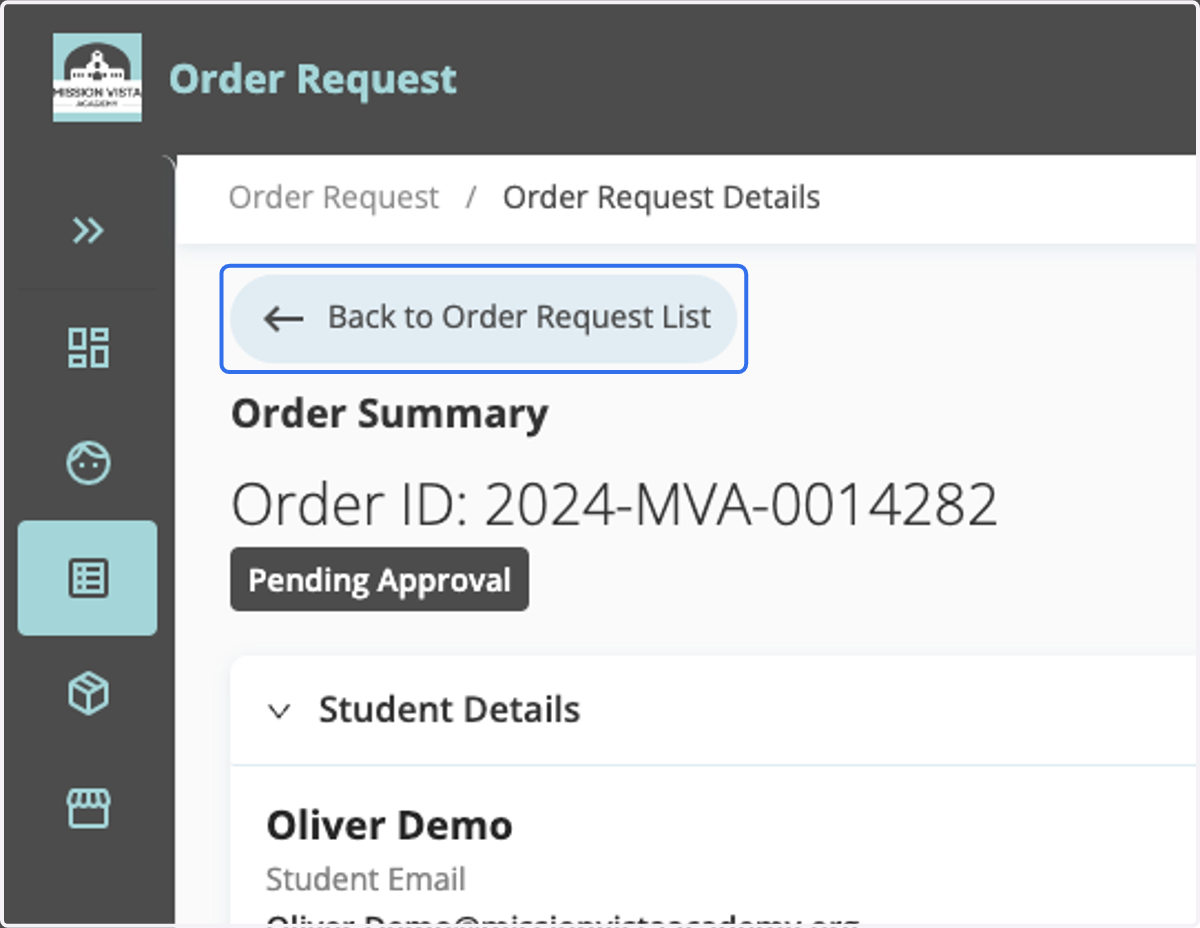
To review your order requests, click on the Back to Order Request List button or the Order Request button.
18. Order Status
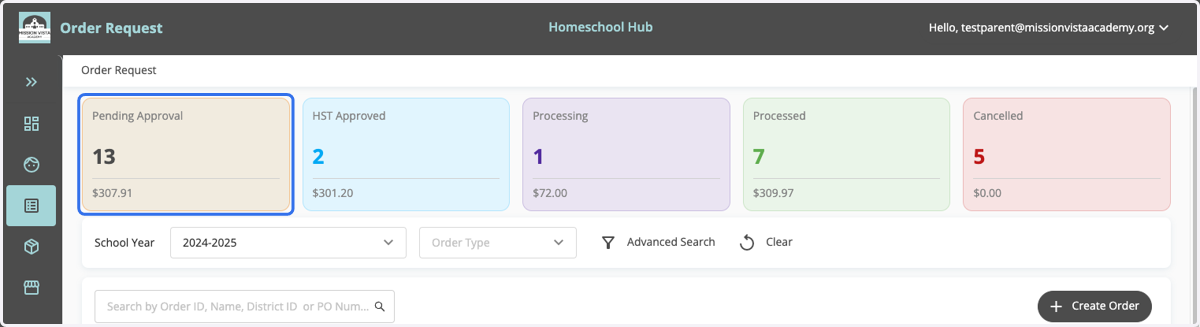
The requests you have entered into Homeschool Hub are housed in different folders across the top of the page, based on where they are at in the review and ordering process.
Pending Approval - Orders in this status are awaiting your HST's review. Parents/guardians are able to adjust and cancel orders when they are in this status.
HST Approved - Orders in this status have been approved by your teacher and are awaiting processing by our Enrichment Team. If you wish to make changes to orders in HST Approved status, please reach out to your HST for assistance.
Processing - Orders in this status are currently being processed by Enrichment staff. Should you wish to make changes to orders in this status, please reach out to the Enrichment Specialist assigned to the order. This information can be located from within the order.
Processed - Orders in this status have been processed by the school. If you have not received purchased materials within 2 - 3 weeks of orders being processed, please notify your HST.
Canceled - Orders in this status have been canceled.
19. Need Additional Support?
Please reach out to your Homeschool Teacher for help with any questions you might have or for help with accessing Homeschool Hub.
Thank you!