Newsfeed - How to Promote an Announcement or Newsfeed Event
Promoting announcements and newsfeed events is a great way to boost visibility and encourage member participation. Whether you're highlighting important updates, special events, or club news, promotion tools help you reach more members and drive engagement. This guide will walk you through how to effectively promote announcements and events within newsfeed.
Pacesettertechnology
1. Go to Pacesetter Technology
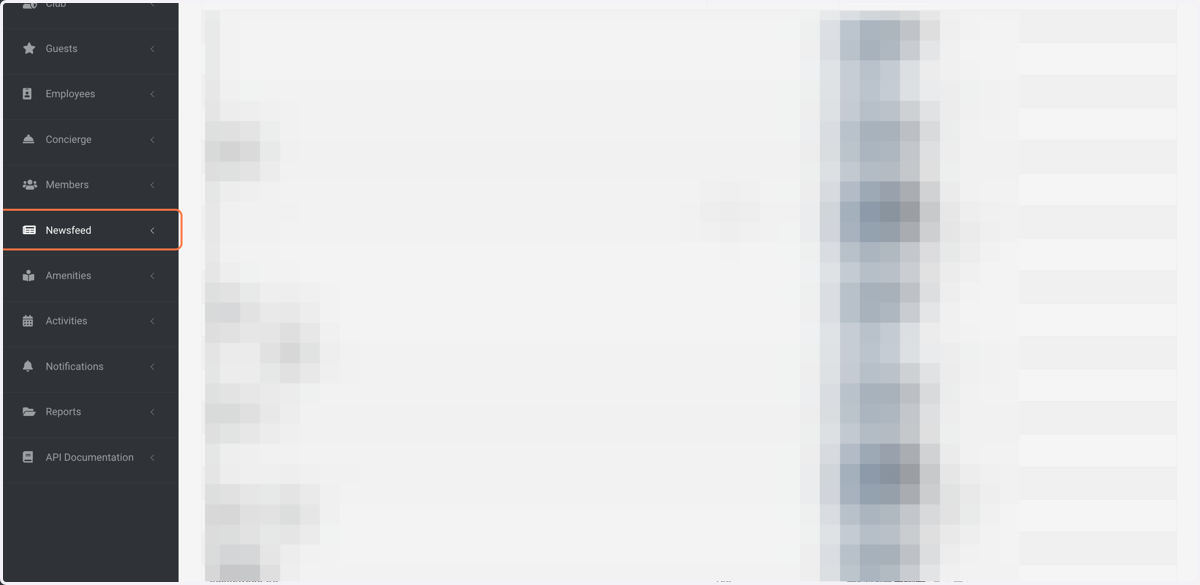
2. Click on Newsfeed
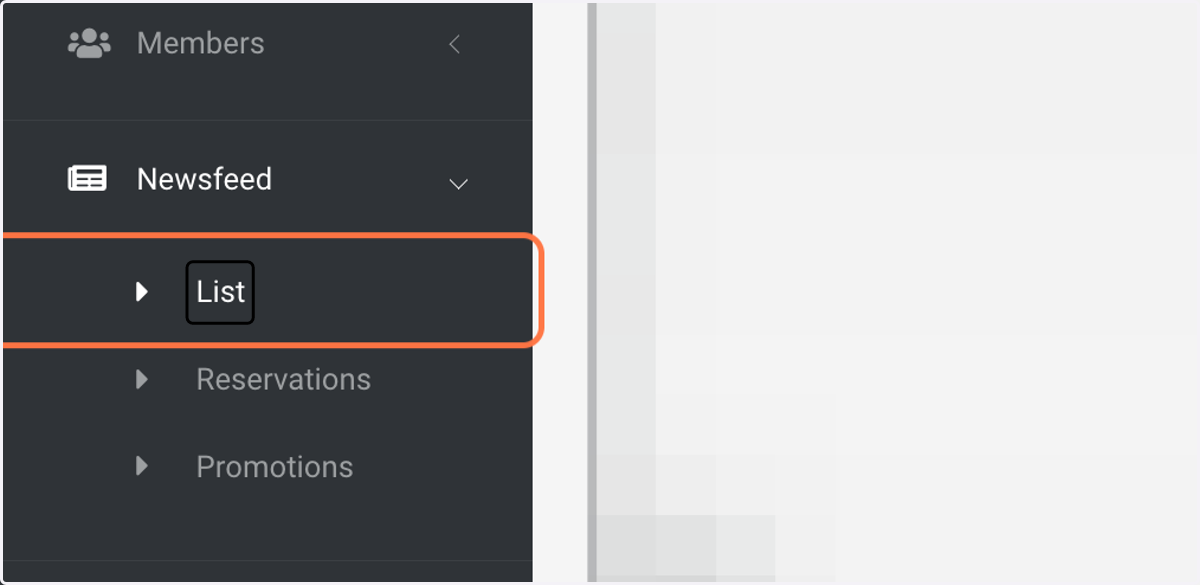
3. Click on List
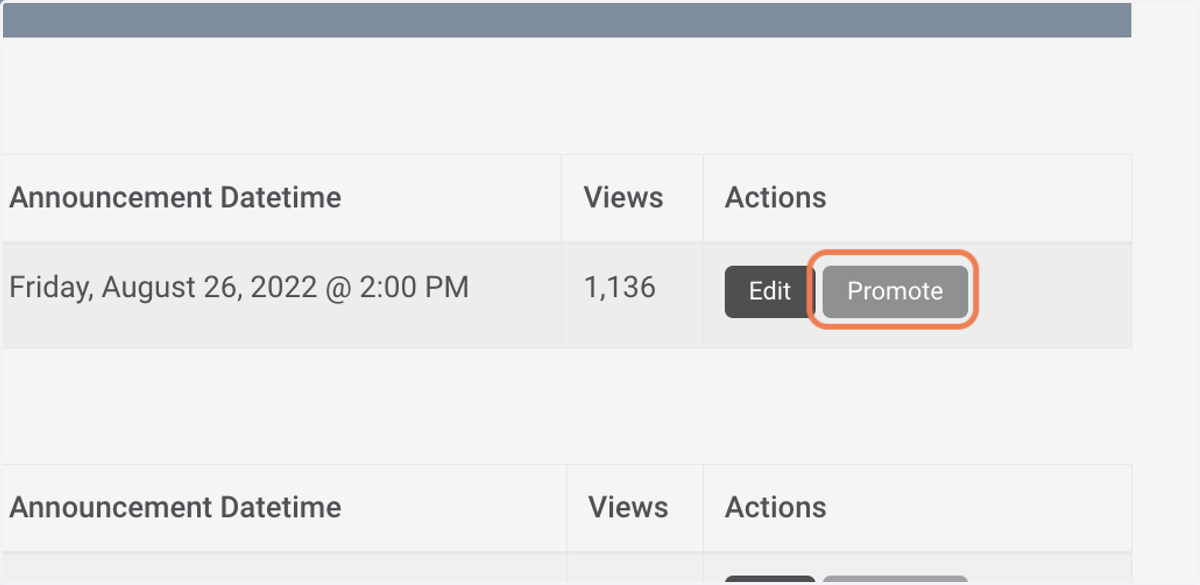
4. Promotion Settings
Beside the announcement or event you would like to promote to the home screen, press Promote
5. Press Start
This is how to select the start date in which your event will be promoted
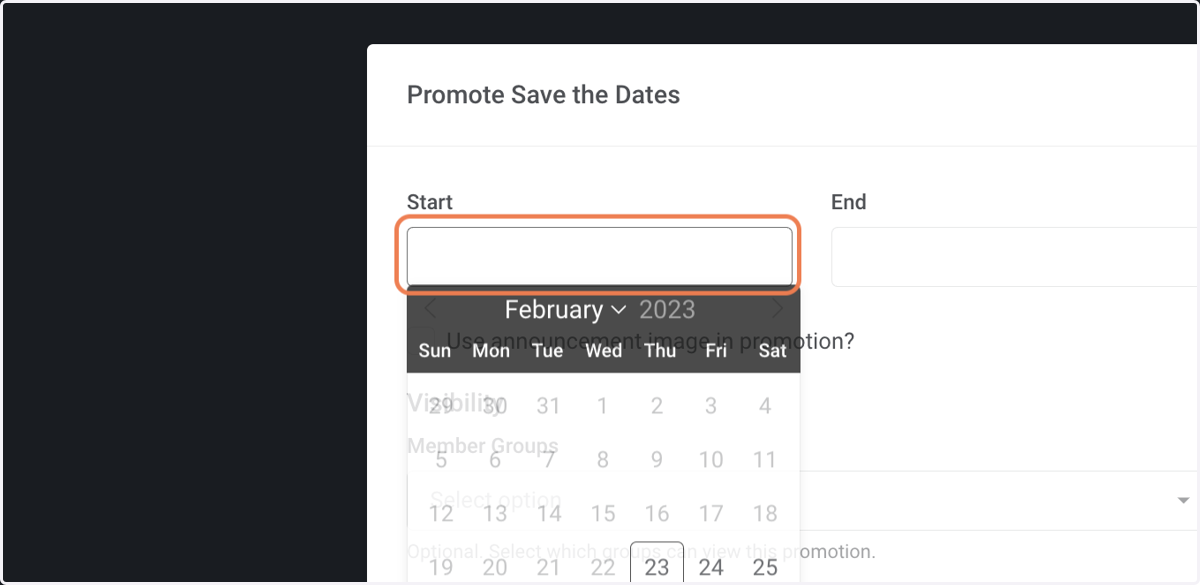
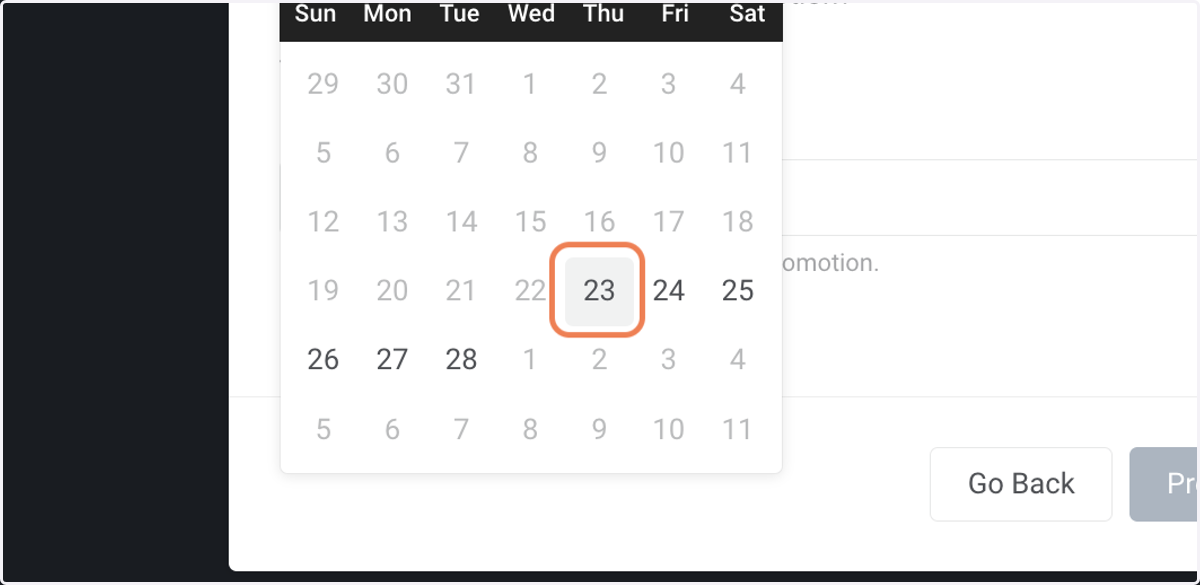
6. Select the Start Date
Then select the time when at the bottom of the pop up calendar for when the promotion will begin
7. Press End
This is how to select the end date in which your promoted event will stop promoting
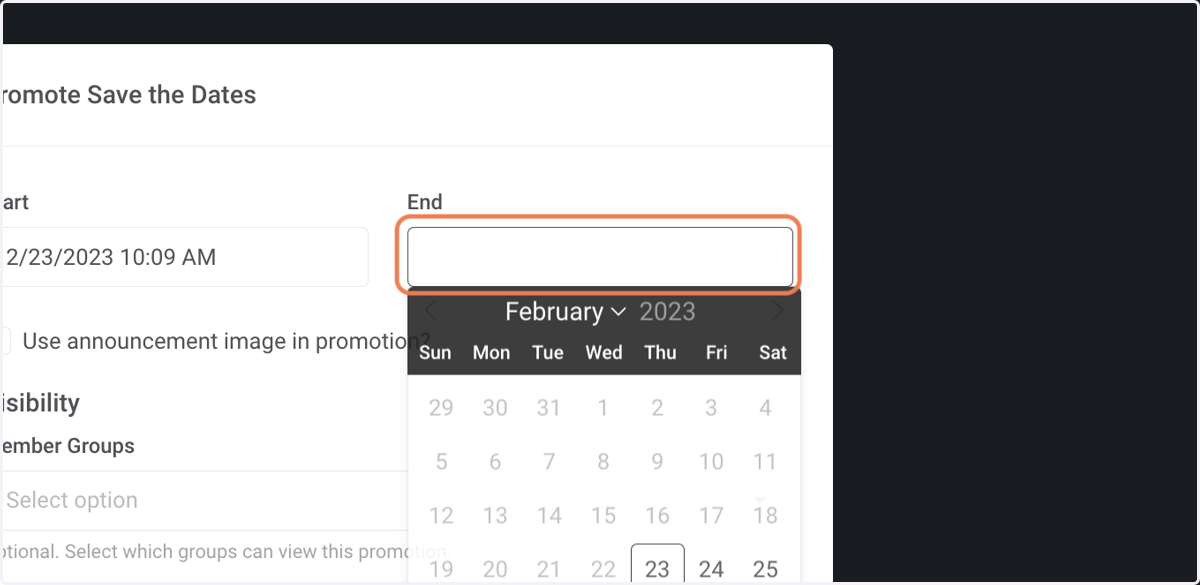
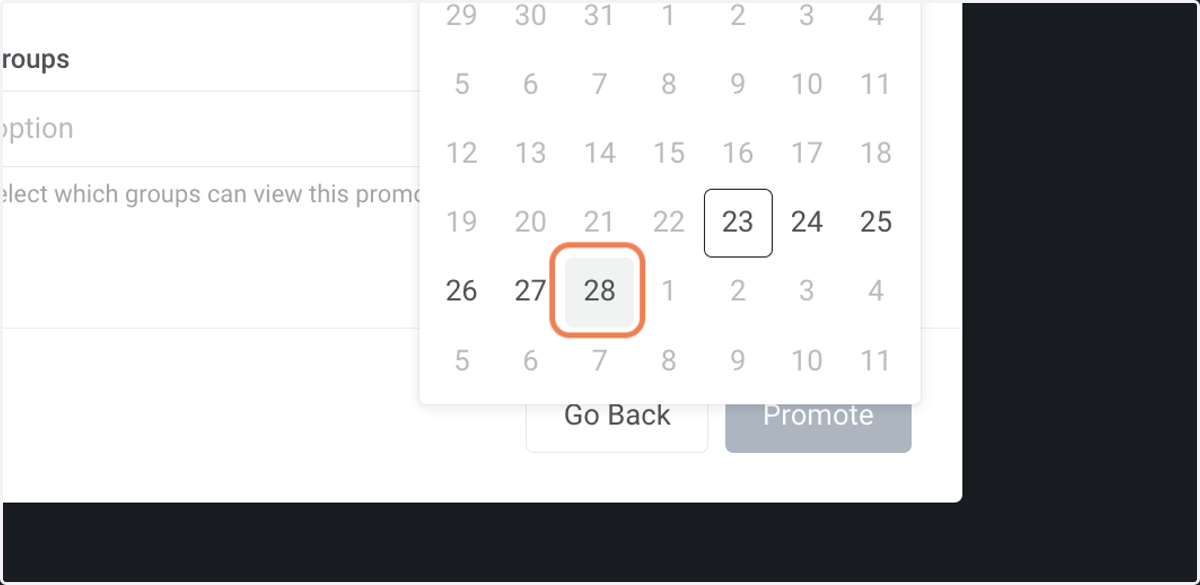
8. Select the End Date
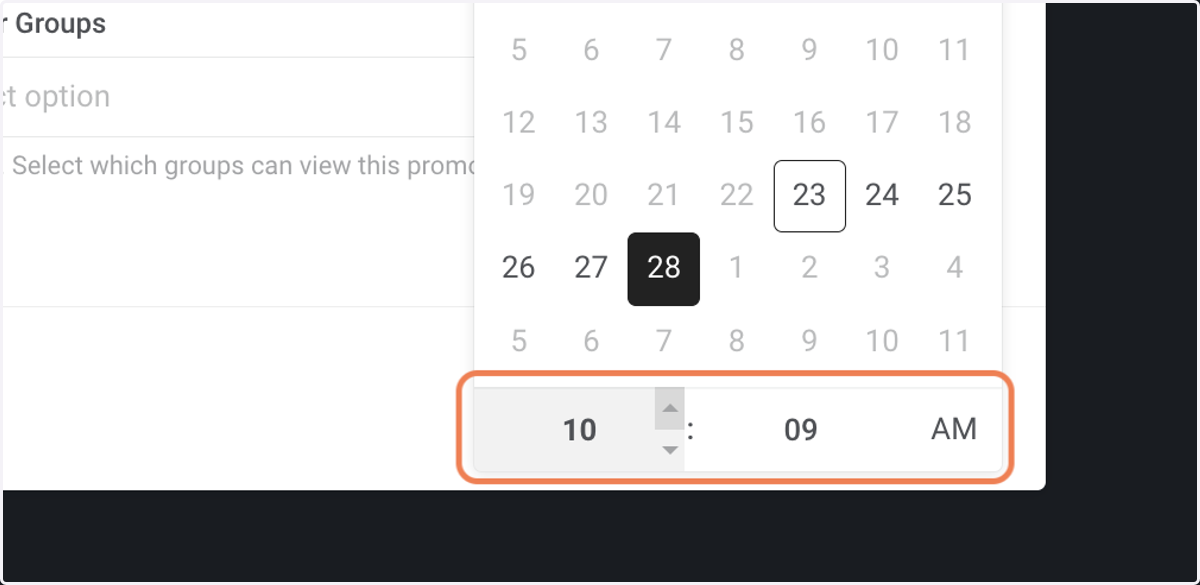
9. Then Select the Time
This is at the bottom of the pop up calendar. This is when the promotion will end.
10. Background Photo?
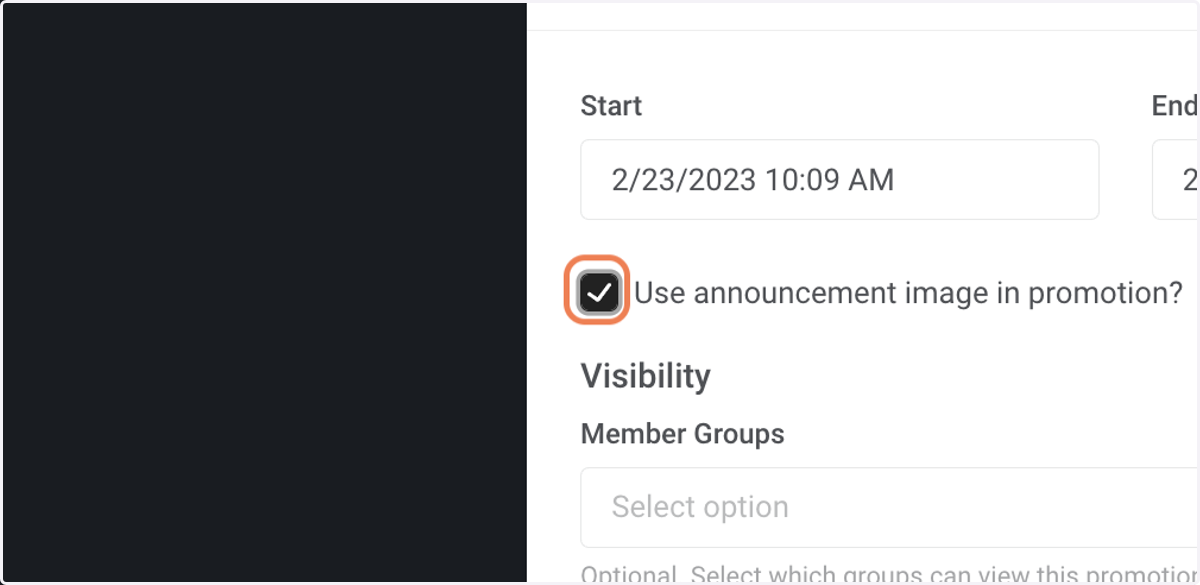
Check 'Use announcement image in promotion?' if you would like to use the event image as the background of the promotion instead of a blank box background
11. Visibility of the Promotion
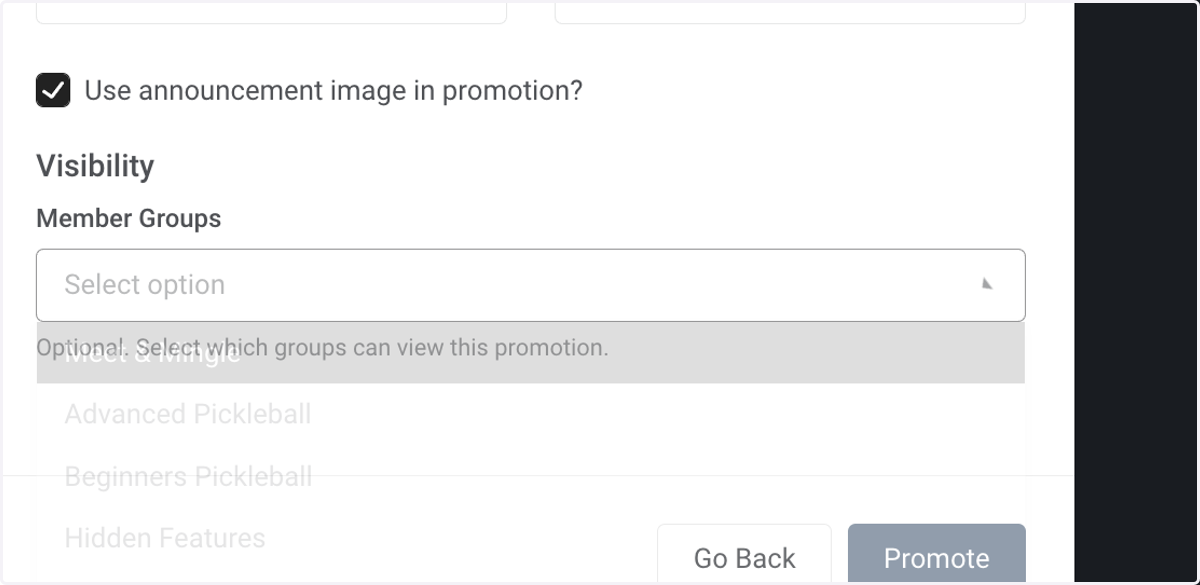
Press Visibility if you would like only a certain member group to be able to see this promotion. When this is selected, a drop down will appear with all the available member groups. For all members to see it, either do not press a group, or select 'Member'
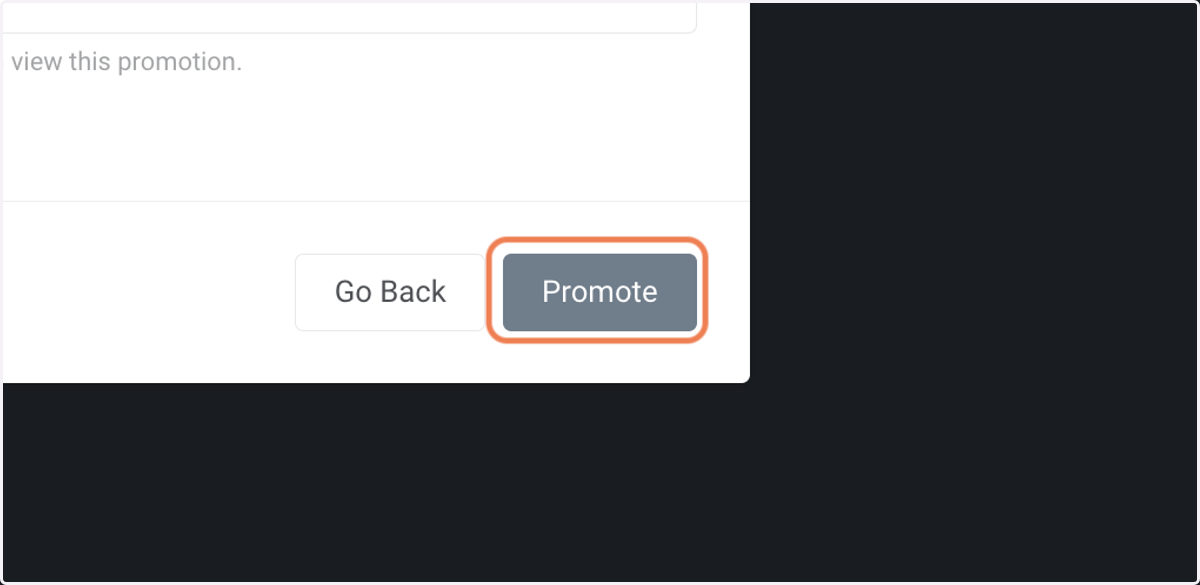
12. Click on Promote
13. Promotion Information
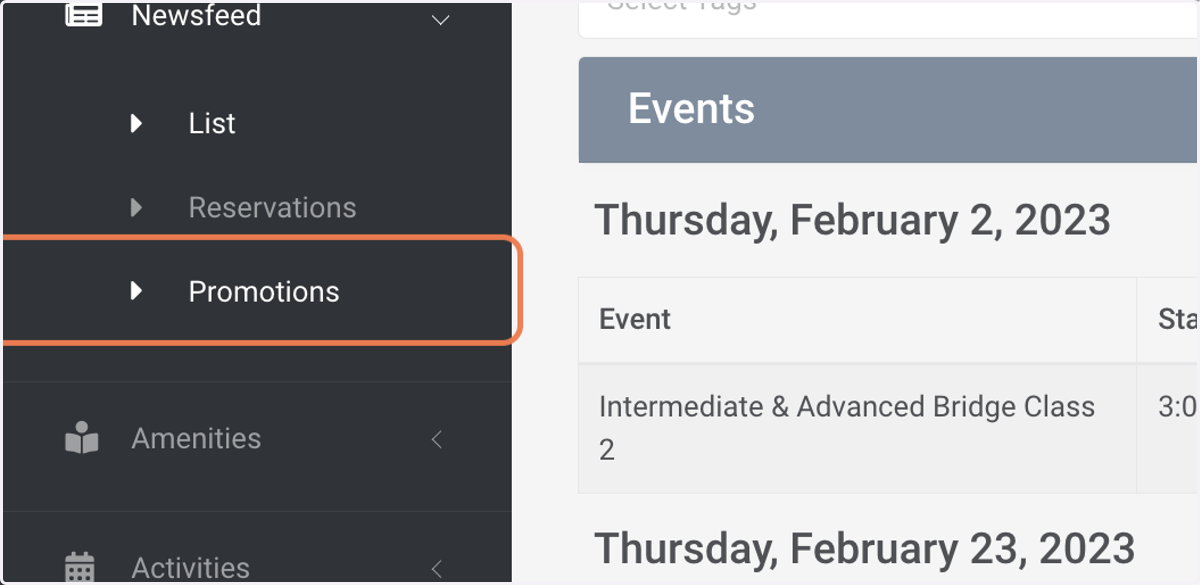
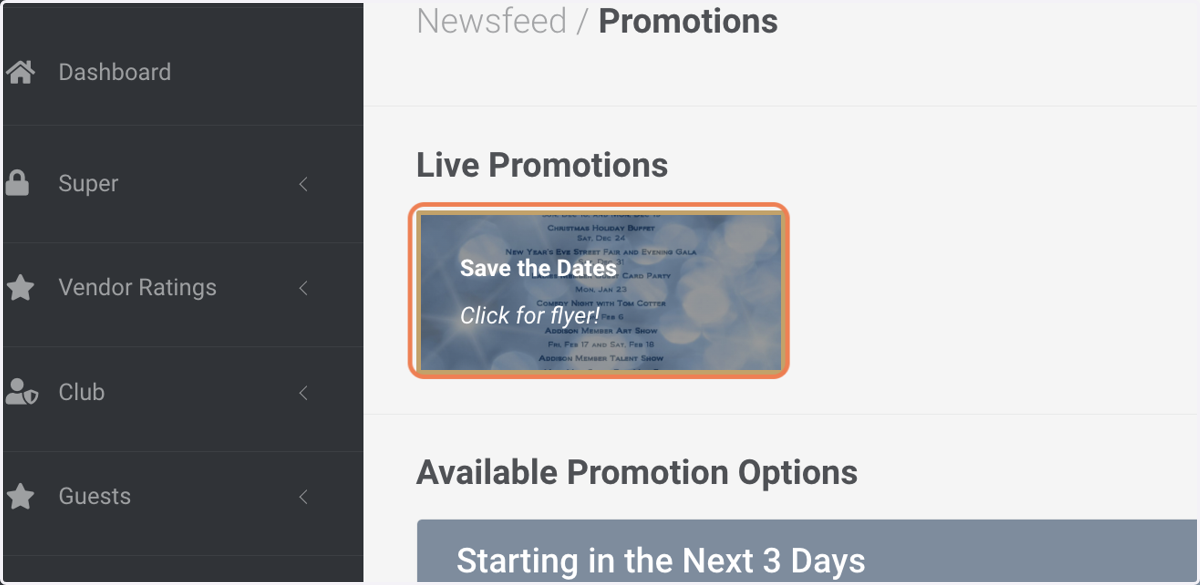
To see a preview of what the promotion looks like and other promotion information, press Promotions under Newsfeed in the menu on the lefthand side of the Pacesetter admin site.
14. Promotion Preview
Under Live Promotions, you can see a preview of what the promotion looks like in the app. By clicking on the promotion, you can edit the start and end times.
15. Delete a Promotion
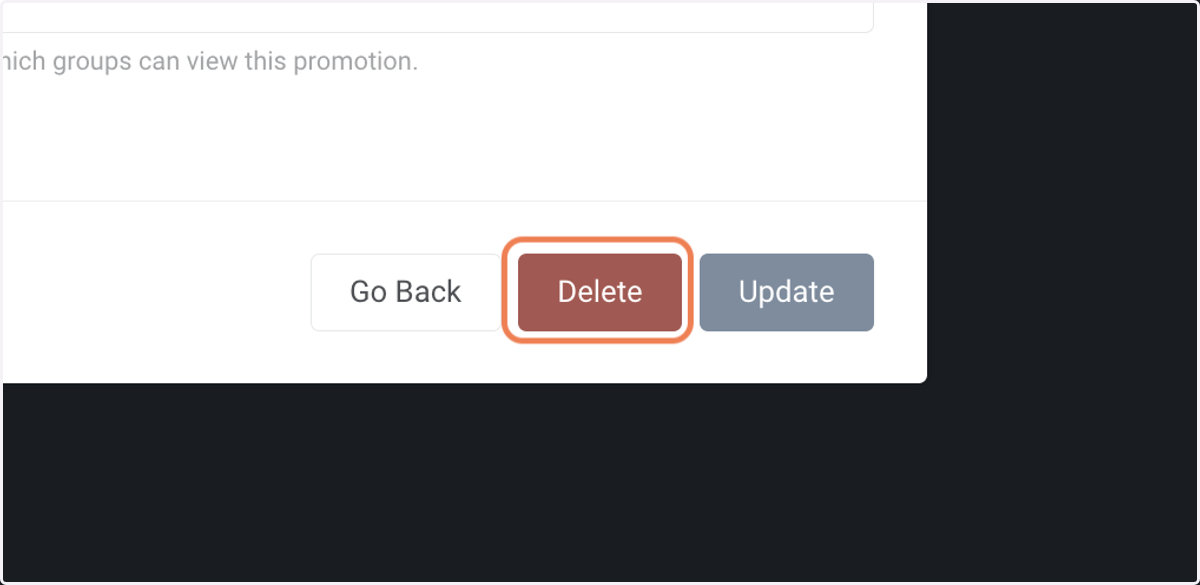
Press Delete at the bottom when editing the promotion
16. You Are Finished!
That is how to highlight a newsfeed or announcement to the home screen page!