How to Pay IVSA Course Fees
This help guide shows how to pay IVSA student fees with the Ledger Button and the Pay Button.
Ledger Button - Steps 1 - 6
Pay Button - Steps 7 - 9
This help guide describes how to pay from the parent/guardian account, but the same steps can be taken through the student account.
Please Note: Payment must be made on a computer. The Maestro SIS is unable to process payments via phone or tablet at this time.
Parent/Guardian Dashboar
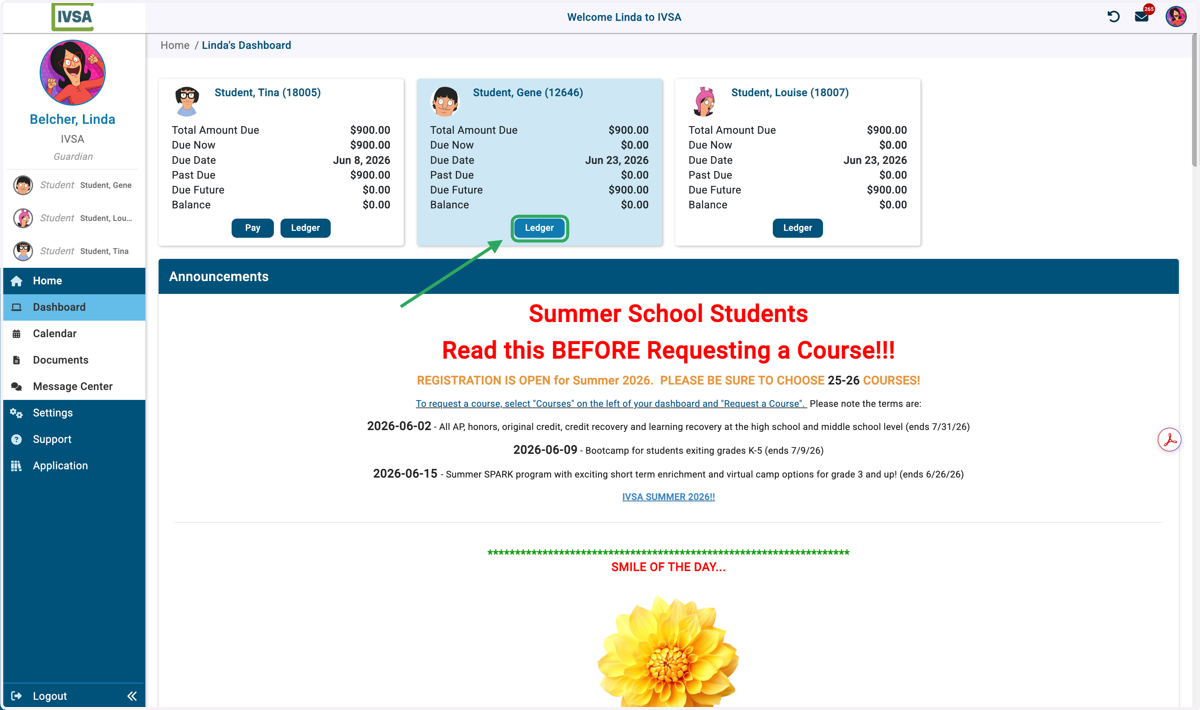
1. Click on Ledger
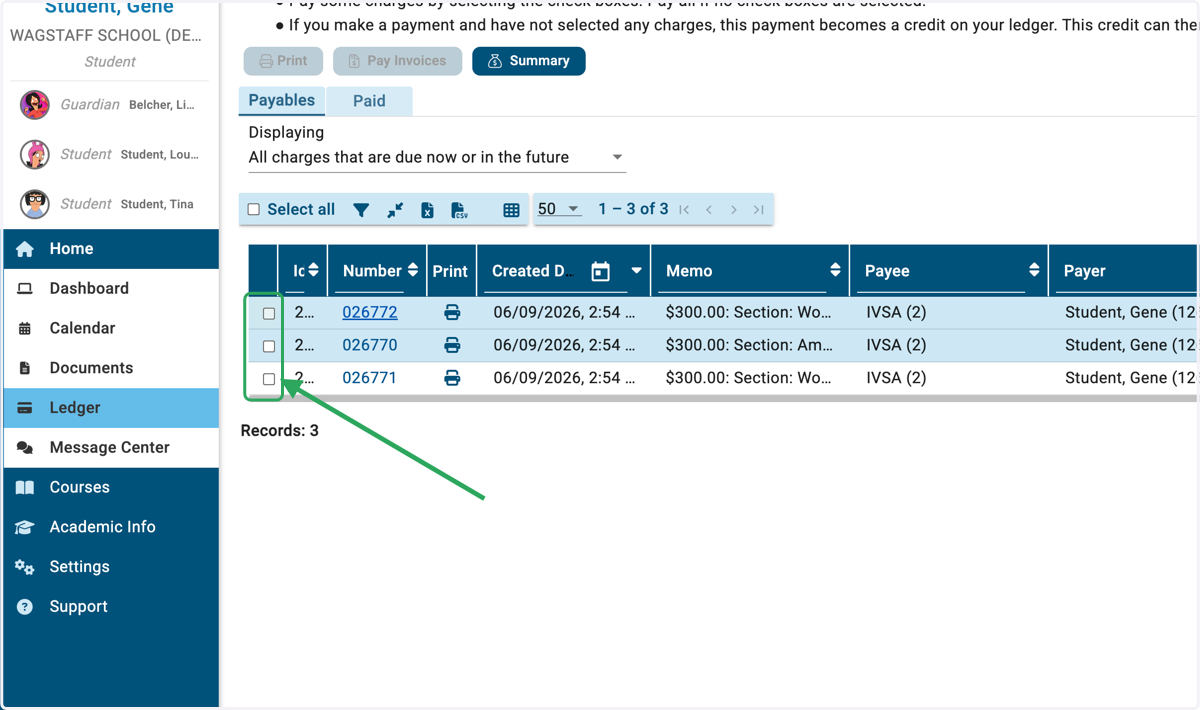
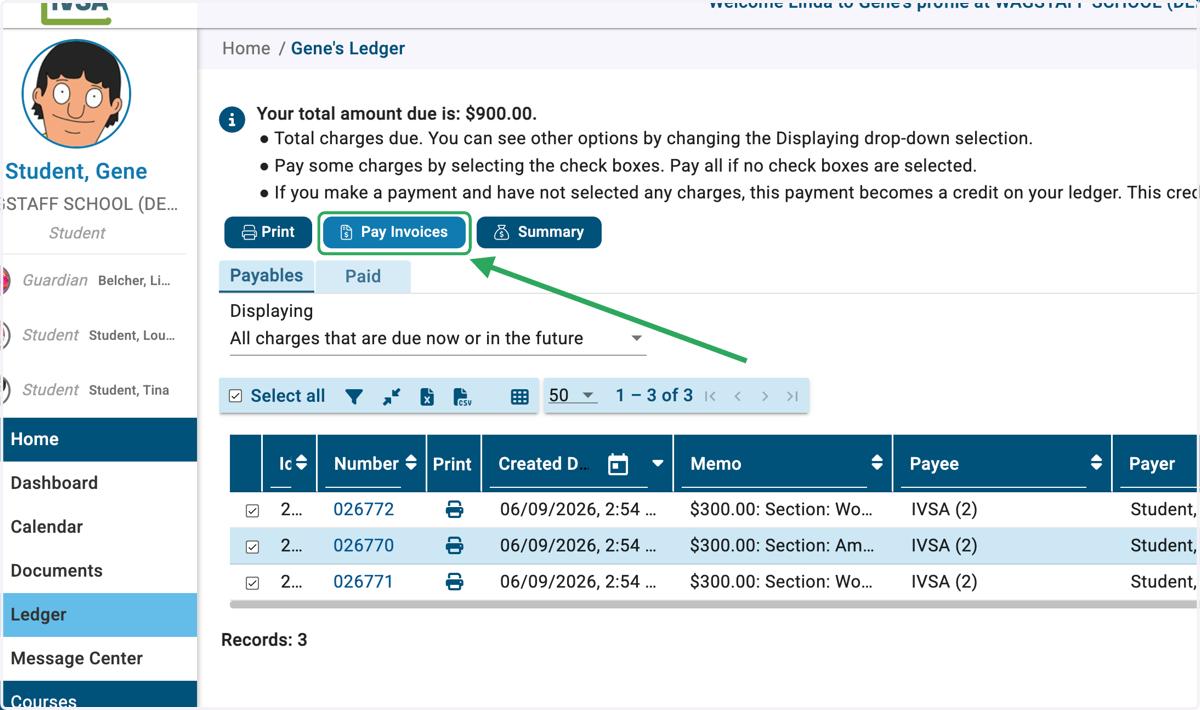
2. You can select individual invoices to pay...
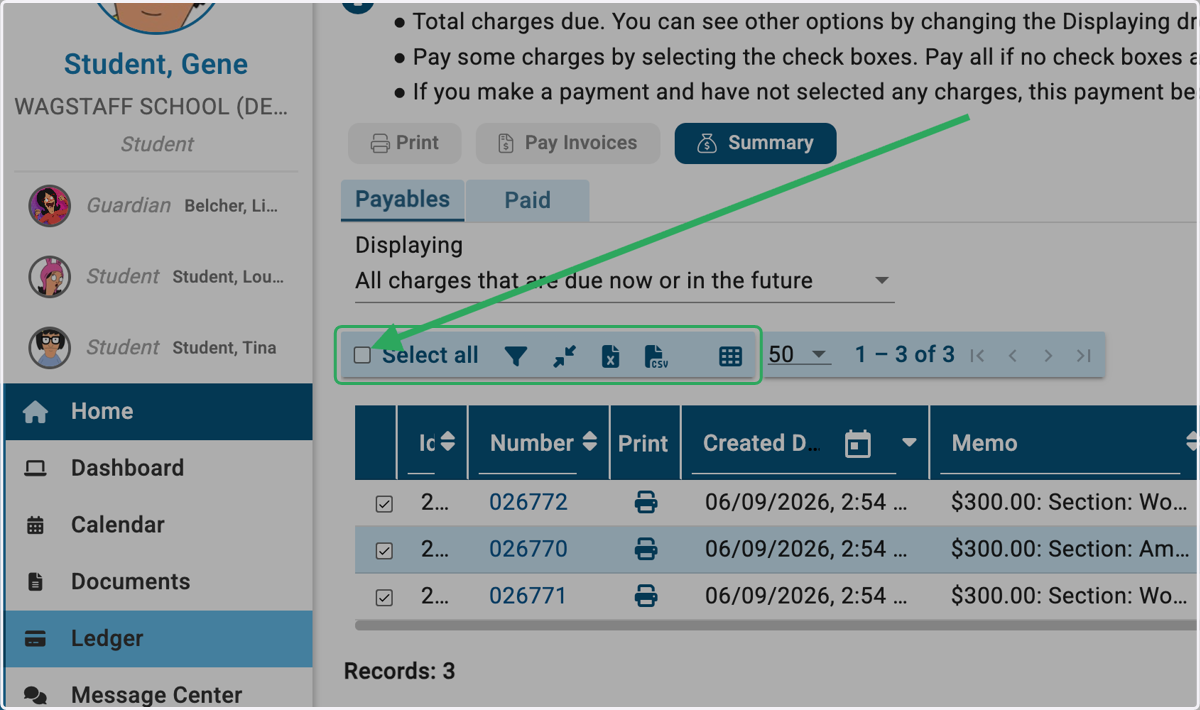
3. Or you can Select All
4. Click on Pay Invoices
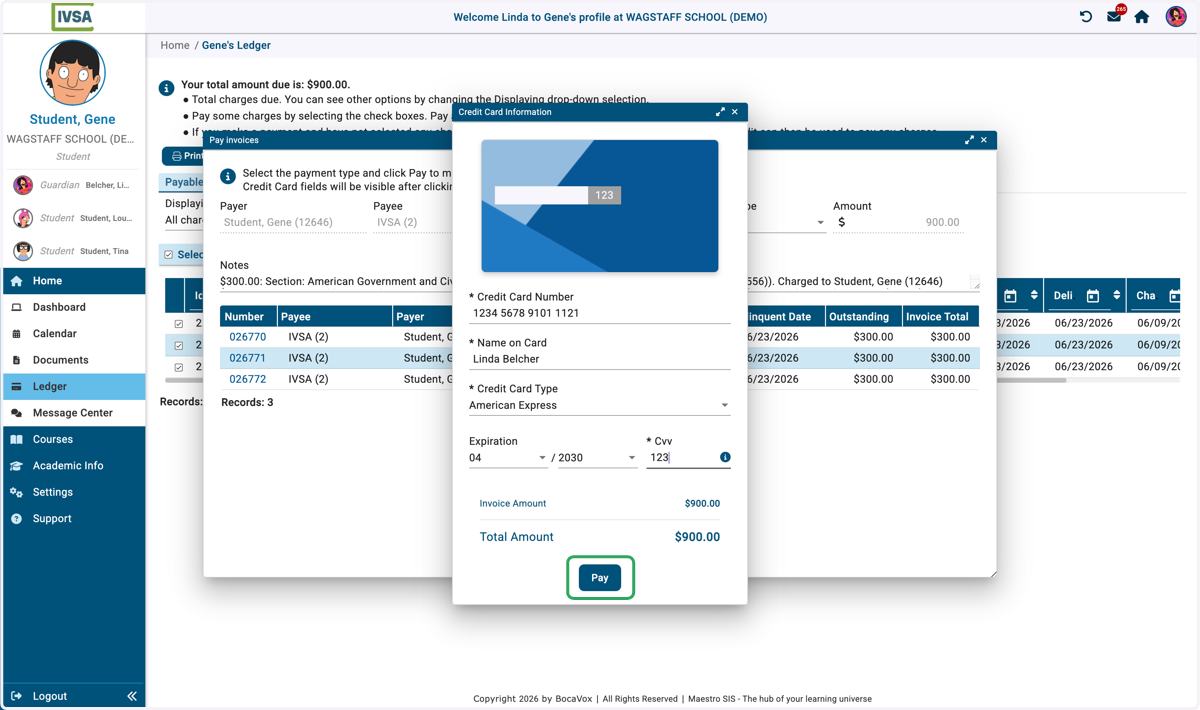
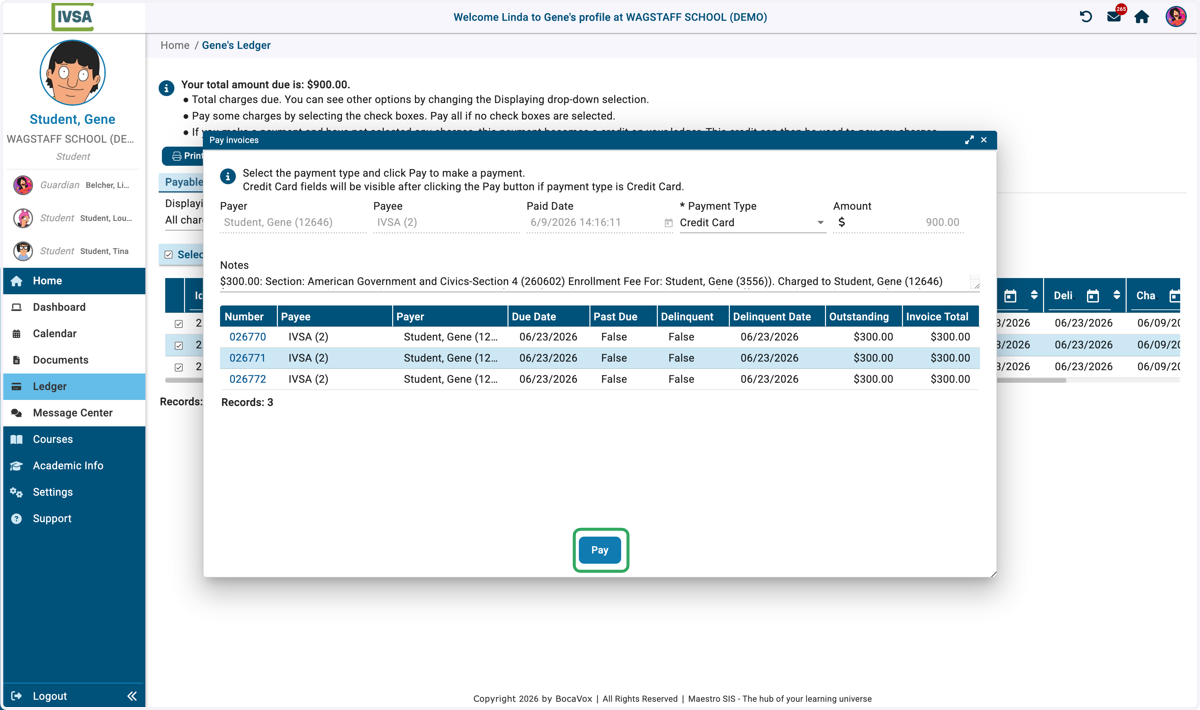
5. Click on Pay at the bottom of the new window
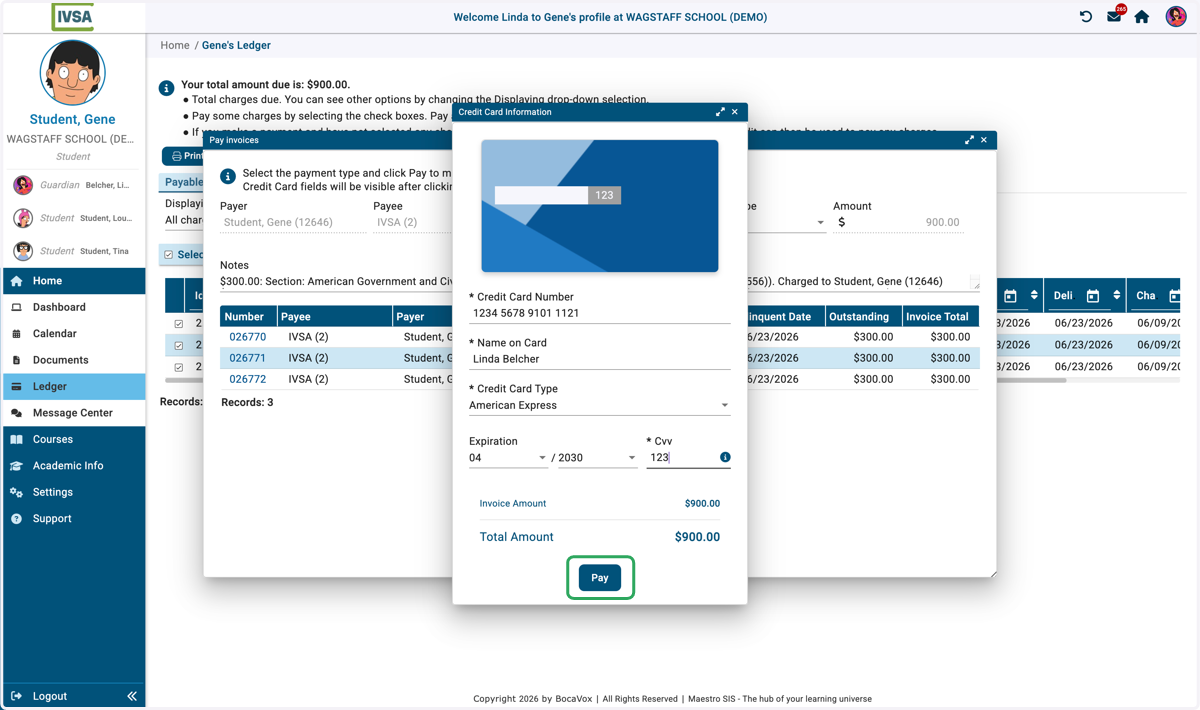
6. Enter your card information and click Pay
A green confirmation box will appear if payment processes.
If you receive an error, please record what it says and emails at support@ivsaschool.org with the student's name, the name on the credit card, and the error that was received.
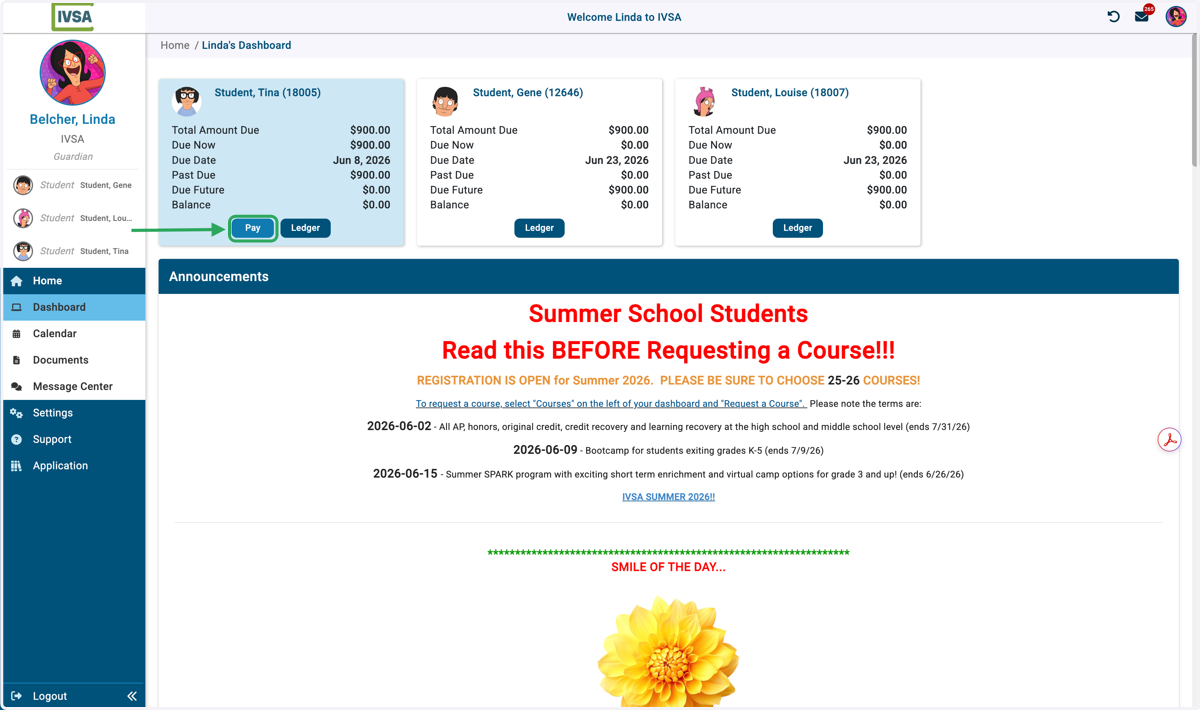
7. Using the Pay button On the dashboard click the Pay button.
8. Click on Pay again
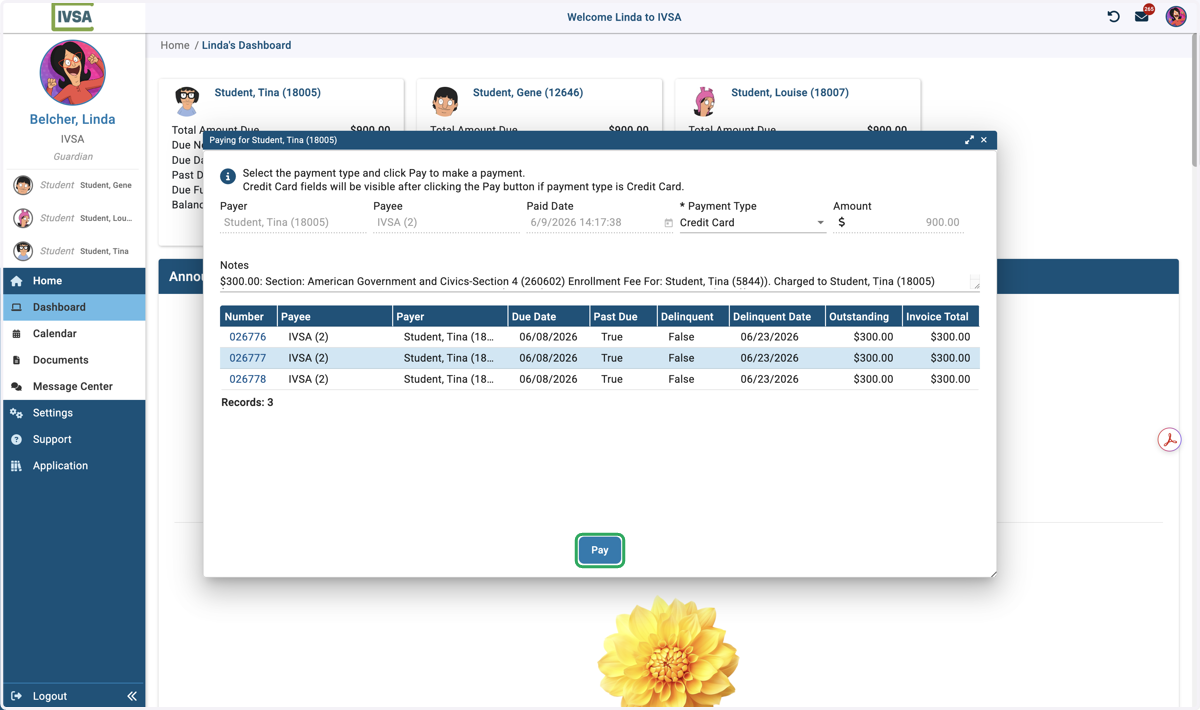
9. Enter your card information and click Pay one last time
A green confirmation box will appear if payment processes.
If you receive an error, please record what it says and emails at support@ivsaschool.org with the student's name, the name on the credit card, and the error that was received.