Step 4: How to Manage Marketing Consent Preferences in Captive Portal
Easily manage consent preferences by allowing customers to update their preferences, ensuring compliance with privacy laws, and improving customer engagement. This feature provides flexibility for both users and businesses to maintain transparent communication and consent management.
Affinect
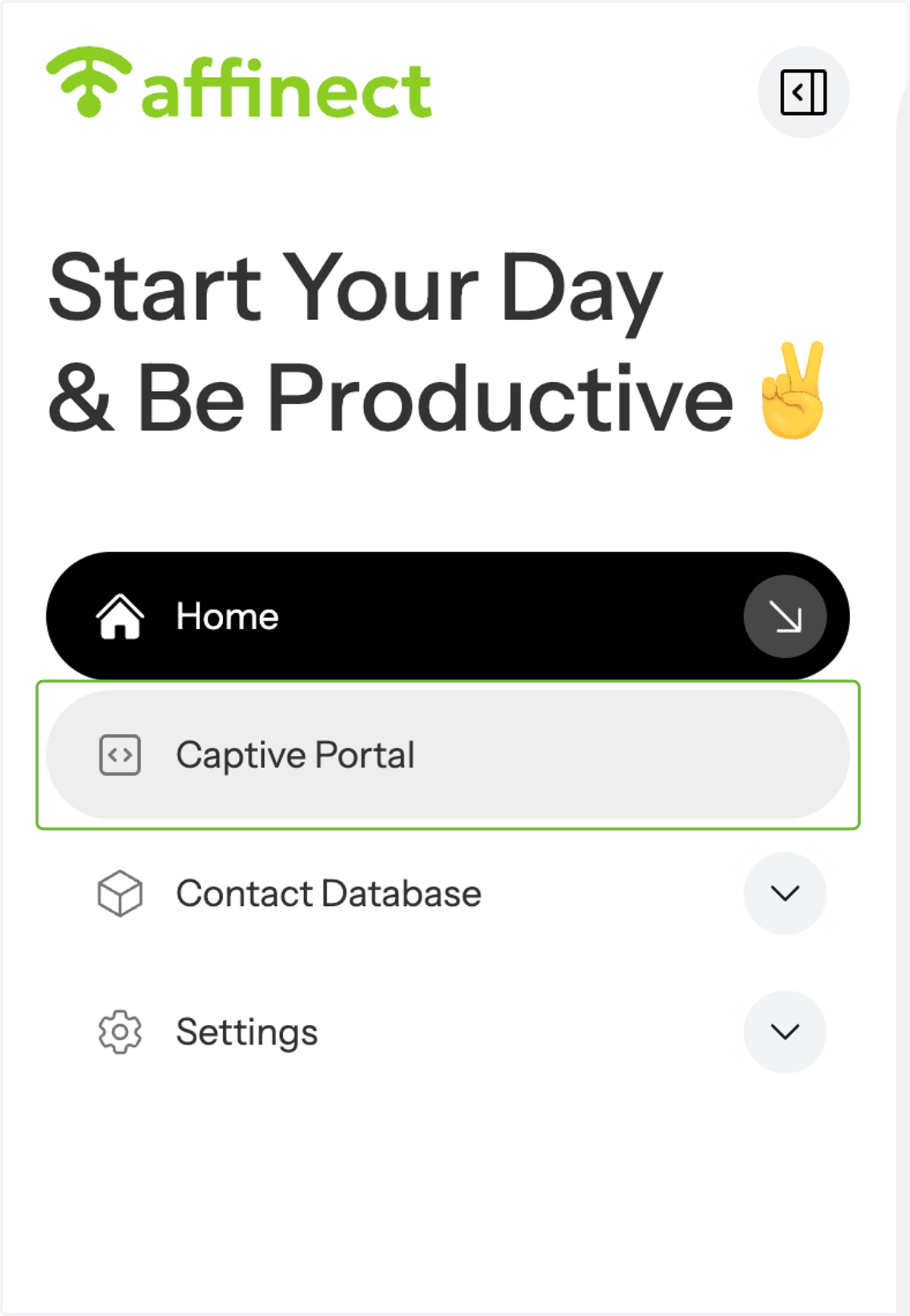
1. Click on Captive Portal on the left-hand side of the dashboard.
2. A preview of your social WiFi profiles will appear.
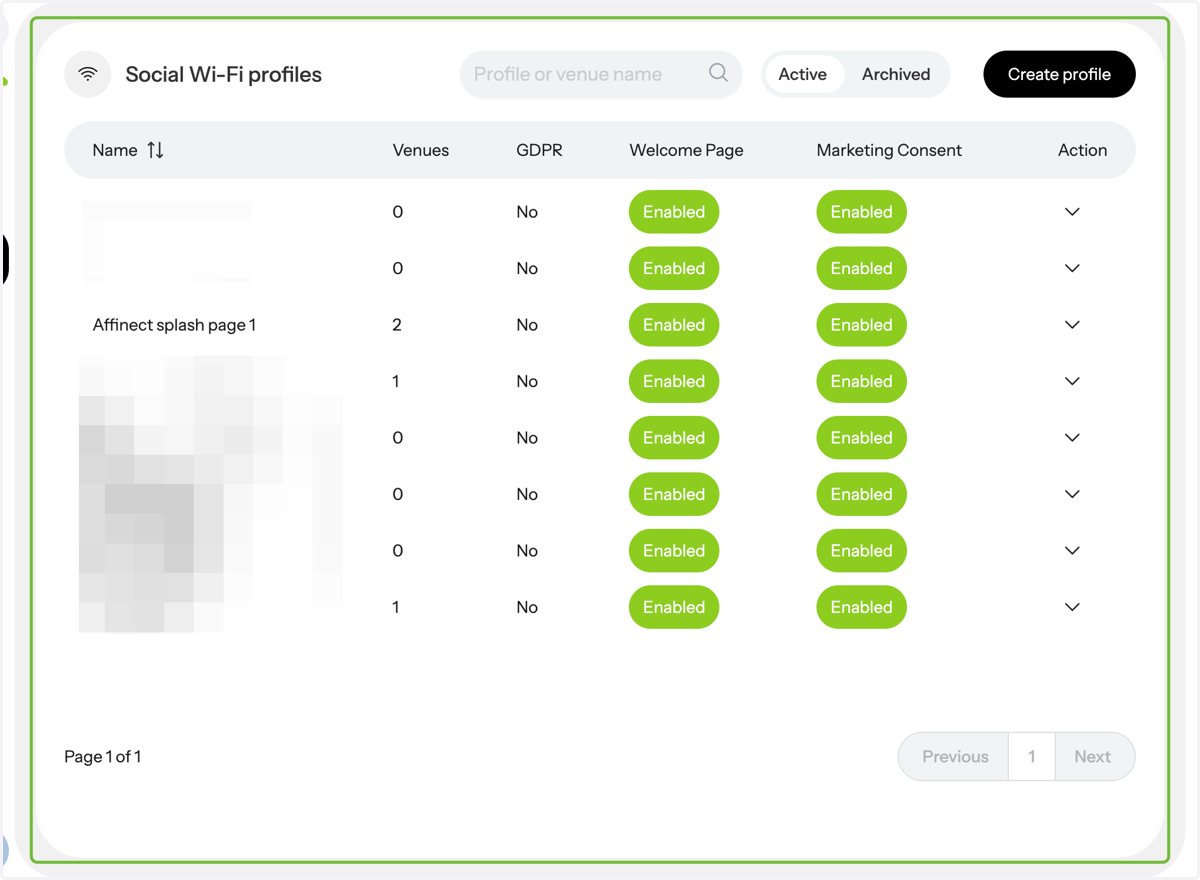
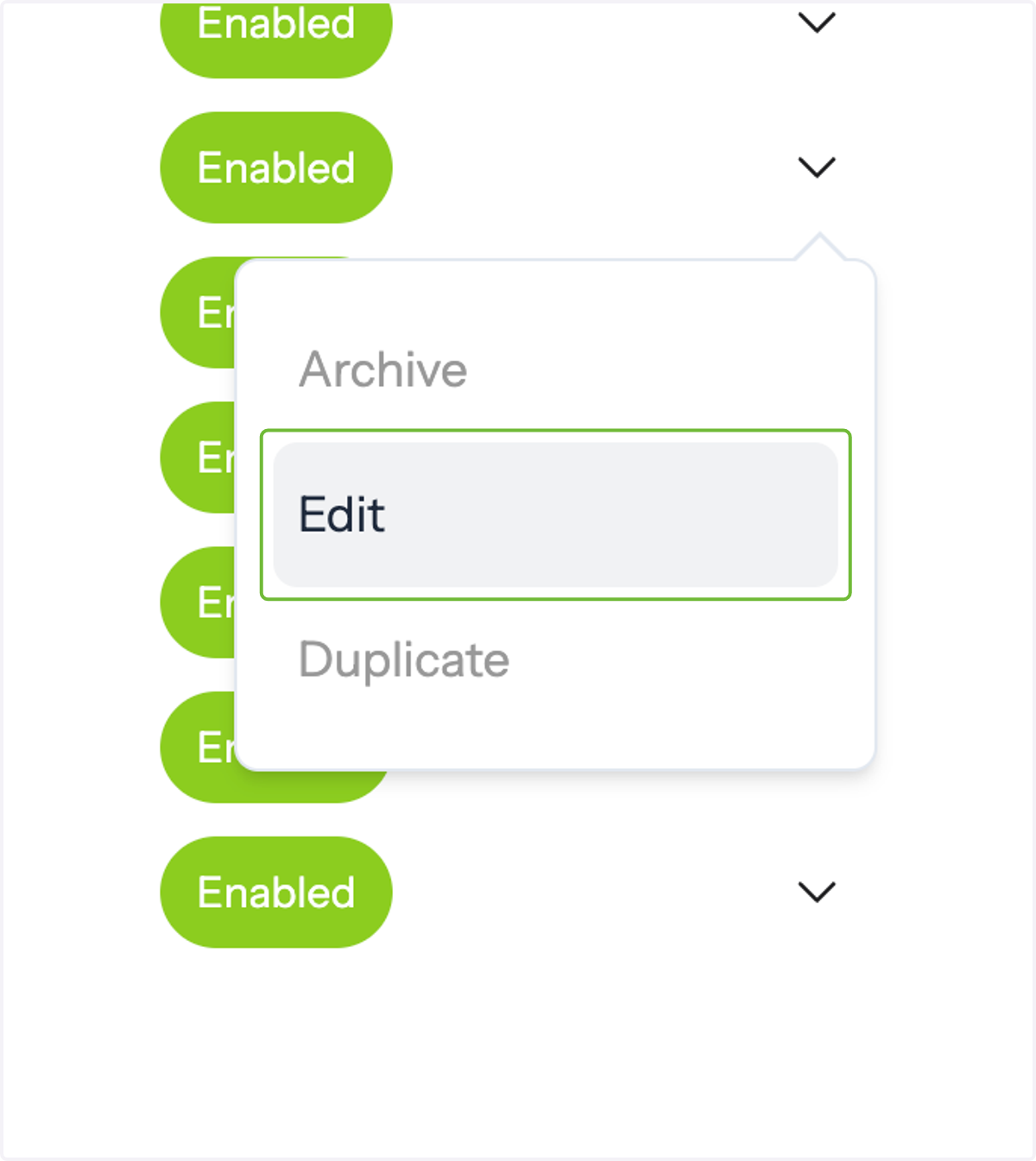
3. Go to Actions and click on the profile's drop-down menu you wish to update the marketing consent for.
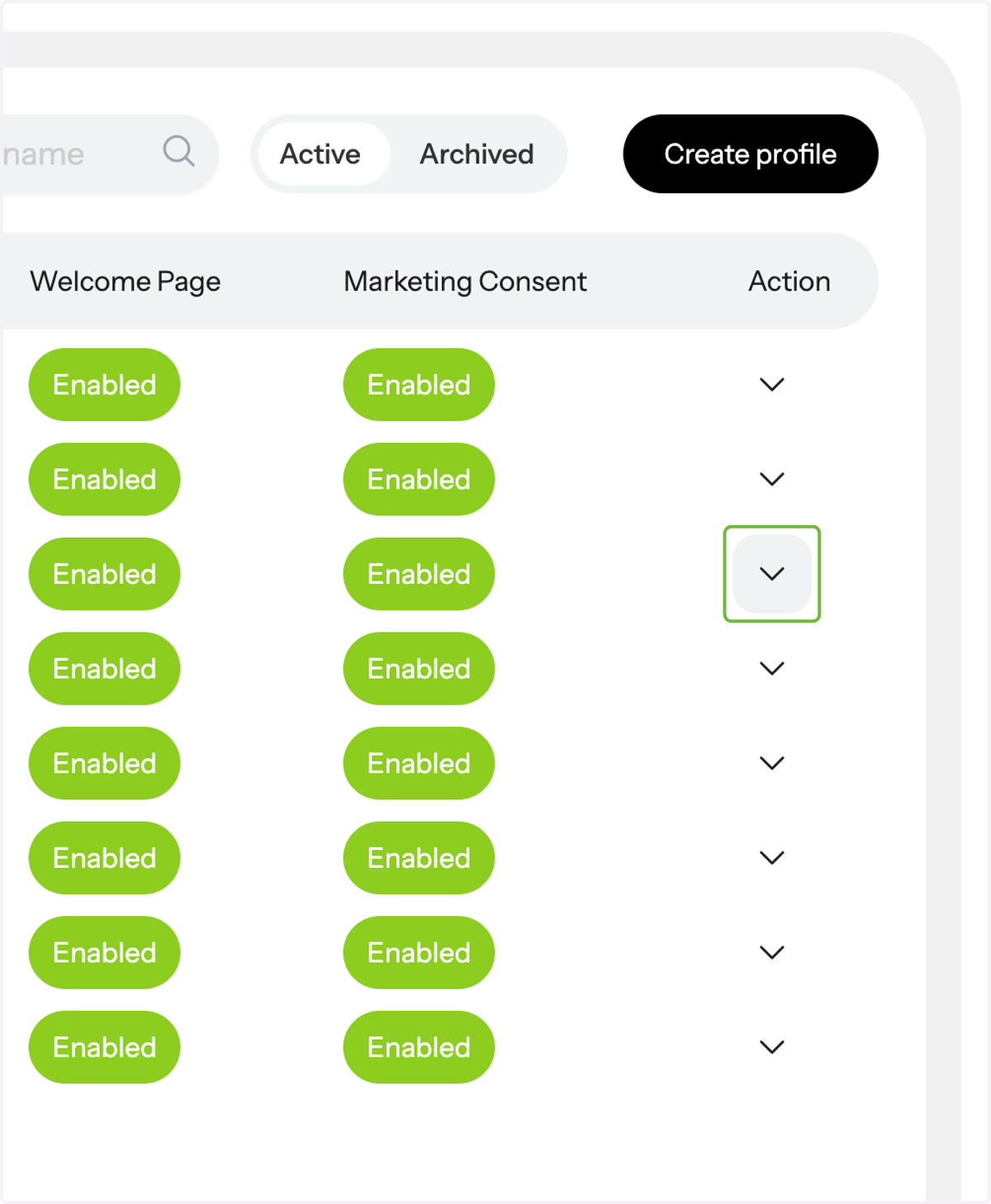
4. Click on Edit to continue.
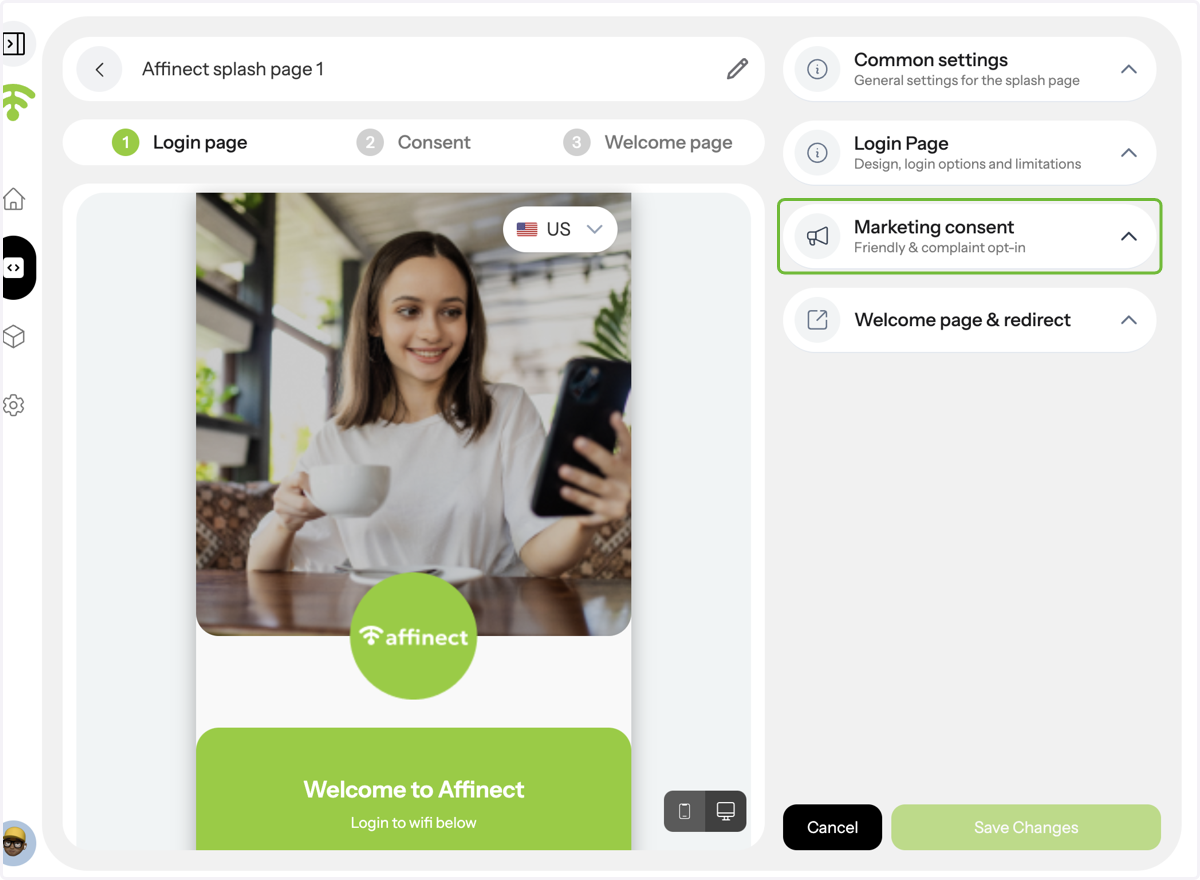
5. A preview of your splash page will appear with settings on the right-hand side. Click on Marketing consent to manage preferences.
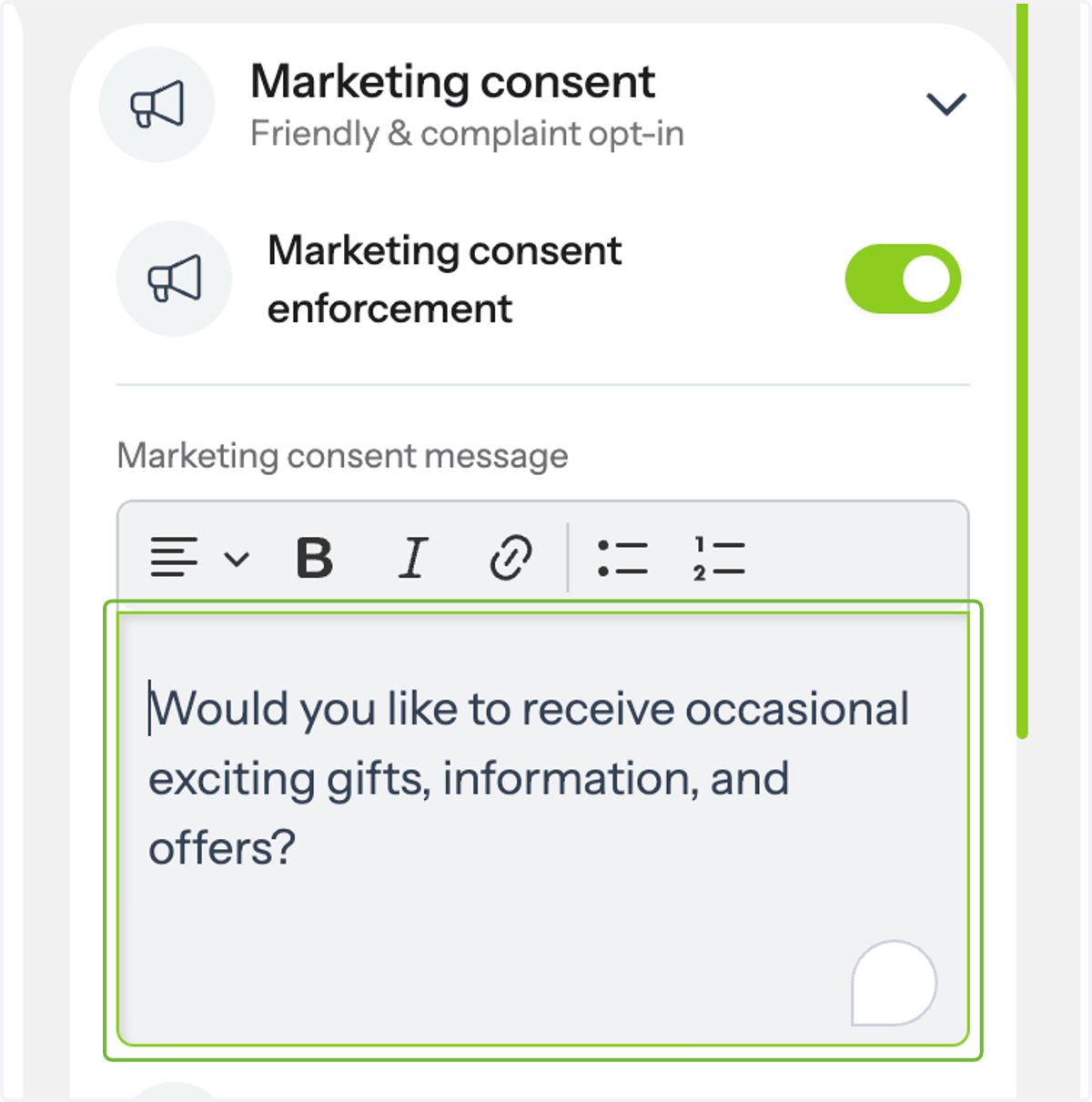
6. Enable the marketing consent enforcement. The marketing consent message is your marketing opt-in message.Customize the text to create an engaging and informative opt-in experience.
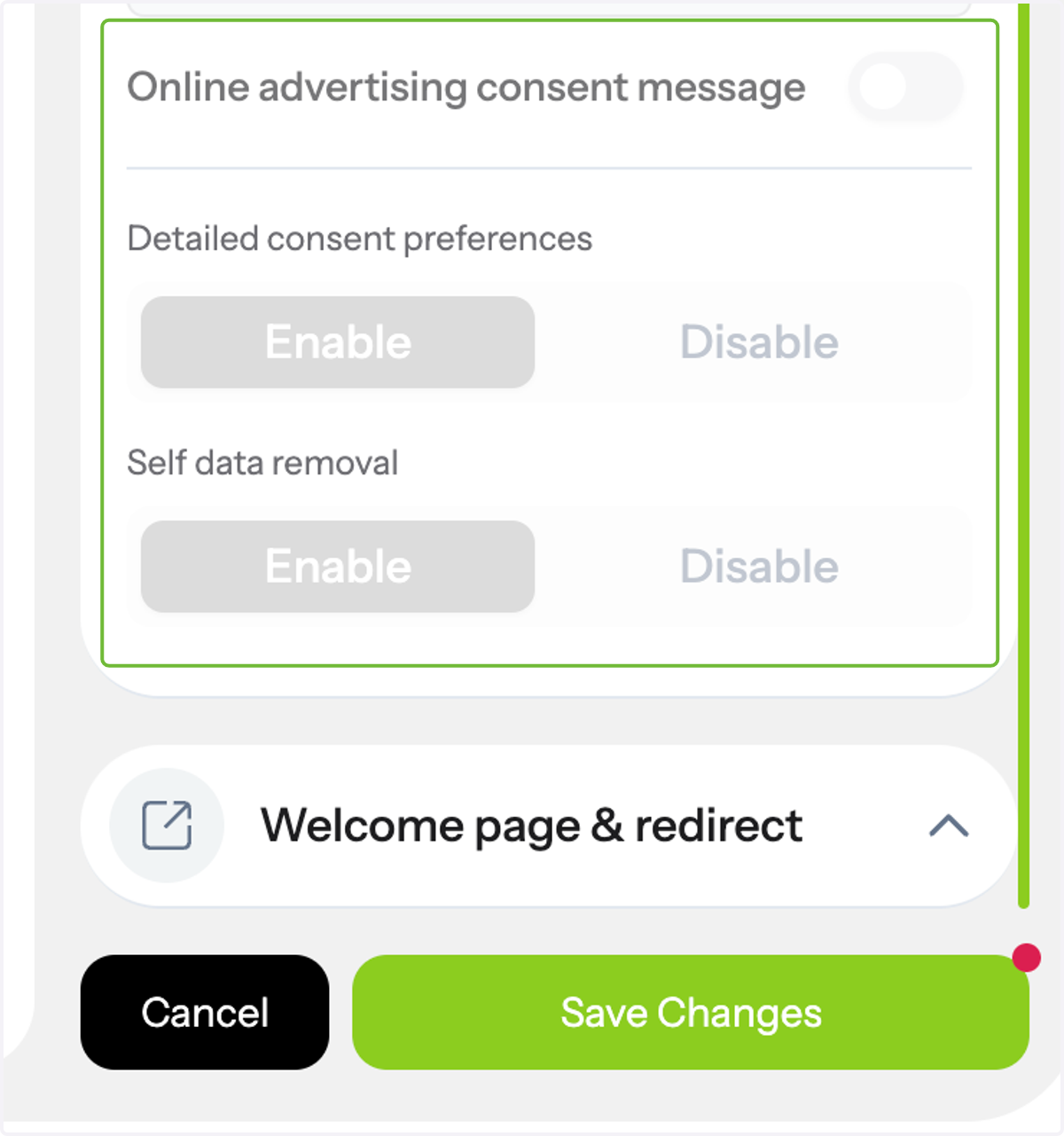
7. Enable Online advertising consent message to display an additional message explaining how guests' information may be used for targeted advertising. You can customize the message to inform guests how their data may be used on platforms such as Facebook and Instagram.
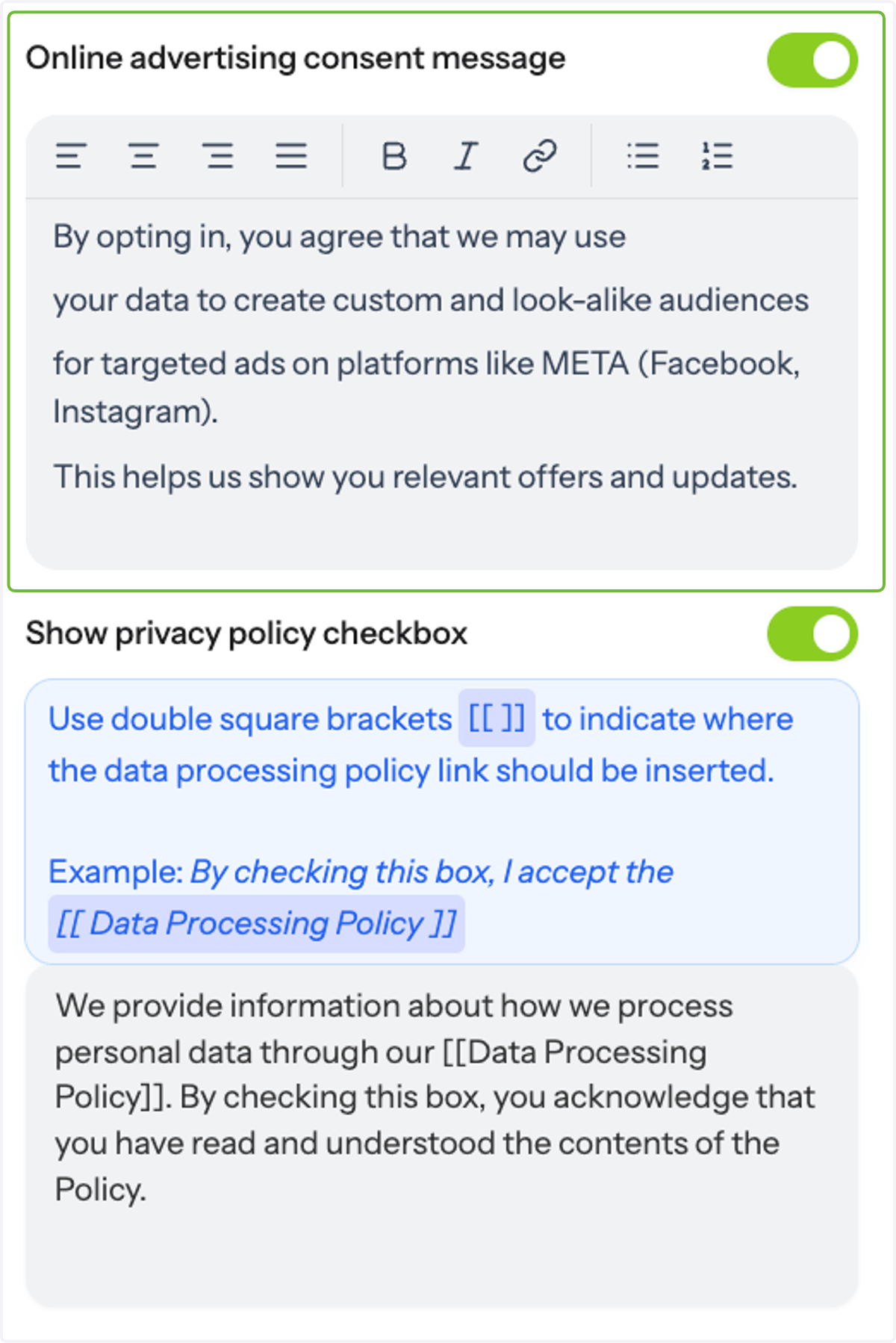
8. Enable Show privacy policy checkbox to display a privacy policy agreement during guest registration. You can customize the message and use double square brackets [[ ]] to indicate where the Data Processing Policy link should be inserted.

9. You can also add an age restriction and a custom consent agreement. Minors and anyone under the age you restrict cannot opt in to the guest WiFi.
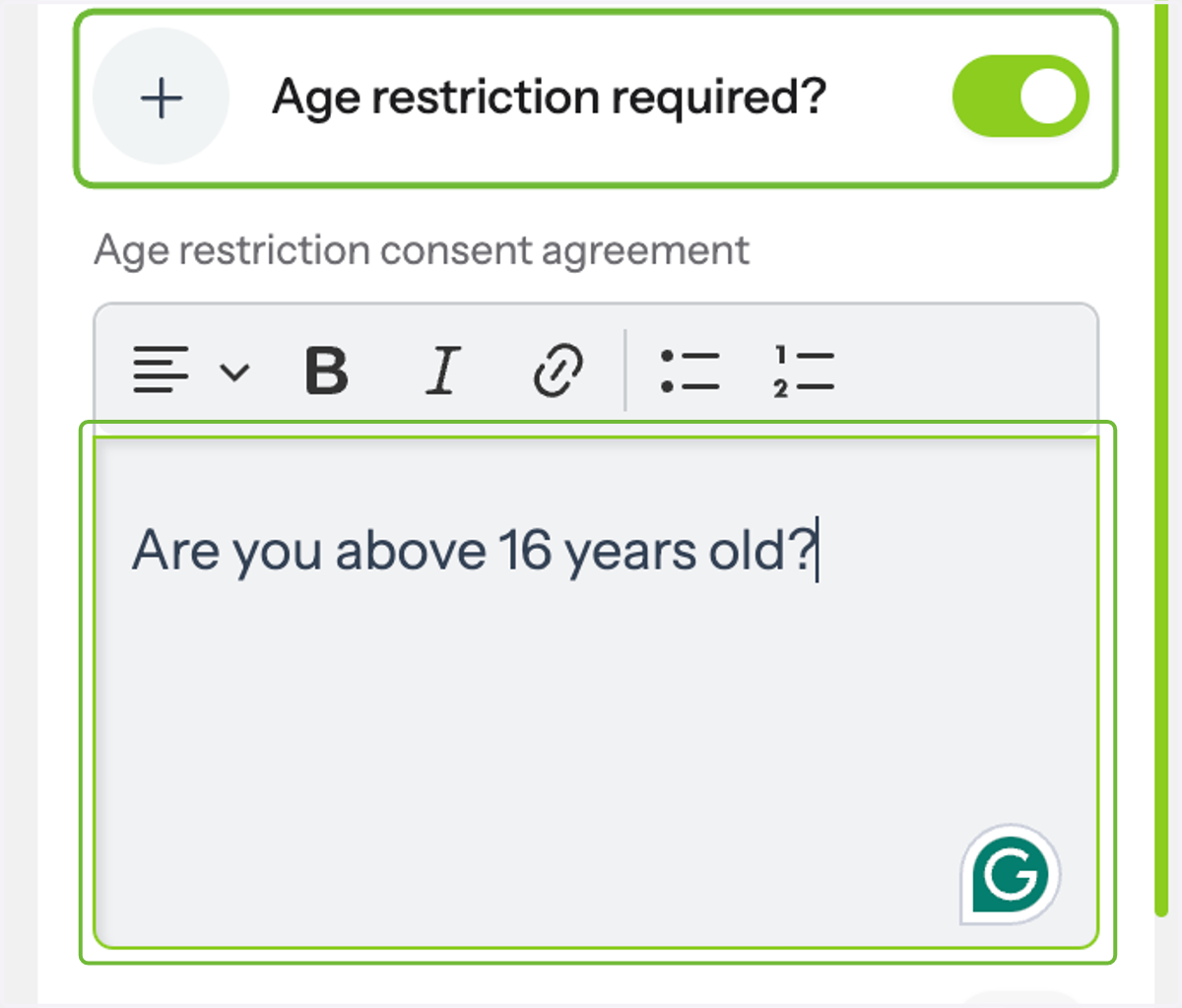
10. The online advertising consent message is enabled by default.
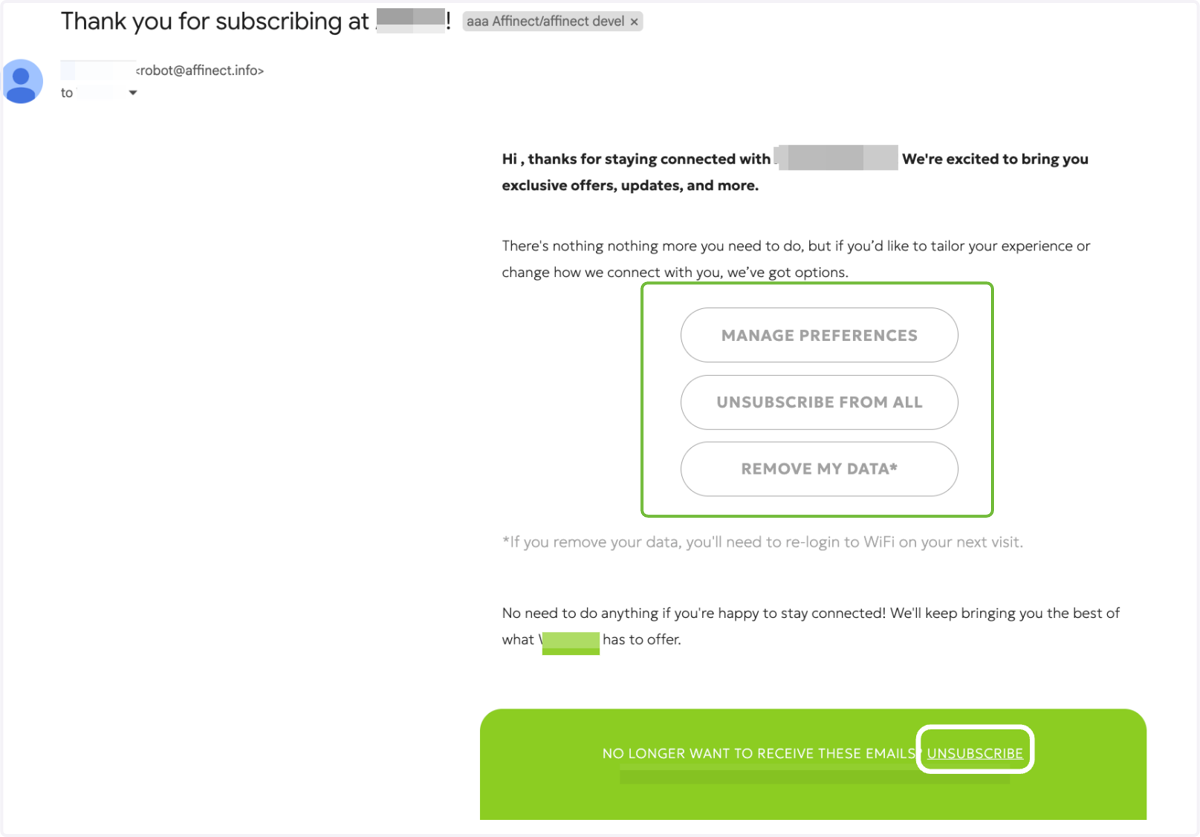
11. Once the user has given consent to receive messages and offers, they will be added to the subscribers list and will receive an email to manage their preferences, unsubscribe, or remove their data.
The footer of the email also contains an option to unsubscribe by clicking the 'Unsubscribe link'.
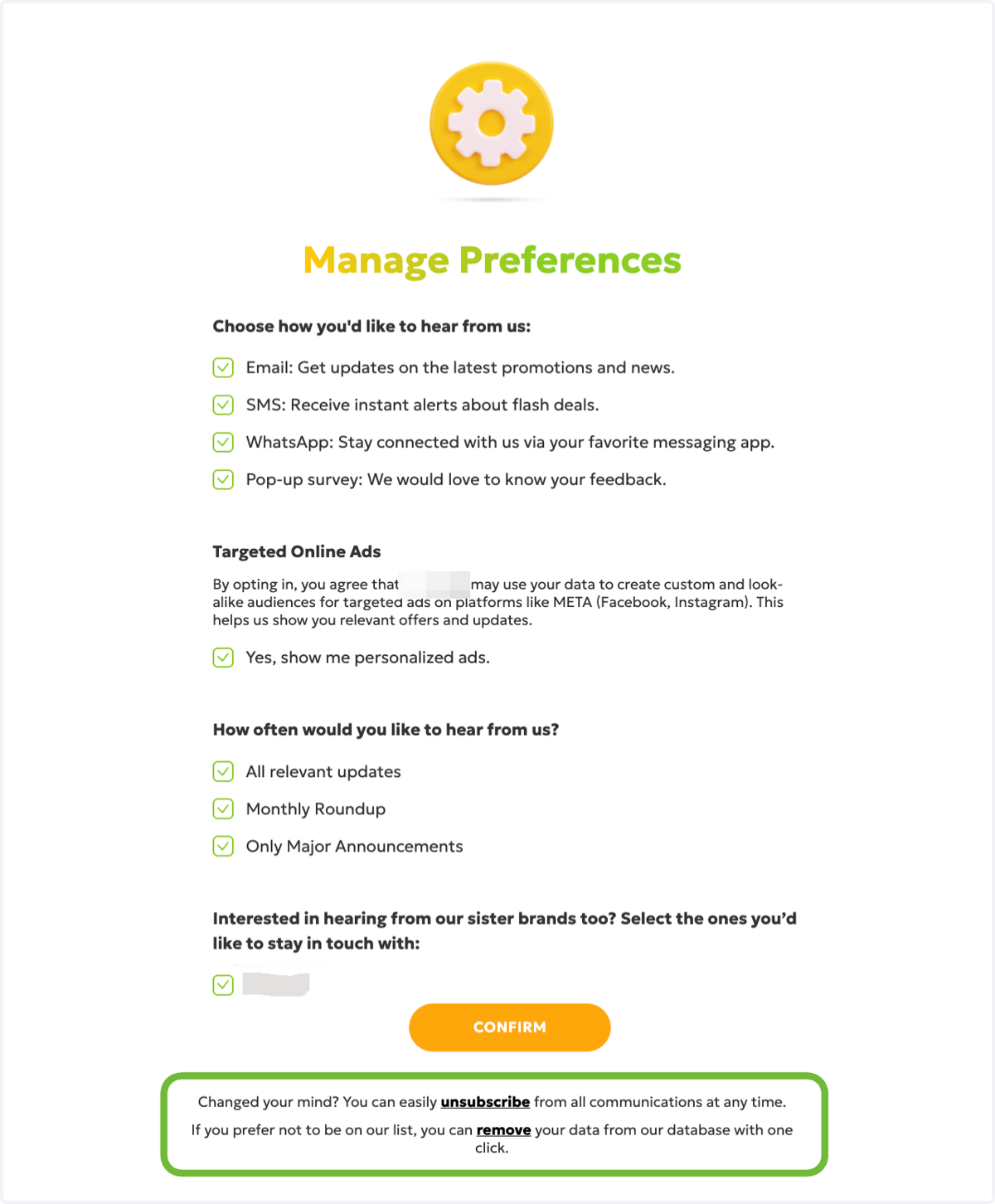
12. This is the form the user will be redirected to when they click on 'Manage Preferences.' They can choose to unsubscribe and remove their data using the link available at the end of the form.
13. Don't forget to save your changes after making updates. Happy Connecting!