How to Link a Course Calendar to a Personal Calendar
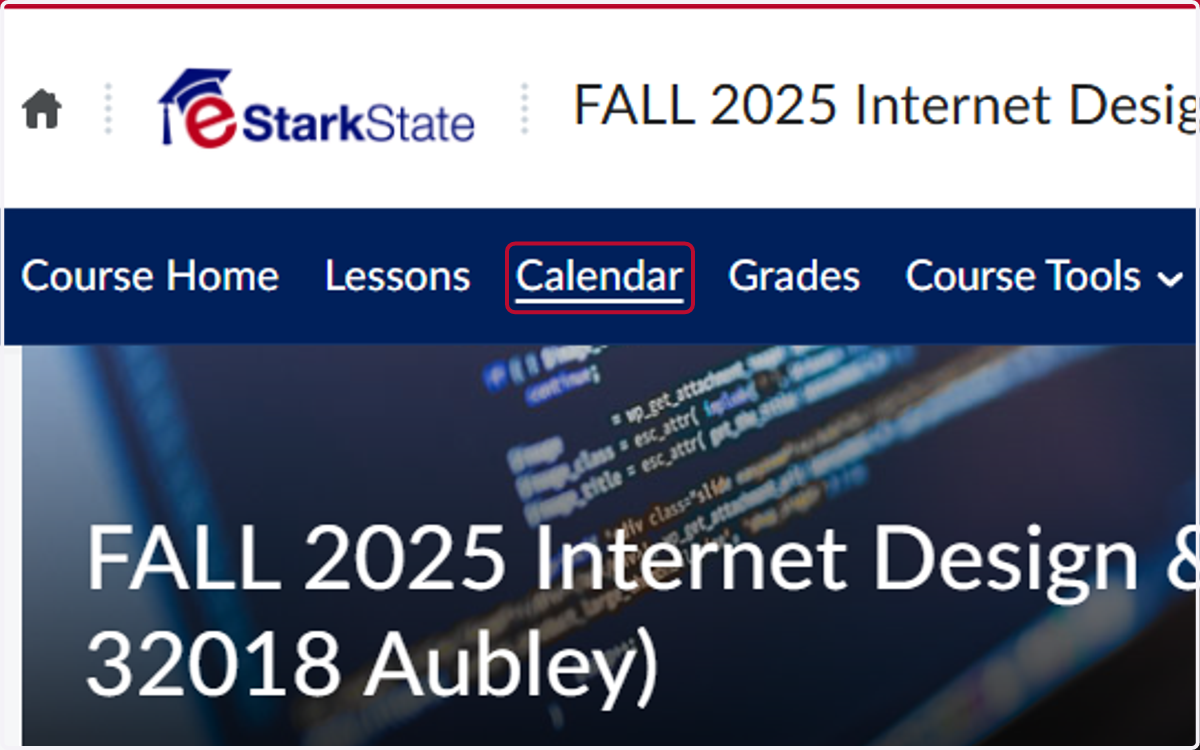
1. Click on Calendar
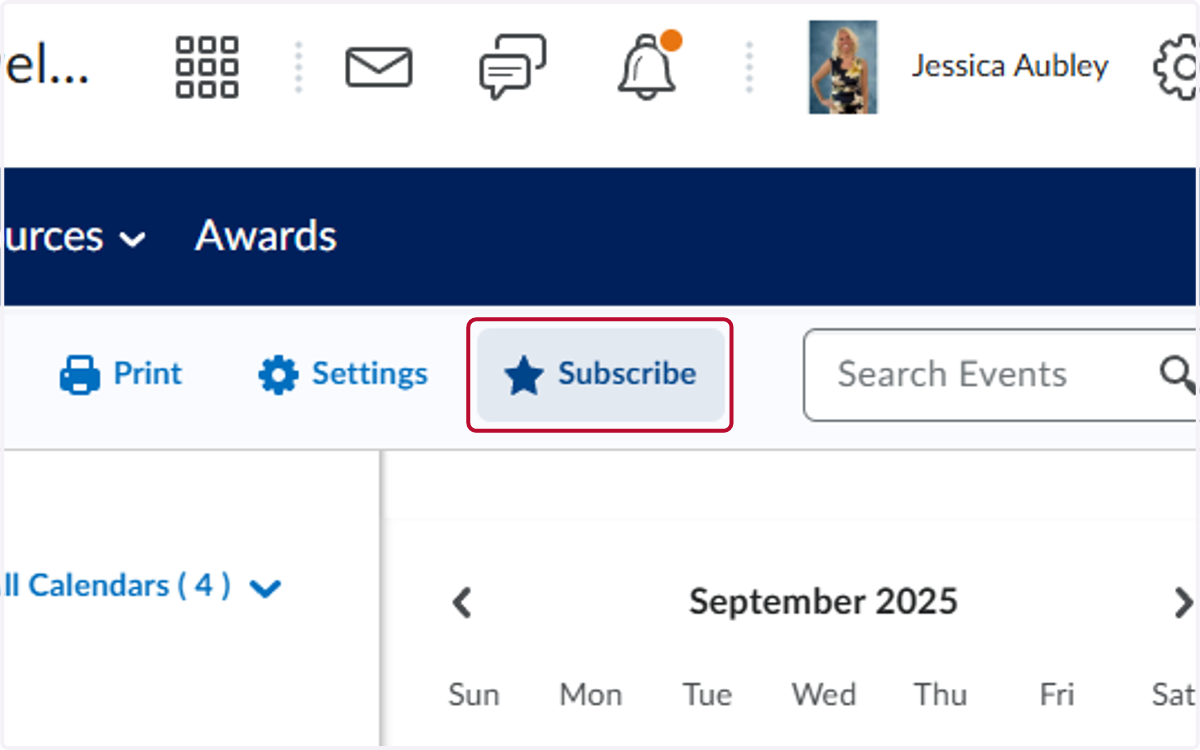
2. Click on Subscribe
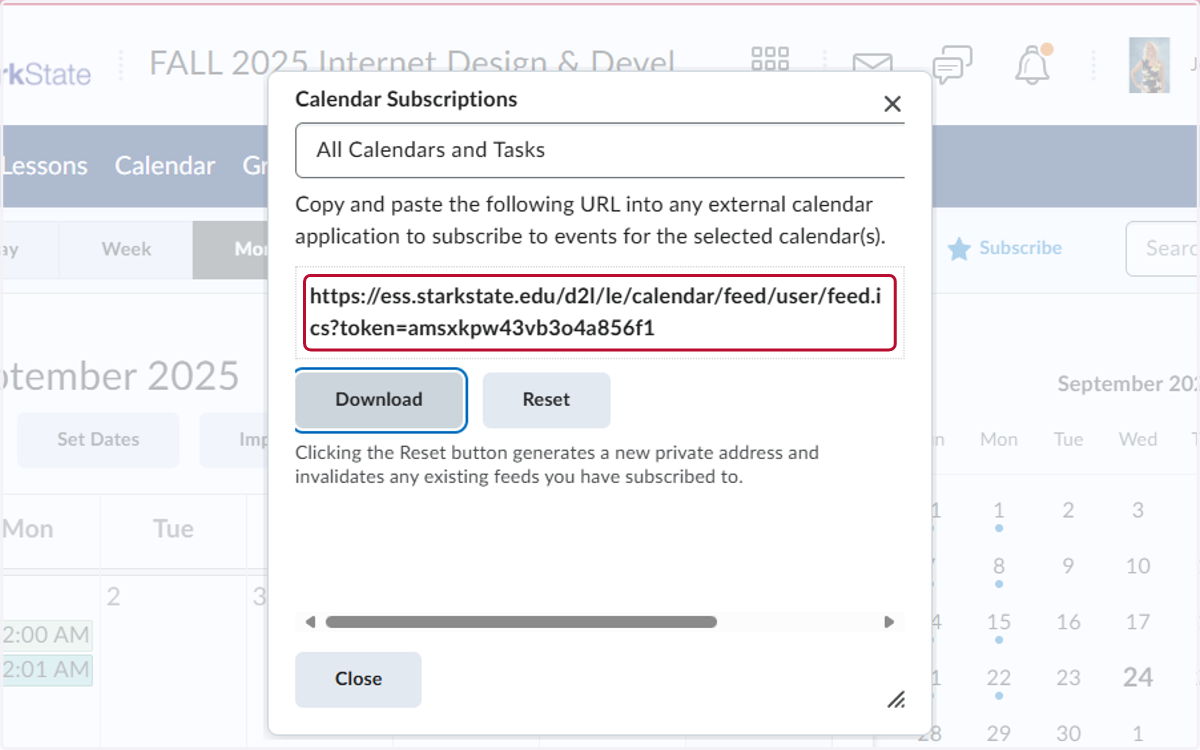
3. Copy the website address
Steps 4-6 and completed on your personal Calendar
4. In the preferred scheduling software, find the option to add a calendar by URL. This varies by application:
- In Outlook (Web only): Go to the Calendar section. Select Add Calendar, then select Subscribe from web. Paste the calendar link.
- In Google Calendar (Web only): Select the plus sign beside Other Calendars, then select from URL. (Full instructions are available on the Google Calendar Help page.)
- On an iPhone: Go into Settings and select Calendar, then Accounts. Select Add Account, then Other, and then Add Subscribed Calendar.
- In Mac Calendar Desktop App: Full instructions are available on the Apple Subscribe to Calendars page.5. Paste the calendar link in the appropriate field.
6. Select Save or Confirm.
Note: Due to technical limitations, calendar updates will occur when the calendar application refreshes. Brightspace has no control over calendar refresh timing. For Outlook and Google, it may take up to 48 hours for changes to be reflected.