How to Issue an Alert in Navigate360
This guide walks you through how to issue an alert on a student in EAB Navigate. Alerts are used to notify support staff or refer students to the appropriate office for additional assistance. Depending on the type of alert selected, it may open a case, send information to the student, or both. For a full list of available alerts and referrals and what each one does, visit: https://airtable.com/appw85JlCDMutvNRc/shrdM8UEhV9eZLlLY
Staff Home | Navigate360
You can log in using your HCCC credentials
1. Search for the Student
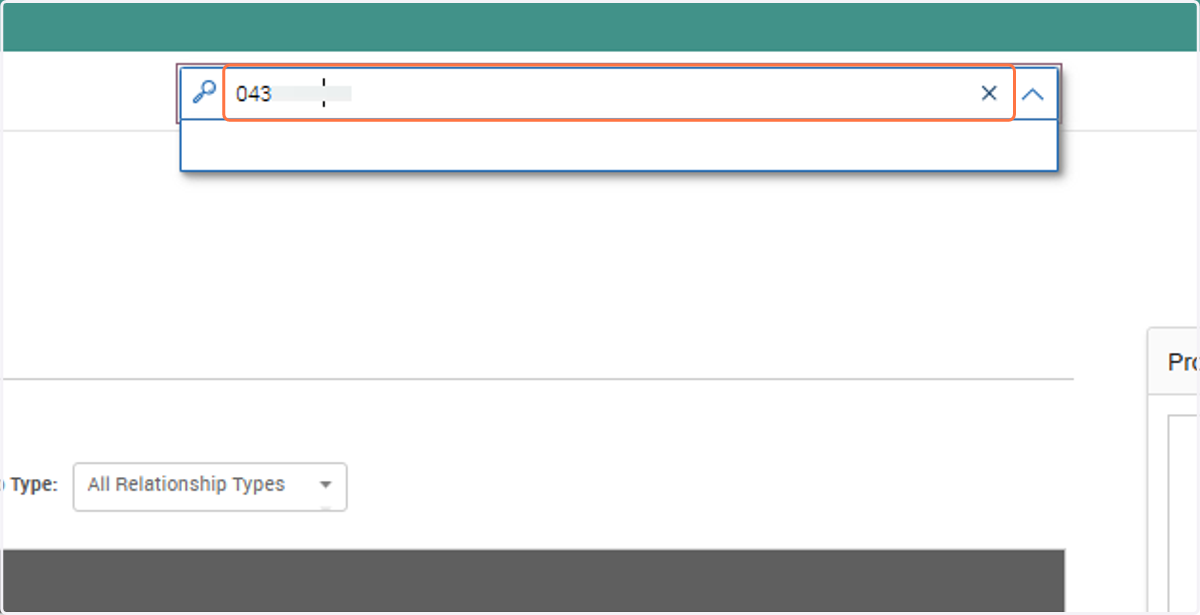
Using the search bar at the top of the screen you can search for students by:
Student ID Number
Full Name
HCCC E-mail Address
2. Issuing an Alert on the Student Profile
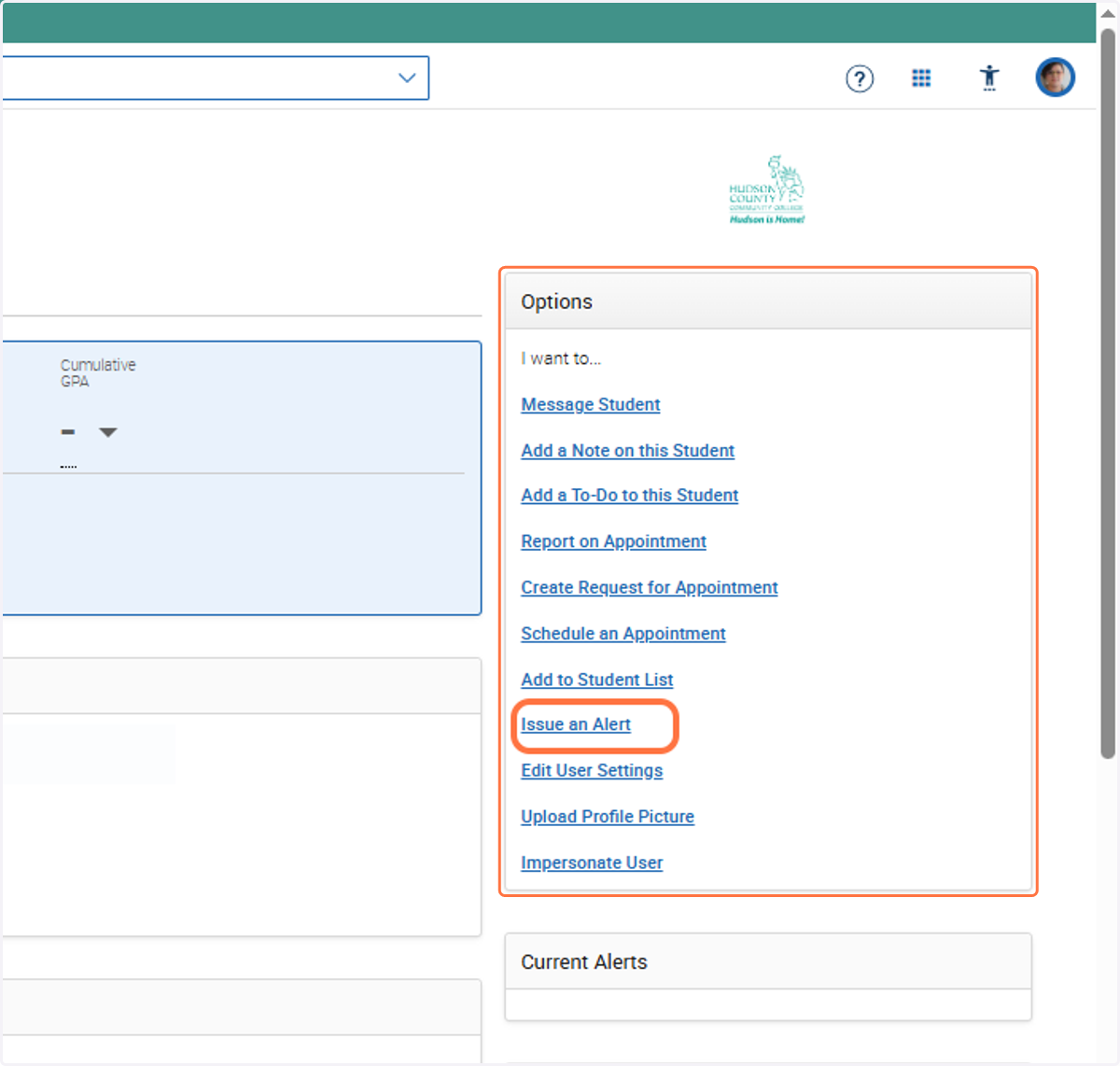
Once on the student’s profile, look to the right-hand panel under their ID photo.
Click “Issue an Alert.”
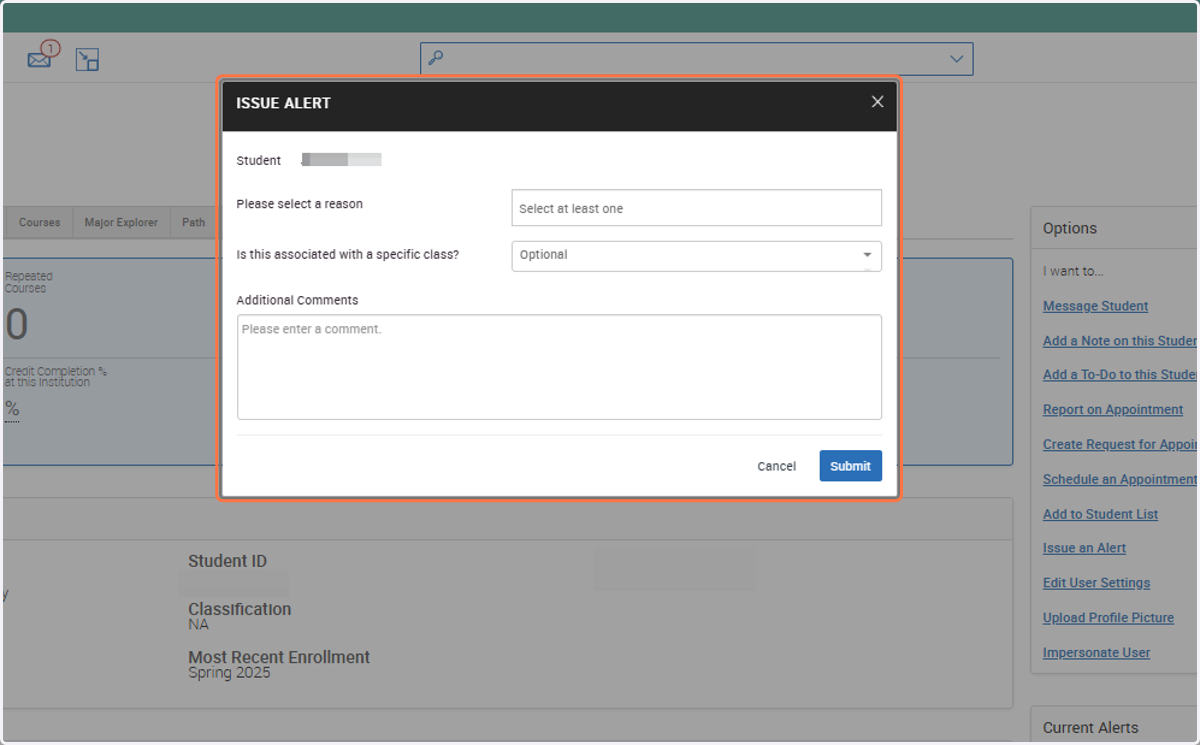
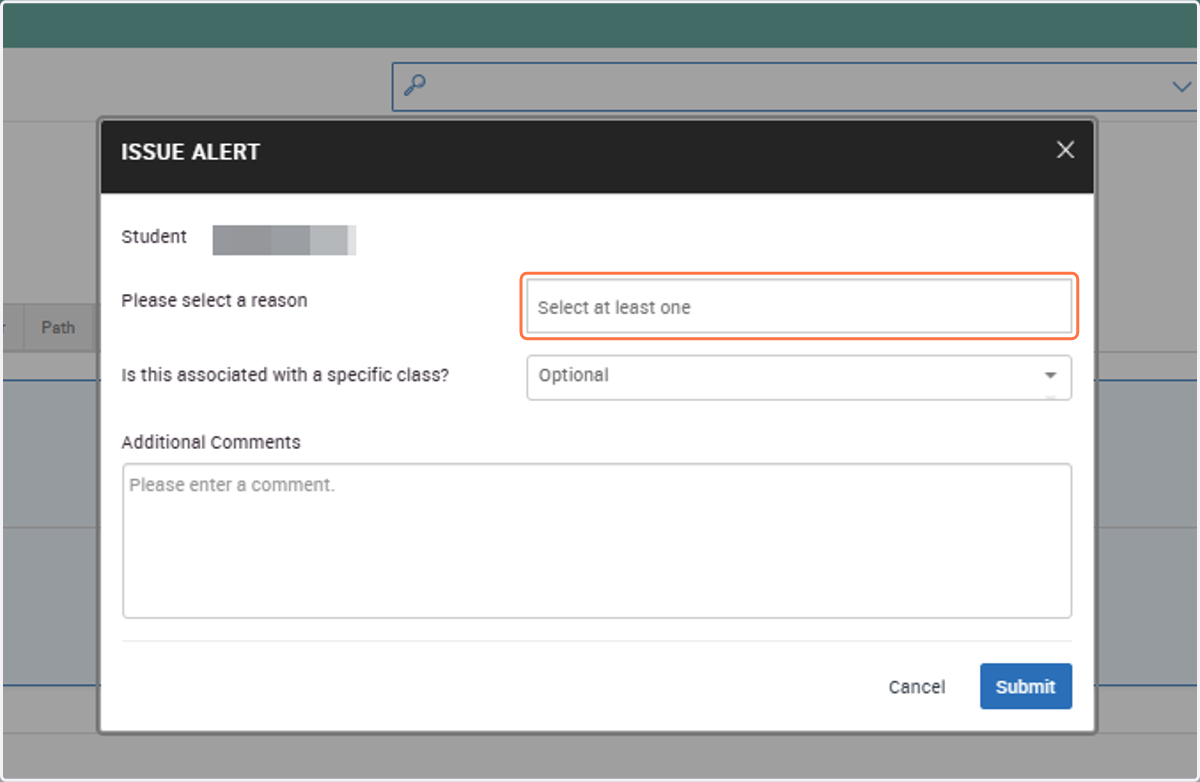
3. A new window will appear for you to fill out the details of the alerts
4. Choose the Alert Reason
Select the reason(s) for issuing the alert from the list provided, you may choose more than one alert if needed. Some of the alerts also act as referrals to other offices/services.
Each Alert type triggers different outcomes such as:
Open cases and notify assigned staff
Send information to the student about resources
Both of the above options
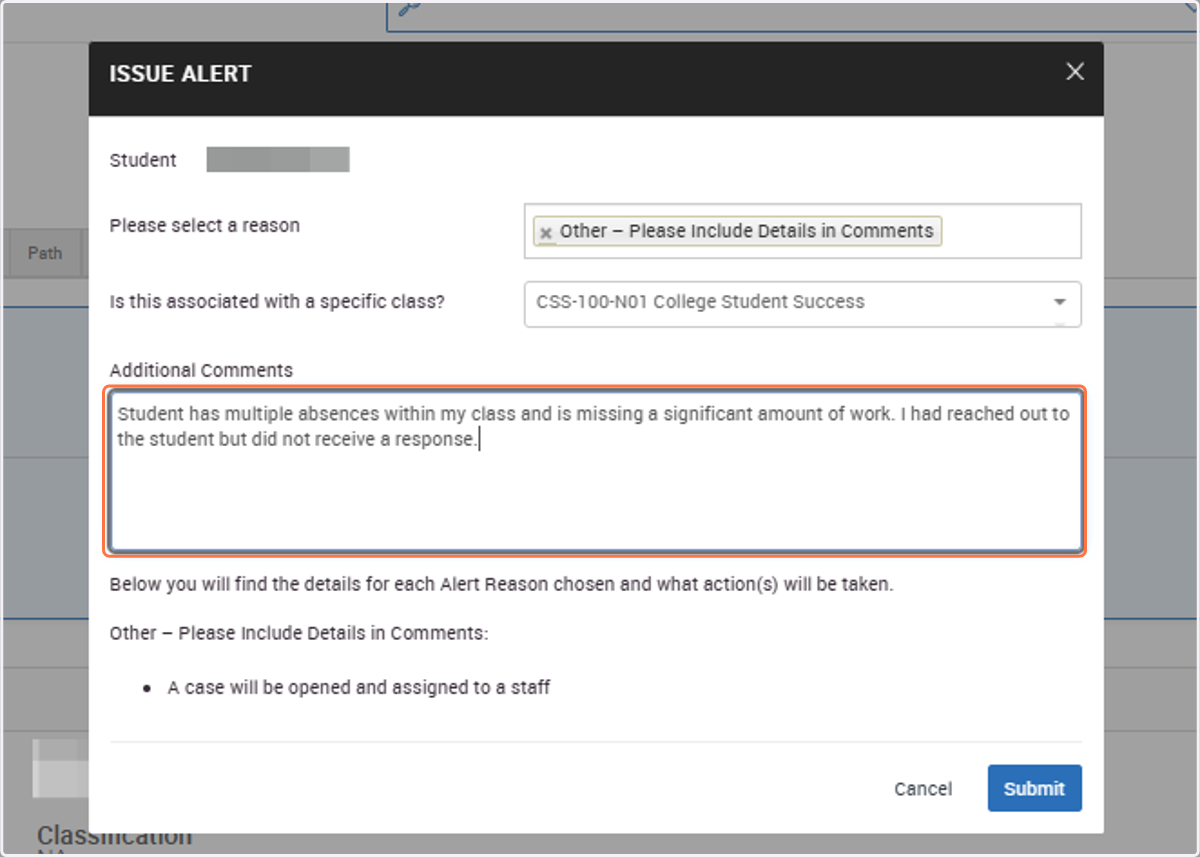
At the bottom of the alert window, you'll see a summary of what action the alert will trigger
To see the full list of alerts/referral types and their functions you can go to this page: https://airtable.com/appw85JlCDMutvNRc/shrdM8UEhV9eZLlLY
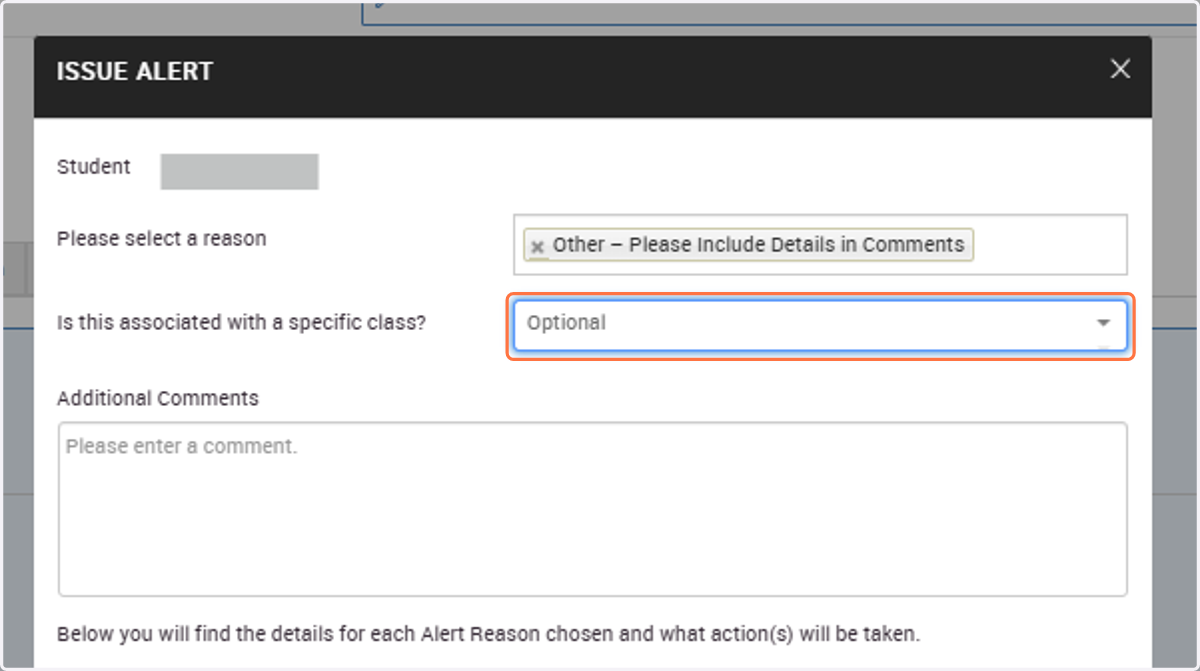
5. (Optional Step) Selecting a Course
If the alert relates to a specific course, select it from the dropdown. If not, you can leave this blank.
6. Add Comments (Recommended)
For alerts that will open a case, please add any helpful details in the Additional Comments section. This context helps staff respond more effectively
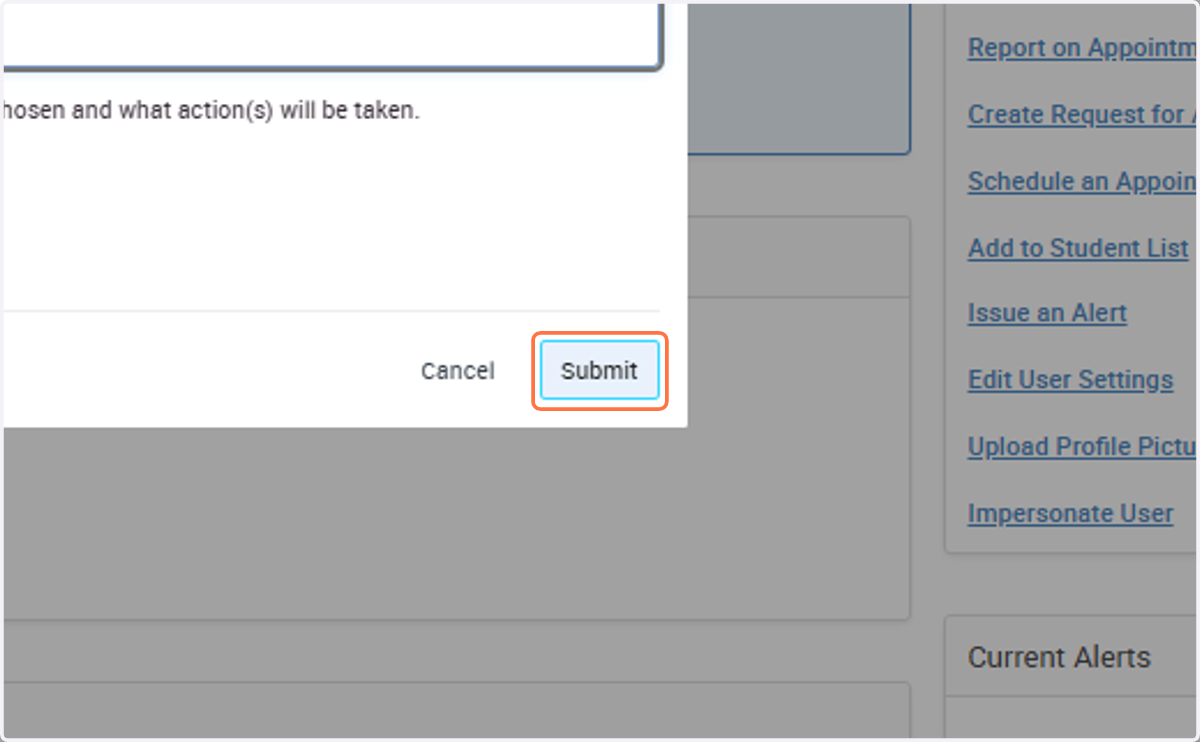
7. Click on Submit