How to Integrate the Email Verifier feature into Make
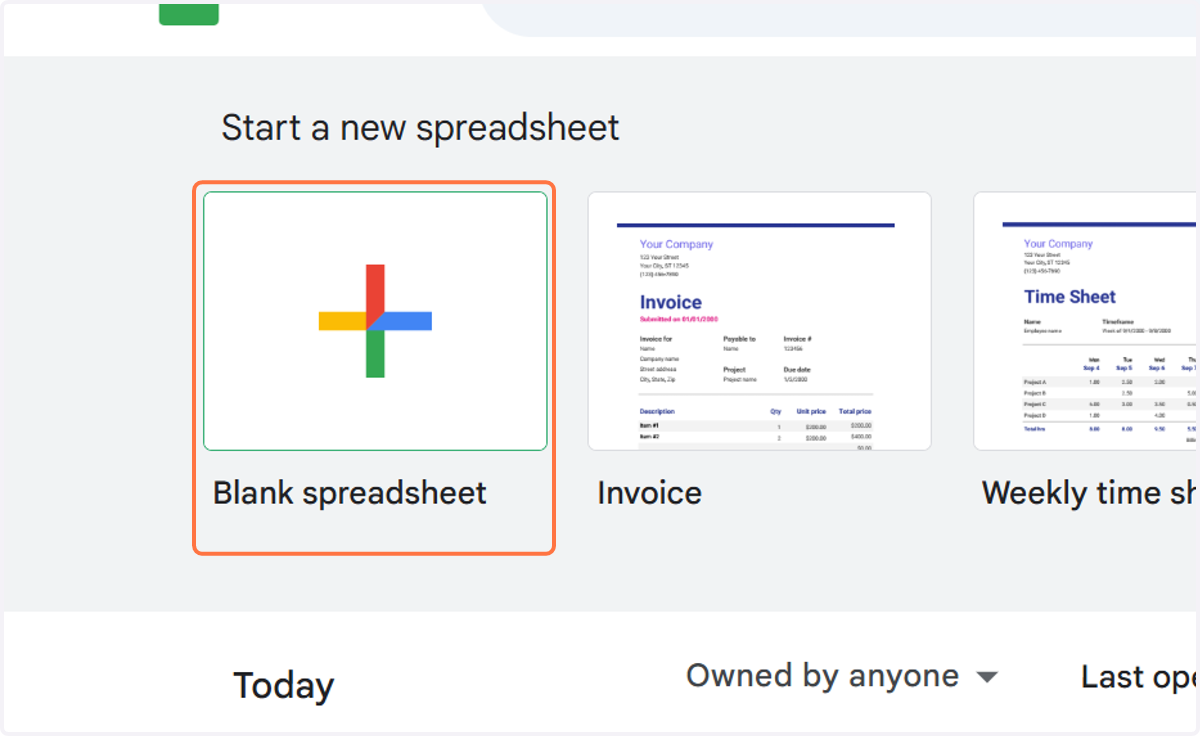
1. If you don’t have an existing Google Sheet, create a new one.
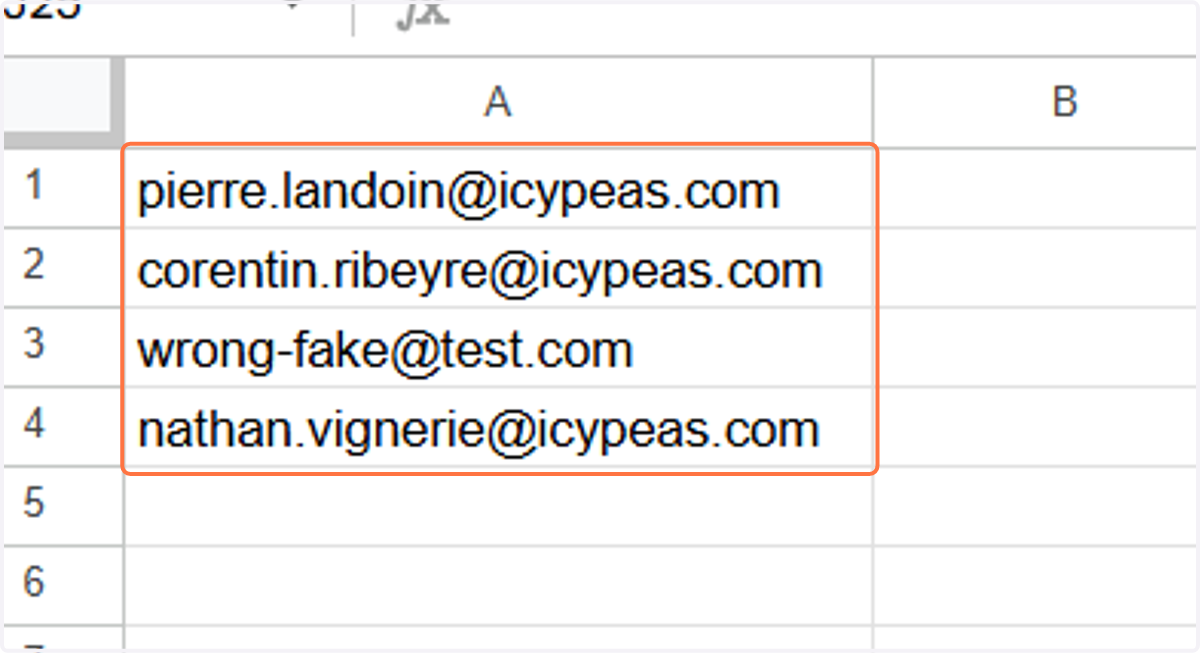
2. Copy the cells below, replacing the email addresses with the ones you want to verify.
3. Go to Make and click on Create a new scenario.
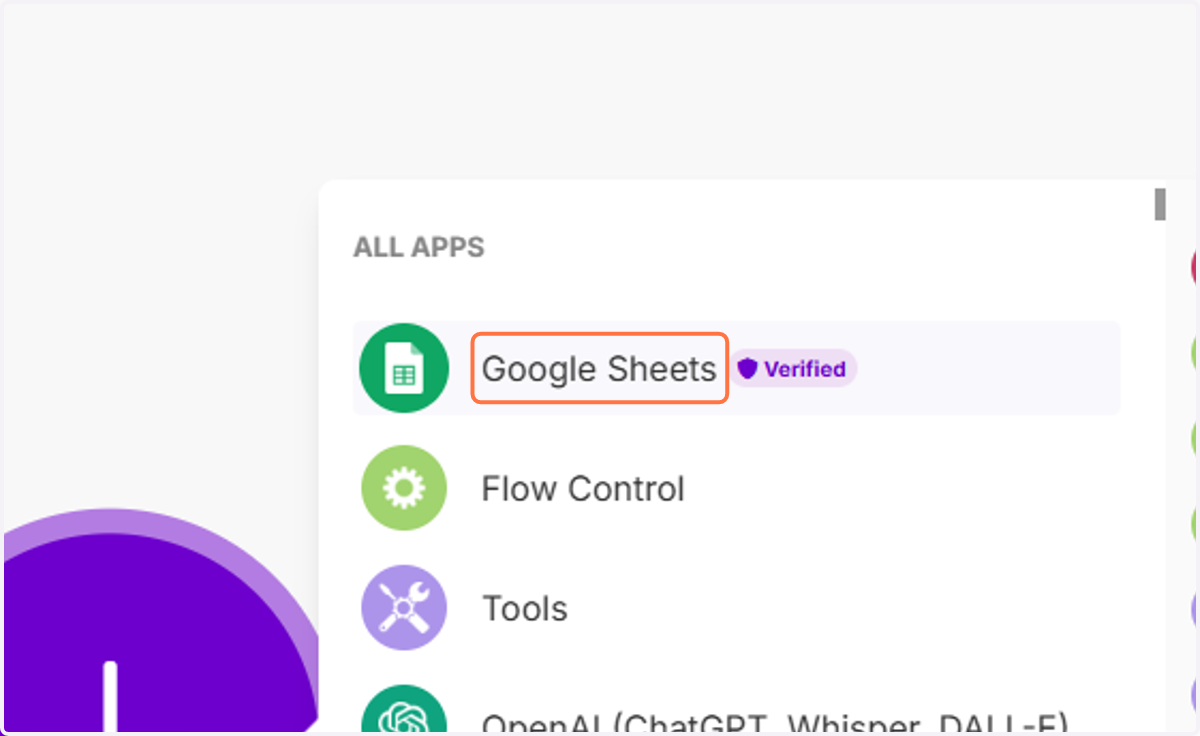
4. Select Google Sheets.
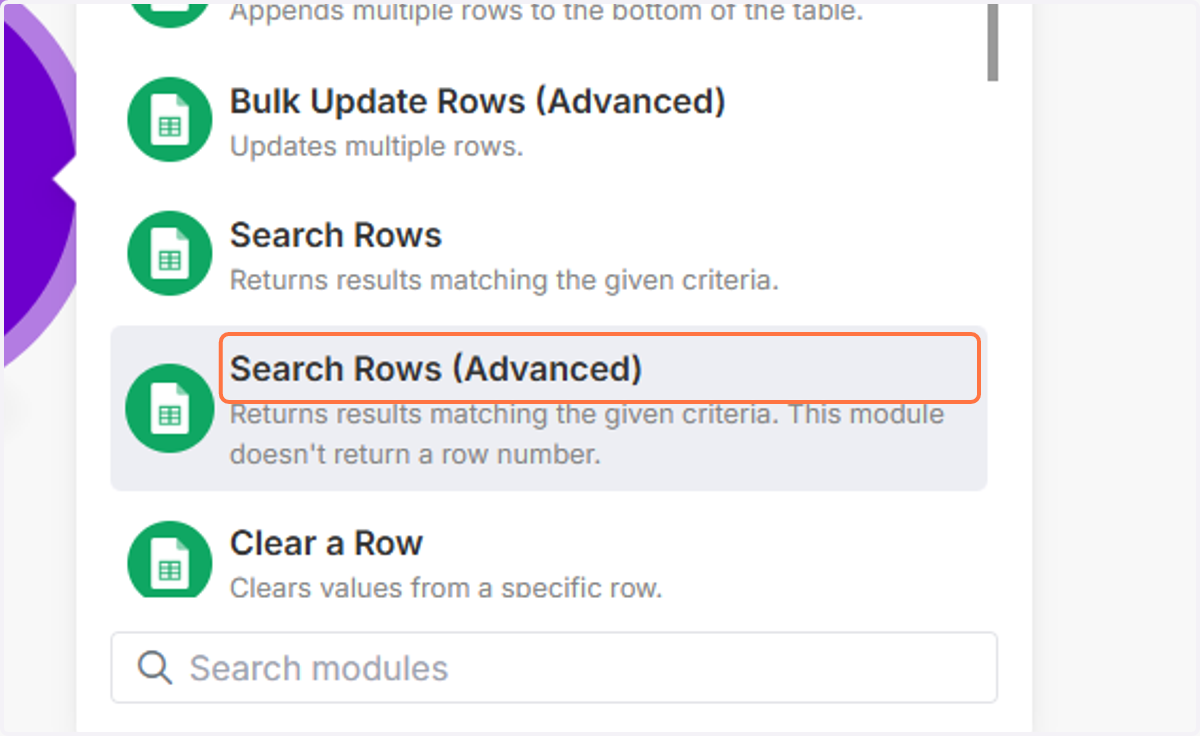
5. Choose Search Rows (Advanced).
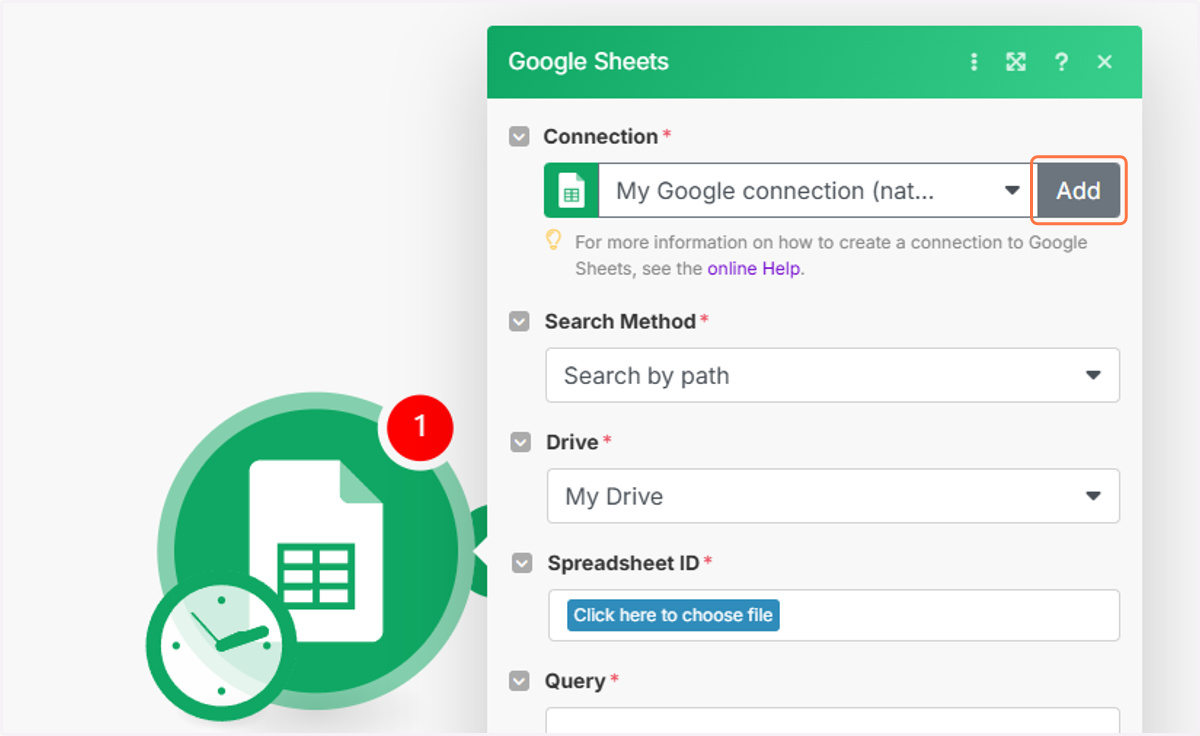
6. Click on Add and connect to your Google account.
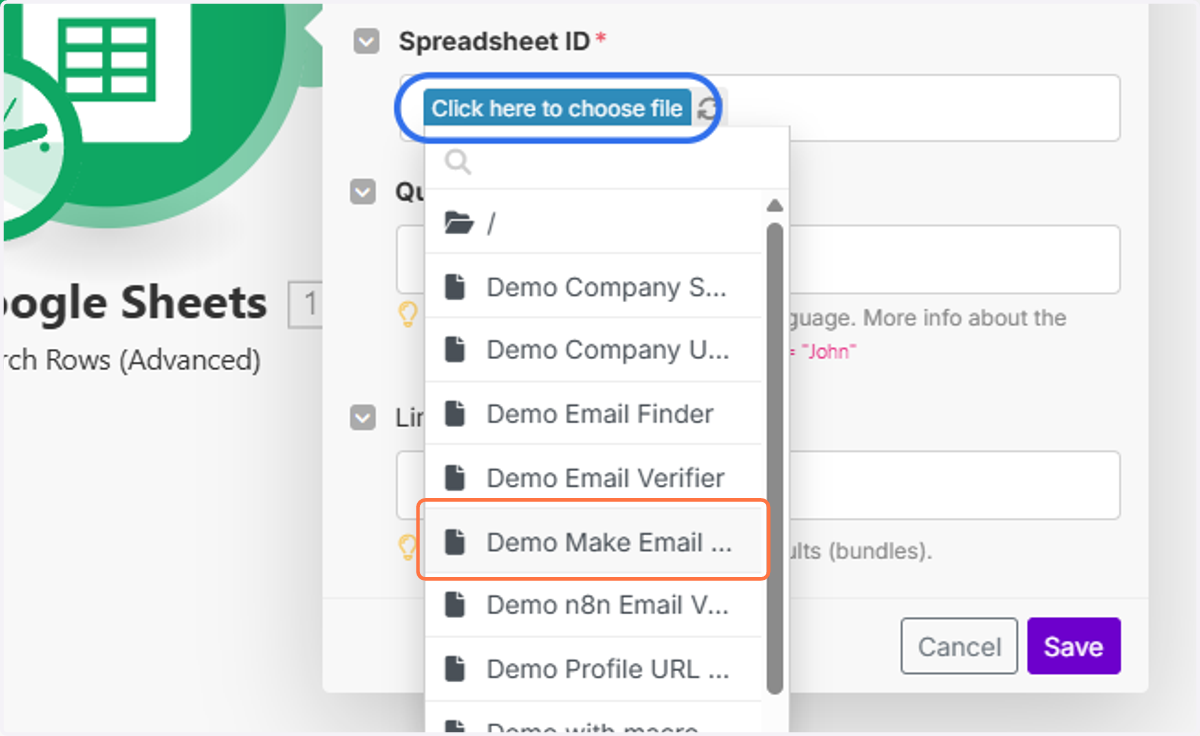
7. Click on "Click here to choose file" and select your Google Sheet document.
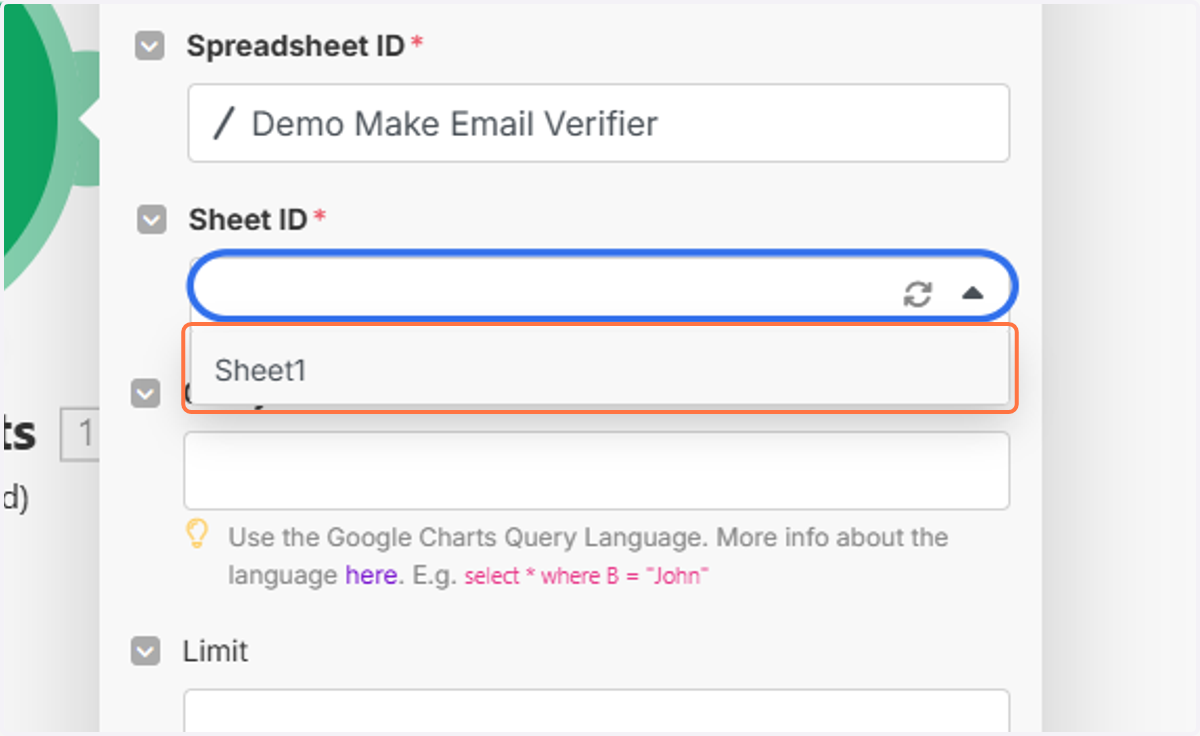
8. Select the Sheet you created.
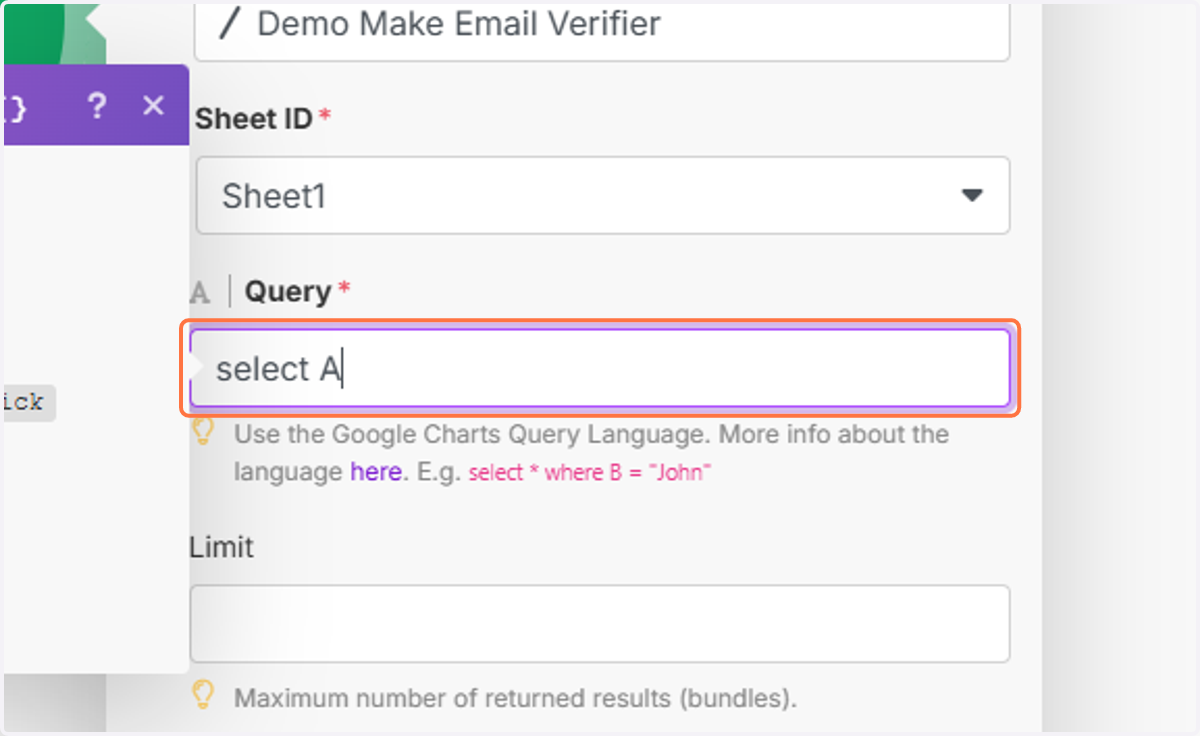
9. In the Query field, type: "select A"
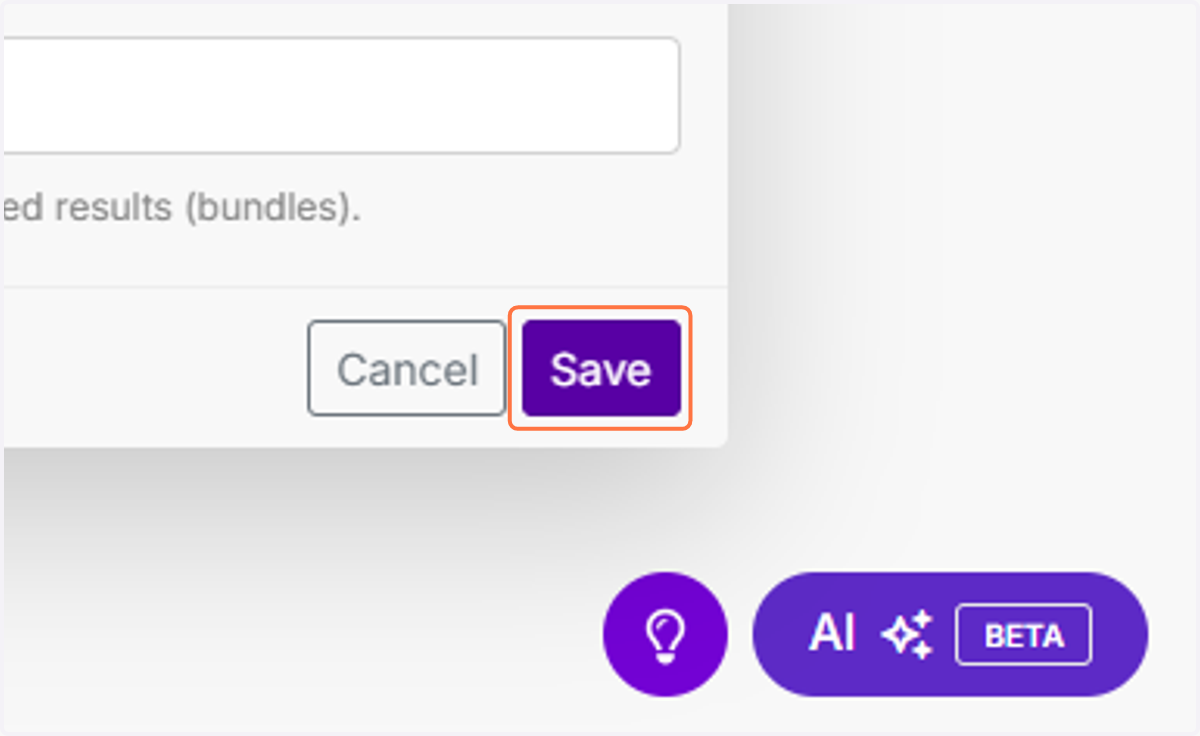
10. Click on Save.
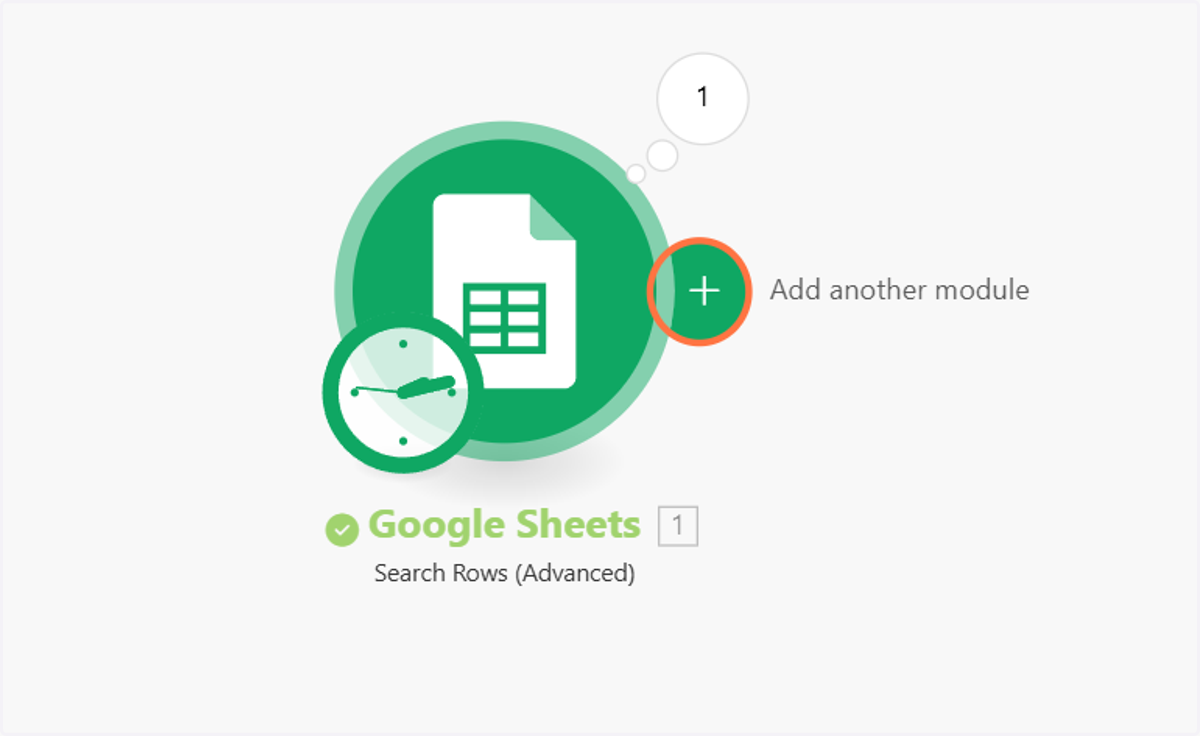
11. Click on Add another module.
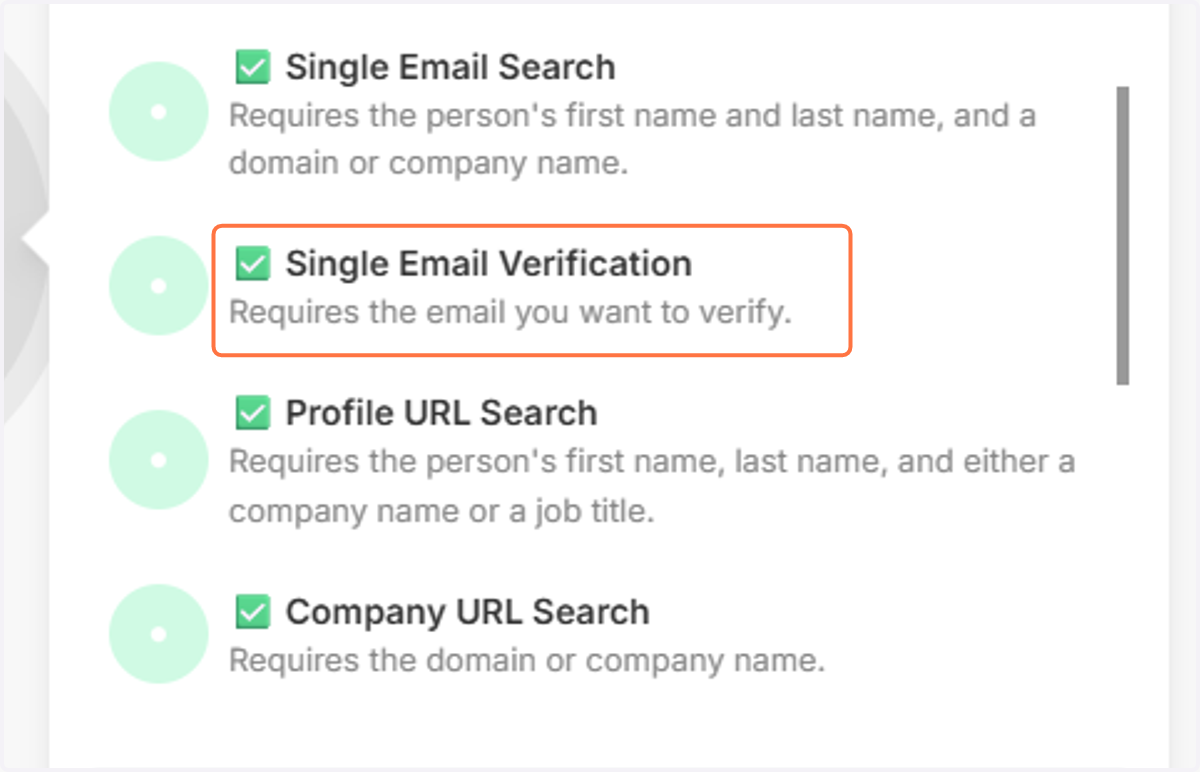
12. Select "Icypeas" then choose "Single Email Verification".
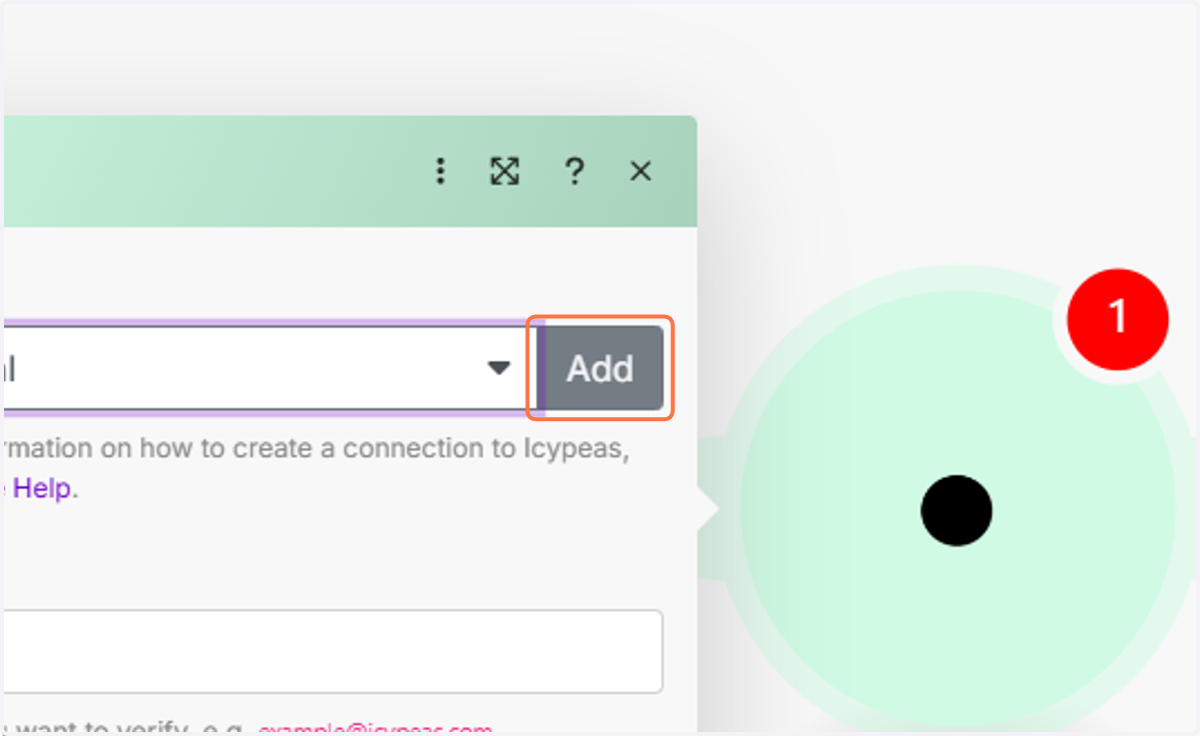
13. Click on Add.
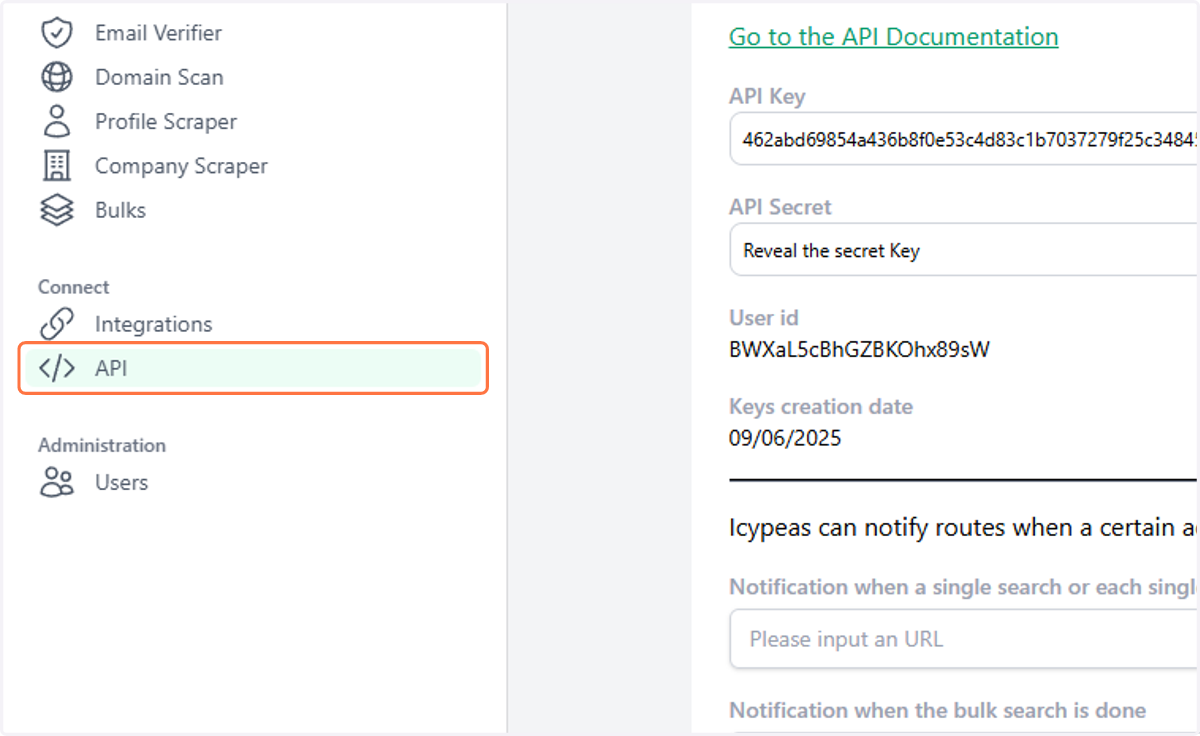
14. Go to Icypeas.com, sign up or log in, and navigate to the API tab.
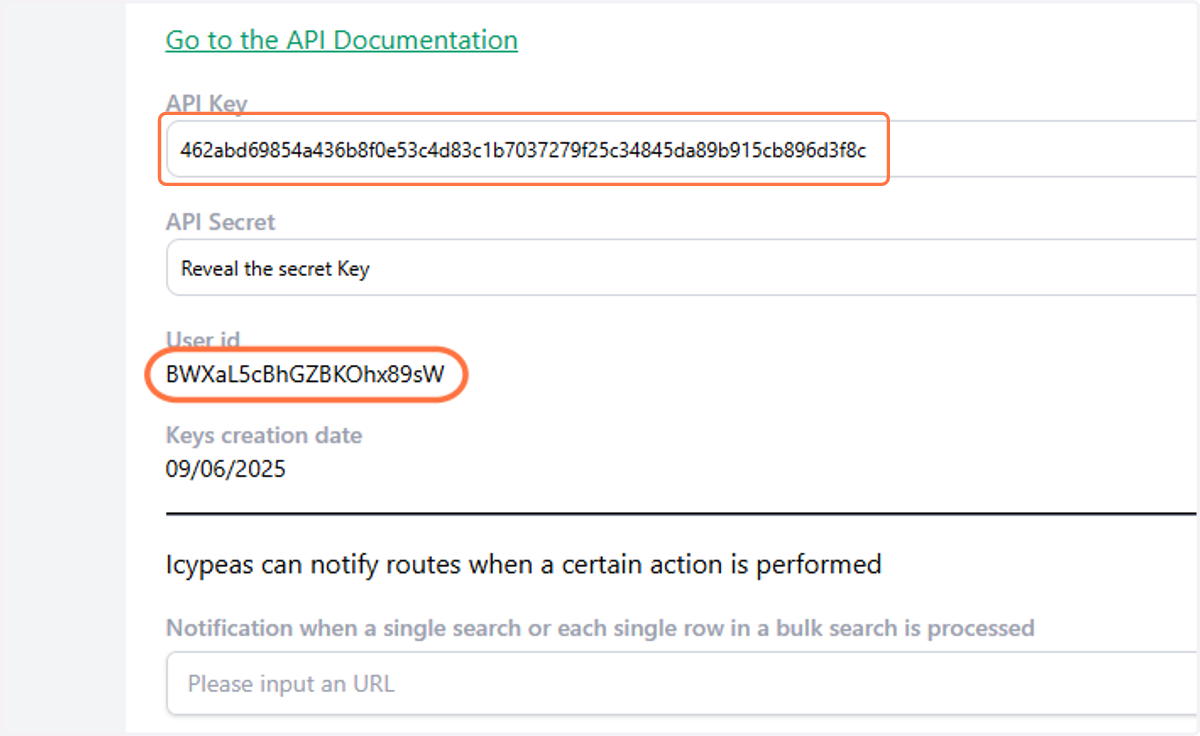
15. Copy your API key and your User id.
16. Go back to the Make tab and paste your API key and your User id.
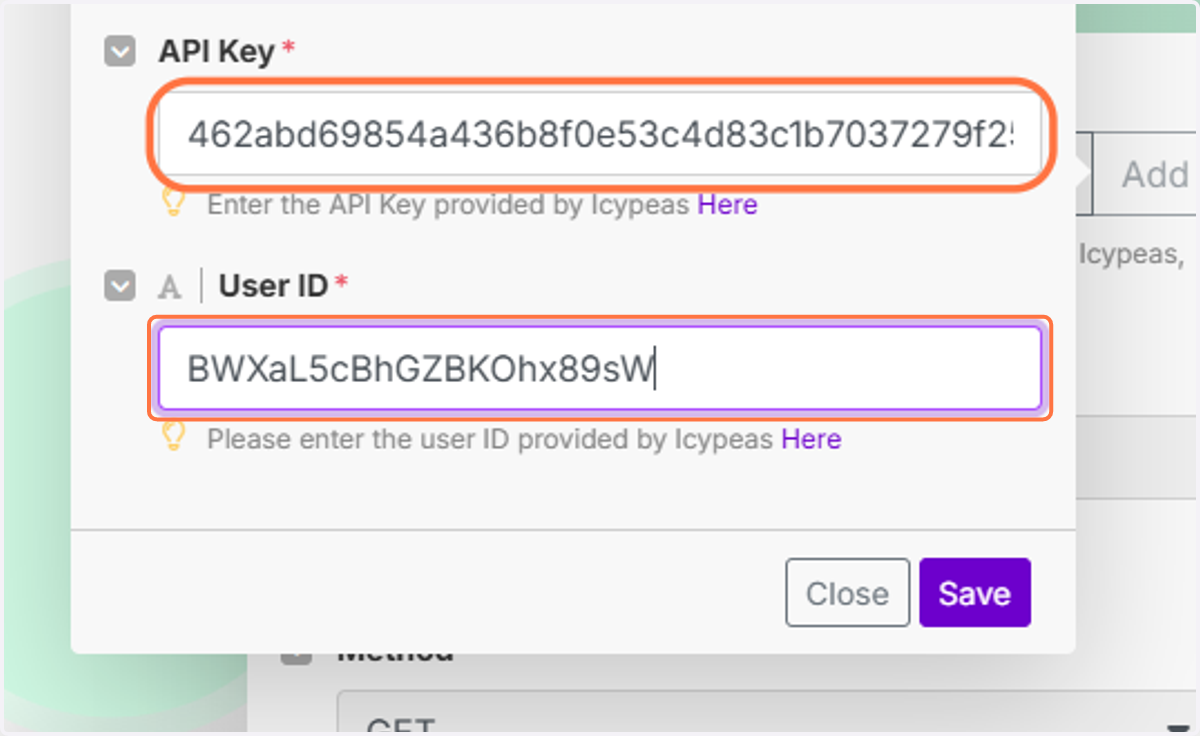
17. Click on Save.
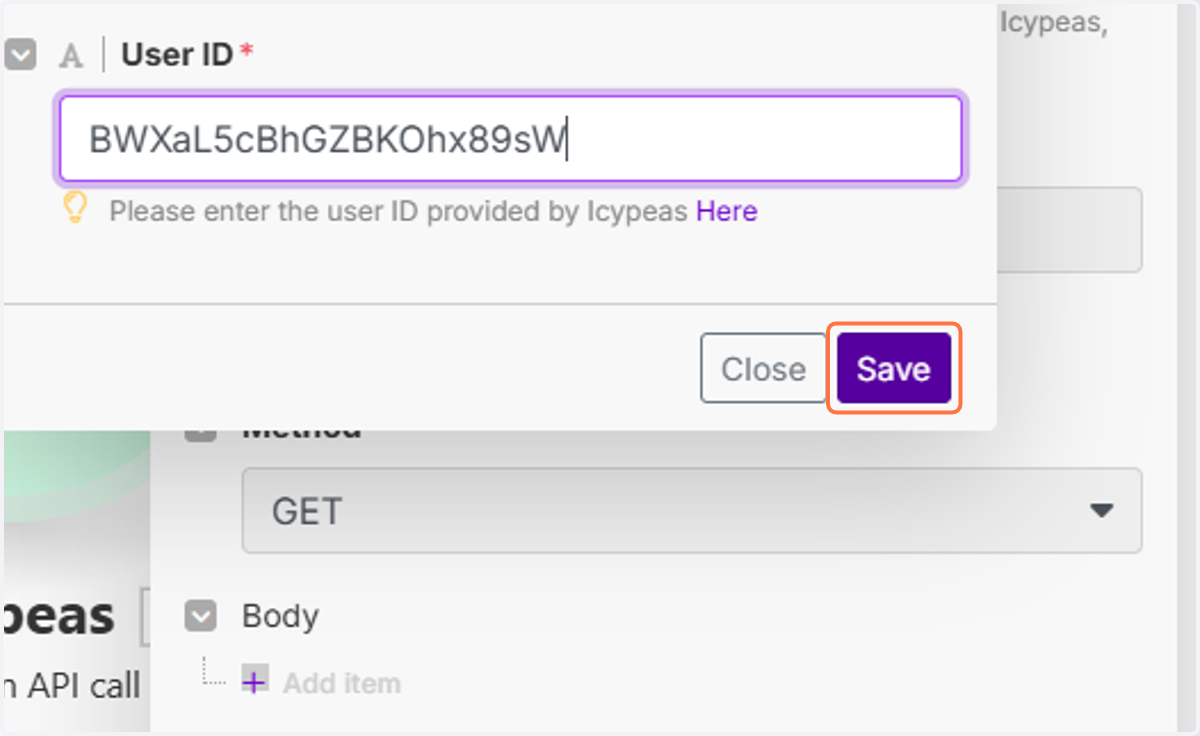
18. Click on the "Email" field and select "(A)".
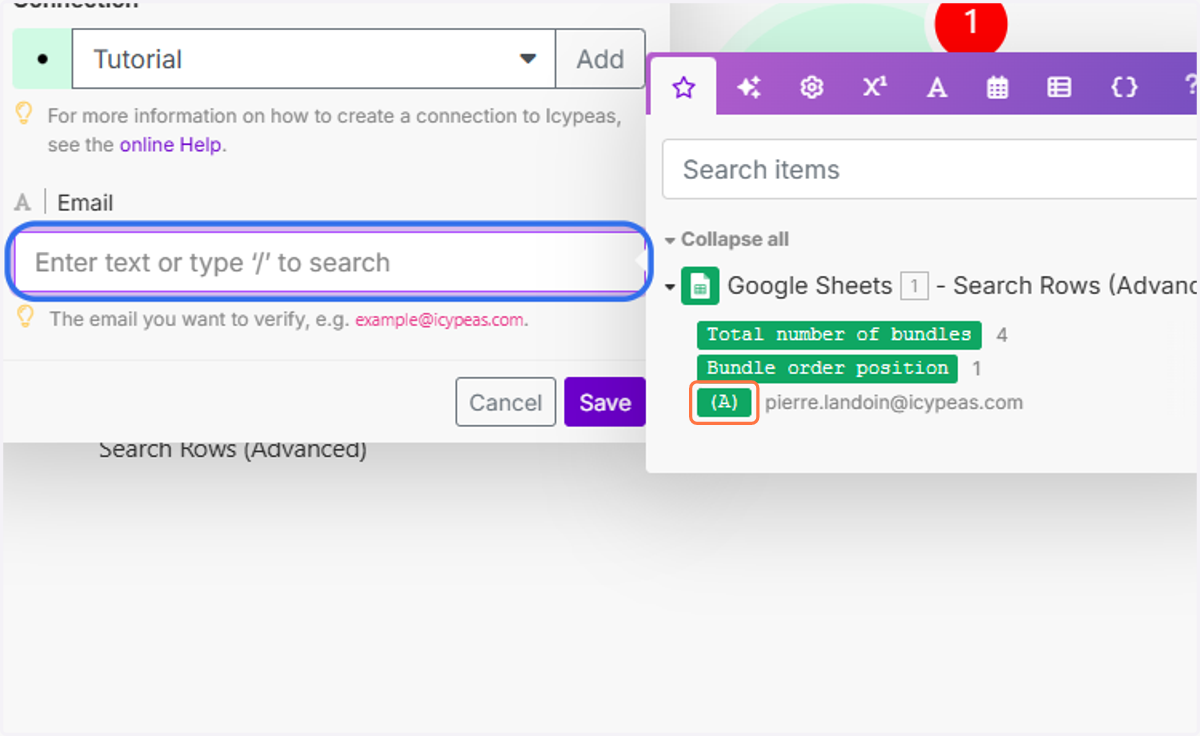
19. Click on Save.
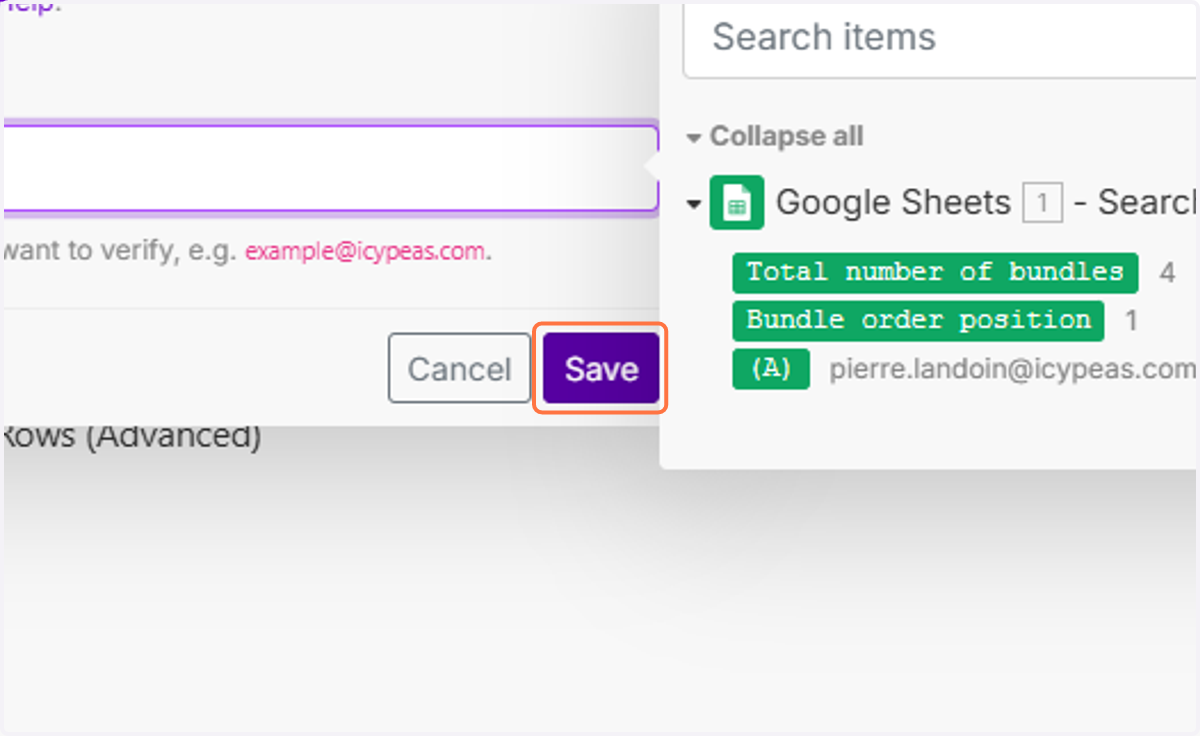
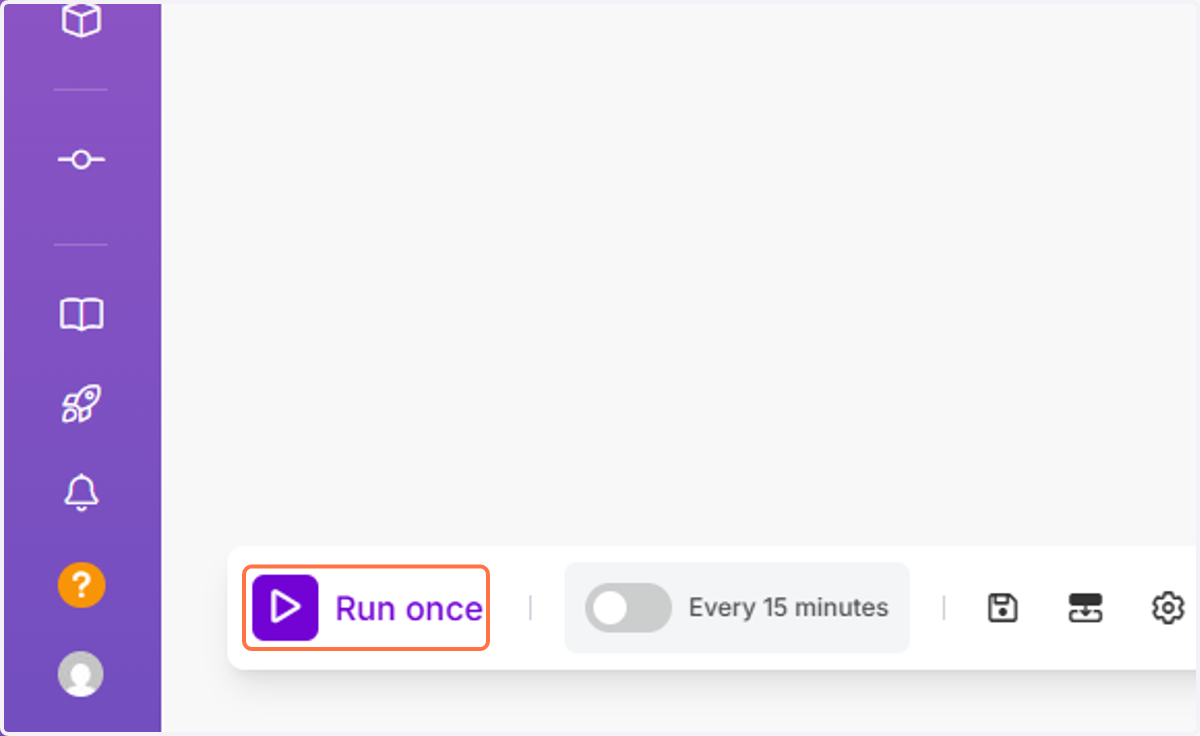
20. Click on Run once.
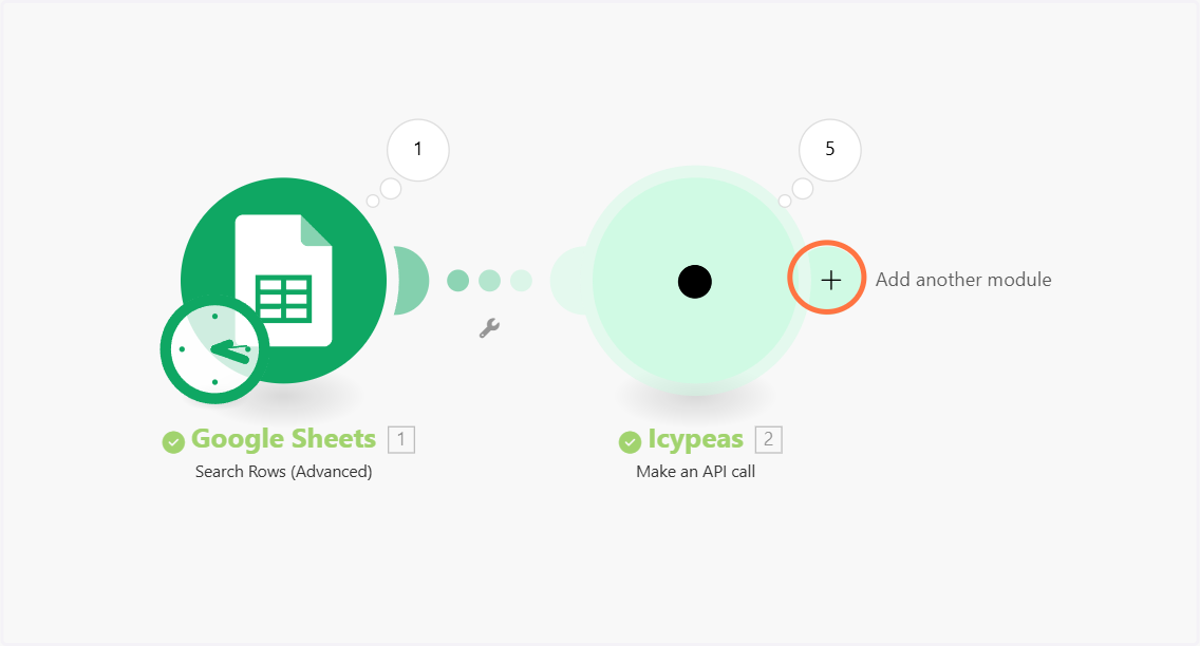
21. Click on Add another module.
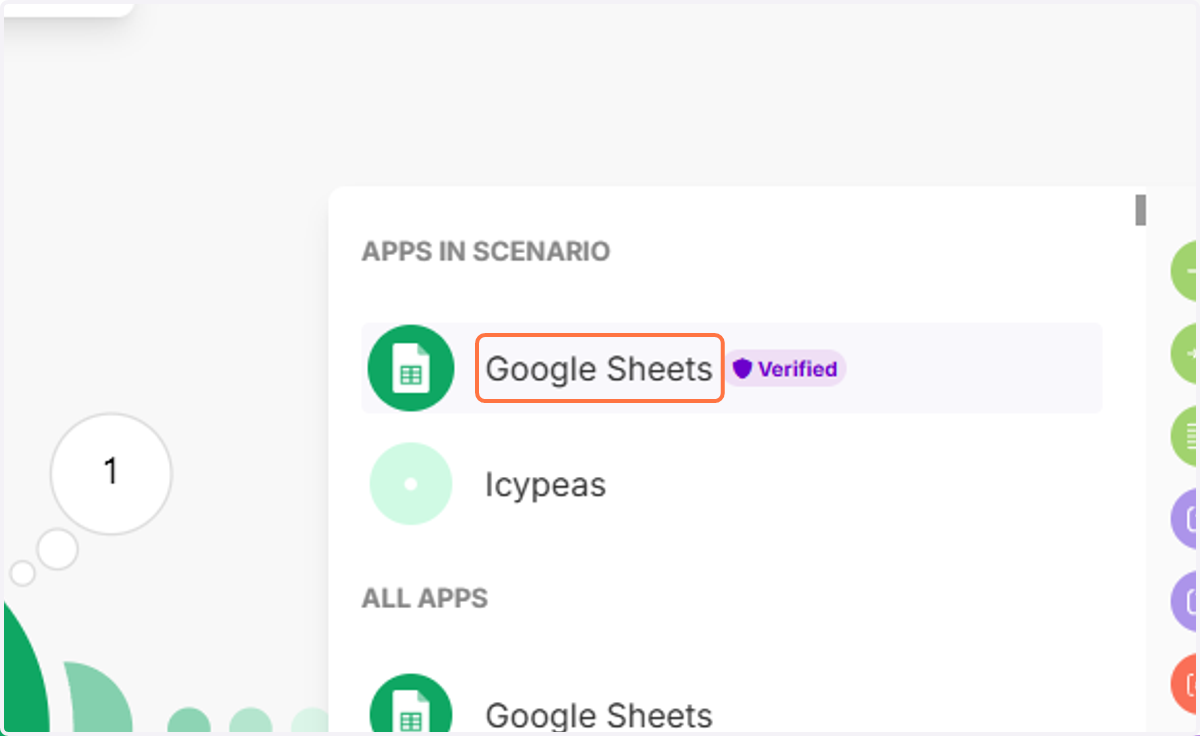
22. Select Google Sheets.
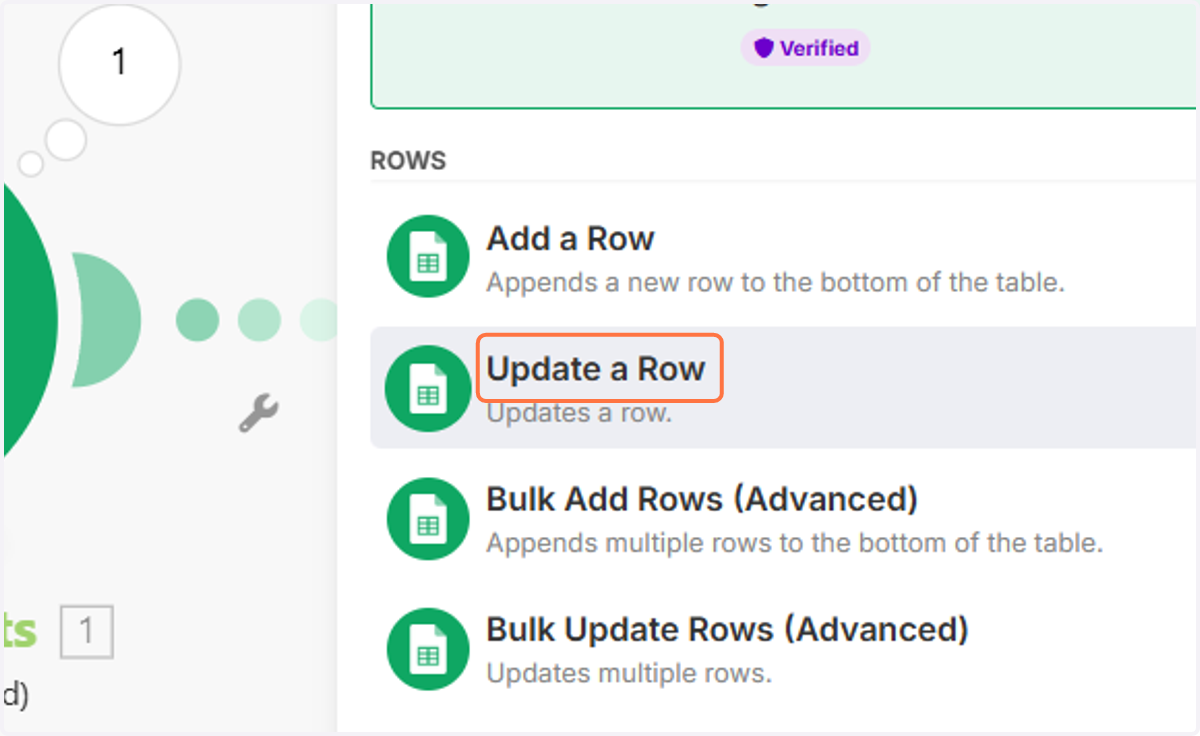
23. Choose Update a Row.
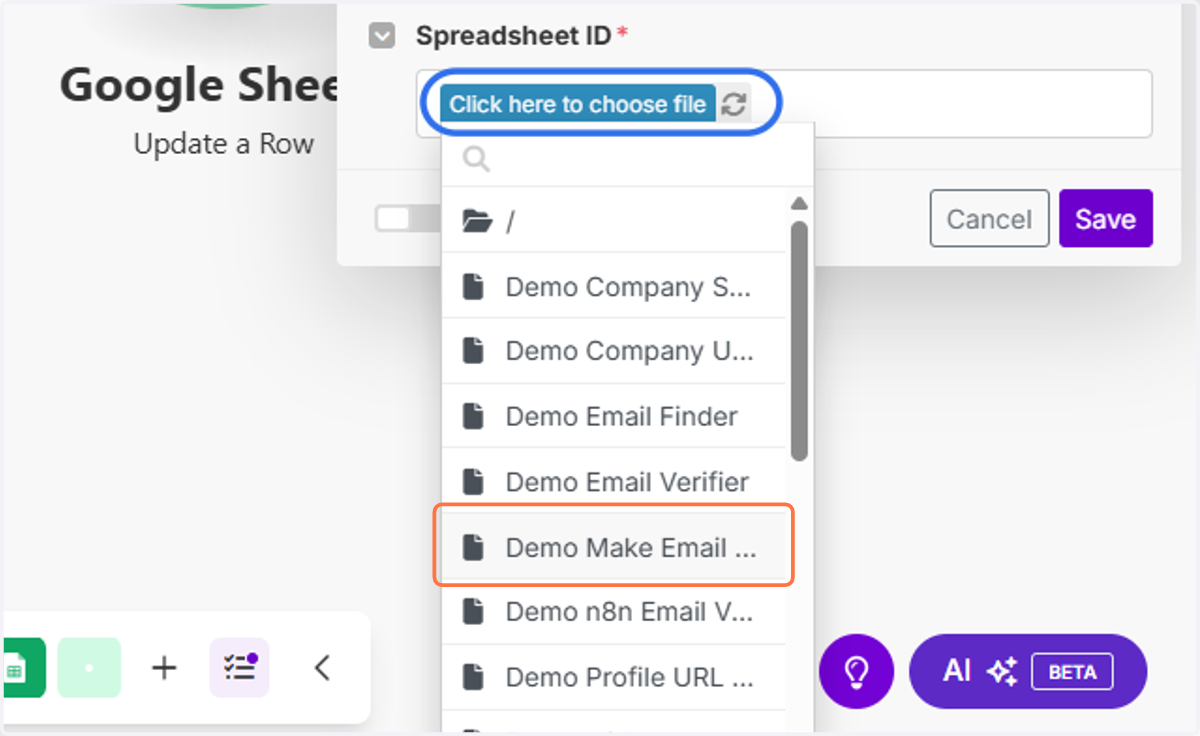
24. Click on "Click here to choose file" and select your Google Sheet document.
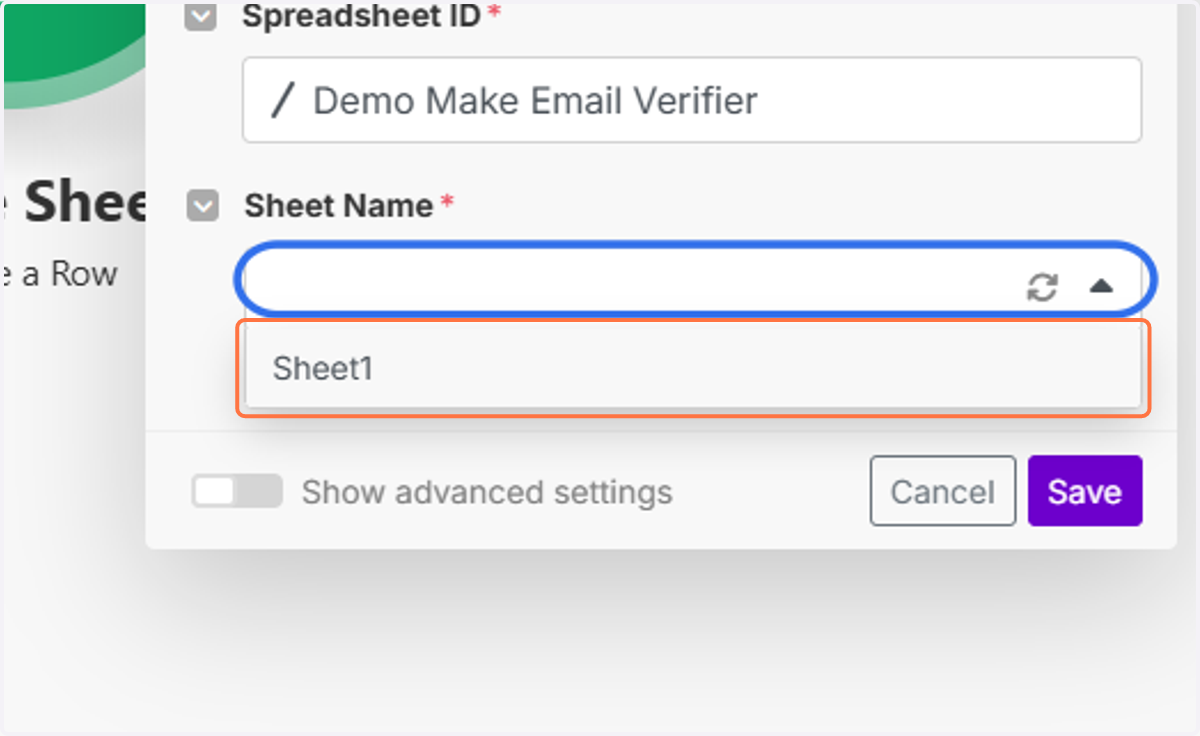
25. Select the Sheet you created.
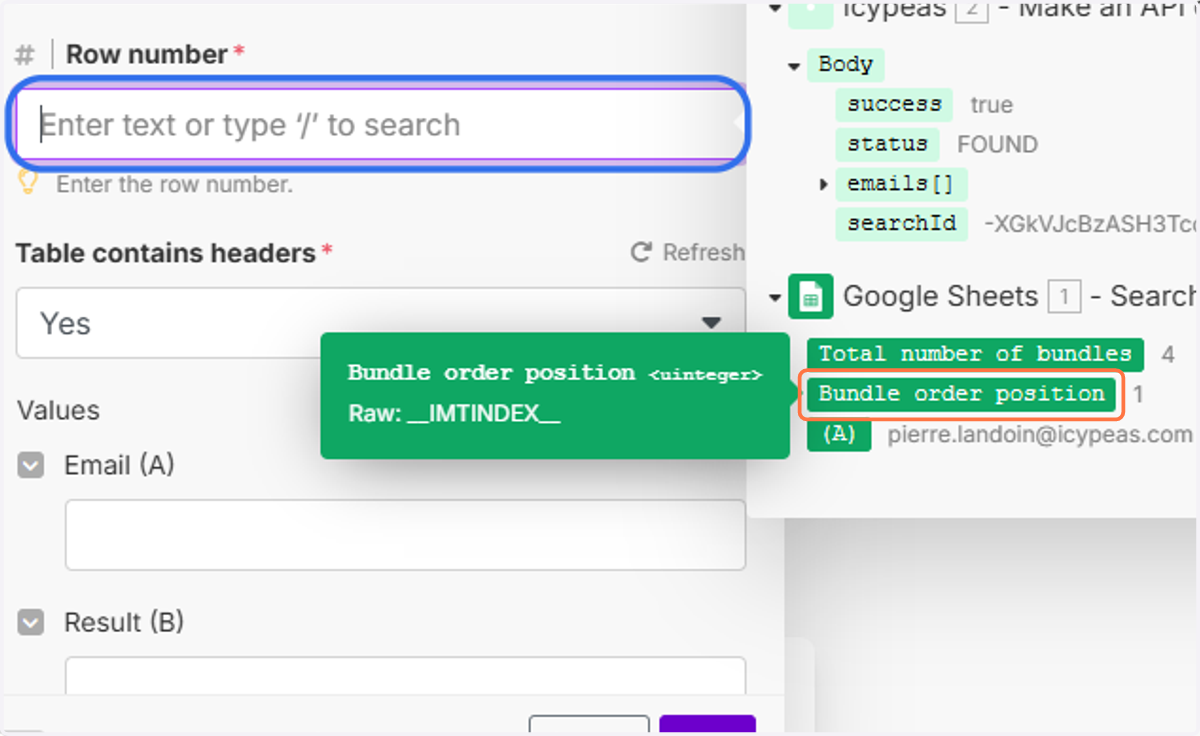
26. Click on the "Row number" field and select "Bundle order position".
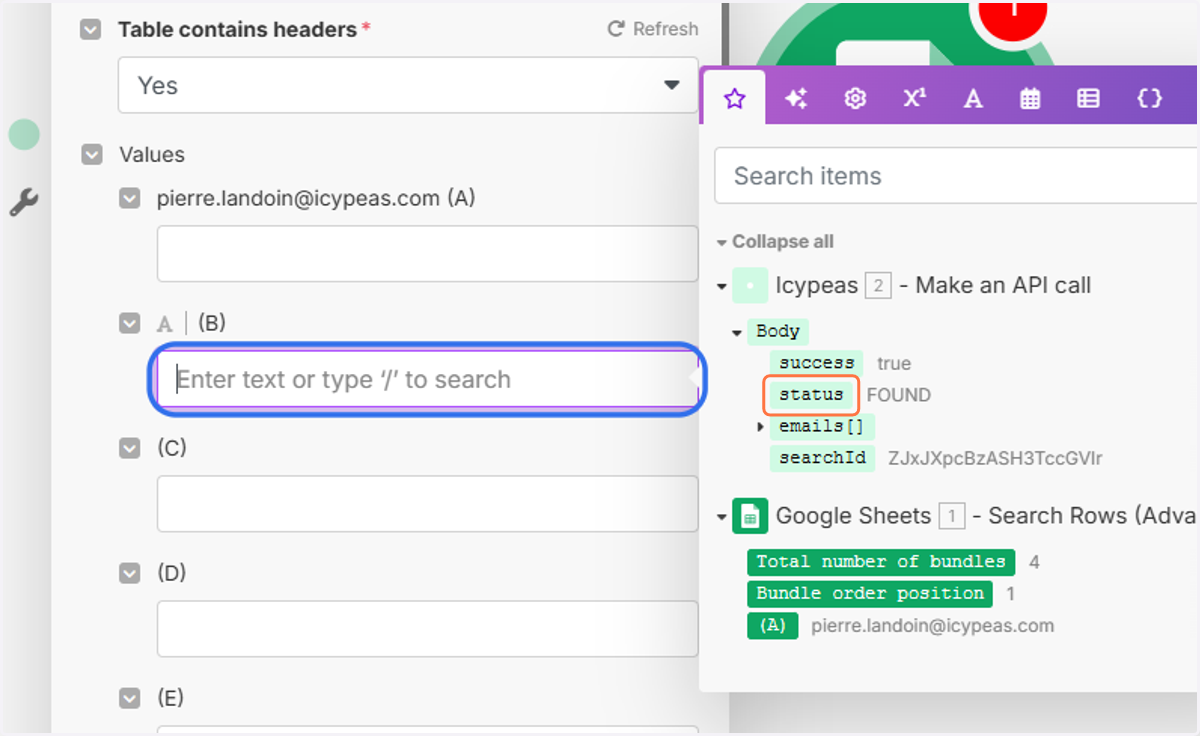
27. Click on the "(B)" field and select "status".
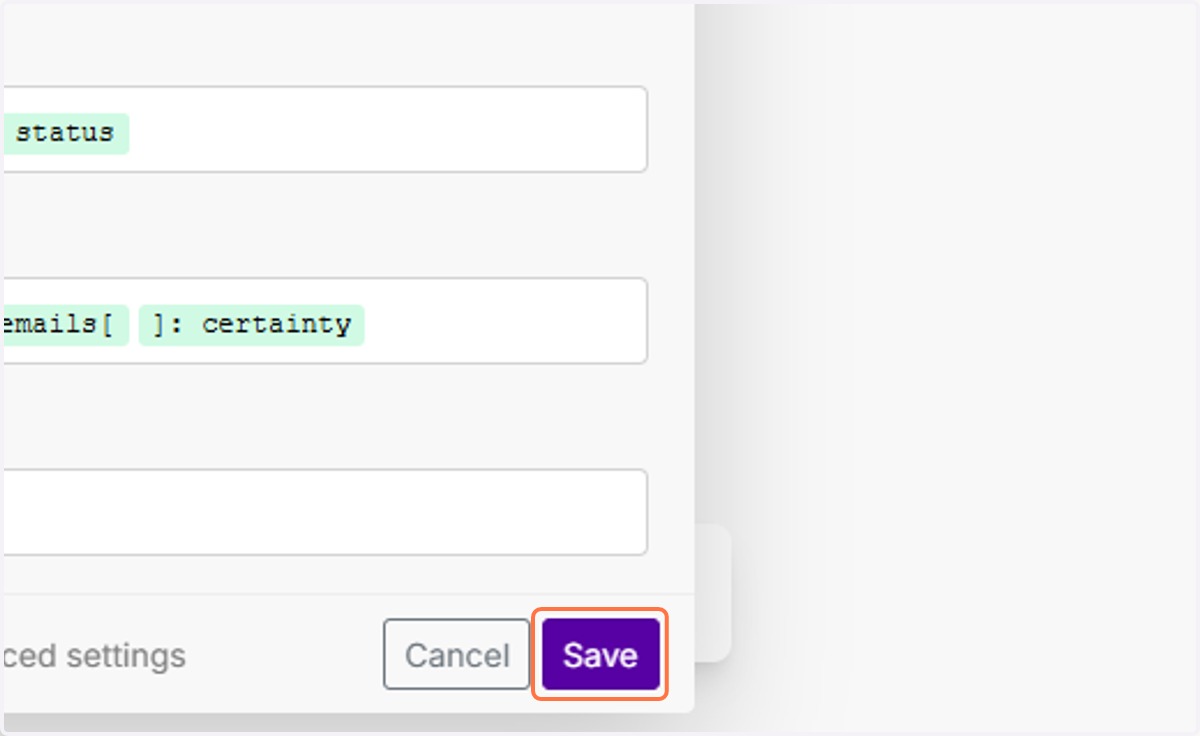
28. Click on the "(C)" field, select "emails[]" and choose "certainty".
![Click on the "(C)" field, select "emails[]" and choose "certainty".](https://images.tango.us/workflows/0ddfdcaf-a8eb-41ff-8957-0c81231736d9/steps/8587de38-c4b9-4298-a0ed-25d207531fdb/686f6060-5636-46ab-ab79-de67b0265364.png?fp-x=0.6746&fp-y=0.6533&fp-z=1.8165&w=1200&border=F4F2F7&bx=1112&by=663&bw=85&bh=26&c=FF7442&dpr=1.00)
29. Click on Save.
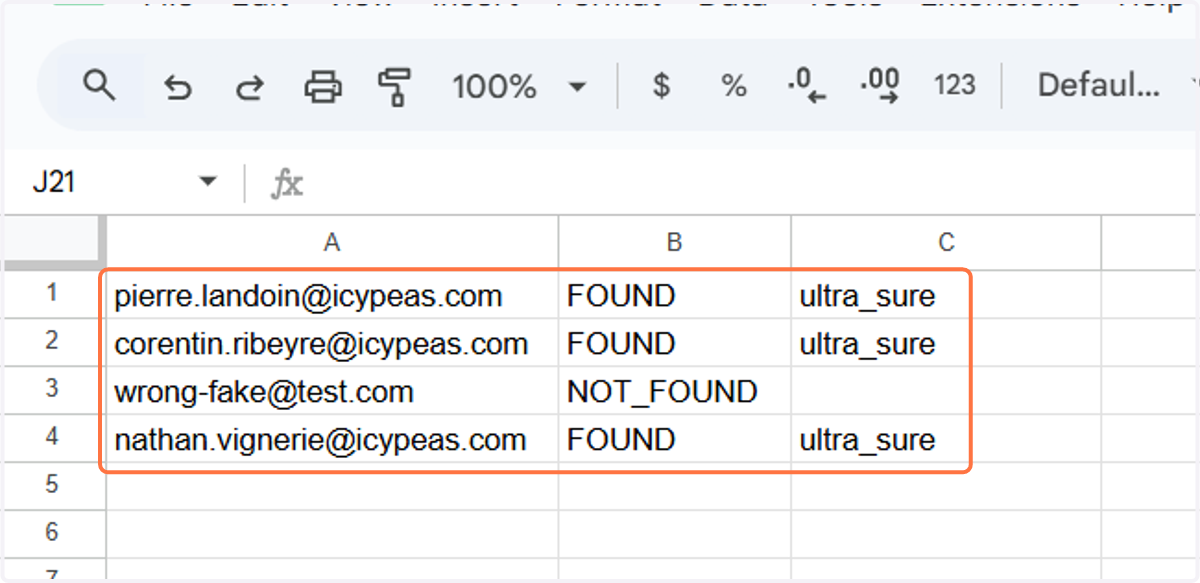
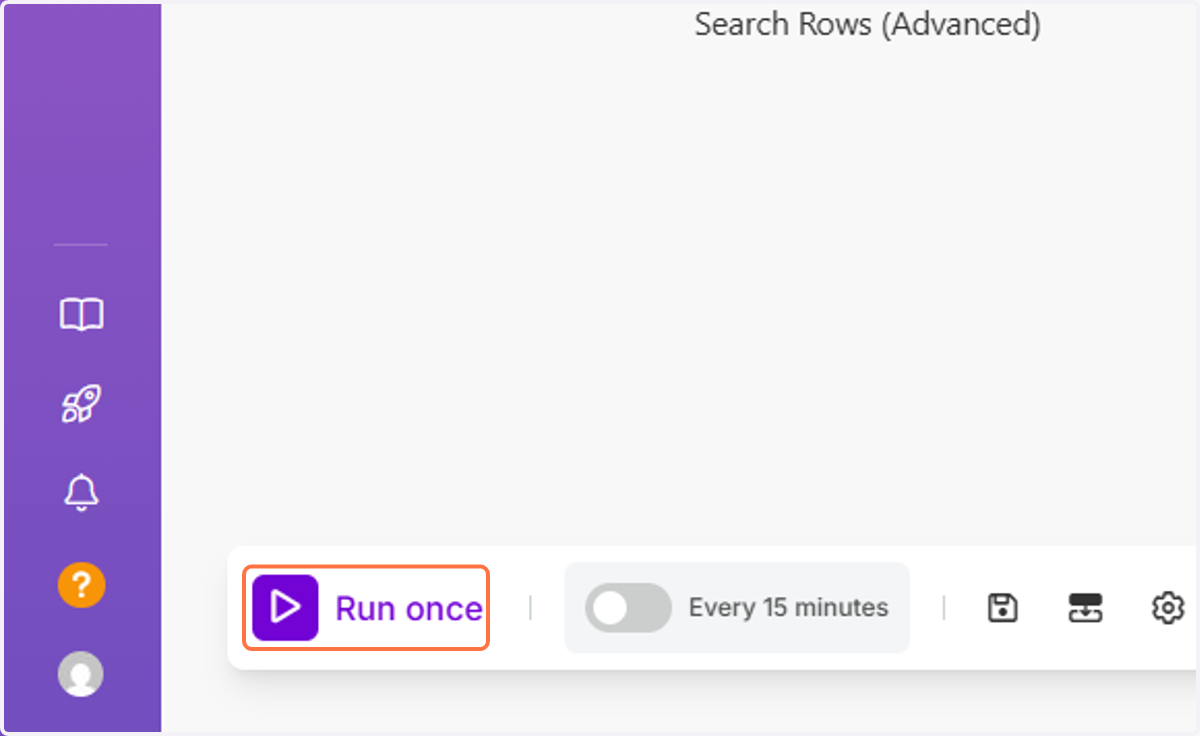
30. Now click on "Run once" on the bottom left.
31. Go back to your Google Sheet document, the result will be displayed.