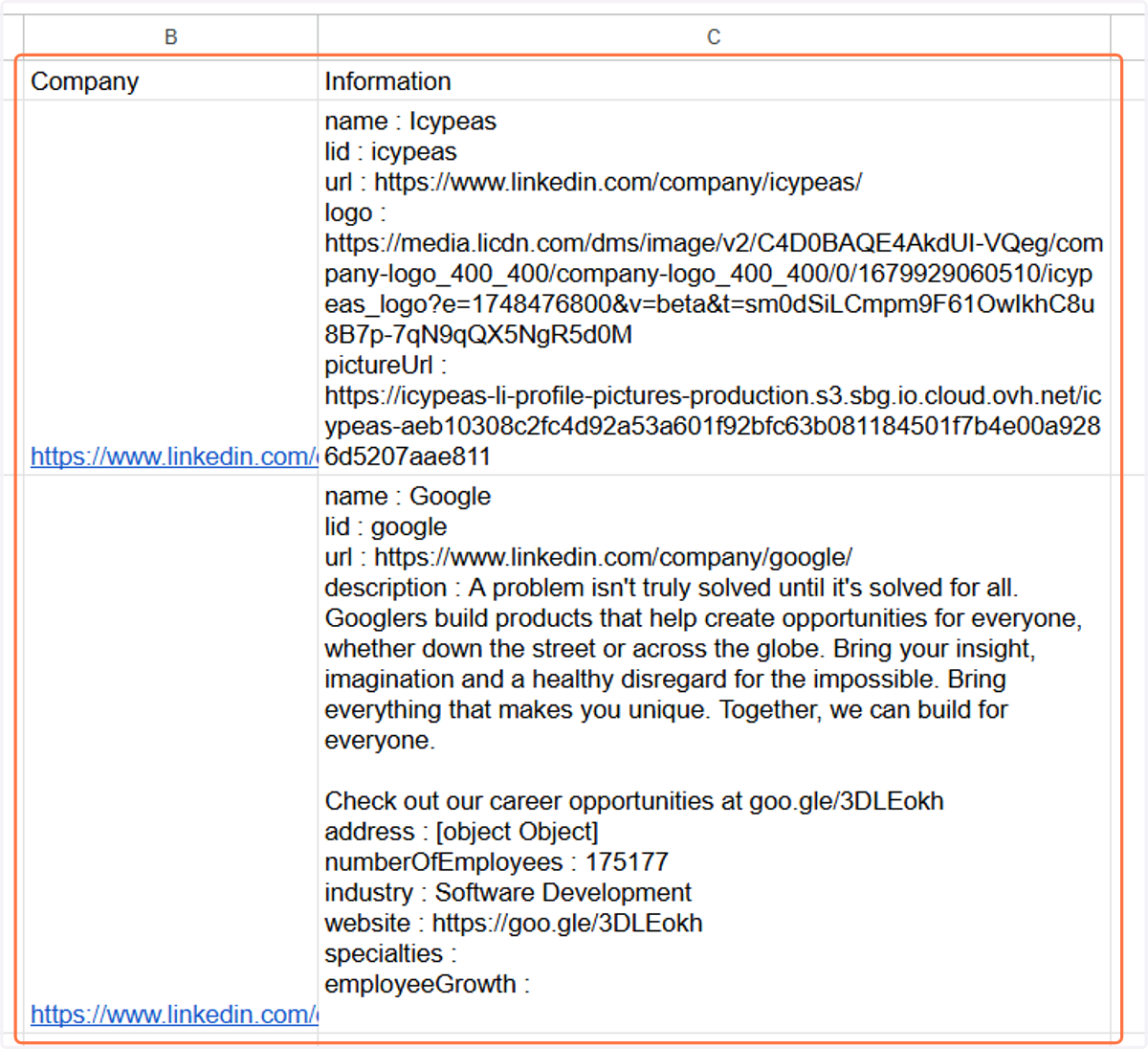
How to Integrate the Company Scraper feature into Zapier
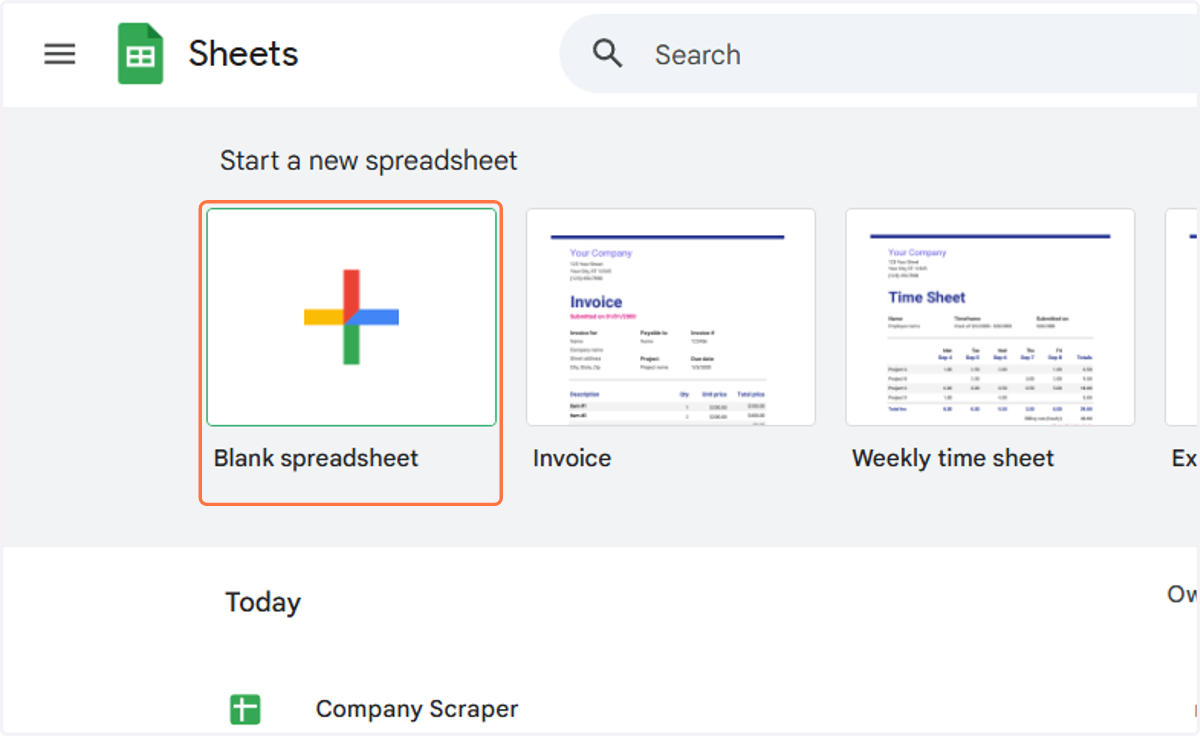
1. If you don’t have an existing Google Sheet, create a new one.
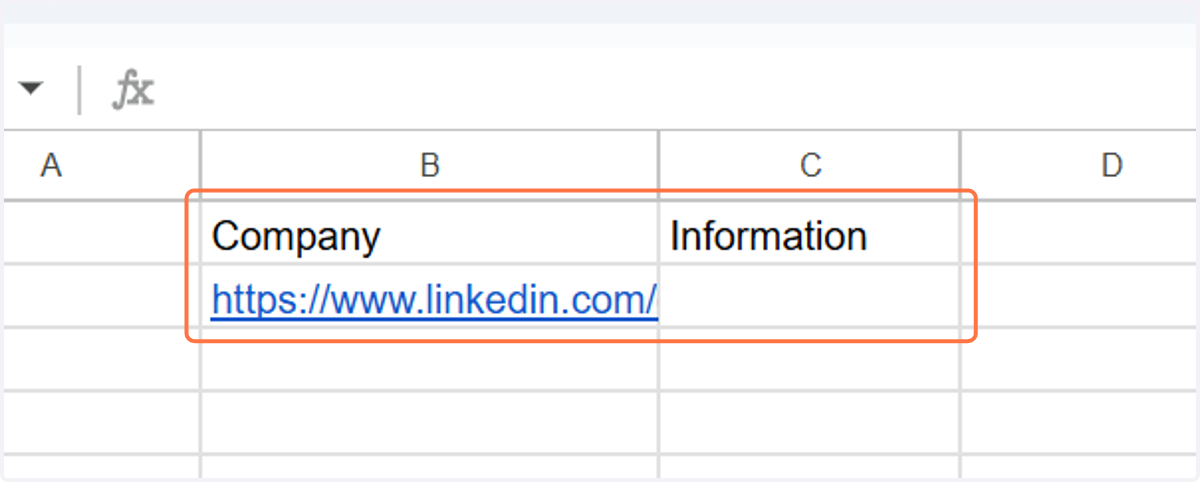
2. Copy the cells below with the linkedin url of a profile you want to scrape.
3. Go to Zapier.com and sign up or log in to your account.
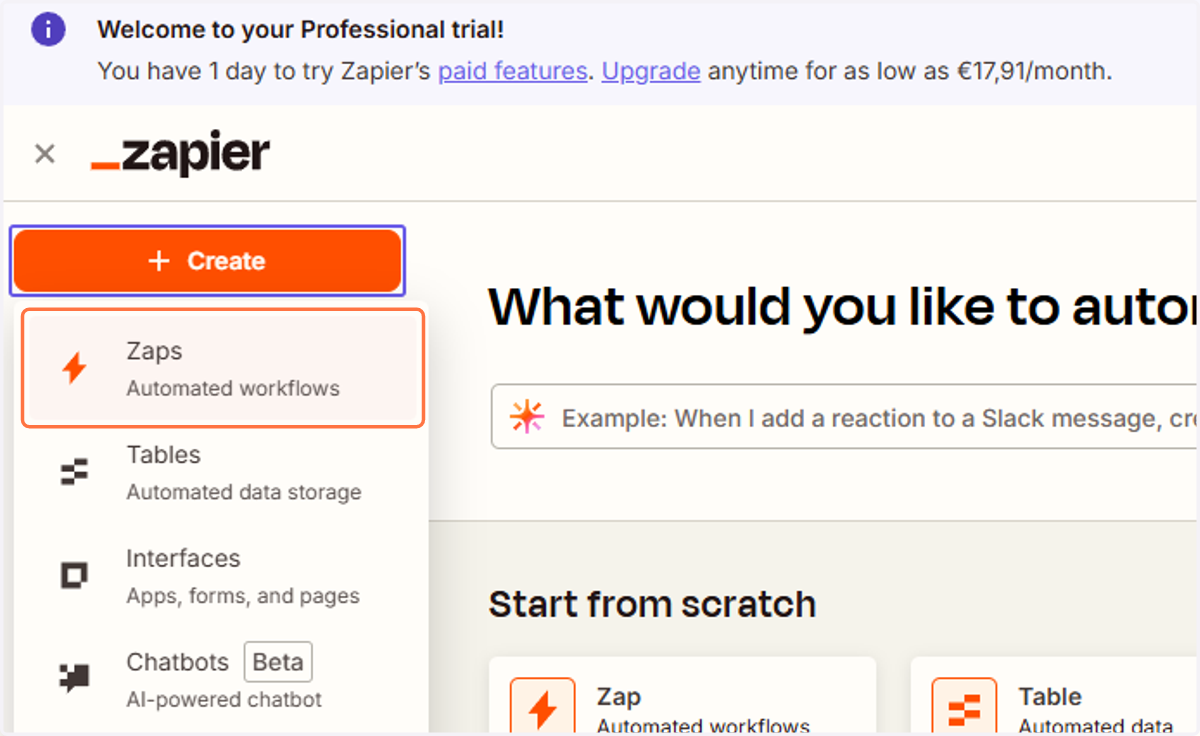
4. Click on the Create button located on the left side of the homepage and select Zaps.
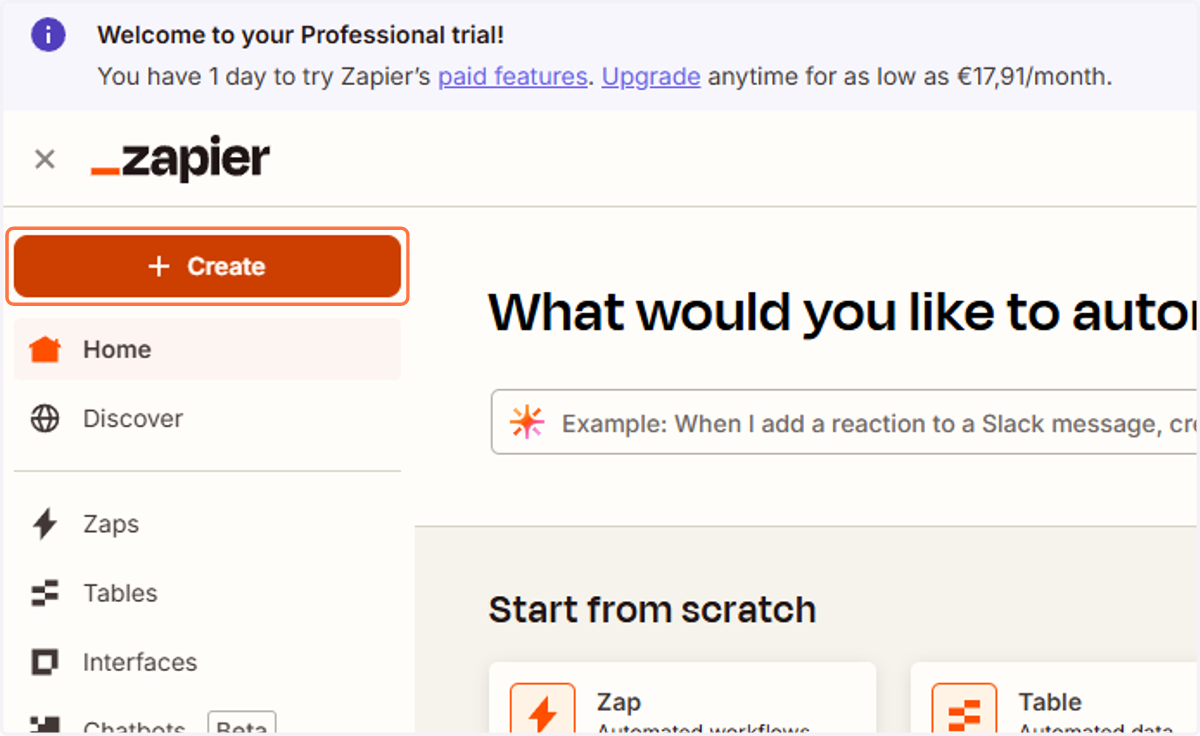
5. Click on the Create button located on the left side of the homepage and select Zaps.
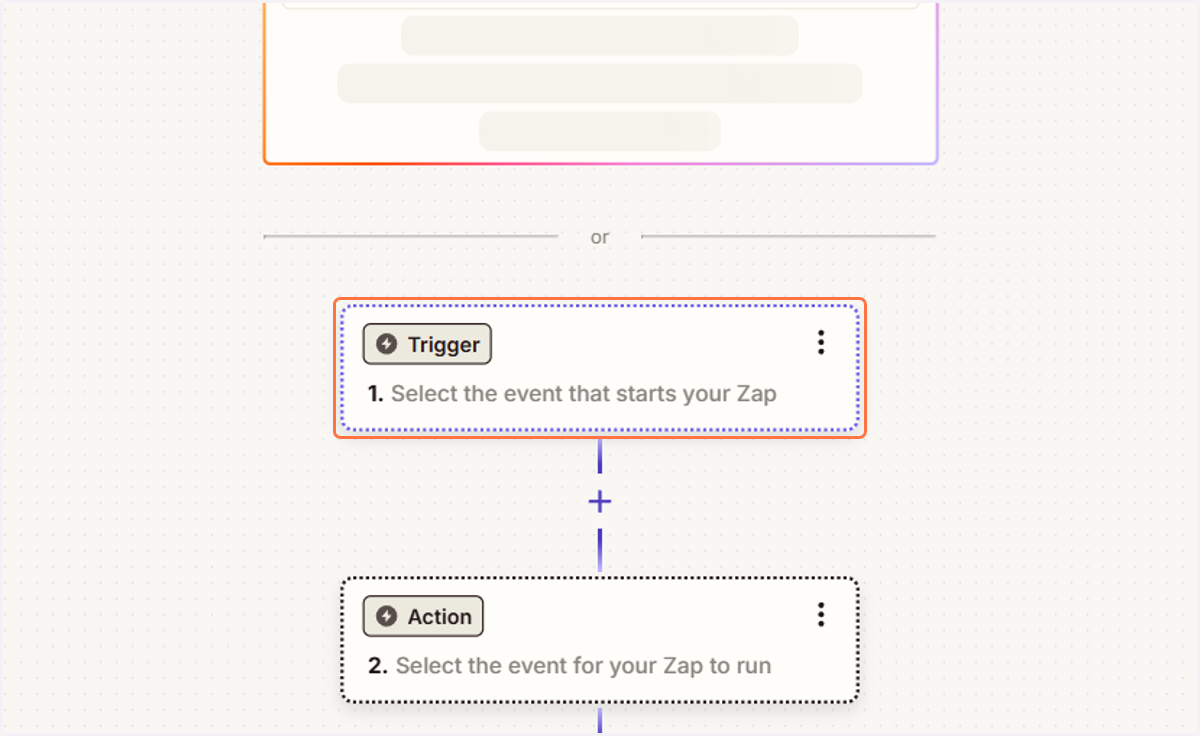
6. Click on Trigger.
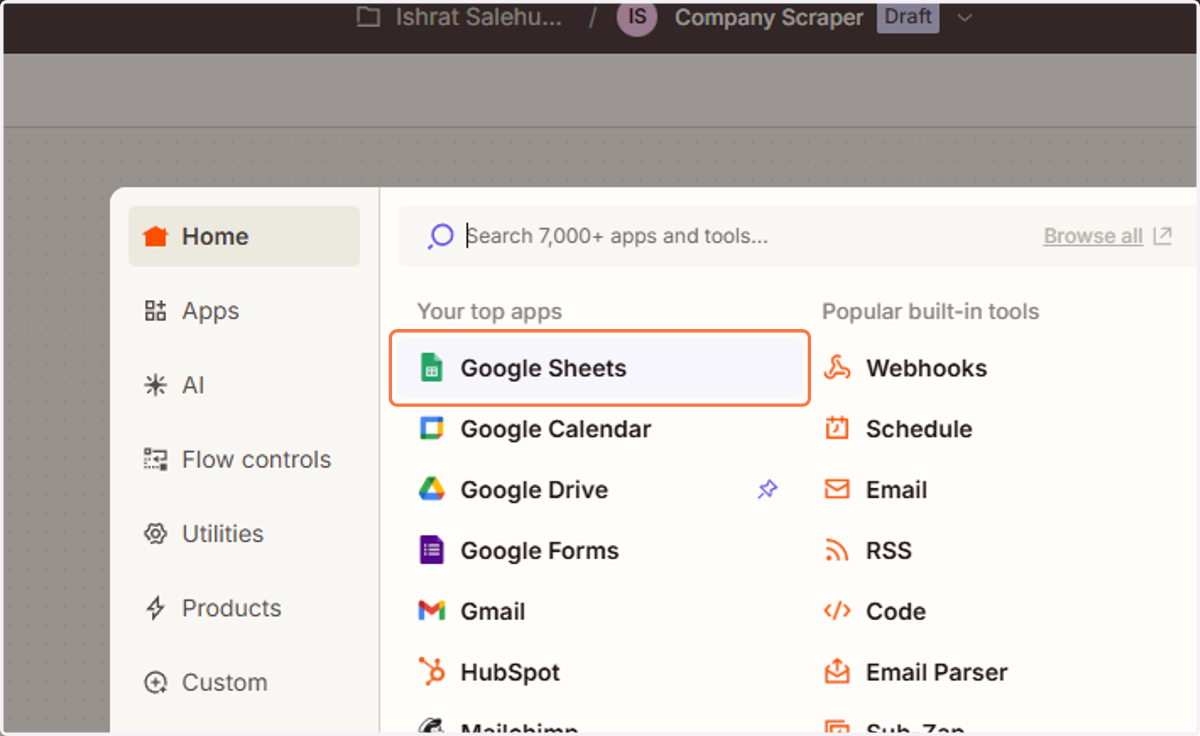
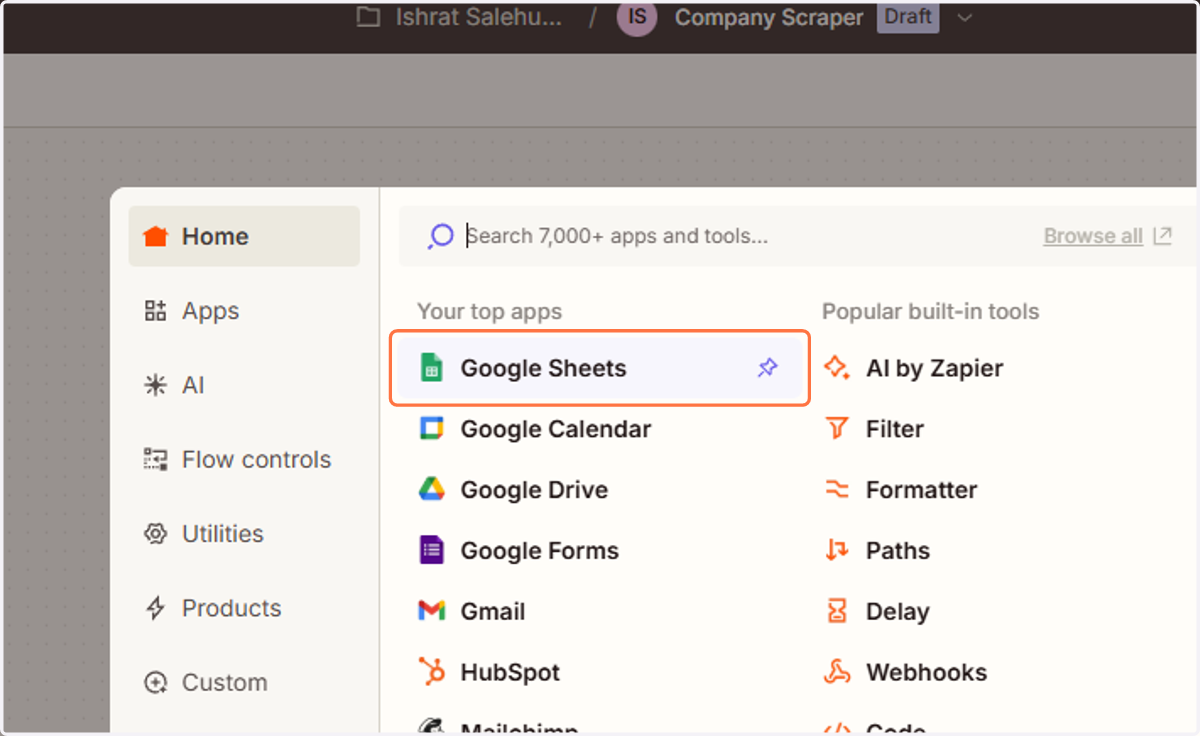
7. Search for and select Google Sheets.
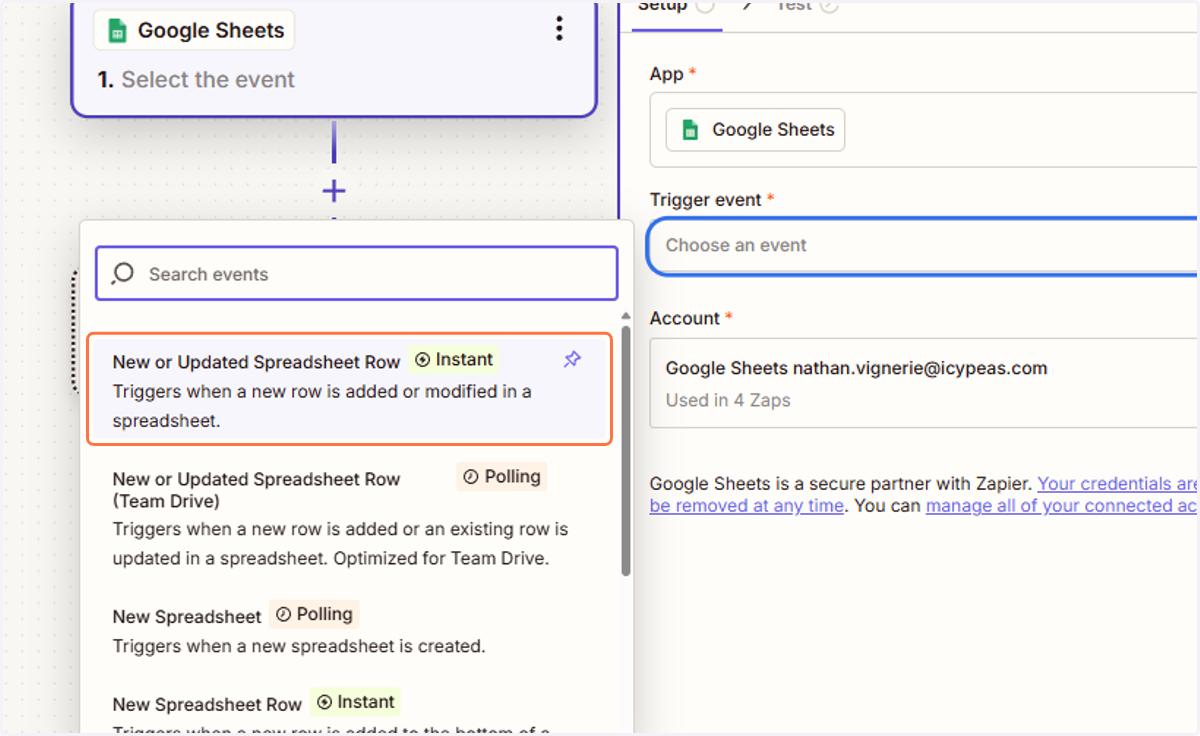
8. Click on" Choose an event" and select "New or Updated Spreadsheet Row".
9. Click on "Select an account", and choose or connect your Google Sheets account.
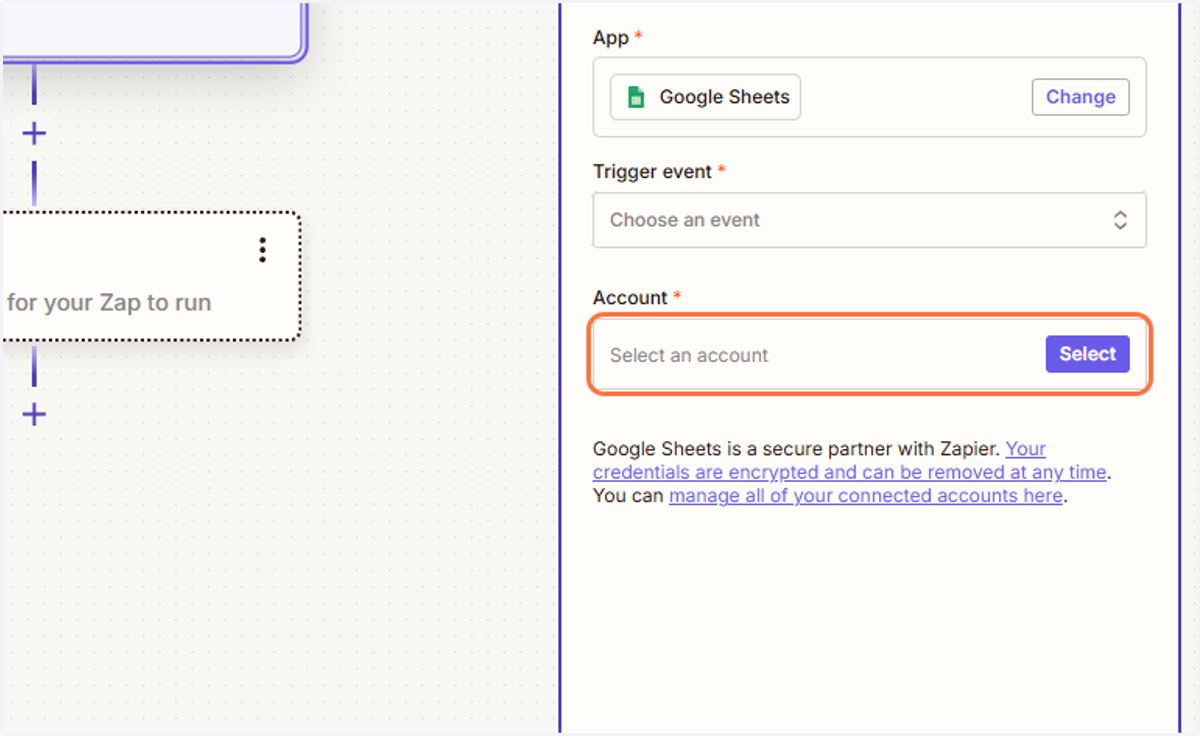
10. Click on Click on Continue.

11. Click on "Choose value" and select the Google Sheet you created.
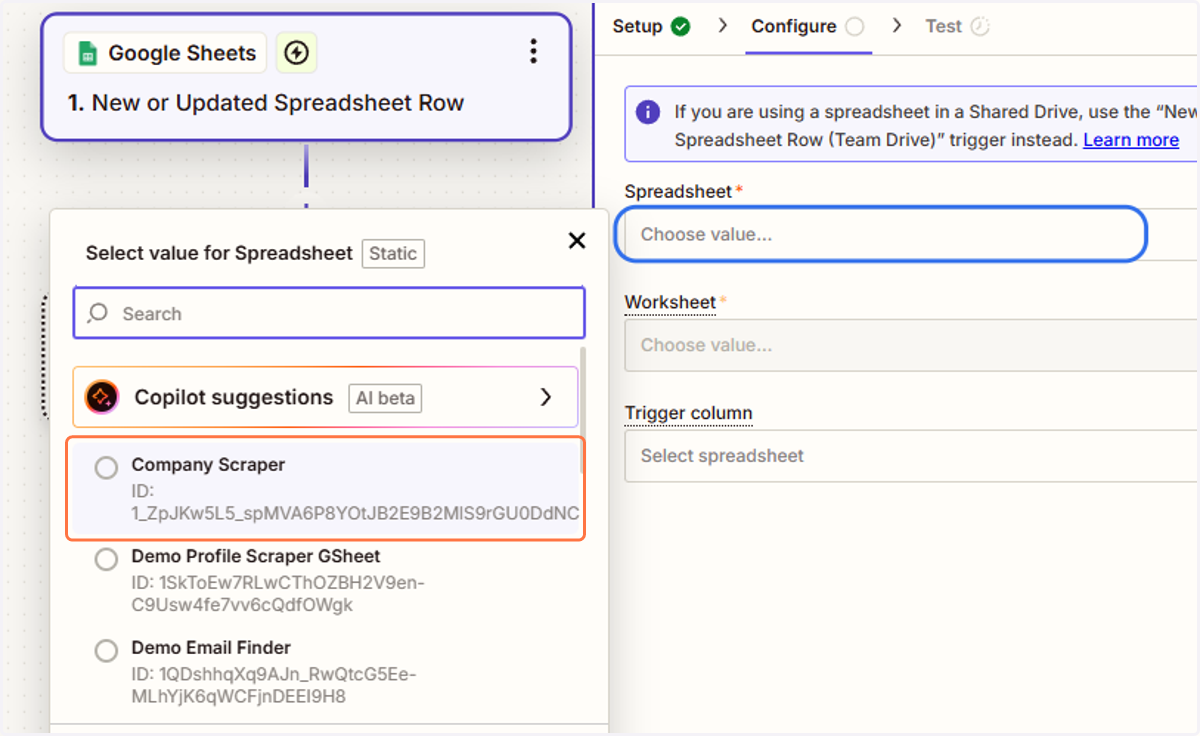
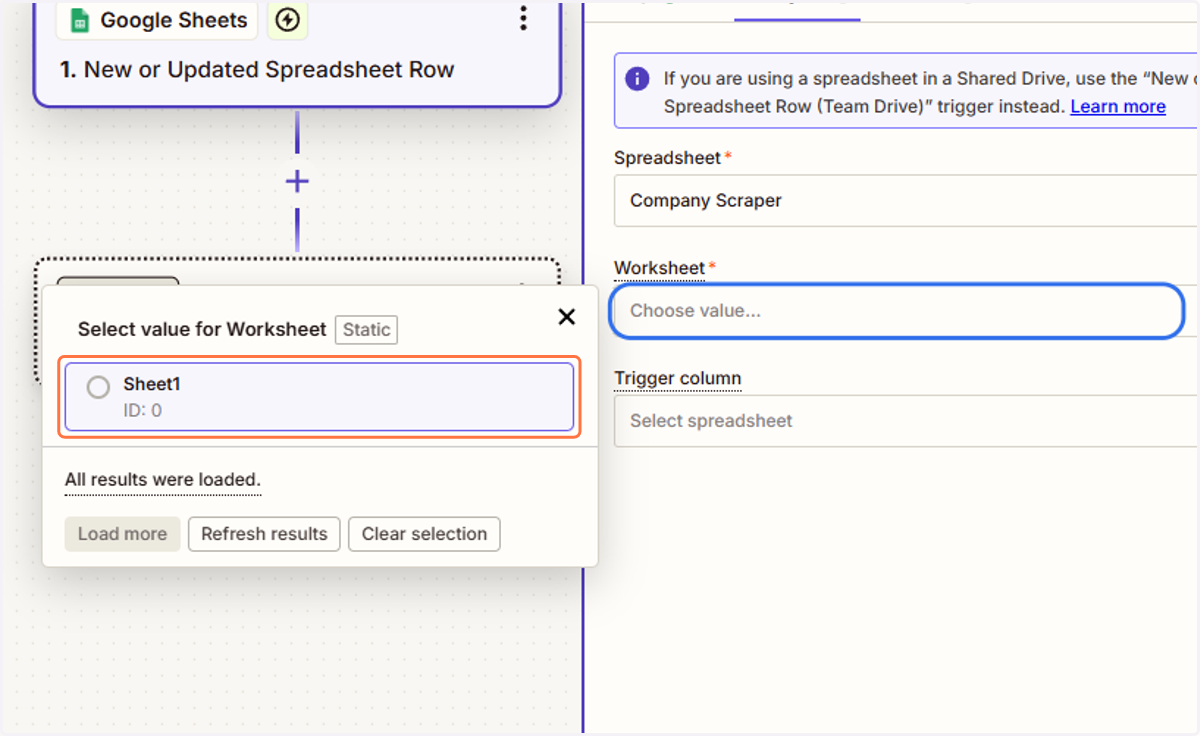
12. Click on "Choose value" and select the worksheet you want.
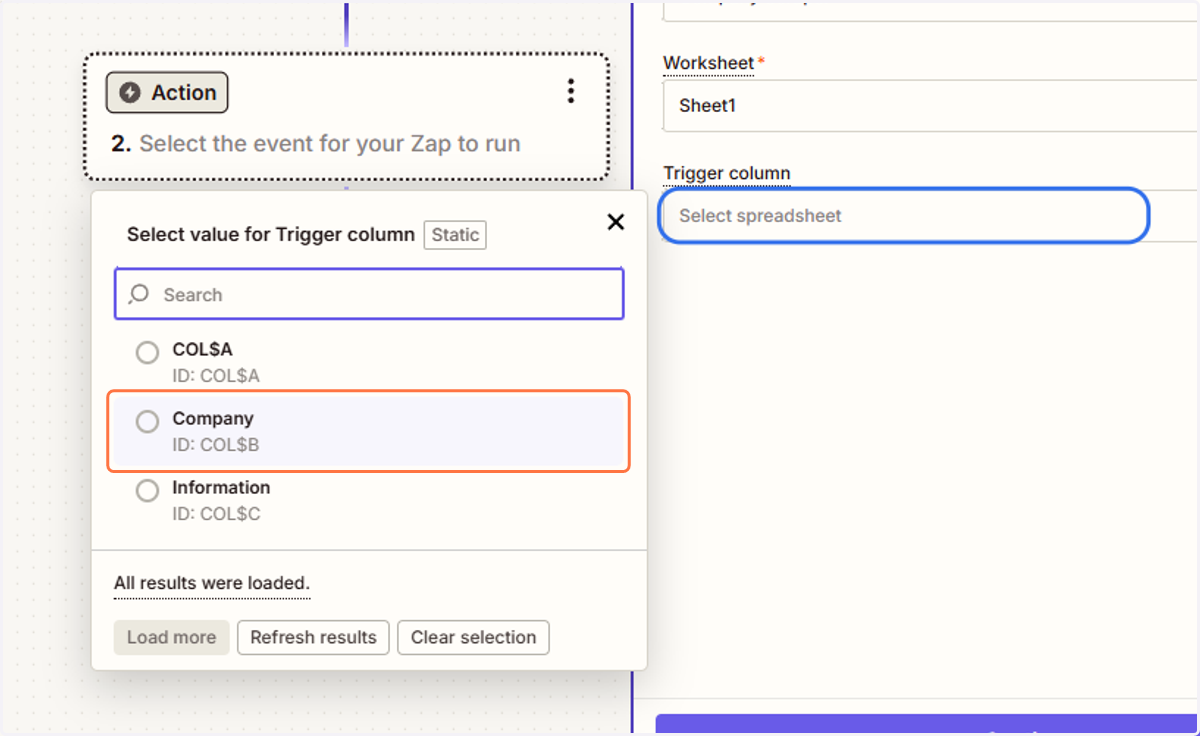
13. Click on "Select spreadsheet" and select the "Company" column.
14. Click on Continue.

15. Click on Test trigger.
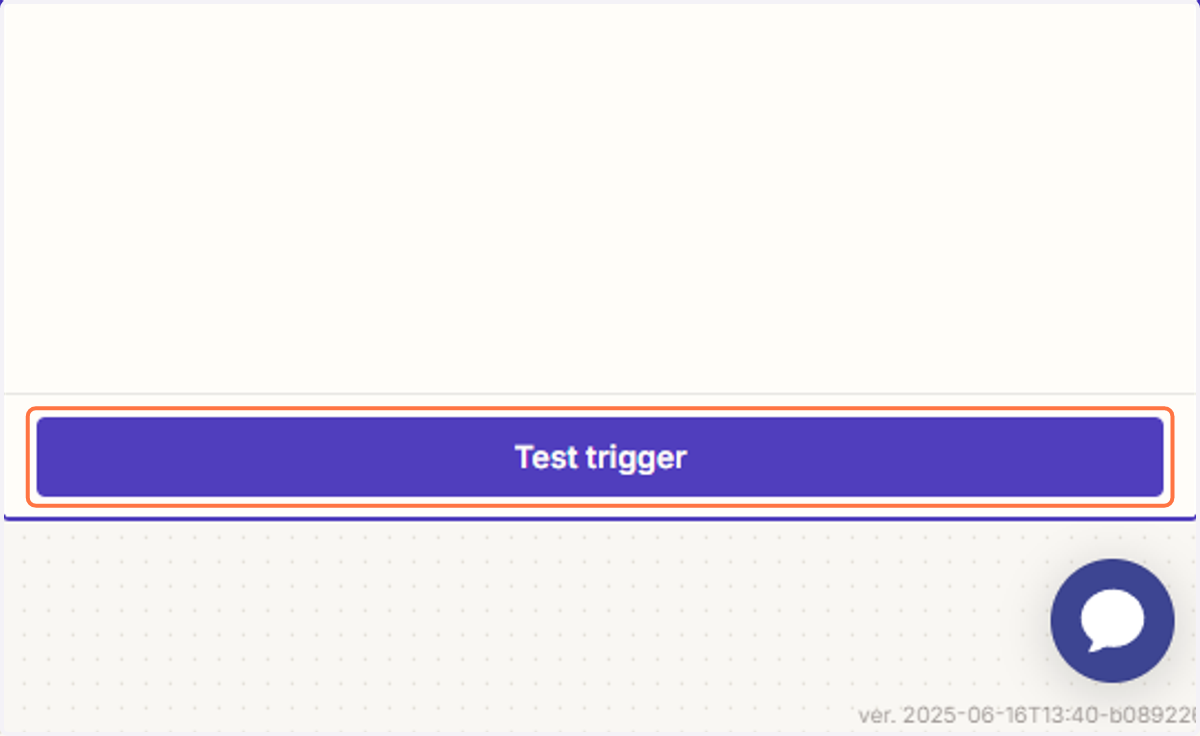
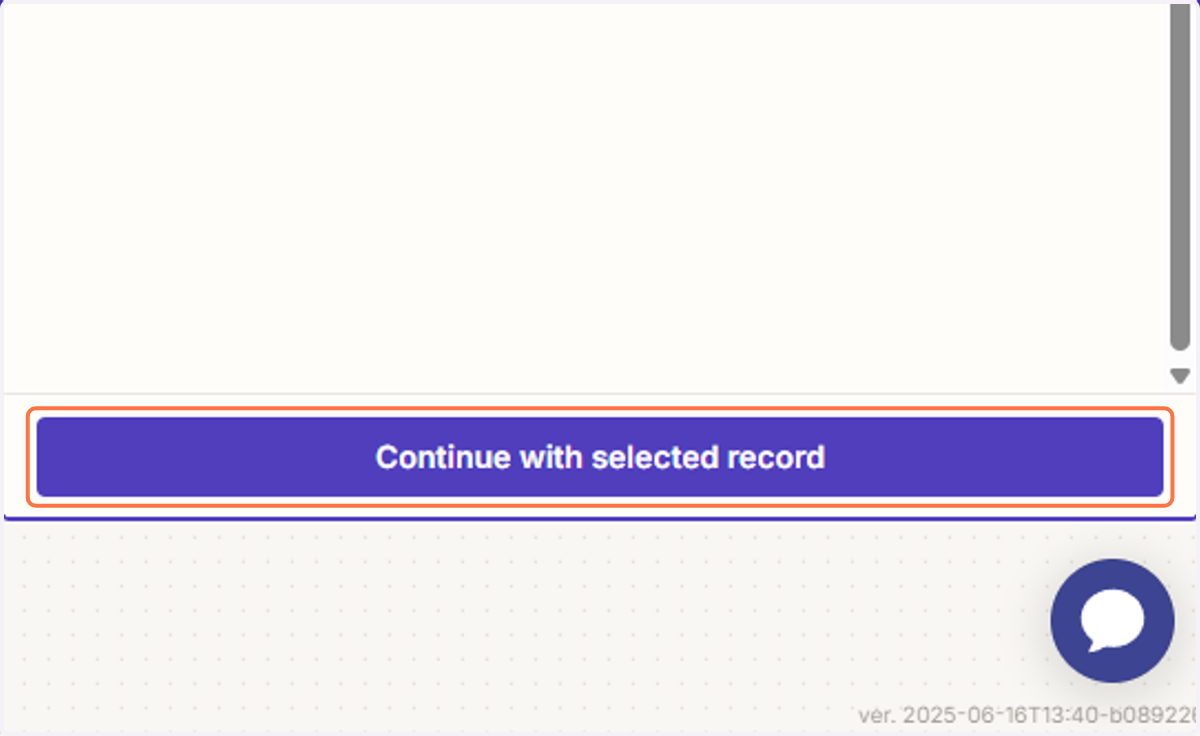
16. Click on Continue with selected record.
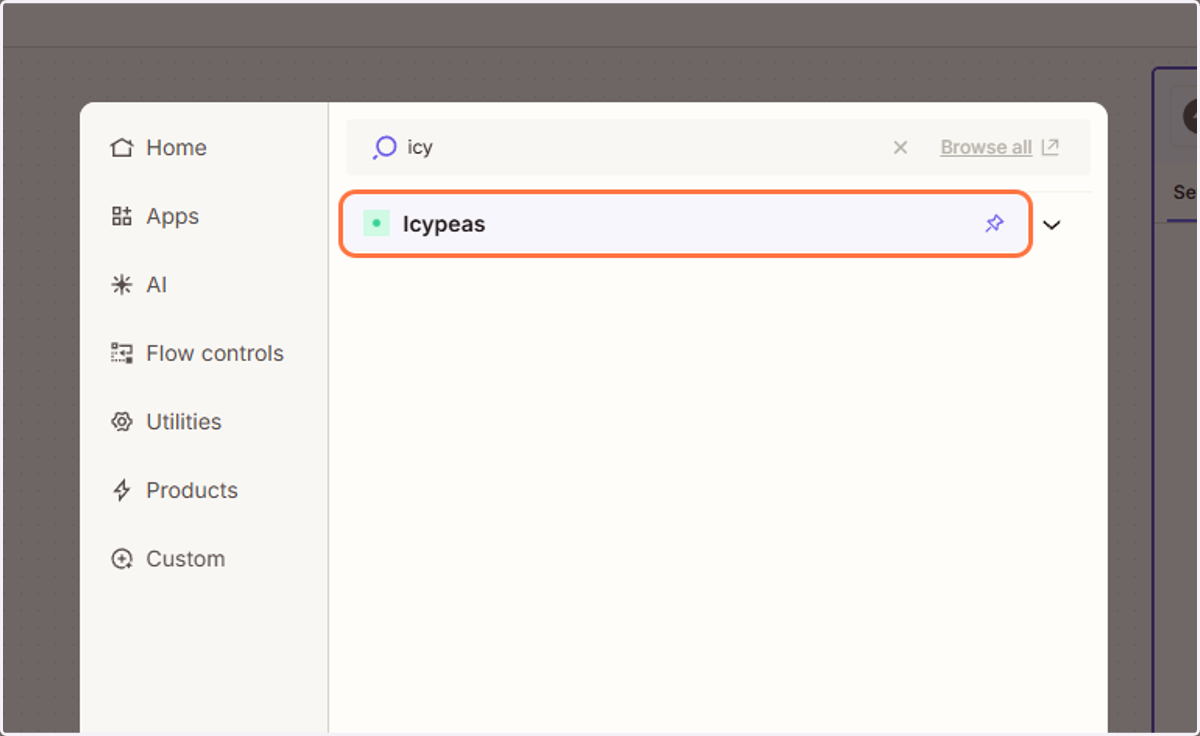
17. Search for and select Icypeas.
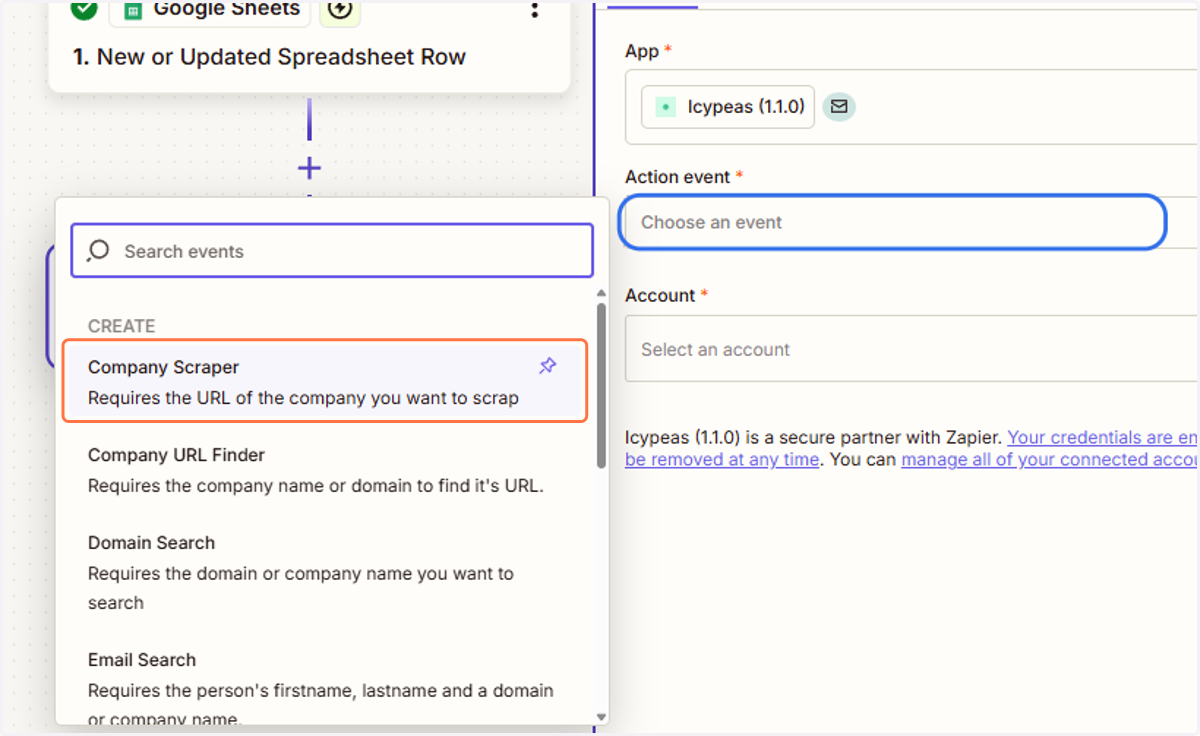
18. Click on "Choose an event" and select "Company Scraper".
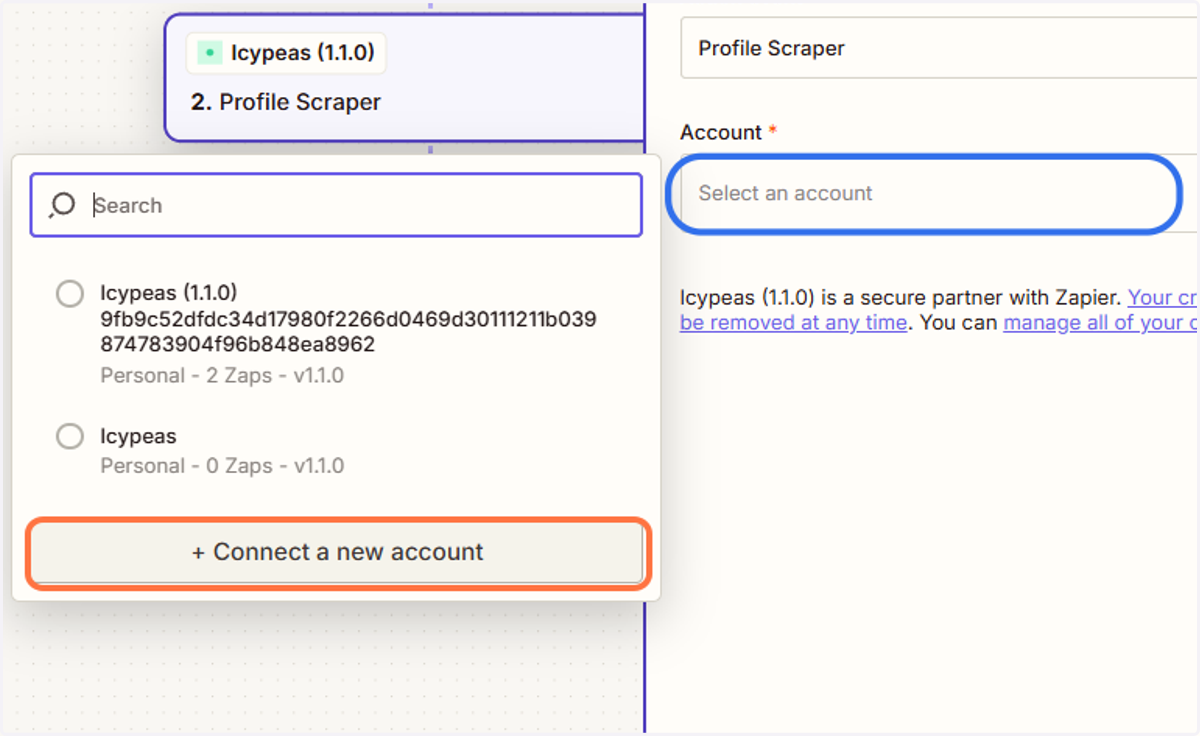
19. Click on "Select an account" and select "+ Connect a new account"
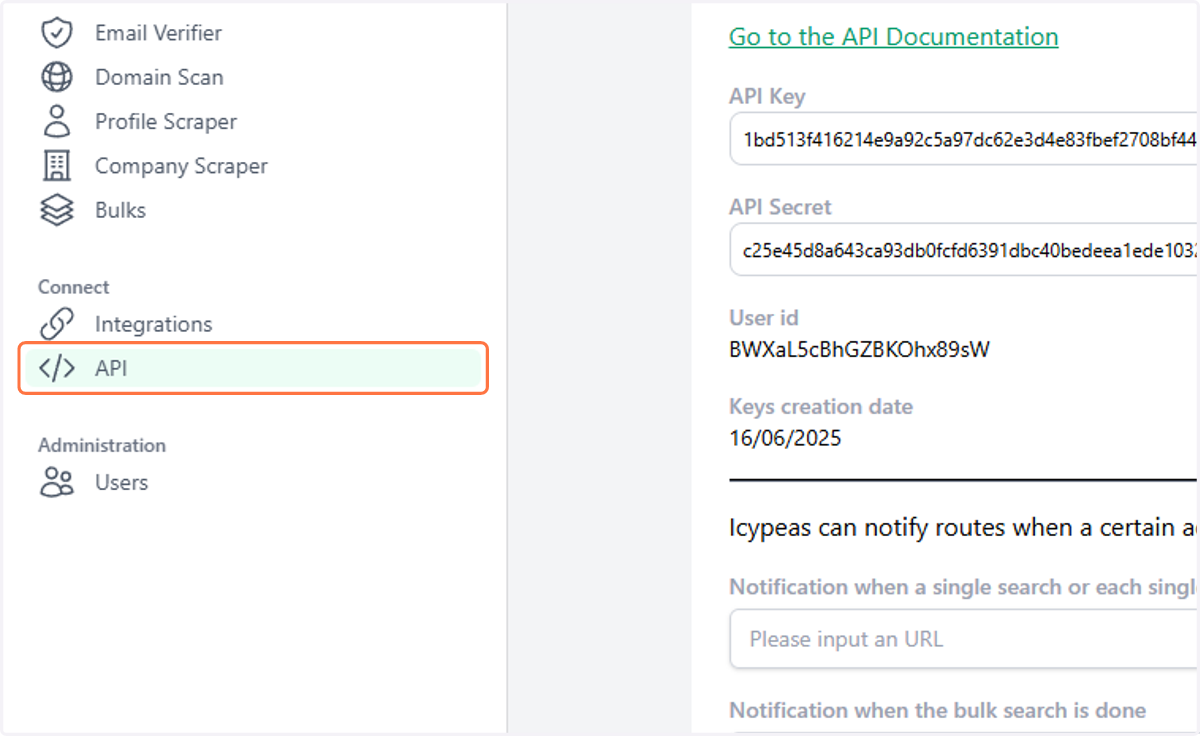
20. Go to Icypeas.com, sign up or log in, and navigate to the API tab.
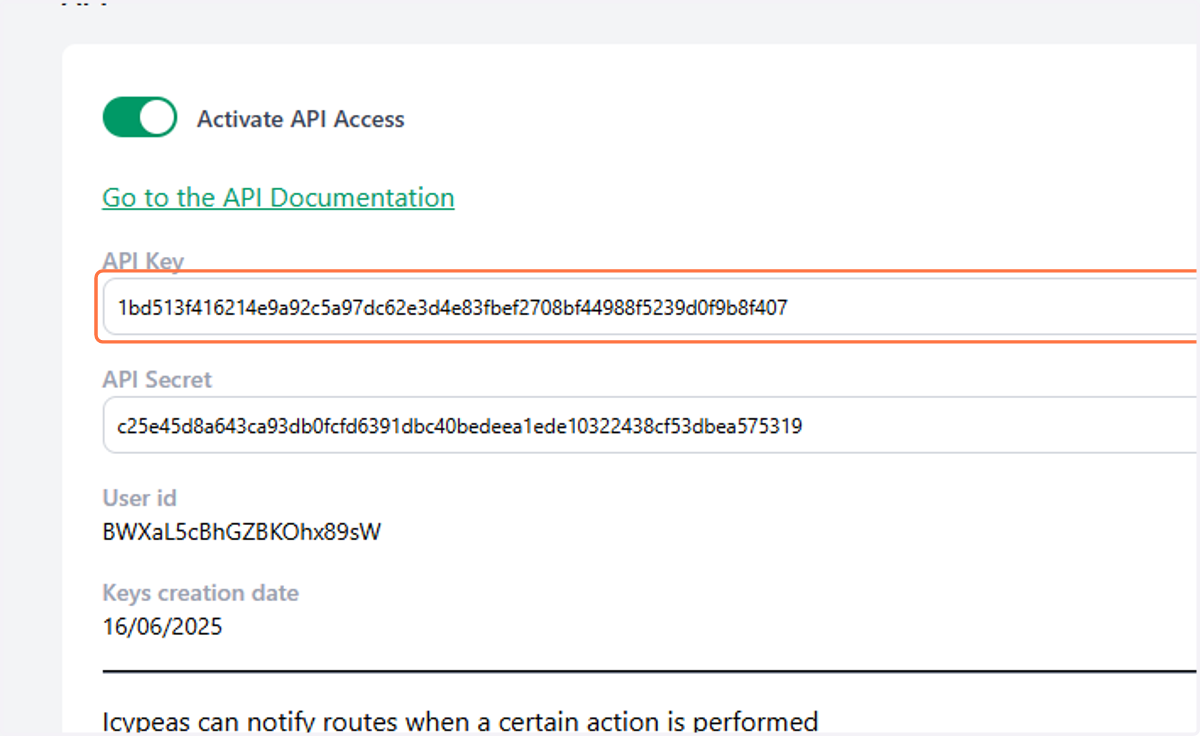
21. Copy your API key.
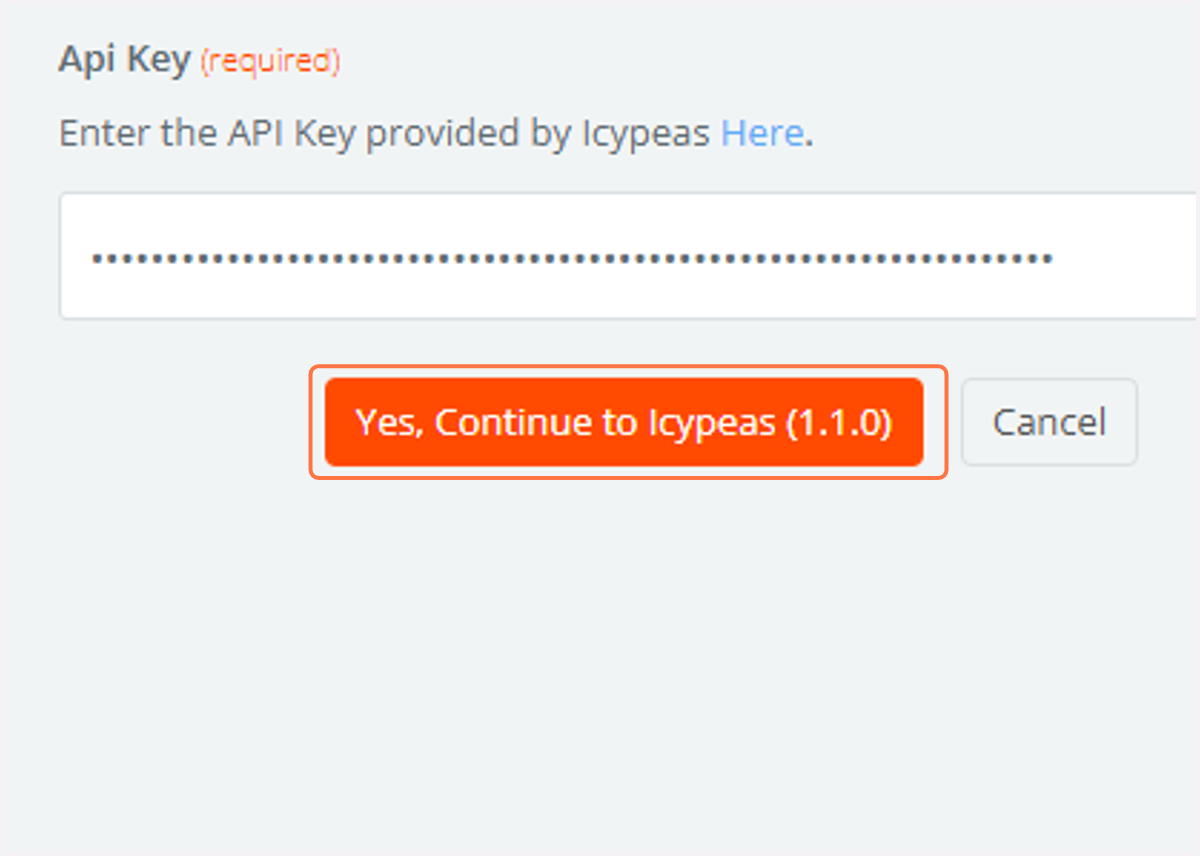
22. Go back to the Zapier authentication window and paste the API key.
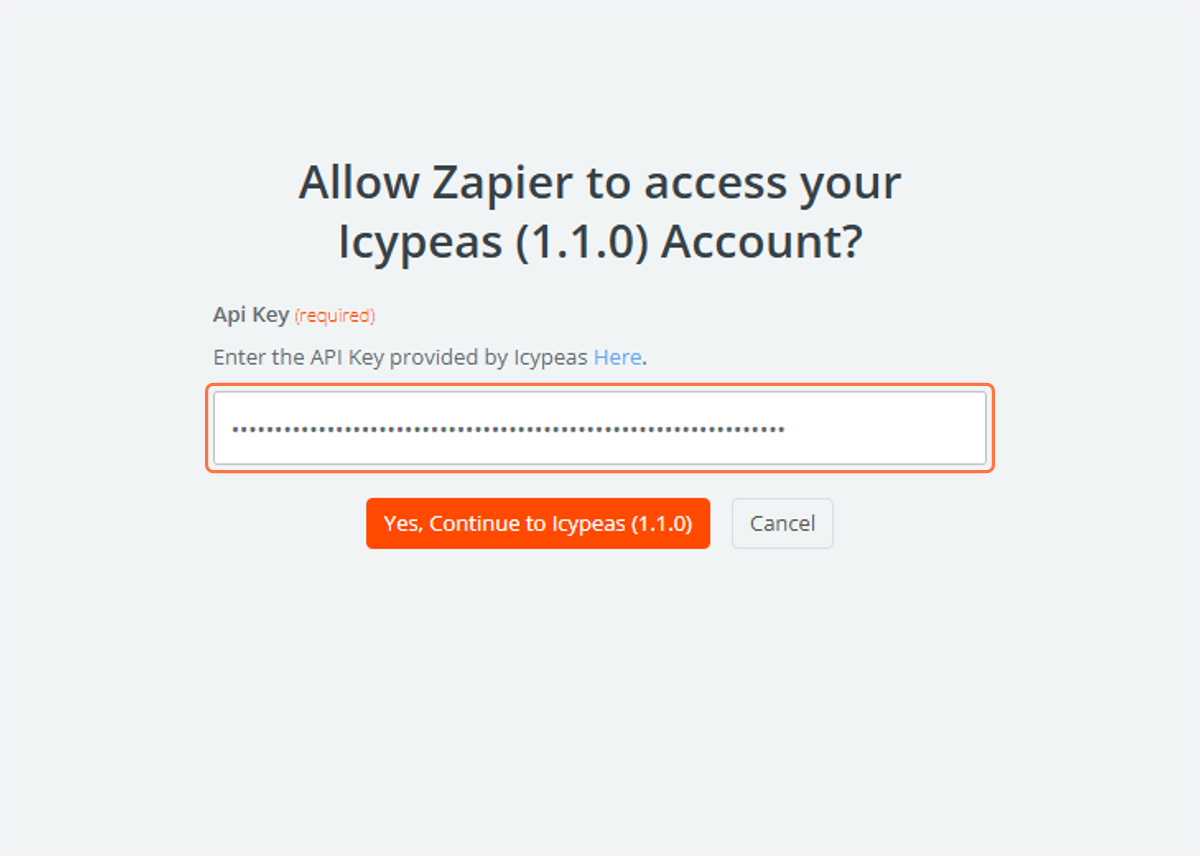
23. Click on Yes, Continue to Icypeas.
24. In the Zapier setup screen, select Continue.

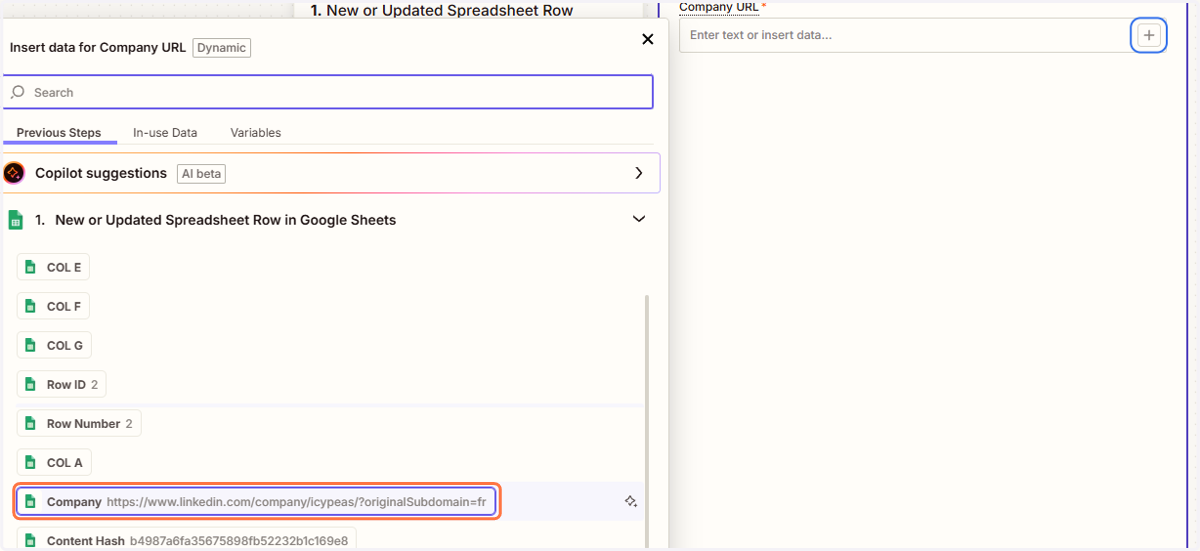
25. Click on "+" and select the "Company" column.
26. Click on Continue.

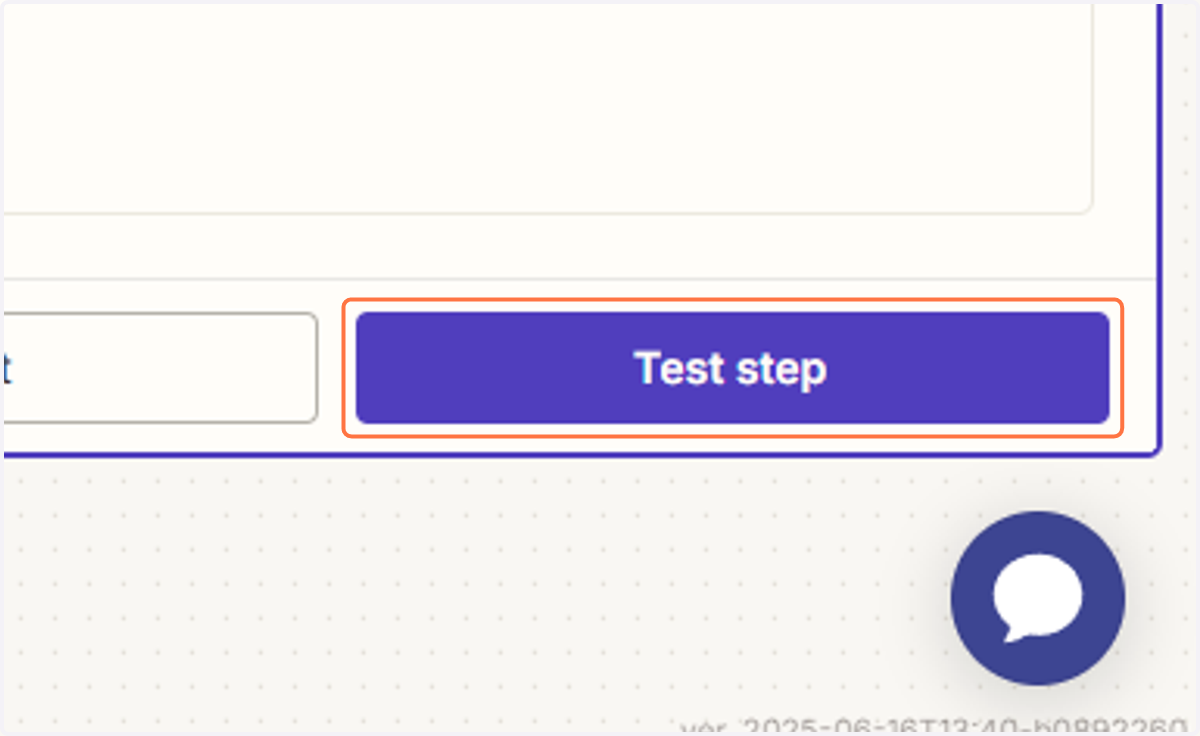
27. Click on Test step.
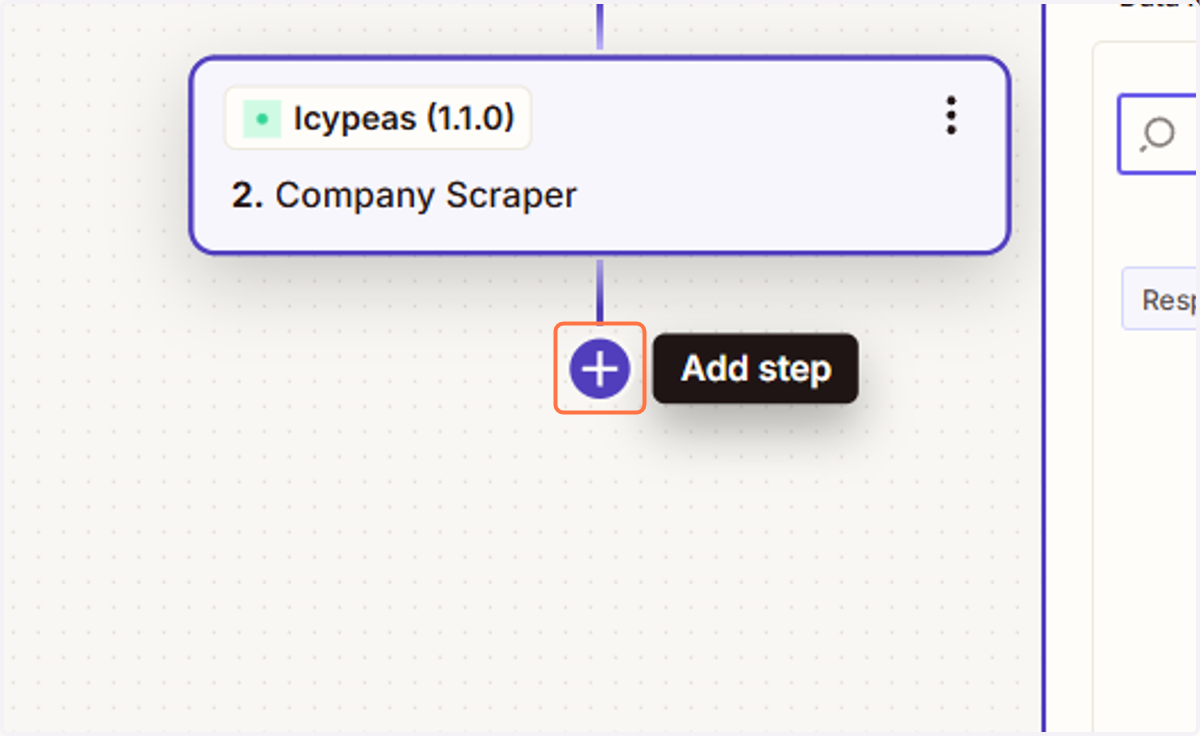
28. Click on Add step.
29. Search for and select Google Sheets.
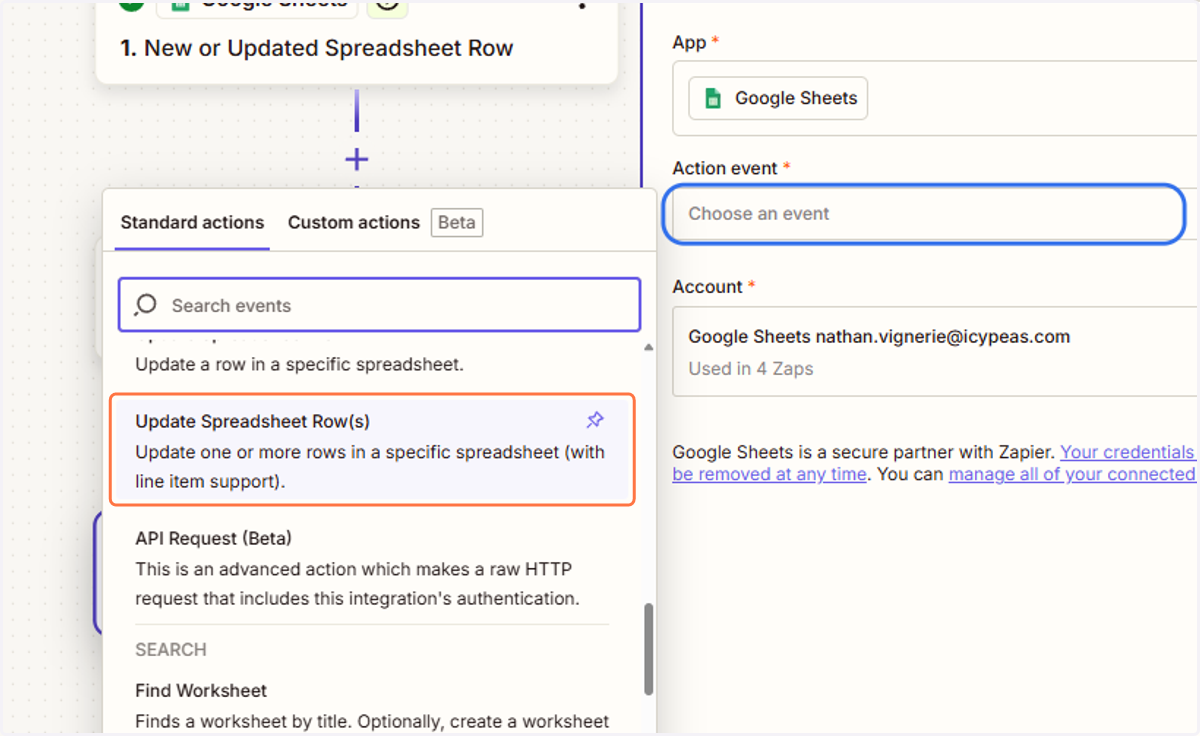
30. Click on "Choose an event" and select "Update Spreadsheet Row(s)".
31. Click on Continue.

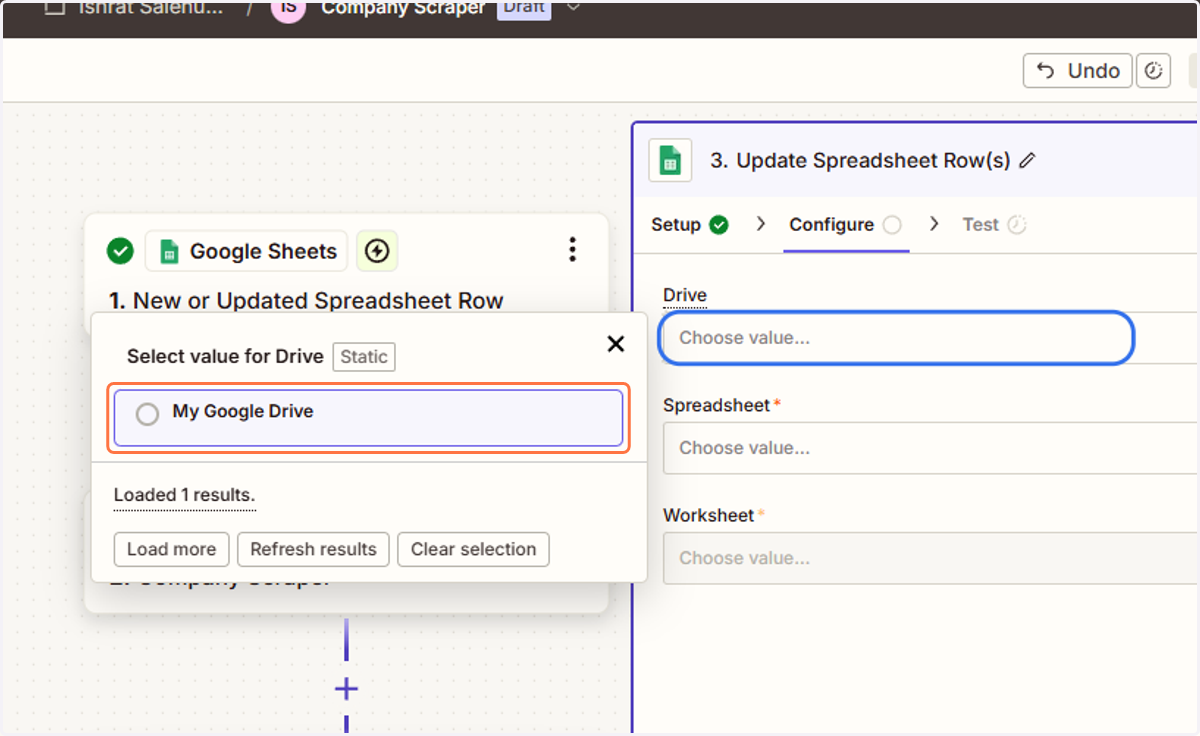
32. Click on "Choose value..." and select your Google Drive.
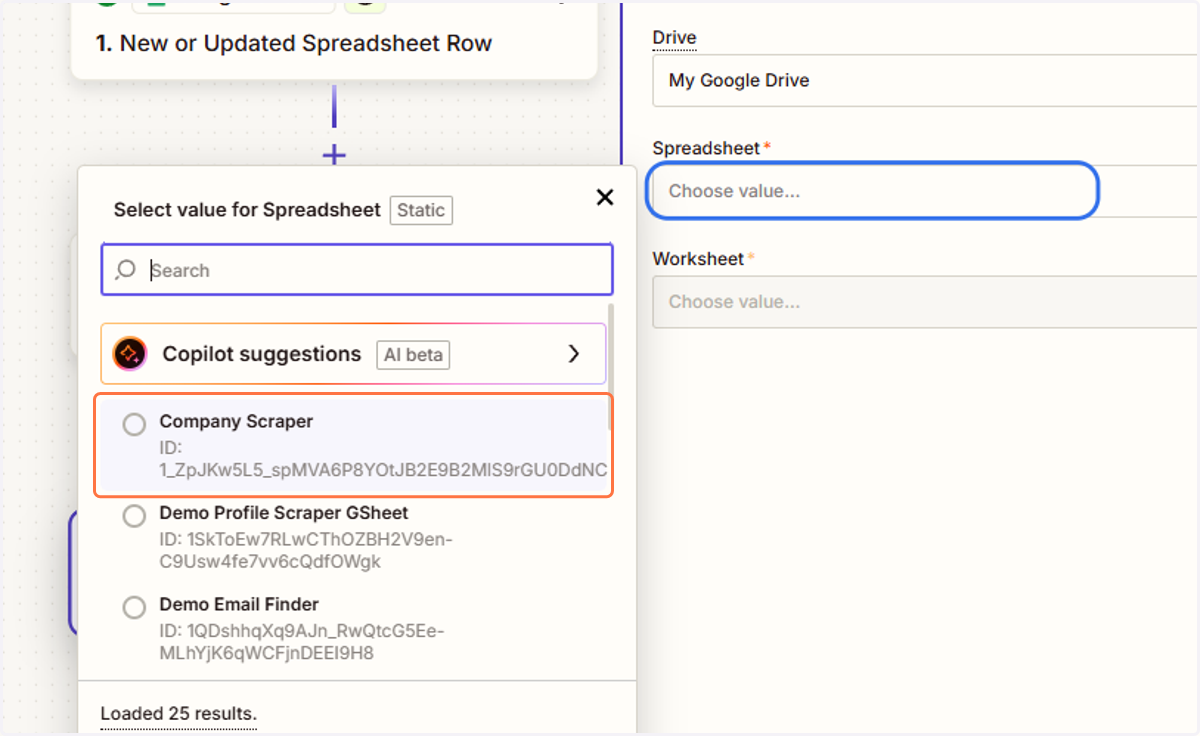
33. Click on "Choose value..." and select your Speadsheet.
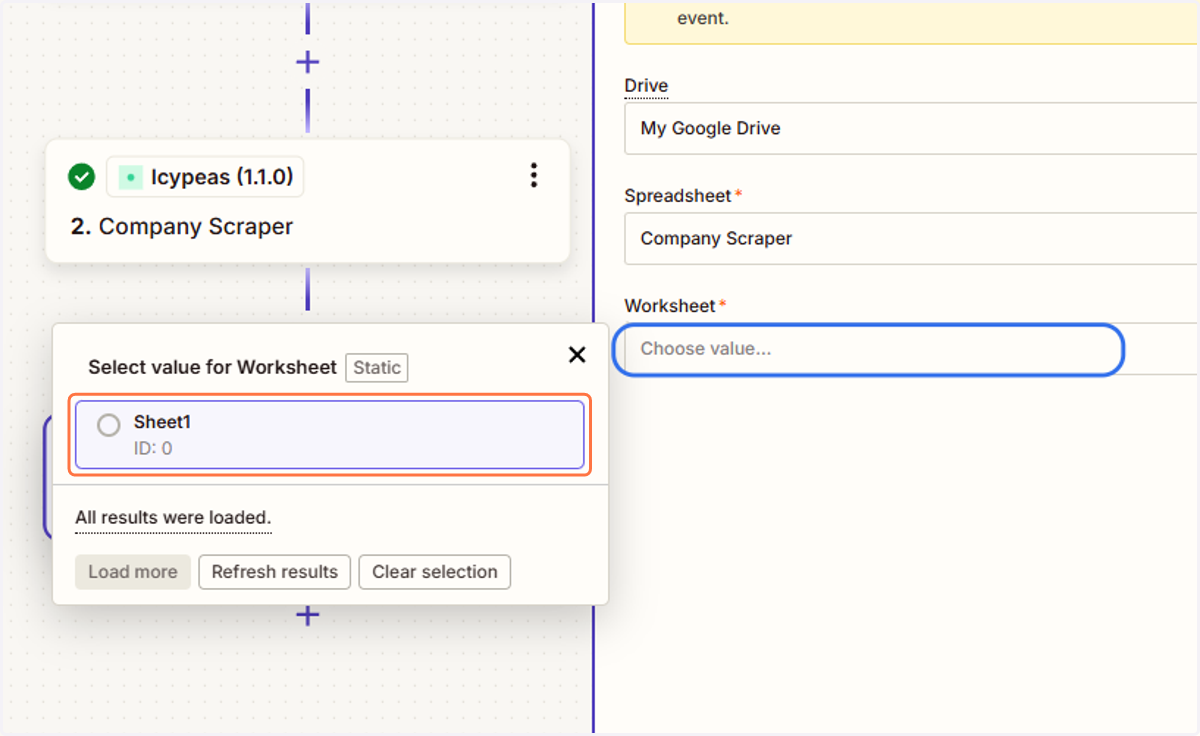
34. Click on "Choose value..." and select your Worksheet.
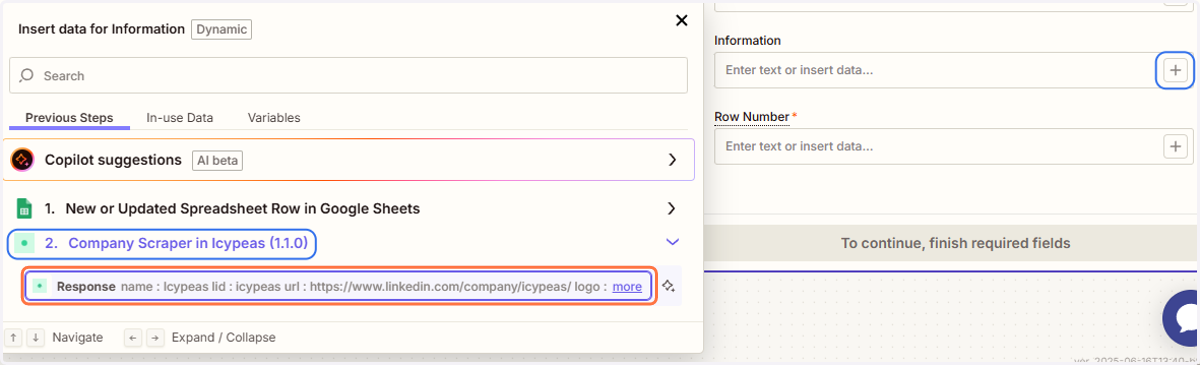
35. Click on "+", select "Profile Scraper in Icypeas" and click on "Response".
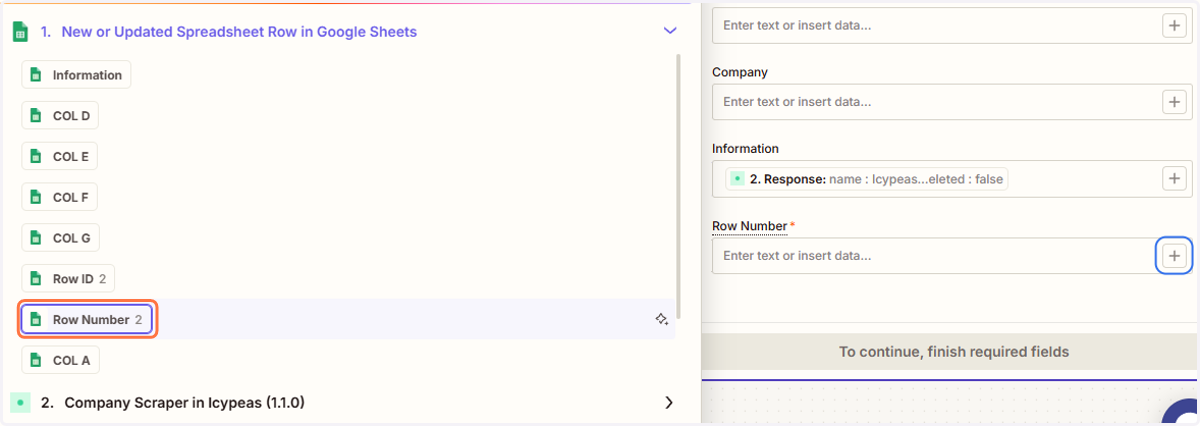
36. Click on "+", select "New or Updated Spreadsheet Row" and click on "Row Number".
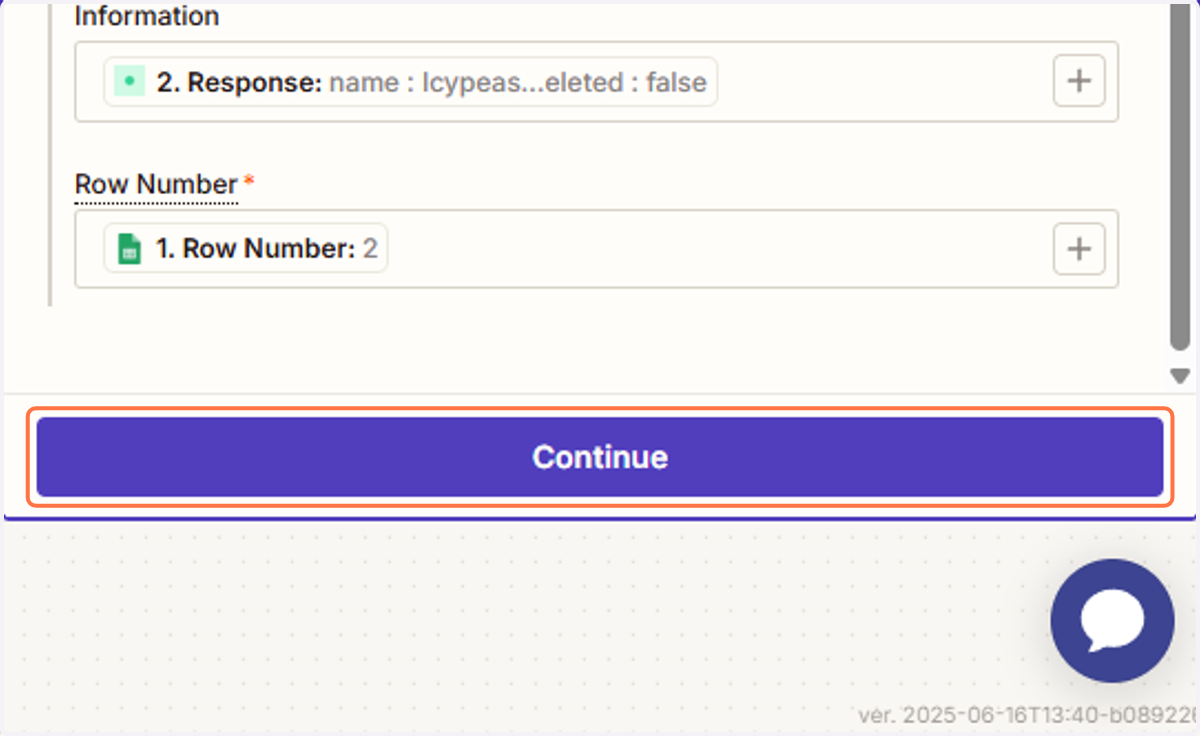
37. Click on Continue.
38. Click on Test step.
39. Click on Publish.
40. Go back to your Google Sheet document. The results will now appear.
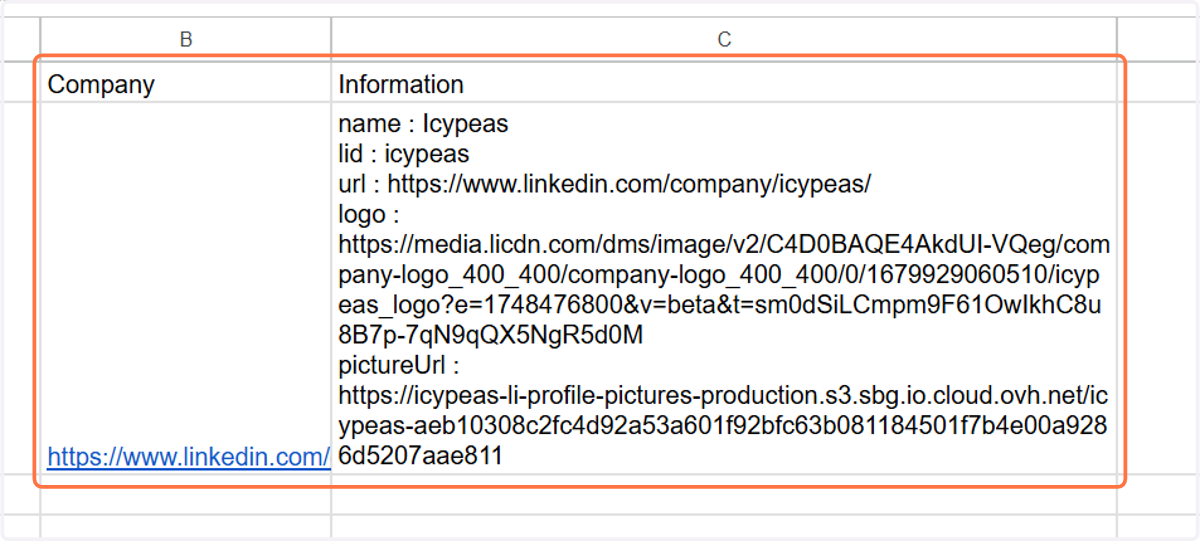
41. You can add a new URL below, and the result will be displayed as well.