How to Edit a Reservation's Date
This shows how to move an already built reservation to another date. If the reservation has not been built yet, skip to Step 5.
Reservations | Brunswick Tool Library
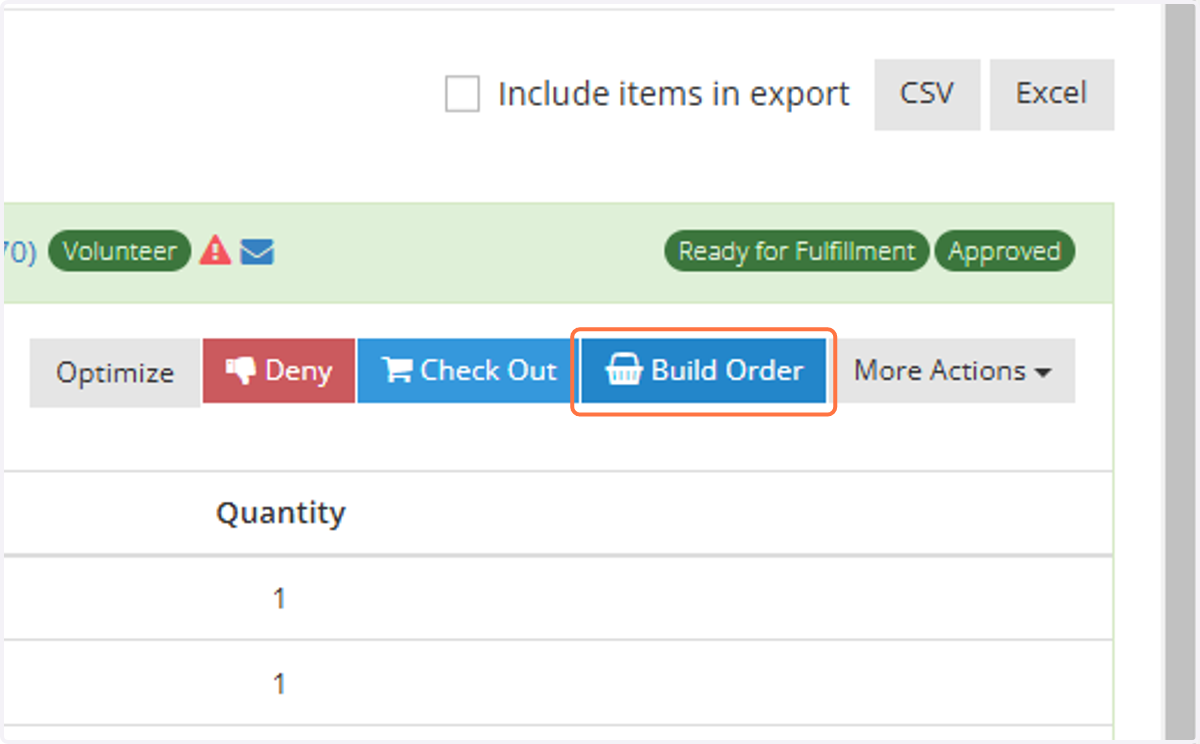
1. Click on Build Order
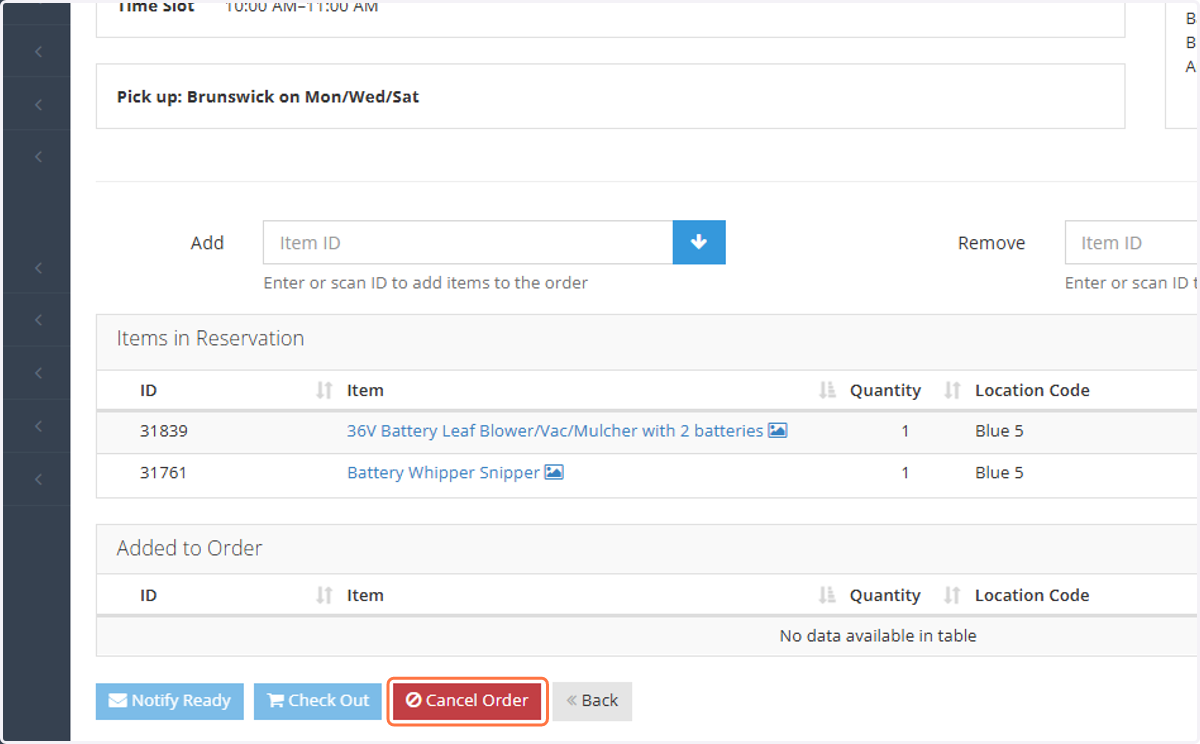
2. Click on Cancel Order
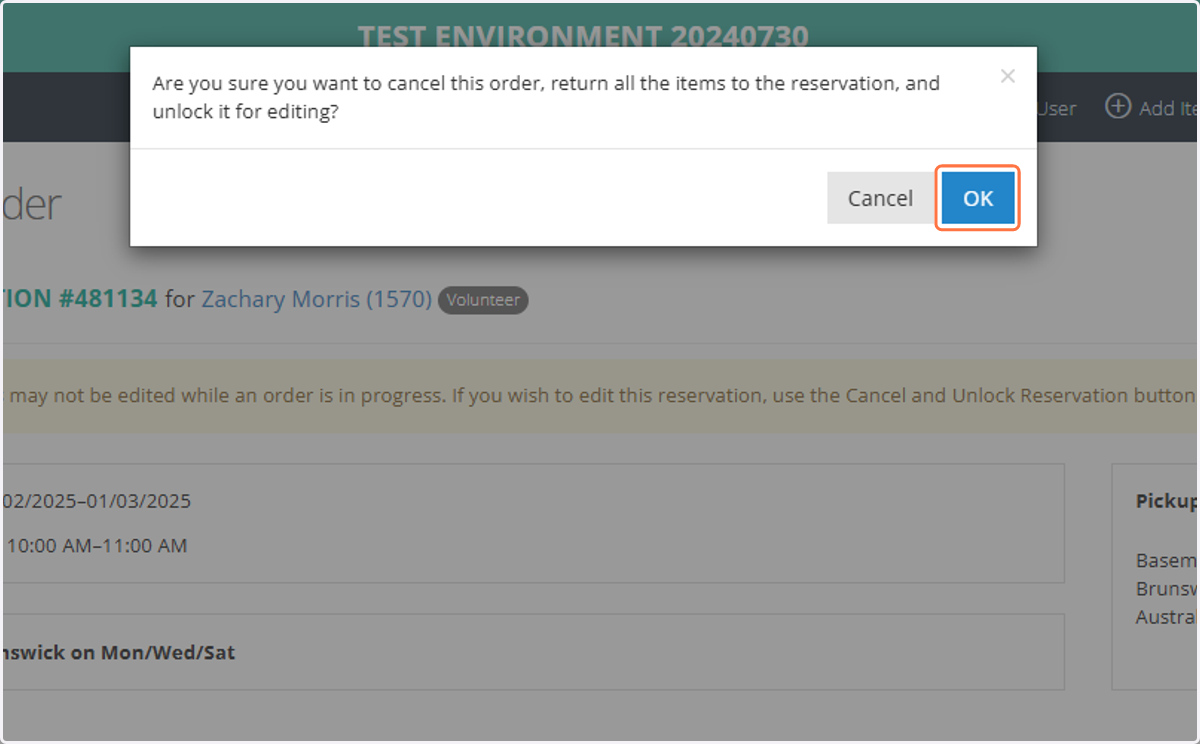
3. Click on OK
4. Return to the reservation, either through the Reservations list, or the user's List Reservations page
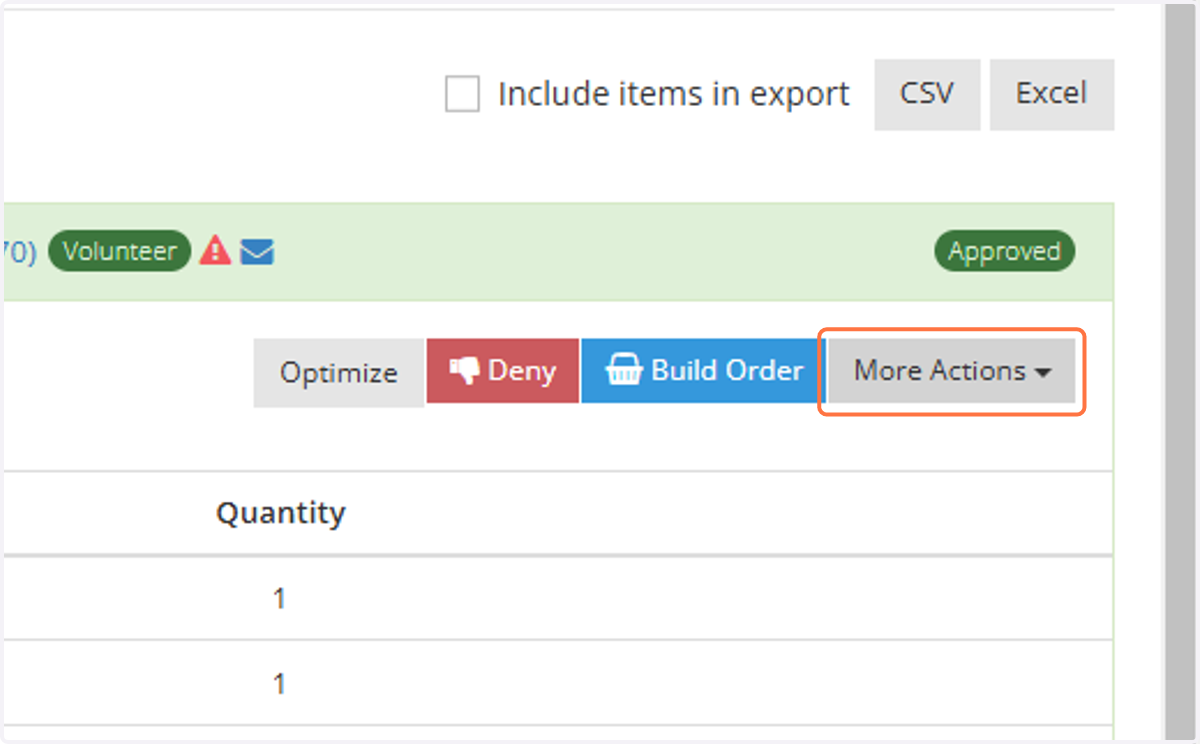
5. Click on More Actions
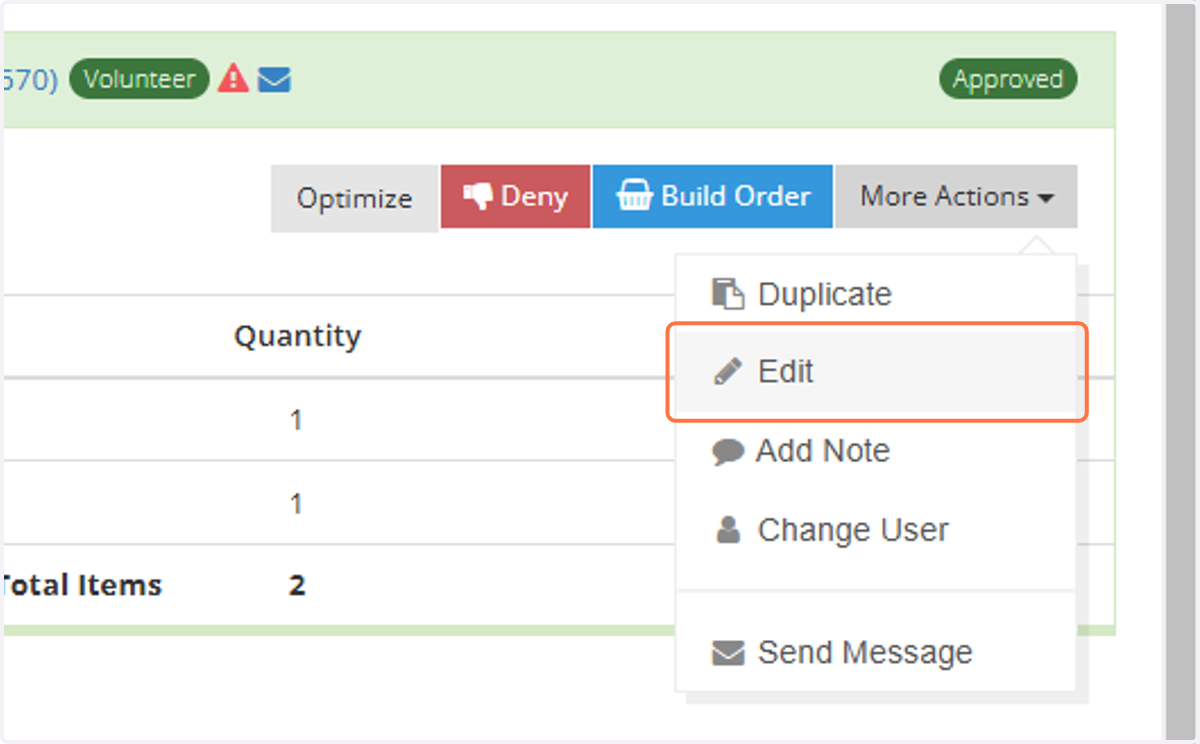
6. Click on Edit
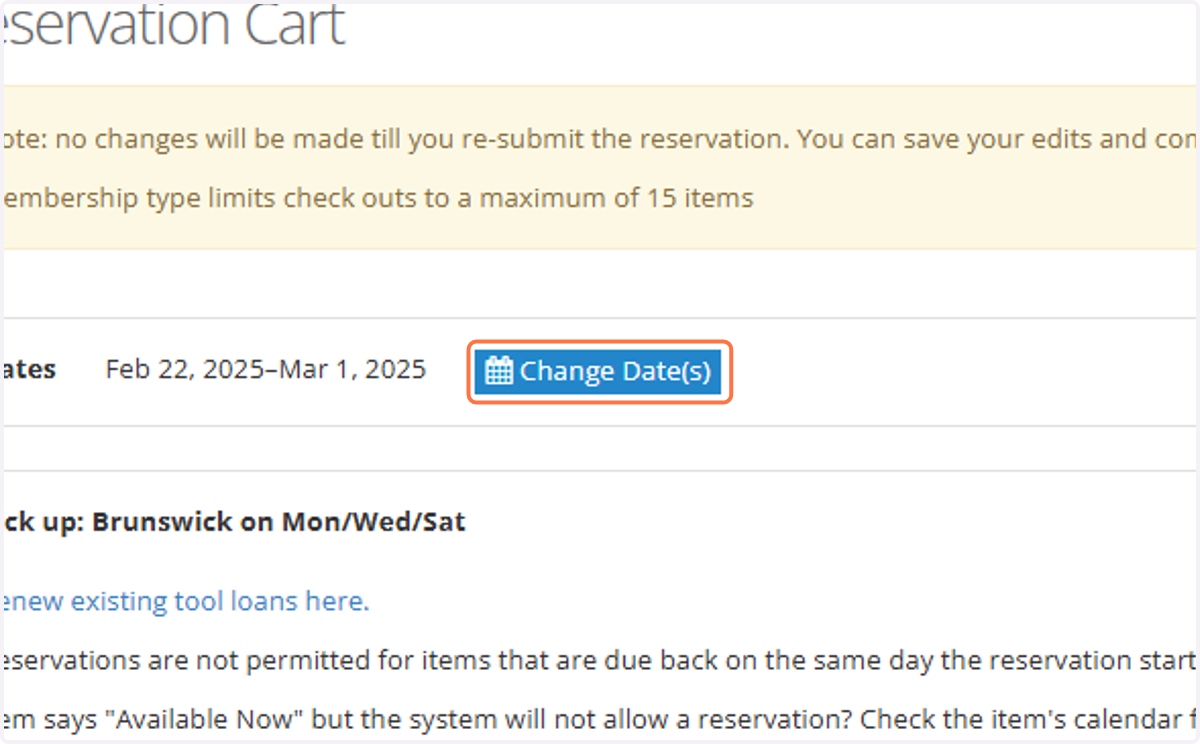
7. Click on Change Date(s)
8. Select the new Start Date (and new end date, if applicable)
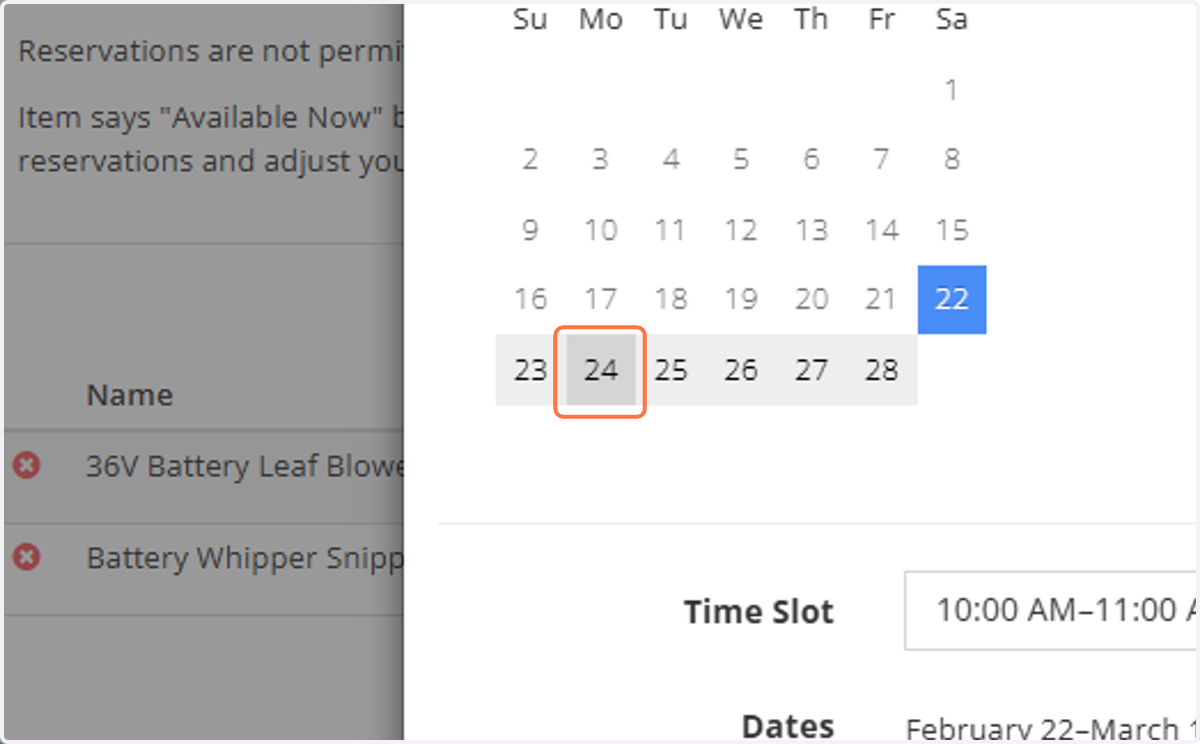
9. Select a time slot
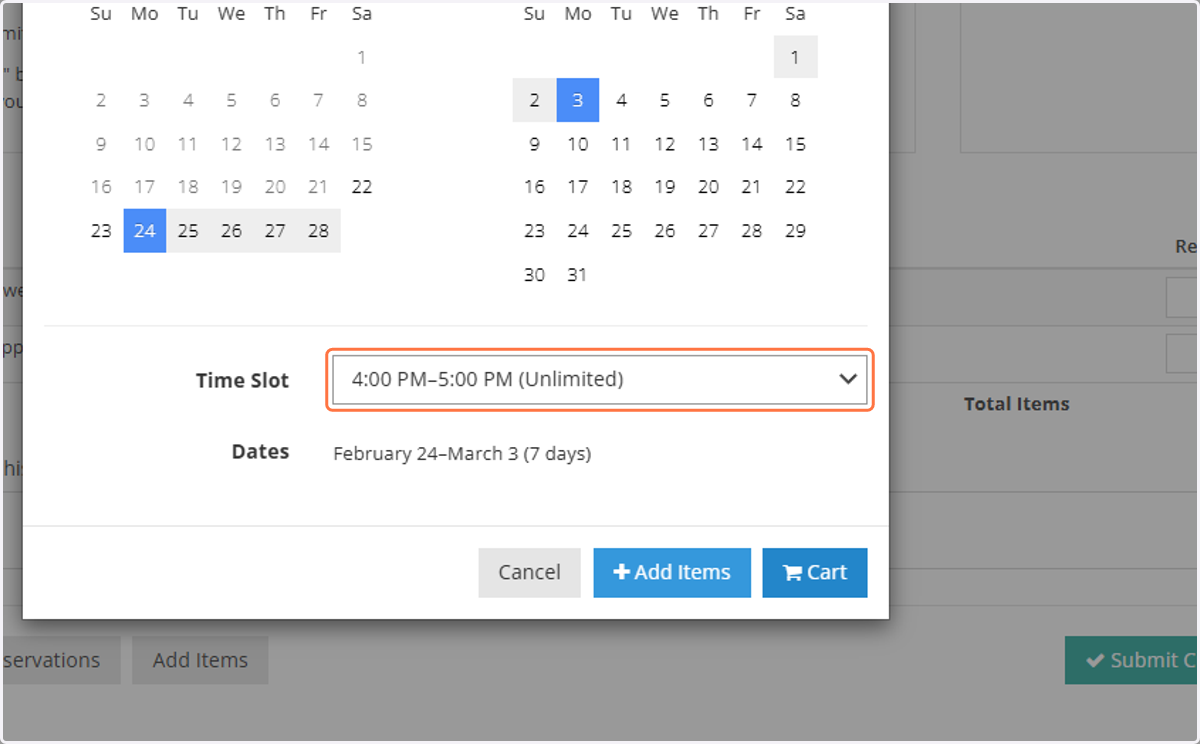
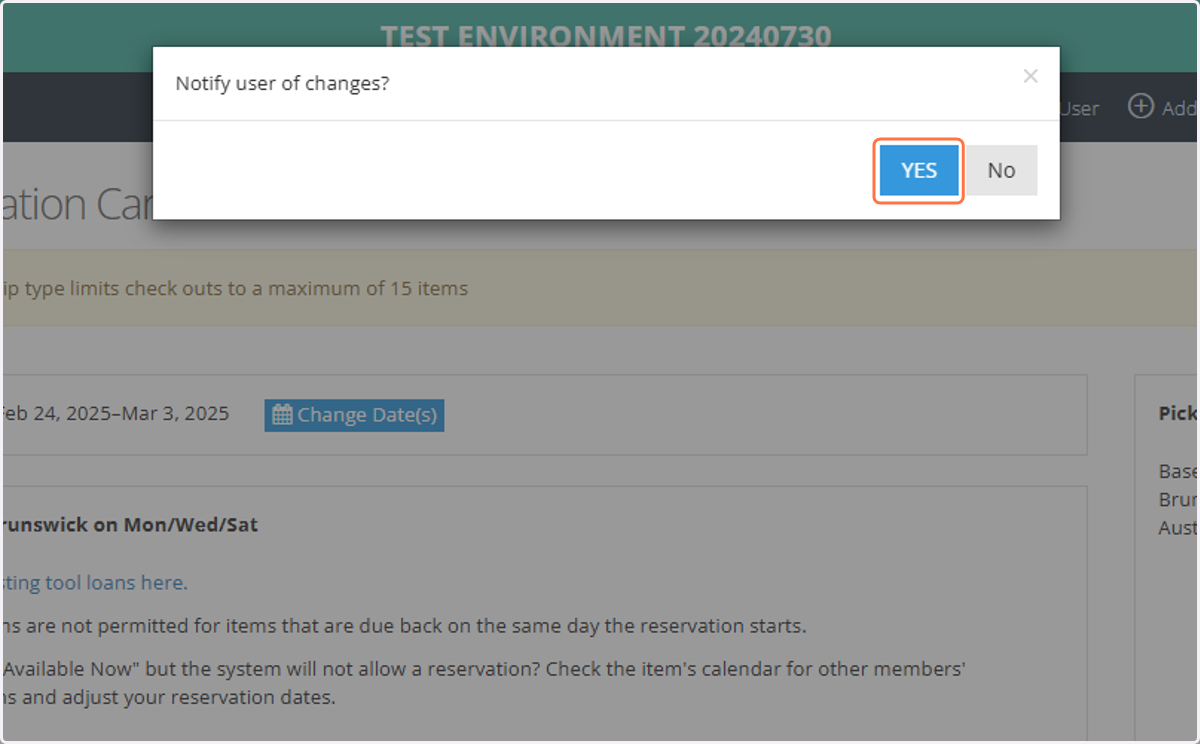
10. Click on Cart
11. Click on Submit Changes
12. Select whether or not to notify the user, as appropriate