How to Download and Schedule the APP Activity Master Report
Dashboard
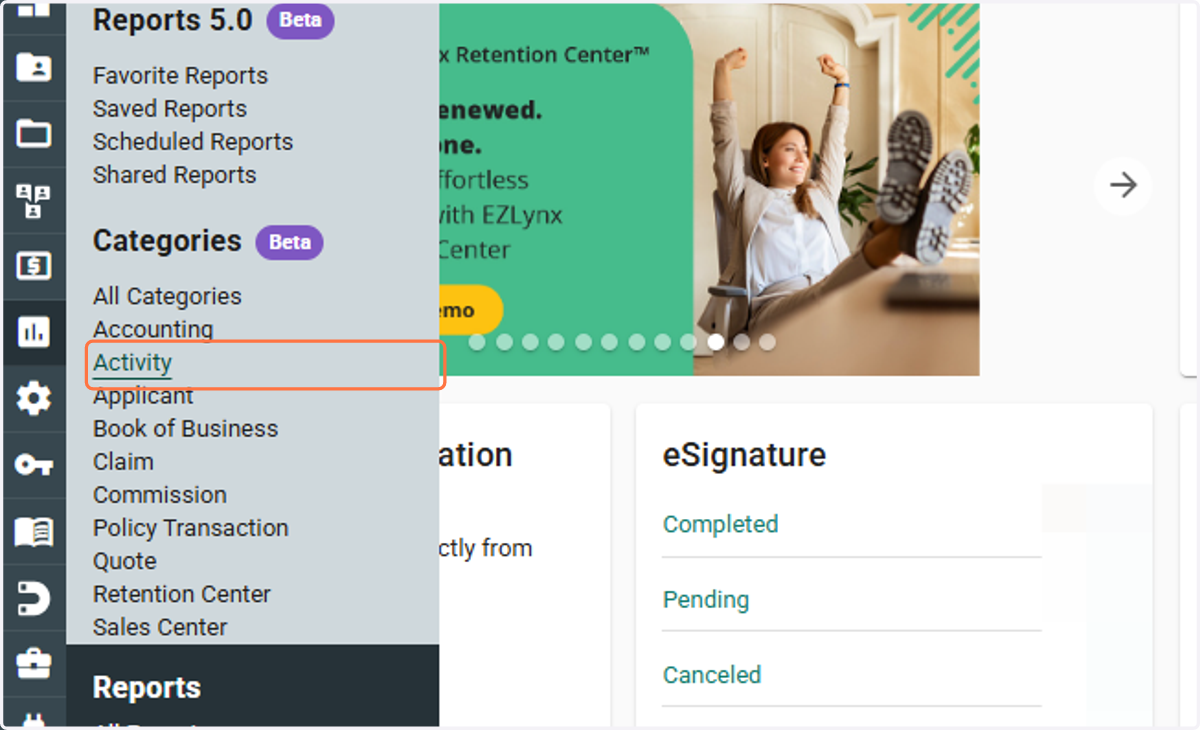
1. Click on Activity
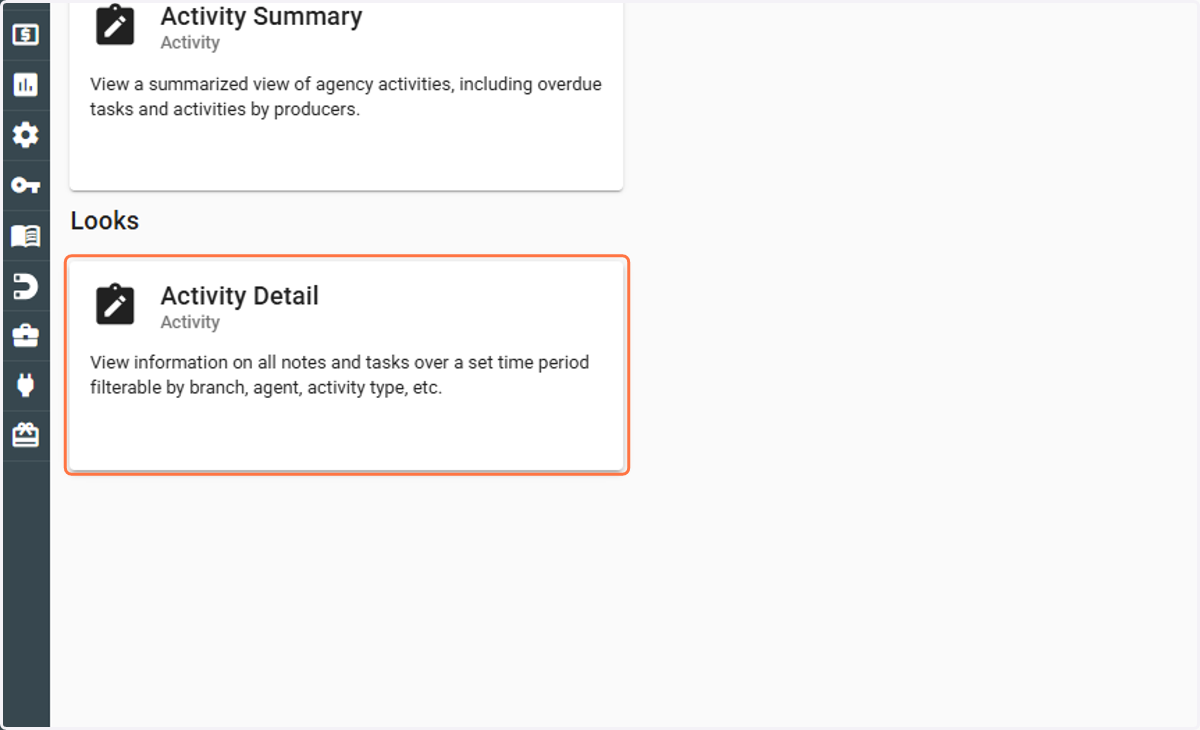
2. Click on Activity Detail (under Looks)
3. Click on Toggle Filters
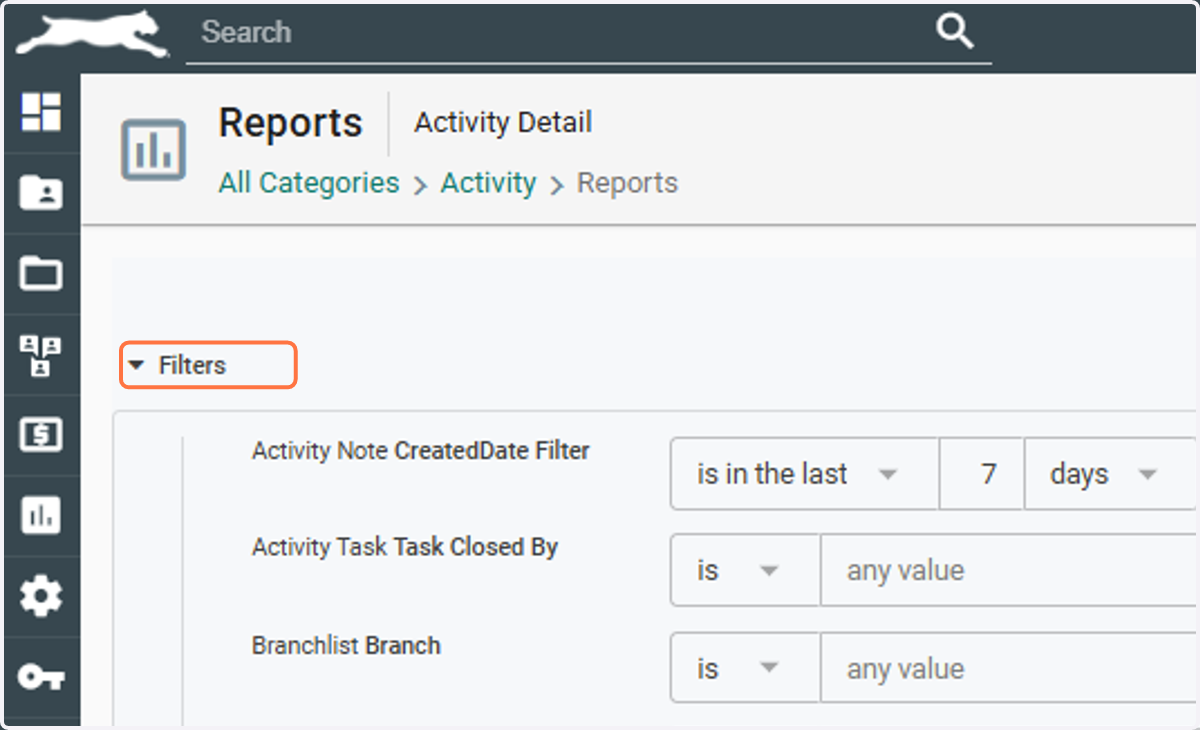
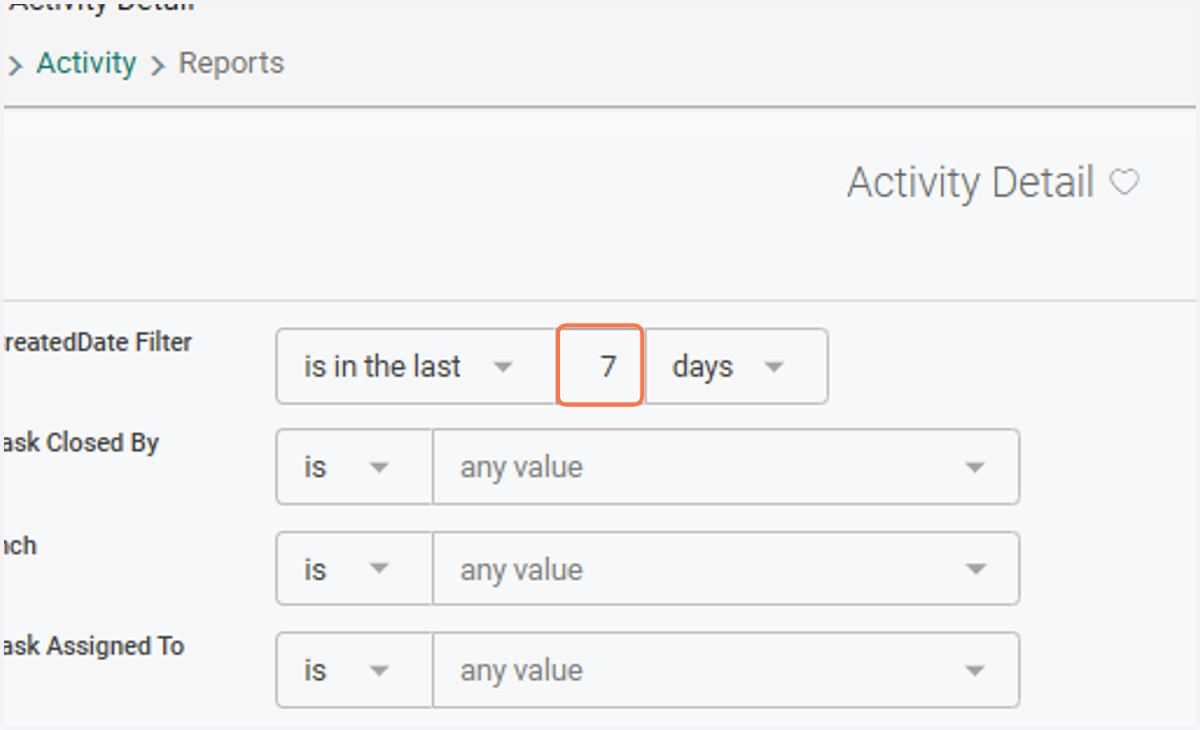
4. Select "Is in the last" and indicate 7 "days"
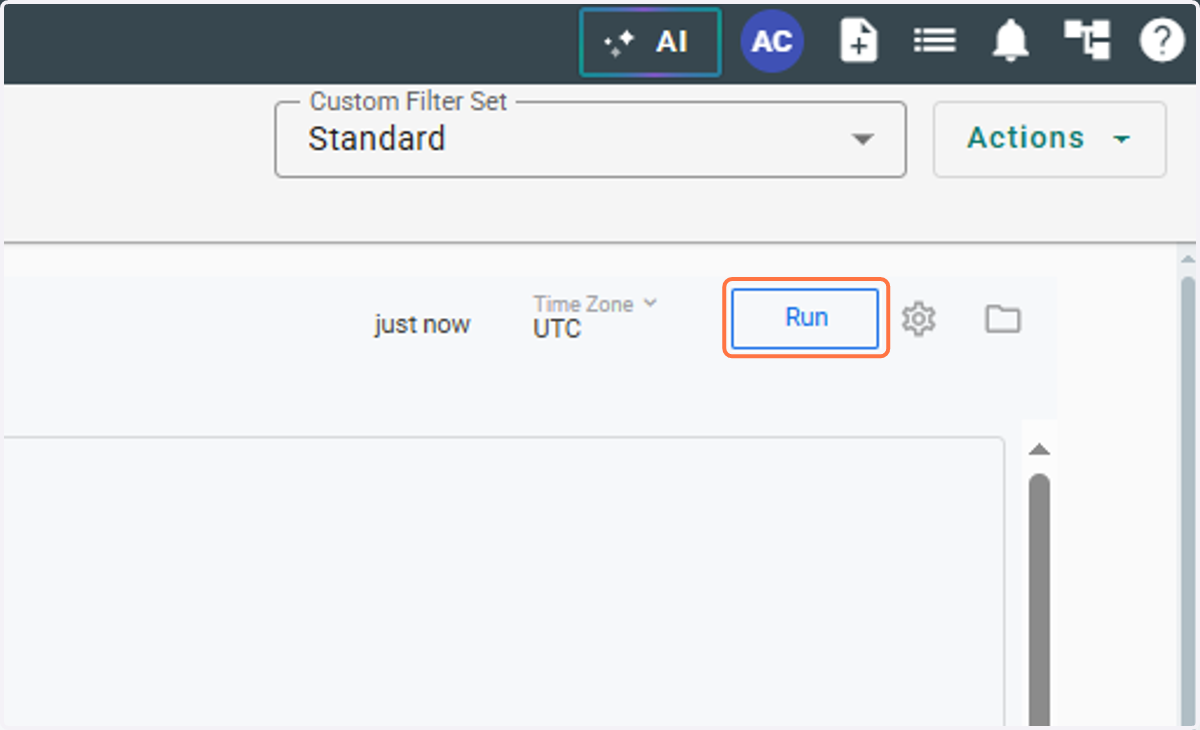
5. Click on Run
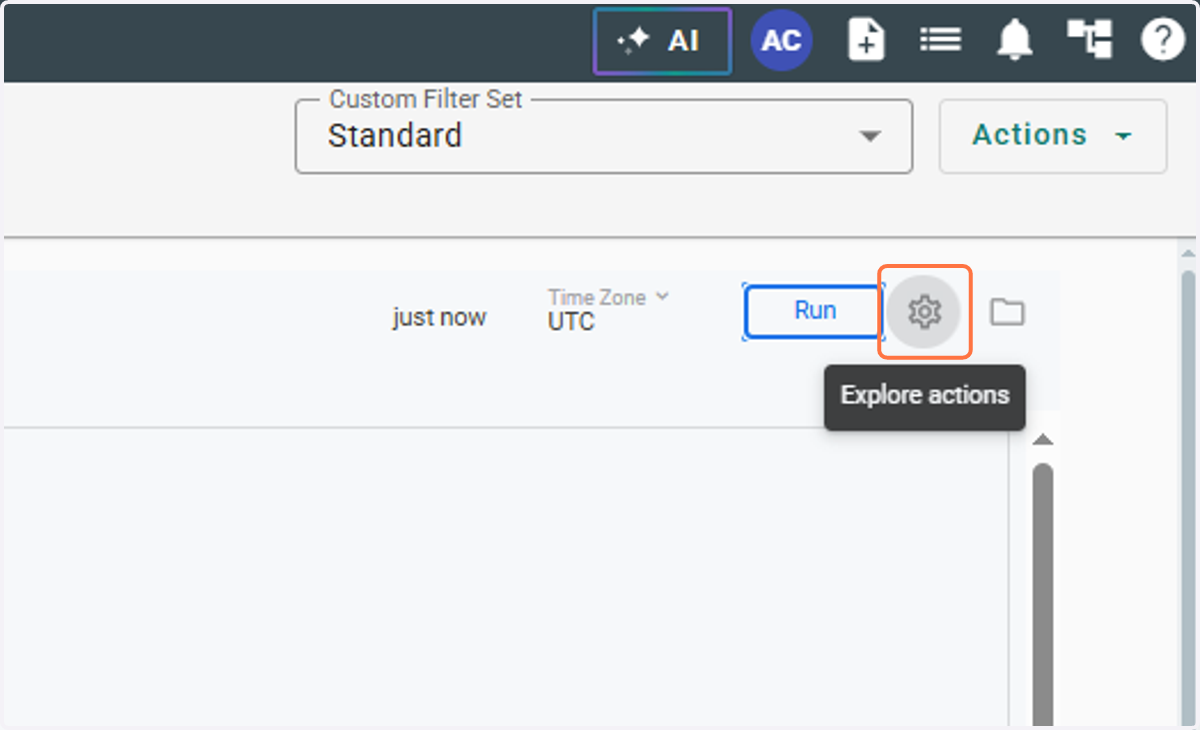
6. Click on Explore actions (gear icon)
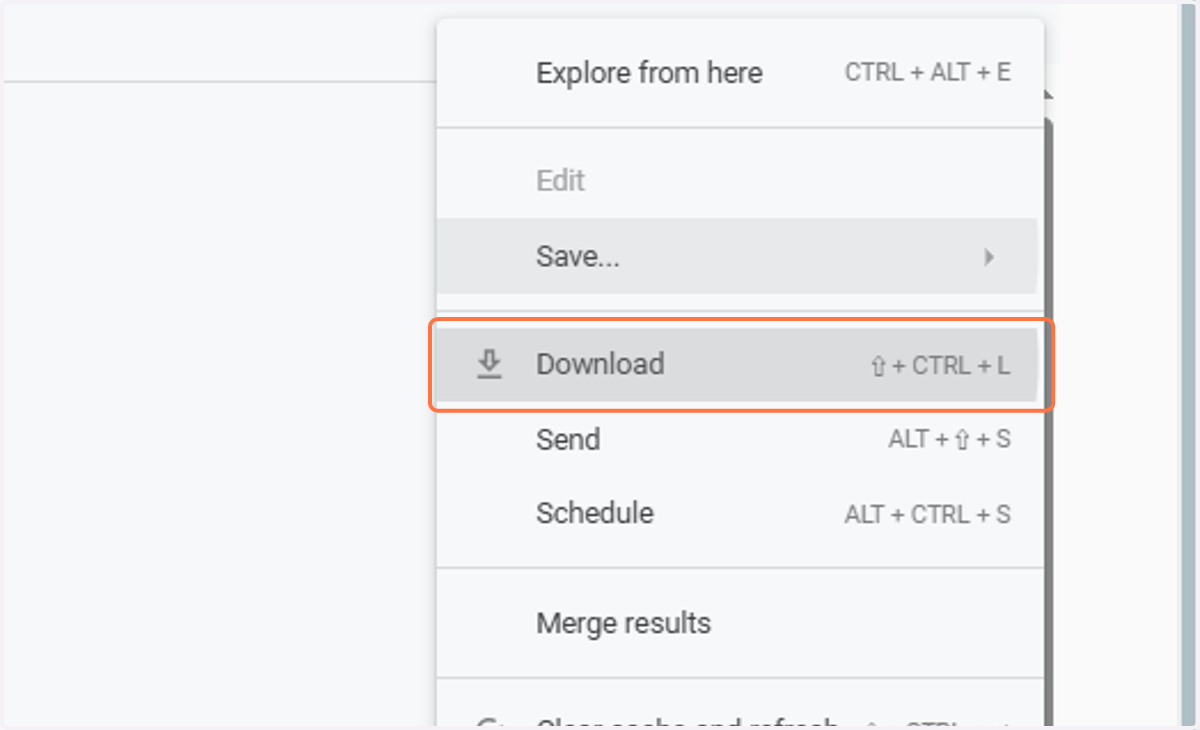
7. Click on Download (⇧ + CTRL + L)
8. Type "APP Activity Master Report"
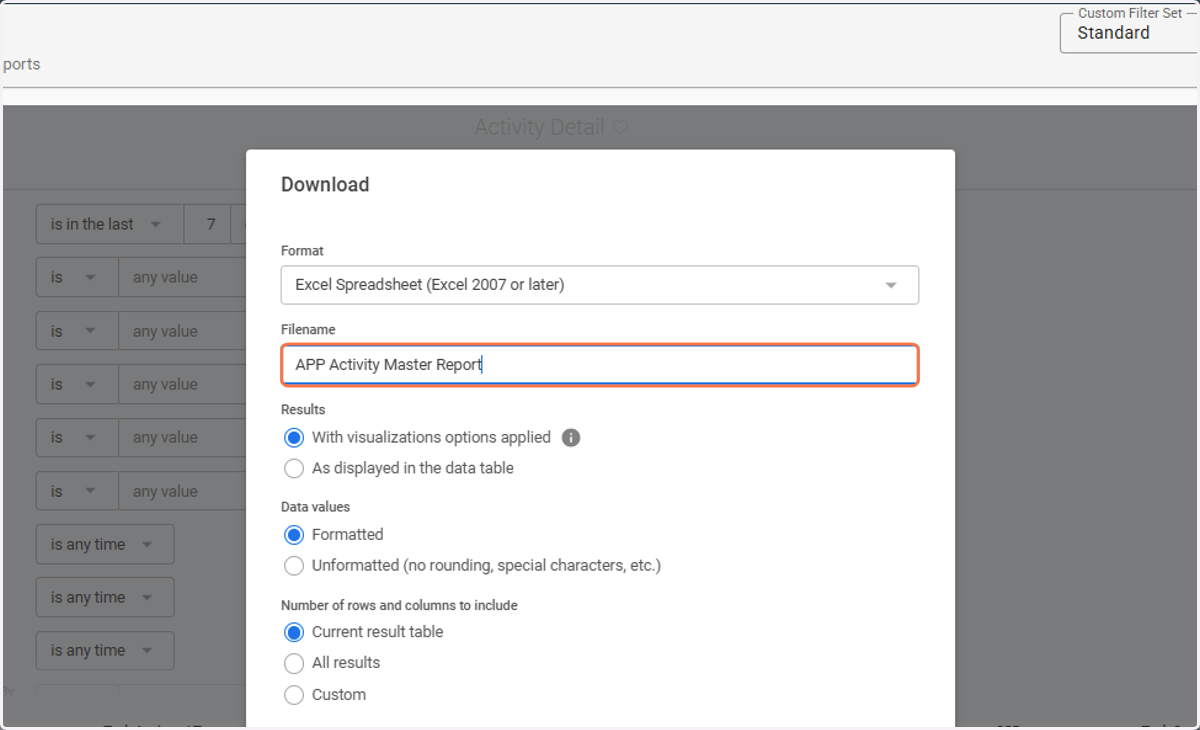
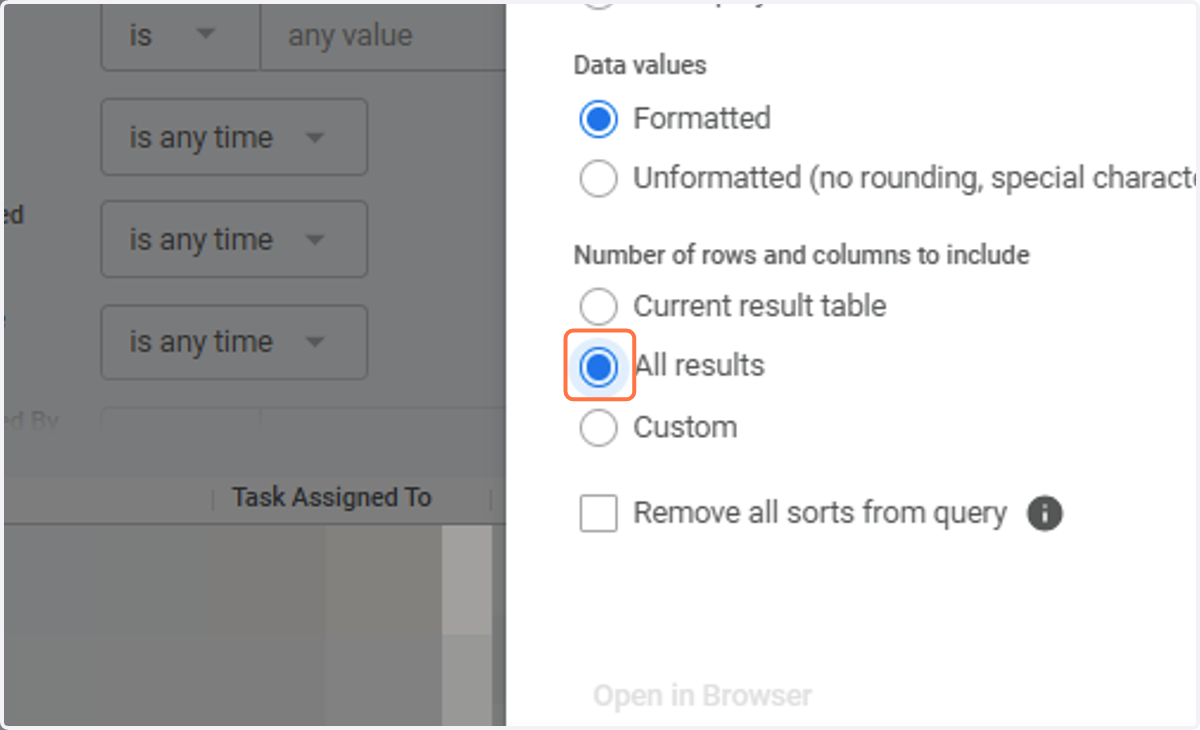
9. Select All results
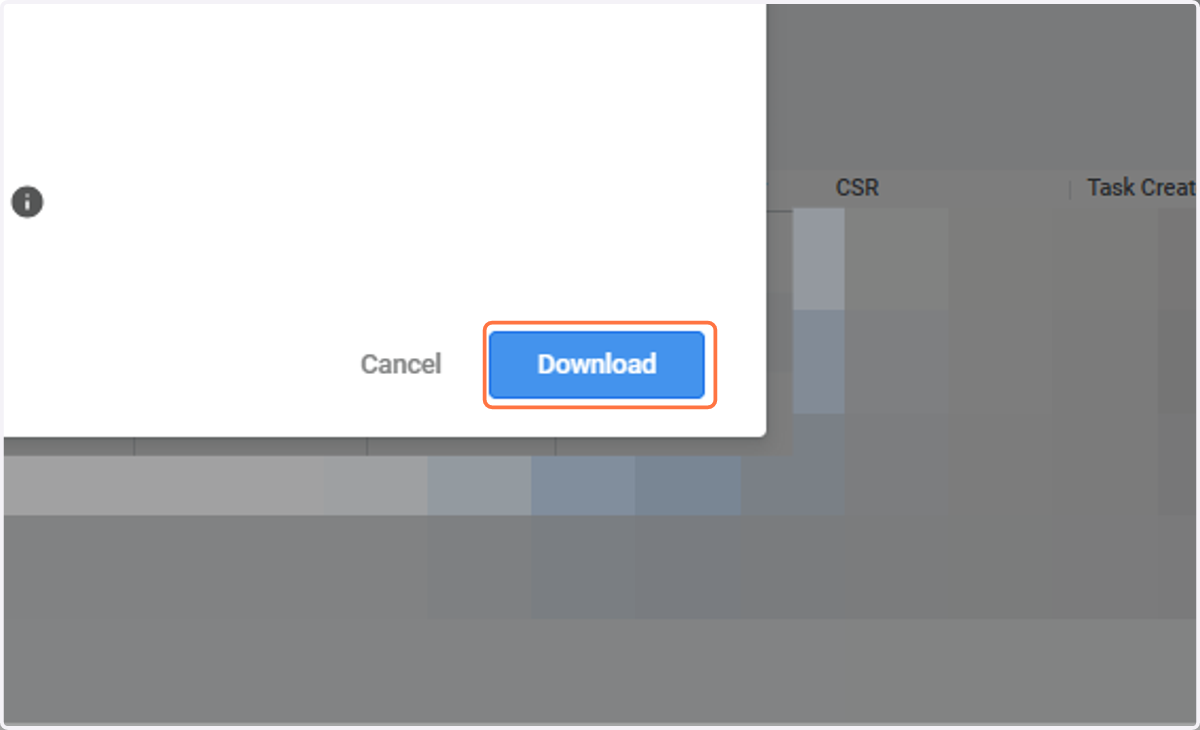
10. Click on Download
To Schedule
After you've downloaded the initial report, you can schedule it to continue sending updated information every week.
11. Click on Explore actions (gear icon)
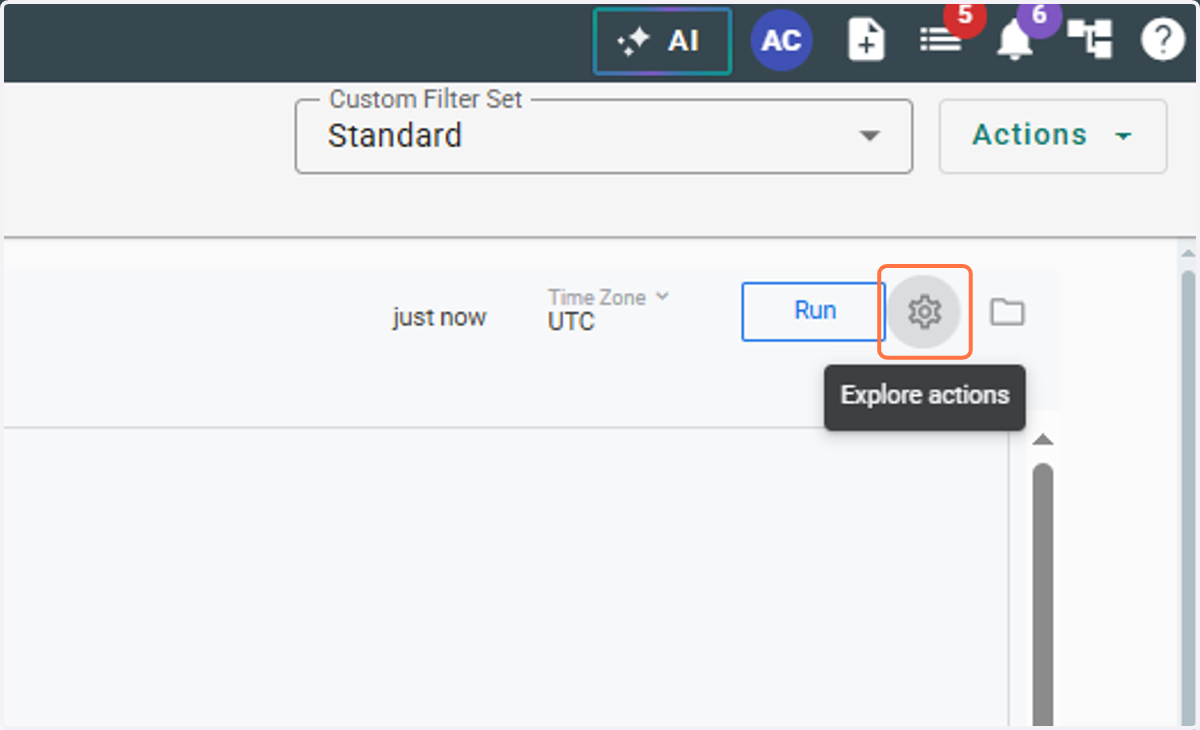
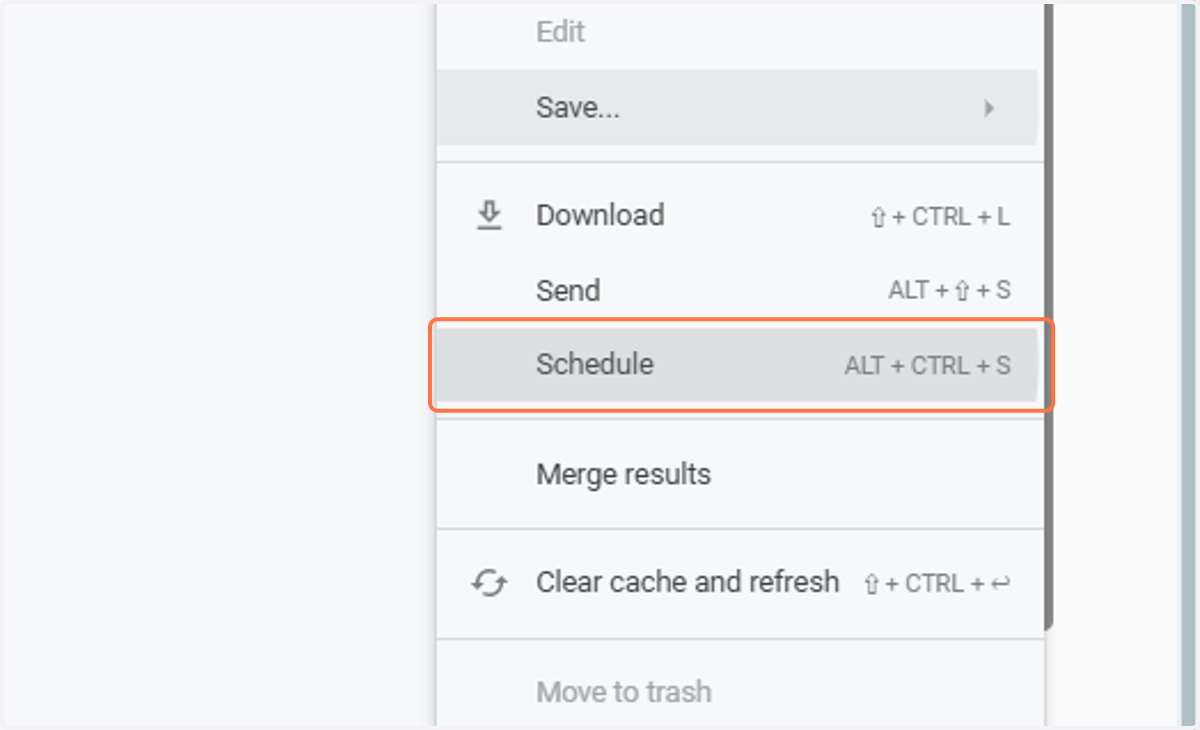
12. Click on Schedule (ALT + CTRL + S)
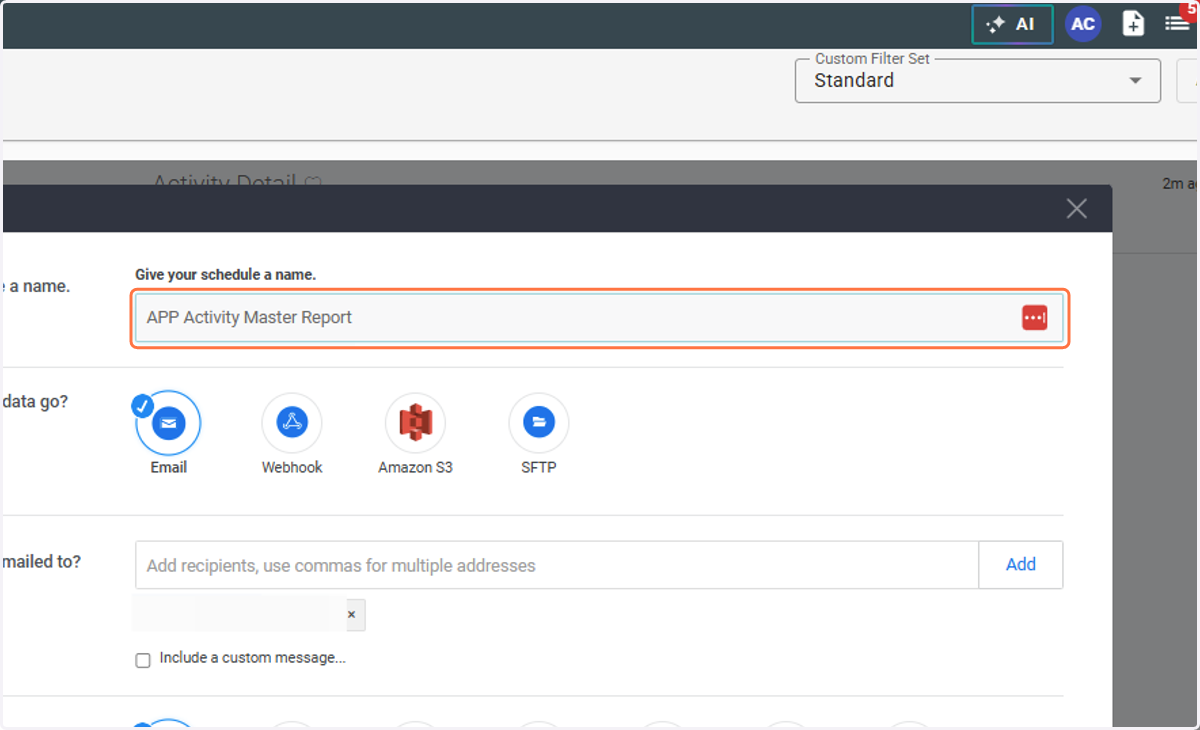
13. Name the Schedule "APP Activity Master Report"
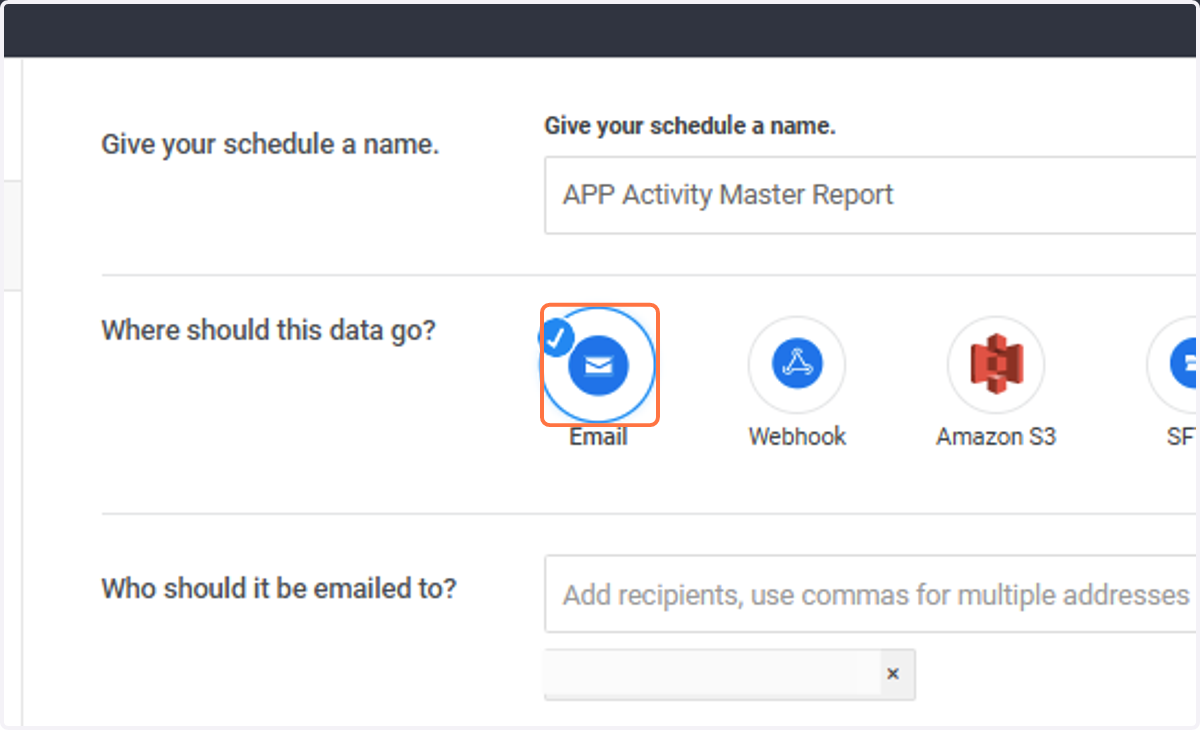
14. Select Email
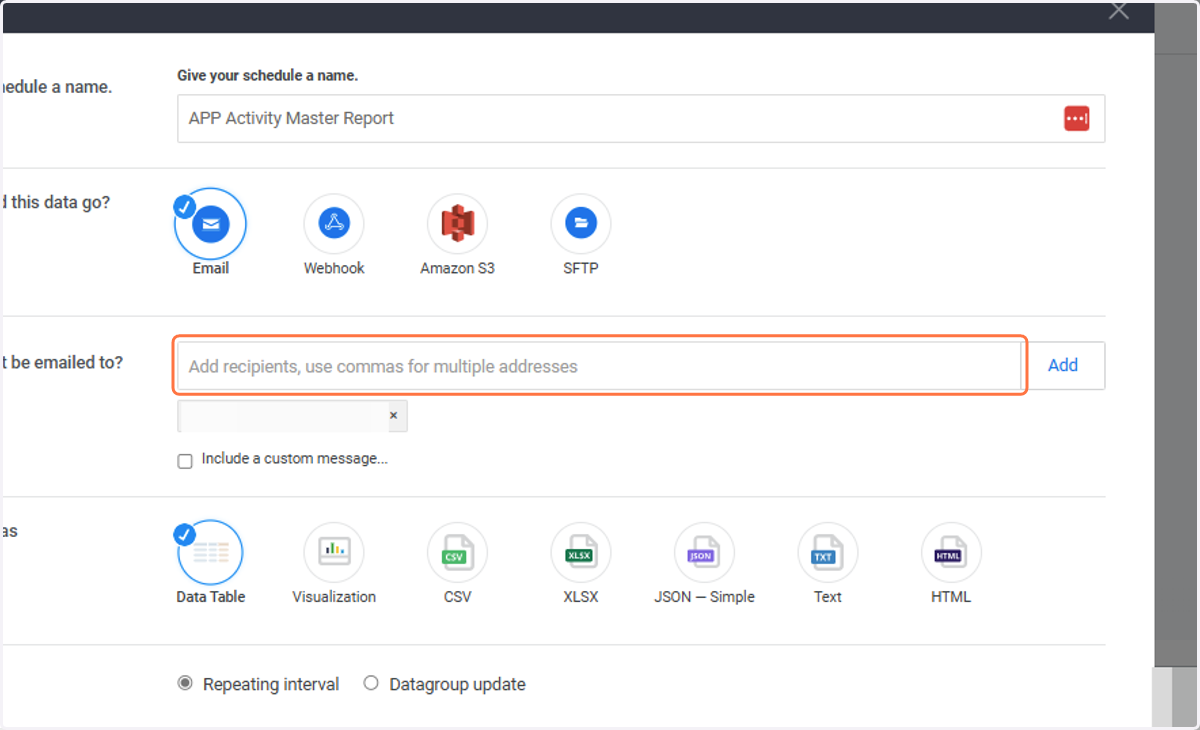
15. Add the email recipients, use commas for multiple addresses
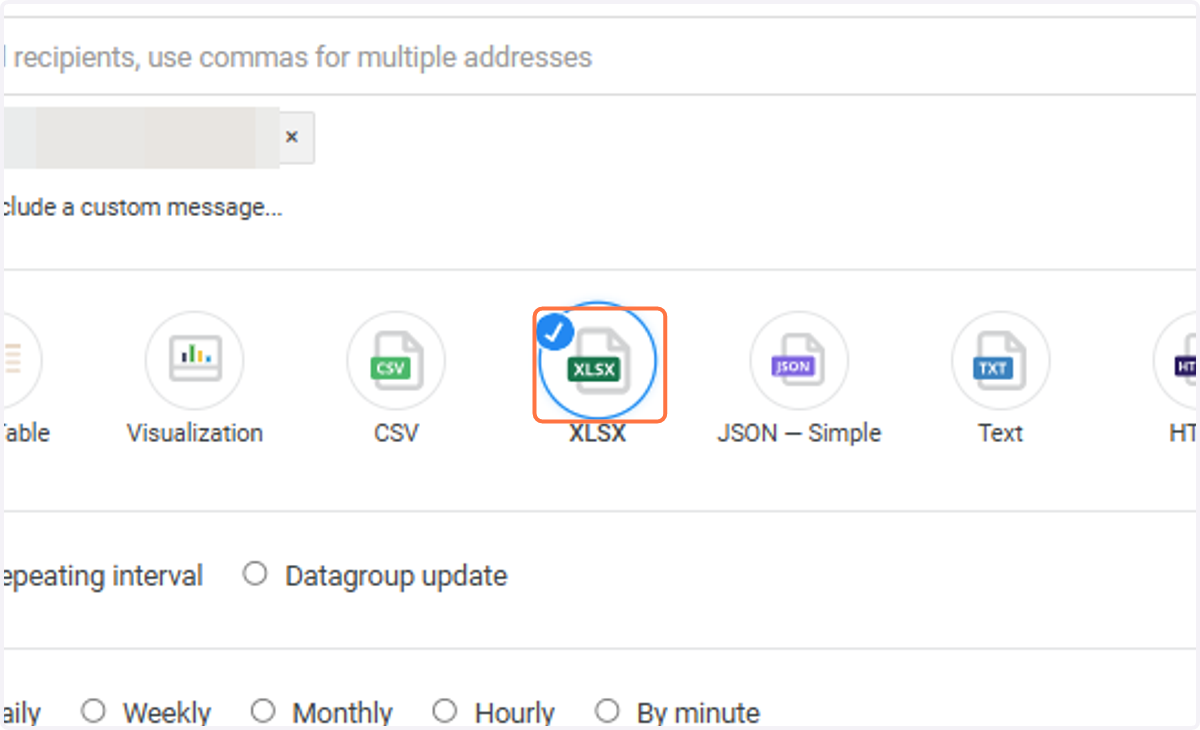
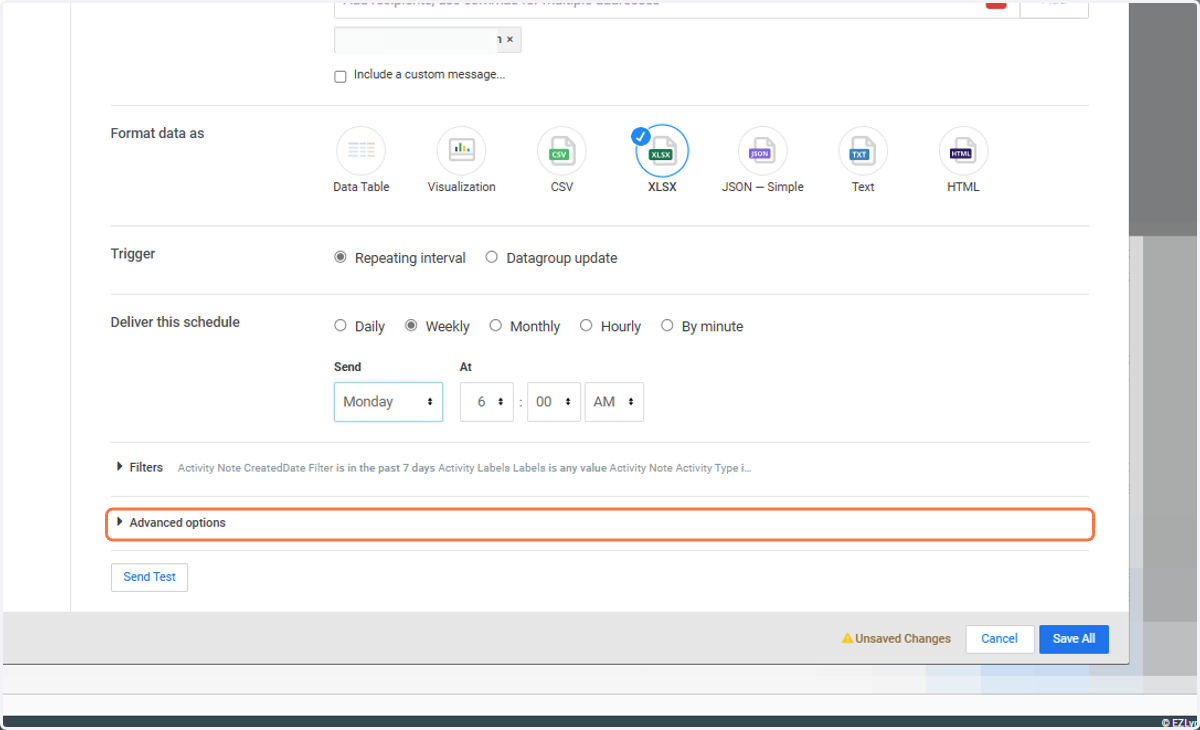
16. Select XLSX
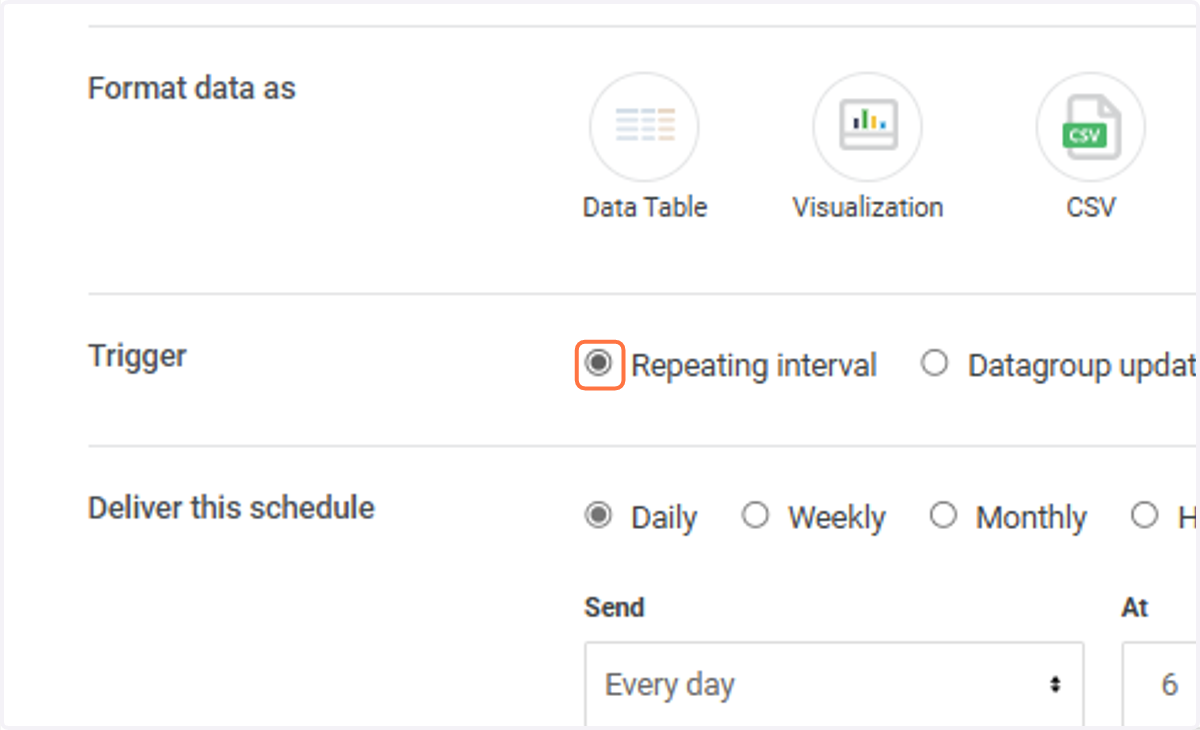
17. Under Trigger, select Repeating interval
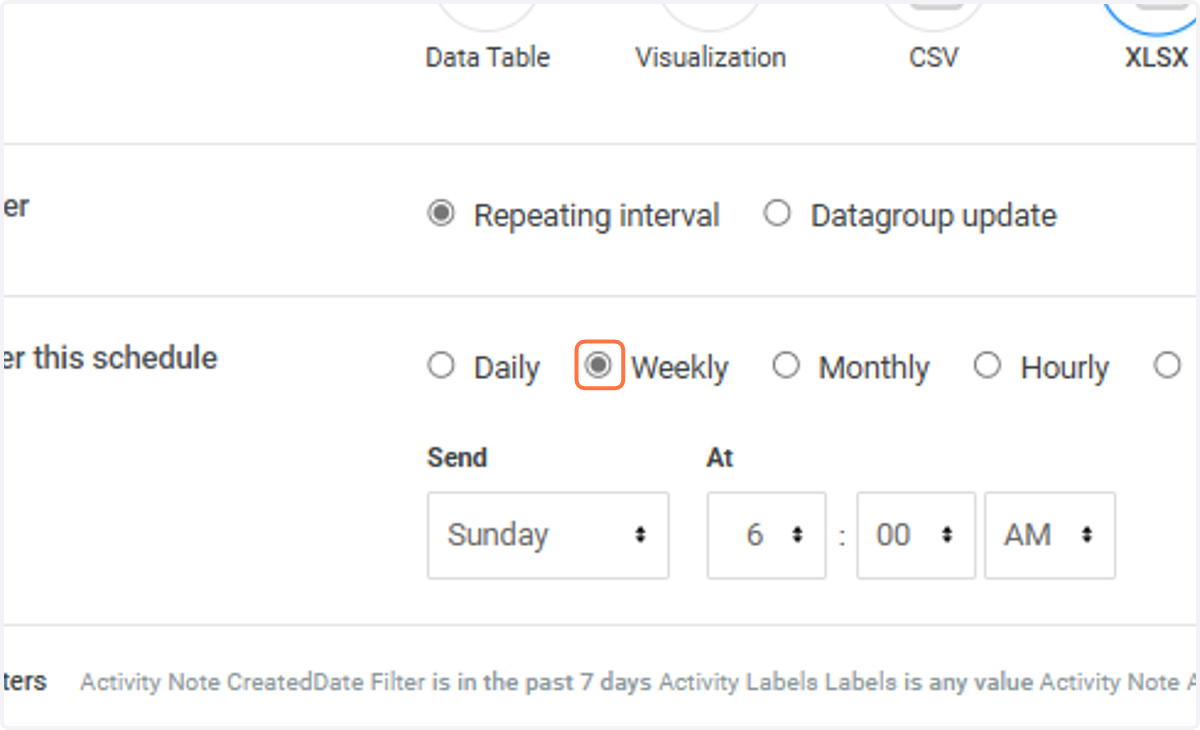
18. Select Weekly
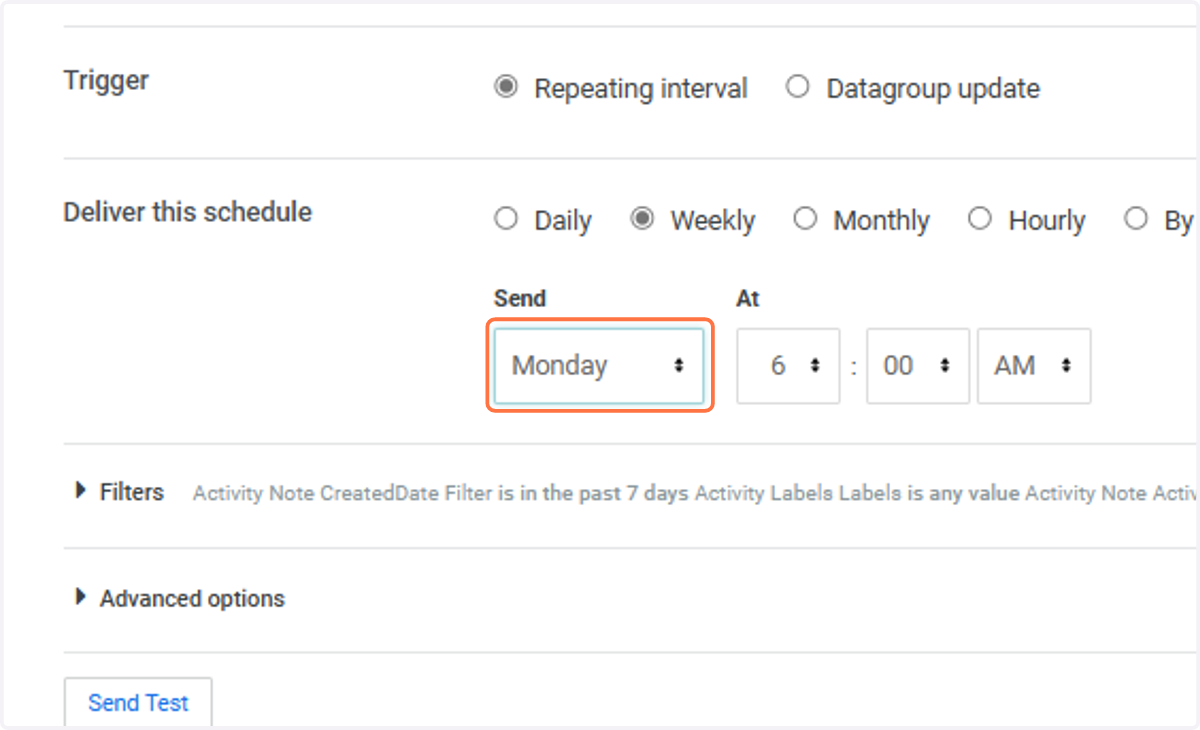
19. Select Monday at 6:00 AM
20. Toggle Advanced options
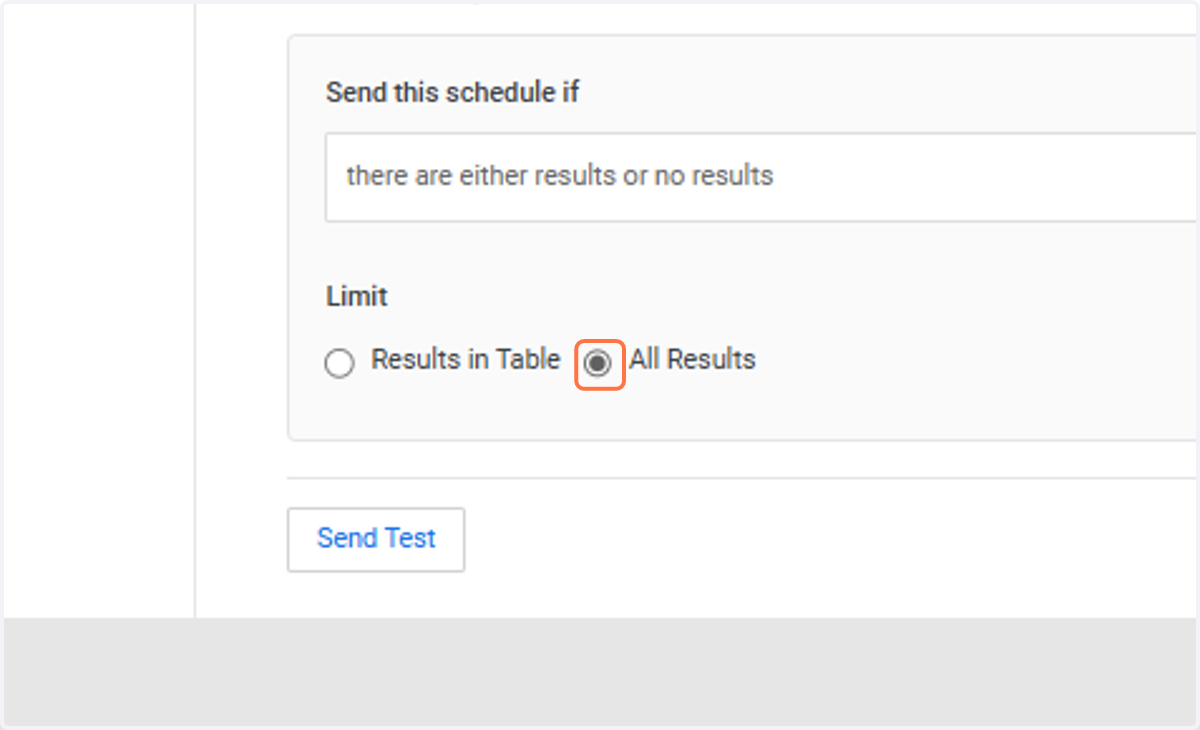
21. Under Limit, select All Results
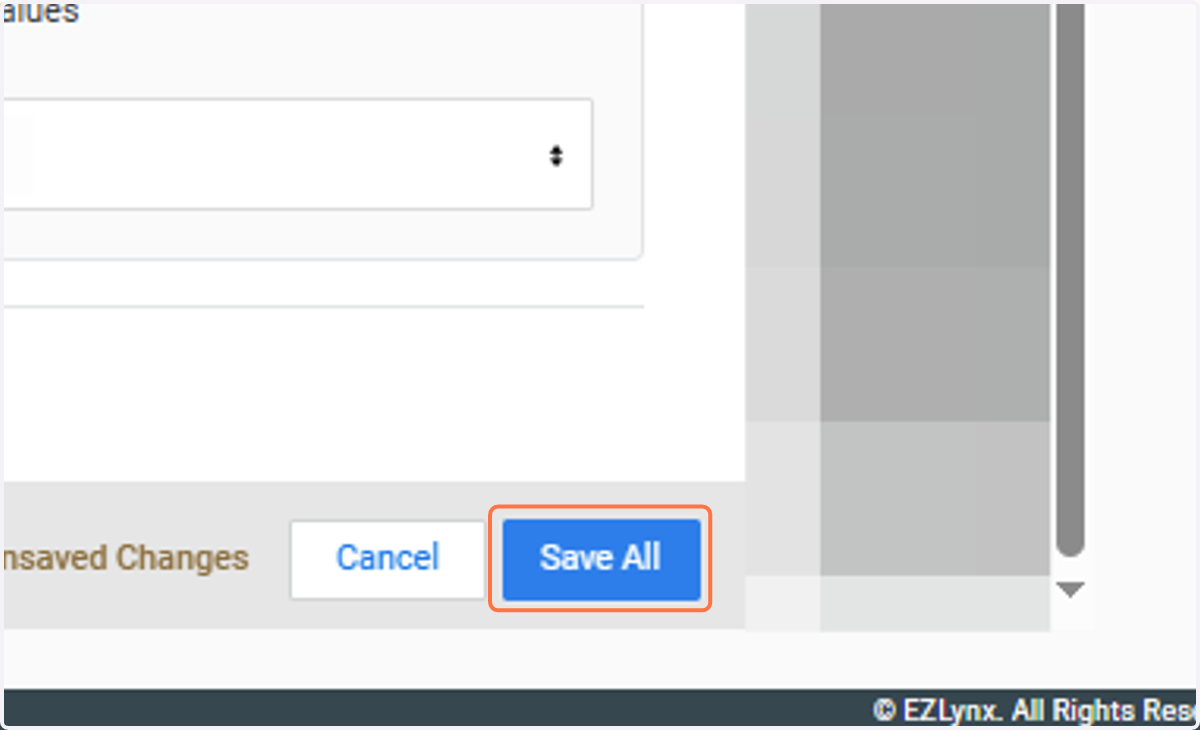
22. Select Save All