How to Design Coupons in Affinect
Create and customize digital coupons in minutes by setting the offer, validity, targeting rules, and redemption tracking; all from the Affinect dashboard.
Affinect
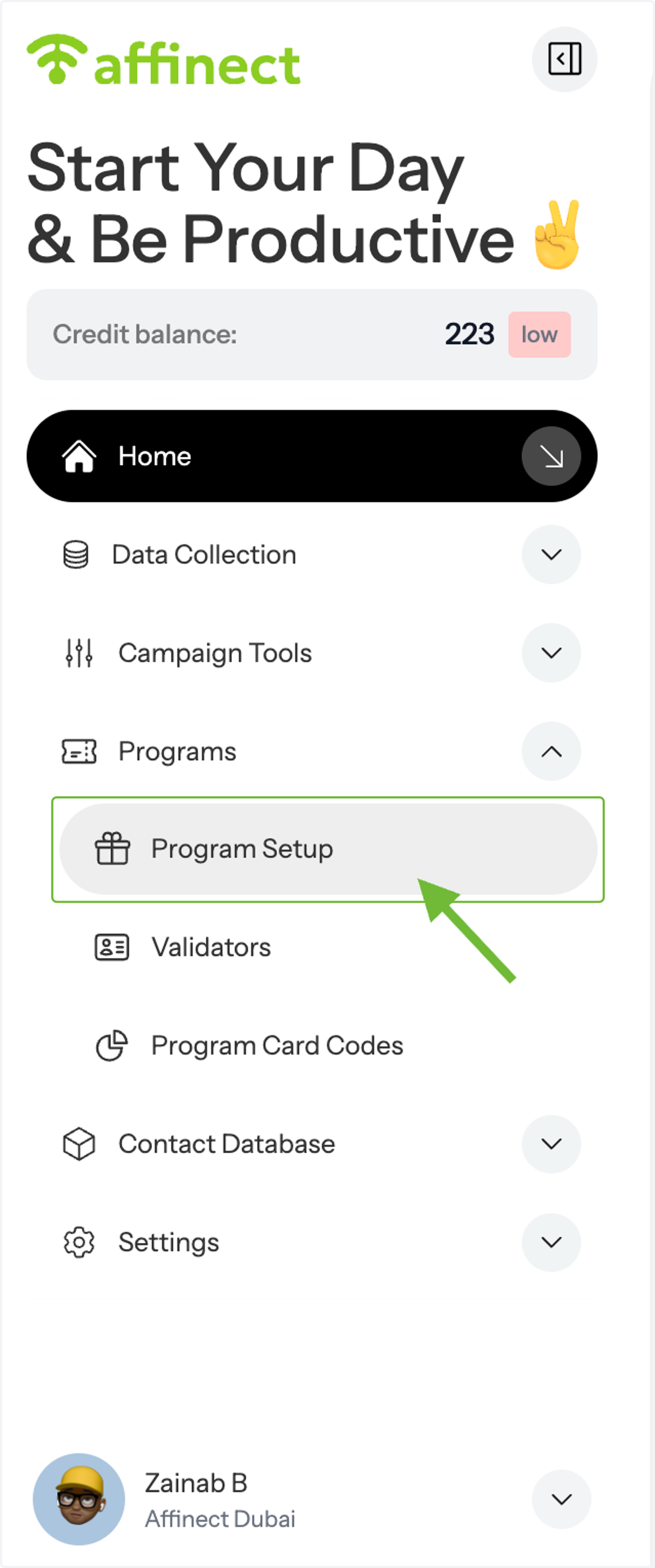
1. Open Programs in Home.
From the left-hand menu, go to Home, then click Programs to open the drop-down.
2. Preview your programs.
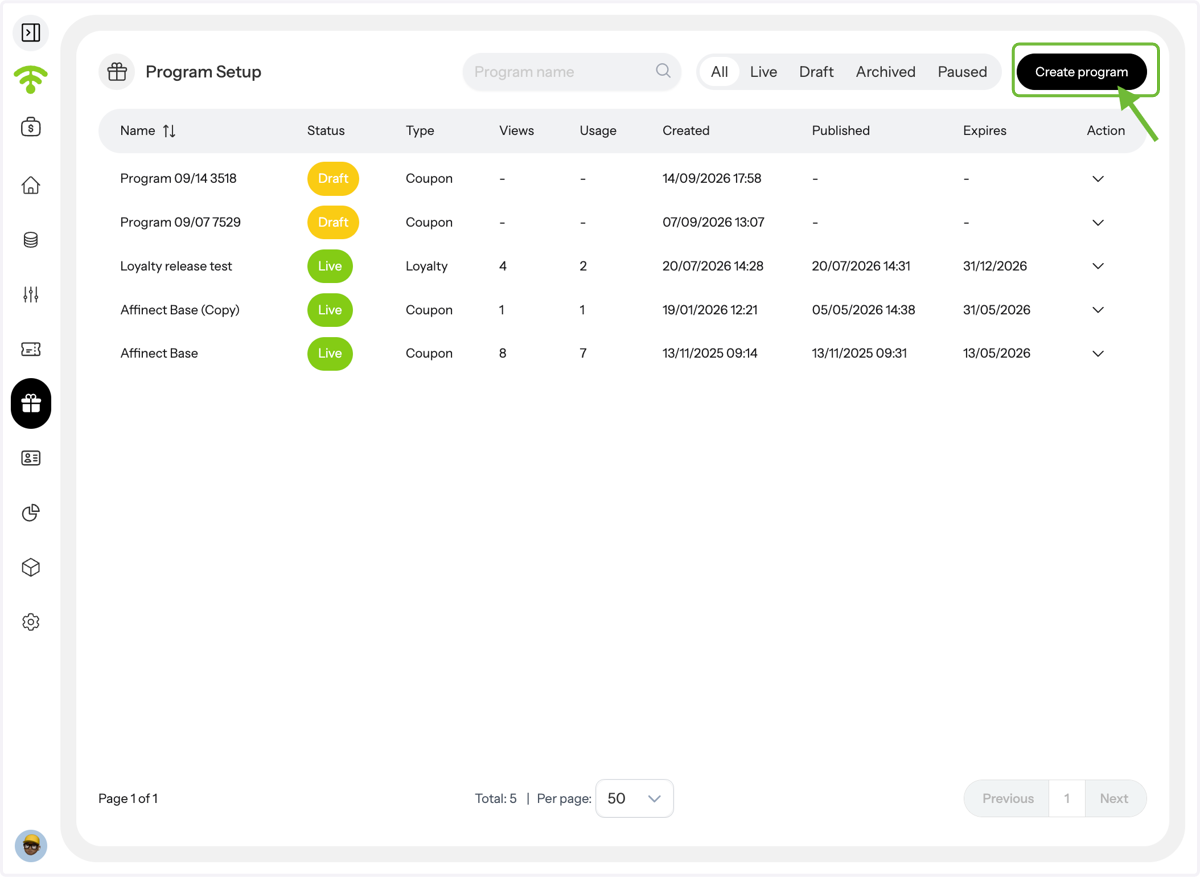
A preview of your current programs will appear. You will see all your loyalty and coupon programs- live, drafted, archived, and paused. To edit and view analytics, click the drop-down under Action. To create a new one, click Create Program in the upper-right corner.
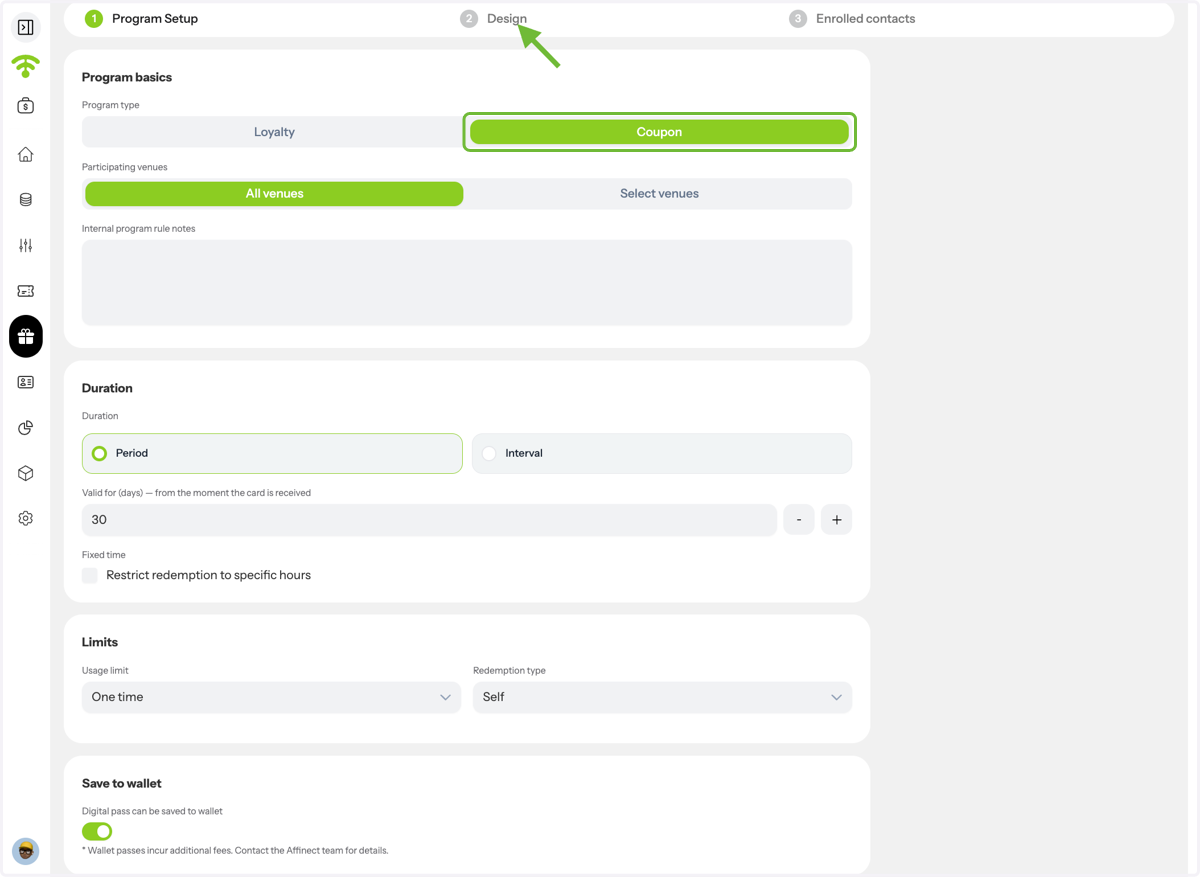
3. Select your Program Type.
Select Coupon as your program type, select venues, duration, and limit. Then click on Design to proceed.
4. Preview and Set Up Your Coupon
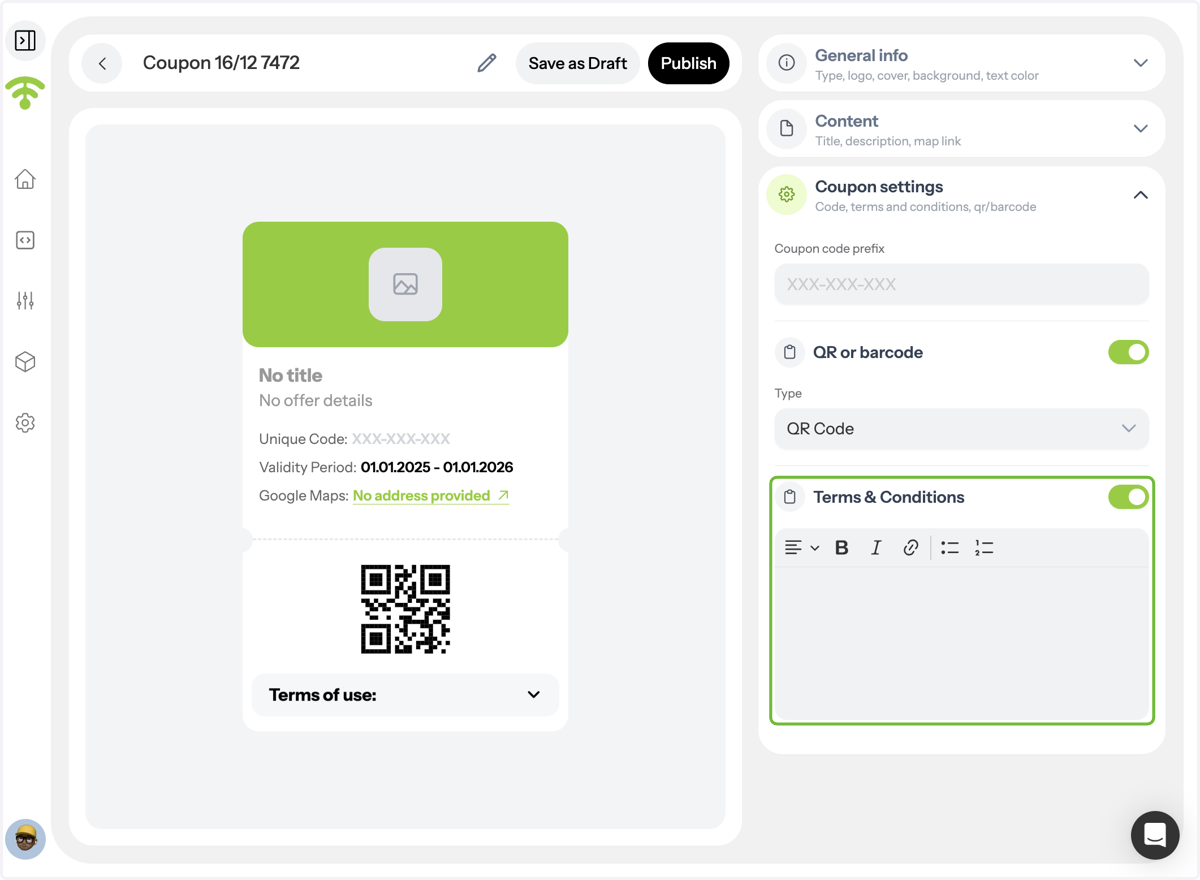
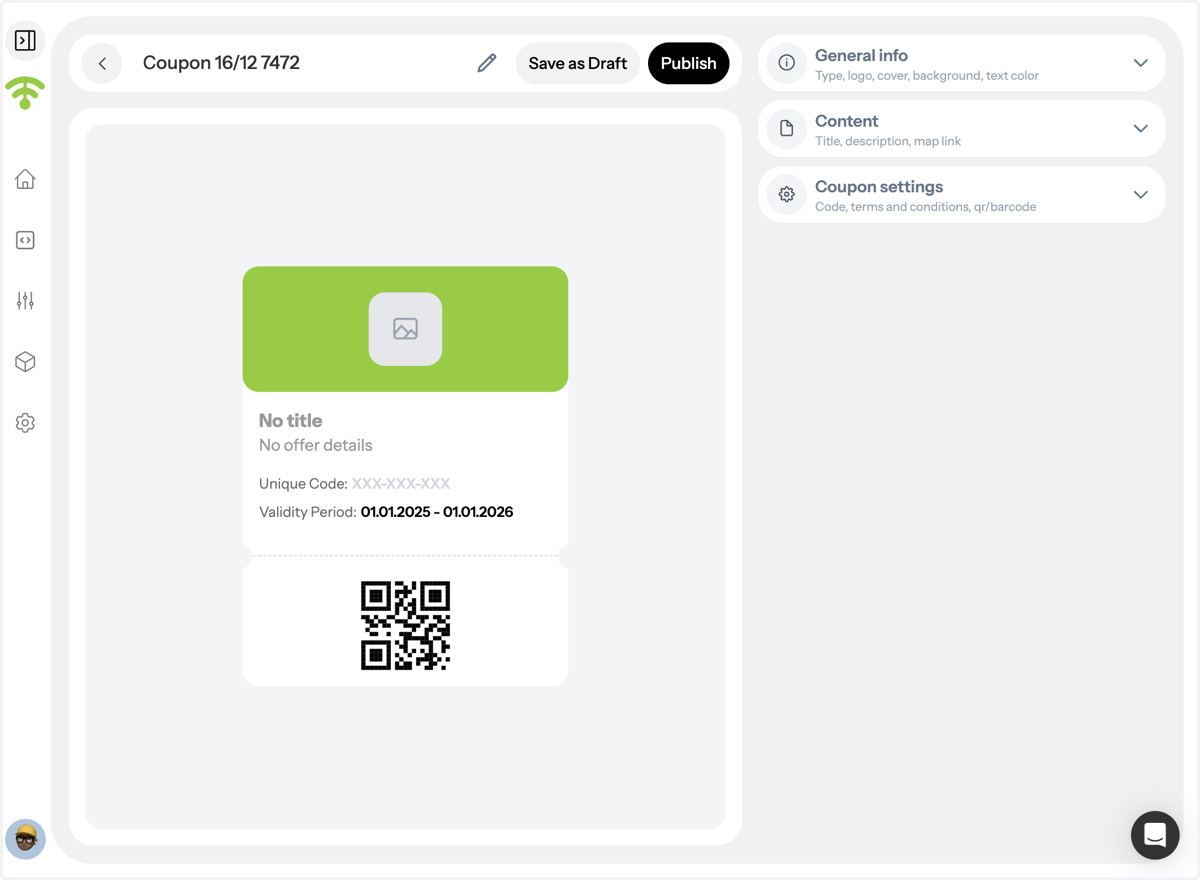
A coupon preview will open, allowing you to design the layout and configure settings like general info, content, and coupon rules.
5. Add General Information and Branding
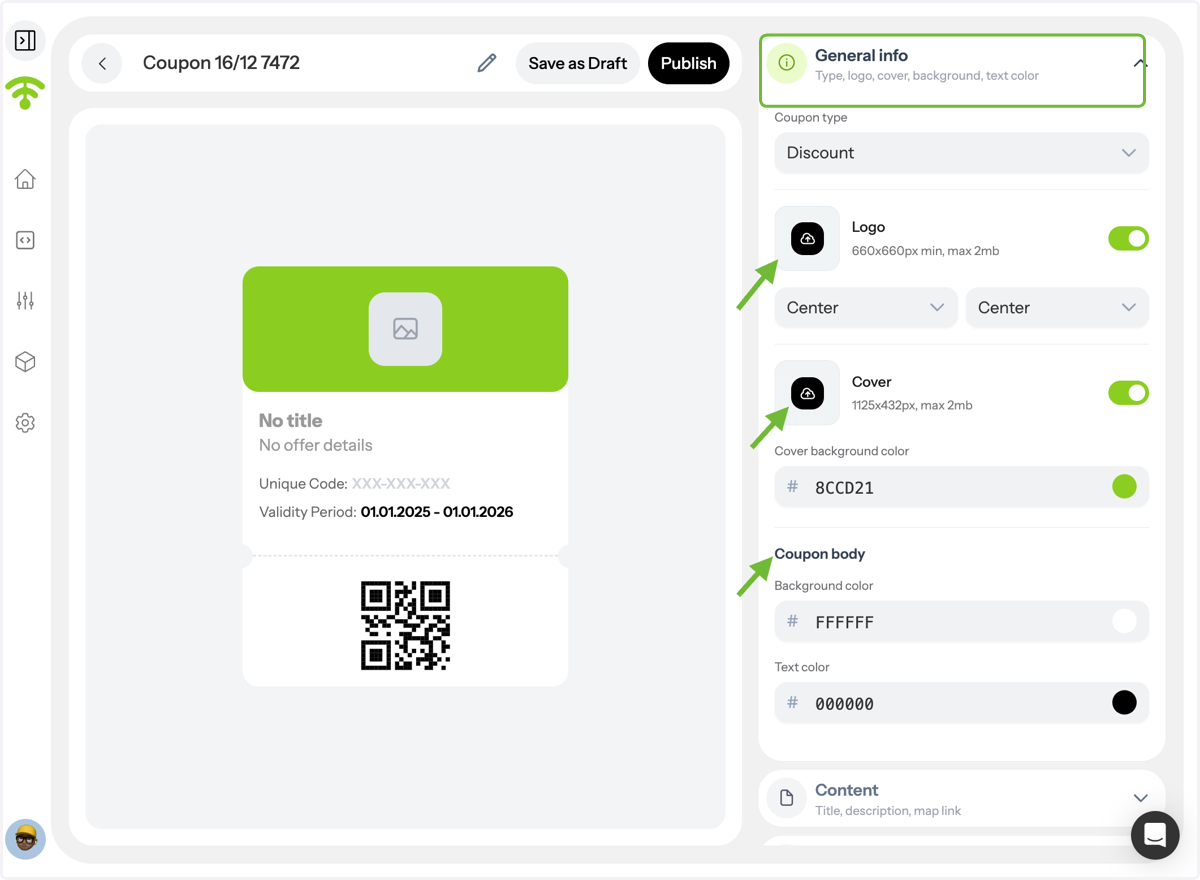
Choose the coupon type, upload your logo, set its position, add a cover image, and customize background, coupon, and text colors.
6. Customize Coupon Content
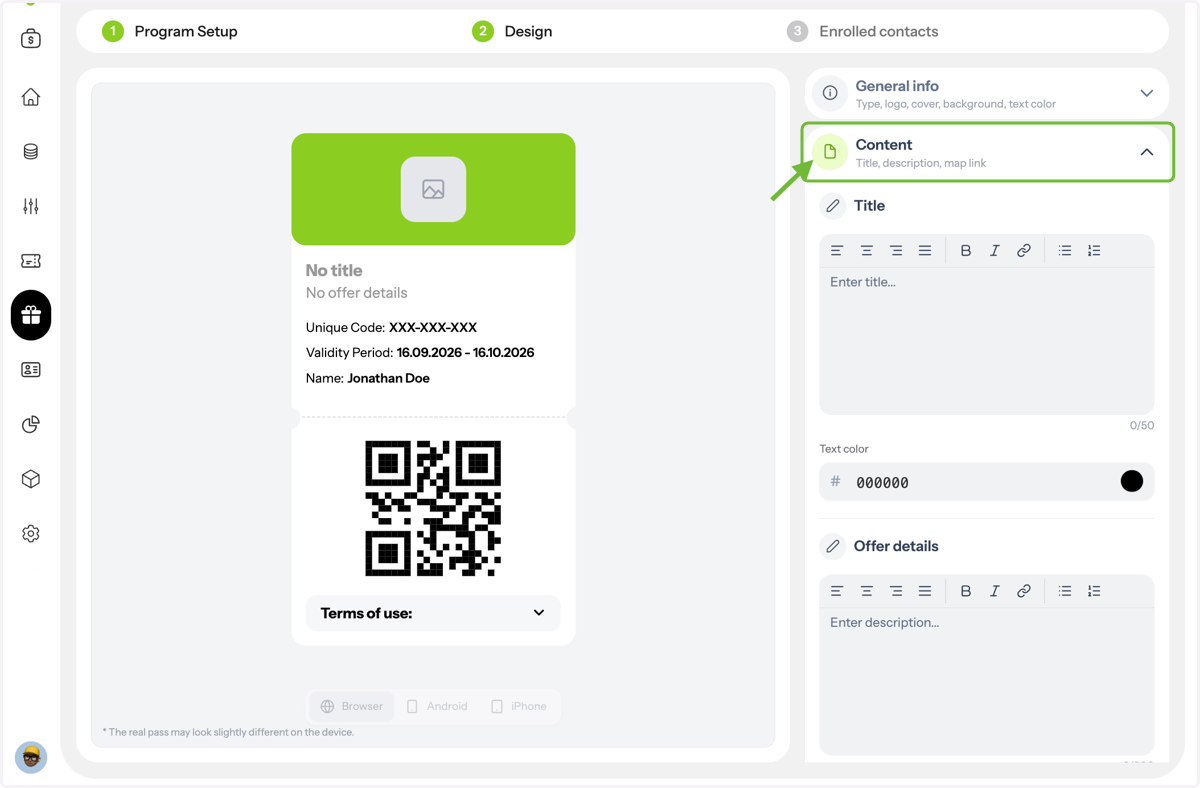
Add your coupon title, offer details, and links if needed. Customize text styling and colors to match your brand.
7. Add Location Details (Optional)
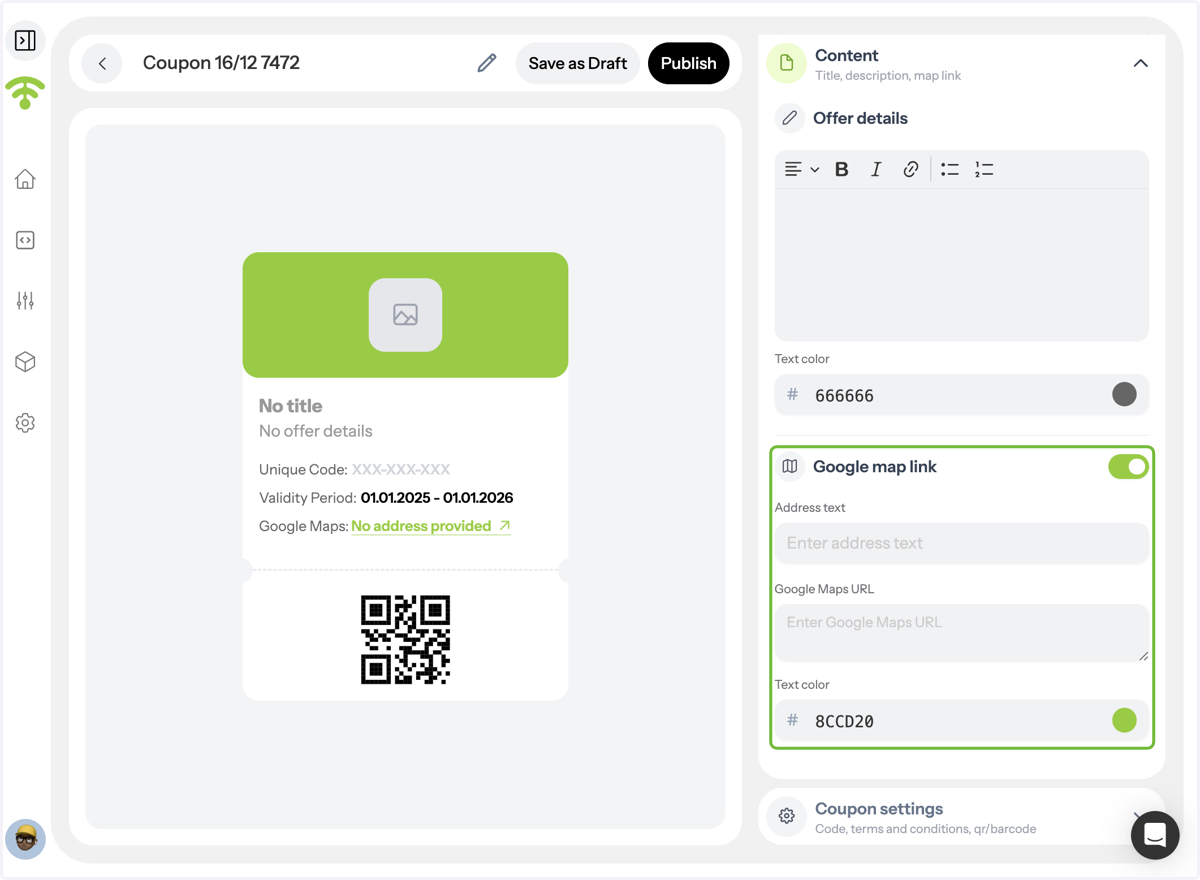
Include your address and a Google Maps link so customers can easily find your venue.
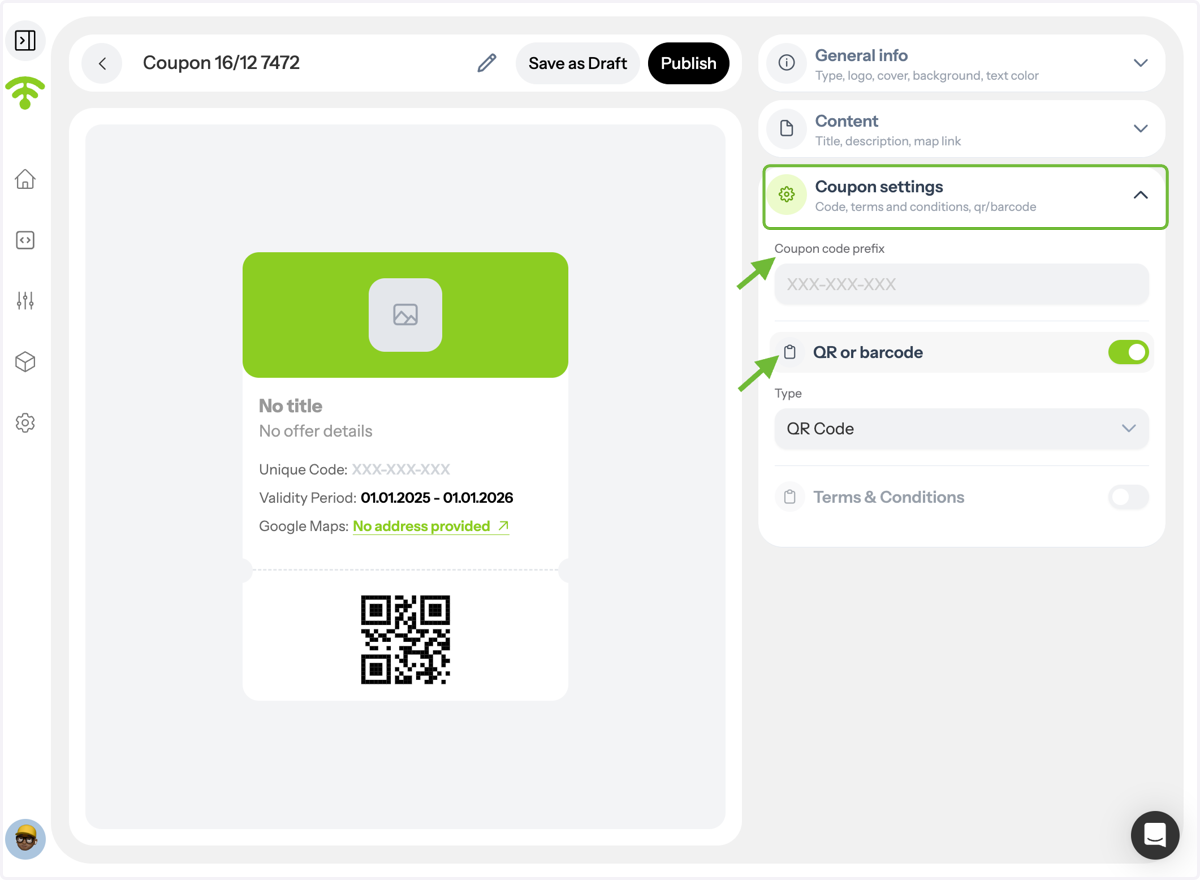
8. Configure Coupon Settings
Set a coupon code prefix and choose whether customers will scan a QR code or barcode to redeem.
9. Add Terms and Conditions
Clearly define redemption rules to avoid confusion at the venue. Tada, now you are good to go and can attach this coupon to your campaigns.