How to Delete an Assessment
This tutorial will show you how to completely delete an assessment and then delete it out of the grade book.
Assignment 4 - Patti - Practice as Instructor
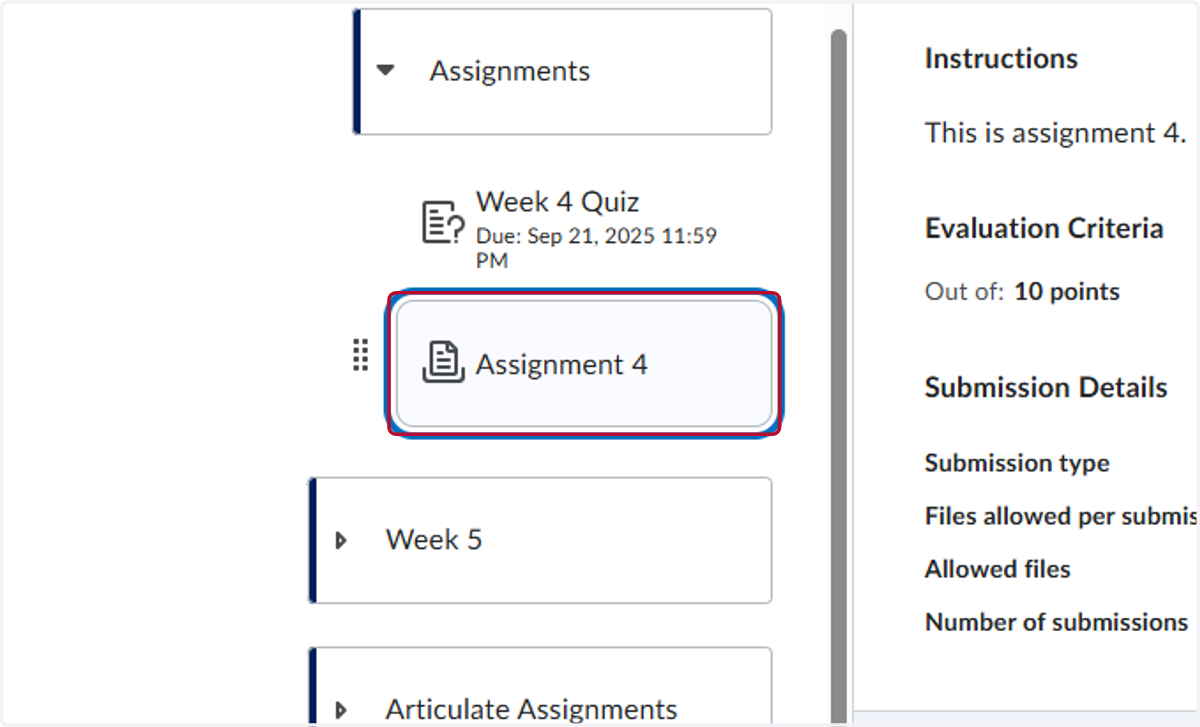
1. Go to the assessment under Lessons and click the assessment (discussion, quiz, or assignment)
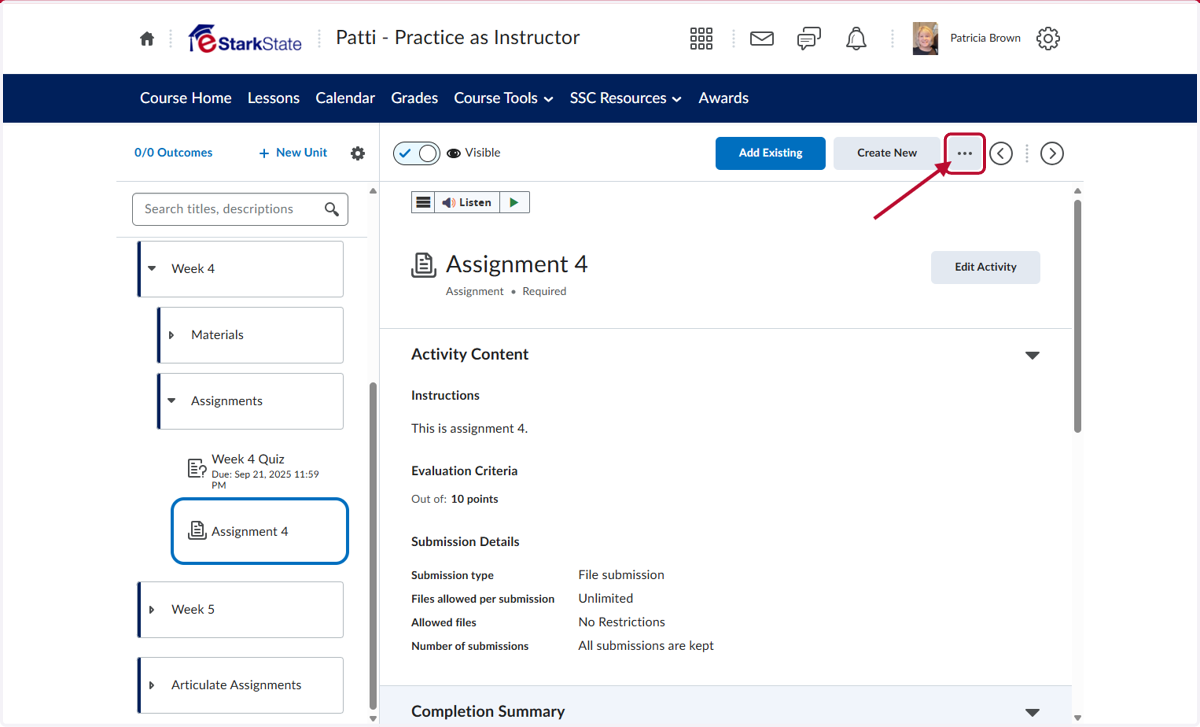
2. Click on the three dots in the upper right
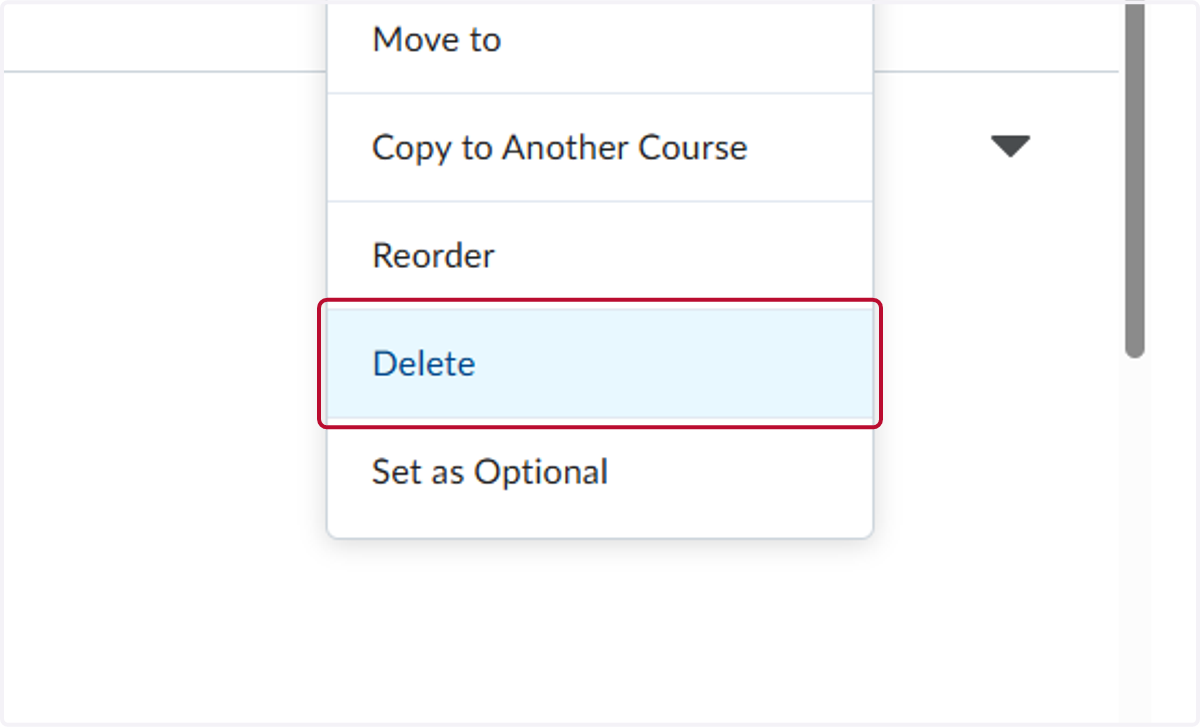
3. Click on Delete
4. If you select the first option, you will ONLY delete the link not the actual assessment. If you select the second option, you will delete the link AND the assessment. We will click the second option.
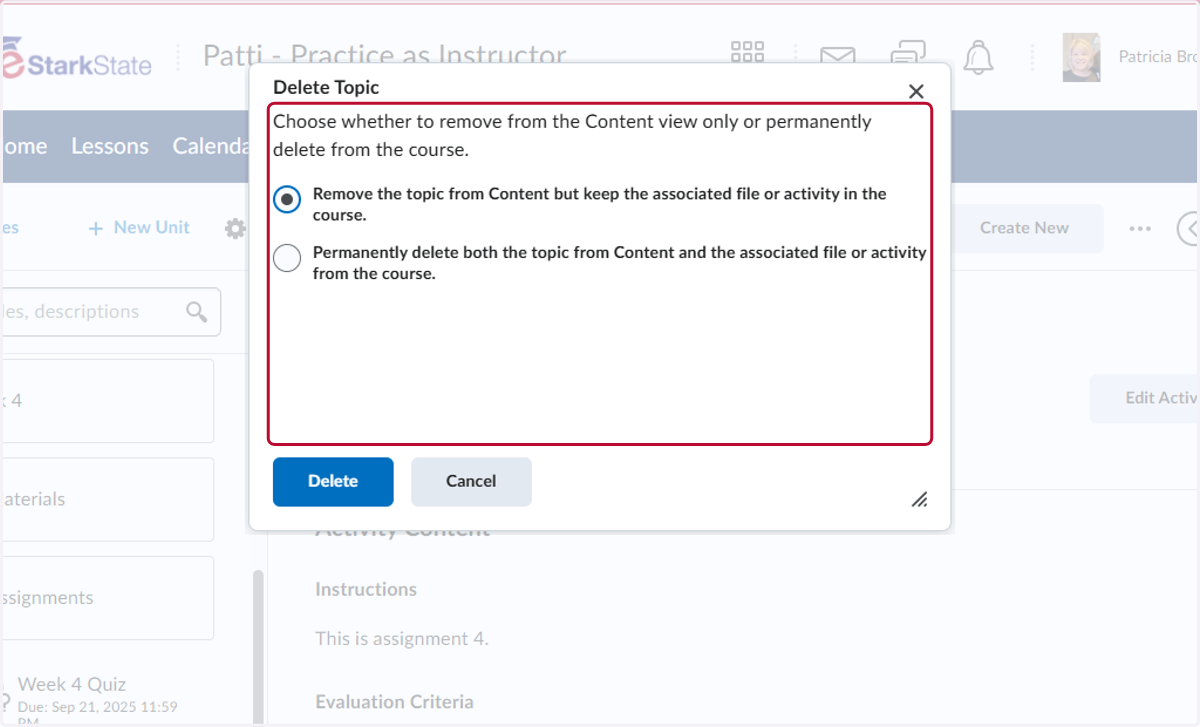
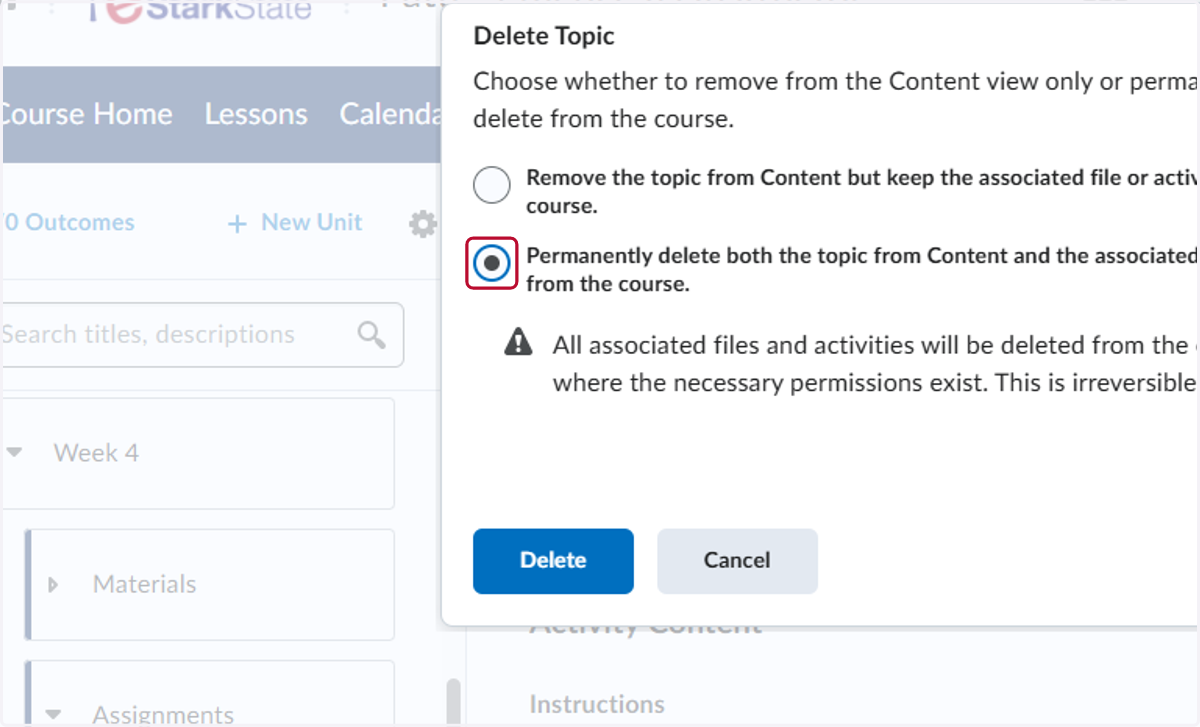
5. Select Permanently delete both the topic from Content and the associated file or activity from the course.
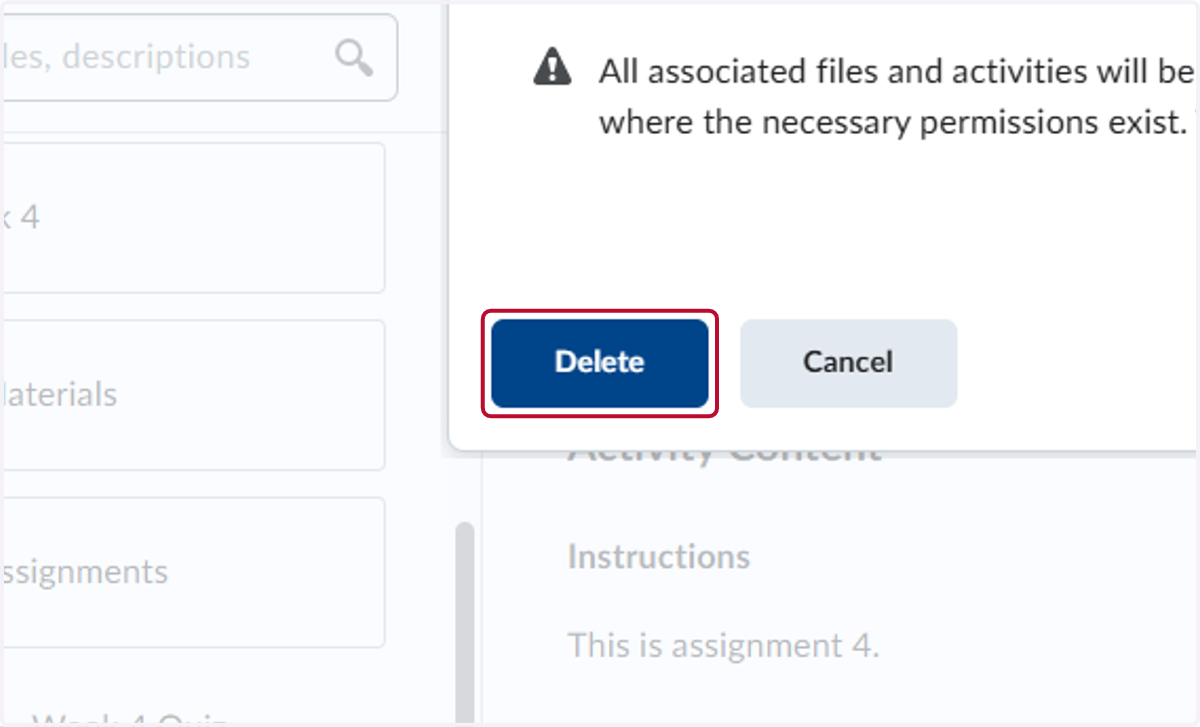
6. Click on Delete
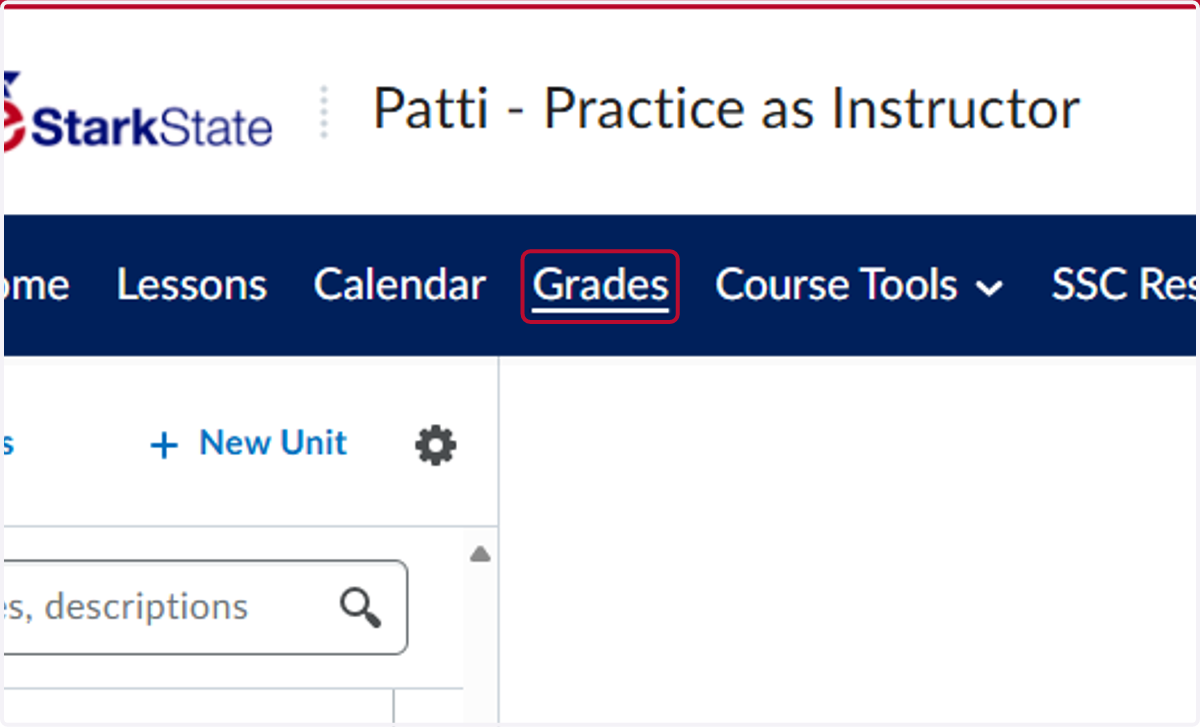
7. Now we need to delete it out of the grade book. Click on Grades
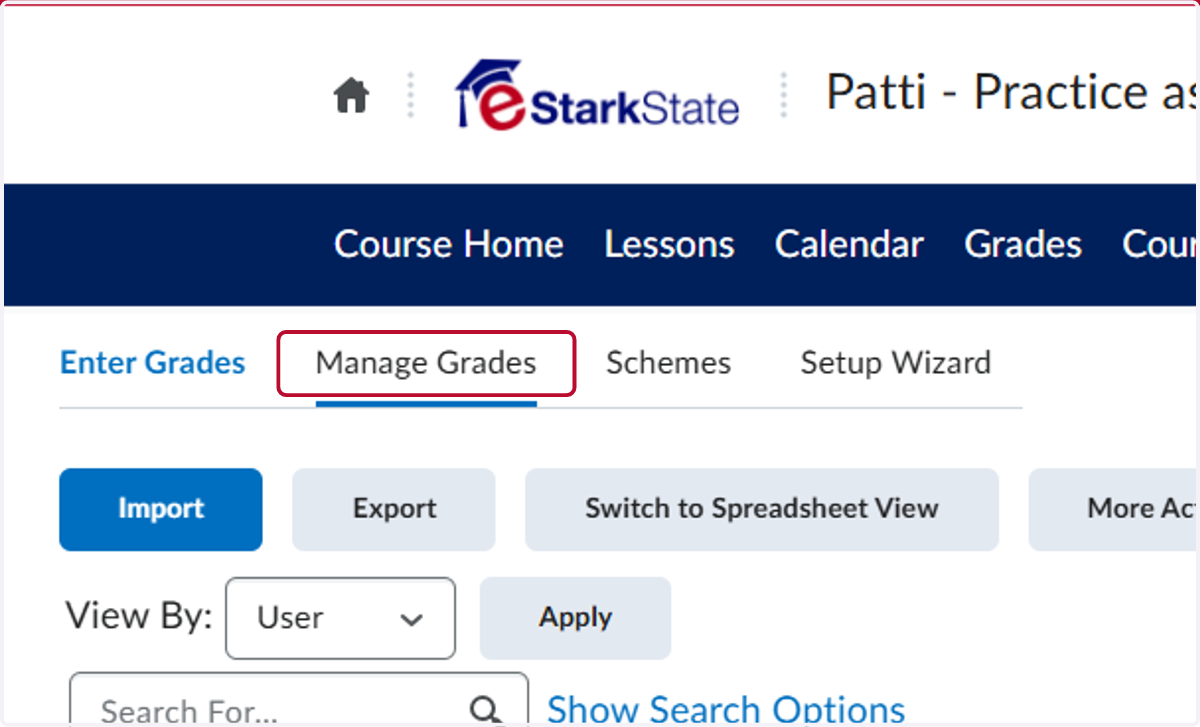
8. Click on Manage Grades
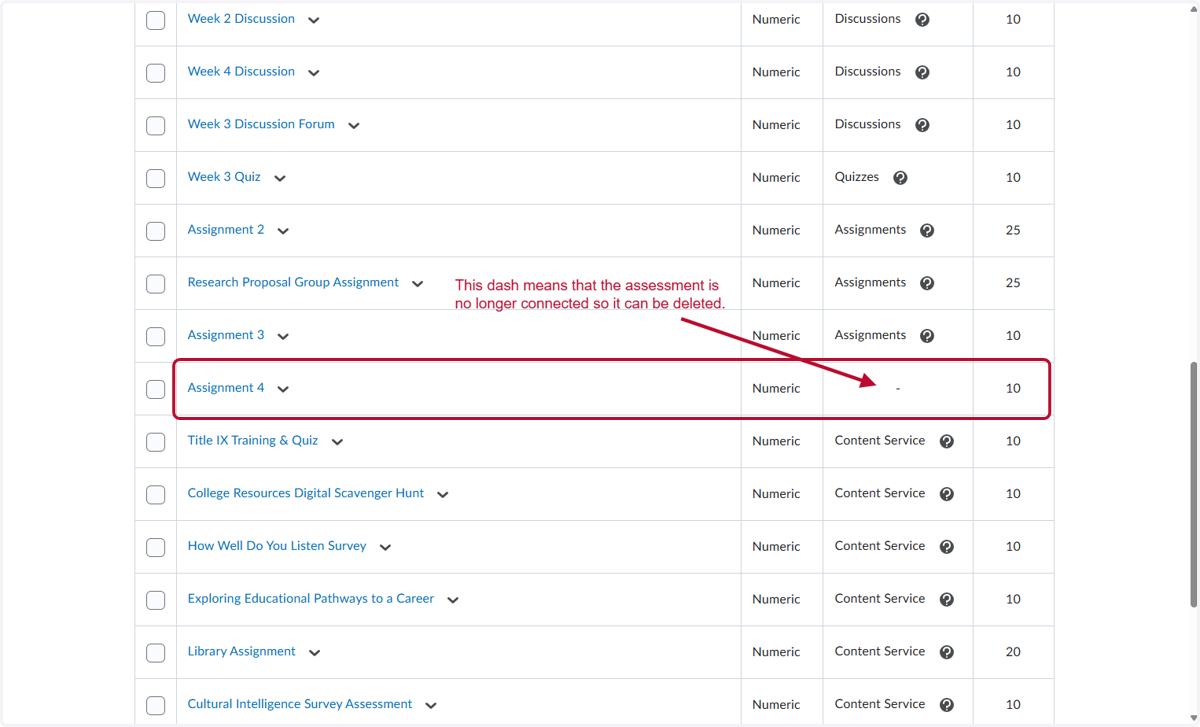
9. Notice that the assessment, Assignment 4, that we deleted is not linked anymore, so we can delete it.
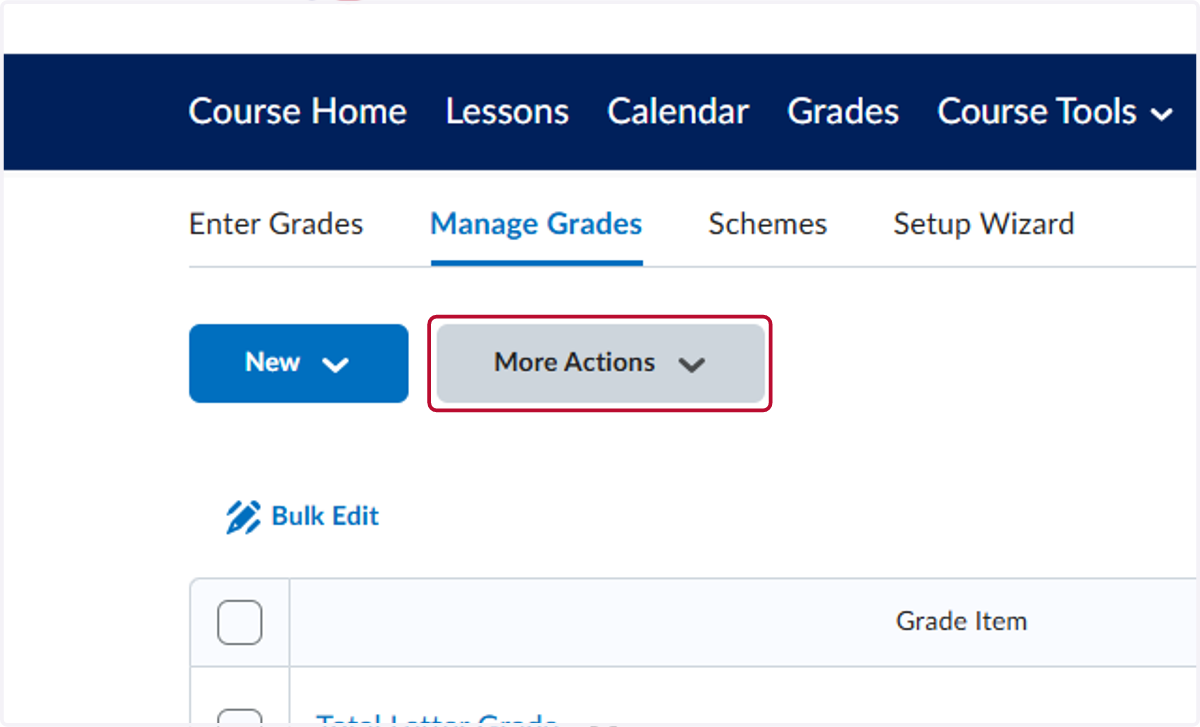
10. To delete, Click on More Actions
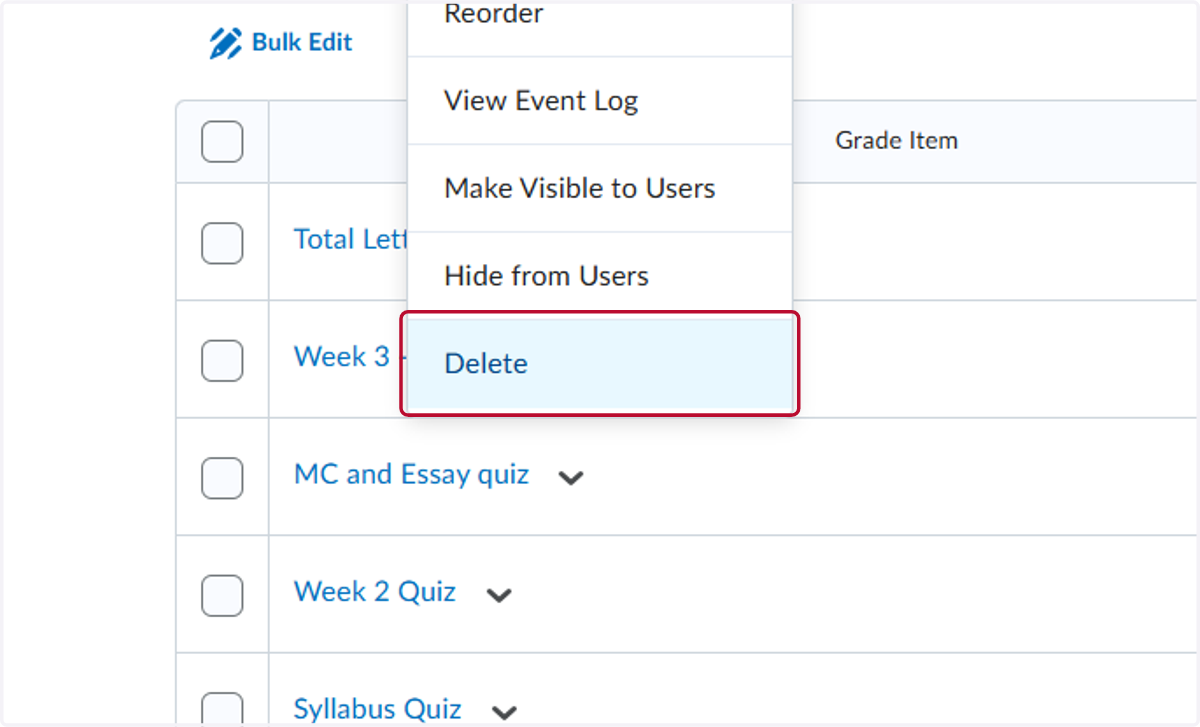
11. Click on Delete
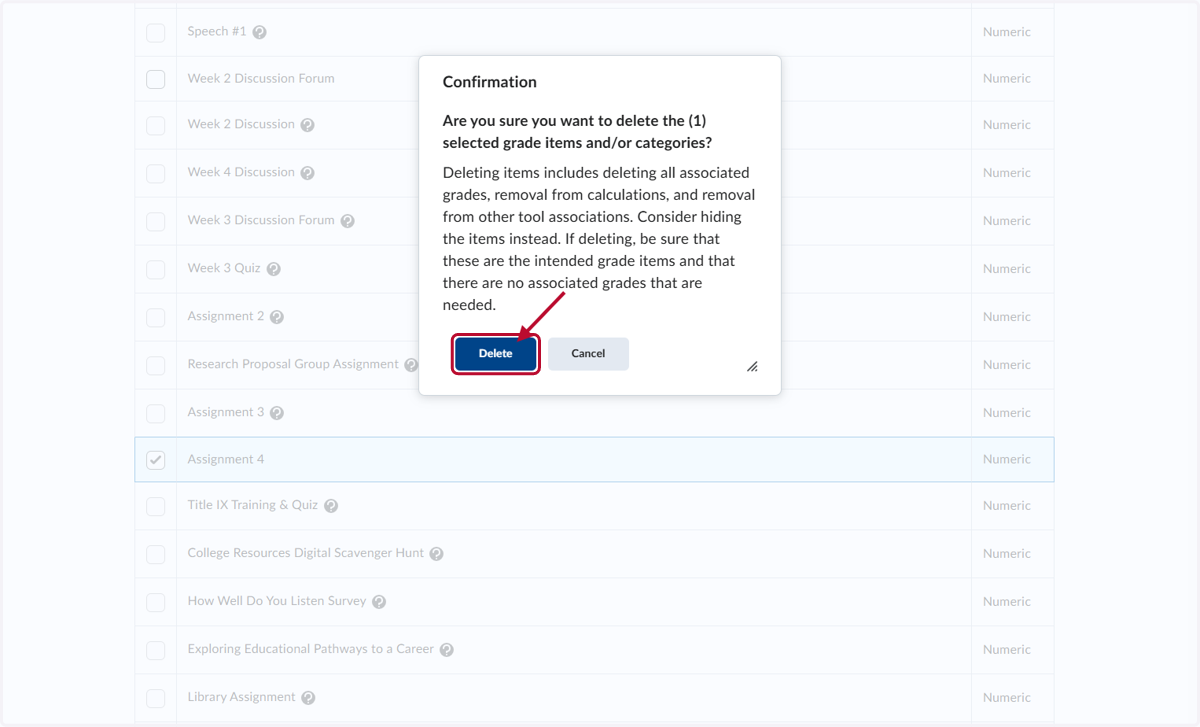
12. Check Select the assessment you deleted. We used Assignment 4
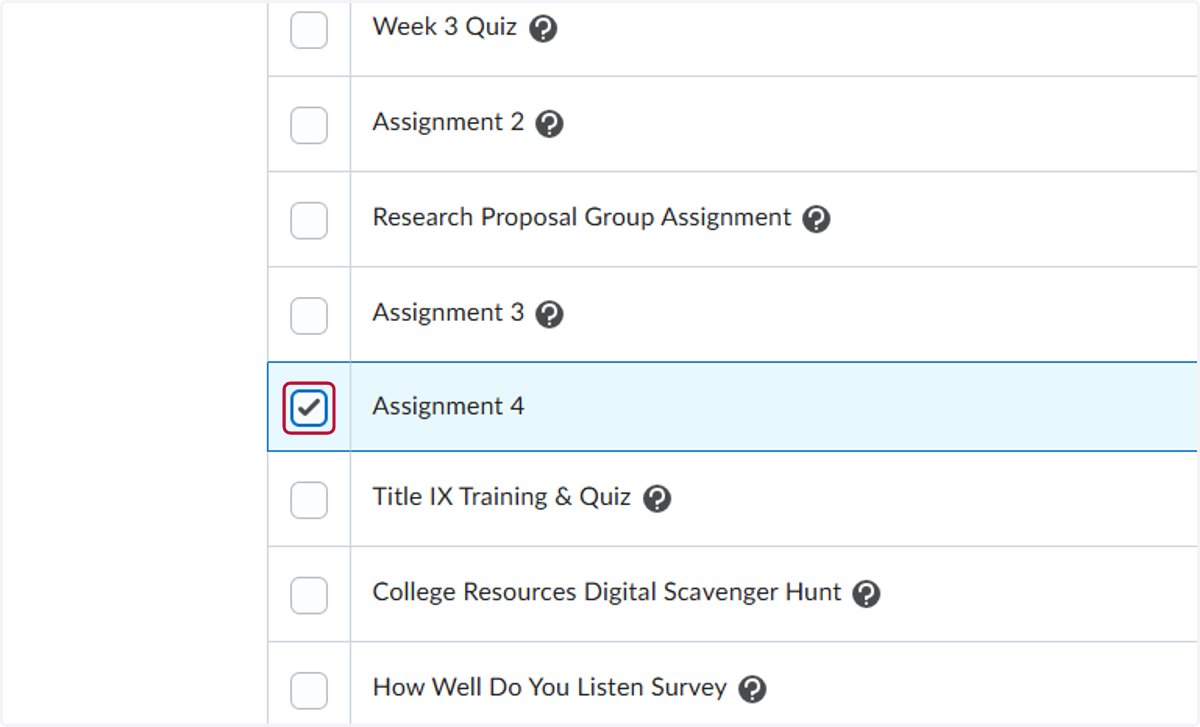
13. Click on Delete
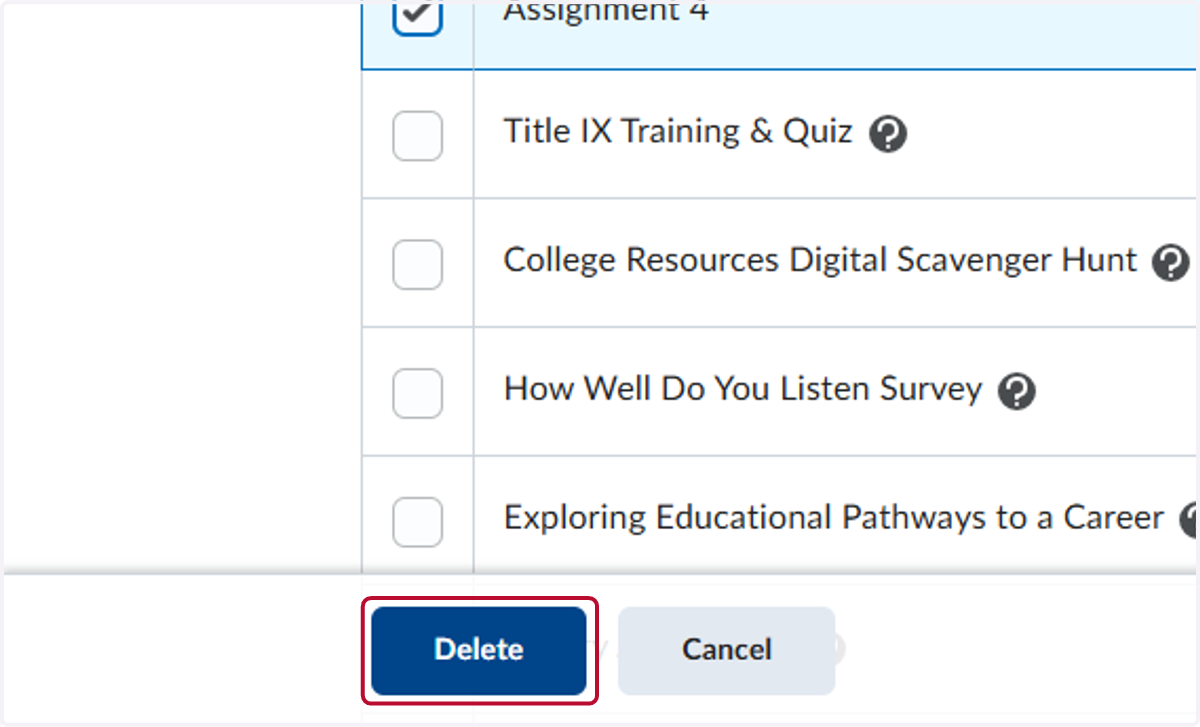
14. Click on Delete