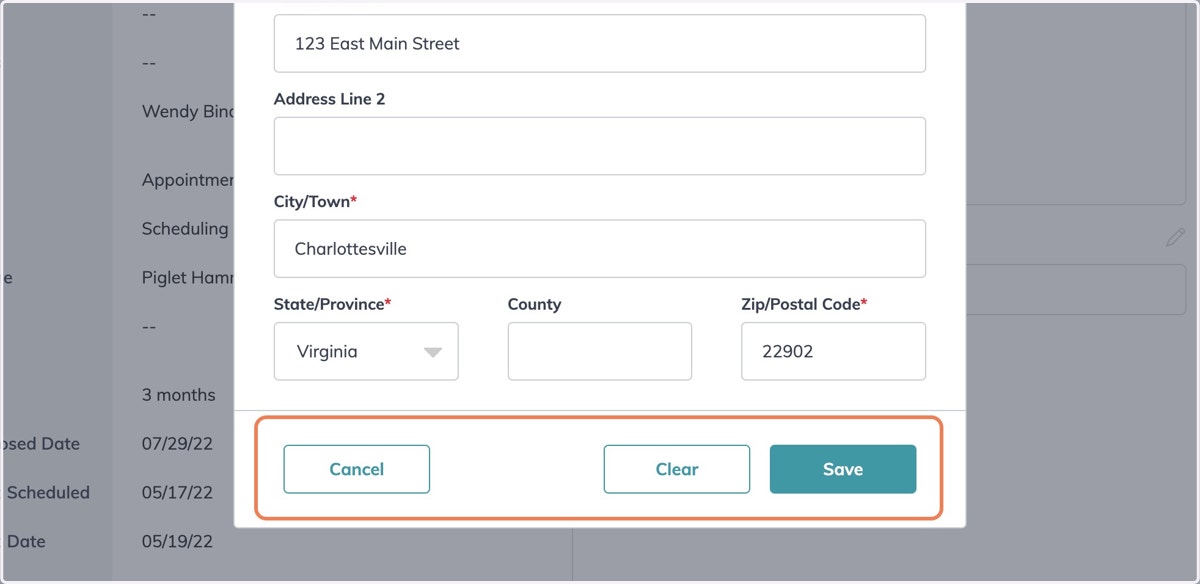
How to Create an Opportunity
Kw
1. Go to Command | Dashboard
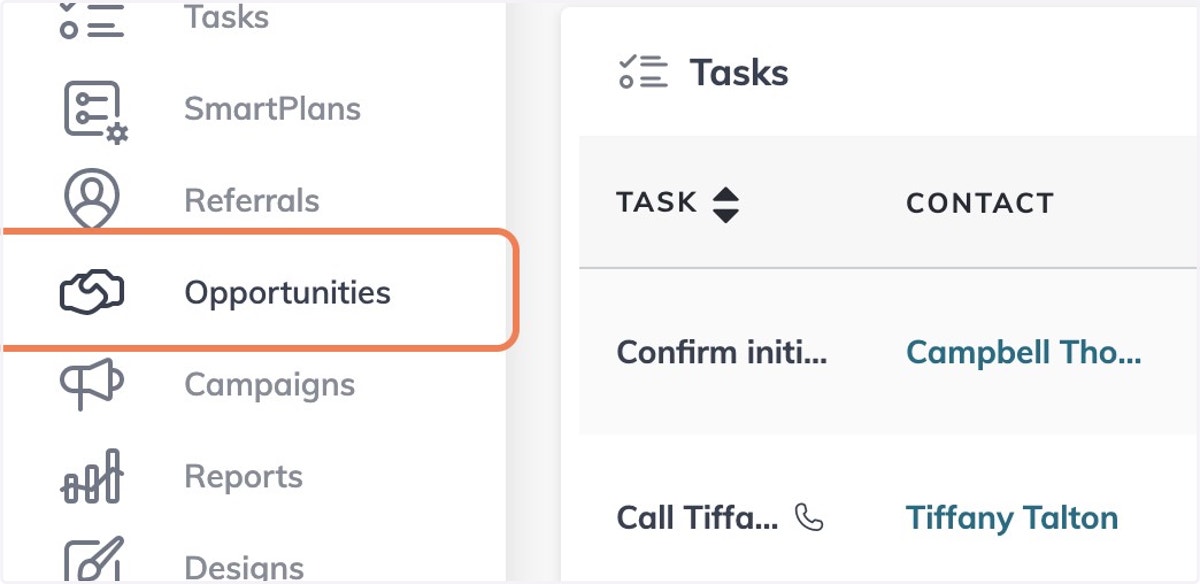
2. Click on Opportunities
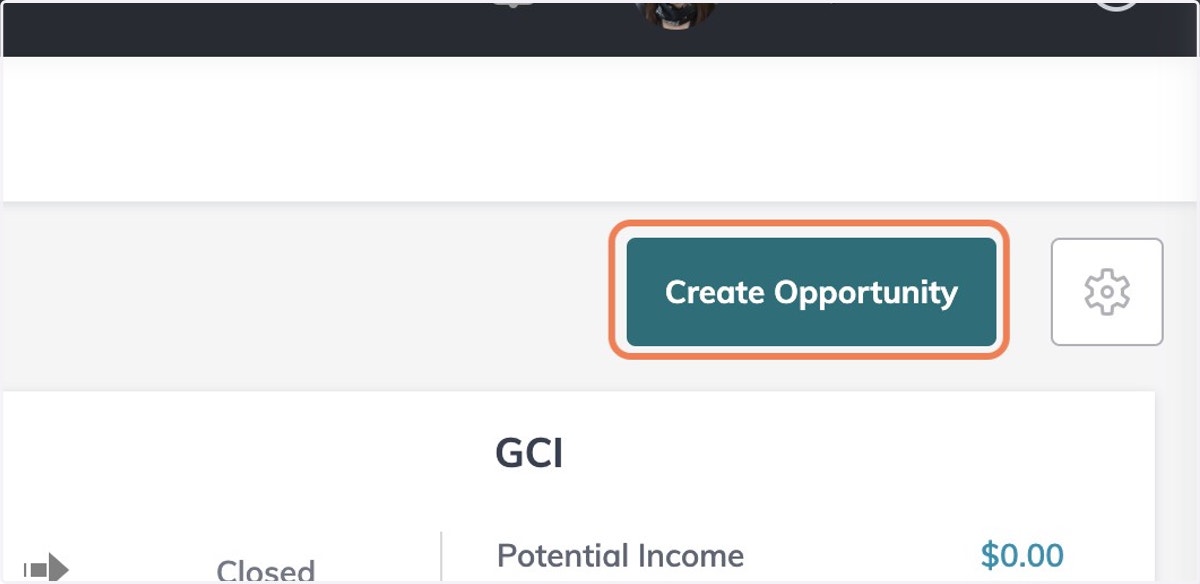
3. Click on Create Opportunity in the Top-Right Corner
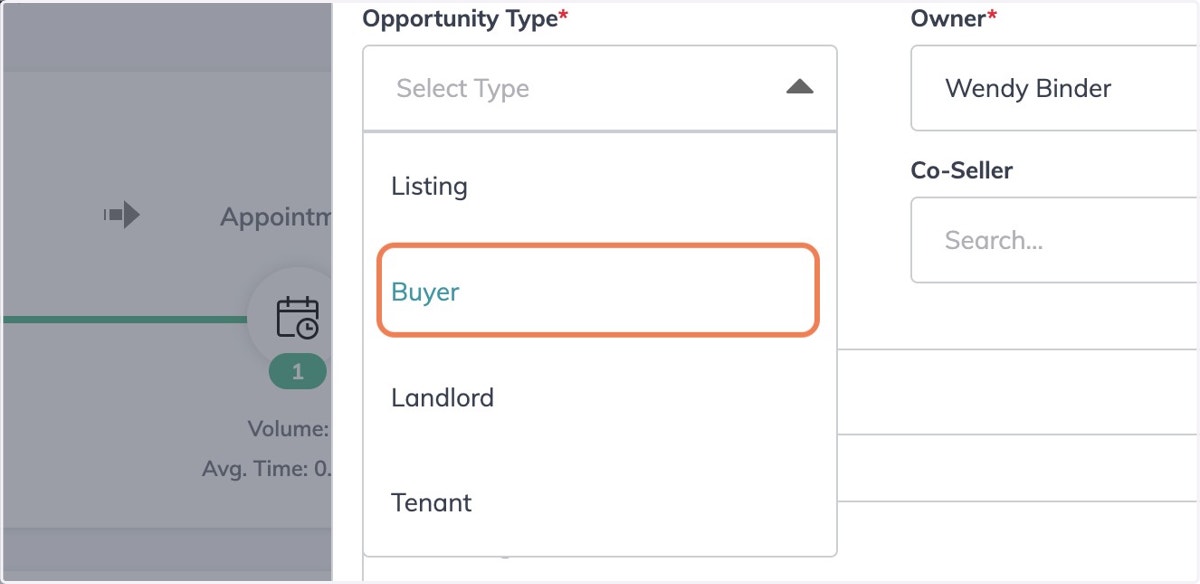
4. Select Opportunity Type
5. Enter Client Name
Client must already be in your database.
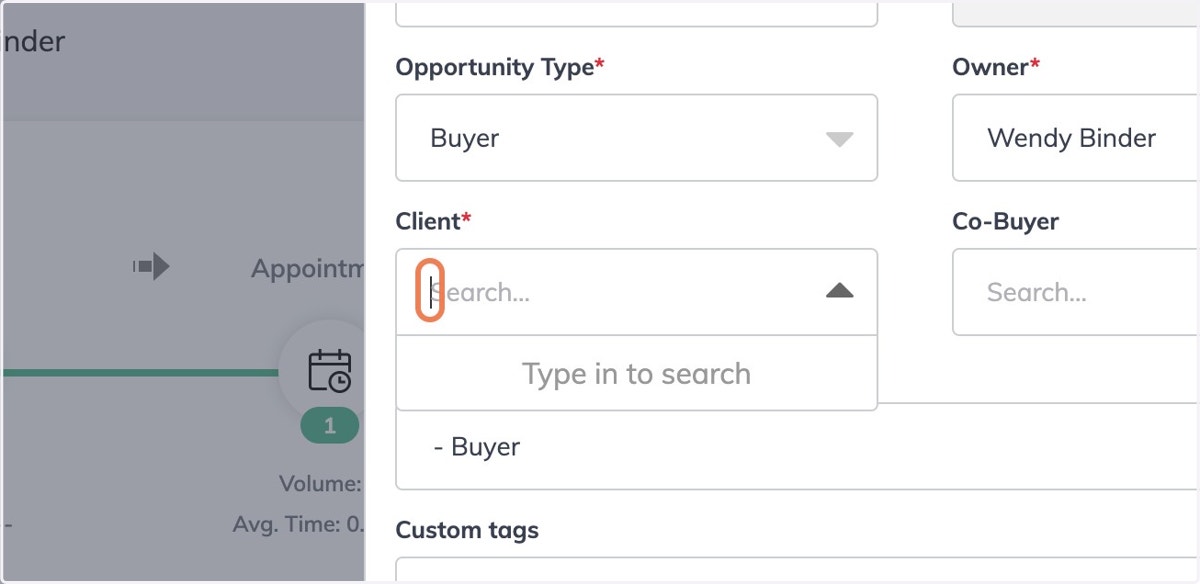
6. Select Client
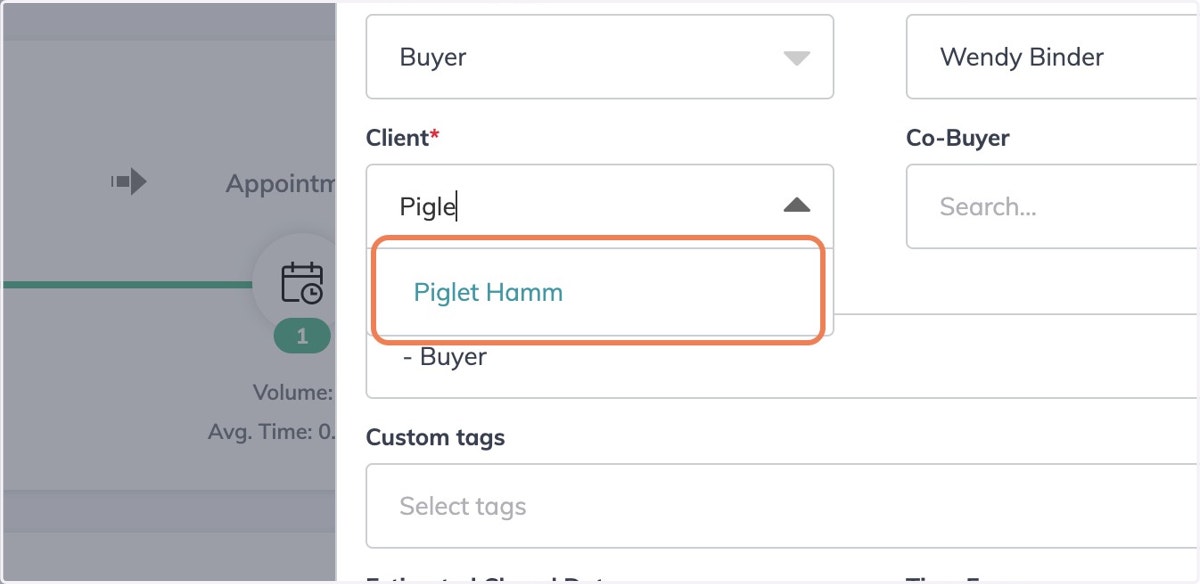
7. Name the Opportunity
Opportunity name should include client name, transaction type, and property address.
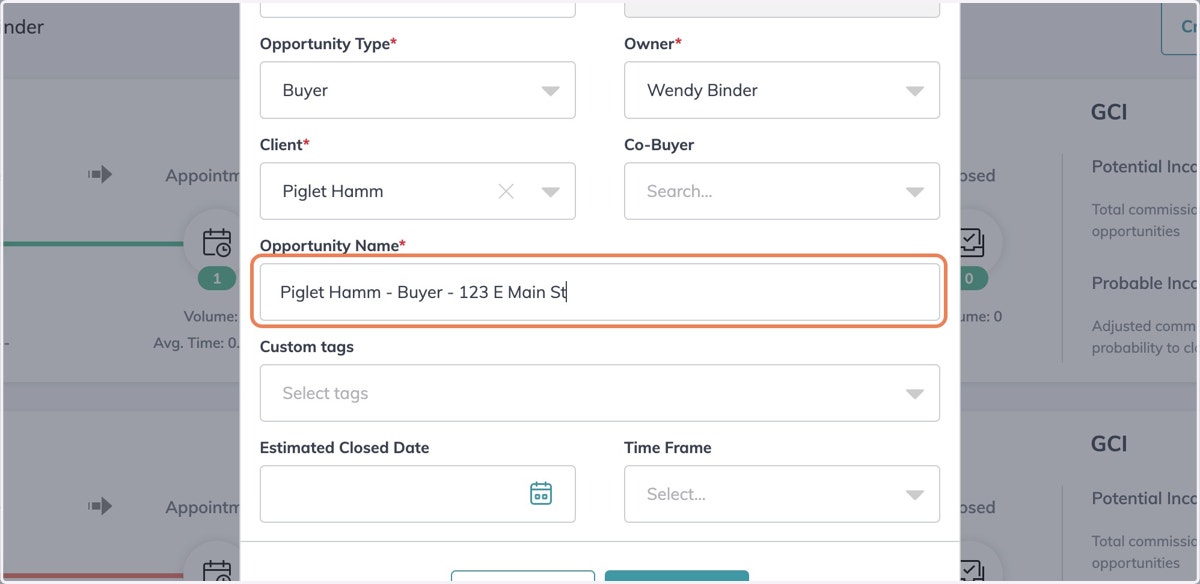
8. Fill out all Fields
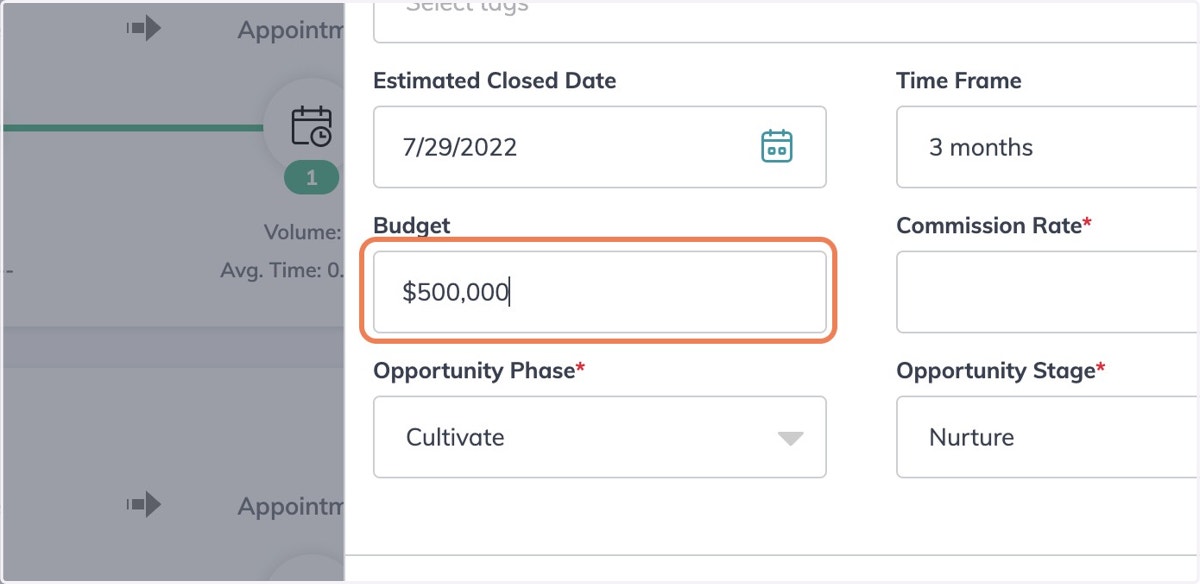
9. Assign Opportunity Phase and Stage
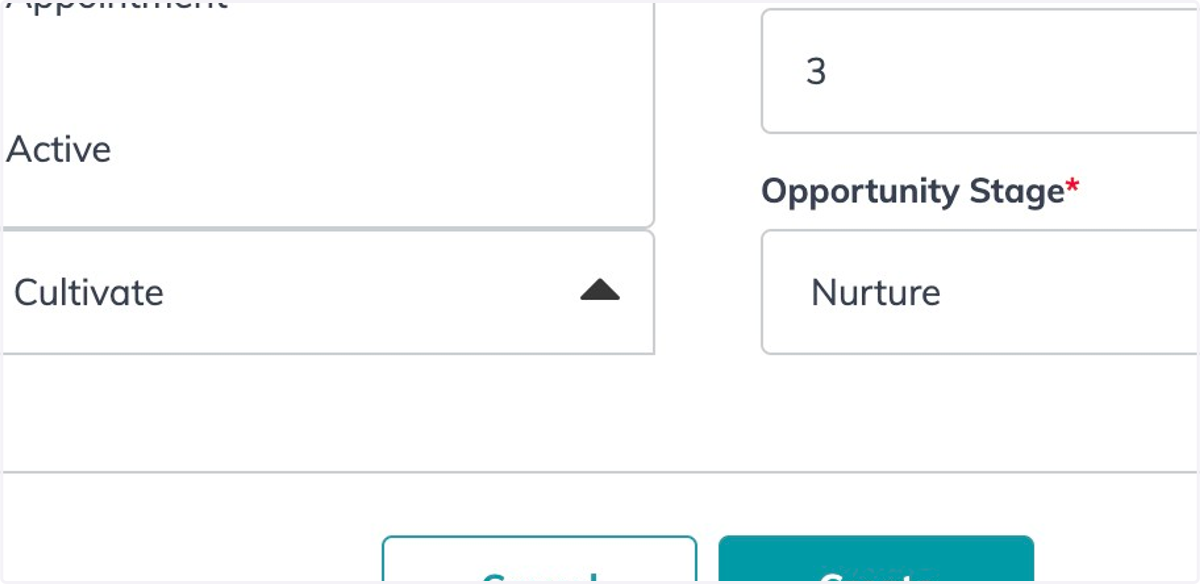
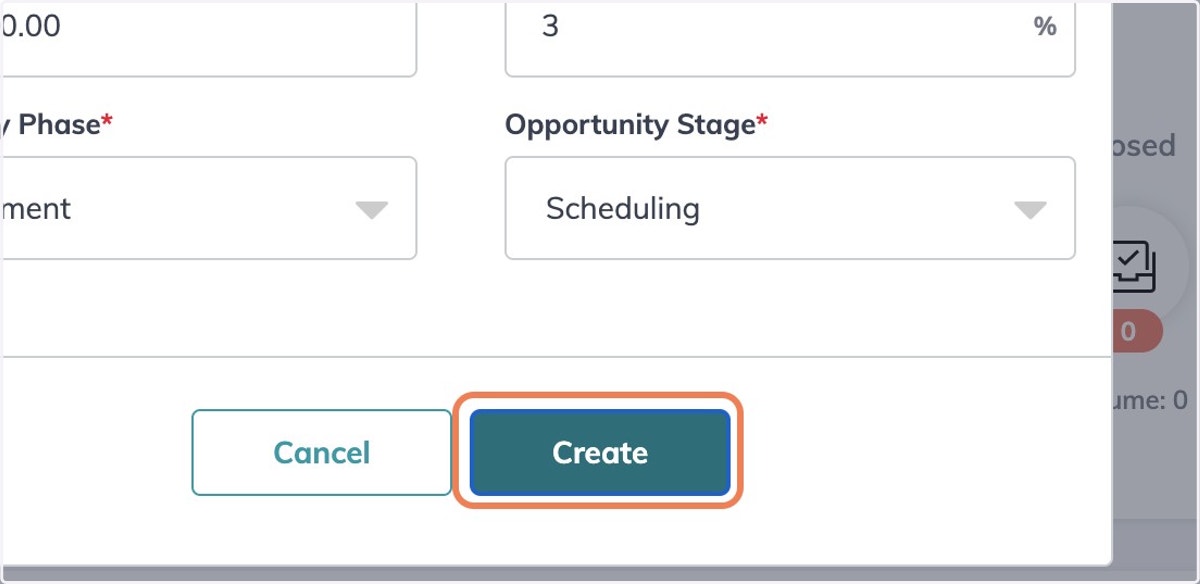
10. Click on Create
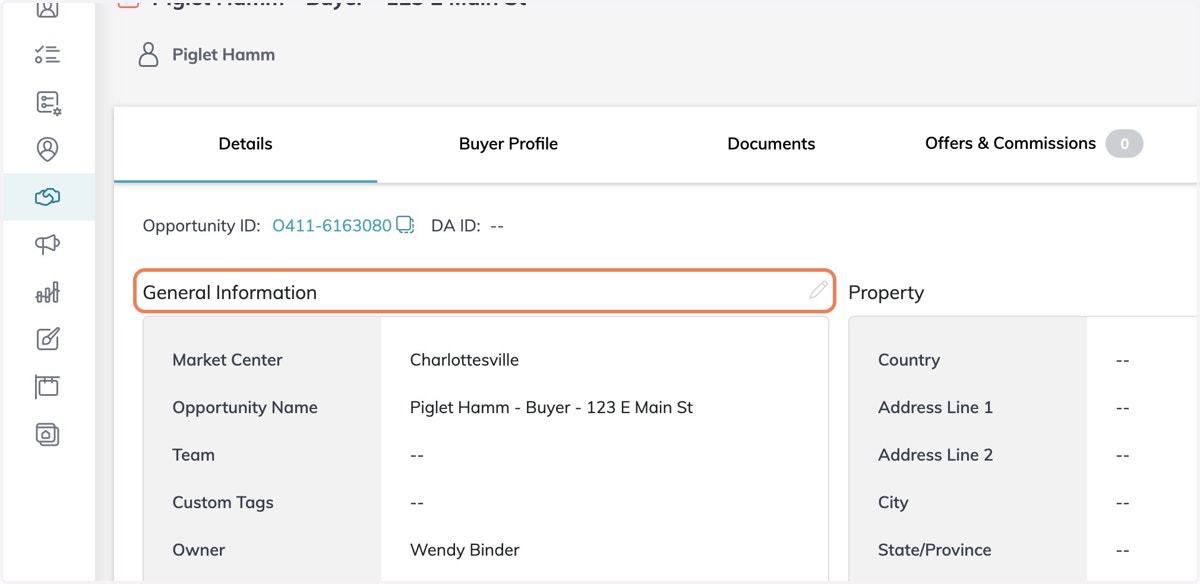
11. Within the Created Opportunities Details - Click on Edit General Information
Kw
12. Fill in all applicable fields
Appointment Scheduled, Appointment Date, and Agreement Won all directly tie into your conversion rates
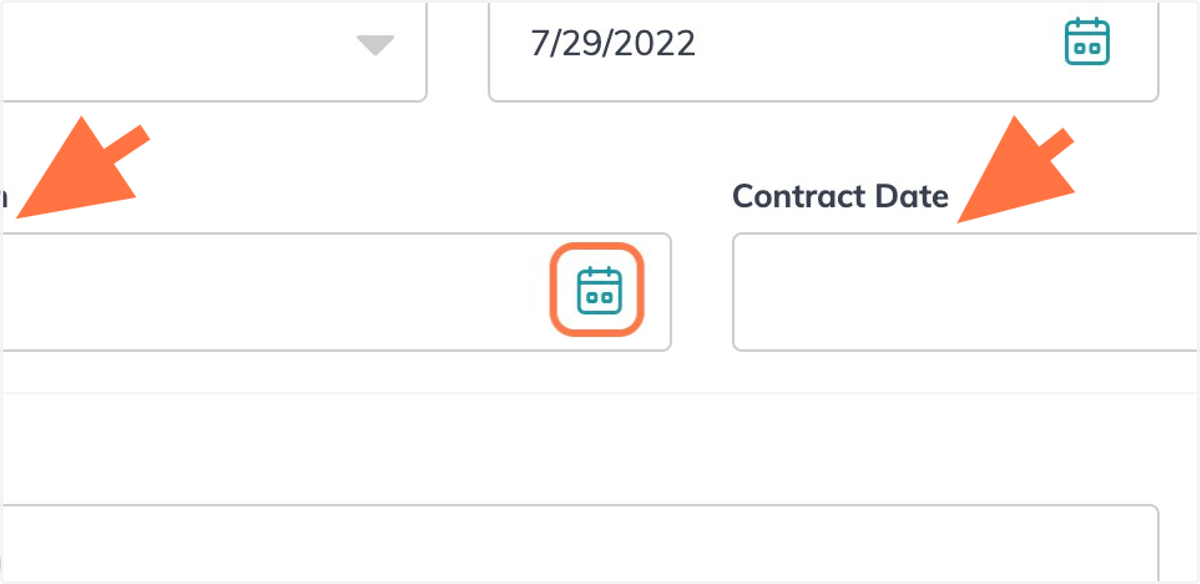
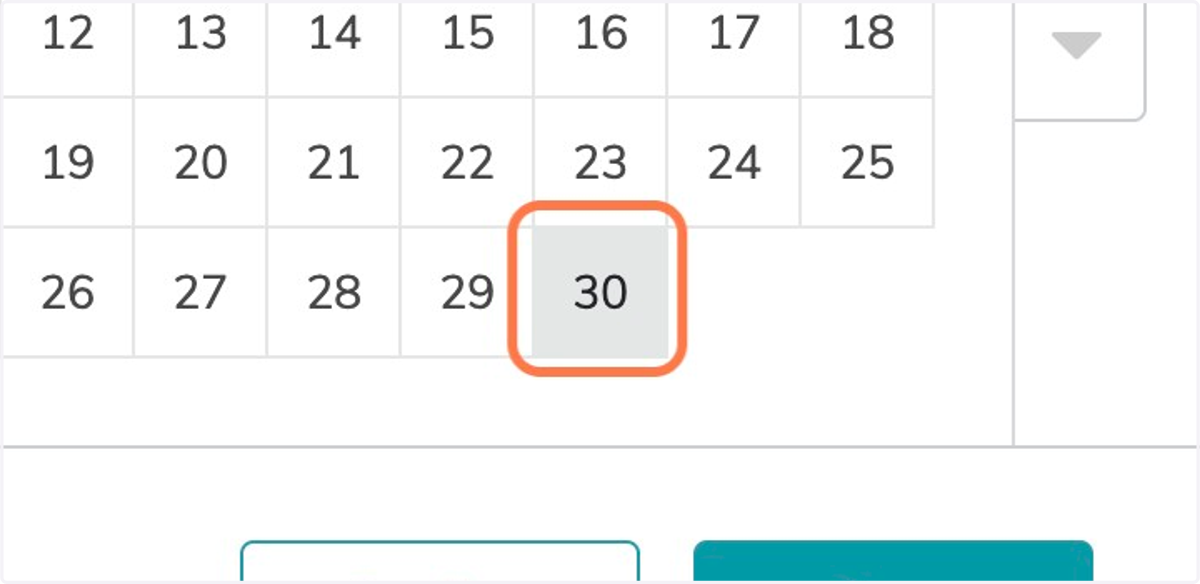
13. Fill in Contract Date and Closed Date when applicable
Depending on when you create the opportunity, this step may come later in the transaction
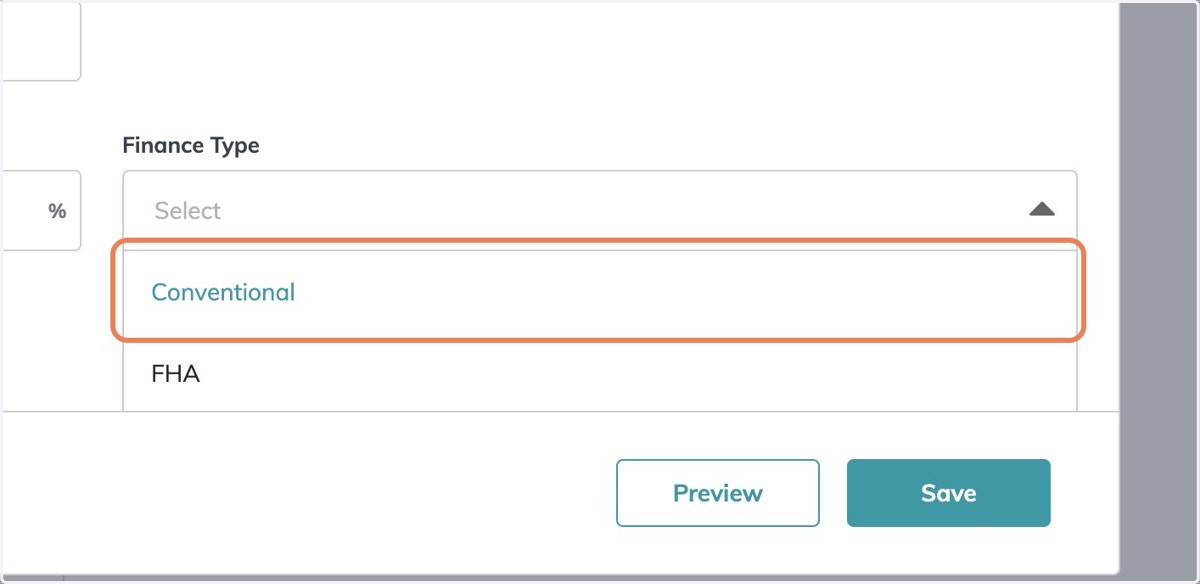
14. Select Finance Type
Depending on when you create the opportunity, this step may come later in the transaction
15. Click on Save
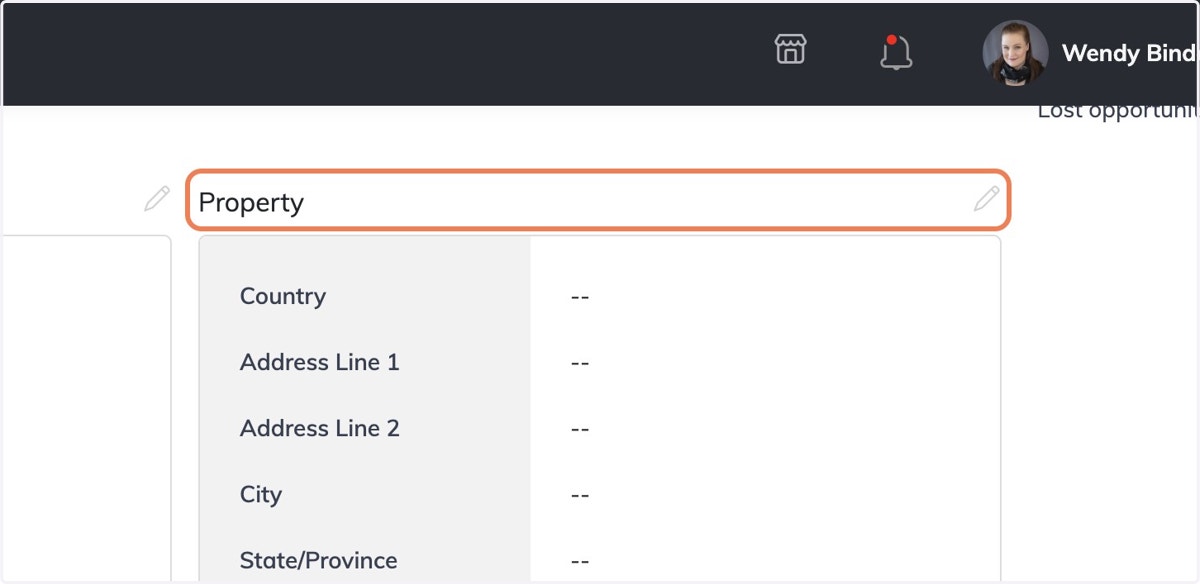
16. Click on Edit Property
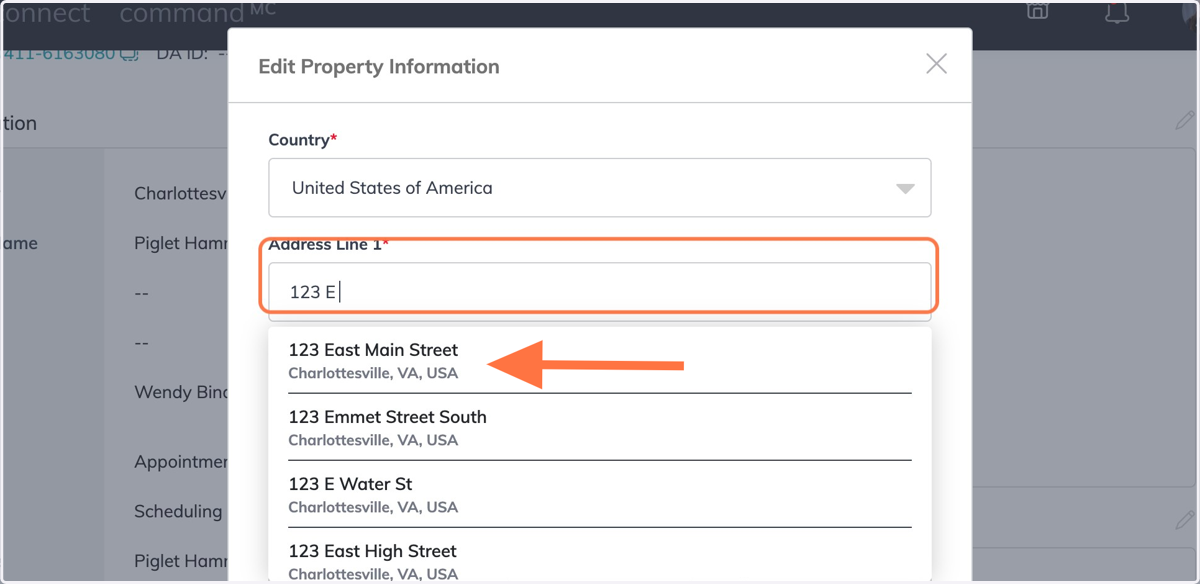
17. As you type in the property address it will auto-populate below the field. Choose the address from the dropdown
18. Click on Save