How to Create a WhatsApp Carousel Message in Affinect
This guide shows you how to create engaging WhatsApp carousel message templates in Affinect. Carousel messages allow you to showcase multiple offers, products, or experiences within a single message—each with its own media, content, and call-to-action—helping you drive higher engagement and conversions.
Affinect
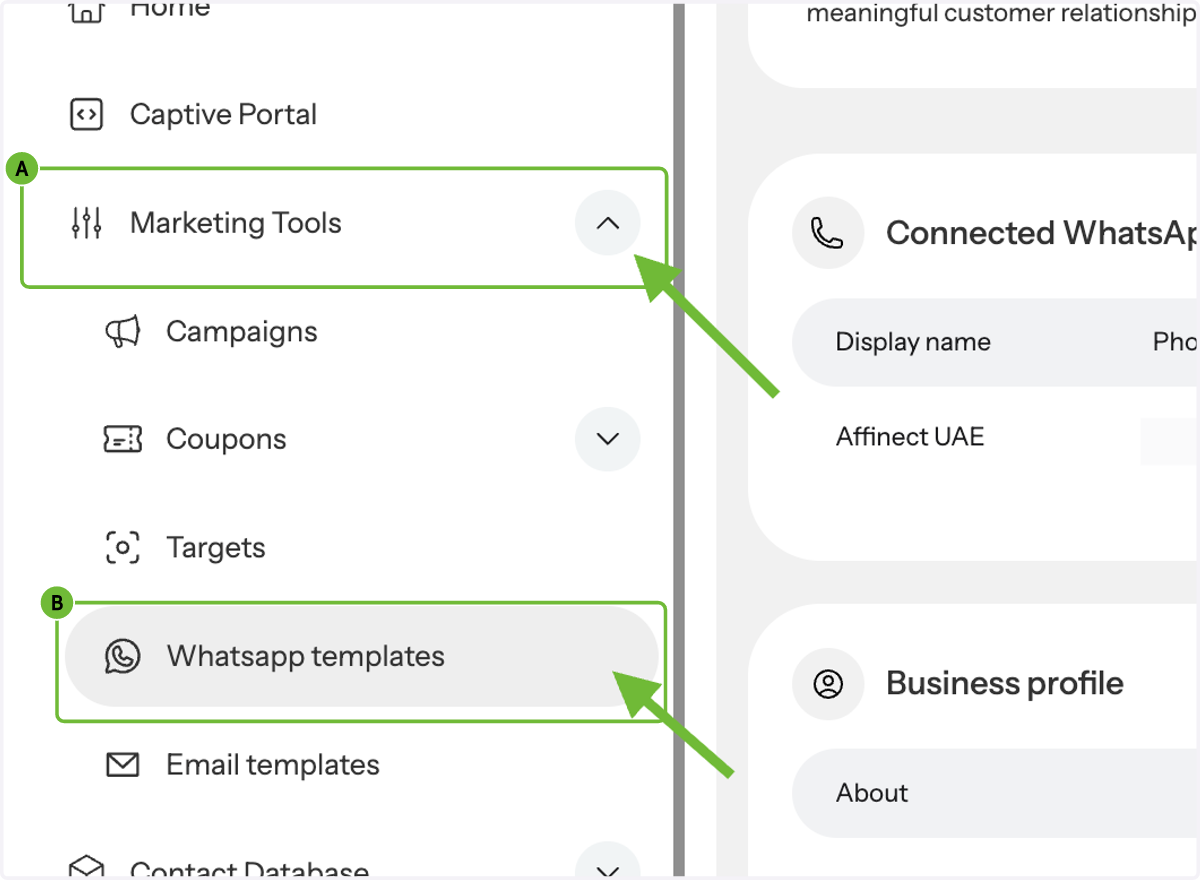
1. A. Navigate to Marketing Tools
1. B. Click on WhatsApp templates
Go to Marketing Tools and select WhatsApp Templates.
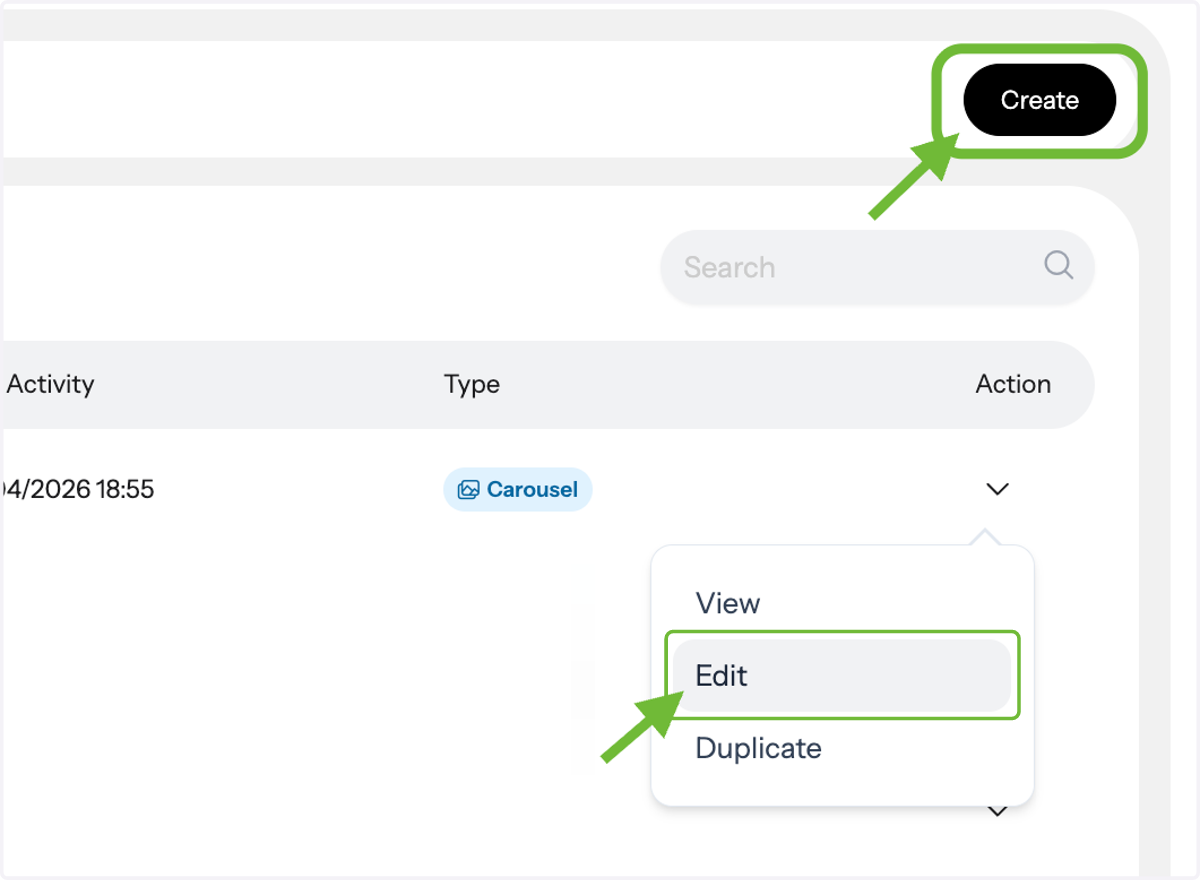
2. Create or Edit a Template
Click Edit to modify an existing draft or create a new template.
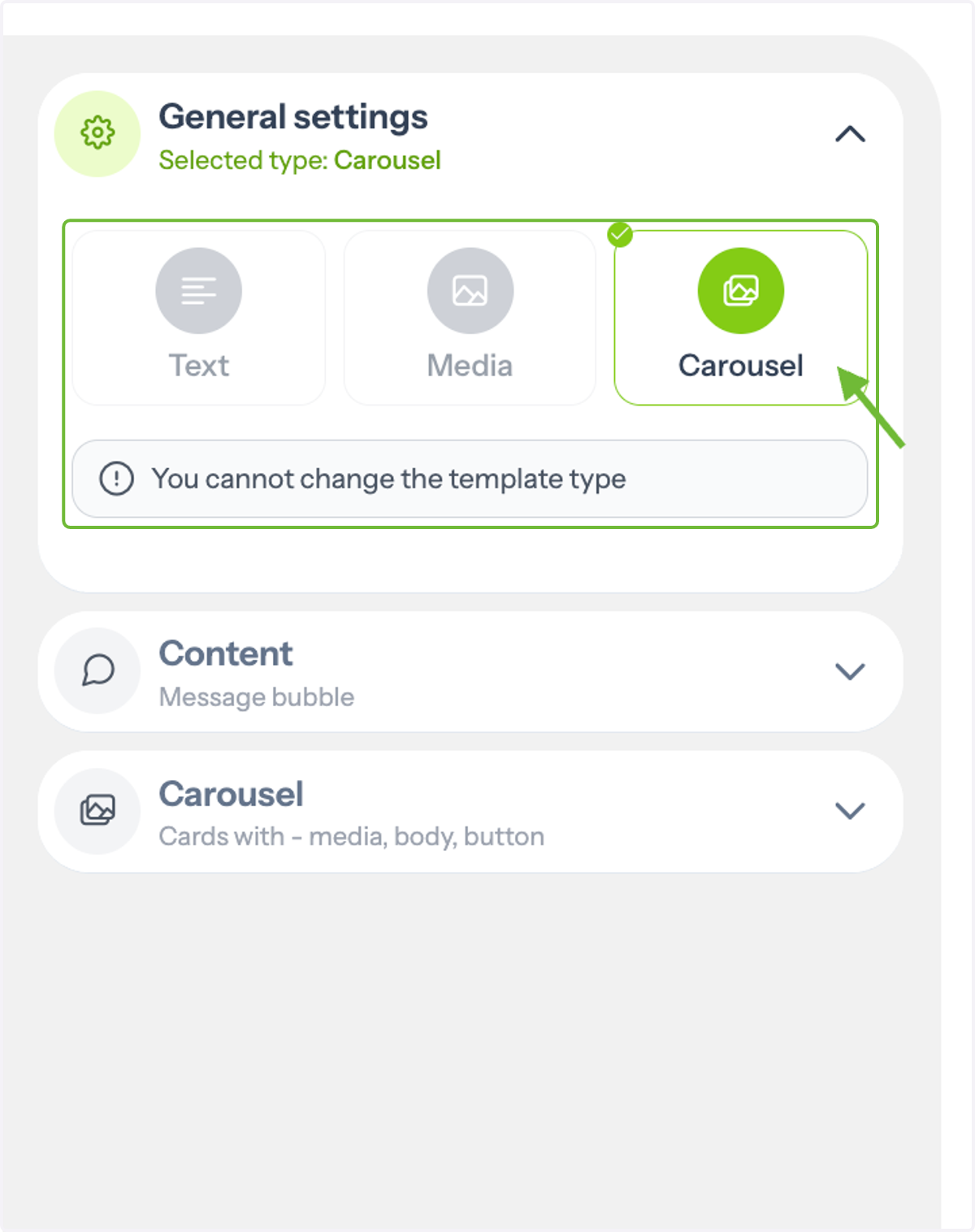
3. Choose Carousel Format
Select Carousel as your template type.
4. Add the Main Message
Write the message that will appear above the carousel.
You can enhance it using:Text formatting styles
Emojis
Personalization variables
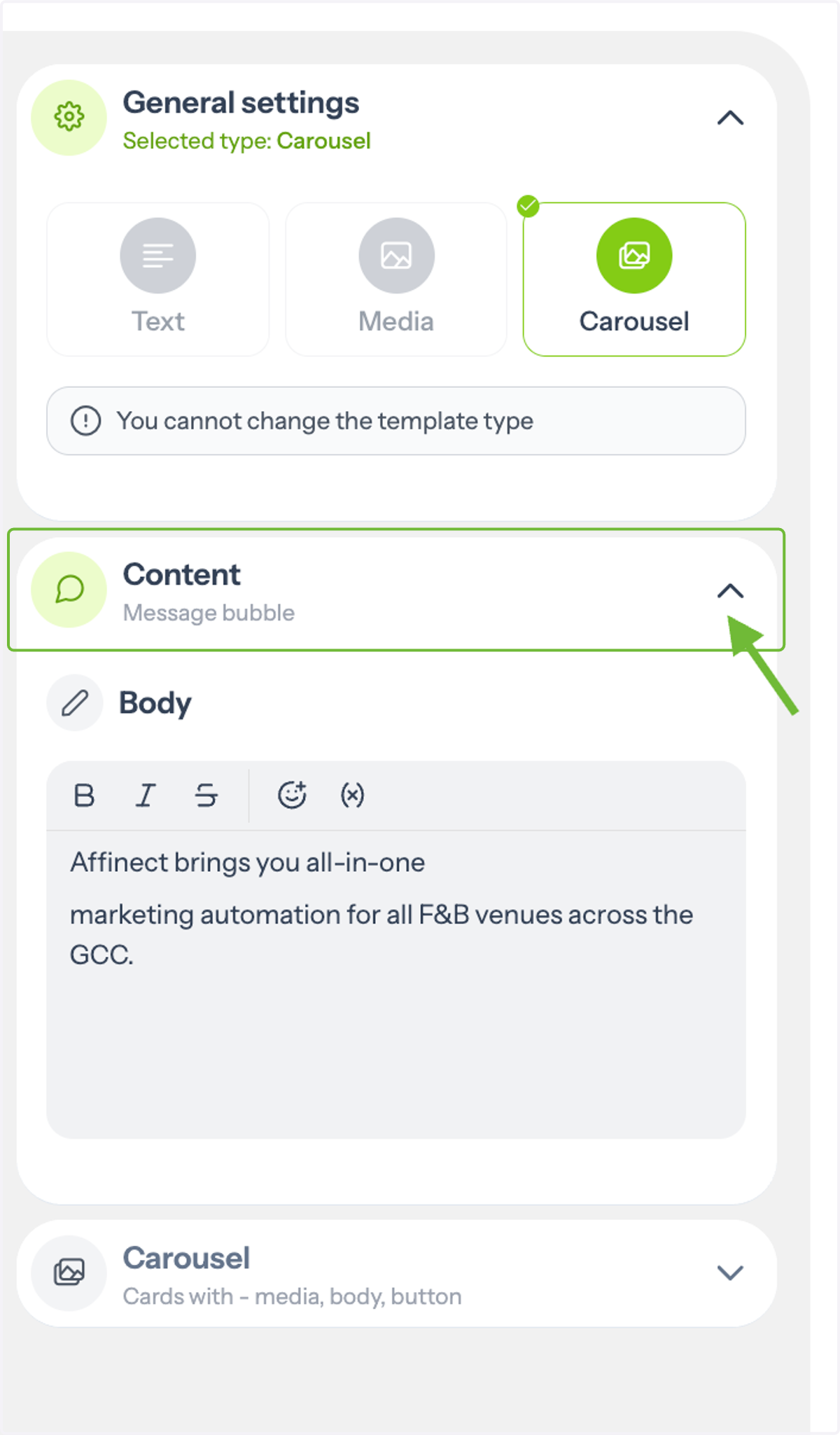
5. Add Carousel Cards
Click on Carousel to start building your cards.
You can add up to 2 cards, each with its own media, content, and buttons.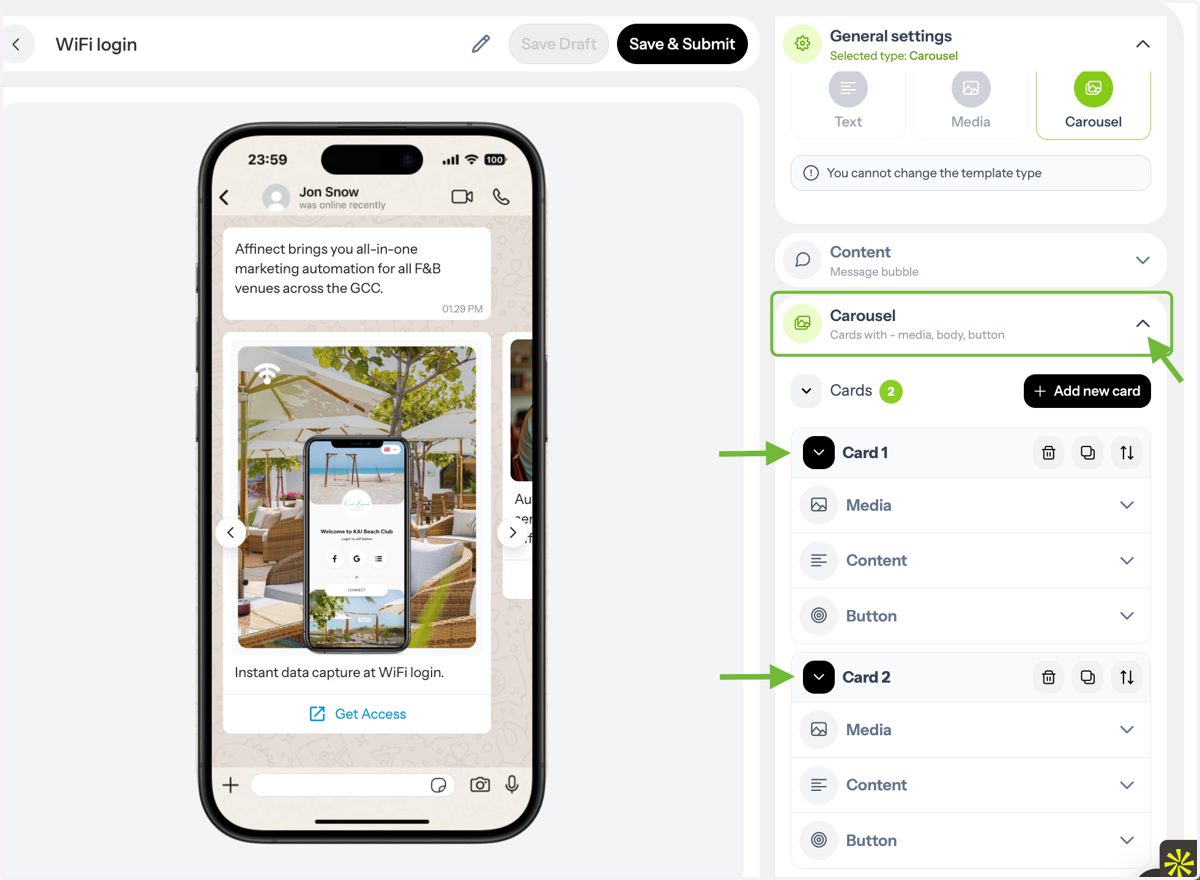
6. Upload Media
Click Media to add visuals to each card. You can choose from:
Images
Videos
GIFs
Documents
Upload directly or paste a URL.
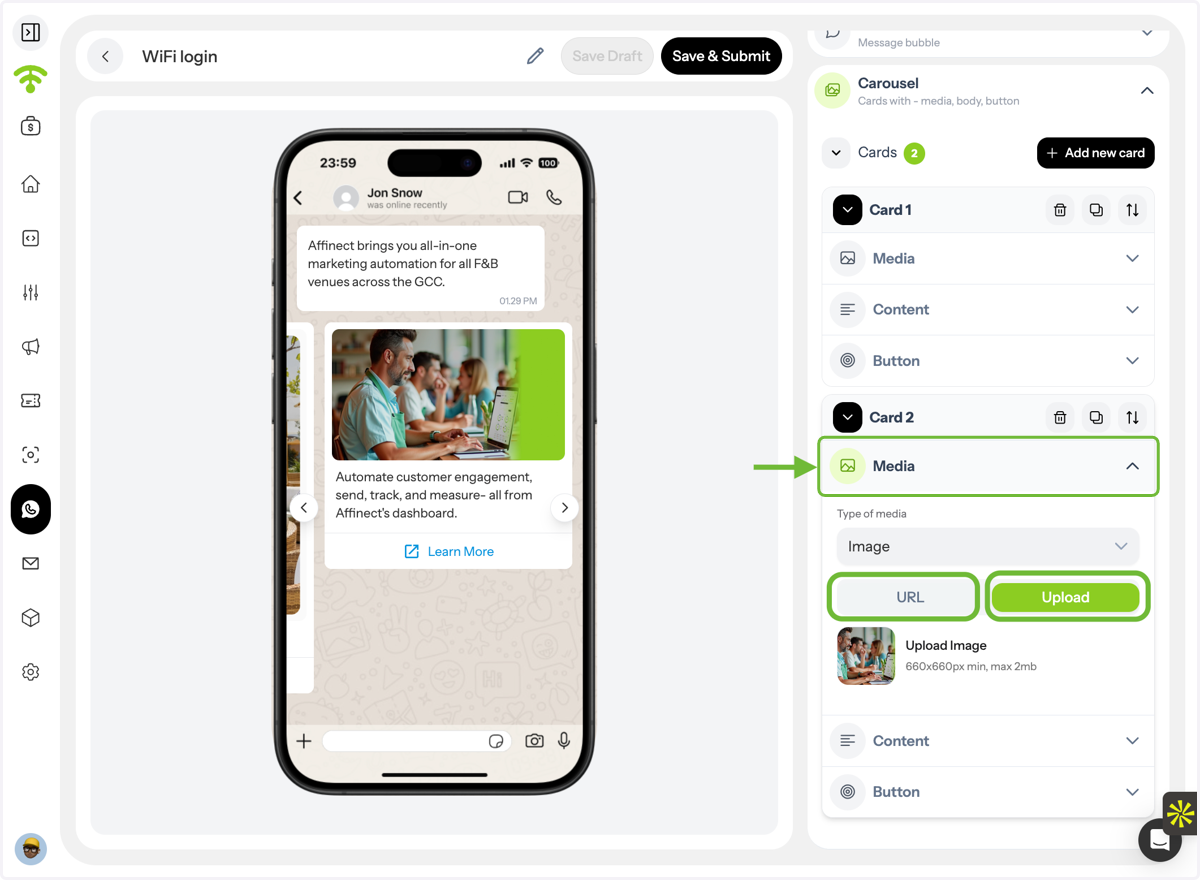
7. Add Card Content
Click Content to write the text that appears below the media in each card.
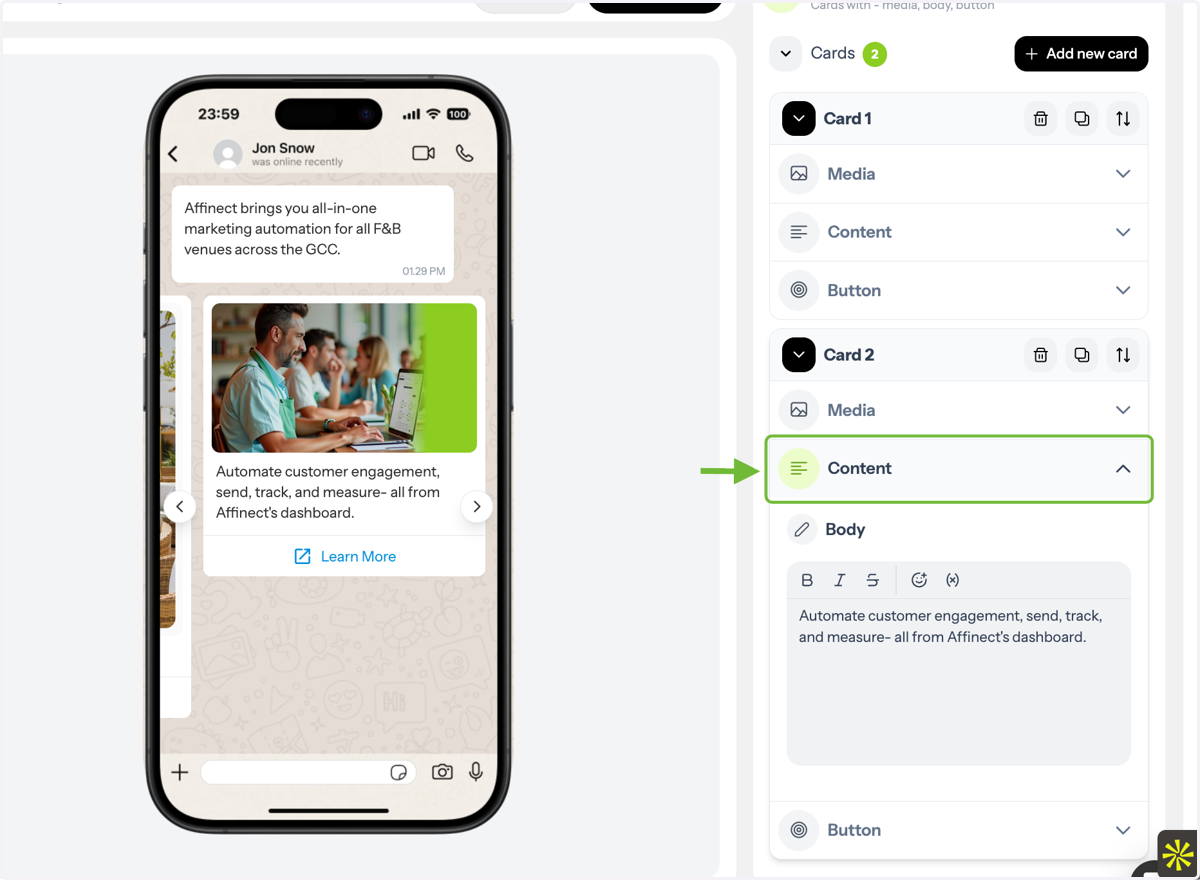
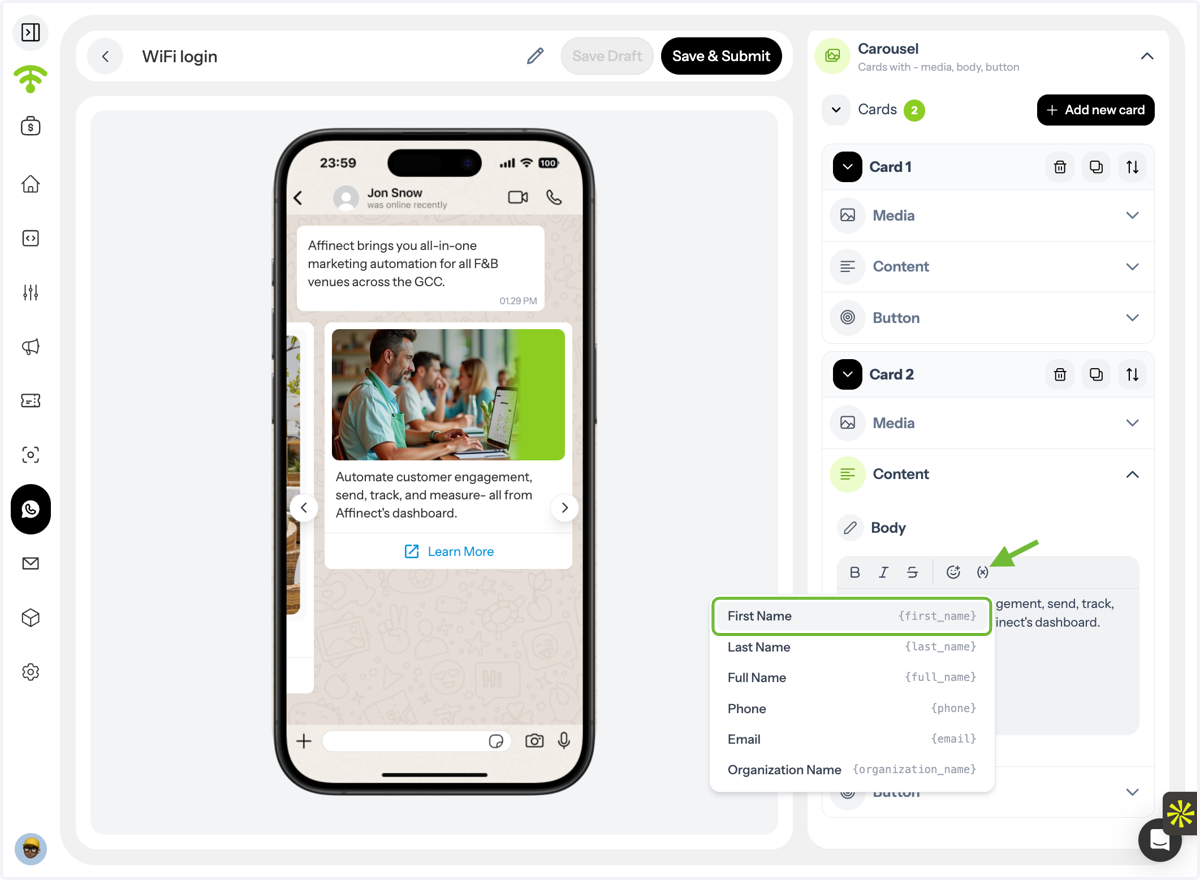
8. Personalize Your Message
Use variables to tailor messages for each recipient, such as:
First name / Last name / Full name
Phone number
Email
Organization name
9. Add Buttons (Call-to-Action)
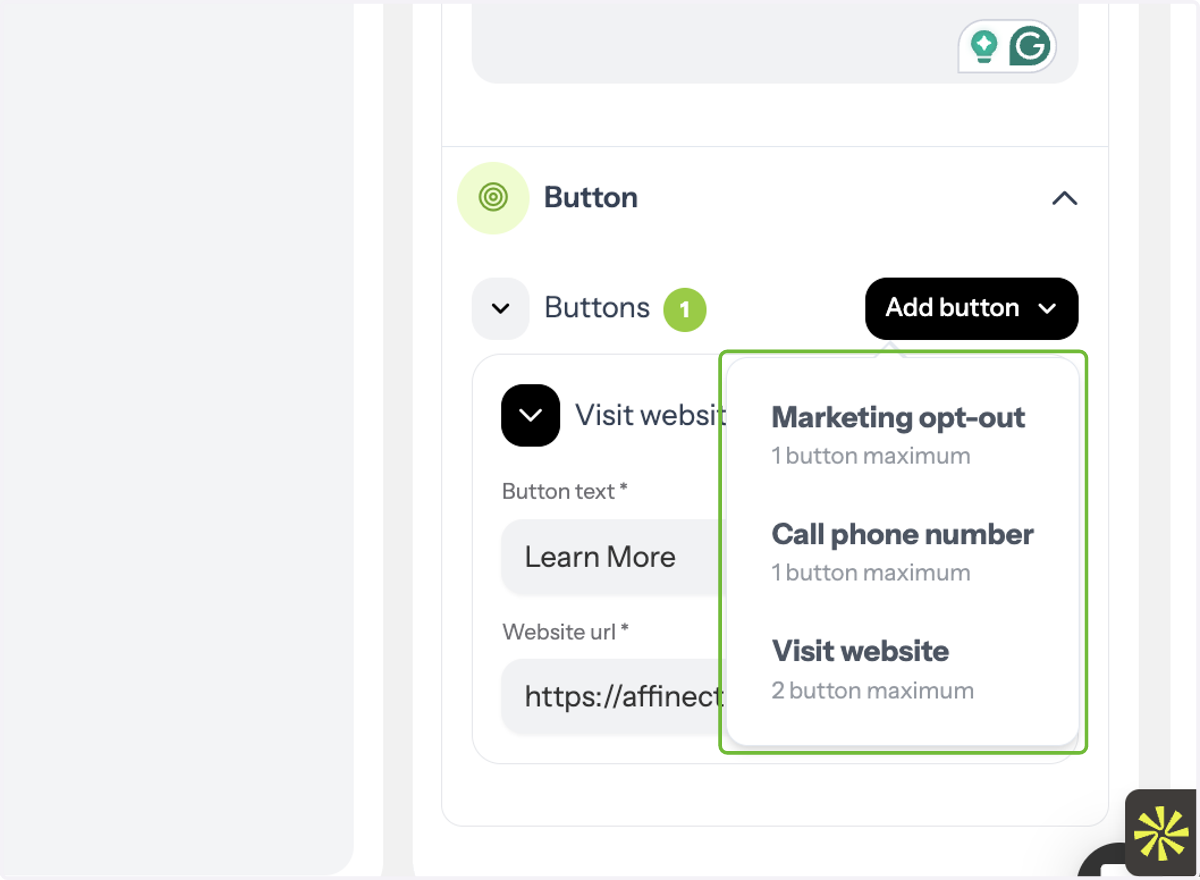
Each card can include two types of buttons:
Phone number (click-to-call)
Website (redirect link)
10. Include Opt-Out Option
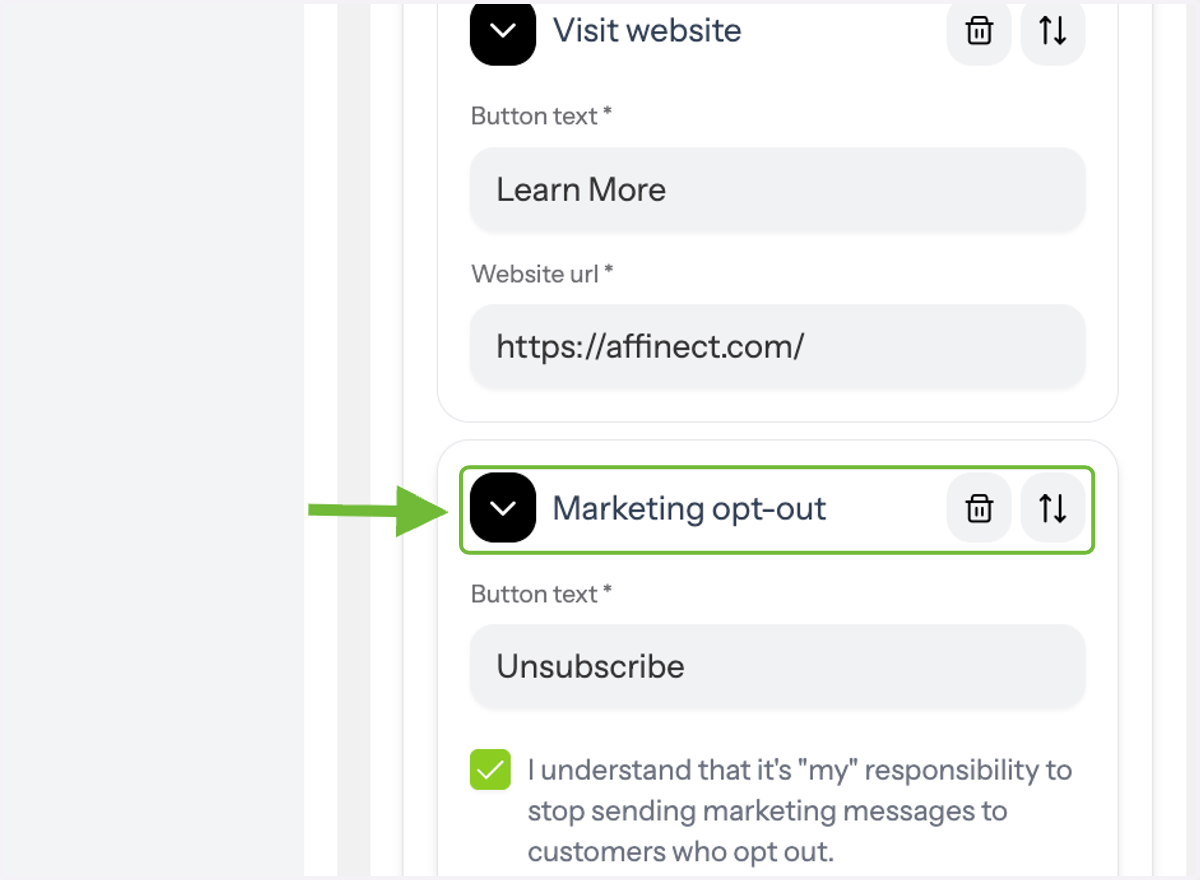
A marketing opt-out button is mandatory for all WhatsApp messages to ensure compliance.
11. Submit for Approval
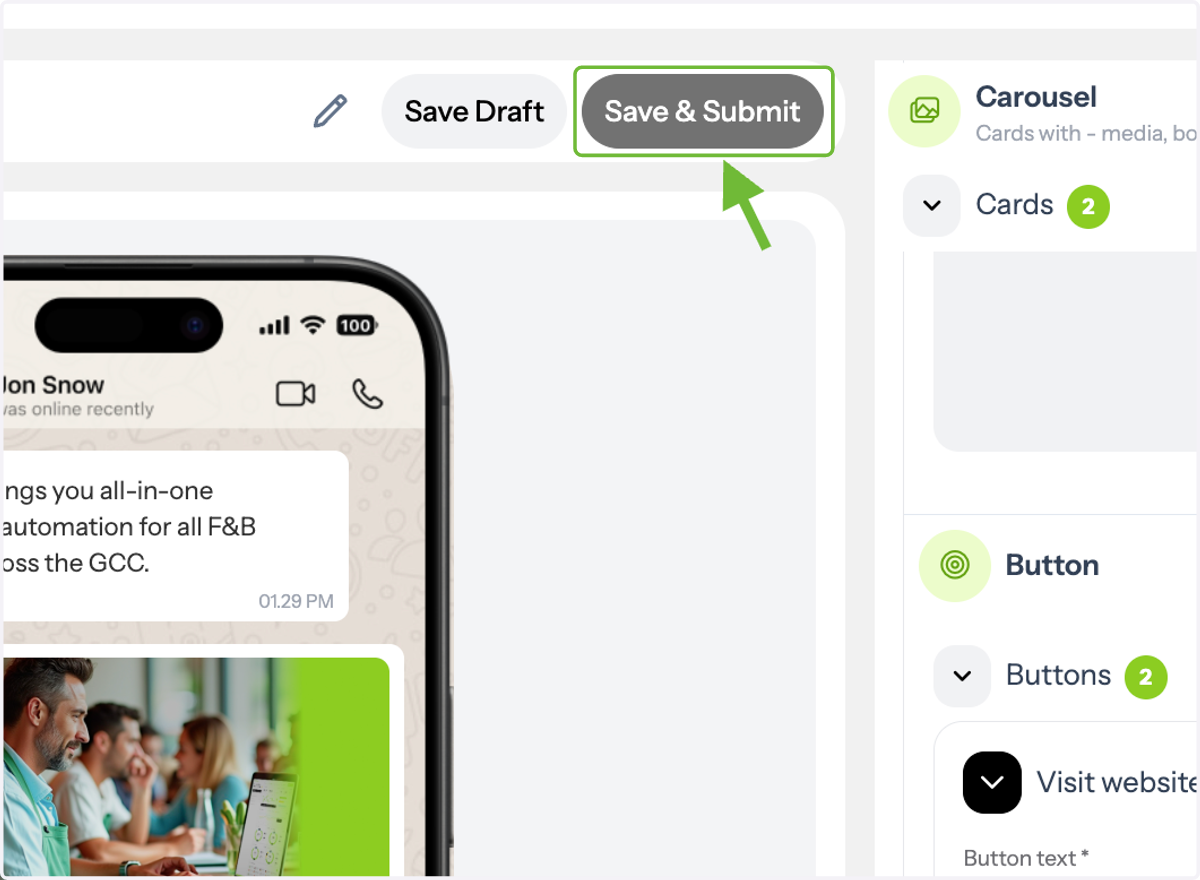
Click Save & Submit to send your template to Meta for review.
12. Track Approval Status
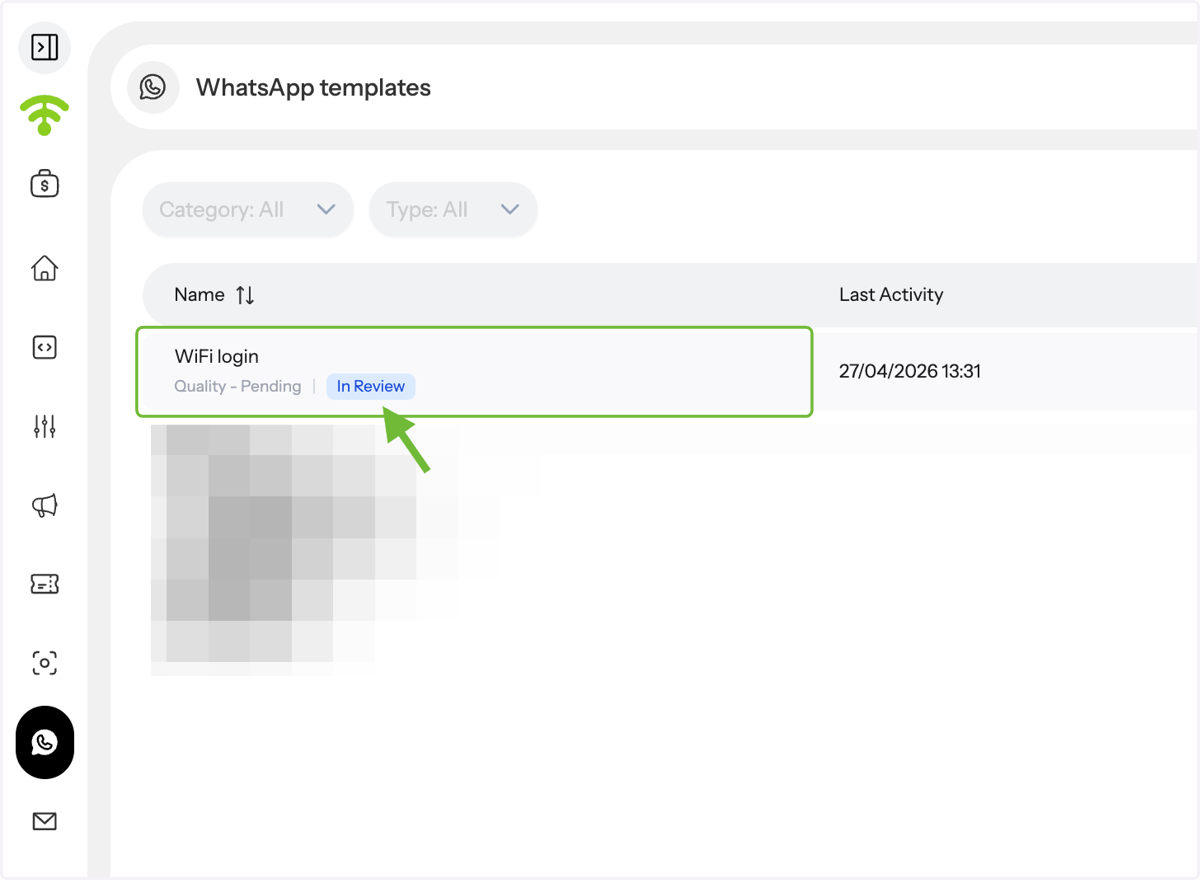
In the WhatsApp Templates list, your template will appear as In Review.
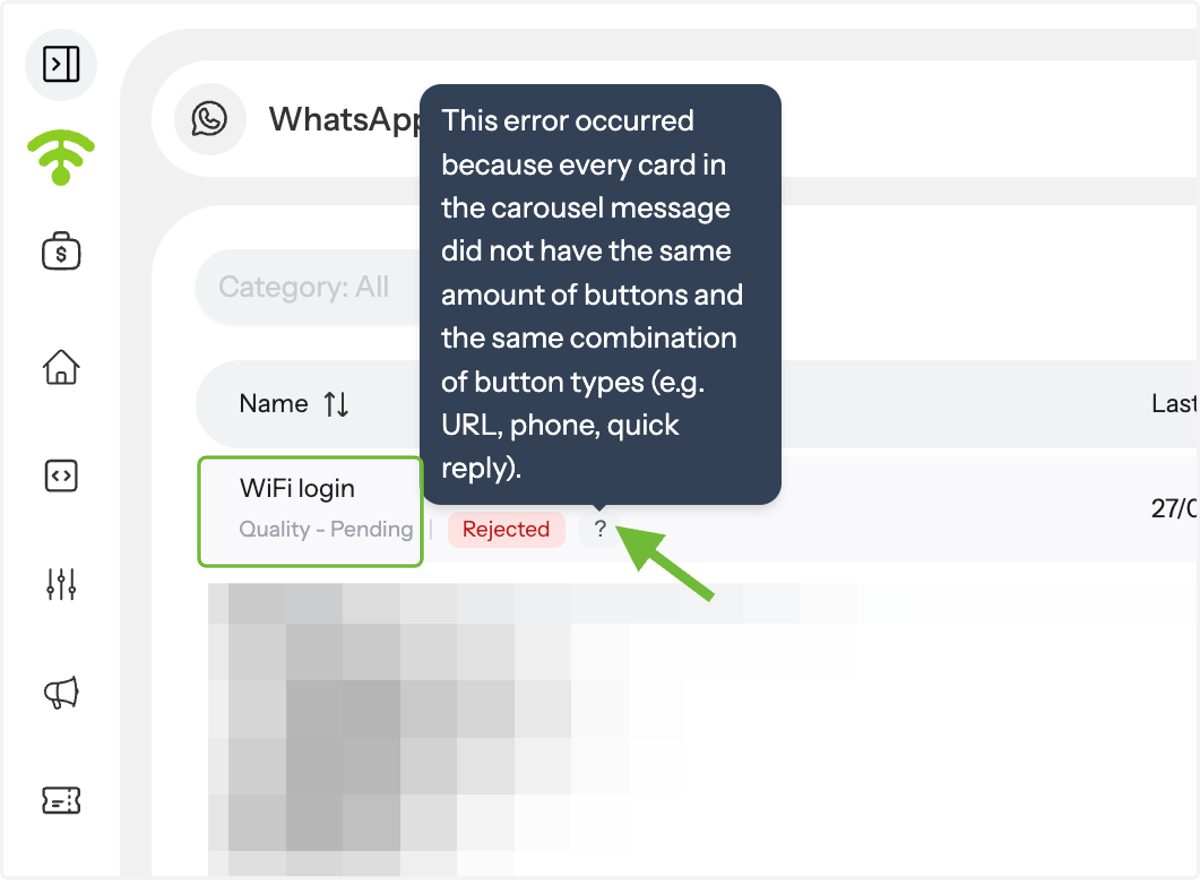
13. Handle Rejections (If Any)
If rejected:
Check that all carousel cards have the same number and type of buttons
Fix any issues and resubmit for approval